Articles / Fixesupdated for DaVinci Resolve 21.1 (October 2026)
DaVinci Resolve 21 Proxies Still Lag Multicam? Fix It
Quick answer
If DaVinci Resolve 21 proxies still lag in multicam, set Playback > Proxy Handling > Prefer Proxies and confirm each source has a linked, online proxy. Test one angle, then the multicam grid with effects bypassed. If only the grid lags, reduce visible angles; if effects cause it, cache that section. Proxies cannot fix CPU, GPU, storage, or viewer bottlenecks.
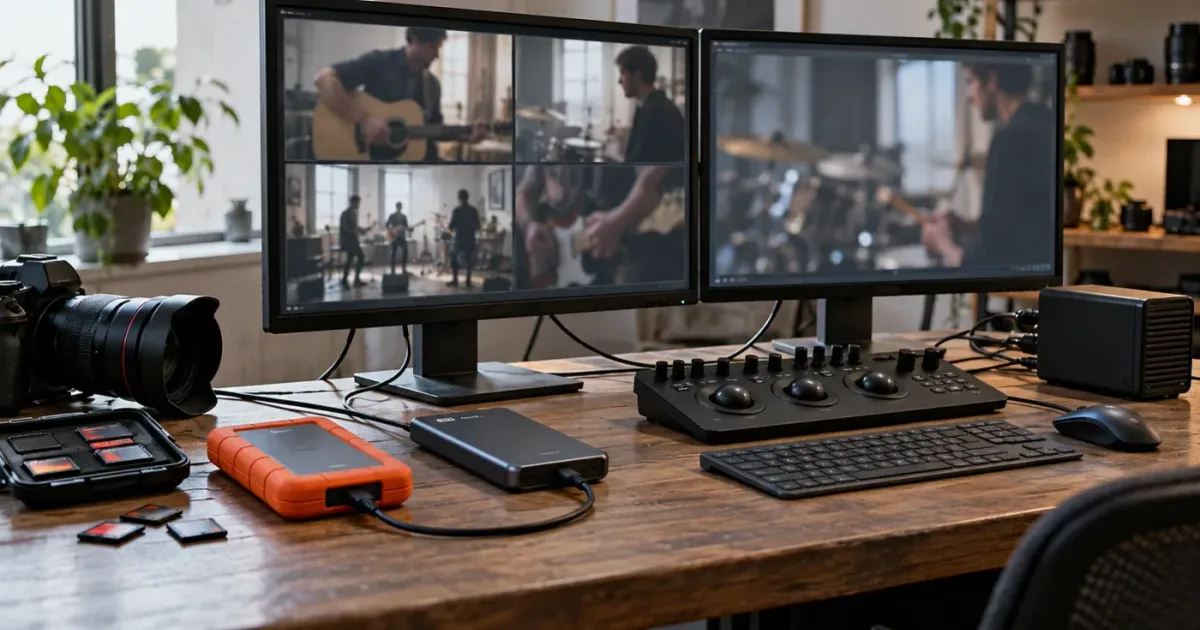
If the proxy icon is there but the multicam viewer still stutters, don't make another batch of proxies yet. I’d first prove which media Resolve is reading, then separate the cost of decoding several angles from the cost of effects and storage. We’ve spent more than seven years editing commercial video and answering workflow questions in a 100,000+ member editing community; this is a recurring kind of stuck point because “proxy” can mean several different controls in Resolve.
As of October 2026, the current documented Resolve line is 21.1. The quick test is simple: select Playback > Proxy Handling > Prefer Proxies, check that each camera original has a linked, online proxy, and play one angle before testing the multicam clip. If the single clip is smooth but the multicam viewer is not, focus on the number of angles Resolve must show, the proxy codec and storage, and effects applied above the multicam clip.
Why do DaVinci Resolve 21 proxies still lag in a multicam timeline?
DaVinci Resolve 21 proxies still lag in a multicam timeline when proxy media is not active, when the linked files do not reduce decoding cost enough, or when the remaining work is limited by effects, storage, the GPU, the CPU, or the viewer. A proxy makes one part of playback cheaper; it does not make every part of a multicam project free.
That distinction matters because the timeline can show a camera icon or proxy badge and still play poorly. A badge can tell you that a proxy is linked. It does not prove that the current playback mode prefers that proxy, that the proxy is local and readable, or that the proxy codec is easy for your computer to decode. Nor does it show how much work Resolve is doing after decoding the footage.
Resolve has several similarly named performance tools. Proxy Media creates separate media files that Resolve can link to camera originals. Timeline Proxy Resolution reduces the timeline's working resolution while you edit. Optimized Media is generated and managed inside the project database. Render Cache stores processed frames for work that remains expensive after source footage is decoded. Blackmagic's guide draws these distinctions directly: Proxy Media is portable, Optimized Media is internally managed, Timeline Proxy Mode changes resolution on the fly, and cache is intended for computationally expensive effects. Blackmagic's proxy guide describes the trade-offs.
The multicam viewer adds another layer. When you watch a grid of camera angles, the computer must decode and display multiple streams at once. When you play the selected angle in a normal single-view timeline, Resolve may need to show only one. If that single-view test works but the angle grid does not, your proxy workflow may be functioning while the multiview load is still too high.
A linked proxy is not proof that Resolve is playing that proxy.
Resolve 21.1 added multicam-related changes, including a new choice to include all audio tracks for all angles and an option to use full clip extents when creating or syncing a multicam clip. Those features can alter project complexity or media organization, but they are not proxy switches. The 21 New Features Guide describes these as multicam creation and match-frame changes, not a general promise that multicam playback will be faster. Blackmagic's Resolve 21 guide is the version-specific reference.
Casey Faris, a Resolve educator, gives a useful plain-language definition in his proxy tutorial: “If you don't know what a proxy is, it's basically taking this footage and converting it to a smaller file.” Faris's published tutorial transcript continues by explaining why the smaller copy can be easier for Resolve to play. The key word is can. The workflow only helps if Resolve reads the copy and the rest of the system can handle the multicam work.
When you diagnose the issue, write down the playback mode, the proxy status, the number of angles shown, and whether the timeline has effects. Change one condition at a time. A one-variable test will tell you more than repeatedly lowering quality, deleting caches, changing project settings, and restarting Resolve all at once.

How do I confirm Resolve 21 is actually using my proxies?
To confirm Resolve 21 is using proxy files, set Playback > Proxy Handling > Prefer Proxies, then verify the source clips have linked proxies and compare playback with Prefer Camera Originals. Resolve's proxy-handling menu chooses which available media to prefer; it is separate from Timeline Proxy Resolution, which lowers the working resolution of the timeline.
Start with the Media Pool, not the multicam viewer. Select a camera original and inspect whether Resolve reports a proxy as linked. If no proxy is linked, the app cannot use it, even if a proxy file with a similar name exists somewhere on a drive. If a proxy is offline, relink it before testing performance. Resolve needs a valid relationship between the original and the proxy file.
Then inspect the menu. In Resolve 21's current interface, Playback > Proxy Handling offers choices such as Prefer Proxies, Prefer Camera Originals, and Disable All Proxies. Menu wording can shift slightly between releases, so use the control labeled Proxy Handling rather than relying on an older tutorial that says “Use Proxy Media” or points to the old Proxy Mode menu. Blackmagic's support site lists the Resolve 21 and 21.1 manuals for the current release family. The official support page is the right place to check current documentation and release notes.
Now compare the same clip in both modes. If performance changes substantially when you switch to Prefer Camera Originals, Resolve was using a different media path between the two tests. If nothing changes, that does not prove that proxy mode is broken. The proxy and original may have similar decode cost, the proxy may not be linked, the clip may be cached, or the bottleneck may be downstream of decoding.
Use this checklist:
- In the Media Pool, select one camera original and confirm its proxy is linked and online.
- Set Playback > Proxy Handling > Prefer Proxies.
- Open that source clip in the viewer and play a short section.
- Switch to Prefer Camera Originals and repeat the same section.
- Return to Prefer Proxies before judging multicam performance.
Don't mistake the Proxy Handling setting for Timeline Proxy Resolution. The first chooses between available proxy media and camera originals. The second reduces the resolution Resolve uses for timeline processing. Blackmagic's documentation has historically named these functions differently because they solve different problems; its proxy media guide explicitly distinguishes the file-based workflow from Timeline Proxy Mode. The official guide remains useful for that conceptual distinction even though the current interface is Resolve 21.1.
If the menu says Prefer Proxies but the source viewer still looks identical, don't infer too much from image quality. Many proxies preserve the source frame size or use high-quality codecs. Check the proxy status and actual file path. If needed, use the Media Pool columns or clip metadata to confirm the linked file, and temporarily rename or disconnect a copy only if you can safely restore it. Never move or delete the only media copy as a diagnostic shortcut.
There is one more trap: Disable All Proxies means Resolve avoids proxy files, not that it lowers playback resolution. If that option is selected, lowering Timeline Proxy Resolution may still make playback look softer but the source file may remain the one being decoded. Set both controls deliberately when testing: Prefer Proxies for media selection, and a lower timeline proxy resolution for processing load.
Why are the multicam angles lagging when one proxy plays smoothly?
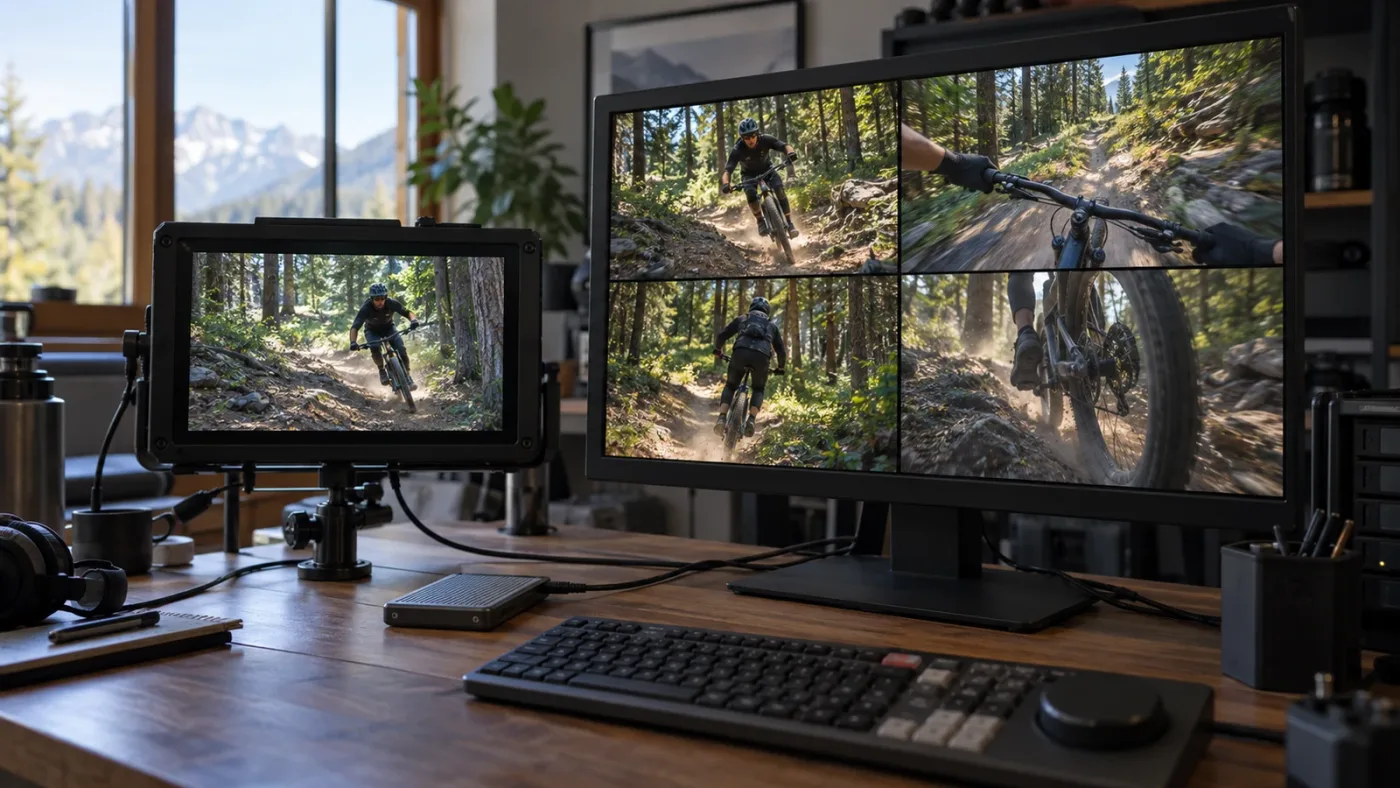
When a single proxy plays smoothly but the multicam angle viewer stutters, Resolve is likely spending more time decoding or displaying multiple active angles, or processing the multicam timeline's effects and audio. Test the multicam clip in a single-view mode before concluding the proxies failed.
A multicam clip and its angle viewer are not the same workload. In the angle viewer, several streams may be visible simultaneously so you can choose a camera. In a normal timeline view, you may see only the active output. The number of camera sources matters because proxies must be decoded for the views Resolve displays. A quarter-resolution file can still be demanding if it uses a decode-heavy format or if several angles are active at once.
Try a small controlled comparison. Open a source clip and play it. Then play the multicam clip with the angle grid visible. Finally, hide the angle grid or switch the viewer to show the selected output and play the same passage again. If the normal output plays well while the grid stutters, the multiview presentation is the more likely bottleneck. If both stutter at the same point, inspect the timeline, codec, storage, and effects too.
Resolve 21.1 introduces Multicam Timeline Viewer Mode, which changes how you can use the timeline viewer with multicam work. It affects viewing and editing behavior, not whether proxy files are linked or preferred. The sibling guide on Resolve 21.1 Multicam Timeline Viewer Mode explains that specific mode. Do not expect a viewer-mode change to convert camera originals into proxies.
The angle count can also conceal a workload mismatch. A four-camera interview and a multicam sequence with a dozen rolling cameras are both “multicam,” but they ask different things of the computer. Count the angles that must be visible, not just the number of clips in the timeline. A multicam clip with many angles may still decode them as the viewer changes or displays them, depending on the selected mode and current work. Treat the exact behavior as a version- and setup-specific test, not a fixed performance promise.
Reduce the view to one or two angles for a test. If playback improves, keep the full grid closed during rough assembly and reopen it for camera selection. That is a practical workload reduction, not a media fix. If the viewer must show every angle continuously, generate smaller proxies and test a codec that your platform decodes efficiently. If none of those steps helps, the bottleneck may be elsewhere.
Audio can complicate the test. Resolve 21 adds an option to include all audio tracks from every angle when creating a multicam clip. That may be useful for isolating microphones or maintaining separate recordings, but it can increase the number of tracks available in the multicam source. If your project uses this option, compare audio behavior with video-only playback and confirm that you need every angle's audio enabled during editing. The feature is documented in the Resolve 21 New Features Guide; it should not be described as a playback acceleration setting.
If only the angle grid stutters, the proxy may be fine and the viewer may be overloaded.

What proxy resolution and codec should I choose for multicam?
For multicam, begin with Half or Quarter proxy resolution and choose an edit-friendly codec that your operating system and hardware can decode well. Lower resolution reduces pixel work, while codec choice affects compression, file size, and decode effort; neither setting can compensate for proxies that Resolve does not use.
DaVinci Resolve's proxy settings are configured in Project Settings under the media or proxy section. Blackmagic's proxy workflow guide describes generated proxy sizes including Half, Quarter, Eighth, and Sixteenth, as well as automatic selection based on timeline dimensions. The supported choices can vary by version and platform, so check the current 21.1 manual when the exact label or option differs. Blackmagic's proxy documentation explains how resolution and format are selected.
For a 4K original, a Half-resolution proxy is roughly 2K in each dimension; a Quarter setting in Resolve's scale naming refers to a quarter of the original width and height, approximately 1080p for a 4K source. The pixel count falls by more than a simple half when both dimensions shrink. Don't assume the resulting file size falls in the same proportion because codec, noise, frame rate, bit depth, and image complexity also affect storage.
| Setting choice | When to test it | What it can help | What it cannot fix |
|---|---|---|---|
| Half resolution | You need a readable preview and modest relief | Reduces decoded image dimensions | Offline proxies, effects overload, slow storage |
| Quarter resolution | Multicam remains heavy and sharp preview is not needed | Reduces image dimensions further | CPU-heavy long-GOP decoding or a full angle grid by itself |
| Eighth or Sixteenth | Large originals and rough assembly where detail is not important | Smaller proxy frames and lower pixel load | A bad link, unsupported media, or timeline effect cost |
| ProRes Proxy or DNxHR LB | A system handles intraframe editing codecs well | Often a practical edit-friendly test format | Every hardware-specific decoding limit |
| H.264 or H.265 | Small files and transfer size matter | Smaller files and broad delivery compatibility | Decode efficiency on every computer, especially many simultaneous streams |
The table is a test plan, not a universal ranking. Blackmagic's guide names ProRes and DNxHR varieties alongside H.264 and H.265 as proxy format choices, and explains that the choice depends on bandwidth and quality trade-offs. The best test format for a Mac with hardware ProRes support may not be the best choice for a Windows laptop with a different GPU or codec support. Use the options available in your edition and system, then compare the same timeline passage.
For a multicam edit, a moderate-size intraframe proxy can be easier to scrub than a highly compressed long-GOP proxy, but it will often take more disk space. H.264 and H.265 can make a small proxy folder, but compressed formats may be more expensive to decode repeatedly across several angles. That is why “smaller file” and “faster editing” are not synonyms. Test two formats at the same resolution, with the same clips and viewer mode, before converting a whole project.
If your originals are already an edit-friendly codec and the timeline plays smoothly with a single angle, don't generate proxies just because the camera files are high resolution. First identify whether the stutter begins when you enable the angle grid, add a grade, add noise reduction, or play from a network location. You may need cache or a different viewer mode, not another generation pass.
If proxy generation has already completed, avoid regenerating every camera file to test one format. Create a small test project or generate a few representative clips, including the most demanding camera source. Include clips with different frame rates, resolutions, chroma sampling, bit depth, and compression if they appear in your production. A proxy that improves one angle may not make every source equally easy to play.
Choose resolution based on the monitor and task. If you're choosing camera angles and timing, a lower-resolution proxy may be enough. If you're judging focus, fine texture, or a subtle exposure difference during the multicam edit, switch temporarily to the originals or a higher-resolution proxy before deciding. Proxy playback is an editing aid; it isn't a final quality check.
How do I tell whether storage or codec decoding is the bottleneck?
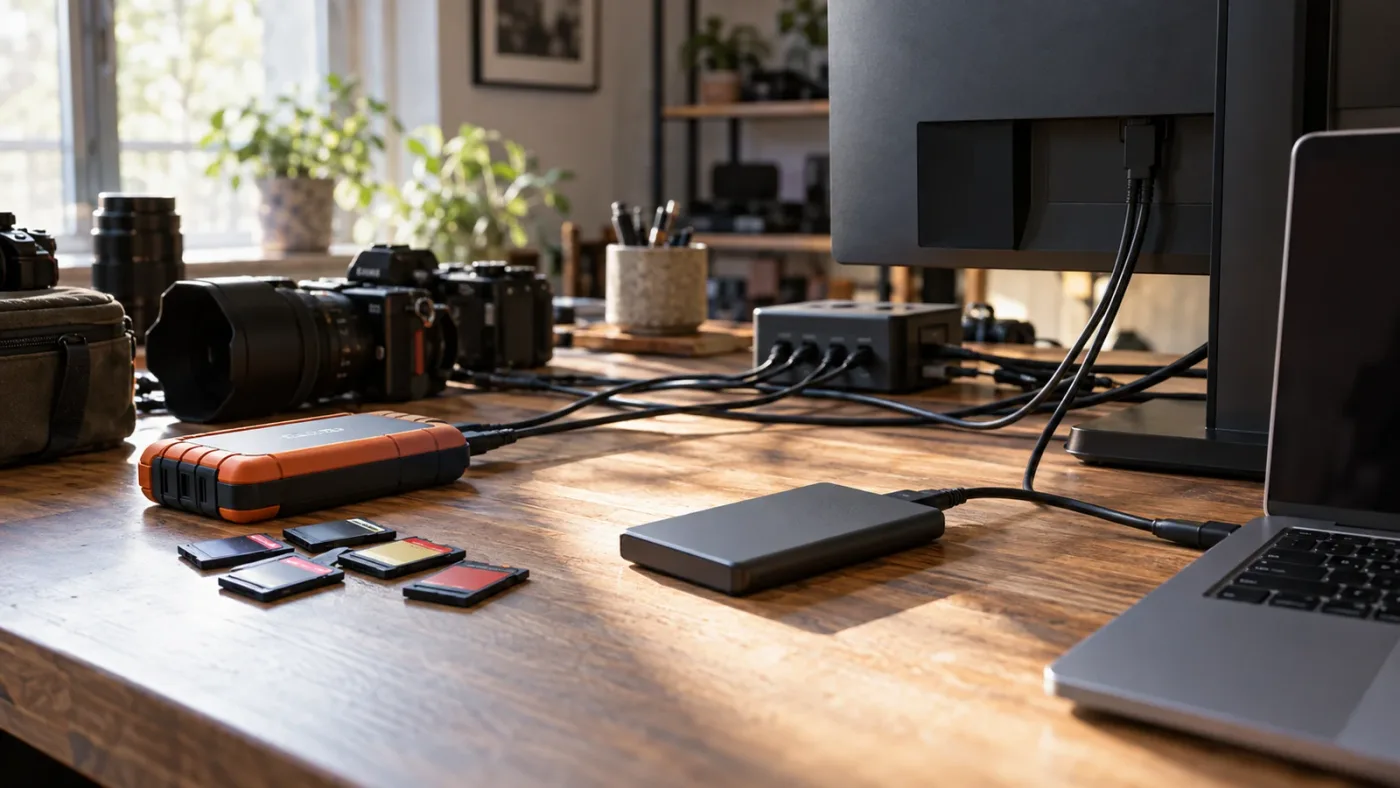
Storage or codec decoding is likely involved when playback improves after copying the proxy media to a fast local drive or switching to a different proxy format at the same resolution. A fast drive cannot repair a decode-heavy codec, and an easy codec cannot rescue a drive that cannot deliver several streams consistently.
Multicam playback asks storage to read more than one stream and asks the CPU or hardware decoder to decompress them. A single source file that plays well from an external drive can behave differently when several angles are requested. The drive's headline sequential speed does not show how every combination of concurrent reads, file fragmentation, enclosure, cable, hub, and background activity behaves. Make a direct comparison using the same clips and timeline.
First, copy a few proxy files to the computer's internal SSD or another known-fast local volume. Relink only those test clips or make a duplicate project for the experiment. Do not move the only original media or change the project that collaborators are actively using. If local playback improves, the network, external drive, cable, hub, or storage contention deserves attention. If it does not, test codec and effects next.
Second, compare proxy formats at the same resolution. If a ProRes Proxy or DNxHR LB test plays better than H.264 or H.265 across the same visible angles, the decode path likely matters. If both behave alike, the limit may be graphics processing, audio, caching, or overall system memory. This is an inference from the controlled comparison, not a diagnosis Resolve reports automatically.
Third, watch system activity while playback stutters. On macOS, Activity Monitor can reveal whether CPU, memory pressure, or disk activity spikes. On Windows, Task Manager can show CPU, GPU, memory, and disk use. On Linux, use the available system monitor. These meters cannot identify Resolve's exact bottleneck by themselves, but they help distinguish a saturated CPU from a heavily used GPU or a drive repeatedly reaching full activity.
Resolve's official Resolve 21 download page lists minimum operating-system and GPU requirements for each platform. Meeting a minimum requirement means the system meets an entry threshold; it is not a guarantee of real-time playback for a multicamera timeline. The current page lists macOS 12 Monterey, Windows 10 Creators Update, and Rocky Linux 8.6 or CentOS 7.3 as minimum operating-system baselines for the desktop versions. Check Blackmagic's current download page because requirements and supported downloads can change.
The current download page gives operating-system baselines, but those baselines do not define a multicam performance target. Don't turn a minimum requirement into a promise about how many angles or what resolution will play smoothly. GPU, codec support, image processing, effects, and the footage itself all affect the result.
If you edit from a NAS or shared storage, test with local proxies before asking the network to serve multiple camera streams. A collaborative workflow can sync proxies through Blackmagic Cloud, but synchronization availability and playback bandwidth are separate questions. Blackmagic describes camera-generated H.264 proxy files that can upload to Cloud so remote editors can begin sooner; that feature is a transfer workflow, not a guarantee that every remote connection can sustain a multicam grid. Blackmagic's collaboration overview describes the camera proxy workflow.
Avoid assuming all USB-C or Thunderbolt drives have the same real-world throughput. A drive may share a hub with audio devices, display output, or other storage. Test without the hub if practical, and use a direct connection for the test. If the internal-drive test is smooth, restore devices one at a time until the slowdown returns. That isolates contention without buying hardware by guesswork.
Why do proxies still lag after I lower timeline resolution?
Lowering Timeline Proxy Resolution only reduces the resolution used for timeline processing; it does not guarantee Resolve is reading proxy files, and it does not remove the cost of effects, audio, storage, or multiple visible angles. Check Proxy Handling and the effect stack separately.
Resolve has two controls that sound like proxies. Proxy Handling controls which linked media Resolve prefers. Timeline Proxy Resolution changes the working resolution of timeline playback. You can have low timeline resolution while still reading full camera originals. You can also use linked proxies with full timeline resolution. For diagnosis, confirm both states rather than treating one as proof of the other.
When you lower timeline resolution, playback may improve if image processing is the bottleneck. But if H.265 decode or disk reads dominate, reducing the viewer output resolution may not help enough. If a Fusion composition, temporal noise reduction, optical flow, stabilization, or a complex grade dominates, lowering source resolution may reduce some work but the effect may still be expensive. Use cache for expensive processed frames, not as a substitute for verifying source media.
Try the following comparison in order:
- Set Proxy Handling to Prefer Proxies.
- Set Timeline Proxy Resolution to Half, then Quarter for a brief test.
- Disable color grades and timeline effects temporarily on a duplicate timeline.
- Compare single-view output with the multicam angle grid.
- Restore one effect category at a time.
Do not judge image quality while using the reduced timeline setting. It is a playback compromise. Resolve's final render can still use full-resolution sources and output settings, depending on render options. The timeline display is a preview, not proof of export resolution.
If the same section improves only when effects are disabled, switch from proxy generation to render-cache diagnosis. Blackmagic's guide describes Render Cache as a way to improve real-time performance when computationally intensive effects slow playback at the current timeline resolution. It describes Proxy Media as easier-to-edit source material and cache as processed timeline work. The official comparison is useful here because it separates those jobs cleanly.
Timeline Proxy Resolution and Proxy Handling solve different problems.

How do I use render cache when proxy media is not enough?
Use render cache when playback slows on clips or composites with computationally expensive effects after you have confirmed that Resolve uses the proxies. Proxy media simplifies source decoding; cache stores processed results for sections that still take too much work to calculate in real time.
The signs point to cache when a clean source clip plays well, but a graded, stabilized, composited, or noise-reduced timeline section stutters. The same distinction applies to multicam. A camera original may be replaced by a smaller proxy, but an effect applied to the multicam output or to individual camera clips can still require substantial processing.
Start with a short, reproducible section. Set cache to User mode if you want to choose specific clips or nodes, or use Smart mode when Resolve's automatic decisions suit the project. The exact labels and caching behavior should be checked in the Resolve 21.1 manual because the application evolves. Let the cache finish before evaluating playback. If the cache indicator is still rendering, the stutter may simply reflect that the result is not ready yet.
Use the least broad cache that solves the problem. If one Fusion title over the multicam is expensive, cache that title or the relevant output rather than expecting all source media to become lighter. If the grade on each camera is expensive, test caching individual clips or the grade pipeline. If caching the timeline makes no difference, confirm that you selected an effect that can be cached and that the cache is complete.
Cache consumes storage. If you have already filled the cache drive or set it to a slow volume, the cure can create a new storage bottleneck. Check the cache location and available space before generating many rendered frames. Keep the cache on a fast drive with room, and clear only cache files that Resolve can safely regenerate. Never remove project databases, original footage, or proxy folders as if they were disposable cache.
There is a useful sequence here: proxy media for source footage, timeline proxy resolution for reduced preview processing, and render cache for expensive processed sections. These can be combined, but stacking every optimization makes it harder to know what helped. Change one, test, then keep or undo it.
If you regularly add many tracks above the multicam, that separate track workload may be the issue. The sibling article DaVinci Resolve slow after adding many tracks covers track-heavy timelines. For a broader proxy setup, see the sibling guide on proxy media for a slow laptop.
Why does my multicam clip lag only after I add effects or grades?
If multicam playback becomes slow only after you add grades or effects, the added processing is the first suspect. Proxies reduce the cost of reading camera footage, but many effects still need to calculate their output for each frame and may operate on the multicam result or on several camera angles.
Duplicate the timeline or save a new project version before changing a complex edit. Then bypass grades and effects in a controlled order. Start with the multicam clip's own effects, then effects on the underlying angle clips, then titles and adjustment clips above the multicam. If playback returns when one class is bypassed, you have found a more useful lead than “the proxies don't work.”
Color work can add GPU load, especially when multiple nodes and temporal effects are active. Fusion compositions and high-quality motion effects can add substantial compute. Stabilization and noise reduction can be expensive depending on the tool, settings, source format, and hardware. These are diagnostic categories, not fixed performance numbers; no single effect behaves identically on every system.
For a multicam rough cut, consider postponing heavy effects until the camera choices are locked. You can use a simple grade to judge matching and exposure, then restore detailed finishing work later. If the director needs a graded multicam view during the edit, cache the relevant work and monitor cache completion rather than expecting proxy files to carry that burden.
An adjustment clip can affect everything beneath it. If you place one above the multicam, bypass it to test. If the angle clips each have different grades, test one or two angles at a time. When only one angle causes the slowdown, inspect that clip's codec and effects. This method keeps the test local and avoids rebuilding all proxies unnecessarily.
Be cautious with “render in place” as a quick fix. It can flatten a section and reduce live calculation, but it changes the edit flexibility and may bake in effects. Keep an editable version or duplicate timeline before using it, and verify the resulting media before archiving or sending the project. For a detailed distinction between optimized media and cache, use Blackmagic's official proxy comparison guide.
How can I isolate CPU, GPU, RAM, or storage limits without guessing?
Isolate a system limit by comparing the same clip, same timeline region, and same viewer mode while changing only one load source. A CPU limit tends to show high processor use during decode, a GPU limit can appear when image processing is heavy, memory pressure can trigger swapping, and storage contention may show sustained disk activity; these are clues, not definitive Resolve diagnoses.
Use a short test matrix and record what changed:
| Test | Hold constant | Change one thing | What an improvement suggests |
|---|---|---|---|
| Source viewer vs multicam | Same camera media and playback point | Number of visible angles | Multiview decoding or display load |
| Local vs external copy | Same proxy format and angle count | Storage path | External drive, connection, or shared storage pressure |
| H.264/H.265 vs ProRes Proxy or DNxHR LB | Same clips and resolution | Proxy codec | Decode cost or hardware codec support |
| Effects bypassed vs enabled | Same viewer and media mode | Processing stack | GPU/CPU processing or effect-specific cache need |
| Audio muted vs enabled | Same video view and timeline point | Audio processing | Audio tracks, plugins, or monitoring path |
| Half vs Quarter timeline resolution | Same proxy files and effects | Timeline working resolution | Image-processing or pixel load |
Record whether playback is consistently slow or only stutters at specific points. A repeatable slowdown at an effect boundary, a camera change, a transition, or a particular source clip points toward a different cause than a general low frame rate throughout the timeline. Note whether audio continues smoothly while video drops frames; that can help separate audio monitoring from video playback, though it does not identify the cause on its own.
Check system memory pressure, not just installed RAM. If the operating system is swapping heavily while Resolve and other apps are open, close unnecessary memory-heavy apps for a test. Avoid changing project settings until you know whether memory pressure is present. The official system requirements are minimums; they cannot tell you how many multicam streams your specific footage can sustain.
On Apple silicon, hardware-accelerated media formats can behave differently from software-decoded formats, and the exact result depends on the device generation and codec profile. On Windows, hardware decode support depends on GPU generation, drivers, and codec profile. On Linux, the available decode path and system configuration differ again. Don't copy a codec recommendation from a different platform without testing your own footage.
For NVIDIA, AMD, and Intel GPUs, check that Resolve sees the intended GPU and that the driver supports the selected compute path. If Resolve is using an integrated GPU while a discrete GPU is available, performance can suffer in image-processing work. However, a GPU meter that appears low does not automatically prove the GPU is irrelevant; some decoding or synchronization paths may not show as a simple high percentage.
The safest practical workflow is an A/B test, not a hardware shopping list. If local proxies, fewer visible angles, and disabled effects still stutter, collect the source codecs, frame rates, proxy format, operating system, Resolve build, and hardware model before posting a support question. Blackmagic's support page says free Resolve users receive technical support through the community forums, and the official forum is the place to include those details. Blackmagic Support links current manuals and community support information.
What should I do when proxies are offline, mismatched, or missing?
When proxy media is offline or mismatched, relink the proxy files to their camera originals before measuring playback. A file on disk is not an active proxy until Resolve recognizes and associates it with the source clip.
Start by identifying whether the source is offline or only its proxy is unavailable. If the original is online and Resolve is set to Prefer Proxies, the app may fall back or show a status that indicates the preferred file is unavailable, depending on the current setting and project state. Switch to Prefer Camera Originals temporarily to keep editing while you repair the proxy relationship. This is a temporary path choice, not a repair.
Resolve 21's media tools support relinking proxy files, and the 21.1 manual is the current reference for the exact dialog. Select the affected clips in the Media Pool and use the proxy relink command. Match carefully by clip identity, not just a loose filename similarity. Camera files often share names across cards or days, and a wrong match can produce an apparently online but incorrect angle.
If the proxy naming pattern differs from the originals, verify the matching fields and folder structure. In Resolve 21 updates, proxy relinking can accommodate different formats, but workflow details depend on the build. A separate Resolve 21 guide covers relinking proxy files with different formats. Check that post's version notes before applying a workaround to another build.
Never delete originals to save disk space until you've verified an archive, a complete proxy set, and the intended finishing workflow. Proxies can be sufficient for editorial collaboration, but you may need originals for final color, reframing, noise reduction, or delivery. If the project travels to another editor, keep the project file and media relationships intact and test the handoff with a copied project before removing anything from the source system.
After relinking, confirm a few representative clips in different folders and from every camera. Test the multicam clip again. If it still lags, the relink repair solved availability but not performance, so continue through the codec, angle, effects, and storage tests.
Does DaVinci Resolve 21 use proxies for the final export?
Resolve's proxy-handling choice is mainly a playback decision; final rendering normally uses camera originals when they are available, unless you explicitly enable a proxy-media render option. Check the Deliver page's proxy setting and render a short section if the output must use a particular source path.
This distinction protects image quality. Editors use proxies for responsive playback, then finish from camera originals when the originals are online. That workflow assumes the originals remain linked and that the render configuration allows full source quality. If you intentionally deliver a low-bandwidth review copy from proxies, use the explicit proxy-media render option when available and confirm the output's resolution and quality.
Before a final export, check three things: the source originals are online, the correct proxy handling state is selected for editing, and the Deliver page is not set to render from proxies unless that is the intent. Render a short test with a few representative shots, including the most demanding angle, and inspect it outside Resolve. Don't rely on a viewer that is set to reduced timeline resolution as your quality check.
Resolve can also render cached effects or use optimized workflows depending on project configuration. A cache is not the same thing as a proxy file, and cache presence alone does not establish what source resolution the final render used. Use the render settings and inspect the delivered file.
For collaborative handoffs, tell the next editor whether the package includes camera originals, proxy files, or both. Blackmagic's guide describes proxy media as portable and independently managed; it can be moved, but it must be relinked when its paths change. The official Resolve guide explains the portability distinction.
Which fixes should I try first, and which should I leave until later?
Try the least disruptive checks first: verify Proxy Handling, confirm linked proxies, test one source clip, reduce the angle grid, and compare effects on and off. Regenerate media, change storage, or alter the project only after a test points to that cause.
| Symptom | First test | Next action if the test helps | Avoid as the first move |
|---|---|---|---|
| Proxy badge exists, playback unchanged | Switch Prefer Proxies and compare with originals | Check actual proxy link and path | Rebuild every proxy |
| One clip plays, angle grid stutters | Hide grid or show selected output | Use fewer visible angles while cutting | Assume all proxies are defective |
| Playback improves with effects bypassed | Re-enable effects by category | Cache expensive sections | Lower proxy resolution repeatedly |
| Local copy plays better than external media | Test direct drive connection | Move active proxies or cache to reliable local storage | Buy a new computer immediately |
| H.264/H.265 stutters but intraframe test improves | Compare a few clips at same resolution | Choose an edit-friendly proxy codec | Convert the entire archive before testing |
| Timeline Proxy Resolution helps, Proxy Handling does not | Verify linked proxy status | Use lower preview resolution if acceptable | Treat timeline resolution as proxy activation |
| Audio is delayed or video stutters only with monitoring | Mute audio or bypass plugins | Inspect track count and monitoring path | Assume the camera proxies cause audio latency |
| Some angles lag, others are smooth | Test each source separately | Inspect the affected camera codec and proxy | Regenerate every angle indiscriminately |
Keep a note of what worked. If you need to undo the test, you should know whether you changed a project setting, proxy file, cache location, or viewer mode. For a small one-editor project, the simplest stable setup is often better than a stack of clever optimizations that nobody remembers.
How can I avoid proxy problems in the next multicam project?
Avoid proxy confusion by setting the proxy format and resolution before generation, keeping a clear link between original and proxy names, and testing a representative multicam sequence before processing every camera file. The goal is a predictable media path, not the smallest possible proxy folder.
Before starting, make a short test with the highest-resolution or most compressed camera source, the frame rate that appears most often, and the expected number of angles. Include the actual audio setup and basic grade. Check playback in both the angle grid and normal output view. This test reveals whether the chosen proxy format and storage path suit the real edit.
Choose a proxy location that will stay connected for the edit. If the project moves between machines, use a folder structure that travels with the project or a documented shared location. Avoid burying proxies in a temporary cache folder that may be cleared. Resolve treats proxy media as its own media relationship, not as a cache that can be regenerated without thought.
Use clear camera and reel names. When two cameras produce files with the same basename, keep the folder structure or rename according to a consistent scheme before relinking. Record the source-card structure and proxy location in the project handoff notes. This reduces the risk of matching the wrong file when many angles share similar names.
Keep the number of active angles manageable in the viewer. When you are choosing a shot, show the angles you need. When you are refining timing, close the angle grid and view the selected output. If the director or producer needs to watch all angles, use a machine and storage setup tested for that workload rather than assuming proxies alone will make it light.
Finally, separate edit media from finishing media in your planning. Decide whether color, stabilization, noise reduction, reframing, and final delivery require camera originals. Decide where cache will live and how much disk space is available. For a shared edit, verify that each collaborator can resolve the media paths before the deadline, not after a drive is unplugged.
The proxy setup walkthrough in DaVinci Resolve proxy media setup for a slow laptop is useful when you are building the media workflow from scratch. TryUncle is the on-screen assistant for DaVinci Resolve on Mac and Windows; ask in plain words, and Uncle points at the exact control on your screen.
What is the fastest diagnostic order for DaVinci Resolve 21 proxies still lag multicam?
The fastest diagnostic order is to confirm proxy selection, prove one proxy plays, compare one angle with the multicam grid, then test storage and effects. Stop when one change clearly changes the result, and keep the fix tied to that cause.
- Confirm the mode. Choose Playback > Proxy Handling > Prefer Proxies.
- Confirm the link. Check that the source clip has a linked, online proxy.
- Test one clip. Play the source proxy in a single viewer.
- Test the angle grid. Compare the same moment with all angles visible and then with the output view.
- Test the timeline resolution. Try Half and Quarter without changing Proxy Handling.
- Test the effects. Bypass grades, titles, stabilization, noise reduction, Fusion, and adjustment clips in groups.
- Test the storage path. Try a local copy of a few proxy files.
- Test the codec. Compare a small proxy sample using a different edit-friendly format.
- Test audio separately. Mute audio and bypass plugins to see whether the symptom changes.
- Cache only the expensive section. Wait for completion, then compare playback.
- Check export settings. Confirm the final render source choice with a short test.
If the proxy single clip is smooth but the grid is not, edit with a smaller viewer workload or test proxies designed for multiple streams. If every single clip stutters, look at codec, storage, system activity, and source media. If only effected sections stutter, cache or simplify the processing. Those three outcomes lead to different fixes, and none requires guessing at random settings.
Resolve 21.1 is the version context for this guide. If you use another 21.x build, check its release notes and the manual for renamed controls or bug fixes before following an older tutorial literally. Blackmagic's support page keeps the current manual and release downloads together. A software update can change a behavior, but don't update during an active delivery just to test a theory without first protecting the project and media.
The right fix depends on which stage is slow: reading media, decoding angles, processing effects, or displaying the viewer.
If you need one next action, run the single-angle versus angle-grid comparison now. It is fast, reversible, and tells you whether to focus on proxy files or multicam display load. Then make only the change that matches what the test showed.
Frequently asked questions
- Why are my proxies not working in DaVinci Resolve 21?
- Resolve may be set to Prefer Camera Originals, the proxy files may not be linked or online, or you may have made Timeline Proxy Mode proxies rather than generated proxy files. Select the source clips, choose Playback > Proxy Handling > Prefer Proxies, and confirm proxy status in the Media Pool.
- Do proxies make a multicam timeline play smoothly?
- Not by themselves. Proxies reduce the cost of decoding source footage, but multicam still has to decode the active angles and process effects, scaling, audio, and the viewer. If a one-angle test is smooth but the multicam viewer is not, investigate angle count, proxy codec, storage, and effects.
- Should I use proxy media or optimized media for multicam?
- Use proxy media when you want portable files or a shared workflow. Optimized Media is managed by Resolve and is useful when the project stays on one computer. Both lower the cost of reading source media, but neither guarantees smooth playback when another part of the pipeline is the limit.
- What proxy resolution should I use for multicam in Resolve 21?
- Start with Half or Quarter resolution in Project Settings under Proxy Media Resolution, then test the actual angle count and codec. Resolve 21 also offers One-Eighth and One-Sixteenth choices for generated proxies. Lower resolution can reduce image detail and file load, but does not repair an offline proxy or a CPU-bound codec.
- Will DaVinci Resolve use proxies when I export?
- Resolve normally uses camera originals for final rendering when they are available, while proxy handling controls timeline playback. Check the Deliver page's proxy-use option before rendering if you intentionally need proxy media in the output, and inspect a short test render.
Sources
- DaVinci Resolve 21.1 Reference Manual and Support Center
- DaVinci Resolve 21 New Features Guide
- DaVinci Resolve 17 New Features Guide: Proxy Media and Playback Optimizations
- DaVinci Resolve 21 Download and Minimum System Requirements
- Casey Faris, All About Proxies in DaVinci Resolve
- DaVinci Resolve 21.1 Manual
- Blackmagic Design: DaVinci Resolve Collaboration and Live Camera Sync
Put this guide to work with TryUncle.
Ask about the step you’re on. TryUncle sees your screen and points at the control you need, so you can keep learning in your own project.
Get TryUncle for Mac or WindowsKeep reading
Fixes · Jul 15, 2026 · 25 min
DaVinci Resolve Proxy Media Setup for a Slow Laptop
Set up proxy media in DaVinci Resolve on a slow laptop: resolution, codec, the Blackmagic Proxy Generator, and the exact settings that stop the stutter.
Fixes · Jul 25, 2026 · 27 min
DaVinci Resolve Slow After Adding Many Tracks? The Fix
DaVinci Resolve slows down as you add tracks because of compositing, waveforms, and live audio effects, not a hard track limit. Every real fix, ranked.
Guides · Oct 5, 2026 · 13 min
DaVinci Resolve 21.1 Multicam Timeline Viewer Mode: How It Works
Find and use DaVinci Resolve 21.1 multicam timeline viewer mode to switch angles, preview source clips, and keep your edit in sync.