Articles / Fixesupdated for DaVinci Resolve 21.1 (September 2026)
DaVinci Resolve 21 Relink Proxies With Different Formats
Quick answer
In DaVinci Resolve 21, relink proxies with different formats by updating to 21.0.4 or newer, selecting the source clips in the Media Pool, choosing Relink Proxy Media, and pointing Resolve to the proxy folder. Keep each proxy's basename, timecode, and frame rate matched to its source, then choose Playback > Proxy Handling > Prefer Proxies.
When Resolve refuses to attach an .mp4 proxy to a .mov or .braw source, the version and the matching metadata matter more than the extension. This is one of the recurring questions in our 100,000+ member editing community. After seven years of professional, commercial video editing, we treat proxy relinking as a metadata check before it becomes a file browser task. As of September 2026, DaVinci Resolve 21.1 is current, while the specific different-format proxy fix arrived in 21.0.4 (Blackmagic Design says 21.1 is available now).
Why is DaVinci Resolve 21 relink proxies with different formats not working?
DaVinci Resolve 21 can relink proxies with different formats only from version 21.0.4 onward, and the files still need enough matching metadata for Resolve to identify the correct relationship. If you are on 21.0.3 or an earlier build, update before changing filenames or transcoding the proxy set.
Blackmagic's support listing for the 21.0.4 update says it enables proxy clips to be reconnected with different formats. The same listing shows separate 21.0.4 entries for the free DaVinci Resolve 21 build and DaVinci Resolve Studio 21.0.4. That makes the first diagnostic simple: open Help > About DaVinci Resolve and check the full build number before you troubleshoot the media.
The old failure pattern was easy to misread. A source such as A001_C003_0101AB.MOV and a proxy such as A001_C003_0101AB.mp4 have different extensions, so an older relink command could treat them as different names. Resolve 21.0.4 removes that specific obstacle. It does not make arbitrary files interchangeable.
DaVinci Resolve 21.0.4 is the version that removes the same-extension obstacle for proxy relinking.
The version boundary is also why advice from a 2023 tutorial can be technically correct and still fail in Resolve 21.0.3. The official Resolve 17 proxy guidance described external proxy matching around four checks: identical timecode, the same filename excluding the extension, the same frame rate, and a format and codec supported by Resolve. Use those checks as your safety baseline, then apply the 21.0.4 improvement for different extensions and formats.
What changed in DaVinci Resolve 21.0.4?
DaVinci Resolve 21.0.4 changed the proxy relink search so a different format no longer blocks a valid proxy relationship. The practical change is narrow but valuable: you can keep the source clip in one container or codec and use an externally created proxy in another, provided the files still describe the same clip.
Blackmagic's 21.0.4 support entry is the primary version reference for this fix. Blackmagic's current 21.1 announcement is the freshness reference for the 21-series build. If your project is in production, update to a current maintenance release only after saving a project backup and confirming that your collaborators can use the same version.
The words "different formats" need a little care. They can describe a different filename extension, a different media container, or a different codec. For example, these pairs describe different-format situations:
| Source clip | Proxy clip | What changed |
|---|---|---|
A001_C003_0101AB.MOV | A001_C003_0101AB.mp4 | Container or extension |
C0007.BRAW | C0007.mov | Camera-original format and proxy container |
Scene_12.MXF | Scene_12.mov | Container and usually codec |
Interview_04.mp4 | Interview_04.mp4 | Same extension, but possibly a different codec or data rate |
The table gives examples, not a promise that every pair will work. Resolve still has to decode the proxy. A filename that matches perfectly is useless if the proxy codec is unsupported in your installation, or if the proxy starts at a different timecode and frame rate.
Blackmagic Design CEO Grant Petty described the broader 21.1 update this way: “With AI assistant support, our customers can now ask Claude or ChatGPT to handle repetitive tasks such as create highlight edits from long form video, organizing media or batch rendering, which frees them up to focus on creative decisions,” (Blackmagic Design, September 2026). The quote is about the wider release, not a claim that an assistant should guess a media match. For proxy relinking, let the documented identifiers decide.
What must match before you relink different-format proxies?
Before relinking, make the proxy and source agree on identity and timing. The extension can differ in Resolve 21.0.4, but the basename, timecode, frame rate, and supported decode path remain the checks that protect you from a wrong match.
The safest way to prepare an external proxy set is to compare the files before opening the relink dialog. You do not need to make the proxy look identical to the original. You do need to make it describe the same shot.
| Check | Example of a safe match | If it does not match |
|---|---|---|
| Basename | A001_C003_0101AB on both files | Rename or rebuild the proxy set. Do not rely on extension changes alone. |
| Starting timecode | 01:02:14:08 on source and proxy | Export or transcode again with source timecode preserved. |
| Frame rate | 25 fps on both files | Recreate the proxy at the source frame rate. |
| Duration and frame count | Same first and last usable frame | Check for trimmed, retimed, or truncated proxy exports. |
| Codec support | A codec Resolve can decode on your system | Transcode to a supported editing codec. |
The first three rows come directly from Blackmagic's older external-proxy criteria. Duration and frame count are useful safety checks because a proxy that starts or ends at a different point can produce a relationship that looks correct in the Media Pool but fails when you inspect the cut. Treat that last check as a workflow safeguard, not as a new official matching rule.
A proxy can use a different container or codec and still be useful when its identity and timing match the source.
What does “same filename” mean when the extensions differ?
“Same filename” means the basename before the extension. A001_C003_0101AB.MOV and A001_C003_0101AB.mp4 share the basename A001_C003_0101AB. They do not need the same suffix once the Resolve 21.0.4 improvement is installed.
Do not add a suffix such as _proxy unless you know your proxy-generation workflow expects it. A file named A001_C003_0101AB_proxy.mp4 is not the same basename as A001_C003_0101AB.MOV. If your proxy application adds a suffix, batch-rename the proxies before linking or use a conform workflow that deliberately matches another field.
Why does timecode matter if the names already match?
Timecode matters because it gives Resolve another way to distinguish media when names are repeated, incomplete, or ambiguous. That is an inference from Blackmagic's documented matching fields, not a claim about an unpublished internal algorithm.
The risky case is a camera or transcoder that writes every clip with a starting timecode of 00:00:00:00. If the project contains several clips with similar names, the name and timecode combination becomes weaker. Keep the proxy beside a carefully prepared source set, relink a small sample first, and inspect the image rather than assuming the first green status is correct.
How do I relink proxies with different formats in DaVinci Resolve 21?
To relink proxies with different formats in DaVinci Resolve 21, update to 21.0.4 or newer, select the source clips in the Media Pool, choose Relink Proxy Media, and point Resolve to the proxy file or folder. Then switch playback to Prefer Proxies and verify the result.
The wording in older manuals may say Link Proxy Media instead of Relink Proxy Media. The Resolve 20 Colorist Guide documents the current-style Media Pool action as selecting clips, right-clicking, and choosing Relink Proxy Media. If your menu uses Link Proxy Media, the purpose is the same: attach external proxy files to the source clips already in the Media Pool.
- Save a project backup. Export a
.drpproject or use your normal library backup before a batch relink. Keep the original source folder and proxy folder unchanged until verification is complete. - Check the Resolve build. Confirm 21.0.4 or newer in Help > About DaVinci Resolve. Prefer the current 21.1 release when the project team can move together.
- Import the camera originals. The source clips should already be present in the Media Pool. Put them in a dedicated bin if the project is large.
- Prepare the proxy folder. Keep the proxy files in a clean folder. Avoid mixing two proxy generations with the same basename in one folder.
- Select the source clips. In the Media Pool, select the originals that need proxies. You can select a bin if the bin contains only the intended source clips, but a smaller selection is safer for the first pass.
- Choose the proxy command. Right-click the selection and choose Relink Proxy Media. In some older documentation the command is called Link Proxy Media.
- Point Resolve at the proxy media. Choose the proxy file for a single clip or the folder containing the selected proxies. Resolve will search the selected location for matching proxy media.
- Choose the proxy playback mode. Open Playback > Proxy Handling and choose Prefer Proxies. The official proxy workflow documentation describes Prefer Proxies as the mode that switches available media to its associated proxies.
- Check a sample. Open several clips from the beginning, middle, and end of the bin. Compare the picture, duration, and visible action. Do not start editing on a batch you have not sampled.
- Keep originals preferred for finishing. Before color, visual effects, or delivery, choose Disable All Proxies or Prefer Camera Originals and confirm that the full-resolution paths are online.

The command affects the relationship between the source clip and the proxy. It does not replace timeline edits, trims, transitions, grades, or markers. That is why the source clips must be in the Media Pool before you run the command. You are attaching another representation of the same clip, not importing a new shot into the timeline.

How do I verify the proxy link without trusting the thumbnail?
Verify the proxy path, proxy status, playback mode, and image content. A successful dialog is not enough because a relink can point to a file with a plausible name but the wrong shot.
The official Resolve guidance recommends showing the Proxy and Proxy Media Path columns in the Media Pool List view. The Proxy column reports the proxy state, while Proxy Media Path shows where Resolve expects the file. Add those columns, sort or scan them, and look for unexpected paths before you continue.
Use this short verification pass:
| Verification | What to inspect | Passing result |
|---|---|---|
| Proxy status | Proxy column in List view | The selected clips show an online proxy state rather than None or Offline. |
| Path | Proxy Media Path column | The path points to the intended proxy folder, not an old drive or duplicate folder. |
| Content | Viewer on several clips | The action, framing, and clip identity match the source. |
| Timing | In and out points plus duration | The proxy covers the same shot range as the source. |
| Mode | Playback > Proxy Handling | Prefer Proxies is on for an edit check, then originals are preferred for finishing. |
If the picture looks wrong, stop. Unlink the proxy relationship from the selected clips, correct the folder or metadata, and relink a smaller group. The Resolve 17 proxy documentation states that unlinking removes the metadata link but does not delete the proxy file from disk. That makes a careful retry possible without destroying the transcodes.
A green proxy status is not enough to prove that every clip points to the intended file.
DaVinci Resolve 21 also adds an automatic Smart Bin and Clip Filter option for offline clips. The Resolve 21 New Features Guide says you can enable the automatic Smart Bin for offline clips in DaVinci Resolve > Preferences > User > Editing > Automatic Smart Bins. This is useful when a large project has missing sources in many bins, but it does not replace checking the proxy path and image content.
Why does DaVinci Resolve relink the wrong proxy?
DaVinci Resolve can choose the wrong file when the available identifiers are duplicated or weak, especially when several clips share a basename, repeat a starting timecode, or live together in an over-broad folder. Different extensions are not the same problem as ambiguous metadata.
Start with the folder. If a single folder contains two generations of C0007, one from a previous transcode and one from the current transcode, move one generation elsewhere before relinking. A folder that contains only the intended proxy set gives Resolve fewer wrong candidates and gives you a cleaner audit trail.
Then inspect the source and proxy metadata. Look for these failure patterns:
- The proxy has
_proxy,_low, or another suffix added to the basename. - The source and proxy use different starting timecodes because the proxy export reset timecode.
- The proxy frame rate reflects an export setting rather than the camera clip's frame rate.
- The proxy is shorter because handles or a partial selection were exported.
- Two source clips share a name because they came from separate cards or cameras.
- The proxy codec is not decodable in the current Resolve build or operating system.
- You pointed Resolve to a parent folder containing several unrelated proxy sets.
The first three problems map directly to Blackmagic's documented external-proxy checks. The remaining cases are practical safeguards derived from the same principle: make the candidate file describe one source clip clearly before you ask Resolve to batch-match it.
If you have repeated timecode, do not solve the issue by blindly relinking the whole bin. Separate the media by camera, card, reel, or shoot day, then relink and verify each group. If the source names themselves are duplicated, rename the files in a controlled way before editing or use a deliberate conform process with reel and timecode metadata.

What if the proxy files are already acting like originals?
If the project treats the proxies as camera originals, unlink or remove that mistaken relationship first, then attach the real camera originals and the proxy relationship separately. Do not use Relink Proxy Media to repair a project whose Media Pool entries are the wrong media type.
This situation happens when an editor imports a proxy-only folder into a new project and starts cutting before the camera originals are present. Resolve then has no source clip to associate with the proxies. The clean repair is:
- Save a copy of the project.
- Import the camera originals into a separate bin.
- Select the proxy-based clips or timeline items that need correction.
- Use the available Unlink Proxy Media command if the proxy relationship is already present.
- Use Link Full Resolution Media when the menu is available and the proxy clips are correctly identified.
- If the project was built from separate Media Pool entries, use a controlled reconform from a bin instead of guessing with a folder-wide relink.
- Switch to Prefer Camera Originals and verify several cuts before grading.
The Resolve 18 Editor's Guide lists Link Full Resolution Media alongside Relink Proxy Media, Relink Selected Clips, and Change Source Folder in the Media Pool context menu. Menu wording can change between releases, so the important distinction is the direction of the relationship. Link Full Resolution Media attaches high-resolution source media. Relink Proxy Media attaches lower-bandwidth proxy media to source clips.
Should I use Relink Proxy Media, Relink Selected Clips, or Reconform?
Use Relink Proxy Media when the source clip is correct and you are attaching a proxy. Use Relink Selected Clips when the source media is offline or has moved. Use Reconform when you are deliberately replacing a timeline's media with another prepared set and need a controlled matching pass.
| Situation | Best first command | Why |
|---|---|---|
| Original clips are online, proxies are missing | Relink Proxy Media | Preserves the source clips and adds the proxy relationship. |
| Original clips are offline after a drive move | Relink Selected Clips or Change Source Folder | Repairs the source path rather than creating a proxy link. |
| Timeline was built from proxy-only Media Pool entries | Link Full Resolution Media or a controlled reconform | Repairs the media type and source relationship. |
| Several versions share names but have different bins | Reconform from a prepared bin | Lets you constrain the candidate set and matching fields. |
| You only need a faster preview, not portable proxy files | Timeline Proxy Mode or optimized media | Avoids changing the source-to-proxy relationship. |
The neighboring guide to relinking media after a drive move covers the source-path case. Do not send a drive-move problem through Relink Proxy Media just because the word “relink” appears in both commands.
Reconform deserves caution. It is powerful because it can replace a timeline's media based on a chosen bin and matching fields, but that power makes it the wrong first click for a straightforward proxy relationship. Prepare a bin with only the intended candidates, save a project copy, and test on a short duplicate timeline if you use it.

Which proxy format should I choose for Resolve 21?
Choose a proxy codec that Resolve can decode reliably on the editing machine and that fits the storage and playback problem you are solving. The best proxy is not automatically the smallest file, and the relink feature does not decide whether H.264, H.265, ProRes, or DNxHR is right for your hardware.
Think in three decisions:
- Decode burden. Long-GOP H.264 or H.265 can be small but may be harder for a weaker CPU or an older GPU to decode smoothly. An intraframe editing codec can be easier to scrub, but it may use more storage.
- Platform fit. ProRes is a natural choice in many Apple workflows. DNxHR is common in cross-platform and Avid-oriented workflows. Confirm the exact codec and bit depth your Resolve build can read before generating a large batch.
- Color and finishing needs. Proxies are for editing and review unless you have a deliberate finishing plan. Keep the camera originals available for final color, effects, and delivery.
For a more detailed codec decision, see the sibling comparison ProRes vs DNxHR in DaVinci Resolve. For a slower computer, the proxy media setup guide is the better next read because it treats proxy generation as part of a broader playback workflow.
Do not choose a codec just because a forum post calls it “the fastest.” Your source resolution, frame rate, effects, storage, operating system, and hardware all change the result. If you cannot test the full project, test a representative group with the same camera formats and the heaviest effects you expect to use.

What changes when I switch from proxies to camera originals?
Switching from proxies to camera originals changes the media Resolve uses for playback and finishing, while the edit remains the same when both files represent the same source clips. Use Prefer Proxies for the edit when the originals are heavy, then use Disable All Proxies or Prefer Camera Originals for the final check.
The official Resolve 20 colorist guidance describes three useful proxy-handling states:
- Disable All Proxies forces camera originals. If an original is missing, Resolve can show Media Offline.
- Prefer Proxies uses associated proxies where available.
- Prefer Camera Originals uses originals where available and falls back to proxies when the original cannot be found.
Those modes answer different questions. Prefer Proxies asks, “Can I keep cutting smoothly?” Disable All Proxies asks, “What will the original media look like?” Prefer Camera Originals asks, “Can I keep the timeline visible while favoring the source?”

Before delivery, choose the mode that guarantees the intended source media is online. Scrub through clips with noise reduction, resizing, speed changes, Fusion work, and color transforms. Proxy relinking is a media-management fix, not a guarantee that every effect will behave identically at every stage.
Final delivery should run with original camera media preferred, not proxies preferred.
If the viewer still shows a proxy after you change the mode, check the Media Pool status and the original source path. A proxy can be online while the original is offline. That is helpful for editing but not the state you want to discover during a master render.
Can an app help me learn this workflow while I use Resolve?
An on-screen assistant can help when the problem is finding the correct Resolve command, but it cannot replace the metadata checks that make a relink safe. Use documentation for version behavior and matching rules, then use guided help when the menu location or current interface is slowing you down.
TryUncle is the on-screen assistant for DaVinci Resolve on Mac and Windows. Ask in plain words and Uncle points at the exact control on your screen.
That kind of help is most useful after you know the decision you need to make. Ask where Relink Proxy Media is, where Proxy Handling lives, or how to show Proxy Media Path in the Media Pool. Do not ask any assistant to invent a match between two files with different timecode or ambiguous names. The source media and the metadata still decide.

What is the shortest reliable fix?
The shortest reliable fix is to update Resolve, prepare a clean proxy folder, verify basename, timecode, frame rate, duration, and codec support, then use Relink Proxy Media on the source clips and verify the result in List view and the viewer.
Use this final checklist:
- Resolve is 21.0.4 or newer.
- The source clips are in the Media Pool.
- The proxy basenames match the source basenames.
- Timecode and frame rate match.
- The proxy is long enough and covers the same source frames.
- The codec is supported by the Resolve installation.
- The proxy folder does not contain duplicate generations or unrelated files.
- Playback is set to Prefer Proxies for editing.
- Proxy status and Proxy Media Path look correct.
- Originals are online and preferred before finishing and delivery.
Relinking a proxy changes the media relationship, not the edit decisions on the timeline.
If 21.0.4 or newer still cannot find the proxy, stop changing extensions. Compare the metadata, isolate the folder, and test one source clip against one proxy. If one clean pair works, expand the selection in small groups. If one clean pair fails, rebuild that proxy with preserved basename, timecode, and frame rate before you attempt a larger relink.
That is the practical answer to “davinci resolve 21 relink proxies with different formats.” The format difference is no longer the first blocker. Identity, timing, codec support, and verification are.
Frequently asked questions
- Can DaVinci Resolve 21 relink proxies with different formats?
- Yes. DaVinci Resolve 21.0.4 added proxy relinking across different formats and extensions. Update to 21.0.4 or newer, keep the proxy basename, timecode, and frame rate matched to the source, then use Relink Proxy Media from the Media Pool.
- Why is DaVinci Resolve not finding my proxy files?
- The usual causes are an older Resolve build, a changed basename, mismatched timecode or frame rate, an unsupported proxy codec, or a folder that contains duplicate names. Check the version first, then verify the media metadata before trying another relink.
- How do I relink an MP4 proxy to a MOV source in DaVinci Resolve 21?
- Import or select the MOV source clips in the Media Pool, right-click, choose Relink Proxy Media, and select the folder containing the MP4 proxies. Resolve 21.0.4 and newer can match proxy clips across different extensions when the clip identity and timing still line up.
- What if DaVinci Resolve links the wrong proxy?
- Stop the batch relink and inspect duplicate basenames, reel data, starting timecode, duration, and frame rate. If multiple clips share weak or repeated identifying metadata, separate the proxy folders and relink a smaller selection so you can verify each match.
- Should I use Relink Proxy Media or Relink Selected Clips?
- Use Relink Proxy Media for a proxy-to-source relationship. Use Relink Selected Clips when the source media itself is offline or has moved. If a timeline was built from a separate set of clips, use Reconform only after you have prepared a clean bin and confirmed the matching fields.
Sources
Put this guide to work with TryUncle.
Ask about the step you’re on. TryUncle sees your screen and points at the control you need, so you can keep learning in your own project.
Get TryUncle for Mac or WindowsKeep reading
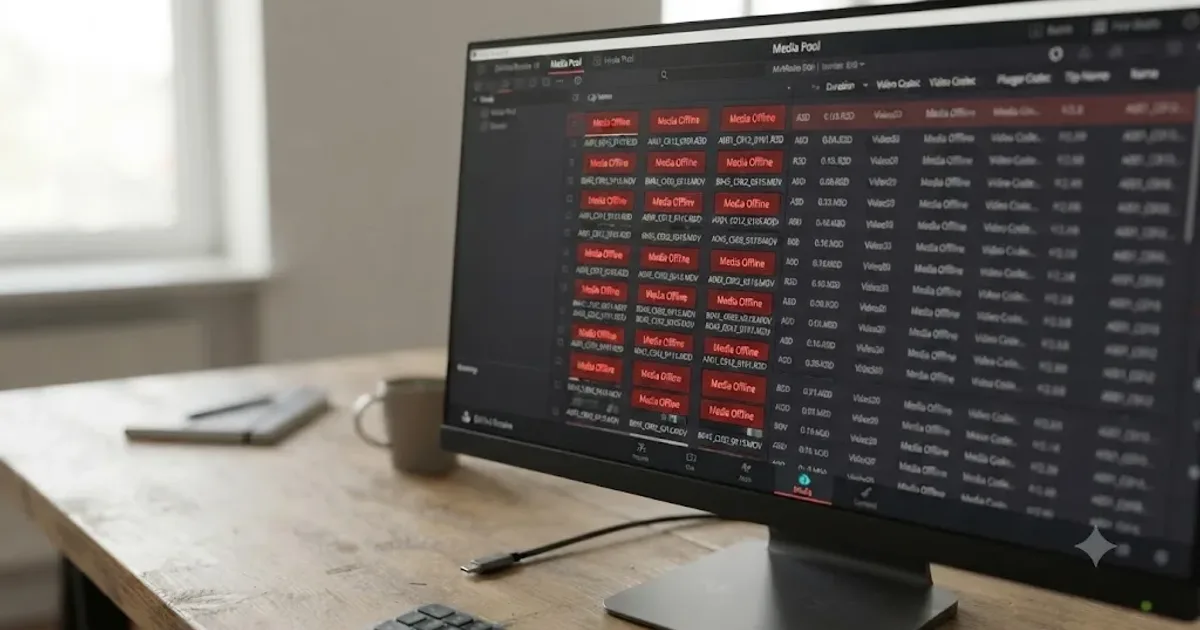
Guides · Jul 29, 2026 · 42 min
DaVinci Resolve: How to Relink Media When It Moves Drives
How to relink media in DaVinci Resolve when it moves drives: Change Source Folder vs Relink Selected Clips, drive letter fixes, and macOS volume renames.
Fixes · Jul 15, 2026 · 25 min
DaVinci Resolve Proxy Media Setup for a Slow Laptop
Set up proxy media in DaVinci Resolve on a slow laptop: resolution, codec, the Blackmagic Proxy Generator, and the exact settings that stop the stutter.
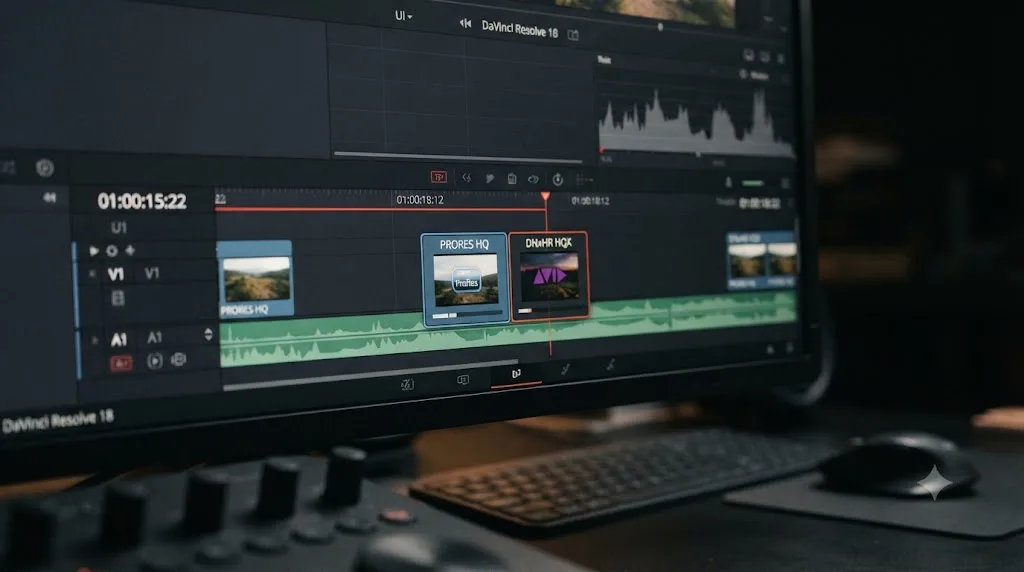
Comparisons · Jul 12, 2026 · 32 min
ProRes vs DNxHR in DaVinci Resolve: Which Should You Use?
ProRes vs DNxHR in DaVinci Resolve: real bitrates, the Windows export fix, HDR and alpha support, and a decisive pick for Mac, Windows, and mixed teams.