Articles / Fixesupdated for DaVinci Resolve 21.1 (October 2026)
DaVinci Resolve 21 Using All RAM in Fusion? Fix the Cache
Quick answer
DaVinci Resolve 21 Fusion cannot safely take every byte of system RAM. In Preferences > System > Memory and GPU, raise Limit Resolve Memory Usage to first, then increase Limit Fusion Memory Cache within that budget. If system memory pressure is already high, lower the Fusion cache and inspect the composition and other apps before changing limits.
I know the feeling: Fusion is doing real work, the playback cache keeps evicting frames, and the operating system still shows memory that Resolve doesn't appear to use. In our 100,000+ member professional editing community, “Resolve is using all my RAM” is one of the recurring troubleshooting questions. The confusion usually comes from mixing three different things: system RAM, Resolve's application budget, and Fusion's playback cache. As of October 2026, this guide is for DaVinci Resolve 21.1 and focuses on telling those three apart before you push a slider.
Why is DaVinci Resolve 21 Fusion using all my RAM?
DaVinci Resolve 21 Fusion may appear to use all RAM because its playback cache holds rendered frames, but the cache is only one part of the memory Resolve and the operating system are managing. A full memory graph can mean useful caching, real memory pressure, paging, or a leak; the number by itself doesn't identify which one.
Resolve's Fusion page evaluates a node graph to produce an image for each frame. When you play or scrub, rendered frames can be retained in RAM so the same frames do not need to be recalculated immediately. Blackmagic's Fusion reference manual explains that frames are stored in a RAM cache as they are processed and can then be replayed; it also says that currently displayed nodes receive priority for caching. That makes the RAM cache an active working area, not a permanent reservation for the whole project.
This distinction matters when the word “all” appears in the symptom. If Fusion fills its permitted cache but the operating system remains responsive, the cache may simply be doing its job. If the whole computer becomes slow, applications report allocation failures, the operating system shows sustained memory pressure, or Resolve closes, you have a system-level problem to investigate. Those symptoms call for a conservative diagnosis, not a blind increase.
There are three related limits to keep straight:
| Layer | What it describes | Where to inspect it | What changing it affects |
|---|---|---|---|
| Physical RAM | Installed working memory shared by the operating system and every app | macOS Activity Monitor or Windows Task Manager | You cannot increase it with a Resolve preference |
| Resolve memory budget | The maximum share Resolve is allowed to use under its memory configuration | Preferences > System > Memory and GPU | How much system RAM Resolve can draw on |
| Fusion memory cache | A sub-limit for frames cached while using the Fusion page | The same Memory and GPU panel | How much of Resolve's budget Fusion can devote to playback cache |
Blackmagic's Resolve reference manual describes the Fusion cache amount as being taken from the total memory allocated by “Limit Resolve Memory Usage to.” This is why the two sliders are not additive. If Resolve's total allowance is the outer container, Fusion's cache is a smaller container inside it. Setting both high does not mean the computer has suddenly gained more physical memory.
DaVinci Resolve 21 Fusion's RAM cache is a share of Resolve's memory budget, not a separate pool of extra RAM.
That also explains why Resolve can display a Fusion cache limit that is lower than the amount of unused RAM shown by the operating system. The preference describes a ceiling, not a promise that Resolve will immediately occupy that much memory. A cache fills as you render and play frames, then may discard lower-priority cached frames as it reaches its limit. A project that never reaches the ceiling will not consume it just because the slider permits it.
In a 2015 Blackmagic Design forum reply, DaVinci Resolve Product Manager Peter Chamberlain wrote, “We normally pre allocate some memory for managing images within the application.” The original reply concerned the older pre-allocated-memory control, not a Resolve 21 Fusion cache recommendation. It is useful here for one narrow point: Resolve manages working memory for image operations, so a cache slider should not be treated as a command to consume every available byte.
A common symptom is a large composition that plays smoothly for a short stretch, then stutters when you move to another part. That alone does not prove Fusion is leaking memory. The cache may have reached its cap and replaced frames as it moved on. Compare the Fusion page's cache indicator with system memory pressure at the same moment. If the cache meter climbs while the OS remains comfortable, tune caching or the graph. If system pressure rises sharply across the whole machine, reduce the workload before giving Resolve more memory.
Another common symptom is Resolve appearing to use most of the installed memory while the Fusion cache meter is well below its own maximum. The extra usage can belong to Resolve's other image-processing work, decoded media, the operating system's file cache, GPU-related allocations, or other applications. The Fusion cache slider doesn't govern every allocation made by Resolve. It only governs the RAM cache described by Blackmagic's Fusion documentation.
A memory graph also changes meaning across platforms. macOS reports compressed memory and swap usage alongside memory pressure. Windows shows memory use and the system commit charge relative to a commit limit that includes RAM and page files. Neither OS presents one simple number that says “Fusion is healthy” or “Fusion is broken.” Read the accompanying indicators, then reproduce the problem in a controlled way.
If the memory use only climbs during one long Fusion session and resets when you close Resolve, that may still be ordinary cache behavior. If the same small action repeatedly grows memory without releasing it, or Resolve becomes less stable after each repetition, document the steps and compare with a new project. You need repeatable evidence before calling it a leak. A cached frame can stay in memory because it is useful; a process that grows without bound under a tiny repeatable task is a different clue.
How do I make DaVinci Resolve 21 Fusion use more RAM?
To make DaVinci Resolve 21 Fusion use more RAM for playback caching, raise Resolve's overall memory budget first, then allocate more of that budget to the Fusion cache. The settings are in DaVinci Resolve's Preferences under System, then Memory and GPU; exact window placement can vary slightly by operating system and display layout.
Before changing anything, note the current values and save your project. A preference change is easy to reverse, but recording the starting state helps you tell whether the change improved playback or only increased system pressure. Close applications you do not need for the test, especially memory-heavy browsers, image tools, virtual machines, or other video applications. Don't close an application that is performing an important export or saving unsaved work just to produce a cleaner graph.
Use this sequence:
- Open DaVinci Resolve's Preferences.
- Select the System category, then open Memory and GPU.
- Read the System Memory value, if displayed, and note the current values for Limit Resolve Memory Usage to and Limit Fusion Memory Cache to.
- Increase the Resolve memory limit only if the operating system has comfortable headroom during your real workload.
- Increase the Fusion cache limit within Resolve's available budget, then save the preferences.
- Reopen the affected composition, play the same short section, and compare the cache indicator and system memory pressure.
- Keep the change only if playback or scrubbing improves without making the computer unstable or sluggish.
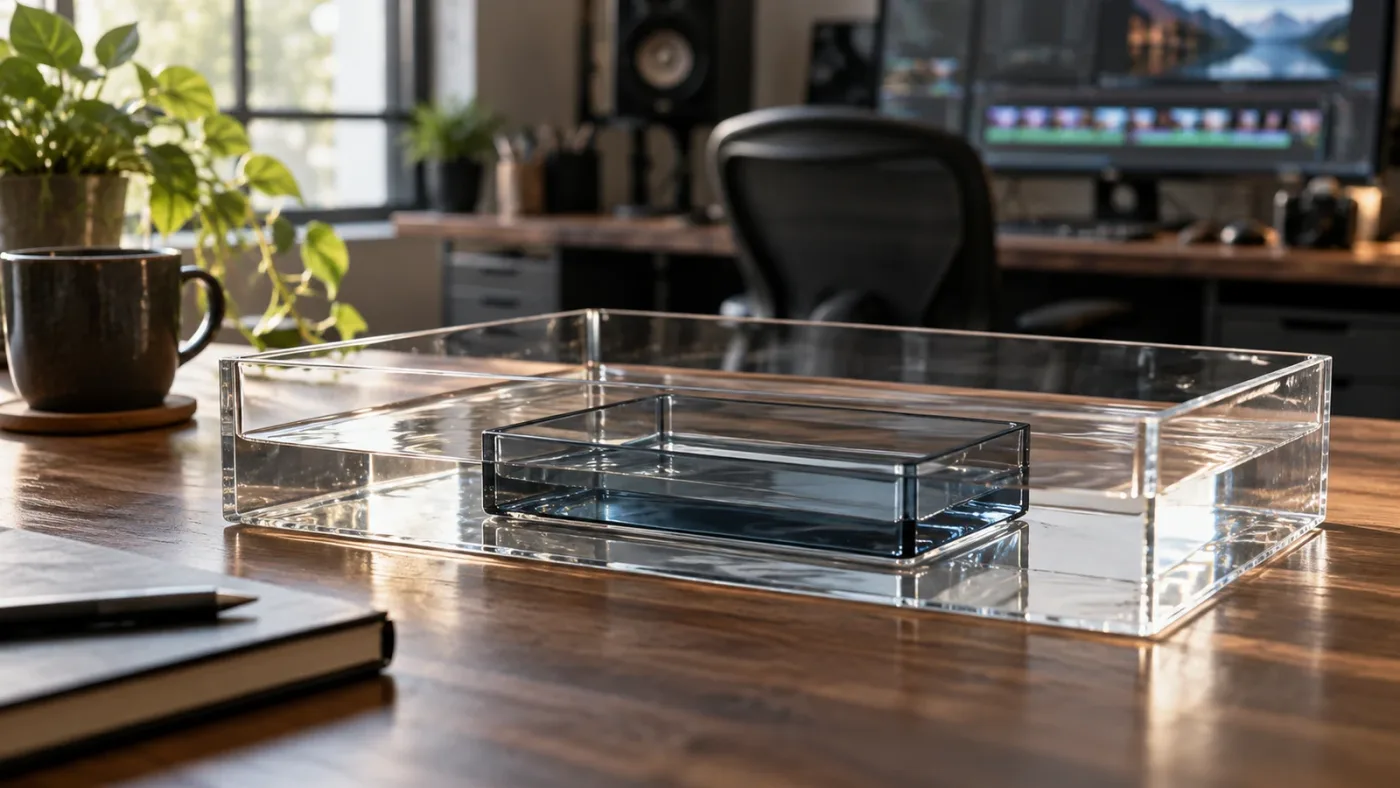
The order is meaningful. If the overall Resolve budget remains restrictive, changing the Fusion-specific limit cannot create an independent reserve beyond that parent amount. Think of the Fusion setting as an allocation inside the Resolve limit. If the UI shows a limit as a percentage, calculate the approximate quantity from the RAM the application reports, but treat the displayed control as authoritative because the available range can depend on the Resolve build and platform.
Do not copy a percentage from a forum post without checking what version and application it describes. Fusion Studio and Fusion inside DaVinci Resolve are different contexts. The separate Fusion Studio manual discusses its own caching controls, including limits that do not map one-to-one to Resolve's preferences. A percentage that is valid in the standalone application is not automatically a safe or available setting in Resolve 21.
The Resolve 21.1 manual is the current reference listed by Blackmagic Design on its Support Center as of October 2026. The manual is the right place to confirm labels if a point release moves a control. DaVinci Resolve 21 is not the same application build as the older Resolve 15 manual often copied in forum answers, even where the preference names have remained similar over time.
A practical setting is not “as high as possible.” It is the largest cache allocation that helps the particular composition while leaving enough working memory for the OS, Resolve outside Fusion, and the applications you keep open. On a dedicated workstation that runs only Resolve, the safe headroom may differ from a laptop with a browser, a meeting app, and a second creative application open. The correct value is therefore a measured choice, not a universal percentage.
For a concrete test, use the same shot and same playback range before and after a change. If the cache used to reach its ceiling quickly and the OS remained healthy, a larger Fusion cache may hold more rendered frames and reduce recalculation as you replay that range. If Resolve's cache stays low while system memory pressure is high, raising the Fusion cache can make the situation worse. It won't solve an allocation outside that cache.
Avoid changing both sliders several times in a row. If you raise Resolve's overall limit and the Fusion cache limit together, then playback improves, you will not know which change mattered. If the system slows, you will not know which limit took too much headroom. Change one value, repeat the same test, record what you observed, and only then decide whether a second change is justified.
Some preference changes may need a restart to take effect fully, while others apply immediately. Follow any restart prompt Resolve displays. If you do restart, reopen the same project and repeat the exact same playback range. Don't compare a warmed cache before the restart with a cold cache after it; that changes two variables at once.
Raise the Resolve budget before the Fusion cache limit, because Fusion's cache lives inside Resolve's allowance.
If Resolve is already using most of the computer's available memory, reduce the Fusion cache limit instead. That sounds backward when the goal is more cached frames, but it protects the rest of the machine and lets you see whether the symptom is actually caused by memory pressure. A smaller cache may mean more frame recalculation, yet a responsive workstation is more useful than a larger cache that pushes the OS into heavy paging.
Can I set Fusion to use 100 percent of my RAM?
No, you should not set DaVinci Resolve 21 Fusion to consume 100 percent of installed RAM, and Resolve's nested limits do not offer a safe promise of that behavior. The operating system needs memory, other Resolve tasks need memory, and the computer needs room to respond when you switch applications or save work.
The phrase “use all RAM” can refer to several different goals. You may want Fusion to cache more frames for real-time playback. You may want Resolve to use more memory for image processing. Or you may be looking at a system monitor that counts cached or compressed memory as “used.” Those are different aims. More RAM assigned to playback cache can help when the cache is the bottleneck; it cannot repair a slow node, unsupported effect, codec decode delay, or GPU limit.
There is a second problem with treating 100 percent as a target: a playback cache is disposable working data. Its role is to avoid rendering the same frames again, not to make every project frame permanently resident. Once a cache reaches its allowed size, Fusion can discard lower-priority frames to make room. That behavior is a useful safeguard. It means the computer can continue working with a bounded cache instead of holding every frame forever.
The general Resolve memory preference documented in older Resolve reference manuals has had a maximum and default of 75 percent of system RAM, and the Fusion-specific allocation is taken from that Resolve amount. Because the user asked about Resolve 21.1, check the 21.1 manual and current preference UI before relying on a historic numeric maximum. The important relationship is the hierarchy: Resolve has an overall ceiling, and Fusion caching uses a subset. We should not present an older build's exact percentage as a guaranteed Resolve 21.1 setting unless the current manual or UI verifies it.
For example, a computer with 64 GB installed RAM does not have 64 GB available solely for a Fusion cache. The OS, background services, Resolve's non-cache work, and other applications all use memory. Nor does a Fusion cache slider set to half mean half of the machine's total RAM in every configuration. It may mean half of the amount Resolve itself has been permitted to use. Use the app's displayed allocation and the OS indicators rather than multiplying rough percentages as if they were independent controls.
There is also a hardware distinction between system RAM and graphics memory. A GPU memory warning is not the same as the Fusion RAM cache reaching its limit. DaVinci Resolve handles GPU processing and GPU memory separately from the Fusion RAM cache. Adding system RAM or moving the Fusion cache slider does not increase a discrete graphics card's VRAM. If Resolve reports that GPU memory is full, follow the GPU-specific diagnostics in our guide to DaVinci Resolve GPU memory full.
A high memory number can be normal when the OS uses otherwise idle RAM for cached files, or when macOS compresses inactive data. Apple explains that Activity Monitor's Memory Pressure is based on available memory, swap rate, wired memory, and cached files, and it distinguishes App Memory, Wired Memory, Compressed memory, Cached Files, and Swap Used. The pressure graph gives more context than the headline “Memory Used” figure.
On Windows, committed memory is not the same as current physical RAM use. Microsoft defines the system commit limit as the sum of physical RAM and page files. A computer can therefore show substantial commit charge without every committed byte currently occupying physical memory. Conversely, page-file activity can hurt responsiveness even when the system has not reached its commit limit. You need the memory graph, commit values, and observed performance together.

A sensible rule is to leave enough RAM for the computer to remain responsive with Resolve open and your normal support apps running. Don't use an arbitrary fixed buffer from a different user's machine. A system with 32 GB and a system with 192 GB can have different background needs and different workloads. The shared principle is to observe the machine while performing the task you actually need.
The practical verdict: tune for stable playback across the relevant frame range, not for a full memory bar. If an edit benefits from more Fusion cache, increase the limit gradually and watch memory pressure. If the change only makes the system swap more, undo it.
What is the difference between Resolve memory, Fusion cache, disk cache, and swap?
Resolve memory is the application's overall working set; the Fusion memory cache stores rendered frames for playback; the disk render cache stores rendered results on storage; and swap or a page file is operating-system-managed backing for less active memory. These labels describe different mechanisms, so one cannot always substitute for another.
The Fusion RAM cache is useful when you play or scrub through frames that have already been rendered and retained. It is fast to access, but it competes with other uses of physical memory. The memory cap controls how much RAM the Fusion cache may use, not how quickly each node renders. If a node takes a long time to calculate the first time, a bigger cache may let the result remain available afterward, but it doesn't speed up that initial calculation.
The render cache is different. Resolve can write cached frames to disk, which trades storage space and disk activity for less reliance on RAM. This may be appropriate when a Fusion result takes a long time to calculate but you need to review it repeatedly and the computer has little spare memory. Disk cache is not automatically faster than RAM, and it can add its own storage bottleneck. Choose it because the memory ceiling is the limiting factor, not because every Fusion problem should be solved with more cache.
Swap on macOS and a page file on Windows are operating-system mechanisms. They are not Resolve render caches and do not keep Fusion frames ready for instant playback in the same way. When active work is moved to storage, returning to it can feel slower because disk access is not equivalent to RAM access. But the presence of swap alone does not prove a fault. Apple says Activity Monitor uses swap rate as one factor in Memory Pressure; Microsoft says paging files support system commit and can help move infrequently accessed modified pages out of physical memory.
| Term | Managed by | Main job | Useful clue | What it doesn't mean |
|---|---|---|---|---|
| Fusion RAM cache | DaVinci Resolve | Retain rendered Fusion frames for playback | Cache percentage rises as frames are processed | The entire Resolve process is using only this memory |
| Resolve memory limit | DaVinci Resolve | Bound Resolve's system memory use | Preference value changes available headroom | Fusion gets that entire amount exclusively |
| Render cache | DaVinci Resolve, stored on configured media | Reuse rendered timeline results | Timeline cache indicator and storage use change | More system RAM is being allocated |
| macOS swap | macOS | Move some inactive memory backing to storage under memory management | Swap Used and Memory Pressure trend upward | Resolve has a “use all RAM” switch |
| Windows page file | Windows | Back committed memory and support system memory management | Commit charge, limit, and page-file activity | Every committed byte is currently resident in RAM |
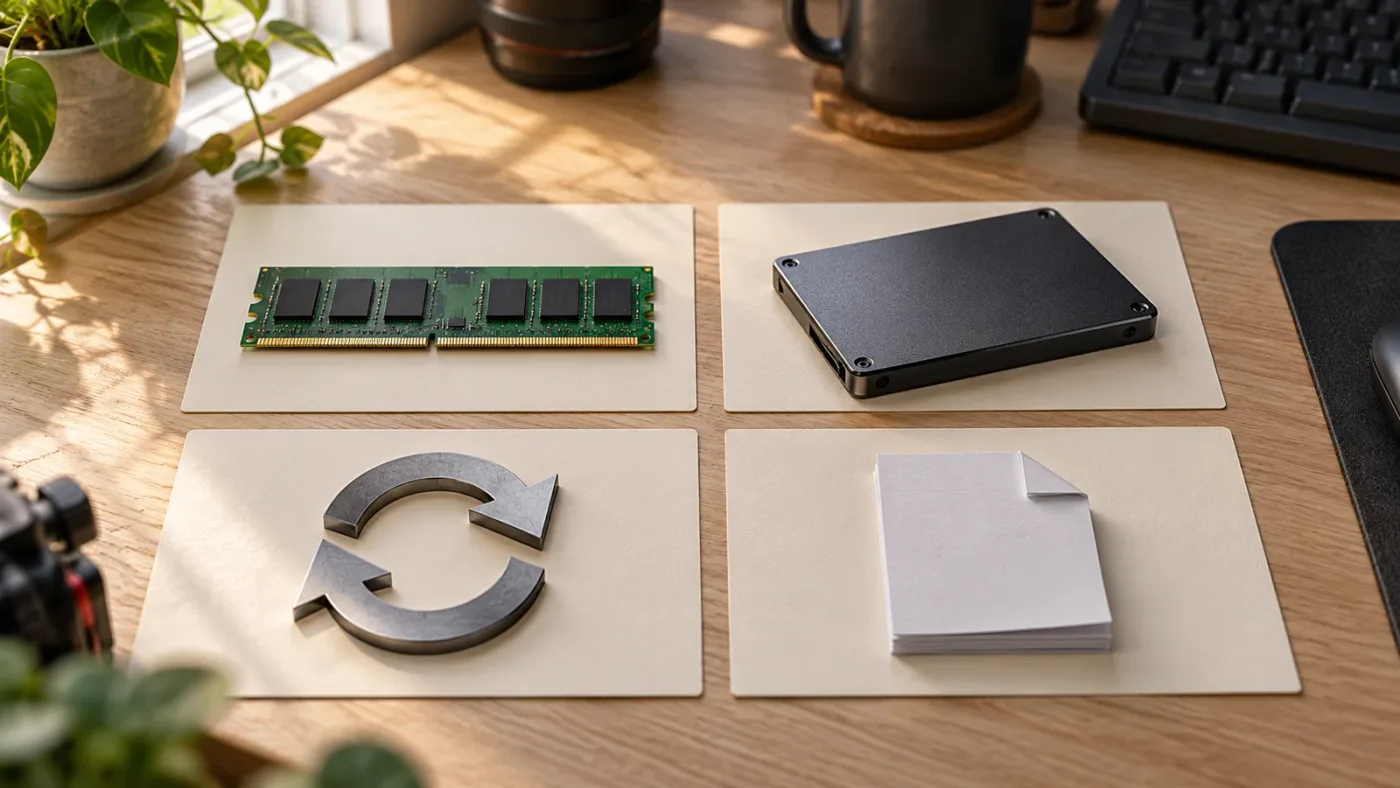
A key decision follows from the table. If the Fusion cache percentage is maxed and OS pressure is low, consider more cache. If the cache is not close to its cap but OS pressure is high, look beyond Fusion's cache. If the graph is slow on the first render but the cache has room, diagnose node cost, footage decoding, resolution, and GPU usage. If a render cache makes the result play smoothly but memory use stays high, the problem is probably not solved by pushing the RAM cache further.
You can avoid confusion by clearing one cache only when you have a specific reason. Clearing the Fusion cache removes reusable frames and forces them to be calculated again. Clearing disk render cache similarly means Resolve must rebuild rendered results. It doesn't reclaim memory needed by the live node graph in every case, and it does not fix the node tree. Use the appropriate cache control for the symptom and allow the cache to warm up before judging a playback test.
Resolve's memory cache can also be confused with Fusion Studio's cache. Blackmagic's Fusion manuals describe a standalone app's memory preferences separately. In DaVinci Resolve, the Fusion page's memory ceiling is controlled in Resolve Preferences. A guide that tells you to open standalone Fusion's Memory preferences may be describing another product. Confirm the application name at the top of the screen before applying its instructions.
The same distinction applies to a Fusion clip on the Edit page. You may be able to cache its Fusion output at the timeline level, which is different from the RAM cache used while interacting on the Fusion page. When only one timeline clip is slow, the per-clip option may fit better than enlarging a global Fusion RAM budget. See how to cache a single Fusion clip in DaVinci Resolve for that narrower workflow.
Swap and page-file activity are clues about system memory pressure, not a way to force Fusion to use more physical RAM.
How do I check whether Fusion caching is the bottleneck?
To check whether Fusion caching is the bottleneck, compare the Fusion cache meter with the operating system's memory pressure while repeating the same playback range. A cache that reaches its limit while the computer remains healthy points toward a cache-capacity decision; high system pressure with an underused Fusion cache points elsewhere.
Start with a repeatable segment. Choose a short range that reliably shows the slowdown, note the playhead position and playback quality, then play it once and again. The first pass may render frames that were not cached; a second pass tests whether reuse helps. Keep the same timeline resolution, clip, effects, and viewer configuration during both passes. This is a diagnostic comparison, not a benchmark claim about how fast another person's machine should be.
On the Fusion page, inspect the cache percentage indicator in the page's status area if the current layout displays it. The Fusion manual describes a percentage indicator for RAM cache use in the status bar of Fusion Studio and describes the Resolve Fusion page's RAM caching behavior. Resolve 21.1's interface and the standalone manual's exact indicator placement may differ, so use the current Resolve interface as the authority. Watch whether the percentage rises in step with the problem.
At the same time, inspect the OS. On a Mac, open Activity Monitor, select Memory, and watch Memory Pressure, Swap Used, Compressed, and Cached Files. Apple describes Memory Pressure as incorporating free memory, swap rate, wired memory, and file-cached memory, so interpret the graph with its component values. A green pressure graph with some swap is not the same signal as sustained high pressure while the app stalls.
On Windows, open Task Manager and use the Performance > Memory view. Note the in-use amount, available amount, and committed value if shown. Microsoft Learn explains that the system commit limit combines physical memory with page files and that high page-file usage alone does not necessarily prove a performance problem. If the commit value approaches the limit, identify whether the page file is disabled, constrained by low disk space, or simply being used normally before changing system settings.
A useful observation sheet is simple:
| Moment | Fusion cache | OS signal | Playback result | Interpretation to test |
|---|---|---|---|---|
| First pass | Rising | Pressure steady | Slow while frames calculate | Node or decode cost may dominate |
| Second pass | Near cap | Pressure steady | Previously seen range improves | Cache capacity may be helping |
| Any pass | Low | Pressure high or swap rising | Whole computer slows | System memory load may be outside the Fusion cache |
| Any pass | Near cap | Pressure high | Stalls and app switching becomes difficult | Lower workload or cache before increasing limits |
| Same frame repeated | Not changing | Pressure climbs each repetition | Resolve slows progressively | Reproduce in a clean project and document for support |
The table offers hypotheses, not diagnoses by itself. A cache may stop rising because the current node is not eligible for caching, because the viewer is showing another node, or because Resolve has reached a different internal limit. A memory pressure spike can come from another application or from the OS. The point is to look for a pattern that narrows the next safe test.
Don't interpret a low CPU percentage as proof that RAM is the bottleneck. One slow operation may be limited by a single thread, a node dependency, disk access, GPU compute, or a decode path even if the total CPU graph looks modest. Similarly, low GPU utilization does not automatically point to system RAM. If the timeline is slow after adding many tracks or effects, our guide to DaVinci Resolve Fusion render slow fixes covers node and rendering branches more directly.
Do not test with a project that is still importing media, generating waveforms, optimizing media, creating proxies, or rendering in the background unless that is the situation you need to diagnose. Background tasks change memory and storage use. Let them finish or pause them safely, then repeat the range. If you need the background process to continue for normal work, include it in the test and note that constraint rather than pretending the workstation is idle.
A small control project is useful. Create a new project with one short clip, a simple Fusion graph, and no other effects. Reproduce the basic action that triggers the concern. If memory grows only in the original project, inspect its nodes, frame dimensions, caches, and other active timelines. If the minimal project causes the same steady growth and performance decline, update Resolve to the latest maintenance build available for your installation, restart the computer, and reproduce before editing project content.
Keep a log, not just a screenshot. Write down the Resolve version from About DaVinci Resolve, operating system version, system RAM, GPU model and memory if relevant, source resolution, composition dimensions, number and type of major nodes, cache-limit values, and whether the problem appears in a clean project. Include what happened after one change. This gives Blackmagic support or a forum helper enough detail to separate an allocation issue from a project-specific effect problem.
A support post should avoid uploading client media or private work unless you have authorization. If a representative project is needed, reduce it to a sample that preserves the failure and remove sensitive footage, names, or metadata. A screenshot of preference values and system indicators may be sufficient to make the first discussion productive.
Why does Resolve still use swap or page file memory after I raise the Fusion limit?
Resolve may continue to use swap or page-file memory after you raise the Fusion limit because those are managed by the operating system and depend on all applications, not only Fusion's cache setting. Increasing a cache cap does not force the OS to keep every active page in physical RAM, and it can increase pressure if the machine has little headroom.
On macOS, check Activity Monitor's Memory Pressure rather than trying to make Swap Used equal zero. Apple notes that the pressure calculation includes swap rate, free memory, wired memory, and cached files. Some swap can remain after a workload even when the current pressure has eased. A single reading after the demanding moment may not describe what happened while Fusion was playing.
On Windows, inspect the commit charge and limit as well as physical memory availability. Microsoft's page-file guidance explains that the commit limit is the sum of RAM and page files, and that a full page file does not automatically mean the system has a performance issue if the commit limit is not reached and pages are not waiting to be written. The practical symptom is sustained delay or failures, not merely the presence of a page file.
If you have disabled the Windows page file to “make Resolve use RAM,” restore a suitable system-managed configuration unless you have a specific, documented reason to keep it disabled. Microsoft explains that page files support system commit and can also be required for crash dumps. Resolve does not gain extra physical memory when the page file is removed; the system simply loses some backing capacity and may hit its commit limit sooner.
Likewise, don't move the page file to a very slow external drive as a way to solve Fusion performance. The page file is not a substitute for enough physical memory, and storage delays can make paging more noticeable. Keep the system's normal memory-management configuration unless a measured problem calls for an intentional change.
On either OS, close nonessential memory-heavy apps, but don't kill arbitrary background processes by name. Some may be part of the operating system, driver, storage, or collaboration workflow. If one app clearly dominates memory, save its work and close it normally, then compare. This controlled step is safer and more informative than applying a “RAM cleaner” utility that may discard useful caches without fixing the cause.
If the machine swaps heavily only when Fusion's cache reaches its new higher limit, reverse the change. The goal isn't to make the Fusion cache bigger on paper; it is to make the editing session smoother overall. A smaller cache that avoids a hard memory squeeze can beat a bigger cache that forces the computer to move active data to disk.
Why does Fusion use more RAM after I add nodes or increase resolution?
Fusion uses more RAM as a composition retains more or larger rendered frames, and increasing frame dimensions can make each cached image substantially larger. More nodes can add computation and intermediate images, while a longer cached range can retain more frames; however, the exact amount depends on image formats, node behavior, bit depth, channels, and what is actually cached.
A useful mental model is pixels per frame multiplied by the data carried for each pixel, then multiplied by the number of retained frames. This is not an exact memory formula for Resolve because nodes may reuse buffers, produce different image domains, retain intermediate results, or allocate resources in ways not visible from the node count. But it explains why doubling width and height can demand far more memory than a small numeric change in a slider: the image contains four times as many pixels when both dimensions double.

The Domain of Definition can also affect how much image area flows through a graph. A blur, transform, glow, particle system, or 3D operation may cause the working image to cover a larger region than the original input. A transparent composition can still carry a large image canvas. Trim unnecessary image bounds where the workflow allows, and avoid rendering oversize frames when the final delivery does not need them.
For a still image or logo, check the source dimensions before loading it into a large composition. A still that is much larger than the output may be useful for pan-and-scan, but it can carry extra pixel work if the graph processes the full resolution. If the shot needs only a fixed crop, consider resizing or cropping upstream while preserving an original for later reframing. Do not downscale a source blindly if the project needs reframing, stabilization, or future output at a larger size.
For footage, distinguish source resolution from timeline resolution and Fusion composition resolution. A high-resolution source may be decoded before scaling; a composition can also generate large intermediate images. Lower playback resolution or use a proxy workflow only if it preserves the detail needed for the decision you are making. A draft playback mode can help you evaluate motion and timing, but it is not a substitute for checking final quality at delivery resolution.
Longer clips can retain more frames as you play through them, until a cache limit causes older or lower-priority frames to be removed. Scrubbing across a large range may therefore feel different from repeatedly checking a short section. If you only need to review a few critical frames, mark or isolate that region while working. If you need a longer finished result, disk caching may be a more suitable persistent playback strategy than trying to hold the entire sequence in RAM.
A node count alone is a poor complexity score. A graph with many lightweight transforms may use less memory than a graph with one large blur or multiple high-resolution branches. Likewise, a node connected to a viewer may have a different caching priority from an unused branch. Focus on what the viewer and output actually require; bypass branches, disable unused nodes, and inspect whether a branch is necessary before changing global memory preferences.
Fusion 21 adds tools and effects compared with earlier versions, and the official product information for Resolve 21 lists new Fusion additions such as the Krokodove toolset. New features may involve their own processing needs, but the existence of a new node does not prove that it caused unusual RAM behavior. Compare the composition with that node disabled, then re-enable it and repeat the same range. Preserve a duplicate or version of the composition before destructive changes.
Try a resolution ladder using the same shot: inspect the original composition, then a lower working resolution, then the intended final resolution. If the problem appears only at full size, image scale is a likely contributor. If memory rises at the same rate at every size, the issue may instead involve caching behavior, a specific node, another application, or a software defect. Treat the comparison as a diagnostic, not proof of a universal scaling rule.
The same disciplined comparison works with node branches. Save a duplicate, bypass half the graph, and test the range. If the problem disappears, restore nodes in smaller groups until you find the branch that changes the symptom. This is a form of binary search: each test removes or restores part of the workload. It saves time compared with removing nodes at random, and it protects the original setup.
A Fusion node count is not a memory estimate; frame size, retained frames, and the active graph all matter.
What should I change first: the Fusion cache, composition, or project cache?
Change the setting that matches the measured bottleneck: increase Fusion cache only when its limit is the constraint and system memory pressure is healthy; simplify or resize the composition when a specific graph drives the load; and use disk render caching when repeated playback needs rendered output without holding as much in RAM.
| What you observe | First test | Good next action | Avoid as the first move |
|---|---|---|---|
| Fusion cache reaches its cap, OS pressure is low | Increase the Fusion cache modestly | Repeat the same range and compare | Setting every memory control to maximum |
| Fusion cache is low, OS pressure is high | Close or pause nonessential memory-heavy work | Reduce competing load and inspect other Resolve tasks | Increasing Fusion cache |
| Cache is low, first render is slow | Bypass expensive nodes one at a time | Check node cost, source decoding, and working resolution | Assuming RAM capacity is the cause |
| One Fusion timeline clip repeatedly stutters | Test a clip-level Fusion Output cache | Cache only the affected clip or render in place if appropriate | Raising global memory for the entire project |
| Playback is fine after caching but the project uses too much RAM | Compare disk render cache with the RAM cache | Keep the cache suited to the editing stage | Clearing all caches repeatedly |
| The whole application grows memory in a minimal graph | Update, restart, and reproduce cleanly | Capture version and reproduction details for support | Deleting preferences or project databases without backup |
If the composition is still in development, keep it editable and cache only the short range you are reviewing. A global setting helps all Fusion work and can consume more shared memory than needed for one effect. If a single shot has reached a stable state and needs repeated review, a per-clip or disk-based cache can isolate the cost. If a shot is final and no longer needs node-level revision, a rendered replacement can reduce live processing but sacrifices immediate editability, so retain a recoverable original.
For an edit that is still changing, Smart render caching may help Resolve decide what to cache based on its rules, while User caching gives you manual control over specific clips. The modes answer different workflow questions. Smart is convenient when you want Resolve to manage cache decisions; User is explicit when you know the expensive section. The right option depends on whether you want automation or targeted control, not on which mode sounds more advanced.
A Fusion memory cache and the Edit page's Fusion Output render cache can coexist in a broader workflow but shouldn't be confused. The former retains frames for interaction in Fusion. The latter caches the clip's rendered Fusion result for timeline playback. If the time-consuming calculation happens in a clip's Fusion output and you don't need to keep its individual frames in the interactive cache, test the timeline cache path described in the dedicated single-clip guide.
Don't clear a project cache as a general-purpose memory purge. Disk render caches occupy storage; RAM cache is working memory. Clearing one will not necessarily change the other. If disk space is the concern, inspect the cache location and remove only files Resolve identifies as cache after confirming the project no longer needs them. If RAM pressure is the concern, reduce active work or adjust the relevant memory allocation. These are separate maintenance tasks.
You can also choose to work at a lower resolution during assembly and restore full quality for final review. That choice is useful when the composition is being timed or blocked in, but not when you are judging fine edges, noise, texture, or final color. Make a note of the working setting so you do not mistake a draft preview for the final result.
Did DaVinci Resolve 21.1 change Fusion memory behavior?
Resolve's current maintenance version matters because memory and stability fixes can arrive between major releases, but a release note about one operating system or one defect does not promise that every “using all RAM” problem is fixed. As of October 7, 2026, Blackmagic's Support Center lists the DaVinci Resolve 21.1 manual and Resolve 21.0.4 update information; check that page for the newest build available to your platform before troubleshooting.
Blackmagic's Support Center notes that Resolve 20.3.3 improved Fusion memory usage on macOS 26 and that the improvements were already in DaVinci Resolve 21 Public Beta 3. That is a useful version-specific clue for users who saw the issue on macOS 26 in earlier Resolve versions. It does not mean every RAM-heavy composition is caused by that defect, nor does it establish an identical fix for every OS, GPU, or project.
Resolve 21.1's release and manual date are also useful context when comparing instructions. If a post from an earlier major version recommends a preference control that you cannot find, first check the current version and product: Resolve's Fusion page, Fusion Studio, and a prior Resolve build do not always expose the same interface or limits. Do not reset all preferences simply because one old screenshot differs.
A version update can change more than memory management. It may also affect decoding, effects, cache behavior, GPU support, and project compatibility. Before updating a production machine, back up the project and database according to your normal workflow. Keep a recoverable copy before moving a project between builds.
If your issue began immediately after an update, record the old and new build numbers and the exact date. Test a copy of the project in the latest maintenance build rather than overwriting the only working version. If the problem began before updating and persists across versions, a version change may not be the root cause. Controlled comparison is more useful than assuming the newest release or a rollback will automatically solve it.
Release notes can establish that Blackmagic changed a named behavior; they cannot tell you whether your specific project is using more RAM than expected. That requires the measured comparison in the previous sections. The safest reading of a relevant memory release note is: update if you are affected by the described platform or defect, then repeat the same controlled test and verify the result.
What do Fusion memory settings mean on macOS and Windows?
Resolve's Fusion cache is a Resolve preference on both platforms, while the operating system reports memory health through different tools and terms. The diagnostic principle is the same: watch the machine during the slowdown and distinguish physical memory pressure from cache capacity or committed memory.
On macOS, open Activity Monitor from Applications > Utilities and choose the Memory tab. Apple documents Physical Memory, Memory Used, App Memory, Wired Memory, Compressed, Cached Files, and Swap Used. Memory Pressure combines several signals, including free memory and swap rate. If pressure stays comfortable while the Fusion cache meter reaches its limit, test a larger cache. If pressure rises and the Mac becomes sluggish, lower the workload first.
On Apple silicon, the system's unified memory is shared across CPU and GPU work. This makes it even more important not to treat system memory as an isolated pool that Fusion can claim without affecting other parts of the workload. Keep the Resolve cache test focused and check macOS pressure while playing the composition. A separate GPU-memory setting is not a way to expand unified memory.
Blackmagic's Resolve 21.0.4 update notes state platform support and features on the Support Center, and its older 20.3.3 notes call out improved Fusion memory usage specifically on macOS 26. If you run macOS 26 and an earlier Resolve 20 build, this historical note is relevant. If you're already on Resolve 21.1, don't assume a later problem has the same cause; verify the current update information and reproduce it.
On Windows, open Task Manager with Ctrl+Shift+Esc and select Performance > Memory. Windows also exposes commit charge and commit limit in the System section on versions where that view is shown. Microsoft Learn explains that the page file can extend the system commit limit and that the Windows-managed file may grow as the system approaches its limit, provided disk space is available. If you have set the page file manually, verify that the system has sufficient free space and that the configuration is intentional.
A high commit charge and low available physical memory are related but different facts. A high page-file percentage by itself does not tell you whether the system is currently stalled. Look at whether the committed amount is approaching the limit, whether physical memory is nearly exhausted, and whether page-file activity coincides with the Fusion slowdown. If the OS is under pressure, reduce competing tasks before raising the Fusion cache.
Windows systems with multiple GPUs or unusual driver setups can show high GPU memory use alongside RAM use. Don't combine the two numbers. System RAM, dedicated VRAM, and shared GPU memory are separate counters with different constraints. If Resolve shows a GPU memory warning, use the GPU-specific diagnostic route, not this RAM cache adjustment.
On either platform, make sure the correct Resolve build is running and the preference was saved. If the preference window includes a Save button, click it and follow restart prompts. Reopen Preferences to verify the value persisted. Then test the same composition. This check catches the simple case where a changed slider was never committed.
Should I increase RAM, lower Fusion quality, or change the composition?
Increase physical RAM only when a representative workload repeatedly exhausts available system memory after you have reduced unnecessary competing load and confirmed that the composition needs the extra working set. Lower working quality or simplify the graph when the project needs fewer pixels or less processing during the current stage; change the cache when it is the specific limit.
Before buying memory, establish that the computer can accept it. Some laptops and compact systems have memory soldered to the board; many Apple silicon machines cannot be upgraded after purchase. A desktop may have motherboard, CPU, capacity, speed, and module configuration limits. Check the computer manufacturer's specification for your exact model and configuration. The Resolve preference cannot override a hardware limit.
More installed RAM helps only if RAM capacity is the constraint. It will not make an expensive effect render faster if the effect is limited by a GPU, single-thread performance, source decoding, storage throughput, or a bug. In that case, more RAM may let the cache retain more frames after they are rendered, but the first render still takes the time it takes. Diagnose before spending.
Lowering the composition resolution can reduce image workload, but it changes what you see. Use it for layout, motion, or rough timing when fine detail is not the decision. Return to delivery resolution to inspect edges, keying, texture, and final output. If the source footage itself is difficult to decode, a proxy or optimized-media workflow may help the decode path, though it adds storage and management work and does not fix every Fusion memory issue.
If you change node structure, preserve the original. Bypass a branch rather than deleting it, or duplicate the composition before making a larger edit. Large Fusion graphs often encode many small creative choices. A diagnostic test should be reversible, especially when the symptom may have more than one cause.
RAM upgrades also involve the rest of the system. The OS, browser, audio tools, compositing applications, and background render tasks all share physical memory. If the same machine routinely runs several creative applications together, the total workload matters more than Resolve in isolation. If the workstation is dedicated to Fusion, a larger cache budget may be viable. Neither situation supports an exact one-size-fits-all RAM recommendation.
Use Blackmagic's published system requirements as a floor for compatibility, not a promise of smooth performance on every project. The Resolve 21 requirements distinguish general use from Fusion use; the published minimum shown in the Resolve 21 release notes is 8 GB of system memory, or 16 GB when using Fusion. Meeting a minimum does not imply that a complex 4K composition with many high-resolution branches will feel comfortable. Conversely, exceeding it doesn't prove that an individual project should consume every available gigabyte.
What should I do if Resolve still grows until it crashes?
If Resolve keeps growing until it crashes, reduce the workload and create a repeatable minimal test before changing project files or deleting caches. A crash after a memory climb can result from a specific composition, a software defect, a driver issue, or system-wide pressure; the pattern must be isolated before you pick a fix.

Save a new copy of the project first if Resolve is still responsive. Don't force quit while a project is writing if you can avoid it. If the application has already stopped responding, wait briefly for an OS recovery prompt or a crash report, then preserve the available diagnostic report. Avoid opening and resaving the only copy in a different Resolve version until you have a recoverable backup.
Reproduce with the smallest project that still triggers the behavior. Start with one affected Fusion clip, then bypass groups of nodes, then reduce the playback range. Write down whether the memory rise occurs when opening the project, entering the Fusion page, playing, scrubbing, rendering, or changing a particular node. The trigger often narrows the likely subsystem.
Check available storage too. When a page file, cache folder, or temporary directory needs to grow, a nearly full drive can interfere with normal behavior. That does not mean every RAM problem is a disk-space problem. It means the OS and Resolve need working room for their own storage-backed memory and cache tasks. Do not delete media or project backups to free space without confirming what depends on them.
Update Resolve only after backing up. Blackmagic posts current installers and version notes on its Support Center. If you already have the latest compatible maintenance build, note that fact rather than reinstalling repeatedly. If the issue began with one point release, compare a copy in another supported build where your project and workflow permit it. Keep the original project intact.
Resetting preferences is a later diagnostic, not the opening move. Preferences contain many custom settings, and a broad reset can make the application behave differently without identifying the memory trigger. If you test a reset, first record or back up the settings you rely on and change only the relevant preference where possible. Don't remove user data folders or project libraries based on a generic memory-fix video.
A support report should include the exact Resolve version, OS build, whether the free or Studio edition is in use, installed RAM, GPU and VRAM, cache settings, project resolution, source format, and the smallest repeatable set of steps. Include whether the crash happens in a blank project and whether system memory pressure or commit charge reaches a limit first. This is more useful than saying only “Resolve uses all RAM.”
A precise report also states what changed when you tested one setting. For example: “In Resolve 21.1 on macOS 26, a short 3840 by 2160 composition with a MediaIn, keyer, and MediaOut reaches high memory pressure after playback; lowering Limit Fusion Memory Cache reduces pressure but not first-frame render time.” Only write a statement like this if it describes your real test. Do not copy it as if it were a universal reproduction case.
If the issue appears only with a third-party plugin, test without that plugin if you can do so safely. If a node comes from a third-party package, note its name and version. Do not uninstall plugins or delete their folders while Resolve is open. A plugin-specific allocation may not obey the Fusion cache limit in the way you expect.
If the crash is intermittent, repeat the same short test after a fresh restart and note whether it happens at the same point. Intermittent behavior can be harder to reproduce, but a consistent trigger is valuable. Avoid running several simultaneous benchmark utilities; they add load and can change the behavior you are trying to observe.
How can I learn the memory controls without guessing?
The best way to learn the memory controls is to connect each setting to one visible symptom and test one variable at a time. Blackmagic's Resolve manual is the authority for the current preference names, while OS documentation explains what Activity Monitor or Task Manager is actually reporting.
A tutorial can help you find the control, but its screen may show an older Resolve version, a different operating system, or standalone Fusion Studio. Check the application name, version number, and panel title before following exact clicks. Resolve 21.1 is the current version context for this article, and the Blackmagic Support Center lists its manual for checking updated interface wording.
If you are learning Fusion more broadly, the best way to learn DaVinci Resolve is usually to connect a control to a real task: make one simple composition, test the cache behavior, then add one expensive operation and observe what changes. This is more informative than copying another user's slider values because your computer, project size, and active apps differ. Free official Blackmagic training and community explanations can help with fundamentals; use the current manual to verify settings that affect system behavior.
An app that helps you while using DaVinci Resolve is most useful when it can orient you to the right control in your current interface. TryUncle is the on-screen assistant for DaVinci Resolve on Mac and Windows — ask in plain words and Uncle points at the exact control on your screen. The product can help explain where a control is while you work; it does not change the technical diagnosis that the cache is nested inside Resolve's memory budget.
When a setting is confusing, write down what you expect it to change before changing it. For example: “If the Fusion cache is the bottleneck, raising its limit should let more frames stay cached, while OS memory pressure should remain manageable.” Then run the test and compare. If the result doesn't match the prediction, that tells you the cache limit may not be the bottleneck. A setting becomes less mysterious when it has a testable job.
Keep your notes short and factual. Record the version, current values, OS signal, cache percentage, and one outcome. Avoid turning one successful trial into a rule for all Resolve projects. A threshold that works on a clean title animation may be a poor fit for a long 4K composition with several image branches and background apps.
When should I stop increasing the Fusion cache?
Stop increasing the Fusion cache when the operating system loses headroom, the computer becomes less responsive, or a larger cache no longer improves the playback range you need. The useful setting is the one that makes your work predictable without starving the rest of the system.
If a larger limit improves replay of the same frames and the OS remains stable, you have evidence that cache capacity mattered. Keep the setting and test a second representative section. If the improvement appears only after the first pass, that may be expected: Fusion must render uncached frames before it can reuse them. Don't expect a cache to eliminate first-render computation.
If the cache meter remains low after increasing the limit, the setting did not address the current constraint. Restore the previous value and investigate the graph, source media, output dimensions, GPU processing, or other memory consumers. A high ceiling is not useful if the cache never reaches it.
If you see memory pressure rise, swap activity accelerate, or other applications become unreliable, back down. On a laptop, thermal and power conditions can also affect overall responsiveness, but they are separate from a Fusion RAM allocation. Don't use memory settings to treat heat, battery, or graphics limitations.
An editor may choose a smaller cache during assembly and a larger one for a focused Fusion session. That can be a sensible workflow if you understand the trade-off. Make the change deliberately, note the original setting, and restore a stable default when the heavy session ends if the larger allocation harms multitasking. A preference is a tool, not a score.
For a complex shot that must be reviewed repeatedly, a disk render cache can preserve the result without demanding that every frame remain in RAM. For an interactive shot whose nodes are changing constantly, a RAM cache may be more useful for replaying a short range. For a one-off effect that renders quickly, no special cache change may be needed. Choose based on how you are working today.
The decisive test is not whether Resolve's memory number looks impressive. It is whether the required frames play and scrub acceptably, whether the computer can still perform normal work, and whether the same result repeats after you reopen the project. If all three hold, stop tuning. Spend the time on the composition.
Which Resolve 21 Fusion memory fix should I try first?
Start by checking the Fusion cache percentage and system memory pressure during the exact slowdown, then change only the setting that matches what those indicators show. Increase the Fusion cache only when the cache is the limiting factor and the computer has headroom; otherwise reduce the workload, test disk caching, or investigate the graph and software version.
DaVinci Resolve 21 does not have a safe “take every gigabyte” switch for Fusion. Its Fusion playback cache sits inside Resolve's overall memory allocation, while macOS and Windows make their own decisions about compression, paging, and available memory. More RAM can help a composition retain more rendered frames, but it won't fix a slow first render or a GPU bottleneck.
Blackmagic Design's manual and current Support Center explain the preference hierarchy and version changes. Apple's Activity Monitor guide and Microsoft's page-file documentation help interpret the operating-system signs. Use those sources to verify the controls on your build, then run a short repeatable test rather than tuning by guesswork.
If you raise one limit and the machine gets worse, put it back. If a small controlled change improves playback and leaves the OS responsive, keep it. That is the right end point: stable, repeatable editing, not a full memory meter.
Frequently asked questions
- Why is DaVinci Resolve 21 Fusion using all my RAM?
- Fusion stores rendered frames in a RAM cache for playback, and Resolve's Fusion cache limit is a portion of Resolve's overall memory budget. A large frame, long cached range, complex node tree, other open applications, or a separate memory problem can make system memory look exhausted. Check the Fusion cache percentage and OS memory pressure before changing limits.
- How do I make DaVinci Resolve 21 Fusion use more RAM?
- Open DaVinci Resolve > Preferences on macOS or DaVinci Resolve > Preferences on Windows, choose System > Memory and GPU, and increase Limit Resolve Memory Usage to first. Then increase Limit Fusion Memory Cache to a suitable share of that budget and save. Fusion's cache is nested inside Resolve's allocation, not added on top.
- Can I set Fusion to use 100 percent of my RAM?
- No safe setting gives Fusion every byte of installed RAM. Resolve reserves memory for the operating system and other work, and its Fusion cache is limited to a share of Resolve's own memory budget. Use the highest value that leaves the computer responsive during a representative composition, not a goal of filling the memory graph.
- Why does Resolve use swap or page file memory instead of RAM in Fusion?
- The operating system may compress or move less active memory to disk when physical memory pressure rises; that does not mean Resolve has a hidden control to force all work into RAM. On macOS, read Memory Pressure and Swap Used in Activity Monitor. On Windows, inspect Task Manager's memory and committed values, then reduce the workload or restore a suitable cache limit if the machine is paging heavily.
Sources
- DaVinci Resolve 21.1 Manual and Support Center
- Fusion 19.1 Reference Manual, RAM cache limits
- DaVinci Resolve 21.0.4 Update and current release information
- DaVinci Resolve 20.3.3 update notes
- Peter Chamberlain, DaVinci Resolve Product Manager, on pre-allocated memory
- Apple Activity Monitor User Guide: View memory usage on Mac
- Microsoft Learn: Introduction to the page file
- Microsoft Learn: Determine the appropriate page file size
- Blackmagic Design DaVinci Resolve 21 product page and system requirements
Put this guide to work with TryUncle.
Ask about the step you’re on. TryUncle sees your screen and points at the control you need, so you can keep learning in your own project.
Get TryUncle for Mac or WindowsKeep reading

Fixes · Jul 25, 2026 · 27 min
DaVinci Resolve Using Swap Memory Instead of RAM: The Fix
Why DaVinci Resolve falls back to swap or the page file instead of RAM, what it means for performance, and the exact settings that stop it.
Fixes · Jul 10, 2026 · 26 min
DaVinci Resolve Fusion Render Slow? The Real Fixes
Why DaVinci Resolve's Fusion page renders so slowly, and the real fixes: resolution passthrough, MediaIn vs Loader, node caching, and CPU-only nodes.
Guides · Oct 3, 2026 · 14 min
DaVinci Resolve Cache a Single Fusion Clip: The Exact Fix
Cache one Fusion clip in DaVinci Resolve 21 without caching your whole timeline. Use Fusion Output, User cache mode, and the right fallback.