Articles / Fixesupdated for DaVinci Resolve 21.0.1 (June 2026)
DaVinci Resolve GPU Memory Is Full: Every Real Fix
Quick answer
DaVinci Resolve shows this when your graphics card's VRAM fills up from timeline resolution, cached frames, and effects like noise reduction or Magic Mask. Fix it by lowering timeline resolution, disabling heavy effects, updating your GPU driver, and checking Preferences > System > Memory and GPU. If it keeps happening at 4K, your GPU needs more VRAM.
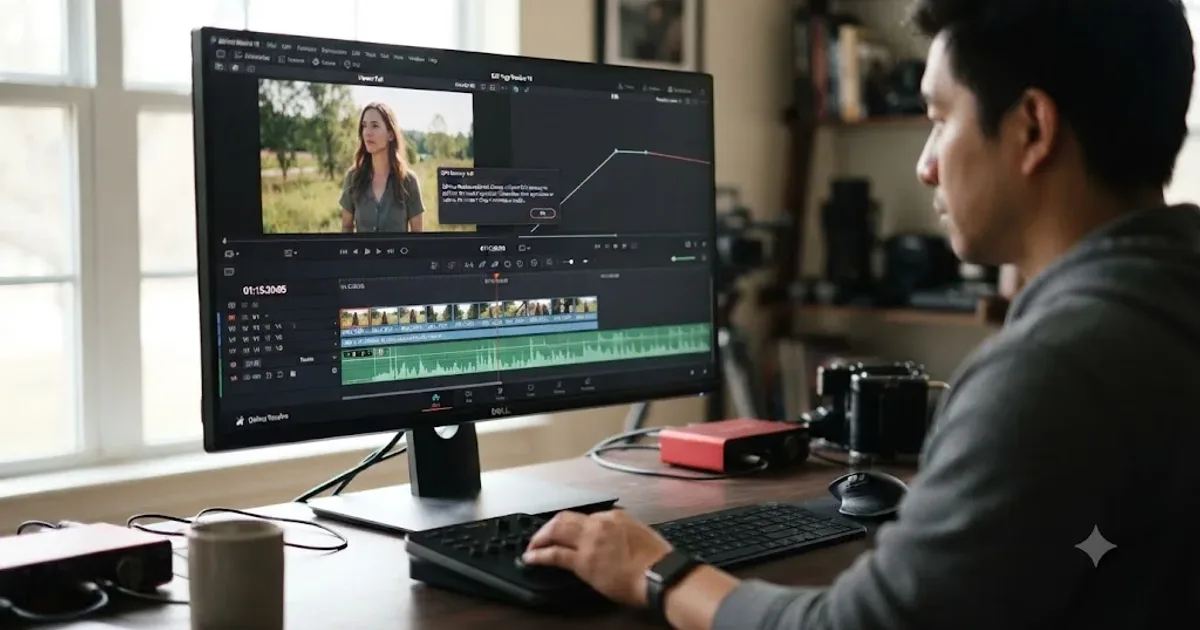
Your GPU memory is full is Resolve's way of saying your graphics card ran out of dedicated video memory, not system RAM, not disk space, the memory that lives on the card itself. It shows up mid-scrub, mid-render, or the second you drop a noise reduction node onto a 4K clip. None of that means your GPU is broken.
Here's what's actually filling it up, and the order to try fixes in so you're not guessing.
What causes the "Your GPU memory is full" error in DaVinci Resolve?
Three things compete for the same pool of VRAM: your timeline resolution, your render cache, and whatever effects sit on the clip you're viewing. Push any one of them too far and Resolve runs out of room before it can draw the next frame.
Noise reduction, Magic Mask, Depth Map, SuperScale, and the "Better" mode on Relight are the usual repeat offenders, since each one asks the GPU to hold extra frame data in memory while it works. Stack two or three on the same clip and even a capable card can run dry. Forum reports on Blackmagic's own support board describe transitions like a simple cross dissolve becoming the last straw on an already-loaded timeline, tipping a project that was fine a moment ago into the error.
A GPU memory full error is a resource limit, not a sign that DaVinci Resolve or your graphics card is broken. It's the same category of message as a full hard drive: annoying, but solvable once you know what's eating the space.
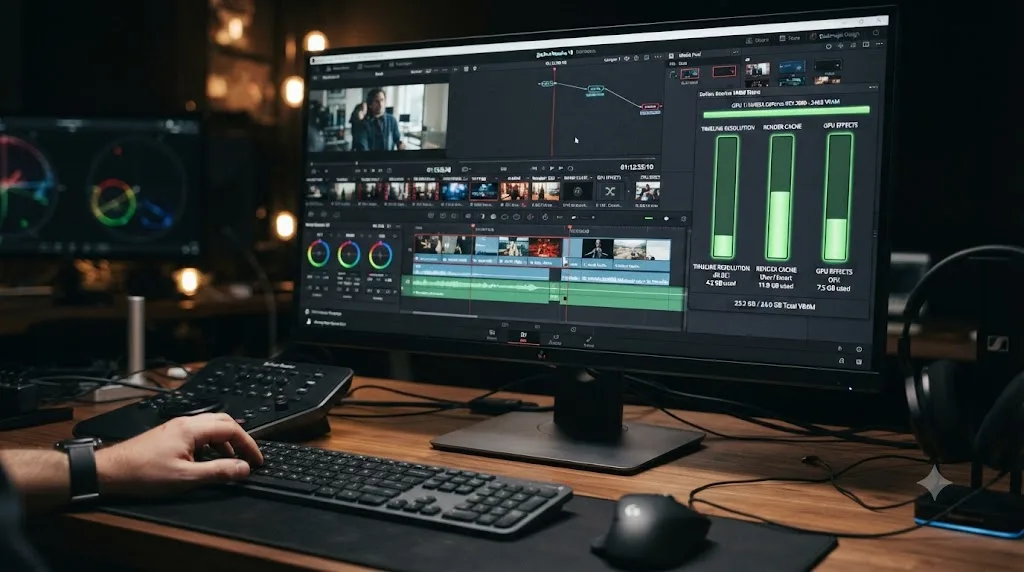
How does DaVinci Resolve actually use your GPU's memory?
Every frame you see in the viewer takes a round trip through VRAM. Resolve decodes the source file, scales it to your timeline resolution, and hands the graphics card an uncompressed working frame. Every node in your grade then runs against that frame on the GPU, and intermediate results stay in memory so the next node can pick up where the last one finished.
Uncompressed is the key word. A UHD frame held in 32-bit float color, the precision class high-end grading pipelines work in, comes out to roughly 130MB. Run the same math on 1080p and you get about a quarter of that. Same clips, same grade, four times the memory bill just for stepping the timeline up to 4K.
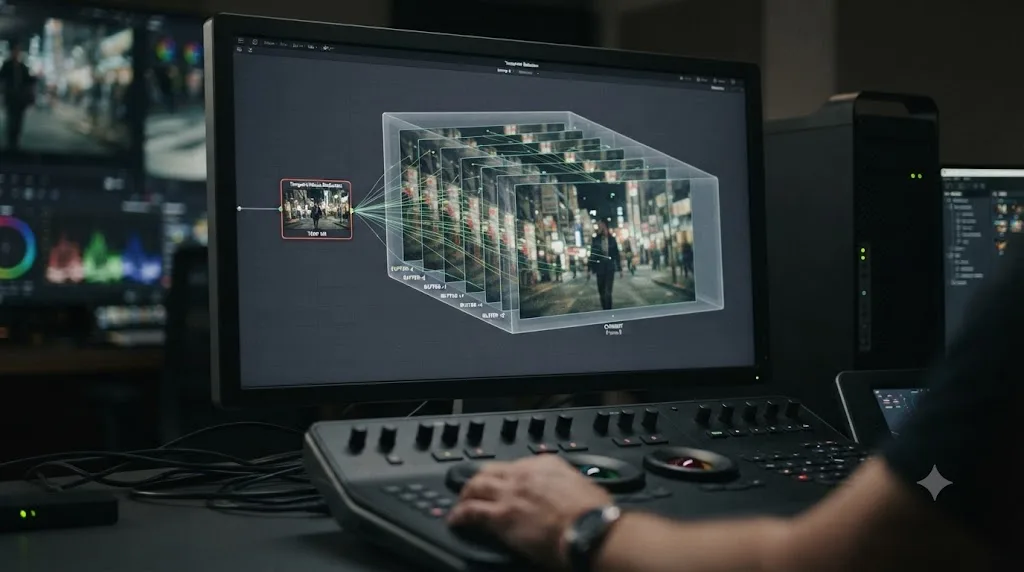
Temporal effects multiply it again. Anything that compares the current frame against its neighbors has to keep those neighbors resident too, each one another full working frame.
And Resolve doesn't get the whole card to itself. Your operating system's window compositor, your second monitor, your browser with twenty tabs, they all hold slices of the same pool, so the usable amount is always less than the number on the box. That's the whole error in one picture: big frames, times several copies, inside a pool that was never as big as it looked.
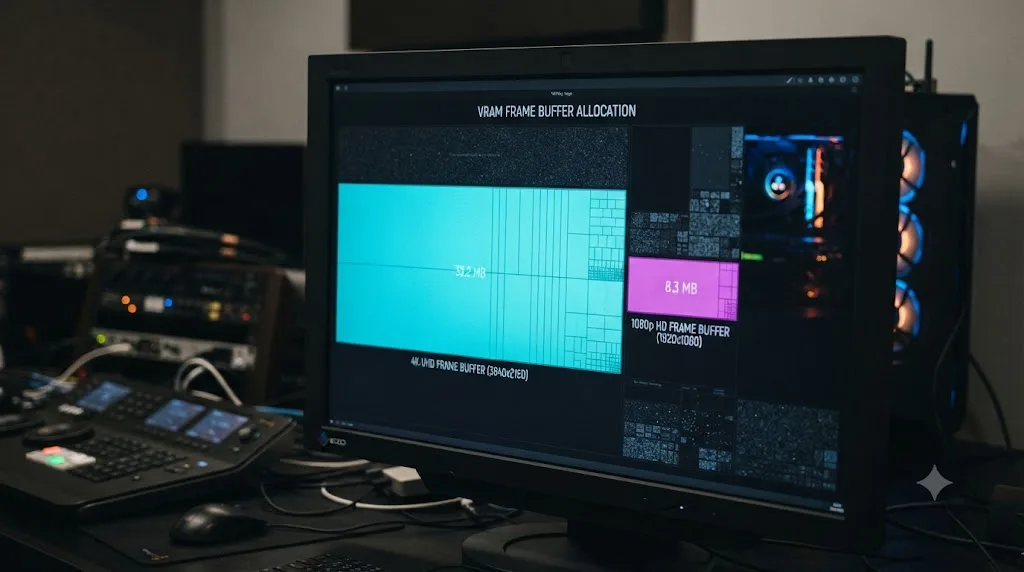
What does the memory math look like on an 8GB card?
Run the back-of-envelope budget for a common setup: a UHD timeline, one grading node chain with temporal noise reduction, an 8GB card. No benchmarks needed, just the frame arithmetic from the last section.
At UHD resolution, one second of 24fps footage held as uncompressed 32-bit working frames comes to roughly 3GB of GPU memory. Resolve doesn't hold a full second at once, but the figure sets the scale you're operating at. Smooth playback means a pipeline of frames in flight: the one on screen, the ones being prepared behind it.
Now add the effects. A temporal noise reduction window that compares a handful of neighboring frames holds each of those as another working copy, several hundred megabytes before the grade itself computes anything. Turn on Magic Mask and the segmentation model claims its own block. Open the scopes and the viewer output surfaces claim theirs.
Then subtract what was never yours. The operating system's compositor and every connected display took their slice before Resolve launched, and any hardware-accelerated app in the background is holding more.
Stack it up and the story writes itself. An 8GB card runs a clean UHD timeline fine, survives a moderate grade, then dies the moment temporal NR lands on a clip. That's also why the error can come and go on the same timeline: park on a plain cut and you're under the line, park on the NR clip with scopes open and you're over it. Nothing is broken. The budget just closed.
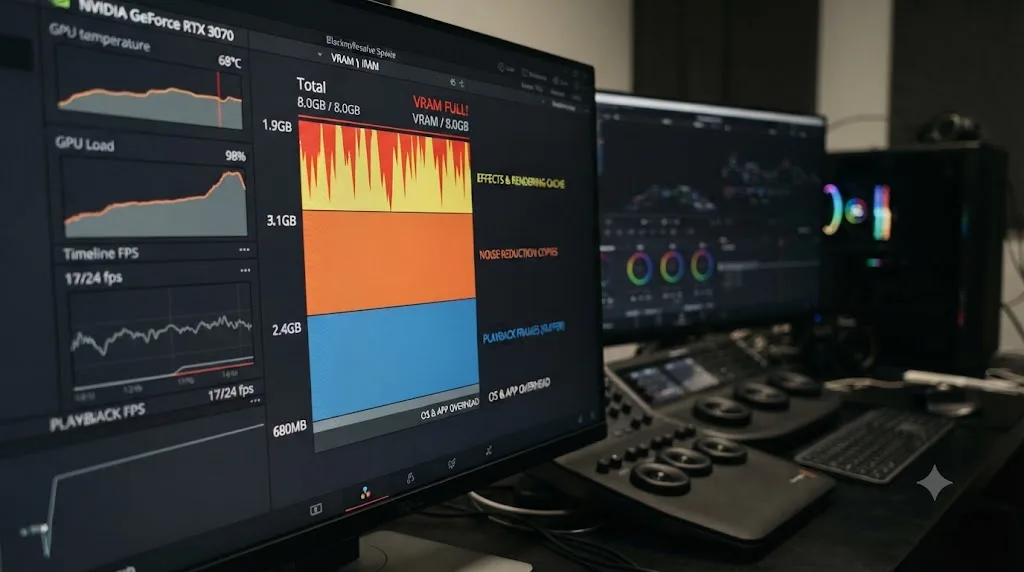
Where does the error hit first: playback, effects, or export?
The moment the error appears is itself a clue, and reading it right saves you from fixing the wrong thing. Find your row:
| When it appears | Most likely cause | Start with |
|---|---|---|
| Scrubbing plain footage, no heavy effects | Timeline resolution too high for the card | Lower timeline resolution, then optimized media |
| The instant you enable NR, Magic Mask, or SuperScale | That effect's extra frame copies | Disable or cache the node |
| Inside the Fusion page | Comp intermediates piling up | Pass through heavy branches, Render in Place |
| Only during export | Full-resolution render with every effect live | Render in Place on the heaviest clips, export in sections |
| Right after a driver or Resolve update | A false error from a bad build or mismatched mode | Roll back the driver, set the processing mode manually |
| Only in one specific project | That project's settings or one monster clip | Compare its timeline resolution and effects against a project that behaves |
| On every project, even simple ones | Wrong GPU selected, or a card below spec | Check GPU Selection, then the VRAM tables below |
Two of those rows aren't memory shortages at all. The driver row and the wrong-GPU row are configuration problems wearing a memory error's costume, and no amount of effect-trimming fixes them. The export row is the sneakiest: proxy mode and low timeline resolution only protect playback, so the Deliver page renders at full weight and can hit a ceiling your editing sessions never touched.
Should you lower timeline resolution first?
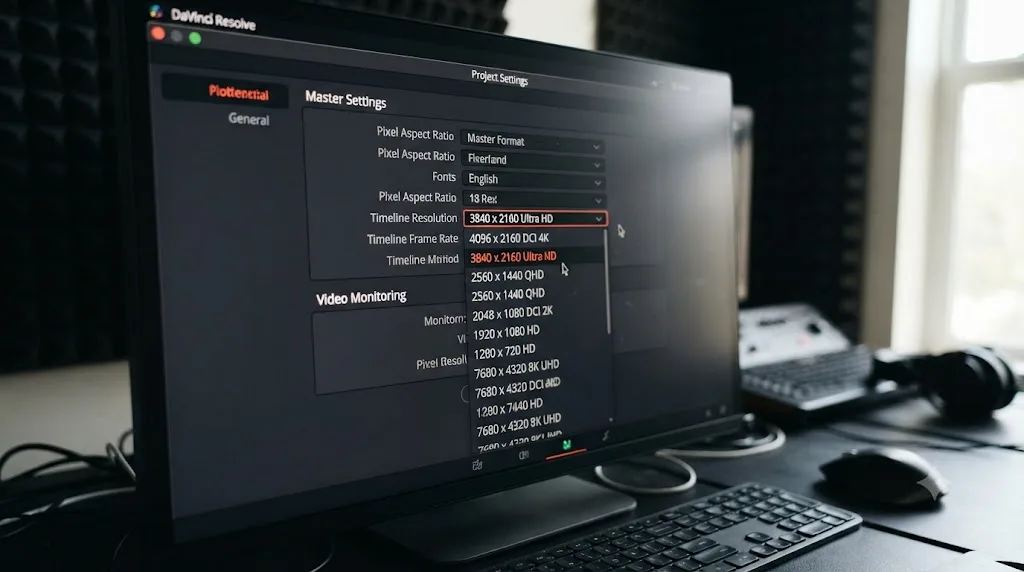
Yes, because it's the fastest fix and it costs you nothing permanent. Open Project Settings, go to Master Settings, and drop Timeline Resolution down to 1920x1080 or even 1280x720 while you're editing. Your original 4K or 6K media doesn't get downsampled or damaged. You're only changing how much resolution Resolve has to push to the GPU while you work, and you can render your final export at full resolution from the Deliver page whenever you're ready.
Lowering the timeline resolution frees GPU memory instantly, without touching a single effect on your clips. If the error clears the moment you drop resolution, you've confirmed the cause: your GPU simply doesn't have enough VRAM for full-res playback with everything else you're asking it to do.
Do proxies and optimized media help with GPU memory?
Indirectly, yes. And one playback setting helps directly.
The direct one is Timeline Proxy Mode. Set Playback > Timeline Proxy Mode to Half Resolution and Resolve processes each frame at half size, which cuts the memory per frame to a quarter of full resolution. Quarter Resolution goes further still. Your project settings don't change and your export doesn't change. It's a playback-only diet you can toggle off the moment you need to judge fine detail.
Proxies and optimized media attack a different bottleneck, the decode. They still earn a place here, because the classic recipe for this error is 4K 10-bit H.264 or HEVC footage on a card with 6 to 8GB of VRAM. That combination hammers the decoder and the memory pool at the same time, and the card loses on both fronts. Transcode those clips to optimized media in an edit-friendly codec, turn on Playback > Use Optimized Media if Available, and the GPU stops fighting a two-front war. Pair that with proxy mode and a 1080p timeline, and a 6GB card can carry a 4K project it had no business carrying at full weight.
The same settings do double duty against stuttery playback, which I've covered in the slow playback guide. And if the error only ever appears while exporting rather than editing, that's a different animal, covered in the render failed guide.
Should you turn off hardware video decoding?
Sometimes, and it's one of the least discussed trades in Resolve. Hardware decoding hands H.264 and HEVC decompression to the GPU's dedicated decoder block, and the decoded frames that block produces live in VRAM. Fast, yes. But it means your source footage is claiming GPU memory before your grade takes its own share.
Hardware video decoding in DaVinci Resolve spends GPU memory to save CPU time.
The trade lives in Preferences > Decode Options, where the hardware acceleration checkboxes sit (which boxes you see varies by edition and platform). Untick hardware decoding for H.264 and H.265 and the work moves to the CPU. Scrubbing gets heavier, your fans get louder, and the VRAM the decoder was holding comes back to the pool. On a 6 to 8GB card parked right at the ceiling, that reclaimed slice can be the whole fix. Try it when the error strikes during plain playback of long-GOP camera footage and the resolution fixes haven't finished the job.
RAW footage has its own version of the same lever. Project Settings > Camera RAW > Decode Quality can be dropped to Half or Quarter Resolution, so a BRAW or R3D clip debayers into a fraction-sized frame before it ever reaches your node graph. Like proxy mode, it's a working setting, not a quality decision: tick "Force debayer res to highest quality" on the Deliver page and your export ignores the shortcut entirely.
Why do Fusion compositions fill GPU memory so fast?
Because Fusion keeps receipts. Every tool in a composition produces an intermediate image, and Fusion holds onto those intermediates so you can adjust one node without recomputing the whole tree. A grade on the color page is a chain. A Fusion comp is a web, and every strand of the web wants its own buffer.
Big merges, glows and blurs with large filter sizes, particle systems, and 3D scenes are the expensive strands. Stack a few of them in one comp at UHD and you can exhaust a card that handles your color grade without a complaint.
Three Fusion-specific moves help. First, set heavy branches to pass through while you build the rest of the comp, so nodes you're not working on stop computing entirely. Second, once a section is final, stop paying rent on it: right-click the clip on the Edit page and choose Render in Place, which bakes the comp into an ordinary media file and releases everything it was holding. Third, split a monster comp into two stacked, simpler ones so no single frame ever needs the whole web in memory at once.
How much VRAM do noise reduction and Magic Mask really cost?
More than anything else you'll add on a normal edit.
Temporal noise reduction compares each frame against its neighbors to separate noise from detail, and every frame in that comparison window is another full working frame in VRAM. Remember the rough 130MB per UHD frame from earlier. A multi-frame temporal window multiplies that before your grade even starts. Spatial noise reduction works on the current frame alone, so when temporal NR triggers the error, dropping to spatial-only is a real fallback rather than a consolation prize.
Magic Mask is expensive for a different reason. It runs an AI segmentation model on the GPU, and that model's weights and working data sit in VRAM right next to your frames while it tracks a subject through the shot. Both features live in the Studio version only, which is one reason free version users rarely meet this particular flavor of the error. What Magic Mask can and can't do is covered in the Magic Mask guide.
You don't have to delete the look to stop the error. Cache it instead. Right-click the noise reduction node and turn on its node cache, or set the render cache to Smart, and Resolve renders the effect once to disk instead of recomputing it on every playback pass. One warning: the caching pass itself still has to fit in VRAM once, so drop the timeline resolution while it caches if you're right at the edge.
Which everyday features quietly eat GPU memory?
The named effects get all the blame, but several ordinary features hold VRAM without ever looking like effects.
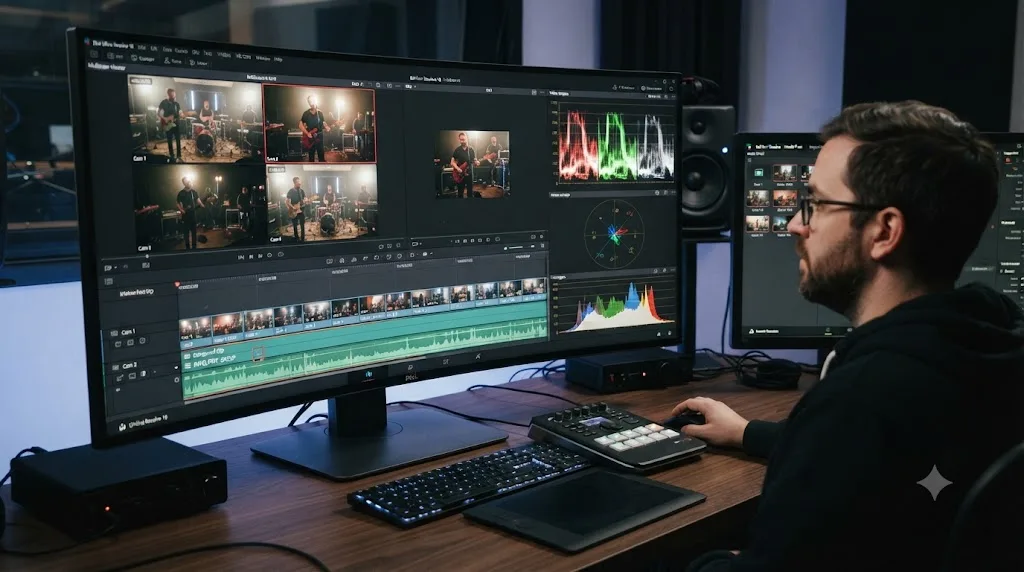
Multicam is the big one. The multicam viewer decodes every angle in the grid at once, so a nine-angle cut means nine simultaneous streams competing for the pool while you tap between cameras. If the error shows up mid multicam session, switch the viewer to a smaller grid, or make your angle decisions early and flatten to a normal clip.
Compound clips and nested timelines are the quiet second. A compound clip looks like one clip on the timeline and bills like everything inside it, because every layer it contains still processes live on playback. If a compound clip triggers the error, either simplify what's inside or bake it with Render in Place, the same escape hatch that works for Fusion.
Then the viewers themselves. Video scopes render on the GPU, and each open scope is another output surface to maintain. A full-screen clean feed to a second display holds a complete additional copy of the program output. Neither matters on a 24GB workstation card. On 8GB, closing the scopes you're not actively reading and dropping the clean feed during heavy grading are free memory back, no quality traded.
The pattern across all three: VRAM cost scales with how much Resolve has to show at once, not just what effects you've applied. Fewer simultaneous pictures, smaller bill.
How do you fix it through DaVinci Resolve's GPU and memory preferences?
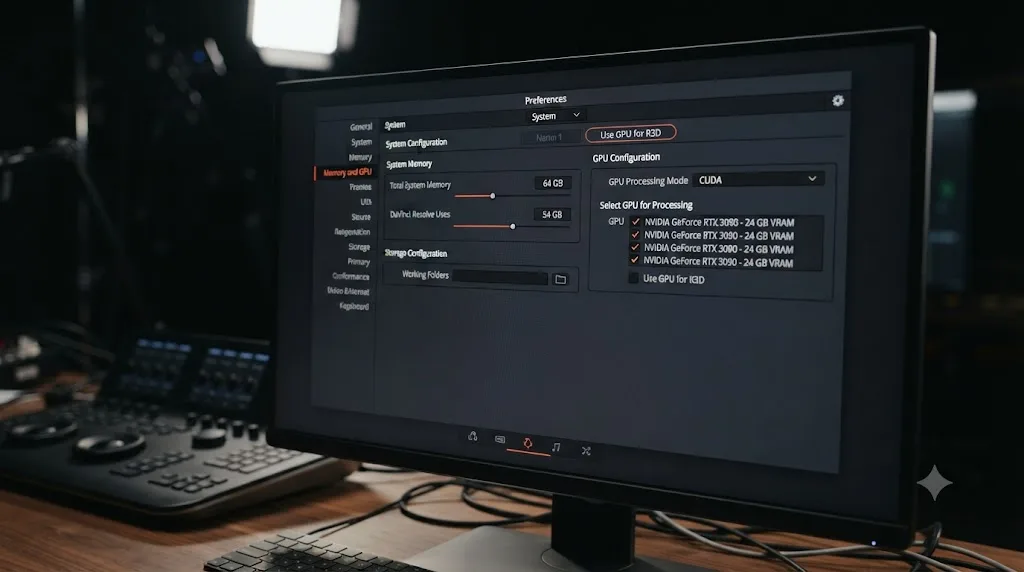
If resolution alone doesn't solve it, go to Preferences > System > Memory and GPU. This panel controls two separate things, and it's worth knowing which is which:
| Setting | What it controls | What to try |
|---|---|---|
| Limit Resolve Memory Usage to | System RAM Resolve can use, defaulting to 75% of total RAM | Lower it if other apps also need RAM open |
| Limit Fusion Memory Cache to | RAM reserved for Fusion's playback cache | Reduce it if you rarely use Fusion |
| GPU Processing Mode | Which API (CUDA, Metal, OpenCL) handles GPU work | Set it manually instead of Auto if it's mismatched |
| GPU Selection | Which installed GPU(s) Resolve uses | Confirm your dedicated card is selected, not integrated graphics |
None of these settings add VRAM to your card. What they do is stop Resolve from fighting other software for system memory, and correct a GPU processing mode that's occasionally set wrong after a driver update, which can trigger the memory error even when VRAM usage looks fine.
Which GPU processing mode should you pick: CUDA, OpenCL, or Metal?
The one that matches your card's native API, which Auto usually gets right. The GPU Processing Mode dropdown in that same Memory and GPU panel offers different options depending on your platform, and the sensible pick is rarely a judgment call:
| Your hardware | Processing mode to pick |
|---|---|
| NVIDIA card on Windows or Linux | CUDA |
| AMD card on Windows | OpenCL |
| Intel Arc card on Windows | OpenCL |
| Any modern Mac, Apple silicon or Intel | Metal |
CUDA is NVIDIA's own API and the best-optimized path on NVIDIA hardware, so there's no reason to run an NVIDIA card through OpenCL. OpenCL is the native route for AMD and Intel cards on Windows. On the Mac side, Apple deprecated OpenCL years ago, and Metal is the only choice worth considering.
Two practical notes. Changing the mode needs a full Resolve restart to take effect, so don't judge the result until you've quit and reopened. And when Auto does go wrong, it's usually right after a driver update or a major Resolve version jump, so those are the moments to open this dropdown and set it explicitly rather than trusting the automatic pick.
What can you change in Windows itself?
Three things outside Resolve are worth a look on a Windows machine.
First, the per-app GPU assignment. Windows Settings > System > Display > Graphics lets you pin any application to a specific GPU. On machines with both integrated and dedicated graphics, add Resolve to the list and set it to High performance. This is the operating-system-side counterpart of Resolve's own GPU Selection preference, and the two need to agree: Resolve asking for the big card while Windows quietly routes it to the small one is a recipe for confusion.
Second, the background tenants. Game launchers, animated wallpaper tools, streaming overlays, and hardware-accelerated browsers all hold GPU memory while minimized. Browsers deserve the special mention: with hardware acceleration on, a paused video in a background tab keeps decoded frames sitting in VRAM. Before a heavy grading session, closing those apps hands their slices back to the pool at zero cost.
Third, Hardware-accelerated GPU scheduling, on the same Graphics settings page. Toggling it changes how Windows manages GPU work and memory. I haven't seen consistent evidence that either position helps or hurts Resolve, so treat it as an experiment, not a fix: flip it, restart the machine, test the same clip, and keep whichever side behaves.
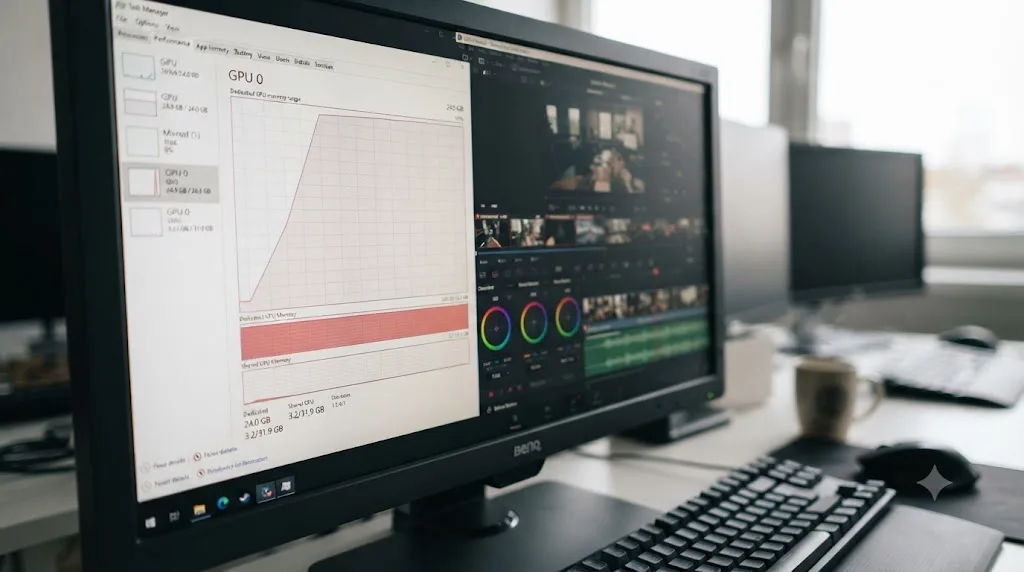
While you're in Task Manager checking the results, know what the two memory numbers mean. Dedicated GPU memory is the real pool this whole article is about. Shared GPU memory is system RAM the driver can borrow, and it's slow enough that Resolve's grading pipeline can't substitute one for the other, which is why the error can fire while the shared number still shows plenty free.
Does upgrading your GPU driver actually help?
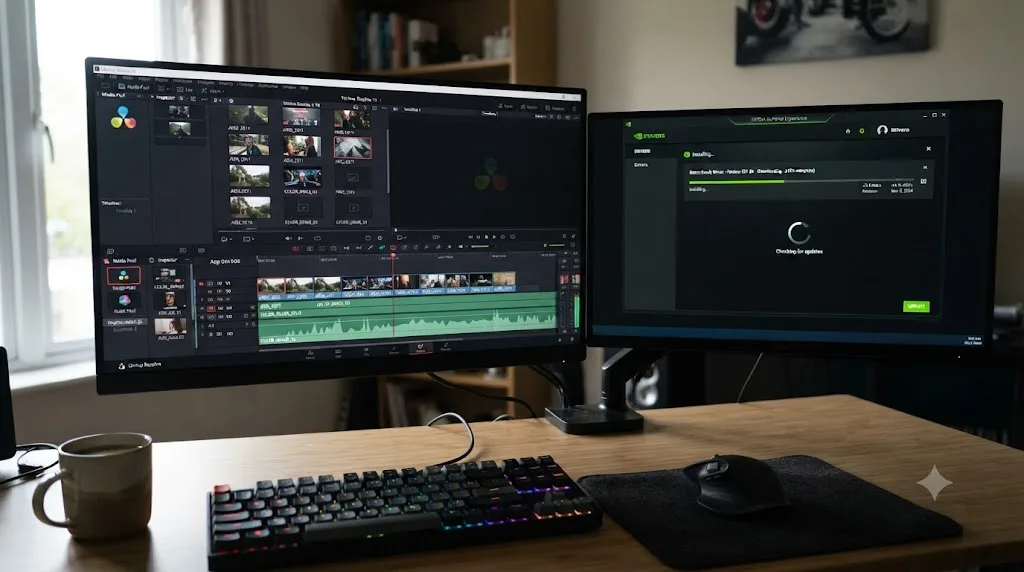
Often, yes, and sometimes it's the entire fix. A false version of this error, one that appears even with VRAM to spare, has been tied to specific driver builds rather than an actual memory shortage. One reported case on NVIDIA's own open-gpu-kernel-modules issue tracker on GitHub described the error and stutter clearing up entirely after rolling back from driver version 590.48.01-3 to 590.48.01-1, with nothing else about the project changed.
Install drivers directly from NVIDIA, AMD, or Intel rather than letting Windows Update handle it, since Windows Update frequently lags behind the manufacturer's own release schedule. If you updated your driver recently and the error started right after, that's not a coincidence worth ignoring, and rolling back one version is a legitimate troubleshooting step, not just a last resort.
Worth noting: that reported case came from Linux, where NVIDIA users choose between the open kernel modules and the proprietary driver stack, one more variable Windows machines don't have. The fix logic doesn't change, and Linux actually makes it easier to live by, since package managers let you pin a known-good driver version and stay on it until you have a reason to move.
Is it the same problem as Resolve's other GPU errors?
No, and mixing up the family members wastes evenings. Resolve has several distinct GPU complaints, and each points somewhere different:
| Message or symptom | What it usually means | Where to look |
|---|---|---|
| "Your GPU memory is full" | VRAM capacity, or a driver falsely reporting it | Everything in this post |
| "GPU failed to perform image processing" | A compute fault: driver trouble, overheating, an unstable overclock | Clean driver reinstall, temperatures, stock clocks |
| Resolve freezes or quits with no dialog at all | Deeper instability in the driver, the app, or the hardware | Crash-level troubleshooting, not memory fixes |
| Black viewer or garbled frames, no error dialog | A decode or processing mode mismatch | The processing mode table and hardware decode toggle above |
The distinction that matters most is the first two rows. Memory-full is a capacity complaint: the card ran out of room. Image-processing failure is a correctness complaint: the card had room and still got the math wrong, which is why its fixes live in the driver, the cooling, and the clock speeds rather than in timeline settings. If you're seeing both errors on the same machine, chase the processing failure first, because an unstable GPU produces every symptom in the table and fixing capacity won't stabilize it.
Is the error different on Apple silicon Macs?
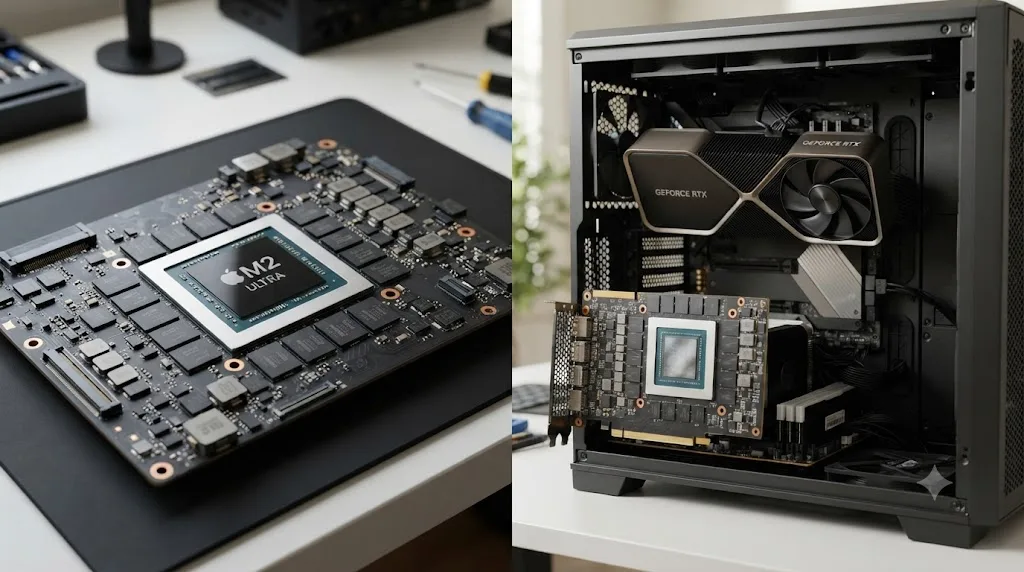
Structurally, yes. Apple silicon Macs don't have a graphics card with its own memory chips. Apple's M1 announcement introduced the unified memory architecture these machines still use: the CPU and GPU share one pool of memory on the same package.
That changes the rules in both directions.
The good news first. The GPU's ceiling is the machine's total memory, not a fixed VRAM number, so a 32GB or 64GB Mac gives Resolve's GPU work more room than plenty of discrete cards offer. It also means closing other memory-hungry apps genuinely helps, because a browser holding 8GB of RAM is eating from the very pool the GPU draws on. On a Windows machine with a discrete card, quitting Chrome frees system RAM and does nothing for VRAM. On a Mac, it can be the difference between the error appearing and not.
Now the bad news. The ceiling is set the day you buy. Unified memory is part of the chip package, so there's no adding more later, and a base-memory Mac that throws this error at 4K with noise reduction on top isn't misconfigured. It's full, and the only settings answer is the same resolution, proxy, and caching diet described above.
One footnote: Intel Macs with discrete AMD cards play by Windows rules. They have fixed dedicated VRAM, and the unified memory logic doesn't apply to them.
Why do laptops hit this error more often?
Two reasons stack against laptops, and neither shows up on the sticker.
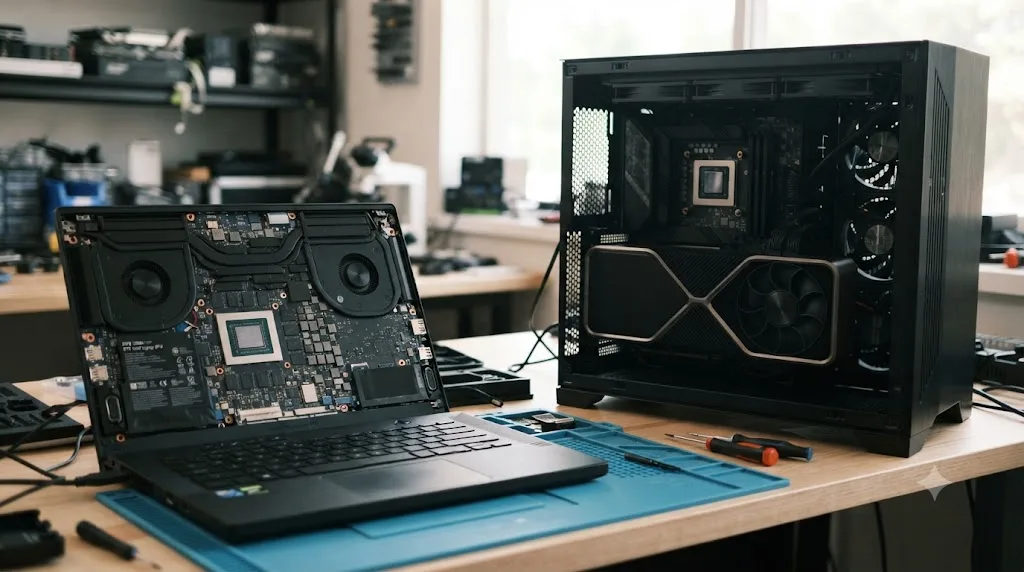
A laptop GPU often carries less VRAM than the desktop card that shares its name. Same model number in the marketing, smaller memory pool in the machine, and the difference hides deep in the spec sheet. Before assuming anything about your laptop's ceiling, read the real number from Task Manager under Performance > GPU instead of trusting the product name.
Hybrid graphics is the second. Most Windows laptops pair a small integrated GPU with the dedicated one and hand new applications to the small chip by default to stretch battery life. Resolve running on integrated graphics gets a fraction of the memory you paid for, and the result is this error on a machine that should shrug the project off. Both checks from earlier apply doubly on laptops: GPU Selection inside Resolve's preferences, and the High performance assignment in Windows Graphics settings. When those two disagree, the laptop loses.
The practical consequence is that laptop editing leans harder on everything else in this post. Plenty of otherwise fast machines ship with 6 or 8GB of dedicated video memory, right where 4K work starts to pinch, so proxy mode, optimized media, cached NR nodes, and a 1080p working timeline aren't emergency measures on a laptop. They're the standard operating procedure that keeps a portable machine cutting 4K all day. And if you're shopping for an editing laptop, treat the VRAM figure as the headline spec, not the GPU's model name.
Do you need more VRAM, or just fewer effects?
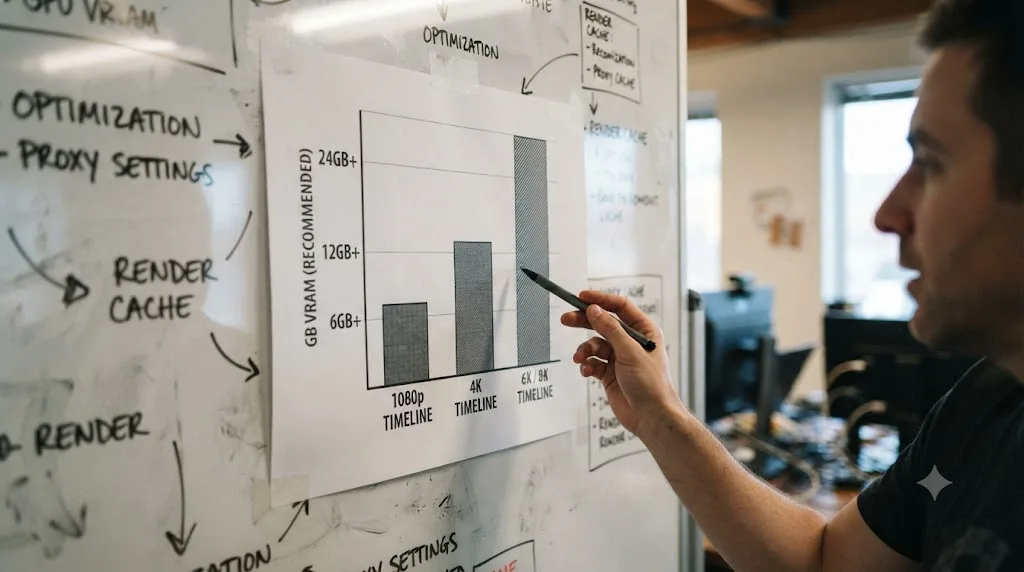
That depends on whether the error follows you across projects or only shows up on the same heavy timeline. Per Puget Systems' hardware recommendations for DaVinci Resolve:
| Timeline resolution | Minimum recommended VRAM |
|---|---|
| 1080p | 8GB |
| 4K | 12GB |
| 6K/8K | 20GB or more |
Blackmagic's own tech specs list 4GB of VRAM as the bare system minimum to run Resolve at all, which is enough to open the app, not enough to grade 4K footage with noise reduction stacked on top. If you're consistently hitting the wall at your project's actual working resolution, on a card that already meets or exceeds Puget's table, the fix is fewer simultaneous effects, not more hardware. If you're well under that table on an older or budget card, the ceiling is the card itself, and no preference tweak changes that.
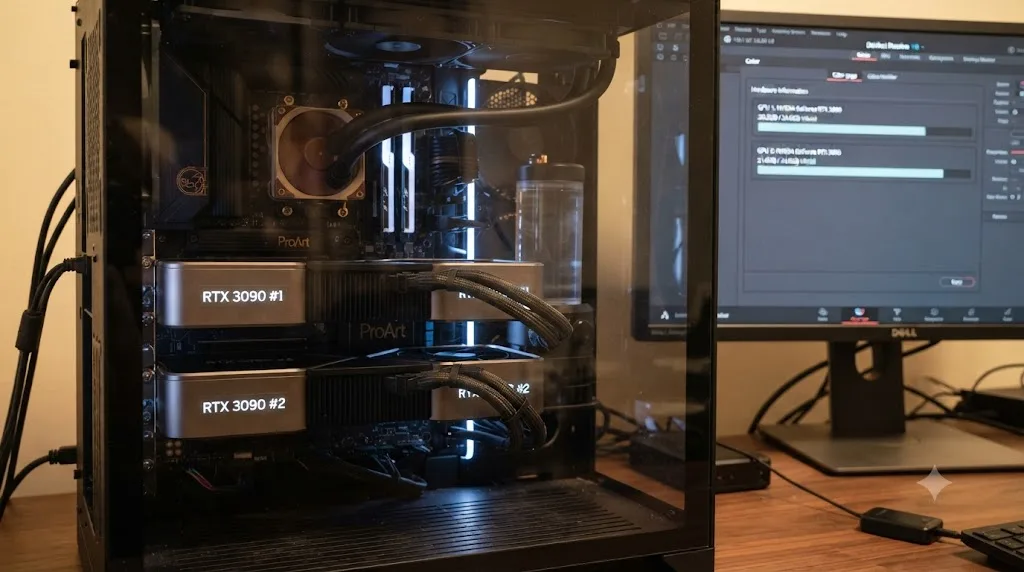
Does adding a second GPU fix the problem?
Not the way people expect. Resolve can split certain rendering tasks across multiple GPUs, but the cards don't pool their memory into one shared total. Puget Systems GPU analyst Matt Bach put it plainly in the firm's DaVinci Resolve Studio v20 GPU scaling analysis: "you can't 'pool' VRAM across cards in Resolve."
Adding a second graphics card does not add its VRAM to the first card's total in DaVinci Resolve. Two 8GB cards give you two separate 8GB pools, not one 16GB pool, because each card still needs its own full copy of the frame data to process it. If your bottleneck is genuinely VRAM capacity on a single heavy timeline, one card with more memory solves it. A second card with the same memory ceiling usually doesn't.
How do you confirm a real hardware ceiling, and which upgrade fixes it?
Measure before you spend. On Windows, open Task Manager, go to Performance > GPU, and watch the Dedicated GPU memory graph while you scrub the exact section that triggers the error. If the graph climbs to the top right before the dialog appears, the error is telling the truth. If it fires with gigabytes still free, you're in driver territory, not hardware territory. NVIDIA owners can pull the same reading from the nvidia-smi command line tool. On Apple silicon there's no separate GPU number to watch, so Activity Monitor's memory pressure for the whole unified pool is the signal instead.
If the measurement says the card really is full at your normal working resolution, here's what different workflows call for. The 8, 12, and 20GB floors come from Puget Systems' recommendations in the table earlier in this post. The headroom guidance is mine, based on the effect costs covered above:
| Workflow | VRAM target |
|---|---|
| 1080p editing and grading | 8GB |
| 4K editing with a light grade | 12GB |
| 4K with temporal NR, Magic Mask, or heavy Fusion work | 16GB class, comfortably above the 12GB floor |
| 6K/8K or multi-layer 4K | 20GB or more |
When you do upgrade, buy memory first and speed second. For this specific error, a mid-range card with 16GB beats a faster card with 8GB, because the faster card slams into the exact same wall, just sooner. On Apple silicon, the equivalent decision is the memory configuration, made once, at checkout. And skip the upgrades that don't touch this error at all: a second GPU, for the pooling reason above, and more system RAM on any machine with a discrete card.
Which popular fixes are a waste of time?
Four suggestions circulate through every forum thread about this error, and none of them touches the actual problem.
Enlarging the Windows page file. The page file backs system RAM, and this error is about the dedicated memory on the graphics card. No page file setting adds a single megabyte of VRAM, so the hour spent tuning virtual memory buys you nothing here.
VRAM cleaner utilities. The graphics driver already reclaims memory the moment applications release it, and no utility can free what Resolve is actively holding. Quitting and reopening Resolve does everything these tools promise, without installing anything.
Reinstalling Resolve. The application files aren't the problem, and a standard reinstall keeps your preferences anyway, so you usually end up exactly where you started. If you genuinely suspect a broken configuration, resetting the preferences is the targeted version of the same idea, and unlike a reinstall it can clear a processing mode stuck in a bad state.
Overclocking the card's memory. Faster VRAM is not more VRAM. Capacity is fixed in the silicon, and pushing clocks invites the compute errors from the table earlier, the family of GPU failures that's harder to diagnose than the one you already have. Wrong direction entirely.
All four share the same flaw: they treat capacity as a software setting. It isn't. The real levers are the ones covered above, smaller frames, fewer simultaneous copies, or a bigger pool, and everything else is motion without progress.
What's the fastest way to stop hitting this error for good?
Work through it in this order, and stop as soon as it clears:
- Lower the timeline resolution in Project Settings. Free, instant, no side effects.
- Turn off noise reduction, Magic Mask, SuperScale, or Depth Map on the specific clip that triggers it.
- Update your GPU driver from the manufacturer's site, or roll back one version if the error started right after an update.
- Check Preferences > System > Memory and GPU for a mismatched processing mode or an overly generous memory allocation.
- Clear the render cache through Playback > Delete Cache Files > All and restart Resolve.
- Set Playback > Timeline Proxy Mode to Half Resolution, or generate optimized media for the heaviest clips.
- Cache the expensive nodes: right-click the noise reduction or Magic Mask node and enable its node cache, or set the render cache to Smart.
Better still, stop the error before it starts. Set the timeline resolution to match your card on day one, not after the first crash. Add noise reduction late in the grade and cache the node the moment it's dialed in. And treat driver updates like project decisions: update deliberately, note the version, and you'll know exactly what changed if something breaks the next morning.
If you've worked through all seven steps and the error only ever shows up on the same demanding timeline, that's your VRAM ceiling talking, and the upgrade path in the section above is the answer, not another setting to chase. If it's popping up on ordinary projects that used to work fine, look at your driver history first. Chasing menu settings for a problem that's actually a hardware limit, or the reverse, is the kind of thing TryUncle exists to shortcut, an AI tutor that looks at your actual Resolve window and tells you which of the two you're dealing with instead of making you guess through five forum threads.
For the render settings and export choices that come after your GPU stops complaining, our export settings guide and the full DaVinci Resolve tutorial cover what to do once your timeline plays back clean. And if you're still deciding what GPU to buy in the first place, our beginner's guide covers Blackmagic's minimum specs before you spend anything.
Frequently asked questions
- What does 'Your GPU memory is full' mean in DaVinci Resolve?
- It means your graphics card's VRAM, the dedicated memory on the GPU itself, ran out of room for the current frame. Timeline resolution, render cache, and effects like noise reduction, Magic Mask, or Fusion compositions all draw from that same pool, and Resolve has to warn you instead of silently failing.
- How do I fix GPU memory full in DaVinci Resolve fast?
- Lower your timeline resolution in Project Settings first, since it's the fastest fix with zero side effects on your final export. If that doesn't clear it, disable noise reduction, Magic Mask, or SuperScale on the clip you're parked on, then check Preferences > System > Memory and GPU for a mismatched GPU processing mode.
- Does more system RAM fix a GPU memory full error?
- Not on Windows or Linux with a discrete graphics card, where system RAM and GPU VRAM are separate pools. Adding RAM helps Resolve's own memory usage and Fusion's playback cache, nothing else. Apple silicon Macs are the exception: the CPU and GPU share one unified memory pool, so a Mac configured with more memory genuinely raises the GPU's ceiling.
- Can an outdated graphics driver cause a false GPU memory full error?
- Yes. Users have reported this error appearing even with VRAM to spare, traced to a specific driver build. One reported case on GitHub's NVIDIA open-gpu-kernel-modules tracker was fixed by rolling back from driver 590.48.01-3 to 590.48.01-1, with no other change to the project.
- Will a second GPU fix GPU memory full errors in DaVinci Resolve?
- Only sometimes, and it depends on the workload. Resolve can split rendering work across GPUs, but it does not add their VRAM together into one shared total. Each card still needs its own copy of the frame data, so a second 8GB card doesn't give you 16GB to work with.
- How much VRAM do you need to avoid this error at 4K?
- Puget Systems recommends at least 12GB of VRAM for a 4K timeline, versus 8GB for 1080p and 20GB or more for 6K or 8K work. Heavy effects, multiple layers, and Fusion compositions push those numbers higher, so treat them as a floor, not a target.
- Why does the error appear when Task Manager shows shared GPU memory available?
- Shared GPU memory is system RAM the graphics driver can borrow, and it's far slower than the memory on the card itself. DaVinci Resolve's grading pipeline needs the dedicated pool, so the error fires when dedicated VRAM runs out, even while the shared number still shows headroom.
- Does the free version of DaVinci Resolve get GPU memory errors too?
- Yes. Any edition can run out of VRAM from timeline resolution, stacked layers, or Fusion work alone. Free users just hit it less often, because two of the heaviest VRAM consumers, noise reduction and Magic Mask, are Studio-only features.
Sources
- Hardware Recommendations for DaVinci Resolve (Puget Systems)
- DaVinci Resolve Studio v20 GPU Scaling Analysis (Puget Systems, Matt Bach)
- DaVinci Resolve - Tech Specs (Blackmagic Design)
- DaVinci Resolve 18 Manual, Memory and GPU preferences (VFXPedia mirror)
- False 'Your GPU memory is full' error and errant playback in DaVinci Resolve with driver 590.48.01-3 (NVIDIA open-gpu-kernel-modules, GitHub issue #1035)
- Blackmagic Forum: DaVinci Resolve 19 - Your GPU memory is full
- Apple unleashes M1 (Apple Newsroom, unified memory architecture)
Put this guide to work with TryUncle.
Ask about the step you’re on. TryUncle sees your screen and points at the control you need, so you can keep learning in your own project.
Get TryUncle for Mac or WindowsKeep reading

Guides · Jul 7, 2026 · 32 min
DaVinci Resolve for Beginners: The Complete Starter Guide
Learn DaVinci Resolve from zero: what it costs, what it needs to run, the seven pages you'll actually use, and the steps to cut your first project.
Guides · Jul 7, 2026 · 23 min
DaVinci Resolve Export Settings: Numbers That Actually Work
The exact DaVinci Resolve export settings for YouTube, client handoffs, and ProRes archives, plus what changed with Resolve 21's H.265 encoder.
Guides · Jul 7, 2026 · 36 min
DaVinci Resolve Tutorial: The Complete Guide to Every Page
Learn DaVinci Resolve step by step: which page to start on, how to cut, grade, mix, and export your first project, plus shortcuts and free training.