Articles / Fixesupdated for DaVinci Resolve 21.0.2 (July 2026)
DaVinci Resolve Using Swap Memory Instead of RAM: The Fix
Quick answer
DaVinci Resolve starts using swap memory instead of RAM when open projects, cache, and effects need more memory than your system has free, which shows up as a frozen UI and a maxed-out disk light. Lower timeline resolution, clear cache, cut Resolve's memory limit, close background apps, and add RAM if it persists.
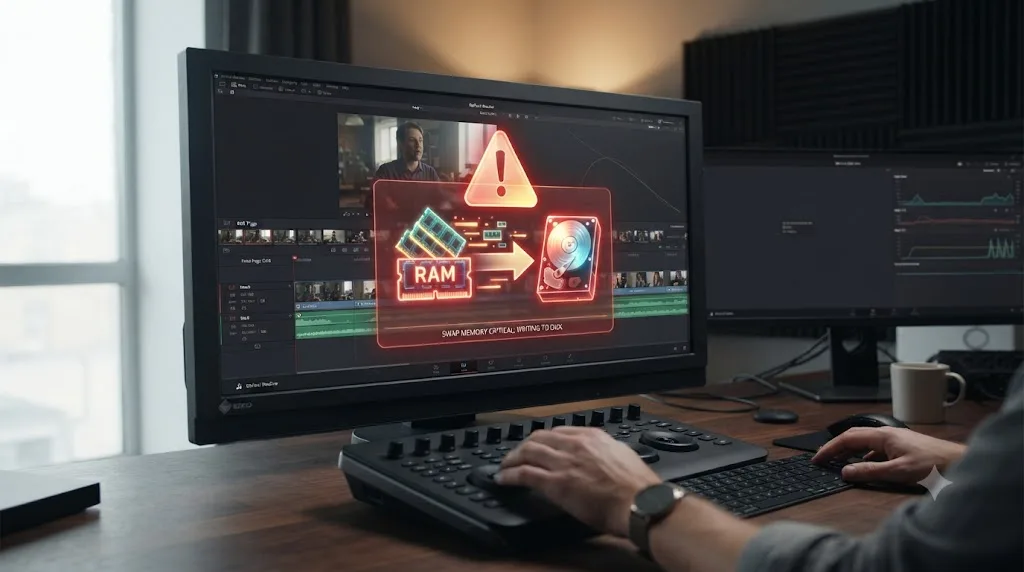
Your fans might not even be spinning. That's the tell. The beachball just sits there, or the whole window goes gray, and your disk activity light is going crazy while nothing on screen moves. That's not a crash. That's DaVinci Resolve waiting on your hard drive to do a job your RAM was supposed to do.
As of July 2026, this is one of the most common stuck points we hear about from editors on lower-RAM machines, distinct from an out-of-VRAM error and just as disruptive. Here's what's actually happening, and the specific settings that stop it.
What does it mean when DaVinci Resolve is "using swap memory instead of RAM"?
It means your operating system ran out of comfortable physical memory and started writing overflow data to a reserved area of your disk instead, a mechanism called swap on macOS and Linux and the page file on Windows. RAM is fast, measured in nanoseconds. Disk, even a fast SSD, is measured in a completely different order of magnitude. When Resolve's data gets pushed there, every operation that touches that data slows down to disk speed.
Swap and the page file are DaVinci Resolve's overflow valve, not a malfunction, and reaching for them just means your project asked for more memory than your system has free. Every modern OS ships with this mechanism built in for exactly this reason: without it, running out of RAM would crash whatever app hit the ceiling first, instead of just slowing down.
The confusing part is that Resolve itself doesn't show you this happening. There's no dialog that says "now using swap." You only see the symptom, a frozen interface, a spinning wait cursor, a disk light that won't quit, and you have to go looking in your operating system's own tools to confirm the cause.
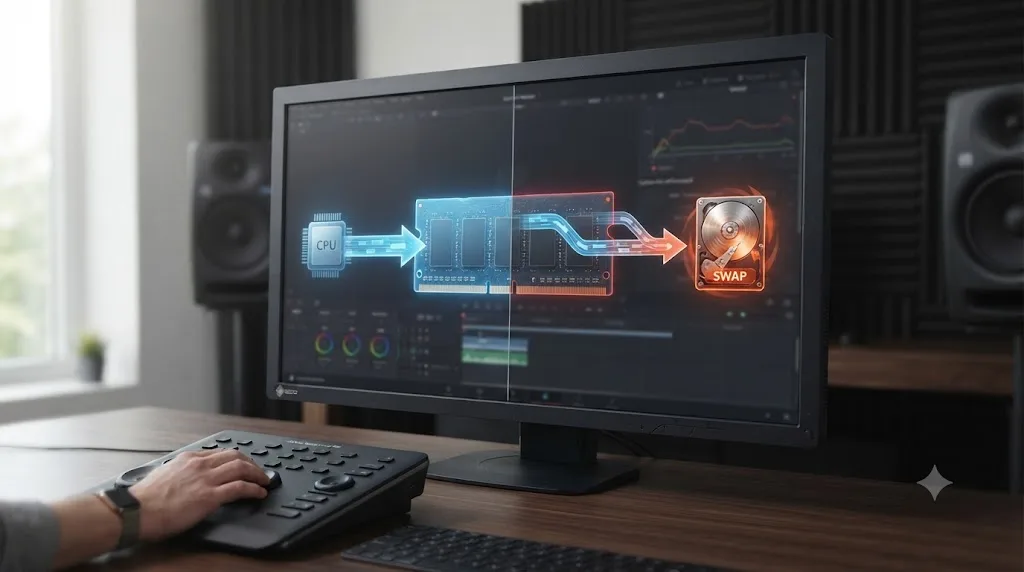
Why is DaVinci Resolve using swap memory instead of RAM?
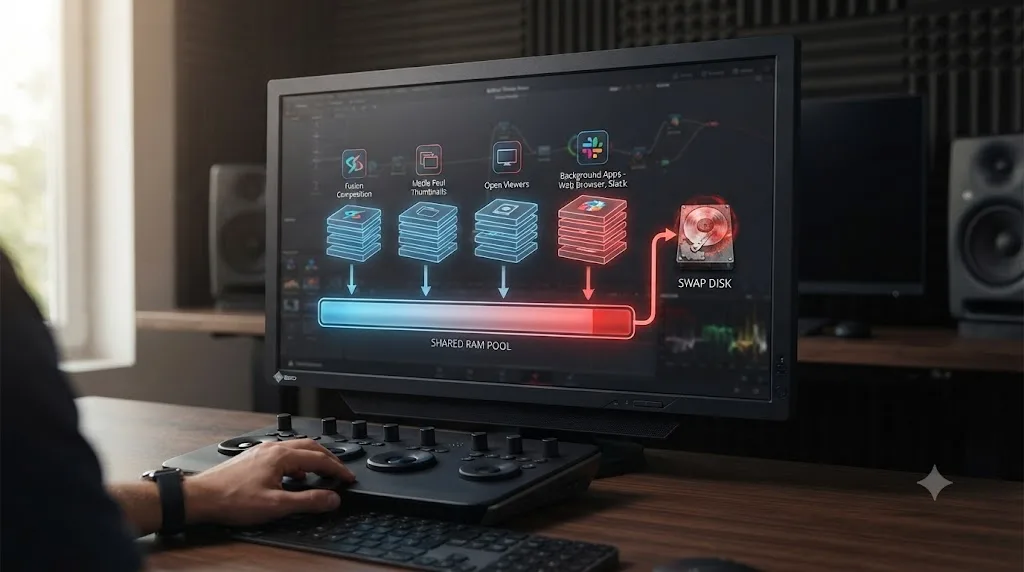
Because the combination of your open project, its render cache, your Media Pool thumbnails, any Fusion compositions, and background apps sharing the same machine adds up to more memory than you have installed. Resolve doesn't manage this pool in isolation. It's one process among many competing for the same finite RAM your operating system controls.
A handful of specific things push that total over the edge more than others. Fusion compositions hold every intermediate image in memory so you can tweak one node without recomputing the whole tree. A Media Pool with thousands of clips and generated thumbnails eats memory just sitting there, before you've touched the timeline. Multiple open viewers, scopes, and a second monitor showing a clean feed each claim their own slice. And background software, browsers with a pile of tabs, cloud sync clients, other creative apps left running, all draw from the exact same pool Resolve needs.
Low RAM makes the ceiling low to begin with. An 8GB or 16GB machine has far less headroom before hitting it than a 64GB workstation, which is why this symptom concentrates so heavily on entry-level laptops and older desktops that shipped with modest memory configurations.
How much RAM does DaVinci Resolve actually need in 2026?
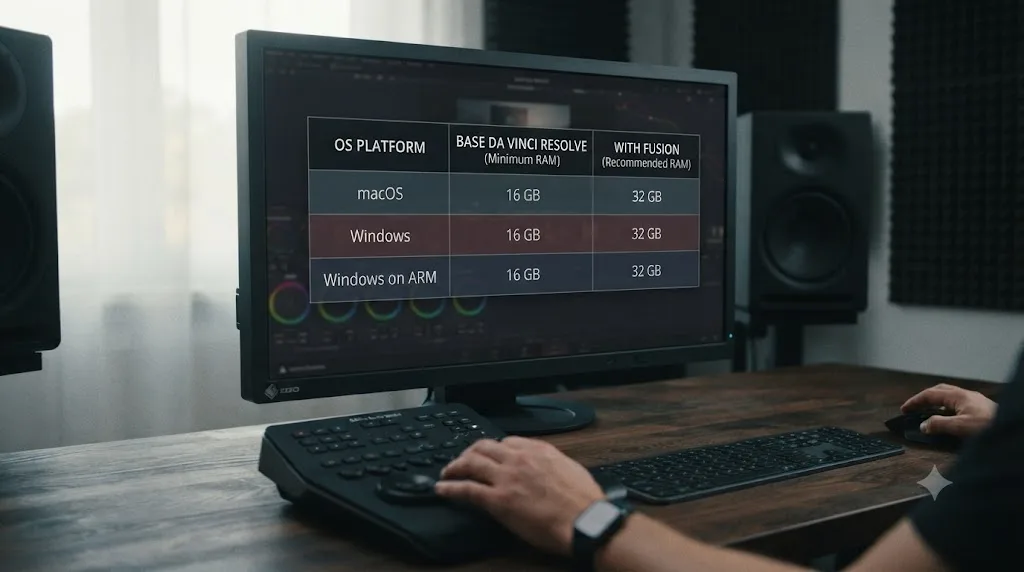
Less than you'd think on paper, and considerably more than that in real editing conditions. Blackmagic Design's own published minimum system requirements for DaVinci Resolve 20 list 8GB of system memory on macOS, rising to 16GB if you use Fusion, and 16GB on Windows, rising to 32GB if you use Fusion, per Blackmagic Design's DaVinci Resolve 20 Minimum System Requirements. Windows on ARM carries the same 16GB floor, rising to 32GB for 4K work or Fusion.
Sixteen gigabytes of RAM is Blackmagic's real Windows minimum for DaVinci Resolve, not the eight gigabytes still repeated across older forum threads and outdated blog posts. That eight-gigabyte figure circulating online traces back to earlier Resolve versions and doesn't reflect the current spec sheet.
Independent testing pushes the practical number higher still. Richard Lackey, whose configuration guides are widely cited in the color grading community, puts it plainly: "You'll need a minimum of 16GB RAM to run DaVinci Resolve well," and recommends 32GB "especially if you're going to use Fusion," per Richard Lackey's DaVinci Resolve system requirements guide. Puget Systems, which benchmarks Resolve workstations for a living, frames it from the workflow side: "Resolve in general is fairly light on RAM requirements," but that lightness has real limits once RAW footage or Fusion enters the picture, per Puget Systems' hardware recommendations for DaVinci Resolve.
| Platform | Blackmagic minimum | Blackmagic minimum with Fusion |
|---|---|---|
| macOS | 8GB | 16GB |
| Windows | 16GB | 32GB |
| Windows on ARM | 16GB | 32GB (also required for 4K work) |
| Linux | 16GB (matches Windows guidance in practice) | 32GB |
Those are floors your system has to clear just to launch and run without falling straight into swap on a simple project. They say nothing about what happens once you add a 4K timeline, a stack of effects, and a browser full of tabs, which is exactly the gap the rest of this post covers.
What are the warning signs your system has fallen into swap?
A handful of symptoms show up together, and recognizing the pattern saves you from chasing the wrong fix.
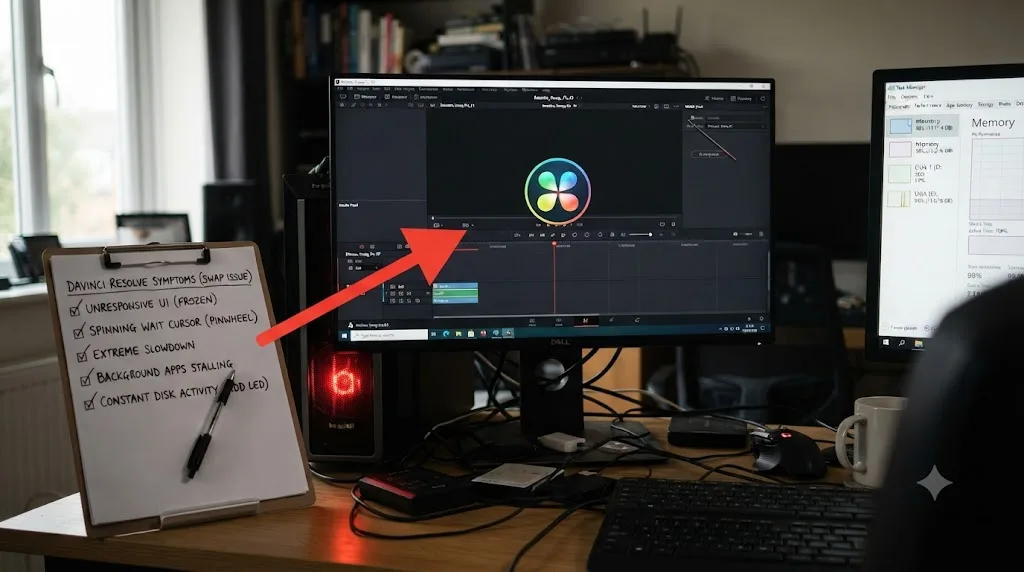
A spinning beachball or a frozen Resolve window with the disk light pinned on is what memory swapping looks like from the outside. Beyond that headline symptom, watch for: playback that stutters or stops entirely on plain footage with no heavy effects applied, a UI that becomes unresponsive for several seconds after every single click, other applications on the same machine slowing down at the same time Resolve does, and a fan that ramps up not from GPU or CPU load but from the disk working overtime.
The timing matters too. If the slowdown gets worse the longer your session runs, that points at memory building up over time, cache and undo history piling up, rather than a one-time spike. If it happens the instant you open a specific heavy project or enable Fusion, that's a ceiling being hit immediately rather than gradually.
One thing this is not: a GPU-related slowdown. Choppy playback from a GPU decode bottleneck looks similar on the surface but comes with a different signature, a busy GPU graph and a calmer disk light, covered in full in our slow playback guide. Swap thrashing is quieter on the GPU side and loud on the disk side.
How do you check if DaVinci Resolve is using swap on a Mac?
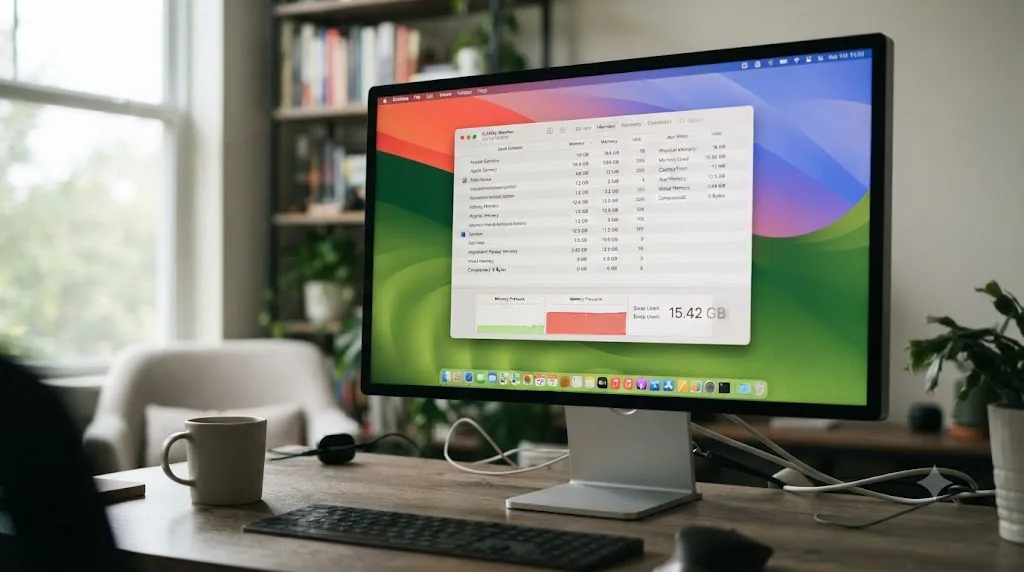
Open Activity Monitor, click the Memory tab, and read two numbers side by side. Apple's own documentation explains the color-coded Memory Pressure graph plainly: "Green memory pressure: Your computer is using all of its RAM efficiently. Yellow memory pressure: Your computer might eventually need more RAM. Red memory pressure: Your computer needs more RAM," per Apple's guide to checking if your Mac needs more RAM.
Right below that graph sits Swap Used, described in Apple's own memory usage documentation as tracking "how often it is swapping memory between RAM and your startup disk," per Apple's guide to viewing memory usage in Activity Monitor. A Swap Used figure sitting at a few hundred megabytes and staying flat isn't alarming on its own, macOS uses a small amount of swap routinely. What matters is whether it keeps climbing while Resolve is your active app, and whether Memory Pressure sits in yellow or red while it does.
Don't chase a low "Memory Used" number as reassurance either. Apple is explicit that free memory isn't automatically good news: "When you have free or unused memory, your computer performance does not necessarily improve. macOS obtains the best performance by efficiently using and managing all of your computer's memory," from the same Activity Monitor documentation. A healthy Mac often shows very little "free" memory, because macOS is using it productively for caching. The number that tells the real story is Memory Pressure's color, not how much shows up as technically free.
| Activity Monitor reading | What it means |
|---|---|
| Green Memory Pressure | RAM is being used efficiently, swap isn't the bottleneck |
| Yellow Memory Pressure | Getting close to the ceiling, worth acting before it worsens |
| Red Memory Pressure | Out of comfortable RAM, actively relying on swap |
| Swap Used climbing steadily while Resolve runs | Your project's memory demand exceeds available RAM right now |
How do you check if DaVinci Resolve is using the page file on Windows?
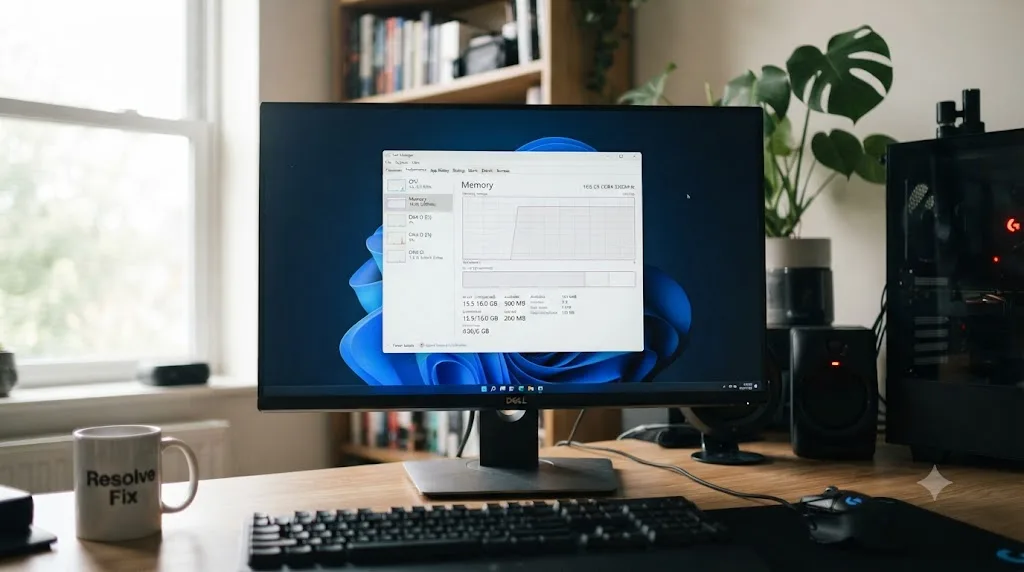
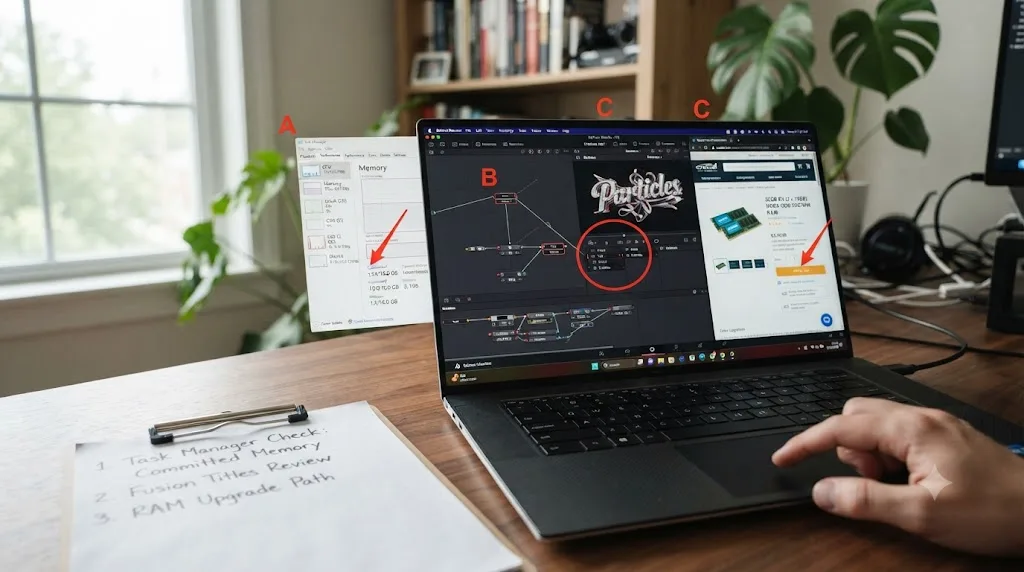
Open Task Manager, click the Performance tab, and select Memory. Windows doesn't label this "swap," it calls the underlying mechanism the page file, and Microsoft's own documentation describes what it's doing under the hood: the page file is used "to extend how much system-committed memory (also known as 'virtual memory') a system can support," moving infrequently accessed pages out of physical RAM and onto disk so more frequently accessed data has room to breathe, per Microsoft Learn's introduction to the page file.
The number to watch is Committed memory, shown near the bottom of that Memory pane. If Committed sits close to or above your total installed physical RAM while Resolve is your active window, Windows is drawing on the page file to cover the gap. Puget Systems' own support documentation puts it in plainer terms: "Pagefile.sys is the Windows paging (or swap) file used to manage virtual memory. It's used when a system is low on physical memory (RAM)," per Puget Systems' guide to what pagefile is and how to adjust it.
One Windows-specific wrinkle worth knowing: where the page file lives matters. A page file sitting on the same drive as your OS and Resolve's cache competes for disk bandwidth with everything else trying to read and write there at once. A page file on a separate, fast SSD, if your system has one, suffers less from that contention. Neither placement adds capacity you don't have. Both are still slower than RAM by a wide margin.
How do I stop DaVinci Resolve from using swap memory?
Work through these in order, from fastest to most involved, and stop as soon as your memory readings settle back into normal territory.
- Lower the timeline resolution. Project Settings > Master Settings > Timeline Resolution down to 1080p or even 720p while editing costs nothing permanent and immediately shrinks the memory footprint of every frame Resolve has to hold.
- Close scopes, extra viewers, and a clean feed you're not actively reading. Each open surface is another buffer competing for the same RAM.
- Clear the render cache. Playback > Delete Cache Files > All releases memory and disk space tied up in cached frames you don't currently need.
- Lower Resolve's own memory ceiling if other apps need room too. Preferences > System > Memory and GPU has a Limit Resolve Memory Usage slider, defaulting to 75% of total system RAM. Counterintuitively, giving Resolve less can sometimes help overall system responsiveness by leaving more headroom for the OS and background processes to avoid piling into swap themselves.
- Quit background apps. Browsers with dozens of tabs are the most common offender, followed by cloud sync clients and other creative apps left open.
- Switch to proxy or optimized media for heavy 4K or higher footage, so Resolve is holding smaller working files in memory instead of full-resolution originals.
- Add physical RAM if you've worked through everything above and it still climbs on ordinary projects. This is the only fix that raises the actual ceiling rather than working around it.
Working out which of these settings is actually the one causing your slowdown, versus which one just sounds plausible, is the exact kind of "am I even looking at the right menu" confusion that eats an evening. If you're not sure whether your Limit Resolve Memory Usage slider is actually set the way you think it is, TryUncle is a macOS app whose on-screen tutor, Uncle, can point at the exact control on your own screen instead of you cross-referencing a menu path against a screenshot from a different Resolve version. It's a paid app on founder pricing, so check TryUncle's site for the current rate before assuming it fits your setup.
Does lowering timeline resolution really reduce RAM pressure that much?
Yes, and it's the single fastest lever you have. A lower timeline resolution means every frame Resolve decodes, scales, and holds in memory while you scrub and play is a fraction of the size of a full 4K or 6K frame. That reduction applies across the board, to your source footage, your render cache, and any effects computing against the current frame.
It's also completely reversible and non-destructive. Your original media never gets touched. Set Project Settings > Master Settings > Timeline Resolution to 1080p while editing, then bump it back to your delivery resolution before you render from the Deliver page. The two settings are independent, so nothing about your export changes just because your working resolution did.
Pair it with Playback > Timeline Proxy Mode set to Half or Quarter Resolution for an even bigger reduction during scrubbing, at the cost of a softer preview image you'd never actually deliver. Together, these two settings are the closest thing to a free lunch in this entire troubleshooting list, since neither one asks you to spend money or give up quality in your final render.
Should you change "Limit Resolve Memory Usage" if you're already low on RAM?
Sometimes, and the direction that helps depends on what else is running. Preferences > System > Memory and GPU includes a slider called Limit Resolve Memory Usage, defaulting to a maximum of 75% of your system's total RAM. It exists specifically to stop Resolve from starving the rest of your operating system and other apps of memory.
On a machine dedicated entirely to editing, with nothing else open, leaving this at default or even raising it slightly can help Resolve hold more in memory before it has to reach for anything slower. On a machine where you're also running a browser, a chat app, and cloud sync software while you edit, a lower Limit Resolve Memory Usage value can paradoxically reduce overall swap activity, because it stops Resolve from claiming memory the OS then has to steal back from something else through paging.
There's a second slider in the same panel, Limit Fusion Memory Cache, worth lowering specifically if you rarely touch the Fusion page. It reserves RAM for Fusion's playback cache whether or not you're using it, and that reservation is memory unavailable to everything else in the meantime.
Neither slider adds RAM to your system. Both only change how the RAM you already have gets divided up, which is a real lever but not a substitute for the hardware upgrade covered later in this post.
Does Fusion make swap usage worse?
By a wide margin, yes, more than almost anything else you'll add to a project. Fusion, the compositing page inside Resolve, keeps every intermediate result from every node in memory at once, so you can tweak an earlier node without recomputing the whole chain downstream of it. A color grade is a straightforward line of nodes. A Fusion composition is a web, and every strand of that web wants its own memory buffer held live.
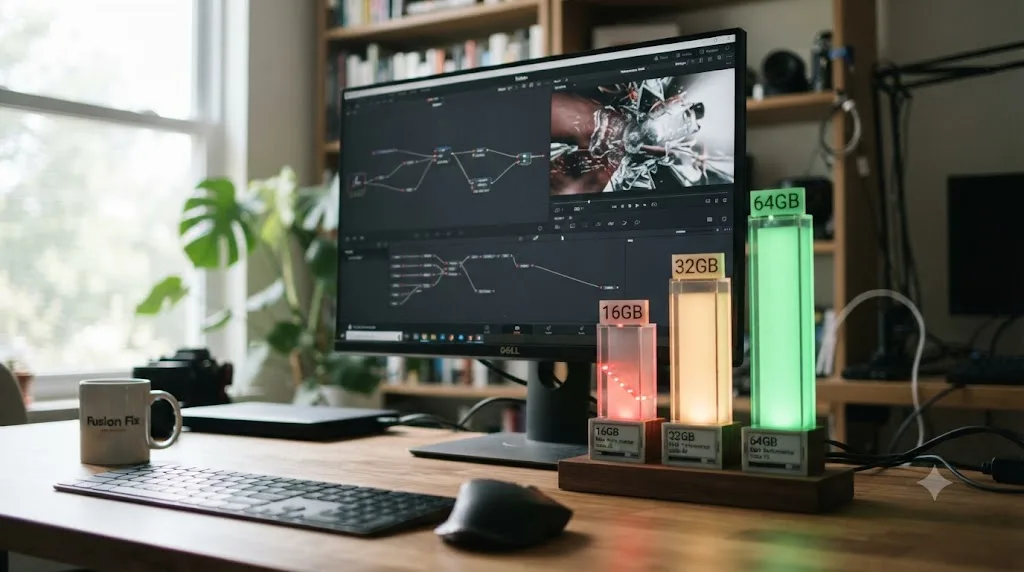
Fusion is the single heaviest RAM consumer in DaVinci Resolve, and no amount of GPU horsepower changes that. Puget Systems' own capacity testing, authored by Peter Emery, measured the gap directly and found that "the Fusion score shows that lower memory capacity has the greatest impact on Fusion performance, resulting in a 31% reduction" when comparing 16GB against 64GB. The same testing arrived at a specific recommendation: "64 GB of RAM is the threshold for Fusion," per Puget Systems' analysis of when RAM capacity impacts performance.
Standard editing and grading fared much better in that same test. Overall performance dropped only 9% going from 64GB down to 16GB, and just 2.5% going from 64GB down to 32GB, with GPU-driven effects and AI tools showing "no difference in performance across any of the three capacities tested" at all. The takeaway isn't "you always need 64GB." It's that the answer depends entirely on whether Fusion is part of your workflow, and if it is, the RAM budget that matters most is the one Blackmagic's official minimums undersell the hardest.
If you're seeing swap climb specifically when you open the Fusion page, or the moment you scrub past a clip carrying a 3D title or a particle system, that's this exact bottleneck, and it's covered in more workflow depth in our Fusion page tutorial for beginners and, for render-specific Fusion slowdowns rather than memory ones, our Fusion render slow guide.
Do render cache and Optimized Media affect RAM pressure?
Both, in opposite directions depending on how they're used. The render cache trades disk space for RAM relief: once Resolve renders a heavy node chain or effect to a cached file, it can play that cached frame back without recomputing the effect and holding all its intermediate memory live every single time. Setting the render cache to Smart, under Playback preferences, lets Resolve make this call automatically on the effects that benefit most.
The tradeoff is that an uncleared cache folder can itself grow large enough to compete with your swap file or page file for the same disk space, especially on a smaller system drive. Playback > Delete Cache Files > All clears it out, and it's worth doing periodically rather than only when you're already in trouble, since a full system drive slows swap and the page file down even further on top of everything else.
Optimized Media and Proxy Media work more directly on the RAM side. Generating either one, through a right-click in the Media Pool, gives Resolve a smaller, edit-friendly copy of your footage to hold in memory instead of the full-resolution original. This is the same fix covered for decode-bound CPU spikes in our proxy media setup guide for slow laptops, and it earns a second mention here because the memory savings from working with a smaller file stack directly on top of the CPU savings from an easier-to-decode codec. Turn on Playback > Use Optimized Media if Available so Resolve automatically swaps in the lighter file while editing.
Is swap use different on Apple silicon Macs with unified memory?
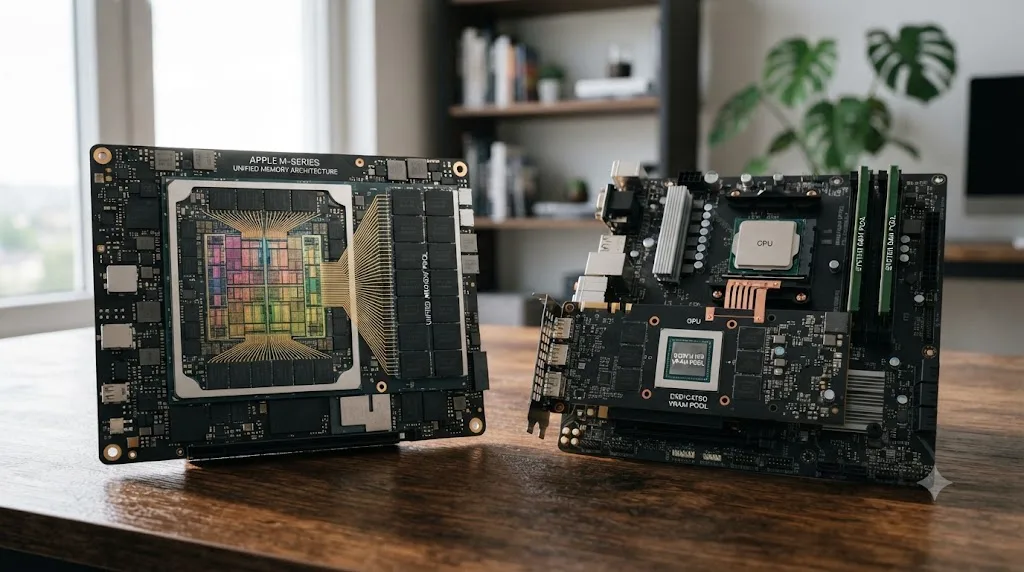
Structurally, yes, in a way that changes both the risk and the fix. Apple silicon Macs don't have separate memory chips for the CPU and GPU. Every M-series chip uses a single unified memory pool shared by both, which means the RAM figure on the spec sheet is the entire ceiling for everything the machine does at once, not just what your apps see as "system memory."
Unified memory on Apple silicon means every gigabyte of RAM you didn't buy is a gigabyte the GPU can't borrow either. On a Windows machine with a discrete graphics card, running low on system RAM and running low on VRAM are two separate problems with two separate ceilings. On an Apple silicon Mac, they're the same ceiling, which is exactly why swap pressure on an 8GB or 16GB Mac can show up as sluggish GPU-driven effects too, not only a slow timeline.
There's a real upside to this design that cuts the other way. Richard Lackey notes the exception plainly: "The exception is an Apple Silicon powered Mac, the 8GB systems run Resolve just fine," and goes further with a specific example, that "DaVinci Resolve runs happily on an M1 Mac Mini with only 8GB of unified memory and plays 4K media on a 4K timeline with most operations on the Resolve Color Page processed in real time," per Richard Lackey's DaVinci Resolve system requirements guide. Apple silicon's memory management is genuinely more efficient than older architectures at squeezing performance out of a smaller pool, which is part of why Blackmagic's own minimum for macOS sits at 8GB while Windows starts at 16GB.
The downside is permanence. Unified memory is part of the chip package on every current Mac, soldered at the factory, with no upgrade path after purchase. Whatever configuration you buy is the ceiling for the life of the machine, which makes the buying decision matter more on a Mac than it does on most Windows towers. Our Apple silicon M4 settings guide covers how much unified memory different workflows actually need before you commit to a configuration, and our Mac mini M4 guide walks through the same question for that specific machine.
Does closing background apps actually free enough RAM to matter?
Usually, yes, more than people expect before they've tried it. Modern browsers are the biggest offender by a wide margin. Each tab is effectively its own small program, and a browser sitting open with dozens of tabs, several of them auto-playing video or running heavy web apps, can hold gigabytes of RAM that never shows up as "doing anything" on the surface.
Cloud sync clients are the quiet second offender. Dropbox, Google Drive, iCloud, and similar tools index and cache file metadata continuously in the background, and on a project folder with thousands of media files, that indexing overhead adds up. Other creative apps left open from a previous task, a photo editor, a second NLE, a DAW, all hold their own working memory whether or not you're actively using them right now.
The test is simple: check your Memory Pressure or Committed memory reading before and after quitting everything except Resolve. If the reading drops meaningfully and swap or page file activity settles down, background apps were a real contributor, not just a theoretical one. On an 8GB or 16GB machine sitting right at the edge, the difference between "editing normally" and "fighting swap constantly" is sometimes exactly this small.
Is a slow hard drive making swap even worse?
Considerably, yes, and this is the variable most people overlook entirely. Swap and the page file aren't just slower than RAM, they're specifically slow in a way that depends heavily on what kind of disk they're writing to. A spinning hard drive handling swap duty is an order of magnitude slower than an NVMe SSD doing the exact same job, because mechanical drives have to physically move a read head to the right location for every single request.
If your system's swap or page file lives on a mechanical hard drive rather than an SSD, that's compounding the underlying RAM shortage with a second, independent slowdown. The fix for this specific layer isn't a Resolve setting at all. It's confirming your operating system drive, the one hosting swap or pagefile.sys by default, is an SSD, and ideally a fast NVMe one rather than an older SATA SSD if your project files and cache also live there and are competing for the same bandwidth.
This matters doubly if your Resolve cache files, project database, or media also sit on that same physical drive as your OS and swap. Three different processes, cache reads and writes, project database access, and swap paging, all fighting for the same drive's limited throughput at once is a recipe for exactly the frozen-UI symptom this whole post is about, even on a machine with a reasonable amount of RAM installed.
Should you add RAM or add a faster SSD first?
Depends on which one is actually your bottleneck, and the diagnostic steps earlier in this post answer that question directly. If Memory Pressure sits in red, or Committed memory sits at or above your installed physical RAM, you have a genuine capacity shortage that no drive upgrade fixes. More RAM raises the ceiling. A faster SSD only makes hitting that ceiling less painful when it happens.
If your RAM readings look fine but the system still feels sluggish specifically during heavy read and write activity, cache generation, project autosave, media transcoding, then storage speed is a more likely culprit than memory capacity, and an SSD upgrade or a dedicated fast drive for cache files solves it more directly than adding RAM would.
| Your situation | Best first move |
|---|---|
| Memory Pressure red or Committed memory near total RAM | Add physical RAM if your machine supports it |
| RAM readings look fine, but disk activity is constantly high | Upgrade to a faster SSD, or move cache off a slow drive |
| Both are maxed out at once | RAM first, since it removes the swap dependency entirely; a faster drive helps everything else after |
| RAM is soldered and can't be upgraded (most current MacBooks) | Work the settings in this post, then consider a machine with more unified memory next purchase |
The honest answer for a lot of editors on entry-level hardware is that both matter, and neither is optional forever. Our budget laptop guide for DaVinci Resolve beginners covers what to actually prioritize, RAM capacity over almost everything else on the spec sheet, when you're shopping rather than troubleshooting an existing machine.
What does a real swap scenario look like, start to finish?
Take a common report and walk it end to end. A Windows laptop, 8GB of RAM, integrated graphics, DaVinci Resolve free version, editing a 4K timeline with three Fusion titles and a handful of transitions. The editor scrubs the timeline for ten minutes, and it gets progressively worse, not instantly bad, until the UI freezes for several seconds after every click.
Task Manager confirms it: Committed memory sits well above the 8GB physical total, meaning Windows has been leaning on the page file the entire session, and that reliance has been growing as render cache and Fusion's intermediate buffers accumulate. This machine was never going to clear Blackmagic's own stated Windows minimum of 16GB comfortably, let alone the 32GB threshold that same document lists specifically for Fusion work, so the Fusion titles were the tipping point, not the sole cause.
Three moves in order. First, lower the timeline resolution to 1080p and clear the render cache, both free, both instant. That buys headroom but doesn't remove the underlying shortage. Second, disable or Render in Place the Fusion titles that aren't currently being edited, since each one is holding its own web of intermediate buffers live the entire session whether or not it's visible on screen right now. Third, and this is the real fix rather than a workaround, recognize that an 8GB Windows laptop running Fusion-heavy 4K projects is operating well below Blackmagic's own stated requirement, and either budget for a RAM upgrade if the laptop supports one, or generate Optimized Media at a lower resolution as a permanent working practice rather than an emergency measure.
Now change one variable. Same laptop, but this time it's a 16GB Apple silicon MacBook Air instead. The same project, the same Fusion titles, runs measurably better, not because the RAM total doubled from a real-world 8GB machine but because Apple silicon's unified memory management handles the same workload more efficiently per gigabyte than an equivalent Windows configuration with a discrete integrated GPU splitting the difference. It's not immune to swap, and Fusion-heavy work can still push it into yellow or red Memory Pressure, but the ceiling before that happens sits noticeably higher on comparable RAM.
Two different systems, an almost identical symptom, and two different practical ceilings before the same underlying fix, more RAM or a lighter workflow, becomes unavoidable.
Is this the same problem as "GPU memory is full"?
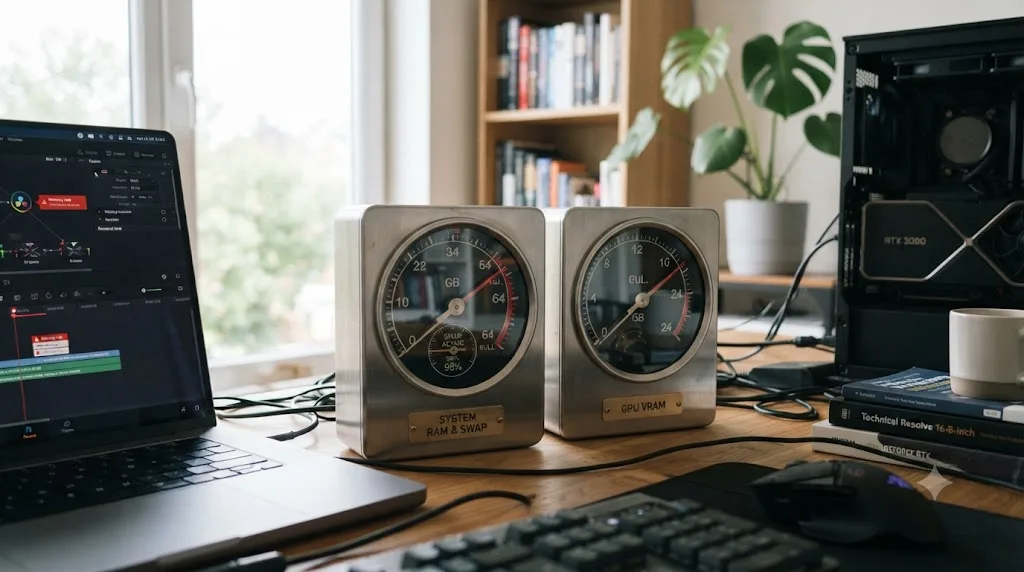
No, and treating them as interchangeable sends you chasing the wrong setting. More RAM fixes swap thrashing. It does nothing for a GPU memory full error, because those are two different pools with two different ceilings. System RAM is what your CPU, your operating system, and Resolve's general application memory draw from. VRAM lives on your graphics card and is what timeline resolution, render cache, and GPU-side effects like noise reduction and Magic Mask draw from.
A machine can be completely healthy on one axis and starving on the other. A desktop with 64GB of system RAM and a 6GB graphics card will never hit swap from ordinary editing, but can absolutely throw a GPU memory full error the moment a 4K timeline stacks noise reduction on top of Magic Mask. The reverse is just as common: an 8GB laptop with a decent GPU can swap constantly on system RAM while VRAM sits comfortably under its own ceiling the entire time.
| Symptom | Pool involved | Fix lives in |
|---|---|---|
| Frozen UI, constant disk activity, slow background apps too | System RAM, swap or page file | This post: timeline resolution, cache, background apps, RAM |
| "Your GPU memory is full" dialog | GPU VRAM | Our GPU memory full guide: timeline resolution, effects, GPU driver |
If you're not sure which one you're dealing with, the diagnostic tools differ too. Task Manager's Performance > GPU tab, or Activity Monitor's GPU History window, shows dedicated GPU memory separately from system memory. Read the right graph before you spend money on the wrong upgrade.
Does turning off swap or the page file fix anything?
No, and it typically makes the underlying problem worse, not better. Disabling virtual memory entirely doesn't hand your system any RAM it didn't already have. All it does is remove the safety valve that was letting your OS survive a memory shortage by slowing down instead of crashing outright.
With swap or the page file turned off, an application that hits the same memory ceiling that used to trigger paging instead has nowhere to put the overflow. On Windows, this commonly shows up as Resolve or the whole system crashing outright once committed memory demand exceeds physical RAM, since Microsoft's own documentation notes the page file's role in extending "how much system-committed memory... a system can support," per Microsoft Learn's introduction to the page file. Take that extension away and you haven't fixed the shortage, you've just removed the cushion.
The same logic holds on macOS, where swap is a core part of how the OS manages memory rather than an optional feature you can meaningfully disable through normal settings. If you're seeing recommendations online to "turn off virtual memory" to fix Resolve, treat that as a myth on the same shelf as VRAM cleaner utilities and page file enlargement tricks: motion without progress, and in this case, motion that can turn a slowdown into a crash.
Is some swap use actually normal and not a problem?
Yes, and knowing the difference saves you from chasing a fix for something that isn't broken. Both macOS and Windows use a small amount of swap or page file space routinely, as part of normal memory management, well before RAM runs genuinely short. A Swap Used figure sitting flat at a few hundred megabytes, or Committed memory sitting comfortably under your total RAM with only mild growth over a session, isn't the problem this post describes.
The distinction that matters is direction and correlation. Normal background swap use stays roughly flat regardless of what Resolve is doing. Problem-level swap use climbs specifically when you open a heavy project, enable Fusion, or add effects, and it correlates directly with the frozen-UI symptom. If your Swap Used or Committed memory number barely moves no matter what you do in Resolve, and your system feels responsive, you don't have the problem this post is written to fix, whatever the raw number says on its own.
Treat the color-coded indicators as the more reliable signal than the raw megabyte figures. Apple's own framing bears repeating here: green pressure means efficient use of RAM you have, not zero swap activity, and that's a genuinely healthy state even with a nonzero Swap Used reading sitting quietly in the background.
What's the full troubleshooting order for a machine stuck in swap?
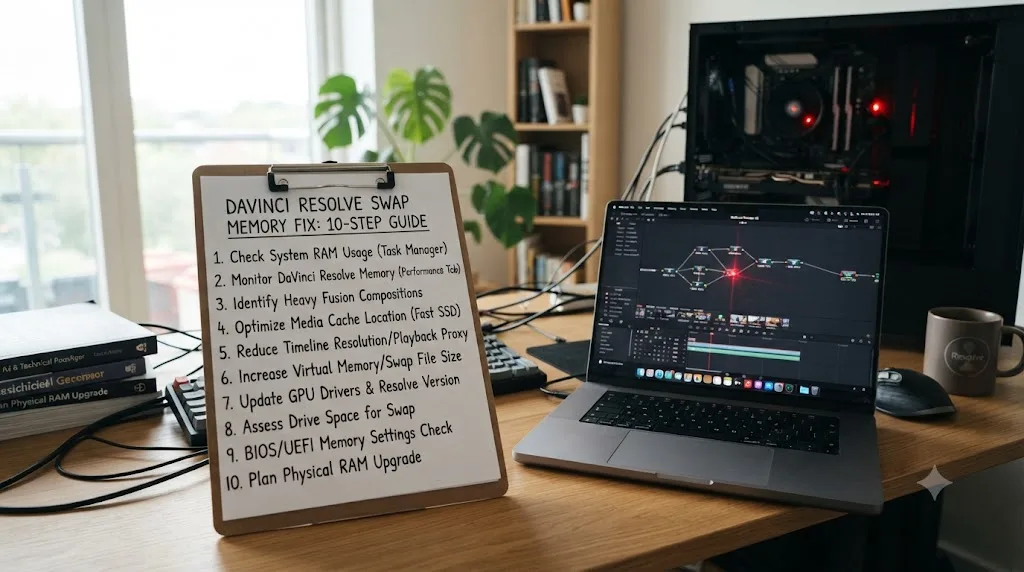
Work through it in sequence, and stop the moment your memory readings settle:
- Confirm it's actually swap. Check Activity Monitor's Memory Pressure on Mac, or Task Manager's Committed memory on Windows, before changing anything.
- Lower timeline resolution and proxy mode. Free, instant, reversible, and the biggest single lever available to you.
- Clear the render cache. Playback > Delete Cache Files > All, especially if it hasn't been cleared in a while.
- Check Limit Resolve Memory Usage and Limit Fusion Memory Cache in Preferences > System > Memory and GPU, and adjust based on what else is running on the machine.
- Close background apps, browsers most of all, and recheck your memory readings before moving on.
- Generate Optimized Media or Proxy Media for heavy footage so Resolve holds smaller working files.
- Isolate whether Fusion is the trigger. If swap climbs specifically when Fusion compositions load, that's the 31%-at-16GB gap Puget Systems measured, and it points straight at a RAM ceiling rather than a setting.
- Check where your swap or page file, and your Resolve cache, actually live. A mechanical hard drive or a crowded system SSD compounds the underlying shortage.
- Add physical RAM if your machine supports it and the problem persists across ordinary projects, not just unusually heavy ones.
- Budget for more RAM at your next hardware purchase if it doesn't support an upgrade, treating RAM capacity as the priority spec ahead of clock speed or GPU tier for editing-focused machines.
If you've worked through the full list and swap or page file activity still spikes hard on projects that shouldn't be demanding much, that's the point to stop treating it as a configuration problem and start treating it as a genuine hardware ceiling, the same escalation logic covered for VRAM shortages in our GPU memory full guide, whose underlying lesson, measure before you spend, applies just as well here.
We've spent seven years cutting commercial video work in Resolve across projects ranging from quick social edits to Fortune 500 deliverables, and the machines that struggle with swap are almost never the ones running the heaviest grades. They're the ones running an ordinary 4K project on RAM that was undersized the day it left the factory. That's not a skill problem or a settings problem you can fully engineer around. It's a hardware ceiling wearing a software costume.
Here's the short version to keep in your head next time the disk light won't quit. Swap and the page file are your operating system protecting you from a crash, not Resolve malfunctioning. Confirm it's really happening with Activity Monitor or Task Manager before you touch a single setting, work the free fixes first, timeline resolution, cache, background apps, and treat RAM as the upgrade that actually raises your ceiling when the free fixes run out of runway.
Frequently asked questions
- Why is DaVinci Resolve using swap memory instead of RAM?
- Because your open project, its cache, and whatever effects are loaded need more memory than your system has free, so the operating system starts writing overflow data to a swap file or page file on disk instead of holding it in RAM. It's not a bug. It's your OS refusing to crash the app when RAM runs out, at the cost of everything getting much slower.
- How do I know if DaVinci Resolve is using swap on my Mac?
- Open Activity Monitor, click the Memory tab, and look at two numbers: Memory Pressure and Swap Used. A yellow or red pressure graph, or a Swap Used figure that keeps climbing while Resolve is open, means macOS has run out of comfortable RAM and is actively paging data to your startup disk.
- How do I know if DaVinci Resolve is using the page file on Windows?
- Open Task Manager, go to the Performance tab, and check Memory. If Committed memory sits close to or above your installed physical RAM while Resolve is running, Windows is leaning on the pagefile.sys virtual memory file on disk to make up the difference.
- How much RAM does DaVinci Resolve actually need in 2026?
- Blackmagic's own minimum system requirements list 8GB on macOS (16GB if you use Fusion) and 16GB on Windows (32GB if you use Fusion). Treat those as floors, not targets. Puget Systems' testing found 16GB versus 64GB costs a 31% performance hit specifically in Fusion, so anyone doing compositing work wants well above the stated minimum.
- Does turning off the page file or swap fix DaVinci Resolve?
- No, it makes things worse. Disabling virtual memory entirely doesn't give you back RAM you don't have. It just means the operating system has nowhere to put overflow data when it needs to, which typically causes Resolve to crash or refuse to launch instead of just running slowly.
- Is swap use the same problem as "GPU memory is full"?
- No, and confusing the two wastes troubleshooting time. Swap and the page file are about system RAM, the memory your CPU and the rest of your OS use. GPU memory full is about VRAM, the separate pool on your graphics card. More system RAM does nothing for a full GPU memory error, and more VRAM does nothing for swap thrashing.
- Will adding RAM fix DaVinci Resolve running slow, even on a laptop where RAM isn't soldered in?
- Yes, if swap or the page file was genuinely the bottleneck, and most laptops built for creative work still take RAM upgrades. Check your exact model's specs first, since a growing number of thin laptops, including every current MacBook, solder RAM to the board and can't be upgraded after purchase.
Sources
- DaVinci Resolve 20 Minimum System Requirements (Blackmagic Design)
- Puget Systems: When Does RAM Capacity Impact Performance? (Peter Emery)
- Puget Systems: Hardware Recommendations for DaVinci Resolve
- Puget Systems: What is Pagefile, and how to adjust it
- Apple Support: Check if your Mac needs more RAM in Activity Monitor
- Apple Support: View memory usage in Activity Monitor on Mac
- Microsoft Learn: Introduction to the page file
- Richard Lackey: DaVinci Resolve Minimum System Requirements, A Reality Check
Put this guide to work with TryUncle.
Ask about the step you’re on. TryUncle sees your screen and points at the control you need, so you can keep learning in your own project.
Get TryUncle for Mac or WindowsKeep reading
Fixes · Jul 7, 2026 · 25 min
DaVinci Resolve GPU Memory Is Full: Every Real Fix
Why DaVinci Resolve throws 'GPU memory is full,' and which fixes actually work: timeline resolution, drivers, effects, and how much VRAM you need.
Fixes · Jul 15, 2026 · 25 min
DaVinci Resolve Proxy Media Setup for a Slow Laptop
Set up proxy media in DaVinci Resolve on a slow laptop: resolution, codec, the Blackmagic Proxy Generator, and the exact settings that stop the stutter.
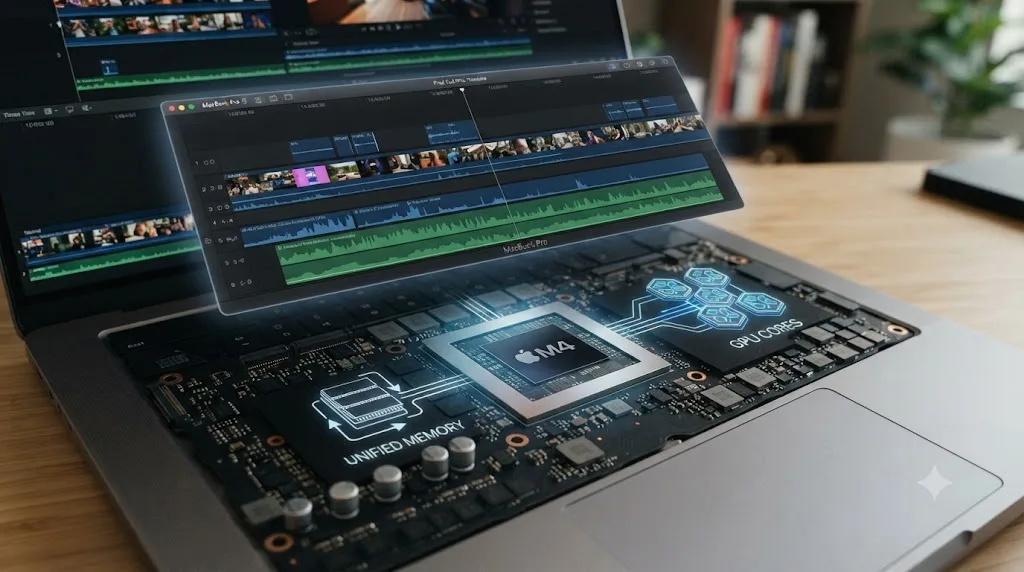
Guides · Jul 13, 2026 · 40 min
DaVinci Resolve Best Settings for Apple Silicon M4
The best DaVinci Resolve 21 settings for Apple Silicon M4 Macs: unified memory, storage, export, and Resolve preferences for M4, M4 Pro, and M4 Max.