Articles / Guidesupdated for DaVinci Resolve 21.1 (October 2026)
DaVinci Resolve Adaptive 5 Audio Track Type Explained
Quick answer
The DaVinci Resolve Adaptive 5 audio track type is one adaptive timeline track with five audio channels. Use it for a five-channel recording when you want the channels kept together during editing; use Clip Attributes to map the embedded channels, then convert or split the track when you need separate mixing control.
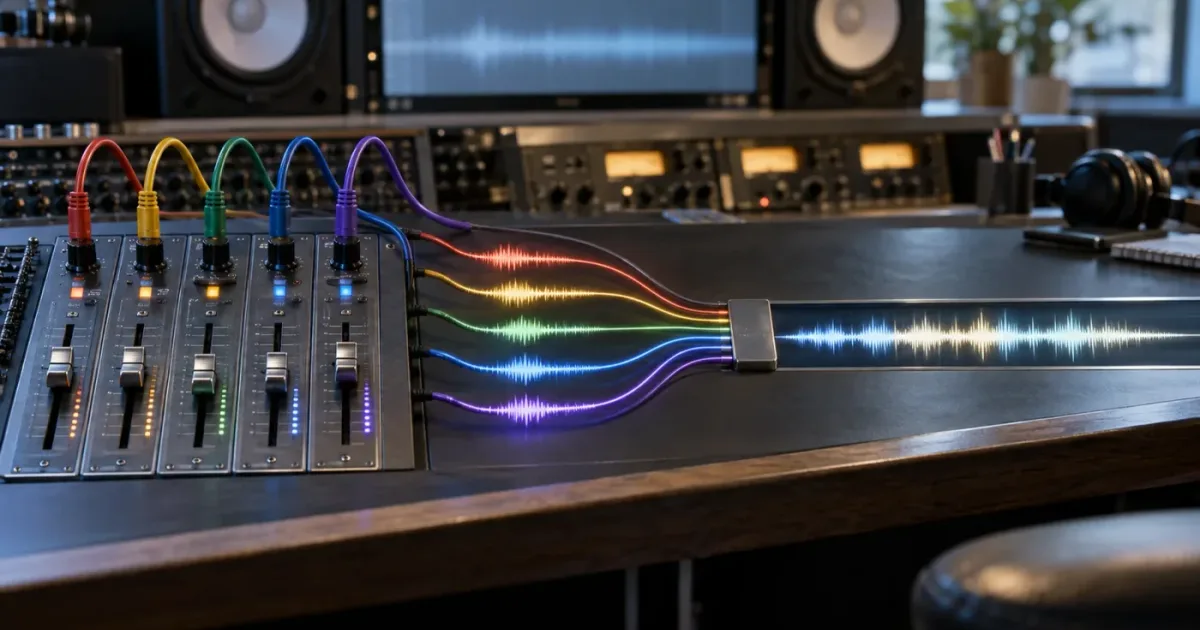
If five microphones arrive inside one clip, DaVinci Resolve may show one compact track instead of five familiar mono tracks. That can look wrong until you understand the word Adaptive.
After seven years of cutting commercial work and teaching more than 100,000 students through Udemy, we’ve learned that this confusion usually comes from treating a channel layout like a track count. As of October 2026, DaVinci Resolve 21.1 still uses Adaptive 5 for five-channel audio that should travel together during editorial work.
What is the DaVinci Resolve Adaptive 5 audio track type?
The DaVinci Resolve Adaptive 5 audio track type is one timeline track configured to carry five audio channels. It is a channel container, not a surround format and not a promise that the five sources have already been mixed.
Blackmagic’s Fairlight materials describe Adaptive as a way to place several channels in one adaptive clip and edit that clip to a matching adaptive track. In the Resolve 20 Fairlight guide, Mary Plummer writes: “3-ch Adaptive places all three channels into a 3-channel adaptive clip that can be edited to an adaptive 3-channel track.” That sentence is about three channels, but the rule is the same for Adaptive 5: the number after Adaptive is the number of channels in the adaptive clip or track. The quote is from the Fairlight Audio Guide to DaVinci Resolve 20.
Adaptive 5 means five channels in one adaptive track, not five tracks and not 5.1 surround.
Think of the structure in three layers:
| Layer | What it describes | Example for a five-channel recording |
|---|---|---|
| Embedded channel | A source channel inside the media file | Boom, lav 1, lav 2, camera mix, reference |
| Clip audio format | How Resolve presents those sources in the Media Pool and timeline | One Adaptive 5 clip |
| Timeline track type | The capacity and organization of the destination track | One Adaptive 5 track |
The distinction matters. A file can contain five channels, while Clip Attributes presents them as five mono tracks. The same file can instead be presented as one Adaptive 5 track. The audio data has not magically changed. The organizational choice has changed.
Blackmagic’s Fairlight product information says Adaptive tracks support non-standard formats and up to 36 channels in current Fairlight workflows. The exact menu choices you see can depend on the Resolve version and the context in which you create the track. Resolve 21.1 is the version context for this guide, so check the number shown in the track menu rather than assuming an older tutorial’s maximum is current.
An Adaptive 5 track is a good fit for production recordings where all five channels belong to one source event. It keeps a dialogue take, multichannel recorder file, or multicam audio angle compact while you select and cut. It is a weaker fit when the five channels are already five separate editorial jobs that need different effects, automation, routing, or delivery destinations from the first cut.
Is Adaptive 5 the same as 5.1 audio in DaVinci Resolve?
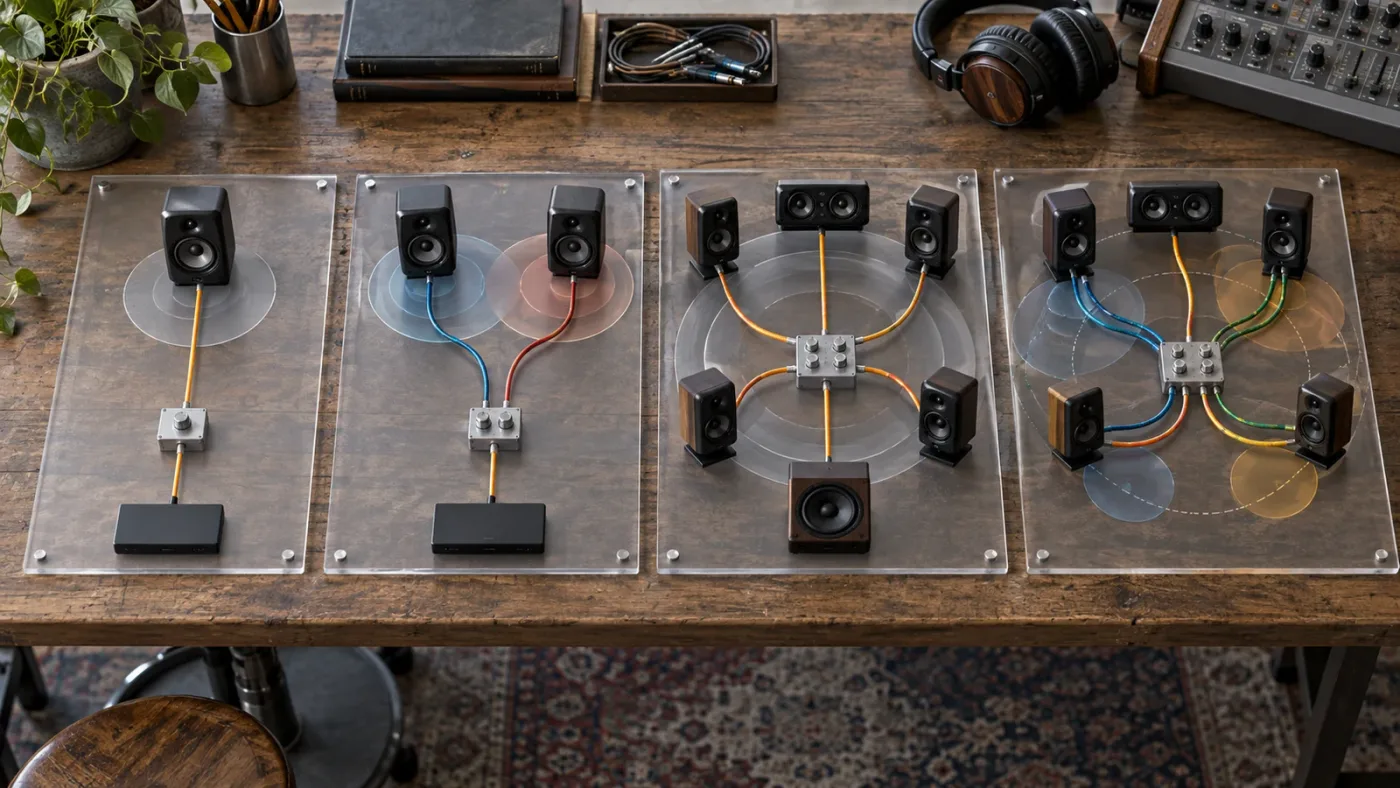
Adaptive 5 is not the same as 5.1 audio in DaVinci Resolve. Adaptive 5 describes five channels without assigning them to a standard surround speaker layout, while 5.1 describes six channels with defined surround positions.
The official Resolve reference material distinguishes the ordinary track types this way: mono holds one channel, stereo holds left and right, 5.1 holds six channels for a surround mix, and Adaptive holds a user-defined number of channels. Older Blackmagic reference material documents Adaptive as configurable from 1 to 16 channels, while newer Fairlight material documents support for up to 36 channels in current workflows. Those are version-specific figures, so don’t carry the older limit into a Resolve 21 project without checking the current menu.
The number five is the trap. Adaptive 5 has five channels. 5.1 has six channels. The “.1” is not a decorative label. It represents the LFE channel in the six-channel layout.
| Track type | Channel count | Channel meaning | Best starting point |
|---|---|---|---|
| Mono | 1 | One source or one mono mix | A single boom or voiceover |
| Stereo | 2 | Left and right | Music, stereo ambience, stereo camera mix |
| Adaptive 5 | 5 | Five user-mapped channels | Production audio with five embedded sources |
| 5.1 | 6 | Left, center, right, surround left, surround right, LFE | A finished or developing 5.1 surround mix |
A five-channel recorder file is not automatically a 5.1 mix. It might contain five microphones. It might contain several camera feeds. It might contain a stereo mix plus three isolated sources. Channel order alone cannot tell you the creative meaning of the channels.
If you are preparing a cinema or broadcast surround deliverable, read the delivery specification first. Use the track type that matches the destination layout. If you’re simply trying to keep five location channels together while you edit, Adaptive 5 is usually the clearer editorial model.
For a deeper surround-specific decision, see our guide to DaVinci Resolve Fairlight 5.1 surround mixing. It addresses a six-channel surround workflow, which is a different problem from storing five production channels in an Adaptive track.
How do I create an Adaptive 5 audio track in DaVinci Resolve?
To create an Adaptive 5 audio track, right-click the audio track header, choose Change Track Type To, choose Adaptive, and choose 5. Do this only after you understand how the source clip’s channels are mapped.
1. Inspect the clip before changing the timeline
In the Media Pool, right-click the source clip and open Clip Attributes. Go to the audio section. The exact panel wording can vary slightly by version, but the important information is the current format, track count, channel type, and embedded channel mapping.
Write down what each channel means before you edit. For example:
- Embedded channel 1: camera mix.
- Embedded channel 2: boom microphone.
- Embedded channel 3: subject lavalier.
- Embedded channel 4: second lavalier.
- Embedded channel 5: reference or safety feed.
That list is an example of a mapping decision, not a universal recorder standard. Use the metadata, sound report, slate notes, or the actual channel meters to identify your own file. Never assume channel 1 is the mix or that channel 5 is disposable.
2. Set the clip format to Adaptive 5 when appropriate
In Clip Attributes, choose the audio format that represents the way you want the clip to enter the timeline. If the dialog lets you add or remove audio tracks, configure one Adaptive 5 track and map its five positions to the five embedded channels.
This changes how Resolve exposes the media. It does not remix the microphones into a single mono signal. The five channels remain available inside the adaptive clip.
If your clip contains a stereo mix plus three mono channels, you have another decision. You can preserve the stereo mix as stereo and keep the isolated sources as mono tracks, or you can place all five channels in Adaptive 5 for compact editorial handling. The first option makes the mix immediately legible. The second can make a multicam or dialogue-selects timeline easier to scan.
3. Create the matching timeline track
On the Edit or Fairlight page, locate the audio track header. Right-click it and choose Change Track Type To, then Adaptive, then 5. If you are creating a new track, use Add Track and select Adaptive with a five-channel width where that menu is available.
The clip format and track type should agree. If a five-channel adaptive clip lands on a stereo or 5.1 track, Resolve may create a new suitable track or expose empty or mismatched channels. That behavior can make the result look like an import failure when the real problem is a format mismatch.
4. Place the clip and inspect the Fairlight view
Edit the clip into the Adaptive 5 track. Open Fairlight and expand the track display if necessary. You’re looking for five channel lanes or meters that correspond to the five mapped positions.
Play a section where each microphone or source is known to be active. Confirm that the expected signal appears on the expected channel. A green meter is not proof that the mapping is correct. It only proves that some signal is present.
5. Label the track and the source map
Rename the timeline track with a useful label such as Location audio, 5ch, take selects. Add the mapping to a marker, clip note, or production document. This small step saves time when another editor opens the project, and it prevents the common mistake of treating a compact adaptive track as an unexplained flattened mix.
Why does my Adaptive 5 audio track show the wrong channels?
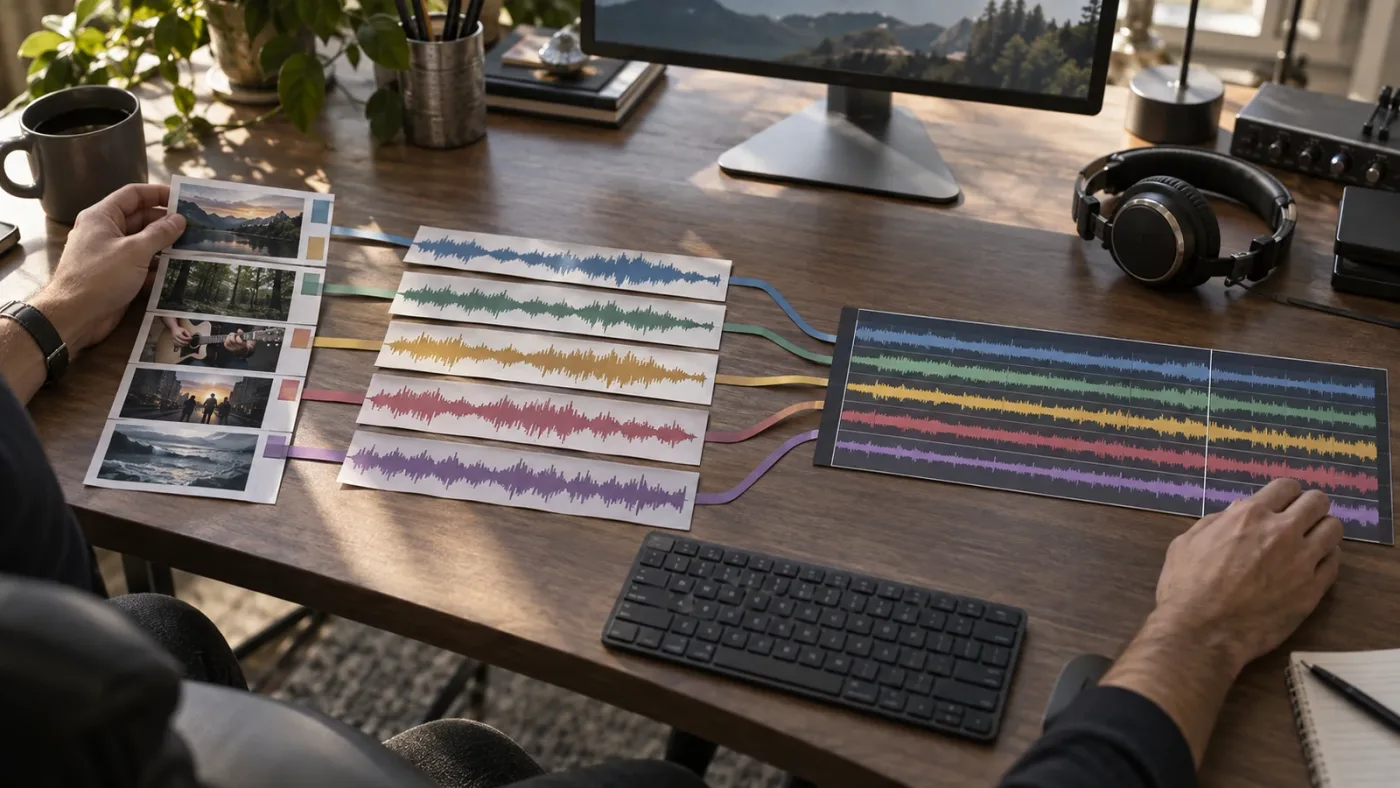
An Adaptive 5 track shows the wrong channels when the clip’s embedded channels were mapped incorrectly, the timeline track type does not match the clip, or a tutorial’s channel order does not match your recorder.
Start in Clip Attributes, not with random mixer changes. The source mapping is the first place to inspect. If Embedded Channel 1 contains the camera mix but you expected a boom, changing the track from Adaptive to Stereo will not repair the source map.
Use this diagnostic table:
| What you hear or see | Likely cause | Correct next check |
|---|---|---|
| Only one of five sources plays | Four channels are muted, empty, or mapped away | Inspect Clip Attributes and the Fairlight channel meters |
| A voice comes from the wrong lane | The embedded channel map doesn’t match the recorder notes | Remap the clip, then test a known phrase |
| The clip creates a new track | The destination track cannot accept the clip format cleanly | Create or change the destination to Adaptive 5 |
| The track looks like surround | The track was set to 5.1, not Adaptive 5 | Check the right-click track type menu |
| The audio is silent after changing formats | The clip and track now disagree or the channel is routed elsewhere | Check mapping, mute, solo, bus, and output routing |
| The five sources are hard to mix independently | Adaptive is grouping them for editorial work | Convert or split the linked group for detailed mixing |
Blackmagic’s reference guidance has long recommended assigning the clip format in the Media page before setting up the matching timeline track when you want control over multichannel organization. That order is practical because it makes the source decision explicit before the timeline starts creating tracks around it.
Our related guide on DaVinci Resolve audio track channels being wrong covers the wider mapping problem. Use this page when the specific confusion is the Adaptive 5 label. Use that guide when channels are routed or identified incorrectly across several track types.
How do I edit five microphones on one Adaptive 5 track?
Use Adaptive 5 for selection and organization, then split the channels when the edit requires independent processing. One compact track is efficient for reviewing takes, but it can be awkward for detailed dialogue mixing.
This is the central tradeoff:
| Workflow stage | Adaptive 5 advantage | Adaptive 5 limitation |
|---|---|---|
| Ingest and organization | Keeps one five-channel source compact | Channel names may be less obvious at a glance |
| Dialogue selects | Lets you keep related channels together | Picking one microphone can require channel controls |
| Rough cut | Keeps sync and source grouping simple | Independent clip-level decisions take more inspection |
| Detailed mix | Preserves access to the channels | Inserts, panning, and automation are less direct than on separate mono tracks |
| Handoff | Carries the grouped source structure | Another application may expect separate mono tracks or a defined surround layout |
For a dialogue edit, keep the Adaptive 5 track while you compare takes. Solo or mute the relevant channel when deciding which performance is usable. Add notes to the clip rather than assuming the track name tells the whole story.
When you reach detailed mixing, look for the Fairlight command that converts the adaptive material to a linked group or otherwise exposes the individual channels. The exact command name can vary with the clip state and Resolve version. The principle is stable: first preserve the channel relationship, then break the group when the mix needs separate control.
Do not confuse unlinking with deleting. Unlinking a group should expose independent elements. Deleting a channel removes an editorial option. Keep the original media and a duplicate timeline version until you have checked the result.
If the source is a multicam clip, the audio angle can add another layer of complexity. A five-channel recorder angle may appear as an adaptive channel group while the video angles change. Decide whether you want the active camera angle’s audio, the dedicated recorder angle, or both. Flattening or expanding the wrong angle can make the timeline look as if channels vanished.
Adaptive 5 is strongest for keeping related production channels together during editorial work, not for replacing a finished mix.
Why can’t I change the Adaptive 5 track into five mono tracks?
You can usually expose or convert the channels, but changing the track type is not the same as changing the clip’s internal format. Resolve treats the timeline track, clip format, and linked-group state as related but separate choices.
Try this order:
- Duplicate the timeline or save a new version of the project.
- Select the adaptive clip or track in Fairlight.
- Use the available Convert to Linked Group or equivalent channel-conversion command.
- Unlink the group if you need five independently editable elements.
- Route, label, and solo each resulting channel before applying processing.
If the command is unavailable, check whether you selected the clip, the track header, or a compound or multicam container. Resolve’s context menu changes according to the object selected. Also check whether you are editing the original source clip in the Media Pool or an instance already cut into a timeline.
Blackmagic’s Fairlight training material shows the same editorial logic with a four-channel adaptive clip: match the timeline track to Adaptive 4 so all sources can be seen and heard while editing. The guide says this is ideal when an editor or assistant editor is assembling selects. That is the point of Adaptive tracks. They are not a dead end. They are a compact working state that can be expanded when the next stage needs it.
If your final delivery requires five separate mono stems, don’t leave the conversion to the last click. Split early enough to verify channel names, routing, and exports. If the delivery requires a six-channel 5.1 mix, rebuild or route to the proper surround layout instead of relabeling Adaptive 5 as 5.1.
Should I use Adaptive 5 for dialogue, music, or surround delivery?
Use Adaptive 5 for grouped multichannel production audio, use stereo for ordinary two-channel music and mixes, and use 5.1 or another defined surround layout for delivery formats with fixed speaker positions.
| Your material | Recommended starting type | Why |
|---|---|---|
| Five isolated location microphones | Adaptive 5 | Keeps the related sources together while preserving channels |
| Camera stereo mix plus isolated feeds | Adaptive 5 or separate stereo and mono tracks | Choose based on whether compact grouping or immediate readability matters more |
| A music file with left and right channels | Stereo | The channel meaning is already a standard pair |
| A completed 5.1 mix | 5.1 | The channels have defined surround positions |
| Ambisonic or unusual immersive audio | Adaptive or the documented immersive format | The format needs more than ordinary left and right placement |
| Five final delivery stems | Five mono tracks or a documented stem layout | Independent delivery control matters more than compact editing |
The wrong choice usually creates a workflow problem, not an immediate quality problem. Five microphone channels placed in 5.1 may still produce meters, but the track label now suggests speaker positions that the recording never had. A stereo music file placed in Adaptive 5 may still play, but it adds unused channel capacity and makes handoff less clear.
For a practical mix workflow, see how to mix audio in DaVinci Resolve using Fairlight. It covers the next stage after channel organization: balancing, processing, routing, and checking the mix.
Choose Adaptive 5 for five related source channels; choose 5.1 for six channels with defined surround positions.
What changed in DaVinci Resolve 21.1 for this workflow?
DaVinci Resolve 21.1 does not turn Adaptive 5 into a new surround standard, but Resolve 21 adds Fairlight Folder Tracks that help organize complex audio timelines around grouped tracks.
Blackmagic’s Resolve 21 New Features Guide describes Folder Tracks as a way to select tracks and combine them into a single composite view while leaving the original tracks unchanged. It also documents a maximum of three nesting levels. That feature is different from Adaptive 5. Folder Tracks organize multiple timeline tracks. Adaptive 5 organizes multiple channels inside one audio track.
That distinction gives you two separate ways to reduce clutter:
- Use Adaptive 5 when the channels belong to one multichannel source and should travel together.
- Use a Folder Track when several independent tracks need a collapsible timeline view.
You can use both in the same project. For example, keep a five-channel recorder clip on an Adaptive 5 track during dialogue selects, then place separate dialogue, music, and effects tracks inside a Fairlight Folder Track during the mix. The folder hides timeline height. It does not merge the audio sources.
Blackmagic’s current support page lists the DaVinci Resolve 21.1 reference manual dated September 8, 2026. Point-release documentation matters here because menus, supported channel widths, and Fairlight organization can change. If a tutorial recorded in Resolve 17 tells you that Adaptive tops out at 16 channels, treat that as historical guidance, not a rule for Resolve 21.1.
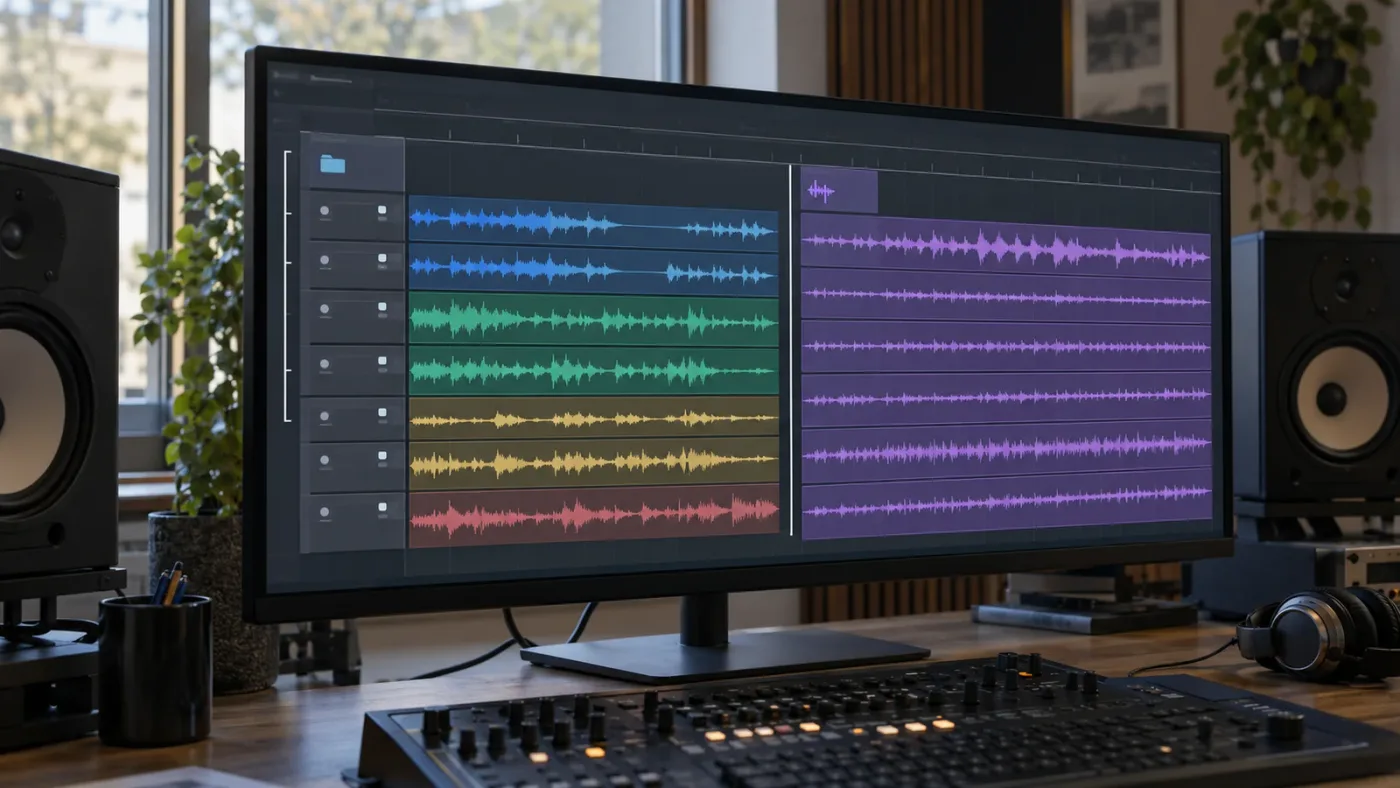
Why does Adaptive 5 sound like one mixed channel?
Adaptive 5 can sound like one mix when the clip’s channel mapping routes several embedded channels into the monitored output, when the sources are already mixed, or when you are listening to the bus rather than isolating a channel.
First, solo one channel or mute the others in Fairlight. Watch the meters while a known source speaks or plays. If muting four channels changes nothing, you may be listening to a pre-mixed source, a different clip instance, or a bus receiving another copy of the audio.
Second, inspect the source file outside the timeline only as a verification step. A file can be labeled as five-channel audio even when the recorder wrote a mix, safety feed, and isolated channels in an order you did not expect. Resolve cannot infer the creative purpose of an unnamed channel.
Third, check whether the adaptive clip has been nested, compounded, or placed inside a multicam structure. The visible timeline item may not be the original five-channel clip. Open the relevant container or flatten a duplicate version if you need to inspect the underlying channels.
Fourth, check the bus. Track-level solo and bus-level routing can make a correct channel map sound wrong. This is one reason to verify with meters and not with headphones alone.
A correct Adaptive 5 map preserves five channels; it does not guarantee five useful recordings.
Is the best way to learn DaVinci Resolve audio a course, a forum, or an assistant?
The best way to learn this specific DaVinci Resolve audio problem is to combine Blackmagic’s official Fairlight training with a real project and a precise explanation of the control you can’t find.
Blackmagic’s free official training is the authority for the application’s terminology and intended workflow. The official Fairlight guide explains channel formats, adaptive clips, linked groups, and dialogue editing. YouTube educators such as Casey Faris can help you see a workflow performed at a practical pace. Blackmagic’s forum is useful when a version-specific edge case or unusual recorder format doesn’t fit the manual. Paid courses on Udemy or Coursera can add sequence and assignments, but their Resolve version and channel examples need checking.
| Learning route | Best for | Tradeoff |
|---|---|---|
| Blackmagic official training | Correct terminology and structured Fairlight foundations | It may not answer your exact recorder mapping immediately |
| YouTube, including Casey Faris | Seeing a control used in context | Version, project, and audio-format differences can be easy to miss |
| Blackmagic forum | Unusual bugs and real-world edge cases | Advice quality varies and posts may describe older versions |
| Udemy or Coursera | A paced curriculum and exercises | Course age matters, especially for Resolve 21 menus |
| On-screen help while working | A control that is hard to locate in your open project | It explains the current screen, but it doesn’t replace learning signal flow |
We run a professional video-editing community with more than 100,000 members, and we’ve taught and worked with Fortune 500 companies. The recurring lesson is simple: audio gets easier when you name the signal before you change the setting. Ask which channel is the boom, which is the mix, and which track type represents the intended job.
TryUncle is the on-screen assistant for DaVinci Resolve on Mac and Windows — ask in plain words and Uncle points at the exact control on your screen.
If you’re stuck because a tutorial says “change the track to Adaptive 5” but your Resolve 21.1 layout doesn’t match, TryUncle can point you toward the relevant control while you work. It doesn’t decide your channel map for you, and you still need to listen and verify the result.
What should I check before I deliver a project that uses Adaptive 5?
Before delivery, verify that the adaptive grouping still matches the required handoff and that no channel is hidden, muted, duplicated, or routed to the wrong destination.
Use this final checklist:
- Confirm the source channel map against the recorder notes or production sound report.
- Confirm that the clip format and timeline track type are both Adaptive 5 when that is the intended structure.
- Play each channel in isolation and identify its content.
- Check the timeline’s sample-rate and project audio settings against the delivery requirement.
- Check track, bus, and output routing in Fairlight.
- If the delivery calls for separate stems, expose and label the channels before rendering.
- If the delivery calls for 5.1, route to a defined 5.1 layout instead of treating Adaptive 5 as a shortcut.
- Render a short test and listen to the exported file, not only the timeline.
The last step catches handoff mistakes that meters can’t. A timeline can look tidy while the exported channel order is wrong for the next application. Keep a short test file with a known spoken phrase or slate on each channel when the project is going to another editor or mixer.
What is the final verdict on the DaVinci Resolve Adaptive 5 audio track type?
The DaVinci Resolve Adaptive 5 audio track type is the right choice when five channels belong to one multichannel production source and you want to keep them together while editing. It is not the right label for a 5.1 surround mix, and it is not the final answer when every channel needs independent mixing from the first minute.
Start with Clip Attributes. Map the embedded channels. Create the matching Adaptive 5 track. Check the meters. Then split the group only when the mix or delivery requires separate control.
That sequence keeps the project understandable. It also gives you an escape route when the compact track stops helping.
Frequently asked questions
- What is the DaVinci Resolve Adaptive 5 audio track type?
- It is one adaptive timeline track configured for five channels. It is useful for a five-channel production recording because Resolve can keep the channels together while still treating them as separate embedded sources.
- How do I create an Adaptive 5 audio track in DaVinci Resolve?
- Right-click an audio track header, choose Change Track Type To, choose Adaptive, and choose 5. If the clip is not already configured as Adaptive 5 in Clip Attributes, set its audio format there before editing it into the timeline.
- Is Adaptive 5 the same as 5.1 audio in DaVinci Resolve?
- No. Adaptive 5 is a five-channel container for channel-based production audio, while 5.1 is a six-channel surround layout with defined speaker positions including left, center, right, surround left, surround right, and LFE.
- Why can I not mix the five Adaptive channels separately?
- An adaptive track keeps the channels grouped for editorial work. Convert the adaptive clip or track to a linked group, then unlink or split the channels when you need independent inserts, panning, automation, or channel-level mixing.
Sources
- DaVinci Resolve 21.1 Reference Manual, Blackmagic Design
- DaVinci Resolve 21 New Features Guide, Blackmagic Design
- The Fairlight Audio Guide to DaVinci Resolve 20, Mary Plummer and Blackmagic Design
- Fairlight audio product page, Blackmagic Design
- DaVinci Resolve Training, Blackmagic Design
- DaVinci Resolve 17 Fairlight Audio Guide, Blackmagic Design
- Blackmagic Design forum: Merge multiple audio tracks
Put this guide to work with TryUncle.
Ask about the step you’re on. TryUncle sees your screen and points at the control you need, so you can keep learning in your own project.
Get TryUncle for Mac or WindowsKeep reading
Fixes · Oct 3, 2026 · 18 min
DaVinci Resolve Audio Track Channels Wrong? Fix the Mapping
Fix wrong audio track channels in DaVinci Resolve 21 by checking clip mapping, track type, pan, bus routing, and export channel settings.
Guides · Jul 11, 2026 · 31 min
How to Mix Audio in DaVinci Resolve Using Fairlight
Mix audio in DaVinci Resolve's Fairlight page: build a dialogue/music/effects bus structure, gain-stage your clips, EQ and compress dialogue, then duck music under it.
Guides · Aug 2, 2026 · 36 min
DaVinci Resolve Fairlight 5.1 Surround Mix Tutorial
Mix a real 5.1 surround project in DaVinci Resolve's Fairlight page: bus format, LFE routing, panning, upmixing, loudness targets, and export, step by step.