Articles / Fixesupdated for DaVinci Resolve 21.1 (October 2026)
DaVinci Resolve Audio Track Channels Wrong? Fix the Mapping
Quick answer
If DaVinci Resolve audio track channels are wrong, first check the clip's Audio Clip Attributes, then match the timeline track type to the clip format. Use mono tracks for isolated microphone channels, stereo tracks for true left and right pairs, and verify pan and bus routing before export.
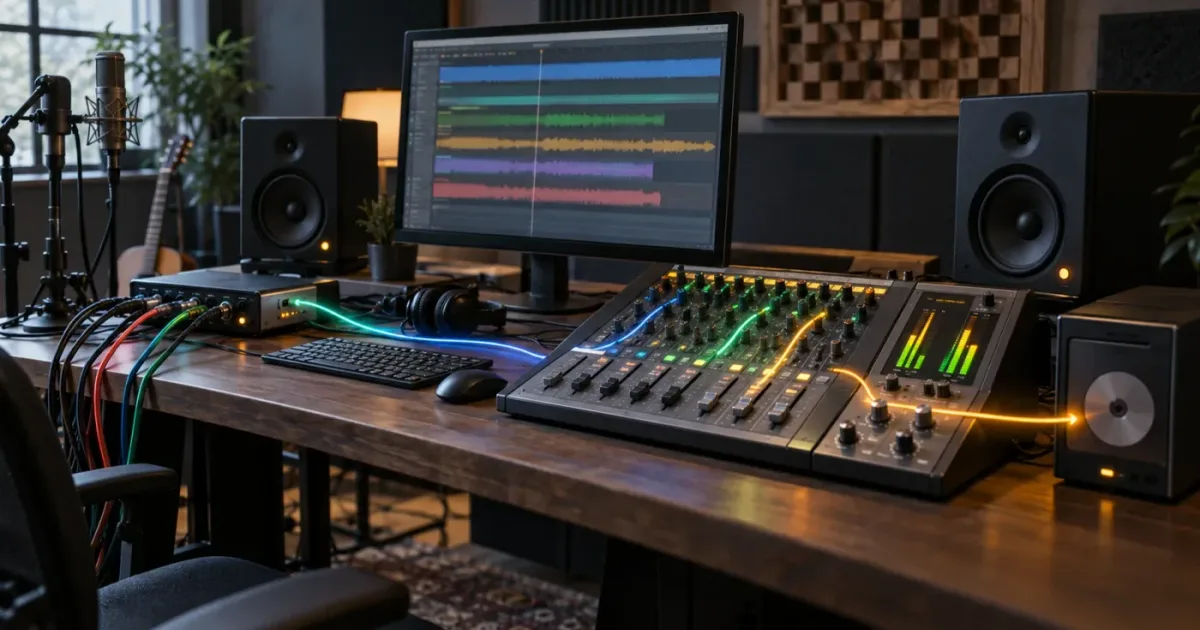
If the meters move but the voice comes from the wrong side, the track itself may be innocent. Resolve separates the source clip's channel map from the timeline track's format, and either one can be wrong.
As of October 2026, DaVinci Resolve 21.1 is the current 21-series reference point for this workflow. The quickest reliable fix is to inspect the source clip in Audio Clip Attributes, match the timeline track to the clip format, then follow the signal through pan, bus, and export settings.
We see this as one of the recurring questions in our 100,000+ member professional video-editing community. After more than seven years of professional commercial editing, we don't treat "left only" as a mysterious Fairlight bug. It is usually a mapping decision made earlier in the chain.
Why are my DaVinci Resolve audio track channels wrong?
DaVinci Resolve audio track channels are usually wrong because the source clip mapping and the timeline track format do not agree. A stereo file can be mapped as one stereo track, two mono tracks, or another multichannel arrangement, while the timeline can independently hold mono, stereo, 5.1, or other track types.
Start with the symptom, not the mixer. If the wrong microphone is audible, inspect source-channel assignments. If both microphones are combined, inspect the clip format and track count. If the signal is present but only on one speaker, inspect the relationship between mono and stereo.
Blackmagic's Fairlight guide states the practical rule plainly: "It is important that timeline tracks match the clip format and vice versa." The same guide gives the consequence that catches many editors: a mono clip placed in a stereo track can play only in the left channel or left speaker during playback. Read the Fairlight explanation in Blackmagic's guide.
Wrong audio channels in DaVinci Resolve usually mean a mapping mismatch, not a damaged recording.
Before changing anything, play the original file outside the timeline if you can. If the file already has a missing or swapped channel in another player, Resolve may be reporting the source correctly. If the source sounds right but the timeline sounds wrong, keep the original clip and repair its interpretation or the track it feeds.
How do I tell whether the clip or the track is wrong?
The clip is wrong when Resolve has assigned the embedded channels to the wrong logical tracks. The timeline track is wrong when the clip is correctly mapped but the destination track expects a different channel format.
Use this short decision table before touching pan controls.
| What you hear | Most likely layer | First place to look | Corrective direction |
|---|---|---|---|
| Left microphone and right microphone play together | Clip interpretation | Media Pool, Audio Clip Attributes | Set the intended number of mono tracks and map each embedded channel separately |
| A mono voice plays only from the left | Track format | Timeline track header | Change the track to Mono, or make an intentional mono-to-stereo routing choice |
| Left and right are swapped | Source-channel assignment or pan | Audio Clip Attributes, then mixer pan | Reassign the embedded channels before using pan as a workaround |
| One side is silent everywhere | Source file, mute, or routing | Original file, clip mapping, track, bus | Confirm the channel exists, is mapped, and reaches the main bus |
| Timeline sounds correct but render loses a side | Deliver configuration | Deliver page audio settings | Match the render format and channel configuration to the timeline and bus |
| The meters move on one channel but monitoring is odd | Monitoring path | Fairlight output and system audio | Verify the main output and hardware monitoring path |
The key distinction is simple. Pan changes where a mapped signal sits in a stereo field. It does not repair a clip that assigned the wrong embedded microphone to the wrong track. Fix the map first, then use pan for the creative or mixing decision.
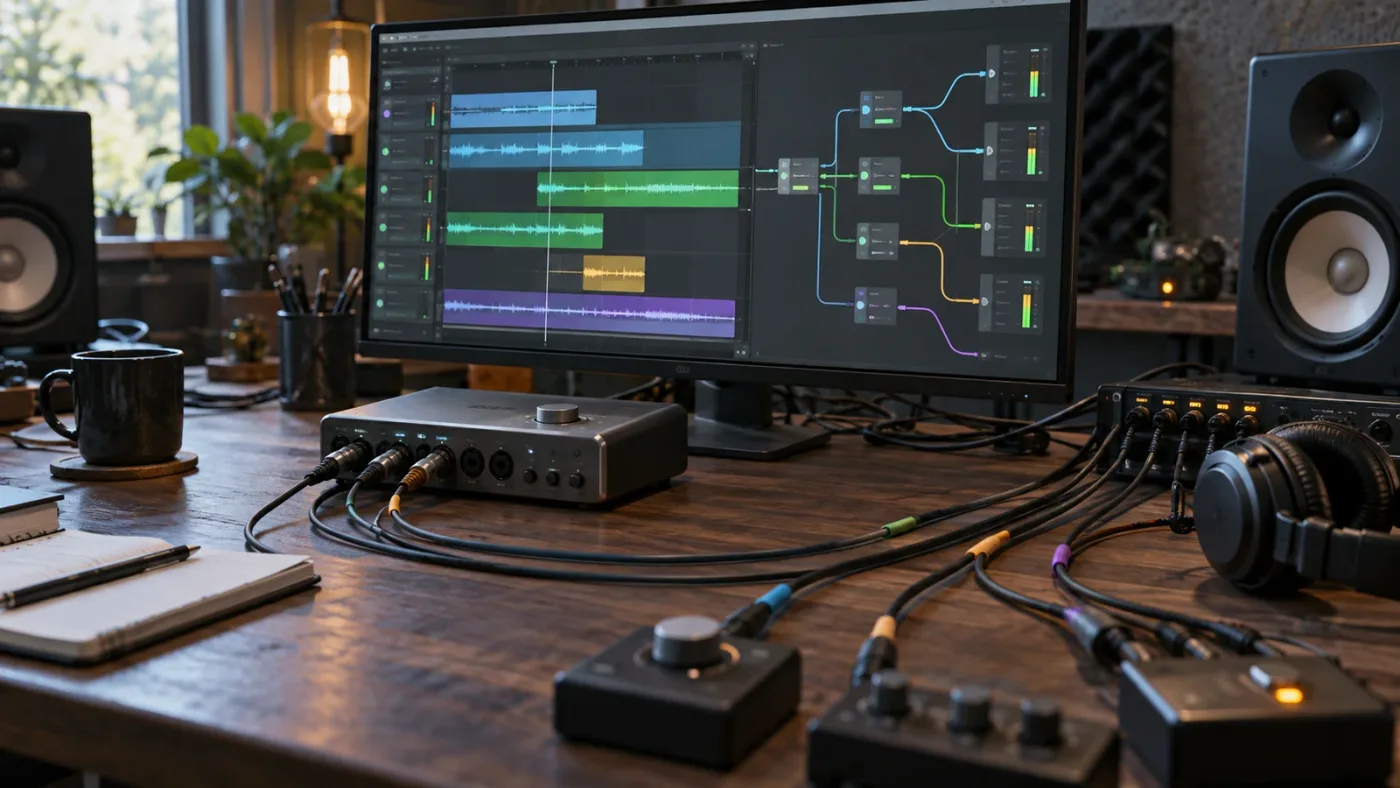
How do I inspect Audio Clip Attributes in DaVinci Resolve 21?
To inspect channel mapping, find the source clip in the Media Pool, right-click it, choose Clip Attributes, and open the Audio tab. This panel shows the clip format, track count, source channel, track, and channel-in-track relationships.
DaVinci Resolve 21 adds a reset icon to the Audio Clip Attributes panel. Blackmagic's Resolve 21 New Features Guide describes it as a way to reset the Audio Clip Attributes to their original state, and its example shows a table with Format, Source Channel, Track, and Channel in Track columns. See the official Resolve 21 feature guide.
Look at four fields:
- Format: Is the clip interpreted as Mono, Stereo, or another supported format?
- Tracks: How many timeline-facing tracks does Resolve create from the clip?
- Source Channel: Which embedded channel is being used, such as Embedded Channel 1 or Embedded Channel 2?
- Channel in Track: Does Resolve place that source into Mono, the left side, the right side, or a multichannel position?
If you inherited a project and the mapping looks unfamiliar, use the reset icon first and record what changes. Resetting returns the clip attributes to their original state, so it can undo an intentional remap. Save a duplicate project or note the current values before you click it.
A common example is a camera file with two embedded microphone channels. If you want two editable mono sources, the result should expose one microphone on Audio 1 and the other on Audio 2. If you want a real stereo pair, the two channels should remain the left and right sides of one stereo track. Those are different editing decisions even though both start with two channels in one file.
Don't remap a clip already used across a finished timeline without checking every instance. Clip Attributes changes the way the source is interpreted, which can affect earlier edits that relied on the old assignment. If you need two different interpretations, make a deliberate duplicate or render a clearly named intermediate rather than changing the only source definition and hoping the edit holds.
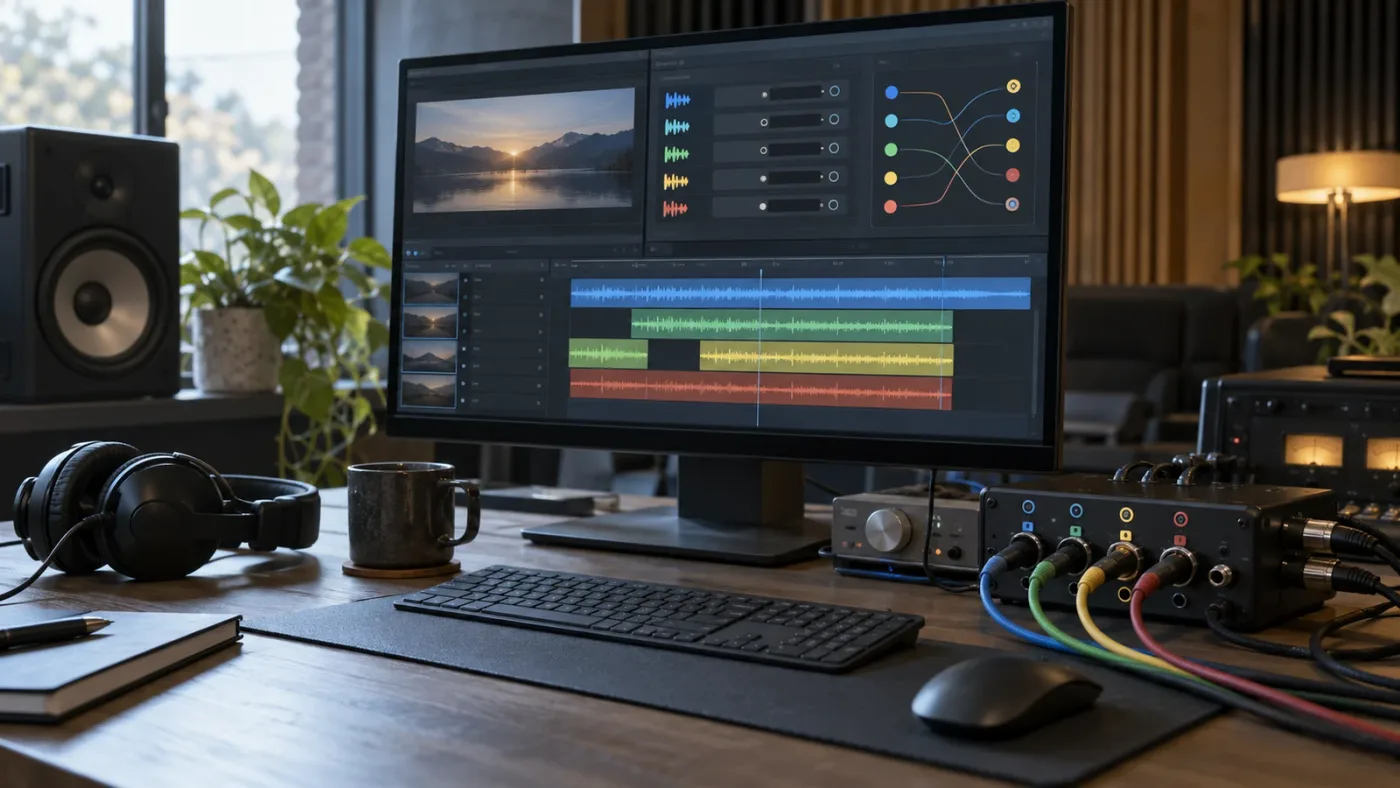
How do I split a stereo recording into two mono tracks?
To split a two-channel recording into separate mono tracks, set the clip format to Mono, create two tracks, and assign the embedded left and right sources to Audio 1 and Audio 2. Then replace the timeline instance with the remapped clip so the new structure is used in the edit.
This is useful for dual-system or camera audio where the left and right sides are two independent microphones. It is not the right choice for a stereo music recording, a stereo ambience bed, or a sound effect whose width is part of the creative result.
Use this process:
- Locate the clip in the Media Pool. If the timeline copy is difficult to find, use the clip's command to reveal or locate the source in the Media Pool.
- Open Clip Attributes and choose Audio.
- Set Format to Mono.
- Set the number of tracks to 2, then add the tracks if the panel requires it.
- Assign the first embedded source channel to Audio 1 and the second embedded source channel to Audio 2.
- Confirm the assignments by reading the mapping table rather than guessing from the waveform.
- Apply the change and place the remapped clip on the timeline, or replace the existing instance with the corrected interpretation.
- Rename the resulting timeline tracks with useful labels such as
LavandCamera, then solo each one to check it.
The number 2 here is not a magic fix for every two-channel file. It describes the desired result: two independent mono tracks. If the file contains a true stereo pair, separating it can destroy the intended stereo relationship and create extra work at the mix stage.
After splitting, center each mono dialogue track unless you have a reason to place it elsewhere. A mono track is a single channel. Centering it in a stereo mix is a routing or pan decision that should happen after the source assignment is correct.
Why does my mono audio only play on the left in DaVinci Resolve?
A mono clip can play only from the left when it sits on a stereo timeline track without the correct mono-track treatment. Change the destination track to Mono when the source is a single-channel recording, then check that the track feeds the intended bus.
This is the classic "my audio track channels are wrong" symptom. The waveform may look normal. The meter may move. The recording may be fine. The mismatch is that a single-channel clip is being treated as one side of a two-channel destination.
In the Fairlight page, right-click the track header and use the track-type command to change the track to Mono. The Fairlight guide describes the mono track indicator as 1.0, which tells you the track has one channel rather than a left-right pair. The official Fairlight guide shows this mono-track workflow.
Then listen again. If the voice is centered in both speakers, you have solved the format mismatch. If it is still left-only, check the clip mapping and pan. If it is silent, check mute, solo, bus assignment, and the main output.
Do not solve this by dragging pan to the middle while leaving the track format wrong. Pan can mask the problem in one monitoring setup and make later routing or export less predictable. A correct track type makes the channel meaning explicit to the next person who opens the project.
A centered mono voice should be a format and routing decision, not a pan rescue.
How do I fix left and right channels that are swapped?
If the left and right recordings are swapped, repair the source-channel assignment in Audio Clip Attributes before changing the track pan. Swapping pan can make one timeline instance sound correct, but it leaves the clip's channel meaning wrong for future edits.
First mute or solo the channels one at a time. Identify the actual microphone or source on each side. Then compare that observation with the Audio Clip Attributes table. If Embedded Channel 1 contains the source you want on Audio 1, assign it there. If the source is on Embedded Channel 2, change the assignment rather than guessing from channel names.
For a true stereo clip, swap left and right only if you have confirmed the recording itself is reversed. For dual mono, map the microphones to clearly named mono tracks. The same two-channel file can need either fix depending on what the channels mean.
The safest check is a short test section. Put the playhead on a phrase that clearly identifies the speaker or source, solo the track, watch the meter, and listen on headphones. Repeat for the second channel. This test tells you whether the problem is in the source map, the track, the pan, or the monitoring chain.
If the problem appears only after a compound clip, multicam edit, or imported timeline, inspect the resulting timeline tracks too. An import can preserve channel content while assigning it to a destination format that differs from the original editing application. Correct the smallest layer that explains the symptom.
How do I check track type, pan, bus, and output in Fairlight?
After clip mapping is correct, follow the signal in order: clip, timeline track, pan, bus, and main output. A correct source map can still sound wrong if a track is muted, panned hard left, routed to the wrong bus, or excluded from the monitored output.
Use this order:
- Clip: Confirm the source channel is present and assigned to the intended clip track.
- Timeline track: Confirm the track type matches the clip. Look for the channel indicator in the track header.
- Track controls: Check mute, solo, volume, and pan. For mono dialogue, confirm the channel is centered in the mix unless the scene calls for a position.
- Bus assignment: Confirm the track feeds the bus you are listening to. A bus is a destination for one or more tracks, and its channel format matters.
- Main output: Confirm the bus reaches the main output and that the monitoring device is receiving both sides.
- Hardware or system monitor: Check the operating-system output and interface routing if Resolve's meters look right but the room or headphones do not.
Resolve's Fairlight page provides channel strips with faders, panners, effects slots, dynamics, and equalization controls. Those controls work on the signal that reaches the strip. They do not replace the earlier job of deciding which embedded source channel belongs to which clip track. Blackmagic describes the Fairlight channel-strip controls here.
If the track meter shows the expected signal but the bus meter does not, the break is between the track and the bus. If the bus meter shows the expected signal but the main output does not, inspect output routing. If all meters are correct but only one speaker plays, inspect the monitoring path or the physical connection.
Why is the audio correct on the timeline but wrong after export?
When the timeline sounds correct but the exported file loses a side, the Deliver page audio configuration may not match the timeline and bus format. Check the output codec, channel format, bus selection, and channel mapping before rendering a long file.
Do a short export first. Include a section where the left and right sources are easy to identify. Play the render in a player that shows channel information if possible. Then compare three things:
| Check | What it answers | What a mismatch suggests |
|---|---|---|
| Timeline meters | Is the edit receiving both channels? | Source map, track type, or clip mute problem |
| Fairlight bus meters | Is the mix receiving both channels? | Track routing or bus-format problem |
| Rendered file | Did the Deliver page preserve both channels? | Export format, bus selection, or channel configuration problem |
Do not judge a stereo file only from a laptop speaker. Test headphones or a known two-channel monitoring path. A centered mono voice can sound similar from both sides even when the file structure is not what you intended, while a swapped music pair may be hard to notice without a deliberate left-right check.
Resolve 21 includes continued Fairlight development, and Blackmagic's current product pages identify DaVinci Resolve 21 as available for Mac, Windows, and Linux. The support page lists the final DaVinci Resolve 21 software update and the separate Studio release, so record your exact 21.x version when reporting a channel issue. Check the current Blackmagic support listing.
Version discipline matters when a tutorial is older. Resolve 21's Audio Clip Attributes reset icon is not the same as a tutorial that tells you to manually rebuild the mapping table. The underlying clip-versus-track distinction remains the useful part, but the control location and available shortcuts can change.
What changes in DaVinci Resolve 21 for audio channel troubleshooting?
DaVinci Resolve 21 adds Fairlight folder tracks and a reset control for Audio Clip Attributes, while the core channel-matching rule remains the same. Use the new reset control when you need to return a clip to its original audio attributes, and use folder tracks only to organize complex Fairlight timelines.
Blackmagic says Fairlight folder tracks let you select tracks and combine them into a single composite view without changing the original tracks. The individual tracks remain available inside the folder, so collapsing a folder changes the timeline view rather than converting all of its audio into one channel. Read the Resolve 21 Fairlight folder description.
That distinction matters here. A folder track can make a crowded mix easier to navigate, but it does not repair a clip with wrong embedded-channel mapping. Open the folder and inspect the actual child tracks when a channel problem appears. Treat the folder as organization, not as a new source format.
The reset icon is more directly useful. If an imported clip has an unexpected mapping and you want to start from the original attributes, reset it, then make one intentional change at a time. If the reset restores the expected channel order, the earlier remap was the cause. If the reset still sounds wrong, inspect the source file and the track routing.
What should I do for dual-mono, stereo, 5.1, and multichannel clips?
Choose the timeline format based on what the channels mean, not just how many channels the file contains. Dual-mono means independent sources, stereo means a left-right pair, and multichannel formats carry positions or roles that should survive as a coordinated layout.
| Source situation | Preferred edit representation | Why |
|---|---|---|
| One lavalier microphone | One mono clip track | The source has one useful channel and should be centered or deliberately positioned later |
| Two independent microphones in one file | Two mono tracks | Each speaker can be edited, muted, processed, and automated independently |
| Stereo music or ambience | One stereo track | The left-right relationship is part of the recording |
| Camera file with several production channels | Several mono tracks or a matching multichannel layout | You need explicit access to each recorded source |
| 5.1 or other surround material | Matching surround track and bus | Channel positions should remain coordinated through the mix and export |
There is no universal "best" setting. A podcast interview recorded with two microphones benefits from independent mono tracks. A stereo field recording can be damaged by splitting it without a reason. A surround deliverable needs a layout that matches the delivery requirement, not a quick stereo conversion.
When you are unsure, preserve the source and make a working copy. Name it with the chosen interpretation, such as Interview_dual-mono or Ambience_stereo. That makes later troubleshooting faster because the project records the decision in the clip name and track layout.
We teach more than 100,000 students on Udemy, and we are an official Udemy Business Partner. The lesson that holds across those different learning environments is simple: decide what each channel represents before you decide how loud or wide it should be.
The right Resolve audio format is determined by channel meaning, not by the channel count alone.
How do I avoid making the problem worse?
Avoid destructive fixes that hide the source of the problem. Don't immediately render new audio, flatten a multichannel clip, or duplicate a stereo signal into both sides just because one speaker is quiet.
Use these safeguards:
- Duplicate the project or create a version before changing shared clip attributes.
- Keep the original media unchanged.
- Fix source mapping before pan and volume.
- Change one layer at a time and listen after each change.
- Label tracks by source, not only by number.
- Test on headphones and speakers when the delivery is important.
- Export a short channel-check file before a full render.
If the audio is still wrong after these checks, collect the Resolve version, operating system, source file channel layout, clip attributes table, timeline track type, bus format, and export settings. A support request with those details is much more useful than "audio is on the wrong side." Blackmagic's support page directs free-version users to the Blackmagic Design community forums for technical support, while paid Studio users can follow the support options associated with their license. Use the official support center for the current route.
For a broader silent-audio checklist, see DaVinci Resolve No Audio: Every Cause and How to Fix It. If the channels are correct but the mix still needs structure, How to Mix Audio in DaVinci Resolve Using Fairlight covers the next stage. If the problem is delayed monitoring rather than wrong mapping, use DaVinci Resolve High Latency Audio Monitoring: The Fix.
Is an app that helps you while using DaVinci Resolve useful for this fix?
An on-screen guide can help you find the right panel while you keep the technical decision in your hands. The useful question is still whether the clip is mono, stereo, dual-mono, or multichannel, and whether the track and bus match that choice.
TryUncle is the on-screen assistant for DaVinci Resolve on Mac and Windows — ask in plain words and Uncle points at the exact control on your screen.
That can be useful when a tutorial's interface doesn't match your Resolve 21 layout and you need help locating Clip Attributes, a track-type menu, or Fairlight routing. It doesn't replace listening to each channel or deciding what the recording should mean. After you identify the fault, TryUncle can point you toward the relevant control while you work.
If you prefer a fixed lesson, Blackmagic's official training materials remain the right place to learn the structure of Fairlight and its channel workflows. Blackmagic's Resolve training page provides the vendor's own learning path. The free training is useful for concepts; an on-screen assistant is useful when you are stuck inside a live project and the control is hard to locate.
Which fix should I try first?
Start with Audio Clip Attributes if the wrong microphone, swapped side, or combined channels are the symptom. Start with the timeline track type if a single mono voice plays only from the left. Start with bus and Deliver settings if the timeline sounds correct but the rendered file does not.
Use this final order:
- Listen to the source and identify what each channel actually contains.
- Inspect the Audio Clip Attributes table.
- Reset the attributes in Resolve 21 if the mapping is unexplained, then make an intentional remap if needed.
- Match the timeline track to the clip format.
- Check pan, mute, solo, bus assignment, and main output.
- Make a short export and verify both channels outside the timeline.
Grant Petty, Blackmagic Design's CEO, wrote in the Fairlight guide, "The Fairlight page in DaVinci Resolve gives you all the tools you need for feature film-quality audio post-production and finishing." The quote is broad, but the practical implication is useful: Resolve gives you several audio layers, so a correct fix comes from following the signal through those layers instead of changing random mixer knobs. Read the attributed foreword in Blackmagic's Fairlight guide.
The fastest reliable audio fix in DaVinci Resolve is to trace the signal from source channel to final export.
When the mapping is correct, the track format matches, and the bus carries the expected channels, the problem stops being mysterious. You can then mix the audio for creative reasons rather than compensating for a setup error.
Frequently asked questions
- Why are my DaVinci Resolve audio track channels wrong?
- The clip mapping, timeline track type, pan, or bus routing is usually wrong. Open Clip Attributes on the source clip, confirm which embedded channels feed each track, then match the timeline track to mono, stereo, or the required multichannel format.
- How do I make a stereo clip two mono tracks in DaVinci Resolve?
- Open the clip's Audio Clip Attributes, choose Mono, set Tracks to 2, add the tracks, and map the embedded left and right channels to Audio 1 and Audio 2. Replace the timeline instance with the remapped clip.
- Why does my mono audio only play on the left in DaVinci Resolve?
- A mono clip on a stereo track can play from only the left channel. Change the timeline track to Mono, or use a correct mono-to-stereo mapping when you intentionally need the signal centered between both speakers.
- How do I reset wrong audio channel mapping in DaVinci Resolve 21?
- Select the source clip in the Media Pool, open Clip Attributes, choose the Audio tab, and click the reset icon introduced in DaVinci Resolve 21. Then check the restored format and source-channel assignments before editing again.
- Why is one side of my audio missing after export from DaVinci Resolve?
- Check the timeline track format, clip mapping, pan, bus format, and Deliver page audio channel configuration. A stereo export cannot restore a source channel that was never mapped or was muted by routing.
Sources
Put this guide to work with TryUncle.
Ask about the step you’re on. TryUncle sees your screen and points at the control you need, so you can keep learning in your own project.
Get TryUncle for Mac or WindowsKeep reading
Fixes · Jul 7, 2026 · 26 min
DaVinci Resolve No Audio: Every Cause and How to Fix It
Timeline plays video but no sound? Check the mute and solo buttons, the I/O Engine setting, sample rate, and Export Audio, in that order. Full fix list.
Guides · Jul 11, 2026 · 31 min
How to Mix Audio in DaVinci Resolve Using Fairlight
Mix audio in DaVinci Resolve's Fairlight page: build a dialogue/music/effects bus structure, gain-stage your clips, EQ and compress dialogue, then duck music under it.
Fixes · Jul 25, 2026 · 27 min
DaVinci Resolve High Latency Audio Monitoring: The Fix
Hearing your voice or your speakers late in DaVinci Resolve? Lower the buffer size, switch I/O Engine, and cache your plugins, in that order. Full fix list.