Articles / Fixesupdated for DaVinci Resolve 21.0.2 (July 2026)
DaVinci Resolve AMD GPU Not Detected: Every Real Fix
Quick answer
DaVinci Resolve usually misses an AMD GPU because GPU Processing Mode is stuck on Auto or CUDA instead of OpenCL, the Radeon driver is outdated or corrupted, or Windows routed Resolve to integrated graphics. Set Processing Mode to OpenCL manually in Preferences > System > Memory and GPU, reinstall the AMD driver with AMD's Cleanup Utility, then check Windows Graphics settings.
Your AMD card is sitting right there in Device Manager, fans spinning, and DaVinci Resolve still says it can't find a GPU. That's not a broken card talking. It's almost always a setting, a driver, or Windows routing Resolve somewhere you didn't ask it to go.
I'm going to walk through every real cause, in the order that actually saves you time, split out by Windows, Mac, and Linux, because "AMD GPU not detected" means something different on each one.
What does "AMD GPU not detected" actually look like in DaVinci Resolve?
It shows up in a few different shapes, and which one you're looking at narrows the fix before you touch a single setting.
The blunt version is a dialog on launch: no OpenCL capable GPU was found, or Resolve refuses to open a project at all and points at a GPU processing error. The quieter version lives inside Preferences > System > Memory and GPU, where GPU Selection lists nothing under your AMD card, or lists it greyed out and unselectable next to a working checkbox for integrated graphics. A third version doesn't announce itself as a GPU problem at all: Resolve opens fine, but playback is CPU-bound and sluggish, because it silently fell back to software processing instead of throwing an error.
A GPU that Device Manager sees and a GPU that DaVinci Resolve sees are two different claims. Windows, macOS, and Linux all confirm a card is physically present at the OS level constantly. Resolve asks a narrower question: can it open an OpenCL or Metal context on that card right now, with the driver currently installed. A card can pass the first test and fail the second every time, which is exactly the gap this whole problem lives in.
Why doesn't DaVinci Resolve see an AMD card in the first place?
Four causes cover nearly every real case, and they stack in roughly this order of likelihood.
GPU Processing Mode is set wrong. Resolve talks to GPUs through an API, CUDA for Nvidia, OpenCL for AMD and Intel, Metal on Mac, and the Auto setting occasionally locks onto the wrong one, especially right after a driver update or a fresh install where an old Nvidia card used to live in the same machine.
The AMD driver itself is the problem. Resolve leans harder on a clean, current graphics driver than almost any other consumer app, and a driver installed through Windows Update, left half-upgraded, or carrying leftover files from a previous version is the single most common root cause in this whole list.
Windows is routing Resolve to the wrong GPU. Laptops with both an integrated chip and a dedicated AMD card default new applications to the integrated one to save battery, and that decision happens before Resolve ever gets a say.
The hardware or OS combination genuinely isn't supported. This is the smallest bucket but it's real: an AMD card that predates OpenCL 1.2, or an Intel Mac trying to run DaVinci Resolve 21, which requires Apple Silicon and won't launch on Intel hardware at all regardless of what GPU is installed.
None of these four causes means your AMD card is defective. Three of them are configuration, and the fourth is a compatibility line that was drawn somewhere and you happen to be on the wrong side of it. Work through them in order rather than jumping to a driver reinstall or a Nvidia purchase before you've ruled out the cheap fixes.
Is GPU Processing Mode set to the wrong API?
Check this first, because it costs thirty seconds and fixes a real share of these cases outright.
Open Preferences > System > Memory and GPU. Look at GPU Processing Mode. If Auto is checked, uncheck it and select OpenCL manually, since that's the API AMD cards use in Resolve on both Windows and Linux. If you see CUDA selected instead, that's a leftover from an Nvidia card that used to be in the machine, or a bad Auto guess, and it will block Resolve from ever touching your AMD card no matter how good the driver is.
Then look one section down at GPU Selection. Uncheck Auto here too, and you should see a list of every GPU Resolve can currently talk to. If your AMD card isn't in that list at all, the problem lives at the driver or OS level, not in this preference pane, and you should skip ahead to the driver section below. If it is listed but sitting unchecked next to a checked integrated GPU, tick your AMD card and untick the integrated one.
Auto is a guess, not a guarantee, and it guesses wrong most often right after a driver update or a hardware change. Setting the mode explicitly costs you nothing on a healthy system and fixes a meaningful share of "not detected" reports without touching a driver at all.
One catch worth knowing before you get frustrated that nothing changed: this setting doesn't apply live. Save it, quit Resolve completely, not just close the project window, and relaunch. A setting that looks like it didn't work is often a setting that just hasn't taken effect yet.
Is your Radeon driver actually the problem?
Assume yes until you've proven otherwise. According to one troubleshooting breakdown of DaVinci Resolve's GPU issues, the app is "incredibly sensitive to graphics drivers", and an outdated or generic driver is enough to make an otherwise capable card invisible to Resolve, per iRendering's troubleshooting guide. AMD's driver situation has a specific wrinkle that makes this worse than the equivalent Nvidia problem: Windows Update sometimes installs a generic or outdated Radeon driver on top of, or instead of, the one you installed manually, and it does this silently, without asking.
The fix isn't a normal driver update. It's a clean one.
- Download the AMD Cleanup Utility directly from AMD's own support site. This is AMD's official tool, not a third-party app, and it removes leftover AMD display and audio driver files, registry entries, and driver store items that a normal uninstall leaves behind.
- Run it and reboot when it asks. AMD's own documentation notes the reboot is required for the cleanup to actually take effect, not optional.
- Download the newest Radeon Adrenalin driver straight from AMD's drivers and support page, not through Windows Update and not through your laptop manufacturer's driver utility, which frequently lags months behind AMD's own release.
- Install it fresh, reboot again, and open DaVinci Resolve before touching any other preference.
Multiple threads on Blackmagic's own forum describe this exact sequence, standard driver reinstalls and even the third-party Display Driver Uninstaller tool failing, and the AMD Cleanup Utility followed by a fresh Adrenalin install succeeding where those didn't. If a normal "update driver" click hasn't fixed it, the clean reinstall is the next step, not a repeat of the same click.
A driver installed through Windows Update is not the same driver as one installed from AMD directly, even when the version number matches. Windows Update packages drivers differently and updates them on its own schedule, silently, which is exactly the kind of surprise that turns a working Monday morning into a GPU that vanished from Resolve over the weekend with no changes you made yourself.
Version matters too, if you've already tried a fresh install and it's still not working. Forum reports across several Resolve releases point at Adrenalin 22.5.1 and 23.3.1 as stable baselines on RDNA2 and RDNA3 cards after a newer driver introduced a regression. There's no single AMD driver version Blackmagic certifies against Resolve the way it does with Nvidia's Studio driver branch, so treat "roll back one version" as a legitimate step here, not a last resort, if the newest Adrenalin release specifically broke something that worked before.
One more distinction worth knowing if you're on a workstation card rather than a consumer one: AMD splits its driver line into Adrenalin, built for Radeon RX gaming and consumer cards, and Radeon Pro, built for the Radeon Pro W-series workstation line. Installing the wrong line, or mixing files from both after switching cards, is its own way to end up with a GPU Resolve can't reliably talk to. Match the driver line to the card, not just the version number.
Is Windows routing Resolve to the wrong GPU?
This one is almost exclusive to laptops, and it's sneaky because nothing in Resolve looks broken. The app opens, GPU Selection might even show your AMD card, and it still performs like it's running on nothing.
Most Windows laptops with an AMD dedicated GPU also carry a smaller integrated chip built into the CPU, and Windows defaults new applications to whichever one uses less power, which is usually the integrated one. Resolve gets launched onto the weak chip before it ever gets a chance to ask for the strong one, and depending on the laptop, that can look exactly like "GPU not detected" rather than "GPU underused."
The fix lives outside Resolve entirely.
- Open Windows Settings > System > Display > Graphics.
- If DaVinci Resolve isn't already in the list, click Browse, find the Resolve executable in its installation folder, and add it manually.
- Click the DaVinci Resolve entry, select Options, and choose High performance.
- Restart DaVinci Resolve.
Then go back into Resolve's own Preferences > System > Memory and GPU and confirm GPU Selection agrees with what you just told Windows. The two settings need to point at the same card. Resolve asking for the AMD GPU while Windows keeps routing it to the integrated chip is a contradiction neither side resolves on its own, and it's a specific failure mode I've seen described more than once as "Resolve says no GPU found" when the real story is "Resolve found a GPU, just not the one anybody wanted."
A laptop's dedicated AMD GPU existing in the machine and being the GPU an application actually runs on are two separate facts, and Windows decides the second one by default. Don't assume the presence of a discrete card means Resolve is using it until you've checked both settings agree.
Does your AMD card meet Resolve's actual GPU requirements?
Sometimes the card really is too old, and no setting fixes that.
DaVinci Resolve requires OpenCL 1.2 support on AMD and Intel hardware. That sounds like a modest bar until you know how old it actually is: the earliest AMD hardware to support OpenCL 1.2 was the A-Series APUs launched in 2012, according to PC Guide's breakdown of Resolve's OpenCL error. Anything meaningfully older than that generation genuinely cannot run Resolve's GPU pipeline, no driver update changes that, and the "not detected" message you're seeing is accurate rather than a bug.
Below that hard floor, per DaVinci Resolve Club's breakdown of Resolve 21's requirements, the official minimum is 4GB of VRAM on Windows, alongside 16GB of system RAM, or 32GB if you're touching Fusion. That's a launch-and-cut-a-light-timeline number, not a real working number, the same gap covered in more depth in our GPU memory is full guide. But it matters here specifically because a card under 4GB of VRAM can produce a detection-flavored error rather than a clean "not enough memory" warning, depending on the driver and Resolve version.
| Situation | What's happening | What fixes it |
|---|---|---|
| Card is 2012 AMD APU or newer, driver current | Should be detected | Processing mode and driver troubleshooting above |
| Card predates OpenCL 1.2 | Genuine incompatibility | None. The card needs replacing for Resolve to run its GPU pipeline at all |
| Card meets OpenCL 1.2 but has under 4GB VRAM | Detected, but errors under real load | Lower timeline resolution, see the GPU memory is full guide |
| Card meets spec but driver is stale or Windows Update swapped it | Detection fails intermittently | Clean driver reinstall, covered above |
Run this check before anything else if your AMD card is old enough that you're not sure it was ever a modern one. dxdiag on Windows or the card's own spec sheet from AMD tells you the generation in under a minute, and it's a faster answer than an hour spent reinstalling drivers for a card that was never going to pass regardless.
What if Resolve crashes or won't open before you can even check Preferences?
A launch-time GPU failure is the worst version of this problem, because every fix above assumes you can get into the Preferences panel, and some GPU errors prevent Resolve from opening at all.
Work from outside the app in this order:
- Fix the Windows-side GPU routing first, through Settings > System > Display > Graphics as covered above. This needs no working copy of Resolve, since it's a Windows setting, not a Resolve one, and a launch crash tied to hybrid graphics can clear the moment Windows stops handing Resolve to the wrong chip.
- Run the AMD Cleanup Utility and reinstall the driver fresh, exactly as described earlier. This also needs no working Resolve, and a corrupted driver is one of the more common launch-crash triggers on AMD hardware specifically.
- Read what Windows itself recorded about the crash. Open Event Viewer, check the Application log, and look for an entry naming Resolve with a "faulting module." A module name pointing at an AMD driver file,
atidxx64.dlland similar, confirms the driver theory before you spend more time on it. - If none of that gets you in, launch Resolve once with the AMD card physically disabled in Device Manager, or on a desktop, with the card removed and running off integrated graphics or a spare GPU temporarily. If Resolve opens clean that way, the crash is specifically tied to how it's initializing the AMD card, which points you back at driver and processing mode rather than a different subsystem entirely.
This same order of operations, and the reasoning behind reading a crash report before reinstalling anything, is covered in more depth in our general DaVinci Resolve keeps crashing guide, since a GPU-triggered launch crash and a GPU-triggered detection failure share almost the same fix path up to this point.
Does DaVinci Resolve even support AMD GPUs on Mac anymore?
This is where the story gets stranger than most troubleshooting guides admit, so it's worth being direct about it.
AMD Radeon cards used to be the default choice on Mac. Intel Mac Pros shipped with AMD graphics for years, and the 2019 Mac Pro took that further with MPX modules, swappable cards like the Radeon Pro W5700X, documented on Apple's own support page for the 2019 Mac Pro. On that machine, Resolve genuinely recognized dual-GPU MPX cards as two separate devices, giving access to both pools of VRAM independently.
None of that machine can run current Resolve. DaVinci Resolve 21 requires an Apple Silicon Mac on macOS 15 Sequoia or later, and it will not install on an Intel Mac at all, a change already covered in our guide to Resolve's installer getting stuck on Mac. If you're troubleshooting an AMD GPU not being detected on an Intel Mac Pro, the honest answer isn't a driver fix. It's that the machine can't run the version of Resolve you're trying to open, full stop, and the GPU has nothing to do with it.
On Apple Silicon Macs, there's no AMD GPU to detect in the first place. M1 through M4 chips carry Apple's own GPU design built into the same chip package as the CPU, and there's no discrete card slot or MPX bay for an AMD card to occupy. If Resolve on an Apple Silicon Mac isn't seeing a GPU, that's a genuinely different and much rarer problem, not this one.
The last remaining door, an external AMD GPU over Thunderbolt, closed with the Apple Silicon transition. AppleInsider reported at the time that "the new Apple Silicon Macs based on the M1 processor will not support any external graphics processing units", confirmed the week Apple's first M1 machines shipped, reversing support that existed on Intel Macs. That restriction has held through every Apple Silicon generation since.
There is no AMD GPU inside an Apple Silicon Mac, and there hasn't been an external GPU option since the M1 shipped. If you're chasing an AMD detection error on a Mac released in the last several years, you're troubleshooting the wrong layer, since the fix that applies is either "this is an Intel Mac that can't run Resolve 21" or "there's no discrete AMD card in this machine to find."
There's one recent asterisk worth knowing even though it doesn't change the Resolve picture: in April 2026, developer Tiny Corp announced Apple had approved a driver letting AMD and Nvidia eGPUs connect to Apple Silicon Macs, reported by AppleInsider. That driver targets AI compute workloads, not graphics acceleration, and it doesn't restore eGPU support for apps like DaVinci Resolve. Don't buy hardware expecting it to fix this.
Is this a Linux-specific AMD problem?
Partly, and it's the platform where AMD support is real but least standardized.
Blackmagic officially tests and supports exactly one Linux distribution, Rocky Linux 8.6, and it writes that support around a discrete Nvidia GPU with Nvidia's proprietary driver, a fact covered in full in our guide to whether DaVinci Resolve works on Linux. AMD cards run through Mesa's open-source OpenCL and OpenGL drivers instead, a completely different path that Blackmagic doesn't officially certify.
That difference matters more than it sounds like. An Arch Linux administrator, answering a user's struggle to get an AMD Radeon RX 6700XT stable in Resolve after trying multiple driver combinations, put the underlying issue plainly: "the problem with davinci resolve is that it requires OpenGL AND OpenCL drivers to work together in supported combinations. (which combos are supported does tend to change between versions)", according to the discussion on the Arch Linux forums. The user in that thread tried the community opencl-amd package, ROCm's OpenCL runtime, and amdgpu-pro, both alone and combined with an environment variable meant to extend support to older card generations. clinfo confirmed OpenCL was detected at the operating system level every time. Resolve still crashed, produced black clips, or hung on load, which is the exact split covered earlier: the OS sees the card, Resolve's specific pipeline doesn't agree it can use it reliably. The user eventually gave up and switched to Nvidia hardware rather than keep chasing the combination.
On Linux, an AMD GPU passing clinfo's OpenCL detection test is not the same as DaVinci Resolve accepting that GPU as stable. The ArchWiki's own documentation only verifies success with a specific, narrow combination, ROCm 5.1.1 paired with Resolve 17.4.6 on a Radeon Pro W6600, a professional card, not the consumer RX cards most people actually own.
If you're determined to make AMD work on Linux rather than switch, here's the realistic path:
- Confirm OpenCL is visible to the OS first with
clinfo, independent of Resolve, so you know whether the problem is the driver stack or Resolve's own handling of it. - Match your Mesa or ROCm version to a combination other users have specifically confirmed against your exact Resolve version, not just "AMD support" in general, since the working combination changes release to release.
- Expect to reinstall or downgrade the OpenCL runtime after any Resolve update, since a version bump on either side of that pairing can break what worked yesterday.
- If you're on a consumer RX card rather than a Radeon Pro workstation card, budget real time for this, since documented success stories skew toward the professional line.
For everyone who just needs Linux to work reliably rather than needing it to work with AMD specifically, the honest recommendation, backed by what Blackmagic itself tests and supports, points at Nvidia hardware on Linux.
Which symptom points to which fix?
Match what you're actually seeing to the row below before you start working through the full checklist blind.
| What you're seeing | Most likely cause | Start with |
|---|---|---|
| "No GPU capable of OpenCL processing was found" | Processing Mode stuck on Auto or CUDA | Set GPU Processing Mode to OpenCL manually |
| GPU Selection shows the card greyed out | Driver corrupted or partially installed | AMD Cleanup Utility, then fresh driver install |
| Card isn't listed in GPU Selection at all | Driver missing entirely, or OS-level detection failure | Fresh driver install, confirm with Device Manager or clinfo |
| Resolve opens but plays back like it's on no GPU | Windows routed Resolve to integrated graphics | Windows Graphics settings, High performance |
| Resolve crashes before Preferences even opens | Driver crash or hybrid graphics conflict on launch | Fix Windows GPU routing and driver from outside Resolve |
| Fine until a recent driver update, broken since | Driver regression | Roll back one Adrenalin version |
Consistent on Linux, clinfo sees the card fine | Resolve's specific OpenGL/OpenCL combo isn't supported | Match a version pairing others confirmed, or switch to Nvidia |
| Intel Mac, any AMD card, Resolve won't launch at all | Resolve 21 doesn't support Intel Macs, unrelated to the GPU | Stay on Resolve 20, or move to Apple Silicon |
| Apple Silicon Mac, "GPU not found" | Rare and unrelated to AMD, since there's no AMD chip present | Different troubleshooting path, not this guide |
| Card is a known pre-2012 AMD chip | Genuine OpenCL 1.2 incompatibility | Hardware replacement, no setting fixes this |
The table is a shortcut, not a verdict. If two rows look equally likely, work through the full troubleshooting order below instead of guessing between them.
Should you just switch to Nvidia?
Not automatically, but go in with clear eyes about what you're trading.
Puget Systems builds Resolve workstations professionally, and its own hardware recommendations are blunt about the tradeoff: "Dollar-for-dollar, we have found that NVIDIA cards currently give better performance in Resolve. We have also found that NVIDIA cards tend to be slightly more reliable (both from a hardware and driver standpoint), which is why we typically use NVIDIA over AMD unless there is a clear benefit to using an AMD card", writes Matt Bach in Puget's hardware recommendations for DaVinci Resolve. That's not marketing copy from Nvidia. It's an integrator that sells both, describing which one causes fewer support tickets.
That doesn't mean AMD cards don't work. Plenty of editors run Resolve on Radeon hardware every day without touching a single setting in this guide. It means when something does go wrong, the AMD path tends to ask more troubleshooting of you, fewer certified driver branches, a narrower published compatibility story, and on Linux specifically, a driver stack Blackmagic doesn't test at all. AMD GPUs run DaVinci Resolve well once configured correctly, they just carry a rougher path to that correct configuration than Nvidia does.
If you've worked through the driver reinstall, the processing mode fix, and the Windows routing check, and the card still won't stay detected across driver updates, that persistent pattern, not a single bad afternoon, is the signal worth weighing against the cost of new hardware. A card that needs the same fix reapplied every few months isn't stable, it's postponing the decision.
What's the right order to troubleshoot this from scratch?
Work through these seven steps and stop the moment detection comes back:
- Confirm the exact symptom in Preferences > System > Memory and GPU, or from outside Resolve if it won't launch.
- Set GPU Processing Mode to OpenCL manually, unchecking Auto.
- Run the AMD Cleanup Utility from AMD's site, reboot, then install the newest Adrenalin driver directly from AMD.
- Check GPU Selection, tick your AMD card specifically, and uncheck any integrated GPU listed alongside it.
- On a laptop, fix Windows' own GPU routing through Settings > System > Display > Graphics.
- Quit Resolve completely and relaunch, since none of these settings apply without a full restart.
- If it's still not detected, verify the card actually supports OpenCL 1.2, or confirm you're not on an Intel Mac trying to run a version of Resolve that no longer supports that hardware.
If you've worked through all seven and it's still not detected on the exact same machine, that's either a genuine hardware incompatibility or, on Linux, an OpenGL and OpenCL driver combination Resolve's current version doesn't accept, not a setting left to chase.
What does a full diagnosis look like on a real machine?
Take a common report and walk it through end to end. A Windows desktop, an AMD RX 6800, Resolve worked fine last week, and this morning GPU Selection shows the card greyed out with no error message beyond a generic "unsupported configuration."
Start with what changed. Nothing the user touched directly, but Windows Update ran overnight, which is the first thing worth checking any time a working GPU stops working with zero manual changes. Open Windows Update's history and confirm a driver update installed alongside the regular patches. It did.
That points straight at the driver theory, not the processing mode or Windows routing, since this is a desktop with a single GPU, not a laptop with hybrid graphics to confuse. Run the AMD Cleanup Utility, reboot, and instead of letting Windows Update touch the driver again, install the newest Adrenalin release manually from AMD's site. Reboot once more, open Resolve, and check Preferences > System > Memory and GPU.
Suppose the card is back, listed and selectable. Set GPU Processing Mode to OpenCL explicitly rather than leaving it on Auto, since Auto is exactly what let Windows Update's silent driver swap cause this in the first place. Done, today, and the fix took about fifteen minutes once the right cause was identified instead of guessed at.
The honest long-term read: this will happen again unless Windows Update is stopped from touching the driver going forward. Windows Settings has an option, under Advanced options for the specific driver update, to pause that one update or defer feature updates for a window of time, and it's worth using on any machine where a working Resolve install matters more than always running the newest Windows patch the same week it ships. That's the difference between fixing a detection failure once and understanding why it keeps coming back.
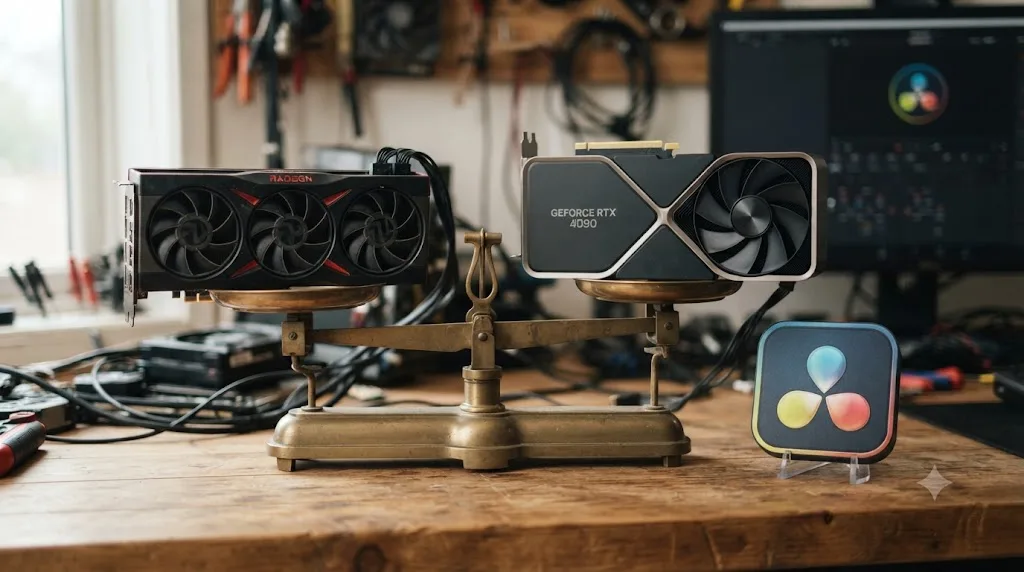
How do you stop this from happening again?
Three habits cover most of what causes this problem to resurface.
Install AMD drivers manually, from AMD's site, every time, and treat a driver update like a decision you make deliberately rather than something that happens to you overnight. If you're mid-project and Resolve is working, that's not the week to accept an automatic driver update, from Windows or from AMD's own auto-update prompt. Finish the deliverable, then update on your own schedule.
Set GPU Processing Mode and GPU Selection explicitly instead of trusting Auto, especially after any hardware change, driver update, or Resolve version upgrade. Auto is a reasonable default on a machine that never changes. The moment anything changes, it becomes the thing most likely to guess wrong.
Keep a known-good driver installer on disk. If a fresh Adrenalin release ever breaks detection, having the previous version's installer already downloaded turns a rollback into a five-minute fix instead of a hunt through AMD's driver archive at the worst possible moment, mid-deadline, with a client waiting.
None of this makes AMD hardware immune to the occasional bad driver release. It makes the failure boring and fast to reverse instead of a mystery you're solving from zero every time. If working through preference menus and driver installers isn't how you want to spend an afternoon, that's genuinely the gap TryUncle exists to close: TryUncle is an AI tutor for DaVinci Resolve on macOS - ask in plain words and Uncle points at the exact control on your screen. It won't reinstall a Windows driver for you, since it's a macOS app, but if the same kind of "why isn't Resolve seeing what I expect" confusion is slowing you down anywhere else in the app, on the Edit, Color, or Fusion page, TryUncle is built to point at the setting instead of sending you through another five forum threads that may not match your case. It's a paid app at founder pricing, not a free tool, and macOS only, so check tryuncle.com for the current rate before assuming it fits your setup.
For the VRAM ceiling that shows up once your AMD card is actually detected and working, our GPU memory is full guide covers what happens next, and if the same machine is crashing for reasons beyond GPU detection, the full DaVinci Resolve keeps crashing guide covers the rest of that list in order.
Frequently asked questions
- Why does DaVinci Resolve say no GPU found with an AMD card installed?
- Almost always one of three things: GPU Processing Mode in Preferences > System > Memory and GPU is set to Auto or CUDA instead of OpenCL, the Radeon driver is outdated or left corrupted files from a previous install, or GPU Selection has your AMD card unchecked in favor of integrated graphics. Work through those three in order before assuming the card itself is bad.
- How do I set DaVinci Resolve to use my AMD GPU?
- Open Preferences > System > Memory and GPU. Under GPU Processing Mode, uncheck Auto and choose OpenCL. Under GPU Selection, uncheck Auto and tick your AMD card specifically, unchecking any integrated graphics chip. Save and restart Resolve completely, since this setting only takes effect after a full relaunch.
- Does DaVinci Resolve support AMD GPUs on Mac?
- Only the built-in GPU inside Apple Silicon, and that isn't an AMD chip at all, it's Apple's own design. AMD Radeon Pro cards were common in Intel Mac Pros and as MPX modules, but DaVinci Resolve 21 dropped Intel Mac support entirely, so those machines can't run the current version regardless of the GPU installed.
- Which AMD driver version works best with DaVinci Resolve?
- There's no single answer that holds across every card and Resolve version, since AMD and Blackmagic don't publish a joint compatibility list. Forum reports across multiple Resolve releases point at Adrenalin 22.5.1 and 23.3.1 as stable baselines on RDNA2 and RDNA3 cards when newer drivers introduced regressions, but always start with the newest Adrenalin release and only roll back if it specifically breaks things.
- Why does my laptop's AMD GPU not show up in DaVinci Resolve?
- Hybrid graphics. Most Windows laptops pair a small integrated chip with the dedicated AMD card and route new applications to the integrated one by default to save battery. Open Windows Settings > System > Display > Graphics, add DaVinci Resolve manually, and set it to High performance, then confirm the same card is checked inside Resolve's own GPU Selection preference.
- Does DaVinci Resolve support AMD GPUs on Linux?
- Yes, through Mesa's open-source OpenCL and OpenGL drivers, but the combination that works changes between Resolve versions and isn't something Blackmagic tests or documents the way it tests Rocky Linux with an Nvidia card. Community reports on the Arch Linux forums describe getting AMD cards running, but also describe real instability that switching to Nvidia made disappear.
- Should I switch from AMD to Nvidia for DaVinci Resolve?
- Not automatically, but know the tradeoff going in. Puget Systems, which builds Resolve workstations for a living, has found NVIDIA cards give better performance dollar for dollar and tend to be more reliable from both a hardware and driver standpoint, which is why the firm defaults to NVIDIA unless there's a clear reason to pick AMD. AMD cards do work, they just ask more of you when something goes wrong.
- Can DaVinci Resolve use an AMD eGPU on a MacBook?
- Only on an Intel MacBook, and Resolve 21 no longer runs on Intel Macs at all. Apple removed external GPU support entirely when it moved to Apple Silicon, so an M1, M2, M3, or M4 MacBook cannot use an AMD eGPU for graphics acceleration in DaVinci Resolve or any other app, no matter how the eGPU enclosure is connected.
Sources
- Puget Systems: Hardware Recommendations for DaVinci Resolve (Matt Bach)
- PC Guide: How to fix DaVinci Resolve 'no OpenCL capable GPU found' error
- iRendering: Troubleshooting DaVinci Resolve Not Using GPU
- Cutsio: How to Fix GPU Not Detected in DaVinci Resolve
- Arch Linux Forums: what's the davinci resolve + amd gpu secret recipe?
- AppleInsider: Apple Silicon M1 Macs do not support eGPUs
- AppleInsider: AMD or Nvidia eGPUs can work on Apple Silicon Macs, but not for graphic acceleration
- Apple Support: Use the Radeon Pro W5700X MPX Module with your Mac Pro (2019)
- AMD: AMD Cleanup Utility support article
- AMD: Drivers and Support for Processors and Graphics
- DaVinci Resolve Club: DaVinci Resolve 21 System Requirements
- Puget Systems: DaVinci Resolve Studio v20 GPU Scaling Analysis (Matt Bach)
- Blackmagic Design: DaVinci Resolve support and downloads
Put this guide to work with TryUncle.
Ask about the step you’re on. TryUncle sees your screen and points at the control you need, so you can keep learning in your own project.
Get TryUncle for Mac or WindowsKeep reading
Fixes · Jul 7, 2026 · 25 min
DaVinci Resolve GPU Memory Is Full: Every Real Fix
Why DaVinci Resolve throws 'GPU memory is full,' and which fixes actually work: timeline resolution, drivers, effects, and how much VRAM you need.
Fixes · Jul 7, 2026 · 24 min
Why Does DaVinci Resolve Keep Crashing? The Real Fixes
DaVinci Resolve keeps crashing for a few real reasons: GPU drivers, VRAM limits, a corrupted cache, or a damaged project. Here's the fix, in order.
Guides · Jul 12, 2026 · 13 min
Does DaVinci Resolve Work on Linux? The Real Answer
DaVinci Resolve runs natively on Linux, but only Rocky Linux 8.6 is officially supported. Here's the GPU, driver, and codec limits you'll actually hit.