Articles / Fixesupdated for DaVinci Resolve 21.0.2 (July 2026)
DaVinci Resolve Won't Install or Stuck on Mac: Every Fix
Quick answer
DaVinci Resolve gets stuck installing on Mac mostly from a corrupted download, Gatekeeper blocking an unsigned copy, leftover files from an old version, or the Rosetta prompt Apple Silicon requires. Re-download the installer, run the official Uninstall Resolve utility first, approve Rosetta, and confirm your Mac runs macOS 15 Sequoia, since Resolve 21 dropped Intel Mac support.
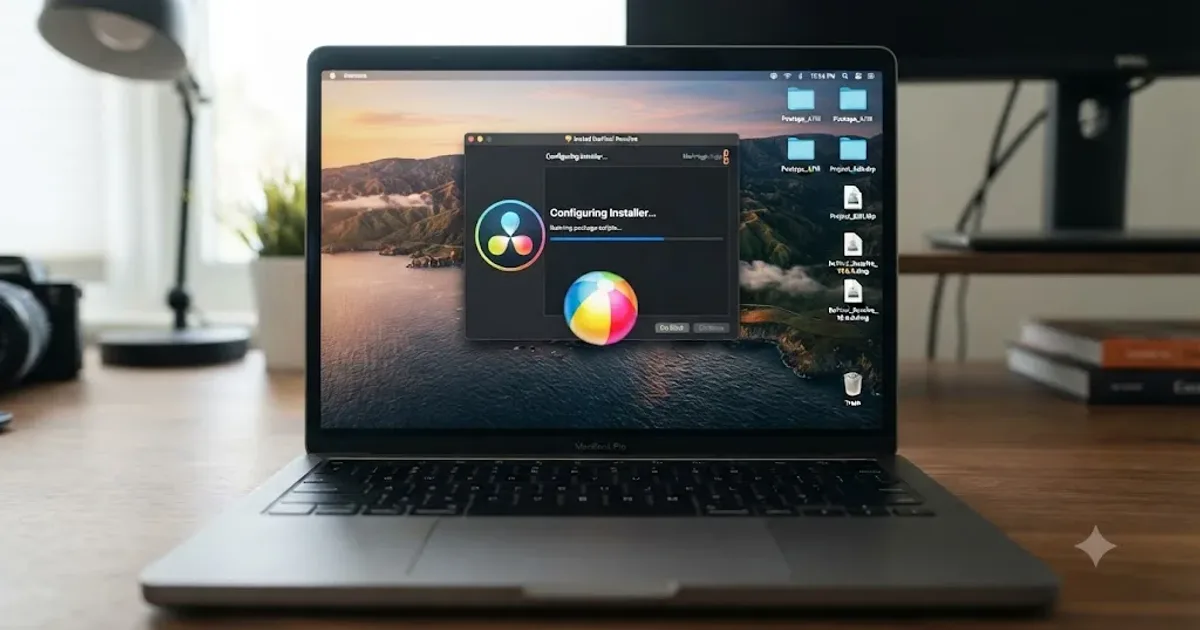
Your DaVinci Resolve installer is sitting at the same percentage it was ten minutes ago, or macOS just told you the app is "damaged," or the whole thing quit halfway through with no explanation. None of that means your Mac is broken. It means one of about seven specific things is happening, and each one has a specific fix.
I'm going to work through them in the order you should actually check, starting with the fastest thing to rule out.
Why is DaVinci Resolve stuck or refusing to install on your Mac?
There's no single cause behind "won't install," which is exactly why generic advice like "just restart your Mac" fixes it for some people and does nothing for everyone else. The real causes cluster into a short list, and most of them show a specific symptom that tells you which one you've got before you touch a single setting.
| Symptom | Most likely cause |
|---|---|
| Progress bar frozen at the same percentage for 10+ minutes | Corrupted or partial download |
| Stuck specifically at "Verifying" | Incomplete download that passed the size check but failed integrity |
| A Rosetta install prompt appears mid-install | Normal behavior on Apple Silicon, not a bug |
| "DaVinci Resolve is damaged and can't be opened" | Gatekeeper blocking an unsigned or quarantined copy |
| Install finishes but the app won't launch, or a fresh install behaves like an old one | Leftover files from a previous version |
| Installer asks for a password repeatedly, or fails silently | Admin rights or Full Disk Access issue |
| Installer fails partway with no clear error | Disk space exhausted mid-unpack |
| Installer won't even start | macOS or hardware below Resolve 21's requirements |
A DaVinci Resolve installer that sits at the same percentage for more than ten minutes is not thinking. It's stuck. Real installers make visible progress, even if it's slow. If Activity Monitor shows zero disk or CPU activity from the installer process for that long, nothing later in the install is going to unstick it on its own.
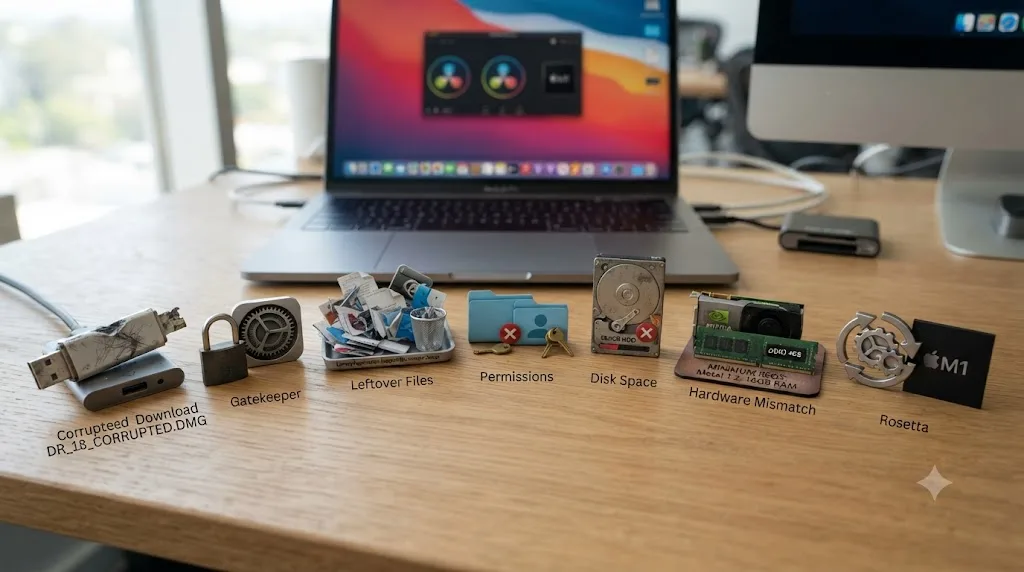
Is the installer actually frozen, or just working slowly?
Check this before anything else, because the fix is completely different depending on the answer.
Open Activity Monitor, find the installer process (it's usually listed as "Install DaVinci Resolve" or the underlying installer process), and watch the % CPU and Disk columns for thirty seconds. If either number is moving, even a little, the install is working, just slowly, and that's usually a large Fusion effects library or a slow drive doing real work. Let it keep going.
If both columns sit flat at zero, it's dead. On the Blackmagic forum, one user described the installer for version 19.0.1 hanging at the "Writing Files" stage on macOS Sonoma for over twenty minutes with no progress, and reported the exact same freeze after downloading a completely fresh copy of the installer, which pointed away from a corrupted file and toward something else entirely, per the forum thread on the installer hang. A near-identical report showed up separately for a version 20 install on macOS Ventura.
That pattern, a hang that survives a fresh download, usually means the problem isn't the file at all. It's something on the Mac interfering with the write, which points you toward the permissions, security software, and leftover-files sections further down this page rather than back to your internet connection.
A separate, older thread on the forum describes a different flavor of the same problem: an install of version 12.5.2 hanging specifically on "Verifying Install Resolve.pkg" on a MacBook Pro, which the original poster eventually traced to a corrupted download, according to that installer thread. Same word, "stuck," two different root causes. That's the whole shape of this problem: match your exact stall point to the cause before you start troubleshooting blind.
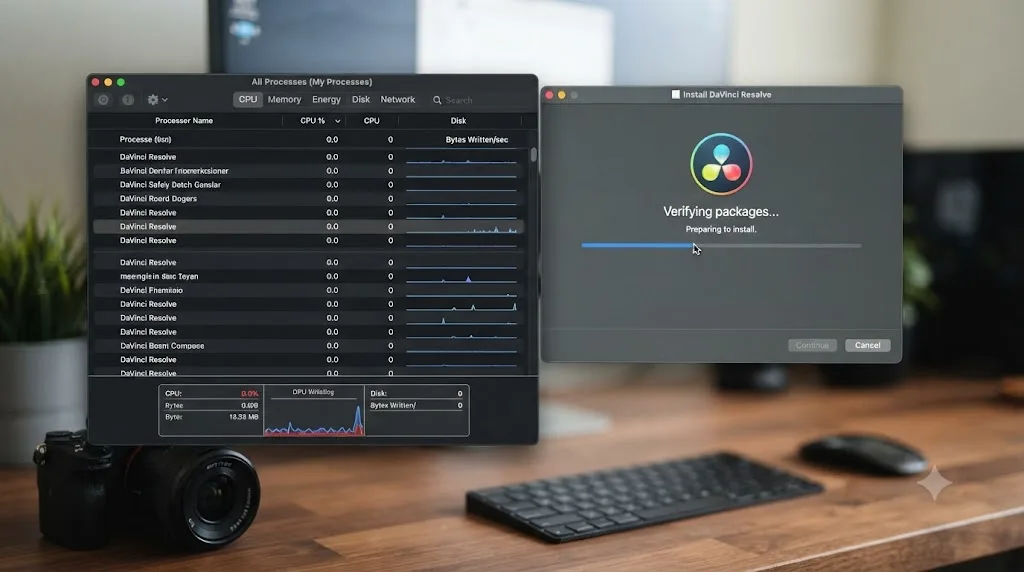
Is your download corrupted or incomplete?
This is the single most common cause of an install that stalls at "Verifying" specifically, and it's the cheapest thing on this page to rule out.
Here's the trap: a partial download can still show the "correct" file size in Finder, because your browser sometimes pre-allocates the full size on disk before the transfer actually finishes writing every byte. A glance at file size tells you nothing useful. What actually matters is whether every byte arrived, and the installer's own verification step is what catches the difference, which is exactly why it stalls or fails there instead of earlier.
Do this instead of staring at the frozen bar:
- Quit the installer completely and delete the .dmg or .pkg file you downloaded.
- Clear your browser's download cache, or use a different browser entirely for the re-download.
- Go back to Blackmagic's official DaVinci Resolve download page and start the download again, ideally on a wired connection or stable Wi-Fi rather than a coffee shop hotspot or a connection that's known to drop.
- Let it finish completely before opening it. Don't open a .dmg the moment the browser says "done," since some browsers mark a download complete slightly before the file handle actually closes.
A DaVinci Resolve download that fails partway through produces a file that looks complete and installs incomplete. If a fresh download from a different network still hangs at the exact same stage, stop suspecting the file. The problem lives on your Mac, not on the wire, and that's your cue to move down this list.
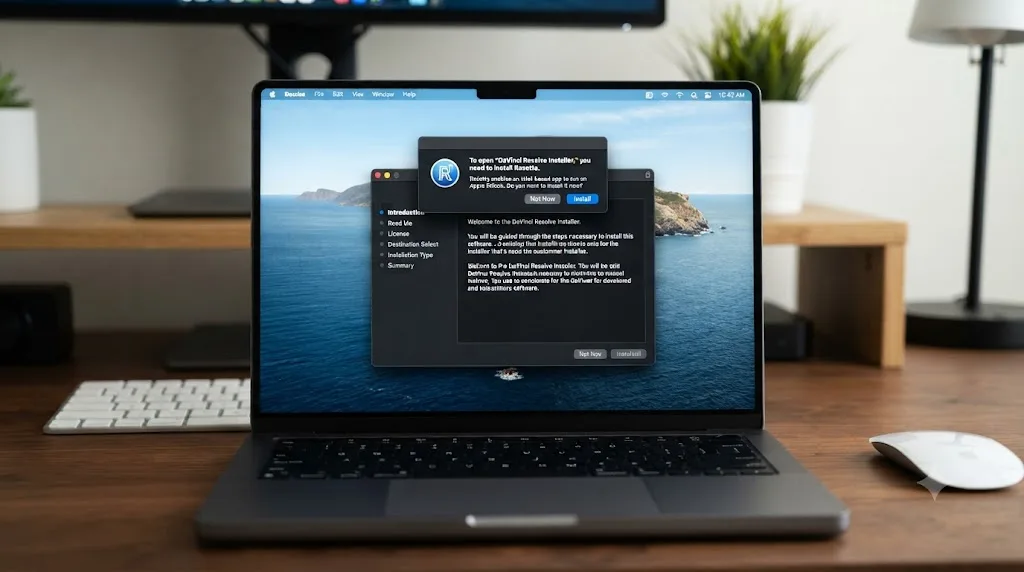
Does DaVinci Resolve need Rosetta on Apple Silicon, and is that normal?
Yes, and this catches a lot of people off guard because it looks like the installer is broken when it's actually behaving exactly as designed.
DaVinci Resolve itself runs natively on Apple Silicon, no translation layer involved for the core app. But Blackmagic's installer still asks you to install Rosetta, Apple's compatibility layer for Intel-built software, because Resolve depends on certain third-party codecs and legacy plugins that haven't been rebuilt as native Apple Silicon binaries. Per Apple's own support documentation on Rosetta, Rosetta lets an Apple Silicon Mac run software still built for Intel chips, translating those instructions on the fly.
One user documented running straight into this on a brand-new MacBook Air M4: doing a clean install of DaVinci Resolve, the installer stopped and asked for Rosetta, and clicking "Not Now" aborted the entire installation rather than just skipping that one component, according to their account of the install. There was no visible option to proceed without it. After contacting Blackmagic support, they confirmed Rosetta is there specifically for codec and plugin compatibility, not because the core app needs translating.
Rosetta is not a workaround for a broken installer. Blackmagic's own installer requires it, even on Apple Silicon. The confusion is understandable, since most install tutorials on YouTube don't show this screen at all, simply because the reviewer's Mac already had Rosetta installed from some earlier app. If you're setting up a brand-new Apple Silicon Mac and DaVinci Resolve is the very first Intel-adjacent thing you've installed, you're seeing this prompt for the first time, and the fix is just clicking "Install" and letting it finish.
A separate forum thread specifically titled "Installer is requiring Rosetta on Apple Silicon Mac" confirms this isn't an isolated report, per that discussion on the Blackmagic forum. If your install seems stuck right after a Rosetta dialog appeared and you dismissed it, that's very likely your whole problem: go back, restart the install, and click through the Rosetta prompt this time instead of declining it.
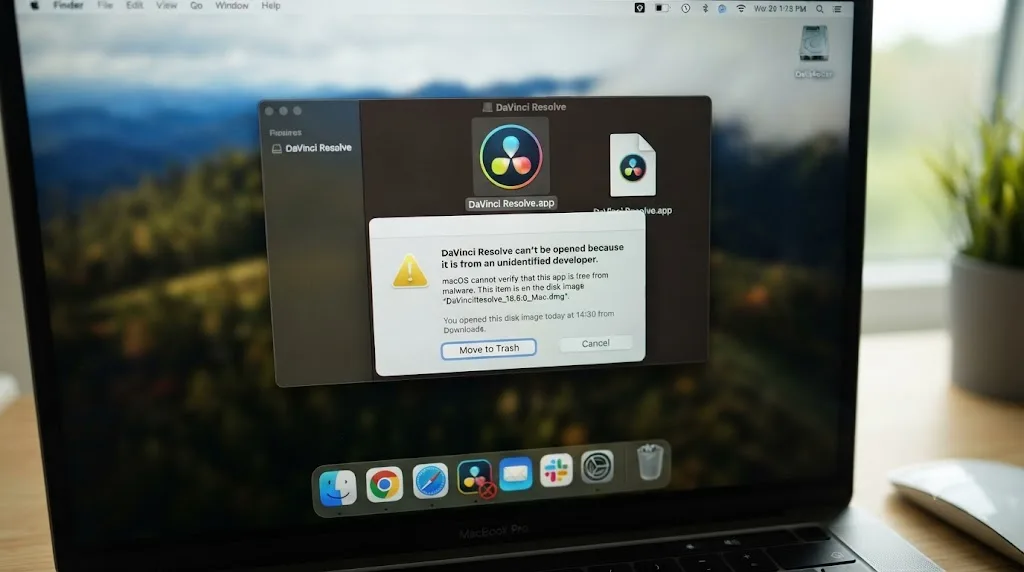
Is macOS Gatekeeper blocking the app as "damaged"?
If you got past the installer and DaVinci Resolve now refuses to open with a message saying it "is damaged and can't be opened, you should move it to the Trash," that's not a lie about your file, but it's also not a literal description of what's wrong. It's Gatekeeper, the macOS security layer that checks an app's code signature before letting it run, refusing to vouch for the copy you have.
Paul Horowitz at OSXDaily, who's covered this exact error message across years of macOS releases, notes that "it appears that sometimes this error message shows up because of specific system software versions and/or Gatekeeper," rather than the file being genuinely corrupted, in his walkthrough of the fix. The most common real-world trigger for DaVinci Resolve specifically is a download that arrived incomplete or got quarantined oddly by the browser, the same failure mode covered above, just surfacing after install instead of during it.
Work through these in order:
- Re-download from Blackmagic directly. "The first thing you should do to try and remedy the 'app damaged' error message is to re-download the app to the Mac, and make sure it comes from a trusted source," Horowitz writes, and for DaVinci Resolve that trusted source is Blackmagic's own download page, not a mirror or a torrent, ever.
- Reboot. Sounds too simple to work, but a Gatekeeper cache glitch clears on restart often enough that it's worth the two minutes before anything more invasive.
- Install pending macOS updates. A Gatekeeper database mismatch after a partial system update is a real, if less common, cause.
- Strip the quarantine flag manually, as a last resort. Open Terminal and run
xattr -cr /Applications/DaVinci\ Resolve/DaVinci\ Resolve.app, adjusting the path if you installed somewhere else. This removes the extended attribute macOS attached when the file was downloaded, which is what Gatekeeper is actually checking.
A "damaged" error from macOS almost never means your download is literally broken. It means Gatekeeper can't verify what it's looking at. Don't waste time scanning the file for viruses or checking a checksum by hand. Re-download it clean, and if that doesn't clear it, the Terminal command almost always does.
Are leftover files from an old DaVinci Resolve version causing this?
This is the cause that produces the most confusing symptom on this entire list: the install finishes, reports success, but the app then behaves like it's still running an old, broken configuration, or won't launch at all.
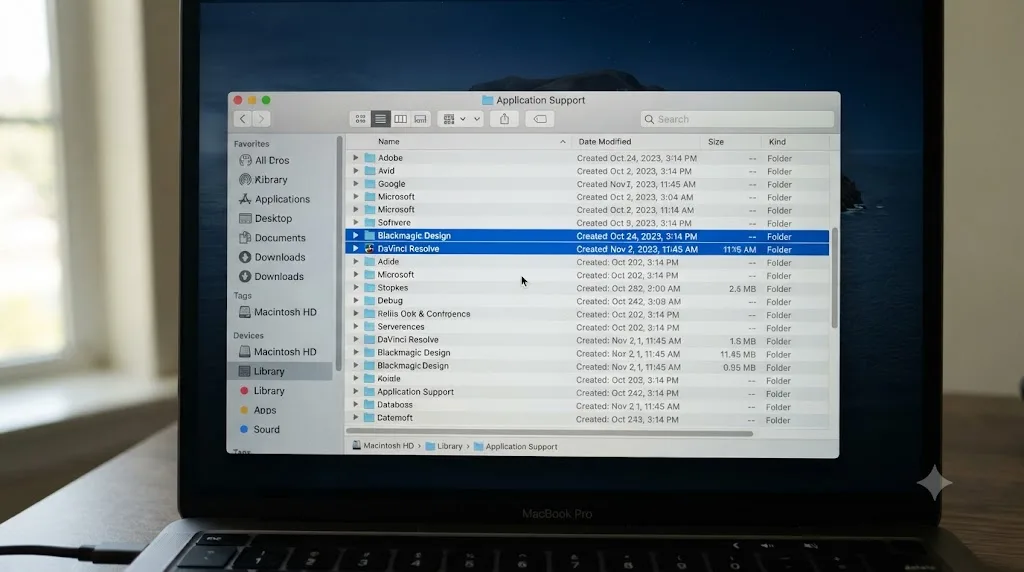
DaVinci Resolve scatters its configuration across several Library folders that a normal drag-to-Trash uninstall never touches, since dragging the app out of Applications only removes the application bundle itself. According to a breakdown of exactly what DaVinci Resolve leaves behind on macOS, residual files persist in ~/Library/Application Support, ~/Library/Caches, ~/Library/Saved Application State, and ~/Library/Preferences, plus a system-level copy in /Library/Application Support/Blackmagic Design, per MacPaw's uninstall guide for DaVinci Resolve on Mac. If a previous install was interrupted, corrupted, or crashed midway through, whatever half-written state it left in those folders can block or corrupt the next install that tries to write to the same locations.
Leftover preference files from a previous DaVinci Resolve version are the single most common cause of a fresh install failing silently. Here's the clean way to clear them:
- Open the DaVinci Resolve folder inside Applications and double-click Uninstall Resolve, the official utility Blackmagic ships specifically for this. Let it run to completion.
- Manually check these four locations for anything still named "Blackmagic Design" or "DaVinci Resolve," and drag what's left to the Trash:
~/Library/Application Support/Blackmagic Design~/Library/Preferences/Blackmagic Design~/Library/Caches/Blackmagic Design/Library/Application Support/Blackmagic Design
- If you still have the original install .dmg on your Mac, some copies also bundle a standalone uninstaller app; double-click it and follow its prompts as an extra pass.
- Restart your Mac before installing again. A leftover process or launch agent from the old install can otherwise fight the new one for the same files while it writes.
One caution before you go clearing folders: your project database usually lives under ~/Library/Application Support/Blackmagic Design/DaVinci Resolve/Resolve Disk Database. If your projects matter and you haven't exported a backup, copy that folder somewhere safe before you run any uninstaller, since a database wipe there is the one way this whole process can cost you actual work rather than just a corrupted app install.
Is this a permissions or admin rights problem?
DaVinci Resolve's installer writes into system-level folders, not just your user folder, which means it needs an administrator account and, on modern macOS, a few explicit permission grants that don't exist on older systems.
The installer should prompt you for your local admin password partway through. If that prompt never appears, or appears and then the install stalls right after you enter it, you're likely logged into a standard (non-admin) account. Check System Settings > Users & Groups and confirm your account shows as Admin. If it doesn't, you'll need to either switch to an admin account for the install or have whoever holds admin rights on the machine run it for you.
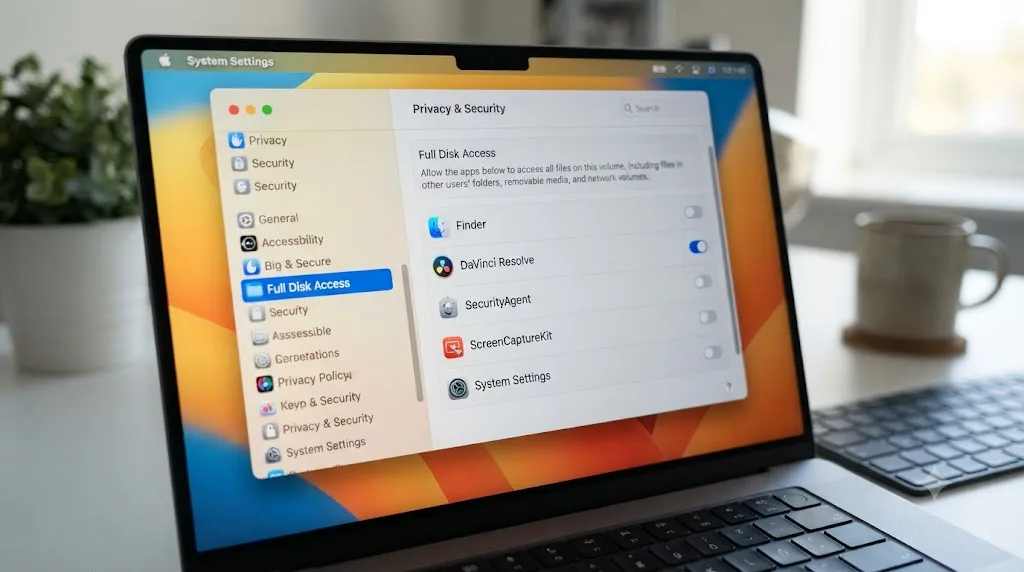
Separately, macOS since Catalina locks down access to specific folders behind explicit user consent, and DaVinci Resolve needs some of that access to function correctly once installed, even if the installer itself completes. A Blackmagic forum thread on changing Resolve's permissions covers the mechanics: opening System Settings > Privacy & Security, scrolling to Files and Folders (or Full Disk Access on newer macOS), and confirming DaVinci Resolve is listed and enabled there, per that permissions discussion. If it's missing from the list entirely, add it manually with the plus button rather than assuming macOS added it automatically during install.
A quick way to test whether permissions are your actual blocker: create a brand-new admin user account (System Settings > Users & Groups > Add Account), log into it, and try the install there. If it sails through on a fresh account, the problem lives in your original account's permission state, not in the installer or your Mac generally, which narrows the fix down to resetting permissions rather than chasing a phantom installer bug.
Could disk space actually be the problem?
It's an easy thing to rule out, and it's still worth checking directly rather than trusting your own estimate of how much room your drive has left.
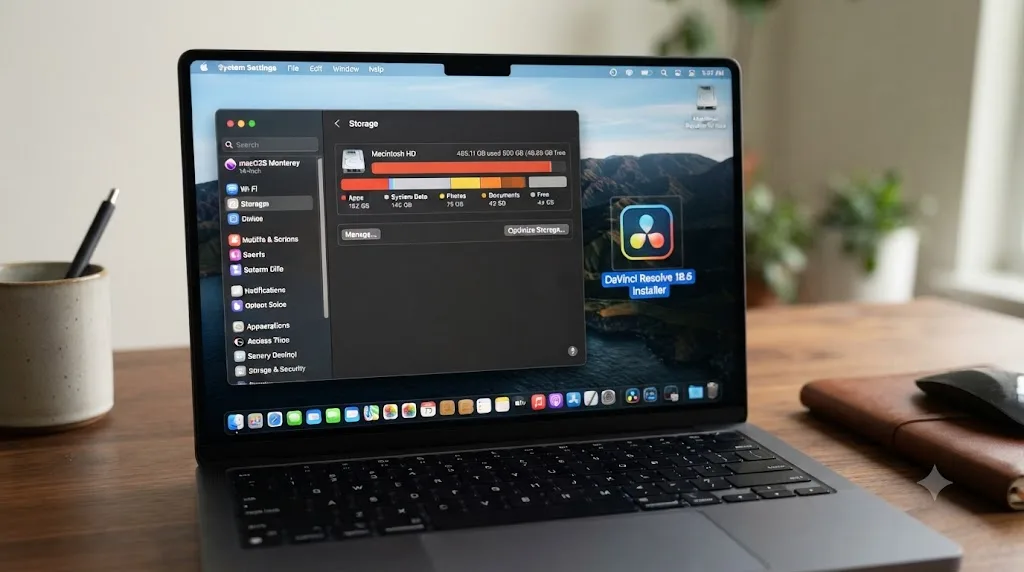
DaVinci Resolve's application bundle itself installs at around 3 to 4GB, per DaVinci Resolve Club's breakdown of the 2026 system requirements. That's a small number by modern standards, but the installer needs headroom beyond that final footprint to unpack temporary files during the install process itself, and on a boot drive that's already sitting at a few gigabytes free, that temporary overhead is exactly what can cause an install to fail partway with no clear error message.
Check About This Mac > Storage, or open Finder, select your startup disk, and press Command-I for a Get Info panel showing available space. If you're under 15 to 20GB free on the drive hosting your Applications folder, clear space before trying the install again rather than after it fails a second time. Emptying the Trash, clearing old Downloads, and offloading large files to an external drive are the fastest wins.
This matters more than it sounds like it should, because a disk-space failure during install doesn't always produce an obvious "not enough space" message the way it does on Windows. Sometimes it just looks like the same frozen-progress-bar symptom covered earlier in this post, which means disk space is worth a thirty-second check even if nothing else about your situation screams "storage problem."
Is your Mac simply too old for DaVinci Resolve 21?
Before you spend another hour on any fix on this page, confirm your Mac can actually run the version you're trying to install. This is the one cause with no workaround, and it's more common than people expect, since a Mac can be only a few years old and still fall outside the current requirements.
DaVinci Resolve 21 does not run on Intel Macs at all, and no installer fix changes that. Blackmagic dropped Intel Mac support entirely starting with version 21. If you're on an Intel Mac, the installer may run to completion, or it may refuse to launch the app afterward, or it may behave like any of the "stuck" symptoms covered above, but the underlying reason is that the software simply doesn't target your processor architecture anymore. Your options are staying on DaVinci Resolve 20, the last version that supports Intel Macs, or moving to Apple Silicon hardware.
On top of the chip requirement, Resolve 21 requires macOS 15 Sequoia or later on that Apple Silicon Mac, per DaVinci Resolve Club's requirements page, which itself cites Blackmagic's own tech specs documentation. An Apple Silicon Mac stuck on an older macOS release, say macOS 13 Ventura or macOS 14 Sonoma, will also fail to install Resolve 21 correctly, even though the chip itself is fully supported. Check your OS version under the Apple menu > About This Mac, and if you're below Sequoia, update macOS first through System Settings > General > Software Update before touching the Resolve installer again.
| Requirement | Resolve 21 minimum |
|---|---|
| Chip | Apple Silicon (M1 or later); Intel Macs not supported |
| macOS version | 15 Sequoia or later |
| Unified memory | 8GB minimum, 16GB recommended for Fusion |
| Free disk space for install | Roughly 3 to 4GB for the app itself |
If your Mac meets every row in that table and you're still stuck, the cause is one of the ones covered above, not a hardware ceiling. If it doesn't, that's the actual finding, and it's worth knowing before you spend an evening reinstalling a version that was never going to run.
Does installing DaVinci Resolve Studio behave differently from the free version?
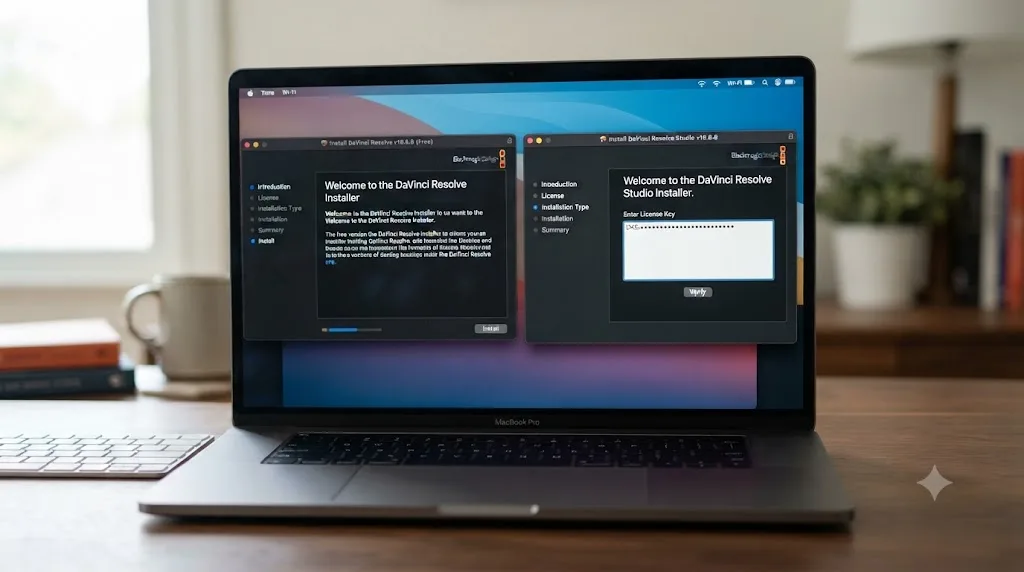
Mechanically, the installer for the free version and Studio are close to identical, right up until activation. Both are Apple Silicon-only under Resolve 21, both need the same macOS Sequoia baseline, and both hit the same Gatekeeper, Rosetta, and permissions checkpoints described above, since the underlying application binary is shared between the two.
Where they diverge is licensing. The free version needs nothing beyond the install itself. Studio needs its serial number or dongle recognized during first launch, which introduces one more failure mode that looks like an install problem but isn't: Resolve opens fine, installs fine, but then reports it can't validate the Studio license. That's a licensing issue, not an installer issue, and the fix path is different, covered in more depth in our breakdown of what Studio actually costs and adds over the free version. If your install genuinely finishes and the app launches, but you're staring at an activation screen instead of the interface, you've solved the install problem already; the remaining issue is a separate one.
One practical tip if you're not sure which version you actually need before wrestling with any of this: don't install Studio speculatively just because it's what a tutorial used. The free version has no watermark and no time limit, and if 10-bit codecs, HDR grading, or the Neural Engine AI tools aren't part of your workflow yet, installing the free version first removes the licensing step from the list of things that can go wrong.
Is antivirus or a firewall like Little Snitch blocking the installer?
Third-party security software that inspects outgoing connections or blocks unsigned processes by default is a less common cause than the ones above, but it's one that specifically produces the "installer runs but never seems to finish" symptom, because those tools can intercept the installer's write or verification calls without showing you an obvious warning that anything was blocked.
Little Snitch and similar network monitors are built to challenge any process making a connection they don't recognize, and a fresh installer making its first network call for licensing or update checks is exactly the kind of unfamiliar process those tools are designed to flag. If you run one, check its log for anything related to the DaVinci Resolve installer or the app itself around the time the stall happened, and temporarily disable it for the length of the install if you find a blocked connection there.
The same applies to third-party antivirus tools, which is a more thoroughly documented problem on the Windows side of Resolve, where Microsoft Defender has been reported blocking or suspending Resolve's processes outright, per a Blackmagic forum thread on Defender blocking the application. Mac security suites behave the same way in principle: they can flag an installer or an unfamiliar helper process as suspicious purely because it's new, not because anything is actually wrong with it. Pause the tool, run the install, and re-enable it once Resolve is confirmed working, rather than leaving your Mac unprotected for longer than the install itself takes.
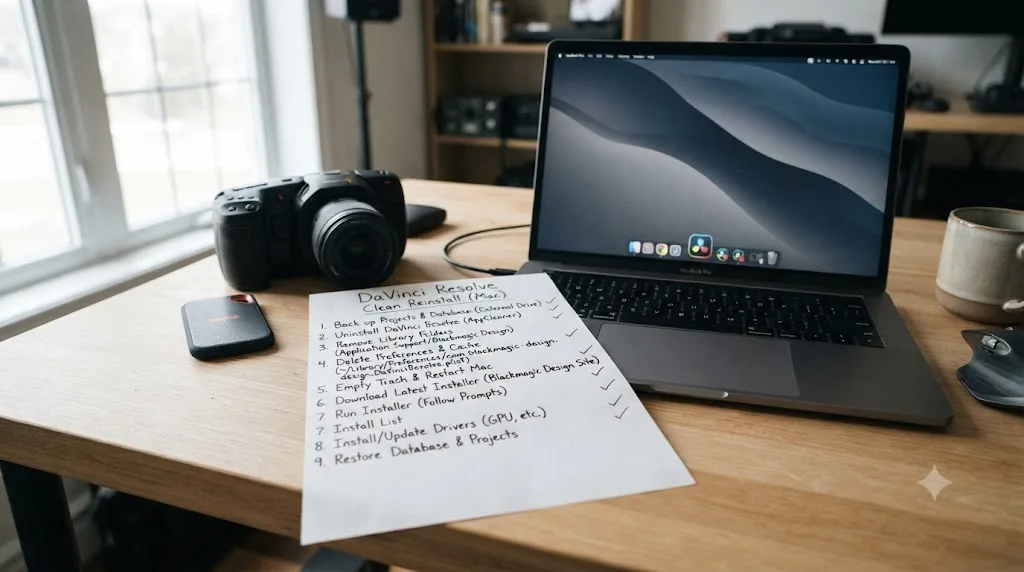
What's the safe way to do a clean reinstall on Mac?
Once you've ruled out or fixed the specific cause behind your symptom, a clean reinstall is the reset that clears whatever partial state is left over. Doing it safely just means protecting your projects first.
- Back up your project database before touching anything. Copy the folder at
~/Library/Application Support/Blackmagic Design/DaVinci Resolve/Resolve Disk Databaseto an external drive. If you use a PostgreSQL-based shared database instead of the default disk database, back that up through your database tool of choice, or export each project individually as a .drp file through File > Export Project as a faster fallback. - Run the official Uninstall Resolve utility. It lives inside the DaVinci Resolve folder in Applications, and it's built specifically to remove the app cleanly rather than leaving fragments behind.
- Manually clear the four leftover-file locations covered earlier in this post: Application Support, Preferences, and Caches under your user Library, plus the system-level Application Support folder.
- Restart your Mac. This clears any launch agent or background helper process left running from the old install.
- Download a completely fresh installer from Blackmagic's download page rather than reusing the file you already had, even if you're fairly sure it wasn't corrupted.
- Install as an admin account, confirming DaVinci Resolve appears under Full Disk Access in System Settings > Privacy & Security once the install finishes.
- Approve the Rosetta prompt if you're on Apple Silicon and it appears, rather than dismissing it.
- Restore your project database from the backup you made in step one, if the fresh install's database folder is empty.
Skipping step one is the single most common regret people report after a DaVinci Resolve reinstall. The app itself is replaceable in ten minutes. A project you didn't back up is not.
What's the right order to troubleshoot this from scratch?
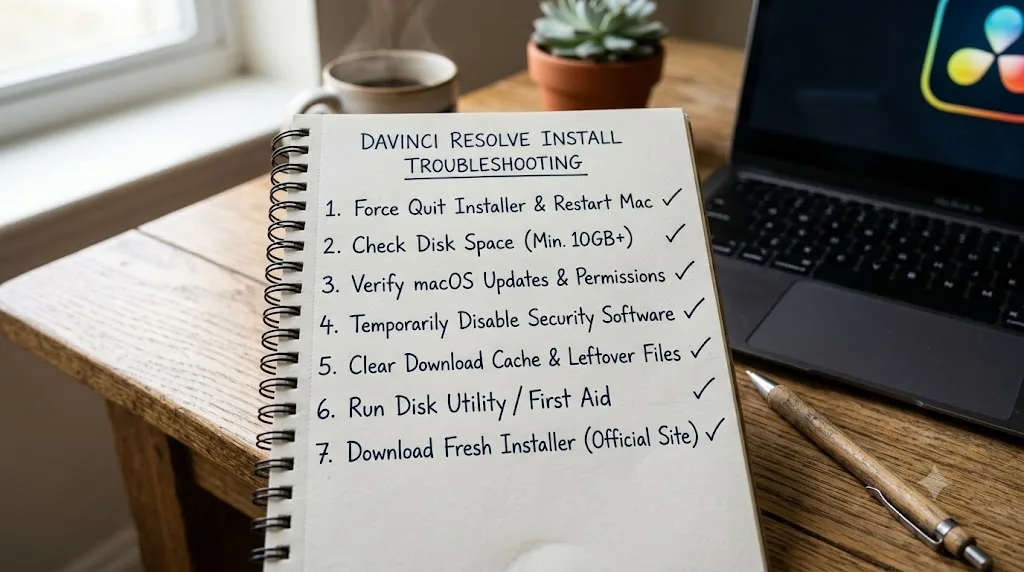
If you don't want to read the whole page and just want to work through it systematically, do these seven things in order and stop the moment the install finishes:
- Confirm your Mac meets Resolve 21's requirements: Apple Silicon, macOS 15 Sequoia or later. If it doesn't, stop here; no other fix on this page will help.
- Check Activity Monitor for real progress before assuming the installer is frozen.
- Delete the installer file, clear your browser cache, and download a completely fresh copy.
- Run the Uninstall Resolve utility and manually clear leftover Application Support, Preferences, and Caches folders.
- Restart your Mac, then install as a confirmed admin account.
- Approve the Rosetta prompt if it appears, and don't dismiss it.
- If it still fails, temporarily disable third-party security software and try once more.
That's the full list of causes for a Mac installer specifically, in the order that costs you the least time per check. Compare that to Windows, where DaVinci Resolve installs typically fail for a different set of reasons around driver conflicts and antivirus quarantine rather than Gatekeeper and Rosetta, which is part of why a Mac-specific troubleshooting order actually matters here instead of one generic list covering every OS.
Which symptom points to which fix?
Use this table as a shortcut if you already know exactly where your install is stuck:
| Where it's stuck | Most likely cause | Start with |
|---|---|---|
| Frozen at the same percentage, no CPU or disk activity | Corrupted download or blocked write | Fresh download; check leftover files |
| Specifically stuck at "Verifying" | Incomplete download | Re-download over a stable connection |
| Rosetta prompt appears, then nothing happens | Normal Apple Silicon requirement, dismissed by mistake | Restart install, click "Install" on the Rosetta prompt |
| "App is damaged and can't be opened" after install | Gatekeeper blocking an unverified copy | Re-download, reboot, then xattr -cr if needed |
| Install completes but app won't launch or acts corrupted | Leftover files from a previous version | Run Uninstall Resolve, clear Library folders manually |
| Repeated password prompts, or install stalls right after entering it | Non-admin account or missing Full Disk Access | Confirm admin rights, add Resolve under Full Disk Access |
| Install fails partway with no clear message | Low disk space during unpacking | Free up 15-20GB, retry |
| Installer won't launch at all | Intel Mac, or macOS below Sequoia | Check hardware and OS requirements first |
| Studio install finishes but activation fails | Licensing issue, not an install issue | See our free vs Studio breakdown |
A DaVinci Resolve install that fails the exact same way twice in a row, on two different downloads, is telling you the problem lives on your Mac, not in the file. That single observation, repeat the install once with a fresh download and watch whether the failure point moves, is the fastest way to split this whole list roughly in half.
What if none of this works?
Work through the numbered order above once, completely, before assuming you've hit something genuinely unusual. Most reports of a "permanently stuck" DaVinci Resolve install trace back to one of two things not actually being tried: a truly fresh download rather than a re-attempt of the same corrupted file, or the leftover-files cleanup being done partially rather than checking all four Library locations.
If you've done all seven steps and it's still failing, the next move is Blackmagic's own support channel, through the DaVinci Resolve support and downloads page, with a diagnostics report if you can get the app to launch at all, or a clear description of exactly which stage the installer stalls at if you can't. That level of detail, the exact percentage, the exact error text, whether Activity Monitor shows activity, is what turns a support ticket into a fast answer instead of a form-letter reply.
And if the install eventually succeeds but you find yourself getting stuck just as often once you're actually inside the app, staring at a menu wondering what a setting does or why an effect isn't behaving the way a tutorial said it would, that's a different kind of stuck with a different kind of fix. That's the gap TryUncle is built for: an AI tutor that watches your actual DaVinci Resolve screen on your Mac and points at the exact control you need, live, rather than sending you through a forum thread that may not match your version or your setup. It's a paid app at founder pricing right now, worth checking directly at tryuncle.com for the current rate, and it only runs once Resolve itself is actually installed and open.
Once you're in, a crash that happens after a clean launch is a completely separate problem from an install that never finished, and it has its own fix order covered in our guide to why DaVinci Resolve keeps crashing. If Resolve opens but a specific project refuses to load, that's covered separately too, in our breakdown of DaVinci Resolve projects that won't open. And if you're setting this up for the first time and want the full path from a working install to your first cut, our beginner's guide to DaVinci Resolve picks up exactly where this page leaves off.
Most of the time, "won't install" on a Mac is one of four things: a bad download, Gatekeeper being cautious, leftover files from the last attempt, or a Rosetta prompt you clicked away from by accident. All four have a clean, five-minute fix once you know which one you're looking at. The only version of this problem with no fix is an Intel Mac trying to run Resolve 21, and in that case, the answer isn't a longer troubleshooting session. It's DaVinci Resolve 20, or new hardware.
Frequently asked questions
- Why does the DaVinci Resolve installer freeze at 'Writing Files' on Mac?
- Users on the Blackmagic forum have reported the installer sitting at the Writing Files stage for over twenty minutes on macOS Sonoma, and the same freeze has shown up on Ventura with a fresh download. If it's been stuck at the identical percentage for more than ten minutes with zero disk activity, force-quit the installer, delete it, and download a completely new copy rather than waiting longer.
- Why is the DaVinci Resolve installer stuck on 'Verifying'?
- A Verifying hang almost always means the .dmg or .pkg didn't finish downloading intact, even if the file size looks right in Finder. Delete the installer, clear your browser's download cache, and re-download it, ideally over a wired connection or stable Wi-Fi rather than a flaky hotspot.
- Does DaVinci Resolve need Rosetta to install on Apple Silicon Macs?
- Yes. Even though DaVinci Resolve itself runs natively on Apple Silicon, Blackmagic's installer requires Rosetta so the app can handle certain third-party codecs and legacy plugins that haven't been rebuilt for Apple Silicon. Clicking 'Not Now' on that prompt cancels the whole install, so approve it if you want Resolve running at all.
- Why does macOS say DaVinci Resolve 'is damaged and can't be opened'?
- This is Gatekeeper, not real file damage. It fires when a download arrived incomplete, when macOS can't verify the app's signature after a system update, or occasionally on a file quarantined by your browser. Re-downloading from Blackmagic directly clears it most of the time; a stubborn case needs a Terminal command to strip the quarantine flag.
- Will DaVinci Resolve install on an Intel Mac?
- No. DaVinci Resolve 21 requires an Apple Silicon Mac running macOS 15 Sequoia or later, and it will not install on an Intel Mac at all. If you're still on Intel hardware, DaVinci Resolve 20 is the newest version available to you.
- Do I need to fully uninstall DaVinci Resolve before reinstalling it?
- If the last install failed, was interrupted, or you're jumping between major versions, yes. Run the Uninstall Resolve utility from inside the DaVinci Resolve folder in Applications first, then manually check ~/Library/Application Support, ~/Library/Preferences, and ~/Library/Caches for anything still named Blackmagic Design or DaVinci Resolve before you install again.
- How much disk space does DaVinci Resolve need to install on Mac?
- The application itself installs at around 3 to 4GB. That number has nothing to do with your actual working space, though, since cache files, render files, and optimized media can eat tens of gigabytes fast, so budget far more than the bare install requires on whatever drive holds your project cache.
- Does reinstalling DaVinci Resolve delete my projects?
- No, not on its own. Your projects live in a database under Application Support, separate from the app itself, and a standard reinstall doesn't touch that database. The one case where you lose anything is if you run the Uninstall Resolve utility with an option that wipes application support data, so read what it's about to remove before confirming.
Sources
- DaVinci Resolve Club: DaVinci Resolve 21 System Requirements
- Blackmagic Design: DaVinci Resolve - Tech Specs
- Blackmagic Design: DaVinci Resolve support and downloads
- Blackmagic Forum: Installer hangs for 19.0.1 on Mac
- Blackmagic Forum: DaVinci Resolve Studio Not Installing
- Blackmagic Forum: 12.5.2 Install hangs up on me
- Blackmagic Forum: Installer is requiring Rosetta on Apple Silicon Mac
- るきべあ: The time I was asked for Rosetta when trying to install DaVinci Resolve on a MacBook Air M4
- MacPaw: How to uninstall DaVinci Resolve: Mac user guide
- OSXDaily (Paul Horowitz): How to Fix App 'is damaged and can't be opened' Error on Mac
- Apple Support: Using Intel-based apps on a Mac with Apple silicon
- Blackmagic Forum: changing permission in davinci
Put this guide to work with TryUncle.
Ask about the step you’re on. TryUncle sees your screen and points at the control you need, so you can keep learning in your own project.
Get TryUncle for Mac or WindowsKeep reading
Fixes · Jul 7, 2026 · 24 min
Why Does DaVinci Resolve Keep Crashing? The Real Fixes
DaVinci Resolve keeps crashing for a few real reasons: GPU drivers, VRAM limits, a corrupted cache, or a damaged project. Here's the fix, in order.
Fixes · Jul 10, 2026 · 23 min
DaVinci Resolve Project Won't Open: Match Symptom to Fix
Whether DaVinci Resolve hangs at 100%, crashes on launch, or shows a database error, here's the exact cause behind each symptom and how to fix it.
Guides · Jul 7, 2026 · 32 min
DaVinci Resolve for Beginners: The Complete Starter Guide
Learn DaVinci Resolve from zero: what it costs, what it needs to run, the seven pages you'll actually use, and the steps to cut your first project.