Articles / Fixesupdated for DaVinci Resolve 21.1 (October 2026)
DaVinci Resolve Asks to Update Graphics Driver Already Latest?
Quick answer
If DaVinci Resolve asks you to update your graphics driver when it is already latest, first confirm which GPU Resolve is checking, then verify the driver is for that exact GPU, operating system, and Resolve version. On Windows, restart, choose the intended GPU for Resolve, and reinstall the manufacturer’s compatible driver. On macOS, update macOS and Resolve because graphics drivers arrive with the operating system.
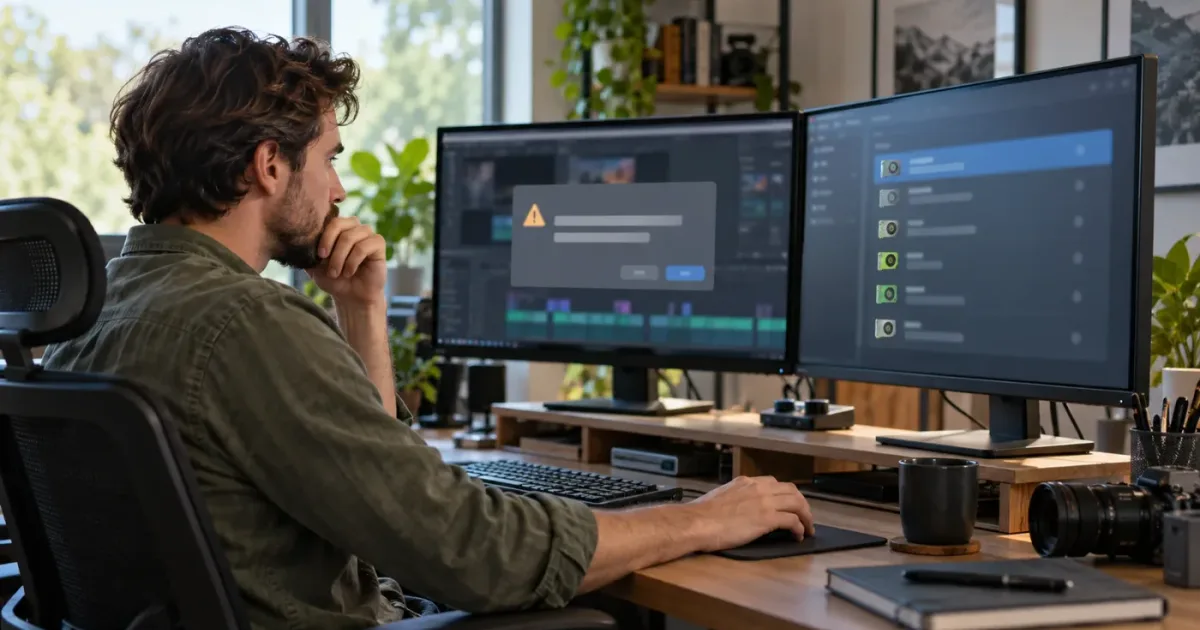
We know this warning can send you in circles: Resolve asks for a newer graphics driver, while the vendor utility says you already have the latest one. In our 100,000+ member professional editing community, questions like this matter because an editor can lose access to a project before they know whether the GPU, the driver, or Resolve is at fault. We have spent more than seven years editing commercial video, and our practical rule is simple: identify the device Resolve sees before you change the device it uses.
As of October 2026, DaVinci Resolve 21.1 is current on Blackmagic Design’s support page. A warning that appears in Resolve 21.1 still needs to be diagnosed on your own machine. The version number alone does not tell us whether a compatible driver is installed, whether Windows selected the right GPU, or whether an update completed. This guide separates those cases and gives you a low-risk order of operations.
What does the “update your graphics driver” warning actually mean?
The DaVinci Resolve graphics driver warning means Resolve cannot confirm that the graphics device and driver combination it currently sees meets its startup requirements. It does not prove that the GPU maker has released a newer package for your computer. Blackmagic Design’s current support page lists Resolve 21.1, and its download page publishes platform-specific minimum system requirements, so the useful comparison is between your installed setup and Resolve’s supported setup, not between the warning and a generic “latest” badge.
“Latest” is relative. It may mean the newest driver available through Windows Update, the newest driver listed by a laptop maker, the newest package offered by NVIDIA, AMD, or Intel, or the newest driver compatible with a particular GPU and operating system. Those can be different versions. A vendor app can correctly report that no newer compatible package exists while Resolve still detects an unsupported adapter or a driver installation that did not register correctly.
Resolve also cares which graphics device is active. A laptop can have integrated graphics and a separate NVIDIA, AMD, or Intel GPU. Updating one does not update the other. The same computer can show a current driver for its dedicated GPU while Resolve launches on an integrated adapter that has a different driver date and feature set.
A warning can also refer to a graphics API or compute path, not merely the numeric version. Blackmagic’s older configuration guide explains that Windows Resolve used CUDA processing on NVIDIA hardware and OpenCL on AMD GPUs, and that a driver appropriate to the specific GPU mattered. Resolve 21 has changed substantially since that guide, so use it as a technical explanation of why GPU and driver matching matter, not as a current installation recipe. Current version requirements belong to the Resolve 21 download page and manual.
A graphics driver can be current for one GPU and still be wrong for the GPU DaVinci Resolve is using.
Do not begin by removing every display driver or reinstalling Resolve. First write down the exact warning, Resolve version, operating system, and every GPU listed by the system. Those four details often explain why two update checks disagree.
Why does DaVinci Resolve say the graphics driver is outdated when it is already latest?
DaVinci Resolve can show an outdated-driver warning even when the newest package is installed because “latest” does not guarantee “compatible with the active GPU and Resolve build.” The usual mismatch is between the adapter Resolve selected and the adapter whose driver was updated. Other possibilities include an OEM driver restriction, a driver install that needs a restart, a recently released Resolve build, or a GPU that no longer meets the current requirements.
Use this decision table before changing anything:
| What you observe | Likely explanation | First check |
|---|---|---|
| Vendor app reports current, Resolve still warns | The app updated a different adapter or package branch | Compare the GPU model in Device Manager with the GPU Resolve lists |
| Laptop has Intel plus NVIDIA or AMD | Resolve may launch on integrated graphics | Set Resolve to High performance in Windows Graphics settings |
| Device Manager says Microsoft Basic Display Adapter | The vendor driver is missing, failed, or not bound to the device | Install the PC maker or GPU maker package for the exact model |
| The driver date changes after Windows Update | Windows may have installed an OEM or older compatible package | Compare the version number and provider, not just the date |
| The warning started after updating Resolve | The new Resolve version may require a newer supported driver or expose a previous mismatch | Check the version’s official release notes and requirements |
| The warning started after updating the driver | The new package may be incompatible, incomplete, or associated with a regression | Confirm model support; consider rolling back only if the issue began with that package |
| Mac shows a “driver update” suggestion | The issue is usually macOS, Resolve, or GPU configuration, not a separate downloadable graphics package | Update macOS through System Settings and verify Resolve’s GPU settings |
| Linux build cannot initialize the GPU | Driver, distro, kernel, GPU support, and Resolve build must align | Compare the specific Resolve 21 Linux requirements and vendor-supported driver |
The table describes diagnostic branches, not a promise that each cause is present. The warning’s exact wording and the operating system decide which branch to try. If Resolve names CUDA, OpenCL, Metal, or a particular adapter, preserve that text. It narrows the investigation.
On Windows, open Device Manager and expand Display adapters. Microsoft describes Device Manager as a place to inspect each device’s manufacturer, status, and driver information. Open the properties for every listed adapter and record the Driver Provider, Driver Date, and Driver Version. The date alone can mislead: vendors can publish packages with different date conventions, and a laptop OEM may maintain a validated package for its specific model.
Next, find the exact Resolve executable that starts when you click the desktop shortcut. A system with multiple versions or installations can launch a different executable than the one you expect. Note the Resolve version from its About screen if it opens, or from the installer record if it does not. Do not infer the GPU from the monitor cable or from a task manager graph without matching the adapter name.
How do I check which GPU DaVinci Resolve is using?
On Windows, compare the adapters in Device Manager with Resolve’s GPU processing settings and the Windows app graphics preference. The GPU that drives the display is not necessarily the GPU Resolve uses for image processing, and a machine can have more than one active display adapter.
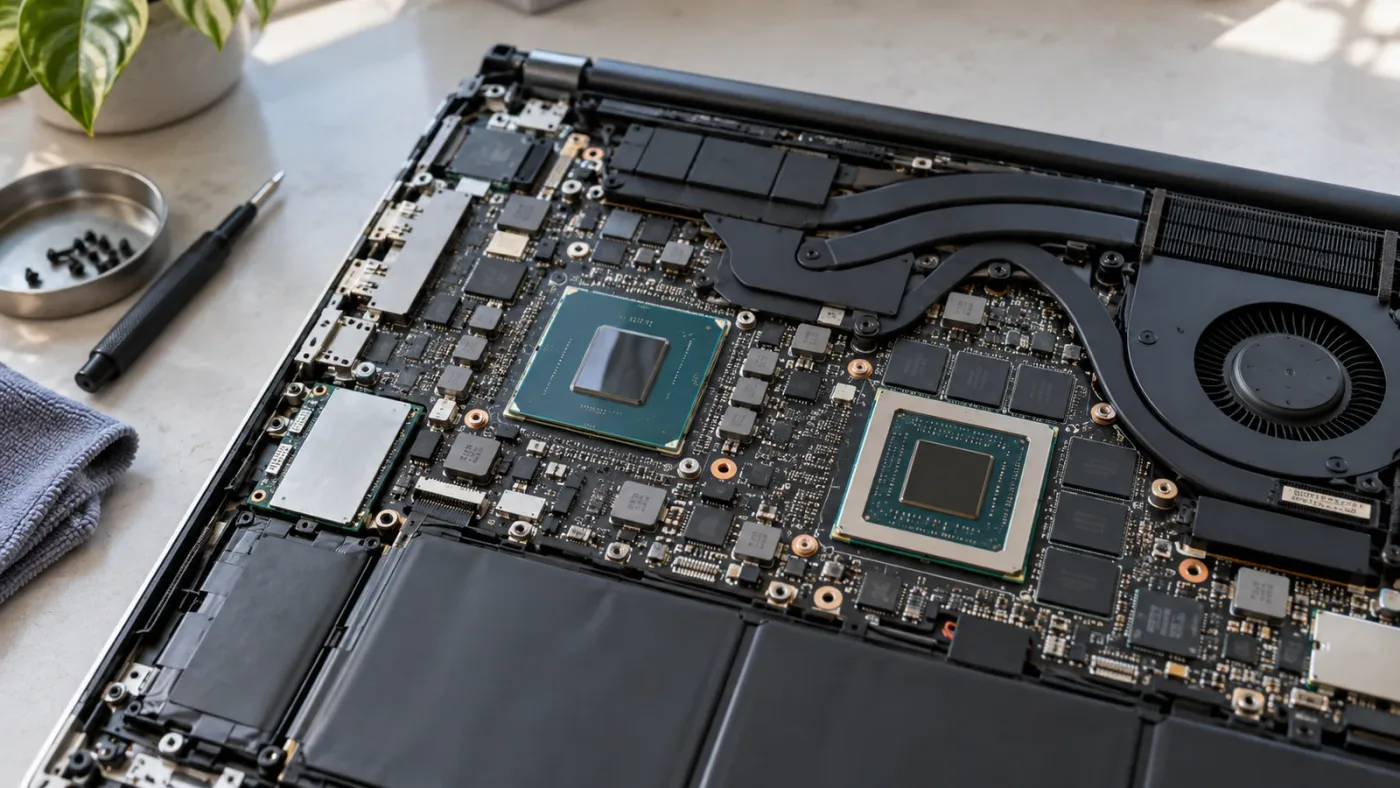
First inspect the system. Press Start, type Device Manager, open it, and expand Display adapters. Record every device name. If you see only Microsoft Basic Display Adapter, Windows is not currently using the normal vendor driver for that device. If you see two or more adapters, do not assume that the one with the biggest model number is active in Resolve.
If Resolve opens, go to DaVinci Resolve > Preferences on macOS or Preferences from the application menu on Windows, then find the memory and GPU section. The exact labels and available controls can change between Resolve versions and operating systems. Look for GPU processing mode and the adapter list. If the mode is set to Auto, note what Resolve has selected. If an adapter is missing or the selection is unavailable, record that fact rather than forcing a random setting.
Windows 11 lets you set graphics preference for an individual application under Settings > System > Display > Graphics. Microsoft describes the choices as power saving, high performance, or letting Windows decide, and says to restart the app after saving a preference. Add the Resolve desktop application if it is not already listed. If there are multiple Resolve executables, use the one that actually launches your project.
The Windows setting selects an app preference; it does not repair a missing driver or make unsupported hardware compatible. Use it as a controlled test. Close Resolve, assign the high-performance adapter, reopen Resolve, and check its GPU preferences again. If the application now sees the expected adapter, continue with that configuration. If it still sees the wrong GPU, look at laptop firmware, the computer maker’s GPU switching software, or the driver package for the integrated adapter.
On a desktop PC with more than one graphics card, check which card is connected to the display and which cards Resolve lists. Blackmagic’s older Windows guide says systems combining NVIDIA and AMD hardware were not supported in that Resolve version. That statement is old and cannot establish a Resolve 21 rule. It does illustrate why mixed-vendor systems should not be “fixed” by guessing. For Resolve 21, rely on current requirements and the GPU list shown by the installed version.
The GPU name in Device Manager is a better starting point than a driver updater’s green checkmark.
How do I verify that the graphics driver really is installed?
Verify the active adapter’s provider and version in the operating system, then compare that exact hardware model and OS against the driver package. A download sitting in your Downloads folder or an updater saying “complete” is not proof that the driver is bound to the GPU Resolve selected.
On Windows, open Device Manager, expand Display adapters, right-click the relevant GPU, choose Properties, and open the Driver tab. Record Driver Provider, Driver Date, Driver Version, and whether Windows reports that the device is working properly. The Details and Events tabs can help support staff diagnose the device. If the GPU is missing, shows an error symbol, or has been replaced by the basic display adapter, resolve that operating-system issue before changing Resolve preferences.
Check the same GPU in the manufacturer’s control software if available. NVIDIA App, AMD Software, Intel Graphics Software, and the computer maker’s utility may show different terminology, but the hardware identity should match. If the software itself is absent, that does not necessarily mean the display driver is absent. Intel, for example, documents driver-only installation options for some graphics packages. The driver version in the device properties remains a useful cross-check.
Do not compare only the last digits of driver numbers across vendors. NVIDIA, AMD, and Intel use different numbering schemes, and a package number may differ from a driver version displayed by Device Manager. Identify the vendor and model first, then use the vendor’s official driver selector or the computer manufacturer’s support page. The right file is for your exact GPU family, operating system, and system type, such as laptop or desktop.
A laptop may have a customized OEM package. Intel warns that computer manufacturers can change features, customizations, or packaging in generic drivers and recommends checking the computer manufacturer first to avoid installation incompatibilities. That is especially relevant when a generic Intel installer reports that the computer manufacturer’s driver is installed. It is not evidence that the laptop manufacturer has a newer driver; it means you need to check the support page for the laptop’s exact model.
If the current driver appears installed and the device is healthy, restart Windows before reinstalling. Some driver components and application GPU selections are not refreshed until the application or the system restarts. Then launch Resolve once and recheck the warning. This small step prevents unnecessary cleanup and gives you a clear baseline.
How do I fix the warning on a Windows laptop with two GPUs?
Set Resolve to use the intended discrete GPU, verify that both the integrated and discrete adapters have valid drivers, then restart Resolve. A laptop’s vendor update utility may have updated only one graphics device, while Resolve is initializing the other one.
Start with Device Manager > Display adapters and write down both names. If one adapter is Intel integrated graphics and the other is NVIDIA or AMD, check the provider and version for each separately. Do not disable the integrated GPU as a shortcut. It can drive the internal display, handle power-saving transitions, or be involved in the laptop’s display path even when a discrete GPU performs heavy image processing.
In Windows 11, open Settings > System > Display > Graphics. Add DaVinci Resolve as a desktop app if needed, select it, choose Options, set High performance, save, then close and reopen Resolve. The exact menu may differ on Windows 10 and on vendor-customized systems. On Windows 10, look under Settings > System > Display > Graphics settings. The setting applies to the selected app, so add the correct Resolve executable rather than a helper or installer.
If the laptop offers a GPU mode selector in its manufacturer utility or firmware, use the manufacturer’s instructions. Modes such as hybrid, discrete, or automatic can change which adapter is visible to applications and which device drives the screen. Do not switch modes while Resolve is open. Save work, close the application, make one change, restart if prompted, then test again. If a display goes black or an external monitor disappears, restore the previous mode using the laptop maker’s recovery steps.
Check power state as a secondary test. Some laptops change GPU behavior on battery, with a dock attached, or when an external display is connected. Use the same power connection and monitor arrangement for each test so that you are comparing like with like. This is a diagnostic control, not a claim that Resolve requires an external monitor or charger.
If the discrete GPU does not appear in Device Manager at all, an app preference cannot select it. Check BIOS or firmware settings and the laptop manufacturer’s diagnostics, then install the platform drivers from the model support page. For an AMD-specific missing adapter, see our guide to DaVinci Resolve not detecting an AMD GPU. That page covers detection of the device itself; this page focuses on the misleading update prompt when a driver appears current.
How do I fix the warning on a Windows desktop?
On a desktop, identify the exact GPU connected to Resolve, install its supported driver, and avoid changing other display devices until you have a repeatable test. A desktop can contain an integrated GPU on the processor, a discrete graphics card, or more than one discrete adapter.
Use Device Manager to inventory the adapters and check for warning icons. If you have a discrete card, make sure the monitor cable is connected to the card’s output rather than the motherboard’s display connector, unless your intended configuration specifically uses the motherboard output. Moving a cable changes the display path; it does not install or update a driver. Shut down before moving hardware connections and follow the computer maker’s instructions.
Check whether the graphics card is supported by the driver package you selected. A current download page can serve many product generations and operating systems, but an installer may silently refuse older hardware, install a limited component, or report that no compatible device exists. Use the manufacturer’s product selector rather than searching by the broad name of a card family. Confirm that the downloaded package supports your Windows edition and architecture.
If the computer has both integrated and discrete graphics, Windows app preference can be useful even on a desktop, but it cannot compensate for a card that Windows does not enumerate. Do not uninstall the integrated driver simply because Resolve should use the discrete card. Keep the system in its normal configuration, then use Resolve’s GPU list and Windows graphics preference to see which device is chosen.
Avoid changing BIOS graphics mode, PCIe settings, or registry entries as an early response. Those changes can make the display unavailable or complicate support, while the actual problem may be an incomplete driver install. If a driver change is needed, use the normal vendor installer first and restart. Only move to clean removal after the device identity and package compatibility have been confirmed.
When the warning appears only after launching a particular project, test a new project before altering hardware settings. A project can invoke effects or formats that expose a GPU issue not seen at the empty-project screen. That does not make the project itself the root cause, but it helps distinguish “Resolve cannot initialize any GPU” from “this workload triggers a driver or memory failure.” Do not overwrite the original project while making this comparison.
Should I install a Studio driver, Game Ready driver, or OEM driver?
Use a driver branch that supports your exact GPU and operating system, then prefer the computer manufacturer’s package when the system depends on OEM customization. For NVIDIA systems, Studio and Game Ready are separate driver branches, but a branch name alone does not establish compatibility with your Resolve build.
NVIDIA’s driver download page lets you select the product and driver type. NVIDIA also describes Studio Drivers as providing support for creative applications. At the time of an NVIDIA Studio Driver announcement, Blackmagic Design USA president Dan May said, “NVIDIA RTX Studio laptops and drivers enable Resolve users to be faster while providing advanced features to content creators using these optimized systems.” This is a vendor statement about optimized systems, not a guarantee that a Studio Driver resolves a mismatch on every computer. NVIDIA published the quote in its Studio Driver announcement. That does not mean every Studio Driver is guaranteed to fix every Resolve warning. Select the driver for the actual GPU model and OS, read the release notes for known issues, and check the currently installed driver after the reboot.
The term “latest” may refer to the newest available release in one branch while the other branch has a different version. If you use NVIDIA, compare the installed GPU model and driver type with the official NVIDIA selector. Do not install a driver for a similar card, a different Windows version, or a different architecture simply because the version number is higher. If a problem began immediately after a driver change, the prior known-good supported version can be a reasonable rollback candidate, provided the vendor still supplies it and your Resolve version supports it.
AMD provides driver downloads by product and an Auto-Detect tool for supported Windows systems. AMD’s install documentation says system requirements can vary with Windows version and explains that its installer can remove the existing package before continuing. Use the exact Radeon product page first. For a laptop with switchable graphics, check the laptop manufacturer’s page as well because the platform may have custom driver dependencies.
Intel likewise publishes generic drivers and notes that PC manufacturers may customize them. If an Intel installer reports that an OEM driver is present, check the computer’s support page before forcing a generic package. Intel’s support instructions for clean installation also say that the clean process removes older drivers and restores Intel settings to defaults. Because this can change prior configuration, use it only after the normal compatible package has been identified.
For all vendors, a “creator” or “professional” label describes a driver branch or intended use, not a universal cure. If Resolve starts normally with one branch and fails after changing branches, record the old and new version before trying another. That lets you reverse the change and gives support a useful reproduction point.
A higher driver version number is not automatically a more compatible Resolve driver.
Should I reinstall the graphics driver if it is already current?
Reinstall the driver only after confirming that the installed package matches the GPU, operating system, and computer model. Start with the manufacturer’s standard installer; use its clean-install option only when a normal reinstall does not replace a damaged or mismatched installation.
Before changing drivers, close Resolve and save projects. Download the correct package from the official GPU or computer support page. Keep the installer available locally until the machine has restarted and Resolve has been tested. If the installer fails, record the exact error instead of repeatedly running different packages.
NVIDIA’s current support article for manual clean installation instructs users to choose Custom (Advanced) and enable Perform a clean installation, then reboot. It also notes that background applications or Windows Update activity can interfere with installation. This option resets NVIDIA settings and profiles, so treat it as a repair step, not a harmless refresh. If you rely on custom control-panel profiles, record them first.
AMD’s installation guidance says a complete uninstall can help reduce issues or conflicts during a new installation. AMD’s uninstall documentation says the screen may go black intermittently during removal and that a restart is required to complete it. Follow AMD’s current instructions for your Radeon software version; do not interrupt the process because the display flickers briefly.
Intel’s clean install instructions say a clean install removes old drivers and resets Intel settings to default. Intel also cautions that OEM-customized packages may differ from generic ones. For a branded laptop or all-in-one, an OEM driver may be the safer first package even if the generic Intel version has a larger number.
Display Driver Uninstaller, commonly called DDU, is a more thorough third-party removal utility. It should not be the first step for a warning that may come from the wrong GPU selection. Consider it only when the manufacturer’s installer cannot remove a broken package, a vendor recommends it for the specific failure, or remnants from a previous graphics vendor are blocking installation. Before using it, read the current instructions from the tool’s publisher, create a recovery plan, and make sure you have the correct replacement package ready. This article does not recommend changing registry values or deleting driver files by hand.
After reinstalling, restart the computer even if the installer does not demand it. Check the adapter’s driver provider and version again. Then start Resolve without opening a complex project and see whether the warning remains. This sequence tells you whether the package installed and whether Resolve sees the device after restart.
What if Resolve still asks for an update after a clean installation?
If Resolve still warns after a correctly matched clean install, stop repeating the same installation and gather evidence about the detected GPU, driver, Resolve build, and operating system. A clean install cannot make unsupported hardware supported or update a different adapter from the one Resolve is using.
Make a short record with these fields:
| Diagnostic detail | Where to find it | Why it matters |
|---|---|---|
| Resolve version and edition | About DaVinci Resolve, if it opens | Confirms which build produced the warning |
| Operating system and build | Windows Settings > System > About, or macOS About | Driver packages are OS-specific |
| GPU model and device status | Device Manager > Display adapters on Windows | Confirms which devices are present and active |
| Driver provider, date, and version | Adapter Properties > Driver tab | Confirms what is bound to the device |
| Resolve GPU mode and selected device | Resolve Preferences, if accessible | Shows which adapter Resolve is attempting to initialize |
| Full warning text | Screenshot or exact transcription | May identify an API, version, or adapter requirement |
| Recent changes | Driver, OS, Resolve, hardware, or display changes | Identifies a likely starting point for regression testing |
| Whether a blank project opens | Resolve start screen | Separates startup failure from project-specific workload |
If Resolve opens, test with a new, empty project and a short known-good clip. Do not use an irreplaceable project as the first test. If an empty project works but a particular project triggers the error, note the effect, codec, or timeline state present at the failure point. A project-specific failure can involve GPU memory, a plugin, or a specific processing path rather than an outdated driver. Our guide to Resolve’s GPU memory full warning covers that different symptom.
If Resolve does not open, save the application logs and system information using Blackmagic Design’s current support instructions. The support page distinguishes platform downloads and currently lists the Resolve 21 line. For the free edition, Blackmagic says technical support is available through its community forums. Include the facts above in a support post; “I have the latest driver” is less actionable than the exact GPU model, provider, driver version, OS build, Resolve version, and complete warning.
Check the release notes for both Resolve and the driver. A change that began after an update may be a regression, but chronology alone does not prove it. If the previous version worked, a supported rollback can test the connection. Change only one component at a time. Updating Windows, Resolve, BIOS, and the graphics driver in one session leaves you without a clear explanation if the warning changes.
If you suspect the GPU is below Resolve 21.1’s requirements, compare it with Blackmagic’s current system requirements rather than relying on a forum post written for an older version. Minimum requirements define the supported baseline; they do not promise smooth playback with every codec, effect, or resolution. A GPU can launch Resolve but still be inadequate for a particular workload.
Does the graphics driver update warning mean my GPU is unsupported?
Not always. The warning can come from a supported GPU whose driver is missing or misdetected, but hardware that falls below the current Resolve 21 requirements can also cause a real compatibility problem. Confirm the GPU model and Resolve version before concluding either way.
A GPU name is not enough by itself. Product families contain multiple generations, mobile versions, and memory capacities. Resolve’s requirements can also depend on operating system and supported graphics API. Compare the full model, not just the brand or series name, with the official Resolve 21 download requirements and the GPU vendor’s operating-system support page.
Do not assume that every integrated GPU is unsupported, or that every discrete GPU is sufficient. Capabilities vary by model and driver. On a system with integrated and discrete graphics, the computer can meet the requirement with one adapter while Resolve initializes another. That is why adapter selection belongs before a hardware purchase decision.
If the GPU is unsupported, reinstalling the same driver will not change its compute capability or memory. The practical options are to use a supported GPU, use a different computer, or see whether a lower-demand workflow works on your current setup. Proxies, optimized media, lower timeline resolution, and fewer concurrent effects can reduce workload in some situations, but none of those techniques turns unsupported hardware into supported hardware.
Resolve Free and Studio can also differ in supported features and workload. A driver warning at launch should not be diagnosed as a licensing issue without evidence. First determine whether Resolve recognizes the GPU and whether the reported requirement corresponds to the version you installed. If the application launches and only a Studio feature fails, troubleshoot that feature separately.
What should I do if the warning appears after updating DaVinci Resolve 21?
If the warning begins after a Resolve update, check the updated version’s requirements and restart before rolling back software. A newer Resolve build can expose a pre-existing driver mismatch, while a genuine regression is also possible.
The Blackmagic Design support page lists Resolve 21 updates by date and version. As of this article’s October 2026 update, Resolve 21.1 is the current version listed there. Check the support page again when troubleshooting because the current release can change after publication. Note whether the warning appears in 21.1, an earlier 21.0 point release, or a beta build; do not report only “Resolve 21.”
If you installed a beta or preview build, test the stable release if one is available for your platform and your project backups are safe. Keep project libraries and project files backed up before changing versions. A project saved by a newer version may not open in an older version, so the safest test is a copied project or a new empty project, not the only production copy.
If the warning began immediately after updating from an older major version, do not assume the driver is “latest enough” because it worked yesterday. The old release may have accepted an adapter or driver combination that the new release no longer supports. Compare the requirements for the installed build, then update through the GPU manufacturer’s official package if the exact model and OS are supported.
If the warning started after a Resolve point update and all driver facts match, collect the logs and report the change through the appropriate support route. A good report includes a before-and-after version, whether the warning appears in an empty project, and the exact GPU and driver details. This is more useful than reinstalling Resolve repeatedly, especially if the installation is intact and the issue is a compatibility regression.
A Resolve update can reveal a driver mismatch that was already present before the update.
What if the warning appears after a Windows update?
After a Windows update, recheck the driver version and provider in Device Manager because the active driver may have changed. Windows Update, the GPU maker, and the PC maker can offer different compatible packages, and a restart may finish the update only after the first boot.
Open the adapter’s Driver tab and compare the version with the last version you recorded. If the provider has changed or the version moved backward, check the computer manufacturer’s driver page and the GPU vendor’s official page. Do not assume the newest date is the newest or best driver. The package must support your specific adapter and system.
For Intel laptop graphics, a generic driver can be newer but may not include every OEM customization. Intel specifically advises checking the computer manufacturer for customized drivers to avoid installation incompatibilities. For NVIDIA or AMD laptops, the same general rule is prudent when the GPU is part of a switchable graphics system: verify the PC model’s validated package before replacing it with a generic package.
If Windows changed the driver and the warning started at the same time, use Device Manager’s driver rollback option only if it is available and the previous driver was known to work. Record the current version first. Rollback is a diagnostic test, not a permanent recommendation; then check the vendor release notes and support channel for a compatible fix.
Avoid pausing all security updates or disabling Windows Update as a permanent solution. If a vendor’s installation instructions call for temporarily preventing an automatic driver replacement during a specific clean-install procedure, follow that instruction only for the install and restore normal update behavior afterward. Broadly blocking updates can leave the system without important fixes.
Does this warning work differently on macOS?
On a Mac, graphics drivers are delivered as part of macOS, so the normal path is to update macOS and DaVinci Resolve rather than search for a separate NVIDIA, AMD, or Intel desktop driver. Apple’s update instructions direct users to install macOS updates through System Settings or Software Update.
First identify the Mac model and macOS version. On Apple silicon, the GPU is integrated into the system-on-chip; on Intel Macs, graphics hardware can include integrated or discrete components depending on the model. You cannot install a Windows graphics driver package on macOS. If a driver download site offers a package for a different operating system, it is not the fix.
Update macOS using Apple’s normal update path, restart, and install the current Resolve build compatible with that macOS version. Then open Resolve Preferences and check the GPU processing mode if Resolve launches. If Resolve lists a device or processing mode that looks wrong, capture the exact details and consult Blackmagic’s support information for that operating system.
For an older Intel Mac, the newest macOS version may not be supported by the hardware, and the newest Resolve version may have a higher OS requirement than an older version. Check the official Resolve system requirements and the Mac’s supported macOS versions before upgrading. Do not use a third-party driver installer to bypass that compatibility relationship.
If the message says a particular GPU is unavailable rather than explicitly requesting a driver version, it may point to a hardware or Resolve preference issue. Record the full text. Test with a new project after restarting. If the issue began after an OS update, check whether the installed Resolve version supports that macOS release before changing project files.
What about Linux or Windows on ARM?
On Linux and Windows on ARM, use the driver package and Resolve installer intended for that platform; a Windows x86 driver fix does not transfer automatically. Resolve 21 support materials list distinct platform downloads, and the official requirements are specific to each operating system.
For Linux, verify the distribution, kernel, GPU model, driver package, and Resolve build. Do not assume that a driver built for another distribution or a newer kernel is compatible. If the driver is installed through the distribution’s package manager, prefer the distribution’s documented GPU-driver path and check Blackmagic’s Linux requirements for the current Resolve release. Record the exact error from the terminal or logs if Resolve fails before showing its interface.
For Windows ARM, verify that both the Resolve build and the GPU driver support the system’s processor architecture. Installing a standard x64 package may not be appropriate, even if the GPU branding is familiar. Use the manufacturer’s page for the exact computer and operating system edition, then compare it with Blackmagic’s listed Resolve platform support.
If a vendor utility reports the driver is current but Resolve reports it as old, check whether the utility detected the same architecture and adapter. A virtual machine or remote desktop can expose a virtual display adapter rather than the physical GPU. Resolve then evaluates what the process can access, not merely the graphics card installed in the host machine. Test on the machine’s local desktop before concluding that the host driver is obsolete.
Can I keep working after dismissing the warning?
You can proceed only if Resolve allows it and the project behaves correctly, but treat the session as a controlled test until you know the GPU is initialized properly. Save a copy, use an empty project, and avoid relying on the setup for a deadline-critical export until playback and rendering are verified.
Some warnings are advisory and allow the application to open. Others block startup or cause a processing mode to be unavailable. Do not infer safety from the fact that the timeline appears. A project can open while a specific effect, noise reduction operation, codec, or render path fails later.
If you can open Resolve, test a short section with the same effect or media type that previously triggered the issue. Render to a new file, not over your original export. Check the result for black frames, missing effects, or errors. This is a practical verification step, not proof that every project feature is stable.
If the warning blocks startup, do not delete configuration folders at random. First try the correct GPU preference and driver install. If those fail, collect diagnostic logs and use Blackmagic’s support route. A full reinstall of Resolve rarely corrects a GPU driver that is missing or attached to the wrong adapter.
When should I contact Blackmagic, the GPU maker, or the computer maker?
Contact the organization that owns the failing layer: Blackmagic for Resolve detection or version behavior, the GPU maker for its driver package, and the computer maker for OEM graphics switching or custom drivers. Include enough detail for that team to reproduce the environment.
| Evidence | Best first contact | Include |
|---|---|---|
| Resolve names an unsupported GPU API or crashes when initializing it | Blackmagic Design support or forum | Resolve version, OS, GPU model, selected processing mode, logs |
| Vendor installer fails or Device Manager reports a device error | GPU vendor | GPU model, OS build, driver package, installer error, device status |
| Laptop uses integrated and discrete graphics but one disappears | Computer maker | Exact laptop model, BIOS graphics mode, both adapters, power state |
| Problem began after a vendor driver release | GPU vendor and Blackmagic forum | Old and new driver versions, Resolve version, reproducible steps |
| Problem began after a Windows update changed the driver | Computer maker or GPU vendor | Driver provider before and after, Windows build, update date |
Blackmagic’s current support page says technical support for the free version of DaVinci Resolve 21 is available through the Blackmagic Design community forums. Studio users can check the support options listed for their product and region. When posting publicly, remove account names, serial numbers, project media, and any private client details from logs or screenshots.
Avoid writing “the driver is latest” as the whole report. A useful report says, for example, “Resolve 21.1 on Windows 11 sees Intel UHD and NVIDIA RTX in Device Manager; NVIDIA provider and version are X; Resolve GPU mode is Auto; warning text is Y; it began after update Z; empty project does or does not open.” Replace the example placeholders with your real details. This format states what was observed without claiming a cause you have not established.
How can on-screen guidance help if I am stuck in Resolve Preferences?
On-screen guidance can help locate a control when a tutorial’s layout does not match your Resolve version, but it cannot install the correct GPU driver or decide whether a device is supported. First use the diagnostic checks above; use guidance for navigating the application after you know which setting you need to inspect.
TryUncle is the on-screen assistant for DaVinci Resolve on Mac and Windows — ask in plain words and Uncle points at the exact control on your screen. If you are stuck finding Resolve’s GPU preferences after the driver checks, TryUncle can help you locate that control while you work. It does not replace the GPU manufacturer’s driver support or promise to repair a driver automatically.
What is the safest order to fix the warning?
The safest order is to identify the active GPU, verify its driver, select the intended adapter, install the matching manufacturer package if needed, restart, and retest with a new project. Escalate to clean removal only when the standard path fails and the evidence points to a damaged installation.
- Capture the warning. Write down the full text, Resolve version, operating system, and the point where the warning appears.
- Inventory all graphics devices. On Windows, use Device Manager. On Mac, check the Mac model and macOS version; do not look for a separate PC driver.
- Compare the active adapter. Check Resolve’s GPU preferences if it opens and compare the selected device with the adapter whose driver you updated.
- Select the intended GPU. On Windows with multiple GPUs, assign Resolve to High performance in Windows Graphics settings, then restart Resolve.
- Install only a matching package. Use the GPU vendor or computer maker’s support page for the exact GPU and OS. For an OEM laptop, check the model-specific driver first.
- Restart and verify. Confirm the driver provider and version in the operating system, then reopen Resolve and test an empty project.
- Escalate with evidence. If the warning persists, check current Resolve requirements and release notes, then send logs and the exact facts to the responsible support channel.
This order avoids needless system-wide changes. It also preserves diagnostic clarity: if the warning disappears after step 4, the issue was likely adapter selection; if it disappears after step 5, the driver package was likely the problem; if neither changes it, the remaining evidence can guide a support request.
The answer to “DaVinci Resolve asks to update graphics driver already latest” is therefore not automatically “install the newest driver again.” Confirm the GPU Resolve is actually checking, then match its driver to the device, OS, and Resolve 21 build. If those facts match and the warning remains, stop repeating updates and report the exact configuration to Blackmagic or the relevant hardware maker.
The right fix is the driver Resolve can use, not simply the newest driver your updater can find.
Frequently asked questions
- Why does DaVinci Resolve say my graphics driver is outdated when it is already latest?
- Resolve may be checking a different GPU from the one you updated, a laptop may launch on integrated graphics, the installed package may not support that GPU or OS, or the driver installation may be incomplete. Check Resolve’s GPU selection and Device Manager before downloading anything else.
- How do I fix the DaVinci Resolve graphics driver update warning on Windows?
- Restart Windows, confirm your GPU model and driver version in Device Manager, set Resolve to use the intended high-performance GPU in Windows Graphics settings, then install the compatible driver from the GPU or computer maker and restart again.
- Does DaVinci Resolve need a separate graphics driver on Mac?
- No. macOS includes the graphics drivers for Apple hardware, so update macOS and Resolve, restart, and check Resolve’s GPU processing settings. Do not install a Windows or PC vendor driver on a Mac.
- Should I use DDU if Resolve says to update my driver?
- Not as the first step. Confirm the GPU and correct driver package, then try the GPU maker’s normal or clean installation option. Use Display Driver Uninstaller only when a standard reinstall fails or conflicting driver remnants are likely.
- Can I open DaVinci Resolve after dismissing the driver warning?
- If Resolve offers a way to continue, you can test a copied project with a simple timeline, but do not rely on an unsupported or misdetected GPU for important work. If the program will not open, use the driver and GPU checks before changing project or operating-system files.
Sources
- Blackmagic Design Support: DaVinci Resolve 21.1 and current updates
- DaVinci Resolve download and system requirements
- Blackmagic Design Configuration Guide: DaVinci Resolve 14 Mac
- Windows 11 graphics preference for an app
- Microsoft Learn: Using Device Manager
- NVIDIA: Manually clean install the graphics driver
- NVIDIA official driver downloads
- AMD drivers and support
- AMD: Install Radeon Software on Windows
- AMD: Uninstall Radeon Software on Windows
- Intel: Clean installation of graphics drivers in Windows
- Intel: Identify a graphics driver installation error
- Apple: Update macOS on Mac
- NVIDIA: Latest Studio Driver supports creative applications
Put this guide to work with TryUncle.
Ask about the step you’re on. TryUncle sees your screen and points at the control you need, so you can keep learning in your own project.
Get TryUncle for Mac or WindowsKeep reading
Fixes · Jul 17, 2026 · 23 min
DaVinci Resolve AMD GPU Not Detected: Every Real Fix
DaVinci Resolve not seeing your AMD GPU? Here's why it happens on Windows, Mac, and Linux, and the exact driver, preference, and Windows fixes that work.
Fixes · Jul 7, 2026 · 25 min
DaVinci Resolve GPU Memory Is Full: Every Real Fix
Why DaVinci Resolve throws 'GPU memory is full,' and which fixes actually work: timeline resolution, drivers, effects, and how much VRAM you need.
Guides · Oct 20, 2026 · 29 min
DaVinci Resolve Audio Waveforms Fill Track Height: The 21.1 Fix
Make DaVinci Resolve audio waveforms fill more of the track: use Edit page waveform zoom, Full Waveform, and the separate track-height control.