Articles / Guidesupdated for DaVinci Resolve 21.1 (October 2026)
DaVinci Resolve Audio Waveforms Fill Track Height: The 21.1 Fix
Quick answer
In DaVinci Resolve 21.1, select the audio clip or track and choose View > Zoom Audio Waveform > Increase Height, or right-click a clip and use Track Waveform Zoom. In Fairlight, Option-Command plus scroll on macOS or Alt-Ctrl plus scroll on Windows also changes waveform display size. This changes the picture of the audio, not its level.
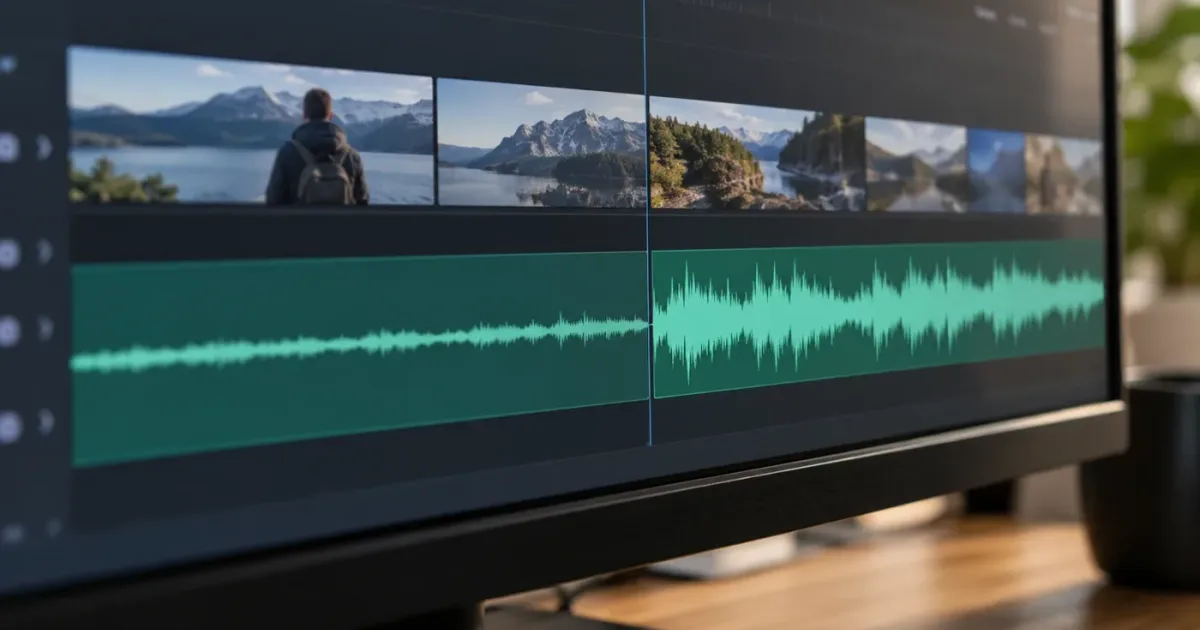
If your audio track is tall but the waveform sits in a narrow band, the track-height slider isn't the whole answer. DaVinci Resolve 21.1 has a separate waveform zoom control, and you can use it in the Edit timeline as well as Fairlight. We run a 100,000+ member professional editing community, and this is a useful distinction because the controls have similar names but do different jobs.
As of October 2026, the quickest route in Resolve 21.1 is View > Zoom Audio Waveform > Increase Height. The waveform gets larger without making the clip louder. You can then adjust the track lane to make room for the enlarged display.
How do I make DaVinci Resolve audio waveforms fill track height?
In DaVinci Resolve 21.1, enlarge the waveform drawing with View > Zoom Audio Waveform > Increase Height, then enlarge the lane itself only if you need more vertical room. The two controls are independent: one scales the displayed waveform and the other resizes the track.
For one track, click a clip on that track first. Open the View menu and choose Zoom Audio Waveform, then Increase Height. If your menu offers a Track Waveform Zoom submenu when you right-click the clip, that menu reaches the same display control. Resolve's 21.1 manual describes waveform zoom as a way to make waveforms taller or shorter without changing the clips' audio levels.
Do this before changing gain. Raising clip gain to make a small waveform look larger changes the audio signal. Waveform zoom is a viewing adjustment. You can safely use it to inspect a quiet passage, find a breath, or line up a transient without changing the mix.
The steps are short:
- Select the audio clip or track in the timeline.
- Choose View > Zoom Audio Waveform > Increase Height.
- Repeat the command until the waveform is easy to read.
- If the lane is physically too short, drag its lower border or adjust the Audio Track Height control in Timeline View Options.
- Choose View > Zoom Audio Waveform > Reset if the waveform becomes too large or clipped.
The increase command affects the waveform display, not the clip's volume. Track height affects how much room the lane takes in the timeline. You may need both, but they solve separate problems. If you only need a larger drawing inside an already generous lane, waveform zoom is the direct control.
In DaVinci Resolve 21.1, waveform zoom changes the display scale while track height changes the lane size.
Why is my DaVinci Resolve audio waveform only using half the track?
A waveform that appears to occupy half a track can be using a centered display, sharing the clip area with its name, or simply drawn at a small zoom level. In the Edit page, check the Audio View Options first, then increase waveform zoom.
DaVinci Resolve has display choices that alter the shape and layout of waveforms. In Timeline View Options, Display Non-Rectified Waveform changes whether the waveform rises from the bottom of the audio track or appears centered and mirrored. Display Full Waveform hides the divider that separates the waveform from the clip-name area, allowing the display to use more of the audio clip bar. Display Waveform Border adds a dark edge to help distinguish the outline. These descriptions follow the Resolve 21.1 timeline manual.
These options are not volume controls. They change what the timeline draws. If a centered waveform looks like it uses half the height, changing to non-rectified may make its available space more obvious. If the clip label takes up a band, Full Waveform can reclaim that display area. Then use Zoom Audio Waveform to magnify the drawing further.
Try these settings one at a time. Toggle Full Waveform and inspect the clip. Then switch Non-Rectified Waveform and compare. Finally use waveform zoom. Changing several options at once makes it harder to know which control helped.
| What you see | First control to try | What that control changes |
|---|---|---|
| Waveform seems centered with empty space above and below | Display Non-Rectified Waveform | Drawing orientation and shape |
| Clip name takes a band above the waveform | Display Full Waveform | Divider and waveform display area |
| Waveform is visible but tiny across a tall lane | Zoom Audio Waveform > Increase Height | Waveform display scale |
| Whole audio lane is too short | Audio Track Height slider or drag track border | Physical timeline lane height |
| Waveform outline blends into clip color | Display Waveform Border | Edge contrast |
The options can appear in a different order or layout depending on page and workspace, but the labels are the useful landmarks. The Resolve 19 New Features Guide lists Display Non-Rectified Waveform, Display Full Waveform, Display Waveform Border, and separate Video and Audio Track Height sliders in Timeline View Options. The Resolve 21.1 manual describes the same key distinctions.
Does audio waveform zoom change volume or gain?
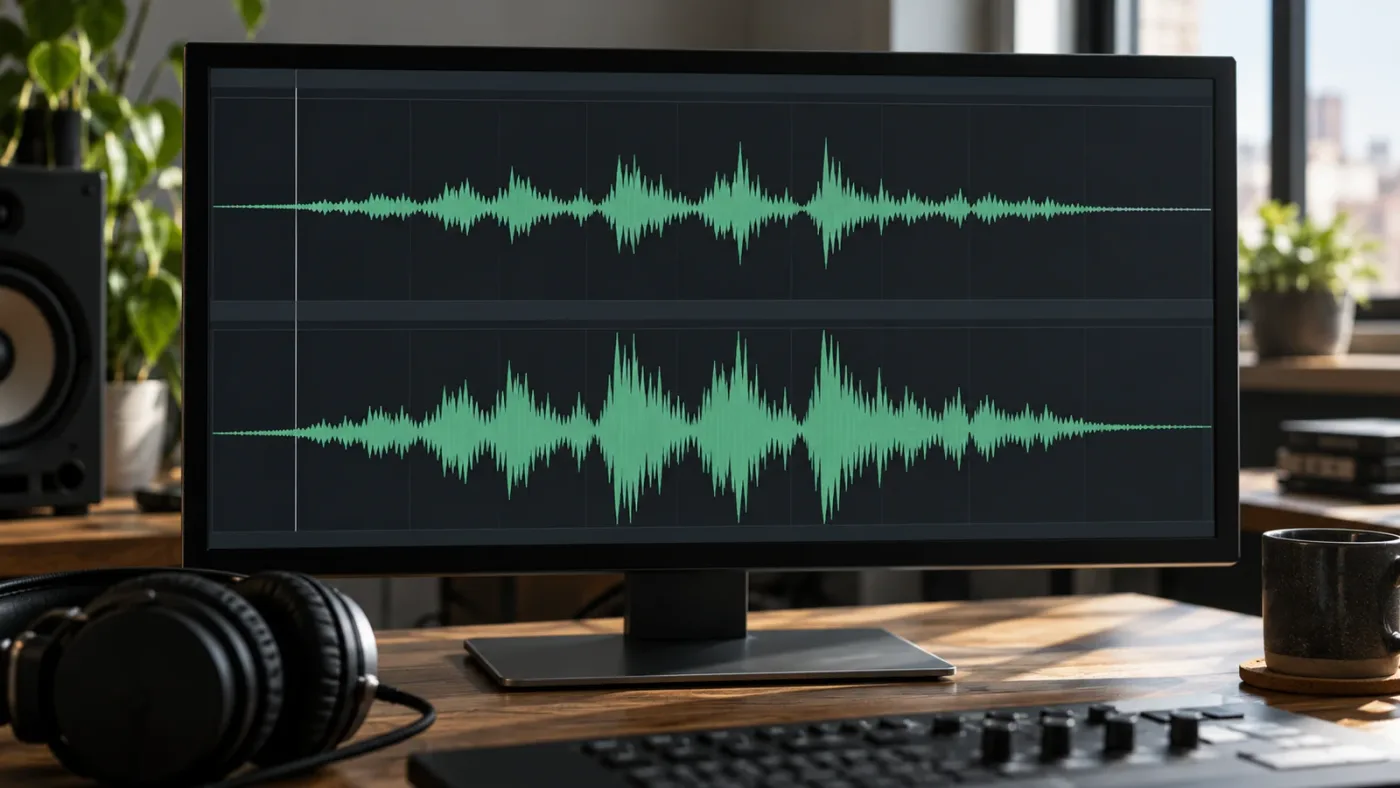
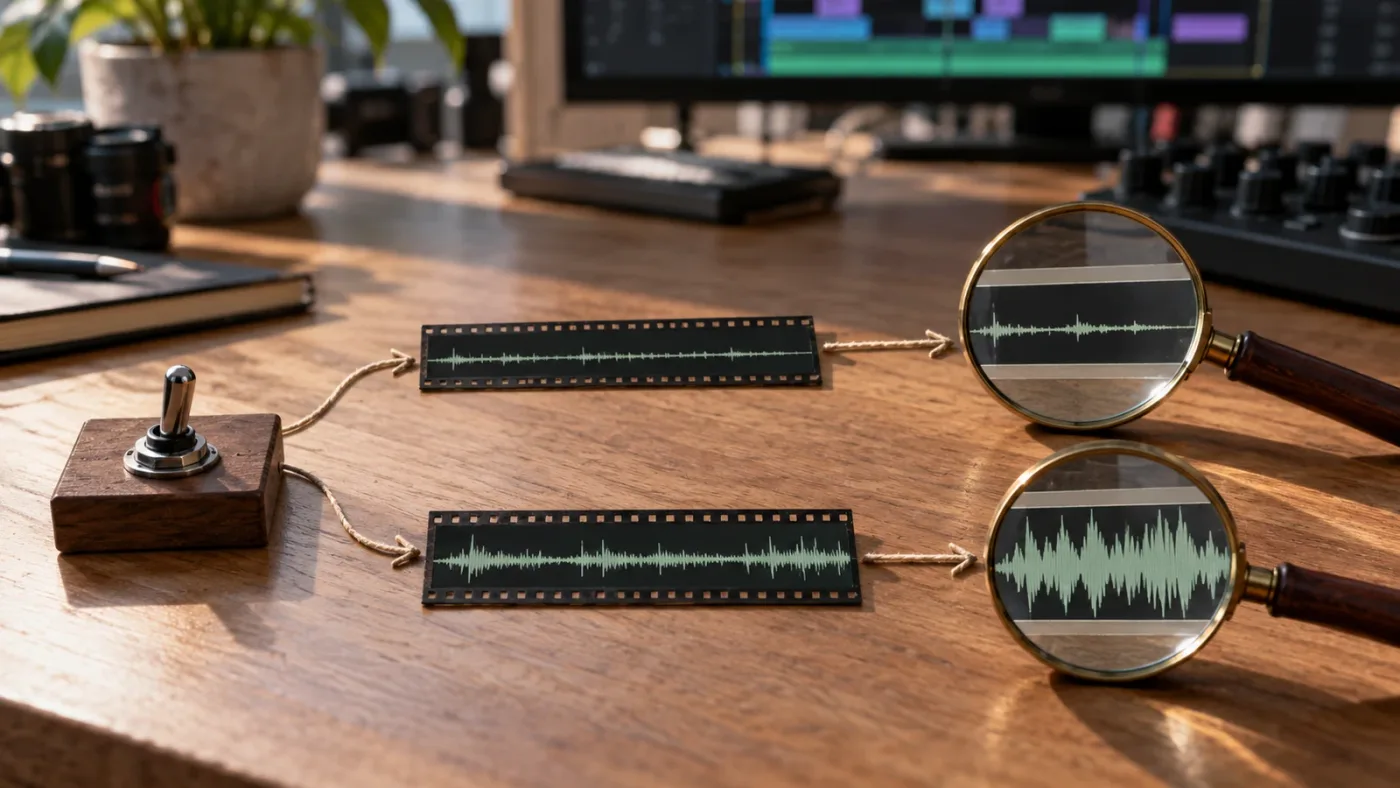
No. Waveform zoom makes the drawn waveform taller or shorter; it does not change clip gain, track fader level, automation, or the sound in an export.
This is the main reason to use waveform zoom instead of raising gain just to see more detail. A quiet recording can have a visually small waveform while still being at the correct level for its mix. Making the display taller lets you inspect the material without changing that balance.
Keep the distinction clear:
- Waveform zoom changes the visual amplitude scale used in the timeline.
- Track height changes the vertical space allotted to the track.
- Clip gain or volume changes the level of an individual clip.
- Track fader changes the level routed through that track.
- Automation changes level over time according to keyframes or curves.
- Normalize Audio Levels changes clip level according to a target and selected measurement mode.
A waveform can look bigger for two very different reasons. You might increase the display scale, or you might increase the actual signal. Only the first is a pure viewing change. If you raise gain, the waveform will typically draw taller because the audio level changed, but the sound changed too.
That difference matters when editing dialogue. Suppose a voice clip is low in the timeline, but the playback sounds balanced against music. Increasing waveform zoom can help you see syllable boundaries and breaths. Raising clip gain just to make the peaks taller may make the dialogue louder than its intended mix position. Leave the actual gain decision to listening and metering.
It also matters when you inspect clipped or distorted material. A larger drawing doesn't recover a clipped recording, and a smaller drawing doesn't mean the audio is safe. Waveform appearance is a visual aid. Listen, inspect meters, and use the appropriate audio tools to judge sound quality.
A larger waveform drawing is not evidence of a louder signal.
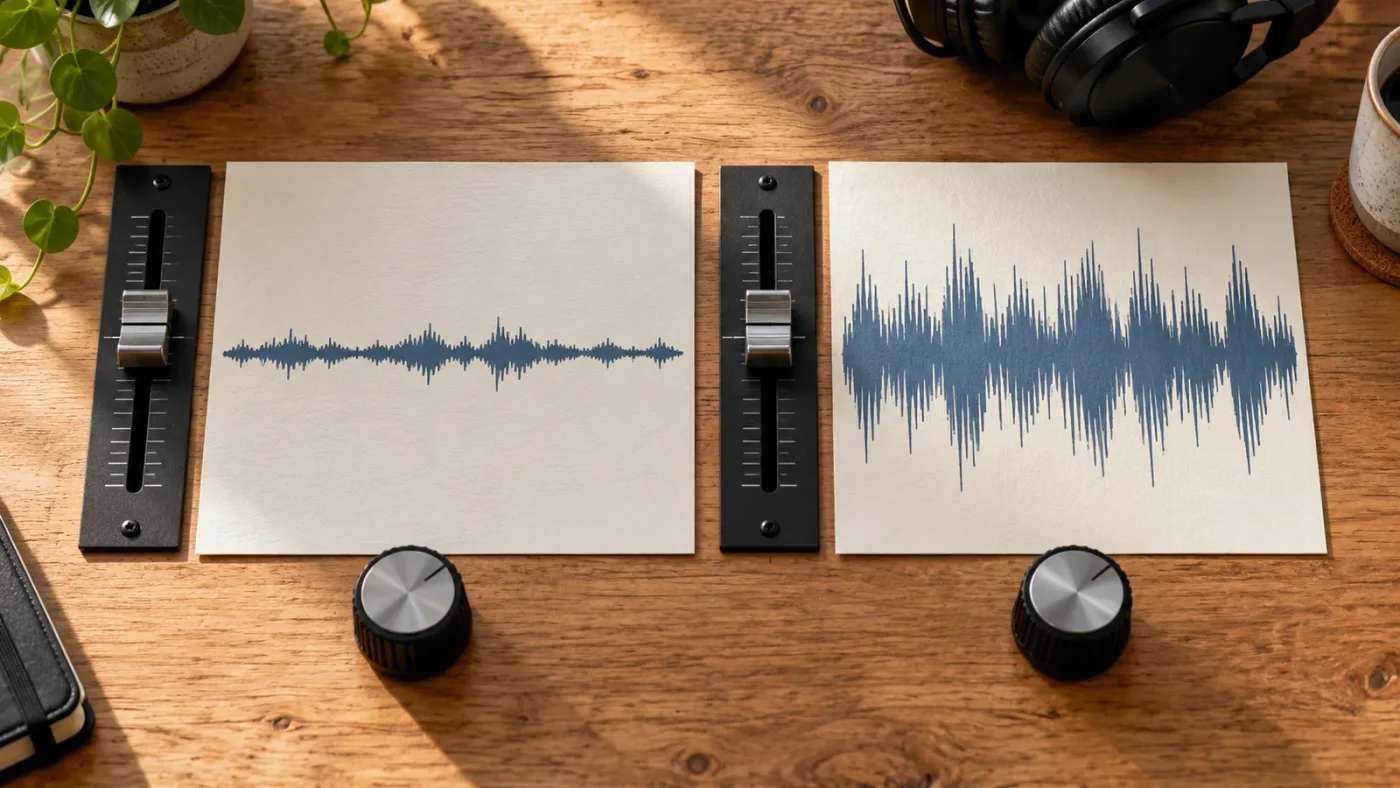
How do I enlarge waveforms on the Edit page in Resolve 21.1?
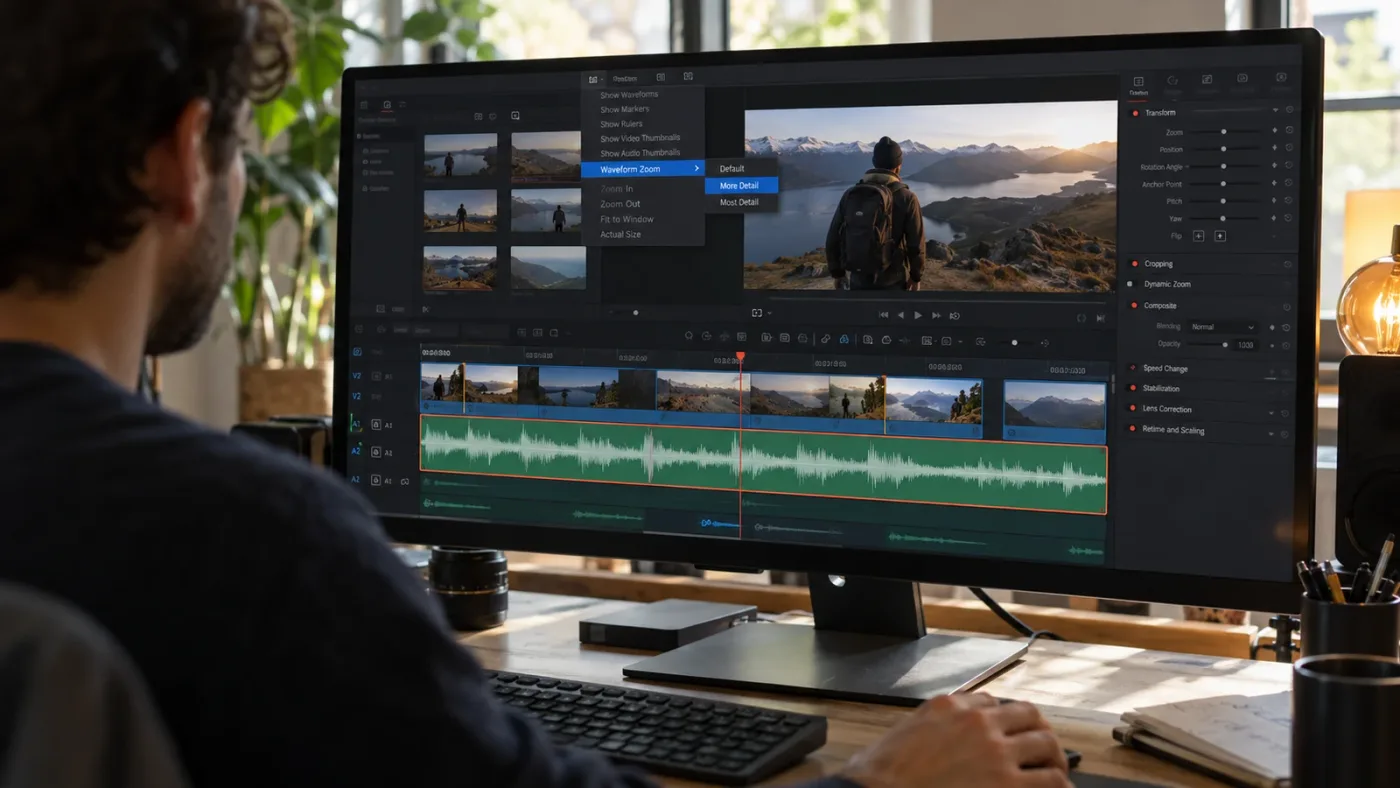
In Resolve 21.1, waveform-height zoom is available from the Edit page timeline using the View menu or a clip's Track Waveform Zoom context menu. Earlier advice that the Edit page cannot zoom waveforms describes older versions, not the current 21.1 workflow.
A DaVinci Resolve forum discussion from December 2024 captured the old limitation. Andy Mees wrote, “Sorry, it's not possible to zoom waveforms in the Edit page timeline, only way to change its display size without affecting volume is to resize the track.” That was a useful answer for the version being discussed, but it should not be applied uncritically to Resolve 21.1. The newer manual now documents Zoom Audio Waveform commands for the Edit timeline.
The practical Edit page sequence is:
- Click the clip or audio track whose waveform needs attention.
- Open View > Zoom Audio Waveform.
- Choose Increase Height. Repeat if needed.
- Use Decrease Height or Reset when you want less magnification.
- If you need more physical space, separately raise the Audio Track Height slider or drag the track boundary.
If the command appears unavailable, make sure the pointer focus and selection are on an audio clip or track in the timeline. The manual states that choosing one or multiple tracks lets the command resize those waveforms together. If your build has a different menu arrangement, search the View menu for “Zoom Audio Waveform” and use the current version's displayed command names.
The old-version distinction is especially easy to miss because Fairlight had waveform zoom long before it was broadly documented for Edit. Blackmagic's DaVinci Resolve 20 Fairlight Audio Guide already explains menu-based waveform zoom and modifier-scroll controls. Meanwhile, the Resolve 21.1 manual is the better reference for current Edit page behavior. If a video tutorial predates 21.1 and tells you to resize the track as the only workaround, use the menu command in your current build.
Do not confuse this with audio track height changes in Resolve 21.1. The current manual notes that tracks can be resized independently and that Timeline View options such as thumbnails and waveforms are separate from track height. The clip display and the track lane are connected visually, but they are not the same parameter.
How do I make audio waveforms taller in Fairlight?
In Fairlight, use View > Zoom Audio Waveform > Increase Height, right-click a clip and use Track Waveform Zoom, or use the documented modifier-scroll gesture. These controls enlarge the waveform drawing without changing the audio level.
Blackmagic's Fairlight Audio Guide documents holding Option-Command while scrolling the middle mouse wheel on macOS and Alt-Ctrl plus middle-mouse scrolling on Windows. The Resolve 21 manual documents Command-Option with scroll control for Fairlight and also provides menu commands. If your mouse or trackpad does not produce the expected action, use the explicit menu route instead.
The menu offers three useful outcomes: Reset, Zoom Increase Height, and Zoom Decrease Height. When one or more audio tracks are selected, the command can act on the selected waveforms; with no individual track selection, the scroll gesture can apply across waveforms. Right-clicking a timeline clip opens further Track Waveform Zoom choices. Because keyboard mappings can be customized, the menu is the stable reference if a shortcut behaves differently on your machine.
Use the Fairlight page when you want waveform display zoom independent of the clip level, when you are making precise audio edits, or when you need its track and mixer context. It is a good fit for locating a consonant, a breath, a plosive, or a transient before a cut. The waveform helps you find a likely point; playback confirms whether the edit sounds right.
If the audio lane itself is too short, resize the track first or afterward. In Fairlight, you can drag a track boundary, or use the track's context menu to set a height. Resolve's manual describes fixed track-height choices including Micro, Mini, Medium, Large, Extra Large, and Custom. A fixed height can prevent vertical zoom from changing that particular track until its Lock Track Height To setting is returned to None. This is why a track can appear to ignore broad vertical zoom adjustments.
Fairlight separates waveform magnification from the track's actual audio level.
Why does increasing track height not make the waveform fill the lane?
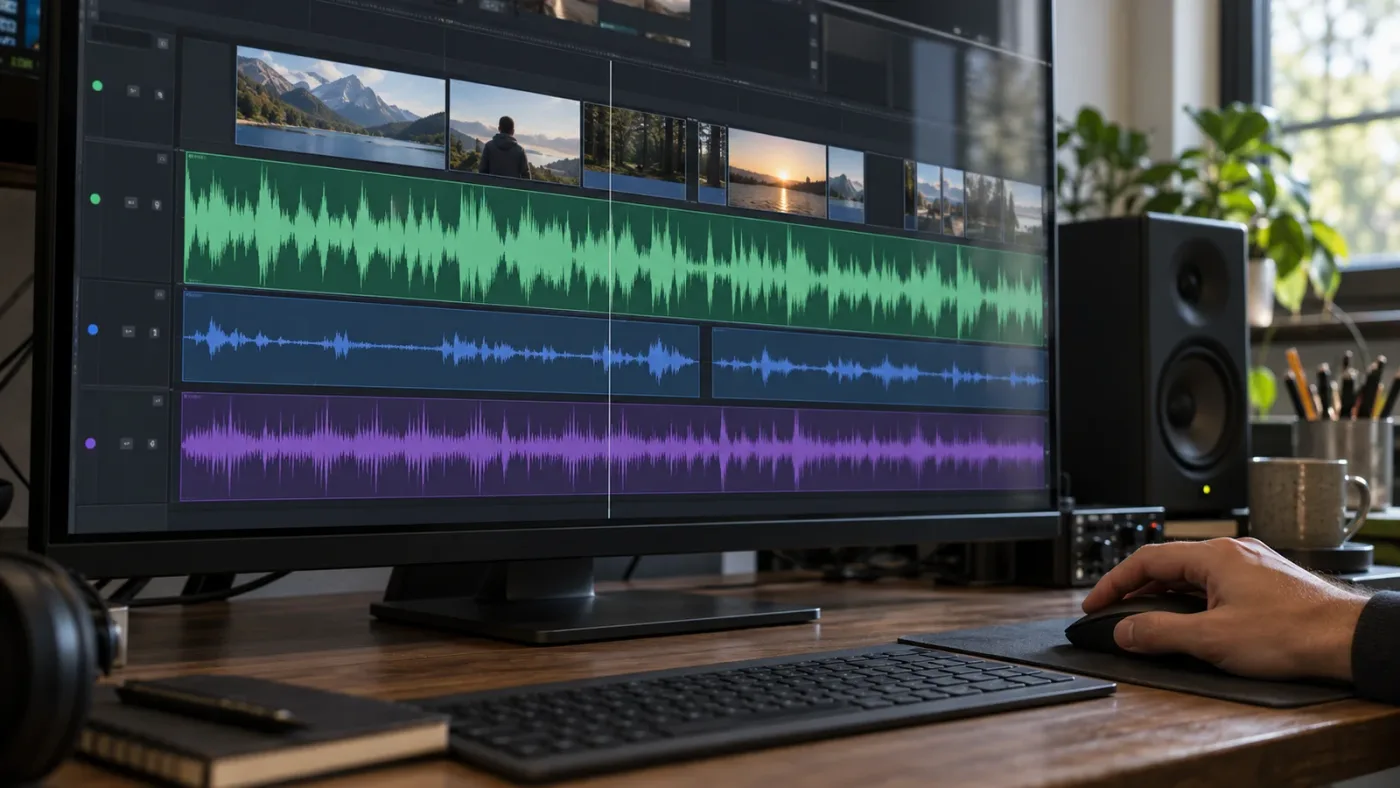
Increasing track height gives the waveform more room, but it does not necessarily increase the waveform's display scale. Use the waveform zoom command after enlarging the track, and check whether the track has a locked height.
The track-height slider and the waveform zoom command answer different questions. Track height asks, “How tall is this lane?” Waveform zoom asks, “How much of that lane should the signal drawing use?” A narrow waveform in a very tall track usually means you changed only the first control.
For an individual track in Fairlight, inspect the Lock Track Height To setting in the track header context menu. The manual lists Micro, Mini, Medium, Large, Extra Large, and Custom as fixed choices. When the track has a fixed size, vertical zoom won't affect it until you restore None. This can look like a broken slider, especially if the track was resized earlier and the setting was forgotten.
On the Edit page, the Audio Track Height slider changes all audio tracks together, while the track divider changes an individual lane. The 21.1 manual says audio and video track height sliders resize their respective track groups independently. If the slider affects every audio lane but you wanted one, use the lane divider or an individual track command.
A quick diagnostic helps:
- If every audio lane grows together, you changed the global Audio Track Height.
- If one lane grows but its waveform stays visually small, increase waveform zoom.
- If one Fairlight track refuses to respond to vertical zoom, inspect its fixed-height lock.
- If the waveform grows but clips and labels become cramped, reduce waveform zoom or give the lane more height.
- If no waveform is drawn at all, check the display toggle before adjusting height.
Don't keep dragging the same divider if the displayed signal is simply scaled low. The lane is already giving the waveform space; the scale is the missing part.
Why is the waveform missing after I change the display settings?
If the waveform disappears, first confirm that audio waveform display is enabled, then confirm that the clip contains an audio component and that its track is visible. Height and zoom controls cannot display a waveform that is switched off or absent from the clip.
In Timeline View Options, find Display Audio Waveforms and turn it on. Resolve's manuals describe a separate checkbox or toggle for timeline waveform display. This is distinct from Full Waveform, Non-Rectified Waveform, and the Audio Track Height slider. The main toggle controls whether waveforms are drawn; the other settings change how visible waveforms are presented.
Check the clip itself next. A video file can contain no audio, or the clip may have been placed with only its video component. A mono channel can also appear different from a stereo channel. If you expect multiple channel traces, open the clip's audio display options and inspect whether channels are combined or shown individually. An averaged waveform can look less detailed when one channel has little signal, while individual-channel display may make the active side clearer.
Then verify the track is enabled and visible. A disabled, hidden, or collapsed track can make it seem as if the waveform is missing. Expand a collapsed track enough to show clip content and check that the audio clip is present in the timeline at the playhead location.
If a waveform appears in Fairlight but not in Edit, check the Edit timeline's own display toggle and options. A page can present the same media with different timeline display settings. Do not infer that the audio is gone merely because one page is not drawing it.
If waveforms remain absent after checking display and clip contents, save the project and reopen it before trying destructive cache actions. Waveform drawing may lag behind media import or timeline changes, particularly with long clips or busy media. Give Resolve time to process; then inspect again. Avoid deleting folders or resetting project preferences as an early fix. Those actions can affect other project state and are usually a poor first response to a display setting.
How do mono and stereo channels affect the waveform shape?
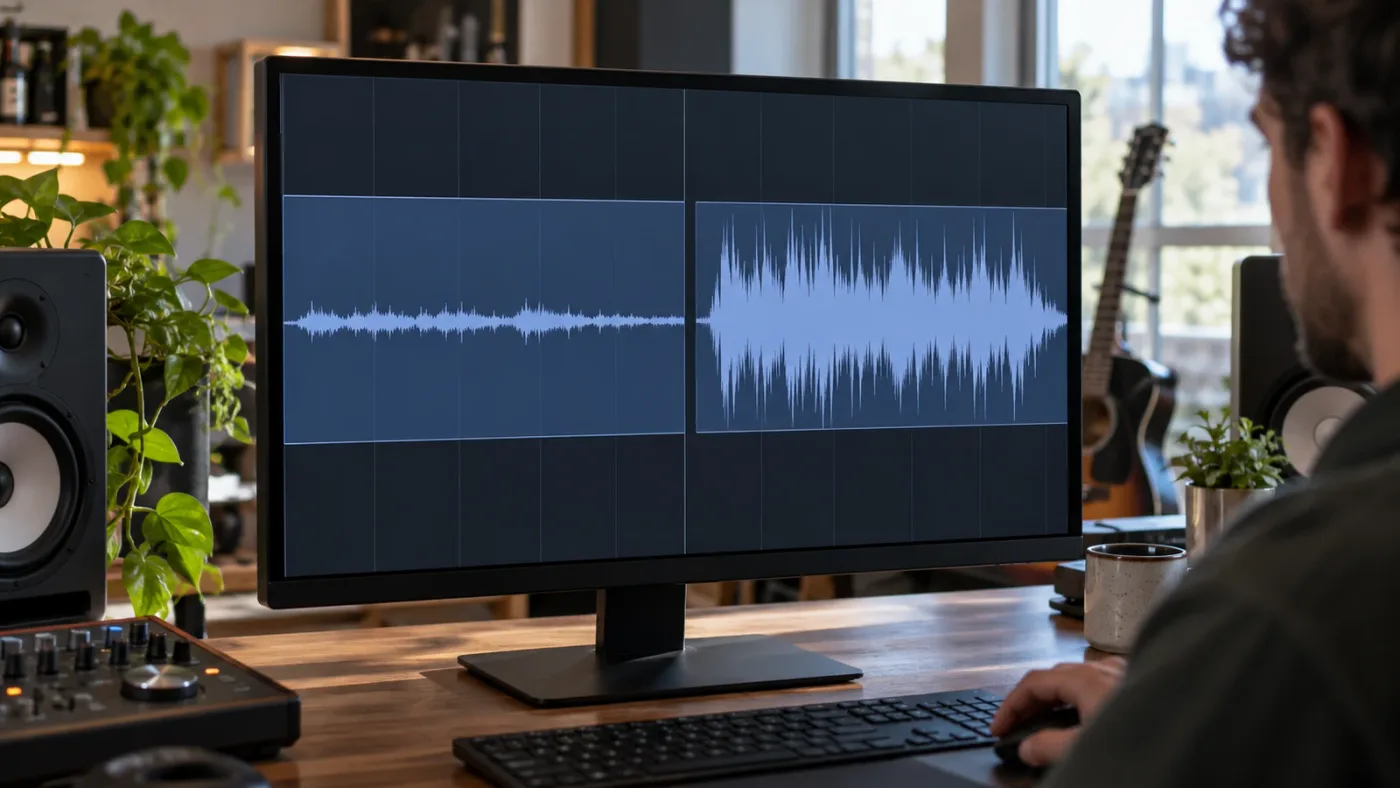
A mono clip has one channel waveform, while a multichannel clip may show one combined drawing or separate channel drawings depending on its display mode. A waveform that looks shorter or flatter can reflect channel content, not a track-height problem.
Resolve's timeline can represent multichannel clips in different ways. Blackmagic's reference manual describes a control for switching between one averaged waveform and individual channel waveforms for multichannel audio. If a stereo clip has dialogue mostly on one side, an averaged view may make the combined shape look less clear than the active channel. Displaying each channel can help you see which one carries the useful signal.
To inspect the clip, right-click its audio area and look for the channel-display option available in your version. Switch between combined and individual-channel display, then compare the result. If you can see two stacked waveforms, the timeline is showing the channels separately. If you see one, it may be combining them or representing a mono clip.
This isn't a repair for a missing channel. It only changes how the available channel data appears. If one channel is truly silent, waveform display will reveal that; it won't recreate sound. Check Clip Attributes or the clip's channel mapping when the wrong channel is being used. Channel mapping is a different problem from waveform scale.
For editing a single mono dialogue track, a single waveform is expected. For stereo music, separate channel traces can be useful when diagnosing imbalance or a one-sided recording. For a multichannel production recording, inspect the clip's channel layout before making a judgment from the compact timeline drawing.
If the display changes but the underlying audio sounds the same, you changed its presentation. If the sound changes after a channel or attribute operation, you altered what is routed or played. Keep those two kinds of adjustment separate while troubleshooting.
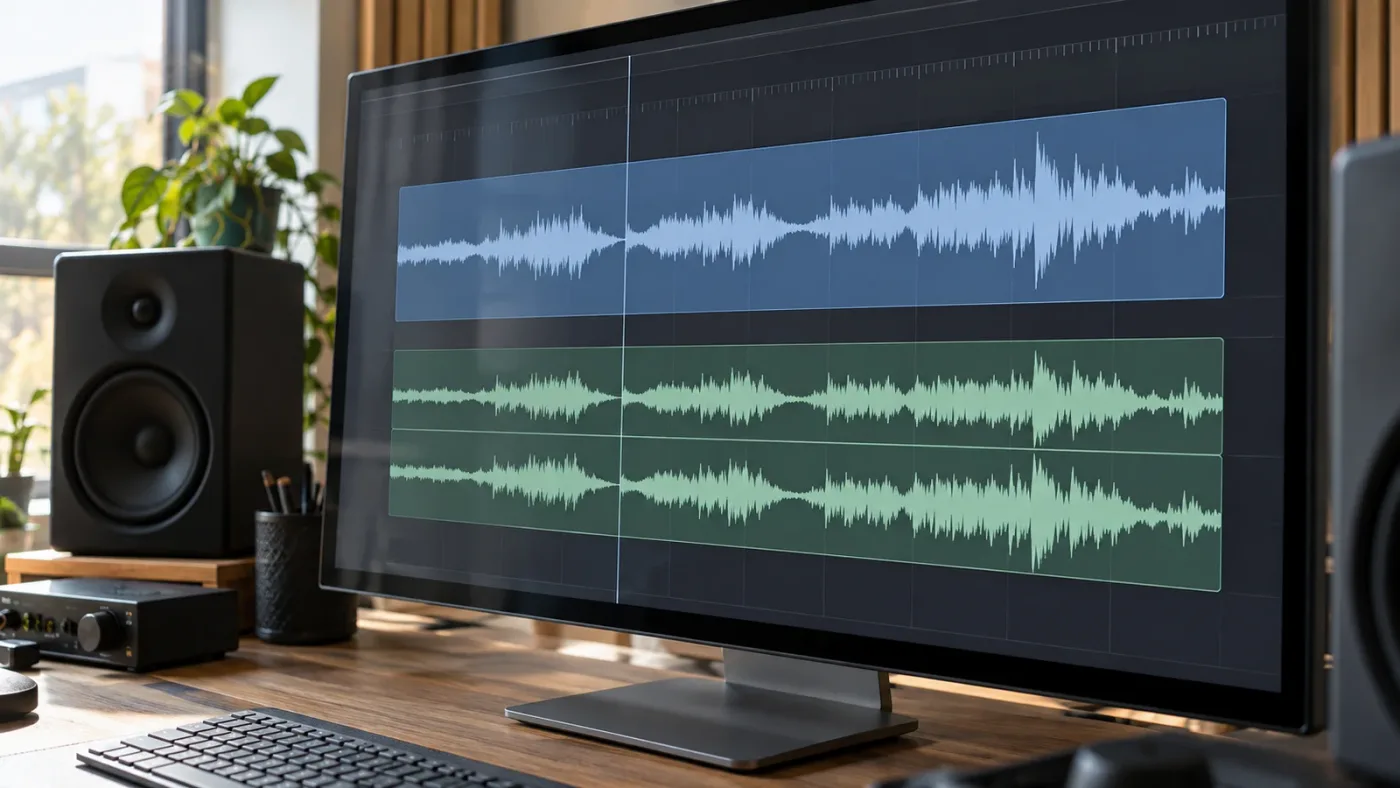
Why is a quiet clip still a small waveform after I fill the track?
A quiet signal can remain visually small because the waveform scale and the recorded amplitude are separate. Increase waveform zoom to inspect it; adjust gain only if listening and metering show that the audio level itself needs correction.
A recording made with conservative input level may show small peaks. That doesn't automatically mean the recording is unusable, and it doesn't establish the final playback loudness. The timeline waveform is a quick visual map, not a loudness meter. A clip may also have clip gain or volume automation applied, which can change the waveform's appearance relative to its source signal.
Use this order when the signal looks too small:
- Increase waveform zoom so you can see the recorded shape.
- Listen to the clip at a useful monitoring level.
- Check track meters while it plays.
- Decide whether clip gain, track level, normalization, or dynamics processing is actually needed.
- Recheck the mix after any level change.
This order avoids the common trap of boosting a clip merely to make the timeline look more satisfying. A visible waveform can still sound noisy, distorted, or too quiet. A small waveform can still sound clean and balanced. Use the picture to navigate and the audio to judge.
Normalization is also different from waveform zoom. Normalize Audio Levels changes the clip according to a target level and measurement method. It is not a way to resize the drawing independently. If the task is only to inspect breaths or pauses, do not normalize. If the task is to bring dialogue to a consistent level, use a deliberate audio workflow and listen to the result.
For a deeper workflow involving track levels and Fairlight tools, see our guide to mixing audio in DaVinci Resolve Fairlight.
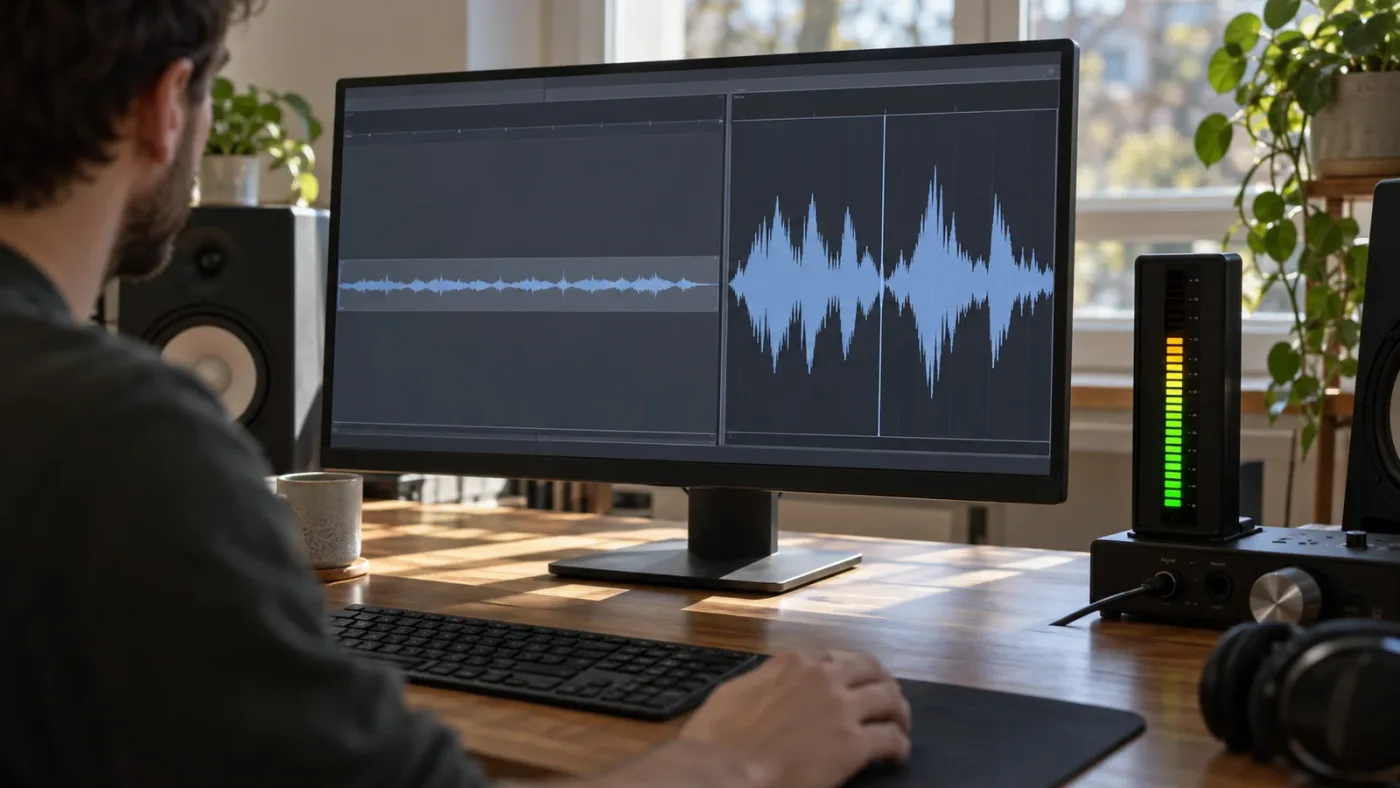
How do I reset audio waveform height?
Use View > Zoom Audio Waveform > Reset to restore the default waveform display scale. Resetting waveform zoom does not reset clip volume or track height.
Reset is useful after you magnified a waveform for detailed editing and want the timeline back to a more compact overview. It is also a good first step if a waveform looks clipped at the top or bottom after repeated zoom increases. The Reset command concerns waveform display. It does not remove edits or restore audio levels.
If a lane is still too tall after waveform reset, change the track height separately. If the lane is short but the waveform itself is still magnified, reset the waveform scale and then resize the lane. Think of each as a separate dial and set only the one that is out of place.
If you used a shortcut, the command may vary with your keyboard mapping. Use the menu to locate Reset, or right-click the clip and inspect its Track Waveform Zoom submenu. A menu command is easier to verify than trying modifier combinations from a tutorial recorded on a different operating system or Resolve version.
The selected-track behavior also matters. The Fairlight manual says you can select one or multiple tracks to resize their waveforms together. If the reset changes more than one lane, check which tracks are selected. If the command acts on a different track than expected, click the target track and repeat it.
A sensible default is one where you can see the broad shape of dialogue and music without letting the waveform dominate clip labels and edit boundaries. There is no universal correct zoom level. A dialogue editor hunting pauses may want more detail than someone arranging a long music bed. Reset gives you a known starting point, then increase only as much as the task requires.
Which waveform control should I use for dialogue, music, or sound effects?
Use waveform zoom to inspect fine timing, track height to organize the timeline, and audio gain controls to change the mix. The best combination depends on whether you are locating an event, comparing clips, or balancing sound.
For dialogue edits, enlarge waveform zoom enough to see the start of consonants, pauses, breaths, and obvious plosives. Do not treat the drawn peak as the only edit cue. Play the region, because room tone and consonant tails can extend beyond what the waveform makes obvious. If you work at frame boundaries, remember that audio can have finer timing behavior than picture edits in Fairlight; use the page and edit mode appropriate to the task.
For music, a moderate waveform scale can help you find transients, sections, and fades. A very large waveform can obscure clip names and make a long music bed feel visually dense. Use Full Waveform if the label divider wastes useful area, and keep enough lane height to read the clip without crowding dialogue tracks.
For sound effects, zoom can help you spot a short transient before placing or trimming it. A small click may be visually tiny even if it is audible. Increase waveform zoom temporarily, make the timing decision, then reset or reduce the view so the rest of the timeline remains readable.
For multitrack dialogue, enlarging every track at once can help compare timing, but it can also make the vertical timeline harder to navigate. Select only the track or tracks you need where the command supports selection. Use track height for a few important lanes and keep less-used tracks compact.
| Editing task | Waveform zoom | Track height | Audio level change |
|---|---|---|---|
| Find a breath or pause in dialogue | Increase temporarily | Moderate or tall | No, unless the mix needs it |
| Compare transient timing across takes | Increase selected tracks | Give selected lanes room | No |
| See a long music cue at a glance | Low to moderate | Keep lane compact | No |
| Inspect a quiet sound effect | Increase temporarily | Enough space to read | Only after listening |
| Balance dialogue against music | Optional | As needed for organization | Yes, if the mix calls for it |
| Make all audio tracks easier to scan | Moderate | Use global audio height carefully | No |
The table is a decision aid, not a mix recipe. Waveform shape depends on the source, channel layout, clip gain, and display mode. There is no one zoom value that makes every dialogue recording or music file equally legible.
How do I find the right on-screen control if my Resolve layout looks different?
Use the View menu and the timeline context menu as landmarks, then check the page you're on. Resolve 21.1's menu commands are more dependable than relying on a button position that may shift with workspace layout or screen size.
The Edit and Fairlight pages present different tools around their timelines. The Edit page keeps waveform zoom in the View menu and clip context menu; Fairlight also documents modifier-scroll control and track waveform options. If you are following a tutorial, first check its Resolve version and page. A Fairlight gesture may not behave the same way in Edit, and an older Edit tutorial may predate the current waveform zoom commands.
TryUncle is the on-screen assistant for DaVinci Resolve on Mac and Windows — ask in plain words and Uncle points at the exact control on your screen.
If you want another route to the control, the AI screen assistant options for DaVinci Resolve page compares screen-based help with other ways to find a setting. It can be useful when your workspace doesn't match a video tutorial, but the menu path above remains the direct answer to this waveform task.
What should I do if waveform zoom still does nothing?
If Increase Height has no visible effect, confirm the selected item is an audio clip or track, check whether the waveform is enabled, and verify you are using Resolve 21.1 or later. Then try the menu command and inspect any track-height lock.
Work through the least disruptive checks first:
- Confirm the page and version. Open Help > About DaVinci Resolve and check the installed version. Resolve 21.1 is the version discussed here. Older builds may not expose the same Edit page waveform zoom behavior.
- Select the right object. Click the audio clip or track you intend to change. If several tracks are selected, the command may affect them together.
- Check waveform visibility. Turn on Display Audio Waveforms in timeline options. A display zoom command cannot enlarge a hidden waveform.
- Use the menu once. Choose View > Zoom Audio Waveform > Increase Height. This avoids uncertainty about which modifier key and scroll device a shortcut expects.
- Check track height separately. Use the Audio Track Height slider or drag the track boundary if the lane itself needs room.
- In Fairlight, inspect fixed height. Set Lock Track Height To back to None if the track should respond to vertical zoom.
- Try Reset, then Increase. Resetting gives a clean display baseline if the current scale is already extreme.
- Check whether audio is present. Confirm the clip has an audio component and the track is enabled, visible, and expanded.
- Wait for media processing. If the clip was just imported or the project is busy, give waveform drawing a moment before concluding the display is broken.
If the command works in Fairlight but not Edit, compare the exact Resolve build and page. Resolve 21.1's current manual documents Edit timeline commands; an older version may not. If the command works on one clip but not another, check track selection, clip type, and whether the second clip actually contains the audio channel you expect.
Avoid changing clip gain as a diagnostic. It can make the waveform look taller, but it also changes audio and introduces another variable. The manual's waveform zoom control is designed to let you change the picture without changing the level.
If the problem remains after these checks, save a copy of the project before experimenting with broader resets. Record the exact Resolve version, operating system, page, and whether the waveform is visible elsewhere. That information narrows a support question without requiring you to alter source media or delete cache folders.
Is there a keyboard shortcut for filling the audio track with waveforms?
Fairlight's documented modifier-scroll gesture adjusts waveform height, while the View menu provides Increase Height, Decrease Height, and Reset commands. The precise keyboard shortcut can vary with operating system and customized keyboard mapping.
The Fairlight Audio Guide to Resolve 20 documents Option-Command plus middle-mouse scrolling on macOS and Alt-Ctrl plus middle-mouse scrolling on Windows. The Resolve 21 Fairlight manual similarly describes Command-Option plus scroll control for waveform resizing. Scroll up or down to change the display scale. If you use a trackpad, the input may be interpreted differently by your operating system or mouse utility, so the menu is a reliable fallback.
The modifier-scroll gesture is convenient when you are already working in Fairlight. It is not necessary to memorize it to use the feature. Menu commands make the exact action visible and are easier to teach across platforms. In Keyboard Customization, search the command name if you want to assign a shortcut that fits your setup.
Do not mix this gesture up with timeline zoom. Horizontal timeline zoom changes how much time appears across the screen. Vertical track zoom changes the size or number of visible tracks. Audio waveform zoom changes the vertical drawing of the sound inside its clip. All three can make the same clip look different, but they answer different visual questions.
Use the menu when you need to confirm which kind of zoom you are changing.
When should I use waveform zoom instead of normalizing audio?
Use waveform zoom when you only need a larger visual guide; normalize audio only when the clip's actual level needs adjustment under a deliberate loudness or peak target. The visual problem and the mix problem are separate.
A timeline waveform is useful for locating events. Normalization is an audio operation. It changes level based on the mode and target you choose. If you are preparing dialogue, you may need normalization, compression, clip gain, automation, or some combination, but waveform display alone does not tell you which one is right.
Ask what you need to solve:
- “I can't see where the speaker pauses.” Increase waveform zoom.
- “The dialogue is too quiet compared with the music.” Listen and meter the mix, then adjust level deliberately.
- “This clip peaks differently from the others.” Check a suitable measurement and decide whether normalization or manual gain is appropriate.
- “I need to inspect a transient without changing playback.” Increase waveform zoom temporarily.
- “The whole track lane is difficult to read.” Adjust track height and display options.
If you're unsure, use zoom first because it changes only the display and preserves the current mix. Then listen. If the sound itself needs work, switch to the appropriate Fairlight control and make an audio decision based on the result you want.
The Resolve timeline track-height troubleshooting guide is useful if the lane boundary itself will not move. That issue is different from a waveform that remains small inside a lane that has already been enlarged.
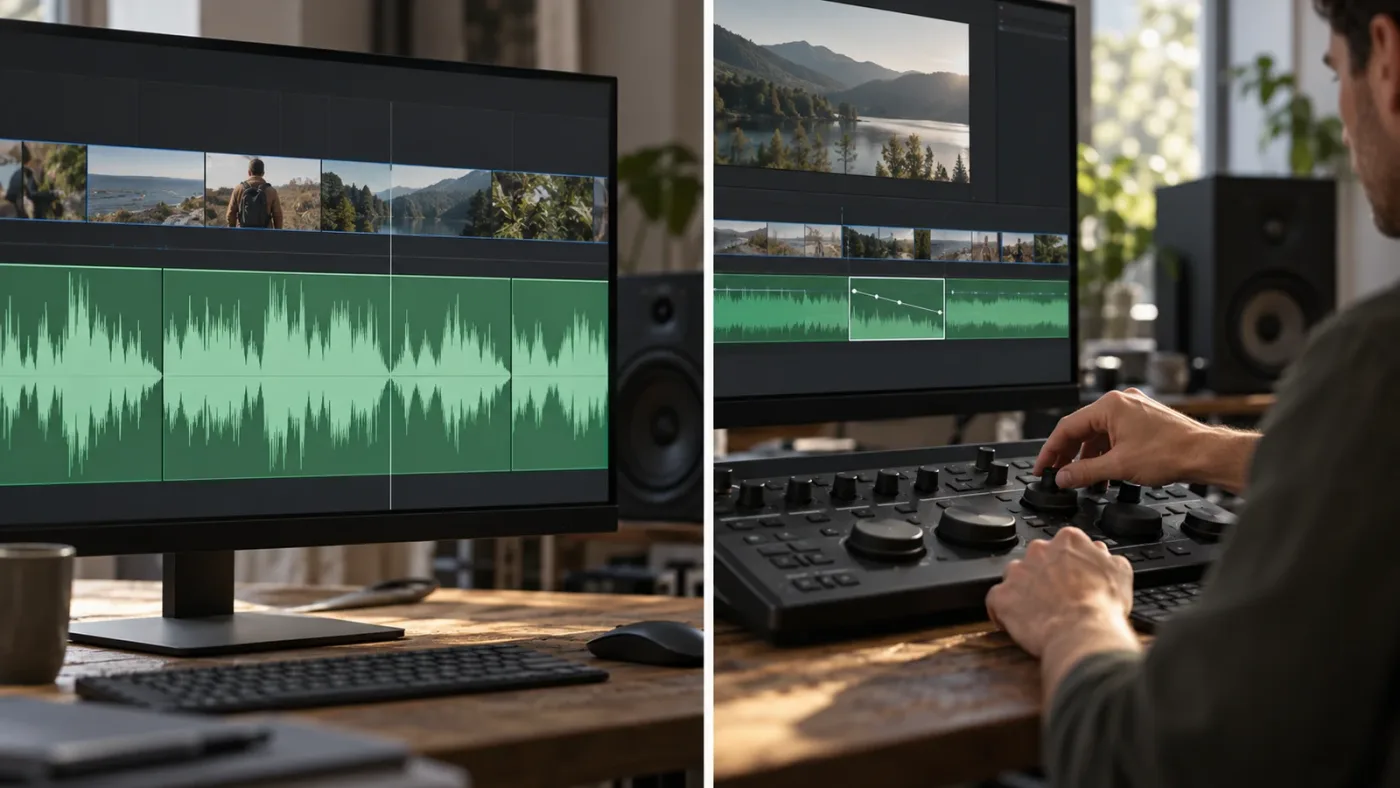
How should I read the waveform without over-editing?
A waveform is a map of recorded amplitude over time, not a transcript and not a verdict about what sounds good. Use its shape to find likely edit points, then use playback to decide whether the cut works. This distinction prevents a common mistake: trimming every visible dip as silence even when the dip contains a breath, room tone, or the tail of a word.
For spoken dialogue, a large gap may be useful evidence that the speaker paused, but the exact edit should preserve natural phrasing. Zoom in until you can identify the beginning and end of the sound, then play across the cut. If the edit feels abrupt, move it, add a short fade, or keep more of the room tone. Those are audio-editing decisions; changing waveform scale only helps you inspect them.
For a music cue, a waveform peak can point toward a drum hit or accent. It cannot tell you whether the accent lands on the visual moment you want. Listen in context, and use the picture and soundtrack together. A loud transient may be musically unimportant, while a quieter change in harmony may be the real transition point.
For a sound effect, the initial attack often appears as a narrow spike. The tail can be much longer and quieter. If you zoom until the peak fills the lane, the tail may become difficult to compare with neighboring clips. Reduce magnification after locating the attack, then inspect the full event. Display scale is temporary; the edit needs to work at normal playback.
These habits also help when collaborating. A teammate may use a different waveform zoom and track height, so don't interpret the visual size of a clip as proof that they changed its gain. Ask whether they adjusted the display, clip level, or track fader. Those are separate operations, even when each makes the drawn waveform appear different.
Can I enlarge one waveform without enlarging every track?
Yes. Select the target clip or track before using the waveform zoom command, then verify which tracks are selected. The Resolve 21.1 Fairlight manual says selected tracks can be resized together, so selection determines whether the command affects one lane or several.
In an Edit timeline, click the relevant clip and use its context menu if you want to work locally. The track's waveform zoom submenu is a useful route when the global View menu is unfamiliar. In Fairlight, select the track header or clip before running the command. If the display change reaches more tracks than you intended, undo the display operation or select the desired track and choose Reset before applying the new scale.
Avoid selecting a large group of tracks just because the command is convenient. A group-wide waveform zoom is handy when comparing two microphones or several takes recorded at similar levels. It is less useful when a quiet lavalier and a loud camera scratch track share the same view. Their actual recorded amplitudes differ, so a shared display scale may leave one signal small while making the other dominate.
If you routinely need a different display scale for a handful of lanes, use the per-track or per-clip controls supported by your page and version. Keep track height as a layout choice: make important tracks taller, leave secondary tracks compact, and zoom waveform content only where inspection needs more detail. This gives you a readable timeline without forcing every clip into the same visual proportion.
What should I do with an oversized waveform?
Choose Decrease Height or Reset when the waveform is so large that it hits the clip boundaries, hides useful clip context, or makes a broad timeline hard to scan. A waveform should reveal timing, not take over the timeline.
An oversized display can make every quiet variation look dramatic. That is a visual effect of magnification, not a new audio peak. If the clip contains loud transients, reduce waveform zoom until the whole event fits comfortably inside the lane. Keep enough track height to distinguish clip boundaries and transitions.
If the waveform seems clipped after a zoom increase, the signal itself may not be clipped. First reset the display scale and inspect the clip again. Then listen and check meters if you are concerned about actual clipping. The display command and the audio signal are separate, so a visual boundary in the clip region is not by itself proof that the recording overloaded.
A practical way to settle on a view is to zoom in for the current decision, make the edit, and reset or decrease the scale before moving to a different task. Editors often need a detailed waveform for one passage and a compact overview for arranging a sequence. Keeping the display adjustable is more useful than searching for one perfect setting that has to serve every clip.
What is the fastest reliable workflow in October 2026?
For Resolve 21.1, select the relevant clip, increase waveform height from the View menu, set the lane height only as needed, and reset the waveform scale after detailed work. That sequence solves the visibility issue while keeping audio level decisions separate.
Use this compact workflow when a timeline clip is visible but its waveform looks too small:
- Select the audio clip.
- Turn on Display Audio Waveforms if they are hidden.
- Set Full Waveform or Non-Rectified Waveform according to which presentation you can read more easily.
- Choose View > Zoom Audio Waveform > Increase Height.
- Resize the track lane if the waveform needs more room.
- Listen to the passage before making an edit based on the visual shape.
- Reset or reduce waveform zoom when you return to a broad timeline view.
For Fairlight, add the documented modifier-scroll method if it suits your input device, or right-click a clip to find Track Waveform Zoom. For a stuck track, check Lock Track Height To. For a quiet clip, keep zoom and gain separate. For a missing waveform, check the display toggle and clip contents before touching cache or project preferences.
This is a small display adjustment, but it removes a source of needless uncertainty. You can enlarge the visual signal, keep the mix intact, and return to a compact overview when the detail work is done. If the view still doesn't match the control you expect, check the Resolve version and current page first. Resolve 21.1 changed the answer that many older tutorials give for Edit page waveform zoom.
If the next task is balancing those clips rather than seeing them, continue with the Fairlight mixing workflow. The waveform helps you find the work; listening and metering tell you what the sound needs.
Frequently asked questions
- How do I make DaVinci Resolve audio waveforms fill the track height?
- In Resolve 21.1, choose View > Zoom Audio Waveform > Increase Height on the Edit page or Fairlight page, or right-click an audio clip and choose Track Waveform Zoom. Resize the track itself separately if the lane is too short.
- Why is my audio waveform only using half the track in DaVinci Resolve?
- The waveform may be drawn around a center line, or the display may reserve room for the clip name. In Timeline View Options, try Display Non-Rectified Waveform and Display Full Waveform, then use Zoom Audio Waveform to enlarge the drawing.
- Does increasing waveform height make the audio louder?
- No. Waveform zoom changes only the visual display. Clip gain, track fader level, automation, and rendered sound remain unchanged unless you adjust those controls separately.
- Can I increase waveform height on the DaVinci Resolve Edit page?
- Yes in DaVinci Resolve 21.1. Use View > Zoom Audio Waveform or the clip context menu. Tutorials for older versions may say waveform zoom is Fairlight-only because that was previously the limitation.
- What is the shortcut to make audio waveforms taller in DaVinci Resolve?
- The Fairlight guide documents Option-Command plus middle-mouse scrolling on macOS and Alt-Ctrl plus middle-mouse scrolling on Windows. The Edit page also offers View > Zoom Audio Waveform commands; check Keyboard Customization for the shortcut assigned in your setup.
Sources
- DaVinci Resolve 21.1 Reference Manual, Chapter 41: Creating and Working with Timelines
- DaVinci Resolve 21.1 Reference Manual, Chapter 170: Using the Fairlight Page
- Blackmagic Design Support: DaVinci Resolve 21.1 Manual
- The Fairlight Audio Guide to DaVinci Resolve 20
- Blackmagic Design Forum: Waveforms size on Edit page
- DaVinci Resolve 19 New Features Guide
Put this guide to work with TryUncle.
Ask about the step you’re on. TryUncle sees your screen and points at the control you need, so you can keep learning in your own project.
Get TryUncle for Mac or WindowsKeep reading
Fixes · Jul 23, 2026 · 26 min
DaVinci Resolve Timeline Track Height Won't Change? The Fix
Fix a DaVinci Resolve track that won't change height: check Lock Track Height To, an open keyframe editor, Reset UI Layout, and per-project height saves.
Guides · Jul 11, 2026 · 31 min
How to Mix Audio in DaVinci Resolve Using Fairlight
Mix audio in DaVinci Resolve's Fairlight page: build a dialogue/music/effects bus structure, gain-stage your clips, EQ and compress dialogue, then duck music under it.
Guides · Oct 3, 2026 · 17 min
DaVinci Resolve Audio: Normalize Clips Individually
Normalize audio clips individually in DaVinci Resolve 21, choose Independent correctly, and avoid confusing peak levels with loudness.