Articles / Fixesupdated for DaVinci Resolve 21.0.3 (July 2026)
DaVinci Resolve High Latency Audio Monitoring: The Fix
Quick answer
High latency audio monitoring in DaVinci Resolve almost always comes from an oversized buffer. Lower the Playback and Record buffer size and the Audio Processing Block Size toward 128 or 256 samples in Preferences, switch to a low-latency I/O Engine like ASIO or Core Audio, and cache or bounce any plugins sitting on the monitored track.
You hit record, say a line, and hear yourself arrive in your headphones a beat behind your own mouth. Or you're mixing on Fairlight and the fader move you just made shows up in your ears after you've already reached for the next control. Neither one means DaVinci Resolve is broken. High latency audio monitoring is almost always the buffer size talking, and it's one of the few audio problems in Resolve that has nothing to do with mute buttons, codecs, or missing files.
As of July 2026 and DaVinci Resolve 21.0.3, this is also a genuinely narrower complaint than the more common "no audio" or "audio plays but no video" reports. It shows up specifically for editors doing voiceover, ADR, podcast recording, or live-monitored mixing, the workflows where the delay between an action and hearing its result actually matters. It's a recurring question in our 100,000+ member editing community, and after 7+ years of professional commercial editing we've watched the same handful of settings solve it almost every time.
What causes high latency in DaVinci Resolve's audio monitoring?
Audio monitoring latency in DaVinci Resolve comes from the buffer size Resolve uses to move audio between your project and your hardware. A bigger buffer gives your CPU more breathing room and produces a longer, more noticeable delay between an action and the sound reaching your ears; a smaller buffer cuts that delay but leans harder on your processor.
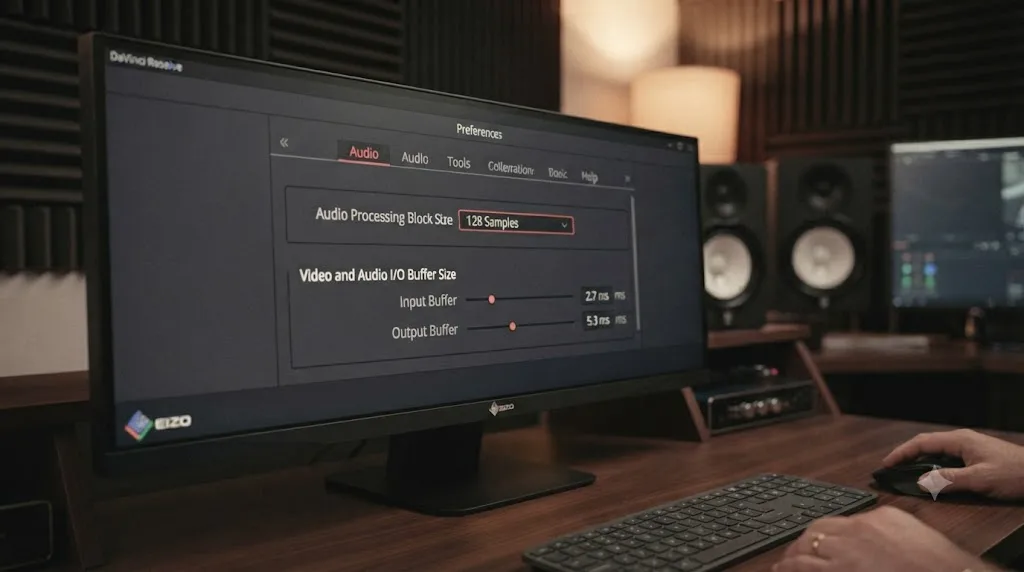
Two separate settings control the buffer, and both live in Preferences. Preferences, then General, has Audio Processing Block Size, which you can change from Auto to 128, 256, 512, 1024, or 2048 samples. Preferences, then System, then Video and Audio I/O, has its own Playback processing buffer size and Record buffer size, each with a live display showing the approximate latency in milliseconds for whatever you pick, according to Blackmagic's own DaVinci Resolve manual. Notice what that manual entry doesn't do: it doesn't print a fixed number of milliseconds for any of those sample values. The actual delay you hear depends on your project's sample rate and on how your specific audio interface and its driver handle that buffer, which is exactly why two editors on identical Resolve settings can report different amounts of lag.
A bigger buffer means less CPU strain and more delay between your voice and the sound in your headphones. That single trade-off explains the majority of this entire guide. Everything below is either a way to shrink that trade-off, or a way to route around it entirely.
Beyond the buffer itself, three other things commonly stack on top of it: plugins on the monitored track adding their own processing time, an I/O Engine that isn't suited to your actual hardware, and, in a smaller but real set of cases, a problem that isn't buffer latency at all but an audio and video sync offset caused by a delayed external display. This guide works through all four, in the order most editors actually need them.
Why does DaVinci Resolve's audio lag behind your voice when you record a voiceover?
Recording narration or ADR is where monitoring latency stops being an annoyance and starts being disruptive, because you're speaking in reaction to what you hear a fraction of a second after you said it. That delay comes from the same buffer covered above, but it's felt more acutely here than anywhere else in Resolve, because live input monitoring puts your own voice through the entire round trip: microphone in, through the buffer, through any plugin on the track, and back out to your headphones.
Editors hitting this specifically have reported it directly to Blackmagic. One thread on the Blackmagic forum is titled plainly "Mic Monitor Delay in ADR Recording," describing exactly this symptom during voiceover work. A separate, older thread carries the same complaint under the title "Fairlight Input Monitor Latency," reported by another editor running into delayed input monitoring on the Fairlight page. Neither thread describes a bug specific to one Resolve version. Both describe the same underlying mechanism: the monitoring path is doing more work, and taking more time, than a dedicated recording setup would.
The practical difference between recording dialogue on a set and recording a voiceover at your own desk is what makes this so noticeable. On set, a boom operator monitors through a mixer with its own near-instant hardware path, and the talent never hears Resolve's buffer at all. At a desk, doing your own narration through your own interface straight into Resolve, you're both the talent and the engineer, and Resolve's buffer sits directly between your mouth and your ears. DaVinci Resolve's own manual doesn't print a fixed latency number for any buffer size, because it depends on your sample rate and your specific audio hardware, which is why the fix has to start with your own settings, not a number copied from someone else's forum post.
If lowering the buffer, covered next, doesn't get you to a workable delay, the direct hardware monitoring option later in this guide is built specifically for this scenario, and it's the one most working voiceover artists reach for once they've confirmed Resolve's own settings are already as low as they can go.
How do you change DaVinci Resolve's audio buffer size to cut monitoring latency?
Two settings need adjusting, and they aren't the same panel, which is the single most common reason editors think they've fixed this and haven't. Change both, not just one.
- Open DaVinci Resolve, then Preferences (DaVinci Resolve menu on Mac, File menu on Windows and Linux).
- Go to the General tab and find Audio Processing Block Size. Change it from Auto to 128 samples for the lowest latency Resolve exposes here, or 256 if 128 introduces crackling on your system.
- Switch to the System tab and open Video and Audio I/O.
- Find Playback processing buffer size and lower it, watching the millisecond figure displayed next to your selection change as you do.
- Do the same for Record buffer size, which controls latency specifically while you're recording rather than just playing back.
- Close Preferences and fully restart DaVinci Resolve. Buffer changes in this panel don't reliably take effect on a project that's already open.
- Test with a real monitoring pass, not silence. Speak into your mic or play a click track and listen for the actual gap, rather than trusting the menu's own number alone.
Start low and work up, not the other way around. Set both buffers to 128 samples first. If playback crackles, pops, or audio drops out entirely, that's your system telling you it can't keep up at that setting, and you move to 256, then 512, only as far as you need to for clean audio. Going straight to a "safe" 1024 or 2048 sample buffer because it sounds more stable just guarantees you the highest latency available, when your actual hardware might have handled 256 just fine.
One frequent point of confusion: the General tab's Audio Processing Block Size and the System tab's Playback and Record buffer sizes aren't duplicates of each other, even though they sound like it. The Block Size governs internal audio processing throughout the app. The I/O buffer sizes govern the handoff specifically to and from your hardware. Set only one and leave the other on a high default, and you'll still hear latency, because the setting you skipped is still adding its own delay to the chain.
Which I/O Engine gives you the lowest monitoring latency?
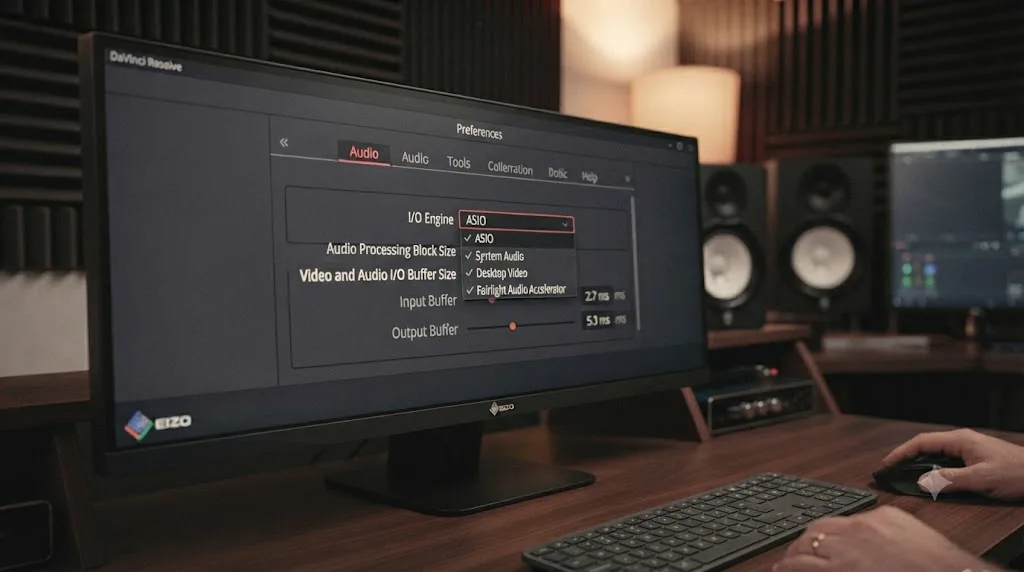
The I/O Engine setting, found in the same Video and Audio I/O panel as the buffer sliders, decides which audio hardware path Resolve actually routes sound through, and picking the wrong one for your setup adds latency no buffer adjustment can claw back. Resolve offers four choices: System Audio, Desktop Video, Fairlight Audio Accelerator, and ASIO, the last one available on Windows only, per Blackmagic's own manual.
| I/O Engine | Best for | Latency behavior |
|---|---|---|
| System Audio | Built-in speakers, headphone jack, or a Core Audio interface on Mac | Direct, low-overhead path on macOS; on Windows it uses the system's shared audio stack, which typically adds more latency than ASIO |
| ASIO (Windows only) | A dedicated USB or Thunderbolt audio interface | Bypasses the Windows shared audio stack entirely for the lowest latency available on Windows |
| Desktop Video | A Blackmagic UltraStudio or DeckLink device | Built for broadcast-grade sync with video output, not tuned for the lowest possible monitoring delay |
| Fairlight Audio Accelerator | Large track counts on a dedicated PCIe card | Purpose-built for low latency at scale, overkill for a single voiceover mic |
The clearest, most common mistake here is a Windows editor with a real audio interface, an RME, a Focusrite, a Universal Audio box, left on System Audio out of habit. Windows' System Audio path goes through the OS's shared mixing layer, the same one every other app on your machine shares, and that adds latency ASIO is specifically designed to skip. If you own an interface with an ASIO driver and you're still on System Audio, switching is very likely the single biggest latency win available to you, bigger than any buffer size tweak.
On a Mac, this particular trap doesn't exist in the same form, because macOS doesn't offer ASIO at all; System Audio there already means Core Audio, which DaVinci Resolve supports directly for third-party interfaces, and Core Audio is already a low-latency path by design. Mac editors chasing latency should look at buffer size and plugin load first, since the I/O Engine choice itself isn't usually the bottleneck.
Desktop Video deserves a specific warning. It's the correct choice if you're monitoring through a DeckLink or UltraStudio device and need your audio locked to a broadcast video signal, but it's not the fastest path for plain headphone or speaker monitoring, and editors who once had a Blackmagic capture card connected, then removed it, sometimes leave Resolve pointed at Desktop Video by accident. If your I/O Engine is set to Desktop Video and you don't currently have Blackmagic capture hardware connected, that's worth fixing before you touch anything else.
Why does latency spike the moment you add a plugin to a monitored track?
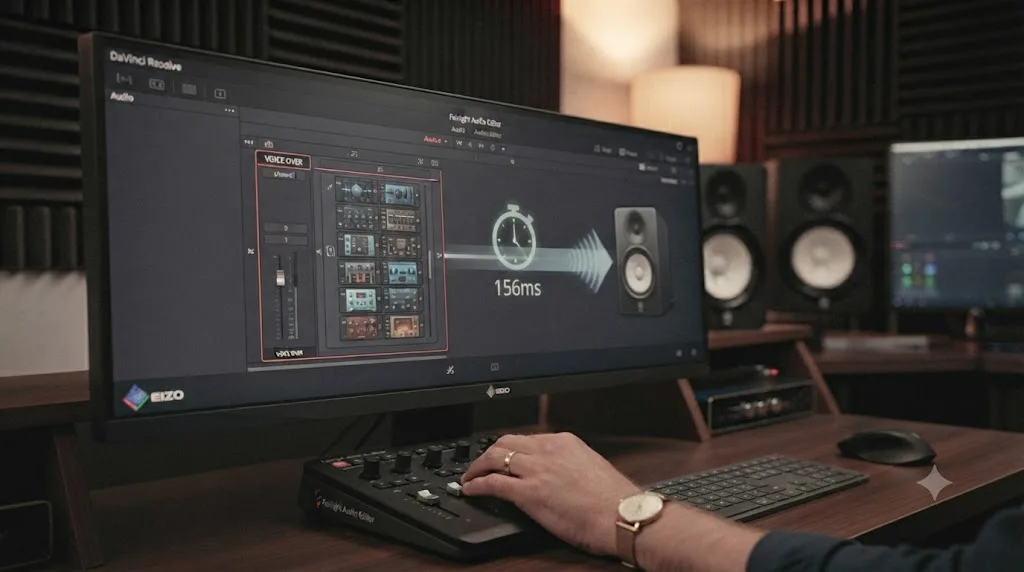
A plugin doesn't just change what your audio sounds like. It costs processing time to compute that change, and that cost sits directly on top of whatever the buffer already adds. One EQ is usually too small to notice. A compressor, a de-esser, a noise gate, and a reverb stacked on a single dialogue track, which is a completely ordinary chain for finished narration, can add up to genuinely disruptive delay while you're monitoring live.
Editors have reported this exact pattern on Blackmagic's forum in a thread titled "(Fairlight) Dealing with audio latency when using effects," where the delay showed up specifically in headphone monitoring once plugins were active, and cleared once every plugin was removed from the track, as described in that report. That's a useful diagnostic on its own: if your latency is fine on a plain, unprocessed track and only appears once you load a plugin chain, the buffer isn't your problem, the plugin load is.
Resolve gives you two tools built specifically for this, and they work differently. Cache Audio Effects, available from the right-click contextual menu on a track or clip, pre-computes a plugin-heavy section so Resolve doesn't have to calculate it fresh on every pass, easing the strain processor-heavy plugins put on playback. Bounce Audio Effects goes a step further and permanently renders the effect into new media, per Blackmagic's own manual entry on bouncing audio, baking in the processing rather than recalculating it every time you play back. Justin Robinson, writing a bouncing audio walkthrough for JayAreTV, describes the payoff in plain terms: "By rendering these effects into a new clip, your system doesn't need to process them in real-time during playback, freeing up resources," in his guide to bouncing audio in DaVinci Resolve Fairlight.
Cache Audio Effects and Bounce Audio Effects both trade a few seconds of rendering now for zero added latency later. Neither one is the right move while you're actively recording a fresh voiceover pass, since there's nothing to cache yet on audio that doesn't exist. They're the right move afterward, on a mix session where a heavy plugin chain is already in place and you need to monitor it live without the delay that chain introduces. If you're recording new dialogue and latency from plugins is the problem, the more direct fix is simpler: remove or bypass the plugin from the track while you record, and add it back afterward during the mix, once you're not relying on hearing it in real time.
Why can't you get DaVinci Resolve's buffer below 128 samples?
128 samples is the floor Resolve's own menus expose, in both the General tab's Audio Processing Block Size and the System tab's buffer sliders. For some editors, that floor still isn't low enough. A thread on Blackmagic's forum, titled directly "Latency can't go lower than 128?," documents exactly this experience, an editor finding that even Resolve's lowest available setting produced more delay than expected for real-time monitoring work, as reported in that thread.
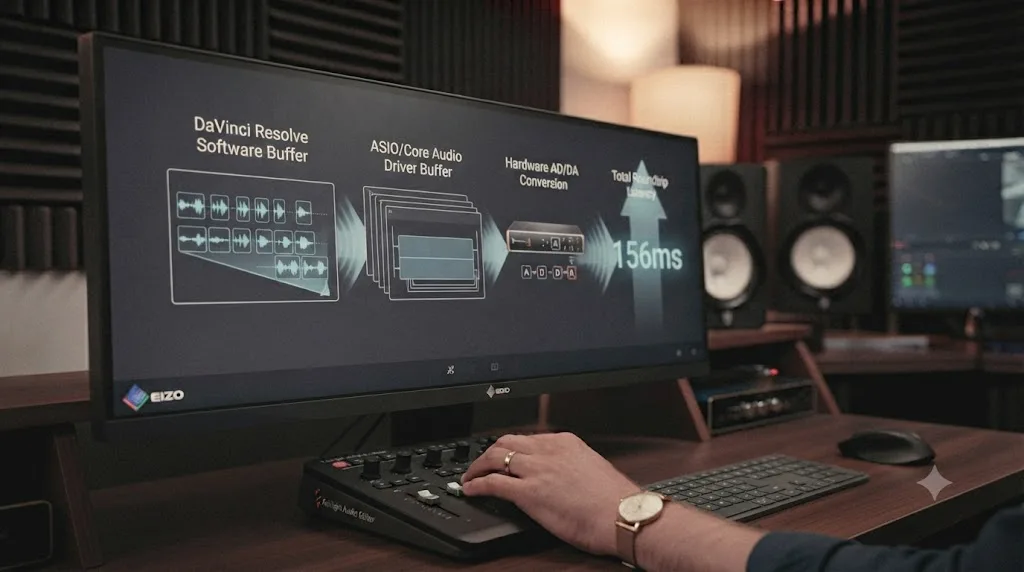
Two different things can be true at once here, and telling them apart matters. Resolve's menu might genuinely be capped at 128 samples as the lowest number it will let you type in. But the actual round-trip latency you experience isn't only Resolve's buffer, it's Resolve's buffer plus your driver's own buffering plus your operating system's audio stack plus the physical conversion time your interface's analog-to-digital and digital-to-analog converters need. Resolve's 128-sample setting is one link in that chain, not the whole chain, and a driver with its own additional buffering can add real, felt delay that no setting inside Resolve will remove, because the extra delay isn't happening inside Resolve at all.
That's the point at which the fix stops being a Resolve preference and starts being a hardware and driver question. Open your audio interface's own control panel, usually a separate application from the interface manufacturer, and check its buffer or latency setting independently of Resolve's. Some interfaces, particularly older USB 2.0 class-compliant devices or ones on outdated firmware, impose their own higher practical minimum regardless of what you request. Updating the interface's driver and firmware to current versions resolves a meaningful share of these cases, since manufacturers do tune their low-latency performance over time the same way Blackmagic tunes Resolve's.
If you've confirmed both Resolve and your interface are already at their lowest workable settings and the delay is still disruptive for live monitoring specifically, that's exactly the situation the direct hardware monitoring option below solves, because it removes Resolve's software buffer from the monitoring path entirely rather than trying to shrink it further.
Should you monitor directly through your audio interface instead of through Resolve?
For live recording specifically, often yes, if your interface supports it. Most audio interfaces built for musicians and podcasters include a feature called zero-latency direct monitoring, or direct hardware monitoring, that routes your microphone signal straight to your headphone output inside the interface itself, before that signal ever reaches your computer, let alone DaVinci Resolve's buffer. You hear yourself essentially instantly, because the audio never makes the round trip through software at all.
Setting it up takes three steps, and the details vary slightly by interface brand, but the shape is consistent:
- Open your interface's own mixer software, or use the physical direct monitor knob or switch many interfaces include on the hardware itself.
- Blend the direct hardware signal with the computer's playback signal, so you can hear yourself alongside any existing dialogue or music already on the timeline.
- In DaVinci Resolve, mute the track's own input monitoring, or lower the monitoring level on that channel strip, so you're not hearing your voice twice, once instantly through the interface and once a beat later through Resolve.
The trade-off is real, and it's worth stating plainly before you commit to this workflow: monitoring straight off your audio interface removes DaVinci Resolve's buffer from the chain entirely, but it also removes every plugin Resolve would have added to what you hear. If your dialogue chain includes a compressor or an EQ that shapes how a performer's voice actually sounds, direct hardware monitoring means the talent hears their raw, unprocessed voice while recording, not the processed version that will end up in the final mix. For most voiceover and ADR work that's a fine trade, since a plain input is easier to perform against than a heavily processed one anyway, but it's worth knowing rather than discovering by accident.
Not every interface offers this feature. Cheaper USB microphones and basic built-in audio hardware typically don't, which means this option simply isn't available on some setups, and the buffer size and I/O Engine fixes covered earlier remain your only real levers. If you're shopping for an interface specifically to solve monitoring latency, direct hardware monitoring support is worth checking for before price or channel count.
Why does your audio sound out of sync with picture on an external monitor, not delayed at your ears?
Not every case reported as "high latency audio monitoring" is actually about the buffer at all. A separate, genuinely distinct problem shows up when you're monitoring on an external reference display or projector rather than through headphones: the picture and the sound both play correctly and at a consistent rate, but they've drifted out of sync with each other on the external screen specifically, even though everything looks fine in Resolve's own viewer.
The cause here is almost always processing delay added by the external display chain itself, not by Resolve. Many broadcast monitors, consumer TVs used as reference displays, and video converters apply their own image processing before showing a frame, and that processing takes time, often more time than audio takes to reach the same speakers. Resolve has a dedicated fix for exactly this: Video Monitor Offset, found in Preferences, lets you delay Resolve's own video output by a set number of frames so it lines up with audio by the time a processing-delayed external display actually shows the image, rather than touching the audio buffer at all. One editor's report on Blackmagic's forum, titled "Preferences: Video Monitor Offset seems broken?," notes that in practice this setting is specifically tied to external monitoring hardware output, as described in that thread, so it won't do anything useful if you're only ever watching Resolve's own on-screen viewer rather than a separate connected display.
Joey D'Anna, covering audio monitoring setups for Mixing Light, frames the underlying problem plainly: "Sync is especially hard to get right, as just about every monitor has a different processing delay," in his walkthrough of advanced audio monitoring in DaVinci Resolve. His recommended approach is to measure the actual offset on each display you use, with a dedicated tool like the smartphone app Catchin Sync, which lines up audio and video test patterns and reports the exact offset in milliseconds, then dial that measured value into Resolve rather than guessing.
If you regularly switch between multiple monitoring setups, a home office rig and a client's suite, say, each with its own processing delay, Fairlight's B-Chain tool is built for exactly that. D'Anna describes it directly: "You can use the B-Chain to set up complex monitoring configurations and quickly switch between them," which turns what would otherwise be a manual re-measurement every time you change rooms into a saved preset you recall in seconds.
A black viewer and a laggy voiceover are both "latency," but a sync offset on an external display is a completely different fix than a smaller buffer, and confusing the two wastes real troubleshooting time. If your symptom is specifically audio and picture drifting apart on one particular external screen, start with Video Monitor Offset and B-Chain, not the buffer settings covered earlier in this guide.
Does the Fairlight Audio Accelerator actually fix monitoring latency?
Rarely for the problem most editors reading this guide actually have. The Fairlight Audio Accelerator is a real product, a single half-length PCIe card priced at $1,265, built to support up to 2,000 mono audio tracks at 48kHz, 1,000 at 96kHz, or 500 at 192kHz with real-time effects processing, plus a MADI connection carrying up to 64 inputs and outputs at 24-bit/48kHz, per Blackmagic's own technical specifications for the card. It exists to give large-format audio post facilities, the kind mixing feature films or television series with hundreds of simultaneous tracks, a dedicated low-latency engine that doesn't compete with your CPU for every other task Resolve is doing at the same time.
That's a genuinely different problem than one editor's voiceover monitoring lag. If your session has a handful of dialogue tracks, a music bed, and some sound effects, the Accelerator isn't solving a bottleneck you actually have, because your CPU was never the constraint in the first place; a well-chosen buffer size and I/O Engine setting get you the same low-latency result the card is built to guarantee at a much larger scale. Blackmagic's own Fairlight product page is consistent about this more broadly too: nearly every audio tool covered elsewhere in this site's Fairlight coverage, buses, EQ, dynamics, the Ducker, ships the same in the free version of Resolve as in Studio, according to that same Fairlight product page, with immersive audio formats being the one meaningful gate reserved for Studio, per Blackmagic's supported codec documentation. Buying hardware to solve a settings problem is expensive troubleshooting.
There's also a hardware compatibility detail worth knowing before you consider the card at all. The Fairlight Audio Accelerator card doesn't run on Apple Silicon, only Intel Macs and Windows. Blackmagic's own spec sheet lists support for Mac 13.0 Ventura or Mac 14.0 Sonoma running on Intel processors specifically, alongside Windows 10 and 11, per the card's technical specifications. If you're editing on an M-series Mac, the card simply isn't an option regardless of budget, and our Apple Silicon M4 settings guide covers where unified memory and GPU cores, rather than dedicated audio hardware, actually move the needle on that platform.
The card earns its place in a facility mixing hundreds of tracks across a Dolby Atmos delivery. It doesn't earn its place solving one narrator's headphone delay, and every fix covered earlier in this guide costs nothing and solves that problem directly.
Does macOS, Windows, or Linux handle monitoring latency differently in DaVinci Resolve?
The underlying buffer and plugin math is identical everywhere, but each operating system's own audio stack adds a different amount of overhead on top of it, and each one has a different lever worth checking first.
| OS | Audio path | What to check first |
|---|---|---|
| macOS | Core Audio, accessed through System Audio | Buffer size and plugin load; Core Audio itself is already a low-overhead path, so the I/O Engine choice rarely matters |
| Windows | ASIO for dedicated interfaces, or the shared WDM/System Audio stack otherwise | Confirm ASIO is selected instead of System Audio if you own an interface with an ASIO driver |
| Linux | Advanced Linux Sound Architecture (ALSA) for third-party interfaces, per Blackmagic's manual | Confirm your distribution's ALSA configuration isn't forcing audio through a higher-latency compatibility layer like PulseAudio before it reaches Resolve |
macOS editors have the simplest picture here. Core Audio was built for exactly this kind of low-latency, real-time monitoring work from the start, and System Audio on a Mac already routes through it directly for both built-in hardware and most third-party interfaces. If latency is still high on a Mac after adjusting buffer size, the plugin chain covered earlier is a more likely culprit than the I/O Engine itself.
Windows carries the most moving parts, and ASIO exists specifically to sidestep them. The Windows shared audio stack was designed for general consumer use, notification sounds, background music, video calls, all mixed together, not for the sample-accurate low-latency demands of live audio monitoring. An ASIO driver from your interface manufacturer talks to the hardware far more directly, which is why the single most effective Windows-specific fix in this whole guide is often just switching I/O Engine from System Audio to ASIO, covered in more detail earlier.
Linux users have fewer editors reporting monitoring latency issues specifically, partly because Linux audio workflows in Resolve skew toward smaller, more controlled setups already. When it does show up, the usual suspect is a distribution's audio configuration routing everything through a higher-latency compatibility layer before it ever reaches Resolve's ALSA support, rather than a limitation in Resolve itself. Checking your distribution's audio server configuration, and confirming your interface has a real-time-capable ALSA driver rather than a generic fallback, is worth doing before assuming Resolve's settings are the problem.
Is high latency monitoring worse in the free version than Studio?
No, and this is worth stating plainly because it's a reasonable thing to wonder before you spend an afternoon troubleshooting. The buffer size settings, the I/O Engine choices, Cache Audio Effects, Bounce Audio Effects, and direct hardware monitoring support all work identically whether you're running the free version of DaVinci Resolve or the $295 Studio license. None of the fixes in this guide are gated behind a paywall.
The one place the free and Studio versions genuinely diverge on the audio side is immersive and spatial formats. Immersive audio formats are only supported with DaVinci Resolve Studio, per Blackmagic's own supported codec documentation, which matters if you're delivering a Dolby Atmos mix but has nothing to do with how quickly you hear yourself in a pair of headphones while recording a stereo voiceover. If you're weighing the Studio upgrade for reasons beyond monitoring latency, our free vs. Studio breakdown covers what the license actually changes in full, and monitoring speed isn't on that list.
Blackmagic's own point releases back this up. DaVinci Resolve 20.2.2, released October 15, 2025, resolved a report of jittery playback specifically inside Fairlight, according to that update's release notes, a stability fix applied to every edition, not a Studio-exclusive patch. As of the current DaVinci Resolve 21.0.3 release, dated July 22, 2026, the published release notes don't list a monitoring-latency-specific change, which is a useful, honest data point in itself: this is still a settings problem you solve with the buffer and I/O Engine controls covered in this guide, not a known bug Blackmagic has patched out from under you.
What does a full latency diagnosis look like in practice?
Here's the method applied to three realistic sessions, so you can see how few checks any single case actually needs once you know where to look first.
Case one: a podcaster records weekly interviews through a USB interface on Windows, using System Audio because that's what was selected by default when Resolve was first installed. Guests report hearing the host's voice arrive noticeably late in a shared monitoring mix. The interface has a proper ASIO driver installed but unused. Switching I/O Engine from System Audio to ASIO, with no other changes, drops the delay to something nobody notices anymore.
Case two: a solo creator recording narration on a MacBook Air notices the lag specifically after adding a compressor and a de-esser to smooth out a rough take, even though the raw track monitored fine before. The buffer is already at 128 samples. Removing the two plugins from the track during recording, then adding them back afterward for the mix pass, removes the delay entirely, confirming the plugin chain, not the buffer, was the actual cause.
Case three: an editor color grading and mixing on a client's reference suite finds the audio and picture visibly drifting apart, but only on the client's external broadcast monitor, never in Resolve's own on-screen viewer. Buffer size and I/O Engine checks change nothing, because nothing about the audio path is actually slow. Measuring the external monitor's own processing delay and entering that value into Video Monitor Offset resolves it completely, because the actual cause was never audio latency at all, it was video arriving late on that one specific display.
Three different sessions, three completely different fixes, and each one took no more than one or two changes once the symptom pointed at the right cause: the I/O Engine, the plugin chain, or the display, rather than the buffer everyone assumes is always the answer.
Which symptom points to which cause?
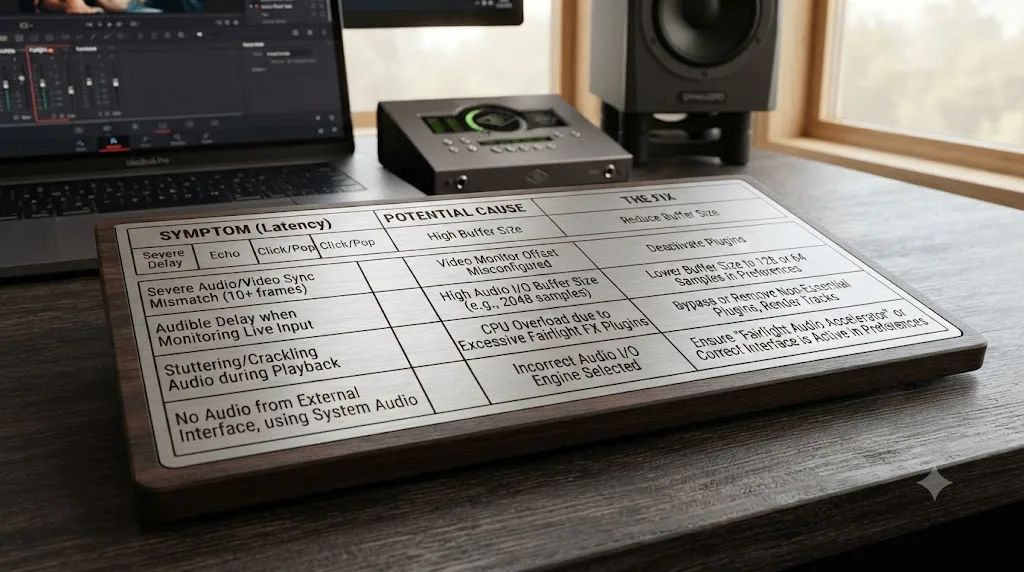
Match what you're actually experiencing against this table before changing settings at random.
| Symptom | Most likely cause | Where to fix it |
|---|---|---|
| Your own voice arrives late in headphones while recording | Buffer size too large for live monitoring | Preferences, General, Audio Processing Block Size; Preferences, System, Video and Audio I/O |
| Latency only appears once a plugin is added to the track | Plugin processing time added to the monitoring path | Remove or bypass the plugin while recording; Cache or Bounce Audio Effects for mixing |
| Windows interface with a real ASIO driver still feels laggy | I/O Engine set to System Audio instead of ASIO | Preferences, System, Video and Audio I/O, I/O Engine dropdown |
| Latency stays high even at Resolve's lowest buffer setting | Driver-imposed buffer floor on your interface | Your audio interface's own control panel software |
| You need to hear yourself essentially instantly for ADR | Software monitoring round trip is inherently too slow | Direct hardware monitoring through your interface, with Resolve's own monitoring muted |
| Audio and picture drift apart on one external display only | Processing delay in that specific monitor or converter | Video Monitor Offset in Preferences; measure the offset with a tool like Catchin Sync |
| You switch between several monitoring setups regularly | No saved configuration per setup | Fairlight's B-Chain, to store and recall each monitoring configuration |
| Whole timeline plays fine but stutters under heavy GPU load | Resolve dropping video frames to keep audio playing, or vice versa | Edit page Viewer Option menu, Show All Video Frames toggle, per Blackmagic's manual |
Find your row, jump to that section above, and skip the rest.
What's the fastest way to cut audio monitoring latency in DaVinci Resolve?
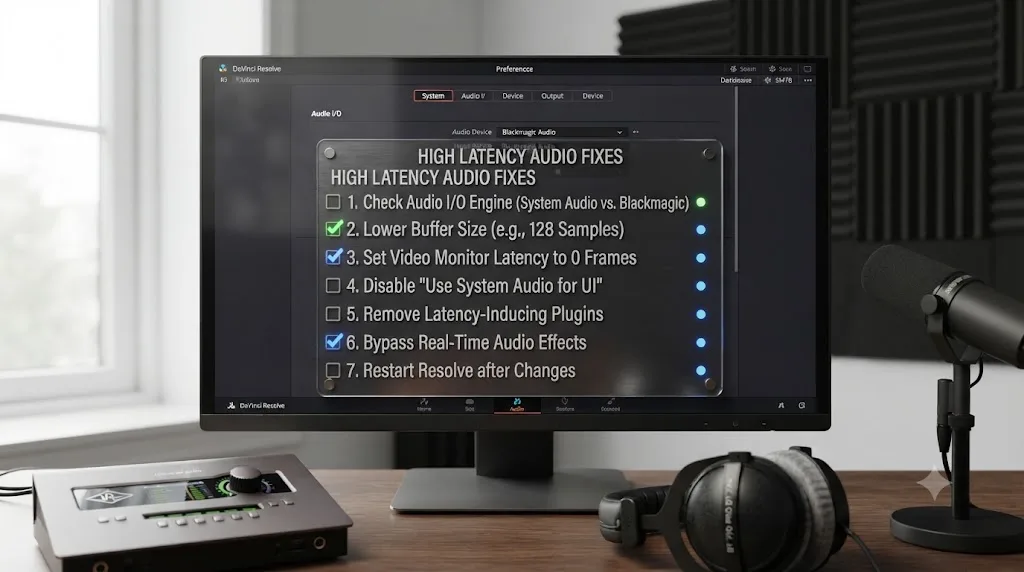
Work through these seven in order. Most editors solve it in the first three.
- Lower the Audio Processing Block Size. Preferences, General, set it to 128 or 256 samples instead of Auto.
- Lower the Playback and Record buffer size. Preferences, System, Video and Audio I/O, watching the millisecond figure as you adjust each.
- Switch to the right I/O Engine. ASIO on Windows with a dedicated interface, System Audio (Core Audio) on a Mac, and only Desktop Video if you actually have Blackmagic capture hardware connected.
- Cache or bounce any plugin on the monitored track, or remove it temporarily while you record fresh dialogue.
- Check your interface's own driver settings if latency stays high even at Resolve's lowest buffer, since the extra delay may be happening below Resolve entirely.
- Try direct hardware monitoring for voiceover or ADR, accepting that you'll hear an unprocessed signal while recording.
- Use Video Monitor Offset, not the audio buffer, if your actual symptom is picture and sound drifting apart on one external display.
If working through seven settings across three different preference panels, and figuring out which one your specific symptom actually points to, is the part that eats your afternoon, that's the kind of gap TryUncle is built for. TryUncle is the on-screen assistant for DaVinci Resolve on macOS. Ask in plain words and Uncle points at the exact control on your screen, instead of you re-reading a guide like this one to find a checkbox you know exists somewhere in Preferences.
What if latency is still high after all of that?
Isolate the variable before you assume anything is broken. Open a brand new, empty project, add a single track with no plugins, and monitor a plain input at Resolve's lowest buffer setting with your correct I/O Engine selected. If that feels responsive, the delay you were fighting lives in your old project, most likely a plugin chain, a leftover Desktop Video I/O Engine selection, or a buffer setting that never actually got applied because Resolve wasn't restarted after you changed it.
If even that clean, empty project still feels laggy, the bottleneck has moved outside Resolve entirely. Test the same interface and the same buffer setting in a different application, a basic recording app or your interface's own included software, to see whether the delay follows the hardware rather than Resolve. If it does, you're looking at a driver update, a firmware update, or, in rare cases, hardware that simply wasn't built for sub-10-millisecond round trips regardless of what software sits on top of it.
Work in this order and you'll rarely need more than a few minutes: the buffer settings first, since they're the most common cause and cost nothing to test, then the I/O Engine, then the plugin chain, then your interface's own driver, and only then consider whether what you're actually looking at is a display sync problem wearing a monitoring latency costume. A plugin on the monitored track adds its own processing delay on top of whatever the buffer already costs you, and remembering that one fact alone resolves a large share of the cases that make it this far down the checklist.
Frequently asked questions
- Why does DaVinci Resolve's audio monitoring lag behind my voice or the picture?
- Almost always because the audio buffer is set larger than your session needs. Every sample of buffer is time Resolve holds audio before it reaches your ears, and the default settings favor stability over speed. Lower the Playback and Record buffer size in Preferences, then check whether a plugin on the track is adding its own delay on top of that.
- How do I lower audio monitoring latency in DaVinci Resolve?
- Open Preferences, then System, then Video and Audio I/O, and reduce the Playback processing buffer size and Record buffer size. Also check Preferences, General, Audio Processing Block Size, and set it to 128 or 256 samples instead of Auto. Restart Resolve after changing either one.
- What buffer size should I use for low latency in DaVinci Resolve's Fairlight page?
- 128 or 256 samples for live monitoring, voiceover recording, or ADR, where you need to hear yourself close to real time. Go back up to 512 or 1024 samples for ordinary editing and mixing, since a small buffer asks more of your CPU and can start dropping audio if your system can't keep up.
- Why does latency get worse when I add plugins to a track in Fairlight?
- Every plugin in the signal chain adds its own processing time before the monitored signal reaches your speakers or headphones, on top of whatever the buffer already costs you. A single EQ is usually unnoticeable. A compressor, a de-esser, and a reverb stacked on one track can add enough combined delay that a voiceover artist can no longer speak in time with what they hear.
- Which I/O Engine gives the lowest audio latency in DaVinci Resolve?
- ASIO on Windows with a dedicated audio interface, and System Audio using Core Audio on a Mac, both give you direct, low-overhead access to your hardware. Desktop Video, used for Blackmagic capture and playback devices, and the Fairlight Audio Accelerator, a dedicated PCIe card, both exist specifically to keep latency low at high track counts, but neither is necessary for a single voiceover mic.
- Can DaVinci Resolve monitor at lower than 128 samples?
- 128 samples is the lowest option Resolve exposes in its own buffer size menus, and several editors on Blackmagic's own forum have reported that even 128 doesn't reach genuinely low latency once your driver, your interface, and your OS all add their own overhead on top of it. If 128 still feels laggy, the bottleneck has moved from Resolve's settings to your hardware.
- Should I monitor directly through my audio interface instead of through DaVinci Resolve?
- For voiceover or ADR, yes, if your interface supports zero-latency direct hardware monitoring. It removes Resolve's buffer from the chain entirely, so you hear your own voice essentially instantly. The trade-off is that you also skip every plugin Resolve would apply to that track, so what you hear while recording won't match what a compressor or an EQ later does to the take.
- Do I need the Fairlight Audio Accelerator to fix monitoring latency?
- No. It's a $1,265 PCIe card built for large-format audio post work with hundreds or thousands of tracks, not a fix for one editor's monitoring delay. Buffer size, I/O Engine choice, and plugin caching solve the vast majority of monitoring latency complaints without buying any hardware, and the card doesn't even run on Apple Silicon Macs.
Sources
- DaVinci Resolve Manual - Video and Audio I/O preferences (Blackmagic Design)
- DaVinci Resolve Manual - Bouncing Audio (Blackmagic Design)
- DaVinci Resolve Manual - Prioritizing Audio or Video Playback in the Edit Page (Blackmagic Design)
- DaVinci Resolve - Fairlight product page (Blackmagic Design)
- DaVinci Resolve - Fairlight Audio Accelerator tech specs (Blackmagic Design)
- DaVinci Resolve 20 Supported Codec List (Blackmagic Design)
- Blackmagic Design Forum: Latency can't go lower than 128?
- Blackmagic Design Forum: (Fairlight) Dealing with audio latency when using effects
- Blackmagic Design Forum: Mic Monitor Delay in ADR Recording
- Blackmagic Design Forum: Preferences: Video Monitor Offset seems broken?
- Blackmagic Design Forum: Fairlight Input Monitor Latency
- Drew Brashler: Blackmagic Fairlight Live Latency Testing with the Behringer WING
- Mixing Light: Getting Sync'd Up, Advanced Audio Monitoring In DaVinci Resolve (Joey D'Anna)
- JayAreTV: DaVinci Resolve Fairlight Bouncing Audio (Justin Robinson)
- Newsshooter: DaVinci Resolve 21.0.3 Update
- AlternativeTo: DaVinci Resolve 20.2.2 improves color management and audio playback
Put this guide to work with TryUncle.
Ask about the step you’re on. TryUncle sees your screen and points at the control you need, so you can keep learning in your own project.
Get TryUncle for Mac or WindowsKeep reading
Fixes · Jul 7, 2026 · 26 min
DaVinci Resolve No Audio: Every Cause and How to Fix It
Timeline plays video but no sound? Check the mute and solo buttons, the I/O Engine setting, sample rate, and Export Audio, in that order. Full fix list.
Guides · Jul 11, 2026 · 31 min
How to Mix Audio in DaVinci Resolve Using Fairlight
Mix audio in DaVinci Resolve's Fairlight page: build a dialogue/music/effects bus structure, gain-stage your clips, EQ and compress dialogue, then duck music under it.
Fixes · Jul 18, 2026 · 26 min
DaVinci Resolve Plays Audio But No Video: The Full Fix List
Timeline plays sound but the viewer is black? Check the video track, GPU decode, codec support, and clip opacity, in that order. Full fix list.