Articles / Guidesupdated for DaVinci Resolve 21.1 (October 2026)
DaVinci Resolve Auto Scene Cut Detection Tutorial
Quick answer
This DaVinci Resolve auto scene cut detection tutorial uses the Media page on a source file before import: click Auto Scene Detect, review the cut list, and choose Add Cuts to Media Pool. In Studio, select timeline clips and choose Timeline > Detect Scene Cuts. Check every edit because flashes, whip pans, dissolves, and similar shots can fool detection.
I use scene detection when a finished edit arrives as one long file and someone needs the individual shots back. It can save tedious work, but only when I check what Resolve found. We’ve taught more than 100,000 students on Udemy, and this workflow is a good example of why a button press is only half the job.
As of October 2026, Blackmagic Design lists DaVinci Resolve 21.1 as the current reference manual on its support page. The menus below describe the Resolve 21 workflow; if a later point release changes a label, check that manual before assuming the operation moved. (Blackmagic Design Support Center)

What does auto scene cut detection do in DaVinci Resolve?
Auto scene cut detection analyzes an already edited video and proposes the points where one shot changes to another. Resolve can use those candidate points to create separate clips, either in the Media Pool or as edits on a timeline, depending on which workflow you choose.
This is useful when you have a flattened program, a rendered commercial, an old master, or a reference export but no edit decision list (EDL) or original timeline. It can also help prepare a single file for shot-by-shot grading. It does not reconstruct the original edit. It does not restore trims, transitions, audio edits, effects, speed changes, or the editor's bin organization. The output is a set of cuts inferred from the picture.
The Resolve 21 manual describes the Scene Detect window as a way to find cut points in a single media file and split it into individual clips. The same chapter distinguishes the timeline command from the Media page tool: the timeline method is Studio-only, while the original Media page method remains available. (Resolve 21 manual, Chapter 23)
Scene cut detection gives you candidate edit points, not a recovered project.
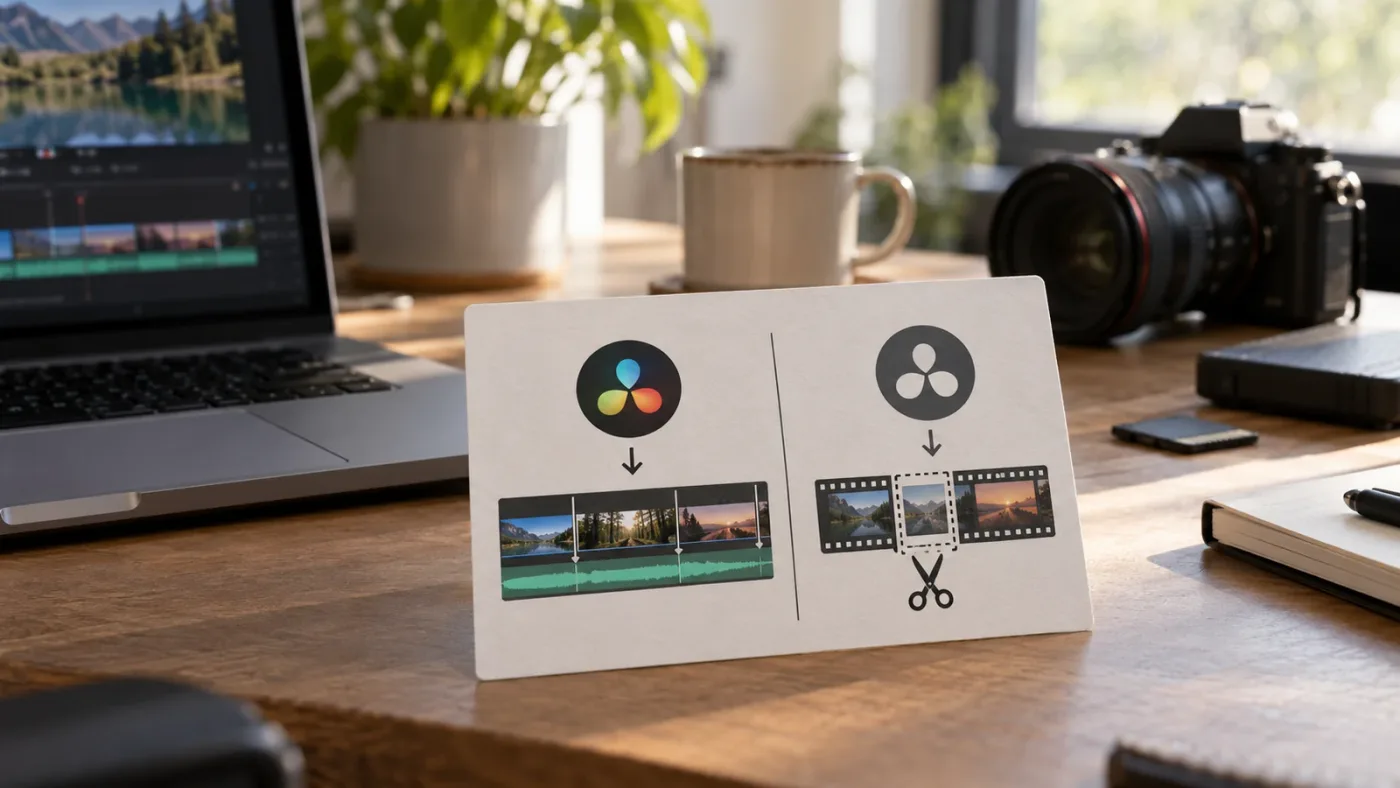
There are two workflows because they solve slightly different jobs. Media page detection analyzes a file before you bring it into the project as a normal Media Pool clip. Timeline detection analyzes clips that are already on a Cut or Edit page timeline. Both can split a flattened video, but the timeline version is quicker when the clip is already placed and you have Studio.
This guide focuses on the boundaries that matter in real work: choosing the method, finding the menu, reading the graph, correcting weak detections, and preserving a usable result. We’ll also separate scene detection from similar tools that detect different things, so you don’t waste time running the wrong analysis.
Which workflow should I use: Media page or timeline?
Use the Media page workflow when the footage is still a source file in Media Storage; use Timeline > Detect Scene Cuts when clips are already on a timeline and you have Resolve Studio. The Media page is the threshold-based review route, while the timeline command is the faster Neural Engine route.
Here is the decision in one glance:
| Your situation | Start here | What happens | Edition note |
|---|---|---|---|
| One flattened master is still outside the Media Pool | Media page > Media Storage > right-click > Scene Cut Detection | Opens the Scene Detect window; you review and add selected cuts to the Media Pool | Use this when you need the graph and editable Cut List |
| A flattened clip is already on a timeline | Timeline > Detect Scene Cuts | Resolve analyzes selected timeline clips and makes through edits | Resolve 21 manual marks this Timeline command Studio Version Only |
| You need to detect only part of a timeline clip | Set timeline In and Out points around the range, then run Detect Scene Cuts | Limits the timeline analysis to the marked range | The 21 manual describes this range selection for the timeline workflow |
| You need to import individual source shots before editing | Media page Scene Cut Detection | Creates a set of media clips from the source file after you approve the Cut List | The scene detection takes place before normal Media Pool import |
| You need to repair just a missed point on an existing timeline | Move the playhead to the frame and split the clip | Adds one manual edit without rerunning the full analysis | Use Timeline > Split Clips or the mapped split shortcut |
The official DaVinci Resolve 17 New Features Guide introduced the timeline operation with Timeline > Detect Scene Cuts, selection of one or more timeline clips, and optional In and Out points to constrain the area. It says the result is a series of through edits that can be used as independent clips. Resolve 21's manual continues to mark that workflow Studio-only. (Blackmagic Resolve 17 New Features Guide, Resolve 21 manual)
Choose Media page detection if you want to tune the threshold, delete candidates from a Cut List, or save an .sc scene-cut file for later. Choose timeline detection if you need a quick breakdown of clips already assembled in a timeline. If the command is absent, check whether you are in the free edition before searching through every page and submenu.
The choice also affects what you see afterward. In the Media page workflow, the resulting shots appear as separate clips in the Media Pool, ready for a new timeline or for grading. In the timeline workflow, Resolve makes through edits inside the selected clip instance. Those edits remain arranged in the timeline's existing context. That distinction is helpful: the first method is a source preparation step, the second is an edit on a sequence you already have.
How do I detect scene cuts before importing a source file?
Open the Media page, locate the source in Media Storage, right-click it before adding it to the Media Pool, choose Scene Cut Detection, and click Auto Scene Detect. Review the Cut List and then click Add Cuts to Media Pool to create the separate source clips.
Follow this order in DaVinci Resolve 21:
- Open or create the project where you want the detected clips to live. If you already have media in the Media Pool, check the project's frame-rate and timecode assumptions before importing the detected cuts.
- Go to the Media page.
- In the Media Storage browser, navigate to the folder containing the flattened video.
- Right-click the source file in Media Storage and choose Scene Cut Detection. Do not start by importing the source into the Media Pool if you intend to use this original workflow.
- When the Scene Detect window opens, choose Auto Scene Detect. Resolve analyzes the source and displays candidate edit points in the graph and Cut List.
- Review the detection. Use the viewers, graph, threshold, and Cut List to remove false positives or add missed cuts.
- Click Add Cuts to Media Pool only after the Cut List looks right.
- If Resolve presents a conform settings dialog, confirm the settings that apply to the source and project.
The ordering is easy to miss. The Resolve 21 manual says Media page detection analyzes and splits the selected clip in the Media Storage panel before the clip is added to the Media Pool. That is why the command may not appear when you right-click an already imported bin item. (Resolve 21 manual, Scene Detection in the Media Page)
For source-file detection, right-click the file in Media Storage before importing it.
When the operation finishes, the Media Pool receives the individual clips derived from the long file. Keep the original source file too. You may need it later for a replacement, conform, or a revised cut list. Scene detection creates a useful breakdown, but it does not replace the original master or guarantee that each newly created clip has the handles and transitions from the missing edit.
The manual's example workflow also advises checking the source frame rate and whether it uses drop-frame timecode against the project's settings. It notes that those parameters are not automatically set if the project already contains Media Pool media. A mismatch can complicate conforming and timecode interpretation. The practical move is to confirm those settings before clicking the final import button, especially when you are working from a supplied master with known delivery timecode. (Resolve 21 manual, example workflow)
If you have a short file, it can be tempting to import it first and then hunt the bin menus. Resist that impulse for this method. If you already imported it, you can still use the timeline workflow in Studio, or remove the imported item from the Media Pool and reopen its original path in Media Storage. Be careful not to delete the source from disk when removing a project reference.
A safe preparation habit is to make a copy of the project or save a new version before creating a large group of derived clips. That is general project hygiene, not a special requirement of scene detection. The operation changes project media organization, so a clearly named bin and an untouched source help keep a conform manageable. Avoid generating multiple duplicate clip sets until you know which workflow produced the one you intend to keep.
How do I run Detect Scene Cuts on a timeline in Resolve Studio?
Select one or more clips on a Cut or Edit page timeline, optionally mark an In and Out range, then choose Timeline > Detect Scene Cuts. Resolve analyzes the selected clip instances and turns its detected points into through edits.
The Resolve 21 manual labels timeline scene detection Studio Version Only. It says you can lock or unlock video tracks to limit which tracks are analyzed, and use timeline In and Out points to limit detection to a portion of a clip. When analysis completes, the selected clip is broken into through edits that can be used as independent clips. (Resolve 21 manual, Timeline Scene Cut Detection)
Use this procedure:
- Save the project or create a version if the timeline is important.
- Open the timeline containing the flattened clip or clips.
- If you only want to analyze one video track, lock the tracks you do not want Resolve to alter. Keep the target track unlocked.
- If you want to analyze only a section, place In and Out points around that section. Check that the marks bracket the intended frames, not a neighboring clip.
- Select the clip or clips you want analyzed.
- Choose Timeline > Detect Scene Cuts.
- Wait for the analysis dialog to finish. Resolve reports progress as clips are processed.
- Scrub and inspect the resulting edits. Remove false positives and add any missed cuts manually.
Timeline detection is valuable when you are conforming a flattened reference into a working sequence, or when the edit already contains an assembled clip and you want to make a shot-level correction. It does not add the Cut List tuning interface from the Media page workflow. If you need to raise or lower the confidence bar, compare three adjacent frames, prune a noisy cluster, or save the detection analysis, work with the Media page Scene Detect window instead.
The track-lock point deserves care. A timeline may contain video layers such as a title, adjustment clip, or picture-in-picture element above the flattened master. The manual describes track locking as a way to limit detection to particular video tracks. Before running the command, identify which track contains the footage you want split. Locking the wrong track can make the operation seem to do nothing; leaving all tracks available may produce edits in more places than you expected.
In Resolve 17, Blackmagic's feature guide says you can remove a detected cut by selecting the through edit and pressing Delete. To create a new cut, place the timeline indicator at the desired point and use Timeline > Split Clips. The guide lists Command-\ as the Mac command for that operation; keyboard mapping and operating-system conventions can affect what you press, so use the menu label if the shortcut differs in your setup. (Blackmagic Resolve 17 New Features Guide)
Do not confuse a through edit with a set of separately transcoded files. The timeline operation creates edit boundaries within the timeline clip. It does not imply that Resolve has rendered each shot into a new standalone media file. If you need physical files for another application, render or otherwise export them as a separate delivery task and choose settings for that job.
Why is Scene Cut Detection missing from my timeline menu?
The timeline command is missing in the free edition because Resolve 21 documents Timeline > Detect Scene Cuts as a Studio-only feature. The Media page method is the alternative when you need to split a source file before import.
First check the edition and the context. Are you right-clicking a file in Media Storage, or an item already in the Media Pool? Are you trying to use the Timeline command on the Cut or Edit page? Those are different commands with different availability. The timeline feature's Studio restriction is explicit in the Resolve 21 manual. The older Media page Scene Cut Detection is described separately as an original tool that remains available. (Resolve 21 manual)
This distinction has caused confusion in earlier releases too. In a Blackmagic Design forum thread about Resolve 17.4.3, a user reported that Detect Scene Cuts had appeared in the Timeline menu and later disappeared. The accepted explanation in the thread separates that Studio timeline feature from the older Media Storage Scene Cut Detection workflow. Treat that post as historical troubleshooting, not the current source of truth: the Resolve 21 manual gives the current edition label. (Blackmagic forum discussion)
If you're using Resolve Studio and still don't see the command, check these points in order:
- Confirm the active application is DaVinci Resolve, not a different Blackmagic utility.
- Open a timeline on the Cut or Edit page and make sure the target video clip is present.
- Select the video clip instance on the timeline.
- Look under the Timeline menu, not the Media page's right-click menu.
- Check whether the selected item is a video clip. An audio-only selection will not provide a picture for scene analysis.
- Note your exact Resolve version and edition. Blackmagic lists the Resolve 21.1 manual and prior version manuals in the Support Center, so use the manual matching the installed release when menu wording differs. (Blackmagic Support Center)
For the free edition, the most direct path is not a workaround involving a hidden Studio menu. Use the source file in Media Storage, open Scene Cut Detection, and review its results. If the file is already in the Media Pool, locate its original disk path from the Media Storage browser and open that source there. This can create a new set of clips, so check the destination bin and avoid keeping duplicate imports without a reason.
A missing timeline command usually means the edition or workflow is wrong, not that the Media page tool vanished.
What do the three viewers and the green graph lines mean?
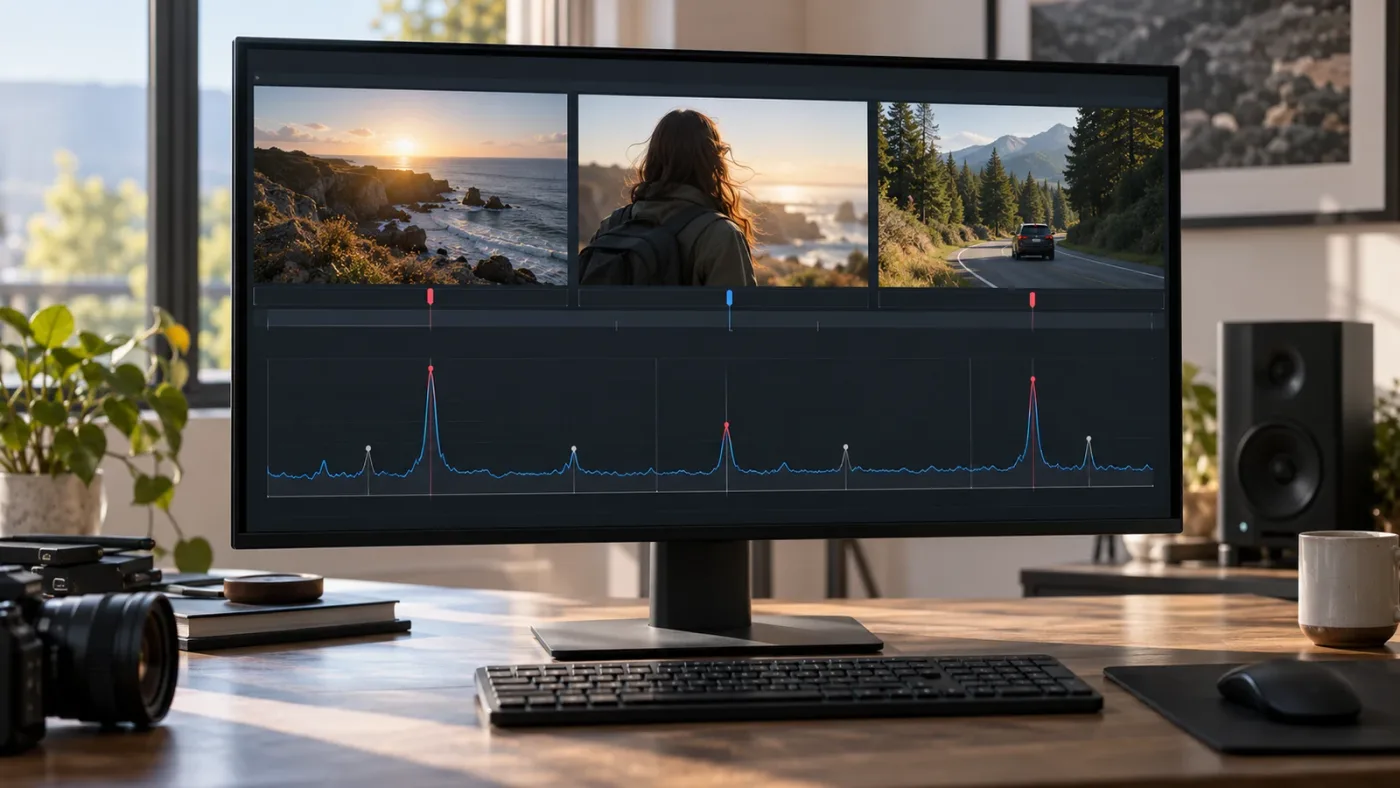
The three viewers help you decide whether a candidate is a real edit: the left viewer shows the last outgoing frame, the center viewer shows the first incoming frame, and the right viewer shows the second incoming frame. A genuine cut usually looks like different, same, same.
The Scene Detect graph plots candidate edit points. In the Media page tool, green vertical lines mark possible cuts, and the line height represents Resolve's confidence that a candidate is an edit rather than a sudden change in motion, light, or color. The horizontal magenta bar sets the confidence threshold for inclusion in the Cut List. Candidates below that bar are omitted from the list. (Resolve 21 manual, viewers and graph)
Use the three frames as evidence, not as decoration. At a real hard cut, the outgoing image should belong to the previous shot, while the center and right frames continue the next shot. If all three appear to be a continuous action from the same camera setup, the algorithm may have marked motion or lighting as an edit. There are exceptions: a jump cut within a talking-head take can have almost identical framing, while a continuous camera move can look radically different from one frame to the next.
The Cut List gives each detected point an order number, frame number, and timecode. Clicking an item moves the playhead to that candidate so you can inspect it. The manual lists N or Down Arrow for the next item and P or Up Arrow for the previous item in the Media page Cut List. That keyboard navigation makes a long list easier to audit than clicking each row. (Resolve 21 manual, Cut List)
A practical inspection rhythm is simple. Select a candidate. Compare the three views. Decide whether it marks an actual boundary. Keep, delete, or revisit it. Then move to the next candidate. Don't judge only by the graph: a tall spike can still be a false positive, and a short one can be a genuine cut that resembles its neighboring image.
Some transition regions produce clusters instead of one clean line. A dissolve blends images over time, so the detector may offer several nearby candidates. The Resolve 21 manual says dissolves and other transitions are not automatically detected, though dissolves often appear as a triangular cluster of lines peaking in the middle. The graph can tell you where to look; it cannot decide what the editor intended. (Resolve 21 manual, Scene Detect Graph)
How do I adjust the confidence threshold without losing real cuts?
In the Media page Scene Detect window, move the magenta confidence bar upward to exclude low-confidence candidates or downward to include more candidates. Then inspect the changed Cut List instead of treating a threshold setting as a guarantee of accuracy.
The threshold is a sorting aid. It tells Resolve which candidate lines should count toward the Cut List based on their confidence values. A higher threshold reduces weak candidates; a lower threshold surfaces more possibilities. It doesn't know whether you want a subtle jump cut, a flash frame, or a fast pan treated as an edit. The Resolve 21 manual explains that short lines below the magenta bar turn gray and are omitted from the list. (Resolve 21 manual, Scene Detect Graph)
Use this sequence when the initial pass is too noisy:
- Look at the candidate's three frames and decide whether it is a false positive.
- If several weak candidates are false positives, raise the confidence bar until those lines fall below it.
- Check whether legitimate low-confidence edits disappear with them.
- Lower the bar only enough to bring back candidates you can verify.
- Delete isolated false positives directly from the Cut List or with the Delete control.
- Use In and Out marks plus Prune for a dense cluster of unwanted candidates.
Don't pick a threshold from someone else's tutorial and assume it will fit your footage. A clean hard cut between two very different images may be obvious to the detector. A fast whip pan may produce several weak lines. A flash can create a strong brightness jump without a true edit. A montage of similar shots may contain genuine edits with little visual difference. The right threshold depends on the material and the cost of missing an edit.
For a short social montage, you may prefer a lower threshold and a quick manual review because missing a real cut could be more costly than deleting a few false ones. For a long master that will be graded shot by shot, a more conservative threshold can reduce obvious noise, but you still need to check for low-contrast cuts before committing. These are editorial choices, not numerical presets.
If changing the threshold leaves the cut list unchanged, confirm that you are in the Media page Scene Detect interface. The timeline command does not provide this same magenta threshold and Cut List workflow. The two methods are not just different menu paths; they expose different review controls.
Why did Resolve detect a cut during a flash, whip pan, or lighting change?
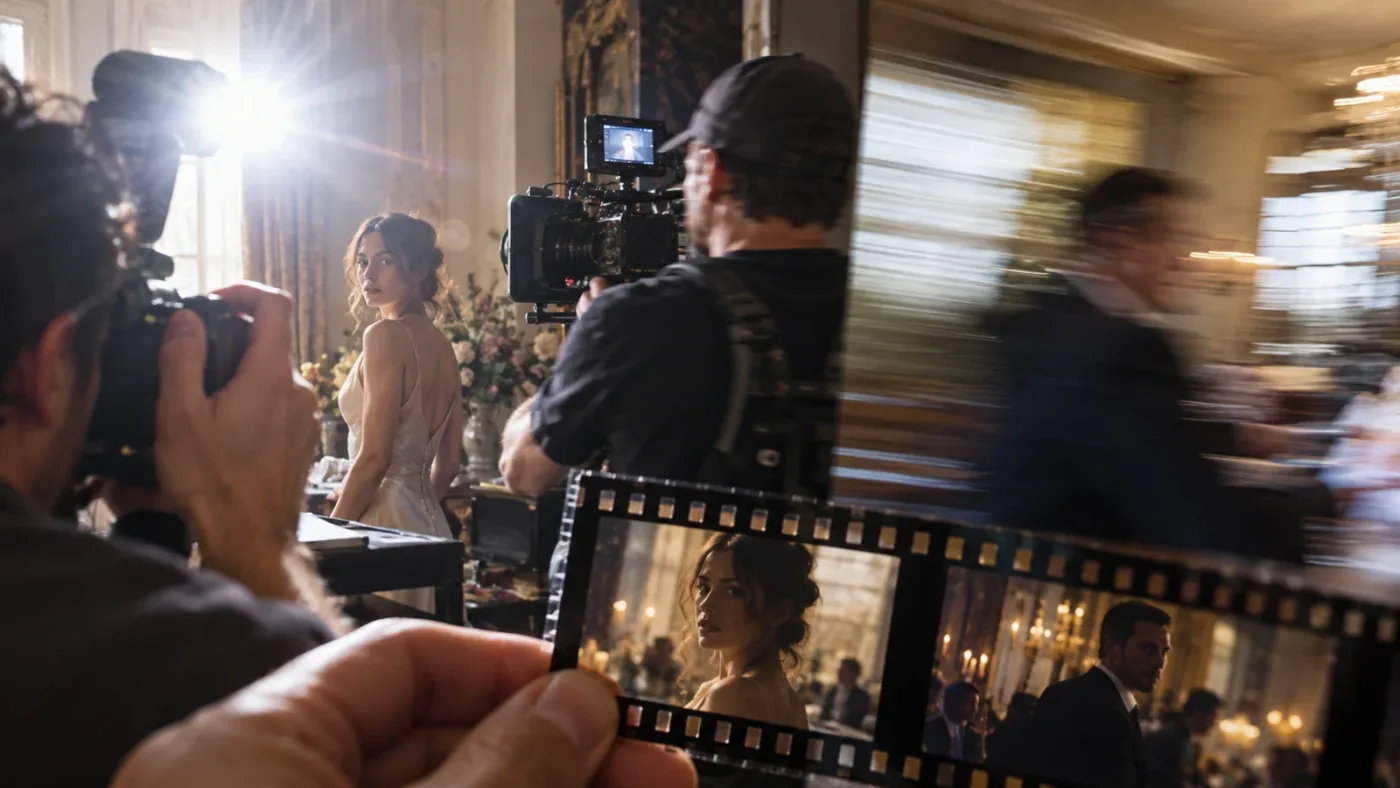
Resolve can mistake a sudden visual change for an edit because the Scene Detect analysis evaluates picture differences. The Resolve 21 manual specifically warns that fast motion such as whip pans and abrupt changes in brightness can confuse the detector.
A camera flash is a classic trap. The image may turn white for a frame and return, creating a sharp change that resembles a cut. A strobe, lightning strike, practical light switching on, exposure shift, or film shutter flash can do the same. A whip pan moves so quickly that adjacent frames may have little visual continuity. A bright reflection, a speed ramp, or a sudden change in camera direction can also push the detector toward a false candidate.
When you see a suspicious line:
- Select it in the Cut List.
- Compare the outgoing frame with the first two incoming frames.
- Scrub a little before and after the candidate.
- Ask whether the underlying shot actually changes, or only the light or motion does.
- Delete the candidate if the shot continues through the change.
- If the clip contains a group of noisy lines, isolate that range with In and Out marks and use Prune.
The point is not to make the graph look clean. It is to produce a cut list that reflects the real edit. A false positive can create an unnecessary clip boundary, which may complicate grading, relinking, or later edits. In a color workflow, it can also make you believe a new shot begins where the same camera take continues. That false boundary is easy to miss if you only trust the preview thumbnails.
There's another case that runs in the opposite direction. Two adjacent shots may have similar colors, exposure, and composition. The detector may consider them one continuous shot and omit the cut. The manual calls out similar color and contrast as a reason a cut may go undetected. Check the areas where the visual content changes subtly, especially a cut between two interview angles with the same background or a product close-up filmed under consistent lighting. (Resolve 21 manual, example workflow)
A clean-looking graph can still miss quiet cuts between similar shots.
A reliable review uses both kinds of evidence: candidates that Resolve found and likely boundaries it may have missed. If the file came from a known edit, compare the detected points with the reference, EDL, audio changes, or visible shot progression. If no reference exists, scrub the entire clip once after detection. Pay closer attention to dark scenes, matched camera angles, deliberate jump cuts, and transitions.
How do I add a missed cut or delete a false one?
In the Media page Scene Detect window, use the Add control at the playhead to insert a missed cut and Delete to remove a false candidate. On a timeline, move to the correct frame and split the clip, or select a false through edit and delete that edit point.
The Media page method is designed for exactly this kind of correction. The Resolve 21 manual says Add inserts a cut at the current playhead position and Delete removes the cut at that position. Once a Media page candidate is selected, the viewer and graph update to that location. In the timeline workflow, the Resolve 17 feature guide documents removing a through edit with Delete and making a new one with Timeline > Split Clips. (Resolve 21 manual, Resolve 17 New Features Guide)
For a missed Media page cut:
- Move the playhead to the point where the outgoing shot ends and the incoming shot begins.
- Step through frames around the boundary. The first frame belonging to the new shot is the point to identify.
- Click Add.
- Inspect the Cut List entry and timecode.
- Confirm the new boundary does not duplicate an existing candidate a frame away.
For a false Media page cut, select the candidate, verify it in the viewers, and click Delete. If false candidates crowd a small region, mark the start and end of the region with In and Out, then use Prune. The manual explains that Prune removes scene cuts within one frame of another scene cut in the marked range, keeping the candidate with the highest probability in the group. That is useful for cleaning a cluster, but it can preserve a single wrong point if the remaining candidate is still a false positive. Check it afterward. (Resolve 21 manual, Prune)
For a false timeline edit, the feature guide says to select the through edit and press Delete. For a missed timeline edit, place the indicator at the correct frame and choose Timeline > Split Clips. After either correction, play through the area. A cut one frame early or late can create a flash frame, duplicate action, or awkward movement that becomes obvious only in playback.
If you're restoring a sequence for color correction, don't assume each cut should fall exactly at a creative transition midpoint. A hard cut has a frame boundary. A dissolve spans a range. If the original transition is missing from the flattened master, scene detection cannot reconstruct its length or edit decision. You may choose to retain the source's visible blended frames in one side or split near the midpoint for grading, but that is a manual decision based on the delivery requirement.
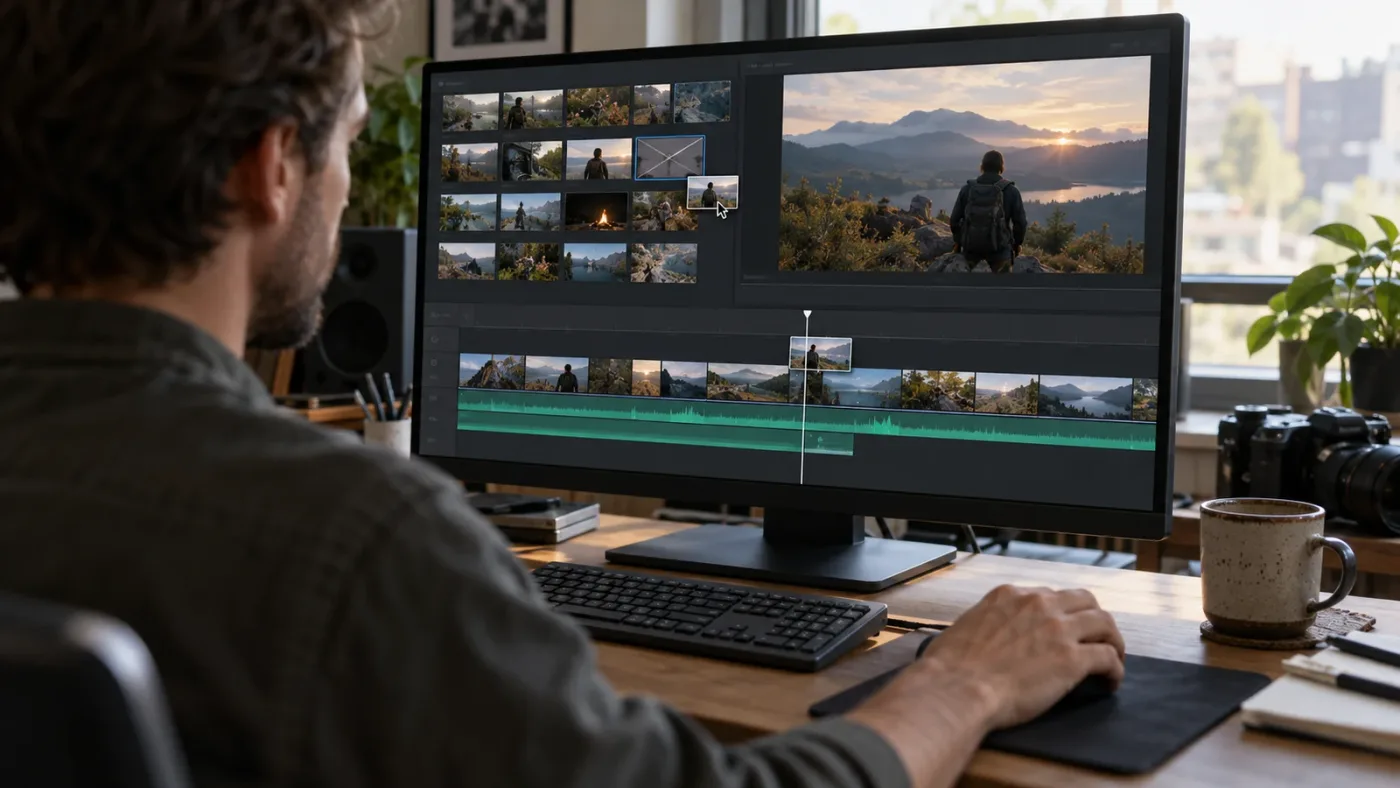
Can DaVinci Resolve detect dissolves, fades, or transitions?
The Resolve 21 Media page manual says dissolves and other transitions are not automatically detected as ordinary cut points. They can appear as clusters of candidate lines, so inspect the transition and add or keep a single boundary only if your task requires one.
A hard cut changes from one shot to another at a frame boundary. A dissolve blends the outgoing shot into the incoming shot over time. A fade may blend the image to or from black. The detector sees changing pixels through that interval, but those changes don't necessarily correspond to one obvious frame where the new shot begins. That is why a graph can show a triangular cluster rather than one confident spike.
What should you do with a dissolve? It depends on what you need:
| Goal | Practical choice | Reason |
|---|---|---|
| Grade both source shots separately | Find the dissolve range, choose a boundary for the grading split, then rebuild or preserve the transition separately | The blend itself combines image content from both shots |
| Recreate a flattened edit for rough re-editing | Keep the detected cut nearest the visible transition midpoint, then review playback | This approximates a boundary but does not restore the original transition metadata |
| Preserve a master as a single reference clip | Leave the transition inside the clip | No need to create a new cut unless another task depends on it |
| Remove a burst of false detections inside the dissolve | Use In and Out marks and Prune, then confirm the surviving cut manually | Prune can reduce closely spaced candidate noise |
Resolve's documentation says that dissolves most often appear as a triangular cluster of lines peaking in the middle. It does not say that this pattern reconstructs the original edit. Treat it as a clue, not an instruction. (Resolve 21 manual, Scene Detect Graph)
The same caution applies to transitions such as wipes or stylized blends. If the transition contains a sharp visual event, the detector might identify one or several candidate frames. The graph measures probable picture changes; it does not classify the editor's transition or recreate it. If the project needs the original timing, request an EDL or the source timeline when possible. A flattened file contains only the rendered result.
A transition can also be partially hidden by a title, logo, or graphic. If the overlay dominates the frame, the picture changes may not track the underlying shot boundary. Inspect the three viewers and scrub the original master. The image content beneath the title may help you choose a boundary, but a title reveal is not necessarily a new camera shot.
A detected transition region is evidence to inspect, not proof of the original edit point.
Why does the Media page option disappear after I import the clip?
The original Media page Scene Cut Detection workflow runs from a source in Media Storage before normal Media Pool import. If you right-click an imported bin clip, you may be looking in the wrong context for that command.
The Resolve 21 manual is clear on the order: open Media Storage, find the file, right-click it, choose Scene Cut Detection, and run Auto Scene Detect. The manual says the analysis and splitting happen in Media Storage before the clip is added to the Media Pool. (Resolve 21 manual, Scene Detection in the Media Page)
If you already imported the file, decide which path you want before changing anything:
- You have Resolve Studio and want the timeline clip split in place: add it to a timeline and use Timeline > Detect Scene Cuts.
- You need the threshold graph and source clips in the Media Pool: locate the original file in Media Storage and run the original detection workflow there.
- You only need a few boundaries: use manual cuts on the timeline instead of generating a new set of source clips.
Don't delete the only project reference just to make a menu appear. Removing a clip from a Media Pool is not the same as deleting media from disk, but dialogs can offer different actions depending on where you click. Read the prompt before confirming. If the project uses a managed library or shared storage, check with the project owner before removing assets or changing a shared bin.
A duplicate import may be acceptable if you need both the original flattened master and derived shots in the project. Name the derived bin clearly, for example MasterName - detected shots, and retain the original. This is organizational advice, not a required naming format. Its purpose is to prevent the split clips from being mistaken for camera originals or the approved master.
The Media page tool also works on a source file, not an arbitrary nested timeline or a multicam structure. If your sequence consists of an already edited timeline, use the timeline method in Studio or export a flattened reference and analyze that file in Media Storage. Scene detection sees the rendered image sequence. It does not travel backward through a nested timeline and infer how each original track was built.
Why does scene detection miss similar shots or create one-frame errors?
Scene detection can miss a cut when adjacent shots have similar color and contrast, and it can place a boundary on the wrong frame when the visual change is gradual or ambiguous. Resolve's own manual advises checking the list and adding a missed cut manually.
A cut between two cameras with matched exposure can be visually subtle. A locked-off interview may jump between two nearly identical framings. A product shot may move from one angle to another under the same soft light. An action cut may occur during motion blur. Those edits can be real even if the surrounding pixels look alike. The manual says adjacent shots with similar ranges of color and contrast may go undetected, so scrub carefully through likely areas. (Resolve 21 manual, example workflow)
A one-frame error often comes from treating the center viewer as the cut frame without checking what it represents. The manual defines the left viewer as the final outgoing frame and the center and right viewers as the first and second incoming frames. Use that relationship to place the boundary. Don't rely on the thumbnail alone.
When a cut is uncertain, inspect at frame level:
- Zoom into the graph around the candidate.
- Step one frame backward and forward from the line.
- Compare the last outgoing frame to the first incoming frame.
- Check whether the audio also changes at the same point, if the audio is relevant.
- Confirm the boundary in normal playback.
Audio is supporting evidence, not a definitive detector. A hard audio edit may coincide with the picture cut, but music, ambience, or dialogue often continues across video cuts. Conversely, an audio edit may occur while the picture stays in the same shot. Don't create a visual cut just because a waveform changes.
If your goal is color correction, the boundary should separate images that require different grades. If your goal is to recover a rough sequence, the boundary should match the apparent edit. If your goal is to isolate clips for review, the boundary should create manageable units. Those goals can lead to slightly different choices at a dissolve, match cut, flash, or graphic transition.
Keep a short note when you defer a difficult region. The Scene Detect Options menu can save the scene cut detection information, including probability metadata, to a .sc file for later recall. You can also export the Cut List as a CMX-style EDL or load an EDL into the list. If you hand the job to another editor, this is more useful than leaving an unexplained graph state in an open window. (Resolve 21 manual, Scene Detect Options)
How do I review a long cut list without checking every frame twice?
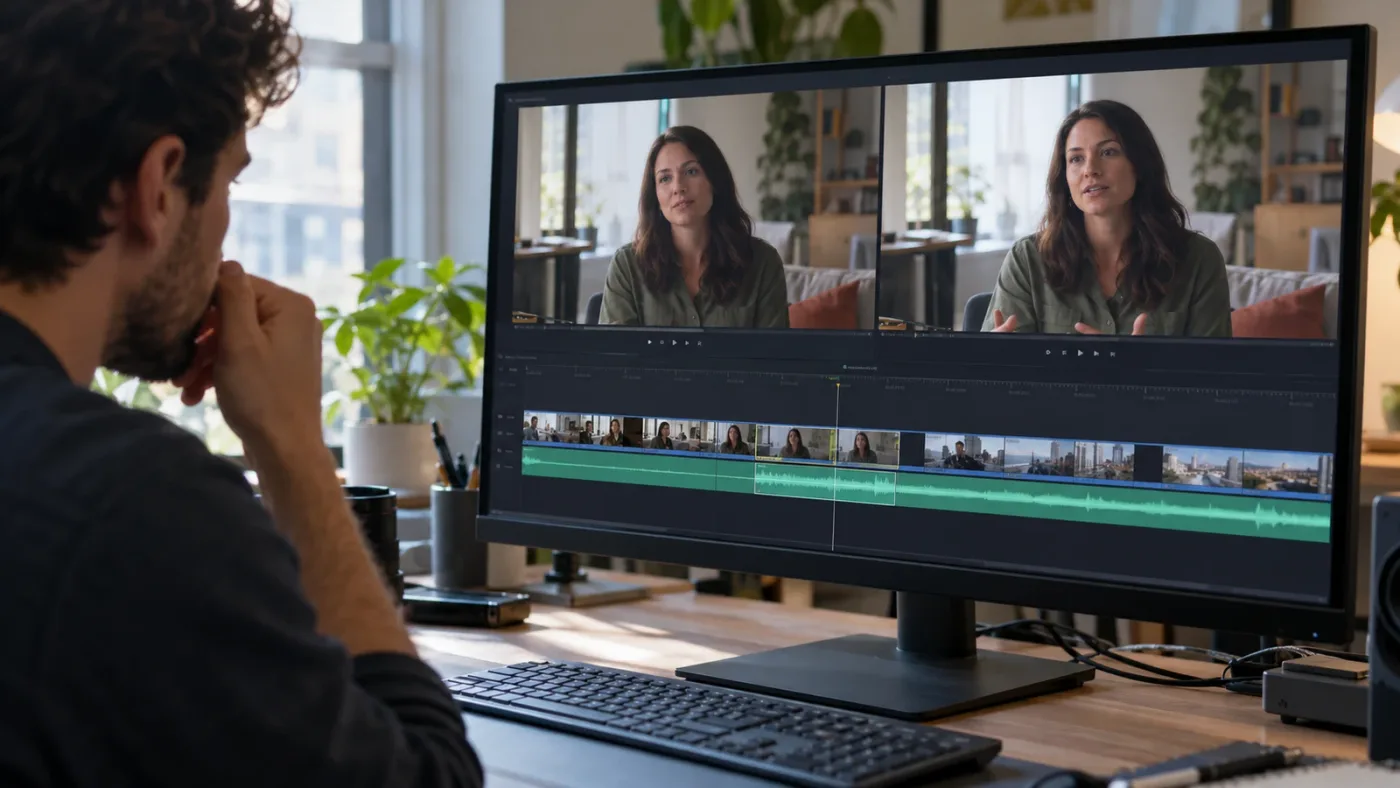
Use the Cut List to move candidate by candidate, verify the three viewers, and pay extra attention to weak lines, dense clusters, and sections where similar shots are likely. Then play the full result once to catch errors that the candidate list cannot reveal.
The Media page Cut List is an ordered review queue. It shows each candidate's order number, frame number, and timecode; selecting an item jumps the playhead to that point. You can navigate with N or Down Arrow for the next entry and P or Up Arrow for the previous entry. (Resolve 21 manual, Cut List)
A useful audit has two passes. The first pass validates listed candidates. The second pass looks for omissions. During the first pass, inspect every item that will become a real cut. If the file is extremely long and you cannot complete the review in one sitting, save the scene-cut data and return later. During the second pass, scrub the complete source, focusing on the locations where the detector is likely to struggle: flashes, whip pans, dissolves, similar angles, dark material, and rapid edits.
You can make the first pass faster by grouping candidates:
- High-confidence isolated lines: check them quickly, but don't assume they are correct.
- Low-confidence lines: inspect each one because the threshold may have hidden a real cut or retained a visual false positive.
- Dense clusters: inspect the whole region, not just one line. A transition may generate several candidates.
- Long gaps: scrub through them to look for a missed cut.
- Cuts near a flash or camera move: check adjacent frames and playback.
This is where the three viewers earn their place. The left frame should differ from the center and right at a true hard cut. But the pattern is a heuristic, not an absolute rule. A flash frame can mimic a different outgoing image, and a jump cut can preserve nearly the same composition on both sides. Combine the views with motion and context.
If you are preparing a long program for grading, don't review only the first and last sections. Errors can cluster around a transition or repeated visual pattern. If you have an EDL, compare its timecodes with the proposed list. Resolve's options menu can load a CMX-style EDL into the Cut List and save the reviewed list as an EDL. That gives you a way to compare or hand off cut data, though it does not automatically validate that the source and EDL use matching timecode assumptions. (Resolve 21 manual, Scene Detect Options)
A review note can capture only what matters: the candidate timecode, whether you kept or removed it, and why an uncertain region needs another look. That prevents an editor from repeating the same inspection after a handoff. It also makes it easier to explain why a borderline dissolve was split where it was.
What should I do when scene detection is slow or appears stuck?
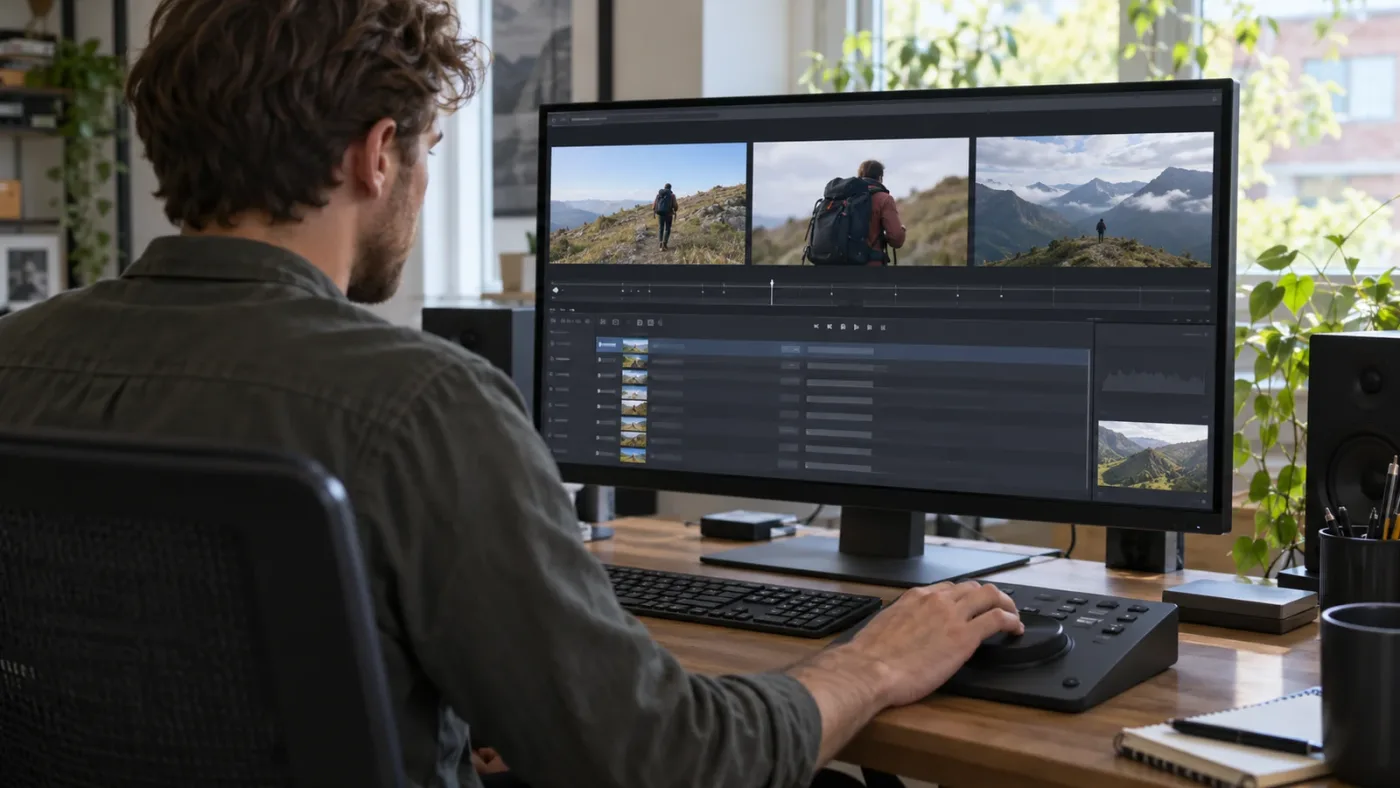
First distinguish a slow analysis from a stalled one: the Resolve manual says processing time depends on clip length, clip count, and complexity, so give a large or complex selection time to finish before interrupting it. If progress truly stops, reduce the job to one source clip or a shorter timeline range and try again.
The timeline command displays a progress dialog while it detects scene cuts in selected clips. Blackmagic's feature guide says the operation can take time depending on the length, number, and complexity of the selected clips. It does not publish a universal speed or a safe time limit, so there is no honest rule such as “a ten-minute file should finish in two minutes.” (Blackmagic Resolve 17 New Features Guide)
For a controlled retry:
- Note the version of DaVinci Resolve and whether the task is in the Media page or timeline workflow.
- Save the project if the application is responsive.
- Try one clip instead of multiple selected clips.
- On a timeline, use In and Out points to test a shorter section.
- In Media Storage, try a short known-good source file to determine whether the issue is tied to the media.
- Confirm that the source plays correctly in Resolve before scene analysis.
- If Resolve becomes unresponsive repeatedly, collect diagnostic information and consult Blackmagic Design Support rather than repeatedly forcing the same long job.
These steps narrow the cause without inventing a performance expectation. A high-resolution long-GOP source, a file on slow network storage, a large selected range, or an application problem can all change how long processing takes. The exact behavior depends on hardware, codec, storage, project, and Resolve release. If you report a problem, include the operating system, exact Resolve version, edition, source format, and the selection you analyzed. Blackmagic's Support Center provides current manuals, downloads, and routes to its forum or support team. (Blackmagic Design Support Center)
Don't keep clicking Auto Scene Detect while the current analysis is still running. If the interface remains responsive, let it finish or cancel through the available control. If the application has frozen, repeated clicks or force quits won't improve the source. Keep a copy of the project and source media before reproducing an issue that might affect a production timeline.
If the file itself is malformed or uses an unsupported codec variant, first test import and playback. Scene detection is downstream of reading the image. A failure to decode media can look like a detector issue, but the right fix may be a supported transcode or a corrected source. Don't transcode solely because the detector is slow until you know whether the original clip decodes reliably.
How should I handle frame rate, timecode, and conform settings?
Before committing Media page cuts, confirm the source's frame rate and drop-frame timecode assumptions against the project. The Resolve 21 manual warns that project parameters are not automatically set when media is already in the Media Pool, and mismatches can cause problems.
Frame rate and timecode are related but distinct. Frame rate describes how many frames represent a second of video. Timecode is a labeling system for frames. Drop-frame timecode adjusts numbering to stay aligned with clock time for certain frame rates; it does not remove picture frames from the video. When you split a supplied master into shots, the cut positions can still be visually correct even if the project's timecode assumptions make the displayed labels confusing.
The Resolve 21 example workflow tells you to verify the source frame rate and whether it uses drop-frame timecode, then ensure the project's Timeline frame rate and Use drop frame timecode settings match. It notes that Resolve does not automatically set these parameters if the project already has Media Pool media. (Resolve 21 manual, example workflow)
Before pressing Add Cuts to Media Pool, consider:
| Check | Why it matters | What to do |
|---|---|---|
| Source frame rate | The clip's frames and project timeline may use different rates | Verify the source and project before conforming |
| Drop-frame timecode flag | Timecode labels can be interpreted differently | Confirm whether the source uses drop-frame timecode |
| Project already contains media | Resolve may not automatically choose project parameters | Review Master Settings rather than relying on defaults |
| Source starts at nonzero timecode | Cut List labels may not begin at zero | Compare with the source and any supplied EDL |
| Deliverable requires frame-accurate conformity | A one-frame mismatch can matter | Use a known reference, EDL, or approved source timeline when available |
If a Conform Settings dialog appears, review it. Don't click through automatically when the sequence must match a broadcast master, camera original, or supplied EDL. A test import with a duplicate bin can show how the derived clip names and timecodes appear before you process all media.
For an ordinary creative re-edit, the project may not require a formal timecode conform. For archive restoration, finishing, or a client handoff, it often does. The question is not whether Resolve can make separate clips; it can. The question is whether those clips retain the timing and source relationships the next stage needs.
Can I save, reload, or export a scene cut list?
Yes. In the Media page Scene Detect window, the Options menu can save scene cut data to an .sc file, load that file later, save a CMX-style EDL, or load an EDL into the Cut List.
The Resolve 21 manual says a saved .sc file includes scene cut detection information and probability metadata. You must open the media file in the Scene Detect window before loading an .sc file for that media. The Options menu also includes Save EDL and Load EDL commands. (Resolve 21 manual, Scene Detect Options)
These options help when a review is interrupted, a second editor needs to continue, or you need cut data outside the current window. They do not guarantee a portable reconstruction of the entire project. A cut list is not a project archive: it does not contain source media, color work, timeline effects, track structure, or the decisions that weren't represented as cuts. Save the project and retain the media as well.
For a handoff, include a clear filename and context. A useful package could contain the original source filename, the .sc analysis file, an EDL if the recipient needs it, and a note about the Resolve version and timecode basis. Don't place an EDL beside an unrelated render and assume the next editor will know which one matches. If multiple versions exist, name the selected master and the reviewed date.
An EDL can provide an existing edit reference, but only if its source and timecode assumptions match the media being analyzed. A mismatched EDL can make a reasonable cut list appear wrong. Confirm source reel names, frame rate, start timecode, and any offset before relying on the imported points. If you aren't sure, open the EDL as text or ask the editor who created it before using it to conform a finished piece.
Saving intermediate work is especially useful on a long program with an uncertain section. The manual's Auto Cue option can move the playhead to each candidate as detection runs, so you can assess cuts during analysis. If you prefer to review after the pass, leave Auto Cue off and work through the Cut List. Either way, retain the .sc file until you know you no longer need to revise the detection. (Resolve 21 manual, Auto Cue)
Is scene cut detection the same as duplicate-frame detection?
No. Scene cut detection looks for boundaries between shots; duplicate-frame detection looks for repeated frames or other repeated image content. Choose the tool based on whether you want to split a finished edit or find redundant frames.
A flattened video can contain many real shot changes and no duplicated frames. A frame sequence can contain duplicated frames without any scene change. The tools answer different questions, so one result does not validate the other. If you want to locate repeated frames, see our guide to DaVinci Resolve's detect and remove duplicate frames tool. If your task is identifying a slate or reading production metadata from a shot, use the separate DaVinci Resolve 21 slate metadata guide.
Scene detection also differs from face or object recognition. It marks candidate edit boundaries based on changes in the picture. A people analysis may identify subjects or organize footage, but it does not recover every cut in a flattened master. Resolve's product page describes Media page tools for organizing and syncing media; its Neural Engine media organization features are separate from scene cut detection. (DaVinci Resolve Media page)
If you're learning the whole application, our DaVinci Resolve for beginners guide covers the broader first-project path. This tutorial stays focused on one job: turning a single edited file into a reviewed set of shots.
Is there a better way to learn DaVinci Resolve scene detection?
The best way to learn scene detection is to follow an official workflow once, then practice on a short file with obvious hard cuts and a second file that contains difficult motion or transitions. Blackmagic's free training materials, independent YouTube instruction, and an on-screen assistant each help in different ways.
Blackmagic publishes official training books and videos for DaVinci Resolve, including project files that let you follow along. Casey Faris is an independent Resolve educator whose channel has tutorials and walkthroughs. Reddit discussions can be useful when a menu is missing or a workflow behaves differently, but check the version and edition in the reply before applying it. An on-screen helper can answer a stuck question while the application is open, but it doesn't replace reviewing the actual frames or reading the manual for a version-specific limitation.
| Learning route | Best for | Trade-off |
|---|---|---|
| Blackmagic Design official training | Structured lessons, product terminology, and vendor-documented workflows | A course lesson may not be organized around your exact stuck point |
| Casey Faris tutorials | Seeing a task demonstrated in a video format | A video may use a different Resolve version, workspace, or edition |
| Resolve manual | Exact control names, supported behavior, and version reference | It explains controls more than it coaches a first-time decision |
| Reddit or Blackmagic forum | Troubleshooting real user questions and edge cases | Advice varies by version and may need confirmation in official documentation |
| Practice on your own source | Learning how your material affects the detector | You must review and correct its result yourself |
Blackmagic's official training page provides learning materials for the software, and the support site lists the current reference manual. (Blackmagic official training, Blackmagic Support Center) Casey Faris's tutorials are available on his YouTube channel. Treat course and video guidance as versioned: Resolve 21 may place a control differently from the version shown in an older lesson.
If you are looking for an app that helps you while using DaVinci Resolve, choose one that can clarify where a control is and then verify the result in the actual viewer. A helper can reduce menu-hunting; it cannot decide whether a flash is a real edit or whether a cut list matches a missing source timeline.
A useful practice set needs no invented benchmark. Start with a short source that has several clear hard cuts. Run the Media page detector. Review every entry. Then try a file with a flash, a fast pan, a dissolve, or similar adjacent shots. Write down which candidates were false and which edits were missed. That comparison teaches you what the confidence graph can and cannot tell you, without turning a tutorial into a contest for a perfect score.
If you get stuck because a tutorial's control doesn't match your screen, TryUncle is the on-screen assistant for DaVinci Resolve on Mac and Windows - ask in plain words and Uncle points at the exact control on your screen. The assistant can help you locate a control while you work; you still decide whether a candidate frame is a real edit.
What does a post-production expert say about Resolve scene detection?
Scene detection is worth reviewing against the footage rather than trusting as a perfect automatic conform. In a published comparison, post-production expert Filip Milovanovic tested Resolve's scene cut detection on two kinds of video and described how visual events affected the results.
Milovanovic wrote: “The Scene Edit Detection features in both NLEs are designed to detect simple cuts without applied transitions, and both were unable to detect an edit with a dissolve transition effect.” (ELEMENTS, Filip Milovanovic)
That article is a comparison from 2024, not a Resolve 21 benchmark. Its test is useful as a caution about transitions, but don't treat its detection counts as a current universal accuracy rate. Milovanovic tested a one-minute coffee-shop edit with 18 simple cuts and a macro paint clip with six jump cuts, two dissolves, and one additive dissolve. Those are the specific clips in that article, not a representative sample of all footage. The author reported that Resolve found 17 edits in the first clip with one missed and one additional false detection; on the second it found one cut correctly and added two false detections. Those results show why a human review matters, but they cannot predict performance on your file. (ELEMENTS comparison, Accuracy section)
Resolve 21's current manual gives a practical workflow for that human review: compare the outgoing and incoming frames, raise or lower the confidence threshold, delete false candidates, add missed cuts, and prune dense groups. The manual's controls are the most useful authority for the current operation. A third-party test provides context, not a substitute for testing your own sequence.
This is the standard we use after seven years of professional commercial video editing: let automation mark the likely boundaries, then verify the frames that carry a cost if wrong. That is especially true when a flattened commercial or program is headed for shot-by-shot grading. The detector can shorten the first pass. The editor still owns the conform decision.
What is the shortest reliable scene detection checklist?
Use this checklist when you need a quick, repeatable pass: choose the correct route, run detection, check the candidates, correct errors, and verify the final clips in context.
- Name the job. Are you splitting a source file before import, or a clip already on a timeline?
- Check the edition. Timeline > Detect Scene Cuts is Studio-only in the Resolve 21 manual. The Media page source workflow remains the option for the free edition.
- Confirm the source. Make sure the file plays and that you have selected the intended master, not a proxy or alternate export by mistake.
- Check frame rate and timecode. Compare the source with project settings before committing Media page cuts.
- Run the relevant command. Use Auto Scene Detect in Media Storage, or Timeline > Detect Scene Cuts on selected timeline clips in Studio.
- Review the graph and list. Use the three viewers, candidate confidence, and timecodes.
- Look for both errors. Remove flashes and motion false positives; scrub long gaps and matched shots for missed cuts.
- Correct the result. Add or delete candidates in the Media page window. On a timeline, split or remove the through edit.
- Save useful state. Save the project and, if you need to resume, save the
.scfile or EDL. - Play the result. Confirm that the final cuts make sense in motion and that no one-frame errors survived.
The manual's workflow includes Auto Cue, the three-viewer check, confidence threshold adjustment, pruning, manual additions, and Add Cuts to Media Pool. You don't need every control for every file. Use only the correction tools that address what the detector actually got wrong. (Resolve 21 manual, example workflow)
If you remember one distinction, remember this: Media page Scene Cut Detection prepares source clips before import; timeline Detect Scene Cuts breaks selected timeline clips into through edits in Studio. Start with the version and the state of your media, then pick the workflow that matches. After that, trust the graph as a guide and the frames as evidence.
What should I do next?
Run detection on a copy or a short representative section first, review the candidate boundaries, and only then process the full source or production timeline. If the work is headed to color, compare your resulting clip boundaries against the reference master and preserve the original file and project.
For a flattened source, begin in Media Storage and use the threshold-based Scene Detect window. For clips already on a timeline, use the Studio timeline command. The machine can find likely edits; your review decides whether they belong.
Frequently asked questions
- How do I auto detect scene cuts in DaVinci Resolve 21?
- For a source file, open the Media page, find it in Media Storage, right-click it before adding it to the Media Pool, choose Scene Cut Detection, and click Auto Scene Detect. Review the Cut List, adjust the confidence threshold if needed, and click Add Cuts to Media Pool. For a timeline, use Timeline > Detect Scene Cuts in Resolve Studio.
- Is DaVinci Resolve scene cut detection available in the free version?
- The original Media page Scene Cut Detection workflow is available for splitting a source file before import. The newer Timeline > Detect Scene Cuts operation is marked Studio Version Only in the Resolve 21 manual.
- Why is Scene Cut Detection missing from my DaVinci Resolve timeline menu?
- The timeline command is a DaVinci Resolve Studio feature. If you use the free edition, open the source file in the Media page's Media Storage browser and use Scene Cut Detection before adding that source to the Media Pool.
- Why did DaVinci Resolve detect a cut during a flash or whip pan?
- Scene detection looks for visual changes, so a flash, abrupt lighting change, or fast camera movement can resemble an edit. Raise the Media page confidence threshold to remove weak candidates, then inspect the three viewers and delete false positives.
- Can DaVinci Resolve detect dissolves automatically?
- The Resolve 21 manual says dissolves and other transitions are not automatically detected by the Media page Scene Detect tool. A dissolve may create a cluster of candidate lines, so inspect that area and keep or add the actual edit point manually.
Sources
- DaVinci Resolve 21.1 Reference Manual, Chapter 23: Using Scene Detection
- DaVinci Resolve 21.1 Reference Manual, Chapter 23 mirror for section-level navigation
- DaVinci Resolve 17 New Features Guide: Scene Cut Detection on the Timeline
- DaVinci Resolve 17 Colorist Guide: Preparing Media Using Scene Cut Detection
- Blackmagic Design Support Center
- Exploring the New Scene Cut Detection Features of DaVinci Resolve and Adobe Premiere Pro, by Filip Milovanovic
- Blackmagic Design forum: Studio scene detection cut Feature Request
- Blackmagic Design forum: Detect Scene Cuts No Longer Available (Free Version/Windows)
- Blackmagic Design DaVinci Resolve official training
- Casey Faris DaVinci Resolve tutorials
Put this guide to work with TryUncle.
Ask about the step you’re on. TryUncle sees your screen and points at the control you need, so you can keep learning in your own project.
Get TryUncle for Mac or WindowsKeep reading
Guides · Aug 2, 2026 · 38 min
DaVinci Resolve Detect and Remove Duplicate Frames Tool
DaVinci Resolve splits duplicate frame detection and removal into separate tools: Show Duplicate Frames, Remove 3:2 Pulldown, and manual fixes.
Guides · Oct 5, 2026 · 29 min
DaVinci Resolve 21 Detect Slate Metadata: Full Guide
Learn how DaVinci Resolve 21 detects slates, reads scene and take data, writes clip metadata, and what to do when Slate ID misses.
Guides · Jul 7, 2026 · 32 min
DaVinci Resolve for Beginners: The Complete Starter Guide
Learn DaVinci Resolve from zero: what it costs, what it needs to run, the seven pages you'll actually use, and the steps to cut your first project.