Articles / Guidesupdated for DaVinci Resolve 21.0.3 (July 2026)
DaVinci Resolve Detect and Remove Duplicate Frames Tool
Quick answer
DaVinci Resolve splits detecting and removing duplicate frames into separate tools. View > Show Duplicate Frames detects repeated frame ranges in your timeline; Clip Attributes' Remove 3:2 Pulldown actually removes telecine duplicates in real time. Duplicates from VFR footage or retiming aren't auto-removed; you fix those manually or reconvert the file outside Resolve first.
I've spent seven years cutting commercial work in DaVinci Resolve, and "detect and remove duplicate frames" is one of those queries that promises a button Resolve doesn't actually have. There's no single switch. There's a detector, a counter, and one very specific automatic remover, and knowing which of the three you actually need saves you an hour of clicking around a menu that isn't going to give you what you're picturing.
This is one of the recurring questions in our 100,000+ member editing community: someone imports old telecined footage, or a phone clip that stutters, sees the phrase "duplicate frames" somewhere in a forum post, and goes looking for a tool that isn't structured the way they expect. Resolve's actual toolkit is smaller and more specific than "detect and remove," and that specificity is exactly why it works once you understand it.
What Is DaVinci Resolve's "Detect and Remove Duplicate Frames" Tool, Exactly?
It isn't one tool. It's three separate features that people mentally bundle into a single phrase because that's how the problem feels from the outside.
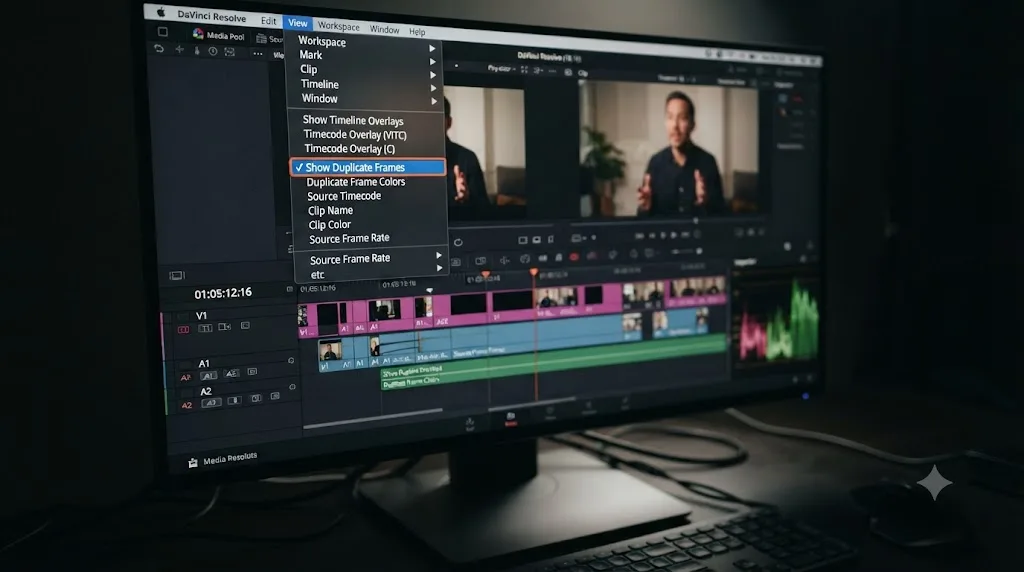
Detection is Duplicate Frame Detection, commonly called Dupe Detection, turned on from View > Show Duplicate Frames on the Edit page. Per the DaVinci Resolve reference manual, turning this on "shows colored bars at the top of clips in the Timeline whenever a range of frames has been used more than once." That's the whole feature. It looks, it draws a bar, it does nothing to your media.
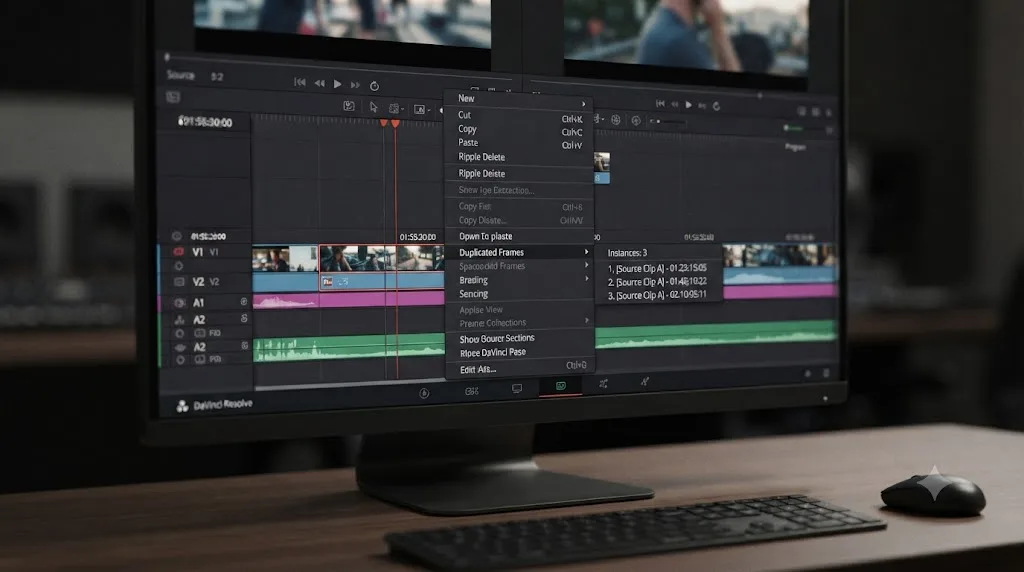
Counting is a separate right-click option. On a clip in the timeline, right-click and look for a Duplicated Frames submenu, which tells you how many times that clip's frame range shows up elsewhere in the same timeline and lets you jump directly to each instance.
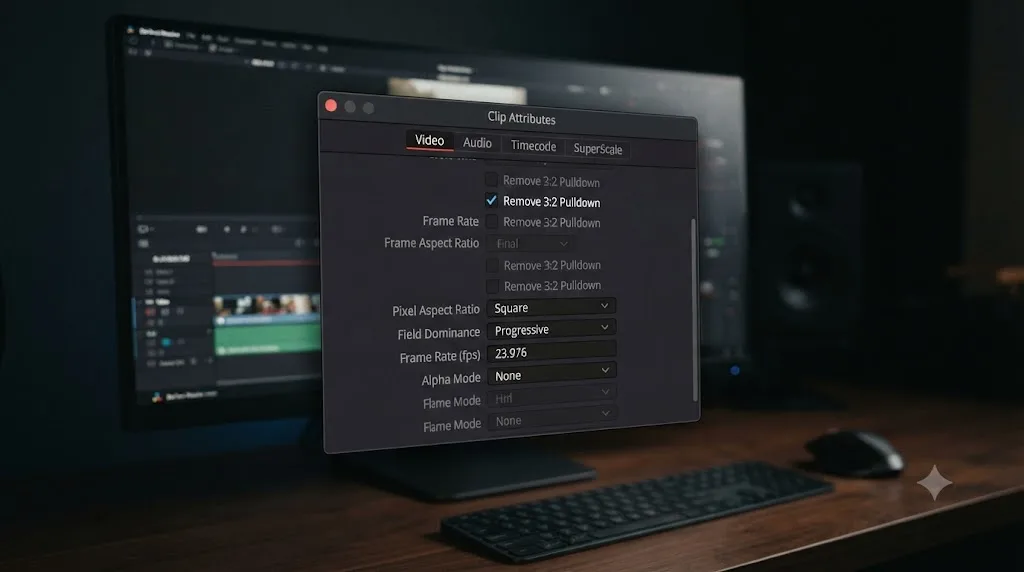
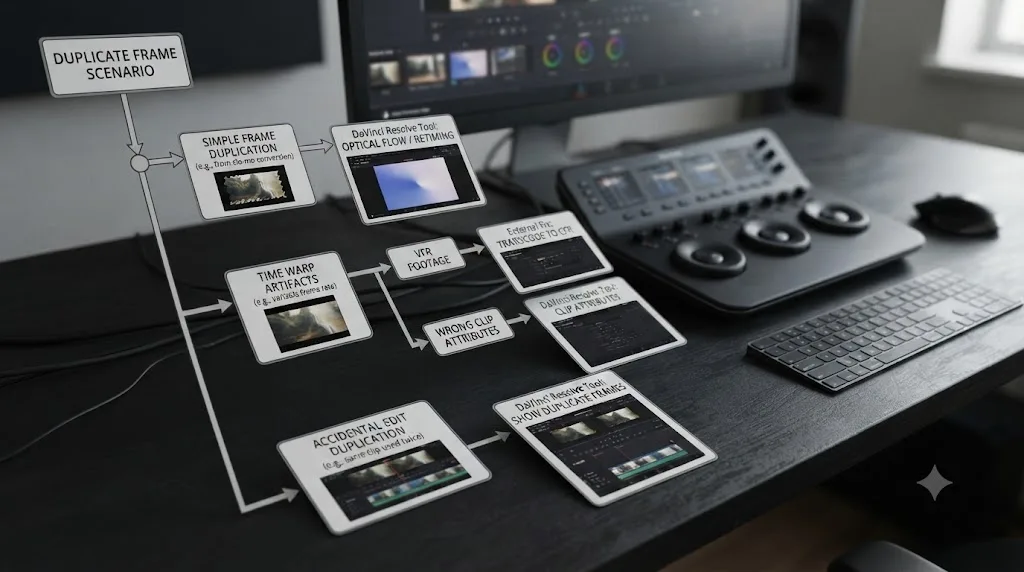
Removal, the part everyone actually wants, exists for exactly one specific kind of duplicate frame: the ones created by 3:2 pulldown when 24p film gets telecined into 29.97 fps interlaced video. That's Remove 3:2 Pulldown, tucked inside Clip Attributes' Video tab, and it's the only place in Resolve where "remove duplicate frames" is a literal, automatic, real-time operation.
Resolve has no single button that finds and deletes duplicate frames from arbitrary footage. That's the honest answer, and it's worth saying plainly before diving into how to use the three tools that do exist, because a lot of the frustration around this query comes from expecting a feature that was never built. The rest of this guide covers exactly what each tool does, where each one falls short, and what to do about the duplicate frames that none of them touch automatically.
How Do You Turn On Duplicate Frame Detection (Show Duplicate Frames) in DaVinci Resolve?
Go to the top menu bar on the Edit page, click View, and choose Show Duplicate Frames. That's the entire setup process.
Once it's active, colored bars appear across the top edge of any clip in your timeline whose frame range is used somewhere else in that same timeline. The bars are your only visual cue; there's no separate panel, no report, no export list. You read the timeline directly.
A few things worth knowing about how this actually behaves in practice:
- It's a toggle, not a scan. Show Duplicate Frames stays active as you edit, continuously updating the colored bars as you add, remove, or rearrange clips, rather than running a one-time analysis you have to re-trigger.
- It only checks the current timeline. A clip repeated across two different timelines in the same project shows nothing, because the comparison is scoped to whatever timeline you have open.
- It works per Edit page timeline, not project-wide. If you're jumping between multiple timelines in one project, you'll need to turn it on and check each one individually.
- There's nothing to configure. No sensitivity slider, no minimum duplicate length, no color customization documented in Resolve's own manual. It's on or it's off.
The feature is genuinely useful in one specific, common scenario: collaborative or multi-editor projects where footage from an earlier cut, or an alternate version of a sequence, gets reused without everyone on the team realizing it. That's the exact use case Blackmagic's own manual describes, calling out situations "where you're importing multiple versions of a timeline that's been edited in another application, or where you're working with multiple editors on different versions of the same timeline in collaborative mode."
Why Is DaVinci Resolve Showing Colored Bars On Clips That Don't Look Duplicated to Me?
The colored bar means Resolve found the same frame range used more than once in the timeline, and it's telling you that regardless of whether the reuse was intentional.
The most common causes, in order of how often editors actually hit them:
- You genuinely used the same shot twice. A cutaway, a reaction shot, or a b-roll clip you dropped in two different places on purpose. The tool is working correctly; there's nothing to fix.
- A compound clip shares source with a raw clip elsewhere on the timeline. Grouping footage into a Compound Clip doesn't hide it from Dupe Detection, since the underlying frame range is still the same media.
- Two versions of a scene share an overlapping range. If you built version A of a sequence, then duplicated the timeline segment to try version B, and left both in place temporarily, both copies light up.
- A multicam clip's active angle repeats footage also cut in separately. If an angle from a multicam group also appears as its own standalone clip elsewhere, the shared frame range triggers the indicator on both.
A colored bar over a clip is Resolve reporting a fact about frame reuse, not a verdict on whether that reuse is a mistake. That distinction matters because editors sometimes chase every bar looking for something broken, when the bar is frequently just confirming an edit decision they made on purpose. Use it as a review pass, not an error list: walk the timeline, look at every flagged range, and decide clip by clip whether the repetition belongs there.
How Do You See Exactly How Many Times a Clip's Frames Repeat in Your Timeline?
Right-click the clip on the timeline and look for the Duplicated Frames submenu. It reports the exact count of how many other places in the timeline share that clip's frame range, and gives you a direct way to jump to each one instead of scrolling and squinting at colored bars.
This solves a specific problem Show Duplicate Frames doesn't: the visual bars tell you something is duplicated, but not how many times, and not exactly where without hunting. The right-click count answers both.
This matters more than it sounds like it should on a long-form project. A 90-minute documentary with a recurring b-roll shot used across a dozen scattered scenes produces a dozen colored bars that all look identical at a glance. The count and jump-to-instance behavior turns "something here is duplicated" into "this exact clip appears in these seven specific places," which is the difference between noticing a problem and being able to actually act on it.
A related option lives in the Media Pool: right-click a clip there and look for a Usage submenu, which serves a similar purpose from the bin side rather than the timeline side, useful when you're auditing footage before it's even cut into a sequence rather than reviewing an already-built timeline.
Why Does DaVinci Resolve's Duplicate Frame Detection Miss Real Duplicates?
Because it isn't looking at pixels. Editors discussing feature requests on the Blackmagic forum's "Advanced Dupe Frame Removal" thread have pointed out exactly this gap: the current detection method identifies duplicates by clip identity and timecode within the timeline, not by comparing what one frame actually looks like against the next.
That distinction produces a specific, predictable blind spot. Two scenarios that feel identical to an editor land in completely different buckets for Resolve:
| Scenario | Does Show Duplicate Frames catch it? | Why |
|---|---|---|
| The same clip cut into the timeline twice | Yes | Same clip identity, same timecode range, reused in the same timeline |
| A compound clip sharing source with a raw clip elsewhere | Yes | Underlying frame range still matches |
| VFR footage with real duplicated frames baked into the file itself | No | It's one clip playing once; there's no second instance to compare against |
| 3:2 pulldown duplicates from an un-corrected telecine transfer | No, unless you also enable Remove 3:2 Pulldown | Detection flags timeline reuse, not internal frame repetition inside a single clip's playback |
| Two visually identical frames from separate, unrelated source clips | No | No pixel comparison happens; different clip identity means no match regardless of what the frames look like |
A colored bar tells you a clip is used twice in your timeline; it says nothing about whether the frames inside that clip are visually unique. That's the core thing to internalize before relying on Show Duplicate Frames as your only line of defense against duplicate frames. It's a timeline-reuse detector, not a content-analysis tool, and telecine or VFR duplicates baked into a single piece of source media pass through it completely invisible.
If you need true pixel-level duplicate detection inside a file, that's a job for an external tool run before import, covered further down.
How Do You Remove Duplicate Frames From Telecined Footage in DaVinci Resolve?
This is the one case where Resolve genuinely automates removal, and it's worth understanding what's actually happening technically, because it explains both why it works and why it's narrower than people expect.
Film shot at 24 frames per second gets converted to NTSC video's 29.97 fps through a process called 3:2 pulldown, or telecine. The conversion spreads the fields of the original 24 progressive frames across 30 interlaced frames using a repeating pattern, which is where the duplicate frames actually come from. Per the manual's Real-Time 3:2 Pulldown Removal section, Resolve "can pull the original 24 discrete film frames out of the various interlaced fields that make up the NTSC signal," reconstructing the clean progressive source in real time, no render pass required just to preview the result.
Here's the exact workflow:
- Confirm the clip is 29.97 fps interlaced. Check the FPS column in the Media Pool. This tool applies specifically to material telecined from 24p to 29.97i; it isn't a general-purpose fix for other frame rate mismatches.
- Select the clip in the Media Pool and right-click, choosing Clip Attributes.
- Open the Video tab of the Clip Attributes dialog.
- Check the Remove 3:2 Pulldown checkbox.
- Set First Frame of Clip in the dropdown to the frame where the 3:2 cadence begins, usually the "A" frame, though the correct letter depends on exactly where the telecine pattern lands on your specific transfer.
- Click OK, then drop the clip onto a progressive 23.976 or 24 fps timeline. It now behaves like native 24p footage.
Remove 3:2 Pulldown is the only tool in DaVinci Resolve that automatically deletes duplicate frames rather than just pointing at them. Everything else in this guide, detection, counting, retiming methods, is either finding duplicates or creating new ones on purpose. This is the exception, and it works specifically because the 3:2 pattern is mathematically predictable: Resolve knows exactly which fields belong to which original film frame, because the pulldown formula that created the duplication is a known, fixed pattern rather than an unpredictable artifact.
That predictability is also the limitation. The Blackmagic forum's own 3:2 Pulldown Removal thread and related discussion note that Resolve's pulldown removal works reliably on clean, consistent-cadence masters, but struggles anywhere the cadence breaks, which happens on damaged sources, edited-down tape masters, or transfers where the telecine pattern was applied inconsistently. If you're restoring archival footage with a genuinely broken cadence, expect to need a dedicated inverse-telecine tool with frame-by-frame manual correction rather than relying on Resolve's checkbox alone.
Does PAL Footage (25fps) Get the Same Duplicate-Frame Treatment as NTSC 3:2 Pulldown?
No, and this trips up editors who assume every film-to-video conversion works the way Remove 3:2 Pulldown does.
NTSC's 3:2 pulldown problem exists because 24fps film has to stretch across 29.97fps video, a mismatch large enough that fields need to repeat. PAL solves the same 24-to-video conversion a completely different way: instead of duplicating frames, it speeds the whole thing up. Per Missing Remote's breakdown of 24p conversion, "the film frame rate was simply sped up 4% from 24fps to 25fps," a method also known as 2:2 pulldown, since every film frame maps cleanly to two video fields with no uneven 3-and-2 split. NTSC, by contrast, works by having "frames of film... displayed in an alternating sequence of two or three fields in order to match the NTSC field rate," which is exactly the uneven pattern Remove 3:2 Pulldown exists to reverse.
That difference matters in practice, not just in theory:
| PAL (2:2, "speedup") | NTSC (3:2 pulldown) | |
|---|---|---|
| Conversion method | Speeds up playback roughly 4% | Duplicates fields in a 3-2-3-2 pattern |
| Duplicate frames created? | No | Yes |
| Audio pitch affected? | Yes, raised slightly unless corrected separately | No |
| Does Remove 3:2 Pulldown apply? | No, there's nothing to remove | Yes, this is exactly the pattern it reverses |
| Fix in Resolve | Reconform and retime the clip's frame rate, not a pulldown checkbox | Clip Attributes > Video > Remove 3:2 Pulldown |
A PAL-sped-up film transfer has no duplicate frames to hunt for, because the problem was never frame duplication in the first place. If you're handed a PAL master and it feels a hair faster and slightly higher-pitched than you remember the film sounding, that's the roughly 4% speedup doing exactly what it's supposed to do, not a defect you can fix with a checkbox. Checking Remove 3:2 Pulldown on a PAL-speedup clip does nothing, since there's no 3-2 field pattern present to detect and reverse.
If you need the original 24fps speed and pitch back for a restoration project, that's a separate job: change the clip's frame rate in Clip Attributes' Video tab, and correct the audio pitch shift in Fairlight, rather than looking anywhere near the pulldown settings. And if you're not sure which conversion you're holding, the diagnostic is simple: scrub a few seconds slowly. Field-tear or a visible stutter on specific frames points to NTSC-style duplication. Footage and dialogue that just feel subtly rushed, with no visible frame repetition anywhere, points to a PAL speedup instead.
What If Your Footage Isn't Telecine? Does Resolve Remove Duplicate Frames Automatically?
No. Outside the specific 3:2 pulldown case, DaVinci Resolve has no automatic duplicate-frame-removal tool, and that's true whether the duplicates came from a phone's variable frame rate recording, a slow shutter speed on an action camera, or a screen recorder's inconsistent timing.
Your practical options, ranked by how much they disturb your original edit:
Fix it before import. Convert the source file to a constant frame rate using a tool outside Resolve, then bring the corrected file in. FFmpeg's mpdecimate filter is the most direct option here: its own documentation describes it as dropping "frames that do not differ greatly from the previous frame in order to reduce frame rate," which is a genuine pixel-comparison approach, the opposite of how Resolve's own detector works. Shutter Encoder, a free cross-platform re-wrapping and transcoding tool, offers a friendlier interface for the same class of fix if a command-line filter isn't your speed.
Fix it manually on the timeline. Scrub through the clip, identify where the repeats sit, and blade out the redundant frames by hand. This is slow and only realistic for short clips or a handful of obviously bad sections, but it requires no external software and keeps everything inside Resolve's normal edit workflow.
Leave it and address it at the retime level instead. If the duplication is subtle enough that it only shows up as minor stutter rather than an obvious glitch, sometimes the more efficient fix is smoothing the playback with Optical Flow retiming rather than hunting down and removing individual frames, covered in detail two sections down.
The honest tradeoff: pre-import conversion is the cleanest fix technically, since it corrects the file at the source and every frame count downstream stays consistent, but it adds an extra tool and an extra pass to your pipeline before footage ever reaches the Media Pool. Manual removal keeps everything inside Resolve, but doesn't scale past a few clips.
Why Do GoPro, DJI, and Phone Clips Have Real Duplicate Frames Baked In?
Two separate mechanisms cause this, and they produce different symptoms.
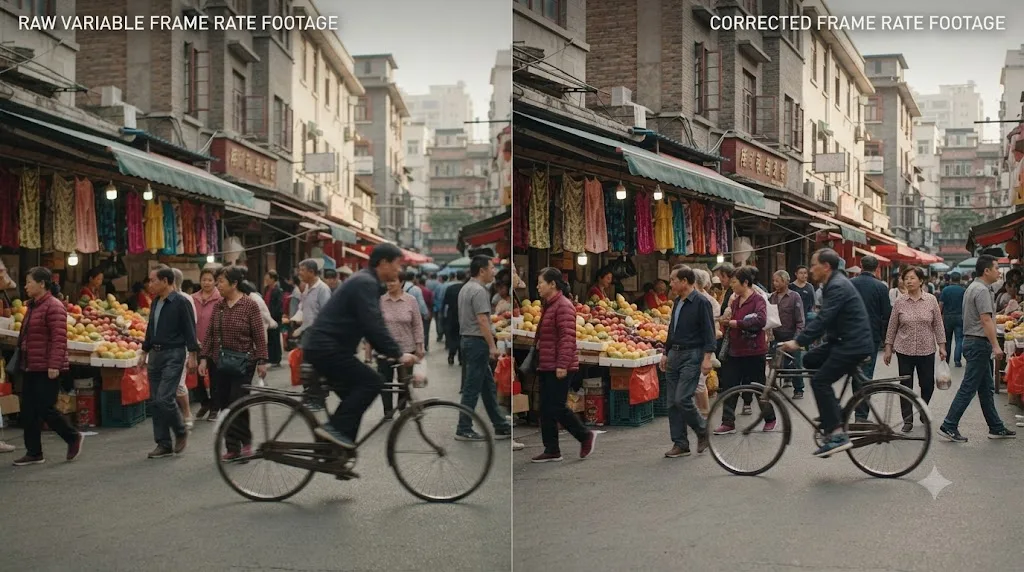
Slow shutter speed. According to reports on the GoPro Community forum, if a GoPro's shutter speed is set to anything slower than 1/59th of a second while shooting at 60fps, the camera ends up recording duplicate frames, because it physically can't capture 60 genuinely distinct exposures per second at a shutter speed that slow. The fix at the source is adjusting shutter speed settings before shooting, not anything you do in post.
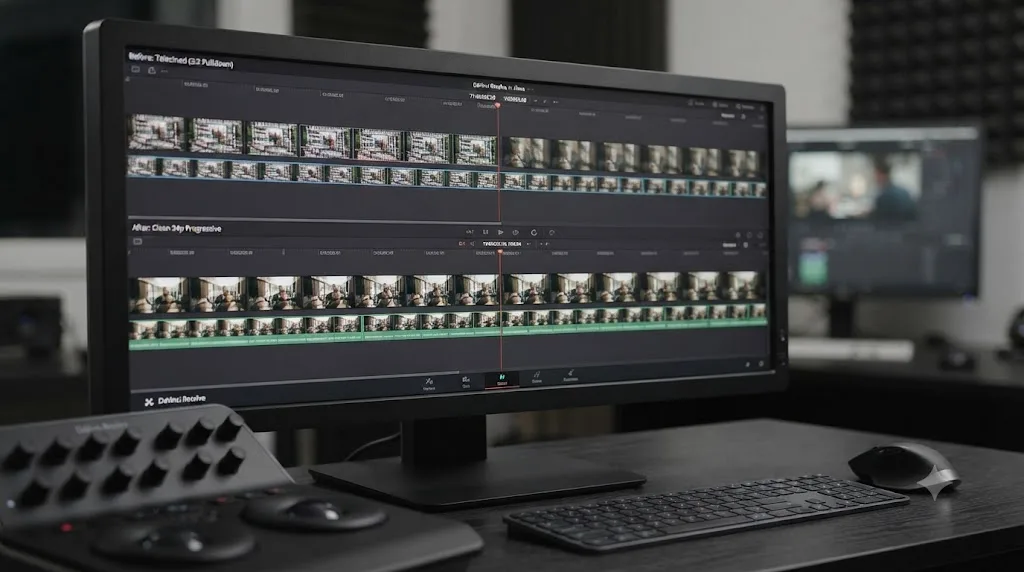
Variable frame rate (VFR) recording. Many smartphones, and some action cameras and drones, record at a frame rate that fluctuates rather than staying locked to a constant value, adjusting on the fly based on available light, processing load, or battery thermal conditions. Editors on the Adobe community forum describe VFR footage causing "sync and playback issues with proxies," and the standard remedy across NLEs, including Resolve, is converting the footage to a constant frame rate (CFR) before bringing it into a project rather than trying to fix it inside the timeline.
Both mechanisms produce duplicate frames that live inside the source file itself, invisible to Resolve's Show Duplicate Frames toggle, because that feature only compares clip identity across a timeline. It never opens a single clip and asks whether frame 47 looks identical to frame 48.
If you shoot regularly with a GoPro, DJI drone, or a specific smartphone model and haven't confirmed whether your camera's default settings produce VFR output, that's worth checking in your camera's manual or settings menu before your next shoot, since prevention at capture time is dramatically less work than any post-production fix. Camera-specific import guides, like our coverage of DJI Osmo Action 5 footage or GoPro Hero 12 footage, are the right place to check recommended capture settings for your exact device before duplicate frames ever become a problem you're fixing in Resolve.
A duplicate frame baked into a camera's file by a slow shutter or a variable frame rate is a capture-time problem, and no editing software, Resolve included, can distinguish it from a genuine frame without analyzing pixel content directly. That's the core reason this category of duplicate frame sits entirely outside what Show Duplicate Frames was built to catch.
How Does DaVinci Resolve Itself Create Duplicate Frames During Retiming?
This is the case people rarely expect: sometimes Resolve is the one adding the duplicate frames, on purpose, as a side effect of slowing footage down.
Resolve offers several distinct methods for generating the extra frames a slow-motion retime needs, set through Frame Interpolation in Project Settings or per-clip. According to the reference manual's Frame Interpolation section:
| Method | How it works | Processor cost | Best for |
|---|---|---|---|
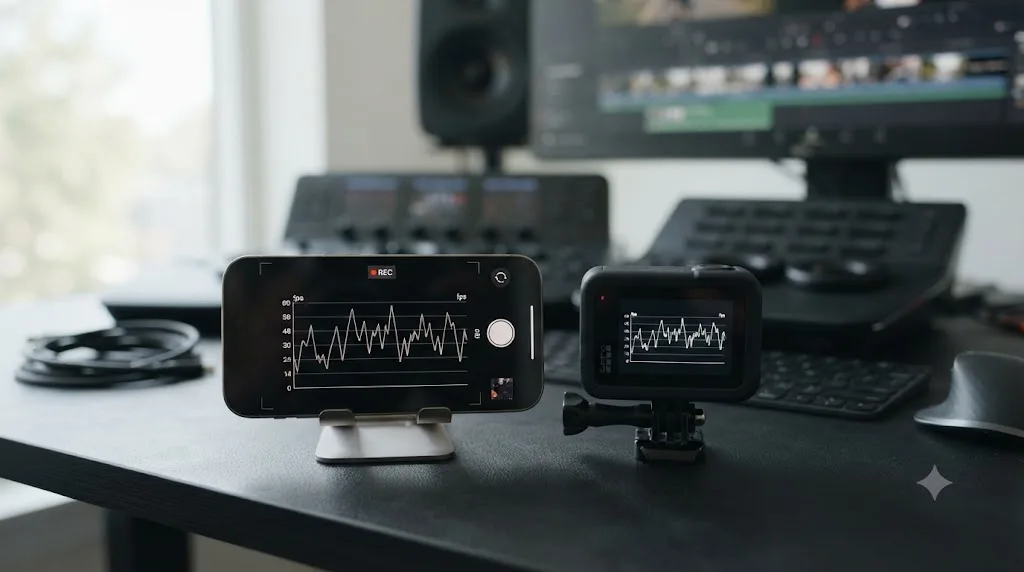
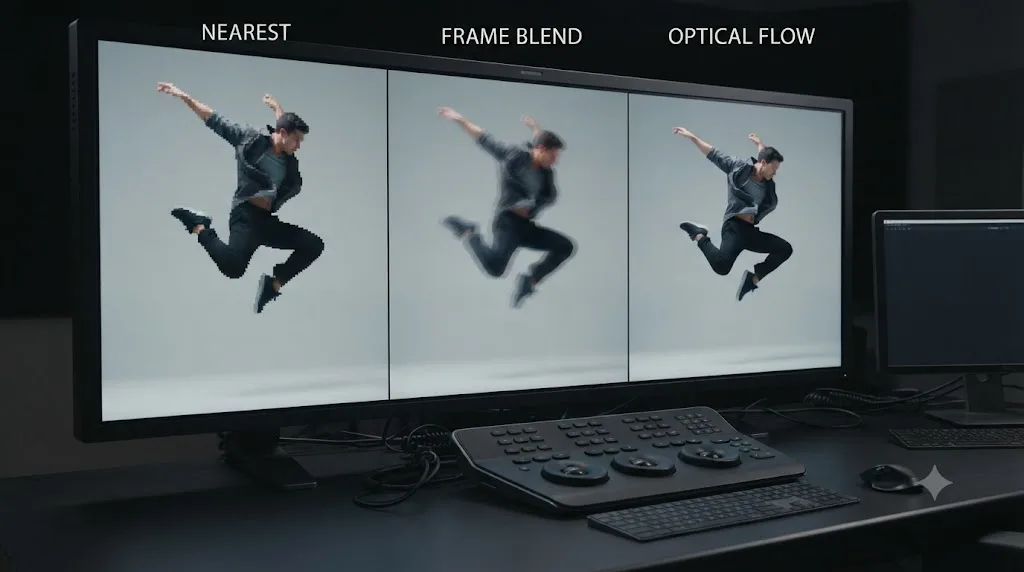
| Nearest | "Frames are either dropped for fast motion, or duplicated for slow motion." No new frames generated. | Lowest | Quick previews, rough cuts, when speed matters more than smoothness |
| Frame Blend | "Adjacent duplicated frames are dissolved together to smooth out slow or fast motion effects." | Moderate | A middle ground when Optical Flow introduces artifacts |
| Optical Flow | Uses motion estimation to generate genuinely new frames rather than repeating existing ones | Highest | Smooth slow motion on footage with linear, predictable motion |
| Speed Warp | Uses the DaVinci Neural Engine for AI-assisted slow motion, Studio only | High, GPU-dependent | Premium slow motion where Optical Flow artifacts on complex motion |
Dan Swierenga, a professional colorist and Flame artist writing for Frame.io, describes Nearest as the plainest tradeoff of the group: "You will see stuttering with fast-moving footage or using uneven speed changes, but that's the price of faster performance." Nearest is also, per the same article, the default setting Resolve applies when mixing frame rates, which means duplicate frames can appear in a project without you ever having deliberately chosen a slow-motion effect at all, simply because two clips at different native frame rates landed on the same timeline and Resolve had to reconcile them somehow.
Nearest doesn't hide the duplication, it just repeats whole frames outright, while Optical Flow tries to invent motion that was never actually captured. That's the real choice buried inside these four options: cheap and honest about the repeat, or expensive and convincing about motion that doesn't technically exist. Frame Blend sits between the two, dissolving duplicated frames into each other rather than either repeating them cleanly or synthesizing new content.
If you're seeing stutter you suspect is Resolve-generated rather than baked into your source footage, check the clip's retime settings or Project Settings' Optical Flow section first. Switching from Nearest to Frame Blend or Optical Flow, right-click the clip, Change Clip Speed, and look for the Frame Interpolation dropdown in the dialog, often smooths the exact stutter that looked like a duplicate-frame problem but was actually a retiming-method choice the whole time.
Duplicate Frames in Rotoscope, Paint, and Frame-Accurate VFX Work
Detection and removal both matter differently once you're doing frame-accurate work like rotoscoping or paint fixes, because the cost of a duplicate frame isn't stutter, it's wasted labor.
Rotoscoping is fundamentally frame-by-frame tracing work, isolating a subject or masking an area on every individual frame of a shot. If a source clip contains real duplicate frames from a telecine transfer or VFR capture, an artist working frame by frame risks redoing identical work on what is, pixel for pixel, the exact same image, simply because nothing flagged that frame 112 and frame 113 aren't actually different. Confirming a clip's frame rate is genuinely constant, and running Remove 3:2 Pulldown or an external CFR conversion before roto work begins rather than after, saves real time on a shot that might already be facing dozens of hours of manual paint or mask work.
The Fusion page's node-based structure is where this matters most directly inside Resolve, since Fusion is where the majority of frame-level paint and rotoscope work actually happens. Our Fusion page tutorial for beginners covers the node fundamentals if you're new to that side of Resolve, and it's worth clearing up your source clip's frame integrity before you're deep into a composite, since re-timing or re-conforming a shot mid-composition is far more disruptive than fixing the source file first.
The practical rule for this use case is simple: confirm real frame uniqueness before committing artist hours, not after. A colored Show Duplicate Frames bar won't catch this category of duplication, since it's a within-clip problem, not a timeline-reuse problem, which is exactly why the pre-import checks covered earlier in this guide matter more for VFX work than for a straightforward edit.
Do Proxies or Optimized Media Introduce Duplicate Frames?
Not if you let Resolve manage them itself, but yes, in effect, if you supply your own proxy files without matching them correctly.
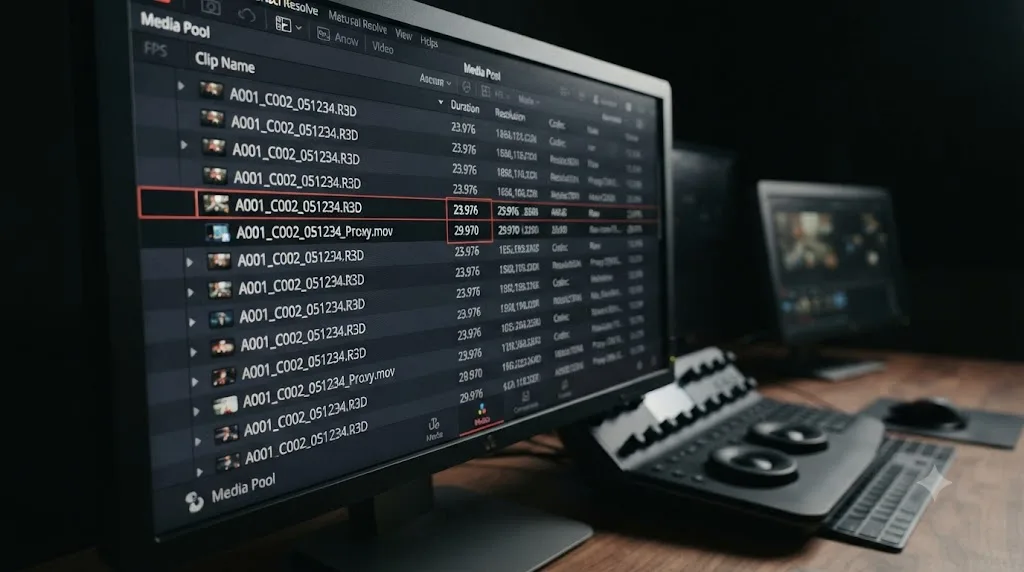
Resolve draws a real distinction between two similar-sounding features. Optimized media is Resolve's own internal transcode, generated and tracked automatically, and it inherits the source clip's frame rate and timecode without you doing anything. Proxy media is different: you supply external files, often generated on another machine or by a shooting crew in the field, and Resolve has to trust that those files line up with the originals. Per the DaVinci Resolve reference manual's guidance on proxy workflows, when building external proxies you need to "make sure the timecode and frame rate of the proxies match the original source media" before relinking them in your project.
Skip that step and the mismatch doesn't look like a duplicate frame at first. It looks like drift: audio and picture slide out of sync a few frames at a time as the timeline plays, worse the further you get from the start of the clip, because a 23.976fps proxy standing in for a 24fps original accumulates a growing frame-count gap rather than a clean, single doubled frame Show Duplicate Frames would ever flag. That's also why Show Duplicate Frames won't catch it: the tool compares clip identity and timecode within a timeline, not frame counts between a proxy and its original media.
A quick way to tell the two problems apart on a real project:
- Genuine duplicate frames show up as a single repeated image, or a short stuttery run, at a fixed point in the clip, and it looks the same every time you play that section.
- A mismatched proxy frame rate shows up as sync that's fine at the start of a clip and gradually worse toward the end, and it gets worse the longer the clip runs, since the frame-count gap compounds over time rather than sitting in one place.
A mismatched proxy frame rate produces sync drift, not the colored bars Show Duplicate Frames is built to catch, so it's a different failure mode entirely and needs a different fix. The fix is boring but reliable: check the FPS column for both the proxy and the original in the Media Pool before you relink, and if they don't match exactly, regenerate the proxy at the correct rate rather than trying to nudge the two back into sync by hand on the timeline. If you're only ever using Resolve's own Optimized Media rather than externally supplied proxies, this entire failure mode doesn't apply to you, since Resolve locks the frame rate to the source automatically.
Which Duplicate-Frame Tool Should You Actually Use? A Decision Table
Match your actual situation against this table rather than guessing which Resolve menu might have what you need.
| Your situation | Use this | Where to find it |
|---|---|---|
| You want to confirm whether a clip is reused elsewhere in the same timeline | Show Duplicate Frames | View menu, Edit page |
| You need an exact count and jump-to-location for a clip's repeats | Duplicated Frames submenu | Right-click the clip on the timeline |
| Your footage is 29.97 fps interlaced, telecined from 24p film | Remove 3:2 Pulldown | Clip Attributes > Video tab |
| Your footage is a PAL 25fps transfer that plays slightly fast | Reconform and retime the frame rate, not Remove 3:2 Pulldown | Clip Attributes > Video tab, frame rate field |
| Your footage is VFR from a phone, GoPro, or screen recorder | Convert to CFR before import | ffmpeg's mpdecimate, or Shutter Encoder, outside Resolve |
| A slow-motion retime looks stuttery, not your source footage | Switch Frame Interpolation to Frame Blend or Optical Flow | Change Clip Speed dialog, or Project Settings |
| You need true pixel-level duplicate detection inside a single file | An external tool, not Resolve | ffmpeg mpdecimate, or a dedicated dupe-frame analyzer |
| You're doing frame-accurate rotoscope or paint work | Confirm frame integrity before starting, using the methods above | Media Pool FPS check, then the matching fix from this table |
| A telecine transfer has a broken or inconsistent cadence | A dedicated inverse-telecine tool, Resolve's checkbox alone won't fix it | Outside Resolve, per forum reports on broken-cadence limitations |
| You're delivering to a broadcaster or platform with a formal QC spec | Run the final export through a dedicated QC platform after render | Outside Resolve, e.g. BATON or Vidchecker |
No single row in this table is "the" duplicate frame tool, because DaVinci Resolve was never built around one. Picking the right row for your actual footage, rather than searching for a feature that matches the phrase "detect and remove," is what actually gets you to a fix quickly.
A Full Worked Example: Cleaning Up a Telecine Transfer From Start to Finish
Concrete beats abstract, so here's the complete workflow for a common case: an archival tape transfer that was telecined from 24p film to 29.97i video, and now needs to go back to clean progressive footage for a documentary project.
- Import the raw transfer into the Media Pool and check the FPS column. Confirm it reads 29.97, and that the clip's format shows as interlaced rather than progressive.
- Turn on Show Duplicate Frames from the View menu before doing anything else, purely as a sanity check that you're not also dealing with unrelated timeline-level duplication on top of the telecine issue.
- Select the clip in the Media Pool, right-click, and open Clip Attributes.
- Switch to the Video tab and check Remove 3:2 Pulldown.
- Identify the correct cadence frame. If you don't already know which frame the pulldown pattern starts on, try A first, since it's the most common starting point, then scrub the reconstructed result and watch for visible stutter or field-tearing, which signals the wrong letter was chosen. Cycle through B, C, and D if A doesn't produce clean motion.
- Click OK and drop the clip onto a 23.976 or 24 fps timeline.
- Scrub through the full clip at normal speed and watch specifically for any section where the cadence breaks, tape damage, a dropout, or an inconsistent transfer pass are the usual culprits. A broken cadence shows up as brief stutter or a visible double-image that the automatic reconstruction can't smooth out.
- Isolate any broken sections by blading the clip at the point where stutter starts and ends, and treat that isolated range as its own case, either accepting the minor stutter if it's brief, or sending that specific range to a dedicated inverse-telecine tool if the footage is important enough to justify it.
- Compare the corrected footage against the original at full resolution before finalizing, since a subtle field-order mismatch can look correct at a glance but reveal itself as a faint judder once you're watching at full playback speed rather than scrubbing frame by frame.
That sequence, confirm the format, enable pulldown removal, find the right cadence letter, isolate what breaks, covers the entire practical loop for the one case Resolve genuinely automates.
A Full Worked Example: Cleaning Up VFR Duplicate Frames From a Phone or Action-Cam Clip
Here's the second common scenario, footage that stutters not because of a telecine transfer, but because a phone or action camera recorded it at a variable frame rate.
- Notice the symptom first. The footage plays with an irregular, uneven stutter that doesn't match the smooth or predictable pattern telecine duplication produces, and it often gets worse or better depending on lighting or scene complexity within the same clip, a strong VFR signature.
- Check the clip's metadata outside Resolve, using a tool like MediaInfo or ffprobe, to confirm whether the frame rate is actually fluctuating rather than fixed. A VFR file typically reports a range or an average rather than a single locked number.
- Don't try to fix it inside Resolve first. Since there's no native detection for within-file duplicate frames, attempting timeline-level fixes, retiming, or Frame Interpolation changes on a VFR source usually treats the symptom, not the cause.
- Run the file through ffmpeg's mpdecimate filter, or a GUI tool like Shutter Encoder, to convert it to a genuinely constant frame rate. The ffmpeg documentation describes the filter as dropping "frames that do not differ greatly from the previous frame," which directly targets the duplicate-frame problem at the pixel level Resolve's own tools don't reach.
- Re-import the corrected file into a fresh Media Pool bin, keeping the original untouched in case you need to revert or re-process with different settings.
- Turn on Show Duplicate Frames on your timeline after cutting the corrected footage in, purely to confirm you haven't introduced any new timeline-level reuse while replacing the old clip with the new one.
- Scrub the corrected clip at full speed and compare playback smoothness against the original, confirming the stutter is genuinely gone rather than just less noticeable at the frame rate you happened to scrub at.
If you shoot with a specific action camera or drone regularly and this keeps happening, it's worth checking that device's specific import guide, since several camera models covered in our library, including DJI Osmo Pocket 3 footage, carry known frame rate quirks worth adjusting for at capture time rather than fixing after the fact every single shoot.
Can You Detect or Remove Duplicate Frames Using DaVinci Resolve's Scripting API?
Not directly, and that's worth knowing before you go looking for a script to automate this.
Resolve's Python and Lua scripting API gives you deep control over the Media Pool, timeline structure, and render queue, but it stops well short of pixel-level frame analysis. Editors discussing the API's actual limits on the Blackmagic forum's scripting thread note that "there is no in-memory access to frames in the Color or Delivery stages," aside from small clip thumbnails visible on the Color page timeline, and that "the best you can do with the script engine is render EXRs to disk" if you need to inspect frame content programmatically. There's no GetDuplicateFrames() method, no exposed function that compares one frame's pixels against the next, and nothing in the scripting API's own documentation that reaches past thumbnail-level image data.
That doesn't mean scripting is useless here, just that it plays a supporting role rather than doing the actual detection. A realistic automated pipeline for a facility processing a lot of footage looks like this:
- Run the pixel-comparison pass outside Resolve. Point ffmpeg's mpdecimate filter, or a dedicated frame-analysis script, at your incoming source files before they ever touch a Resolve project. This is where the real duplicate-frame detection happens.
- Sort the output. Files the filter flagged as containing duplicates get routed to a "needs conversion" folder; clean files go straight to the "ready to import" folder.
- Hand the clean folder to Resolve's Python API. From here, scripting genuinely helps: batch-importing an entire folder into the Media Pool, applying the same Clip Attributes settings across dozens of clips at once, or building out a timeline from an EDL once your footage is already known-clean.
- Leave the actual frame comparison to the external tool every time. Resolve's API is built for project and timeline automation, not for asking "does frame 47 look like frame 48."
If you're picturing a script that opens Resolve, scans a project, and reports every duplicate frame by pixel content, that tool doesn't exist inside Resolve's own scripting API, and building one means reaching for ffmpeg or a dedicated frame-analysis library instead. For most editors this is academic. But if you're managing a facility that processes hundreds of hours of archival or UGC footage a month, knowing where the boundary actually sits, Resolve for orchestration, an external tool for pixel comparison, saves you from chasing a native feature that was never going to appear in the API reference.
How Do You Troubleshoot Show Duplicate Frames When It's Not Highlighting Anything?
Four distinct symptoms, four distinct causes, same as most Resolve features that seem broken but are actually working exactly as documented.
The toggle is on, but no colored bars appear anywhere, even on a clip you know is reused. Confirm you're looking at the correct timeline. Show Duplicate Frames only evaluates the timeline currently open in the Edit page timeline panel, and switching timelines resets what it's comparing against. If you cut a duplicate range into Timeline B while Timeline A is open, nothing will show until you actually switch to Timeline B.
A clip you're certain is unique shows a colored bar anyway. Check whether it's part of a Compound Clip or Multicam clip sharing underlying source with something else on the timeline. The indicator follows frame-range identity, not the visible label on the clip, so a renamed or regrouped clip can still trigger the flag if its source media overlaps with something else.
Remove 3:2 Pulldown is checked, but the footage still looks like it's stuttering or field-tearing. This almost always means the First Frame of Clip setting doesn't match the actual cadence starting point. Cycle through A, B, C, and D in the dropdown while watching the preview, since the correct letter genuinely varies by transfer, and there's no way to know it in advance without checking each option against the footage.
A VFR clip still stutters after you thought you fixed the frame rate. Confirm the conversion tool you used actually output a constant frame rate rather than just re-wrapping the container without changing the underlying frame timing. Re-wrapping a VFR file into a different container format, MOV to MP4 for instance, doesn't fix VFR by itself; you need an actual re-encode with a locked output frame rate, which is what ffmpeg's decimate-and-setpts combination, or a proper CFR export from Shutter Encoder, actually does.
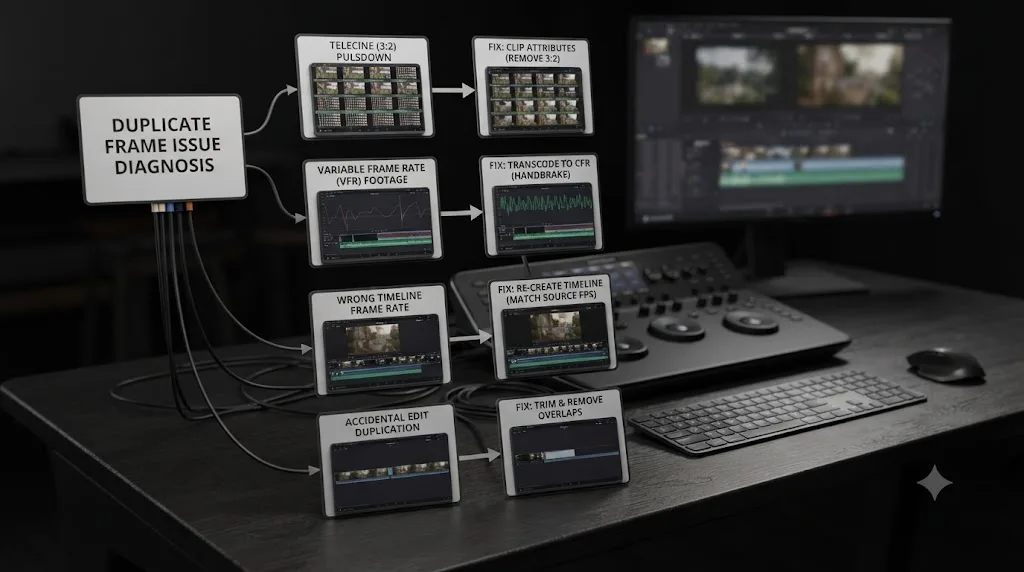
Nearly every "duplicate frame tool isn't working" report traces back to a mismatch between what the tool actually checks and what the editor expected it to check, not a bug. Resolve's detector looks at timeline reuse. Its remover looks at one specific pulldown pattern. Neither one analyzes raw pixel content, and once that's clear, most of the confusing behavior stops being confusing.
Is Duplicate Frame Detection Available in the Free Version of DaVinci Resolve?
Yes. Both Show Duplicate Frames and Remove 3:2 Pulldown are Edit page and Clip Attributes features, and neither appears among the Studio-exclusive DaVinci Neural Engine tools listed on Blackmagic's own Studio product page, things like Magic Mask, IntelliSearch, CineFocus, and Speed Warp retiming.
| Feature | Free version | Studio |
|---|---|---|
| Show Duplicate Frames (detection) | Yes | Yes |
| Duplicated Frames submenu (count and navigate) | Yes | Yes |
| Remove 3:2 Pulldown | Yes | Yes |
| Nearest, Frame Blend, Optical Flow retiming | Yes | Yes |
| Speed Warp retiming (Neural Engine, AI-assisted) | No | Yes |
| Resolution and frame rate ceiling | 4K/60fps | 8K and higher frame rates |
The DaVinci Resolve product page describes the free version as covering professional editing, color, Fairlight audio, and Fusion VFX with no watermark and no time limit, and none of the duplicate frame tools covered in this guide fall outside that scope. If you're weighing whether Studio's one-time $295 license is worth it for other reasons, features like Magic Mask, HDR grading, or Speed Warp's AI-assisted slow motion, our free versus Studio guide covers the full feature gap. For duplicate frame detection and removal specifically, there's no gap to weigh at all.
How Does DaVinci Resolve Compare to Other Tools for Finding and Removing Duplicate Frames?
Resolve isn't the only editor with this exact split between "detects reuse" and "actually removes." It's worth being honest about where it sits relative to the alternatives editors reach for.
| Tool | What it actually does | Detects pixel-level duplicates? | Removes automatically? |
|---|---|---|---|
| DaVinci Resolve, Show Duplicate Frames | Flags timeline reuse of the same clip identity and timecode | No | No, detection only |
| DaVinci Resolve, Remove 3:2 Pulldown | Reconstructs 24p from 29.97i telecine in real time | No, works on a known cadence pattern instead | Yes, for 3:2 pulldown specifically |
| Adobe Premiere Pro, Show Duplicate Frame Markers | Marks clips reused in the same sequence with colored markers, per ProVideo Coalition's coverage | No, same timeline-reuse model as Resolve | No, detection only |
| ffmpeg mpdecimate | Compares frame content directly and drops near-identical frames | Yes | Yes, but destructive and requires command-line use |
| Dedicated inverse-telecine software | Analyzes and corrects pulldown cadence, including broken cadences | Pattern-based, not general pixel comparison | Yes, more robust than Resolve's checkbox on damaged sources |
| Interra Systems BATON / broadcast QC platforms | Analyzes a rendered deliverable file against a full delivery spec | Yes, direct pixel and frame comparison on the finished file | Detection and reporting only, not removal inside an NLE |
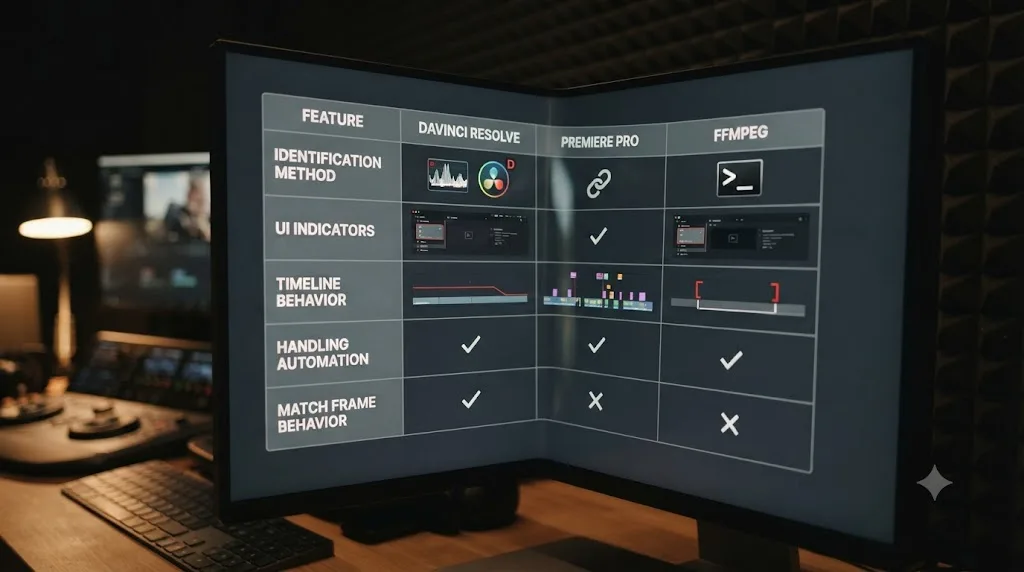
Resolve and Premiere solve the same narrow problem the same narrow way, timeline reuse, not file-level duplication, which means neither one is "worse" here so much as neither one was built to do what people searching for "detect and remove duplicate frames" usually actually want. The tool that does true pixel-level detection and removal, ffmpeg's mpdecimate, isn't an editor at all, it's a command-line filter you run before your footage ever reaches an NLE. That's not a knock against Resolve. It's a structural fact about how frame-duplicate detection works across this entire category of software, and pretending otherwise would just send you looking for a menu item that was never going to exist.
Do Broadcast QC Tools Catch Duplicate Frames That Resolve Doesn't?
Yes, and if you're delivering to a broadcaster or streaming platform, this is the check that actually has teeth.
Automated QC platforms built specifically for delivery compliance, tools like Interra Systems' BATON, are a different animal from anything inside Resolve. Interra Systems' own product pages for BATON describe it as a content-aware QC platform used by broadcasters, OTT services, and post houses specifically to catch issues before a file goes out the door, and duplicate and freeze frame detection sit inside that check list alongside audio sync, loudness, and codec compliance. Unlike Show Duplicate Frames, which only compares clip identity within your open Resolve timeline, these tools analyze the actual rendered deliverable file frame by frame, which means they catch duplicates Resolve's own detector structurally can't: frames baked into your final export by a render glitch, a frame rate conform gone wrong, or a VFR source that slipped through unnoticed.
The difference in what each check is actually looking at:
| Resolve's Show Duplicate Frames | Broadcast QC platform (BATON, Vidchecker, etc.) | |
|---|---|---|
| What it checks | Your open timeline, before render | Your rendered deliverable file, after render |
| Comparison method | Clip identity and timecode | Direct frame-by-frame pixel comparison |
| Scope | One open timeline in one project | The full delivery spec: duplicates, freeze frames, audio, codec, and more |
| Runs when | Live, while you edit | After export, before or during delivery |
This is why "it looked clean in Resolve" and "it passed QC" are two different claims. Show Duplicate Frames operates on your edit, before rendering, and only within the scope of a single open timeline. A broadcast QC pass happens after render, on the file you're actually about to deliver, and checks it against a full delivery specification, not just internal timeline reuse. If you've never delivered to a network or a platform with a strict delivery spec, you may never run into this distinction. If you have, you already know a clean-looking Resolve timeline is no guarantee the exported file will sail through compliance.
Passing Resolve's Show Duplicate Frames check and passing a broadcast QC pass are not the same test, since one looks at your timeline before render and the other looks at your finished file after it. If you're a freelancer delivering to a client with a formal delivery spec for the first time, ask whether they run the file through a QC platform like BATON or Vidchecker before assuming a duplicate-frame-free Resolve timeline is the end of the story.
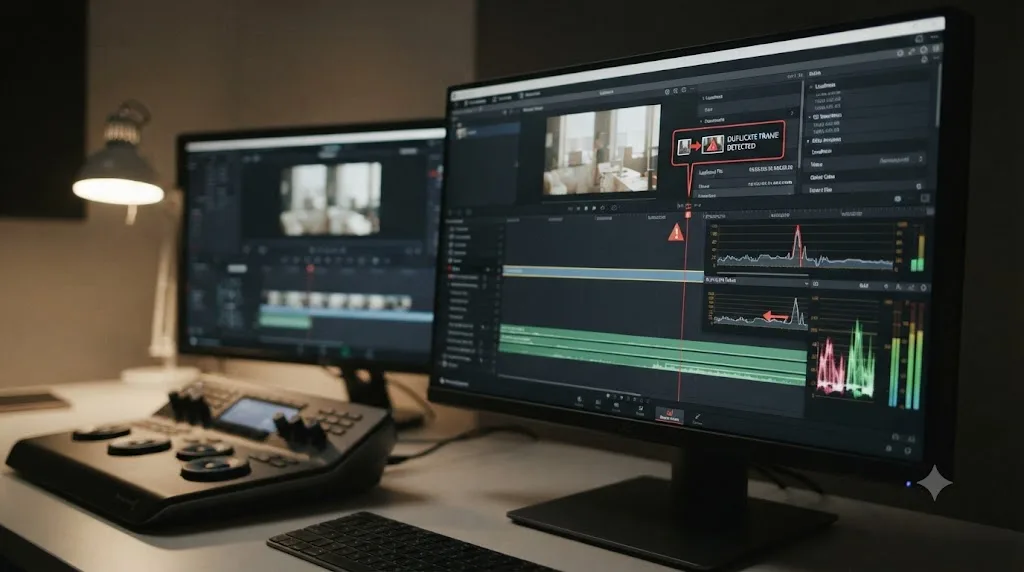
Does an AI Assistant Help You Find the Right Duplicate Frame Control?
Sometimes the actual obstacle isn't the frame math, it's remembering which of three menus, View, Clip Attributes, or a right-click submenu, holds the specific checkbox you need this week. TryUncle is the on-screen assistant for DaVinci Resolve on macOS - ask in plain words and Uncle points at the exact control on your screen.
That's a different kind of help than automated editing tools like Sottocut or CutAgent, which cut, caption, and assemble footage on your behalf inside a Resolve project. Uncle doesn't touch your timeline or make decisions for you. If you already know you need Remove 3:2 Pulldown but can't remember whether it lives under Clip Attributes or Project Settings, that's the exact kind of stuck point Uncle exists for. TryUncle is a paid macOS app, currently $29.99 a month at founder pricing, so check TryUncle for the current rate before assuming that number still holds.
Does Your Operating System or Hardware Change How Duplicate Frame Tools Work?
The tools themselves, Show Duplicate Frames, the Duplicated Frames submenu, and Remove 3:2 Pulldown, behave identically on Windows, Mac, and Linux. There's no platform-specific menu location or missing option to account for.
Where hardware actually matters is scrubbing performance while you're reviewing flagged duplicate ranges or comparing a corrected VFR clip against the original. Interlaced 29.97i material being processed through real-time pulldown removal adds a light but real processing load during playback, and on an underpowered GPU or an older machine, that can introduce its own stutter that's easy to mistake for a genuine cadence problem in the footage itself. If a pulldown-corrected clip looks stuttery specifically at full-resolution playback but smooths out once you drop the timeline proxy resolution to Half, the cause is playback horsepower, not a wrong First Frame of Clip setting.
On Windows and Linux specifically, hardware-accelerated decoding for common delivery codecs in the free version has historically lagged behind Mac, where Apple silicon's media engines keep even heavier real-time processing, including pulldown reconstruction, responsive without transcoding first. If you're working through a large batch of telecine transfers on Windows or Linux and scrubbing feels sluggish specifically while Remove 3:2 Pulldown is active, transcoding to an edit-friendly intermediate codec like DNxHR or ProRes before you start correcting cadence usually resolves it faster than troubleshooting the pulldown setting itself. Our slow playback guide covers the broader set of fixes if sluggishness is a project-wide issue rather than something specific to duplicate-frame review.
What's New for Duplicate Frames and Retiming in DaVinci Resolve 21?
The duplicate frame detection and pulldown removal tools covered in this guide haven't changed in DaVinci Resolve 21 itself; they're stable, long-standing features rather than anything new in this release.
What has changed is the retiming environment those tools sit inside of. Resolve 21 rebuilt Retime Curves around the same 4-point Bezier easing system used throughout the rest of the software, giving editors considerably more visual control over non-linear speed ramps than the previous curve implementation offered. DaVinci Resolve 21.0.2 specifically improved, per CineD's coverage of that release, "the display of the retime speed curve," a targeted fix rather than a full rebuild, alongside other keyframe-related refinements that touch the same interpolation workflow Nearest, Frame Blend, and Optical Flow all live inside.
None of that changes how Show Duplicate Frames or Remove 3:2 Pulldown work day to day. It matters if you're troubleshooting stutter on a clip that's part of a more complex speed ramp, since that's exactly the kind of non-linear retiming the new curve system was built to make more precise, and a stutter that looks like a duplicate-frame problem sometimes turns out to be a curve-shape problem instead once you actually open the Keyframes panel and look. If your retime curve seems to have vanished entirely rather than just displaying oddly, that's a different, more specific issue covered in our retime curve troubleshooting guide.
Where Do You Go From Here?
Detection and removal were never one feature in DaVinci Resolve, and once that stops being a surprise, the rest of this stops being confusing. Show Duplicate Frames finds timeline reuse. The Duplicated Frames submenu counts and locates it. Remove 3:2 Pulldown is the one, specific, genuinely automatic fix, built for one specific kind of duplication that a known, predictable pattern creates. Everything else, PAL speedups, VFR footage, slow shutter speeds, mismatched proxies, screen-recorder artifacts, gets fixed outside Resolve, before the file ever reaches your Media Pool, or by hand once it's already on your timeline.
If you take one thing from this guide, take the decision table. Match your actual footage, telecine transfer, PAL master, phone clip, retiming stutter, against the right row, and you'll spend your next ten minutes fixing the problem instead of hunting for a button that was never going to be there.
Frequently asked questions
- What is DaVinci Resolve's detect and remove duplicate frames tool called?
- There isn't one tool with that exact name. Detection is called Duplicate Frame Detection, or Dupe Detection, turned on from View > Show Duplicate Frames, and it only highlights repeats with colored bars. Actual removal, for the one case Resolve automates, is a separate feature called Remove 3:2 Pulldown, found in Clip Attributes' Video tab. Everything else you fix by hand.
- How do I turn on duplicate frame detection in DaVinci Resolve?
- Open the Edit page, go to the View menu in the top menu bar, and choose Show Duplicate Frames. Resolve immediately draws a colored bar across the top of any clip whose frame range appears more than once in the current timeline. No dialog box, no settings to configure, just an on/off toggle.
- Why is DaVinci Resolve showing colored bars on my clips?
- Those bars mean Show Duplicate Frames is turned on and Resolve found at least one range of frames used more than once in your timeline. It's not an error or a warning about corrupted media. It's most often triggered by a clip you genuinely used twice, a compound clip built from a source that's also cut in raw elsewhere, or two versions of an edit sharing the same source range.
- How do I remove duplicate frames from telecined 29.97fps footage in DaVinci Resolve?
- Select the 29.97 fps interlaced clip in the Media Pool, right-click and choose Clip Attributes, open the Video tab, check Remove 3:2 Pulldown, and set First Frame of Clip to the frame where the pulldown cadence starts, usually A. Resolve reconstructs the original 24p progressive frames from the interlaced fields in real time, no render required to preview it.
- Does DaVinci Resolve automatically remove duplicate frames from GoPro or phone footage?
- No. Variable frame rate footage from phones, GoPros, and drones bakes real duplicate or dropped frames straight into the file, and Resolve has no automatic tool that strips them back out. Your options are converting the file to a constant frame rate before you import it, using a tool like ffmpeg's mpdecimate filter or Shutter Encoder, or manually finding and blading out the repeats once the footage is on your timeline.
- Why does DaVinci Resolve's duplicate frame detection miss some duplicate frames?
- Because Show Duplicate Frames flags frame ranges reused within the same timeline, matched by clip identity and timecode, not by analyzing pixel content. A duplicate baked into the source file itself, from VFR recording or a slow shutter speed, produces no colored bar, because as far as Resolve is concerned that's just one clip playing once. It never compares one frame's actual pixels against the next.
- Is duplicate frame detection available in the free version of DaVinci Resolve?
- Yes. Show Duplicate Frames and Remove 3:2 Pulldown are Edit page and Clip Attributes features, not part of the Studio-only DaVinci Neural Engine tools like Magic Mask or Speed Warp. Neither shows up on Blackmagic's list of Studio-exclusive AI features, and both behave the same whether or not a Studio license is active.
- What's the difference between Show Duplicate Frames and Remove 3:2 Pulldown in DaVinci Resolve?
- Show Duplicate Frames only detects and displays; it draws a colored bar and does nothing else to your media. Remove 3:2 Pulldown actually changes how the clip plays back, reconstructing progressive frames from a specific interlaced pulldown pattern. One is a magnifying glass. The other is closer to a scalpel, and it only works on one specific kind of duplicate.
Sources
- DaVinci Resolve Reference Manual: Duplicate Frame Detection
- DaVinci Resolve Reference Manual: Real-Time 3:2 Pulldown Removal
- DaVinci Resolve Reference Manual: Frame Interpolation
- DaVinci Resolve Reference Manual: Video Attributes (Clip Attributes, Video Frame Rate)
- DaVinci Resolve Reference Manual: Proxy Media Workflows
- Mixing Frame Rates in DaVinci Resolve, Part 3: Editing and Interpolation, by Dan Swierenga (Frame.io)
- 24p: What You Should Know, by Missing Remote (PAL 2:2 pulldown vs NTSC 3:2 pulldown)
- Blackmagic Forum: Advanced Dupe Frame Removal (feature request thread)
- Blackmagic Forum: Creating Scripts for DaVinci Resolve (scripting API limits thread)
- DaVinci Resolve Scripting API Readme (ResolveDevDoc)
- Interra Systems: BATON Media QC Platform
- GoPro Community: 60fps duplicates frames
- Adobe Community: Proxies of variable frame rate footage
- FFmpeg Documentation: mpdecimate filter
- Tool Tip Tuesday for Adobe Premiere Pro: Show Duplicate Frames in Timeline, by Scott Simmons (ProVideo Coalition)
- DaVinci Resolve product page, free version (Blackmagic Design)
- DaVinci Resolve Studio product page (Blackmagic Design)
- DaVinci Resolve Free and Studio Comparison (Blackmagic Design)
- CineD: DaVinci Resolve 21.0.2 Released, Keyframe Fixes, Retime Curve Improvements, and Better Fusion Vertical Transitions
- TryUncle (product site: how Uncle works, pricing, and setup)
- TryUncle FAQ
Keep reading
Fixes · Jul 12, 2026 · 27 min
DaVinci Resolve Clip Plays Too Fast? Fix the Wrong Frame Rate
A DaVinci Resolve clip playing too fast is almost always a wrong frame rate. Fix Clip Attributes, Mixed Frame Rate Format, and Playback Frame Rate step by step.
Guides · Jul 9, 2026 · 32 min
How to Freeze Frame in DaVinci Resolve: Every Method
Freeze a frame in DaVinci Resolve with Change Clip Speed, Retime Controls, or Shift+R. Covers exporting stills, fixing audio pops, and timeline bugs.
Fixes · Jul 18, 2026 · 23 min
DaVinci Resolve Retime Curve Not Showing? Here's Where It Went
The DaVinci Resolve retime curve isn't broken, it moved into the Keyframes panel in version 20 and 21. Here's exactly how to find it and fix a flat curve.