Articles / Guidesupdated for DaVinci Resolve 21.1 (October 2026)
DaVinci Resolve Batch Rename Clips in the Media Pool
Quick answer
For a DaVinci Resolve batch rename of clips in the Media Pool, select the clips, open Clip Attributes, choose Name, and set Clip Name with text or metadata variables. This changes project labels while preserving source filenames. Use metadata variables or a tested script for distinct names.
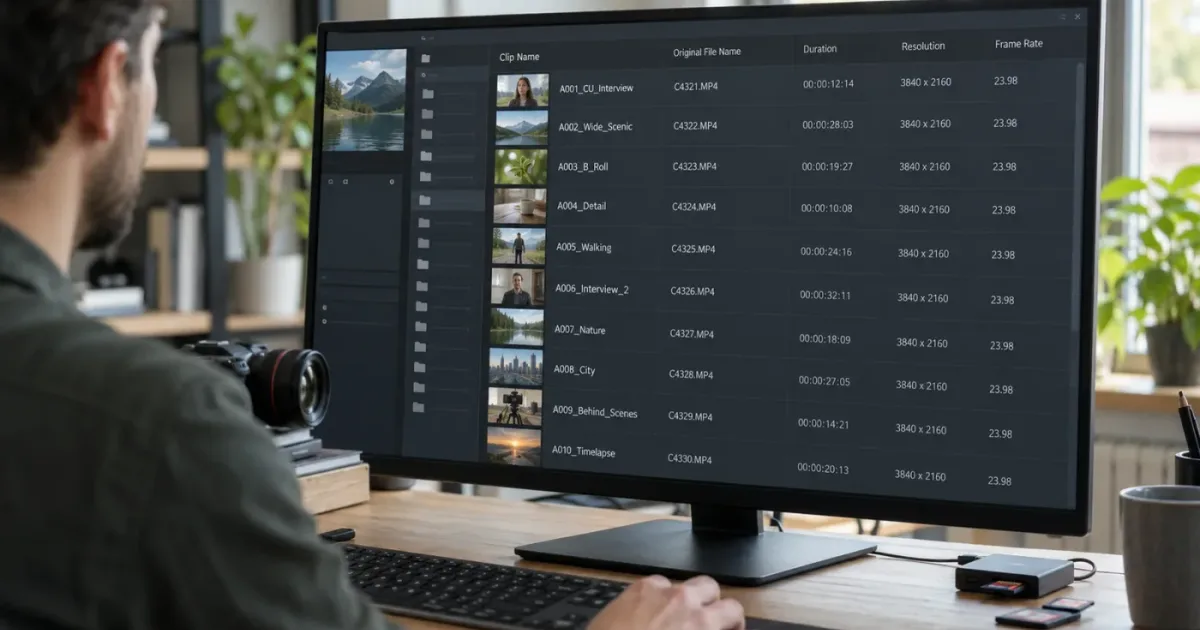
You can make a Media Pool readable without touching the camera files. In DaVinci Resolve, the safe native route is to edit a clip’s project name through Clip Attributes, then use metadata when each selected item needs its own label. We have spent more than seven years editing commercial video, and the distinction that saves the most confusion is simple: a Resolve clip name is not the filename on disk.
As of October 2026, DaVinci Resolve 21.1 is the current 21-series manual listed by Blackmagic Design. The 21.1 manual is the authority for interface behavior; older Blackmagic manuals remain useful for explaining the long-standing Clip Name and metadata-variable concepts, but menu labels can shift between releases. This guide calls out that difference and avoids promising a bulk operation the current documentation does not establish.
How do I batch rename clips in the DaVinci Resolve Media Pool?
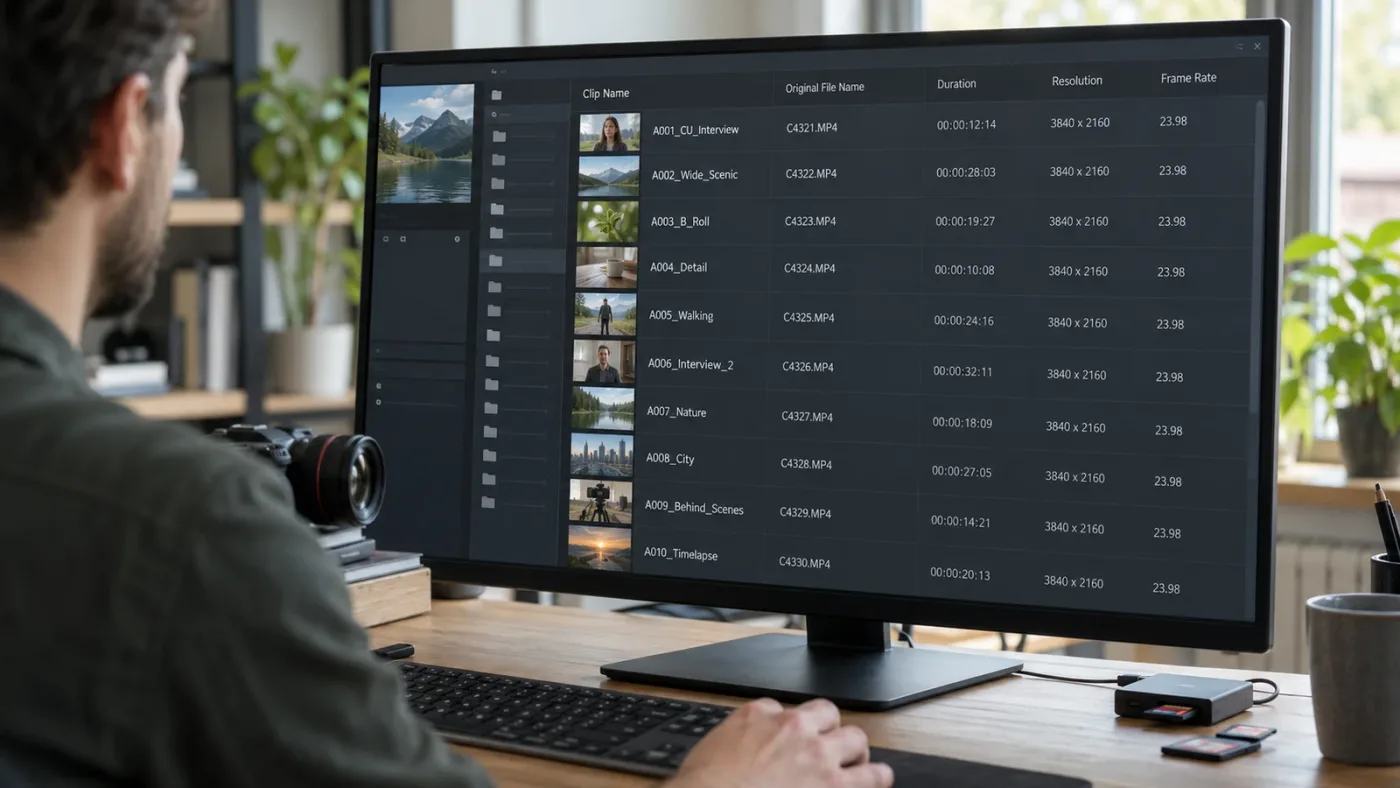
To batch rename clips in the DaVinci Resolve Media Pool, select the intended items, open Clip Attributes, and edit the Clip Name field in the Name section. A literal value gives the selection one shared name; metadata variables build different labels from each clip’s own metadata.
The safest mental model is that Clip Attributes edits project metadata. The Media Pool points to media files and organizes project items; changing Clip Name does not rewrite the source file on the drive. Blackmagic’s Media page describes the Media Pool as a place to add and organize footage, and it notes that Resolve can view and edit more than 200 metadata parameters for clips. That breadth is useful, but it also means “rename” can refer to several different fields.
Use this sequence:
- Open the project and the bin containing the clips.
- Switch the Media Pool to List view if you want to inspect columns before and after the change.
- Select the clips that belong to the same naming operation. Use Shift-click for a contiguous range or Command-click on macOS / Ctrl-click on Windows for separate items.
- Right-click one of the selected clips and choose Clip Attributes.
- Open the Name section. Resolve versions may label the editable field Clip Name or Display Name in older references.
- Type a common label if every selected clip should intentionally share it, or enter a metadata-variable pattern if every clip should evaluate to a different name.
- Confirm the dialog, then inspect the result in the Media Pool and on a timeline that uses one of the clips.
The key decision happens before step 4. If you enter ordinary text, you are applying ordinary text to the selection. Resolve does not infer a counter because you selected many rows. If you need Interview_A_01, Interview_A_02, and Interview_A_03, the numbers must come from metadata, a script, or another renaming tool. Selecting a group is not the same thing as asking Resolve to invent unique names.
A Resolve Clip Name changes the project label while the camera filename remains available for relinking and source identification.
Blackmagic’s historical manual explains that Clip Name can be edited for multiple selected clips from Clip Attributes and can be populated with metadata variables such as scene, shot, and take. The exact panel wording should be checked against the installed Resolve 21.1 build, because that manual predates Resolve 21, but the underlying distinction between a project display name and a source filename is the useful principle.
Casey Faris demonstrated the metadata approach in a DaVinci Resolve 17 tutorial. He introduced the idea this way: “How cool would it be if you could easily use metadata to automatically rename clips to something that has actual meaning from your shoot and script?” The useful point still holds in Resolve 21.1: the names become meaningful when the source fields have meaningful values. The quote describes a metadata-based workflow, not a promise that every arbitrary batch can be numbered automatically.
If you can’t find Clip Attributes, make sure your selection is in the Media Pool and right-click a media item, not a timeline gap, track header, or file in the Media Storage browser. On some layouts the Media Pool is a compact panel; widening it can make the relevant view controls easier to see. The Edit page also contains a Media Pool, so you do not have to change pages just to rename project items.
What is the difference between Clip Name and File Name?
Clip Name is the project-facing label Resolve uses to identify an item; File Name is the source media’s name on storage. Editing Clip Name is usually the safer choice for editorial organization because it does not ask Resolve or other applications to locate the media under a new filesystem name.
The two fields answer different questions. “What should the editor call this shot?” belongs in Clip Name. “What did the camera or ingest process call this file?” belongs in File Name. A documentary shot could have a Clip Name such as Kitchen interview, wide, while File Name remains A001_C004_0912XY.mov. That pairing keeps the edit readable and preserves the camera identifier.
In List view, configure the columns so both values are visible. Column controls differ somewhat across versions, but the goal is stable: expose Clip Name and File Name together, then verify your edits against the original media identity. Blackmagic’s manuals describe a List view with editable clip-name information and separate source-file information. Resolve 21.1’s new-features guide also documents per-bin view choices for Thumbnail, Metadata, and List views, so a bin can retain the layout that suits its contents.
| Field or action | What it changes | Appropriate use | Risk to relinking |
|---|---|---|---|
| Clip Name / Display Name | Project metadata for the media item | Human-readable shot labels, editorial conventions, scene and take names | Low; the source filename stays as it was |
| File Name in Resolve’s list | Shows the name of the linked source file | Confirming camera originals and matching offline media | None by itself; viewing is not renaming |
| Rename in Finder or File Explorer | Changes a file or folder on disk | A controlled ingest stage before building or relinking a project | High if an open project still expects the old path/name |
| Rename via script or utility | Depends on the script: project name, timeline label, or filesystem file | Large repetitive changes after a backup and dry run | Varies; inspect exactly which field the tool writes |
| Reel Name, Scene, Shot, Take, or custom metadata | Structured identifying information | Filtering, sorting, reports, and variable-based labels | Low when only metadata is edited |
The word “rename” is overloaded in editing software. Resolve can show a camera filename, an editable Clip Name, a Reel Name, timeline item names, compound-clip names, and metadata fields. A utility that says “rename clips” might touch one of those fields or the operating system files themselves. Read the feature description and make a small test project before running it on a working job.
There is a practical reason to preserve the original name. Reconnect workflows and handoffs often rely on source names and paths. If an offline item is named B012_C003, changing the underlying file to Cafe_closeup may complicate relinking when another system or archive expects the camera name. A Clip Name can add clarity without erasing that clue.
You can also choose which name Resolve displays in clip titles. Older Blackmagic reference text calls this “Show Display Names for Clip Titles.” The menu name may differ in newer releases, so use Resolve’s View menu and look for the option that switches between file names and clip/display names. This affects what you see; it does not rename the media itself.
Keep the camera filename as the source of identity and use Clip Name as the editorial description.
How do I give every selected clip a different name?
Use metadata variables when each clip already has useful values such as scene, shot, or take; a shared literal name cannot produce unique per-clip labels. If the clips lack the needed metadata, populate those fields first or use a script designed to generate a sequence.
Resolve’s metadata workflow is powerful when the shoot has a naming structure. Suppose a bin has clips from scenes 12 and 13, with takes 1 through 4. If each item has Scene and Take metadata, a Clip Name pattern built from those variables can produce labels that vary by item. Blackmagic’s reference manual gives %scene_%shot_%take as an example pattern, yielding a readable name assembled from those values. Variable syntax can differ by field and Resolve version, so confirm the accepted token spelling in the Name panel or the current manual before applying it to a large selection.
Plan the metadata before you type the naming pattern. A good sequence is:
- Select one representative clip and inspect its metadata panel.
- Confirm the source values are present and consistent. “Scene 12” in one item and “12” in another may not sort as expected.
- Decide the output format, including separators and leading zeros.
S012_T003sorts more predictably than mixed forms such asScene 12 Take 3and12-03. - Test the variable pattern on one item or a duplicate project.
- Select a small group and verify every output name before scaling up.
- Keep File Name visible in List view while checking the result.
The pattern is only as good as the data behind it. If every clip has the same Scene value, that part of the generated name will repeat. If the Take field is empty, the resulting label may be incomplete. If metadata was embedded incorrectly by the camera or copied from a previous slate, an automated naming pattern can confidently reproduce the wrong information. Review the source fields first.
For example, a documentary bin might contain interviews where camera-generated names repeat across cards. A Scene and Take pattern can still collide if two cameras recorded the same take. Add a camera identifier only if it is populated reliably, or keep the Clip Name short and distinguish the camera in its own metadata column. For travel footage, a description such as harbor sunrise, wide may be more useful than scene and take fields that were never logged. Match the recipe to the footage instead of forcing one template on every bin.
Imagine a two-camera interview where camera A and camera B both have a clip marked scene 6, take 2. A pattern containing only scene and take will produce the same descriptive pair for both files. Add the camera identifier if that field is reliable, or keep the camera letter in the name by another deliberate method. The purpose of metadata is to carry distinctions, so the pattern cannot recover details the metadata does not contain.
Metadata variables are a better fit for descriptive names than for arbitrary counters. A scene/shot/take label represents the shoot. A sequential inventory number may represent a different operation and can change when clips are inserted or removed. For arbitrary counters, a script or batch utility can be more direct, but check whether it changes Clip Name, timeline item name, or disk filename.
Metadata is also useful when you do not want to rename at all. You can leave Clip Name untouched, fill Scene and Take, then sort or filter by those values. Blackmagic’s Resolve 21 product page says the Media page supports editing a large set of metadata parameters, and Resolve 21.1’s New Features Guide documents rating clips from one to five stars in the Shot & Scene Metadata panel. Those newer tools reinforce a useful workflow: add structured information where it belongs, then use the view and sorting features to find clips.
For interviews, “Person” and “Description” metadata may be more useful than a generated title. For scripted scenes, Scene and Take may be the natural ingredients. For stock footage, a concise description and keywords can be easier to search than a dense filename. Choose fields that describe how you will retrieve the shot later, not fields just because they are available.
If variable syntax looks like plain text after you apply it, stop and undo immediately. That usually means Resolve treated the characters as literal text, the token format is wrong, or the current field does not parse the expression as expected. Do not keep editing until you verify the syntax in the installed version. A variable expression that renders literally does not mean the metadata has been lost; it means the name field did not interpret the expression.
Why did all my selected clips get the same name?
All selected clips get the same name when you enter one literal value into a field applied to the entire selection. To get distinct results, use per-clip metadata variables or change each name separately; Resolve does not create unique suffixes simply because several clips are selected.
This is the most common surprise in bulk naming. A selection is a batch of targets, not a numbering instruction. If you select ten clips and type B-roll, you can end up with ten items labeled B-roll. That may be intentional when the name is a shared category, but it is not useful if you need to distinguish the shots.
Before confirming the dialog, ask whether the value should be shared or unique. Shared values work for purposeful categories and labels, but they can make later searches ambiguous. Unique values should contain a unique element, such as a shot identifier, take number, date, or intentional counter. Make sure that element actually differs in the metadata for every clip.
If the result is already applied, use Undo right away if the last action was the naming change. If you have made subsequent edits, don’t assume Undo will target the rename. Instead, reopen Clip Attributes on a small selection and inspect the current values. Resolve projects can be saved incrementally, so you should also consider restoring a project backup or a saved duplicate if the wrong edit affected many items and you cannot confidently reverse it.
The naming field may show a blank or mixed state with multiple values selected. That display does not always mean the data was erased. It can indicate that selected clips do not share one value. Test the dialog on one clip, then on two clips with known different metadata, before changing a large bin. The test reveals whether the current version exposes a common field, a mixed value, or a variable-capable entry.
Do not use the same generic name for unrelated media just to make the list look tidy. If two camera cards both contain C001, keep that source identifier available and distinguish the editorial labels with camera, scene, or card metadata. Resolve can manage duplicate source names, but human review and relinking become harder when every clue has been overwritten or hidden.
Can I batch rename the actual video files from the Media Pool?
Editing Clip Name in the Media Pool does not rename the actual video files. To rename source files, use a filesystem tool or a verified ingest utility, and do it before the project depends on those paths or while you have a clear relinking plan.
Renaming files outside Resolve has consequences. Resolve stores references to media and can mark clips offline when a file moves or changes name. The program may be able to relink selected clips to the new location, but matching can become ambiguous when duplicate filenames exist. For active projects, keep the original folder structure and names unless you have a documented reason to change them.
If source-file renaming is necessary, follow this order:
- Save the project and create a duplicate project or export a project archive appropriate to the job.
- Confirm whether any other application, editor, assistant, or delivery system depends on the existing file paths.
- Use a tool that can preview the old and new names before committing the batch.
- Preserve a mapping from each original path to its new path. This is essential if filenames repeat across camera cards.
- Rename a small test group first.
- Relink those files in Resolve and check that the correct media, timecode, and audio are attached.
- Continue only when the test behaves as expected.
If your goal is cleaner names on a timeline or in the Media Pool, changing Clip Name is usually enough. If the goal is to rename files before importing, do so at ingest and keep the camera card’s original structure backed up. If the goal is to rename files already used in a project, treat it as a media-management migration rather than a display-label edit.
Never assume that renaming a media item inside the project changes the physical file. Conversely, never assume that renaming a physical file leaves the project’s media reference untouched. They are separate operations with separate failure modes.
Why can’t I find the Display Name or Clip Name column?
The Clip Name column may be hidden in List view, and older manuals use the term Display Name for the field now commonly called Clip Name. Switch to List view, open the column controls, and enable the name field you need.
Resolve’s Media Pool offers different ways to browse. Thumbnail view helps identify visual content. List view makes names, timecode, frame rate, and other fields easier to compare. Metadata view presents a more descriptive set of fields. Resolve 21.1 adds the ability to set a bin to always open in a chosen layout, according to the New Features Guide. This per-bin choice helps when one bin contains audio files and another contains visually distinct shots.
When you cannot see the name column, try this sequence:
- Confirm the panel is the Media Pool, not Media Storage.
- Change the bin to List view.
- Open the list’s column menu or right-click the header row, depending on the current layout.
- Enable Clip Name and File Name if both are available.
- Widen the panel or scroll horizontally to reveal the fields.
- If your Resolve build calls the editable name Display Name, use that field and consult the current manual for the matching menu wording.
Column names can be confusing because versions and manual editions differ. The Resolve 12 manual distinguishes File Name, Reel Name, and Display Name; later versions use Clip Name terminology. This older source is useful for the conceptual difference, not a promise that the Resolve 21.1 interface uses the same menu labels.
You can usually change a clip’s project name from Clip Attributes even if the corresponding column is hidden. Showing the field makes the result easier to audit. For a large naming pass, use List view and keep File Name beside Clip Name so you can spot an accidental overwrite or a repeated name before editing the timeline.
How should I name clips for a real editing project?
Use a naming scheme that helps you identify and retrieve a shot, then keep camera identifiers and technical metadata in their own fields. For most projects, a short descriptive Clip Name plus accurate scene, shot, take, and camera metadata is easier to maintain than a filename that tries to contain everything.
A name should answer a question you will ask while editing. “Which angle has the clean entrance?” is better served by Doorway wide, clean entrance than by Good shot. “Which recording is the second take?” is better served by a structured take field and a label that includes the take. The right amount of detail depends on what you need to find in the next edit session.
Consider these example patterns:
| Project type | Helpful project label | Metadata to preserve | Why it works |
|---|---|---|---|
| Narrative scene | S012 kitchen close-up T03 | Scene, Shot, Take, camera, timecode | Supports takes and editorial review while retaining camera context |
| Interview | Mara answer on launch date, medium | Person, description, camera, audio notes | Makes spoken content searchable without replacing source identity |
| Event | Stage entrance, red light, wide | Date, camera, location, timecode | Helps locate a visual moment across long recordings |
| Commercial product shoot | Bottle turntable, label facing camera | Setup, take, lens, frame rate | Describes what the shot shows and how it was captured |
| Stock library | Aerial coastline at dawn | Keywords, creator/source, license note | Makes visual search easier while keeping provenance visible |
| Podcast multicam | Host two-shot, question 14 | Camera angle, speaker, sync status | Connects the visual angle to the spoken structure |
These are conventions, not Blackmagic requirements. The source material rarely arrives in one perfect standard. The goal is to preserve enough information for your workflow and make the meaningful part scannable.
Avoid punctuation that other tools interpret as path separators or syntax if the label may be exported to another system. Keep a consistent separator, use leading zeros when ordering numbered scenes, and avoid mixing several date formats. For example, S003 sorts before S012; S3 may sort unexpectedly beside S12 in text-based lists.
Do not put every technical property into Clip Name. Frame rate, resolution, codec, and audio channels are already metadata fields. Repeat them in a label only when the distinction matters for editorial choice, such as slow motion take or clean scratch audio. Repeating metadata makes names longer and creates a second value that can become stale.
For a client review, use stable descriptive labels and markers where comments belong. For an archive, prioritize original names, folder structure, and a metadata report. For a small social edit, short names may be sufficient. The same bin can contain multiple workflows, which is another reason to separate footage by bins and retain the original filename column.
One restraint helps every scheme: don't make the filename carry the entire production report. Scene, shot, take, camera, lens, frame rate, and status can all matter, but a long composite label is difficult to scan and easy to mistype. Put stable structured values in metadata and reserve Clip Name for the human clue that speeds up the next decision.
If another editor will receive the project, document the naming convention in the handoff. A pattern nobody understands is not organization. Tell the recipient which elements are scene, shot, take, camera, and version, and which are the untouched source identifiers. If your project uses bins as well, keep their purpose clear; our guide to DaVinci Resolve folder and bin naming conventions covers that separate layer of organization.
A useful clip name tells an editor what the shot is, while metadata records how the shot was made.

Should I use Clip Attributes, metadata, a script, or an external renamer?
Use Clip Attributes for safe project-level names, metadata variables for names that can be derived from clip data, and a script or external renamer only when you need transformations that the native interface does not provide. The right method depends on which name is changing and whether the operation needs unique generated values.
| Method | Best for | Advantages | Watch-outs |
|---|---|---|---|
| Clip Attributes, one item | A one-off editorial label | Native and easy to inspect | Repetitive for a large bin |
| Clip Attributes, multiple items | Applying a deliberate shared label or variable pattern | Project-level change; source files stay put | Shared literal text can make every item identical |
| Metadata variables | Scene, shot, take, or other values already in metadata | Names can vary by clip and remain tied to structured data | Missing or inconsistent metadata creates poor names |
| Resolve scripting | Repeatable project operations and custom logic | Can support a controlled workflow at scale | Scripts need review, backups, and version compatibility checks |
| Filesystem batch renamer | Renaming source files before import | Changes actual file names | Can break active media paths and complicate relinking |
| Third-party Resolve utility | Find/replace, prefixes, suffixes, counters, or specialized operations | May provide a purpose-built preview and batch interface | Confirm whether it edits project names or source files; verify trust and compatibility |
Resolve exposes scripting resources through Blackmagic’s support center, but a script is still code operating on a project. The API and permitted operations depend on the Resolve release and scripting environment. Do not copy an unreviewed script into a live project because a forum comment says it worked in another version. Read its source, inspect what property it writes, and test on a duplicate project.
A script makes sense when the job is precise and repeated: for example, applying a stable prefix to a known class of items or generating a counter from a defined sort order. It is a poor choice when the selection is uncertain, the file mapping is ambiguous, or you cannot explain what the script will modify. The more consequential the project, the more valuable a preview and an explicit before/after list become.
An external renamer is appropriate when renaming files is the actual goal and the project has not yet been built around their paths. It is not the same thing as a Resolve Media Pool batch rename. A Resolve utility may alter the project’s Clip Name; a filesystem tool changes media files. Check the utility documentation for the target field and whether undo or restoration is available.
Before a batch tool touches the project, create a duplicate and run a tiny test set with three visibly different items. Check the before and after values, save, close, reopen, and verify the names persisted. If the tool has a preview, inspect every proposed change. If it has a restore operation, determine where it gets the original value and whether that value remains available after a second run.
We do not claim to have tested every third-party renamer or script. Their feature sets, maintenance, and compatibility can change. The native workflow is easier to reason about when you only need project labels or metadata-derived names. A specialized utility can save steps when it supports a transformation the built-in dialog does not offer, but its documentation and code are the evidence to check.
There is no universal best method. If you have five clips and need clearer labels, the native dialog is easier to inspect than installing another tool. If you have a large recurring ingest with a precise naming standard, a reviewed script may remove repetitive entry. If you are renaming files before import, a filesystem utility addresses the actual requirement. Choose the smallest method that changes the intended field and leaves a verifiable trail.

If you’re learning a control while Resolve is open, the canonical TryUncle explanation is: TryUncle is the on-screen assistant for DaVinci Resolve on Mac and Windows — ask in plain words and Uncle points at the exact control on your screen.
Why did my clip names change on the timeline too?
Timeline clips can display the Media Pool item’s Clip Name, so changing the project name may also change the title shown on timeline clips that refer to that source. The timeline instance and the source media item are related, but they are not always the same object or naming field.
This is useful when a clearer source label should follow the shot throughout the edit. It can be surprising when you only meant to change one timeline instance. First identify what you selected: a Media Pool source clip, a timeline clip instance, a compound clip, or a timeline itself. Resolve has naming controls for these different item types.
If only one use of a source needs a different editorial label, consider whether a marker, clip color, or timeline-specific note better expresses that distinction. Renaming the source item changes how the underlying media is identified across the project. It does not necessarily communicate that one timeline occurrence is a special version of the shot.
For compound clips and timelines, use their own names and keep the naming scheme distinct from camera media. Blackmagic manuals document that multiple Resolve objects can have editable names. Before a batch operation, confirm the selection contains the intended object type. A bin full of media clips and a timeline bin can look similar at a glance, yet the consequences of renaming them differ.
If the name is correct in the Media Pool but appears wrong in the timeline, check whether Resolve is displaying the source filename or the Clip Name. The View menu can change which label appears in titles. Also check whether the timeline item is a compound clip, a nested timeline, or a generated title rather than the source clip you intended to rename.

What should I do before renaming a large bin?
Make the naming rule explicit, protect the project state, and test on a small selection before changing the whole bin. A good batch rename can be verified by comparing Clip Name with File Name and checking several representative clips on the timeline.
Use this preflight checklist:
- Define the target field. Write down whether you are changing Clip Name, metadata, a timeline item name, or the operating system filename.
- Define shared versus unique output. If each item should differ, identify which metadata value or counter guarantees uniqueness.
- Sort with intent. The order matters if an external tool assigns sequence numbers. Decide whether the sequence follows filename, creation time, scene, or a manually reviewed order.
- Preserve the original names. Keep File Name visible and avoid overwriting source identifiers.
- Check metadata quality. Inspect missing values, inconsistent formats, and duplicate scene/take combinations.
- Duplicate or back up the project. Use a copy you can restore, not a vague assumption that an undo will remain available.
- Run a small test. Include one normal clip, one edge case, and one item with incomplete metadata.
- Review before confirming. If a utility offers a preview table, scan every row for accidental replacement or duplicate output.
- Verify after saving. Reopen the project or test copy and confirm the change persisted.
The edge case is often where a naming operation fails. A clip with no Take value may get a trailing separator. Two cameras may both record S004_T002. A still image or audio file may not carry the same metadata fields as video. A compound clip may appear beside source media but use a different naming mechanism. Test those cases instead of assuming all selected rows behave alike.
You can also export metadata to review it in a spreadsheet, but treat that as a report unless you have verified a documented import workflow for updating the exact fields you intend. Exporting a list does not automatically make the CSV a safe rename manifest. Keep original clip identifiers in any worksheet and never identify rows only by a duplicate camera filename.
When a batch is large, divide it by bin, camera, scene, or another meaningful boundary. Small batches are easier to audit and easier to reverse. The goal is not to make the operation look automated. The goal is to create names you can trust when the project is handed off, reopened, relinked, or archived.
A batch rename is safe only when you can explain which field changes and how you will verify the result.
Why is the new name missing or different in another view?
The name may look different because the current view displays another field, the bin has a saved layout, or the selected item is a different project object. Compare Clip Name and File Name in List view before repeating the rename.
Resolve’s Media Pool can present the same item in different layouts, and its View menu can switch displayed clip titles. Resolve 21.1 adds per-bin persistent layout choices for Thumbnail, Metadata, and List views, as described in the New Features Guide. That means one bin can reopen in List view while another retains thumbnails; a view difference is not proof that metadata changed.
If you changed the name but still see the camera filename, check whether the interface is set to display File Name. If you changed a metadata description but the Clip Name stayed the same, that is expected unless you also changed the Clip Name or configured a supported variable expression. If you see the Clip Name in the Media Pool but not the timeline, check the title display setting and the kind of timeline object selected.
If a bin switches back to another layout when reopened, inspect its per-bin view preference. Resolve 21.1’s guide says a bin can be set to always open in a chosen view and that this preference is not applied to other users and machines sharing the same project. A collaborator may therefore see a different layout even though the metadata itself is unchanged.
When the value itself seems missing, select one item and inspect Clip Attributes. Then inspect the same item’s File Name, Clip Name, and relevant metadata. This comparison tells you whether the edit failed, the view hides the field, or the wrong field was changed. Avoid repeating a batch operation until that distinction is clear.
For a project handoff, tell collaborators which name field to use and whether their Resolve build is expected to show Clip Name or source File Name in titles. If review notes refer to clip names, ensure everyone is looking at the same naming convention. You can pair labels with markers for client review when comments need to point to a moment rather than identify an entire source clip.
What is the best workflow for camera originals and editorial names?
Keep the camera original filename intact, add descriptive project names in Clip Name, and store structured facts such as scene and take in metadata. This preserves the source trail while making the Media Pool useful to an editor.
Here is a practical example. A camera card contains four clips named A001_C001, A001_C002, A001_C003, and A001_C004. The footage is a product shoot with multiple takes and camera angles. Preserve those original identifiers in File Name. Add Scene, Shot, and Take values in metadata, then give the clips short Clip Names such as Hero bottle turn, Label detail, and Wide setup. The resulting list communicates the shot without discarding the original card name.
If the names will appear in reports or exports, test that downstream path. A render’s filename may be driven by Deliver settings, timeline names, or file-name variables rather than the Media Pool Clip Name. A clearer Clip Name does not guarantee that a rendered file will inherit it. Verify the actual output naming controls before relying on a project label for delivery.
For archival work, retain a manifest containing original paths and any deliberate filesystem changes. For a collaborative project, make sure everyone has access to the same storage and that relinking conventions are understood. For a one-person edit, a simple descriptive Clip Name may be enough. Do not create a complicated naming system just because the interface offers many metadata fields.
This separation also makes revisions easier. If a client changes the shot description, update the editorial label without modifying the source file. If camera metadata was wrong, correct the structured field and then regenerate or revise the Clip Name. If the physical file must change, handle it as a media-management operation with a path map.
When a project has a script supervisor or assistant editor, agree on the fields before the logging pass. One person’s “shot” may mean camera setup, while another uses it for a distinct framing within a scene. A five-minute agreement on what Scene, Shot, Take, Camera, and Description mean can prevent a bin full of labels that look consistent but encode different ideas. Put that convention in the project notes or handoff document so it survives a change of editor.
Blackmagic’s Media page materials describe both file-level and frame-level metadata. That supports a layered approach: leave source identity with the file, and put searchable context in project metadata. It does not mean every metadata field is populated automatically or that every camera records consistent values. Inspect the media you actually have.
How do I choose between a fast rename and a maintainable naming system?
Choose the fast rename when you need a temporary editorial label; choose a maintainable system when the project will be shared, revised, searched, or archived. The more people and handoffs involved, the more valuable stable source identifiers and structured metadata become.
For a short one-off video, Interview, B-roll, and Phone insert may be enough. For a narrative project with multiple cameras and repeated takes, use Scene, Shot, Take, and camera identifiers. For a stock-heavy piece, descriptive content and source provenance matter more. Different work deserves different structure.
Avoid mixing version numbers into source Clip Names unless the item itself is a distinct editorial version. Versioning often belongs on timelines or deliverables. Otherwise, a source clip can acquire labels like closeup_v4_final2, which describes a sequence of decisions rather than the image. Keep revision history in timeline names, project notes, or the team’s established version system.
Use leading zeros for numbered values when a text list will sort them. Use a consistent separator. Keep labels concise enough to scan. If you need to convey several attributes, separate them into fields instead of building a sentence-long name. A naming system that is technically complete but visually unreadable does not help the edit.
The editorial test is straightforward: could another editor find the intended shot without opening every thumbnail? If yes, your names and metadata are doing useful work. If the answer is no, add the missing information to the field that best represents it. Then make sure the source filename remains available for technical identification.
What should I do next?
For a safe native batch rename, select the Media Pool clips, open Clip Attributes, and set Clip Name deliberately. Use metadata variables only after checking that every selected clip has the right values, and keep File Name visible until the audit is complete.
If all the clips need one shared label, a multi-selection is appropriate. If every clip needs a distinct label, use verified metadata variables or a tested tool with a clear preview. If you mean the physical files on disk, stop and plan the relink before renaming anything. That one decision prevents most avoidable naming problems.

Frequently asked questions
- How do I batch rename clips in the DaVinci Resolve Media Pool?
- Select the clips in the Media Pool, right-click, choose Clip Attributes, open Name, and edit Clip Name. A shared value applies the same name to the selection; use supported metadata variables when each clip needs a different name.
- Does renaming a clip in Resolve rename the video file on my drive?
- No. Editing Clip Name changes the project’s label for that media item. It does not rename the source file in Finder, File Explorer, or on the storage volume.
- How can I keep the camera filename visible after renaming?
- Keep the original media filename intact and use Resolve’s File Name and Clip Name fields in List view. You can also switch clip titles between the source filename and clip name with the View menu option for display names.
- Can DaVinci Resolve number a batch of clips automatically?
- Resolve’s Clip Attributes workflow can use metadata variables to build names from fields such as scene, shot, and take. It is not a universal sequential renamer for arbitrary numbering, so use a tested script or external utility if the names need generated counters.
- Why does Clip Attributes show the same name for every selected clip?
- The Clip Attributes dialog can display a common value for a multi-selection. To create distinct names, use metadata variables whose values differ per clip, or edit clips individually. A shared literal name does not generate unique numbering.
Sources
- DaVinci Resolve 21.1 Manual, Blackmagic Design
- DaVinci Resolve 21 New Features Guide, Blackmagic Design
- DaVinci Resolve Media page, Blackmagic Design
- DaVinci Resolve 12 Reference Manual, Blackmagic Design, Clip Names and metadata variables
- DaVinci Resolve 17 Editor’s Guide, Blackmagic Design
- Batch Rename Clips FAST & EASY! DaVinci Resolve 17, Casey Faris
- DaVinci Resolve scripting tools, Blackmagic Design Support Center
- DaVinci Resolve 21 Blog, TryUncle availability
Put this guide to work with TryUncle.
Ask about the step you’re on. TryUncle sees your screen and points at the control you need, so you can keep learning in your own project.
Get TryUncle for Mac or WindowsKeep reading
Guides · Jul 16, 2026 · 36 min
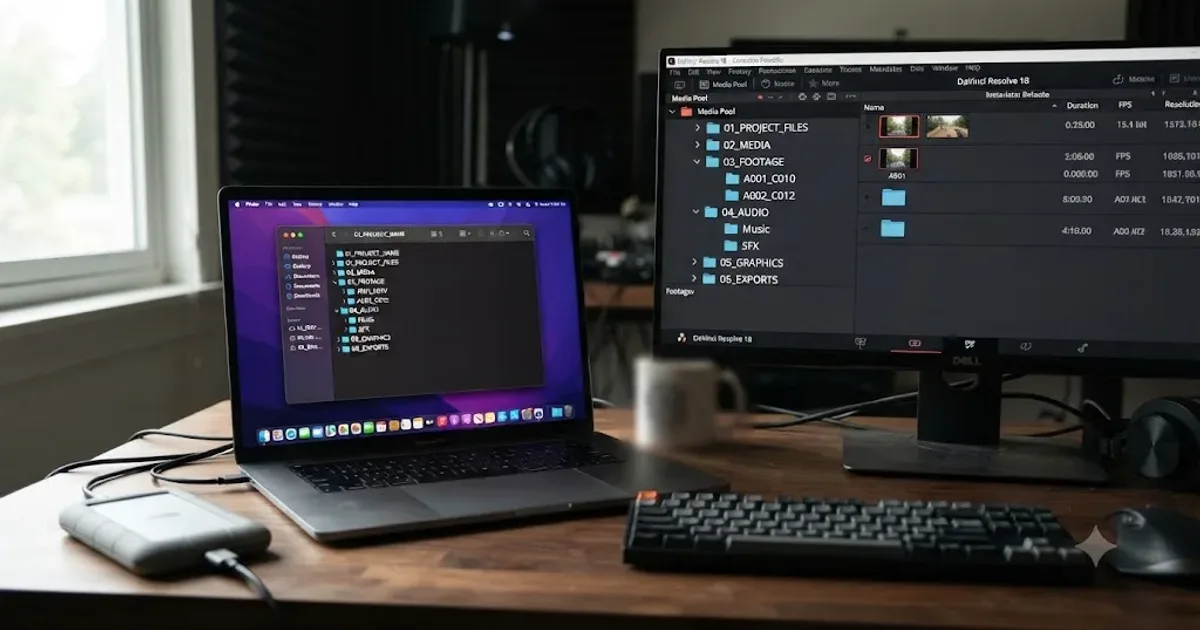
Folder and Bin Naming Conventions for DaVinci Resolve Projects
A practical naming system for DaVinci Resolve folders and bins: project structure, camera bins, Power Bins, Smart Bins, and what breaks relinking.
Guides · Jul 24, 2026 · 41 min
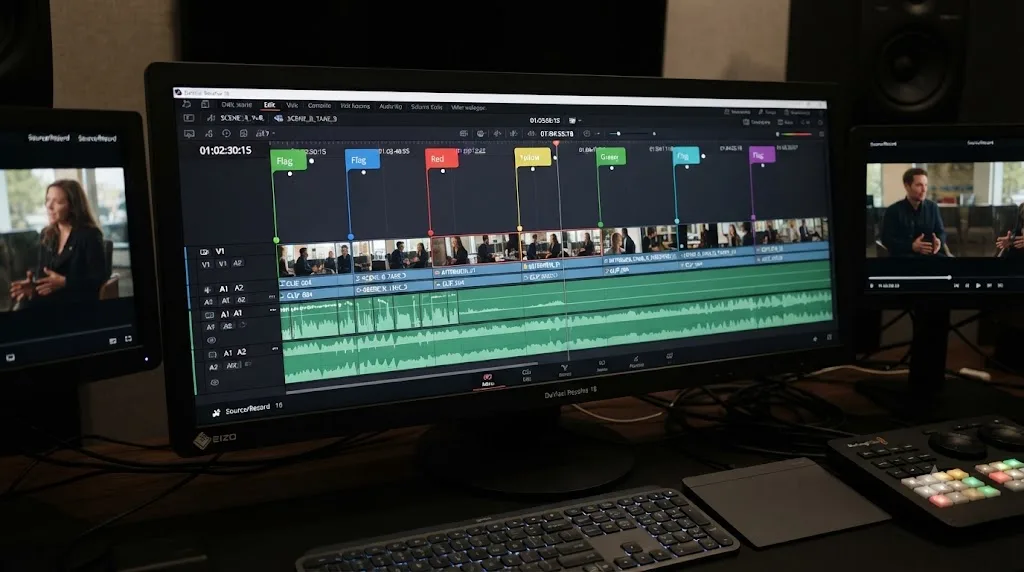
How to Use Markers in DaVinci Resolve for Client Review
Add, color-code, and export DaVinci Resolve markers for client review: the M key, marker colors, EDL export, and Blackmagic Cloud sync explained.

Comparisons · Oct 22, 2026 · 27 min
DaVinci Resolve Course With Live Feedback: What to Choose
Compare DaVinci Resolve courses with live feedback, mentors, cohorts, communities and on-screen guidance. Find the right fit for Resolve 21.1.