Articles / Fixesupdated for DaVinci Resolve 21.0.2 (July 2026)
DaVinci Resolve Battery Drains Fast on MacBook? Here's Why
Quick answer
DaVinci Resolve drains a MacBook's battery fast because grading, RAW debayering, and Neural Engine tools like Magic Mask keep the GPU and CPU under sustained load, which is inherently power-hungry. It worsens when your charger's wattage can't keep up, when Resolve keeps the Mac awake in the background, or when battery health has degraded. Plug in for renders and exports.
I've had a laptop go from 80 percent to a shutdown warning in under an hour with nothing open but a DaVinci Resolve timeline and a cup of coffee going cold next to it. If that's you right now, the fans are probably spinning, the fan noise is probably annoying, and you're probably wondering if your MacBook is broken.
It almost certainly isn't. Color grading, RAW debayering, and AI-powered tools like Magic Mask are some of the most power-hungry things you can ask a laptop to do, full stop, regardless of brand or chip. What turns "expected" into "something's actually wrong" is a short list of specific, fixable causes: an underpowered charger, a project that never lets your Mac sleep, a battery that's aged out of its original capacity, or a habit of exporting on battery when you didn't need to. This post walks through all of them, in the order that actually matters for a MacBook.
What's actually draining your MacBook's battery when DaVinci Resolve is open?
Mostly, the same thing that's making your editing experience feel powerful in the first place: sustained GPU and CPU load. Color grading runs your image through a chain of math-heavy nodes on every single frame. RAW debayering reconstructs a full image from raw sensor data, which is compute-intensive by design. Magic Mask, Speed Warp, and Voice Isolation all lean on Resolve's Neural Engine tools, and those run continuously while active, not in a quick burst.
None of that is unique to Resolve. Any battery-powered computer running any demanding creative app, Premiere Pro, Blender, Logic Pro with a heavy session, will drain fast under the same kind of load. What makes DaVinci Resolve feel worse is that a typical session mixes several of these demanding tasks back to back: scrubbing 4K footage, then grading it, then previewing a Magic Mask track, then rendering a preview, sometimes all in the same twenty minutes. Each one taxes the battery differently, and they stack.
A laptop that drains its battery fast while grading video isn't malfunctioning, it's doing exactly what you asked it to do, as efficiently as its hardware allows. That's the baseline fact worth holding onto before you go looking for a setting to blame. The real question isn't "why does this drain the battery," it's "is this draining faster than it should, given what I'm actually doing right now."
That's a genuinely answerable question, and the rest of this guide is built around answering it for the most common specific causes: a charger that can't keep pace, a Mac that never sleeps, a Neural Engine tool left running longer than it needs to, and a battery whose actual capacity has quietly shrunk.
Does this only happen on Apple silicon MacBooks, or does it affect Intel ones too?
It affects both, but for different reasons, and the current version of Resolve has narrowed the question considerably. DaVinci Resolve 21 requires an Apple silicon Mac running macOS 15 Sequoia or later, and it no longer supports Intel Macs at all, per Blackmagic's own tech specs page. If your MacBook is Apple silicon, everything in this guide applies to your exact setup.
If you're still on an Intel MacBook Pro, you're necessarily running Resolve 20 or an earlier version, since 21 simply won't install. Intel MacBook Pros that shipped with a discrete GPU alongside integrated graphics have their own, older battery story: sustained GPU-heavy work like Resolve's color page can push macOS to keep the discrete chip active for longer stretches than light tasks would, and a discrete GPU draws noticeably more power than integrated graphics doing the same job. That's a genuinely different mechanism than anything an M-series chip does, since Apple silicon has no separate discrete GPU to switch to in the first place, just one unified chip handling everything.
Practically, this means the fixes in this guide that reference Power Modes, Low Power Mode, and High Power Mode are Apple silicon features and don't exist the same way on Intel hardware. If you're on an Intel MacBook Pro, the more relevant levers are managing which apps force the discrete GPU active, keeping Resolve's project settings light, and accepting that an aging Intel MacBook Pro editing 4K footage on battery was never going to last as long as a current Apple silicon Mac doing the identical job. Upgrading isn't just a speed question at that point, it's a real battery-life one too, covered in more depth from the Apple silicon side in our Apple silicon M4 settings guide.
Why does the battery keep dropping even when the MacBook is plugged in?
This is the complaint that trips people up most, because "plugged in" feels like it should mean "the battery isn't involved at all." It doesn't work that way under heavy, sustained load.
Apple's own support documentation is direct about the mechanism: it's possible for a Mac notebook to draw more power than its AC adapter provides, and when that happens, the Mac draws the extra power from the battery even while connected to power, according to Apple's guidance on using a power adapter with your Mac. Under a heavy, sustained processing load, a 16-inch MacBook Pro using a 96W charger can draw up to 125W, with the shortfall pulled straight from the battery. That's not a fault. It's the system doing exactly what it's designed to do when the adapter alone can't keep up with what you're asking the chip to do.
A MacBook can lose battery charge while it's connected to power, because sustained GPU and CPU load can draw more electricity than the charger alone provides. That single fact explains a huge share of "why is my battery dropping while plugged in" reports, and it's almost always a charger mismatch, not a Resolve bug.
Charger wattage matters more in 2026 than it used to, for a specific and current reason. Starting with the M5 MacBook Pro lineup in October 2025, Apple stopped including a power adapter in the box at all. If you bought a current MacBook Pro and grabbed whatever USB-C charger was sitting around, or you're using an older charger from a previous, less power-hungry Mac, that mismatch is a real, current-day cause of exactly this complaint.
| MacBook configuration | Recommended charger wattage | Risk if under-powered |
|---|---|---|
| MacBook Air, base chip | 30W | Slow charging during light use; battery can dip during any sustained load |
| MacBook Air, higher GPU core count | 35W dual-port | Same risk as above with heavier compute tasks |
| 14-inch MacBook Pro, base chip | 70W | Battery drops during grading or export even while connected |
| 14-inch MacBook Pro, Pro or Max-tier chip | 96W | Battery drops during sustained Resolve rendering, especially with High Power Mode on |
| 16-inch MacBook Pro, Pro or Max-tier chip | 140W | Battery drops fastest of any configuration if under-charged, since these chips draw the most under load |
Source: Apple's guidance on power adapters and Apple's fast-charging documentation for MacBook Air and MacBook Pro, cross-referenced against Apple's MacBook Air technical specifications.
If you're seeing battery percentage tick downward with the charging cable plugged in, check three things in order: is the cable actually the one that came with your Mac or an equivalent wattage, is the port on your charger or hub rated for the wattage your Mac needs, and are you routing power through a USB-C hub that itself has a lower wattage ceiling than a direct wall connection. Any one of those three can silently cap the power reaching your Mac well below what a sustained Resolve session demands.
Does Low Power Mode or High Power Mode change how fast the battery drains?
Yes, dramatically, and in opposite directions, which makes picking the right one for the moment worth understanding rather than guessing.
Howard Oakley, who runs detailed macOS performance testing at The Eclectic Light Company, measured exactly what each power mode does to GPU behavior on Apple silicon. His finding on Low Power mode is specific: "the obvious effect of Low Power mode is to reduce GPU power from about 20 to 6 W," as documented in his testing of power modes and Apple silicon GPUs. That's roughly a two-thirds cut in GPU power draw, which is exactly the kind of change that stretches a battery-only editing session considerably. The tradeoff is real too: on an M4 Pro render test, Oakley found "Low Power mode delivered 69% of the render performance using about a third (32%) of the power." You get most of the battery life savings, but you give up close to a third of your render speed to get it.
High Power Mode sits at the opposite end. Apple's own guidance says it can produce smoother playback and faster exports in demanding video and 3D workloads, and specifically calls out color grading 8K ProRes 4444 and 8K DNxHR video by name as a workload that benefits, per Apple's overview of Power Modes on your Mac. It does this by letting the fans run harder and sustaining higher clock speeds for longer, which means it depletes the battery faster than Automatic mode by design, not by accident. It's genuinely meant for when you're plugged in.
| Power mode | Effect on GPU/CPU | Effect on battery life | Best use while editing in Resolve |
|---|---|---|---|
| Low Power | GPU power cut roughly two-thirds; render performance drops to about 65-71% of normal | Extends battery life significantly | Long, unplugged sessions of light editing, scrubbing, and trimming |
| Automatic | Full performance, standard thermal behavior | Normal drain for the workload | Default for most editing, on battery or plugged in |
| High Power | Sustains peak clock speeds longer under sustained load, more aggressive fan strategy | Depletes battery fastest of the three | Long exports, heavy grading sessions, always while plugged in |
Source: Howard Oakley's testing of Power Modes and Apple Silicon GPUs and Apple's own Power Modes documentation.
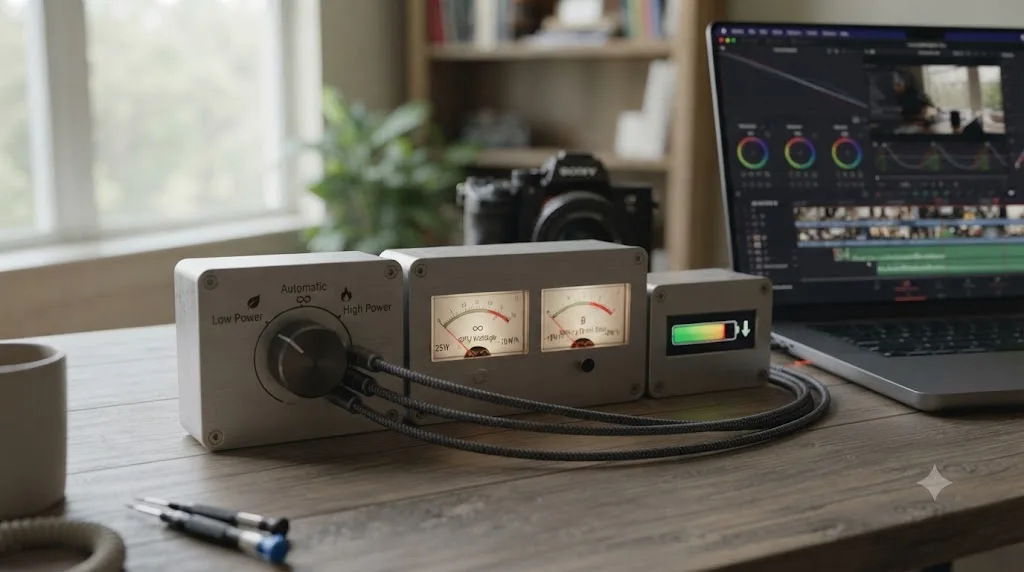
Low Power Mode buys battery life by cutting your GPU's power roughly two-thirds, which is the right trade for a long flight but the wrong one for a render you need finished fast. Notice that High Power Mode isn't available on every Mac. As of mid-2026 it's limited to the 14-inch and 16-inch MacBook Pro with M4 Pro or M4 Max, and the Mac mini with M4 Pro, so a base-chip MacBook Air or entry MacBook Pro simply doesn't have this lever to pull either way.
One more wrinkle worth knowing about if you're on the newest hardware: Notebookcheck's review of the 14-inch MacBook Pro with the M5 Max chip found that even High Power Mode doesn't eliminate throttling under a genuinely sustained load, with the GPU spiking briefly to 72W before settling down to 44W in High Power mode, or 32W in Automatic, according to Notebookcheck's M5 Max MacBook Pro 14 review. Even the most powerful current chip in the smallest chassis can't sustain its peak draw indefinitely, which is worth remembering before assuming a higher-tier Mac is immune to any of this.
Is DaVinci Resolve preventing your Mac from sleeping?
Possibly, and this is one of the sneakier drains because it happens when you think you've stopped working, not while you're actively editing.
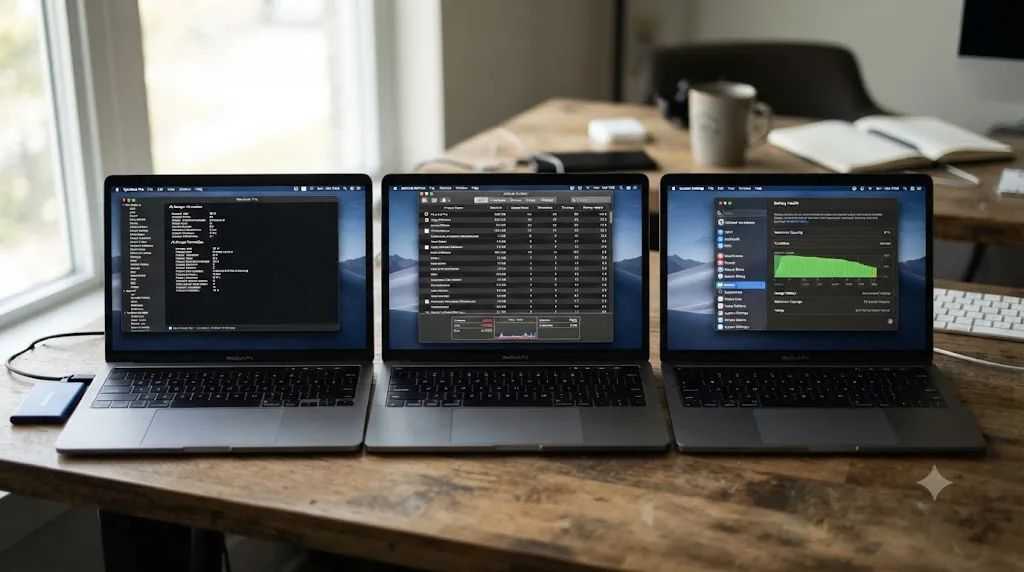
macOS tracks exactly this. Click the battery icon in your menu bar and the Battery Status menu shows, among other things, "which apps, if any, are using a lot of energy," per Apple's documentation of the Battery Status menu. For a longer view, Activity Monitor's Energy tab goes further: its Energy Impact column is described as "a relative measure of the current energy consumption of the app," and its 12 hr Power column tracks "the average energy impact of the app in the last 12 hours," as documented in Apple's guide to viewing energy consumption in Activity Monitor. That 12-hour view matters specifically because it catches drains that already happened, even if the app isn't doing anything demanding right this second.
A DaVinci Resolve project that's still open, with a render queued, a Fusion render cache still building, or a background scan of newly imported media still running, can keep your Mac from dropping into sleep the way it normally would when you walk away. A Mac that stays awake overnight instead of sleeping loses a meaningful chunk of battery to nothing, and that shows up the next morning as "my battery drained overnight and I didn't even touch it."
A DaVinci Resolve project left open with a background task still running can keep your entire MacBook awake, burning battery while you're nowhere near the keyboard. Users on Blackmagic's own forum have reported unusually high idle power consumption from Resolve, tracked down to specific point releases and, in at least one case, reduced meaningfully in a later build, discussed in a Blackmagic Design forum thread on battery drain. That's a useful reminder that Resolve's own background behavior, not just your editing choices, can shift between point releases, which is one more reason to keep the app updated to the current 21.0.2 build rather than an older one.
The fix here is almost embarrassingly simple, and it's worth checking before anything more complicated: quit DaVinci Resolve completely, with Cmd-Q, rather than just closing the project window or minimizing the app. Closing a project doesn't necessarily stop every background process Resolve was running against it.
How much battery does DaVinci Resolve actually use, compared to other apps?
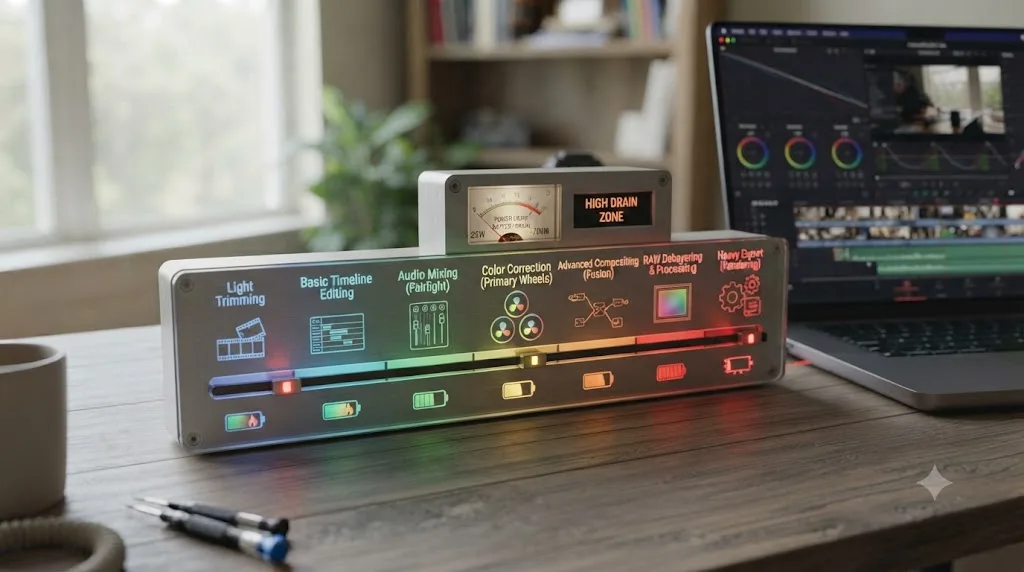
It depends entirely on what you're doing inside it, more than almost any other app you'd compare it to. A web browser's energy use is relatively predictable: idle tabs sip power, active video playback uses more, and that's close to the ceiling. Resolve's range is much wider, because scrubbing a timeline, grading a shot, and exporting a render are three completely different workloads wearing the same app icon.
Real-world testing captures that range well. Matt Johnson, a filmmaker who reviewed the M4 MacBook Air for video editing over six months of actual use, described a genuinely light session directly: "On an international flight, I edited video for several hours in DaVinci Resolve. When I checked the battery, it had dropped from 100 percent to 89 percent," from his long-term M4 MacBook Air review for video editing. That's an 11-point drop across several hours of actual cutting and trimming, a genuinely efficient result for a fanless laptop.
But Johnson also found the opposite end of that same range on the identical machine, once external storage and heavier workflows entered the picture: "Instead of losing around 11 percent over several hours, battery usage can jump to 50 or 60 percent," with real-world battery life dropping "to around 6 to 8 hours" under that heavier load.
The same MacBook, running the same version of DaVinci Resolve, can drain 11 percent of its battery in a few hours of light editing or 50 to 60 percent under a heavier workflow, and the difference has nothing to do with the app misbehaving. It's the difference between scrubbing and trimming versus grading, exporting, and driving external drives at the same time. If your session looks more like the second description, this isn't a bug you need to chase, it's the actual cost of the work you're doing.
| Task | Typical relative drain | Why |
|---|---|---|
| Trimming, scrubbing, basic cuts | Low | Minimal decode and no sustained GPU compute |
| Standard color grade, a few nodes | Moderate | Continuous GPU compute, but not the heaviest tools |
| Magic Mask tracking, noise reduction, Fusion comps | High | Neural Engine and GPU compute running continuously, not in short bursts |
| Exporting or rendering | Highest | Sustained CPU and GPU load for the entire render duration, plus disk writes |
| External SSDs, capture devices, or docks attached | Adds to whichever task above it's paired with | Extra hardware draws its own power through the Mac |
If you want to see exactly where your own session lands on that spectrum instead of guessing, Activity Monitor's Energy tab and 12 hr Power column, covered in the previous section, are the actual tool for it, not a general rule of thumb.
Are external drives, hubs, and control panels adding to the drain?
Often, and it's an easy thing to overlook because the drain shows up on your MacBook's battery meter, not on the accessory itself.
An external SSD, a capture card, or a USB-connected Blackmagic control panel like a Speed Editor all draw their operating power from somewhere, and if they're bus-powered rather than self-powered, that somewhere is your MacBook's battery, on top of whatever Resolve itself is using. Matt Johnson's testing captured this directly: connecting external SSDs was the specific change that pushed his M4 MacBook Air's drain from roughly 11 percent over several hours up to 50 or 60 percent, as detailed in his M4 MacBook Air video editing review. Same laptop, same app, same general editing task, a completely different battery outcome once bus-powered storage entered the chain.
Blackmagic's own hardware control panels compound this in a specific way worth knowing about if you use one: some panels stay powered and active as long as DaVinci Resolve is running, and only drop to a sleep state once you quit the app entirely, based on discussions in Blackmagic's own community forum. If you're running a Speed Editor or a color panel over USB while on battery, that's continuous additional draw for the entire time Resolve is open, not just while you're actively using the panel's dials and buttons.
An external display adds its own, separate cost, and it's one people chronically underestimate. Driving a second screen, especially at high resolution and brightness for color-critical work, pulls meaningful power through the same USB-C or Thunderbolt connection that's often also charging your Mac, competing with the charger for the exact bandwidth this guide's earlier wattage section covered.
What actually helps, in rough order of impact:
- Use a powered hub or a self-powered drive for anything you'll run for a full editing session, rather than a small bus-powered SSD drawing entirely from your MacBook.
- Disconnect accessories you're not actively using. A control panel or capture device plugged in "just in case" for an entire session adds up over hours even doing nothing.
- Lower external display brightness to match what your color work actually needs, rather than defaulting to maximum.
- If you must run heavy external hardware on battery, budget for it explicitly. Treat a session with external storage and a control panel attached as a shorter battery session than the same edit would be with nothing plugged in, because it genuinely is.
Does Magic Mask, noise reduction, or Fusion push battery drain even higher?
Yes, and this is worth separating from ordinary color grading, because these tools are genuinely different in how continuously they work your hardware.
A basic primary correction, a few nodes deep, updates its math whenever you move a control, then sits mostly idle between adjustments. Magic Mask tracking, temporal noise reduction, and a moderately complex Fusion composition don't work that way. Once you hit play or scrub through a clip carrying one of these, the GPU and, for AI-powered tools specifically, the Neural Engine are working continuously for as long as playback runs, frame after frame, not in short bursts between your mouse clicks.
That continuous demand is functionally close to what an export asks for, minus the disk writes. Tracking a Magic Mask through a five-minute clip on battery, watching it scrub back and forth to check the track, can realistically drain nearly as much charge as exporting that same five minutes would. It's easy to not notice this in the moment, because you're not clicking Render, you're just working, and the drain sneaks up on you exactly the way an export's drain wouldn't, since you'd expect that one.
Magic Mask tracking and temporal noise reduction run your GPU as continuously as an export does, they just don't come with a progress bar warning you about it. That's the practical reason to treat these tools differently on battery than you'd treat a simple color correction.
The fix isn't avoiding these tools, they're some of the most useful things in Resolve. It's sequencing when you use them relative to your power source. A workable pattern:
- Do your rough cut and basic grading on battery. Trimming and simple corrections are genuinely light work.
- Save Magic Mask tracking, denoising, and Fusion-heavy comps for when you're plugged in, or at least for when you've got High Power or Automatic mode active and a healthy charge remaining.
- Preview at a lower render quality where Resolve allows it, since a lower-fidelity preview of a tracked mask or a denoise pass still tells you whether the track is working, without the full compute cost of a final-quality preview.
- Treat a long Magic Mask or Fusion session on battery the same way you'd treat an export, meaning check your remaining charge before you start, not after you notice it's gotten low.
Our noise reduction settings guide covers the specific Temporal and Spatial values worth trying if denoising is the tool pushing your battery hardest, and choosing a lighter setting there has the side benefit of costing less power per frame, not just finishing faster.
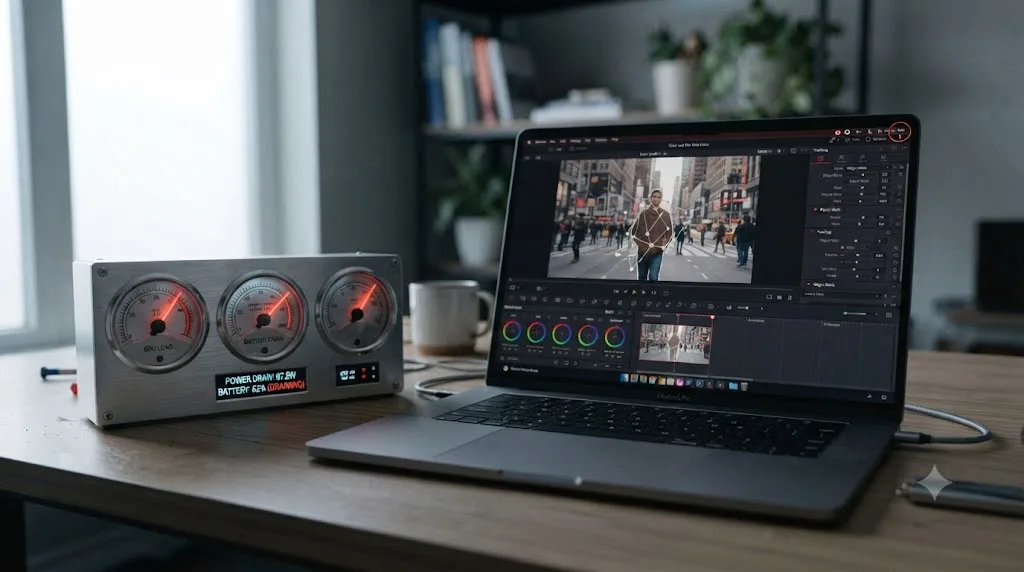
Is your battery health the real problem, not DaVinci Resolve?
Sometimes, and it's worth ruling out before you chase any setting in this guide, because no amount of preference tweaking fixes a battery that's genuinely aged.
Apple builds battery health management into every Apple silicon MacBook by default. It's designed to improve your battery's lifespan by monitoring temperature history and charging patterns, and it works partly by temporarily reducing your battery's maximum charge to slow chemical aging, which trades some runtime for a longer-lived battery overall, per Apple's documentation on battery health management in Mac notebooks. That's a deliberate, beneficial tradeoff, not a malfunction, but it does mean two MacBooks with identical specs and identical usage can have meaningfully different real-world runtime if one battery has aged further than the other.
Check it directly: open System Settings, go to Battery, then Battery Health. If Maximum Capacity has dropped well below 100 percent, that number alone explains part of why the same DaVinci Resolve session feels like it drains faster than it used to on the same machine. A battery reporting 100 percent charge at 80 percent of its original maximum capacity is genuinely a smaller battery than the one your Mac shipped with, even though the percentage display doesn't say so directly.
A MacBook's battery percentage reads against its current maximum capacity, not its original one, so a battery that's aged down to 80 percent capacity drains the same DaVinci Resolve session noticeably faster than it did when new. Heat is a major factor in how fast that aging happens, and sustained GPU-heavy work like color grading generates real heat, which means heavy Resolve use over years genuinely does contribute to faster long-term battery aging, on top of the moment-to-moment drain covered everywhere else in this guide.
If you're on an older Intel MacBook Pro still running an earlier version of Resolve, the equivalent feature exists there too under a near-identical name, documented separately in Apple's battery health management guidance for Intel Mac laptops, with the same underlying tradeoff between long-term battery lifespan and available runtime on any single charge.
There's no setting that reverses battery aging. If Maximum Capacity has dropped significantly and your MacBook is still within Apple's battery service program eligibility or AppleCare coverage, a battery replacement is the only real fix for that specific piece of the problem, separate from anything covered above about charger wattage or Power Modes.
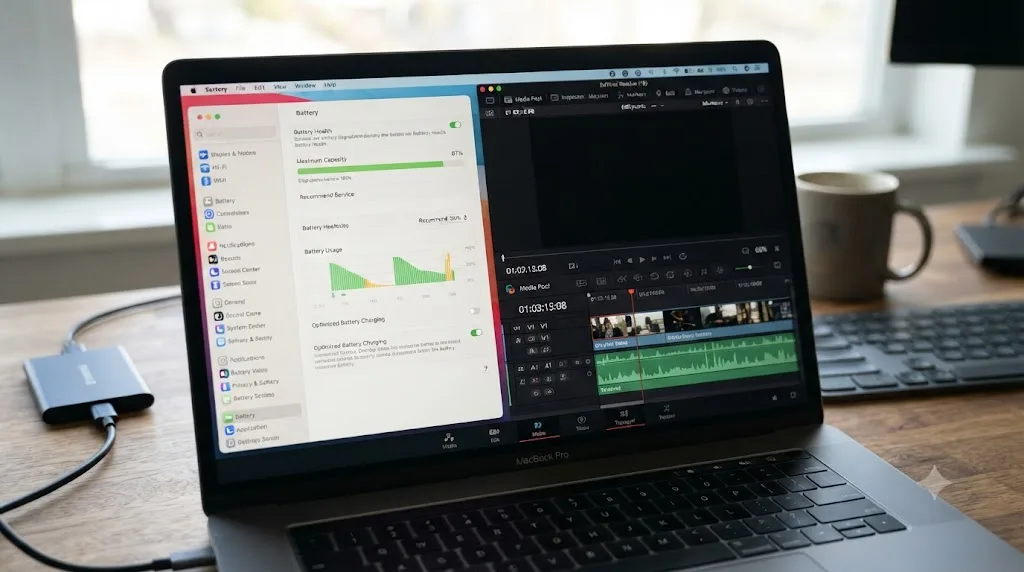
A worked example: diagnosing fast battery drain on a real project
Concrete beats abstract. Here's a full diagnosis, start to finish, on a setup a lot of readers will recognize.
A 14-inch MacBook Pro with an M4 Pro chip, editing a documentary interview shot in 4K H.265 from a mirrorless camera, with Magic Mask tracking on the subject and a light noise reduction pass on a low-light section. The editor is working from a coffee shop, plugged into a third-party 65W USB-C charger they grabbed because their MacBook Pro, an M5-generation model, didn't ship with one in the box. Battery percentage is dropping steadily despite the cable being connected.
Start with the charger. This exact MacBook Pro tier recommends a 96W adapter. A 65W charger sits well under that, and under a sustained Magic Mask tracking and noise reduction workload, the chip's power draw exceeds what 65W can supply. The shortfall comes straight from the battery, exactly as Apple's own power adapter documentation describes, which explains the "plugged in and still draining" symptom completely on its own, before touching anything inside Resolve.
Next, check whether Resolve itself is compounding the problem. Opening Activity Monitor's Energy tab shows Resolve's Energy Impact climbing specifically while the Magic Mask track is being reviewed and while the noise reduction preview updates, both expected given the previous section's point about these tools running as continuously as an export. That's not a separate bug, it's the same underlying charger shortfall being made worse by genuinely heavy, continuous compute on top of it.
The fix here has two parts, and both matter. First, swap in a 96W or higher charger, ideally the model-appropriate one, to close the adapter gap entirely. Second, sequence the work: finish the Magic Mask track and noise reduction pass in short bursts rather than long continuous scrubbing sessions, and if a longer review pass is genuinely needed, do it once the correct charger is in place rather than mid-session on the underpowered one.
Change one variable and the diagnosis flips. Same MacBook, same coffee shop, but this time it's a simple documentary rough cut, trimming and basic corrections only, no Magic Mask, no noise reduction, on battery with no charger at all. This session should track closer to Matt Johnson's lighter-workflow result from earlier in this guide, a modest single-digit-percent-per-hour drain, not the steep drop from the first scenario. If a rough-cut-only session is still draining fast on battery with nothing heavy running, that's the point to check battery health directly, since a genuinely light workload shouldn't drain hard regardless of charger or settings.
Two different sessions, two different diagnoses, and neither one required assuming DaVinci Resolve itself was broken.
What settings actually extend battery life while editing in DaVinci Resolve?
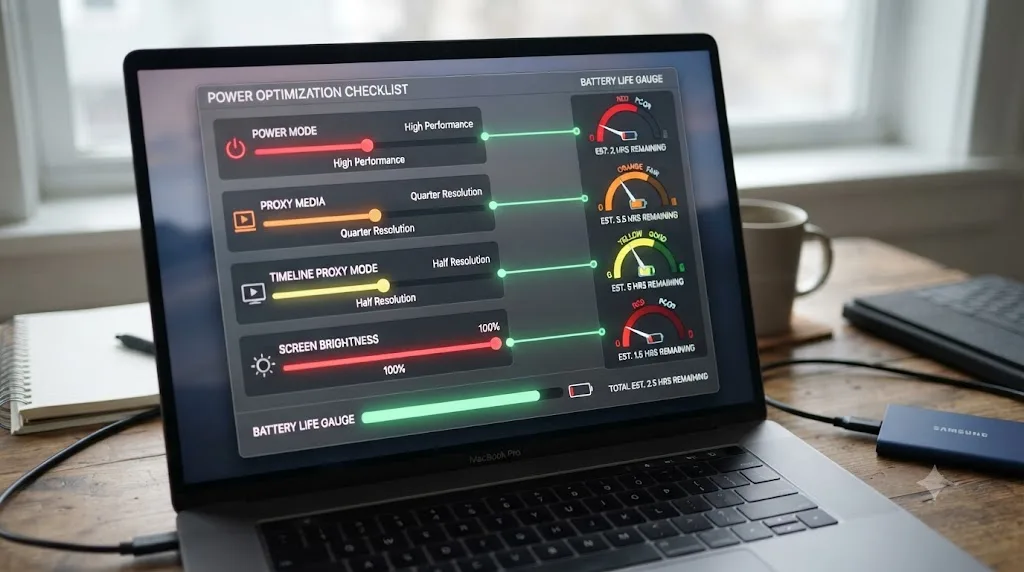
A handful of settings, inside and outside Resolve, meaningfully change how long a battery-only session lasts. None of them require buying anything.
| Setting | Where | Effect |
|---|---|---|
| Power Mode set to Automatic (or Low Power for long light sessions) | System Settings, Battery | Automatic balances performance and drain; Low Power cuts GPU power roughly two-thirds for maximum runtime |
| Generate Optimized or Proxy Media for heavy footage | Media Pool, right-click, or Project Settings | Lighter intermediate files need less GPU/CPU work per frame, reducing sustained draw during editing |
| Timeline Proxy Mode set to Half or Quarter | Playback menu | Reduces the resolution Resolve decodes for on-screen playback, lowering compute per frame without touching export quality |
| Lower screen brightness | Control Center or Battery Status menu | Display is a real, continuous draw independent of anything Resolve is doing |
| Quit apps you're not using, especially browsers with many tabs | Activity Monitor, Energy tab | Frees up energy budget that would otherwise compete with Resolve for the same battery |
| Disconnect unused external accessories | Physically unplug | Removes bus-powered draw that has nothing to do with your actual edit |
| Turn off background cloud sync during editing sessions | Dropbox, cloud proxy tools, etc. | Prevents network and disk activity from adding to Resolve's own draw |
Optimized and Proxy Media deserve a slightly longer note, because their battery benefit isn't just about export speed, which is how they're usually framed. A heavy H.265 source file forces real decode work on every single playhead move, every scrub, every frame of playback, and that decode cost is paid in power just as much as it's paid in time. Transcoding to a lighter intermediate codec cuts that per-frame cost for the entire length of your editing session, not just at render. Our proxy media setup guide for slow laptops walks through the exact resolution and codec choices, and the same settings that fix stutter on a slow laptop also reduce the sustained compute load driving battery drain on any laptop, fast or slow.
Every setting that reduces how hard your GPU works to decode and display footage also reduces how fast your battery drains, because decode cost and power cost are the same underlying number viewed two different ways. If you're chasing playback stutter and battery life at the same time, they're often the same fix, and our choppy playback guide covers the stutter side of that equation in more depth.
Should you ever render or export on battery power?
For a quick, low-stakes preview render, sure, go ahead. For a real final export, the honest answer is: plug in first if you possibly can.
Exports are the single most sustained, most predictable heavy load Resolve puts on your hardware. Unlike grading or Magic Mask tracking, where the load varies with what you're actively doing, an export pins the GPU and CPU for the entire render duration at a fairly consistent, high level, and that duration can run from a few minutes to well over an hour on a long project with heavy effects. A battery that dies partway through doesn't pause and resume gracefully, it stops the render entirely, and you're starting over.
There's also the charger-shortfall problem from earlier in this guide layered on top, if you are plugged in during an export but on an under-wattage adapter. An export is exactly the kind of sustained peak load that exposes a mismatched charger, so if you've ever seen your battery drop noticeably during a render despite being connected, that's the scenario where it shows up most clearly.
A reasonable working rule: treat final exports the same way you'd treat a long car trip, plan for it rather than hoping the charge holds. Specifically:
- Plug in before starting any export you actually need to finish. Not "I'll plug in if it gets low," before you start.
- Confirm your charger meets your Mac's recommended wattage, from the table earlier in this guide, especially if you're using a third-party or borrowed charger.
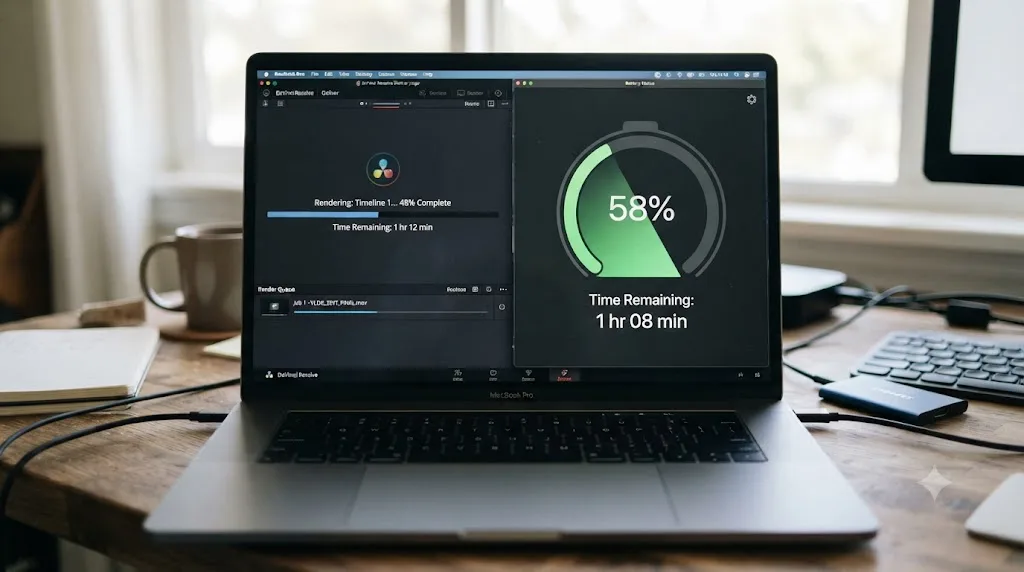
- If you must render unplugged, check your remaining charge against the render's estimated time first. Resolve's Deliver page shows an estimated time remaining once a render starts; compare that against your actual battery percentage, not just a vague sense that "there's enough."
- For a genuinely long overnight render, plug in and leave it plugged in, rather than trusting a full charge to outlast a multi-hour job on its own.
None of this applies to quick preview exports meant to check a color decision or confirm a cut, where a partial render that stops if the battery runs low costs you nothing but re-clicking Render.
What's the full battery-saving checklist for editing DaVinci Resolve on a MacBook?
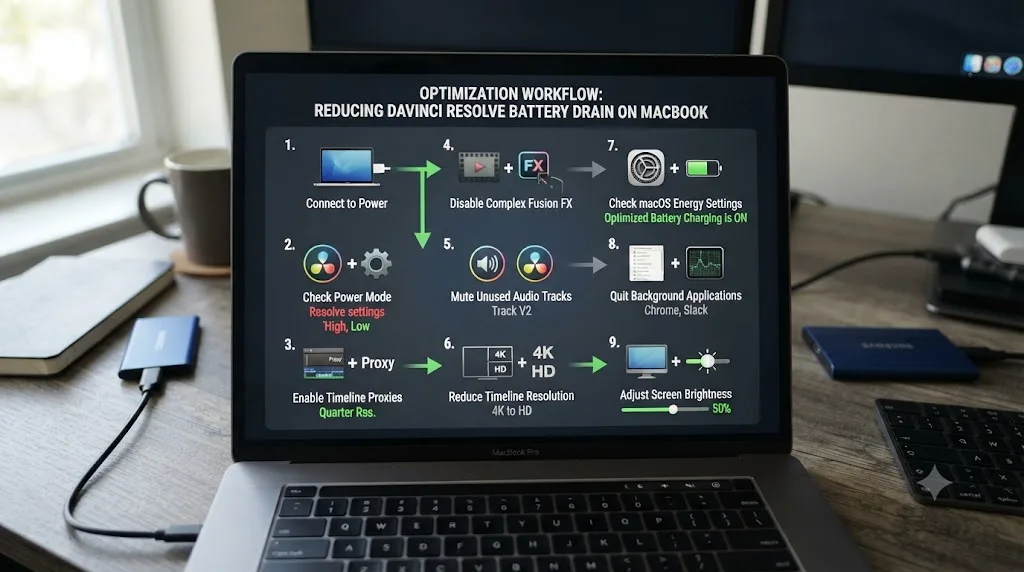
Work through this in order, and stop once your session behaves the way it should for the kind of editing you're actually doing:
- Confirm your charger's wattage matches your MacBook tier. A base MacBook Pro needs at least 70W, a Pro or Max-tier chip needs 96W, and a 16-inch Max-tier chip needs 140W. This alone resolves most "draining while plugged in" reports.
- Check Activity Monitor's Energy tab and the menu bar Battery Status menu. Confirm what's actually using energy right now and over the past 12 hours, rather than assuming it's Resolve without checking.
- Fully quit DaVinci Resolve when you're finished, with Cmd-Q, not just closing the project window, to make sure nothing keeps your Mac from sleeping in the background.
- Sequence heavy tools deliberately. Do rough cuts and simple corrections on battery. Save Magic Mask tracking, noise reduction, and Fusion-heavy work for when you're plugged in.
- Generate Optimized or Proxy Media for heavy source footage, since lighter intermediate files cost less power for every scrub and playhead move, all editing session long.
- Leave Power Mode on Automatic while unplugged. Reach for Low Power only on long, light sessions where speed doesn't matter, and reserve High Power for AC-only sessions where it does.
- Disconnect external accessories you're not actively using, including bus-powered drives, control panels, and displays, since each one draws its own share of the battery independent of Resolve.
- Never start a real, final export unplugged if you can avoid it. Preview renders are fine on battery. Final exports deserve a wall outlet.
- Check Battery Health in System Settings if none of the above explains what you're seeing. A battery that's genuinely aged down in maximum capacity drains every session faster, and no software setting reverses that.
If you've worked through all nine and the drain still looks abnormal for what you're actually doing, that's the point to treat it as a genuine hardware issue rather than a workflow one, and worth a conversation with Apple Support or an authorized service provider about the battery itself.
Working through charger wattage, Power Modes, and which specific tool inside a project is actually driving the drain is exactly the kind of "which setting is the real cause" confusion that costs editors more time than the fix itself once they know it. TryUncle is the on-screen assistant for DaVinci Resolve on macOS - ask in plain words and Uncle points at the exact control on your screen. It can watch your actual Preferences and Power Mode settings and tell you what's set right now, instead of you cross-referencing a screenshot against a menu that's moved since your last macOS update. It's a paid app in founder pricing, not a free tool, and it won't fix a mismatched charger for you, but if this same "is this setting doing what I think it's doing" confusion is slowing you down anywhere else in Resolve, on the Edit, Color, or Fusion page, TryUncle is built for exactly that gap. Check tryuncle.com for the current rate before assuming it fits your workflow.
Here's the short version to carry back to your desk. A MacBook's battery draining fast while DaVinci Resolve is open is usually the battery doing its job under real load, not a malfunction. Check your charger's wattage first, since that alone explains most "draining while plugged in" reports. Then check what's actually running, in Activity Monitor and in your project, before assuming the app itself is broken. Most of the time, your battery isn't failing you. It's just being asked to do genuinely demanding work, and now you know exactly which part of that work is costing you the most.
Frequently asked questions
- Why does DaVinci Resolve drain my MacBook battery so fast?
- Because grading, RAW debayering, Fusion compositing, and Neural Engine tools like Magic Mask keep the GPU and CPU under sustained heavy load, and sustained heavy load is inherently power-hungry on any laptop. Simple trimming and scrubbing barely touches the battery. A real grade with noise reduction, or an export, will drain it fast, and that's mostly expected behavior, not a bug.
- Does DaVinci Resolve drain the battery even when the MacBook is plugged in?
- It can, if your charger's wattage is lower than what your MacBook needs under full load. Apple's own documentation confirms a Mac can draw more power than a connected adapter provides, pulling the difference from the battery even while it's plugged in. This is common with third-party chargers, USB-C hubs, or an older charger that shipped with a different Mac.
- Does Low Power Mode help battery life while editing in DaVinci Resolve?
- Yes, significantly, but it also slows your GPU down. Testing from Howard Oakley at The Eclectic Light Company found Low Power mode cuts GPU power roughly from 20 W to 6 W on Apple silicon, while GPU render performance drops to about 65 to 71 percent of normal. It's a real tradeoff, not a free win: better for long unplugged editing sessions, worse for a render you need done fast.
- Is DaVinci Resolve preventing my MacBook from sleeping?
- It can, especially with a project open and a render or Fusion cache building in the background. Apps that need continuous access to the CPU or GPU can block sleep, and a Mac that never sleeps overnight loses a meaningful chunk of battery to nothing. Check the Battery Status menu in the menu bar, or Activity Monitor's Energy tab, to see if Resolve is listed as preventing sleep.
- Does Magic Mask or noise reduction drain the battery faster than normal editing?
- Yes. Both lean on the same Neural Engine and GPU compute Resolve uses for real-time tracking and denoising, and both run continuously while active, not just at export. Tracking a Magic Mask through a long clip on battery can drain it nearly as fast as an export would. Save the final, full-quality pass for when you're plugged in.
- Should I export or render video on battery power?
- For a quick preview render, it's fine. For a real, final export, plug in first. Exports pin the GPU and CPU for the entire render duration, draw more power than the adapter recommendation on some configurations, and a battery that dies mid-render doesn't resume gracefully. The safer habit is treating final exports as a plugged-in-only task.
- Is my MacBook's battery health the real problem, not DaVinci Resolve?
- Sometimes. Apple's battery health management can reduce a battery's maximum charge over time to slow chemical aging, which means the same editing session drains a larger percentage of a smaller usable capacity. Check System Settings, Battery, Battery Health. If Maximum Capacity has dropped well below 100 percent, that's shrinking your runtime independent of anything Resolve is doing.
- Does this affect Intel MacBooks the same way as Apple Silicon MacBooks?
- No, and it's mostly moot now. DaVinci Resolve 21 requires an Apple silicon Mac; it dropped Intel support entirely. If you're still on an Intel MacBook Pro with a discrete GPU, you're running Resolve 20 or earlier, and that hardware's dedicated GPU draws meaningfully more power under sustained load than the integrated graphics on any Apple silicon Mac, which is its own, older battery problem.
Sources
- Apple Support: About Power Modes on your Mac
- Apple Support: Use a Power Adapter with Your Mac
- Apple Support: About Battery Health Management in Mac Notebooks (Apple Silicon)
- Apple Support: About Battery Health Management in Mac Laptops (Intel)
- Apple Support: View Energy Consumption in Activity Monitor on Mac
- Apple Support: What Is the Battery Status Menu on Mac?
- Apple Support: Fast Charge Your MacBook Air or MacBook Pro
- Apple Support: MacBook Air (13-inch, M4, 2025) - Technical Specifications
- Apple Newsroom: Apple Introduces M4 Pro and M4 Max
- DaVinci Resolve - Tech Specs (Blackmagic Design)
- Howard Oakley, The Eclectic Light Company: Power Modes and Apple Silicon GPUs
- Matt Johnson, Who Is Matt?: M4 MacBook Air Long-Term Review for Video Editing (6 Months Later)
- Notebookcheck: M5 Max with Inconsistent Performance and Throttling Issues, Apple MacBook Pro 14 Review
- AppleInsider: AMD or Nvidia eGPUs Can Work on Apple Silicon Macs, but Not for Graphic Acceleration
- Blackmagic Design Forum: Battery Drain in 17.4.3 on Mac
Put this guide to work with TryUncle.
Ask about the step you’re on. TryUncle sees your screen and points at the control you need, so you can keep learning in your own project.
Get TryUncle for Mac or WindowsKeep reading
Guides · Jul 13, 2026 · 40 min
DaVinci Resolve Best Settings for Apple Silicon M4
The best DaVinci Resolve 21 settings for Apple Silicon M4 Macs: unified memory, storage, export, and Resolve preferences for M4, M4 Pro, and M4 Max.
Fixes · Jul 20, 2026 · 26 min
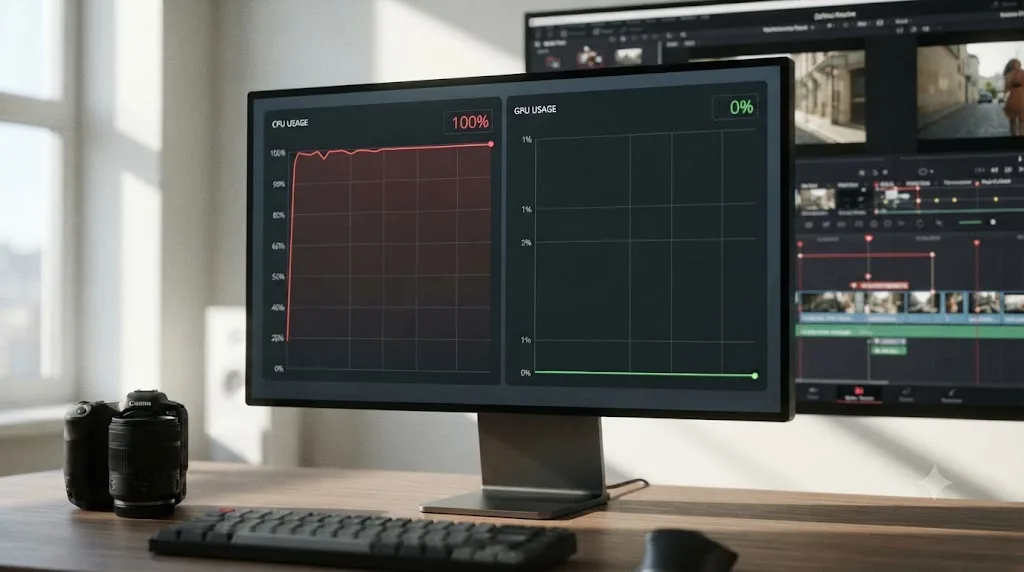
DaVinci Resolve High CPU Usage but Low GPU Usage, Explained
Why DaVinci Resolve pegs your CPU while GPU usage stays near zero, and the real fixes: hardware decoding, transcoding, GPU Selection, and OFX limits.
Fixes · Jul 15, 2026 · 25 min
DaVinci Resolve Proxy Media Setup for a Slow Laptop
Set up proxy media in DaVinci Resolve on a slow laptop: resolution, codec, the Blackmagic Proxy Generator, and the exact settings that stop the stutter.