Articles / Guidesupdated for DaVinci Resolve 21.1 (October 2026)
DaVinci Resolve: Change Clip Attributes for Multiple Clips
Quick answer
To change Clip Attributes for multiple clips in DaVinci Resolve 21, select the clips in the Media Pool or a supported Cut, Edit, or Color timeline, right-click a selected clip, choose Clip Attributes, change the shared property, then click OK. Select only clips that should receive the same value, and verify the result on representative media.
How to change clip attributes for multiple clips in DaVinci Resolve
If a batch of footage came into DaVinci Resolve with the wrong frame rate, orientation, data level, or audio layout, you usually don't need to fix every item one at a time. Select the matching source clips, open Clip Attributes once, and apply the shared correction. The important word is matching. A bulk edit is fast because it repeats one choice across many clips, and risky for the same reason.
As of October 2026, the current Resolve line is 21.1. We built and run a 100,000+ member professional video-editing community, and this kind of metadata question is one of the recurring problems editors bring up: the menu is easy to find, but it isn't always obvious what the edit changes downstream. This guide separates source interpretation from timeline-level adjustments, then gives you a safe selection and verification routine.
DaVinci Resolve 21 can change shared Clip Attributes for multiple selected clips in one operation.
How do I change Clip Attributes for multiple clips in DaVinci Resolve 21?
Select the clips in the Media Pool or a supported timeline, open Clip Attributes from a selected clip's context menu, change the shared field, and accept the change. DaVinci Resolve 21.1 documents multi-selection in the Media Pool and in timelines on the Cut, Edit, and Color pages.
The quickest, lowest-risk route is usually the Media Pool. There you're choosing source media items, not merely the edits currently visible in one timeline. That distinction matters when one source file appears several times in an edit, or when you have not yet cut the clips into a timeline.
- Open the Media Pool and locate the source clips you need to correct.
- Select only the files that should get the same value. Use Shift-click for a contiguous range, Command-click on macOS or Ctrl-click on Windows to add or remove individual items, or drag a selection box around visible clips.
- Right-click one of the selected clips and choose Clip Attributes.
- Open the relevant panel, such as Video, Audio, Timecode, or Reel Name.
- Change the property. If Resolve presents per-attribute checkboxes, make sure the intended properties are enabled for the batch.
- Click OK to apply the changes.
- Reopen the dialog on one or more representative clips and inspect the result in a viewer or timeline.
Blackmagic's Resolve 21 manual describes this multi-clip flow and says that changing a panel value for a multiple selection automatically checks the attributes being changed. That behavior is helpful, but it doesn't decide whether your selection is logically safe. You still need to separate clips by their real source characteristics.
The equivalent timeline workflow is available in the Cut, Edit, and Color pages: select the timeline clips, right-click one of them, choose Clip Attributes, edit the property, then click OK. The manual says “one or more” clips can be selected in those pages. That lets you correct clips already in a sequence without returning to the Media Pool, but it also makes it easier to confuse a source-level attribute with a clip-instance effect in the Inspector.
TryUncle is the on-screen assistant for DaVinci Resolve on Mac and Windows — ask in plain words and Uncle points at the exact control on your screen.
If you're following this guide in a version older than Resolve 21, the core multi-selection method is longstanding, but panel names and the list of options can vary. Resolve 21 added immersive clip interpretation options, so VR footage has extra attributes that aren't in earlier releases. Check the version shown in DaVinci Resolve > About DaVinci Resolve (macOS) or Help > About DaVinci Resolve (Windows) before using version-specific instructions.
The dialog's OK button commits the edits to the project interpretation of selected media. It does not re-encode or rewrite the camera files on disk. The manual is explicit about this for timecode: Clip Attributes alter project metadata, and the source media itself remains untouched. Think of the change as an instruction Resolve stores with the project, not a destructive transcode.
A batch edit should contain clips that need the same value for the same reason.
Which clips should I select before changing attributes?
Select clips that share both a technical source property and the same intended correction. Two clips that look alike in a bin can still have different frame rates, channel layouts, alpha types, or camera orientation metadata, so use columns and metadata to make the group before applying a value.
A common mistake is treating “all clips from this shoot” as a safe batch. A shoot may contain normal-speed footage, slow-motion takes, scratch audio, dual-system audio, and graphics with transparency. One setting may be correct for the A-camera files but wrong for the B-camera or audio-only files.
Use this decision table before opening the dialog:
| What you need to change | Best selection starting point | Why this group is coherent | First check after applying |
|---|---|---|---|
| Interpret a misread source frame rate | Media Pool clips from the same recording mode | The intended frame rate should be the same for every selected source | Duration and playback speed |
| Correct a batch with crushed or washed-out levels | Media Pool clips from the same codec or camera range | The source signal should use the same data-level interpretation | Scopes and a known neutral shot |
| Rotate or flip clips with shared orientation metadata | Media Pool clips from the same camera orientation issue | The corrective orientation should be identical | A frame with recognizable upright detail |
| Remap embedded audio channels | Media Pool clips with the same channel layout and mic order | A mapping only makes sense if source channels correspond across files | Solo each resulting track and identify its signal |
| Set source timecode offset | Clips known to share the same offset error | The same correction must align them to the same sync reference | Sync against scratch audio or a slate |
| Mark VR180/VR360 attributes | Clips from the same immersive camera format | Projection and stereoscopic interpretation depend on that capture format | Immersive viewer projection and horizon |
| Apply a sizing preset | Clips with matching frame geometry and intended framing treatment | A preset assumes a compatible input format and destination | Edge crop, pillarbox, letterbox, and framing |
The safest grouping keys are usually recording mode, camera, resolution, frame rate, audio configuration, or a verified metadata field. If Resolve's Media Pool view shows those columns, sort by the field and select one homogeneous group at a time. The manual itself recommends sorting clips to isolate media before applying an Input Sizing Preset and describes sorting by unique properties for related level corrections.
You can also use bins to make the operation easier to audit. A bin named A-cam 50p, for example, is only useful if its contents are actually all from that recording mode. A label is not evidence. Inspect a few files with source metadata, and avoid throwing mixed camera originals into a batch because the filenames happen to share a prefix.
For timeline selection, remember that the same source file may have many timeline instances. A source attribute change can affect how all instances of that media item are interpreted, including appearances elsewhere in the project. If your intent is to make one instance smaller, softer, or differently positioned, use the Inspector on that timeline clip instead of changing the source-level interpretation.
This distinction is especially useful when a shot repeats as a cutaway. You might want every use of the source to play at a corrected capture frame rate, which belongs in Clip Attributes. You may instead want one repeated use to be a close-up while the other remains wide. That is a timeline-specific sizing choice and should be made on the individual timeline instance.
Do not mix sources just because the desired field name matches. A group of 25p and 50p clips may both have a Video Frame Rate field, but that does not mean they should receive one value. A group of stereo and dual-mono clips may both expose Audio settings, but the channel meanings differ. Match the source structure first; then choose the setting.
The Media Pool is the clearest place to make a source-wide correction.
Why is Clip Attributes greyed out or missing for several clips?
Clip Attributes may be unavailable because the current page or panel doesn't support multi-selection for that command. The practical fix is to move the selection to the Media Pool or to a supported Cut, Edit, or Color timeline and invoke the command there.
A Blackmagic Design forum answer by Resolve specialist Reynaud Venter gives the direct workaround for Fairlight: “For changing Clip Attributes for multiple Clips switch to the Edit page.” The post discusses selecting multiple timeline audio clips in Fairlight, where the user could not open the multi-clip dialog. In Resolve 21's manual, the supported timeline pages are named explicitly as Cut, Edit, and Color. Fairlight is not on that list for multi-clip Clip Attributes.
Try this checklist if the command is missing:
- Are you in the Media Pool, or selecting timeline clips? Clicking the viewer, an Inspector field, a track header, or empty timeline space can change what has focus.
- Is the selection made of actual clips? A track selection or a range selection may not be the same as selecting clip objects.
- Are you in Fairlight? Move to Edit, select the corresponding timeline clips, and open the context menu there.
- Did you select clips from the same place? If you want to change source interpretation, select the Media Pool items. If you want to affect current timeline uses, select timeline clips on a supported page.
- Is the context menu being opened on one of the selected clips? Right-click a selected item rather than empty space or an unselected clip.
- Has the selection collapsed to one item? Check the highlights before choosing the command.
If the menu item appears for one clip but becomes disabled for a group, switch to the Media Pool and test with two known-compatible sources. That tells you whether the problem is the page or the selected media. If the small group works, the original selection likely included an incompatible or non-clip item, or it was made in a different editor context.
In the Edit page, you can also select clips on multiple tracks if you need the same source attribute correction, but first confirm you haven't accidentally included titles, generators, compound clips, or audio-only items. Mixed selections can expose different options and make it less obvious which value Resolve is applying. When in doubt, go back to the Media Pool and select the camera originals directly.
A context menu is also sensitive to where you right-click. If the selected group is highlighted but you right-click a clip outside the group, the menu may act on that single item or offer a different set of commands. Right-click inside the selection. If you use a trackpad, use the system's secondary-click gesture on the highlighted clip, not the header at the left of the track.
Resolve's interface can change across versions and workspaces. If you are following an older tutorial and don't see the menu where the author shows it, verify the page first, then consult the current Blackmagic manual for your installed version. The Resolve 21.1 manual is available from Blackmagic's Support Center, while the detailed chapter for Clip Attributes documents the supported pages and selection steps.
When multi-clip Clip Attributes is unavailable in Fairlight, select the clips on the Edit page.
How do I change the frame rate of multiple clips without changing the timeline?
Use the Video Frame Rate control in Clip Attributes to change how Resolve interprets selected source media; do not change the project or timeline frame rate for this correction. Changing a source clip's interpreted frame rate changes its duration and playback speed, while its audio is unaffected according to the Resolve 21 manual.
This is the most consequential batch edit in the dialog because it changes time. Suppose a camera recorded a take at a high frame rate for slow motion, but Resolve imported it as if it were normal speed. If you tell Resolve to interpret those captured frames at a lower playback rate, the clip lasts longer and motion slows. The reverse correction can shorten a clip and make it appear faster. That is why a timeline with a different frame rate does not, by itself, prove the source clip's frame rate is wrong.
Use these steps:
- Find a source clip whose actual capture rate is known. Camera metadata, the camera's recording settings, or a reliable slate note is stronger evidence than guessing from the timeline appearance.
- Filter or sort the Media Pool so the batch includes only the matching camera mode and intended interpretation.
- Select those clips and open Clip Attributes > Video.
- Set Video Frame Rate to the known correct interpretation.
- Apply the change, then compare clip duration and motion on a representative source.
- Confirm the timeline's project frame rate separately. Change it only if the project itself was created with the wrong delivery cadence and the project can safely be adjusted.
The Resolve 21 manual documents the menu's common values from 1 to 120 fps and a Custom entry from 1 to 32,000 fps. Those are UI ranges, not a recommendation to force any footage to those rates. Resolve also warns that very high frame-rate media does not guarantee real-time playback; performance depends on the workstation and storage. Select the capture rate, not the number that would make the timeline match.
A frame-rate reinterpretation is not the same as retiming a timeline clip. Retiming changes the speed of a chosen edit instance in the timeline. Clip Attributes changes source interpretation and can therefore affect every use of that source. For a single shot you want to speed up for pacing, use the timeline speed controls. For a source Resolve read incorrectly, use Clip Attributes.
The audio detail matters. The manual says clip audio is unaffected when the Video Frame Rate changes. If you slow the video to create a high-frame-rate slow-motion effect, the camera audio does not automatically stretch with it. Decide whether you need production audio, separate audio, or no camera audio for that shot. Do not infer sync behavior from the picture alone.
If the whole clip becomes unexpectedly slow, compare the actual frame-rate metadata with the value in Clip Attributes and inspect a short section with motion. If the metadata is correct but the timeline plays differently from expected, undo the Clip Attributes edit and inspect the timeline's retiming controls before trying another source interpretation. If you need help identifying that situation, see our guide to DaVinci Resolve clips playing too fast because of the wrong frame rate.
This is a good example of why “same timeline frame rate” is a poor grouping rule. A 24 fps timeline can contain 24 fps footage, 60 fps footage intended for slow motion, and 30 fps footage that needs to play at its captured rate. Applying a single source interpretation to every item just because the project is 24 fps can break otherwise correct shots.
A practical verification pass can be short and deliberate. Pick one clip with visible movement, note its original duration, apply the interpretation, and check motion and duration again. Then scrub a few additional selected files rather than trusting the first result. Files from a single folder can still contain separate recording modes, especially when the operator changed settings during a shoot.
If the frame-rate value is missing or unusual, don't turn to a custom number simply to make the clip look right. First determine whether the camera wrote valid metadata, whether the file was transcoded, and whether an existing timeline speed effect already changes playback. Resolve's Custom range gives flexibility for specialty formats; it cannot tell you what the source was actually recorded as.
Changing a clip's interpreted frame rate changes its duration and speed, not the timeline frame rate.
How do I change data levels for multiple clips safely?
Change Data Levels in Clip Attributes only when the source signal is being interpreted incorrectly, and batch only clips that share the same range convention. The Video panel offers Auto, Video, and Full levels, but forcing the wrong range can make a correctly decoded image look crushed or washed out.
The Resolve manual describes Data Levels as a correction for clips that are not being interpreted correctly. In practice, “the image looks flat” alone is not enough to justify changing the setting. A flat image could come from log footage, a display transform issue, the wrong color-space transform, or a full-versus-video range mismatch. Diagnose which problem you have before batching.
A safer data-level workflow looks like this:
- Identify the camera or codec group that appears wrong. Don't select the entire project.
- Choose a representative shot with visible shadow detail and bright detail. A shot with a gray card or known exposure can help, but do not assume every clip in the bin was exposed identically.
- Open Clip Attributes and compare the current choice with Auto, Video, or Full on a single test clip first.
- Inspect the waveform or other scopes and the viewer. Check whether blacks and highlights now behave plausibly, rather than simply preferring a more contrasty look.
- If the test confirms the issue and the rest of the group shares the same source range, select that group and apply the choice.
- Recheck more than one shot, including a dark scene and a bright one where available.
Resolve 21's manual says Resolve generally chooses an appropriate level automatically, while acknowledging that some clips need a manual setting. So the correction should have a reason: a known camera output, a codec pipeline, or a clear mismatch between source expectations and the decoded signal. Auto is a reasonable starting point when you don't know the correct range.
Do not use Clip Attributes as a substitute for project color management. Data Levels describes how code values are interpreted; it does not set the input color space, timeline color space, or output transform. A correct range paired with the wrong log transform can still look wrong. If a Color Space Transform node or project-managed input setting is involved, troubleshoot that separately.
When you batch a level change, the project will reinterpret each selected source. That may correct every timeline instance of those sources, which is useful if they were all misread. It may also affect multiple edits in a large timeline, so make a project backup or duplicate the timeline if you are working in a high-stakes delivery. This recommendation is a workflow precaution, not a claim that the operation damages source files.
If you need to isolate a range-related issue further, the official Resolve manual's Data Levels, Color Management, and ACES chapter explains the relationship. A separate color-matching workflow covers the different task of getting cameras to sit together after each source is correctly interpreted.
A common edge case is proxy media. A proxy may have been encoded differently from its camera original, and the original and proxy should remain linked as representations of the same source. Confirm how Resolve associates the proxy before changing source interpretation. A batch based on proxy appearance alone can hide whether the original clip is actually wrong.
When an image becomes washed out after a level change, undo the batch before adjusting contrast by eye. Confirm the original setting, check the camera's recorded range or the codec specification, and compare a known reference. Adding a grade to compensate for an interpretation error creates a second problem that may surface when you relink media or render a new version.
A contrast change is not proof that a Data Levels change is correct.
How can I change orientation, pixel aspect ratio, or sizing for a batch?
Use the Video panel for source geometry and orientation properties when the selected media share the same correction, and use the Inspector for a framing change that should affect only one timeline instance. Clip Attributes includes orientation, image flip, pixel aspect ratio, and Input Sizing Preset controls, but each addresses a different part of the image pipeline.
Image Orientation offers 0°, 90° right, 180°, and 90° left choices for media that has an orientation setting. Horizontal and Vertical Image Flip modify the camera metadata for R3D clips in the cases described by Blackmagic, such as certain stereoscopic setups or upside-down rig mounting. They are not identical to the Flip Image controls in the Color page's Sizing palette. If you need a routine creative mirror effect on one shot, make that a timeline or grading choice, not a global interpretation change.
Pixel Aspect Ratio describes the shape of pixels in formats that do not use square pixels. The manual gives a custom example: entering 1.6 produces a 1:1.6 pixel aspect ratio. Use a known source format or camera specification to choose this value. Do not change it to force a shot to fill the viewer. A wrong ratio stretches faces and circles as well as the background, and it can be hard to notice if you judge only a wide landscape shot.
Input Sizing Preset lets you apply a sizing preset to selected clips. The Resolve 21 manual gives the example of sorting standard-definition PAL widescreen clips in the Media Pool, selecting them together, and assigning a preset. This is the appropriate kind of batch when a group shares input geometry and should all receive the same source sizing treatment.
Before applying a preset, ask whether you want to change the input sizing of the source clips or the final framing in the timeline. If the whole source format needs a defined mapping into the project, an input preset can be consistent. If one use of a shot needs a punch-in and another needs the full frame, change their timeline Inspector settings separately.
Check for these edge cases:
- Mixed orientations: phone footage may contain both portrait and landscape recordings. Group by actual orientation, not by device name.
- Different pixel aspect ratios: archival or broadcast media can use non-square pixels. Do not assign one ratio to sources with different formats.
- Rotation already applied: a clip can be rotated by embedded metadata, Clip Attributes, or a timeline effect. Check the current image before applying another rotation.
- Image flip versus mirror effect: the manual describes image flip metadata for R3D clips; the Color page's sizing controls are a separate tool.
- Letterboxing: a preset that fills the frame may crop edges. Check title-safe elements and important details near the sides.
- Repeated timeline instances: a source-level orientation change can affect more than one edit occurrence.
For a simple phone-footage batch, first filter for the files recorded in the same orientation. Open a representative source in the viewer, confirm whether Resolve has already applied rotation metadata, and only then select the remaining matching clips. After the change, inspect a face, a vertical line, and a circular object if the frame contains them. Those shapes make unwanted rotation or stretching easier to spot.
One subtle point: changing a clip attribute does not necessarily mean the image will now fill the timeline frame. The timeline's scaling mode and the project's image scaling settings still affect how source dimensions fit the canvas. If your goal is to fill a 16:9 frame with portrait media, you may need a creative crop or zoom, which is different from fixing incorrect pixel geometry.
Use Clip Attributes for shared source geometry; use the Inspector for a one-shot framing choice.
Can I change audio channels for multiple clips at once?
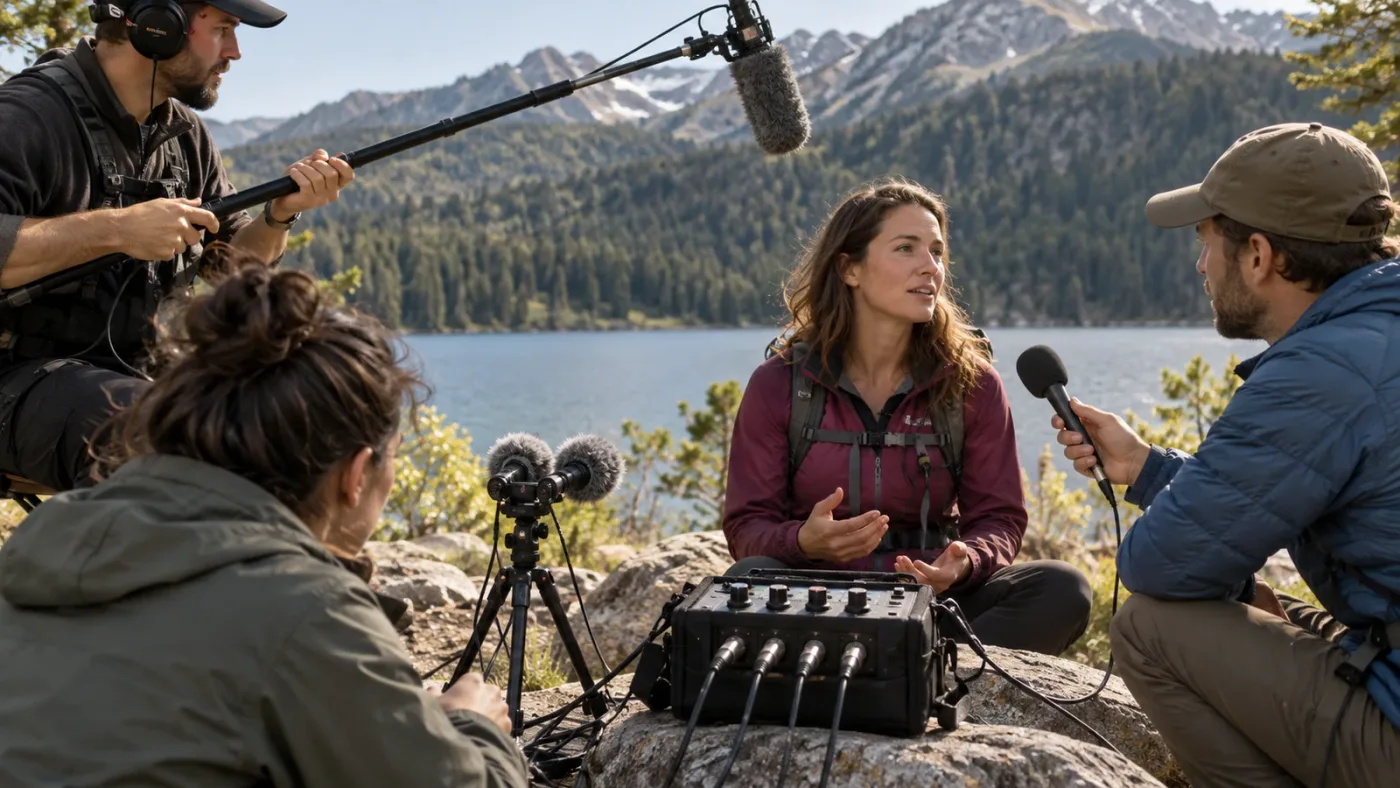
Yes. Clip Attributes' Audio panel lets you define track formats and channel assignments for selected clips, and those settings determine which audio tracks appear when the clips are edited into a timeline. Batch the change only when each selected clip has the same channel layout and channel meaning.
This panel is useful when a camera or recorder stores multiple microphones in one media file, but Resolve has grouped the channels in an inconvenient way. A multi-channel recording might contain a boom mic, two lavaliers, and a mix on separate channels. You may want each source exposed as a separate mono track instead of one combined multichannel track.
The Resolve 21 manual documents these formats in the Audio panel:
| Format | Typical fit | What to verify before a batch |
|---|---|---|
| Mono | One source channel per track | Which physical mic or feed each source channel carries |
| Stereo | A left/right pair | Whether the pair is true stereo or two independent mono sources |
| 5.1 | Six-channel surround layout | Channel order and the source's actual surround assignment |
| 7.1 | Eight-channel surround layout | Whether all channels are present and correctly ordered |
| Adaptive | Multiple independent channels | How each source channel maps to each added track |
The format choice controls how many channels appear in the assignments list and what kind of timeline track is needed to expose them. If you select a format with fewer channels than the clip contains, extra channels are disabled. The manual describes adding tracks to expose separate channels and gives the example of dividing a four-microphone production recording into three mono tracks, then assigning channels to them.
A reliable channel-mapping batch has three checks:
- Confirm the selected clips were recorded on the same recorder or with the same channel-routing preset.
- Identify what each source channel actually contains. Use a slate, recorder notes, or listen to the isolated channels.
- After applying the mapping, put a representative clip on the timeline and solo each resulting track.
Do not assume that “channel 1 is boom” across all files in a folder. A recorder might change its input routing between scenes or cards. A camera scratch track may be present on some clips but absent on others. If the channel layout differs, split the batch into smaller groups, or edit the exceptions individually.
The page matters here, too. A Blackmagic forum thread about editing multi-clip audio attributes in Fairlight describes the limitation directly. The accepted practical answer is to select the timeline clips on the Edit page when changing Clip Attributes for multiple clips. Then return to Fairlight for mixing and detailed audio work. For individual timeline clip behavior, you can also use available timeline audio controls, but don't treat those as replacements for changing the source's exposed channel structure.
If audio is coming from the wrong speaker or track after import, first distinguish a channel mapping issue from a track pan or bus routing issue. Clip Attributes can correct how source channels are exposed. It does not set the Fairlight mixer pan, bus output, or track-level mix balance. Our guide to DaVinci Resolve audio track channel mapping helps diagnose those downstream routing symptoms.
A practical example: two camera files each contain one stereo pair, with dialogue appearing centered in the left and right channels. A shared stereo interpretation may be appropriate. But if a field recorder stores a boom on channel 1 and a lavalier on channel 2, setting that pair as stereo may make the two microphones behave as left/right audio rather than two independent sources. The visual waveform can look similar even though the editorial use is different.
If you are preparing a batch for a multicamera interview, label or note the mapping before changing it. A clip name such as Interview_A_cam_boom or Interview_A_cam_lav can reduce mistakes later, but the name itself does not change the audio. Preserve the original channel source and test a short representative clip before editing all media into the timeline.
Audio channel changes should be grouped by recorder layout, not by filename pattern alone.
How do I batch timecode, reel name, or clip name changes?
Use the Timecode and Reel Name panels in Clip Attributes when a group of sources shares a known metadata correction, and use the name controls only when the same naming rule applies. These fields affect identification and conform workflows, so a wrong batch can make later relinking or sync harder even though the camera files remain unchanged.
Timecode
The Timecode panel includes Current Frame Timecode, Slate Timecode, and Offset Source Timecode. The manual explains that these values modify timecode metadata in the Resolve project; they don't rewrite the source files. It also says an offset can be corrected across as many selected clips as needed when a set shares the same offset error.
Use a batch offset only when you know that the selected clips have a common offset. If one camera was eight seconds ahead for an entire card, a shared correction may fit. If the offset changes between takes or the clips were jam-synced separately, a single value may be wrong for part of the selection.
Current Frame Timecode and Slate Timecode solve different problems. Current Frame Timecode assigns a new time to the frame currently viewed in the clip. Slate Timecode records a visible slate reading as a secondary timecode reference. A slate value should be read from a frame where it is clear. Don't type a guessed timecode into every selected file because one slate looked readable on a different clip.
A cautious workflow is to select a single representative clip, set its timecode, then verify the result against a known sync reference. If that works and the rest of the selected media share the same offset, apply the same correction to the batch. If the slate values vary, keep the operation per clip or group only by the confirmed relationship.
Reel name
Reel names can help conforming and relinking workflows when filenames or paths alone aren't enough to identify sources. Resolve can derive reel names through the project's Assist using Reel Names option, and the manual notes that Reel Name editing depends on this setting being enabled with a Reel Assist method selected. Manually changing a reel name can stop that clip from automatically updating when you later change the project option.
That makes reel names a field to handle deliberately. Before overriding a batch, decide whether the project should derive reel names from file names, embedded metadata, or a manual value. A batch is appropriate if all selected clips need the same reel identifier, or if they use the same extraction rule. It is not appropriate merely because the clips are in one bin.
Clip name
Use a shared rename rule when the naming pattern is consistent, and avoid overwriting meaningful scene or camera labels. The Media Pool's list view and metadata columns can help isolate files, but the display name and the underlying source filename are not the same thing in every workflow. Confirm which field is being changed and whether your team relies on the original source name for relinking.
For large batches, do one small group first and inspect the result in the Media Pool. Check for duplicate names, missing take numbers, or labels that could collide. If you need unique numbering or variable-based names, use Resolve's dedicated naming tools rather than typing one identical value across the entire selection.
Timecode and reel data are especially important when a project comes from an editor, assistant editor, or finishing house. A seemingly tidy bulk correction can hide a mismatch between camera timecode and sound recorder timecode. Preserve the original values in notes or a duplicate project before applying a batch that changes conform metadata.
Timecode Clip Attributes change Resolve's project interpretation, not the media file on disk.
What changed in DaVinci Resolve 21 for Clip Attributes?
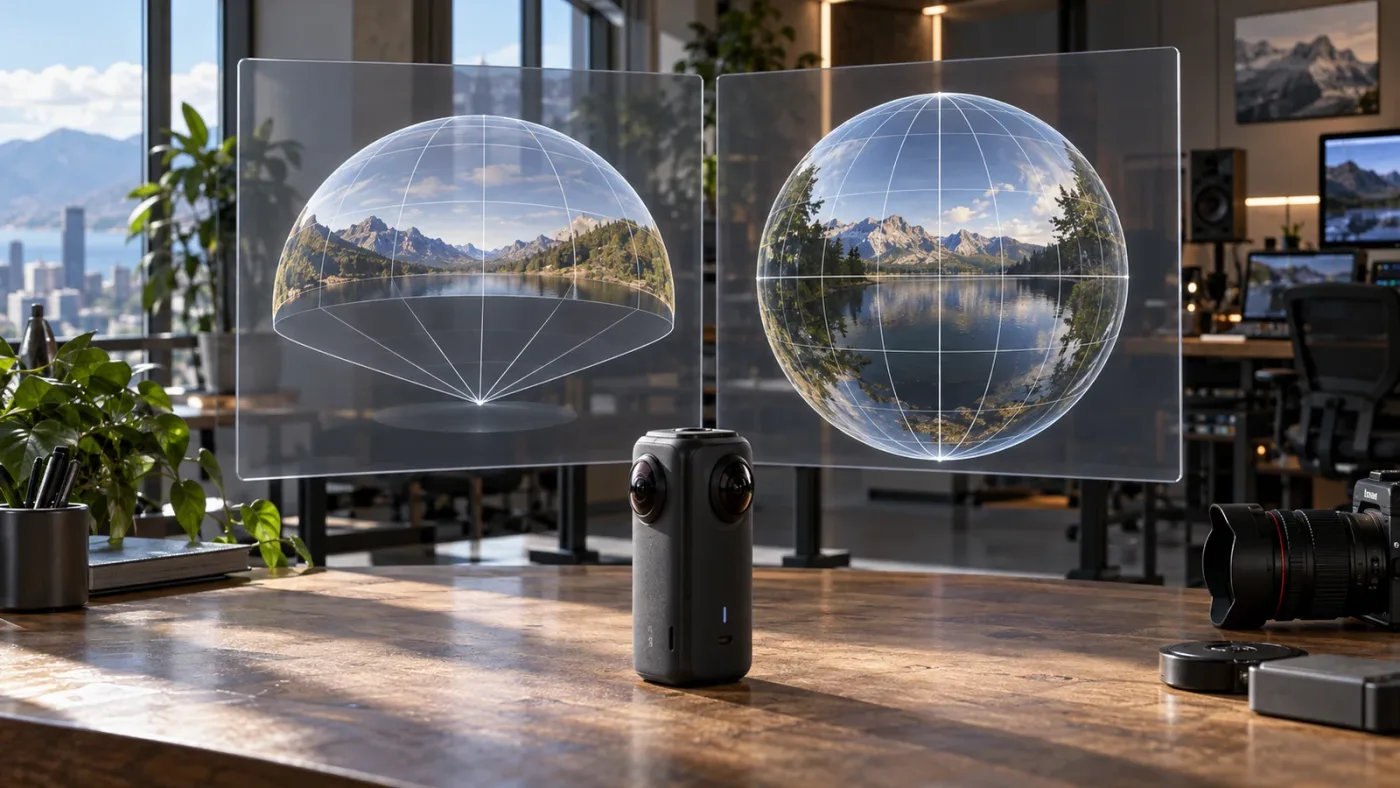
Resolve 21 adds immersive clip attributes for supported VR workflows, while the core multi-selection process remains the same: select clips, right-click, choose Clip Attributes, and set the matching values. The Resolve 21 New Features Guide says immersive media should be configured in project settings before importing, then assigned the correct Stereoscopic Mode and Projection Format in Clip Attributes.
This matters if you're editing VR180 or VR360 content. First choose Standard Immersive under Project Settings > Master Settings > Immersive workflows. The guide says this should be done before adding the VR media to the Media Pool. After importing, select the immersive clips, right-click, open Clip Attributes, and set the projection and stereoscopic attributes to match the camera footage.
Do not use the immersive settings as a shortcut for ordinary flat footage. A 360 projection is not the same as a wide equirectangular image that happens to fill a frame. If the source camera recorded immersive media, use its capture format and camera documentation to choose the matching projection. A wrong projection can make a valid image appear warped or incorrectly mapped.
The Resolve 21 manual and feature guide also show why the exact version matters. The general batch-selection model predates Resolve 21, but immersive attributes are part of the version 21 workflow. Resolve 21.1 is the current version identified by Blackmagic's Support Center as of this article's October 2026 update. If you're on 20 or earlier, don't expect the Resolve 21 immersive options to appear.
For a mixed VR project, separate clips by camera model and capture mode before applying attributes. One camera may produce stereoscopic media while another produces monoscopic 360 footage; both belong in an immersive timeline, but they don't necessarily share the same per-clip interpretation. After applying attributes, inspect the clip in the Immersive Viewer and verify the projection rather than judging only from the standard 2D viewer.
Other familiar properties remain useful in Resolve 21: frame rate interpretation, levels, pixel aspect ratio, orientation, sizing preset, audio layout, timecode, and reel naming. The dialog is a batch editor for source-level properties. It is not a general way to copy every Inspector setting, grading node, effect, or timeline edit from one clip to all others.
If a tutorial says that Resolve 21 has a new bulk edit feature, inspect what it actually demonstrates. Resolve has supported multi-clip Clip Attributes for years; the version-specific addition in the 21 new features guide is immersive clip interpretation. Avoid confusing these facts. The current version can make the menu look different or expose new fields, but the existence of the batch workflow is not itself new in 21.
Resolve 21's version-specific Clip Attributes addition is immersive media interpretation.
Why didn't my batch change the Inspector, grade, or timeline effect?
Clip Attributes edits source interpretation and metadata; they don't copy every setting from one timeline clip to another. Use Inspector controls, Paste Attributes, shared nodes, or another appropriate timeline tool when the adjustment belongs to an edit instance or effect rather than the source media.
“Clip attributes” is an overloaded phrase in editing conversations. People may use it to mean anything that can be changed on a clip. In Resolve, the Clip Attributes dialog is a particular command with panels for source interpretation and metadata. The Inspector contains other per-clip controls, and the Color page contains grading controls. They may all affect how the image or sound appears, but they don't all share the same scope.
Use this quick diagnostic:
| You want to change... | Start here | Does it alter source interpretation? |
|---|---|---|
| How many embedded audio tracks appear | Clip Attributes > Audio | Yes |
| How Resolve reads frame rate or data levels | Clip Attributes > Video | Yes |
| A single timeline shot's zoom, position, or crop | Inspector for that timeline clip | No, it's a timeline adjustment |
| A shot's grade or node tree | Color page tools, clip-level grade, or shared node workflow | It changes the grade, not the source metadata |
| The speed of a single edited shot | Timeline retime controls | No, it's a timeline speed effect |
| Transform, composite, or effect values | Inspector or effect controls | No, these are edit/effect settings |
If the goal is “make all the shots match,” decide what “match” means first. Matching source interpretation might require Clip Attributes. Matching framing may require Inspector values. Matching color may require a grade or shared node, and matching loudness may require audio normalization. Choosing the wrong tool often produces a result that appears to work on one clip while missing the actual task.
For example, changing Input Sizing Preset can standardize how a group of formats maps into the timeline, but it won't copy a custom zoom from one timeline clip to another. Setting a clip's source orientation can correct every use of a rotated phone video, but it won't add a unique camera move to one edited occurrence. Changing Audio channel mapping can expose a lavalier as its own timeline track, but it won't set that track's fader level.
If you want to apply a set of Inspector changes to several timeline clips, use the relevant copy and paste attributes workflow and choose only the categories you intend to transfer. Verify that source and destination clips use compatible media and the same type of controls. Copying a Transform to clips with different framing needs may create unwanted crops. A copied grade can also be wrong for different lighting or camera color science.
If you want to normalize audio clips one by one, the target operation is loudness normalization, not the Audio panel of Clip Attributes. See our article on normalizing DaVinci Resolve audio clips individually for that distinct workflow.
A useful rule: if the correction should follow the source file wherever it appears, inspect Clip Attributes. If the correction should apply only to one edit instance, start in the timeline. If it should apply to the whole track or mix, use track or Fairlight controls. This scope check prevents an otherwise correct setting from spreading to places you did not intend.
Clip Attributes, Inspector values, and Color page grades have different scopes.
What should I do if the result looks wrong after a batch edit?
Stop and undo the batch before making a second adjustment, then identify which source property caused the result. Compare the original and changed setting on one clip, check the media's known metadata, and split the group if any selected files have different recording characteristics.
A useful troubleshooting sequence is:
- Press Command-Z on macOS or Ctrl-Z on Windows once if the change was the last operation and you want to reverse it.
- Confirm the selection and panel value you changed. If you cannot remember, reopen Clip Attributes on a representative source.
- Identify the symptom: changed speed, stretched image, unexpected contrast, missing audio channels, new rotation, or broken sync.
- Match the symptom to the property. Speed usually points to frame-rate interpretation or retiming; contrast may involve levels or color management; missing channels point to audio layout; orientation points to rotation or metadata.
- Verify the source specification rather than compensating visually with another setting.
- Reapply the correction to one known clip. Only expand the selection if the test matches the rest of the group.
The undo shortcut is standard in Resolve's editing interface, but exact menus and keyboard mappings can be customized. If the shortcut doesn't undo your last action, use Edit > Undo and inspect the history before taking another step. Do not continue experimenting with a mixed batch while uncertain about the first change.
The video became too fast or slow
Check whether you changed Video Frame Rate in Clip Attributes or changed a timeline speed control. Resolve's manual confirms that changing the interpreted source rate changes clip duration and playback speed. Undo if that wasn't the goal, and compare the source metadata with the value you entered.
The picture became too wide, narrow, or cropped
Check Pixel Aspect Ratio, orientation, and Input Sizing Preset separately. If faces or circles look stretched, a pixel aspect ratio is a likely candidate. If the image is upright but cropped, inspect the sizing mode. If only one timeline use is wrong, undo the source-level batch and make the adjustment in that clip's Inspector.
The image became washed out or crushed
Revert the Data Levels change and check whether the clip is log-encoded or has a color-space transform issue. Test Auto, Video, and Full on one source while observing scopes. A more contrasty viewer image does not prove that the signal is being decoded correctly.
Audio channels disappeared or moved
Reopen Audio attributes and compare track formats, source-channel assignments, and channel-in-track labels. If one recorder file has a different routing layout, move it into a separate group. Listen to each mapped output in isolation before continuing the edit.
Timecode no longer lines up
Check Current Frame Timecode, Slate Timecode, and Offset Source Timecode. Determine whether you changed an absolute value or a shared offset, and compare the result with the slate, sound recorder, or other sync reference. A uniform offset correction is only safe when the selected sources share that offset.
Only some files look different
The batch probably included more than one source configuration, or some files had an attribute unavailable to others. Sort the Media Pool by camera, frame rate, codec, audio channel count, or another reliable property. Rebuild smaller selections, test one file from each group, and apply only the shared setting.
If the project is already in delivery, consider duplicating the timeline or project before applying another global interpretation change. That gives you a clear comparison and a way back if the new interpretation affects edits across the project. Keep the original camera media in place; the operation adjusts Resolve's project interpretation and doesn't repair or rewrite the media file.
Undo first, diagnose the property second, and rebuild the batch only after a single-clip test.
Should I use the Media Pool, timeline selection, or another method?
Use the Media Pool for source-wide interpretation, use the Cut/Edit/Color timeline when the relevant source clips are already in an edit, and use Inspector or grading tools for timeline-specific look changes. The right location depends on whether the correction should follow the media item or only one edit instance.
| Method | Best for | Main risk | Use it when |
|---|---|---|---|
| Media Pool > Clip Attributes | Shared source metadata and interpretation | One source change can affect every timeline use | The source itself is being read incorrectly |
| Cut, Edit, or Color timeline > Clip Attributes | Fixing selected clips already cut into a sequence | You may select instances that don't represent a homogeneous source group | The selected timeline items share the same source correction |
| Fairlight timeline | Track, bus, mixing and audio production tasks | Multi-clip Clip Attributes may not be available in this context | You need mixing controls, not the multi-clip dialog |
| Inspector | Per-instance transform, compositing, and other timeline controls | Copying one instance's framing may be wrong for others | The change belongs only to a chosen edit instance |
| Color page | Clip grades and color corrections | A grade cannot repair incorrect source metadata | The signal is correctly interpreted but needs a look adjustment |
| Paste Attributes | Reusing selected timeline settings across edits | Incompatible clips can receive inappropriate values | The target clips need the same class of timeline adjustment |
There is no universal winner. The Media Pool is usually easier to audit because it gives you a source list and metadata columns. A timeline selection is convenient after editing, especially when only a subset of imported media needs the correction. But if you don't know whether selected instances come from the same source properties, go back to the Media Pool and group by those properties first.
Resolve's built-in documentation is the best reference for what a field means and which pages support a selection. For learning the menu, Blackmagic's manual is enough. A video tutorial from an experienced editor can help you see the gesture, but pause when the screen shows the page and version; many tutorials demonstrate an older Resolve release or a single clip rather than a multi-selection.
Community answers are useful when your selection behaves differently than expected. The Blackmagic Forum example above captures a practical page limitation: use Edit when Fairlight doesn't provide multi-clip Clip Attributes. A screen-aware assistant can also help locate a control in your Resolve workspace, but it cannot make the batch decision for you.
If you prefer to learn from courses or videos, use them for context and come back to the manual for exact current control names. The manual tells you what the selection supports; your own project metadata tells you which clips belong together. Neither source can safely guess the correct frame rate, pixel aspect ratio, or audio mapping for your media without source evidence.
For a clear decision, ask these questions in order: Is this property part of the source media's interpretation? Should the change affect every appearance of that source? Do the selected files have the same technical characteristics? Can I verify the outcome on one clip first? If any answer is no, use a narrower selection or a timeline-specific control.
What is the safest complete workflow for bulk Clip Attributes?
The safest workflow is to group by a verified source property, test on one clip, apply the shared value, then inspect the outcome before continuing the edit. This sequence keeps the speed advantage of batch changes while making mistakes easy to catch early.
Before selecting
Know what you're correcting. Write the intended property in plain language: “These files are actually 50 fps,” “These clips use full-range levels,” “These files contain a boom on channel 1 and a lav on channel 2,” or “This VR camera records standard immersive 360.” If you can't state the source fact, pause and gather it first.
Identify the evidence. Look at camera menus, recording notes, file metadata, a slate, or the recorder's channel plan. The viewer can reveal a symptom, but it won't always reveal the cause. A flat image can be log; a quiet audio channel can be a separate microphone; a portrait video can already carry rotation metadata.
Separate exceptions. Even disciplined shoots can include different modes. Make separate bins or selections for those cases. If using the Media Pool list, expose columns that help distinguish frame rate, resolution, codec, or audio configuration, then sort and select a coherent set.
During the edit
Use a sample first. Apply the intended change to one known clip. Note the result, especially if changing speed, data levels, audio mapping, or geometry. If the result isn't right, undo and correct your diagnosis before expanding the selection.
Select the batch deliberately. Use a bounded range or individual clicks. Before right-clicking, scan the highlighted clips and count or identify the boundary items. This small pause is more reliable than trying to repair a large mistaken selection afterward.
Change one class of property at a time. If the task is frame-rate correction, don't also modify levels and audio mapping in the same pass. Isolating the operation makes it easier to understand any unexpected result and easier to undo.
After the edit
Inspect different examples, not just the first. If the selection includes several cameras or cards, check at least one clip from each verified subgroup. For audio, solo each mapped track. For geometry, inspect corners and recognizable shapes. For levels, inspect shadows and highlights on scopes. For timecode, compare against a sync reference.
Watch for downstream effects. Changing source interpretation can affect multiple timeline uses, and a corrected media pool item may alter how existing edits play. Scrub the timeline where the selected sources appear. If an edit was already synced or graded, confirm that the source adjustment hasn't changed the timing or expected image relationship.
Record unusual decisions. A short note in the project or production log can say which clips received an interpretation correction and why. That context helps another editor understand whether a later difference is a mistake or an intentional source adjustment. It also prevents someone from “fixing” the same setting back to Auto without knowing why it was changed.
When a manual batch is better than automation
Clip Attributes is already a batch tool. For most small and medium jobs, selecting coherent groups and changing one shared value is simpler and safer than introducing a script or external automation. Blackmagic's supported interface exposes the controls and makes the selection visible.
Automation can make sense for a repeatable ingest pipeline with stable naming, verified metadata, and a tested Resolve scripting workflow. It is a poor substitute for source verification. A script that assigns a fixed frame rate based on a filename token will still be wrong if the camera changed mode and the filename did not reflect it. Keep the decision rule explicit and test a representative project before using an automated operation on paid work.
A quick review checklist
Before you continue editing, confirm:
- The selected group had one shared technical reason for the change.
- The Clip Attributes panel and field were the ones you intended.
- The displayed value matches source documentation or verified metadata.
- The representative clip behaves correctly after applying the change.
- A second clip from each subgroup also behaves correctly.
- Existing timeline appearances still have the right speed, sync, image geometry, or audio layout.
- Any exception is separated into a different batch.
A workflow is dependable when another editor can understand the grouping, the correction, and the verification. A fast click sequence without those checks is fast only until a wrong setting spreads through the project.
The safest batch is the smallest group you can prove shares one correction.
How can I get help while changing Clip Attributes?
Use Blackmagic's current Resolve manual for field definitions, a relevant Resolve forum thread for page-specific behavior, and a screen-aware assistant when the control is hard to find in your workspace. Keep the factual decision grounded in your own source metadata and verify the result with a test clip.
The official Blackmagic reference manual is the authority for the Clip Attributes panels and supported selection steps. It explains the effects of frame-rate interpretation, audio track mapping, timecode offsets, reel-name controls, and the new immersive workflow. The Support Center lists the current manual for Resolve 21.1 as of October 2026.
A video tutorial can be useful if you need to see the right-click and selection process. Check the creator's Resolve version and whether the video is changing a source clip or a timeline instance. The visible gesture may look nearly identical while the scope of the change differs.
A forum can help when a particular page doesn't expose the command or when your media has unusual channel mapping. Treat the response as guidance for that described setup. Verify your own version, page, and clip type before copying the steps.
If the panel is difficult to locate, on-screen guidance can bridge the gap between a manual and a workspace that looks different. You still need to determine the correct technical value for your camera files.
The proper order stays simple: confirm the source fact, select a coherent group, apply one change, inspect the result. For the specific query “davinci resolve change clip attributes for multiple clips,” the answer is yes: use multi-selection in the Media Pool or a supported Cut, Edit, or Color timeline. The decision that takes care is which clips belong in that selection.
What should I do next?
Start with the Media Pool, group sources by the property you can verify, and test the correction on one clip. If the sample is right, apply the same value to the smallest matching batch and inspect the timeline before moving on.
That routine covers the common fixes: frame-rate interpretation, data levels, geometry, audio channel assignment, timecode, reel names, and Resolve 21 immersive attributes. Keep source-wide corrections in Clip Attributes. Keep one-shot framing, grading, retiming, and mixing decisions in their respective timeline tools. And if the command is missing in Fairlight, switch to the Edit page for the multi-clip operation.
The goal is not to change every clip at once. It is to change the right clips once, for a reason you can explain, then verify that Resolve now reads them the way the footage was made.
Frequently asked questions
- How do I change Clip Attributes for multiple clips in DaVinci Resolve?
- In the Media Pool, select the clips with Shift-click, Command-click on Mac, or Ctrl-click on Windows, right-click one selected item, choose Clip Attributes, set the shared property, and click OK. You can also select timeline clips on the Cut, Edit, or Color pages.
- Why is Clip Attributes greyed out for multiple clips in DaVinci Resolve?
- The command may be unavailable because the selection is in a page or panel that does not expose multi-clip Clip Attributes, such as the Fairlight timeline. Switch to the Media Pool or a supported Cut, Edit, or Color timeline, then select the clips there.
- Can I change the frame rate of multiple clips without changing the timeline frame rate?
- Yes. Clip Attributes changes how Resolve interprets each selected source clip's frame rate. It does not set the project timeline frame rate. Changing a clip's interpreted frame rate changes its duration and playback speed, so only batch clips that share the intended interpretation.
- Can I change audio channel mapping for several clips at once?
- Yes. Select compatible source clips in the Media Pool or supported timeline, open Clip Attributes, and use the Audio panel. Confirm that the clips have matching channel layouts before applying a shared mapping.
Sources
- DaVinci Resolve 21.1 Reference Manual, Chapter 21: Modifying Clips and Clip Attributes
- DaVinci Resolve 21 New Features Guide, Immersive Workflows
- DaVinci Resolve 21.1 Release Information and Manuals
- Reynaud Venter, Blackmagic Design Forum: Help to split multiple clips attributes in Fairlight
- DaVinci Resolve 21 manual, Data Levels, Color Management, and ACES
- DaVinci Resolve 21.1 Release Notes
- TryUncle
Put this guide to work with TryUncle.
Ask about the step you’re on. TryUncle sees your screen and points at the control you need, so you can keep learning in your own project.
Get TryUncle for Mac or WindowsKeep reading
Fixes · Jul 12, 2026 · 27 min
DaVinci Resolve Clip Plays Too Fast? Fix the Wrong Frame Rate
A DaVinci Resolve clip playing too fast is almost always a wrong frame rate. Fix Clip Attributes, Mixed Frame Rate Format, and Playback Frame Rate step by step.
Fixes · Oct 3, 2026 · 18 min
DaVinci Resolve Audio Track Channels Wrong? Fix the Mapping
Fix wrong audio track channels in DaVinci Resolve 21 by checking clip mapping, track type, pan, bus routing, and export channel settings.
Guides · Oct 3, 2026 · 17 min
DaVinci Resolve Audio: Normalize Clips Individually
Normalize audio clips individually in DaVinci Resolve 21, choose Independent correctly, and avoid confusing peak levels with loudness.