Articles / Fixesupdated for DaVinci Resolve 21.0.2 (July 2026)
DaVinci Resolve Clip Plays Too Fast? Fix the Wrong Frame Rate
Quick answer
A DaVinci Resolve clip plays too fast when Resolve thinks its frame rate is higher than it actually is. Check Clip Attributes' Video Frame Rate first, since that field alone controls playback speed. Also check Project Settings' Mixed Frame Rate Format, and Playback Frame Rate if you use an external monitor. Match frame rate to the source, not the timeline.
Your clip looks completely normal in the thumbnail. Hit play and everyone's talking like they just inhaled helium from a balloon. Nobody sped anything up on purpose, and the audio sounds fine on its own, which makes the whole thing feel like a bug. It isn't. DaVinci Resolve is doing exactly what you told it to do. You just told it the wrong frame rate.
This is one of the most common, most misdiagnosed problems in Resolve, because the fix hides behind a setting most editors never open until something breaks. Below is where the mismatch actually lives, in order of how often each one is the actual cause, plus the exact fields to change.
What makes a DaVinci Resolve clip play too fast?
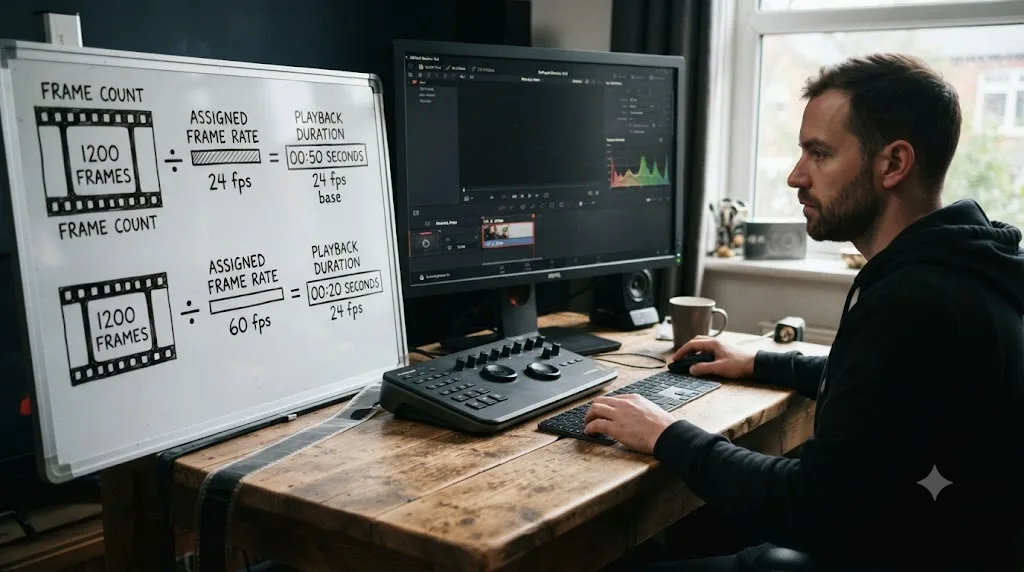
Every clip in Resolve has two frame counts that matter: how many frames the file actually contains, and how many frames per second Resolve has been told to play them back at. Playback duration is just one number divided by the other. Change either number and the clip's speed changes, even though not one frame of the source file moved.
In DaVinci Resolve, a clip's frame rate is not a fact about the file, it's a belief Resolve holds about the file, and that belief is what sets playback speed. Most of the time the belief is correct, read straight from accurate camera metadata, and you never think about it. A clip plays too fast when that belief is wrong in one specific direction: Resolve thinks the clip runs at a higher frame rate than it actually does, so it divides the same frame count by a bigger number and gets a shorter, faster-playing result.
There are three places that belief gets set, and each one fails differently:
- Clip Attributes, a per-clip override in the Media Pool that anyone (including a previous editor, a template, or you three months ago) can change deliberately or by a stray click.
- Mixed Frame Rate Format, a project-wide Conform Options setting that decides what happens when a clip's native rate doesn't match your timeline, locked the moment you import your first piece of media.
- Playback Frame Rate, a narrower setting under Video Monitoring that only matters if you're watching through an external monitor or a Blackmagic capture card.
Per DaVinci Resolve's own reference manual, when a clip's frame rate override doesn't match its actual content, "you can change what DaVinci Resolve considers the frame rate of the source clip to be," and doing so "will change its duration and relative playback speed in DaVinci Resolve." That's the entire mechanism in one sentence. Everything below is just where to find the control and how to read the symptom correctly.
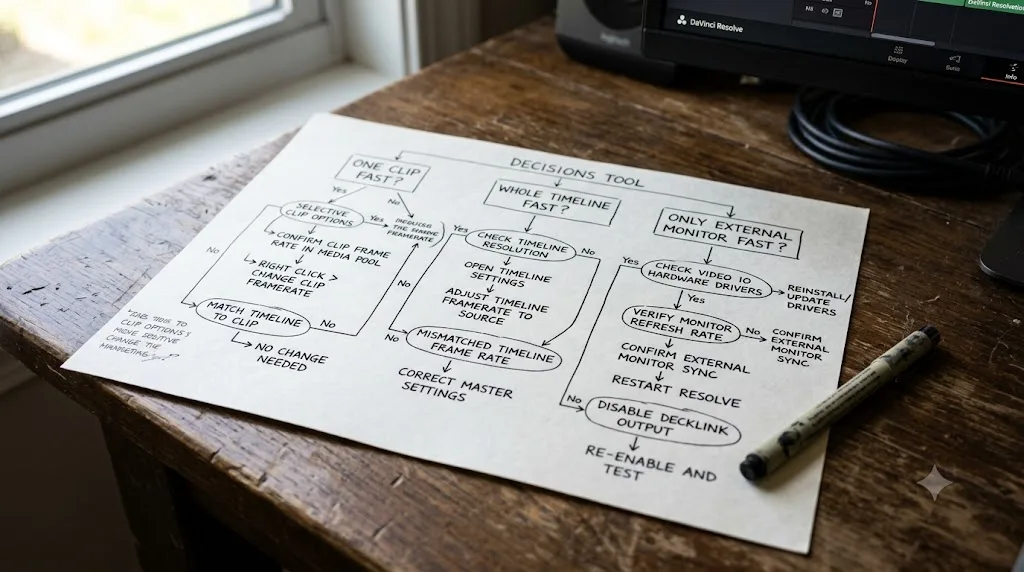
Is one clip playing fast, or is the whole timeline off?
This is the fastest way to narrow down which of the three settings above is actually responsible, and it takes about ten seconds.
Scrub through your timeline and note the pattern:
| What you see | Likely cause | Where to look |
|---|---|---|
| One specific clip races through, others around it play normally | That clip's own Clip Attributes frame rate is wrong | Media Pool, Clip Attributes, Video tab |
| Every mismatched-rate clip on the whole timeline plays too fast or too slow | Project-wide Mixed Frame Rate Format | Project Settings, Conform Options |
| Everything looks fast only through an external monitor, normal in the on-screen viewer | Playback Frame Rate under Video Monitoring | Project Settings, Video Monitoring |
| The clip has a small clock icon in its top corner on the timeline | Someone applied Change Clip Speed, this isn't a frame rate issue at all | Right-click the clip, Change Clip Speed |
| Clip plays fine on the Edit page, races on Deliver page preview or in the rendered file | Frame rate is correct on the timeline but wrong at render settings | Deliver page, Video settings |
That fourth row matters more than people expect. Resolve marks a retimed clip with a small icon, and a badly applied speed change looks identical to a frame rate mismatch on first glance, fast motion, audio that doesn't line up. Right-click the clip and check Change Clip Speed before you touch anything else. If it reads 100%, speed isn't the problem and you're looking at a genuine frame rate mismatch.
How do you check what frame rate DaVinci Resolve thinks your clip is?
Before changing anything, find out what Resolve currently believes, and compare it against what the file actually is. Skipping this step is how editors "fix" a working clip and break it instead.
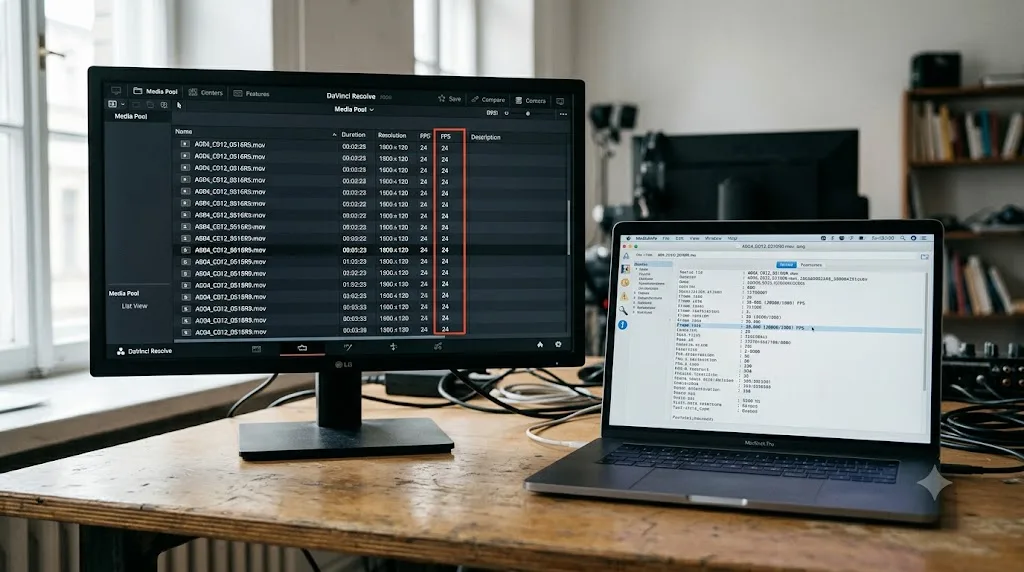
Inside Resolve, the fastest check is the Media Pool. Right-click the column header row and enable the FPS column if it isn't already visible. That number is what Resolve currently has on record for each clip, and it updates instantly if you've already changed Clip Attributes on something.
Outside Resolve, the free MediaInfo utility gives you ground truth. Load the file and check two fields: the general Frame Rate value, and the Frame Rate Mode. You want a Constant frame rate that matches what your camera or recording app claims. If MediaInfo shows Variable, that's a different problem entirely, covered further down this page, and no frame rate override fixes it cleanly.
A frame rate number in a video file's metadata is a claim, not a guarantee, and cameras, phones, and screen recorders all occasionally make that claim incorrectly. Action cameras, drones, and older Android phones have a long history of writing frame rate metadata that doesn't match what they actually recorded, especially in high frame rate or slow-motion modes. When that happens, Resolve isn't malfunctioning. It's correctly reading a file that's lying to it.
If the numbers in the Media Pool's FPS column and MediaInfo's Frame Rate field already agree, and the clip still plays too fast, the problem isn't the clip's own metadata. Move on to the Mixed Frame Rate Format section further down, because the project itself is likely doing the retiming.
How do you fix one clip that plays too fast in DaVinci Resolve?
If your diagnosis above pointed at a single clip, this is a two-minute fix and it's entirely non-destructive.
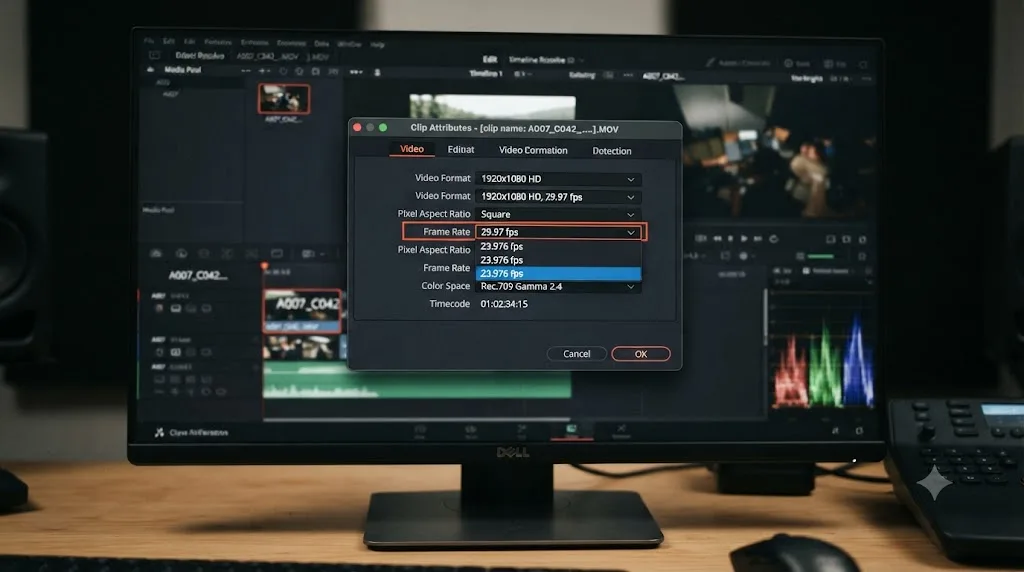
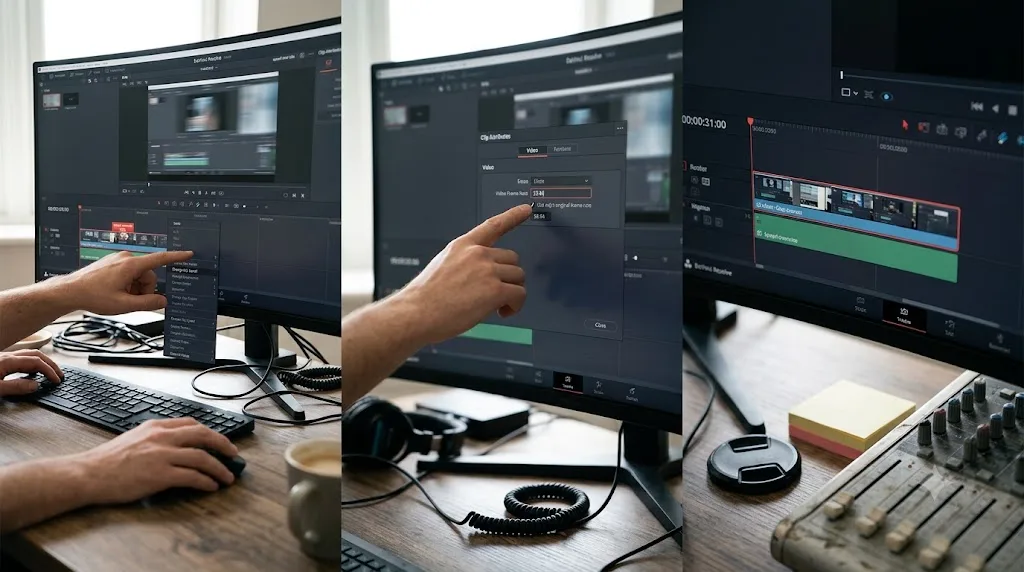
- Find the clip in the Media Pool, right-click it, and choose Clip Attributes.
- Open the Video tab and locate the Video Frame Rate field.
- Set it to the clip's true native frame rate, the number you confirmed with MediaInfo or your camera's own recording settings, not your timeline's frame rate.
- Close the dialog and check the clip on the timeline. If it was already cut in, the change applies retroactively wherever that clip appears.
Colorist and finishing artist Dan Swierenga, writing about exactly this mechanism, put it plainly: "when we change the frame rate in clip attributes, we're not actually altering a clip's files, we're simply telling Resolve to play back the files with a different frame rate." That's the whole operation. No transcoding, no re-import, no risk to the original media.
Changing a clip's frame rate in Clip Attributes never touches a single pixel or byte of the original file, it only tells Resolve how fast to play the frames that are already there. That's why this is the safest fix on this entire page to try first, even if you're not fully sure it's the cause. Setting it back is just as easy if it turns out to be wrong.
One caution worth repeating from the manual itself: this field accepts values from 1 to 120 fps directly from the dropdown, or Custom for anything up to 32,000 fps for specialty high-speed formats. If your camera shoots an oddball rate like 47.95 or 119.88, use Custom and enter the exact number. Rounding to the nearest standard rate is exactly the kind of small error that causes a barely-noticeable, slow-building sync drift instead of an obviously-wrong speed, which is worse because it's harder to catch.
Why does Clip Attributes change speed but not audio?
This is the detail that makes a fast-playing clip so obviously wrong, and also the detail that tells you exactly what kind of bug you're looking at. When a clip races through its video but the audio sounds completely normal on its own, right up until the picture ends and the sound keeps going, that's not a coincidence. That's the Clip Attributes mechanism working exactly as documented.
Swierenga is specific about this consequence: changing a clip's frame rate this way "will make the audio unusable," and if you've done this on a clip that needs its audio, "you should leave these types of clips and their audio at the native frame rate" instead. The reason is structural. Video Frame Rate in Clip Attributes retimes the picture track by changing how Resolve counts frames per second. It does nothing to the audio track, which keeps playing at the file's original sample rate regardless of what you told the video side.
Clip Attributes changes video timing only, and the audio keeps playing at its original pace, which is why a fast clip so often finishes its picture well before its sound does. If you've been staring at a clip wondering why the mouth movements end a full second before the last word of dialogue, this is the answer. It's not a sync bug on top of a speed bug. It's the same one bug showing you two different symptoms.
The practical upshot: if a clip needs both correct video speed and audio that's actually usable, fixing Video Frame Rate in Clip Attributes solves the picture but leaves you with audio that no longer lines up with anything. For clips where the audio matters (dialogue, a live event, anything with sync-critical sound) transcode the file to genuinely correct its frame rate with a tool like Shutter Encoder or HandBrake instead of overriding it inside Resolve. Transcoding rewrites the actual frame timing and recalculates the audio to match, rather than just relabeling one track and leaving the other exactly where it was.
Why does Mixed Frame Rate Format make a whole project play at the wrong speed?
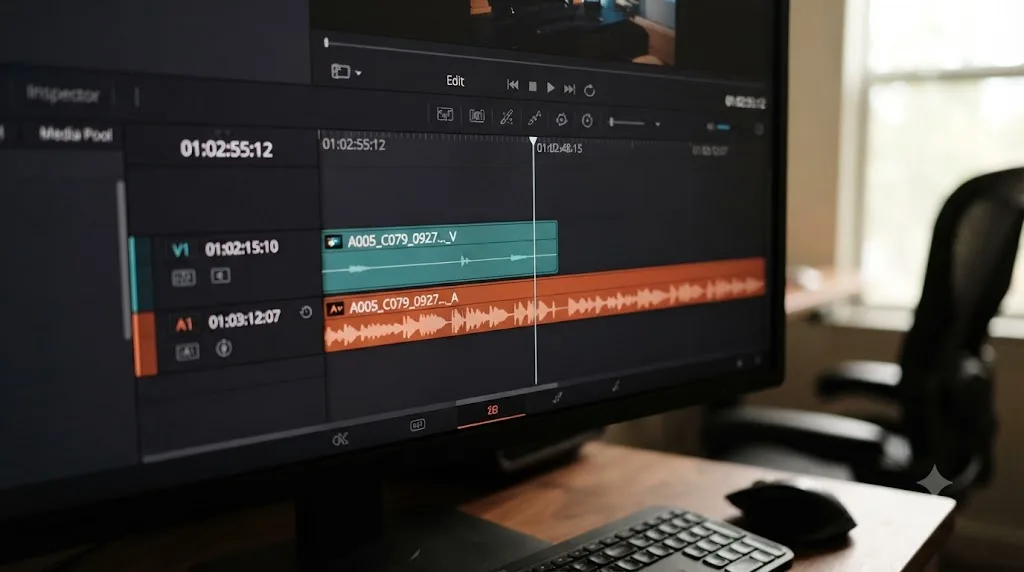
If your diagnosis pointed at the entire timeline rather than a single clip, you're not looking at a Clip Attributes problem at all. You're looking at a project-wide setting that decides how Resolve reconciles any clip whose native frame rate doesn't match your timeline.
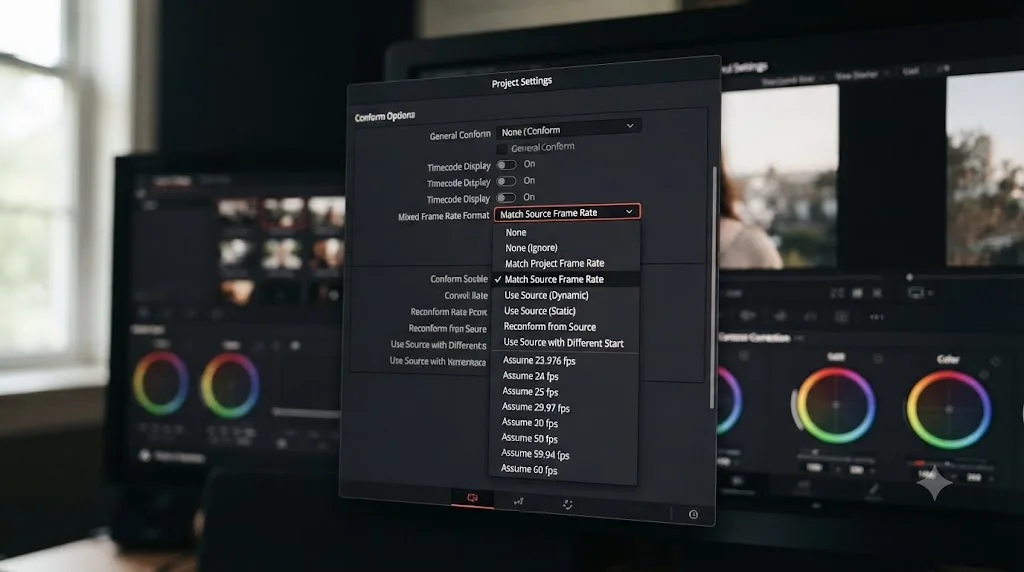
Per the DaVinci Resolve reference manual's page on mixed frame rates, this setting lives in Project Settings under Conform Options, and its behavior splits cleanly into two outcomes:
"When 'Mixed frame rate format' is set to anything but None, DaVinci Resolve conforms and processes all clips in the Timeline to play at the project's frame rate."
"If you choose 'None,' then clips with frame rates that aren't equal to the Timeline frame rate will ignore their original frame rate and will play at the Timeline rate, resulting in either faster or slower motion, depending on the difference between the original and Timeline frame rates."
The manual's own worked example is the clearest way to picture it: 23.98, 29.97, 30, 50, 59.94, and 60 fps clips will all conform and play correctly at 24 fps if Timeline frame rate is set to 24 and Mixed Frame Rate Format is set to anything other than None. Set it to None with the same mix of source clips, and every one of them that doesn't natively match 24 fps ends up playing at the wrong speed, faster or slower depending on which direction the mismatch runs.
The available options are None, Resolve, Final Cut Pro 7, and Final Cut Pro X. Resolve is the setting to use for native Resolve projects and for anything imported from Premiere Pro, Media Composer, Smoke, or another non-Apple NLE. The Final Cut Pro options exist specifically for projects imported by XML from Apple's editor, because Final Cut Pro's own mixed-rate math works slightly differently and Resolve needs to match it exactly to keep the conform accurate.
| Mixed Frame Rate Format | What happens to a mismatched-rate clip |
|---|---|
| None | Plays at the Timeline rate regardless of native rate, producing fast or slow motion |
| Resolve | Conforms the clip to play correctly at the project's frame rate |
| Final Cut Pro 7 | Conforms using Final Cut Pro 7's mixed-rate calculation method |
| Final Cut Pro X | Conforms using Final Cut Pro X's mixed-rate calculation method |
Why can't you fix Mixed Frame Rate Format after you've started editing?
Because Resolve locks it in the moment real work depends on it, and that's by design, not a bug. The manual is explicit on this point too: this drop-down menu is "Only available prior to importing media into a project." Once you've brought clips into the Media Pool, the field greys out.
The Mixed Frame Rate Format setting can only be changed before you import a single frame of media, which is why so many editors discover it too late. The logic makes sense once you know it: Resolve has already conformed every clip in your project according to whichever method was active at import time. Changing the rule retroactively would mean recalculating the timing of every clip that's touched a timeline, sync points, edit points, and all, which is exactly the kind of silent corruption a locked setting is meant to prevent.
If you've discovered your project is set to None with a Mixed Frame Rate timeline already built out, you have two realistic paths, and neither involves flipping this one setting:
- Fix each mismatched clip individually in Clip Attributes, the same way covered above, setting each one's Video Frame Rate to its true native rate. This works clip by clip and doesn't require rebuilding the project.
- Start a new project with Conform Options set correctly before importing anything, then bring your media in fresh. This is more disruptive, but it's the right call if you have many mismatched clips and want the conform handled automatically instead of one clip at a time.
For most single-project fixes, option one is faster. Reserve option two for a project you're building from scratch where you know in advance you'll be mixing frame rates, a multicam shoot with a phone angle alongside cinema cameras, for example, or an event with both a 24fps main camera and a 60fps slow-motion b-roll camera.
Why does 60fps or 120fps footage play too fast instead of slow motion?
This is the single most common way people land on this exact problem, and it usually starts with genuine excitement about a slow-motion shot that never actually goes into slow motion.
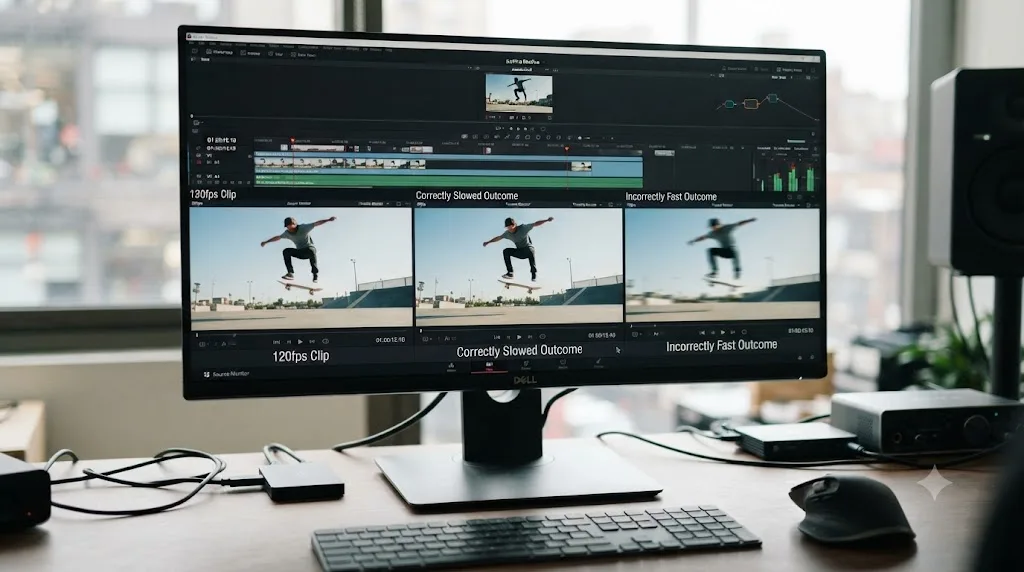
Here's the setup: you shoot a shot at 120fps specifically to slow it down in the edit. You drop it onto a 24fps or 30fps timeline expecting Resolve to spread those 120 frames across five seconds of screen time instead of one. Instead, it plays through in roughly the same duration as everything else on the timeline, maybe even faster, and the slow-motion effect you shot for never happens.
The cause is almost always a Clip Attributes value, or a camera metadata error, that has Resolve believing the clip's native rate is close to your timeline rate rather than the true 120. If Resolve genuinely knows a clip is 120fps and your timeline is 24fps, dropping it onto the timeline should already look like natural slow motion with no retime effect applied at all, because that's exactly what a frame rate mismatch is supposed to produce when the underlying math is correct.
| Camera's true rate | Resolve's believed rate | Timeline rate | Result |
|---|---|---|---|
| 120fps | 120fps (correct) | 24fps | Real slow motion, no retime needed |
| 120fps | 30fps (wrong, misread) | 24fps | Plays close to full speed, slow motion lost |
| 24fps | 60fps (wrong, misread) | 24fps | Plays noticeably too fast |
| 60fps | 60fps (correct) | 60fps | Plays at normal, real-time speed |
Check the Media Pool's FPS column for the clip before you touch a single speed control. If it shows anything other than the true rate you shot at, that's the entire bug. Fix it in Clip Attributes, and the slow motion (or the fast motion) resolves itself without a single frame of manual retiming.
Why does the Change Clip Speed dialog show a strange percentage instead of "normal"?
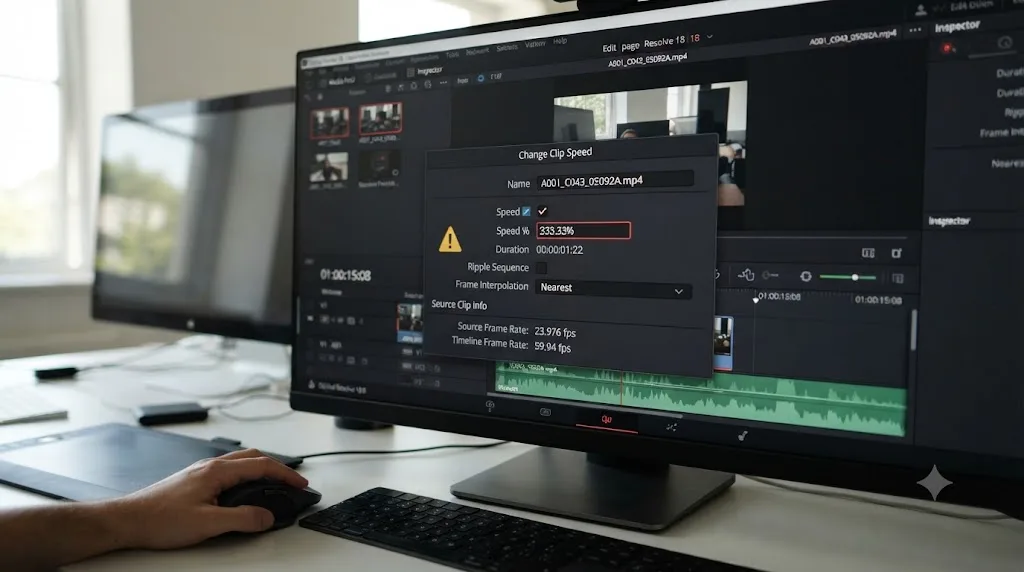
If you've already opened Change Clip Speed trying to fix this, and it showed you something like 250% instead of 100%, you've actually confirmed the diagnosis rather than solved it, and it's worth understanding why before you touch that percentage.
The Change Clip Speed dialog's Frames Per Second field is not reading your source clip's native frame rate. It shows speed as a ratio against your timeline's frame rate, which means a clip that's playing too fast because of a Clip Attributes mismatch will show up here as running at some percentage above 100, even though nobody applied a speed change. Typing 100% back into this dialog doesn't fix the underlying frame rate belief. It just adds a second correction on top of the first mistake, or worse, applies an actual optical-flow retime to a clip that never needed one.
A wrong percentage in the Change Clip Speed dialog is a symptom of a frame rate mismatch, not a separate bug you fix by typing in a different number. If this dialog shows anything other than 100% on a clip you never intentionally retimed, close it without changing anything and go straight to Clip Attributes instead. Fix the frame rate there, and Change Clip Speed will read 100% on its own the next time you check, because there's no actual speed change left to correct.
The only time to reach for Change Clip Speed on this kind of clip is after you've fixed Clip Attributes and specifically want a stylistic ramp on top of the now-correct native speed, a genuine artistic slow motion or fast motion choice layered onto footage that's already telling Resolve the truth about itself.
Why do OBS recordings or screen captures play too fast in DaVinci Resolve?
This is common enough, and specific enough, to deserve its own section. Screen recordings behave differently from camera footage in ways that trip up Resolve's frame rate reading more often than most editors expect.
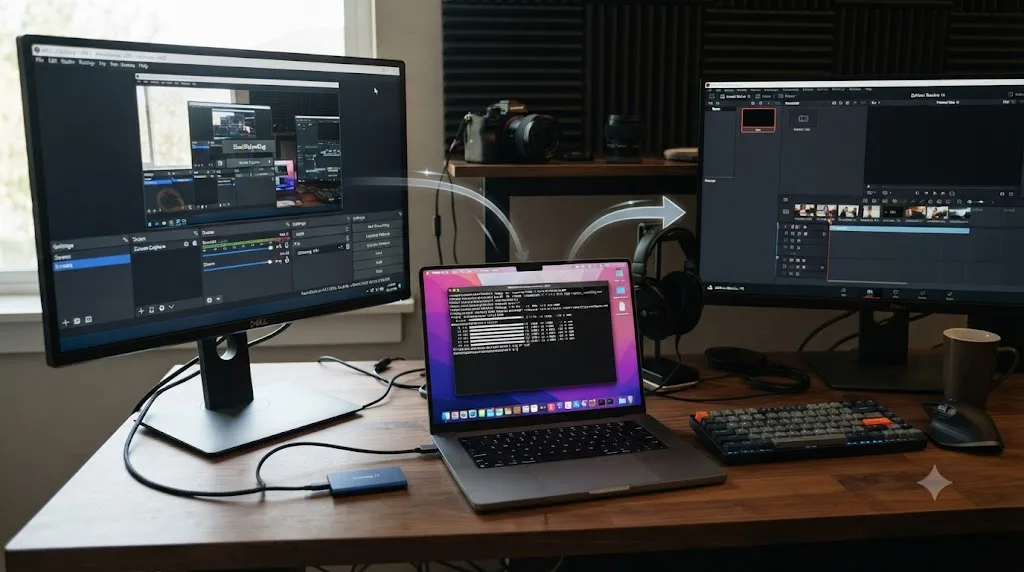
A user on the Blackmagic forum described exactly this symptom: an MKV file recorded with OBS Studio at 60fps played its video too fast in Resolve while the audio stayed correctly timed, leaving a static frame holding on screen while the audio kept playing to the actual end of the recording. The same file played back at normal speed in Windows' default media player and in another NLE, which is exactly the pattern you'd expect if Resolve's frame rate reading, not the file itself, is the actual problem.
Two things make OBS and similar screen recorders more prone to this than typical camera footage:
Container quirks. MKV isn't the container Resolve was primarily built around, and its timing metadata doesn't always translate the same way MOV or MP4 does. Re-wrapping the file (not re-encoding it, just changing the container) to MOV or MP4 with a free tool like Shutter Encoder is often enough to fix the reading without any quality loss, since re-wrapping doesn't touch the actual encoded video data.
Variable frame rate recording. Many screen recorders, OBS included depending on settings, default to variable frame rate capture, where the gap between frames shifts based on how much is changing on screen at any given moment. A variable rate file doesn't have one true "native fps" for Resolve to correctly read in the first place, so even a perfect Clip Attributes fix can only approximate an average, not the actual moment-by-moment timing. Confirm this with MediaInfo's Frame Rate Mode field before you spend time on Clip Attributes. If it says Variable, transcode to a constant frame rate first, matching your project's rate, using HandBrake or Shutter Encoder, and bring in the converted file instead of the original.
If your OBS or screen-capture footage is also stuttering on playback rather than just running fast, that's a related but separate decoding problem, and our guide to choppy DaVinci Resolve playback covers the fix for that specific symptom.
Why does a clip play at the wrong speed in Resolve but normal speed in every other player?
This detail is actually useful, not just frustrating, because it tells you exactly where to look. If VLC, QuickTime, or Windows Media Player all show the clip at normal speed and Resolve alone plays it fast, the file itself is almost certainly fine. The problem lives entirely in how Resolve is interpreting it, not in the media.
Most general-purpose media players are forgiving about frame rate metadata. They read the container's declared rate, play accordingly, and don't offer (or need) a way to override that reading. Resolve, by contrast, exposes its belief about frame rate as an editable value in Clip Attributes, and that value can diverge from the file's own metadata for a handful of reasons: a previous editor changed it, an import process misread it, or the file's metadata was ambiguous enough that Resolve guessed differently than a simpler player did.
This is also the exact signature you'll see with the OBS and camera metadata cases covered above. A general media player just plays the file. Resolve has an opinion about the file, and that opinion is a setting you can inspect and change. If other software agrees on normal speed and Resolve doesn't, you already know the fix isn't re-recording or re-transcoding, it's correcting a belief Resolve holds, most likely in Clip Attributes' Video Frame Rate field.
Frame rate and clip speed are the same math wearing two different names, and once you see one wrong number, the fix is almost always changing that same number back, not hunting for a second explanation. Resist the urge to look for a more exotic cause once you've confirmed other players read the file correctly. The simplest explanation, a wrong Video Frame Rate value, accounts for the overwhelming majority of these reports.
Does your project's frame rate lock in based on the first clip you import?
Timeline frame rate is a decision Resolve wants you to make once, early, and stick with, and the mechanics behind that are worth knowing before you build a project around mismatched footage.
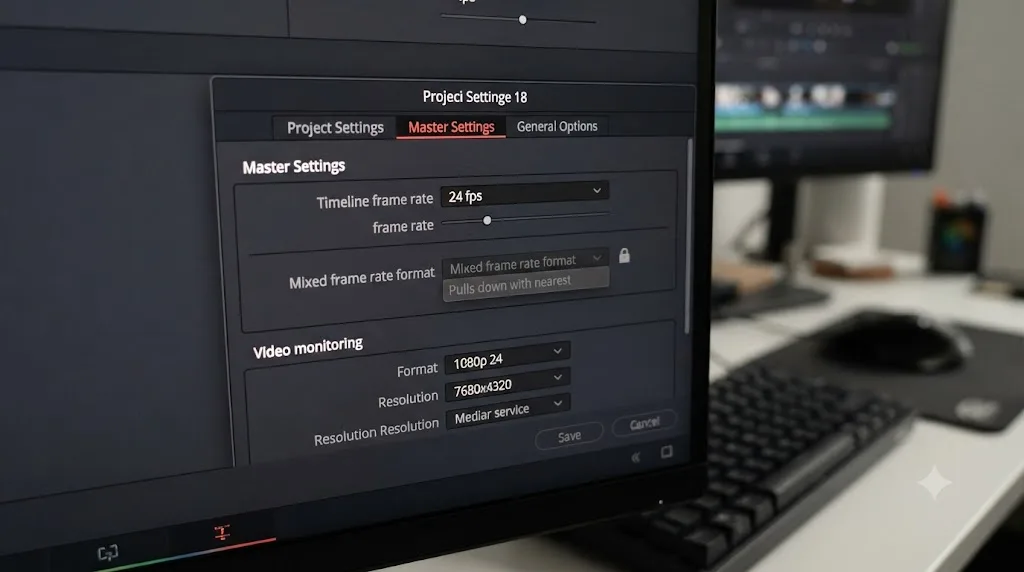
Per the manual's overview of Project Settings, Master Settings "define the principal attributes of a project, such as the timeline resolution, timeline frame rate, color science, and bit depth." Timeline frame rate is one of the first things Resolve asks you to confirm, and once media is in the project, changing it retroactively can cause exactly the kind of speed and sync problems this whole page is about.
Editor and trainer Larry Jordan puts the practical advice bluntly: "make sure the first media you import has the frame rate you want to deliver." The reasoning is simple. Resolve typically suggests a project frame rate based on the first clip you bring in, and once you accept it (deliberately or by clicking through a prompt without reading it), that number becomes the reference every other clip on your timeline gets conformed against, correctly or not, depending on Mixed Frame Rate Format.
This is exactly how a project can end up with the wrong timeline rate in the first place: import a phone clip shot at 30fps first, on a project meant to deliver at 24fps for a cinema camera's footage, and every subsequent 24fps clip is now the one being conformed against the phone's rate instead of the other way around. Nothing about that is broken. It's Resolve correctly doing what it was told, just based on media that shouldn't have set the standard.
Jordan makes a related, broader point worth internalizing here: "Video editing software automatically 'conforms' (converts) clips with different frame rates to match the frame rate of the project/sequence." That's true of every professional NLE, not just Resolve. The project's frame rate always wins. Your job is making sure the number it's conforming everything against is the number you actually meant.
If you're new to setting up a Resolve project correctly from the start, our beginner's guide to DaVinci Resolve covers where Project Settings live and what to configure before you import your first clip.
Could Playback Frame Rate, not Timeline Frame Rate, be the actual problem?
This one is narrower than everything above it, but it's worth ruling out specifically if your fast playback only shows up on an external monitor or through a Blackmagic capture device, and looks completely normal in Resolve's own on-screen viewer.
Per the manual's page on Video Monitoring, Playback Frame Rate "usually mirrors the frame rate selected in the 'Video format' setting," which is itself tied to what your external display or capture hardware expects. This setting exists to keep your monitoring output synchronized with a specific external device, a broadcast monitor, a Decklink or UltraStudio card, something with its own fixed refresh expectations.
Here's the part that matters for this guide: mismatching Playback Frame Rate against your Timeline Frame Rate affects only what you see on that external monitor. It has no effect on your actual timeline, your edit points, or the file Resolve writes when you render on the Deliver page. If your on-screen viewer inside Resolve plays a clip at normal speed and only the external monitor output looks fast, this setting, not Clip Attributes and not Mixed Frame Rate Format, is where to look.
The fix is straightforward: open Project Settings, go to Video Monitoring, and confirm Playback Frame Rate matches your Timeline Frame Rate. If you don't use an external monitor or capture card at all, you can skip this section entirely. It only comes into play when that hardware is part of your setup.
Does this behave differently with RAW footage or variable frame rate sources?
Two categories of footage deserve a separate mention, because the standard Clip Attributes fix either doesn't fully apply or needs a companion step.
RAW formats like Blackmagic RAW and R3D generally embed their frame rate cleanly and rarely cause the misread-metadata version of this problem, since camera manufacturers building dedicated RAW formats tend to control the whole recording pipeline more tightly than a general-purpose codec. If a RAW clip is playing too fast, it's more likely a genuine Clip Attributes override applied at some point (deliberately, to reinterpret a high-speed RAW capture as a different rate) than a metadata error. Check Clip Attributes first, the same as any other clip.
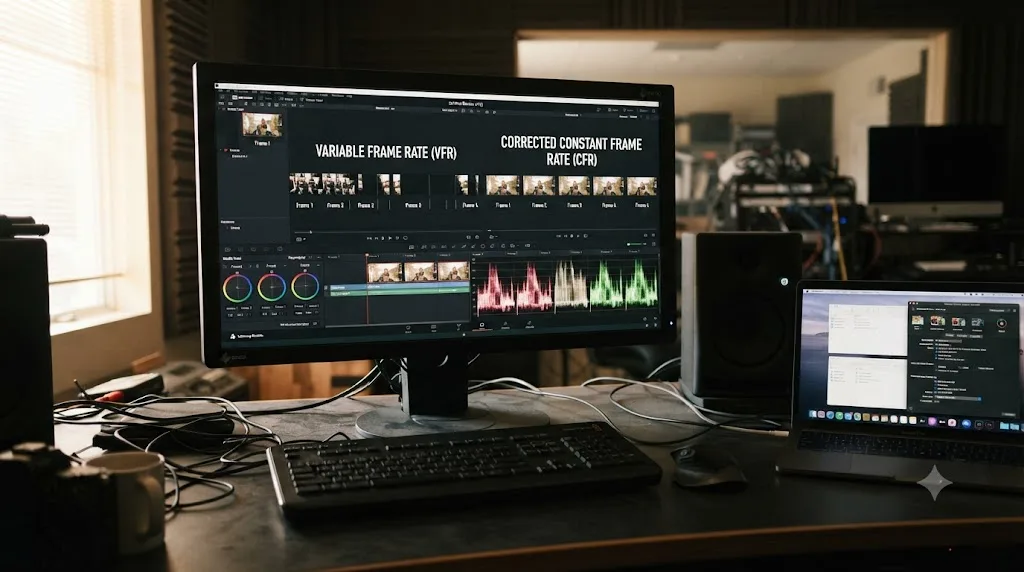
Variable frame rate footage is the case where Clip Attributes genuinely can't give you a clean fix. A VFR file doesn't have one single true frame rate. The gap between frames shifts throughout the recording, which means any single number you enter into Video Frame Rate is, at best, an average that's wrong for most individual moments in the clip. This is common on phone video, drone footage, and (as covered above) many screen recordings.
A variable frame rate file has no single correct number to enter into Clip Attributes, because its own internal timing isn't constant enough for one number to describe it. Confirm this with MediaInfo's Frame Rate Mode field. If it reads Variable, don't reach for Clip Attributes at all. Transcode the file to a constant frame rate first, matching your project's actual rate, with HandBrake or Shutter Encoder, and bring the converted file in as your source instead of the original. This is the same underlying issue that causes multicam angles to drift out of sync over the length of a clip; if you're troubleshooting a multi-camera project rather than a single fast-playing clip, our guide to fixing DaVinci Resolve multicam sync covers that specific failure mode in depth.
What does the full fix look like on a real clip?
Here's the diagnosis method applied start to finish, on a scenario that comes up constantly: a product demo recorded with OBS at 60fps, edited into a 30fps YouTube tutorial timeline, where the screen recording plays noticeably too fast while the voiceover audio, recorded separately in the same session, stays perfectly timed.
First, rule out an accidental speed change. Right-click the clip and check Change Clip Speed. It reads 220%, which confirms something is off but doesn't yet say what, since a Clip Attributes mismatch shows up here too.
Second, check what Resolve believes about the clip. The Media Pool's FPS column shows 29.97 for a file that was, per the OBS recording settings, actually captured at 60fps. That's the whole bug in one glance: Resolve thinks each second of this file contains roughly 30 frames, when it actually contains 60, so it plays through twice as fast as it should.
Third, confirm with MediaInfo before changing anything inside Resolve. The file's Frame Rate field reads 59.94, and just as important, Frame Rate Mode reads Constant, not Variable. That rules out the VFR complication and confirms a straightforward Clip Attributes fix will work cleanly.
Fourth, apply the fix. Right-click the clip in the Media Pool, open Clip Attributes, and set Video Frame Rate to 59.94 to match what MediaInfo confirmed. Close the dialog.
The clip on the timeline now plays through the correct number of frames in the correct amount of time, matching the paced voiceover audio it was always supposed to sit under. Change Clip Speed, checked again, now reads 100%, not because anyone touched it, but because there's no longer a genuine speed discrepancy left for it to describe.
One detail from this scenario carries a broader lesson: the audio was recorded separately and was never affected by any of this, which is exactly why it stayed correctly timed throughout. If your audio had been embedded in the same MKV file as the OBS capture, per the earlier section on Clip Attributes and audio, fixing the video's frame rate here would have left that embedded audio running at its original pace while the video sped up or slowed down independently, and re-wrapping or transcoding the source file would have been the safer fix instead of a Clip Attributes override.
What's the fastest way to check and fix a fast-playing clip, in order?
Work through these in sequence. Most cases resolve in the first two or three steps.
- Right-click the clip and check Change Clip Speed. If it reads anything other than 100%, note the number, but don't change it yet, it's a symptom, not a separate bug.
- Check the Media Pool's FPS column against the frame rate your camera, app, or recorder actually used. A mismatch here is the single most common cause on this page.
- Confirm with the free MediaInfo utility outside Resolve. Check both the Frame Rate value and the Frame Rate Mode. Variable frame rate needs transcoding, not a Clip Attributes fix.
- Fix a single mismatched clip in Clip Attributes, setting Video Frame Rate to the confirmed true native rate. This is safe, reversible, and doesn't touch the source file.
- If the whole timeline is affected, not just one clip, check Project Settings, Conform Options, Mixed Frame Rate Format. If it's set to None with mismatched-rate clips already imported, this setting is locked; fix each clip individually instead of trying to change it.
- If only an external monitor or capture card output looks fast, check Playback Frame Rate under Video Monitoring against your Timeline Frame Rate. This never affects your actual render.
- For OBS or screen-recorded MKV files, re-wrap to MOV or MP4 with Shutter Encoder before re-importing, especially if the file also turns out to be variable frame rate.
- For clips whose audio matters, don't rely on Clip Attributes alone if you need synced audio; transcode the file properly instead, since Clip Attributes only retimes video.
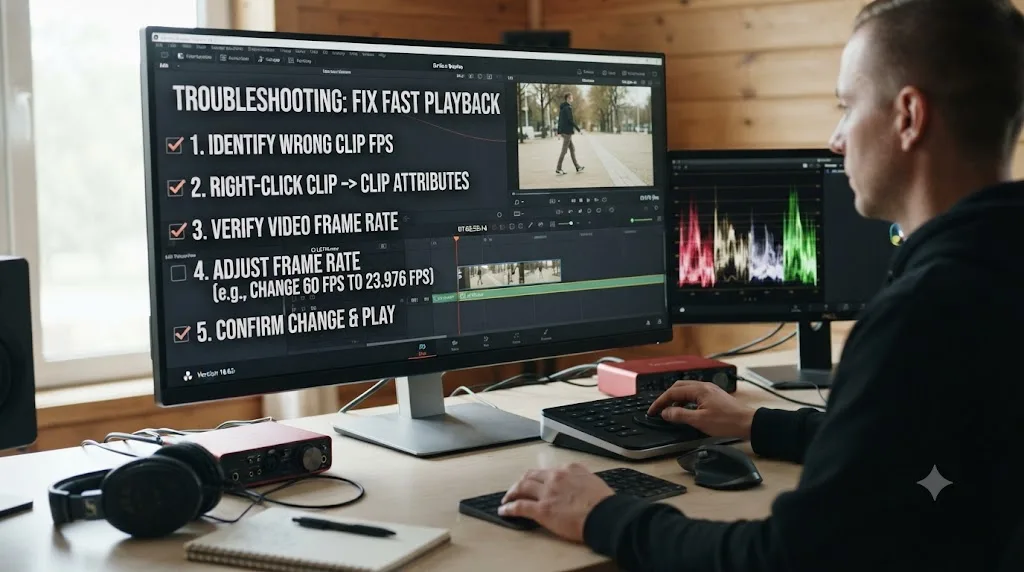
If hunting between Clip Attributes, Conform Options, and Video Monitoring settings across a messy multi-source project is the part that eats your afternoon, that's the kind of question TryUncle is built to answer. It looks at your actual Resolve window and points at the exact field you need, instead of sending you back to a forum thread to guess which one applies to your case.
Is this a DaVinci Resolve bug, or just frame rate math doing what it always does?
Neither answer is quite right taken alone, and the confusion between them is why this problem generates so many forum posts asking whether Resolve is broken. It isn't. Frame rate is division, playback duration is frame count over frame rate, and Resolve applies that math faithfully every single time. The bug, when there is one, lives upstream: in a camera writing the wrong number into a file's metadata, in a screen recorder's container quirks, in a previous editor's Clip Attributes change nobody documented, or in a Conform Options setting nobody configured before the first import.
Cutsio's own writeup of this exact symptom frames the fix correctly: once the clip's frame rate is matched to the timeline's, "the clip should play in real-time" again, with nothing more exotic required. That's consistently true across every variation covered on this page, one clip, a whole mismatched timeline, an external monitor, an OBS recording. Find which of the three settings holds the wrong number, correct that one number, and the fast motion resolves itself without a single manual retime.
Run through the checklist above the next time a clip races ahead of itself, and you'll spend less time wondering if your software is broken and more time confirming, in under a minute, exactly which field has the wrong number in it. It almost always does.
Frequently asked questions
- Why does my clip play too fast in DaVinci Resolve but the audio sounds normal?
- Because a frame rate change in Clip Attributes only touches video timing, never audio. If you raise a clip's assigned frame rate above its true native rate, Resolve squeezes the same number of frames into less time and the picture races ahead while the audio keeps playing at its original pace, often running on after the last frame has already displayed.
- Why does 60fps or 120fps footage play too fast instead of slow motion?
- Because something told Resolve the clip's native rate is the same as, or close to, the timeline's rate, rather than genuinely 60 or 120. Check the FPS column in the Media Pool and Clip Attributes' Video Frame Rate. If either shows a number close to your timeline rate instead of the camera's actual recording rate, correct it there and the clip drops into real slow motion automatically.
- Does changing a clip's frame rate in Clip Attributes hurt export quality?
- No, it doesn't touch a single pixel. Per DaVinci Resolve's own reference manual, the setting only changes what Resolve considers the source clip's frame rate to be, which changes duration and playback speed, not resolution, compression, or color. The original media file on disk is never altered.
- Why does my clip play at the wrong speed in Resolve but normal speed in VLC or QuickTime?
- Because those players read the frame rate embedded in the file's metadata, while Resolve's Clip Attributes can override what it believes that frame rate to be. Screen recorders and some cameras also write frame rate metadata that general media players tolerate but Resolve reads more literally, which is why OBS captures and drone footage are common offenders.
- Can I fix Mixed Frame Rate Format after I've already imported my footage?
- No. DaVinci Resolve's manual is explicit that this Conform Options setting is only available before you import media into a project. If your whole timeline is playing mismatched clips at the wrong speed and this setting is greyed out, your only paths are fixing each clip's frame rate individually in Clip Attributes or starting a new project with the setting configured first.
- Do the free and Studio versions of DaVinci Resolve handle frame rate the same way?
- Yes. Clip Attributes, Mixed Frame Rate Format, and Playback Frame Rate are identical in both versions. Frame rate math doesn't change with your license, so if a clip plays too fast in the free version, upgrading to Studio won't fix it.
- Why do OBS or other screen-recorded clips specifically play too fast in DaVinci Resolve?
- OBS and several screen recorders write MKV files with timing that Resolve doesn't always parse the way it parses camera footage, and editors on the Blackmagic forum have reported the video finishing early while audio plays correctly to the end. Re-wrapping the file to MOV or MP4 with a tool like Shutter Encoder before importing generally clears it up.
Sources
- DaVinci Resolve Reference Manual: Mixed Frame Rates (Conform Options)
- DaVinci Resolve Reference Manual: Video Attributes (Clip Attributes, Video Frame Rate)
- DaVinci Resolve Reference Manual: Project Settings (Master Settings)
- DaVinci Resolve Reference Manual: Video Monitoring (Playback Frame Rate)
- Frame.io: Mixing Frame Rates in DaVinci Resolve, Part 1: Know Thy Frame Rate (Dan Swierenga)
- Frame.io: Mixing Frame Rates in DaVinci Resolve, Part 2: Native Frame Rates (Dan Swierenga)
- Larry Jordan: Frame Rates are Tricky Beasts
- Larry Jordan: The Importance of First Import into DaVinci Resolve
- Blackmagic Forum: Playback too fast when importing 60fps footage
- Blackmagic Forum: Video plays too fast, audio is fine
- Blackmagic Forum: Preview is playing too fast
- Blackmagic Forum: Clips play slow motion. Don't match frame rate.
- Cutsio: How to Fix Clip Speed Issues in DaVinci Resolve
Put this guide to work with TryUncle.
Ask about the step you’re on. TryUncle sees your screen and points at the control you need, so you can keep learning in your own project.
Get TryUncle for Mac or WindowsKeep reading
Fixes · Jul 8, 2026 · 26 min
DaVinci Resolve Multicam Sync Off by Frames: Every Fix
Multicam clip off by frames or drifting worse over time? Fix DaVinci Resolve's waveform mis-sync, frame rate drift, and timecode gaps, angle by angle.
Fixes · Jul 7, 2026 · 25 min
DaVinci Resolve Playback Choppy or Stuttering? The Real Fix
Fix choppy DaVinci Resolve playback with Optimized Media, Proxy Media, Render Cache, Timeline Proxy Mode, and the Resolve 21.0.2 NVIDIA decode fix.
Guides · Jul 7, 2026 · 23 min
DaVinci Resolve Export Settings: Numbers That Actually Work
The exact DaVinci Resolve export settings for YouTube, client handoffs, and ProRes archives, plus what changed with Resolve 21's H.265 encoder.