Articles / Fixesupdated for DaVinci Resolve 21.1 (October 2026)
DaVinci Resolve Compound Clip Clips Missing After Reopening?
Quick answer
If DaVinci Resolve compound clip clips are missing after reopening, first double-click the compound clip and confirm you are viewing its nested timeline, then verify you opened the same project and timeline. If the contents are truly gone, stop editing, duplicate the project, and restore a project or timeline backup. Relink media only when clips are visibly offline.
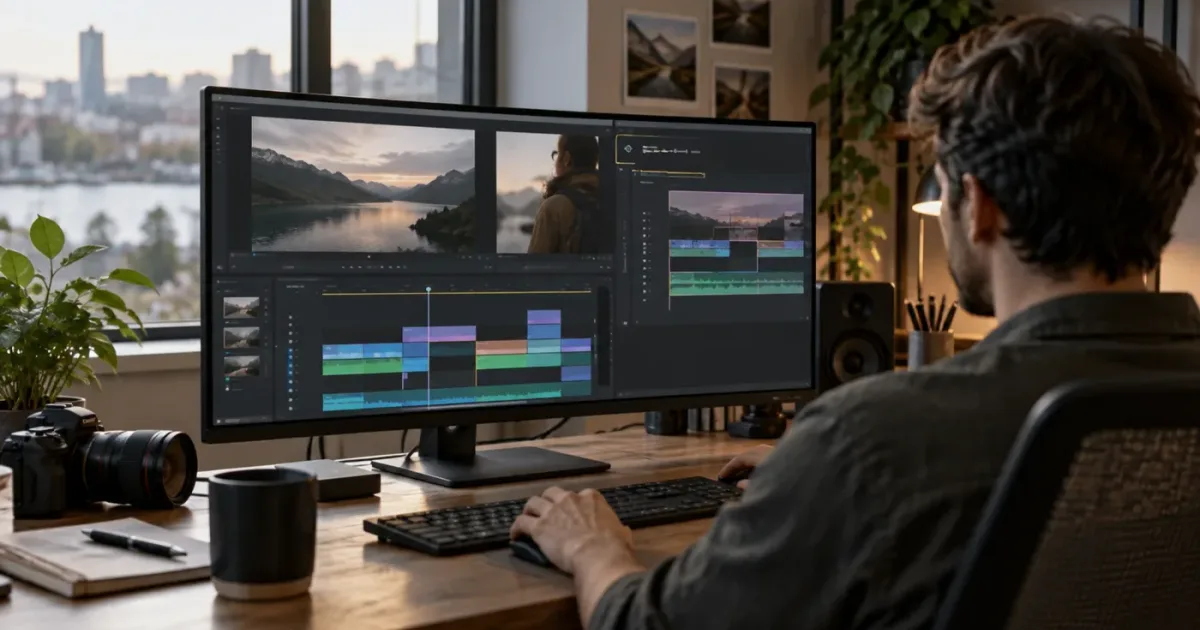
As of October 2026, DaVinci Resolve 21.1 is the current listed release in Blackmagic Design's support center, and the symptom “compound clip clips missing after reopening” can mean several different things. Start by opening the compound clip itself. If its nested timeline is empty, protect the project and check backups before you make another edit.
We run a 100,000+ member professional video-editing community, and a project that looks different after reopening is a stressful problem to diagnose. The useful distinction is simple: are the clips hidden behind a view or project choice, offline because their media path changed, or actually absent from the saved timeline? Each case needs a different fix.
Why are my DaVinci Resolve compound clip clips missing after reopening?
When DaVinci Resolve compound clip clips appear missing after reopening, first open the nested timeline, then confirm the project and timeline, and only then investigate data loss. An empty-looking parent timeline, an offline media item, and an empty compound are three different states.
Resolve uses a compound clip to present multiple timeline items as one clip in its parent timeline. Blackmagic's The Editor's Guide to DaVinci Resolve 17 explains: “A compound clip is actually a special clip used to group multiple clips together as one.” The clips are inside that compound's own timeline; on the parent timeline, the compound behaves as a single item. (The guide predates Resolve 21, so use it for the basic concept rather than as a promise about every current menu label.)
That structure creates a common false alarm. You reopen the project, see one compound clip, and expect to see the original cuts around it. But the parent timeline shows the compound as one item. Open the compound to inspect the original clips. Another false alarm happens when Resolve opens a different timeline in the same project, or a similarly named project in another project library.
Use the image and audio as clues. If the compound plays correctly in the parent timeline, its internal edits likely still exist even if you have not opened them. If its thumbnail or viewer is black and the child clips have “Media Offline” indicators, that points to a media path issue. If the compound duration remains but opening it reveals an empty nested timeline, or the compound itself has disappeared from the parent, treat the issue as a project or timeline recovery problem.
A compound clip that looks like one item on the parent timeline may still contain every original edit.
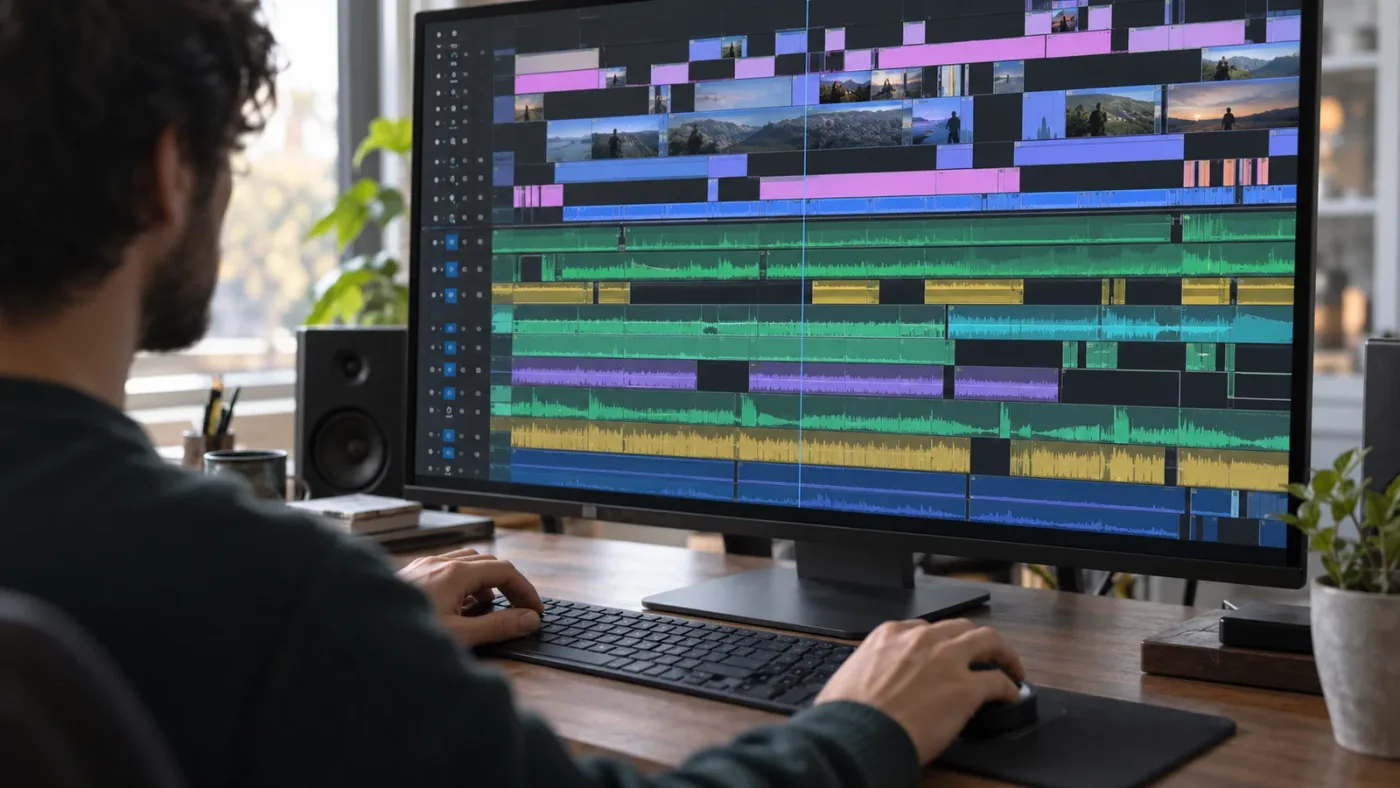
The timeline is not the only place that can hold a compound clip. Resolve's Media Pool can also contain it. If the clip is missing from the parent timeline, search the Media Pool before rebuilding it. If you find it there, open it and inspect its contents. If it is absent from both places, move on to backups and project selection.
Do not start by deleting render cache, reinstalling Resolve, changing GPU settings, or relinking every file. Those actions do not answer whether the timeline is open, whether media is offline, or whether the edit was saved. A diagnostic order protects the remaining evidence and keeps the recovery focused.
How do I open clips inside a compound clip after reopening Resolve?
Double-click the compound clip in the Edit page timeline or Media Pool to open its nested timeline. The breadcrumb above the timeline shows the current location; select the parent entry in that breadcrumb to return to the main edit.
Here is the low-risk first check:
- Open the Edit page.
- Find the compound clip on the parent timeline or in the Media Pool.
- Double-click the clip. If the first double-click selects it, double-click again at a normal pace.
- Look above the timeline for a breadcrumb or compound name indicating that you are inside it.
- Check whether the expected video and audio tracks appear.
- Use the breadcrumb to return to the parent timeline.
The key test is not whether the main timeline displays many clips. It usually will not. The key test is whether the compound opens into a nested timeline containing the expected children. A user discussing a compound clip on Blackmagic's forum was told to double-click the “unknown” breadcrumb to return from its contents to the compound context; that exchange illustrates why the breadcrumb matters, even though interface labels can vary by Resolve version and workspace.
If double-clicking does nothing, check whether the timeline is locked or whether you have selected a different object. Try opening the compound from the Media Pool instead of the parent timeline. You can also right-click and look for an option to open the compound timeline; exact menu wording may change. Avoid choosing a delete or decompose command while you are still identifying the state.
If you have opened the clip but the expected video tracks appear collapsed, widen the track area and scroll vertically through the nested timeline. A compound may include tracks above or below the visible portion. Expand track height if thumbnails or waveforms make it difficult to tell whether a clip block is present. Confirm the compound's full duration by moving the playhead through it; a short visible section does not prove that the rest is empty.
Also distinguish the compound timeline from the source viewer. Resolve can show a clip in a viewer without making that clip's timeline active. Check which timeline has focus before using keyboard shortcuts or judging what is missing. If you use multiple monitors or a saved workspace, the viewer and timeline layout may differ from a tutorial, but the project content is still checked through the active timeline and its breadcrumb.
If you are already inside the nested timeline, the parent edit can appear to have vanished because the visible clips belong to the compound's contents, not the full project edit. Return to the parent through the breadcrumb rather than closing the project. That distinction matters when the compound was created from a large selection: inside, you may see many tracks; outside, you see one compound item.
Why does my compound clip open empty after I reopen the project?
If a compound clip opens to an empty timeline, first verify that the same project, project library, and timeline are open; if they are, stop editing and inspect a backup. An empty nested timeline is not the same as offline media, because offline media usually remains represented by clips in the timeline.
Start with the project title shown in Resolve and the Project Manager. A project library can contain projects with similar names, and a project can contain several timelines. Confirm the active project name, then locate the intended timeline in the Media Pool. A timeline may also be open in the source viewer while another is active in the timeline viewer. Check the viewer and timeline tabs before deciding that the edit was erased.
Next, search for the compound clip by name in the Media Pool. If it appears, inspect it there. If it opens empty in both the timeline and Media Pool, do not overwrite it by creating a new compound with the same name. Duplicate the project first, then inspect the available project backups and timeline backups. A saved backup can preserve a previous version even when the current project has been changed.
One Blackmagic forum report describes a user whose timeline clips disappeared after reopening; the poster later said an older project backup contained the intact project. That is a user report, not proof of a general Resolve defect or a guaranteed solution. It does support a careful check of backups before rebuilding. Blackmagic's official Resolve 21 New Features Guide also documents comparing a timeline with a timeline backup snapshot, which gives you a way to inspect differences before committing to a recovery.
If there is no usable backup, you can still preserve what remains. Duplicate the project and export or archive a copy of the current project state before attempting structural changes. If other timelines or compounds still contain the missing material, preserve those too. A replacement compound may recover the visible edit, but it may not preserve all metadata, markers, grades, effects, or references exactly.
An empty nested timeline calls for backup recovery, while offline clips call for relinking.
Do not assume every empty-looking compound was corrupted. It may be a different compound with the same display name, a newly created empty clip, or an item selected in the wrong project. Compare the clip's duration and thumbnail with what you remember. Search the Media Pool for alternate names and check nearby timelines for an intact copy before restoring anything.
There are two particularly confusing cases. First, a parent timeline can contain a compound from an earlier version while the Media Pool contains another compound with a similar name. Open each candidate and compare duration and content before deciding which one belongs in the edit. Second, an editor may have made changes inside the compound but not saved the project state that was later reopened. Resolve cannot infer that an unsaved nested change should be recovered from the version you expected to see. In either case, the backup tells you what was saved; your memory of the last visible frame is useful context, but not a substitute for inspecting saved versions.
Did DaVinci Resolve open the wrong project or timeline?
Resolve can make clips seem missing when you reopen a different project or timeline, so verify the active project library, project name, and timeline name before recovery. A project is the container; a timeline is one edit inside that project; a compound clip contains another timeline-like edit nested inside the parent.
This three-level map helps:
| Level | What you should identify | What a mismatch looks like | Safe check |
|---|---|---|---|
| Project library | Local, network, or Cloud library you used | The expected project name is absent | Return to the Project Manager and choose the original library |
| Project | The project containing the edit | A similarly named or older project opens | Verify the title, then compare modified state and timelines |
| Timeline | The parent edit and any alternate timelines | The project opens, but the visible edit is older or blank | Find the intended timeline in the Media Pool and open it |
| Compound clip | The nested edit within the parent | Parent shows one item, or another compound opens | Open the specific compound and check its name and duration |
If you use a shared or networked project library, check that you are connected to the same library as before. Do not create a second project with the same name as a quick fix. That can make later recovery harder because two plausible candidates now exist.
If the correct project is open but the wrong timeline is active, select the intended timeline in the Media Pool and open it in the timeline viewer. Look for alternate cuts, versions, or timelines with appended names. Be especially careful when a project has a “final” and “final 2” timeline; similar names are a workflow hazard, not evidence that Resolve removed clips.
When you work across computers, check whether the project was opened from a local project library on one machine and a shared library on another. A project export, project archive, and shared database are different ways to move or store work. If you imported a project file recently, check whether the imported copy is active and whether the original remains in the other library. Avoid moving or renaming database folders in Finder or File Explorer while Resolve is running; first use Resolve's own project tools and preserve a separate copy.
Timeline backups and project backups serve related but different purposes. A timeline backup helps recover a prior version of one timeline. A project backup can bring back a broader saved project state. The Resolve 21 feature guide describes comparing the current timeline against a previously backed-up timeline in a Compare Timeline window. Use that comparison to choose the version that contains the missing edit, rather than guessing from timestamps alone.
For more on project recovery, see our guide to DaVinci Resolve projects that will not open. If the project itself opens but changes fail to persist, use DaVinci Resolve project changes that will not save as a separate diagnosis. These symptoms overlap, but an opening failure and an unsaved edit are not the same problem.
Are the clips missing, or is their media offline?
Relink media only when the clips remain in the timeline but Resolve cannot locate their source files. Relinking reconnects existing clip references; it does not recreate timeline edits that were removed from the compound.
Look for the difference in the viewer and timeline. Offline items generally remain as clip blocks with offline warnings, blank thumbnails, or a “Media Offline” display. A genuinely empty compound opens with no expected clip blocks at all. If the parent compound plays but source clips show offline when opened, relinking may be needed. If the nested timeline contains no blocks, relinking is not the first fix.
When media is offline, check these in order:
- Confirm that the drive or network volume holding the footage is mounted and accessible.
- Check whether the footage folder was moved, renamed, or disconnected.
- In the Media Pool, select the affected source clips and use Resolve's relink or change-source-folder workflow.
- Point Resolve to the folder that contains the original media, not a cache or proxy folder unless that is the intended source.
- Confirm that representative clips play before relinking the rest of the project.
If a drive letter changed on Windows, or a volume name changed on macOS, Resolve may not find media at its prior path. The remedy is to reconnect the volume or point Resolve to the new location. The same principle applies when you move a project between systems: project data and media files are separate things, and the project may open while its media remains elsewhere.
Check whether the timeline is using camera originals, proxies, or optimized media before you relink. An offline proxy does not necessarily mean that the camera original is missing, and an online proxy does not prove that the source media path is healthy. Do not relink originals to proxy files just to make the warning disappear; doing so can confuse later export and conform decisions.
If you see missing thumbnails but playback works, let the Media Pool refresh before relinking. A thumbnail display issue is not enough evidence that the source clip is missing. Test a short section in the viewer and check the media status of the source item.
For a dedicated media-path diagnosis, follow DaVinci Resolve Media Offline fixes. That guide applies when Resolve cannot locate media files. It will not restore clips deleted from a compound timeline.
How do I restore a project or timeline backup safely?
Duplicate the current project first, then inspect timeline backups and project backups for the newest version that contains the missing clips. Restore into a copy when possible, compare the recovered timeline, and preserve the current state until the replacement is verified.
Make a recovery copy first
Before opening an older backup or replacing a timeline, preserve the project as it stands. Use a duplicate project or a project archive if available in your workflow. Give the copy a distinct recovery name so you can tell it apart from the original. Do not delete the original or its backups to save space while investigating.
This step matters even if the current project looks damaged. It may contain later edits, grades, markers, audio changes, or alternate timelines that are absent from the backup. Recovery is often a comparison between two incomplete states, not a simple time machine.
Inspect timeline backups
If only one timeline is affected, start with its timeline backups. In Resolve 21, Blackmagic's feature guide documents a Compare with Timeline Backup command and a comparison view that places the current and backed-up timelines together and highlights differences. Find the latest candidate that includes the expected clip structure, then compare it before restoring.
The menu wording and backup availability depend on the current project and timeline settings. If no timeline backup appears, continue to project backups. A timeline backup that is newer is not automatically better: it might preserve the empty state. Inspect its content and identify the last point when the clips were present.
Inspect project backups
Project backups can help when the whole project state changed or timeline backup comparison is unavailable. In the Project Manager, look for the project's context menu and its Project Backups option. Open candidate backups carefully and inspect the relevant timeline and compound clip. The Resolve 15 manual described a configurable backup scheme, but backup intervals and options have changed across versions, so do not rely on old defaults for Resolve 21. Check the current 21.1 manual for the controls available in your installation.
If a backup opens as a separate project, keep it separate while you inspect it. Copying the intact timeline or compound into a duplicate of the current project may preserve newer work elsewhere. Resolve forum users sometimes report restoring by replacing a timeline, but those reports are anecdotes. Use the backup comparison and your project structure to choose a route.
Choose the smallest recovery
If the compound alone is broken but the parent timeline is intact, restore or copy the compound from the backup. If the entire parent timeline lost clips, recover that timeline. If multiple timelines or bins changed, a project backup may be the safer candidate. In each case, keep the original project, the recovery copy, and the candidate backup until the final timeline has been checked.
Do not overwrite a functioning backup with the current project. Do not make several changes in quick succession and then save over every version. One recovery action at a time makes it clear which copy contains which state.
The safest recovery is the smallest intact backup that restores the missing edit.
A recovery is complete only after the restored compound survives a close-and-reopen check.
Can I use Decompose in Place to get the clips back?
Decompose in Place expands a compound clip that already contains edits; it cannot recreate clips that are absent from the compound's nested timeline. Use it only after confirming that the compound opens correctly and you intentionally want its child clips back on the parent timeline.
Blackmagic's The Editor's Guide to DaVinci Resolve 17 describes selecting a compound and choosing Clip > Decompose in Place, after which the compound is removed and its original titles reappear as independent clips. This is a structural edit, not a recovery command. It may alter how the parent timeline is organized, so perform it on a duplicate if you are testing.
Decompose is useful when you want to return to individual clip editing, or when an intact compound is getting in the way of a broader timeline repair. It is not useful if you open the compound and see no child clips. In that case, decomposing an empty container has nothing to restore.
There is also a difference between decomposing in place and copying the contents elsewhere. Decomposing changes the current timeline structure. Copying content into a new timeline can give you a safer test area, but may not carry every marker, track setting, or effect relationship. A Blackmagic forum discussion about a compound-related render issue reported that copying timeline contents into a new timeline worked for that user, while markers did not copy. Treat that as a specific report, not a universal recovery recipe.
Before decomposing, note the compound's position, duration, tracks, and any effects applied to the compound as a whole. Those effects may not behave the same way once the compound is expanded. If your goal is simply to confirm that the clips remain, open the compound and inspect it instead of decomposing.
Subtitles deserve a separate check. Subtitle tracks and specialized track data may not behave like ordinary video and audio clips during every copy, decompose, or cross-timeline operation. In a 2018 forum reply, DaVinci Resolve Product Manager Peter Chamberlain explained: “The Subtitles are added live on a timeline render.” That is older-version guidance, but it underlines why you should verify captions in the parent timeline and final render instead of assuming they are ordinary child clips. Compare captions, markers, and track-level effects explicitly in the recovery copy. Do not treat a visually similar edit as fully recovered until the elements that matter for delivery are present.
Why do my compound clip edits disappear again after saving?
If a restored compound looks correct but disappears again, verify that Resolve saved the intended project and timeline, then test a duplicate before changing settings or updating software. A repeatable save-and-reopen failure needs evidence about the project, storage, and steps, not a guess about a single cause.
Run a controlled check with a duplicate project:
- Open the recovered copy and confirm the expected compound contents.
- Make a small, reversible change such as adding a temporary marker on a test timeline.
- Save the project and wait for the save indicator to finish.
- Close and reopen the duplicate, not the only copy.
- Check whether the marker and compound contents persist.
- Record the Resolve version, operating system, project library type, and storage location.
If the temporary marker persists but the compound content does not, the problem may be isolated to the compound or timeline state. If neither persists, investigate whether you are reopening the same project copy, whether the library is writable, and whether a network or removable volume is disconnecting. This test does not prove a root cause, but it separates project-selection mistakes from a broader save problem.
Resolve 21.1 is listed on Blackmagic's support page as a current release dated September 8, 2026. Check the exact version under the About menu and consult the matching manual or release notes before applying a version-specific workaround. Do not install a different major version over an active project solely because a compound looks wrong; project compatibility and database backups deserve their own check.
If a problem reproduces in a new, small test project, note the precise steps and file a report through Blackmagic's support channels. The support page directs free-version users to the Blackmagic Design community forums and provides support contact routes. Include a copy of a minimal project only if it contains no private footage or client material. A compact reproduction helps others distinguish a software issue from a project-specific state.
Capture evidence before changing anything else: the active project and timeline names, the compound's name, whether it opens empty, whether its media is online, and which backup contains the last intact version. If you contact support or post to a community forum, these details make the question answerable. A screenshot can help explain the interface state, but do not publish confidential client footage, personal media, or credentials. If you cannot share the project, describe the hierarchy and exact steps using generic clip names.
If the issue happens only in one project, preserve that project and its backups before experimenting. Keep the original media paths stable, avoid moving project database folders manually, and do not remove backup directories unless you have verified another complete copy of the exact project state and media.
How can I keep compound clip edits recoverable?
Keep project and timeline backups enabled, use clear names for alternate timelines, and validate important compounds before closing the project. A recovery plan works only if it preserves the project state and the media the project references.
Use these habits on jobs where compound clips matter:
- Name compounds by function, such as
Interview Selects, rather than leaving a set of indistinguishable generic names. - Name alternate timelines with a version or purpose, such as
Main Cut - Client Notes, and avoid repeatedFinallabels. - Keep project backups on storage that remains available and has enough space.
- Periodically open a backup to confirm that it is readable; a backup you have never inspected is only an assumption.
- Archive or duplicate a project before a major restructuring operation, such as replacing a compound, rebuilding a timeline, or moving a project to another system.
- Keep source media in a stable location and document whether the project depends on proxies or optimized media.
- After creating or significantly changing a compound, reopen it and check the expected tracks before moving on.
These are workflow safeguards, not claims that Resolve will never lose a project state. A backup is useful only if it is recent enough for your work and includes the media or paths required to use it. For long-term transfer, check the project's archive and media-management options in the current manual rather than assuming a project file alone contains every source file.
If you are learning the interface while fixing the project, TryUncle can point out relevant on-screen controls while you work in DaVinci Resolve. It does not restore a project or repair missing edits.
Which fix fits the symptom?
Match the symptom to the action before changing the project. This matrix keeps recovery focused and separates a viewing issue from a media issue or a damaged timeline.
| What you see | Likely state | First action | Avoid for now |
|---|---|---|---|
| One compound on the parent timeline, but no individual cuts | You are viewing the parent timeline | Double-click the compound | Do not decompose just to inspect it |
| Breadcrumb shows the compound name and the main edit seems gone | You are inside the nested timeline | Return to the parent breadcrumb | Do not close or replace the project |
| Clip blocks remain, but viewer says Media Offline | Source files are unavailable at their saved paths | Reconnect storage or relink source media | Do not restore an older timeline unless edits are also missing |
| Project opens, but another edit is visible | Wrong timeline may be active | Find and open the intended timeline in the Media Pool | Do not create a same-named replacement project |
| Compound opens empty in the right project and timeline | Nested edit may have been changed or lost | Duplicate project and inspect backups | Do not save repeatedly over the only copy |
| Entire timeline is blank or clips vanished after reopening | Wrong project, unsaved work, or project-state loss | Verify project library, then check backups | Do not assume reinstalling Resolve will recover edits |
| Compound plays, but thumbnails are blank | Thumbnail/cache display may be stale | Test playback and source status | Do not relink based only on thumbnails |
| Restored edits vanish again on reopen | Save target or repeatable project problem | Test a duplicate and document steps | Do not experiment on the sole working copy |
This table is a triage map, not a diagnosis engine. If two symptoms appear together, solve the most protective question first: are you in the correct project, and can you preserve its current state? Then determine whether you need to reopen, relink, or restore.
What should I do now?
Open the compound clip and confirm its nested timeline first. If the child clips are present, return to the parent timeline and continue. If the child clips remain as offline blocks, restore the media path. If the nested timeline is truly empty, duplicate the project and inspect timeline and project backups before making further edits.
DaVinci Resolve 21.1 is the version context for this guide as of October 2026. The core recovery logic is to verify the view, verify the project, distinguish media from timeline data, and restore the smallest intact backup. Keep the current project until the recovered compound has passed a close-and-reopen check.
Frequently asked questions
- Why are my DaVinci Resolve compound clip clips missing after reopening?
- The most common first check is whether you are looking at the compound clip's nested timeline or the parent timeline. Double-click the compound clip; if it opens empty, check that the same project and timeline are open, then restore a project or timeline backup before editing further.
- How do I open the clips inside a compound clip in DaVinci Resolve?
- On the Edit page, double-click the compound clip in the timeline or Media Pool to open its contents. The breadcrumb above the timeline identifies the nested timeline; use it to return to the parent timeline.
- Will relinking media restore clips inside a compound clip?
- Relinking can restore the picture or sound of clips that remain in the timeline but show as offline. It does not rebuild clips that have been deleted from the compound clip's nested timeline.
- Can I recover a compound clip after saving over it?
- Possibly. Duplicate the current project first, then inspect the project's Project Backups and the affected timeline's timeline backups. Restore the newest backup that still contains the clips and compare it with the current timeline before replacing anything.
- Does DaVinci Resolve 21.1 change how compound clips reopen?
- Blackmagic's Resolve 21.1 support listing describes general updates, but does not identify a compound clip reopening change. The checks here use standard project, timeline, backup, and nested timeline behavior; consult the 21.1 manual for version-specific menu wording.
Sources
- DaVinci Resolve 21.1 and 21 Support Downloads
- DaVinci Resolve 21.1 Reference Manual
- The Editor's Guide to DaVinci Resolve 17: compound clips and Decompose in Place
- DaVinci Resolve 21 New Features Guide: Compare Timelines with Timeline Backup Snapshots
- Blackmagic Design Forum: Most of my timeline disappeared... twice...
- Blackmagic Design Forum: Peter Chamberlain on subtitles and timeline renders
- Blackmagic Design Forum: Cannot render a compound clip
Put this guide to work with TryUncle.
Ask about the step you’re on. TryUncle sees your screen and points at the control you need, so you can keep learning in your own project.
Get TryUncle for Mac or WindowsKeep reading
Fixes · Jul 22, 2026 · 25 min
DaVinci Resolve Project Won't Save Changes: The Real Fix
DaVinci Resolve won't save your edits? The real causes are permissions, a full drive, a corrupted database, or a stuck lock, not Live Save failing.
Fixes · Jul 10, 2026 · 23 min
DaVinci Resolve Project Won't Open: Match Symptom to Fix
Whether DaVinci Resolve hangs at 100%, crashes on launch, or shows a database error, here's the exact cause behind each symptom and how to fix it.
Fixes · Jul 7, 2026 · 26 min
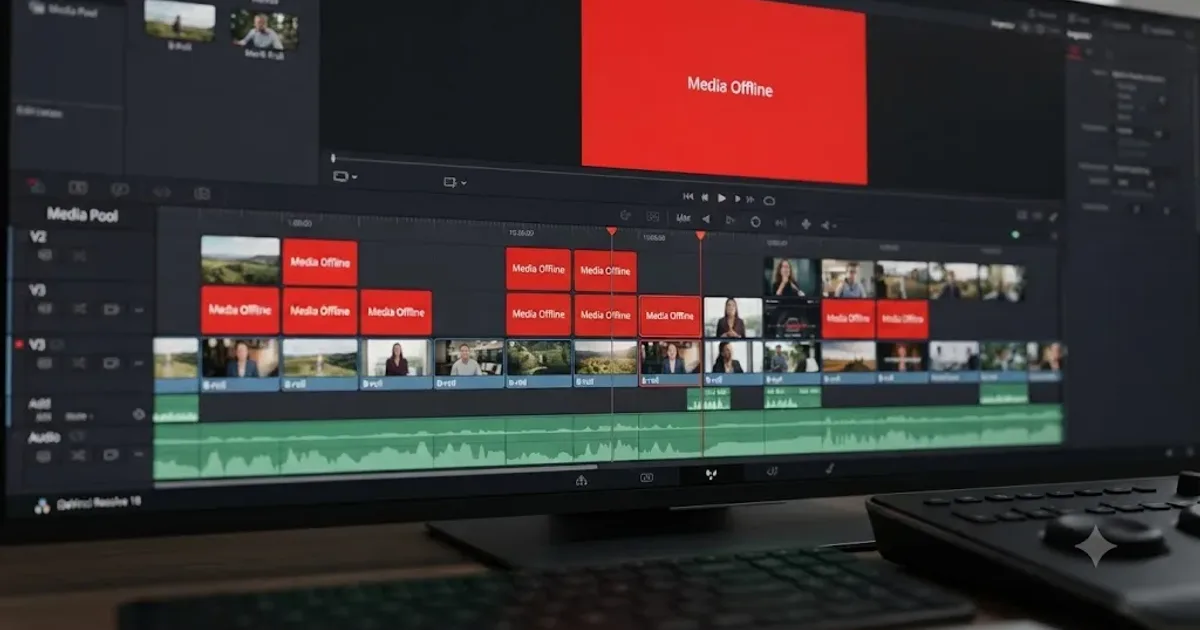
DaVinci Resolve Media Offline: Every Cause and the Fix
Every reason DaVinci Resolve marks a clip media offline, and the exact relink, cache, and codec fixes for each cause, in order of how often they happen.