Articles / Fixesupdated for DaVinci Resolve 21.0.2 (July 2026)
DaVinci Resolve Project Won't Save Changes: The Real Fix
Quick answer
DaVinci Resolve fails to save because of a folder permissions block, a full or disconnected drive, a corrupted project database, or a stuck read-only lock left by a crash, not because Live Save turned off. Open Preferences > User > Project Save and Load to confirm Live Save is on, then match your exact symptom below instead of reinstalling.
You hit Save. Nothing happens. You hit it again, harder this time, like the extra force will matter, and DaVinci Resolve just sits there, showing you the same timeline, the same unsaved state, the same quiet dread that an hour of grading might not exist in ten minutes.
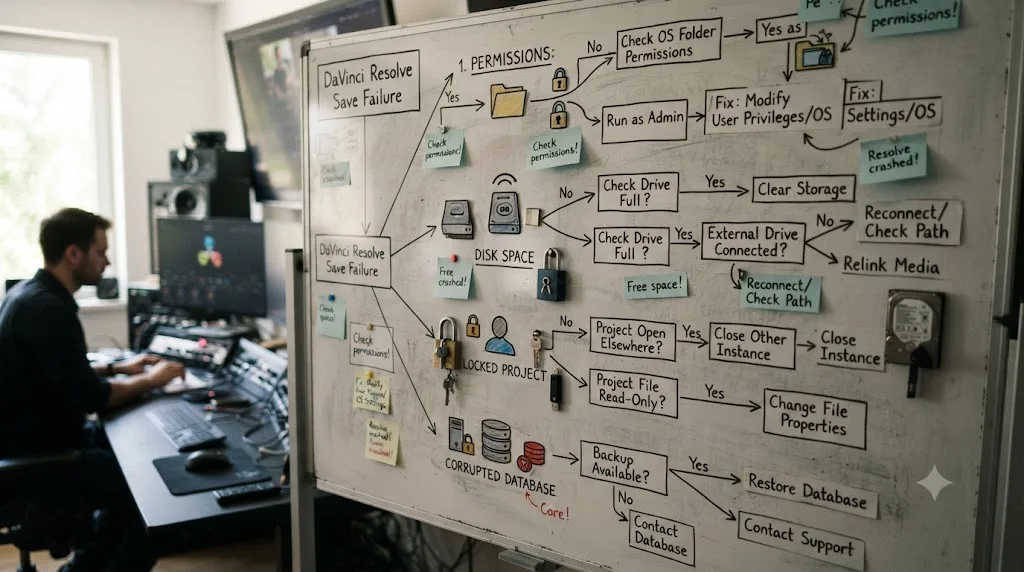
Here's the part that actually helps: this isn't Live Save failing. Live Save is almost never the problem, and reinstalling Resolve almost never fixes it either. A save that won't stick traces to one of four things, permissions, disk space, a stuck lock, or a corrupted database, and each one has a distinct fix that takes minutes, not an afternoon of guessing.
What does "won't save changes" actually look like, and what does each version mean?
"Won't save" isn't one bug wearing different masks. It's several distinct failures that all produce the same sinking feeling, and matching your exact symptom to its cause is the fastest way off this page.
| What you're seeing | Most likely cause | Jump to |
|---|---|---|
| An error dialog reading "Failed to Save Project" | Corrupted project database | Is your project database corrupted? |
| The project opens or reopens as read-only | A stuck lock from a crashed session | Is the project locked or stuck in read-only mode? |
| Save appears to work, but changes vanish on reopen | Permissions block on the database folder | Does DaVinci Resolve have permission to write to that folder? |
| Save hangs, freezes, or fails silently | Drive full, nearly full, or disconnected | Is your drive actually full, nearly full, or disconnected? |
| Save fails only on a shared or networked database | NAS, SMB, or collaboration lock | Why won't DaVinci Resolve save to a NAS or network drive? |
| Changes since your last save are simply gone after a crash | Live Save was working, but nothing survived an unclean shutdown of the cache itself | Could a crash be why your last changes never made it to disk? |
A project that won't save changes is never actually one problem. It's four or five distinct failure points wearing the same symptom, and treating them as one thing is how people end up reinstalling Resolve, wiping their preferences, and losing another hour before finding the fix that was one menu away.
Is Live Save actually turned on, and what does it really protect against?
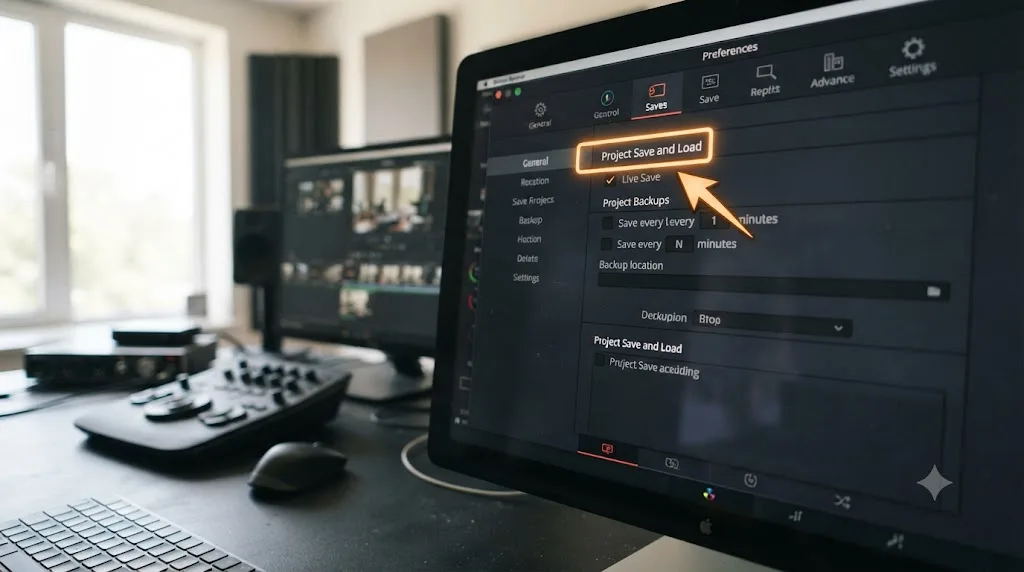
Start here, because it's the fastest check on this page and it rules out an entire category of confusion. Live Save is a background feature that writes your project's changes incrementally, with no popup, no confirmation, and no visible sign it's running. According to the DaVinci Resolve manual, Live Save "incrementally save[s] changes as you make changes to your project, with no user intervention required," and it's "turned on by default and highly recommended to prevent the loss of work," per the mirrored manual text on VFXPedia.
That default-on behavior is exactly why so many editors assume a save failure means Live Save broke. It didn't. Live Save still has to physically commit bytes to a database file on a real drive, and if that drive is full, disconnected, or blocked by a permissions rule, Live Save fails silently in exactly the same way a manual Save would. The feature isn't lying to you about protecting your work. It's just as powerless against a full drive as you are.
Live Save writes to your project continuously, but it can't write to a drive that's full, disconnected, or blocked by your operating system. That single fact reframes almost every case on this page. The question was never "is Live Save on." The question is "what's stopping the write it's already trying to make."
Check it anyway, since it takes ten seconds and rules out the one genuinely simple cause:
- Open DaVinci Resolve, then go to DaVinci Resolve > Preferences (Mac) or File > Preferences (Windows).
- Switch the panel from System to User.
- Open Project Save and Load.
- Confirm the box next to Live Save is checked. If it's already checked, move on. This isn't your problem.
There's one case where Live Save's status isn't a choice at all. When Collaborative Workflow is enabled so multiple artists can work on the same project at once, "Live Save is automatically turned on and cannot be disabled," according to the same manual excerpt. If you're on a shared or Blackmagic Cloud project and Live Save appears greyed out, that's expected behavior, not a bug, and it's covered in more depth further down this page.
Does DaVinci Resolve have permission to write to that folder?
This is the single most common cause behind a save that silently fails, or one that appears to succeed and then reverts the moment you reopen the project. Operating systems block apps from writing to certain directories more often than editors expect, especially right after a system update, a fresh OS install, or moving a project database between drives.
Guides covering this exact problem are direct about it: "if Resolve doesn't have full read/write permission, it simply won't save properly." The fix is a permissions check, not a reinstall, and it takes the same shape on both platforms with different menu names.
On Windows:
- Navigate to your Resolve Disk Database folder, or wherever your current project library lives.
- Right-click the folder and choose Properties.
- Open the Security tab and confirm your user account has both Read and Write permissions.
- If it doesn't, click Edit, select your account, and check the boxes for Write access, then apply the change.
On Mac, the check is similar but the second half matters more than most editors realize:
- Right-click the same folder and choose Get Info.
- Check the Sharing & Permissions section at the bottom and confirm your account shows Read & Write, not Read only.
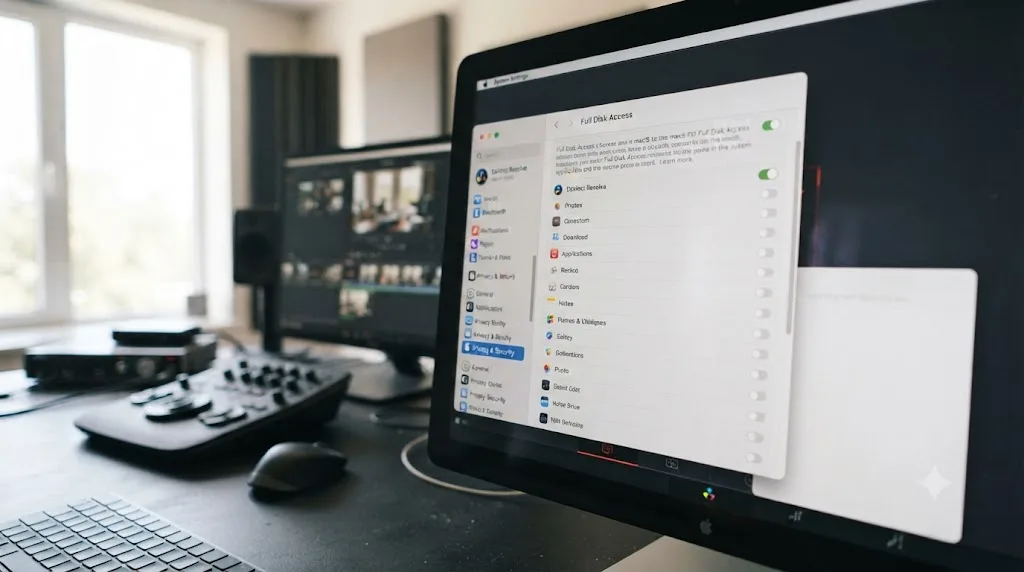
- Separately, open System Settings > Privacy & Security > Full Disk Access and confirm DaVinci Resolve is listed and enabled. Modern macOS versions can silently sandbox an app's write access to certain folders even when the folder-level permissions look correct, and Full Disk Access is the setting that actually overrides that.
A folder that looks perfectly writable in Get Info can still block DaVinci Resolve if Full Disk Access isn't granted separately in Privacy & Security. That distinction trips up more Mac editors than any other permissions check on this page, because the two settings look redundant and aren't.
This category gets more common, not less, after you've moved a project database from one drive to another, restored from a backup drive with different ownership metadata, or upgraded macOS or Windows, since permission ownership doesn't always survive those transitions cleanly.
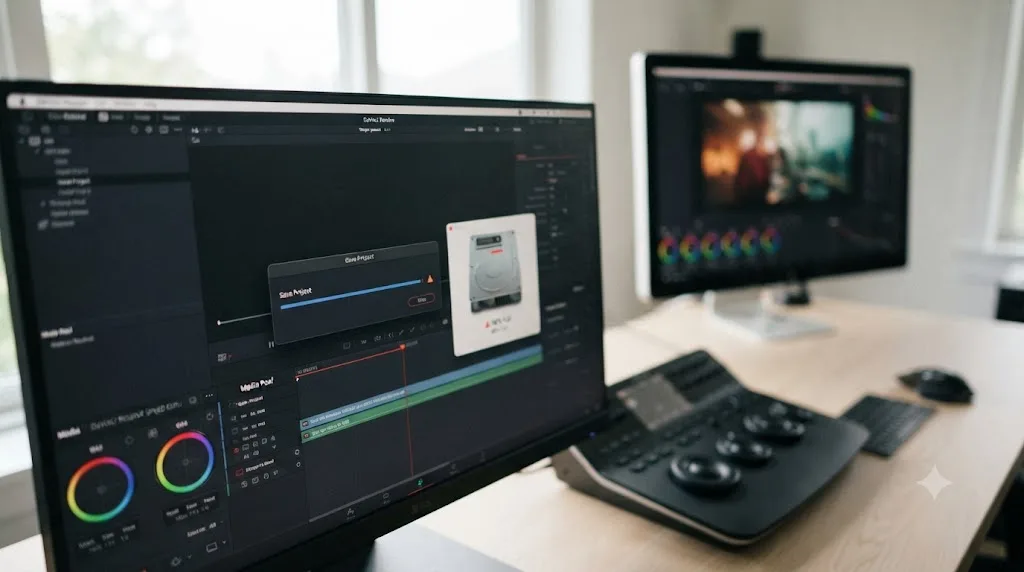
Is your drive actually full, nearly full, or disconnected?
A drive doesn't need to hit zero bytes free to break a save. DaVinci Resolve's project database, its cache, and its Project Backups all need working room on the drive they live on, and a drive that's technically "not full" by Finder or Explorer's numbers can still be too tight for Resolve's actual write pattern.
Guides on this exact failure recommend keeping meaningfully more headroom than most editors budget for. One recommends you "keep at least 15-20% of your drive free," and a separate guide independently lands on nearly the same number, advising you "maintain at least 10-20% free disk space for cache and temporary files," per SafeBoxGuide's and Lawrence Bros' respective troubleshooting guides. Two independent sources landing in the same 10-to-20-percent range is a meaningfully stronger signal than either guide alone.
A drive that shows plenty of free space in Finder can still be too tight for DaVinci Resolve's database to write safely. That gap between "looks fine" and "actually has room" is exactly where a lot of silent save failures live.
Work through these checks in order:
- Open your Resolve Disk Database drive in Finder or Explorer and confirm how much free space it actually reports right now, not from memory.
- If it's under roughly 15 percent free, clear render cache first through Playback > Delete Render Cache > All, since cache is usually the largest reclaimable chunk on that drive. Our guide to cache files filling up your hard drive walks through exactly where that cache hides and how to clear it safely.
- Check whether Project Backups and Gallery stills are also pointed at that same tight drive, since both write continuously in the background and can push a borderline drive over the edge during an active session.
- If you're on an external or portable drive, confirm the connection itself is stable. A drive that disconnects even briefly during a write, from a loose cable, a sleep setting, or a USB hub cutting power, can produce the exact same failure as a genuinely full drive.
This disk space category overlaps closely with a separate, related failure that shows up during export rather than during a save. If you've also seen a disk space warning specifically while rendering, that's a distinct set of causes tied to render cache estimation, covered in full in our guide to DaVinci Resolve's out of disk space error while rendering.
Is the project locked or stuck in read-only mode?
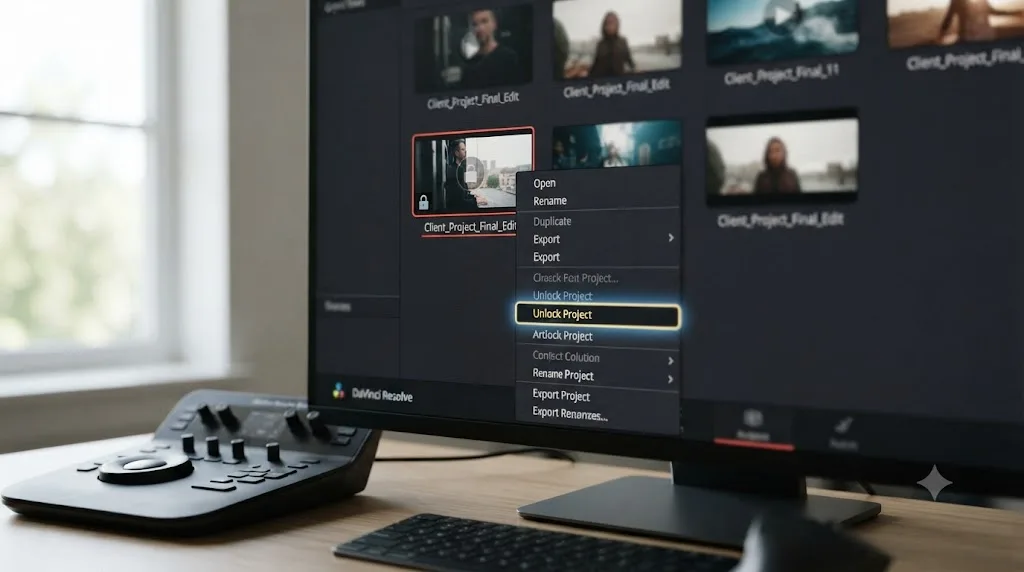
This symptom confuses editors more than almost any other on this page, because the lock message often implies another user is involved, and you're the only person who's ever touched the project.
DaVinci Resolve locks a project the instant you open it, specifically to stop two sessions from editing the same record at once. That lock is supposed to release automatically the moment you close the project or quit the app cleanly. A crash, a forced shutdown, or a power loss skips that release step entirely, and the project stays locked even though the "other session" holding it is really just your own last, unfinished one.
A Creative COW thread on exactly this problem documents it directly. Forum member Sean Shea described the exact message: "project in use: another user seems to be using this project. You can veiw the project in Read-Only mode." Fellow member Sascha Haber explained the mechanism plainly: "This happens when you have a crash and the project is not properly released."
A project that opens read-only after a crash isn't damaged. It's refusing to overwrite your last saved state until you clear the lock a dead session left behind. That distinction matters, because a read-only warning feels like corruption, and it's usually the opposite: Resolve protecting a good copy from an ambiguous one, a little too cautiously.
Haber's fix in that same thread is blunt and effective: "Just save it under a new name and forget about the ghost." Work through it in this order:
- Right-click the project in Project Manager first and check for an Unlock option. If it's available, this clears the stuck state instantly with zero risk to your work.
- If Unlock isn't offered, fully quit DaVinci Resolve, wait about a minute to make sure the process is genuinely gone, and reopen Project Manager. Some locks release once the dead process is confirmed closed.
- If the project still opens read-only, use Save As to save it under a new name. This sidesteps the stuck lock entirely, since you're no longer trying to overwrite the locked record, you're creating a fresh one.
- Once the new copy saves and reopens normally, treat it as your working project going forward and archive the old locked entry rather than continuing to fight it.
Haber's thread also flagged a structural point worth knowing if this keeps recurring: projects on a database-backed library are the ones that carry this lock mechanism at all. If you don't need multi-user database features, a Disk Database library sidesteps the lock file concept almost entirely, since there's no shared record to leave in an ambiguous state after a crash.
Is your project database corrupted?
This is the category behind the bluntest, least helpful error dialog on this whole page: "Failed to Save Project." No detail, no cause, just a dead end that reappears every time you try again.
A Creative COW thread with exactly that title shows what's actually happening underneath a message that plain. Forum member Rick Turners reported the surface-level error first: "Error: Failed to save project _________." Digging further into the actual database log, Turners found the real cause: "Failed to upgrade database: Failed to apply patch patch_8.0.0.78_8.1.0.110 to database Local_DB: ERROR: index 'BtPathIngo_SM_Clip_id_idx' contains unexpected zero page at block 38 HINT: Please REINDEX it QPSQL: Unable to create query."
That's a damaged database index, not a missing file, not a permissions problem, and not a full drive. Vivek Vedagiri, posting in that thread as Blackmagic Design, pointed Turners toward a documented fix from an earlier, similar case. Turners followed it and confirmed it worked, replying simply, "That did it."
A separate Creative COW thread on the same 'Failed to Save Project' error shows a second, more accessible path to the same kind of fix. Forum member Pat Wintersgill described the failure plainly: "I can't save any projects. I get 'Failed to Save Project' on all of them," and added that "repairing permissions didn't fix it, and I'm worried that re-installing the software might endanger my projects." Fellow member Gabriele Turchi reported a simpler resolution than a manual reindex: "the Optimize database function solved the issue."
A corrupted project database can accept every click you make on screen and still fail to commit a single one of them to disk. That's what makes this category feel so much worse than a permissions or disk space problem. Nothing you do in the interface tells you the write is failing until you try to save and hit the wall.
Work through these in order, cheapest first:
- In Project Manager, right-click your current project database (or library) and look for an Optimize Database option. This resolved the issue directly for at least one documented case above, and it's non-destructive.
- If optimizing doesn't help, try Save As under a new project name, the same test used for a locked project. If the new name saves successfully while the original fails, the damage is isolated to that specific project's database record, not your database as a whole.
- Check your database log for the specific error text, the same technique that surfaced the exact patch failure in Turners' case above. On Windows it's under
%AppData%\Blackmagic Design\DaVinci Resolve\Support\logs, and on Mac it's under~/Library/Application Support/Blackmagic Design/DaVinci Resolve/logs. - If the log names a specific index or table as corrupted, that's the case for contacting Blackmagic support directly with that log attached, since a manual reindex of a PostgreSQL database is not something to attempt without guidance specific to your exact error.
- As a last resort, export the project as a
.drpfile if it will still let you, and reimport it into a freshly created database. Export and import run through different code paths than a normal save, so a database that's tangled up enough to reject a save sometimes still exports cleanly.
If this is starting to sound familiar from a different symptom, that's because a badly corrupted database can eventually stop a project from opening at all, not just saving. That's a related but distinct failure mode, covered start to finish in our guide to a DaVinci Resolve project that won't open, including the full database restore process from a .resolve.backup file if Optimize Database and Save As both fail here.
Why won't DaVinci Resolve save to a NAS or network drive?
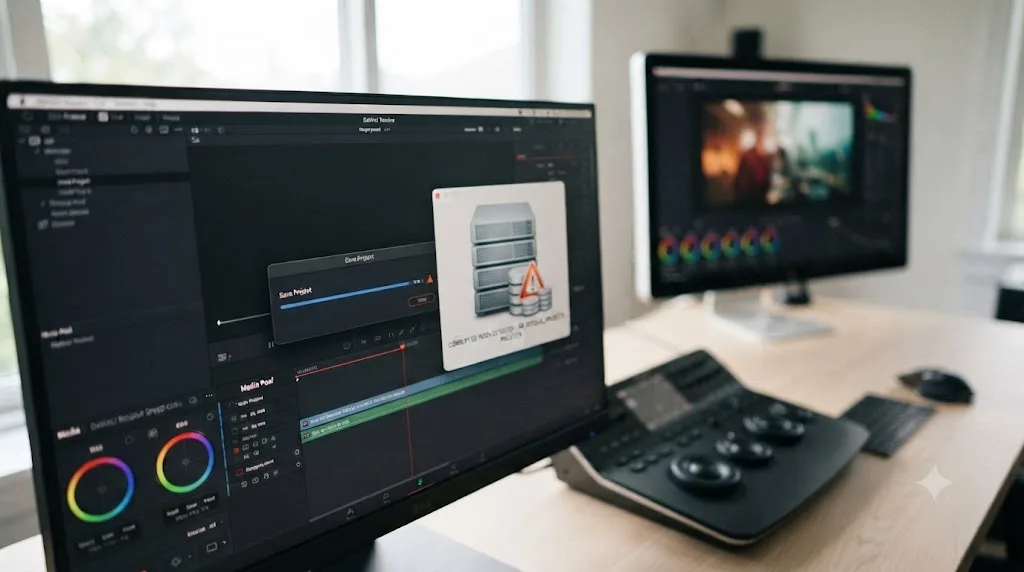
Everything above assumes a single editor on a local drive. Add a NAS, a shared PostgreSQL database, or a Collaborative Workflow setup, and a whole new category of save failure opens up, one that's specific to how Resolve's shared database handles simultaneous access.
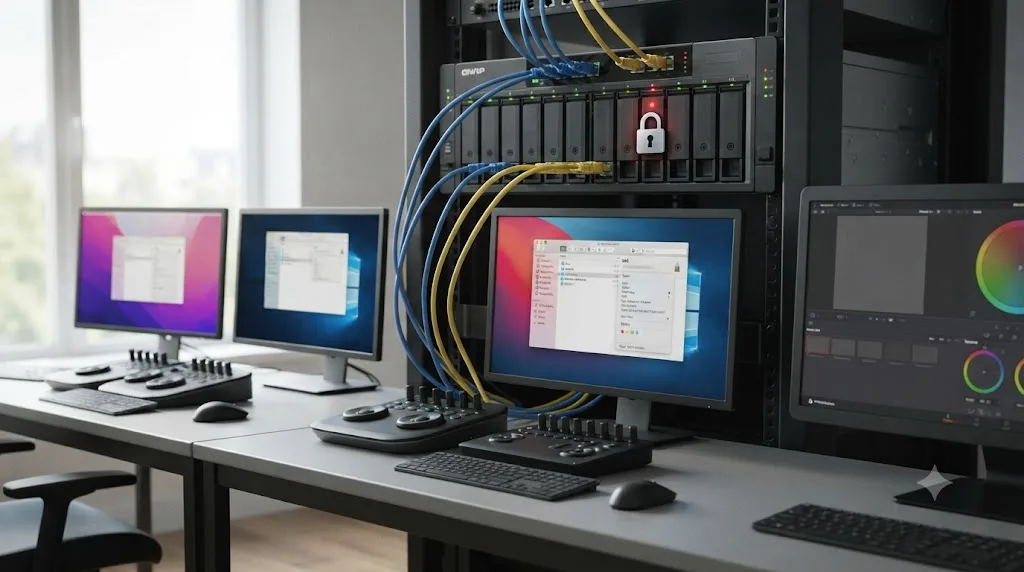
DaVinci Resolve's shared collaboration setup uses PostgreSQL for the database itself, with your NAS typically hosting both the database and the media while each workstation connects to it over the network. That connection is genuinely sensitive to network conditions in a way a local drive isn't, since PostgreSQL is latency-sensitive by nature, and a save is, underneath the interface, a database write over that same connection.
The locking mechanism that makes shared editing possible at all is also the most common source of a confusing "can't save" moment on a team project. According to a guide on setting up Resolve for team collaboration, the system uses "automatic bin and timeline locking, so when you open a bin, others see it as read-only until you're done," as described by Fastio's team setup guide. Bins and timelines lock automatically the moment someone starts editing them, and unlock once that person moves away.
On a shared NAS database, only the person actively working in a bin or timeline holds write access. Everyone else is looking at a read-only copy until they click away. That's not a bug. It's the entire mechanism that prevents two editors from silently overwriting each other's grades, and it's the single most common reason a "save failed" or "read-only" message shows up specifically on collaborative projects that never happens on a solo local project.
Work through these checks if you're on a shared or networked setup specifically:
- Confirm whether a colleague currently has the exact bin, timeline, or clip you're trying to modify open elsewhere. If they do, your changes to that specific element are correctly blocked until they move away or close it.
- Check your network connection's stability to the NAS itself. A brief drop during a database write can produce the same failure symptoms covered in the corrupted database section above, since an interrupted write is one of the more common ways a database record gets damaged in the first place.
- If the whole database seems unreachable rather than one locked bin, confirm the NAS's PostgreSQL service is actually running, not just that the NAS itself is powered on and reachable for file sharing.
- If lock conflicts are a frequent, ongoing friction point rather than a one-off, that's usually a workflow problem more than a technical one: too many editors touching overlapping bins at once. Splitting work by reel, scene, or bin ownership reduces contention far more reliably than any setting change.
Could a crash be why your last changes never made it to disk?
Sometimes there's no error dialog at all. You reopen the project after a crash, and it's missing the last ten, twenty, or forty minutes of work, even though you were sure you'd been saving along the way.
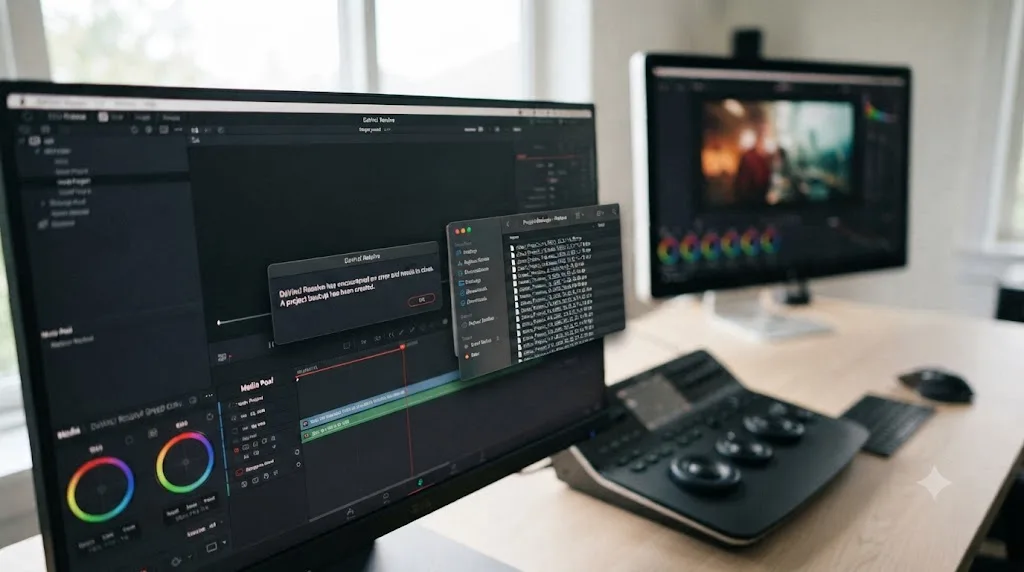
The most common invisible cause here is a crash itself interrupting a write in progress, whether that's a manual save, Live Save's background write, or an autosave interval, before it fully committed. Resolve's OFX plugins and audio VSTs run inside the application's own process with no sandbox separating them from the app, so when one fails, it can take the whole application down mid-operation rather than just disabling itself, a pattern documented across multiple DaVinci Resolve troubleshooting guides. If that crash lands in the middle of a write, whatever wasn't already committed to disk doesn't survive it, no matter how good Live Save's track record has been up to that exact moment.
This is precisely the gap Project Backups exists to close, and it's a separate setting from Live Save even though both live in the same preferences panel. According to the DaVinci Resolve manual, Project Backups saves timestamped copies on a tiered schedule: by default, a backup every 10 minutes, 8 hourly backups retained, and 5 days of daily backups kept in rotation, per the mirrored manual documentation. Each of those backups is "a complete project file, excluding stills and LUTs, which are omitted in order to save storage space," according to the same source.
If a crash just cost you unsaved work, do this before anything else:
- Don't touch the project further. Leave it exactly as it reopened.
- In Project Manager, right-click the project and choose Project Backups.
- Look through the timestamped list for the entry closest to, but before, the crash. Load it rather than continuing from the version that just reopened.
- If Project Backups shows nothing usable, check whether you exported a
.drpfile at any point earlier in the session, since that's a separate, manual safety net independent of the automatic backup schedule. - If neither exists, the honest answer is that changes since your last committed write are gone. That's a hard lesson, but it's also the exact reason the next section exists.
DaVinci Resolve's autosave protects you from a crash. It does not protect you from work that was never committed to disk in the first place. Every editor learns this distinction the expensive way exactly once. Turning on Project Backups before that happens costs you thirty seconds in a preferences panel.
Does Blackmagic Cloud or Collaborative Workflow change how saving works?
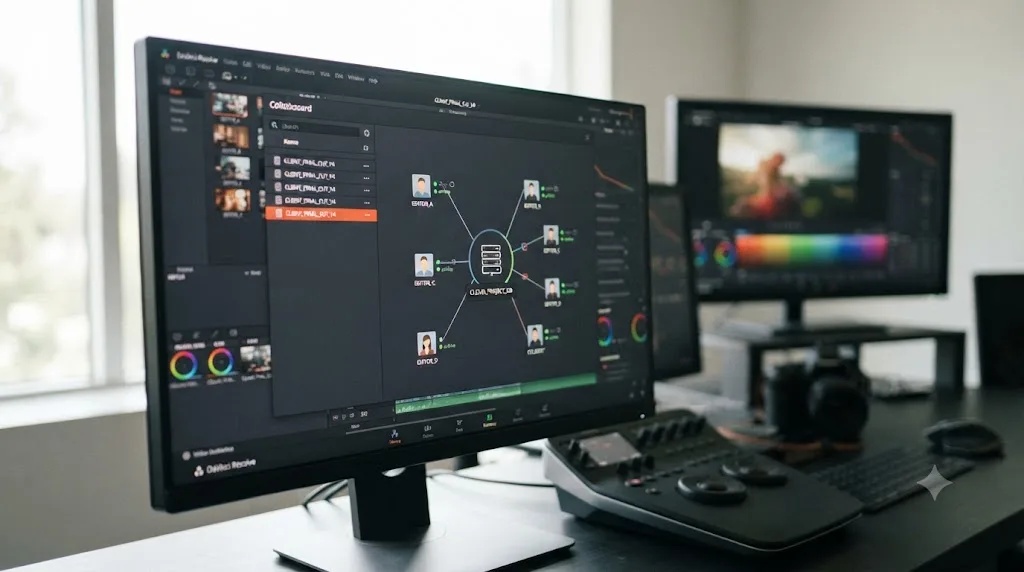
Yes, in one specific and important way: Collaborative Workflow forces Live Save on and removes your ability to turn it off, because the whole feature depends on every collaborator's changes propagating continuously rather than in periodic batches.
That has a real upside and a real tradeoff. The upside is that you can't accidentally work for an hour without saving on a collaborative project the way you technically could on a solo one with Live Save manually disabled. The tradeoff is that every write, from every collaborator, is now flowing through the shared database constantly, which means the causes covered earlier on this page, permissions, disk space, database health, and network stability, matter more on a shared project, not less, since more simultaneous writers means more chances for one of those failure points to get hit at any given moment.
If you're seeing save problems specifically on a Blackmagic Cloud or shared PostgreSQL project that never show up on your local solo projects, work through this shorter, collaboration-specific list before assuming it's the same generic cause covered above:
- Confirm every collaborator is running the same version of DaVinci Resolve. A version mismatch between collaborators on a shared project is a documented source of unpredictable sync and save behavior, separate from any of the causes covered earlier.
- Check whether the specific bin or timeline you're editing shows as locked by another collaborator's active session, covered in the NAS and network section above.
- Confirm your own network connection to the shared database or Blackmagic Cloud service is stable, since a save failure on a collaborative project is more often a connectivity blip than a database problem.
- If the whole team is affected simultaneously, check whether the shared database server itself, whether that's a NAS running PostgreSQL or Blackmagic Cloud's own infrastructure, is experiencing an outage rather than assuming the fault is local to your machine.
The database-level fixes from earlier on this page, Optimize Database and the corrupted-record checks, still apply on a collaborative project. The difference is who you coordinate with before running them, since an optimize or restore operation on a shared database affects every collaborator's session, not just yours.
Is this a Mac problem or a Windows problem?
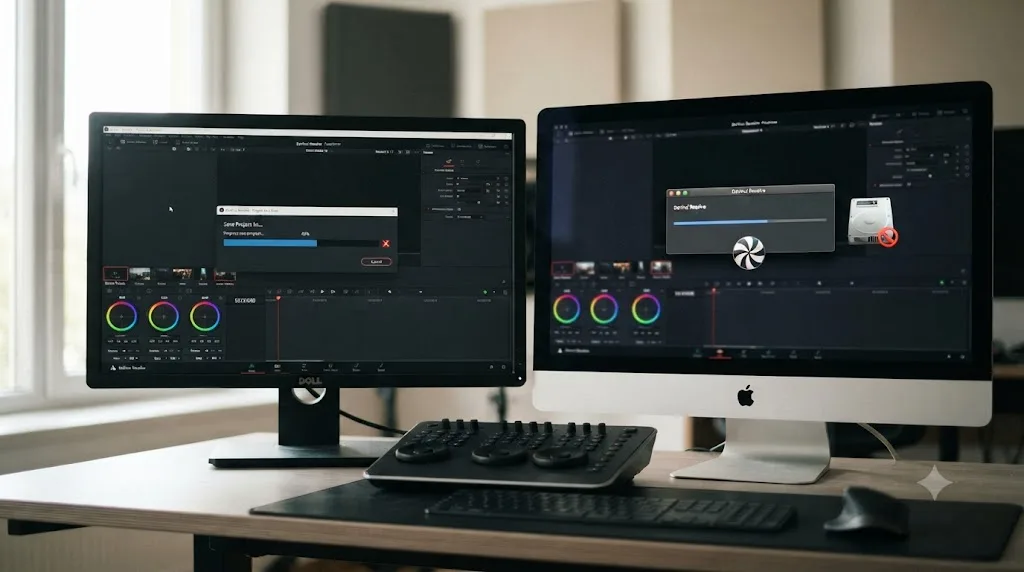
Some of the causes on this page show up differently, or exclusively, on one platform, because Resolve's database, cache, and permission systems are built on top of very different operating system foundations.
On macOS, the Full Disk Access requirement covered in the permissions section is the platform-specific trap worth remembering. A folder can show correct read and write permissions in Get Info while Resolve still can't write to it, because macOS's app sandboxing operates as a separate layer from standard Unix file permissions. Grant Full Disk Access explicitly under System Settings > Privacy & Security, don't assume folder-level permissions alone cover it. Also worth confirming if you're on newer hardware: DaVinci Resolve 21 requires macOS 15 Sequoia or later and doesn't run on Intel Macs at all, per DaVinci Resolve Club's breakdown of the current system requirements, which can produce behavior that looks like a save or stability problem but is actually a hardware and OS mismatch no permissions fix touches.
On Windows, the registry and residual AppData angle matters more. A save failure that started right after a Resolve update, without a database restore or drive change involved, is worth checking against leftover data from an incomplete update. Old entries under AppData\Roaming\Blackmagic Design or the Windows registry under HKEY_CURRENT_USER\Software\Blackmagic Design\DaVinci Resolve can occasionally conflict with a newer install in ways that surface as save or database errors, similar to the update-residue pattern covered in our guide to a project that won't open.
| Failure type | Mac-specific angle | Windows-specific angle |
|---|---|---|
| Permissions block | Full Disk Access in Privacy & Security, separate from Get Info permissions | NTFS security tab permissions, occasionally registry conflicts |
| Drive full or disconnected | Same mechanism as Windows, external drive sleep settings a common culprit | Same mechanism as Mac, watch for drive letter changes after reconnecting |
| Corrupted database | PostgreSQL runs as a background service under Library/Application Support | PostgreSQL runs as a background service under AppData |
| Platform incompatibility | Resolve 21 requires macOS 15 Sequoia or later; no Intel Mac support | No equivalent hard cutoff at this time |
What's the full troubleshooting order, from safest to most drastic?
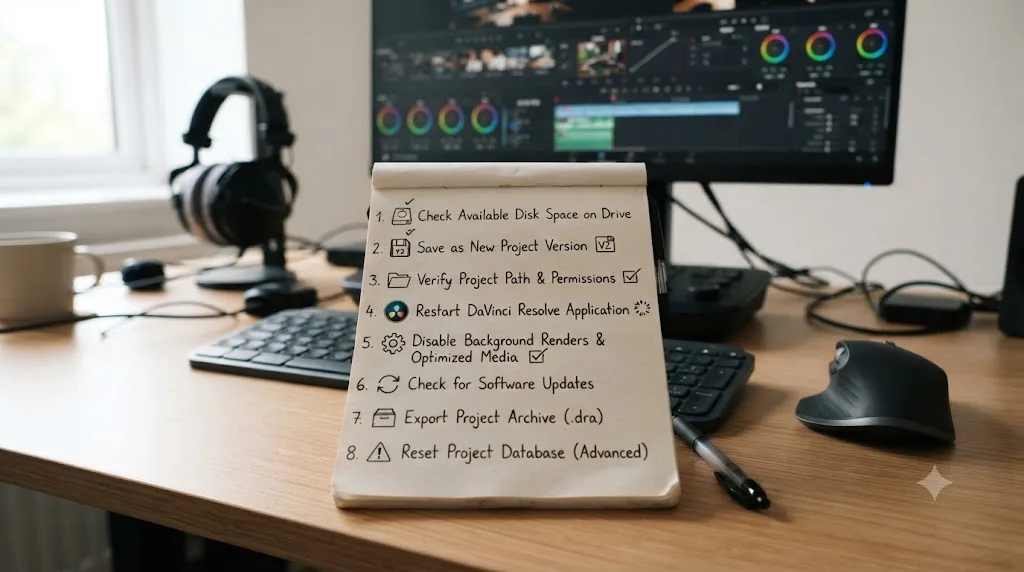
If you'd rather work top to bottom instead of jumping straight to a matched symptom, this is the order that costs you the least at each step, cheapest and safest first.
- Confirm Live Save is on in Preferences > User > Project Save and Load. Takes ten seconds, rules out one category entirely.
- Check folder and drive permissions on your Resolve Disk Database folder, including Full Disk Access on Mac.
- Check free space on every drive Resolve touches: media, database, cache, and system, aiming for 15 to 20 percent free rather than "not full."
- Look for a stuck read-only lock and try the Unlock option in Project Manager if it's offered.
- Try Save As under a new project name to test whether the original project's database record is the specific damaged piece.
- Run Optimize Database from Project Manager, a non-destructive step that's resolved documented cases of "Failed to Save Project" directly.
- If you're on a shared or networked database, rule out a bin or timeline lock held by a collaborator before assuming the database itself is broken.
- Recover from Project Backups if a save was already lost, rather than assuming the work is unrecoverable.
- Contact Blackmagic support with your database log if none of the above resolves a confirmed corrupted database.
The safest fix on this page costs you two minutes. A full database restore or a support ticket costs you an afternoon. Work down the list in order and stop the moment your project saves cleanly and reopens with the changes intact.
How do you stop this from happening again?
Fixing a save failure once is a Tuesday. Fixing the same one twice on the same project, because nothing changed after the first time, is the part that's actually avoidable.
- Confirm Live Save and Project Backups are both enabled in every project library you work in, not just the one you just fixed. They're separate settings in the same panel, and it's easy to assume one implies the other.
- Keep 15 to 20 percent free space on your database and cache drives as a standing habit, not a reaction to an error. Clear render cache periodically through Playback > Delete Render Cache, and if that cache keeps refilling faster than expected, our guide to cache files filling up your hard drive covers exactly where it accumulates and how to control it long term.
- Export a
.drpcopy of any project at real milestones, saved to a separate drive from your working database. It's a completely manual habit, but it costs seconds and survives failures that Live Save and Project Backups both can't, since it lives entirely outside the database that might be the thing that broke. - If you've had repeated crashes on the same machine, chase that root cause directly rather than treating each save failure as unrelated. Our guide to why DaVinci Resolve keeps crashing covers the GPU driver, VRAM, and cache causes that quietly increase how often you land on this page in the first place.
- On a shared or collaborative database, agree on bin or reel ownership with your team so two editors aren't routinely fighting over the same lock, and confirm everyone's running the same Resolve version.
- Never update Resolve, your GPU driver, or your OS in the middle of an active deadline project. A version upgrade can touch a project's database format in ways that only reveal themselves under the exact conditions covered on this page.
None of this makes a save failure impossible. It makes one a two-minute recheck instead of a lost afternoon, which is the only outcome that actually matters when a client deadline is the thing waiting on the other side of that spinning save icon.
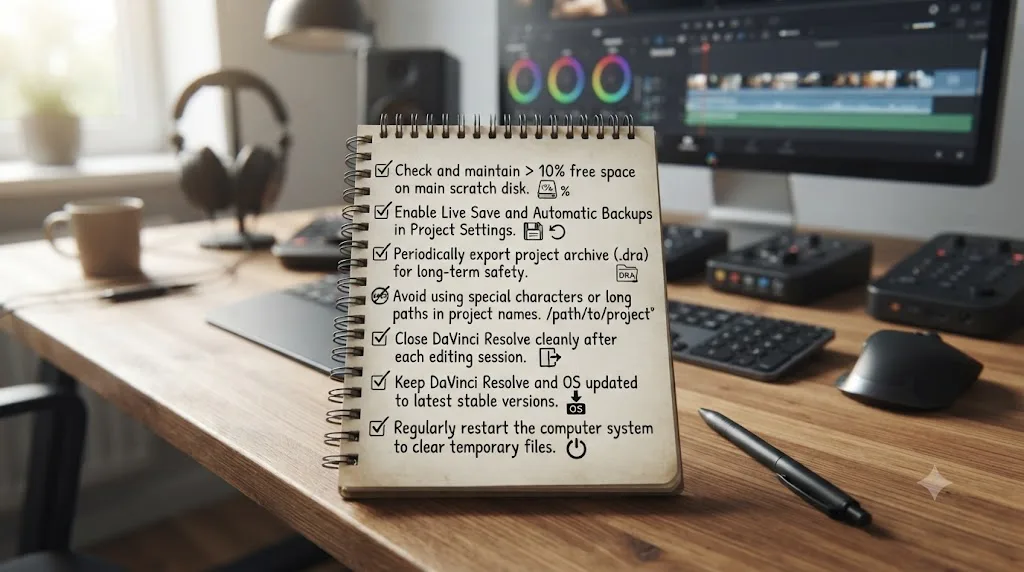
Verdict: match the symptom, don't reinstall
A DaVinci Resolve project that won't save changes is genuinely alarming in the moment, and it's also one of the more solvable failures in the entire app, because it comes from a small, recognizable set of causes. A blunt "Failed to Save Project" dialog points to a corrupted database record, usually cleared by Optimize Database or a Save As test. A read-only warning points to a stuck lock from a crash, cleared by Unlock or a new save name. Silent failures point to permissions or a drive that's tighter on space than it looks. Shared-database failures point to a lock a collaborator is holding, not a broken save function.
Reinstalling DaVinci Resolve touches none of the places a save failure actually lives: your permissions, your disk, or your database. It costs you install time and gives you nothing back, since every one of those failure points sits outside the application binaries entirely.
If you've matched your symptom above and you're back to a project that saves cleanly, the more useful next habit is making sure the next crash, if there is one, costs you nothing at all. Confirm Project Backups is on, export a .drp milestone copy today, and keep real headroom on your database drive. That gap between "here's an error" and "here's exactly which menu fixes it" is also, more generally, the gap TryUncle is built to close. TryUncle is the on-screen assistant for DaVinci Resolve on macOS. Ask in plain words and Uncle points at the exact control on your screen, instead of sending you through another forum thread that might not match your exact case. It's a paid app at founder pricing, worth checking directly at TryUncle for the current rate.
Match the table at the top of this page to your exact symptom. Fix that one thing. Then spend the two minutes it takes to make sure this page never needs a second visit.
Frequently asked questions
- Why does DaVinci Resolve say 'Failed to save project'?
- Most often it's a corrupted project database rejecting the write, not a temporary glitch. One documented case traced the exact error to a failed database patch that left an index unreadable, fixed only after a database reindex. A folder permissions block and a full drive produce a similar dead-end message, so check those first since they're faster to rule out.
- Why did my project open as read-only after a crash?
- DaVinci Resolve locks a project the moment you open it so two sessions can't edit the same record at once, and that lock is supposed to release when you close the project cleanly. A crash skips that release step, so the next time you open the project, Resolve still sees it as locked by your own dead session and opens it read-only to protect the data underneath.
- Is Live Save actually protecting me by default?
- Yes, Live Save ships on by default and writes changes to your project continuously with no popup telling you it happened. It protects you from a crash or an unexpected quit. It does nothing for a drive that's full, disconnected, or blocked by permissions, since Live Save still has to physically write bytes to disk to do its job.
- Can a nearly full hard drive stop DaVinci Resolve from saving?
- Yes. Once a drive runs low on free space, Resolve can fail to write new project versions, cache, or backup files, sometimes with a vague error rather than a clear 'disk full' message. Guides covering this issue recommend keeping roughly 15 to 20 percent of your drive free specifically for project databases and cache, not just enough room for your footage.
- Why won't DaVinci Resolve save to a NAS or network drive?
- A shared project database over SMB or NFS depends on stable, low-latency network access, and any drop in that connection during a write can produce the same save failures you'd see from a local permissions or disk problem. On a shared PostgreSQL database, only the person actively working in a bin or timeline holds write access at that moment. Everyone else sees a read-only copy until they click away.
- Does reinstalling DaVinci Resolve fix a save failure?
- Almost never. Your project database, your Resolve Disk Database folder, and your user preferences all live outside the application's install folder, so reinstalling replaces files that were never the problem. Work through permissions, disk space, and database checks first. Reinstalling only makes sense if you suspect the application binaries themselves are damaged, which is rare next to a corrupted database or a full drive.
- How do I recover work if the project genuinely never saved?
- Check Project Backups first, since Resolve's own timestamped autosaves, on by default alongside Live Save, often hold a version from just before the failure. If Backups is empty or wasn't enabled, check for an exported .drp file from earlier in the session. If neither exists, the honest answer is that unsaved changes since your last successful write are gone, which is exactly why turning on Project Backups before your next session matters more than anything else on this page.
- Does Blackmagic Cloud collaboration change how saving works?
- It changes who can write at a given moment, not whether Live Save runs. When Collaborative Workflow is enabled for multiple artists on the same project, Live Save is automatically turned on and can't be disabled, and bin or timeline locking decides who currently holds write access. A save failure inside a collaboration session is more often a locked bin than a broken save function.
Sources
- Creative COW forum: 'Error: Failed to save project'
- Creative COW forum: Resolve 'Failed to Save Project'
- Creative COW forum: New window about read-only project
- VFXPedia mirror of the DaVinci Resolve 18 Manual: Live Save and Project Backups
- Fastio: DaVinci Resolve Collaboration - Team Setup Guide
- SafeBoxGuide: DaVinci Resolve Projects Not Saving? Causes and Fixes
- Lawrence Bros: Projects Not Saving in DaVinci Resolve? How to Fix It
- Cutsio: How to Fix Project Not Opening in DaVinci Resolve
- Blackmagic Design: DaVinci Resolve support and downloads
- Blackmagic Design: DaVinci Resolve 18 Reference Manual (PDF)
- DaVinci Resolve Club: DaVinci Resolve 21 System Requirements
Put this guide to work with TryUncle.
Ask about the step you’re on. TryUncle sees your screen and points at the control you need, so you can keep learning in your own project.
Get TryUncle for Mac or WindowsKeep reading
Fixes · Jul 10, 2026 · 23 min
DaVinci Resolve Project Won't Open: Match Symptom to Fix
Whether DaVinci Resolve hangs at 100%, crashes on launch, or shows a database error, here's the exact cause behind each symptom and how to fix it.
Fixes · Jul 19, 2026 · 25 min
DaVinci Resolve Out of Disk Space Error While Rendering
Why DaVinci Resolve throws a disk space error mid-render even when your drive looks fine, and the exact checks that find and fix the real cause.
Fixes · Jul 7, 2026 · 24 min
Why Does DaVinci Resolve Keep Crashing? The Real Fixes
DaVinci Resolve keeps crashing for a few real reasons: GPU drivers, VRAM limits, a corrupted cache, or a damaged project. Here's the fix, in order.