Articles / Comparisonsupdated for DaVinci Resolve 21.1 (September 2026)
DaVinci Resolve Compound Clip vs Fusion Clip: Which?
Quick answer
A Compound Clip is the better choice for grouping timeline material, reusing an edit, or keeping a sequence organized. A Fusion Clip is the better choice when several stacked layers must enter Fusion as separate MediaIn nodes for compositing. Use Compound Clip for editorial structure and Fusion Clip for a multi-layer Fusion effect.

If you choose the wrong container, a simple composite can become a confusing trip through nested timelines, missing inputs, and the wrong working resolution. We see this question regularly in our 100,000+ member editing community, and after seven years of professional commercial editing, our short answer is consistent: package an edit with a Compound Clip, but build a multi-layer effect with a Fusion Clip.
As of October 2026, this guide applies to DaVinci Resolve 21 and the 21.1 documentation listed by Blackmagic Design's Support Center. The names look similar. The jobs are different.
What is the difference between a Compound Clip and a Fusion Clip?
A Compound Clip is an Edit-page container that packages one or more timeline clips as a single clip. A Fusion Clip is a compositing container that exposes the selected timeline layers as separate inputs when you open that container in Fusion.
That difference matters more than the shared word clip. Both can make several items look like one item on the Edit page. Only the Fusion Clip is designed around the handoff from stacked Edit-page layers to a multi-input Fusion node tree.
Blackmagic’s Fusion reference manual describes the result plainly: “A Fusion clip functions as a single item in the Edit or Cut page timeline.” The same passage explains that the assembled media is revealed in Fusion as a built composition. That is the useful mental model. The Edit page sees one timeline item. Fusion can see the layers that went into a Fusion Clip.
The Compound Clip starts from an editorial question:
How can I keep this group of clips together while I continue editing?
The Fusion Clip starts from a compositing question:
How can I bring these timed layers into Fusion so I can key, merge, track, transform, or animate them together?
The distinction is not about whether one is professional and the other is basic. Compound Clips are useful in serious projects. Fusion Clips are unnecessary for many ordinary edits. Pick the container based on the next operation, not on the more impressive name.
A Compound Clip organizes an edit, while a Fusion Clip organizes the inputs to a composite.
When should I use a Compound Clip in DaVinci Resolve 21?
Use a Compound Clip when the main goal is editorial packaging: grouping a sequence, applying one treatment to a group, reusing a finished section, or reducing timeline clutter. A Compound Clip is usually the safer choice when you do not need to inspect separate layers as individual Fusion inputs.
Good Compound Clip examples include:
- A 20-second opener made from a title, two video shots, a music hit, and a sound effect.
- A short interview answer with multiple cuts that you want to move as one unit.
- A lower-third treatment that combines a background shape, title, and accent animation before you duplicate the finished design.
- A montage that is complete editorially and needs one overall resize, transform, speed treatment, or color adjustment.
- A repeated section that you want to place on several timelines while preserving the internal sequence.
The Compound Clip is also a useful boundary between rough editing and finishing. You can keep the internal sequence intact while moving the whole section in the parent timeline. If the section needs a different timing decision later, open the Compound Clip in its timeline and edit its contents there.
That convenience has a cost. A Compound Clip can hide the individual editorial decisions that made up the group. A new editor may see one item in the parent timeline and forget that a cut, keyframe, audio clip, or transition lives inside the container. Label the clip clearly, and avoid nesting containers simply because the timeline looks busy.
The fastest test is simple. If you can describe the task as “make these clips behave like one edit,” start with a Compound Clip. If you can describe it as “send these layers into nodes as separate sources,” start with a Fusion Clip.

When should I use a Fusion Clip in DaVinci Resolve 21?
Use a Fusion Clip when you have two or more layers that must become separate MediaIn nodes for a Fusion composite. Blackmagic’s official DaVinci Resolve Visual Effects Guide shows the workflow as selecting the layers, choosing New Fusion Clip, and opening that new clip in the Fusion page.
A Fusion Clip fits work such as:
- A green-screen person over a background plate.
- A foreground shot with a sky replacement behind it.
- A graphic or logo that must be merged with video while retaining separate controls.
- A multi-layer screen replacement where the insert, frame, reflection, and mask need different node paths.
- A split-screen composition with two or more clips that need independent transforms inside Fusion.
- A tracked object removal or paint workflow that requires the original layers and masks to meet in one node graph.
When you create a Fusion Clip from stacked video layers, Fusion can start with one MediaIn for each layer. The official visual-effects guide demonstrates a two-layer example and then opens the result on the Fusion page. In a three-layer composite, the practical consequence is the same: you get separate sources to route through Merge, Mask, Transform, Tracker, Keyer, or other nodes.
That is why a Fusion Clip often feels more natural for a composite than a Compound Clip. The container is created around the relationship between layers. The timing you established on the Edit page carries into the composite, and the node tree gives you a place to control how the layers interact.
A Fusion Clip is not automatically the best home for every Fusion effect. If you are adding a glow, simple title animation, paint stroke, or single-clip correction to one shot, park the playhead over the clip and open that clip in Fusion. You may not need to wrap anything at all. Blackmagic’s Fusion documentation describes this single-clip workflow separately from the multi-layer Fusion Clip workflow.
A Fusion Clip is the right container when separate Edit-page layers need separate Fusion inputs.
What does the Compound Clip vs Fusion Clip comparison look like?
The table below is the practical decision matrix for DaVinci Resolve 21. It separates the job each container is built to do from the side effects you should expect.
| Decision | Compound Clip | Fusion Clip |
|---|---|---|
| Primary job | Package an edit as one timeline item | Build a multi-layer Fusion composite |
| Best starting point | Select clips and create a Compound Clip | Stack and align layers, then choose New Fusion Clip |
| Edit page appearance | One container clip | One container clip |
| Fusion inputs | Usually the container behaves as one source when opened from the parent timeline | Selected layers are presented as separate MediaIn inputs |
| Best for | Organization, reuse, moving a finished section, applying one overall treatment | Keying, merging, tracking, screen replacement, layered motion graphics, and compositing |
| Internal timing | Edited inside the Compound Clip timeline | Edited inside the Fusion Clip’s internal timeline when needed |
| Resolution decision | Useful when you want an editorial container, but check how the container is being used in Fusion | The Fusion Clip workflow is designed around the timeline-sized composite shown in Blackmagic’s training guide |
| Node workflow | Add Fusion to the container or open a clip inside it, but do not assume every layer becomes a separate input | Open the Fusion Clip to inspect and connect the layer inputs in the Node Editor |
| Reuse warning | Duplicated instances can share the same internal container content | Copies can involve both the Fusion composition and the internal timeline, so test a duplicate before making independent variations |
| Choose it if | You are grouping an edit | You are compositing layers |
The table has one deliberate warning. A Compound Clip and a Fusion Clip can both look like one clip on the Edit page, but their purpose is not interchangeable. If the next click is a node connection, a keyer, or a Merge node between layers, choose the Fusion Clip. If the next click is a trim, move, duplicate, or overall effect on a finished section, choose the Compound Clip.
For the related question of Compound Clip versus a nested timeline, see our guide to Compound Clip vs Nested Timeline in DaVinci Resolve. That decision is about editorial containers. This page is about the boundary between editorial packaging and Fusion compositing.
How do I create a Compound Clip or Fusion Clip?
Create a Compound Clip when you want one editable editorial container. Create a Fusion Clip when you want the selected layers available as separate inputs in Fusion. Both workflows begin on the Edit page, but the destination is different.
Create a Compound Clip
- Put the clips in the order and position you want on the Edit page timeline.
- Select the clips that should travel together.
- Use the timeline command for creating a Compound Clip.
- Name the new container immediately, especially if it will be reused.
- Open the container in its timeline when you need to change the internal edit.
The exact menu wording can vary with the page and interface layout, so confirm the current Resolve 21 command in Blackmagic’s manual if you cannot find it. The durable idea is the container, not the shortcut.
Create a Fusion Clip
- Place the background, foreground, graphic, and other source clips on the required video layers.
- Align their timing on the Edit page before you create the container.
- Select the clips that belong in the composite.
- Right-click one selected clip and choose New Fusion Clip.
- Park the playhead over the new Fusion Clip.
- Open the Fusion page.
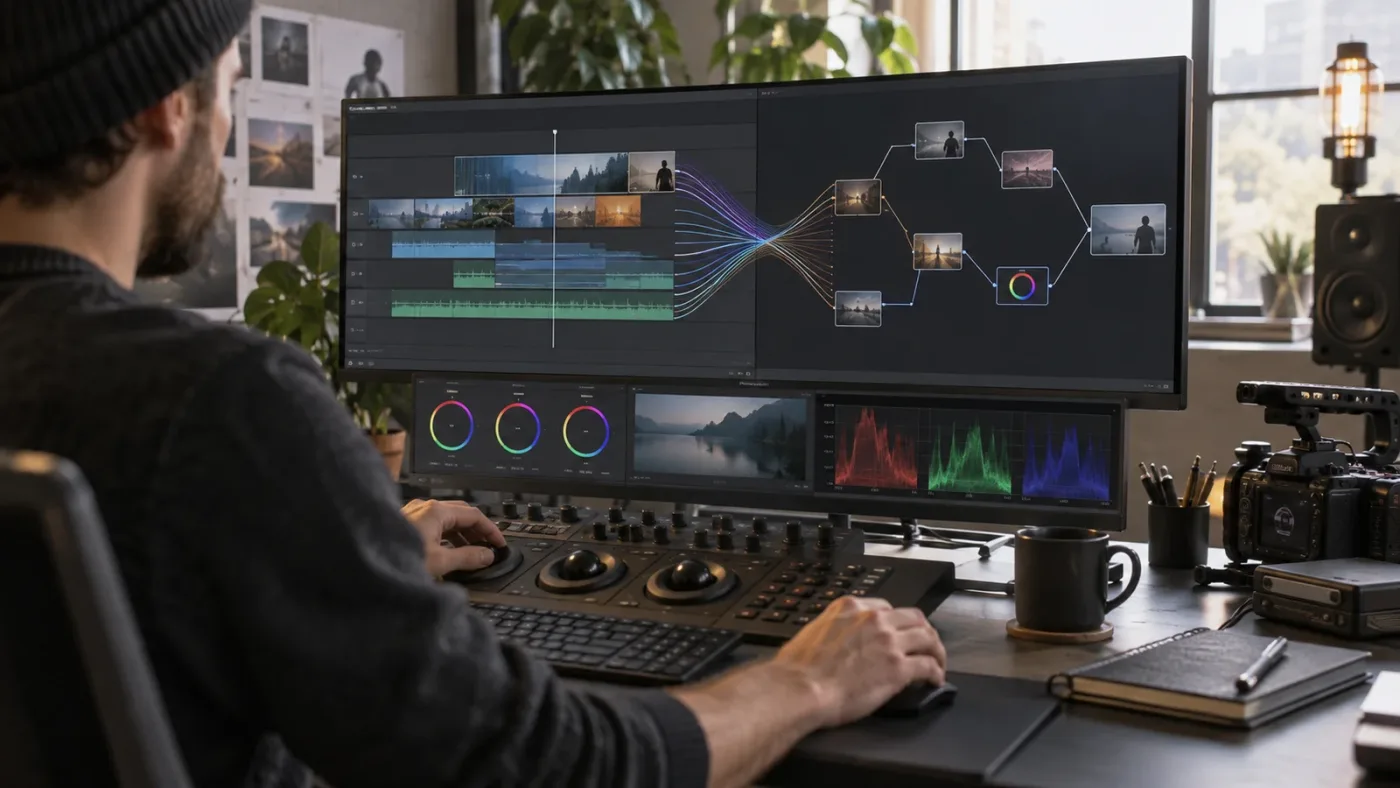
- Inspect the MediaIn nodes and connect the layers through the required Fusion tools.
The official DaVinci Resolve visual-effects guide describes the selected clips as being collapsed into a container that can be brought into the Fusion page. Its worked example then uses separate MediaIn nodes for the layers. That sequence is useful because it keeps editorial alignment in the Edit page and compositing logic in Fusion.
Why does my Compound Clip show only one MediaIn node in Fusion?
Your Compound Clip may show one MediaIn because Fusion is receiving the Compound Clip as one source instead of receiving each internal layer separately. That is normal for the container you opened from the parent timeline.
There are three useful fixes, depending on what you actually need.
First, open the Compound Clip in its own timeline. If the layers are inside the container, you can work on a clip within that internal timeline and open that clip in Fusion. This keeps the Compound Clip as an editorial package while giving you access to the source at the correct level.
Second, create a Fusion Clip from the separate layers. Open the Compound Clip in its timeline, select the layers that should interact, and use New Fusion Clip. You are changing the workflow boundary, not merely adding another effect. This is usually the cleanest answer when the node graph must receive a foreground and background as separate inputs.
Third, leave the Compound Clip alone and apply Fusion to its output as one image. This works when you want a single overall treatment, such as a final blur, glow, or stylized transform. It does not give you independent access to every internal layer.
Do not judge the choice by the number of nodes you see. Judge it by the control you need. One input is often exactly right for an overall effect. Several inputs are useful only when the composite needs separate sources.
How does resolution differ between a Compound Clip and a Fusion Clip?
Resolution depends on where the media enters Fusion and which container sits between the source and the node graph. A Fusion Clip is the safer choice when you want a layered composite to be built at the timeline’s working dimensions, while a single clip opened directly in Fusion can expose the source media at its native resolution.
Blackmagic’s Fusion training material illustrates this distinction with a Fusion Clip and states that the nested clips use the timeline resolution as the working resolution of the composite. The Fusion reference manual also distinguishes a single-clip composition from a Fusion Clip. A single clip can carry source-media characteristics that are not the same as the timeline-sized inputs of a multi-layer Fusion Clip.
This matters with mixed formats. Imagine a 6K camera clip on a 1920 by 1080 timeline. If you open the original clip directly in Fusion, source resolution and metadata can matter to the result. If you make a Fusion Clip from layers on the timeline, the composite is being organized around the timeline context. That can be helpful for a final-format graphic, but it can also reduce the working resolution compared with the original camera file.
The practical rule is:
- Use a single-clip Fusion composition when you need the source clip’s own resolution or metadata and the effect belongs to one clip.
- Use a Fusion Clip when you need a timeline-sized composite made from several aligned layers.
- Use a Compound Clip when the resolution question is secondary to editorial grouping, then verify the result before a high-resolution finish.
Do not promise yourself that changing the container will fix every scaling problem. Timeline settings, input scaling, node transforms, output sizing, and the delivery page all still matter. If a 4K source looks soft in a 1080p composite, the container may be part of the design, not the entire cause.
Why does a Fusion Clip change my timing or make editing feel harder?
A Fusion Clip changes the editing boundary because the selected layers are now inside a container. The parent timeline sees the container, while the internal timeline holds the source arrangement that Fusion uses.
That is useful when timing is already settled. It is inconvenient when you are still making editorial decisions across the whole sequence. If the background needs a new cut, the foreground needs a different handle, and the graphic must start eight frames later, you may prefer to keep the clips separate until those decisions are stable.
A Compound Clip creates a similar boundary, but its main reason is organization. You can still edit inside it, but you are choosing to work through an additional timeline. A Fusion Clip adds the extra concern of a node graph and the relationship between MediaIn, Merge, masks, and output.
Use this timing test:
- If the timing between layers is part of the effect, such as a screen replacement or a timed reveal, create the Fusion Clip after the layer timing is in place.
- If the timing is still a story decision, keep the clips on the main timeline.
- If the sequence is already edited and only needs to move as one section, use a Compound Clip.
When the internal timing needs a change, right-click the container and open it in its timeline. If the whole composite needs to move in the parent edit, move the outer clip. If only the relationship between the layers needs to change, open the inner timeline. That two-level mental model prevents many accidental trims.
Create a Fusion Clip after layer timing is intentional, not while the edit is still searching for its shape.
Which option is better for keying, tracking, and screen replacement?
Fusion Clip is better for keying, tracking, and screen replacement when the effect needs more than one source layer. Compound Clip is better when the effect should treat the finished section as one image.
For a green-screen composite, put the subject and background on separate layers, align them, and create a Fusion Clip. In Fusion, the subject and background can enter through different MediaIn nodes and meet at a Merge. A keyer can isolate the subject, a tracker can drive a replacement surface, and masks can limit the operation without losing the source relationship.
For a screen replacement, the same structure helps. Keep the replacement screen, device frame, reflections, and any matte layers separate while you align their timing. A Fusion Clip gives Fusion the layered inputs needed to build the composite. A Compound Clip can still be useful before or after the effect, but it should not be the first choice if it hides the layers you need to connect.
For a single-shot paint or beauty treatment, open the shot in Fusion directly. A Fusion Clip may add a container without adding useful control. The official Fusion documentation separates effects on one clip from composites assembled from multiple clips, and that distinction remains a good guide in Resolve 21.
For an adjustment treatment across several clips, consider an adjustment clip or a normal timeline effect instead. A Fusion Clip is not a universal replacement for every effect container. The smallest design that gives you the necessary control is usually the most stable one.

Can Compound Clips and Fusion Clips be reused safely?
Both can be reused, but reuse has two different meanings. A Compound Clip reuses an editorial container. A Fusion Clip reuses a compositing setup, and that setup can include an internal timeline as well as Fusion nodes.
Before duplicating either one, decide whether the copies should stay linked conceptually or become independent variations. If you duplicate a title package and change the text, you need to know whether the change is happening inside a shared container or in a new one. If you duplicate a Fusion composite for a different shot, you need to test whether the new instance still points to the internal timeline and media relationship you expect.
This is a place where a clean naming system saves time. Use names such as OPENER_COMPOUND_v01, SCREEN_REPLACE_FUSION_v01, and LOWER_THIRD_COMPOUND_MASTER. Keep the names short enough to read in the timeline, and add the version only when a real variation exists.
For reusable motion graphics, a Fusion effect template may be a better long-term choice than repeatedly duplicating a container. Blackmagic's Fusion 21 product page describes saving compositions as templates for use on the Edit or Cut pages, along with animation curve modifiers that can retime animations when the duration changes. That is a different workflow from a Fusion Clip, but it is worth considering when the same effect must be applied across many unrelated clips.
The choice is not Compound Clip versus Fusion Clip forever. A real project can use both. You might build a reusable lower third as a Fusion effect, group its supporting editorial elements in a Compound Clip, and reserve a Fusion Clip for the one composite that needs multiple live inputs.
Why does a Fusion Clip look different from a normal Fusion composition?
A normal Fusion composition can be attached to one clip, while a Fusion Clip is a container that carries a selected arrangement of timeline layers into Fusion. The node graph therefore reflects how the media entered Fusion.
If you open one ordinary timeline clip on the Fusion page, expect a MediaIn representing that clip. If you open a Fusion Clip built from stacked layers, expect the graph to represent the selected layers. If you drag a Fusion effect or title onto a clip, you are using yet another workflow, one that is designed to apply a saved or built effect to the clip at the Edit or Cut page level.
That explains a common source of confusion. People use “Fusion clip” to mean any clip with Fusion work on it. In Resolve, the phrase can refer to a specific container created with New Fusion Clip. A clip can have a Fusion composition without being a Fusion Clip.
Use precise language in your project notes. Write “single-clip Fusion comp” when the effect is attached to one source, “Fusion Clip” when the container was created from selected layers, and “Compound Clip with Fusion inside” when the editorial container contains a Fusion-treated clip. That small distinction makes troubleshooting much easier later.
For a broader introduction to the Fusion page, our Fusion page tutorial for beginners covers the node editor and first compositing decisions. For page-level editing choices, see Cut Page vs Edit Page in DaVinci Resolve.

What should I choose for common DaVinci Resolve projects?
Choose the container that matches the next operation, not the container that sounds more advanced. These examples cover the decisions that come up most often.
| Project task | Recommended choice | Reason |
|---|---|---|
| Move a finished intro as one block | Compound Clip | The editorial section should behave as one item |
| Put a title over one shot | Single-clip Fusion composition or Edit-page title | No multi-layer container is required |
| Replace a laptop screen with a tracked image | Fusion Clip | The frame, screen insert, and matte need separate inputs |
| Key a presenter over a new background | Fusion Clip | The foreground and background need separate Fusion branches |
| Add one glow to a finished montage | Compound Clip, then one overall effect | The montage can be treated as one image |
| Edit several cuts while keeping audio and graphics together | Compound Clip | The goal is editorial grouping |
| Build a three-layer logo animation that changes length | Fusion effect template or Fusion composition | Reusable controls may be more useful than a container |
| Apply a paint fix to one original shot | Single-clip Fusion composition | The effect belongs to one source clip |
| Make a split screen from aligned clips | Fusion Clip | Each panel needs its own input and transform |
| Keep a rough section together while the story is still changing | No container yet | Delay the boundary until the editorial decisions settle |
This is also the best way to avoid overbuilding. A Compound Clip is not a failed Fusion Clip. A single-clip Fusion composition is not an incomplete Fusion Clip. Each one solves a different problem.
Choose Compound Clip for editorial structure, Fusion Clip for multi-layer compositing, and neither when the edit is still changing.
What is the best way to learn the difference without memorizing menu names?
The best way to learn this distinction is to build the same tiny exercise three ways and watch what Fusion receives. Make a background, a foreground, and a title. First group them as a Compound Clip. Then open its internal timeline and inspect the effect at different levels. Finally, rebuild the stack as a Fusion Clip and compare the MediaIn nodes.
Keep the exercise small. Three layers are enough. Use a ten-second timeline, one simple mask, one Merge node, and one transform. Change one input at a time. The point is not to produce a polished shot. The point is to see the boundary between the Edit page and Fusion.
Blackmagic’s free manuals and official visual-effects guides are the right baseline for the command names and supported workflow. Community tutorials can then show alternate ways to solve the same composite, but check their version and page layout before copying a step. Resolve 21.1 is current as of this guide, and older tutorials can still describe the same core containers while showing a different interface.
TryUncle is the on-screen assistant for DaVinci Resolve on Mac and Windows — ask in plain words and Uncle points at the exact control on your screen.
After you understand the decision, TryUncle can provide on-screen guidance when a Resolve tutorial does not match the controls in your version. It should help you locate the next control while you work, not decide whether your project needs a Compound Clip or Fusion Clip.

How do I troubleshoot the wrong container choice?
Start by naming the symptom, then move to the level where the missing control belongs. Most mistakes come from opening the right page at the wrong container level.
I see one MediaIn but expected two
You opened a single source or a Compound Clip as one source. Open the internal timeline and select the actual layers, or create a Fusion Clip from the layers that need to interact.
My Fusion Clip has the wrong background
Check the MediaIn-to-Merge order. The node graph receives the layers, but Fusion still needs the correct foreground and background connection. Inspect each MediaIn thumbnail and label nodes before rebuilding the graph.
The composite looks soft
Check whether the source entered Fusion as a timeline-sized Fusion Clip or as a native-resolution single-clip composition. Then check timeline resolution, input scaling, and the final delivery settings. Do not assume that adding a Compound Clip will increase the working resolution.
I cannot change the source timing from the main timeline
Open the Compound Clip or Fusion Clip in its internal timeline. The parent timeline controls the outer container. The inner timeline controls the clips packaged inside it.
I need to edit the story, not the effect
Undo the container decision if it is still safe, or open the internal timeline and make the editorial change there. If the sequence will keep changing, return the clips to the main timeline until the cut is stable.
My reusable copy changes the original
Test the duplicate in a temporary timeline before making several versions. Container copies can preserve internal relationships, and a Fusion Clip can involve both a node composition and an internal timeline. If you need independent text, timing, and media, create a genuinely separate version and label it.
Which should you choose, Compound Clip or Fusion Clip?
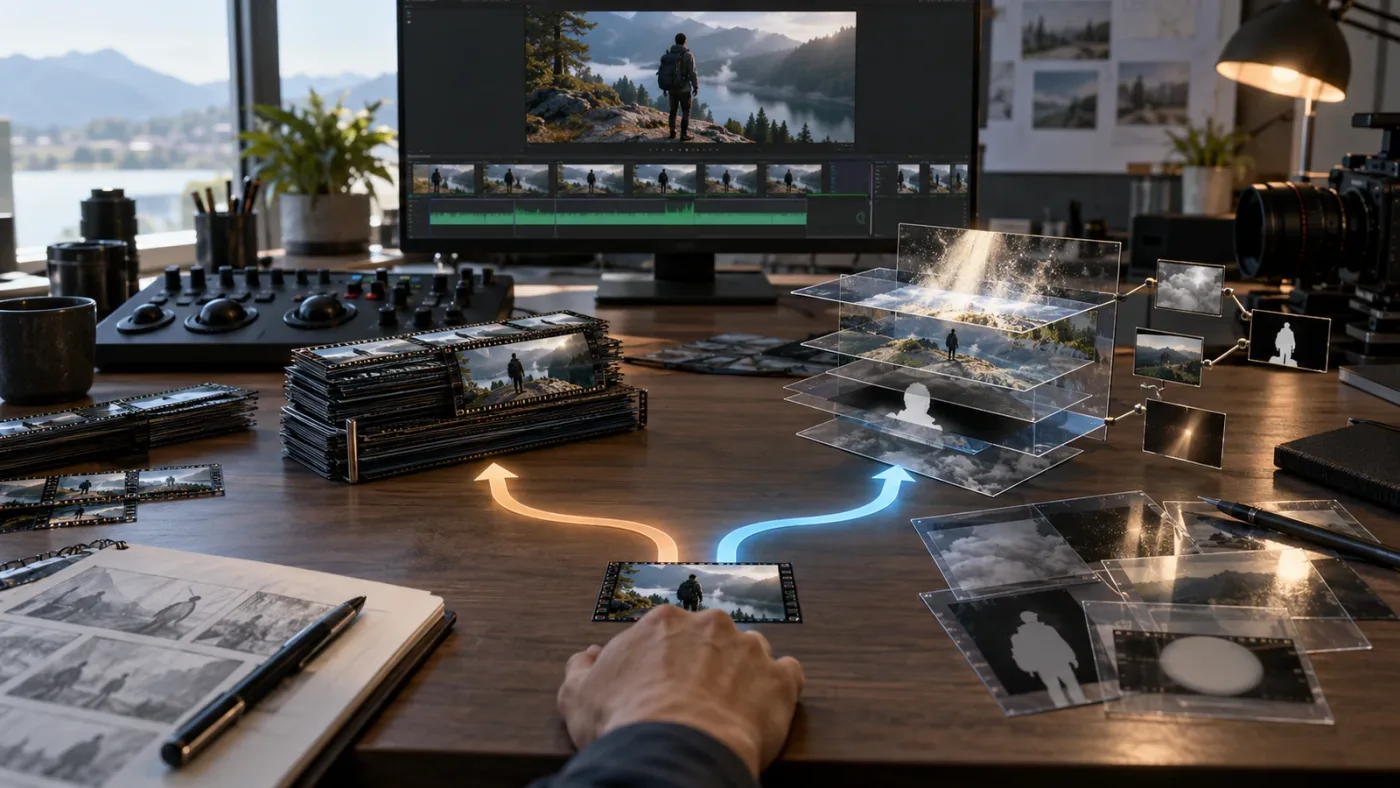
Choose a Compound Clip when the thing you are trying to preserve is an edit. Choose a Fusion Clip when the thing you are trying to preserve is a relationship between layers inside a composite.
Use a Compound Clip for a finished intro, a grouped interview section, a reusable editorial package, or an overall effect applied to a multi-clip section. Use a Fusion Clip for keying, tracking, screen replacements, split screens, and layered motion graphics that need separate MediaIn inputs.
If you are unsure, leave the clips separate for one more editorial pass. Then ask one question: will the next important control live in the Edit page or in the Fusion node graph? Edit-page packaging points to Compound Clip. Multi-input compositing points to Fusion Clip.
That is the verdict for DaVinci Resolve 21. Compound Clip is the cleaner editorial container. Fusion Clip is the more direct bridge into a layered Fusion composite. Use the smallest container that gives you the control you need.
Frequently asked questions
- What is the difference between a Compound Clip and a Fusion Clip in DaVinci Resolve?
- A Compound Clip groups timeline clips into one editable container, while a Fusion Clip sends the selected timeline layers into Fusion as separate inputs for a composite. Choose the Compound Clip for organization and the Fusion Clip for multi-layer compositing.
- Should I use a Compound Clip or Fusion Clip for text and effects?
- Use a Compound Clip when you want to package an edit and then apply a normal effect to the result. Use a Fusion Clip when the effect needs separate foreground, background, or graphic layers as MediaIn nodes inside Fusion.
- Does a Fusion Clip keep the original layers in DaVinci Resolve?
- A Fusion Clip stores the selected layers as a container and presents them to Fusion as separate inputs, but the Edit page shows the result as one clip. Open the Fusion Clip in its timeline when you need to change its internal edit.
- Why does my Compound Clip show only one MediaIn node in Fusion?
- A Compound Clip is treated as one source when you open it in Fusion, so Fusion normally receives the container as one input. Open the Compound Clip in its timeline or create a Fusion Clip from the separate layers when you need multiple MediaIn nodes.
- Can I change a Compound Clip into a Fusion Clip later?
- You can open the Compound Clip in its timeline, select the layers you want to composite, and create a new Fusion Clip. DaVinci Resolve does not turn the existing container into a different type with a single universal conversion command.
Sources
- Blackmagic Design Support Center, DaVinci Resolve 21.1 and 21 manuals
- Blackmagic Design Fusion Reference Manual 18.6, Fusion clips
- Blackmagic Design DaVinci Resolve 20 Visual Effects Guide, New Fusion Clip
- Blackmagic Design Fusion 21 product page
- Blackmagic Design DaVinci Resolve 15 New Features Guide, Fusion inside Resolve
- TryUncle
Put this guide to work with TryUncle.
Ask about the step you’re on. TryUncle sees your screen and points at the control you need, so you can keep learning in your own project.
Get TryUncle for Mac or WindowsKeep reading
Comparisons · Jul 16, 2026 · 31 min
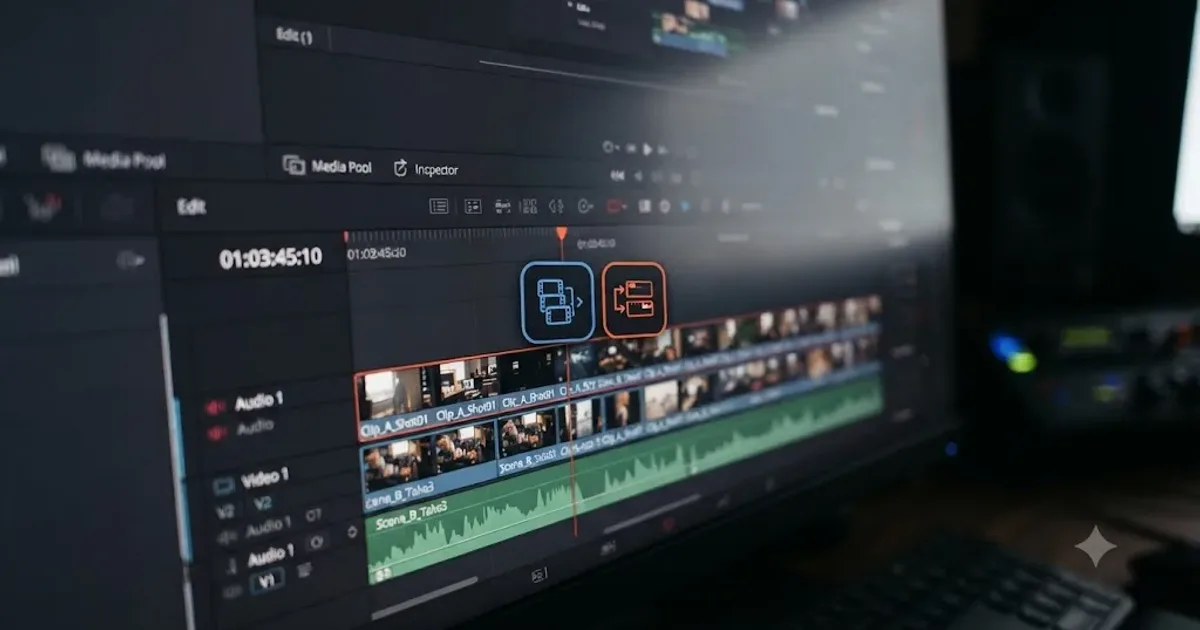
Compound Clip vs Nested Timeline in DaVinci Resolve: Which One?
Compound clip or nested timeline in DaVinci Resolve? The real difference in linking, grading, audio buses, multicam, and render load, plus a decisive pick.
Guides · Jul 10, 2026 · 32 min
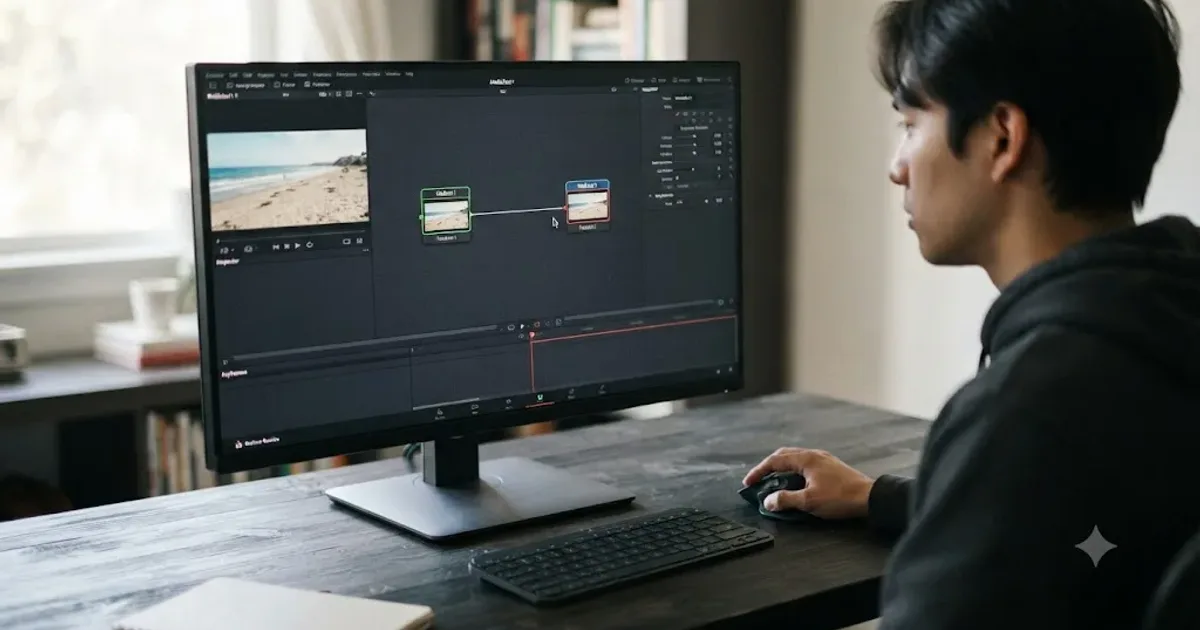
DaVinci Resolve Fusion Page Tutorial for Beginners
Learn the DaVinci Resolve Fusion page from zero: nodes, MediaIn/MediaOut, the Merge node, planar tracking, and keying a green screen, step by step.
Comparisons · Jul 10, 2026 · 28 min
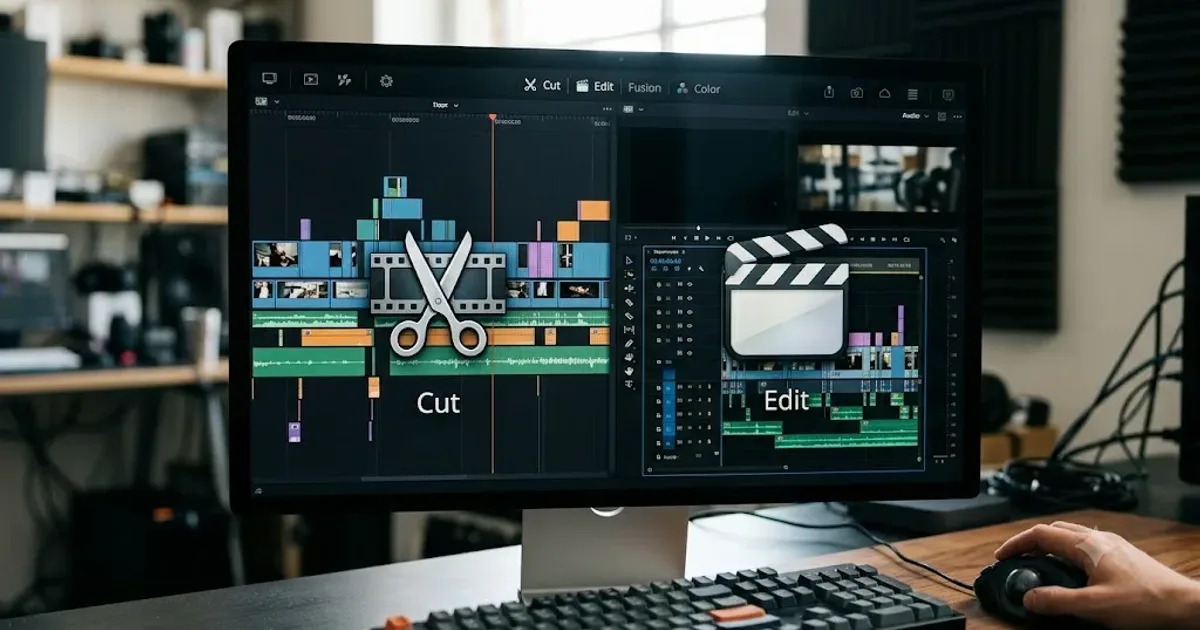
DaVinci Resolve Cut Page vs Edit Page: The Real Differences
A full side-by-side of DaVinci Resolve's Cut and Edit pages: timeline, trimming, multicam, and hardware differences, plus which one to use.