Articles / Fixesupdated for DaVinci Resolve 21.0.2 (July 2026)
DaVinci Resolve DJI Mini Drone Footage Won't Import: The Fix
Quick answer
DaVinci Resolve usually rejects DJI Mini footage for one of three reasons: 10-bit D-Log M or D-Cinelike HEVC without a working decoder, most common on free Resolve on Windows; a flight split into multiple files by the SD card's 4GB FAT32 limit; or a corrupted, downgraded transfer from DJI Fly's QuickTransfer. Match your exact symptom below, then install the extension, relink the split part, or re-transfer by cable.
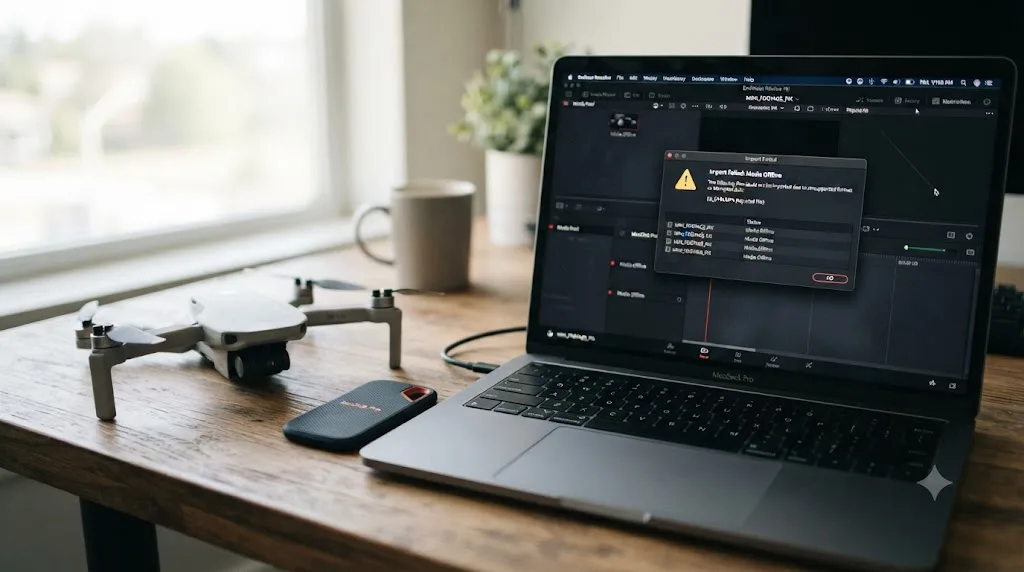
You landed the drone, pulled the card, and dragged your flight into DaVinci Resolve. Nothing happened. Or something worse than nothing happened: a red offline slate, a silent refusal, or a clip that opens looking rotated, split in half, or paired with a mystery text file you've never seen before.
None of that means your flight is lost. DJI Mini footage rejects for a small, specific set of reasons, and every one of them has a known fix. The trick is matching your exact symptom to its actual cause instead of guessing your way through settings that don't apply to what's actually wrong. A 10-bit color problem doesn't get fixed by a cable swap. A split file doesn't get fixed by a codec extension. Get the diagnosis right and the fix usually takes minutes.
What's actually happening when DaVinci Resolve won't touch your DJI Mini footage?
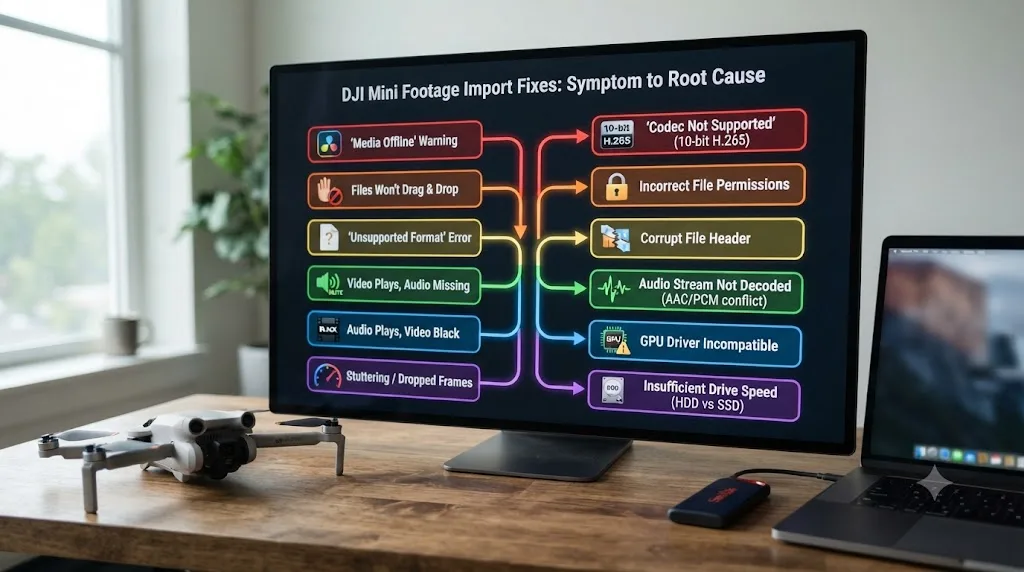
Work through this table before you touch a single setting. It routes you to the right section instead of the wrong one.
| What you see | What's actually happening |
|---|---|
| Outright rejection, or the import dialog does nothing | Resolve has no working decoder for the codec inside the file, almost always 10-bit HEVC from D-Log M or D-Cinelike |
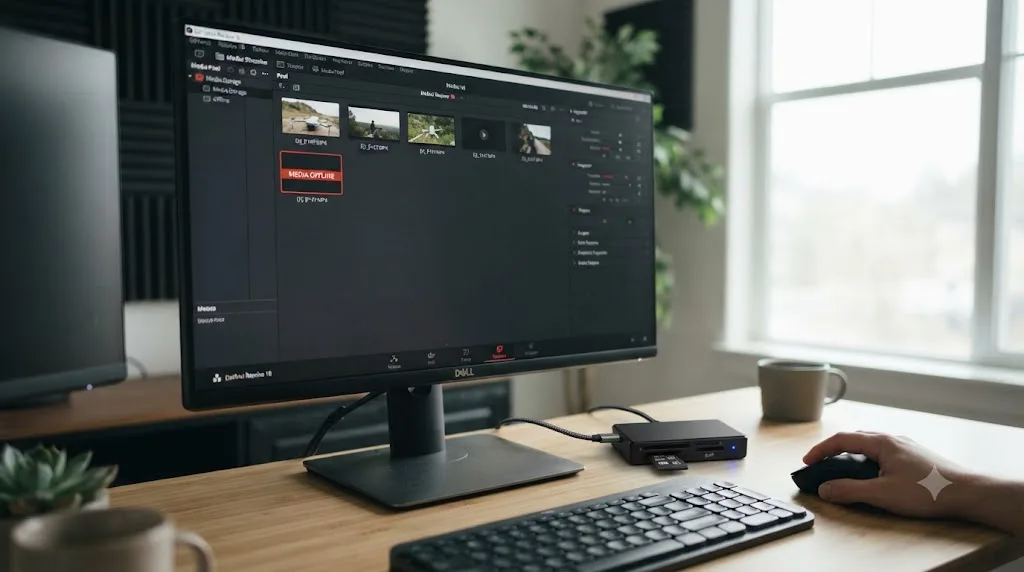
| Clip shows red or "Media Offline" | A broken link between Resolve and the actual file: a bad card reader, an interrupted transfer, or a truncated download |
| Two or three clips from one flight, numbered in sequence | Not a bug. The SD card's filesystem split the recording at a hard size limit |
| Clip imports and plays, but looks visibly softer than what you remember shooting | The footage was re-encoded somewhere between the drone and your Media Pool, usually a compressed QuickTransfer download |
| Clip imports fine but plays upside down or rotated | A rotation metadata flag that Resolve isn't honoring the way your phone or DJI Fly did |
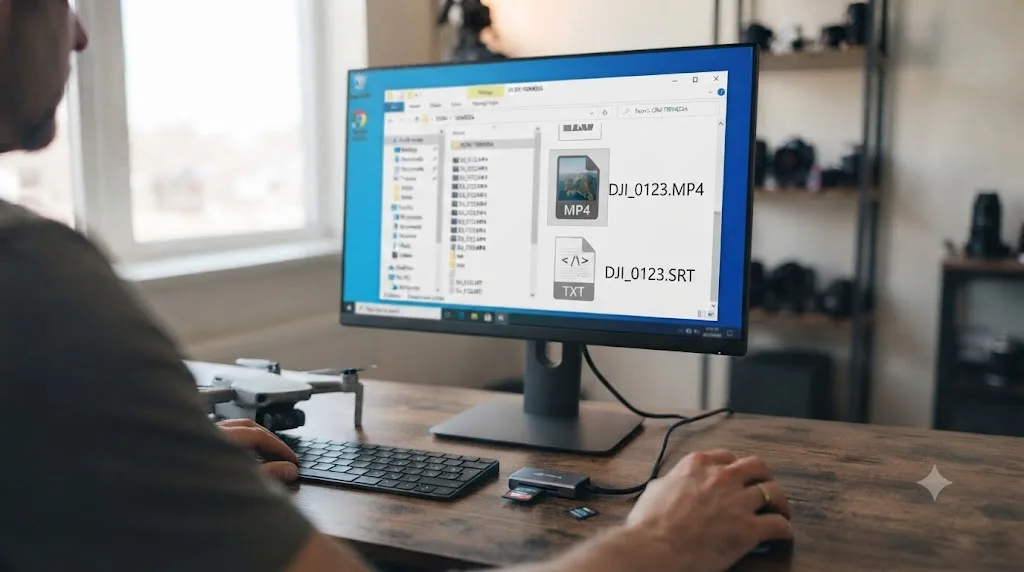
| A short text-only file with the same name as your video sits in the same folder | That's the flight's telemetry log, not a second video file |
DJI's Mini line spans six years of hardware, from the original 8-bit-only Mini 2 up through the 10-bit D-Log M Mini 5 Pro, and the fix that applies to you depends heavily on which one you're flying and which color mode you had switched on. Two pilots with the same drone model can hit completely different walls depending on one menu toggle neither of them remembers touching.
Is the file actually broken, or is this a Resolve-specific decode problem?
Rule this out first. It takes thirty seconds and saves you from transcoding a file that was never damaged, or from chasing a codec setting when the real problem is a bad transfer.
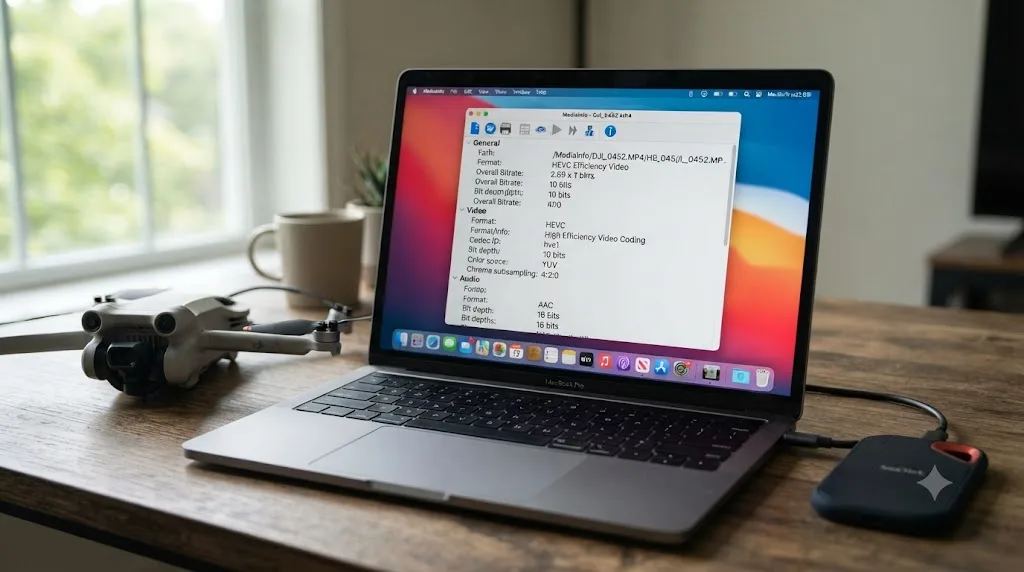
Open the clip in VLC. VLC bundles nearly every decoder that exists and doesn't care about your GPU, your operating system, or which Resolve license you're running. If it plays cleanly start to finish, the file itself is fine, and whatever Resolve is doing is specific to what Resolve, not the file, can handle.
If VLC also stutters or refuses to open it, you're looking at genuine corruption, not a codec gap, and the transfer and card-health sections further down this page are where you want to look, not a transcode.
Next, install MediaInfo, a free tool that reads a file's real codec, bit depth, and color mode rather than trusting the .mp4 extension. You need two numbers before diagnosing anything else here: the video Format (H.264 or HEVC) and the Bit depth (8-bit or 10-bit). Everything below branches from those two values.
A file that plays perfectly in VLC proves the file isn't corrupt, and proves nothing about whether DaVinci Resolve specifically can decode it. Those are separate questions, and conflating them is the single most common reason people burn an hour on the wrong fix.
Which DJI Mini model are you flying, and does it even shoot 10-bit?
This single question eliminates half the branches on this page immediately. Not every DJI Mini can even produce the file type that causes the most common import failure.
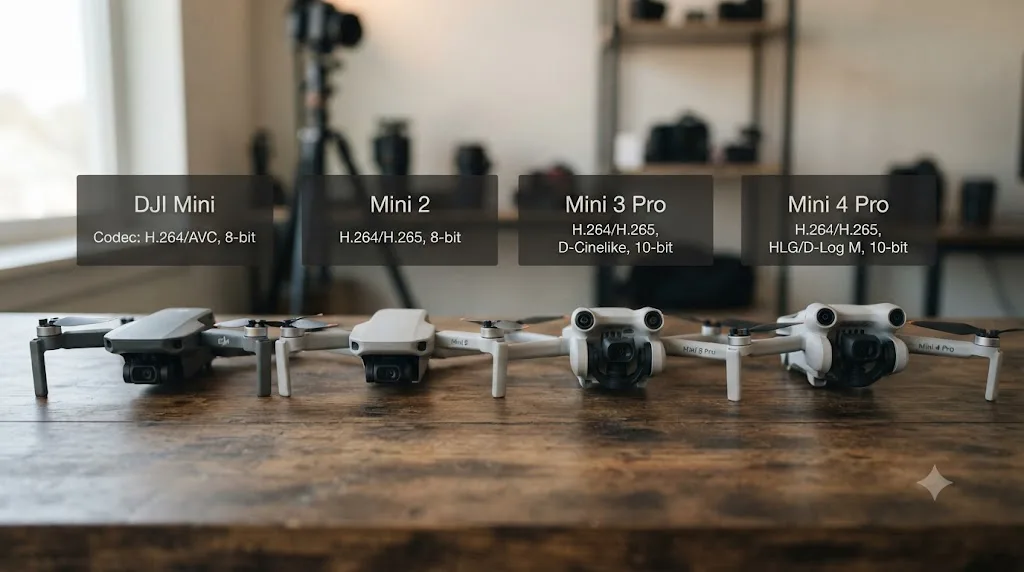
| Model | Codec | Color modes | Max bitrate | Can trigger the 10-bit wall? |
|---|---|---|---|---|
| Mini 2 / Mini 2 SE / Mini SE | H.264 only | Normal (8-bit) only | 40-100 Mbps | No |
| Mini 3 (non-Pro) | H.264 | Normal (8-bit) only | Standard | No |
| Mini 3 Pro | H.264 / H.265 | Normal (8-bit) and D-Cinelike (10-bit, added via firmware update) | Standard | Yes, in D-Cinelike |
| Mini 4 Pro | H.264 / H.265 | Normal (8-bit) and HLG / D-Log M (10-bit) | Up to 150 Mbps | Yes, in HLG or D-Log M |
| Mini 5 Pro | H.264 / H.265 | Normal (8-bit or 10-bit) and HLG / D-Log M (10-bit) | Up to 130 Mbps | Yes, in HLG or D-Log M, and optionally even in 10-bit Normal |
DJI's own Mini 4 Pro specs page confirms the drone records "MP4 (MPEG-4 AVC/H.264, HEVC/H.265)" with an 8-bit 4:2:0 Normal mode alongside 10-bit 4:2:0 HLG and D-Log M modes, both requiring H.265, at up to 150 Mbps. The Mini 5 Pro's specs page shows the same pattern extended further, with 10-bit color now available even in Normal mode at 4K, not just in the Log profiles. Contrast that with the Mini 2 SE's specs page, which lists only "MP4 (MPEG-4 AVC/H.264)" at a maximum of 40 Mbps, no HEVC option and no 10-bit mode anywhere in the menu.
If you're flying a Mini 2, Mini 2 SE, Mini SE, or the base Mini 3, the 10-bit import wall covered in the next two sections almost certainly isn't your problem, because your drone physically can't record the footage that causes it. Skip ahead to the file-splitting or transfer sections instead. If you're on a Mini 3 Pro, Mini 4 Pro, or Mini 5 Pro and you had D-Cinelike, D-Log M, or HLG switched on for that flight, keep reading, because you've almost certainly found your cause.
Worth knowing if you fly a Mini 3 Pro specifically: 10-bit D-Cinelike wasn't in the drone at launch. DJI added it through a firmware update, which means two Mini 3 Pro owners running different firmware versions can have genuinely different capabilities sitting in the same menu, and older tutorials written before that update won't mention the 10-bit option at all.
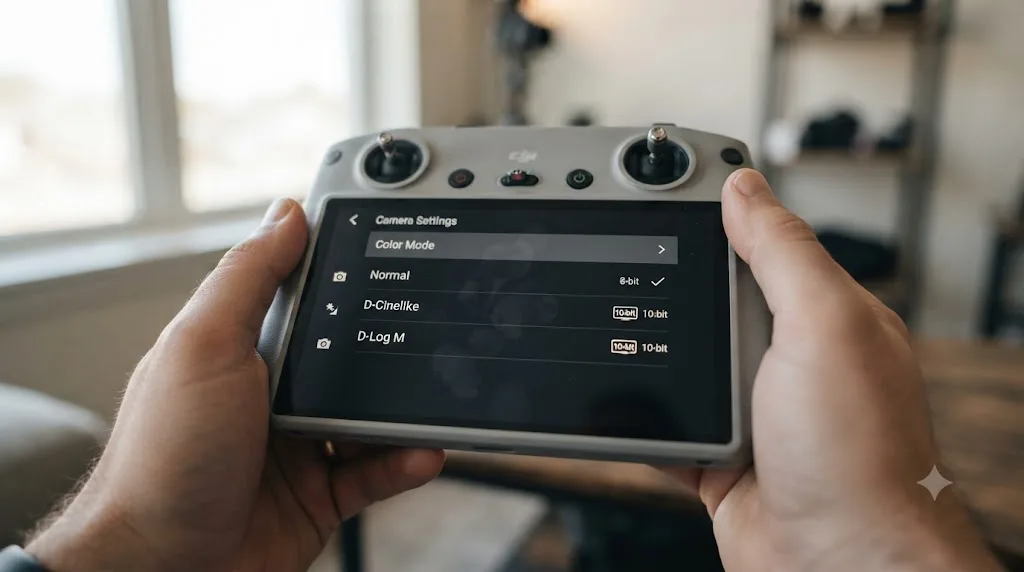
Why does D-Log M or D-Cinelike footage fail to import on Windows?
This is the wall that generates the most confused forum posts, and it's almost entirely a free-version, Windows-specific problem, not a bug in your footage.
A Blackmagic Design forum thread asking directly whether DJI Mini 3 Pro D-Cinelike footage is supported lays out the exact failure: switching the Mini 3 Pro to D-Cinelike produces files that fail to import into Resolve's free version, whether through the standard Import Media dialog or a plain drag and drop, with no error message explaining why. Footage shot in Normal mode from the same drone, same card, same flight, imports without a fight. The same problem shows up on DJI's own forum, where D-Cinelike footage specifically is what breaks import while Normal-mode clips from the identical aircraft work fine.
The root cause is bit depth stacked on top of codec, the same combination that trips up 10-bit HEVC from recent flagship phones and high-end cameras. Writer Robin Parmar, covering exactly this limitation in Resolve's free tier, put it plainly: "Resolve (free) restricts you to 8-bit colour," he wrote in a breakdown of Resolve's codec limitations, even when a 10-bit intermediate file sits directly in the timeline. That restriction bites hardest on Windows, where the operating system doesn't ship a built-in HEVC decoder at all, layering a missing system decoder on top of a free-tier color depth ceiling.
A DJI Mini in D-Log M mode and the same DJI Mini in Normal mode aren't recording the same kind of file with a different look. They're recording two structurally different codecs that happen to share the same .mp4 extension. Normal mode is 8-bit H.264, decodable almost everywhere. D-Log M and D-Cinelike are 10-bit H.265, a combination that needs real decoder support Resolve's free Windows build frequently doesn't provide, extension or no extension.
- Check MediaInfo's Bit depth field on the rejected clip. If it reads 10-bit, this is very likely your cause.
- If you're on Windows and haven't installed the HEVC Video Extensions from the Microsoft Store, do that first and restart your PC completely, not just Resolve.
- If the extension is already installed and the clip still fails, move to the next section, since you've hit a second, separate wall.
Why does the same clip still fail after installing the HEVC extension?
Here's the part that trips up pilots who did everything right and are still stuck. Installing the Windows HEVC extension isn't the end of this particular road, it's the halfway point.
The extension buys you standard, 8-bit HEVC decoding. Whether 10-bit HEVC decodes cleanly on top of that depends on your specific GPU generation and driver version, which is exactly the kind of variable that makes this problem inconsistent between two pilots running what looks like an identical setup on paper. A thread on the Mavic Pilots forum walking through the exact settings needed to import Mini 3 video into Resolve converges on the same practical answer that shows up across similar threads for phones and drones alike: three real paths through it once 10-bit is confirmed as the cause, none of which is "wait for the extension to eventually work."
- Edit on a Mac instead, where the free version of Resolve doesn't carry the same Windows-specific HEVC limitation.
- Upgrade to Resolve Studio, which includes broader native HEVC decoding across the pipeline, 10-bit included, on supported systems.
- Transcode before you import, converting the clip to DNxHR or ProRes with a free tool like Shutter Encoder, which sidesteps the GPU-dependent HEVC decode path entirely and hands Resolve a codec it never struggles with.
Installing the HEVC extension and still getting rejected on the exact same codec isn't a sign the extension failed. It's a sign you've hit a second wall stacked directly behind the first one. Standard HEVC decoding and 10-bit HEVC decoding are not the same capability, and having one doesn't guarantee the other on a given Windows machine.
| Layer | What it controls | Typical fix |
|---|---|---|
| Container | .mp4 wrapper | Rarely the actual problem |
| Codec | H.264 vs H.265 | HEVC Video Extensions (Windows) |
| Color depth | 8-bit vs 10-bit | Transcode to ProRes/DNxHR, edit on Mac, or upgrade to Studio |
| Bitrate | Up to 150 Mbps on newer models | Not an import blocker on its own, but slows scrubbing on weaker hardware |
If you'd rather avoid this fight at the field instead of after the fact, and you're editing on a Windows machine without the HEVC extension or a Studio license, switch your drone to Normal mode before a flight that matters. You'll lose some dynamic range you could have graded back in later. You'll also never see this specific rejection on that footage.
Why did your DJI Mini split one flight into two or three video files?
If your clip imported fine, decoded fine, and plays fine, but your ten-minute flight shows up as three separate files instead of one continuous clip, you haven't hit a Resolve problem at all. This one happened entirely on the SD card, before Resolve ever saw the footage.
Any microSD card under roughly 32GB typically ships formatted as FAT32, and Droneblog's guide to formatting SD cards for DJI drones confirms the mechanism directly: FAT32 caps any single file at 4GB, so a continuous 4K recording that crosses that size mid-flight gets automatically split into a new file the instant it hits the ceiling. A breakdown of DJI's video-splitting behavior from CoSci frames the split as partly deliberate too: segmenting a long recording means a power failure or crash during the flight only costs you the current segment, not the entire clip back to takeoff.
A split flight isn't two clips. It's one clip that hit a filesystem wall the drone can't see past, then kept recording into a new file without missing a frame. The footage itself isn't damaged and nothing was lost between the parts. Resolve just sees each numbered segment (DJI typically names them sequentially, something like DJI_0001.MP4 followed by DJI_0002.MP4) as an entirely separate clip, because as far as the filesystem is concerned, they are.
Whether reformatting your card to exFAT helps depends on your specific drone. exFAT removes the 4GB FAT32 ceiling entirely, and on some models that means no more splitting for anything short of your full card capacity. On others, DJI's own firmware still enforces a size or duration cap regardless of filesystem, commonly landing somewhere around 16 to 21 minutes per file on models that do this, specifically to keep the deliberate crash-recovery benefit CoSci describes rather than because the filesystem forces it. Check your specific model's behavior before assuming a reformat solves it outright.
To handle a split flight in Resolve:
- Import every numbered part from that flight into the same bin. Resolve will not detect or rejoin them for you.
- Place the parts in sequence on the timeline. They should cut together with no visible gap if the split happened cleanly.
- If you need one continuous file for a client delivery or an external tool, join them at the file level first with a lossless tool like FFmpeg's concat demuxer before you import, rather than trying to force Resolve to treat two files as one clip.
Does QuickTransfer over Wi-Fi quietly downgrade your footage before it ever reaches Resolve?
If your clip imports cleanly and plays back fine, but it looks noticeably softer or more compressed than what you remember shooting, the problem happened before Resolve ever opened the file, and it's specific to how you got the footage off the drone.
DJI Fly's QuickTransfer feature pulls footage from the drone to your phone over a direct Wi-Fi connection, skipping the controller entirely. DJI's own guidelines and FAQ page for QuickTransfer confirms the feature is built for speed and convenience rather than guaranteeing a byte-for-byte original every time. A Mavic Pilots forum thread specifically about recording settings and transfer quality lays out the practical tradeoff pilots run into: QuickTransfer offers a full-resolution download alongside a smaller, faster option, and picking the fast option hands you a genuine re-encode, not your original recording. A separate thread titled plainly "Resolution Confusion!" captures how easy it is to grab the wrong one without realizing it, since both downloads land in the same phone gallery with no obvious label distinguishing them once they're there.
QuickTransfer's convenience has a cost, and that cost is resolution you don't get back by fiddling with Resolve's settings afterward. No amount of sharpening or upscaling in the Color page recovers detail that got thrown away during a wireless download you didn't realize was compressed. The fix is upstream, not inside Resolve at all.
If quality matters for a shot, and it usually does for a drone flight you can't easily re-fly, skip QuickTransfer entirely:
- Pull the microSD card directly from the drone once you've landed and powered down safely.
- Read it with a dedicated card reader connected by USB-C or USB-A to your editing machine.
- Copy the files directly, which pulls the untouched original at full bitrate, exactly as DJI's own Drone Photo or Video Files Export Guide recommends for anyone editing footage rather than just sharing a quick clip on the fly.
If you're not sure whether a QuickTransfer download already cost you resolution, MediaInfo tells you again: check the file's actual resolution and bitrate against your camera settings for that flight. A 4K flight that shows up as 1080p or lower in MediaInfo didn't shrink on its own.
What is that .SRT file sitting next to your video, and can you import it?
If you've browsed your DJI card's DCIM folder directly instead of importing through DJI Fly, you've probably noticed a short text file sitting next to each video, sharing the exact same filename with a different extension. That's not a second angle or a backup copy.
DJI drones log flight telemetry, GPS coordinates, altitude, gimbal angle, and shutter data, into a subtitle-formatted .SRT file automatically during every recording. DJI Telemetry Overlay's own explanation of the format confirms it's built specifically to carry that flight data alongside the video, readable as plain timestamped text rather than as any kind of video stream. A Mavic Pilots forum discussion on other uses for the SRT file covers pilots repurposing that same data for flight logs and telemetry overlays well outside of Resolve entirely.
An SRT file next to your DJI video is flight data wearing a video-adjacent extension, not a video Resolve can ever play. Drag it into the Media Pool expecting footage and Resolve will either ignore it, list it with no thumbnail and no duration, or flag it as unreadable, depending on your version. None of that is a bug. It's Resolve correctly recognizing a text file for what it is.
You only need the SRT file if you're building a data overlay showing altitude, speed, or GPS position burned into your final export, which some pilots do for real estate or survey work. For a standard cinematic edit, leave it in the source folder and import only the .MP4. If you do want the overlay, Resolve can import an SRT as a subtitle track through Timeline > Subtitle, though most telemetry overlay work is easier handled by a dedicated tool built for reading the specific GPS and gimbal fields DJI writes, then exporting a burned-in graphic you drop onto your timeline separately.
Why does DJI Mini footage play sideways or rotated in Resolve?
This one is rare on a standard landscape flight, but it shows up reliably on footage shot with the gimbal deliberately tilted for a vertical composition, or occasionally on clips pulled through certain third-party transfer apps.
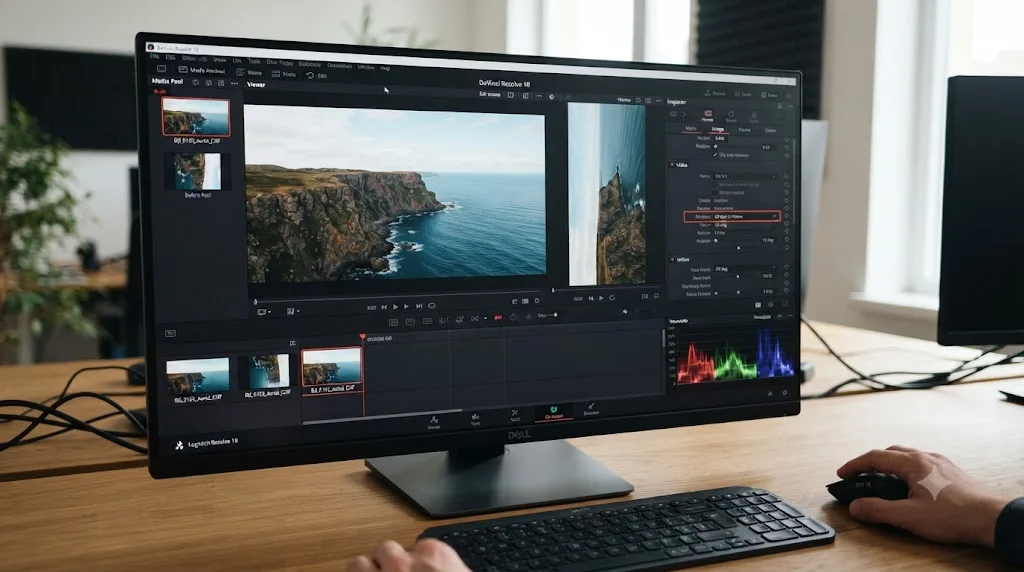
Video files can carry a rotation metadata flag, a small instruction telling a player "display this frame turned 90 degrees" rather than baking the rotation into the actual pixel data. Most phone and social apps read and honor that flag automatically and consistently. Editing software is far less consistent about it. A Blackmagic Design forum thread specifically about imported video rotated 90 degrees describes exactly this mismatch: footage that plays correctly, right-side up, in standard media players, but imports into Resolve sideways, because Resolve read the frame data without applying the same rotation flag the other player did. The fix that thread lands on works well for DJI footage too: running the clip through VLC's Convert/Save function re-encodes it with the rotation actually baked into the pixels, and the converted file then imports into Resolve correctly oriented every time afterward.
The rotation flag is a suggestion, not a rule, and DaVinci Resolve is one of the players that sometimes ignores it. Inside Resolve itself, you don't have to re-encode to work around it. Right-click the clip in the Media Pool or on the timeline, choose Clip Attributes, and check the Rotation field. Setting it explicitly to match what the footage should look like corrects the display without touching the underlying file, which is faster than a transcode if you just need it fixed inside this one project.
Why does a DJI Mini clip show Media Offline instead of importing at all?
If the codec checks out, the file isn't split, and rotation isn't the issue, but the clip is still red, you're looking at a broken link between Resolve and the actual bytes on disk, not a decoding rejection.
A handful of DJI-specific causes account for most of these. A failing or cheap card reader is the most common: microSD cards moving 4K footage at high bitrate need a reliable, fast connection, and a marginal reader or a worn USB port can drop bytes mid-copy without throwing any visible error, leaving you with a file that looks the right size in Finder or Explorer but is actually incomplete. An interrupted QuickTransfer download, closing the DJI Fly app or losing Wi-Fi mid-transfer, can leave a partial file with a normal-looking filename and no obvious sign anything went wrong until Resolve actually tries to decode it. Low drone battery during a long recording can occasionally cut power before a file finishes writing its final index, similar to the moov atom problem that affects other camera and phone footage when a recording gets cut off mid-write rather than stopped cleanly.
To rule this out, check the file's exact byte size on the source card against the copy on your editing machine. If they don't match, or you're not certain, re-copy the file rather than trying to relink Resolve to a copy that was already incomplete. If the file plays fine in VLC but still shows offline specifically inside Resolve, right-click the red clip and try Relink, pointing it explicitly at the file, since Resolve occasionally loses track of a file path after a folder gets renamed or moved mid-project, entirely separate from anything wrong with the file itself. Our full guide to DaVinci Resolve's Media Offline error covers the general relink workflow and render cache side of this problem in more depth if a drone-specific cause above doesn't match what you're seeing.
What does the full fix look like on a real flight, start to finish?
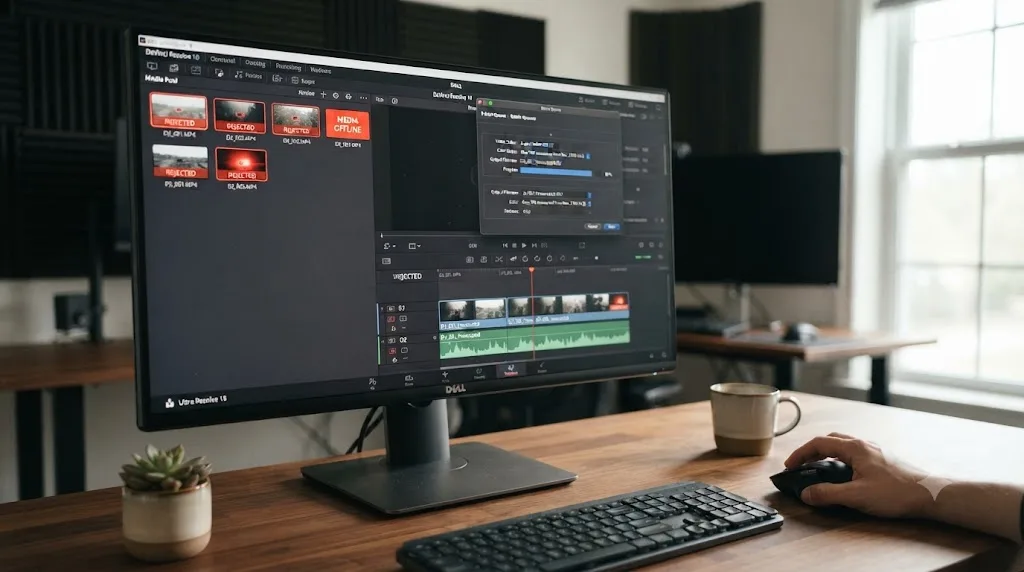
Here's the full diagnosis applied to a situation that comes up constantly: a real estate videographer flies a twelve-minute property flyover on a Mini 4 Pro, shooting in HLG for a punchier delivery straight out of camera, then imports everything into a Resolve project on a Windows laptop that evening.
First, the import fails outright on three of the five clips, with no error message, just silence in the import dialog. MediaInfo confirms all three are H.265, and the Bit depth field reads 10-bit. The other two clips, shorter test flights shot earlier in Normal mode, imported without any issue.
Second, the Windows HEVC extension is already installed and has handled other HEVC footage before. That rules out the most common single cause immediately, which points straight at the 10-bit wall covered above rather than a missing decoder entirely.
Third, rather than wait on an uncertain GPU driver fix, the pilot runs the three HLG clips through Shutter Encoder, converting to DNxHR HQ, which preserves the 10-bit color depth intact for later grading rather than flattening to 8-bit and losing the dynamic range the whole point of shooting HLG was meant to capture.
Fourth, one of the converted clips turns out to be the second half of a longer recording, DJI_0041.MP4 followed by DJI_0042.MP4, both importing fine individually and cutting together seamlessly once placed in sequence on the timeline.
Fifth, everything imports clean, sits at consistent color depth across the project, and grades against the two Normal-mode clips from earlier without a fight. Nothing about the process needed a second guess once each clip's actual bit depth was checked instead of assumed.
Does the free version of Resolve handle DJI Mini footage differently than Studio?
Yes, and it's worth knowing exactly where that line sits before you assume an upgrade fixes something it won't touch, or skip an upgrade that would have solved your actual problem in one step.
On Windows, the practical gap is 10-bit HEVC, exactly as covered above. Free Resolve needs the Microsoft Store extension for standard HEVC, and even with it installed, 10-bit decoding from D-Log M, D-Cinelike, or HLG can still depend on your specific GPU and driver combination in ways that vary machine to machine. Studio includes broader native HEVC handling across the pipeline, 10-bit included, which is a genuine, practical difference if you regularly shoot Log footage for grading rather than delivering straight out of Normal mode.
On Mac, this specific wall mostly doesn't exist. macOS ships system-level HEVC decoding that Windows doesn't, so the free version handles D-Log M and D-Cinelike footage far more reliably out of the box, without needing an extension purchase or a Studio upgrade at all.
On Linux, the gap is different and bigger: Blackmagic's free Linux build doesn't decode H.264 or H.265 in any container, a licensing decision entirely separate from bit depth. That restriction hits DJI footage exactly as hard as it hits phone or camera footage using the same codecs, since it's about the codec itself rather than which device recorded it. Our guide to DaVinci Resolve's Unsupported File Format error covers that Linux licensing split, and the general codec-versus-container distinction, in more depth.
File splitting, QuickTransfer compression, rotation flags, and SRT sidecar files don't change with your Resolve license at all. Those are card, transfer, and metadata issues that play out identically whether you're on free Resolve or Studio, on Windows, Mac, or Linux. Match the fix to the actual cause, not to whichever upgrade happens to be for sale.
How do you avoid this before your next flight?
A short list of habits catches nearly everything on this page before it turns into an editing-day problem.
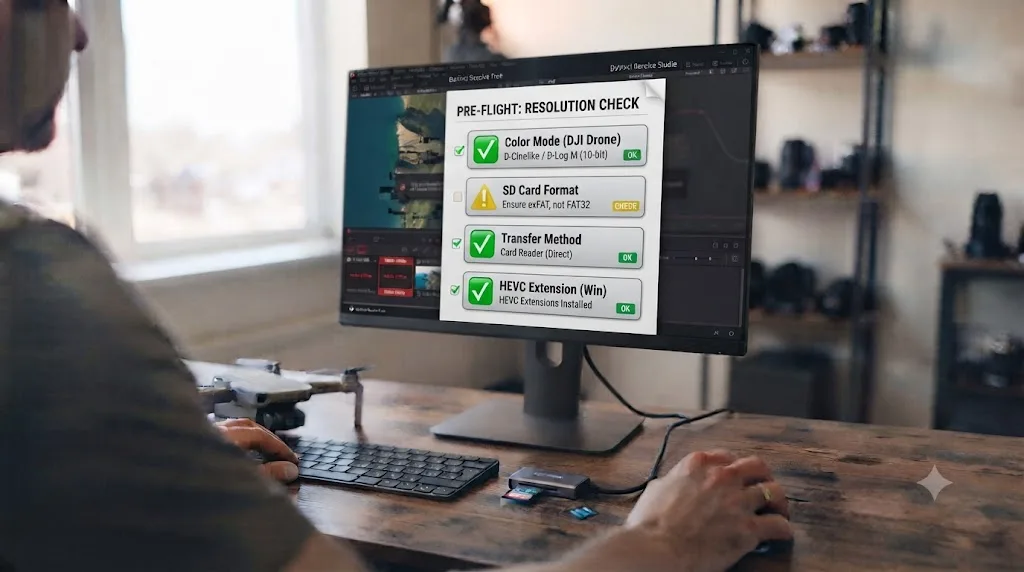
- Know your drone's actual codec ceiling before you fly. If you're on a Mini 2, Mini 2 SE, Mini SE, or base Mini 3, the 10-bit wall doesn't apply to you at all, and you can skip straight past that entire troubleshooting branch. If you're on a Pro model, know whether Normal or a Log mode is currently selected before you take off, not after you're staring at a rejected import that evening.
- Reformat cards to exFAT where your model supports it, and check whether your specific drone still enforces its own duration cap regardless of filesystem before assuming a reformat alone solves splitting.
- Skip QuickTransfer for anything you're actually going to grade or deliver. Pull the card and read it with a dedicated reader instead, and reserve QuickTransfer for footage you're just sharing quickly, not editing seriously.
- Ignore the SRT file unless you specifically need a telemetry overlay. It sitting in the folder unimported is expected, not a sign something's missing.
- Keep the Windows HEVC extension installed proactively if you shoot Log footage regularly, and know that it alone may not clear 10-bit content on every GPU, so have a transcode workflow ready as a fallback rather than discovering you need one mid-project.
What if you're new to Resolve and drone footage is your first hardware wall?
If codec extensions, bit depth, and filesystem limits feel like a lot to sort through on top of just learning where things live in DaVinci Resolve, that's a normal place to land. Drone footage trips up experienced editors too, mostly because the failure modes above sit at the intersection of drone firmware, SD card formatting, and Resolve's own codec licensing, three systems that don't talk to each other or share documentation.
TryUncle is the on-screen assistant for DaVinci Resolve on macOS, ask in plain words and Uncle points at the exact control on your screen. Instead of leaving Resolve to hunt through a forum thread written by a pilot flying a different Mini model on a different operating system, Uncle watches your actual Resolve window and points at the specific menu or setting your footage needs. TryUncle isn't the only AI tool built around Resolve either. Tools like Sottocut, PremiereCopilot, and cutagent.ai automate specific editing tasks such as rough cuts or timeline assembly, and chat-based assistants like heyeddie.ai answer Resolve questions in a separate window disconnected from your actual project. TryUncle's approach is different: it watches your live Resolve session and points at the real control on your screen, rather than automating the edit for you or answering blind in a chat box. It's a paid macOS app on founder pricing, currently $29.99 a month for the first 100 seats, not a free tool, and it's built to guide you while you work in Resolve rather than replace the work. Check TryUncle for current pricing if guided, on-screen help sounds like the faster path through your next drone-footage wall.
What's the fastest path to a fix?
Check MediaInfo first. If the rejected clip reads 10-bit, and you're on a Mini 3 Pro, Mini 4 Pro, or Mini 5 Pro shooting D-Cinelike, D-Log M, or HLG, that's your cause. Install the Windows HEVC extension if you haven't, restart your PC, and retry. If it still fails, transcode to DNxHR or ProRes, edit on a Mac, or move to Studio.
If instead you're looking at two or three numbered files from one flight, that's the SD card's filesystem, not a Resolve problem, and both parts need importing since Resolve won't rejoin them for you. If the footage looks softer than you remember shooting, check whether you pulled it through QuickTransfer's compressed option instead of a card reader. If there's a small text file with the same name sitting next to your video, that's flight telemetry, not a second clip, and it's safe to leave alone.
Nine times out of ten, your DJI Mini footage isn't broken, and Resolve isn't malfunctioning. Either your Windows machine is missing a real 10-bit decode path, your SD card's filesystem drew a line your firmware had to respect, or the footage got compressed, split, or lightly mishandled somewhere between your drone and your Media Pool. Match the exact symptom to the exact cause, and the fix is almost always a single extension, a single transcode, or a different transfer method, not another hour of drag-and-drop guessing.
Frequently asked questions
- Why does DJI Mini footage import fine in Normal mode but fail in D-Cinelike or D-Log M?
- Because they're not the same file wearing different names, they're genuinely different codecs. Normal mode on most DJI Mini drones records 8-bit H.264, which Resolve decodes almost anywhere. D-Cinelike and D-Log M record 10-bit H.265, which needs a real decoder Resolve's free Windows build often doesn't have, even after you've already installed the standard HEVC extension.
- Why did my DJI Mini video split into two or three files after one long flight?
- The SD card's filesystem, not Resolve, drew that line. Cards under 32GB typically format as FAT32, which caps any single file at 4GB, so DJI's firmware automatically starts a new file the instant a recording crosses that limit. Import every numbered part from that flight, since Resolve treats each one as a separate clip with no automatic rejoining.
- Does DJI Fly's QuickTransfer feature reduce video quality before it reaches Resolve?
- It can, depending on which option you pick. QuickTransfer over Wi-Fi offers a full-resolution download alongside a smaller, faster option, and picking the smaller one hands Resolve a genuine re-encode, not your original recording. A USB-C cable transfer skips this choice entirely and always pulls the untouched original file off the card.
- What is the .SRT file next to my DJI video, and do I need to import it?
- It's flight telemetry, GPS coordinates, altitude, and gimbal data logged as subtitle-formatted text, saved automatically alongside the .MP4 with a matching filename. It isn't video and Resolve can't play it as one. You only need it if you're building a data overlay; otherwise leave it in the folder and import just the .MP4.
- Why does my DJI Mini clip play upside down or rotated 90 degrees in Resolve?
- The file carries a rotation metadata flag telling players to display it turned a certain way, and different software honors that flag inconsistently. Some players rotate the image automatically; Resolve sometimes doesn't, showing the raw, unrotated sensor orientation instead. A quick pass through Clip Attributes, or a re-encode in a tool that bakes the rotation into the pixels, fixes it permanently.
- Does DaVinci Resolve's free version handle DJI Mini footage differently than Studio?
- Yes, specifically around 10-bit HEVC. Free Resolve on Windows struggles with D-Log M and D-Cinelike footage even with the Microsoft HEVC extension installed, since that extension alone doesn't guarantee 10-bit decode support. Studio includes broader native HEVC handling and full 10-bit color throughout the pipeline, which is the real gap if you shoot Log regularly.
- Which DJI Mini models actually shoot 10-bit video that can trigger this problem?
- The Mini 3 Pro, Mini 4 Pro, and Mini 5 Pro all offer a 10-bit H.265 mode, D-Cinelike on the Mini 3 Pro and D-Log M on the newer two. The base Mini 3, along with the older Mini 2, Mini 2 SE, and Mini SE, only record 8-bit H.264, so they rarely hit this specific wall at all.
- Why does my DJI Mini footage show Media Offline instead of a straight import error?
- Media Offline usually means Resolve is pointing at a file it can't actually reach or fully read, not a codec it flatly refuses. A cheap card reader dropping the connection mid-copy, a QuickTransfer download that quit early, or a corrupted file from a card that ran low on battery mid-recording can all produce this exact flag instead of a clean rejection.
Sources
- DJI Mini 4 Pro - Specs (DJI)
- DJI Mini 2 SE - Specs (DJI)
- DJI Mini 5 Pro - Specs (DJI)
- DJI's Mini 3 Pro now offers 10-bit color in the D-Cinelike video profile (DPReview)
- Blackmagic Forum: DJI Mini 3 Pro D-Cinelike footage supported?
- Mavic Pilots Forum: SOLVED Settings for Importing Mini 3 Video to DaVinci Resolve
- DJI Forum: DJI mini 3 pro D-cinelike problem
- DJI Forum: Mini 3 videos not recognized by windows/ Davinci Resolve
- Robin Parmar, Theatre of Noise: Codec limitations of DaVinci Resolve: HEVC, 10-bit, and RAW
- Droneblog: How to Format SD Cards in DJI Drones
- CoSci Blog: DJI Camera Video Splitting Explained, Causes, Pros & Fixes
- DJI Support: Guidelines and FAQs for QuickTransfer
- Mavic Pilots Forum: Recording settings, transfer of files, footage quality
- Mavic Pilots Forum: Resolution Confusion!
- DJI Telemetry Overlay: SRT Viewer and Converter
- Mavic Pilots Forum: Another use for an SRT file
- Blackmagic Forum: Imported video is rotated by 90 degrees
- DaVinci Resolve Supported Codec List (Blackmagic Design)
- DaVinci Resolve - Tech Specs (Blackmagic Design)
- Microsoft Store: HEVC Video Extensions
- Tom's Guide: DJI Mini 5 Pro is finally available to buy in the U.S.
Put this guide to work with TryUncle.
Ask about the step you’re on. TryUncle sees your screen and points at the control you need, so you can keep learning in your own project.
Get TryUncle for Mac or WindowsKeep reading
Fixes · Jul 18, 2026 · 30 min
DaVinci Resolve iPhone Log Footage Import Problem: Every Fix
iPhone Log footage imports into DaVinci Resolve but looks grey, flat, or offline. Match your exact symptom to the real cause, from Apple Log to Apple Log 2.
Fixes · Jul 12, 2026 · 23 min
DaVinci Resolve Says Unsupported File Format: The Real Fix
DaVinci Resolve's Unsupported File Format error almost always means a codec problem, not a broken file. Match your exact symptom to the cause and fix it.
Fixes · Jul 7, 2026 · 26 min
DaVinci Resolve Media Offline: Every Cause and the Fix
Every reason DaVinci Resolve marks a clip media offline, and the exact relink, cache, and codec fixes for each cause, in order of how often they happen.