Articles / Fixesupdated for DaVinci Resolve 21.0.2 (July 2026)
DaVinci Resolve Says Unsupported File Format: The Real Fix
Quick answer
DaVinci Resolve says Unsupported File Format when it can't decode the codec inside a file, not because the file itself is broken. The top causes are HEVC footage on Windows without the codec extension installed, H.264/H.265 on the free Linux build, 10-bit color depth, variable frame rate phone video, and RAW formats newer than your Resolve build. Identify which one applies, then transcode or update.
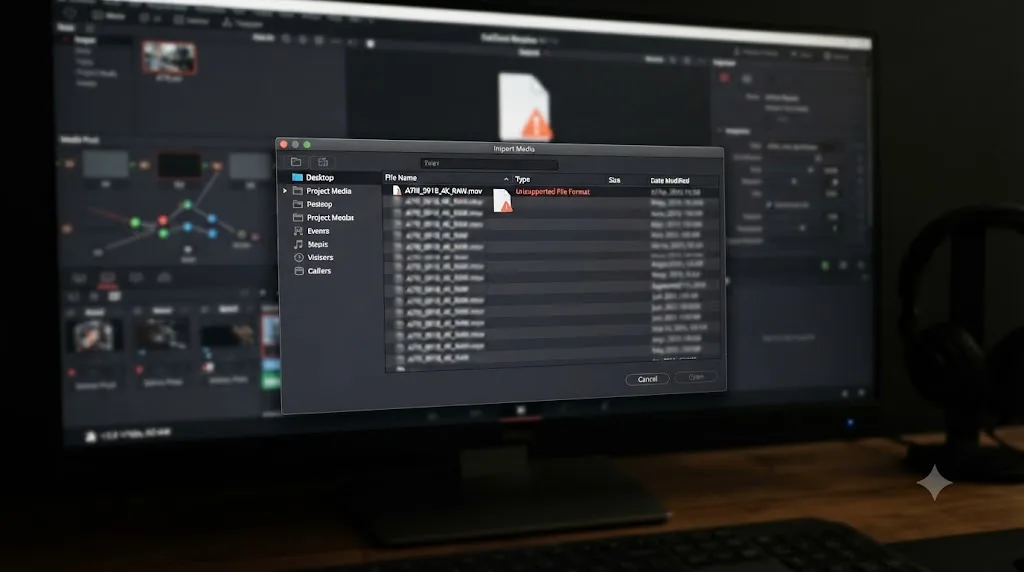
Resolve throws this error and gives you nothing else to go on. No codec name, no reason, just a flat refusal. You start Googling and land on ten different pages all repeating the same three guesses.
Here's the thing nobody tells you upfront: "Unsupported File Format" is Resolve telling you it can't decode the codec inside your file, not that the file is broken. That single distinction changes everything about how you fix it, and it's the reason half the advice you'll find online sends you transcoding a file that never needed it.
What does "Unsupported File Format" actually mean?
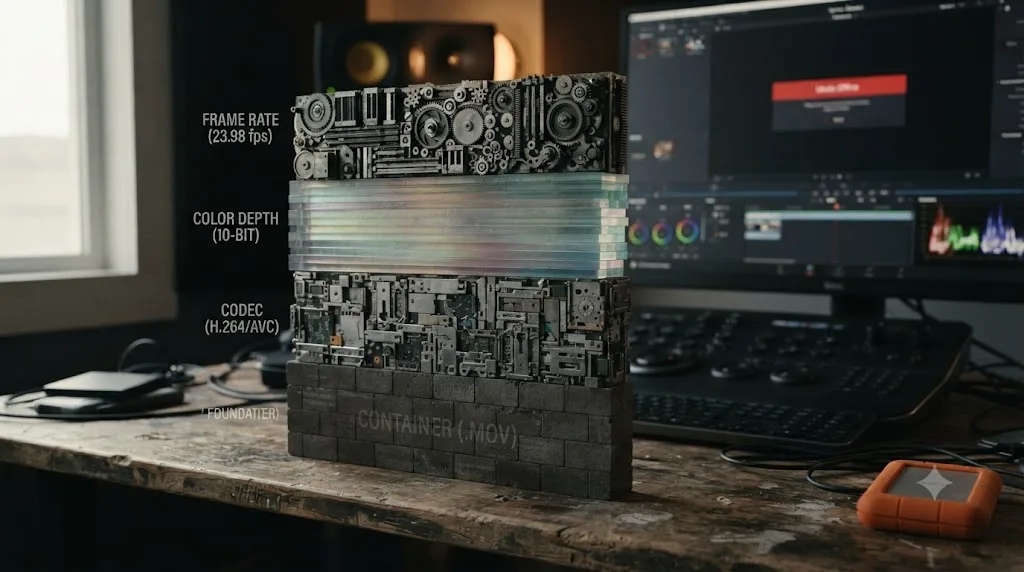
Every video file is two separate things stacked on top of each other. The container is the wrapper, the .mp4 or .mov or .mkv you see in the filename. The codec is the compression scheme packed inside that wrapper, H.264, HEVC, ProRes, AV1, and dozens more. Your operating system, and then Resolve on top of it, needs a decoder for that specific codec before it can turn the compressed data back into pixels on your timeline.
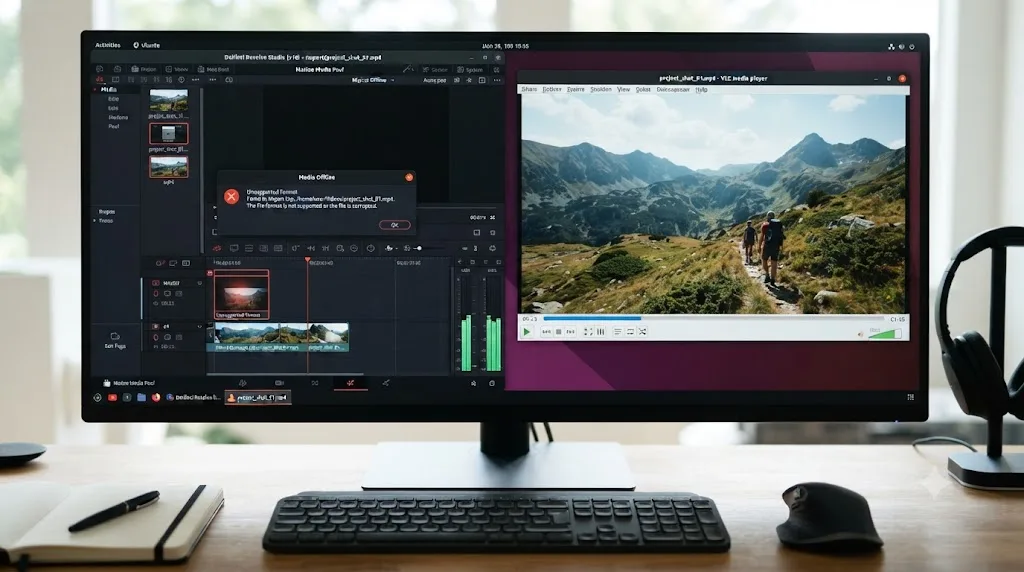
When Resolve can read the container but has no decoder for what's inside it, or refuses to run the decoder it does have because of your operating system or license tier, it rejects the file. Sometimes with an explicit error. Sometimes with nothing at all.
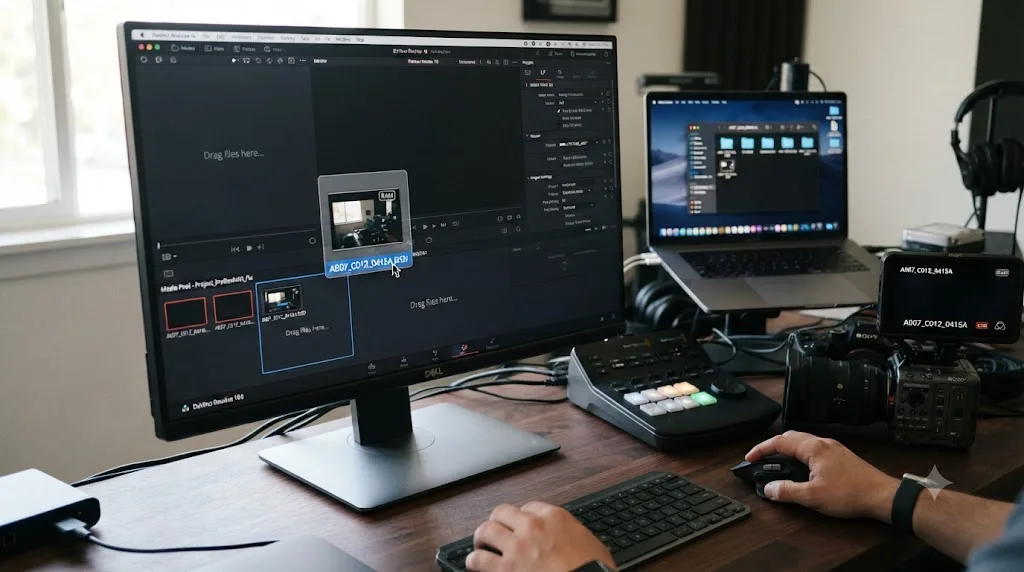
That second part is worth sitting with for a second, because it's not a minor annoyance, it's a real product gap. A Blackmagic Forum thread titled exactly this exists because editors kept hitting silent failures on newer still formats like AVIF and JPEG-XL, files that simply do nothing when you try to import them, no dialog, no red flag, nothing. The thread is a feature request asking Blackmagic to add error messages where none currently exist. As of this writing, that request hasn't shipped, which means "nothing happened when I dragged the file in" is itself a valid symptom of an unsupported format, not a sign you did something wrong.
A file that fails silently and a file that throws an explicit error dialog are usually the same underlying problem wearing two different masks. Both trace back to a missing or disallowed decoder. Neither means your footage is gone.
Which exact symptom are you seeing?
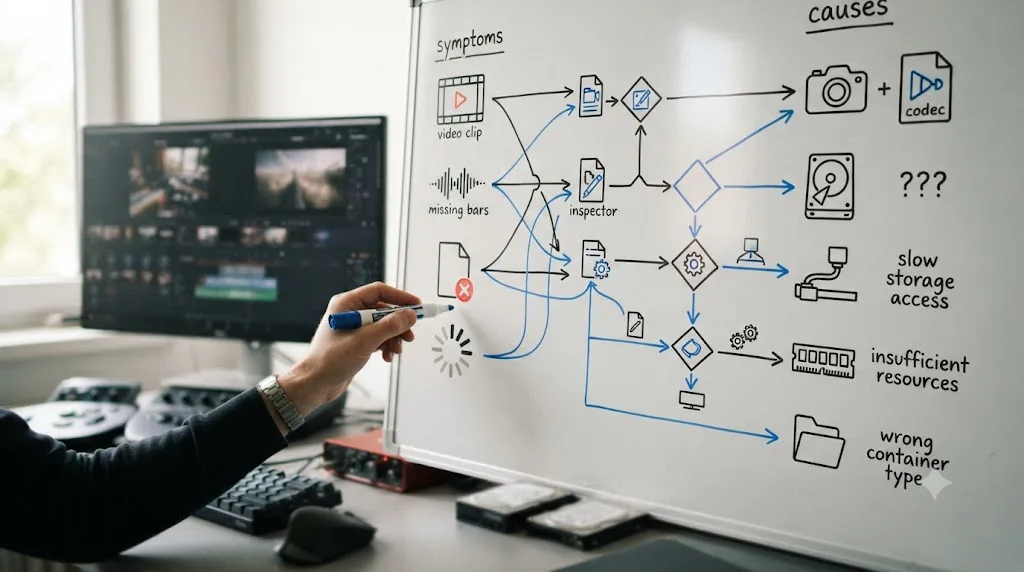
Before you touch a single setting, figure out which of these four things is actually happening. They look similar from across the room and need completely different fixes up close.
| Symptom | What it usually means | Where to go next |
|---|---|---|
| An explicit error naming an unsupported format or codec | Resolve identified the file and rejected the codec outright | Codec sections below |
| Nothing happens at all when you drag the file in | A newer or niche format Resolve doesn't recognize, often a still image | Niche formats section |
| The clip imports but shows as red "Media Offline" | Same root cause, different message. This is Resolve's most common way of reporting a codec it can't decode | Our media offline guide covers this exact overlap in full |
| The clip imports and plays, but drifts out of sync or glitches partway through | Not a rejection at all. This is a variable frame rate problem | VFR section below |
Resolve reports the same underlying codec failure through at least three different faces: an explicit error, total silence, or a red "Media Offline" slate. Knowing which face you're looking at narrows the fix immediately instead of sending you down every possible cause at once.
Is this really a codec problem, and not a corrupt file?
Rule this out first, because it takes thirty seconds and it eliminates an entire category of wrong guesses.
Open the file in VLC. VLC ships with an enormous library of bundled decoders and doesn't care about hardware acceleration, licensing tiers, or which operating system you're on. If VLC plays the file cleanly, start to finish, with no visible artifacts, the file itself is fine. Whatever's happening is specific to what Resolve, and only Resolve, can decode.
If VLC also chokes, stutters badly, or refuses to open the file, you're looking at a genuinely damaged file, most often from an interrupted transfer, a camera card that ran out of power mid-write, or a partial download. That's a different problem entirely, and no transcode or codec extension fixes a file with actual missing data. Re-copy it from the source, or check whether the camera or recorder kept a backup.
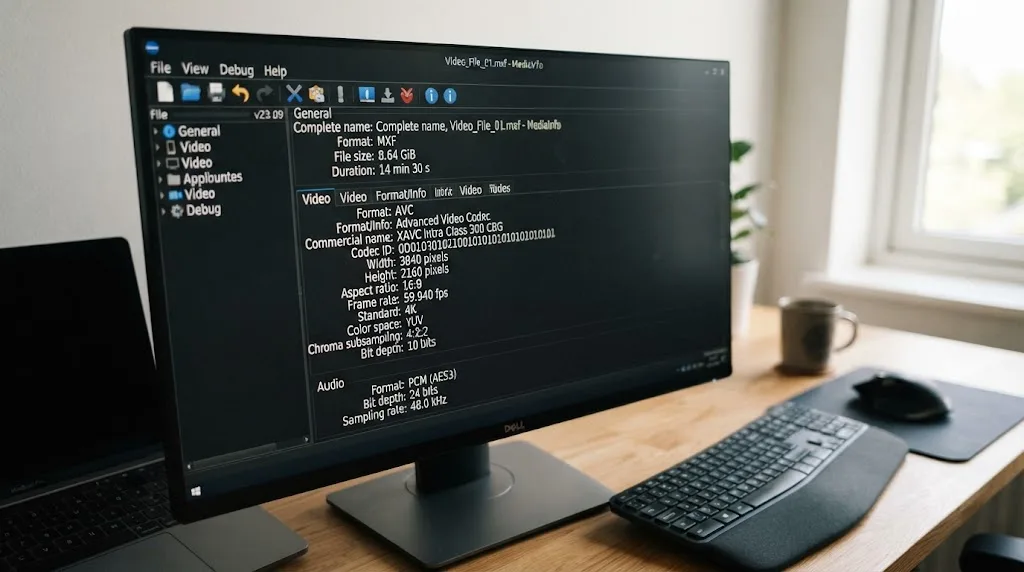
Next, install MediaInfo, a free tool that reads a file's actual codec and container separately, rather than trusting the filename. Point it at your problem file and note two things: the "Format" line under the video track (that's your actual codec, H.264, HEVC, ProRes, and so on) and the container listed at the top (MP4, MOV, MKV). You need both numbers before you can diagnose anything below.
A file playing cleanly in VLC proves the file isn't corrupt. It proves nothing about whether DaVinci Resolve specifically can decode it. Those are two separate questions, and conflating them is the single most common reason people spend hours transcoding a file that was never broken in the first place.
Why does HEVC footage fail on Windows specifically?
This is the single most common trigger for this error, and it's almost entirely a Windows problem.
Microsoft's Windows doesn't include a built-in HEVC (H.265) decoder the way macOS does at the system level. HEVC is the default recording codec on nearly every modern iPhone, most DJI drones, and a growing share of Android flagships, all shooting in High Efficiency mode to save storage. When you plug that footage into a Windows editing machine and try to import it into Resolve, Resolve reaches for a system-level HEVC decoder that Windows never installed.
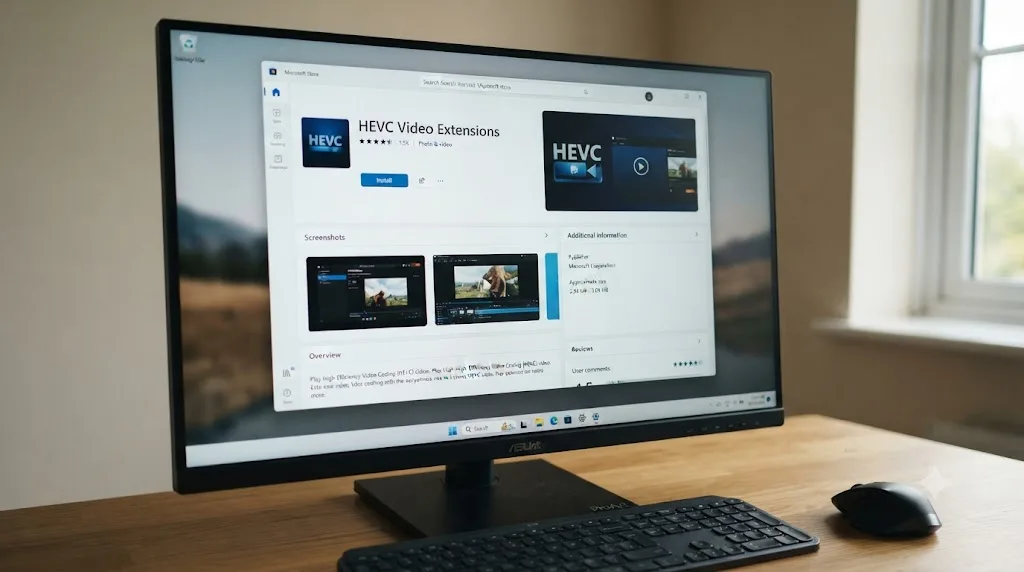
The fix is one purchase and a restart. Microsoft sells the HEVC Video Extensions through the Microsoft Store for roughly a dollar. Install it, restart your PC (not just Resolve, the whole machine), and reopen your project. In most cases the same clips that failed a moment ago import cleanly.
- Open the Microsoft Store app on Windows.
- Search "HEVC Video Extensions" and purchase the version listed by Microsoft directly, not a third-party clone.
- Restart your computer completely.
- Relaunch DaVinci Resolve and retry the import.
If you already have the extension installed and HEVC clips are still failing, the next section explains the specific complication that trips people up after this exact step.
Why does the same HEVC clip still fail after installing the extension?
Here's the part that frustrates people the most, because they did the fix, restarted, and it still didn't work.
10-bit color depth is a second, separate wall stacked behind the first one. Many drones and newer phones record HEVC at 10-bit (sometimes labeled HDR, HLG, or Dolby Vision on the camera settings menu), and a 10-bit HEVC stream needs a different decoding profile than standard 8-bit HEVC. A forum thread on the Blackmagic Design forum documents exactly this: a user on Windows 11 with the HEVC extensions properly installed still couldn't get Resolve to read 10-bit footage from a DJI drone, because the extension covers standard decoding, not every color-depth variant, and GPU driver support for 10-bit HEVC decode varies by hardware generation.
Robin Parmar, who runs the technical blog Theatre of Noise, lays out the practical answer for this exact wall: "the solution is to export to a different codec that does support 10-bit (e.g. ProRes or DNxHR) and then transcode to the format you require," in his breakdown of Resolve's codec limitations. Rather than chasing a driver update that may or may not land support for your specific GPU generation, transcode the clip once into an intermediate codec Resolve handles natively everywhere.
10-bit color depth and the HEVC codec itself are two separate compatibility walls, and clearing one doesn't clear the other. That's why "I already installed the extension" is such a common, genuine complaint. The extension fixes standard HEVC. It doesn't automatically fix every color-depth variant riding inside that same codec.
| Layer | What it controls | Typical fix |
|---|---|---|
| Container | .mp4, .mov file wrapper | Rarely the actual problem |
| Codec | HEVC, H.264, ProRes | HEVC extension (Windows), Studio edition (Linux) |
| Color depth | 8-bit vs 10-bit | GPU driver update, or transcode to ProRes/DNxHR |
| Frame rate mode | Constant vs variable | Convert to CFR in HandBrake before import |
Why can't the free version import H.264 or H.265 on Linux?
If you're on Linux, this whole problem looks completely different, and it's not a bug at all. It's licensing.
Blackmagic's free DaVinci Resolve build on Linux doesn't decode or export H.264 or H.265 in any container, whether that's MP4, MKV, or MOV. This isn't a missing driver you can patch around. It's a deliberate licensing decision, since those codecs carry per-unit royalty obligations that Blackmagic doesn't cover for the free tier on that platform specifically.
A Creative COW forum thread captures how blindsiding this is for editors who only discover it after they've already installed Resolve. Forum member Jim Bachalo asked plainly: "Under Deliver I am trying out the various video export options but see no H.264/H.265 codec or .mp4 file format?" and followed up with the real-world stakes: "I need to rotate and edit .mp4s from an iPhone. Right now I can't even view them." That's the exact situation this whole page is about, just hitting a licensing wall instead of a decoder wall.
Upgrading to Studio only gets you halfway on Linux. James North, who documents his own Linux editing setup in detail, explains the gap plainly: even Studio's hardware decoding path on Linux leaves you "with a silent video," because "the Studio edition does not provide AAC decoding" on that platform, as he lays out in his guide to running Resolve on Linux with MP4 files. Studio adds video decode. It doesn't add the audio codec most phone and camera MP4s use alongside it.
On Linux, DaVinci Resolve's free edition doesn't decode H.264 or H.265 at all, and even Studio's hardware decode path can leave your audio silent because AAC decoding isn't included either. That's two separate licensing gaps stacked on the same platform, and no amount of GPU driver hunting closes either one.
Your realistic paths on Linux:
- Transcode delivery footage (H.264/H.265 MP4 from phones, cameras, screen recorders) to DNxHR or ProRes before it ever touches your Media Pool.
- If you already own Studio and have compatible NVIDIA hardware, look at NVENC-based hardware decoding for the video half, and plan to transcode or remux audio separately since AAC still won't decode.
- Edit on Windows or Mac instead, where this specific licensing split doesn't exist, if your workflow allows it.
Why does an editing-hostile codec fail even when it's technically "supported"?
Some formats show up on Resolve's supported list and still cause grief, because "supported" and "practical to edit with in real time" are different claims.
H.264 and HEVC are both designed to compress footage as small as possible for storage and streaming, which means every frame after the first one in a group depends on the frames before it. Richard Lackey explains the actual mechanical cost of that design on his site: "Resolve first must decompress and decode the source media into its uncompressed 32-bit floating point YRGB space" before it can do anything with a frame at all, in his explanation of why AVC and HEVC cause problems for post-production. He's blunt about the scale of what that demands: your system needs to be "capable of decoding and expanding the video data into 32-bit float YRGB space in memory in real-time" just to scrub the timeline smoothly, not to apply a single effect.
That's why a clip can technically import, technically play, and still feel unusable, stuttering, dropping frames, refusing to scrub, or timing out on an older or lower-power machine that has no problem with the exact same resolution in ProRes. Lackey's stated conclusion matches what most working editors land on independently: these delivery codecs "have never been good for post production," and transcoding to Apple ProRes or Avid DNxHD/DNxHR up front means editors "work with constant frame rate, edit friendly video files" instead of fighting the source format for the entire project.
H.264 and HEVC compress footage by making most frames depend on the ones before them, which is exactly the opposite of what real-time scrubbing and color grading need. That mismatch is why "it imports fine, but everything after that is painful" is such a common complaint, and it's a separate issue from whether Resolve can decode the file at all.
If your machine is underpowered for the footage you're importing, our DaVinci Resolve for beginners guide covers what hardware actually matters before you blame every stutter on the codec.
Does DaVinci Resolve support ProRes RAW now?
This one has an answer that changed recently, and a lot of the advice still circulating online hasn't caught up.
For years, Resolve flatly could not decode Apple ProRes RAW natively, because Apple never licensed Blackmagic the SDK needed to decode it, a genuine industry standoff rather than a technical gap Blackmagic chose not to close. The standard workaround was transcoding ProRes RAW to CinemaDNG through a third-party tool before Resolve would touch it.
That changed with Resolve 20.2. Newsshooter's coverage of the release states plainly that the update adds "support for decoding Apple ProRes RAW clips" natively, in their report on the DaVinci Resolve 20.2 update, published in September 2025. Resolve 21 carries that support forward, so ProRes RAW footage that would have been flatly rejected on Resolve 20.1 or earlier now imports without a transcode step.
DaVinci Resolve added native ProRes RAW decoding in version 20.2, released September 2025, ending years of transcode-only workflows for that format. If you're still hitting a ProRes RAW rejection on Resolve 21, the far more likely explanation is a stale install that never actually updated, not a permanent format limitation. Check Resolve's version number under About DaVinci Resolve before you transcode anything.
Why does variable frame rate footage cause a different kind of failure?
Everything above assumes a hard rejection, an outright refusal to import. Variable frame rate is stranger, because the file often imports fine and only falls apart once you start working with it.
Most professional editing tools, Resolve included, expect a constant, unchanging frame rate, one fixed number of frames per second for the entire clip. Phones, screen recorders, and some webcam software instead vary that rate on the fly, packing in more frames during motion and fewer during static shots to save storage and battery. As one video tools writer puts it plainly, most professional video workflows use CFR, "while phones, screen recorders, and webcams often produce VFR output," and dropping VFR footage onto a constant-rate timeline is "the main culprit" behind audio that gradually drifts out of sync, according to TimeBolt's explanation of the underlying mismatch.
In Resolve specifically, that mismatch shows up in three ways depending on how severe the drift is: audio that slides further from the picture the longer the clip plays, individual frames flashing as unreadable or offline mid-clip, or in the worst cases the whole file rejecting outright because Resolve's parser can't reconcile the declared frame count against what it actually finds on disk.
The fix is a conversion, not a settings tweak inside Resolve itself:
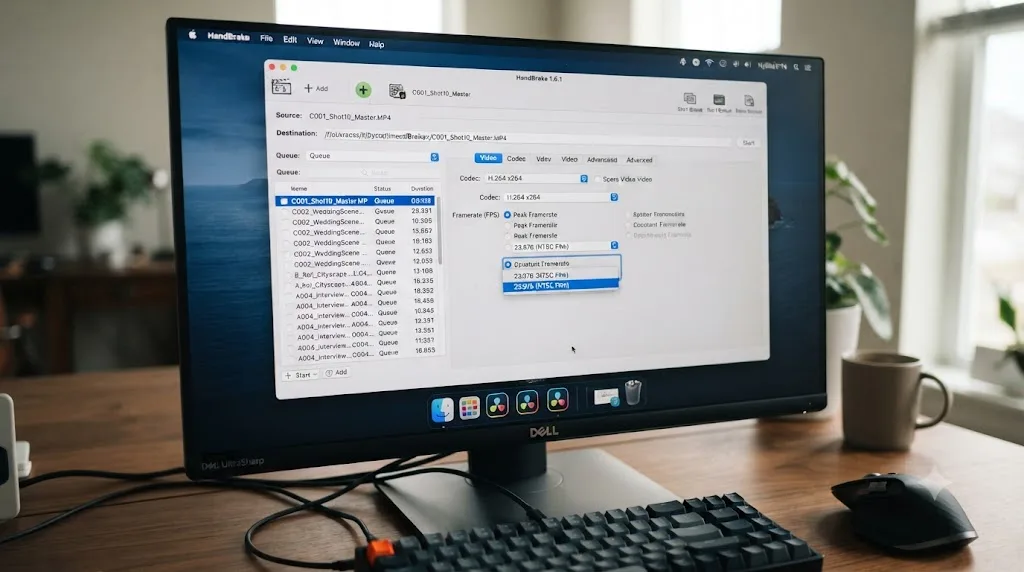
- Open the clip in HandBrake, a free, cross-platform tool.
- Go to the Video tab and find the Framerate section.
- HandBrake's own documentation explains the two real options here: choosing "Same as Source" alongside Constant Framerate makes sure "any variable portions are made constant at the same rate" your source already used, while forcing a specific new number is only recommended in special cases, per HandBrake's official frame rate documentation.
- Set Framerate mode to Constant, not Variable or Peak.
- Encode, then import the converted file into Resolve, keeping your original as a backup.
Variable frame rate footage often imports without any error at all, then fails later through drifting audio or mid-clip glitches instead of an upfront rejection. That delayed failure is exactly why it gets misdiagnosed as a codec problem when the real fix is a frame rate conversion, not a different codec entirely.
If the clip is already cut into a multicam group and one angle keeps drifting worse the longer the timeline runs, that's the same underlying frame rate mismatch our multicam sync guide covers from the sync side rather than the import side.
Can a renamed extension or a mislabeled export cause this error?
Yes, and it's a sneakier version of the same core problem, because the fix looks like it should have worked and didn't.
Renaming a file from .mkv to .mp4 by hand, or downloading a file that a website served with the wrong extension attached, doesn't touch a single byte of the actual video data inside it. Resolve reads the real container structure, the actual internal format of the file, not the three or four letters after the last dot in the filename. A file wearing the wrong extension can fail to import entirely, or in rarer cases get partially read in a way that looks identical to a codec rejection, since Resolve is trying to parse a container it wasn't built for based on a false assumption from the filename.
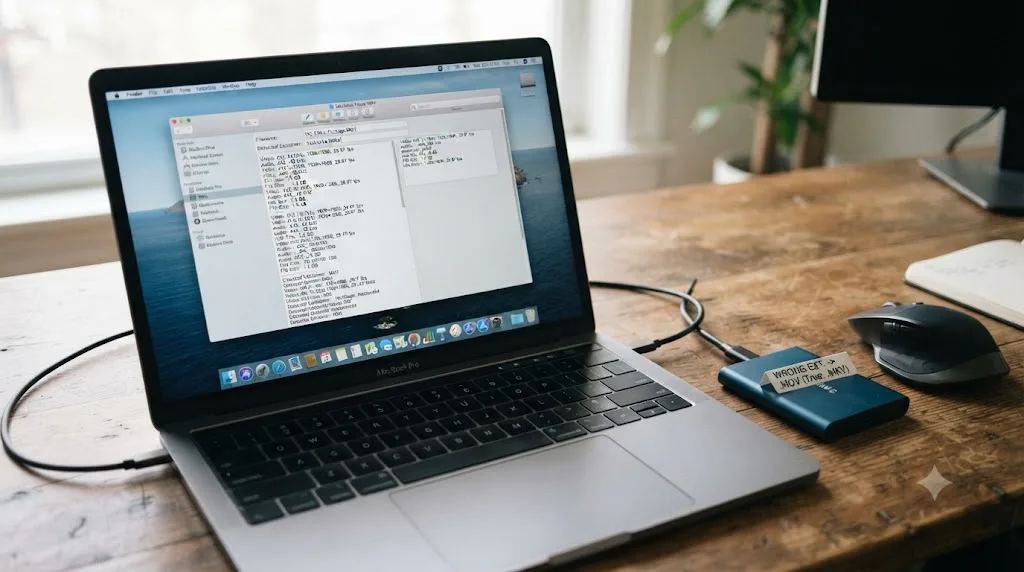
This shows up constantly with screen recordings and downloaded clips passed between platforms, where an export tool or a web service quietly wraps one container's data inside a filename bearing a different extension. MediaInfo, the same tool from earlier in this piece, exposes the mismatch instantly: it reports the actual container format regardless of what the filename claims, so a .mp4 that's secretly a Matroska stream, or a .mov that's actually a raw H.264 elementary stream, becomes obvious in seconds.
The fix, once you've confirmed the mismatch: rename the file back to match its real container (MediaInfo tells you which one), or better, run it through a proper remux tool like FFmpeg or Shutter Encoder rather than fixing the extension by hand, since a genuine remux repackages the actual container correctly instead of just relabeling a guess.
What about MKV, WebM, AVIF, and other niche formats?
Some formats fail for a much simpler reason than codec licensing: Resolve just doesn't recognize the container structure at all, regardless of what's compressed inside it.
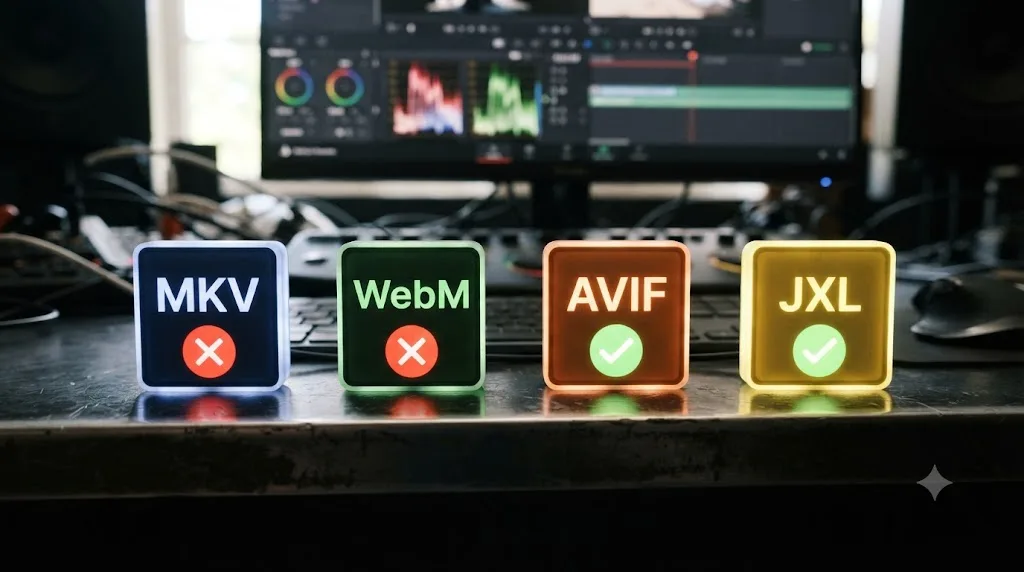
MKV (Matroska) is the good news story here. Older Resolve versions rejected it outright, but that changed years ago. Newsshooter's coverage of the DaVinci Resolve 17.2 update lists "support for decoding MKV clips" directly among that release's improvements, alongside "support for decoding AV1 clips on Windows" and "accelerated AV1 decodes on supported Intel, NVIDIA and AMD platforms," in their report on that update. Resolve 21 inherits all of that. If MKV or AV1 files are failing on a current install, look at the codec riding inside the MKV wrapper (an MKV file can contain almost anything), not the container itself.
WebM is a genuinely unsupported container in Resolve, full stop, regardless of version or edition. It was built for web streaming, not post-production, and Blackmagic has never added native decoding for it. Remux or transcode WebM files to MP4 or MOV before import, there's no settings toggle that changes this.
Newer still-image formats are the least forgiving case on this whole page, precisely because of the silent-failure problem covered earlier. AVIF and JPEG-XL, both increasingly common as camera and phone still formats, produce no error message at all when Resolve rejects them, per the same forum thread requesting better error messages referenced above. If you're dragging in still frames for the Photo page or a title card and nothing happens, nothing at all, check the actual format before you assume you clicked the wrong folder. Convert to TIFF, PNG, DNG, or JPEG and the same file will import instantly.
| Format | Native Resolve support | Fix if it fails |
|---|---|---|
| MKV | Yes, since Resolve 17.2 | Check the codec inside the MKV, not the container |
| AV1 | Yes, since Resolve 17.2, hardware-accelerated on supported GPUs | Update GPU drivers if decode is slow |
| WebM | No, on any version or edition | Remux or transcode to MP4/MOV |
| AVIF (still image) | No, fails silently | Convert to TIFF, PNG, or JPEG |
| JPEG-XL (still image) | No, fails silently | Convert to TIFF, PNG, or JPEG |
What if my RAW camera file is newer than my Resolve build?
This is the version-gap trap, and it's the one people are slowest to suspect, because it feels like it should be a codec problem when it's actually a timing problem.
Camera manufacturers ship new bodies with new sensor generations that write RAW data in a format their previous cameras never used, sometimes a genuinely new codec revision, sometimes just new metadata fields Resolve's parser doesn't expect. Blackmagic adds support for these new camera-specific RAW variants through point releases, not automatically, which means a brand-new camera can produce files that read as completely unsupported on a Resolve build that's even a few months old, while last year's footage from the same manufacturer opens perfectly fine on that exact same install.
The tell is specific: RAW footage from an older camera model works, and RAW footage from a newer model in the same family, shot on the same machine, in the same project, doesn't. That pattern rules out your hardware, your OS, and your license tier all at once, since none of those explain why one camera generation works and the very next one doesn't.
- Check Resolve's version number under About DaVinci Resolve, and compare it against the release notes for the point release that added support for your specific camera model.
- If a newer point release exists, update before assuming the file is permanently unsupported.
- If you're already on the latest release and the camera is genuinely brand new, check whether the manufacturer has published a firmware update that changes the RAW codec version it records in, since some cameras let you shoot in an older, more compatible RAW mode as a stopgap.
A RAW file rejecting on one Resolve install while identical footage from an older camera model opens fine is a version-gap problem, not a licensing or hardware one. Updating Resolve, not transcoding the footage, is usually the actual fix.
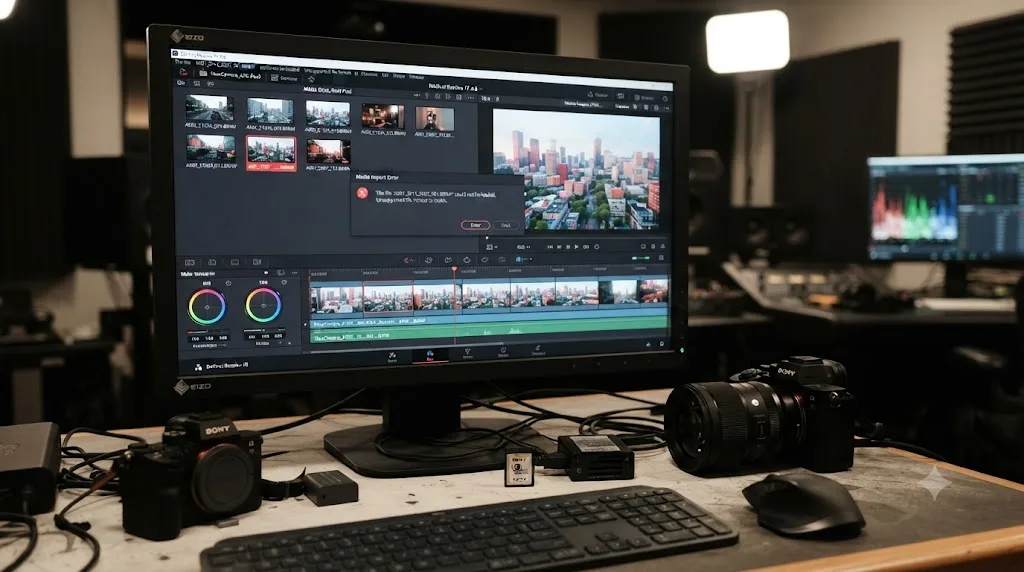
The full decision tree: match your exact symptom to the fix
Work through this top to bottom. Stop at the first row that matches what you're actually seeing.
| Your exact situation | Root cause | Fix |
|---|---|---|
| HEVC/H.265 phone or drone footage, Windows, never installed anything for it | Missing system HEVC decoder | Buy and install HEVC Video Extensions, restart PC |
| Same HEVC footage, extension already installed, still fails | 10-bit color depth not covered by the extension | Transcode to ProRes or DNxHR, or update GPU driver |
| Any H.264/H.265 file, Linux, free edition | Licensing gap in the free Linux build | Transcode before import, or edit on Windows/Mac |
| H.264/H.265 file plays but audio is silent, Linux Studio | AAC decoding not included even in Studio on Linux | Transcode or remux audio separately |
| File imports and plays, but scrubbing stutters badly | Long-GOP compression demanding heavy real-time decode | Transcode to ProRes/DNxHR for editing performance |
| ProRes RAW file rejects entirely | Resolve version older than 20.2 | Update to current Resolve 21 build |
| Clip imports, then drifts out of sync or glitches mid-playback | Variable frame rate | Convert to Constant Framerate in HandBrake |
| Nothing happens at all when importing a still image | Newer format (AVIF, JPEG-XL) Resolve doesn't recognize | Convert to TIFF, PNG, or JPEG |
| WebM file rejects on any version | Container never supported natively | Remux or transcode to MP4/MOV |
| RAW file from a brand-new camera rejects, older camera's RAW works fine | Resolve build predates support for that camera generation | Update Resolve to the latest point release |
| File plays in VLC and other apps, but not Resolve, and none of the above fits | Possible mislabeled extension or unusual codec profile | Check real container/codec in MediaInfo, remux if mismatched |
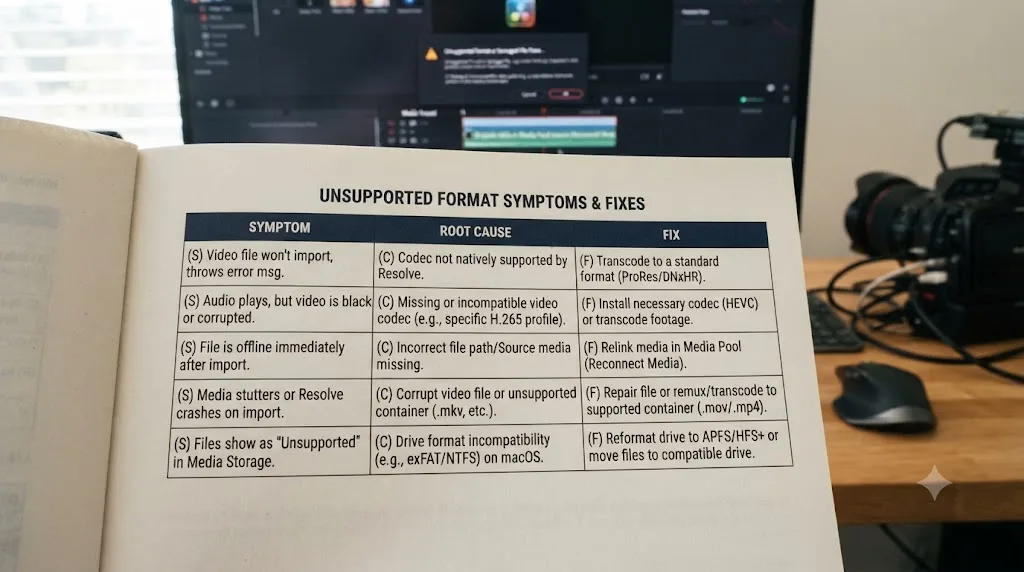
How do you actually convert a file so Resolve accepts it?
Once you've identified that transcoding is the real fix, here's the concrete process, using free tools.
- Download HandBrake (Windows, Mac, Linux) or Shutter Encoder, both free.
- Open your problem file in the tool.
- Under the format or container setting, choose MOV or MKV as your output wrapper.
- Under the video codec setting, pick H.264 for a quick, universally compatible fix, or ProRes/DNxHR if you plan to color grade heavily and want better editing performance, matching the guidance from the codec-fatigue section above.
- If your source is VFR (phone or screen recording footage), explicitly set Framerate mode to Constant, matching your source's native rate rather than picking an arbitrary number.
- Encode the file.
- Import the converted copy into Resolve's Media Pool, and keep the original as your archival master.
If you only need to fix a handful of clips, a GUI tool like HandBrake is the faster path. If you're dealing with dozens of files from the same camera or phone across a whole project, batch conversion is worth setting up once rather than repeating this by hand for every clip, since HandBrake and Shutter Encoder both support queuing multiple files with the same output settings applied to all of them.
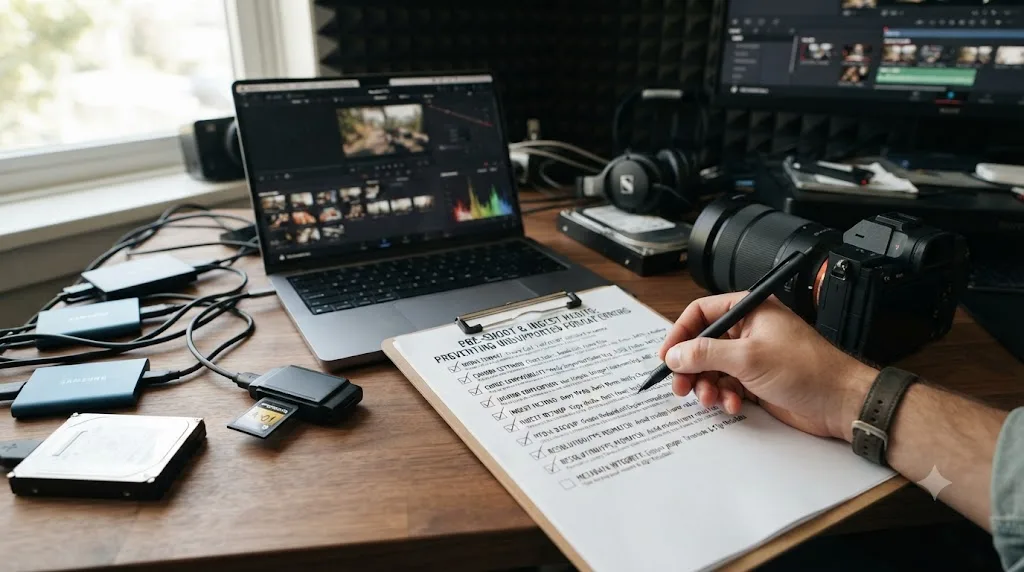
How do you stop this from happening on your next project?
A few habits catch nearly every cause on this page before it ever costs you an afternoon mid-edit.
- Check your camera's recording settings before a shoot, not after. If your phone, drone, or mirrorless body has a High Efficiency or HEVC toggle, and you're editing on Windows without the codec extension installed, switch to H.264 recording mode instead, or install the extension in advance rather than discovering the gap the day footage comes in.
- Run new footage through MediaInfo once, on import day, for any unfamiliar camera or phone. Thirty seconds of checking the actual codec and container beats an hour of guessing later.
- Keep Resolve updated to the current point release, especially after buying new camera gear. RAW format support and codec additions ship in point releases, not just major versions, and Resolve 21.0.2 already carries fixes that 21.0 didn't.
- If you edit on Linux, plan your codec pipeline before the project starts, not after the first rejected import. Decide upfront whether you're transcoding everything to DNxHR on ingest or editing on a different platform for delivery-heavy projects.
- Convert VFR-prone sources (phone video, screen recordings, game capture) to constant frame rate as a standard ingest step, the same way you'd organize footage into folders. Most screen recording tools, including OBS, have a constant frame rate option buried in their output settings that avoids this problem at the source entirely.
What if you're new to Resolve and this is your first rejected import?
If this is happening on your first real project, you're not doing anything wrong, and you're definitely not alone. Codec confusion is one of the most common walls new editors hit, mostly because camera manufacturers keep shipping new recording modes faster than any single guide can track. If you're still building your footing with Resolve more broadly, our complete beginner's guide covers the pages and habits worth learning before a large project depends on them.
And if the deeper issue is that you don't yet know which menu or setting to check when something like this goes wrong, that's specifically the gap TryUncle is built to close, an AI tutor that watches your actual Resolve window and points at the exact control instead of sending you through another forum thread that may not match your case.
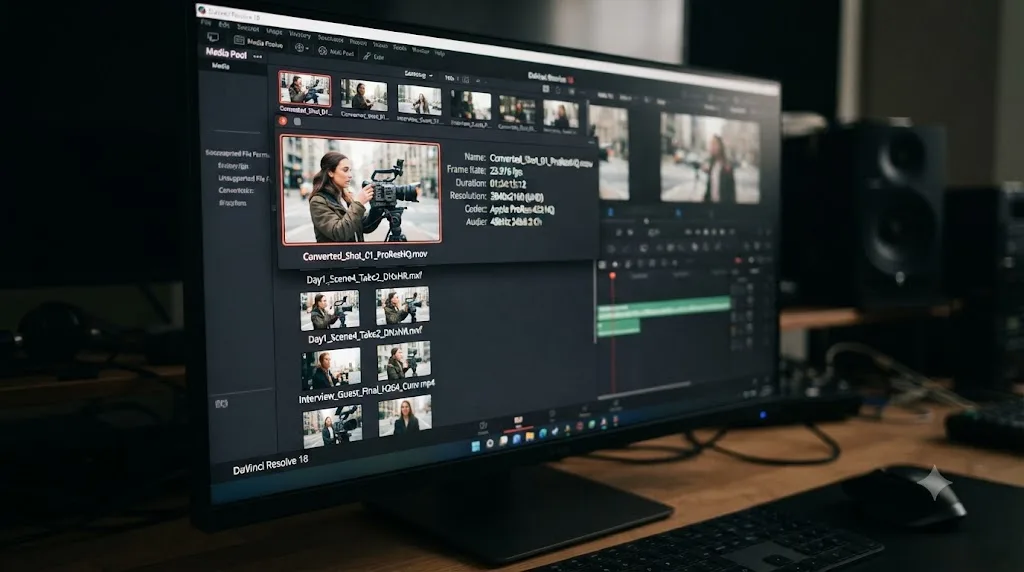
What's the fastest path to a fix?
Confirm it's a codec issue first: play the file in VLC, check it in MediaInfo. Then match your exact symptom, HEVC on Windows, licensing on Linux, 10-bit depth, variable frame rate, or a version-gapped RAW format, against the decision table above. Install the specific fix that table points to, whether that's a Microsoft Store purchase, an update, or a HandBrake conversion, rather than transcoding blind and hoping it works.
Nine times out of ten, your footage isn't broken. Resolve just can't decode the specific way it was compressed, on your specific operating system, on your specific license tier. Once you know which of those three variables is the actual blocker, the fix takes minutes, not an afternoon of forum tabs.
Frequently asked questions
- What does 'Unsupported File Format' actually mean in DaVinci Resolve?
- It means Resolve found the file and read its container, but has no decoder for the codec compressed inside it, or won't run that decoder on your operating system or license tier. The file isn't corrupt. Resolve simply can't turn its compressed data back into pixels, so it refuses the import instead of showing a broken clip.
- Why does HEVC footage from my iPhone or DJI drone fail to import on Windows?
- Windows doesn't ship an HEVC decoder by default, and the free version of Resolve doesn't bundle its own. Buy the HEVC Video Extensions from the Microsoft Store for about a dollar, install it, restart your PC, and reopen Resolve. If the clip is also 10-bit, you may need the extension plus a driver update, or a transcode to ProRes or DNxHR as a fallback.
- Why can't I import H.264 or H.265 files on Resolve's free Linux version?
- Licensing, not a bug. Blackmagic's free Linux build doesn't include H.264/H.265 decoding at all, and the paid Studio edition on Linux only adds video decoding, not AAC audio decoding. Transcode delivery footage to DNxHR or ProRes before you import it, or move your edit to Studio on Windows or Mac where the codec split doesn't apply.
- Why does a clip that plays fine in VLC still fail in DaVinci Resolve?
- VLC bundles nearly every decoder that exists and doesn't care about hardware acceleration or licensing tiers. Resolve only uses the decoders Blackmagic ships or your OS provides, gated further by your Resolve edition. A file playing elsewhere only proves the file isn't corrupt. It says nothing about whether Resolve specifically can decode it.
- Does DaVinci Resolve support ProRes RAW now?
- Yes, as of Resolve 20.2, released in September 2025, Resolve added native ProRes RAW decoding for the first time. Resolve 21 carries that support forward. If you're still on Resolve 20.1 or earlier, or you inherited an older install, that's the exact reason ProRes RAW files reject on your machine, and updating fixes it without any transcode.
- Why does my phone video import but drift out of sync or fail partway through?
- That's variable frame rate, not a hard rejection. Phones and screen recorders often save video with an irregular gap between frames. Resolve expects a constant rate, so playback can drift, frames can flash offline mid-clip, or the whole file can register as unreadable. Convert to constant frame rate in HandBrake before you import it.
- Can a renamed file extension cause an unsupported format error?
- Yes. Changing a file's extension by hand, say from .mov to .mp4, doesn't change what's inside it. Resolve reads the actual container structure and codec, not the three letters after the dot, so a mislabeled file can either fail entirely or get misread in a way that looks identical to a genuine codec rejection.
Sources
- DaVinci Resolve Supported Codec List (Blackmagic Design)
- DaVinci Resolve - Tech Specs (Blackmagic Design)
- Robin Parmar, Theatre of Noise: Codec limitations of DaVinci Resolve: HEVC, 10-bit, and RAW
- Richard Lackey: AVC / H.264 / HEVC and DaVinci Resolve, Why You Need to Transcode
- James North: Using DaVinci Resolve on Linux With MP4, Questions, Answers, and Tips
- Creative COW Forum: Resolve 16 (free) on Linux, no H.264/H.265 codec or .mp4 file format?
- Newsshooter: DaVinci Resolve 20.2 adds ProRes RAW support
- Newsshooter: DaVinci Resolve 17.2 Update
- Microsoft Store: HEVC Video Extensions
- Blackmagic Forum: Resolve can't use DJI 10bit video on Win 11 (I have HEVC)
- Blackmagic Forum: Sensible Error Messages for Unsupported Codecs
- HandBrake Documentation: Frame Rate
- TimeBolt: Why is my audio out of sync with video? Probably Variable Frame Rate
Put this guide to work with TryUncle.
Ask about the step you’re on. TryUncle sees your screen and points at the control you need, so you can keep learning in your own project.
Get TryUncle for Mac or WindowsKeep reading
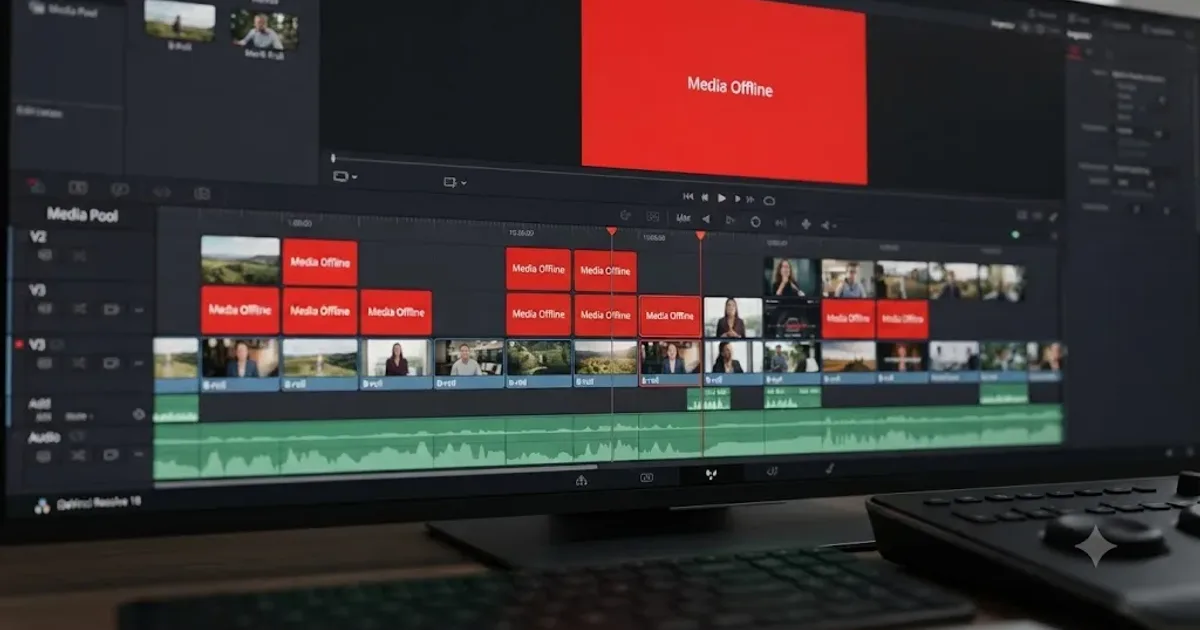
Fixes · Jul 7, 2026 · 26 min
DaVinci Resolve Media Offline: Every Cause and the Fix
Every reason DaVinci Resolve marks a clip media offline, and the exact relink, cache, and codec fixes for each cause, in order of how often they happen.
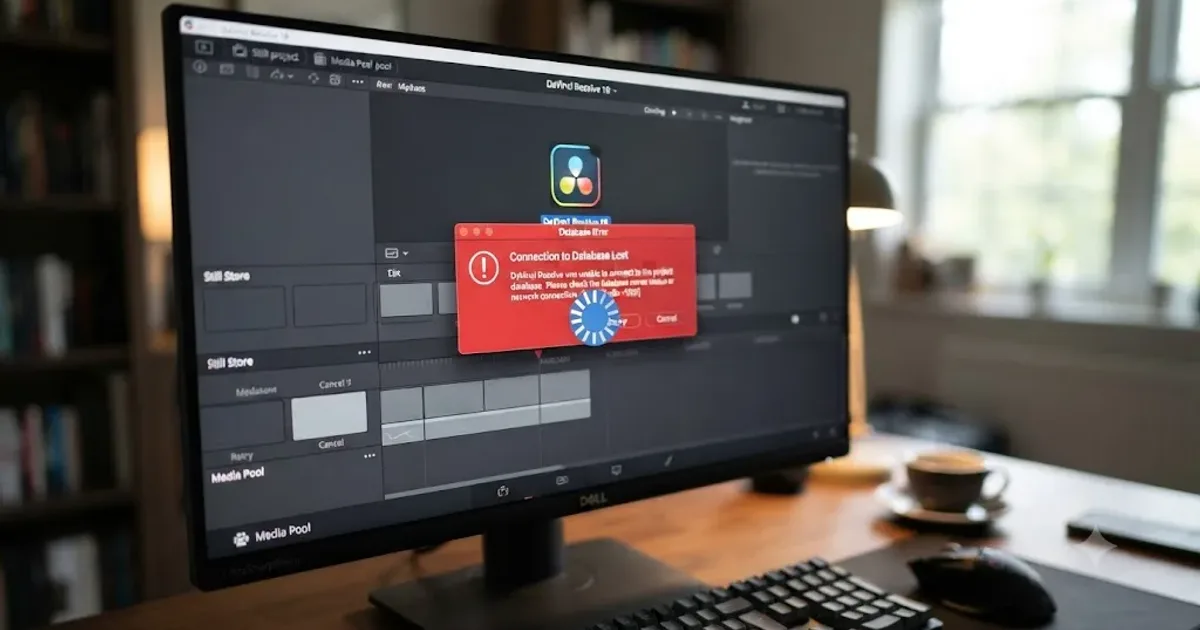
Fixes · Jul 10, 2026 · 23 min
DaVinci Resolve Project Won't Open: Match Symptom to Fix
Whether DaVinci Resolve hangs at 100%, crashes on launch, or shows a database error, here's the exact cause behind each symptom and how to fix it.
Guides · Jul 7, 2026 · 32 min
DaVinci Resolve for Beginners: The Complete Starter Guide
Learn DaVinci Resolve from zero: what it costs, what it needs to run, the seven pages you'll actually use, and the steps to cut your first project.