Articles / Fixesupdated for DaVinci Resolve 21.1 (October 2026)
DaVinci Resolve Dual Timeline Not Showing? Fix It
Quick answer
First identify which layout you mean: the Cut page shows an overview timeline and a zoomed-in work area, while the Edit page can show an active timeline alongside a source timeline. On the Edit page, enable Display Stacked Timelines, then open a timeline in the Source Viewer. If you mean the Cut page, switch to Cut and check its timeline layout.
I’d first ask which “dual timeline” you mean. DaVinci Resolve has two different editing layouts people describe that way, and restoring the wrong one can make the interface feel even stranger.
As of October 2026, Blackmagic’s Support Center lists the DaVinci Resolve 21.1 manual. The Edit page’s stacked-timeline workflow was introduced in Resolve 20, while the Cut page’s two timelines have a different purpose and layout. Start with that distinction, then work from the least disruptive check to the more drastic ones.
Why is DaVinci Resolve dual timeline not showing?
The phrase “dual timeline” can refer to two separate DaVinci Resolve features. On the Cut page, one timeline gives an overview of the whole program and the other shows a zoomed-in work area. On the Edit page, you can work with one timeline in the Source Viewer and another in the Timeline Viewer.
That difference matters because the fix is different. The Cut page’s two timelines are part of that page’s editing layout. On the Edit page, the stacked timeline display is a view option, and showing a second timeline in the Source Viewer also requires loading a timeline there.
| What you expected to see | Where it appears | What the two views represent | First fix to try |
|---|---|---|---|
| One long overview above a closer, zoomed-in timeline | Cut page | A whole-program overview and a focused work area | Switch to Cut and check the timeline area |
| Two timeline tabs, with a timeline in each viewer | Edit page | An editable Timeline Viewer plus a source timeline in the Source Viewer | Enable Display Stacked Timelines, then load a source timeline |
| Two viewers showing source footage and the current edit | Edit page | Source Viewer and Timeline Viewer, not necessarily two loaded timelines | Check whether the Source Viewer contains a clip or a timeline |
| A blue timeline tab that won’t accept edits | Edit page | A read-only source timeline | Copy or drag material from the source timeline into the active timeline |
Blackmagic’s Cut page description describes the upper timeline as the whole program and the lower timeline as a zoomed-in area. Its Resolve 20 New Features Guide describes a separate Edit page feature: one timeline in the Source Viewer and one in the Timeline Viewer.
The Cut page’s dual timeline is an overview and a close-up, not two separate timeline tabs.
If a tutorial shows one timeline at the top and another below it, it is probably demonstrating the Cut page. If it shows two timeline tabs and two viewers on the Edit page, it is showing the source-timeline workflow. Don’t try to fix one by hunting for the other page’s control.
If the missing items are specifically tabs on the Edit page, see the related guide to DaVinci Resolve timeline tabs not showing. That issue overlaps with stacked timelines, but the first question is still which layout you’re trying to restore.
How do I turn on dual timelines on the Edit page?
On the Edit page, enable Display Stacked Timelines in Timeline View Options. Then load a second timeline into the Source Viewer. Turning on stacked timelines alone does not necessarily place a second timeline there.
Use this sequence in Resolve 20 or later, including Resolve 21.1:
- Click the Edit page at the bottom of Resolve.
- Look near the upper-left area of the timeline panel for Timeline View Options. The icon can be harder to spot when the workspace is narrow, but the control belongs to the timeline panel.
- Open the menu and select Display Stacked Timelines.
- Look for the timeline tabs. If the timeline area is short, expand it enough to see the tabs and track area.
- In the Media Pool, locate the timeline you want to use as the source.
- Right-click that timeline and choose Open in Timeline with Source Viewer.
- Check for a second timeline tab and the source timeline in the Source Viewer.
Blackmagic’s Resolve 20 guide says that selecting Display Stacked Timelines lets each timeline appear in its own tab. It also documents the Media Pool command for loading a timeline into the Source Viewer. The guide says that the source timeline is read-only, and that you can switch viewer focus by clicking a tab, clicking the relevant viewer, or pressing Q. These are the documented controls; the exact amount of space each panel occupies can vary with your workspace.
Resolve 21 adds a useful detail to this workflow: its New Features Guide says that Destination Track selectors can limit tracks when editing from Source Timelines. That change affects how you target tracks during the workflow. It doesn’t replace the stacked-timeline setting or the step that loads a timeline into the Source Viewer.
A quick diagnostic: if Display Stacked Timelines is checked and you still have only one timeline loaded, the missing piece may be the source timeline, not the stacked view. If you can see tabs but not the second timeline in the viewer, look for the Source Viewer’s timeline selector or load the timeline from the Media Pool.
How do I load a second timeline into the Source Viewer?
To show a second timeline in the Edit page’s Source Viewer, right-click its timeline item in the Media Pool and choose Open in Timeline with Source Viewer. The source timeline should appear separately from the active timeline, with its own tab and viewer focus.
This is the step people often miss when they say “the dual timeline is not showing.” A stacked timeline view organizes timeline tabs. It doesn’t mean every timeline in the project is automatically open in the Source Viewer.
Try these checks if the menu item is missing or the second timeline does not appear:
- Confirm that the item is a timeline. In the Media Pool, select a timeline rather than a video clip, bin, or folder. If your project has only one timeline, create or import the timeline you intend to compare.
- Use the Media Pool context menu. Right-click the timeline item and look for Open in Timeline with Source Viewer. Blackmagic’s Resolve 20 guide documents this command for loading a timeline into the Source Viewer.
- Check the Source Viewer’s timeline selector. If a source timeline is already loaded, use the dropdown at the top of the Source Viewer to select another one. The official guide documents both this dropdown and the right-click method.
- Check which viewer has focus. Clicking the source timeline tab or the Source Viewer changes focus. The guide also documents Q as a way to switch between Source and Timeline Viewers.
- Look for the blue source indicator. Blackmagic documents the source timeline’s tab and playhead turning blue. That visual cue identifies the read-only source timeline; it does not mean the timeline is disabled or corrupted.
When the source timeline appears, test it without altering your active edit. Click a clip in the source timeline and confirm that the Source Viewer displays it. Then switch to the active timeline and confirm that the Timeline Viewer shows that edit. The two viewers serve different roles.
On the Edit page, a second timeline must be loaded into the Source Viewer; stacked tabs alone aren’t the whole setup.
There’s also a version-specific shortcut worth knowing. Resolve 20.1’s New Features Guide documents a way to right-click an already-open timeline tab and choose Load Timeline to Source Viewer. If you’ve already opened the timeline as a tab, this can be a more direct route than returning to the Media Pool. If that menu item isn’t present in your installed version, use the Media Pool command documented for Resolve 20 instead.
What does “read-only source timeline” mean?
The source timeline is a reference for selecting and transferring material, not the timeline you directly change in place. Blackmagic says that standard cut and copy operations can be performed from the read-only source timeline to the actual timeline, and that you can drag from the Source Timeline Viewer into the Timeline Viewer to make an edit.
So, if the source timeline appears but you can’t trim a source clip as if it were the active edit, that may be expected. The intended workflow is to take material from the source and place it into the destination timeline. Don’t treat the blue tab as a sign of a display failure.
This distinction is useful when comparing alternate edits. Keep the current cut in the Timeline Viewer, load the alternate timeline in the Source Viewer, and copy or drag selected material into the active edit only when you mean to change it. That leaves the source version available as a reference.
A source timeline is also not the same as a locked track in the active edit. A locked destination track is a property of the edit you’re changing. The read-only state belongs to the source-timeline workflow. If you expect to edit the source directly, check which viewer is active and whether the timeline you clicked is the blue source tab.
How can I compare two edits without changing the wrong timeline?
Use the Source Viewer as the reference and the Timeline Viewer as the destination. Before copying anything, identify which tab is blue and which timeline the active viewer is showing. This simple pause helps prevent edits from landing in the version you meant to preserve.
Here’s a worked example, not a report of a test. Say you have a timeline called Interview v1 and a second timeline called Interview selects. You want to compare the opening and bring one shorter answer into v1.
- On the Edit page, enable Display Stacked Timelines.
- Open Interview v1 as the editable timeline in the Timeline Viewer.
- In the Media Pool, right-click Interview selects and choose Open in Timeline with Source Viewer.
- Click the source tab or Source Viewer and locate the answer you want. Confirm that the Source Viewer is showing the selects timeline, not a source clip.
- Use the source timeline’s playhead and clip boundaries to identify the passage. The source timeline is read-only, so treat it as the material you’re taking from.
- Click or focus the destination timeline and place the copied or dragged passage where it belongs.
- Play the surrounding edit in the Timeline Viewer. Confirm that the new passage is in the intended position and that the source timeline remains unchanged.
If you only want a visual comparison, stop after checking the two viewers. You don’t have to copy anything. If you do need to transfer a clip, make the destination timeline active before the edit and verify the result immediately. Undo is available for a mistaken edit, but checking the active viewer first is safer than relying on undo later.
The same approach works for comparing a clean assembly with a version that has effects, alternate music, or a different ending. Give the timelines distinct names before loading them. Names such as Cut A, Cut B, and Client notes are easier to distinguish than several tabs called Timeline 1.
Before transferring material, confirm the source timeline and the destination timeline by name and viewer, not by tab position alone.
Why is the Cut page dual timeline not showing?
The Cut page’s two timeline views show the entire program and a magnified working area together. If you expected that arrangement but see only one timeline, first switch to the Cut page and inspect its layout before changing settings on the Edit page.
Blackmagic describes the Cut page’s dual timeline this way: “The upper timeline shows you the entire program while the lower timeline shows you a zoomed in area of where you're working.” That is the vendor’s description of the Cut page feature. It differs from the Edit page method for loading two timelines into separate viewers.
Work through these checks:
- Confirm the page. Click Cut, not Edit. The Cut page and Edit page are separate editing workspaces. Their timelines look and behave differently.
- Check whether the timeline panel has been resized. If the timeline area is too short, parts of the layout may be difficult to see. Expand the panel or close another panel that is taking space.
- Look for the overview and detail relationship. The Cut page’s two timelines don’t mean that two project timelines have been loaded. They represent different scales of the same edit.
- Check whether the interface layout has been changed. A layout adjustment can hide or reduce parts of a workspace. Restore the relevant panel before assuming that the project’s timeline is missing.
- Switch to Edit and verify the project timeline. If the timeline exists on the Edit page, the problem is probably the Cut page layout or page expectation, not deleted timeline data.
The Cut page’s overview helps you navigate across the whole program while the lower timeline shows the working area in more detail. Blackmagic says both timelines are functional for moving and trimming clips. If you’re expecting a second independent edit, that isn’t what the Cut page’s dual view represents.
If you want a more basic page comparison before changing your workflow, use the existing guide to Cut page vs. Edit page differences. The distinction helps explain why an instruction for one page may not match the controls on the other.
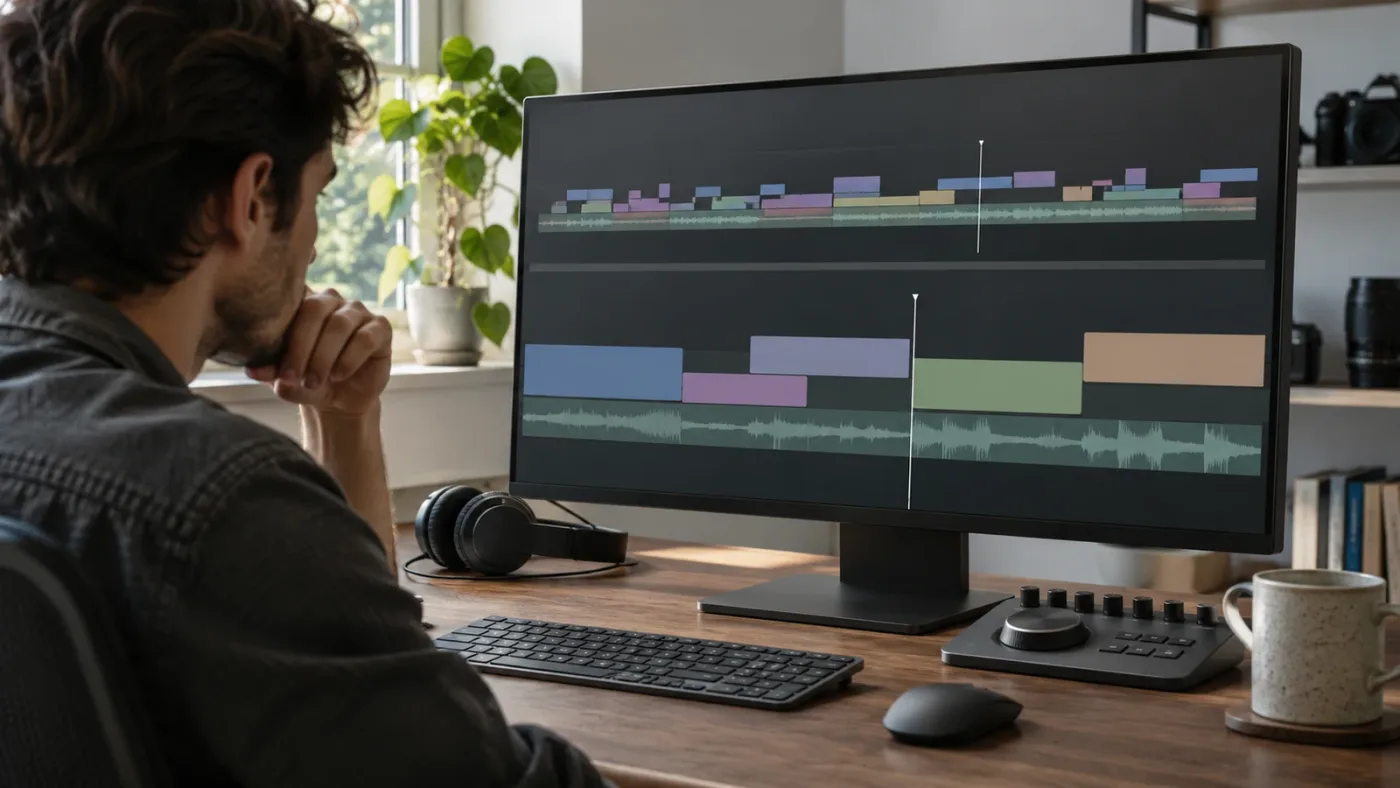
Why do I see one viewer instead of two?
A viewer problem and a timeline problem are not always the same problem. On the Edit page, the Source Viewer can show a source clip or source timeline, while the Timeline Viewer shows the active edit. Showing two viewers does not by itself guarantee that two timelines are loaded.
First decide what is missing:
- One viewer is visible, but the timeline tabs are present. Look for the viewer layout control or a workspace layout setting. The timeline tabs may be working even if the viewer arrangement isn’t what you expected.
- Two viewers are visible, but the Source Viewer shows a clip. That is a source clip, not a second timeline. Right-click a timeline in the Media Pool and choose Open in Timeline with Source Viewer.
- Two viewers are visible, but both seem to show the same edit. Click a timeline tab, then click the Source Viewer or Timeline Viewer. Check which viewer has focus and whether a source timeline is actually loaded.
- No Source Viewer is visible. Check the Edit page viewer layout. Don’t reset the whole workspace until you’ve confirmed that the viewer is hidden rather than the source timeline itself being absent.
The Resolve 20 guide explains that viewer focus changes depending on the selected timeline tab. It also says you can click the appropriate viewer or press Q to switch between the Source and Timeline Viewers. That gives you a non-destructive way to test focus before rearranging the workspace.
The word “dual” causes confusion here because people use it for both the two Cut page timeline scales and two Edit page viewers. Think of them as separate questions: “Can I see both timeline scales?” and “Can I compare a source timeline with my active edit?” A viewer arrangement can be wrong while timeline tabs are fine, and a source timeline can be unloaded while both viewers are visible.
Two viewers don’t prove that two timelines are loaded, and two timeline views don’t always mean two separate edits.
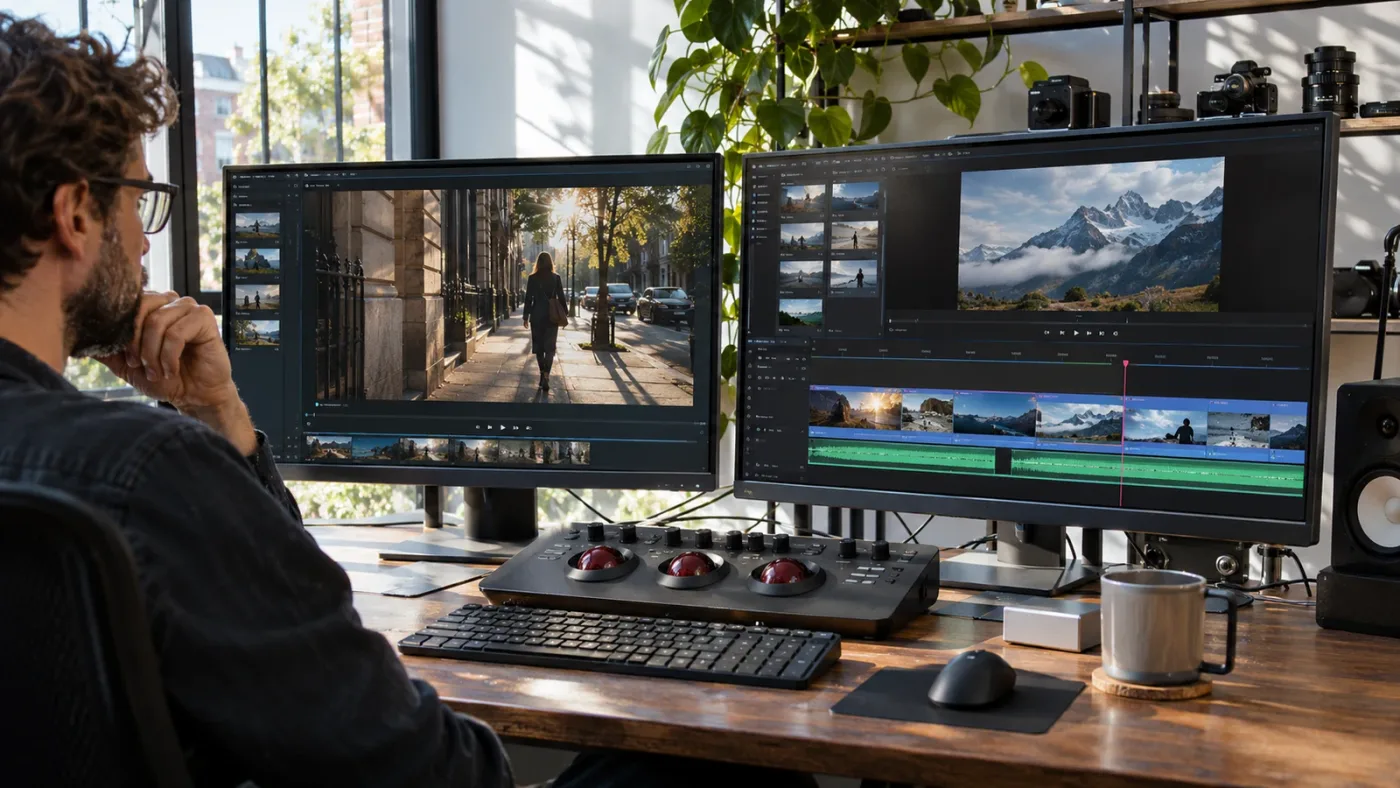
Why are my timeline tabs missing after enabling stacked timelines?
If Display Stacked Timelines is enabled but tabs aren’t visible, check the timeline panel’s height and the open workspace panels before changing project data. The stacked view controls how the timelines are displayed, but a compressed or rearranged interface can make tabs hard to find.
Follow this order:
- Check the correct page. Stacked timelines are the Edit page workflow described in Blackmagic’s Resolve 20 guide. If you’re on Cut, switch to Edit to follow those steps.
- Reopen Timeline View Options. Confirm that Display Stacked Timelines remains selected. If the checkbox is off, select it and check again.
- Expand the timeline area. Drag the divider above the timeline if the area is compressed. The amount of visible interface space depends on your display and workspace arrangement.
- Temporarily close panels that occupy space. If the Media Pool, Effects Library, Inspector, or another panel is open, hide one temporarily and check whether the timeline tabs become visible.
- Look for a tab dropdown or overflow control. If several timelines are open and horizontal space is limited, the interface may not display every tab at once. Check any tab-list control rather than assuming the other timelines vanished.
- Check the Media Pool. Confirm the timeline still exists there. If it does, reopen it in the Source Viewer or active timeline as needed.
- Only then consider resetting a workspace layout. A reset can undo other layout choices, so use it after checking the specific timeline view and panel size.
These are practical interface checks, not a claim that Blackmagic documents every possible monitor or workspace state as a cause. A missing tab may reflect limited screen room or the wrong page, while a missing timeline object is a separate project-organization issue.
If the tabs appear but scrolling or zooming is the actual problem, that’s a different fix from restoring dual timelines. The guide to DaVinci Resolve timeline won’t scroll or zoom covers that symptom.
What if Resolve 21 puts copied clips on the wrong tracks?
First confirm which timeline is the source and which is the destination. If the source timeline appears correctly but a copied or dragged clip lands on an unexpected track, check the destination track selection and the active timeline before changing the layout.
Resolve 21’s New Features Guide says you can use Destination Track selectors in Source Timelines to limit tracks when using dual timeline editing. In plain terms, those selectors help control which destination tracks are available for the operation. They don’t load the source timeline or decide which viewer is active.
Try this sequence:
- Click the destination timeline tab and confirm the Timeline Viewer shows the edit you intend to change.
- Check the destination track selectors for the tracks you want the operation to target.
- If you’re moving material from the source timeline, re-check the source timeline’s name and the clip or range you selected.
- Perform one small transfer, then inspect the destination timeline before repeating the operation.
- If the result lands on an unwanted track, undo once and adjust the destination selection before trying again.
This matters most when the edit has several video and audio tracks. A source timeline may contain more tracks than the destination needs. You might want picture without its original music, or dialogue without reference audio. Limiting the intended destination tracks can help avoid transferring material to tracks you didn’t mean to use.
Keep the source and destination roles separate in your head. The source timeline is the read-only reference. Destination Track selectors affect where an edit can go. Display Stacked Timelines controls the timeline presentation. Each control solves a different part of the workflow.
How do I tell whether a timeline is missing or only hidden?
A hidden timeline view and a missing timeline item are different problems. Before rebuilding anything, check whether the timeline remains in the Media Pool and whether another page can open it.
Use this diagnostic:
| What you observe | What it suggests | Next check |
|---|---|---|
| Timeline name is visible in the Media Pool, but its tab is absent | Timeline exists; the view or tab state may be the issue | Enable stacked timelines and open it in the appropriate viewer |
| Timeline tab exists, but no timeline content is visible | The panel may be collapsed, scrolled, or focused elsewhere | Expand the timeline panel and click the tab |
| Timeline appears on Edit but Cut looks different | The two pages have different layouts | Decide whether you want the Cut overview or Edit source-timeline workflow |
| Only a source clip appears in the Source Viewer | A clip is loaded, not a source timeline | Open a timeline with the Source Viewer command |
| A blue source timeline appears but won’t accept direct edits | That is consistent with the documented read-only source behavior | Copy or drag material to the active timeline |
| No timeline item appears in the Media Pool | This may be a project-content issue, not a dual-view setting | Check project and timeline organization before changing layout settings |
Don’t delete or recreate a timeline just because it isn’t visible in the viewer. A workspace is how Resolve presents project objects; changing the view doesn’t establish that the underlying timeline was deleted. Confirm that the timeline item exists first.
If it’s listed, you have a concrete next step: load it in the right place. If it isn’t listed, move from interface troubleshooting to project recovery or timeline organization. This post is about restoring the display, not recovering a deleted edit.
One useful distinction: a timeline can be open without being the timeline currently shown in the Source Viewer. Conversely, it can be loaded in a viewer while its tab is difficult to see because the timeline panel is short. Check both the Media Pool and the viewers before deciding that the timeline itself has disappeared.
Does the Edit page dual-timeline fix differ in DaVinci Resolve 21?
For the core display setup, Resolve 21 retains the Edit page method documented in Resolve 20: enable Display Stacked Timelines, then open a timeline in the Source Viewer. Resolve 21 adds a documented Destination Track selector option for Source Timelines.
The version context matters because the Edit page dual-timeline workflow first appeared in Resolve 20, while Blackmagic’s Support Center lists Resolve 21.1 as the current manual in October 2026. The Resolve 21 New Features Guide says Destination Track selectors can limit the tracks used when editing from Source Timelines. That’s a workflow refinement, not a replacement for the stacked-timeline view.
| Version context | What Blackmagic’s documentation establishes |
|---|---|
| Resolve 20 | The Edit page can show one timeline in the Source Viewer and one in the Timeline Viewer; enable Display Stacked Timelines and open a timeline with the Source Viewer command |
| Resolve 20.1 | The guide adds a tab context-menu action, Load Timeline to Source Viewer, for stacked timelines |
| Resolve 21 | Source Timelines support Destination Track selectors |
| Resolve 21.1 | Blackmagic lists a 21.1 manual in its Support Center, dated September 8, 2026 |
If you’re following an older tutorial, its instructions may use different names or show a different panel arrangement. Follow the function names in your installed version where possible. If Display Stacked Timelines is absent, confirm that you’re on the Edit page and that the tutorial describes the Edit page source-timeline feature, not the Cut page dual timeline.
The Blackmagic Support Center is the place to check the current manual and version-specific documentation. Use the manual for your installed release when a label or menu item differs. Don’t infer that a feature was removed just because a tutorial image looks different.
Should I reset the workspace or reinstall DaVinci Resolve?
Resetting the workspace should be a later step, after checking the page, stacked-timeline option, source timeline, viewer focus, and panel size. Reinstalling Resolve is not a sensible first response to a hidden timeline view.
A careful escalation path helps protect your existing project and other interface preferences:
- Check the page and feature. Cut page overview and detail are not Edit page source and destination timelines.
- Check the relevant option. On Edit, confirm Display Stacked Timelines.
- Load the source timeline. Use the Media Pool’s Open in Timeline with Source Viewer command, or the tab context-menu option if it’s available in your version.
- Check panel space and focus. Expand the timeline, inspect open panels, and click the correct viewer.
- Save the project. If you plan to reset or substantially change the workspace, save first.
- Use a workspace reset only if the layout remains broken. It can remove custom panel arrangements, so it’s more disruptive than toggling one view setting.
- Consider application repair only if other symptoms point beyond the layout. One missing timeline view isn’t enough evidence to blame the installation.
A workspace reset is easy to overuse when following a tutorial. It may make a panel visible again, but it can also discard custom layouts you rely on. If you know which panel or option changed, restore that specific state instead.
The same caution applies to changing projects or installing another version. The documented instructions for this workflow are interface steps: turn on stacked timeline display and load a source timeline. Start there. If unrelated interface elements are also missing, or Resolve behaves abnormally across multiple projects, broaden the investigation rather than treating the dual timeline as an isolated feature failure.
What should I check if the dual timeline still will not appear?
If the dual timeline still doesn’t appear, write down the page, version, visible viewer arrangement, and whether the timeline exists in the Media Pool. That small symptom record helps distinguish a layout mismatch from a source-timeline loading issue.
Use this final checklist:
- Page: Cut or Edit?
- Feature expected: Cut page overview plus magnified work area, or Edit page source timeline plus active timeline?
- Edit setting: Is Display Stacked Timelines enabled?
- Source state: Is a timeline actually loaded through Open in Timeline with Source Viewer?
- Viewer focus: Does clicking the tab or pressing Q switch the active viewer?
- Panel size: Is the timeline area expanded enough to show the tabs and both viewers?
- Project item: Does the timeline still appear in the Media Pool?
- Destination: If transferred material is going to an unexpected track, are the intended Destination Track selectors enabled?
- Version: Are you following instructions for Resolve 20 or later, or a tutorial from a different interface version?
Keep the result of each check simple. For example: “Edit page, stacked timelines checked, source timeline visible in Media Pool, but Source Viewer remains empty.” That’s much more useful than “dual timeline broken,” because it identifies the step that failed.
If you want on-screen help finding a control whose location differs from the tutorial, TryUncle is a desktop companion for Mac and Windows. You can ask a question about the Resolve screen in front of you, and Uncle can guide you toward the relevant control while you make the changes.
For most cases, the fix isn’t a reinstall: identify the page, enable the matching timeline view, and load the source timeline if you’re on Edit. Start with that sequence, and only reset the workspace if those specific checks fail.
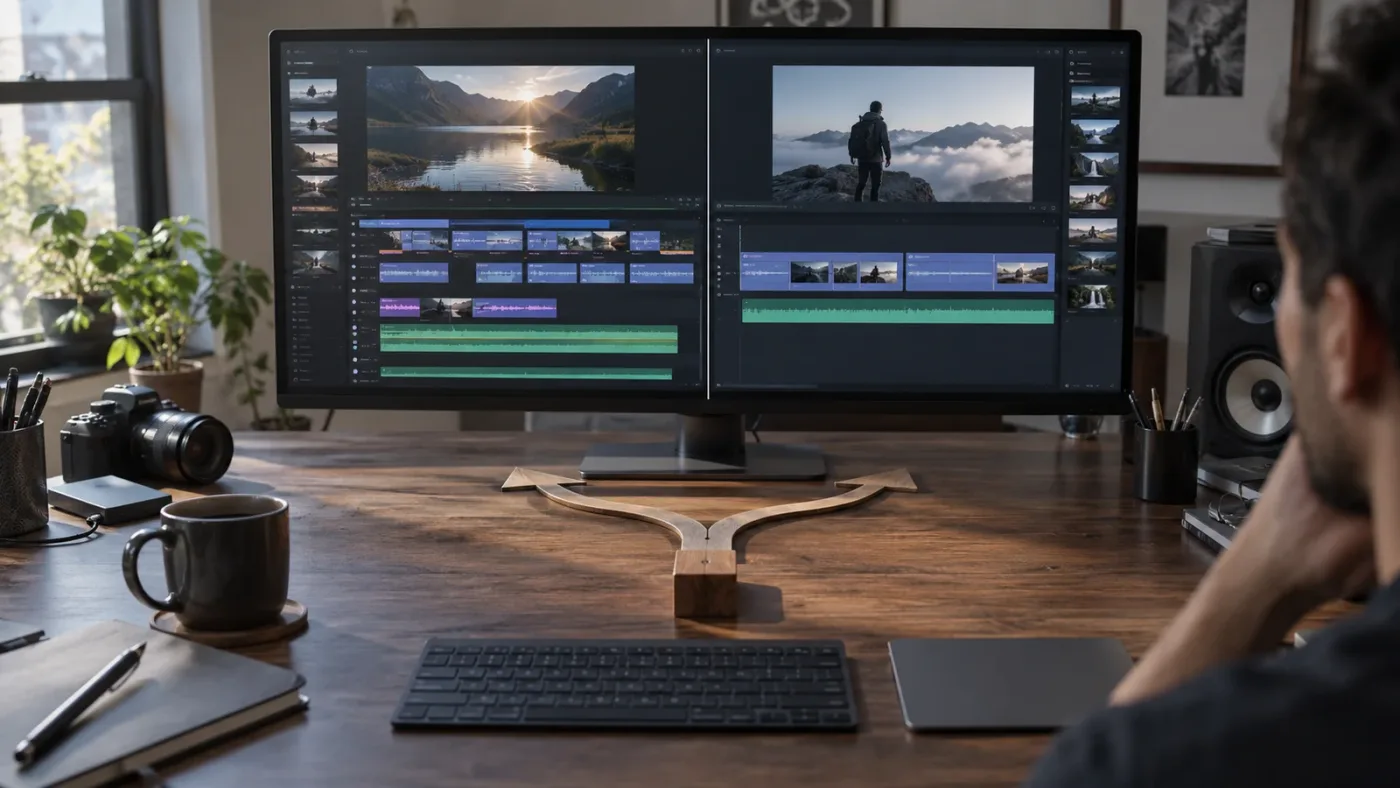
Frequently asked questions
- Why is my DaVinci Resolve dual timeline not showing?
- First identify the page. The Cut page has an overview timeline above a zoomed-in timeline; the Edit page’s dual-timeline workflow uses stacked timeline tabs and a timeline loaded in the Source Viewer. On the Edit page, enable Display Stacked Timelines, then open a timeline in the Source Viewer.
- How do I turn on dual timelines in DaVinci Resolve 21?
- On the Edit page, open Timeline View Options above the timeline and enable Display Stacked Timelines. Then right-click a timeline in the Media Pool and choose Open in Timeline with Source Viewer. The Cut page’s two timeline views are part of its layout, not the Edit page stacked-timeline switch.
- Why do I only see one timeline on the Cut page?
- The Cut page’s dual timeline shows the full program and a closer work area. Confirm that you are on the Cut page and inspect the timeline panel’s size and layout. If you meant two separate edits, use the Edit page’s stacked-timeline and Source Viewer workflow instead.
- Can I show two timelines in DaVinci Resolve Free?
- Blackmagic’s published instructions for the Edit page dual-timeline workflow describe the same Display Stacked Timelines and Source Viewer steps without identifying them as Studio-only. Check the feature in your installed version before changing editions; this display issue alone is not evidence that you need Studio.
- Why does the second timeline appear blue or refuse edits?
- In the Edit page Source Viewer workflow, the source timeline is read-only and its tab and playhead appear blue to distinguish it from the active Timeline Viewer. Copy, cut, or drag material from the source timeline into the editable timeline.
Sources
Put this guide to work with TryUncle.
Ask about the step you’re on. TryUncle sees your screen and points at the control you need, so you can keep learning in your own project.
Get TryUncle for Mac or WindowsKeep reading

Fixes · Sep 29, 2026 · 17 min
DaVinci Resolve Timeline Tabs Not Showing? Fix It in 21
DaVinci Resolve timeline tabs not showing? Turn on Stacked Timelines, open the right page, and fix missing or hidden timeline tabs in Resolve 21.
Comparisons · Jul 10, 2026 · 28 min
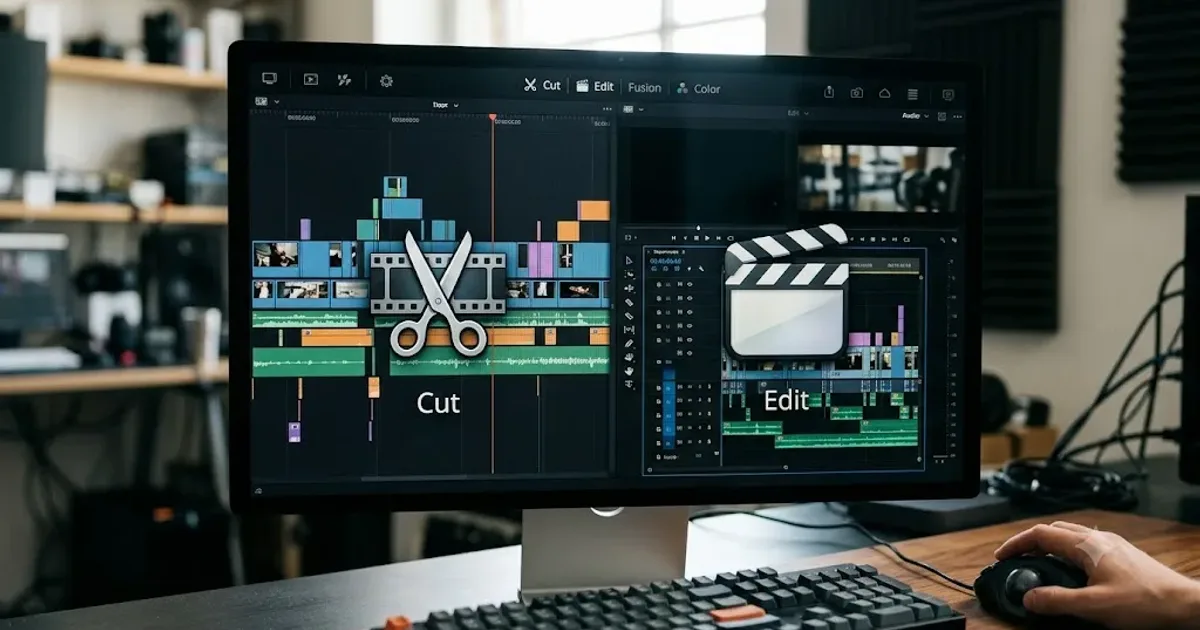
DaVinci Resolve Cut Page vs Edit Page: The Real Differences
A full side-by-side of DaVinci Resolve's Cut and Edit pages: timeline, trimming, multicam, and hardware differences, plus which one to use.
Fixes · Nov 11, 2026 · 25 min
DaVinci Resolve Fusion Tracker Data Not Applying? Fix It
Fix DaVinci Resolve Fusion tracker data not applying by checking the tracker operation, node inputs, tracking results, and the correct tracker type.