Articles / Fixesupdated for DaVinci Resolve 21.1 (September 2026)
DaVinci Resolve Timeline Tabs Not Showing? Fix It in 21
Quick answer
DaVinci Resolve timeline tabs not showing usually means tabbed timeline browsing is off. On the Edit page, open Timeline View Options and turn on Stacked Timelines, then open another timeline from the Media Pool or use Add Tab. If the bar is still absent, reset the UI layout and confirm you are not on the Cut page.

I know the feeling. You open a Resolve tutorial, see three timeline tabs above the edit area, and then look at your own project. Nothing. We built and run a 100,000+ member professional video-editing community, and this is one of the recurring questions editors bring us when a familiar control seems to vanish. As of September 2026, this guide covers DaVinci Resolve 21.1 and the current timeline controls.
Why are my DaVinci Resolve timeline tabs not showing?
DaVinci Resolve timeline tabs are usually not showing because tabbed timeline browsing is disabled, not because your timelines were deleted. Open the Edit page, click Timeline View Options at the far left of the timeline toolbar, and enable Stacked Timelines.
That label causes the confusion. The setting is called Stacked Timelines, but enabling it first exposes the tab bar for ordinary tabbed browsing. You do not have to place two timelines on top of each other just to switch between tabs. Stacking is a second use of the same area.
Blackmagic’s DaVinci Resolve 21.1 Reference Manual describes the timeline tab bar as the place where you browse multiple timelines quickly. It also says that the first time you turn the option on, Resolve displays a tab for the current timeline, with a close button and a timeline dropdown. Read the timeline chapter in the Resolve 21 manual.
DaVinci Resolve hides timeline tabs when tabbed timeline browsing is disabled.
The fastest repair is therefore a visibility setting, not a project repair. Do this before reinstalling Resolve, rebuilding a timeline, or hunting through Preferences.
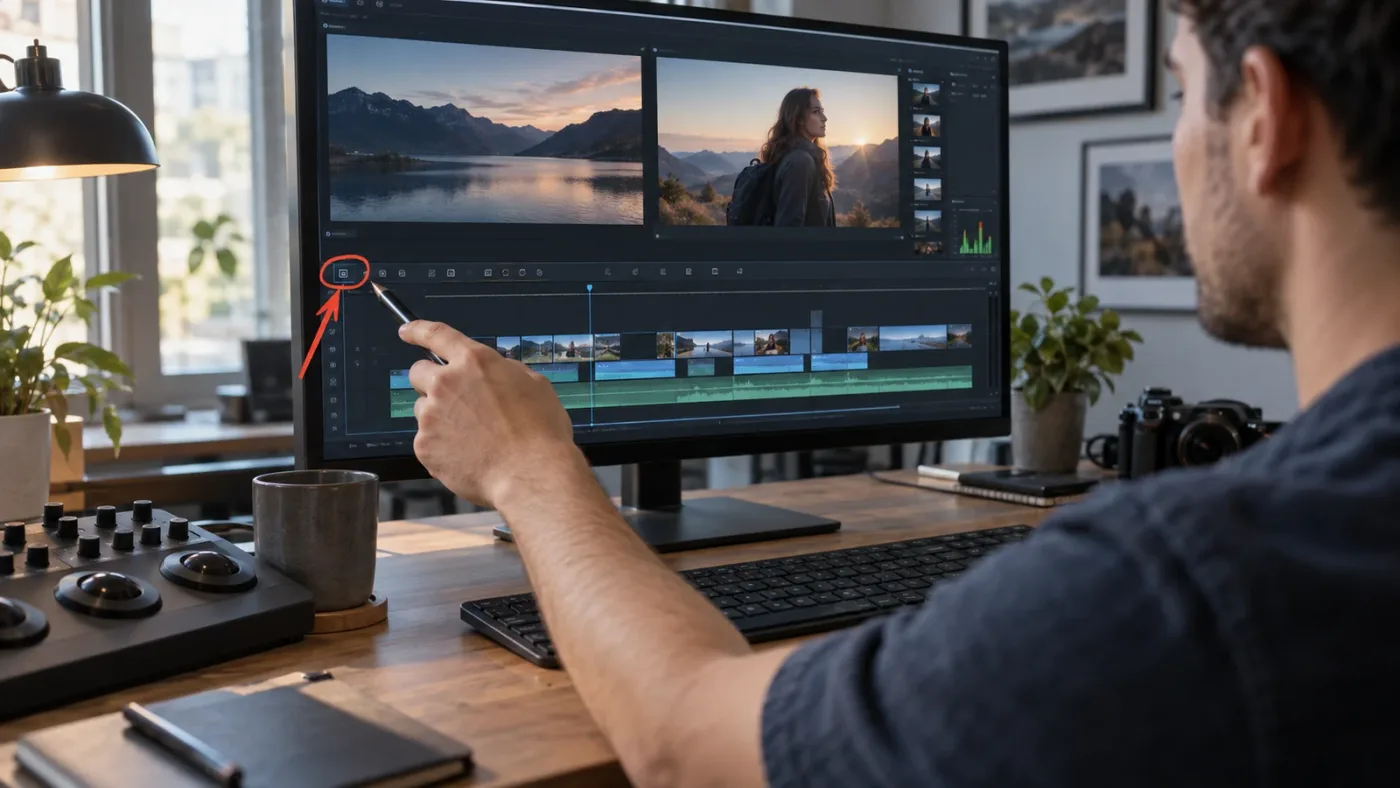
How do I show timeline tabs in DaVinci Resolve 21?
To show timeline tabs in DaVinci Resolve 21, switch to the Edit page, open Timeline View Options, enable Stacked Timelines, and then open or add another timeline. The tab bar should appear above the timeline as soon as the option is enabled.
Follow this order:
- Open a project and click the Edit page at the bottom of Resolve.
- Make sure a timeline is already open. Double-click a timeline in the Media Pool if the timeline area is empty.
- At the far left of the timeline toolbar, click the Timeline View Options dropdown. The current Resolve 21 manual places this control at the left of the timeline.
- Turn on Display Stacked Timelines or Stacked Timelines, depending on the wording shown by your build.
- Look directly above the timeline. Resolve should show a tab for the currently open timeline.
- Double-click a second timeline in the Media Pool. Resolve should open it in another tab when tabbed browsing is active.
- If you want a blank tab first, click Add Tab at the right side of the tab bar, then use that tab’s dropdown to select a timeline.
The wording matters because tutorials sometimes shorten the menu name to “stacked timelines.” In the 21 manual, the Timeline View Options menu includes Display Stacked Timelines, and the tabbed timeline section explains that turning this on makes a Timeline tab bar appear above the timeline. The manual also says that an Add Tab control creates a tab that defaults to “Select Timeline.”
Here is the complete decision path in one place.
| What you see | What it means | What to do |
|---|---|---|
| No tab bar above the timeline | Tabbed browsing is off | Enable Stacked Timelines in Timeline View Options |
| One tab appears, but no second timeline | Only the current timeline is open | Open another timeline from the Media Pool or choose Add Tab |
| Add Tab appears, but says Select Timeline | The tab exists but has no timeline assigned | Open the tab dropdown and choose a timeline |
| The timeline appears in Media Pool but not in the dropdown | The timeline may be disabled | Right-click it and choose Enable Timeline |
| Media Pool tabs appear, but timeline tabs do not | You are looking at two different tab systems | Return to Timeline View Options and enable Stacked Timelines |
| The controls in the tutorial are missing | You may be on the wrong page or have a changed layout | Switch to Edit, then use Workspace > Reset UI Layout if needed |
The Stacked Timelines setting reveals the tab bar before it creates a stacked editing layout.
That distinction saves time. Many editors see the word “stacked” and assume the option is only for comparing two timelines. It is also the switch that enables the tabbed workflow described in the manual. Once the bar exists, you can keep one timeline open in a single row of tabs and ignore the extra stacking controls.
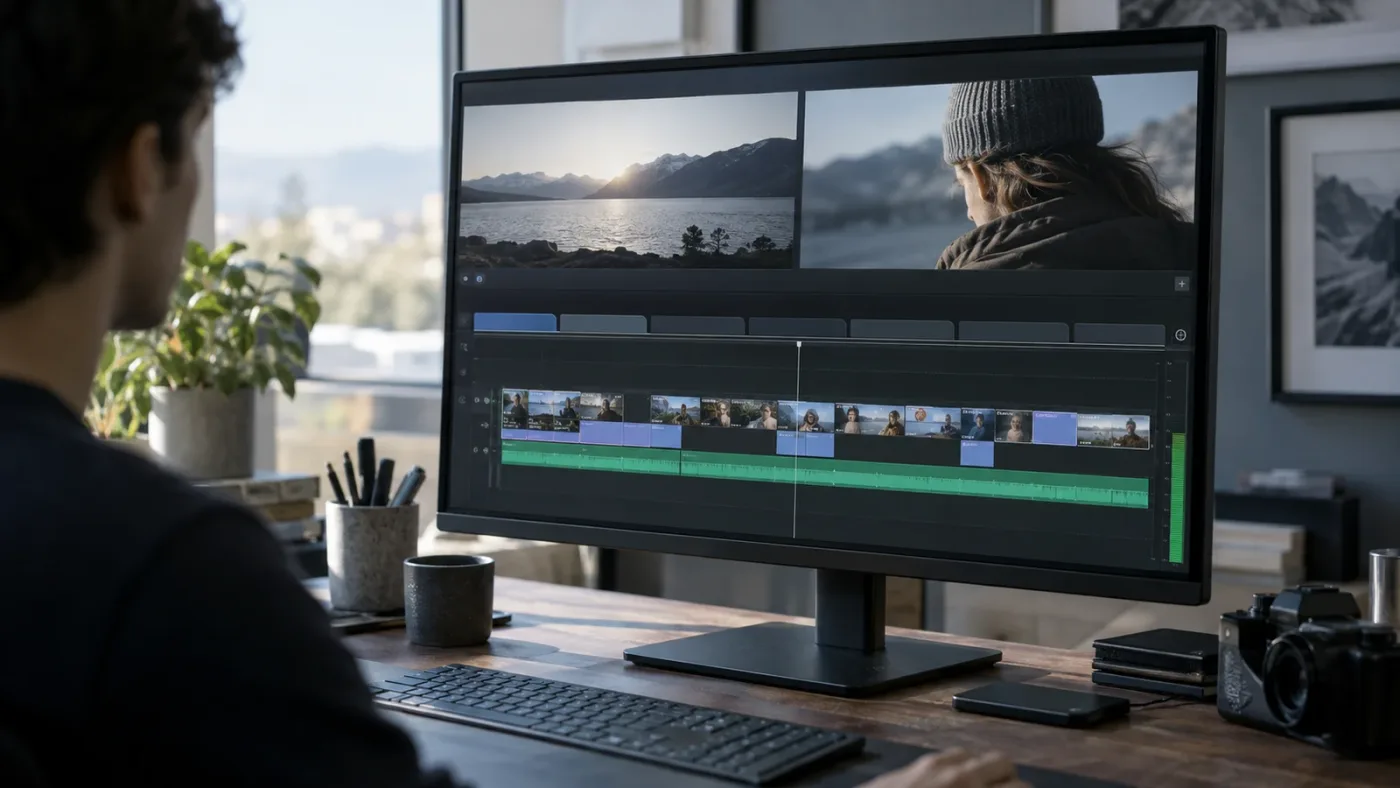
Why do I see Media Pool tabs but not timeline tabs?
Media Pool tabs and timeline tabs are different controls in DaVinci Resolve 21. Media Pool tabs are shortcuts to bins, while timeline tabs switch between open timelines above the timeline editor.
This became easier to mix up in Resolve 21 because Blackmagic added tabbed layouts to the Media Pool. The DaVinci Resolve 21 New Features Guide says you can right-click a bin and choose Open as New Tab. Those tabs sit at the top of the Media Pool and help you move between bins. They do not enable the timeline tab bar.
If you can see tabs labeled for bins such as B-roll, Interviews, or Graphics, that tells you the Media Pool tab feature is working. It does not tell you that timeline tabbed browsing is active. Open the Edit page timeline, find its own Timeline View Options menu, and enable Stacked Timelines there.
This is also why a tutorial can look “almost right” while still leading you to the wrong control. The video may show a row of bin tabs, a row of timeline tabs, or the timeline selector in the Viewer. Resolve uses all three ideas, but they solve different navigation problems.
| Tab type | Where it appears | What it switches | How to create it |
|---|---|---|---|
| Media Pool tab | Top of the Media Pool | Bins, smart bins, or power bins | Right-click a bin and choose Open as New Tab |
| Timeline tab | Above the timeline editor | Open timelines | Enable Stacked Timelines, then open or add a timeline |
| Viewer timeline dropdown | At the top of the Timeline Viewer | The timeline shown in the Viewer | Choose a timeline from the dropdown |
| Stacked timeline row | Within the timeline area | A second or later timeline view | Use the Add Timeline control after tabbed browsing is enabled |
The current Resolve product page describes the Edit page as the place for timeline management, while the Cut page has its own streamlined editing layout. That page-level difference is another reason a control can be present in one tutorial and absent in your window. Our guide to the Cut page versus the Edit page explains the larger interface difference.
How do I add a second timeline tab when none appears?
To add a second timeline tab, first enable Stacked Timelines, then double-click a second timeline in the Media Pool or click Add Tab and choose a timeline from its dropdown. A second tab cannot appear until Resolve has another timeline to open.
There are three useful ways to load the next timeline.
Open a timeline from the Media Pool
Find the second timeline in the Media Pool and double-click it. With tabbed browsing enabled, Resolve opens it as a new tab. This is the simplest route when your timelines are organized in a dedicated bin.
Use Add Tab
Click Add Tab at the right of the current timeline tab bar. The new tab starts as Select Timeline. Click the dropdown inside that tab and choose a timeline. The Resolve 21 manual says the dropdown lists timelines in the current project in alphabetical order, and it notes that a timeline can only be open in one tab or stack at a time.
That last rule explains a common false alarm. If a timeline is already open in another tab or stacked view, it may not be offered as a new independent choice. Click the existing tab, or close that tab first, rather than creating another copy.
Choose a timeline from the Viewer
The Timeline Viewer also has a timeline dropdown. It is useful when the tab bar is hidden or when you want to confirm which timeline currently has focus. The dropdown is not a substitute for enabling timeline tabs, but it can get you back to a known timeline while you repair the layout.
A missing second tab often means no second timeline is open, not that the first tab is broken.
After you open two timelines, test the bar before changing anything else. Click each tab. Then drag one tab left or right and close it with its X. Resolve’s manual documents both tab reordering and middle-click closing, so those actions are normal timeline management rather than risky project operations.
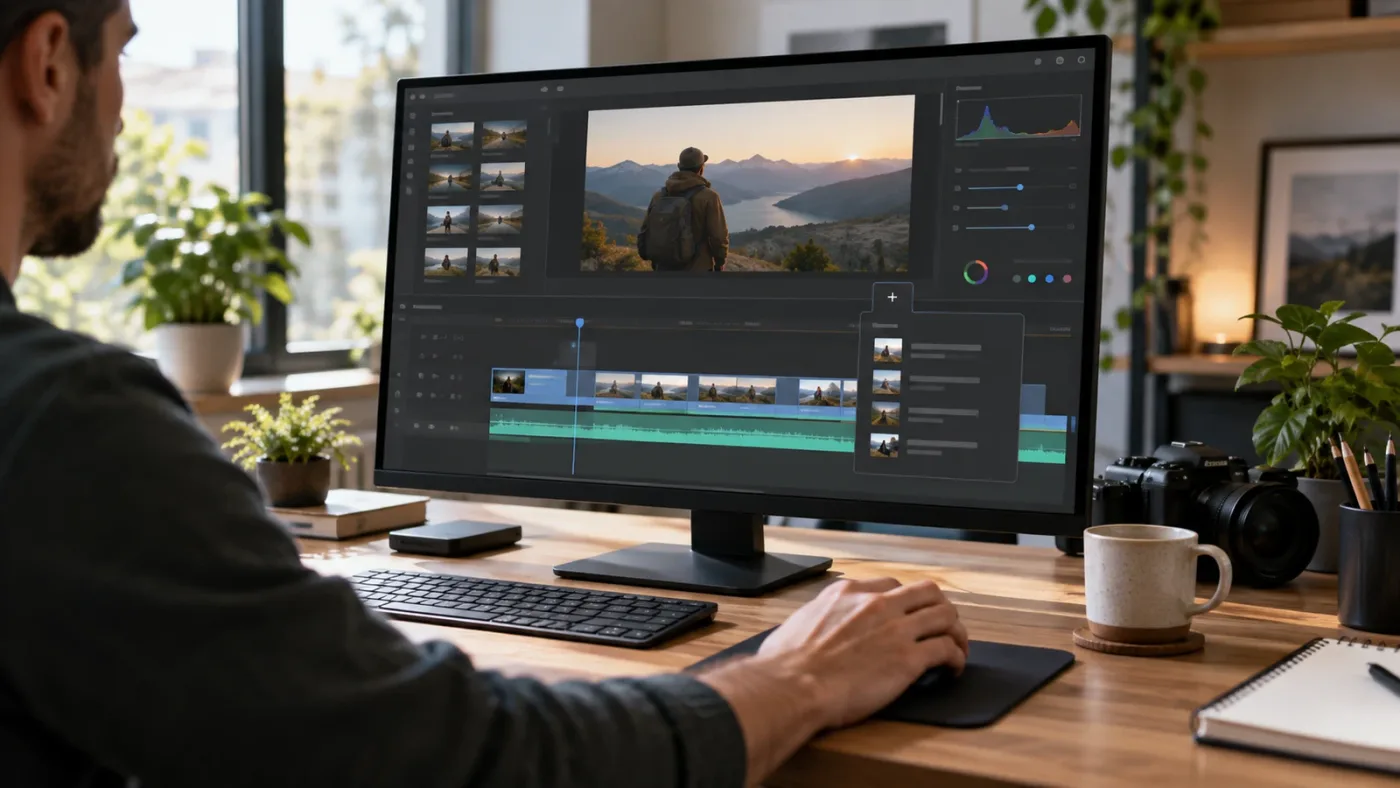
Why do my timeline tabs still not show after enabling Stacked Timelines?
If timeline tabs still do not show after enabling Stacked Timelines, check the page, the open timeline, the UI layout, and the timeline’s enabled state in that order. Those checks separate a hidden control from a timeline that Resolve is intentionally excluding.
Confirm that you are on the Edit page
The timeline tab instructions in the current manual are written for the Edit page. Resolve’s Cut page has a different timeline design, including its own dual-timeline and source-tape workflows. If a tutorial says “click Timeline View Options” and you cannot find that control, click Edit first.
This is a frequent page mismatch rather than a broken project. New projects can open on the Cut page, and users who last worked there may assume the current layout is the standard Edit page. If your interface has a simplified Cut page timeline, do not keep searching its controls for the Edit page tab bar.
Open an actual timeline
The tab bar belongs to the timeline editor. If the Edit page is open but no timeline is loaded, you may see the Media Pool and Viewer without the tab row you expect. Double-click a timeline in the Media Pool. If there are no timelines in the current bin, select the bin that contains them or create a new timeline.
Reset the UI layout
If you changed panel sizes, enabled a dual-monitor layout, or followed a tutorial that rearranged the interface, choose Workspace > Reset UI Layout. The Resolve 21 Edit page documentation identifies this command as the way to return to the default layout. Resetting the layout does not mean deleting your timelines. It changes the arrangement of interface panels.
Resetting is especially useful when the timeline has been expanded, collapsed, or moved into an unusual layout. After the reset, return to the Edit page, open a timeline, and turn on Stacked Timelines again.
If another toolbar or page control is also missing, our related guide on DaVinci Resolve’s Edit page toolbar missing covers the broader layout branch. Use that guide for a missing toolbar. Use this one for a missing timeline tab bar.
Check whether the timeline is disabled
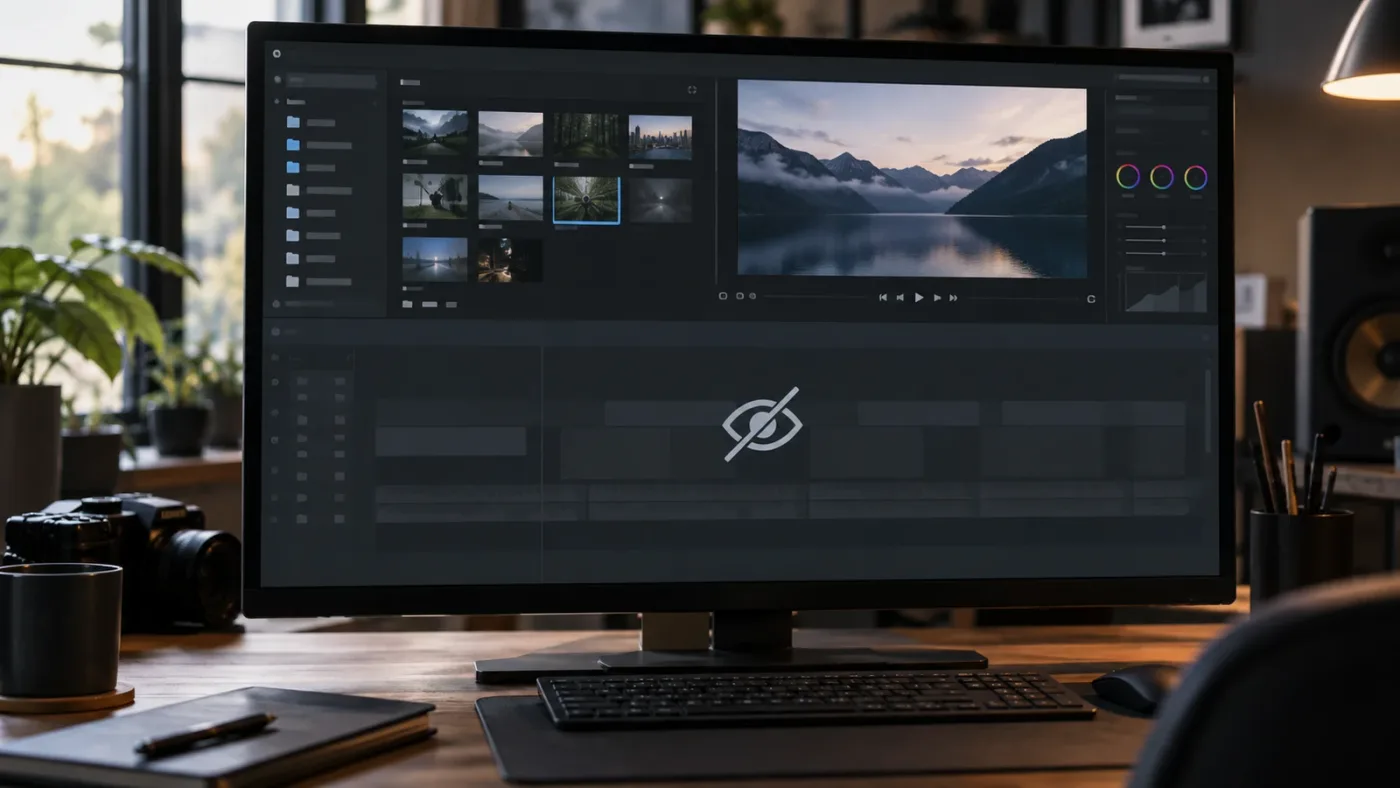
Resolve 21 lets you disable timelines in the Media Pool. The current manual says a disabled timeline remains visible in the Media Pool, carries a crossed-out eye icon, disappears from Viewer dropdown menus, and cannot be opened on any page.
That makes this symptom look like a tab problem. You can see the timeline’s name, so you know it exists, but Resolve will not offer it in the tab dropdown. Right-click the timeline in the Media Pool and choose Enable Timeline. Then open it again.
This setting is useful when a project has many alternate cuts or backups, but it can surprise you when a project arrives from another editor. Do not duplicate the timeline immediately. Check the crossed-out eye icon first.
Look for a timeline that is already open elsewhere
The manual says a timeline can only be open in one tab or stack at a time. If you are trying to add a timeline that is already loaded in a different timeline view, select that existing tab or close the other view. The absence from the Add Tab list can be expected behavior.
What is the difference between timeline tabs and stacked timelines?
Timeline tabs let you switch between timelines in one timeline editor, while stacked timelines display two or more timeline editors at once. In Resolve 21, the same timeline view control leads to both workflows.
Use ordinary tabs when you are moving between versions of a cut, such as rough cut, client review, and final. Use stacked timelines when you need to compare or copy between two timelines while keeping both visible.
The manual gives a practical stacked example: an editor can keep a stringout of interview selects in one timeline and the working program in another. The top timeline provides source material, while the lower timeline remains the edit destination. That is a different job from simply switching tabs.
The controls also look different once stacking is active. Each timeline view gets its own tab row, and Resolve shows an orange underline for the selected timeline view. An Add Timeline control appears at the right of the tab bar. If you only want a single row of tabs, leave the additional stacked view closed.
There is one important workflow trade-off. In a May 2025 Blackmagic forum feature request, Andy Mees wrote, "At present one cannot use tabbed timelines unless 'Display Stacked Timelines' is enabled." The same discussion points out that Resolve 20’s Keyframe Tray behavior treated tabbed and stacked views together. A separate Blackmagic forum reply explains that the Keyframe Tray can be unavailable when Display Stacked Timelines is enabled, even when you are only using tabs.
That is an interface limitation worth knowing, not a reason to conclude that your tabs are malfunctioning. If you need the Keyframe Tray, test whether disabling Stacked Timelines restores it. If you need fast tab switching, enable the setting and accept that some timeline tools may change availability in that layout.
Why is a timeline missing from the dropdown but visible in my project?
A timeline that is visible in the Media Pool but absent from the tab dropdown is most often disabled, already open in another tab or stack, or stored in a different project than the one currently active. Check those three cases before assuming corruption.
Start with the Media Pool icon. A crossed-out eye means the timeline is disabled. Right-click and choose Enable Timeline. If the timeline is enabled, double-click it directly. If it opens, the tab workflow is healthy and the earlier dropdown state was the issue.
Next, inspect the project name and project library. DaVinci Resolve timelines belong to projects. A timeline in another project may have a similar name and may be visible in your broader project organization, but it cannot be selected as a tab in the active project. Open the project that owns the timeline, then use its Media Pool.
Finally, check whether the timeline is already open. Resolve does not create multiple tab instances of the same timeline in the same project. The existing tab is the one to select.
Do not confuse this with a missing clip. Timeline tabs represent edit sequences. They do not represent individual video files, audio files, or bins. If you are trying to find a clip, use the Media Pool. If you are trying to switch between edits, use the timeline tab bar.
Can I use the Viewer dropdown if the timeline tabs are hidden?
Yes. The Timeline Viewer dropdown can switch timelines while you repair the tab layout, but it does not turn on the missing tab bar. Treat it as a temporary navigation route, not the fix.
The current Edit page documentation says the Timeline Viewer displays the current timeline name and includes a dropdown for switching among timelines in the project. That is useful for answering a simple question: does Resolve still know about the other timeline?
If the Viewer dropdown lists the timeline, the project and timeline are probably fine. Return to the timeline toolbar and enable Stacked Timelines. If the Viewer dropdown does not list it, check the disabled-timeline branch above.
This is also a good test after resetting the UI. Open one timeline from the Viewer dropdown, click back into the timeline editor, and see whether the tab bar appears. The goal is to isolate navigation from layout.
The shortcut situation can vary by keyboard preset and operating system, so I would not rely on a remembered key combination as the first repair. Resolve supports customizable keyboard shortcuts, and a tutorial may be using a custom mapping. The menu path is clearer: Edit page, Timeline View Options, Stacked Timelines.
How should I troubleshoot timeline tabs after an update to Resolve 21.1?
After a Resolve update, first confirm the exact build, then test the default Edit page layout before changing project settings. Resolve 21.1 was listed by Blackmagic in September 2026, and its release material includes several timeline and editing changes, so version context matters when a tutorial and your interface disagree.
Use this small update check:
- Choose DaVinci Resolve > About DaVinci Resolve on macOS, or Help > About DaVinci Resolve on Windows and Linux, and write down the version and build.
- Confirm that you are opening the desktop Edit page, not the Cut page or a tutorial’s older layout.
- Choose Workspace > Reset UI Layout.
- Open one timeline from the Media Pool.
- Enable Display Stacked Timelines in Timeline View Options.
- Open a second enabled timeline.
- If the tabs work in a fresh test project but not the original, the problem is project state or timeline state. If they fail in both, record the version, operating system, page, and exact menu labels before reporting a bug.
Do not downgrade a project casually. Resolve project libraries can have version compatibility considerations, and changing versions without a backup can create a separate problem from the missing tabs. Save a project backup before testing an older build or moving the project to another workstation.
The official Resolve 21.1 manual is available from Blackmagic’s manual page, which lists the manual date as September 8, 2026. The 21.1 release notes also document current changes, including editing preferences and timeline-related behavior. Use those official references when a forum answer describes Resolve 18, 19, or 20 and you need to know whether the same control exists in 21.1.
Is there an app that helps you while using DaVinci Resolve?
If the setting is hard to locate because your Resolve layout does not match a tutorial, an on-screen assistant can shorten the search, but it should come after the direct fix. The actual repair remains enabling Stacked Timelines and checking the active page.
TryUncle is the on-screen assistant for DaVinci Resolve on Mac and Windows. Ask in plain words and Uncle points at the exact control on your screen. Check TryUncle for the current product details and platform availability.
That kind of help is relevant to this problem because “turn on Stacked Timelines” is easy to understand once you know where Timeline View Options lives. The hard part for a new editor is often the interface discovery step: which page, which toolbar, which icon, and which label. An assistant that points at the control can help with that translation while you keep the decision and the click in your hands.
It is not a replacement for Blackmagic’s official training, a structured course, or the Resolve manual. Blackmagic’s training is the better choice when you want a full syllabus. A screen-aware assistant fits the narrower moment when you are already inside Resolve and the tutorial does not match your project.

What should I do if DaVinci Resolve timeline tabs are still not showing?
If DaVinci Resolve timeline tabs are still not showing, use this final order: Edit page, open timeline, Timeline View Options, Stacked Timelines, second enabled timeline, then Reset UI Layout. That sequence catches the normal visibility, page, layout, and timeline-state causes without touching the project’s edit data.
Here is the short version to keep beside Resolve:
- Go to Edit.
- Open a timeline from the Media Pool.
- Open Timeline View Options at the far left of the timeline toolbar.
- Enable Display Stacked Timelines.
- Open a second timeline or click Add Tab.
- If the timeline is missing, right-click it in the Media Pool and choose Enable Timeline.
- If the interface still looks wrong, choose Workspace > Reset UI Layout.
If the bar appears after step 4, you are done. If the bar appears but the timeline you want does not, follow the disabled or already-open checks. If the whole toolbar is missing, use the Edit page toolbar guide. If the timeline itself will not scroll or zoom, that is a separate timeline-view problem covered by DaVinci Resolve timeline won’t scroll or zoom.
The practical verdict is simple. Do not search for a secret tab command. In DaVinci Resolve 21, timeline tabs are a timeline view setting, and the setting is labeled Stacked Timelines because the same interface also supports stacked editing. Turn it on, open the timeline you need, and keep cutting.
In DaVinci Resolve 21, timeline tabs are controlled from Timeline View Options, not from the Media Pool tab menu.
Frequently asked questions
- Why are my DaVinci Resolve timeline tabs not showing?
- The timeline tab bar is usually hidden because Stacked Timelines is disabled. Open the Edit page, open Timeline View Options at the upper left of the timeline, and enable Stacked Timelines.
- How do I show timeline tabs in DaVinci Resolve 21?
- On the Edit page, choose Timeline View Options, enable Stacked Timelines, then click Add Tab or open another timeline from the Media Pool.
- Why do I see Media Pool tabs but not timeline tabs?
- Media Pool tabs and timeline tabs are different controls. Media Pool tabs organize bins, while timeline tabs require Stacked Timelines in the timeline view.
- Why is my timeline missing from the tab dropdown?
- Check whether the timeline is disabled in the Media Pool. A disabled timeline stays visible there but is hidden from timeline dropdowns until you choose Enable Timeline.
- Do timeline tabs work on the Cut page?
- The tabbed timeline workflow described here is for the Edit page. Switch from Cut to Edit before looking for Timeline View Options and the timeline tab bar.
Sources
- DaVinci Resolve 21.1 Manual download page
- DaVinci Resolve 21.1 Reference Manual
- Creating and Working with Timelines, DaVinci Resolve 21 manual
- Using the Edit Page, DaVinci Resolve 21 manual
- DaVinci Resolve 21 New Features Guide
- DaVinci Resolve 21.1 release notes
- Tabbed (but not Stacked) Timelines, Blackmagic Forum
- Keyframe Tray greyed out, Blackmagic Forum
- DaVinci Resolve product page
- DaVinci Resolve Training, Blackmagic Design
Put this guide to work with TryUncle.
Ask about the step you’re on. TryUncle sees your screen and points at the control you need, so you can keep learning in your own project.
Get TryUncle for Mac or WindowsKeep reading
Fixes · Jul 20, 2026 · 23 min
DaVinci Resolve Edit Page Toolbar Missing? Here's the Fix
Your DaVinci Resolve Edit page toolbar disappeared? It's almost always a hidden panel or a UI layout glitch, not lost data. Every real cause and fix.
Comparisons · Jul 10, 2026 · 28 min
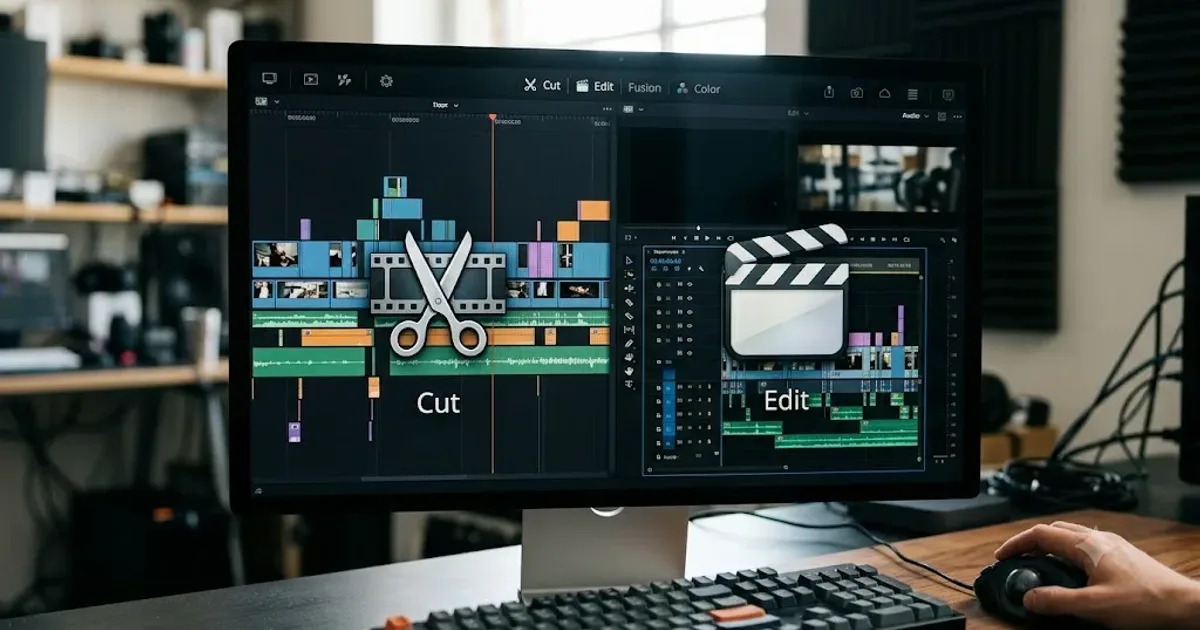
DaVinci Resolve Cut Page vs Edit Page: The Real Differences
A full side-by-side of DaVinci Resolve's Cut and Edit pages: timeline, trimming, multicam, and hardware differences, plus which one to use.

Fixes · Jul 17, 2026 · 25 min
DaVinci Resolve Timeline Won't Scroll or Zoom? Here's the Fix
Fix a DaVinci Resolve timeline that won't scroll or zoom: check 2D Timeline Scrolling, your modifier keys, trackpad gestures, and a stuck UI layout.