Articles / Fixesupdated for DaVinci Resolve 21.0.2 (July 2026)
DaVinci Resolve Timeline Won't Scroll or Zoom? Here's the Fix
Quick answer
A stuck DaVinci Resolve timeline is almost always input, not corruption. Check whether 2D Timeline Scrolling in Preferences is swallowing your scroll wheel, confirm you're using the right modifier (Option/Alt to zoom, Command/Ctrl to scroll) for your input device, and make sure the timeline panel has focus. If none of that works, reset the UI layout.
Your timeline just sits there. You scroll, nothing moves. You reach for Option and scroll again, and the clips stay exactly where they were. Everything else in DaVinci Resolve works. Playback runs, the mouse clicks fine, menus open. It's just this one panel that's stopped listening to you, and that's a strange, specific kind of frustrating.
Good news first: this is almost never project damage. It's almost always a setting, a modifier key, or a piece of hardware getting between your input and the timeline. Let's go through every real cause in order, starting with the one that catches the most people.
What causes a DaVinci Resolve timeline to stop scrolling or zooming?
There are really only six causes, and they split into two families. The first family is input routing: Resolve is receiving your scroll or gesture, but sending it somewhere other than where you expect. The second is a broken or misconfigured panel: the timeline itself isn't in a state to respond to anything.
A timeline that won't scroll or zoom is almost always an input problem, not a broken project. That distinction matters, because it means you're not about to lose work. You're chasing a setting.
| Cause | How common | Fix location |
|---|---|---|
| 2D Timeline Scrolling preference | Very common | Preferences, User, UI Settings |
| Wrong modifier key for your device | Very common | Muscle memory, not a setting |
| Trackpad gesture mismatch | Common on laptops | Trackpad technique |
| Mouse or tablet driver hijacking scroll | Common with Wacom, gaming mice | Third-party driver software |
| Cursor hovering the wrong panel or element | Common | Mouse position, not a setting |
| Broken UI layout or corrupted preferences | Uncommon | Workspace, Reset UI Layout |
Work down this table roughly in order of likelihood before you assume anything is actually broken. Most people who write in convinced their project is corrupted find the answer inside two minutes, in Preferences.
Is 2D Timeline Scrolling swallowing your scroll wheel?
This is the single most common cause, and it's also the least discoverable, because the setting's name doesn't sound like it has anything to do with your problem. 2D Timeline Scrolling lives in Preferences, under the User tab, in UI Settings. According to a long-running Blackmagic forum thread on exactly this symptom, when the setting is checked, which is its default state, "you have to hold down Control/Command to scroll with the mouse wheel" if you want to move the timeline left and right. A plain scroll, with the setting on, moves you up and down through tracks instead, or does nothing at all if you only have one or two tracks to move through.
Turn the setting off, in Preferences > User > UI Settings, and the relationship flips: a plain scroll wheel pans the timeline horizontally, no modifier required, but you lose the ability to jump between tracks with a bare scroll.
Here's the practical breakdown:
| 2D Timeline Scrolling | Plain scroll wheel | Command/Ctrl + scroll |
|---|---|---|
| On (default) | Moves between tracks vertically | Pans timeline horizontally |
| Off | Pans timeline horizontally | No defined action |
If your specific complaint is "the timeline won't move left and right no matter what I scroll," check this setting before anything else on this page. It's the single highest-odds fix for that exact symptom, and it explains why the same scroll wheel that works fine in every other app suddenly seems dead in Resolve specifically.
Are you using the right modifier keys for pan and zoom?
DaVinci Resolve's timeline overloads a plain scroll wheel with three different jobs, split apart by modifier keys. Per the DaVinci Resolve reference manual's own description of scroll wheel controls, the baseline assignments on a Mac are: plain scroll moves through tracks vertically, Shift+scroll expands or contracts track height, Option+scroll zooms the timeline in and out, and Command+scroll navigates the timeline. On Windows, swap Option for Alt and Command for Control.
| Combination (Mac / Windows) | What it does |
|---|---|
| Scroll / Scroll | Moves through video and audio tracks vertically |
| Shift+Scroll / Shift+Scroll | Expands or shrinks the track height under your cursor |
| Option+Scroll / Alt+Scroll | Zooms the timeline in and out horizontally |
| Command+Scroll / Ctrl+Scroll | Navigates the timeline, and with 2D Timeline Scrolling on, pans horizontally |
Worth knowing before you dig further: some forum reports describe slightly different Command/Ctrl+scroll behavior depending on the Resolve version and whether 2D Timeline Scrolling is on, since Blackmagic has adjusted scroll routing more than once across recent releases. If a combination in this table doesn't do what's listed here, don't assume you're wrong. Test all four on a fresh clip selection and note what actually happens on your install before troubleshooting further; that observed behavior, not the table, is your ground truth.
Two mistakes cause most "zoom doesn't work" reports that turn out not to be bugs at all. The first is holding Command/Control when you meant Option/Alt, since both feel like the natural "power modifier" and it's an easy slip under deadline pressure. The second is switching from a Mac to a Windows machine, or the reverse, without adjusting muscle memory, since the two platforms share almost every shortcut in this guide but not always the exact same key.
Our DaVinci Resolve keyboard shortcuts reference covers the rest of the Edit page's core keys if the zoom and scroll combinations are the only ones giving you trouble; it's worth a skim so you're not relearning the same lesson twice for a different shortcut next month.
Why won't your trackpad pinch-zoom or pan the timeline?
Because it was never going to. This is the cause that generates the most confused forum posts, because the expectation comes from every other piece of creative software on the machine, not from anything Resolve promised.
DaVinci Resolve's timeline does not support your operating system's native pinch-to-zoom gesture. Multiple long-running Blackmagic forum threads asking for trackpad pinch-zoom on the timeline, including one requesting "Trackpad Support for Zoom in timeline and 3D," confirm this has been an outstanding feature request rather than a shipped feature. If you're pinching two fingers together expecting the timeline to zoom the way a photo does on your desktop, that gesture simply isn't wired to anything in the timeline panel.
What actually works on a trackpad, per multiple forum threads describing the supported gestures on the Edit and Color pages, is a modifier-plus-swipe combination that mimics the mouse wheel, not a native pinch:
| Trackpad gesture (Mac) | Result |
|---|---|
| Two fingers, unmodified, up/down or left/right | Pans the timeline |
| Option + two fingers, up/down | Zooms the timeline in and out |
| Pinch (thumb and finger together) | Does nothing on the timeline |
Windows laptop trackpads follow the same logic with Alt in place of Option, though gesture quality varies more by trackpad driver on Windows than it does on a MacBook's built-in trackpad. If your two-finger swipe pans fine but Option-plus-swipe does nothing, check that your trackpad driver isn't intercepting the Option key for its own gesture layer before it reaches Resolve; some third-party trackpad utilities on Windows do exactly that by default.
Is a Wacom tablet, gaming mouse utility, or driver eating your scroll input?
Any device that replaces or augments the standard mouse driver is a suspect, and Wacom tablets are the most commonly reported offender specifically because they're common on color and Fusion workstations.
Wacom's pen tablets ship with a Touch Ring, a physical dial that many editors map to timeline zoom because it's faster than reaching for a keyboard modifier. The touch ring sends its rotation to applications as the same signal a scroll wheel sends. On some tablet models and driver versions, that signal arrives reversed inside Resolve specifically, so turning the ring clockwise zooms the timeline out instead of in, backward from what the on-screen label and most other apps suggest. A Blackmagic forum thread on this exact behavior, titled "Wacom Tap-and-Drag to Zoom Timeline in Edit," and independent coverage of Wacom tablet setup for Resolve both describe the same reversed-direction quirk. The fix lives in the Wacom driver's own preferences panel, not inside Resolve: reverse the touch ring's zoom direction there, and Resolve inherits the correction automatically, since it's still just reading the same scroll signal either way.
Gaming mice are the second common offender, for a less obvious reason. Software like Logitech Options, Razer Synapse, or SteerMouse lets you remap scroll wheel behavior per application, and it's easy to set up a profile for a different app, forget about it, and have that profile's remapped scroll silently apply to Resolve too if the software misdetects which window is active. If your scroll wheel behaves strangely in Resolve but normally everywhere else, open your mouse's configuration software before you touch a single Resolve preference, and check whether a per-application profile is active for DaVinci Resolve specifically.
The fastest diagnostic for either of these: plug in a plain USB mouse with no custom driver installed, or borrow one, and test scroll and zoom again. If the plain mouse works normally, the problem was never inside Resolve. It was the driver layer sitting between your hardware and the application.
Did the timeline lose focus to another panel?
Not exactly lose focus, and that distinction is the whole answer. DaVinci Resolve doesn't route scroll input by whichever panel you last clicked into, the way a lot of other software does. It routes scroll input by whichever panel your mouse cursor happens to be hovering over at the moment you scroll.
Resolve reads the scroll wheel by whatever panel your mouse is hovering over, not by whatever panel you last clicked. A Blackmagic forum thread describing a related behavior change, titled "New scroll wheel behavior with Resolve 19.1," notes that scroll input can land on parameter sliders under the cursor, with one user reporting they'd "inadvertently scroll sliders when using the scroll wheel to scroll down on a panel," moving a Color Space Transform value they never meant to touch. That's the Color page's Inspector, but the underlying mechanism, hover-based routing, is the same one that silently steals scroll input from your timeline.
In practice this shows up a few specific ways:
- Your cursor drifts slightly onto a clip's speed indicator or a keyframe icon while you scroll, and it changes a parameter instead of moving the timeline.
- Your cursor sits over the Inspector panel on the right side of the screen while you try to zoom, and the Inspector scrolls its own list instead.
- Your cursor rests over the Media Pool or a bin thumbnail grid, and scrolling moves that list, not the timeline behind it.
The fix costs nothing: move the mouse to open, empty timeline space, away from clips, the ruler, and any visible slider, before you scroll or apply a modifier combination. It sounds too simple to be the actual cause of a persistent complaint, but a huge share of "scroll wheel does nothing" reports resolve the moment someone notices their cursor was a few pixels outside the panel they thought they were in.
Is the zoom slider or Zoom to Fit stuck?
There's a second, independent zoom control that doesn't involve the scroll wheel at all: the zoom slider in the top right corner of the timeline on the Edit page, alongside the plus and minus buttons and the Zoom to Fit shortcut. Occasionally this control appears stuck, dragged to one extreme, or simply unresponsive to clicks.
The zoom slider and the Option-scroll shortcut control the exact same value, so if one is stuck, so is the other. That's a useful diagnostic on its own: if Option+scroll zooms the timeline fine but the slider visually doesn't move, or vice versa, that's a display glitch in one control, not an actual zoom failure, and a Workspace, Reset UI Layout usually clears it without touching your project.
If neither the slider nor any scroll combination changes your zoom level at all, work through this order:
- Confirm you're on the Edit page. The zoom slider and its keyboard shortcuts don't exist in the same form on the Cut page, and clicking around a page that doesn't have the control you're looking for wastes real troubleshooting time.
- Try the keyboard alternative directly: Command+Equals and Command+Minus on Mac, Control+Equals and Control+Minus on Windows, zoom in and out without touching the mouse at all.
- Press Shift+Z, the Zoom to Fit shortcut, which snaps the entire timeline into view regardless of its current zoom state. If this single shortcut works, your zoom mechanism is fine, and only your prior zoom level or the slider's redraw was the problem.
- If none of the above respond, that's a sign the timeline panel itself isn't receiving input at all, which points toward the UI layout and preferences causes covered next, not toward a zoom-specific bug.
Does a locked track stop scrolling or zooming?
No, and this is worth stating plainly because it's a common wrong guess. The padlock icon on a video or audio track header locks that specific track against edits: you can't trim, move, delete, or drag new clips onto it while it's locked. It has nothing to do with viewing that track. A fully locked timeline, every track padlocked, still scrolls and zooms exactly the same as an unlocked one.
A locked track stops you from editing a clip. It does not stop you from scrolling or zooming past it. If you've been clicking every padlock icon on your timeline trying to fix a stuck scroll, that's wasted effort, and it's worth unlocking anything you locked during that troubleshooting pass before you keep working, since a track you forgot was locked causes its own separate confusion later.
The one place lock state does matter tangentially: a track that's locked and also hidden (the eye icon, a separate toggle from the lock) can make clips on it invisible while you scroll past their region, which can look like a scrolling problem when it's actually a visibility one. Check both icons if a specific stretch of your timeline looks empty while scrolling works everywhere else.
Could a corrupted UI layout or preferences file be the cause?
Less often than people assume, but it does happen, and it's worth ruling out before you spend more time on individual settings. DaVinci Resolve's window arrangement, panel sizes, and even some scroll-adjacent behavior live in a preferences file that can get corrupted by an improper shutdown, a crash mid-save, or a conflict introduced by an OS update.
Two separate resets solve two separate problems here, and mixing them up wastes time:
| Reset | What it fixes | What it doesn't touch |
|---|---|---|
| Workspace, Reset UI Layout | A squeezed, hidden, or misplaced timeline panel; a display glitch on the zoom slider | Input routing, modifier key behavior, project data |
| Preferences, System, Reset System Preferences | Corrupted preference values, including a jammed 2D Timeline Scrolling state | Your project files, media, or timeline content |
Reset UI Layout, per the DaVinci Resolve reference manual, brings "all your windows back to the center" and rebuilds the layout for your current screen resolution. It's the right first move if the timeline panel itself looks wrong: too thin to use, overlapped by another panel, or missing entirely from view. It's the wrong move if the panel looks completely normal but simply won't respond to scroll or zoom input, because a layout reset doesn't touch how Resolve interprets your mouse or keyboard.
Reset System Preferences goes deeper. It clears the preferences file entirely and restores every setting, including 2D Timeline Scrolling, keyboard customization presets, and playback preferences, to Resolve's defaults. This is the appropriate step if you've worked through every cause on this page and the timeline still won't move, because it eliminates the possibility that a setting got written into a bad state that the Preferences panel itself won't let you correct through the UI.
There's a real cost to a full preferences reset worth naming honestly: it wipes any custom keyboard shortcut preset, custom UI color scheme, and playback preference you've built up, not just the one setting causing your problem. Marc Wielage, a Certified DaVinci Resolve Color Trainer, describes a way to avoid losing that setup work entirely when troubleshooting forces a reset. Answering a forum thread about preserving a workspace layout, he explained his own method: "I save Workspace Presets under a given name, then save that as an empty session and use it as a template. When I re-open that session, everything is as it was (for the most part), then I save it under the new client/project name and go to work." Building that habit before you ever need a preferences reset means a troubleshooting session costs you an afternoon instead of a rebuilt workflow.
If hunting through three levels of Preferences menus for a checkbox you've never needed before eats the rest of your afternoon, that's the specific kind of friction TryUncle is built for. TryUncle is an AI tutor for DaVinci Resolve on macOS. Ask in plain words and Uncle points at the exact control on your screen, instead of sending you back to a forum thread to guess which menu it's hiding in.
Is this a project-specific problem, or does it happen everywhere?
Before you touch another setting, spend thirty seconds narrowing the scope. Open a brand-new, empty project and check whether its timeline scrolls and zooms normally.
If the new project works fine and only your original project is stuck, the cause lives inside that specific project, not your Resolve installation. The two most common project-level causes are an extremely long timeline, where certain zoom levels push against an internal rendering limit and the view appears to freeze rather than actually failing, and a corrupted timeline object inside a damaged project database, which is rarer but does happen after a bad crash. For a badly behaving single project, duplicating the timeline (right-click it in the Media Pool and choose Duplicate Timeline) sometimes clears whatever state got stuck, without you losing any edits, since the duplicate starts from a clean object even though it contains identical content.
If every project shows the same stuck timeline, including a fresh empty one, the cause is global: your Resolve preferences, your input device, or your driver stack, not anything about your specific edit. That test alone eliminates half the causes on this page and tells you exactly which half of this guide to keep reading.
Does it happen only on the Edit page, or on Cut and Color too?
Worth testing separately, because DaVinci Resolve's pages don't share a single timeline implementation the way you might assume from how seamlessly you can switch between them. Each page renders its own timeline view and handles input for it somewhat independently, even though the underlying edit data is identical everywhere.
Our Cut page vs Edit page comparison covers the structural differences in more depth, but the piece that matters here: the Cut page's dual timeline and source tape use different navigation conventions than the Edit page's single track-stack timeline, and the zoom slider and some of its keyboard shortcuts genuinely don't exist in the same form on Cut. If you're testing zoom shortcuts on the Cut page and getting no response, that may not be a bug at all, just a control that only exists on Edit.
The Color page's timeline strip along the bottom of the screen responds to the same core scroll and modifier combinations as the Edit page timeline, since it's a thinner view of the same data, but it sits in a tighter vertical space, which makes the hover-routing issue described earlier easier to trigger by accident: a cursor that's technically over the node graph or a scope instead of the timeline strip won't scroll the strip at all.
Test the exact same input on each page you use before you conclude your whole install has a scroll problem. A fix that clears it on Edit but not on Cut, or the reverse, tells you the cause is page-specific input handling, not a global preference, and that changes where you look next.
Could an external control surface be capturing your input?
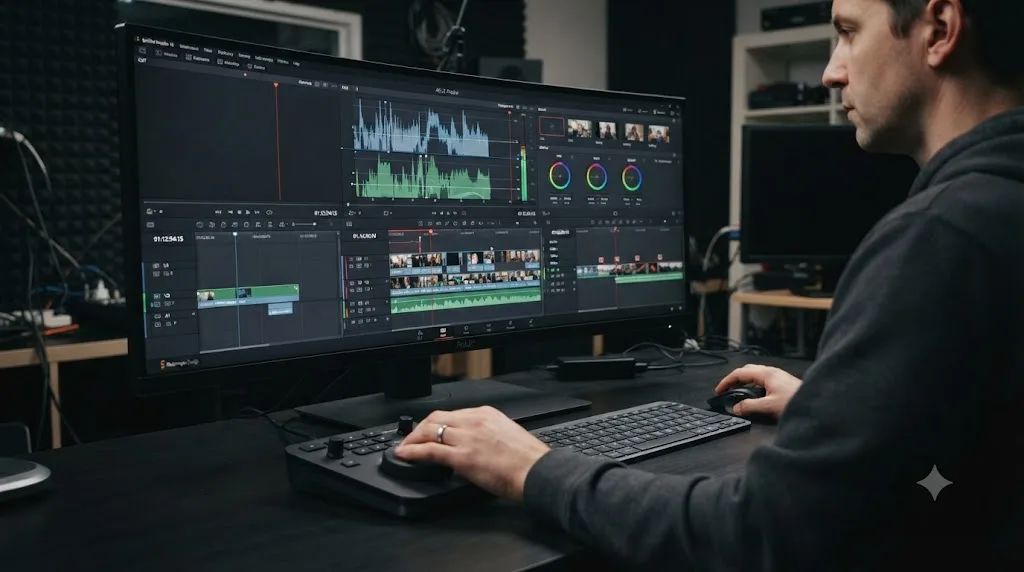
If you edit with a DaVinci Resolve Speed Editor, Editor Keyboard, or a third-party jog/shuttle controller connected over USB, that hardware has its own relationship with the timeline that can look like a scrolling bug from the outside.
Blackmagic's dedicated keyboard hardware, described on its own DaVinci Resolve keyboard product page, includes a search dial that doubles as a jog and shuttle control for moving through footage. That dial's default job is moving the playhead, not panning or zooming the timeline view, and a common point of confusion is expecting it to behave like a scroll wheel when it's built to behave like a transport control instead. If your mouse scroll and modifier keys work perfectly and your confusion is specifically about the hardware dial not zooming the timeline, that's expected behavior, not a fault, unless you've remapped it deliberately in the device's own configuration software.
The more disruptive version of this problem happens when a third-party USB control surface, built for a different application entirely, sends generic scroll or arrow-key events into whatever window has focus, including DaVinci Resolve, without any awareness that Resolve exists. If you've added new hardware around the same time the scrolling problem started, that timing is the strongest clue you have. Unplug the device, retest, and you'll know within a minute whether it's the cause.
Is your system too overloaded for the UI to keep up?
Occasionally what looks like a completely unresponsive timeline is actually an extremely slow one, and the difference matters because the fix is entirely different. A genuinely stuck timeline never responds no matter how long you wait. An overloaded one eventually catches up, just embarrassingly late, after the input you sent thirty seconds ago finally gets processed.
Per Blackmagic's own tech specs, DaVinci Resolve wants at least 16 GB of system RAM and a GPU with 4 GB of VRAM or more just to run comfortably. A machine at or below that floor, working on a demanding timeline full of high-resolution proxies, heavy grades, or a large Fusion composition, can genuinely lag badly enough on redraw that scrolling feels broken even though every input is technically being received and processed, just far too slowly to feel responsive.
The tell is consistency: a UI that's overloaded lags everywhere, including menu clicks and playback, not just the timeline specifically, and it usually gets visibly worse the longer a session runs as caches and memory pressure build up. A UI that's genuinely not receiving scroll input responds instantly to everything except that one specific gesture. If your whole application feels heavy, not just the timeline, our guide to choppy DaVinci Resolve playback covers the GPU, decode, and render cache fixes that address the underlying load, and our guide to DaVinci Resolve crashing covers what to do if that same overload has started taking the whole application down rather than just slowing the timeline.
Is this a known bug tied to your DaVinci Resolve version?
Sometimes, though rarely for exactly this symptom. Blackmagic ships DaVinci Resolve 21 point releases at a steady pace, and 21.0.2, released in the first week of July 2026, addressed a batch of interface issues including, per coverage of its release notes, a fix to "video inspector zoom minimum values." That specific fix is about a numeric zoom field inside the Inspector panel, not the timeline's own scroll and zoom, so don't read it as confirmation your exact problem has already been patched. What it does confirm is that Blackmagic actively works on zoom-related UI bugs across point releases, which is a reasonable basis for trying an update before you assume you're stuck with the problem permanently.
I didn't find a release note from any 21.x point release specifically describing a fix for a fully unresponsive timeline scroll or zoom. If your issue started immediately after updating to a new version, the practical move isn't to try to downgrade, which Resolve makes deliberately difficult once a project has been opened in a newer version, since project files aren't guaranteed to open in older releases afterward. The practical move is to update again to whatever the newest point release is, since Blackmagic's cadence means a fix, if one exists, is more likely to already be out than for you to be the first person to report the exact bug.
Reset UI Layout fixes a broken window arrangement. It does not fix input that DaVinci Resolve isn't receiving at all. Keep that distinction in mind as you weigh whether your specific case is a version bug worth waiting out, or one of the settings and driver causes covered earlier that you can fix yourself right now.
Does the cause differ between Mac and Windows?
Mostly not, but two specific differences are worth knowing before you troubleshoot the wrong platform's advice.
The modifier keys themselves differ, obviously: Option and Command on Mac map to Alt and Control on Windows for every combination in this guide. That's the same swap as everywhere else in Resolve, and it trips people up here specifically because scroll-wheel modifiers feel more like muscle memory than menu commands, so the mistake is easy to make without noticing.
Trackpad quality is the bigger real difference. macOS's built-in trackpad driver handles two-finger gestures consistently across every MacBook, so the Option-plus-two-finger zoom combination behaves the same on a five-year-old machine as a brand-new one. Windows trackpad gesture quality varies significantly by laptop manufacturer's own driver, and some third-party Windows trackpad drivers intercept or remap gestures before they ever reach Resolve, which is a layer that simply doesn't exist on a Mac. If you're on a Windows laptop and trackpad zoom behaves inconsistently, check your trackpad manufacturer's own control panel software (Synaptics, Elan, and manufacturer-specific utilities from Dell, HP, or Lenovo all handle this differently) before assuming Resolve itself is the problem.
Wacom and other pen tablet drivers behave close to identically across both platforms, since Wacom maintains parallel driver codebases specifically to keep behavior consistent, so the touch ring reversal issue described earlier shows up on both Mac and Windows installations about equally often.
What does the full diagnosis look like on a real setup?
Put the pieces together on a common case: a Windows editor with a Wacom Intuos tablet, no mouse plugged in most days, working in DaVinci Resolve 21 on a client project that's been open for months.
The complaint: the timeline scrolls up and down through tracks fine with the touch ring, but nothing pans it left and right, and Option-equivalent (Alt) plus the touch ring seems to zoom, but backward from what the on-screen labels suggest.
Working the table from the top of this guide in order: first, test the core modifiers with a plain mouse borrowed from a colleague, not the tablet. Plain scroll moves through tracks, exactly as 2D Timeline Scrolling being on would predict. Ctrl+scroll on the plain mouse pans the timeline horizontally, confirming the setting is working as documented and this part was never broken; the editor had simply never tried Ctrl+scroll on the tablet's touch ring because the tablet's driver doesn't pass modifier-plus-ring combinations the same way it passes modifier-plus-mouse-wheel ones.
Second, the reversed zoom direction: this matches the known Wacom touch ring quirk described earlier, confirmed by checking the Wacom driver's own preferences panel, where the zoom ring direction setting was left at its factory default. Flipping that one setting inside the Wacom Desktop Center software, not inside Resolve, fixes the direction immediately, and it stays fixed for every application on the machine that uses the ring, not just Resolve.
Total time from "the timeline is broken" to "the timeline works exactly as documented": under ten minutes, and zero changes made to the project file. That's the pattern behind nearly every version of this complaint. The fix is almost never inside the project. It's almost always one setting, in one of two places, that nobody had a reason to look at until today.
What if nothing here fixes it?
Rare, but it happens, and at that point the remaining causes sit outside Resolve entirely. Work through these before assuming you need to reinstall anything:
- Check your operating system's own accessibility and input settings. Both macOS and Windows let you globally remap scroll direction, disable certain gestures, or route input through assistive technology layers that can intercept events before any application, Resolve included, ever sees them.
- Test in a fresh macOS or Windows user account, or a fresh OS-level profile. This isolates whether a system-wide input utility, not specifically a Resolve or Wacom setting, is the actual culprit.
- Fully quit and relaunch Resolve, not just close the project. A stuck internal state, though uncommon, doesn't always clear itself through UI navigation alone, and a full relaunch is a free thing to try before a deeper reset.
- Reinstall DaVinci Resolve itself, as close to a last resort as this guide gets. A reinstall replaces application files but typically leaves your preferences folder untouched, so pair it with a preferences reset, not instead of one, if you go this route.
- Contact Blackmagic Design support directly with your exact OS version, Resolve version, and input hardware listed. If you've ruled out every cause on this page, you may have found a genuine edge-case bug, and that's exactly the kind of report that gets fixed in the next point release.
What's the fastest thing to try first?
Work through these in order before you assume anything is broken beyond a setting:
- Move your mouse fully into open timeline space and try scrolling again, away from clips, sliders, and the ruler.
- Try Option/Alt+scroll for zoom and Command/Ctrl+scroll for horizontal movement, since these are the documented defaults most people never learned.
- Open Preferences, User, UI Settings, and toggle 2D Timeline Scrolling, then retest plain scroll.
- Swap in a plain mouse if you normally use a trackpad, tablet, or gaming mouse with custom driver software.
- Press Shift+Z for Zoom to Fit as a direct test of whether zoom works at all, independent of the scroll wheel.
- Open a brand-new empty project and test the same input, to isolate a project-specific cause from a global one.
- Reset UI Layout from the Workspace menu if the timeline panel looks visually wrong, not just unresponsive.
- Reset System Preferences from Preferences, System, as a last settings-level step, understanding it clears your other customizations too.
- Update to the newest DaVinci Resolve 21 point release, especially if the problem started right after your last update.
Most people land on step one, two, or three. The scroll wheel isn't broken and your project isn't corrupted. Somewhere between your hand and the timeline, a setting or a driver is doing exactly what it was configured to do, just not what you needed it to do today. Find that one thing, and the timeline moves again.
Frequently asked questions
- Why won't my scroll wheel move the DaVinci Resolve timeline left and right?
- By default, DaVinci Resolve's timeline treats a plain scroll wheel as vertical track movement, not horizontal panning. A setting called 2D Timeline Scrolling, in Preferences under User and UI Settings, controls this. With it on, which is the default, you need Command (Mac) or Control (Windows) held down while you scroll to move left and right. Turn the setting off and plain scroll pans horizontally instead.
- Why doesn't pinch-to-zoom work on my trackpad in DaVinci Resolve?
- Because Resolve's timeline doesn't support your operating system's native pinch gesture at all. It never has. The supported trackpad zoom is Option (Mac) or Alt (Windows) held down while you swipe two fingers up or down, which behaves like a scroll-wheel zoom, not a pinch. A plain two-finger swipe pans the timeline instead.
- Why did my scroll wheel start moving sliders instead of scrolling the timeline?
- DaVinci Resolve routes scroll input to whatever panel your mouse is hovering over, not whatever panel you last clicked. If your cursor drifts over a parameter slider in the Inspector or on the Color page while you scroll, you'll nudge that value instead of the timeline. Move the cursor fully inside the timeline panel before you scroll.
- Does a locked track stop the timeline from scrolling or zooming?
- No. A locked track (the padlock icon on the track header) only blocks edits to clips on that track, like trimming, moving, or deleting them. It has no effect on scrolling, zooming, or playback. If your timeline won't move and you've been troubleshooting the lock icon, that's not the cause.
- Will Reset UI Layout fix a timeline that won't scroll or zoom?
- Sometimes, but not always. Reset UI Layout, under the Workspace menu, rebuilds a broken window arrangement, which can fix a timeline panel that's been squeezed to an unusable size or hidden behind another panel. It doesn't change input routing, so if your scroll wheel or trackpad gestures aren't reaching Resolve at all, a layout reset won't help. Try the modifier-key and focus checks first.
- Why does my Wacom tablet zoom the DaVinci Resolve timeline backwards?
- This is a known driver quirk, not a setting inside Resolve. Wacom's Touch Ring sends the same input signal as a mouse scroll wheel, and on some tablet and driver combinations that signal arrives reversed, so clockwise zooms out instead of in. Reversing the direction in the Wacom driver's own preferences, not in Resolve, is the fix.
- Why does timeline scrolling work fine on the Edit page but not on Cut or Color?
- Each page in DaVinci Resolve has its own timeline view with its own input handling, so a fix or setting change on one page doesn't automatically carry to another. The 2D Timeline Scrolling preference applies globally, but panel-specific quirks, like which element currently has your mouse's attention, are evaluated per page. Test the same scroll and modifier combination on each page separately before assuming the whole install is broken.
Sources
- DaVinci Resolve Reference Manual: Scroll Wheel Controls on Timeline
- DaVinci Resolve Reference Manual: Resetting to the Default Layout
- Blackmagic Forum: 18.1 and timeline scrolling with mouse
- Blackmagic Forum: Change Default Workspace UI Layout to Preset? (Marc Wielage, Certified DaVinci Resolve Color Trainer)
- Blackmagic Forum: not possible to re-map scroll wheel, eg in Edit timeline
- Blackmagic Forum: How to use trackpad for Resolve, especially panning?
- Blackmagic Forum: Timeline Trackpad Pinch Zoom
- Blackmagic Forum: New scroll wheel behavior with Resolve 19.1
- Blackmagic Forum: Wacom Tap-and-Drag to Zoom Timeline in Edit
- CineD: DaVinci Resolve 21.0.2 Released, Keyframe Fixes, Retime Curve Improvements, and Better Fusion Vertical Transitions
- DaVinci Resolve - Tech Specs (Blackmagic Design)
- DaVinci Resolve - Keyboard (Blackmagic Design)
- tutkit.com: Resetting the UI layout in DaVinci Resolve, a step-by-step guide
Put this guide to work with TryUncle.
Ask about the step you’re on. TryUncle sees your screen and points at the control you need, so you can keep learning in your own project.
Get TryUncle for Mac or WindowsKeep reading
Fixes · Jul 7, 2026 · 25 min
DaVinci Resolve Playback Choppy or Stuttering? The Real Fix
Fix choppy DaVinci Resolve playback with Optimized Media, Proxy Media, Render Cache, Timeline Proxy Mode, and the Resolve 21.0.2 NVIDIA decode fix.
Guides · Jul 8, 2026 · 16 min
DaVinci Resolve Keyboard Shortcuts: The Complete Reference
Every essential DaVinci Resolve keyboard shortcut, organized by page: Edit, Cut, Color, Fairlight, Fusion, and Deliver, plus how to customize and share your own.
Comparisons · Jul 10, 2026 · 28 min
DaVinci Resolve Cut Page vs Edit Page: The Real Differences
A full side-by-side of DaVinci Resolve's Cut and Edit pages: timeline, trimming, multicam, and hardware differences, plus which one to use.