Articles / Comparisonsupdated for DaVinci Resolve 21.1 (September 2026)
DaVinci Resolve Duration Markers vs Clip Markers: Which?
Quick answer
In DaVinci Resolve, duration markers vs clip markers are not opposites: duration describes a marker that spans a range, while clip describes where it is attached. A clip marker stays associated with a media clip; a timeline marker is tied to a timeline position. Choose the scope first, then decide whether the note needs a point or a duration.
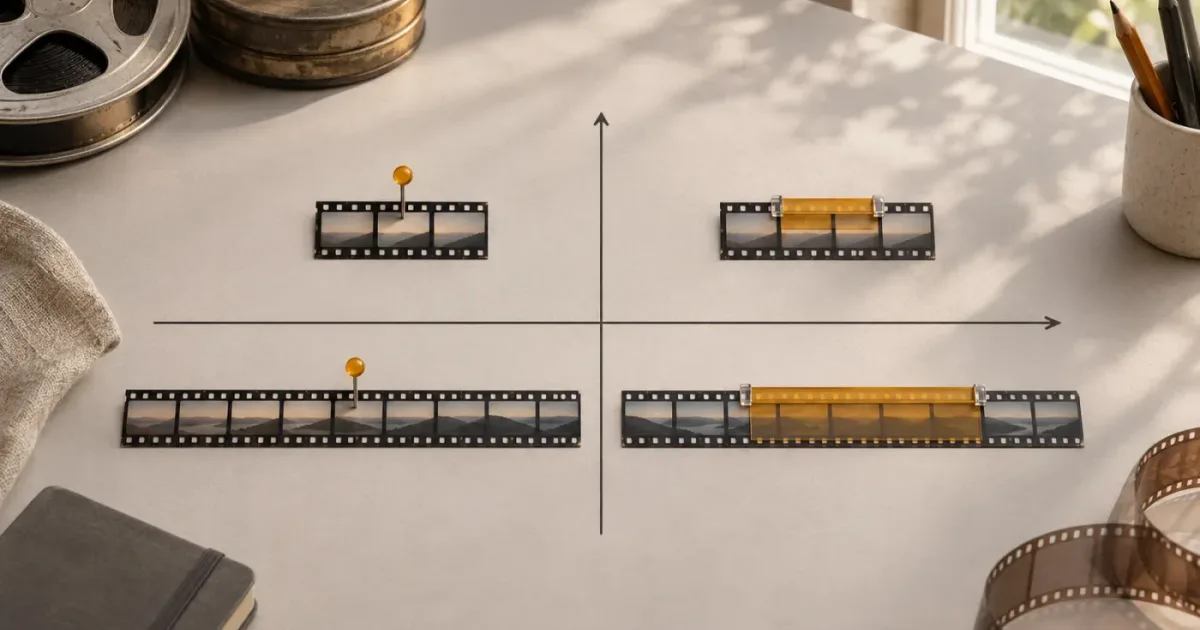
I’ve seen editors use “duration marker” and “clip marker” as if they were competing choices. They’re different questions. One describes how long a marker lasts; the other describes what it belongs to.
As of October 2026, DaVinci Resolve 21.1 is the current point release covered here. The practical rule is simple: decide whether your note belongs to source media or to the assembled timeline, then choose a point marker or a duration marker.
What is the difference between duration markers and clip markers?
A duration marker covers a span of time; a clip marker is attached to a clip. They describe two separate properties, so a clip marker can have a duration and a timeline marker can have one too.
In ordinary language, the comparison sounds like “duration markers versus clip markers.” In Resolve, that wording mixes two axes:
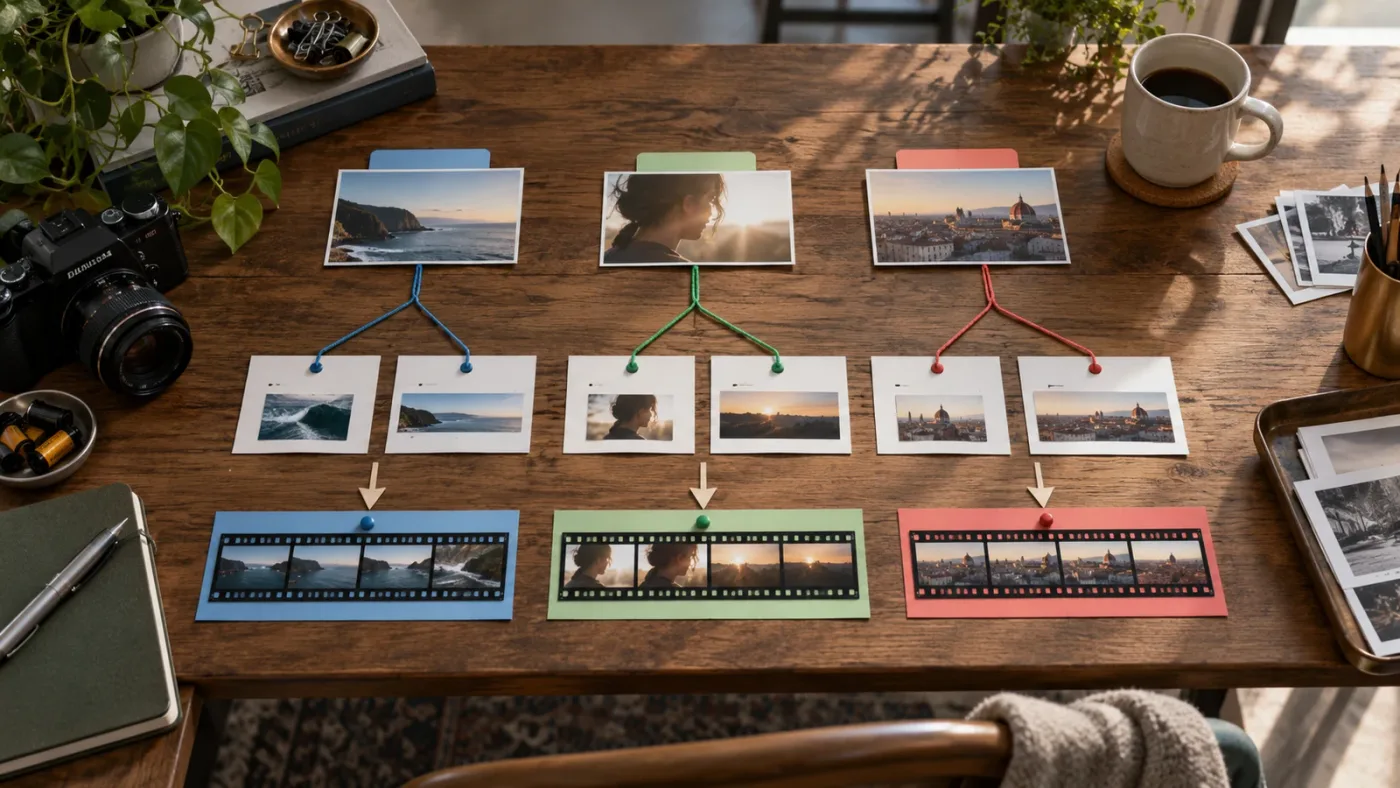
- Scope: Is the marker associated with a clip, or anchored to the timeline ruler?
- Length: Does it mark one position, or a range with a start and end?
That distinction matters more than the marker’s color or its label. If you’re logging where a sound occurs inside a long source recording, you want a clip-scoped marker. If you’re flagging a passage in the current edit for review, you may want a timeline-scoped marker. Either note can be a point or a range.
| Marker choice | What it answers | Best fit | Main trade-off |
|---|---|---|---|
| Clip point marker | “Where is this event in this media clip?” | A single frame or moment in source media | It belongs to the clip, not automatically to one particular edit decision |
| Clip duration marker | “What stretch of this media clip contains the event?” | Logging a sound, action, or usable passage in source material | It marks a range in the clip’s context, not necessarily the final timeline range |
| Timeline point marker | “What happens at this timeline position?” | A cut, cue, delivery note, or review comment at one point in the edit | It refers to the timeline’s position and can need attention when the edit changes |
| Timeline duration marker | “What passage of this cut needs attention?” | A section to review, revise, or compare | It describes the current timeline range, not an event’s reusable source location |
A marker’s color and note help people recognize its meaning, but they don’t change its scope. A red duration marker remains a duration marker whether it belongs to a clip or the timeline. A blue point marker remains a point marker.
“Clip” tells you what a marker belongs to; “duration” tells you how much time it covers.
This is the key to the comparison. Don’t ask only, “Which marker is better?” Ask two questions: “What should this marker stay attached to?” and “Does the note describe a moment or a passage?”
Should I use a clip marker or a timeline marker?
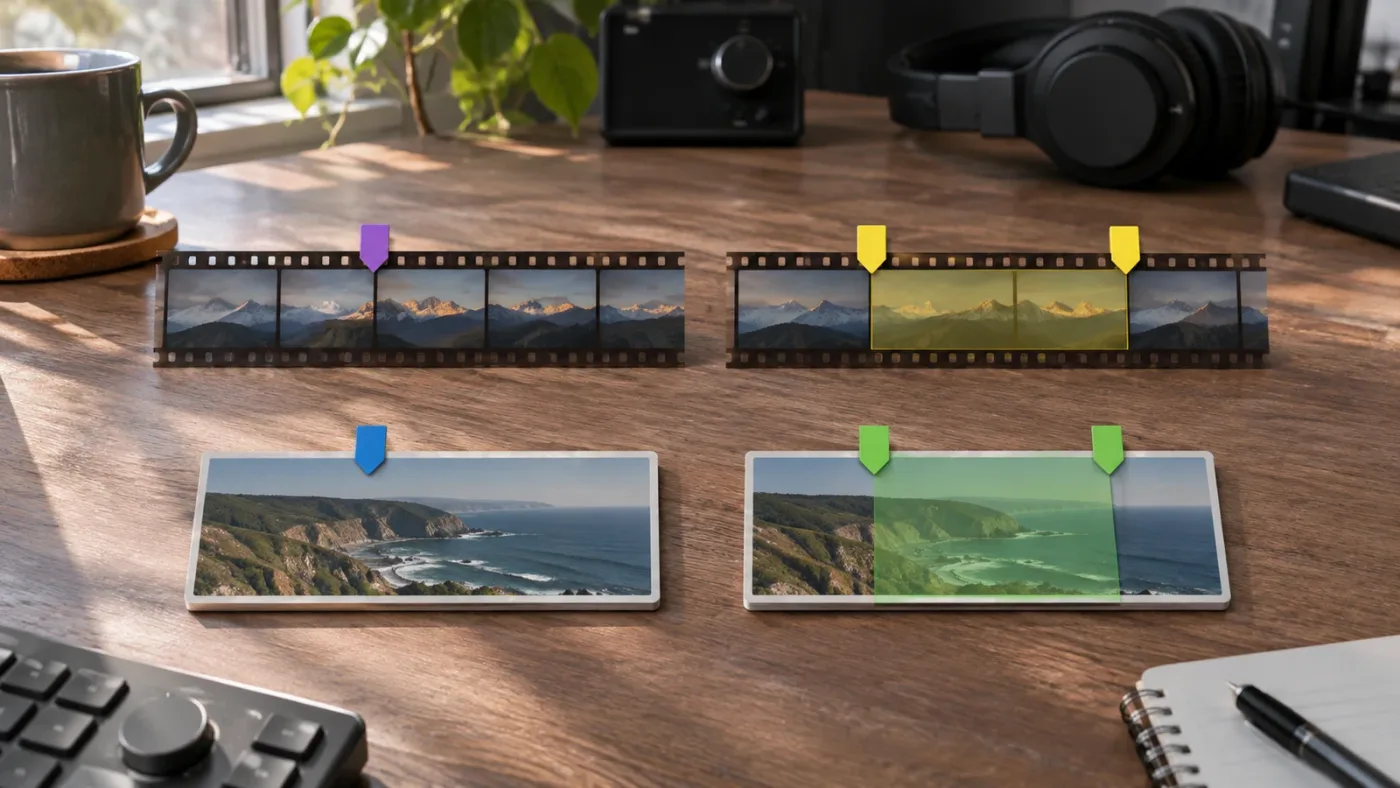
Use a clip marker when the note belongs to the media clip; use a timeline marker when it belongs to the current edit. The marker’s duration is a separate choice based on whether the note applies at one instant or across a range.
A clip marker is useful for information that can outlive a particular cut. Think of a camera original with a door slam at one source time, a usable line in an interview, or an action that spans several seconds. You may reuse that shot in a different timeline later. The note still describes the media.
A timeline marker is useful for information about the edit as assembled. It can identify where the music should change, where a title needs a revision, or where a reviewer thinks the pacing falters. These notes are about the current sequence, not just the underlying media.
A quick test helps:
- Ask whether the note would still make sense if you used this source clip in another timeline.
- If yes, a clip marker is probably the better home.
- If the note only makes sense at this point in this edit, choose a timeline marker.
- Decide whether it describes one moment or a passage.
- Use a point marker for the moment and a duration marker for the passage.
This is a recommendation about editorial intent, not a claim that one marker type is technically superior. Both can be useful in the same project, and one clip may have several source notes while the timeline has separate review notes.
What does “clip marker” mean in practice?
A clip marker is associated with a media clip rather than only with a fixed point on the timeline ruler. Resolve documentation describes adding markers to source clips and to clips in a timeline, which is why it helps to be explicit about which clip context you mean.
A source clip marker can help organize footage before you know exactly where it will land in the edit. A timeline clip marker, by contrast, is attached to a particular clip instance in the edit. If you have placed the same source clip more than once, those are different contexts: the source clip’s marker describes the media, while a marker on one timeline instance can be about that use.
That distinction prevents a common mix-up. “Clip marker” doesn’t necessarily mean “marker that appears on the source clip in the Media Pool.” In editing conversation, it can also mean a marker attached to a clip instance on the timeline. Be precise about whether you’re marking the source or the timeline clip.
The general rule still holds: a clip marker stays associated with the clip it marks. It does not mean that every edit to that clip will preserve every marker in every circumstance. If you trim away the marked portion, change how the source is used, or replace the clip, inspect the marker and confirm that it still points to the intended content.
What does “timeline marker” mean in practice?
A timeline marker is associated with a position on the timeline ruler, rather than with one particular source clip. It’s the natural choice when your note refers to the edit as a sequence.
For example, “bring the music down here” is often about the finished sequence’s timing. So is “review the pacing between this reveal and the next shot.” A marker on the timeline can show that location even if the playhead is over a different track or the note spans multiple clips.
Timeline markers can also be used for broad editorial landmarks: the start of a section, a planned act break, a music cue, or a delivery checkpoint. A note that spans a whole passage is easier to understand as a duration marker than as a single point that forces the editor to infer the endpoint.
There is one editing detail worth knowing. Blackmagic’s reference documentation describes an Edit > Ripple Timeline Markers option that controls whether timeline markers ripple along with ripple edits. Marker behavior can therefore depend on that setting and the edit operation. Don’t assume a timeline marker always moves with a clip, or that it always stays fixed after a ripple edit. Check the setting and verify the marker after a major structural change.
When should a marker have a duration?
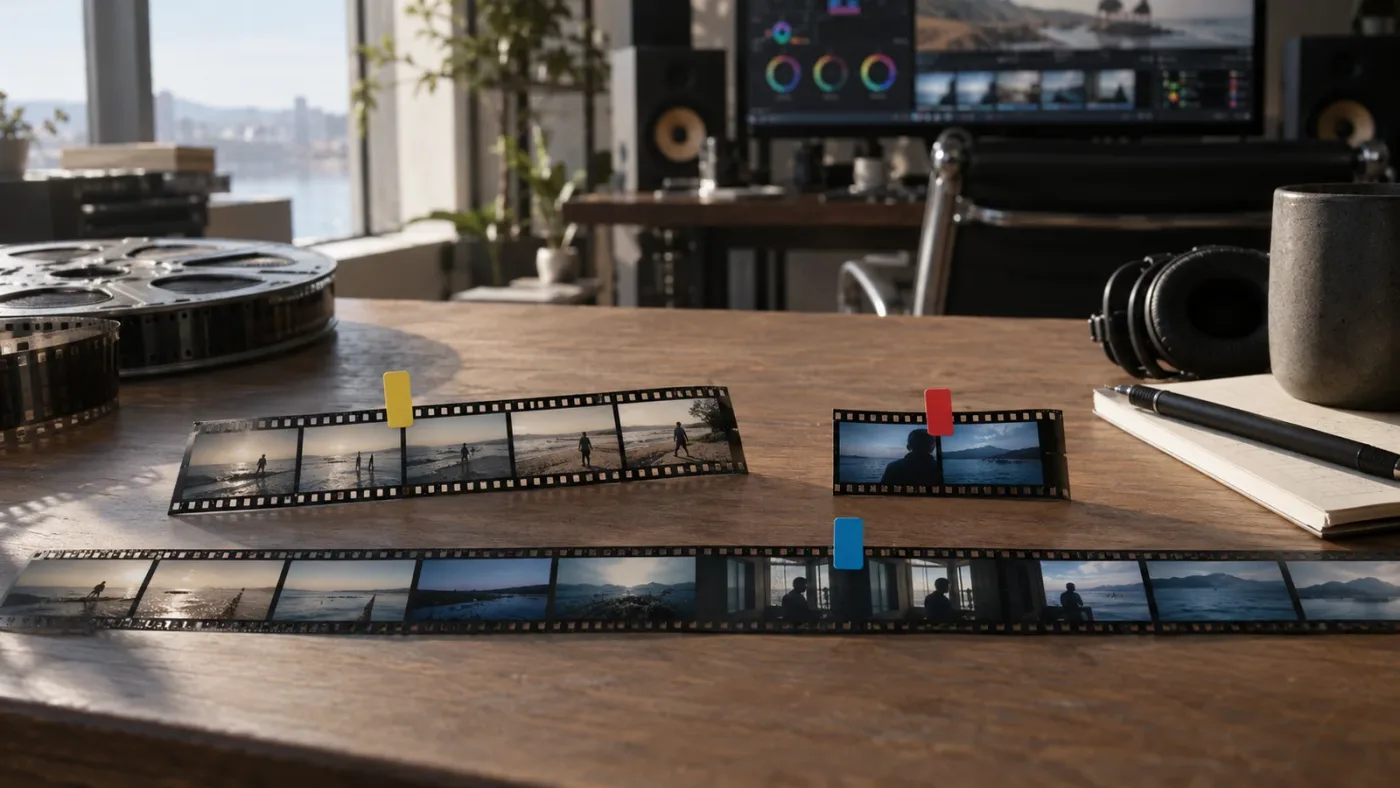
Give a marker a duration when the note applies over a range, not just at one instant. Use a point marker when one frame or moment is enough to locate the issue.
A point marker is like a pin on a map. It says, “Look here.” That’s efficient for a single visual event, an edit point, or a brief cue. A duration marker is more like a highlighted road segment. It says, “Look at this stretch.”
Duration markers are especially helpful when the boundary matters. Consider a note that says, “The room tone changes during this passage.” A single marker tells you where the change begins, but not where it stops. A duration marker can identify the span to compare, review, or replace.
The question is not whether the clip itself has a duration. Every clip in an edit lasts for some amount of time. The question is whether the marker should mark an interval within that clip or timeline. A marker’s range is editorial metadata, not a trim, an In point and Out point that automatically changes the edit, or an effect applied to the footage.
Blackmagic’s Resolve 21 New Features Guide says that Resolve 21 supports adding and moving markers and duration markers so their starts and ends can fall between video frames in the Edit timeline. The guide says this applies to both clip and timeline markers. This is useful for audio work, where an event may occur between picture frames.
Resolve 21.1’s September 8, 2026 announcement adds context for current-version readers: Blackmagic describes a redesigned trim editor and marker-list PDF export in that update. Those features may improve review and reference work, but they don’t collapse the distinction between marker scope and marker length.
A duration marker is a range note, not a clip-duration control.
When is a point marker enough?
A point marker is enough when the location itself tells you what to inspect. That might be a line delivery, a cut that needs approval, or the instant a visual cue should occur.
Point markers are quick to scan. They also reduce ambiguity when the actual issue is a single event. If you mark the precise frame where a graphic appears too early, a range may add no useful information.
But point markers can be too vague for a note like “the dialogue feels rushed here.” The editor then has to guess how far the comment extends. If the span is important, mark the range or specify the beginning and end in the note.
For a team handoff, choose the smallest marker that still communicates the task. A timestamp plus “check title timing” may be enough. A duration marker plus “review title from first appearance through fade-out” is more useful when both boundaries matter.
When is a duration marker better?
A duration marker is better when the beginning and end of the passage both matter. It can mark a sound effect’s full useful section, the length of a client’s requested revision, or a section where a pacing problem persists.
Resolve’s official 17 Beginner’s Guide demonstrates marking In and Out points around a sound effect and converting that range into a duration marker. The guide’s example is about logging a useful sound region, not about changing the timeline edit. That’s a good illustration of the marker’s role: it describes an interval for later reference.
For source logging, the marked range can help you identify usable material without making the note depend on a specific timeline cut. For timeline review, a duration marker can show exactly which stretch the reviewer means. In either case, the scope should match the note.
Don’t choose a duration marker merely because the issue takes time to discuss. Choose it because the material itself has a meaningful start and end. If the note applies to an entire clip, a clip-level label or metadata field may be more suitable than a marker range, depending on the job.
Which marker should I use in a simple project?
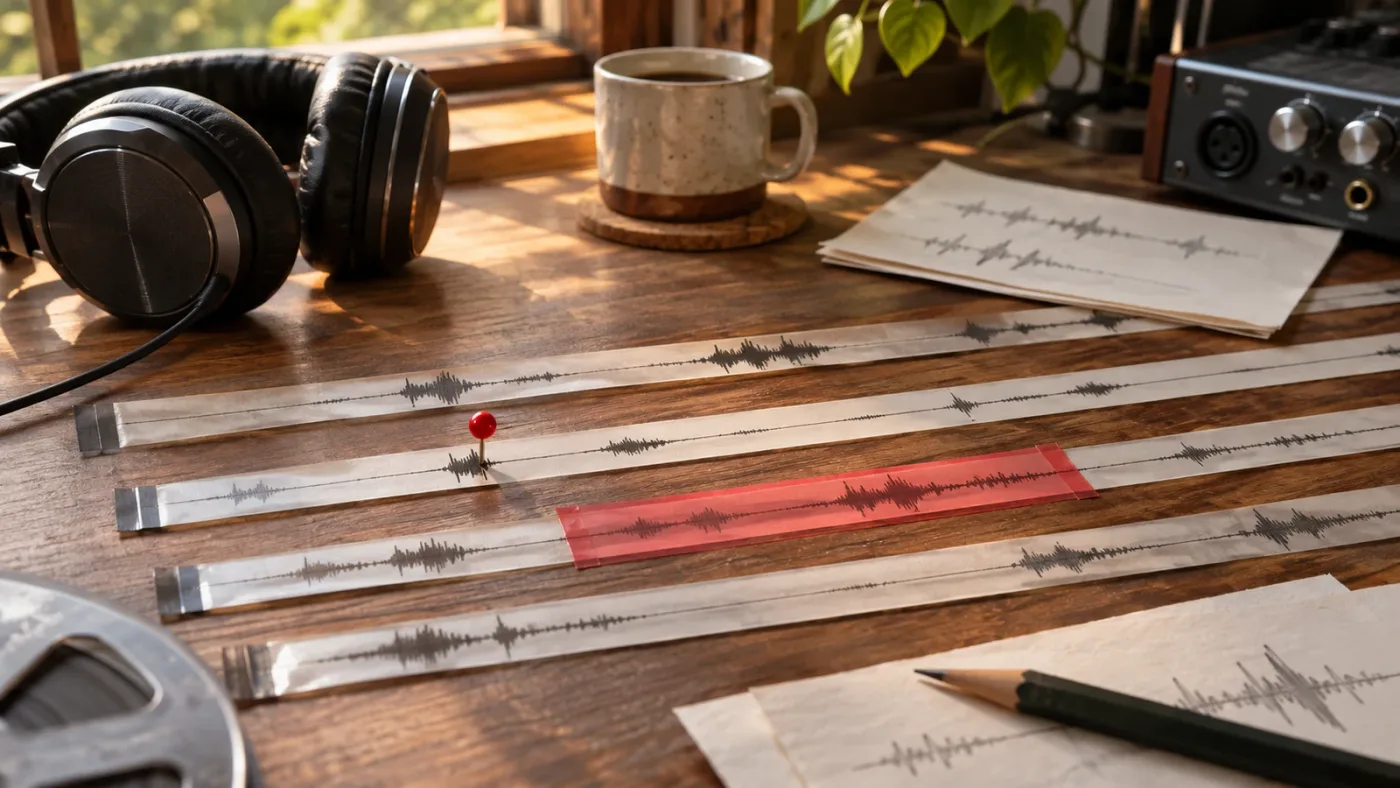
For a simple project, use clip markers to log events in source media and timeline markers to record decisions about the assembled cut. Make a marker a duration marker when the event or note covers a visible span.
Imagine a short interview edit with three source clips: a wide shot of the guest, a close-up, and a separate room-tone recording. You’re still reviewing the source media, before the final edit is settled.
In the wide shot, the guest gives a strong answer between two clear phrases. A clip duration marker can identify that usable passage. In the room-tone recording, a chair squeak occurs once. A clip point marker can identify the instant to avoid. These notes remain useful even if you later change the edit or use the source in a different sequence.
Now assemble the interview. The cut feels slow between the guest’s answer and the next shot. That’s a timeline issue. Add a timeline duration marker over the section you want to tighten. Later, the client asks for the lower-third to appear earlier at one specific moment. A timeline point marker can identify that position.
| Worked example | Marker scope | Point or duration? | Why |
|---|---|---|---|
| Guest’s best answer in the source interview | Clip | Duration | The passage belongs to the source and has a useful start and end |
| Single chair squeak in the room-tone file | Clip | Point | One instant is enough to locate the sound |
| Slow pacing across a section of the assembled interview | Timeline | Duration | The note applies to a stretch of the current cut |
| Lower-third starts too late in the finished edit | Timeline | Point | The issue is tied to a specific timeline moment |
| Music cue covers a montage, then fades too early | Timeline | Duration | Both the cue’s coverage and its endpoint matter |
This is a worked example, not a report of a tested project or a prescribed workflow for every edit. The marker should follow the meaning of the note. If a client’s feedback refers to a source event that will be reused, a clip marker may be clearer. If the comment refers to the current arrangement of shots and tracks, a timeline marker is usually easier to interpret.
You can also combine types. Put a clip duration marker on the source moment that contains a useful line, then add a timeline marker where that line is used in the cut. They answer different questions: “Where is the material?” and “Where did we place it?”
Source notes should travel with source material; cut notes should describe the cut.
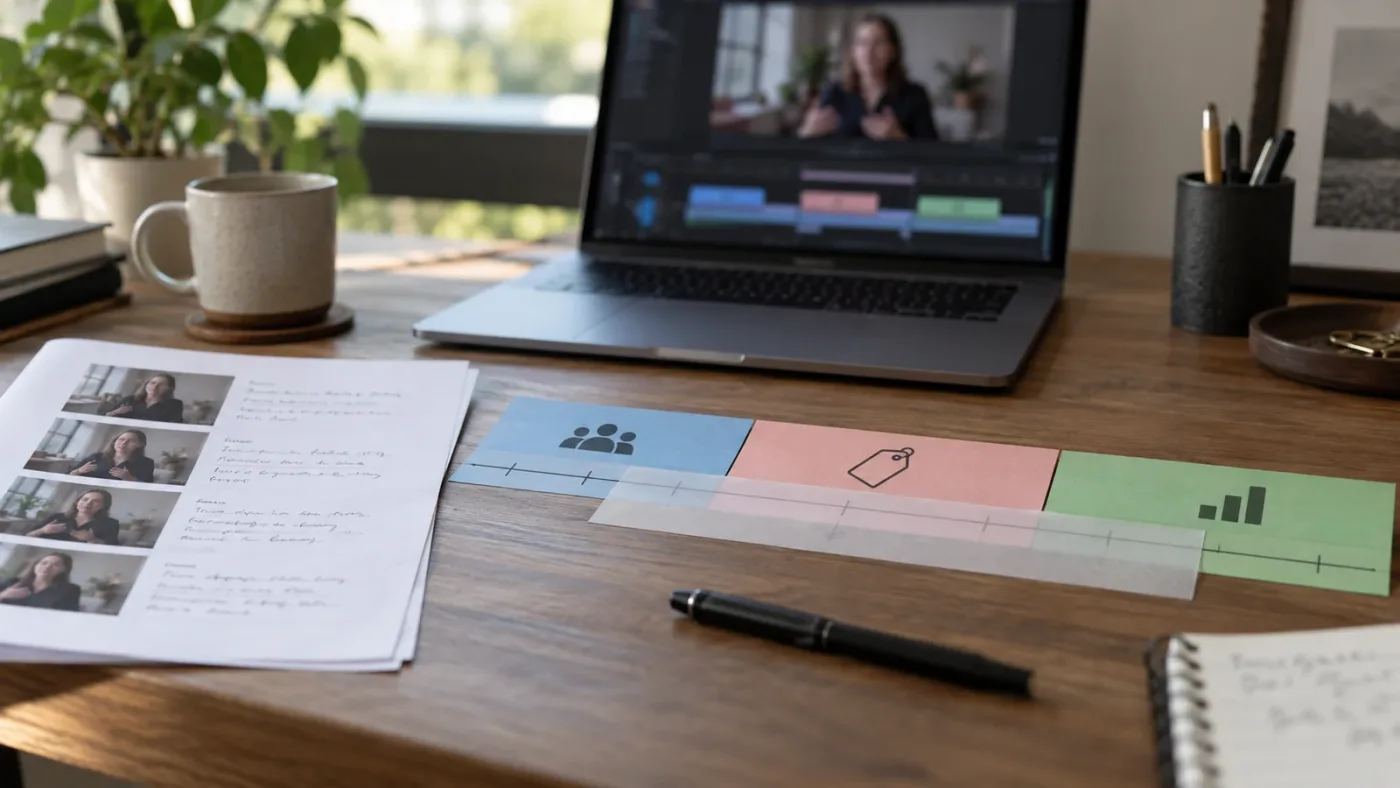
How do I choose the right marker for client review?
Use a timeline marker for feedback about the current version of the edit, and a clip marker for a note about the source material itself. If a comment covers several seconds, use a duration marker at the scope that matches the comment.
A client comment such as “the opening logo appears too late” refers to a specific moment in the delivered sequence. A timeline point marker gives the editor a location in that version of the cut. If the client says “the first section feels slow,” a duration marker can show the passage they mean.
A note such as “this take has a clean version of the line” is different. It describes the source clip and may remain useful across versions. Put it on the relevant clip, and use a duration marker if the usable take occupies a range rather than one frame.
For a reliable review handoff, write marker notes as short actions. “Check timing” is vague. “Move the first title earlier, before the cut to the close-up” is more actionable. Mark the location or range that lets the editor find the issue, then include the requested change in the note.
DaVinci Resolve’s Index panel is a useful place to inspect marker information rather than hunting through the timeline visually. Resolve 21.1’s marker-list PDF export, described in Blackmagic’s release announcement, can help when someone needs a marker list outside the application. Exporting a list is a reporting step; it doesn’t change a marker from clip scope to timeline scope.
If you need a fuller client-review workflow, see How to Use Markers in DaVinci Resolve for Client Review. That guide owns the broader review task; this comparison focuses on choosing marker scope and duration.
What makes a review marker hard to interpret?
A review marker becomes hard to act on when its scope is unclear, its note is generic, or the selected range doesn’t match the comment. A marker with the note “fix this” doesn’t tell a teammate what to change, even if its color is easy to spot.
Use a simple pattern:
- Location: identify the moment or passage.
- Action: say what needs to change or be checked.
- Context: add a short reason only when it helps.
For example, “Hold this shot longer so the street sign is readable” gives an action and a reason. A duration marker can show the current shot passage. If the note is instead “Street sign first appears here,” a point marker may be enough.
When feedback is vague, don’t turn the marker into a long discussion. Keep the note concise and ask for clarification in the appropriate review channel. Markers are navigation and annotation tools. They don’t replace a clear approval process or resolve conflicting comments by themselves.
Why did my marker move, stay behind, or appear in the wrong place?
A marker can appear to move unexpectedly when you confuse clip scope with timeline scope, or when a timeline ripple edit changes positions. First check what the marker is attached to, then check the ripple-marker preference and the edit you made.
If a marker stays associated with a clip after that clip moves, it may be doing exactly what a clip marker is meant to do. If a marker remains at a timeline location while the image beneath it changes, it may be a timeline marker. Neither behavior means the marker is broken.
Ripple edits introduce another possibility. Blackmagic’s reference manual describes the Edit > Ripple Timeline Markers preference. When the setting is enabled, timeline markers can ripple along with ripple edits. If your marker did not move as expected, check whether the preference is enabled and whether your edit operation was a ripple edit.
There are also more ordinary causes:
- You may have placed a clip marker when you intended a timeline marker, or the other way around.
- The playhead may have been over a different selected clip than you expected.
- A marker may belong to a source clip, while you are looking at a separate timeline instance.
- A trim or replacement may have changed which part of a source clip is visible.
- The timeline may have multiple tracks, making a marker look aligned with the wrong clip.
- A duration marker’s start or end may be outside the range you currently see at your zoom level.
When you’re not sure, select the marker and inspect its marker dialog and position. Don’t rely only on its color or the track row where it appears. Then scrub the timeline at the marker’s start and end and verify the underlying shot or sound.
Can I keep a marker attached to the same frame after a speed change?
A clip marker is associated with a clip, but that alone does not guarantee every marker will remain attached to the same visible source frame through every retime, trim, replacement, or conform operation. Verify the result after changing a clip’s speed or source range.
This is where a point marker and a duration marker both require care. If a marker describes an event in the original media, a retime can affect where that event appears in the edit. If a note describes a timeline cue, it may need to remain tied to a timeline position instead. Choose based on the thing you want to track.
After retiming, replacing, or slipping a clip, check markers on both the clip and timeline. Confirm that the marker still identifies the intended frame or passage. If it doesn’t, reposition it or change its scope.
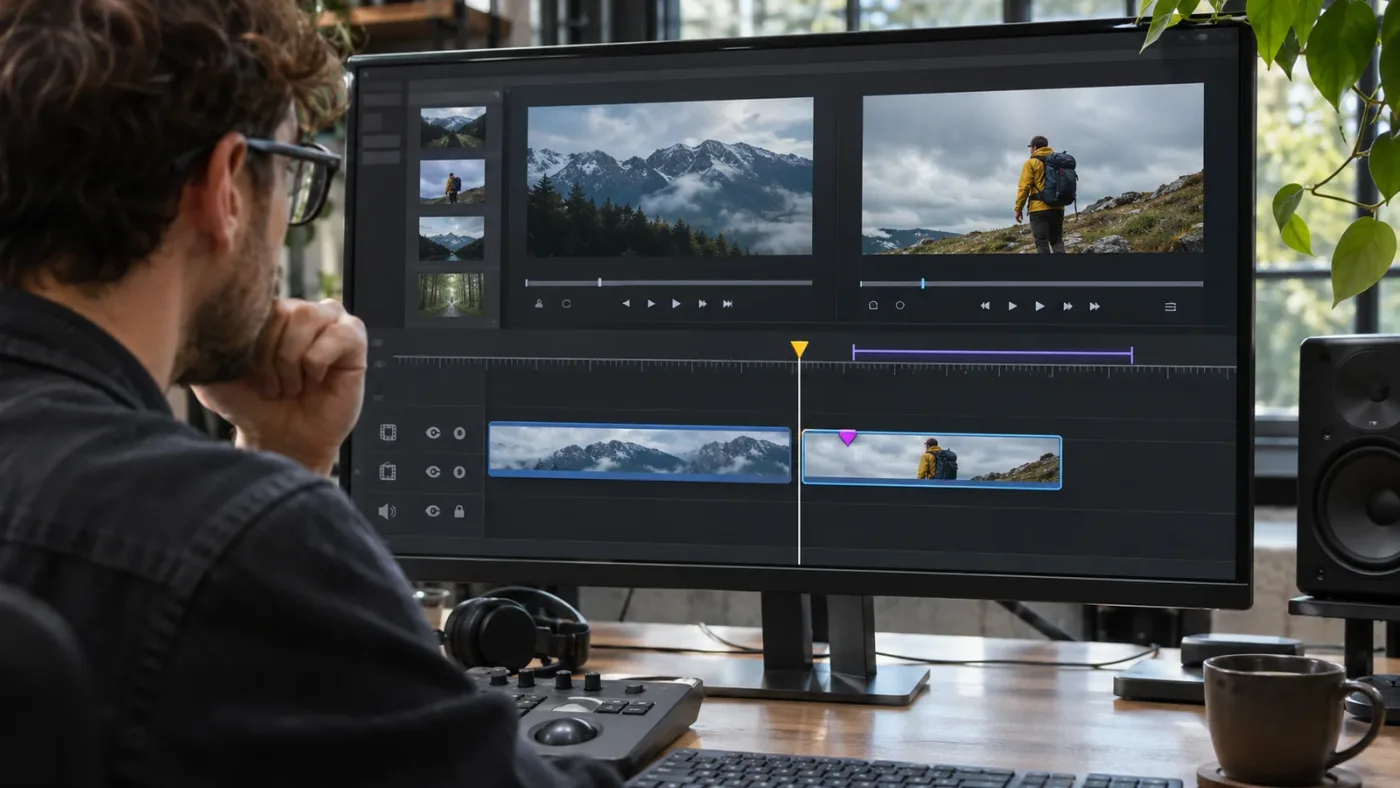
How do I find markers and share a marker list in Resolve 21.1?
Use Resolve’s Index panel to inspect markers, and use the marker-list PDF export described in the Resolve 21.1 announcement when you need a portable report. Finding or exporting a marker list doesn’t change the marker’s scope.
The Resolve 21.1 announcement says the Index panel can export a list of markers as a PDF report. That is a concrete version-specific update for teams reviewing notes outside the application. The same announcement describes a redesigned trim editor, but it does not say that the trim editor changes marker ownership or turns duration markers into a different type.
For an organized review, inspect the marker list before you share it. Look for notes that lack a clear action, duplicate comments, or markers whose timeline positions no longer match the current cut. If a marker has a duration, make sure its endpoints match the passage you want someone to review.
If you’re using a version older than Resolve 21.1, don’t assume the PDF export option exists in the same place or is available at all. Check Blackmagic Design’s Support Center for the manual matching your installed version. Resolve’s marker concepts have existed across earlier releases, but menu names and feature details can change.
The DaVinci Resolve 21 New Features Guide also documents subframe marker positioning in the Edit timeline. It says that marker starts and ends can be moved between frames in Resolve 21, for both clip and timeline markers. That’s useful when a note is tied to audio timing more precise than a video frame. It doesn’t change the basic rule: scope and duration are independent.
Search and export help you find marker notes; they don’t decide what those notes mean.
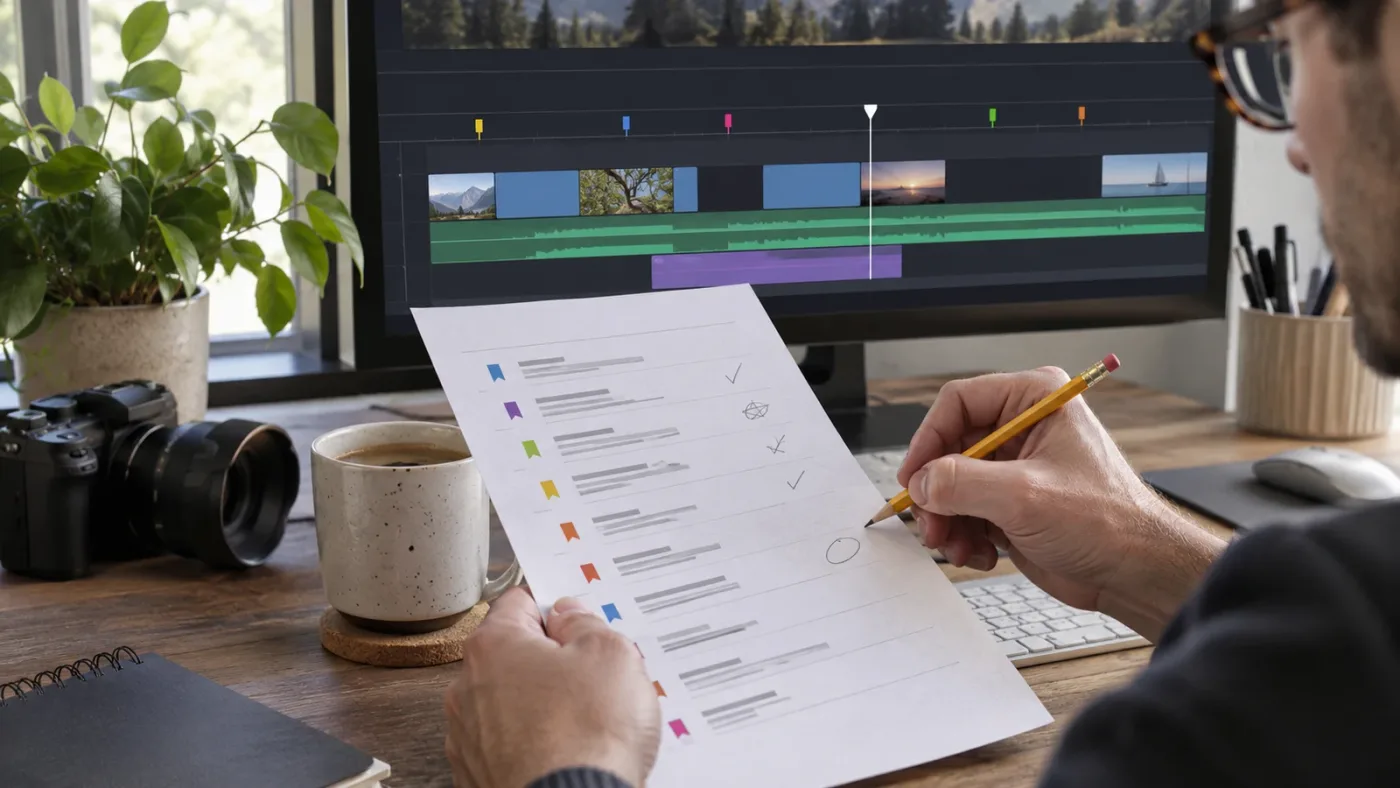
Which marker should I choose: a quick decision?
Choose the marker whose scope matches the subject of your note, then choose point or duration based on the note’s time span. A clip marker is for the media; a timeline marker is for the edit.
| If your note is about… | Choose… | Use a duration when… |
|---|---|---|
| A useful sound, action, or line inside source media | Clip marker | The event occupies a meaningful range in the source |
| A single frame or moment inside a source clip | Clip point marker | It does not need a range |
| A particular cut, cue, or event in the current sequence | Timeline marker | The note applies across a section of the edit |
| A reviewer’s comment about pacing in the current cut | Timeline duration marker | You want to show exactly which passage they mean |
| A note that should remain useful if the same source is reused | Clip marker | The source event has a beginning and end worth logging |
| A note that should point to the current arrangement of shots | Timeline marker | The affected part of the sequence has clear boundaries |
Choose a clip marker if…
Choose a clip marker if the note describes something inside a media clip and should remain useful beyond one edit arrangement. Use a clip duration marker to log a full passage, such as the beginning and end of a usable line or sound.
Choose a timeline marker if…
Choose a timeline marker if the note describes a position or passage in the current cut. Use a timeline duration marker when the full range matters, such as a section to tighten or a sequence that needs review.
Choose a point marker if…
Choose a point marker if the note identifies a single event, frame, or cue. A point marker is usually clearer than a range when the editor only needs one location.
Choose a duration marker if…
Choose a duration marker if the note has meaningful start and end points. It is not a replacement for trimming a clip, nor does it automatically apply an effect or change the edit.
The best workflow is not to standardize on one marker type for everything. Keep source notes with the source, keep edit notes with the edit, and use a range only when the boundaries add information.
Choose scope first, then choose duration.
If DaVinci Resolve’s marker controls are hard to locate in your current workspace, TryUncle is an on-screen assistant for Mac and Windows that can point you toward the relevant control while you work.
Frequently asked questions
- What is the difference between a duration marker and a clip marker in DaVinci Resolve?
- Duration describes how much time a marker covers; clip describes what the marker is attached to. A clip marker can be a point or a duration, and a timeline marker can be a point or a duration. Pick the scope first, then set a range if the note applies over time.
- Do clip markers move when I move a clip in DaVinci Resolve?
- A clip marker is associated with that clip, so it remains with the clip rather than being tied only to the timeline’s absolute position. A timeline marker is positioned on the timeline ruler; timeline-marker rippling depends on the Edit > Ripple Timeline Markers setting and the edit you make.
- How do I make a duration marker in DaVinci Resolve 21?
- Add a marker, open its marker dialog, and set its duration, or mark an In and Out range and use the command to convert that range to a duration marker. The exact command location can vary with the viewer and page, so check the current DaVinci Resolve 21.1 manual if your menu differs.
- Can I search or export clip markers in DaVinci Resolve 21.1?
- Resolve’s Index panel can display markers, and Blackmagic Design says Resolve 21.1 adds PDF export for a list of markers. That makes markers easier to review outside the timeline, but the PDF feature does not change whether a marker belongs to a clip or to the timeline.
- Should I use a clip marker or a timeline marker for client feedback?
- Use a timeline marker when feedback refers to the current cut at a specific timeline time. Use a clip marker when the note belongs to source material and should stay associated with that media clip. If the note refers to a whole passage, make it a duration marker at the appropriate scope.
Sources
Put this guide to work with TryUncle.
Ask about the step you’re on. TryUncle sees your screen and points at the control you need, so you can keep learning in your own project.
Get TryUncle for Mac or WindowsKeep reading
Guides · Jul 24, 2026 · 41 min
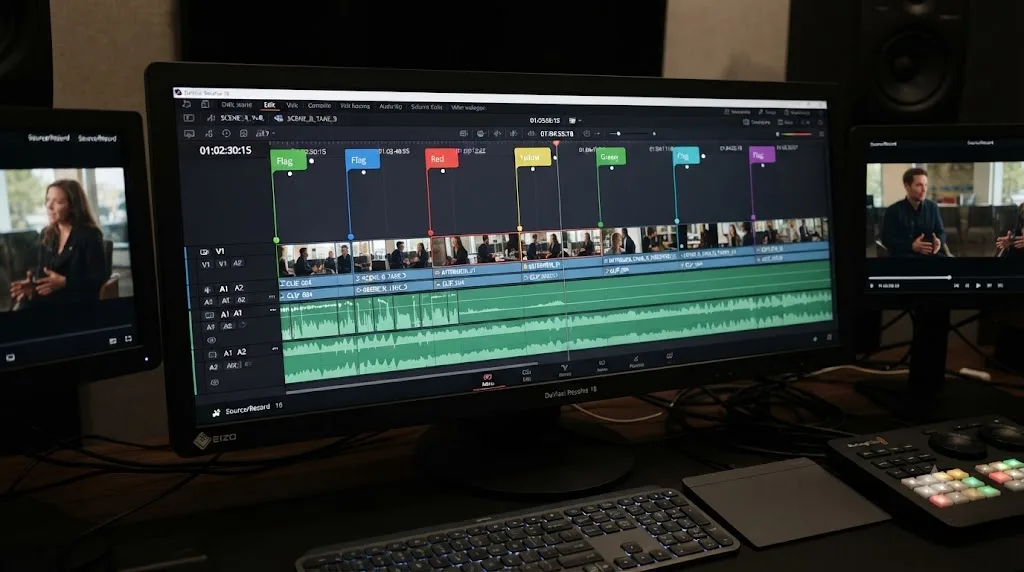
How to Use Markers in DaVinci Resolve for Client Review
Add, color-code, and export DaVinci Resolve markers for client review: the M key, marker colors, EDL export, and Blackmagic Cloud sync explained.
Guides · Jul 16, 2026 · 36 min
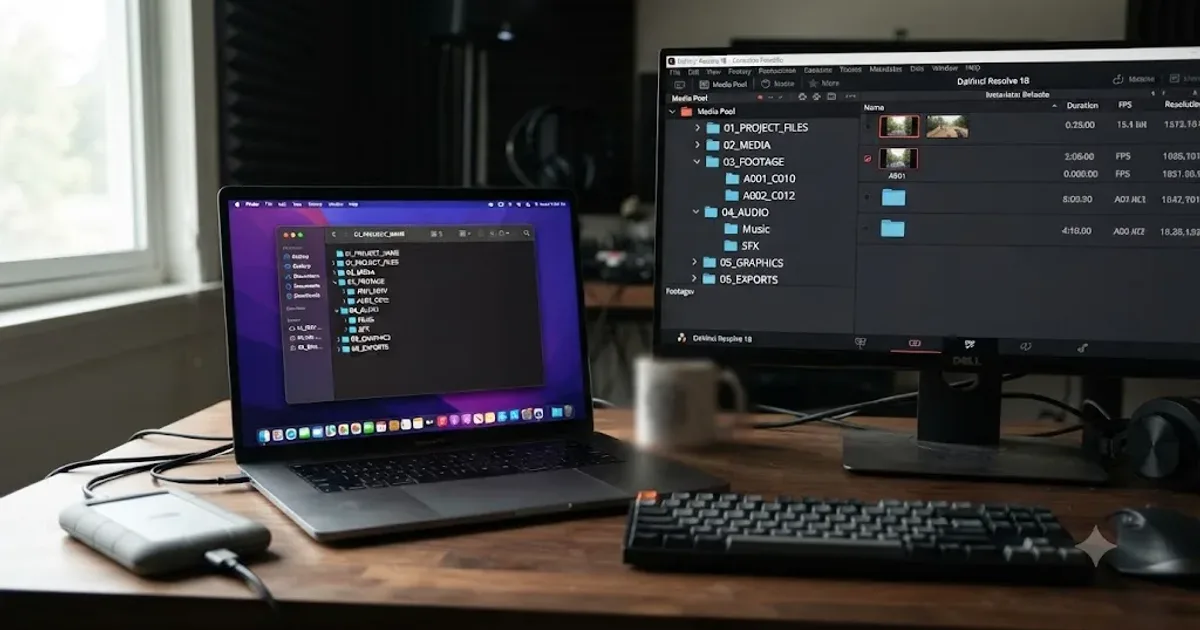
Folder and Bin Naming Conventions for DaVinci Resolve Projects
A practical naming system for DaVinci Resolve folders and bins: project structure, camera bins, Power Bins, Smart Bins, and what breaks relinking.
Guides · Nov 11, 2026 · 34 min
What Does the Bitmap Node Do in DaVinci Resolve?
Learn what Fusion’s Bitmap node does, when to use it, how to choose a channel, and when you can skip it in DaVinci Resolve 21.