Articles / Fixesupdated for DaVinci Resolve 21.0.2 (July 2026)
DaVinci Resolve Font Not Found, Please Install: The Real Fix
Quick answer
DaVinci Resolve doesn't show a 'font not found, please install' dialog like Premiere or InDesign do. When a title, Text+, or Fusion template calls a font that isn't installed, Resolve silently renders the text as a black shape or a fallback glyph instead. Install the missing font at the system level, fully quit Resolve, and reopen it to fix it.
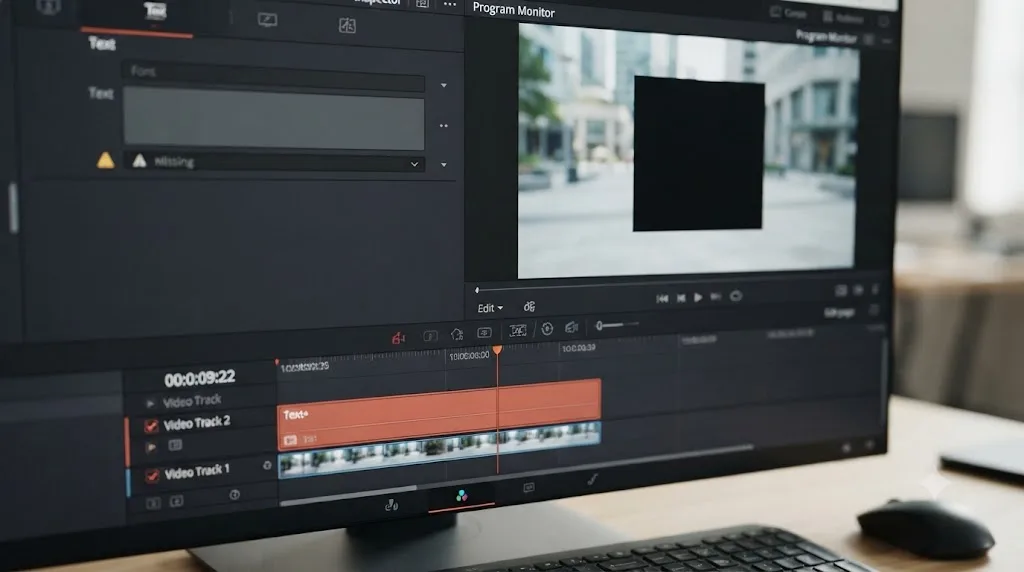
Your title clip shows a solid black rectangle where words should be. Nothing crashed. No dialog popped up. You searched for the exact error you expected, "font not found, please install," and found a wall of Adobe threads instead of anything about DaVinci Resolve. That gap is real, and it's the first thing worth clearing up.
DaVinci Resolve doesn't have that dialog. It never did. What it has instead is quieter and, in a way, more annoying: a missing font just fails silently, and you're left reverse engineering what happened from a black box on your timeline.
We've spent seven-plus years cutting commercial and client work in DaVinci Resolve, and we run a video-editing community with more than 100,000 members where a missing-font mystery like this comes up constantly, almost always right after someone opens a downloaded title template or a project handed off from another editor. This post walks through what Resolve actually does instead of an error message, why it happens, and the fastest path to a working font, on Windows, Mac, and Linux.
What does "font not found, please install" actually mean in DaVinci Resolve?
As of July 2026, on DaVinci Resolve 21.0.2, there is no dialog box in DaVinci Resolve carrying that exact sentence. The phrase belongs to other applications, most visibly Adobe InDesign, Illustrator, and Premiere Pro, which all ship a feature called Resolve Fonts that pops up a specific missing-fonts warning and offers to substitute a replacement. DaVinci Resolve has no feature by that name and no equivalent pop-up.
What actually happens when a DaVinci Resolve project references a font that isn't installed on your machine is this: the affected text renders as a solid black shape, a blank area, or a string of fallback glyphs, with no warning dialog at all. You find out the same way most editors do, by noticing something looks broken and going hunting for why.
DaVinci Resolve never shows a dialog that says font not found, please install, no matter how badly a title is missing its font. That single fact resolves most of the confusion behind this search. You're not missing a setting that would have shown you the warning. The warning simply doesn't exist in this app, and the fix has to start from the visual symptom instead of an error message.
Does DaVinci Resolve actually show a "please install this font" dialog anywhere?
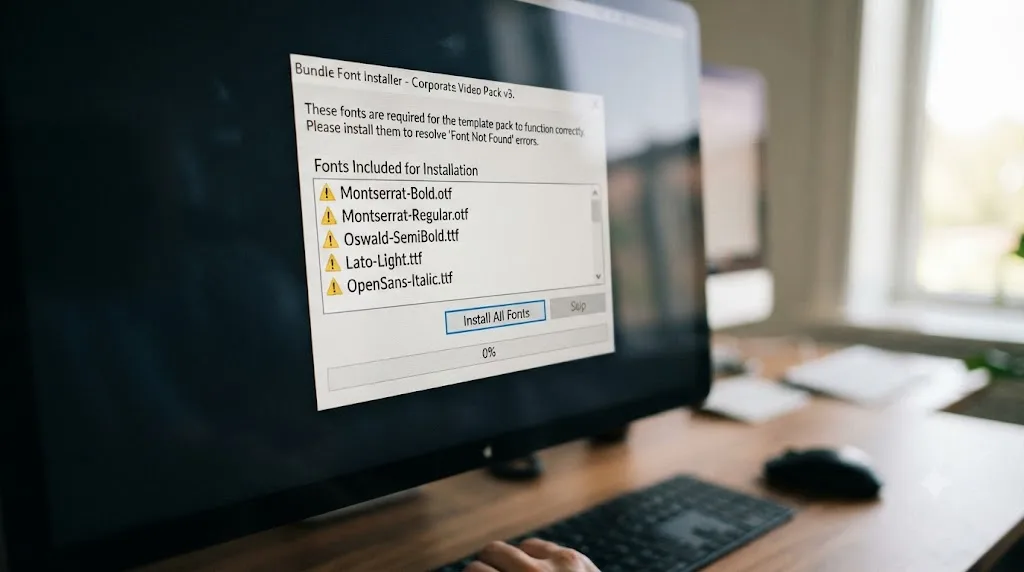
Not as a general rule, though a small number of downloaded template packs from marketplaces like Motion Array and Artlist can trigger a warning specific to that template pack's own installer, not to DaVinci Resolve's core font handling. Per Motion Array's guide to using DaVinci Resolve templates, a missing-fonts message when opening a purchased template pack usually means the fonts bundled with that specific pack were never installed on your system, and the fix is to open the pack's own Fonts folder and install each file manually, then restart Resolve.
That's a template-vendor convenience message layered on top of a project, not a feature Blackmagic Design built into Resolve itself. Open a Text+ title with a missing font that didn't come from a purchased pack, and you get the same silent black-shape failure as everything else in Resolve. The dialog some editors remember seeing was almost always a marketplace product's own installer script, not Resolve talking to you directly.
If you're chasing this specifically after opening a project someone else built and handed off, Artlist's troubleshooting guide for DaVinci Resolve templates covers the same pattern: a warning on open usually traces back to the project being built on a different computer, a font being uninstalled since, or a font that's technically present but incompatible with your OS in its current build.
Why does missing text show up as a black shape instead of an error?
This is the actual failure mode you're troubleshooting, whatever search term brought you here. Per the Blackmagic Forum thread on broken Fusion titles caused by missing fonts and Motion Array's template troubleshooting guide, when a Text+ node, a Fusion title, or a title generator calls for a font your system doesn't have installed, Resolve substitutes nothing usable. The text layer renders as a solid black fill, occasionally a fully transparent gap, or a run of boxed placeholder glyphs, instead of throwing any error.
A black box of text on your timeline is DaVinci Resolve's actual missing-font error, it just never uses the word error. That's a meaningful reframe if you've been treating the black shape as corruption or a crash symptom. It isn't. It's the exact same underlying condition an Adobe app would flag with a pop-up, just rendered visually instead of announced.
The check is fast:
- Select the text element on the timeline, or double-click into the Fusion composition if it's a full title template.
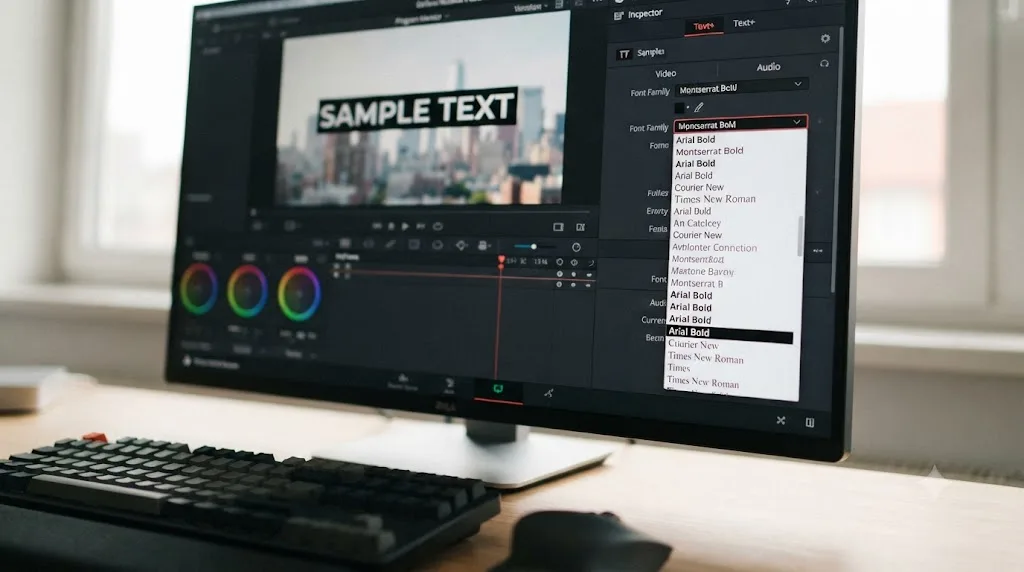
- Open the font control in the Inspector, or the Text+ tab if you're on the Edit page.
- Change the font to anything you know is installed.
- If readable text suddenly appears, you've confirmed the cause. The original font either isn't installed, or is installed under a name the template doesn't recognize.
This happens constantly with paid or downloaded title packs, since a template built around a specific licensed or bundled font will render invisibly on any machine that doesn't carry that exact font under that exact family name. It's less frequent, but not rare, with Blackmagic's own default titles too, particularly after an OS update quietly renames or replaces a system font a template once referenced.
How do you fix a missing font error in DaVinci Resolve, step by step?
Once you've confirmed the black shape or blank text is a font problem, the fix is mechanical and usually takes under two minutes.
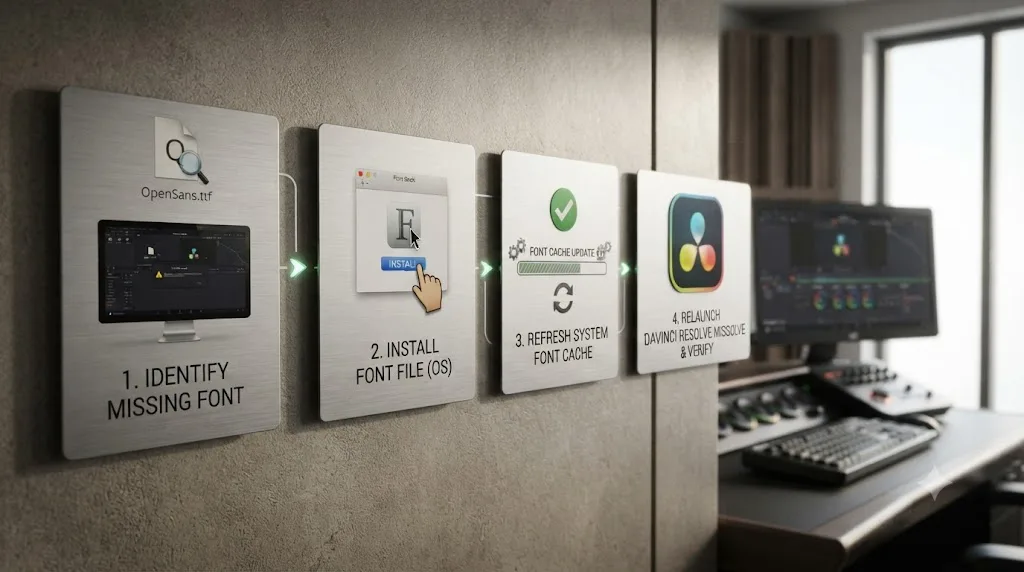
- Identify the exact font name. Check the Inspector's font field, or, if this came from a downloaded template, open the pack's own folder structure and look for a subfolder named Fonts.
- Install the font at the operating system level, not inside Resolve. DaVinci Resolve has no built-in font installer of its own. On Windows, right-click the TTF or OTF file and choose Install, or Install for all users if multiple accounts on the machine need it. On Mac, double-click the file to open Font Book and click Install Font.
- Fully quit DaVinci Resolve, don't just close the project. This step trips up more editors than any other in this list.
- Reopen DaVinci Resolve and re-select the font in the affected Text+, title, or Fusion node's Inspector field.
- Confirm the text now renders correctly. If it doesn't, move to the platform-specific and name-mismatch checks below before assuming the font itself is broken.
Here's what that looks like in practice. Say you download a free lower-third template, drop it onto a title clip, and the text renders as a solid black bar the width of the screen. You open the Inspector and the font field reads "Montserrat ExtraBold," a font you've genuinely never installed. You find Montserrat through Google Fonts in under a minute, but the template specifically wants the ExtraBold cut, which ships as its own separate file, not a weight you can fake by clicking bold in the Inspector. You download the full family, install every weight, fully quit Resolve, and reopen it. The title renders clean. Total time is about three minutes, and nearly all of it goes to finding the right font file, not to fixing anything inside Resolve itself.
Resolve reads its font list once, at launch, so installing a font while Resolve is still running fixes nothing until you fully quit and reopen it. This single detail accounts for a large share of "I installed the font and it still doesn't show up" reports, since installing a font is genuinely an operating-system action that a running application simply hasn't refreshed itself against yet.
Does a missing font actually show up in the finished export?
Yes, and this is the detail that turns a cosmetic annoyance into a deadline problem. The black shape, blank gap, or fallback glyphs you see in the viewer aren't a preview-only placeholder that clears up once you render. They're the actual pixel data DaVinci Resolve generates for that frame, and the Deliver page renders exactly what the viewer shows, with no font-check step anywhere in the render pipeline.
Queue a render with a missing font and you get a finished file with a black rectangle where your title should be. Resolve won't warn you at any point in that process: not when you add the job to the render queue, not while it renders, and not when the job finishes successfully. A successful render, in Resolve's own accounting, only means the file was written without crashing. It says nothing about whether the text inside it is actually readable.
The practical fix here is a habit, not a setting. Scrub through every title, lower third, and subtitle in the timeline viewer immediately before you queue a final export, especially on a project that changed hands, arrived as a template, or was opened on more than one machine. It takes under a minute on a typical project, and it's the only check that reliably catches a missing-font black box before a client does.
Why doesn't my newly installed font show up in Text+ or Fusion titles?
Beyond the relaunch requirement above, a few other causes explain most remaining cases where a font is genuinely installed and still invisible to Resolve.
Font format. DaVinci Resolve only reliably supports TrueType (TTF) and OpenType (OTF) fonts, per both MiraCamp's and DesignBeep's guides to adding fonts in Resolve. Variable fonts, which pack multiple weights into a single flexible file, and some highly stylized web-only font formats aren't consistently recognized. If a font you installed simply never appears in any dropdown, confirm it's a standard TTF or OTF rather than a variable font family, and look for a static-weight version instead.
Duplicate or conflicting font versions. Having two copies of the same font family installed, one from a font manager and one manually placed in the system font folder, can cause Resolve to pick an unexpected version or fail to list either one cleanly. Removing duplicates before reinstalling a single clean copy resolves this more often than it should.
Font managers add their own activation layer on top of the OS. Apps like FontBase and RightFont activate and deactivate font families on demand instead of installing everything permanently, which keeps a system font list manageable but introduces a version of the relaunch problem you won't see coming. Per FontBase's own documentation on font activation, a font it activated doesn't necessarily stay active once the font manager itself closes or the machine restarts. If Resolve was already open when the manager activated a family, or the manager deactivated it in the background since, you get the identical black shape as a font that was never installed at all. The fix is the same: confirm the font shows as active inside the manager, then fully quit and relaunch Resolve. Per RightFont's troubleshooting guide, running two font managers at once, say Suitcase Fusion alongside FontBase, is its own common trigger, since one manager can silently revert activations the other one just made.
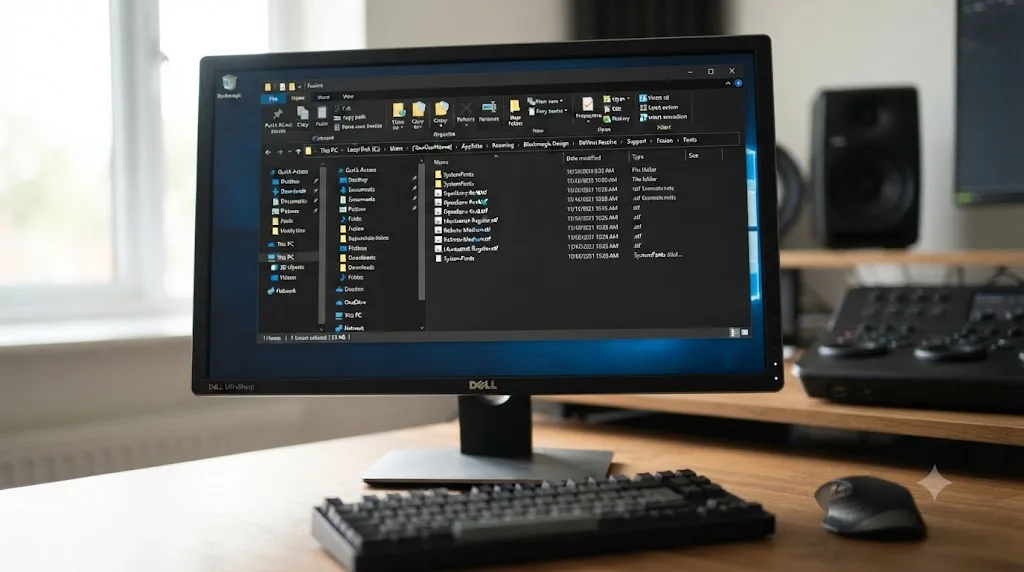
On Windows specifically, if a font still won't appear after a full relaunch, clearing Resolve's own font cache can help. Per MiraCamp's guide, navigate to C:\Users\<YourUsername>\AppData\Roaming\Blackmagic Design\DaVinci Resolve\Support\Fusion, delete the Fonts subfolder there, and relaunch Resolve to force it to rebuild that cache from scratch.
Windows, Mac, or Linux: does fixing a missing font differ by platform?
Mostly not, with one major exception that catches out experienced editors specifically on Linux.
| Platform | Where fonts need to live | Notes |
|---|---|---|
| Windows | Installed via right-click > Install, landing in C:\Windows\Fonts | Clear Resolve's own Fusion font cache folder if a correctly installed font still doesn't appear |
| macOS | Installed through Font Book | Same TTF/OTF format requirement, same full-quit-and-relaunch rule |
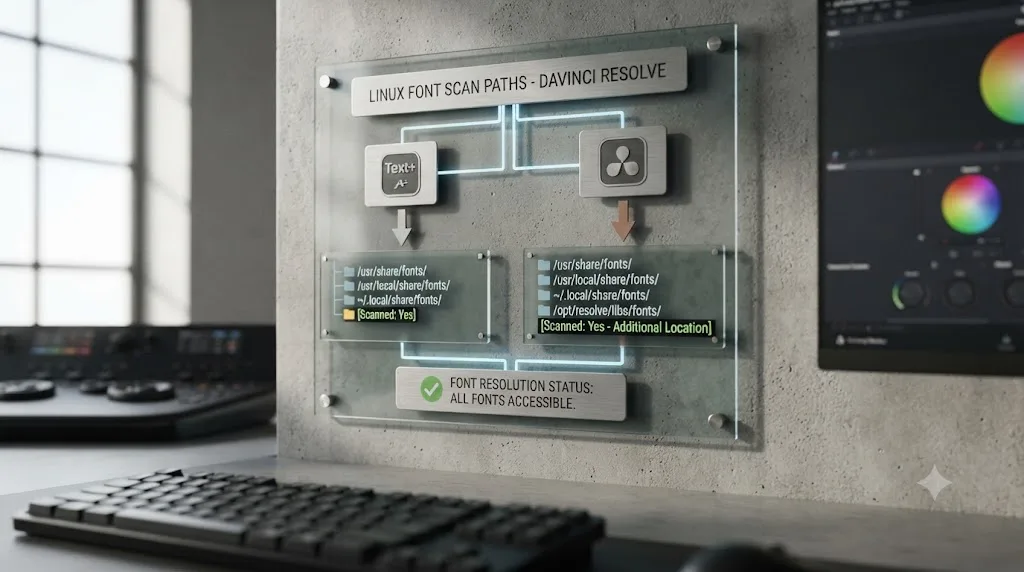
| Linux | /usr/share/fonts (system-wide) or /usr/local/share/fonts, plus ~/.local/share/fonts for a single user | Text and Text+ scan different folders; see below |
The Linux exception is the one worth knowing before you burn an afternoon on it. Per ArchWiki's DaVinci Resolve page, Resolve's plain Text object only scans /usr/share/fonts or /usr/local/share/fonts, while the Text+ object, the same one that drives text inside Fusion compositions and titles, only scans /usr/share/fonts. A font placed only in /usr/local/share/fonts or a user's own ~/.local/share/fonts folder can render fine in a plain Text element and stay completely invisible in Text+ on the identical machine.
On Linux, DaVinci Resolve's Text and Text plus objects check different font folders, so a font that works in one can be invisible in the other on the exact same machine. If you're on Linux and a font shows up in one text tool but not another, this folder split is almost certainly why, and moving the font file into /usr/share/fonts specifically, rather than the seemingly equivalent /usr/local/share/fonts, is the fix. Some editors work around the split with a symlink from /usr/share/fonts into /usr/local/share/fonts, though on distributions where that folder is managed by a package manager, that carries its own risk of future conflicts.
Why does a font work in Text+ but not the Basic Title generator?
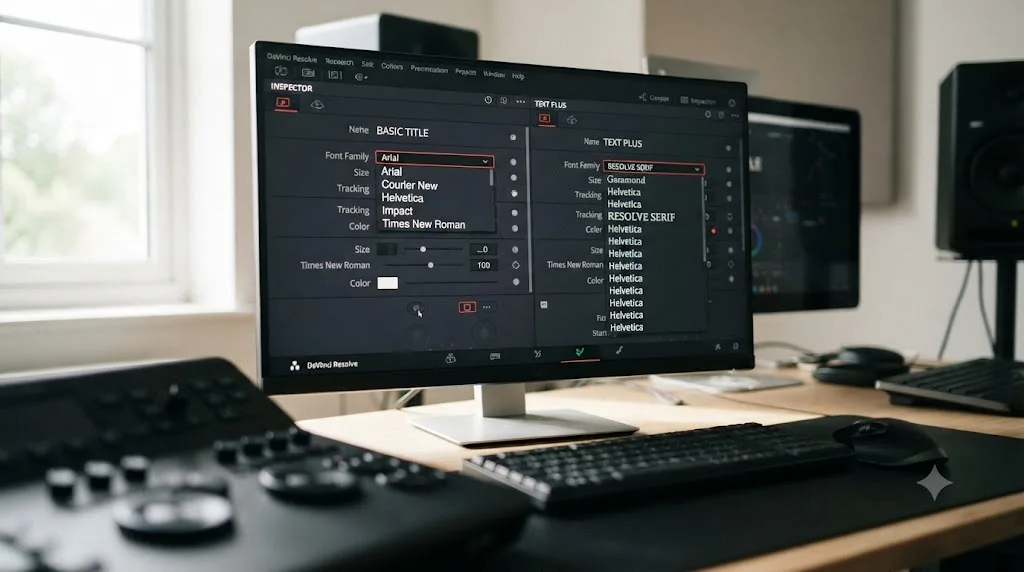
This is a different split from the Linux folder issue above, and it applies on every platform, not just Linux. Per exlima's Text+ deep dive, "one major advantage of Text+ is that it supports custom fonts," while "the basic title only supports the default fonts that come with DaVinci Resolve."
The Basic Title generator can only see fonts that shipped with DaVinci Resolve, while Text plus can see every font installed on your operating system. That's not a bug in Basic Title, it's a real architectural difference between the two tools. If you've installed a custom font, confirmed it works in Text+, and then can't find it anywhere in the older Basic Title generator's font list, that's expected behavior, not a broken install. The practical fix, if you specifically need that font and Basic Title's simplicity, is to rebuild the title as a Text+ generator instead, which drops directly into the Inspector on the Edit page the same way Basic Title does.
This distinction matters most for editors coming from an older Resolve workflow built around Basic Title, or following a tutorial that predates Text+'s wider adoption. The fix isn't a font problem to solve at all in that case. It's picking the tool that actually supports the font you want.
Why are fonts missing specifically from subtitles?
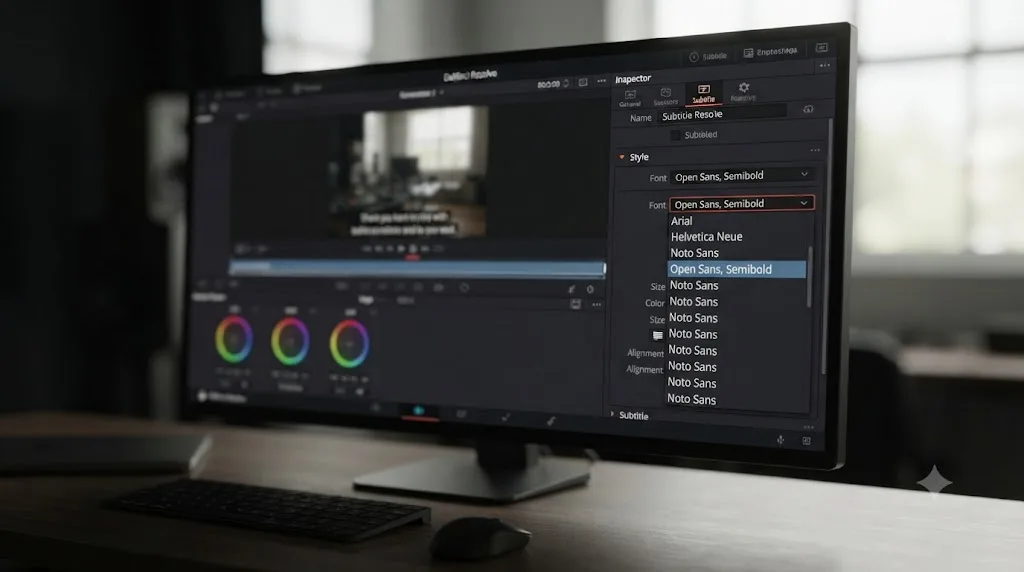
Subtitle tracks carry their own font setting, entirely separate from anything you've configured on a Text+ title or Fusion generator elsewhere in the same project. DaVinci Resolve defaults new subtitle tracks to Open Sans, Semibold, a detail confirmed directly by editor and trainer Larry Jordan, who documented DaVinci Resolve 20's subtitle export behavior and noted plainly that "Resolve defaults to Open Sans, Semibold," recommending editors "change the Font Face to Regular" for cleaner exports, since, in his words, "[m]any fonts are hard to read in bold." That's from his article on DaVinci Resolve 20's non-standard SRT file behavior.
A font that renders correctly on a Text+ title can still show up wrong, missing, or defaulted back to Open Sans on a subtitle track, because the subtitle's own font field was never updated to match, or because it references a font family that isn't installed under the name the subtitle track expects. Per the Blackmagic Forum thread specifically on a font missing from subtitles, this is a distinct enough problem that it's worth checking the subtitle track's own font control directly in the Inspector rather than assuming a fix applied to Text+ elsewhere in the project carries over.
Larry Jordan's broader point about font choice is worth taking seriously beyond just subtitles. "Roman (regular) is always the safest choice" for any text you're not certain will survive across every machine and export pipeline your project touches, since bold, italic, and condensed variants of a font family are more likely to be missing, misnamed, or substituted incorrectly than the plain regular weight.
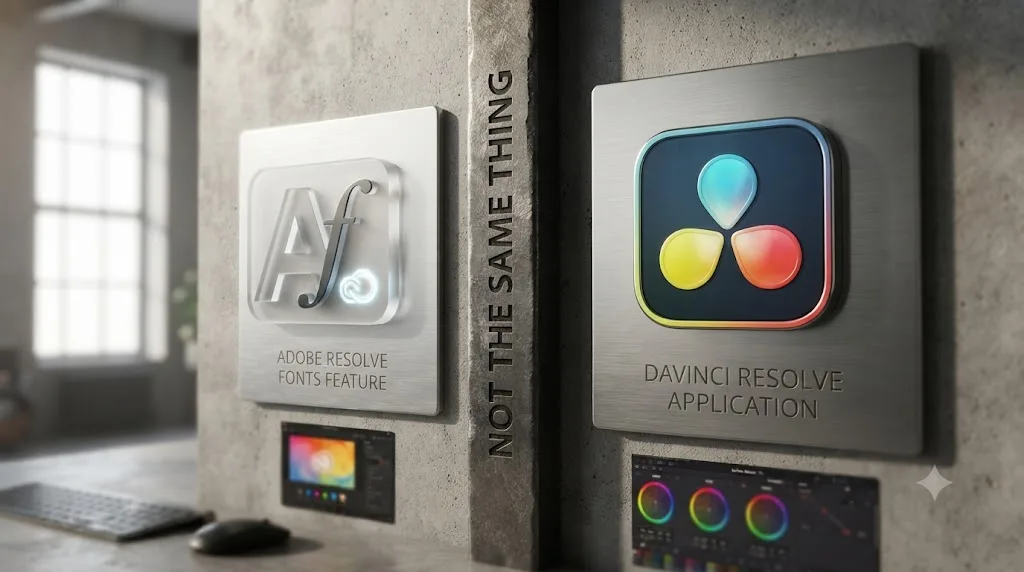
Is "Resolve Fonts" in Adobe apps the same problem as this?
No, and the name collision is the entire reason search results for this exact query get flooded with unrelated Adobe threads. Resolve Fonts is a real, named feature inside Adobe InDesign, Illustrator, and Premiere Pro, unrelated to Blackmagic Design's DaVinci Resolve in every respect except sharing a word. Per an Adobe Community thread on a persistent Resolve Fonts error message in Premiere Pro, that feature is specifically about Adobe's own internal, restricted font families, such as AdobeClean-Bold and AdobeClean-Regular, that shouldn't be accessible to end users at all, and the dialog exists to catch documents that reference those restricted internal fonts and swap in a real substitute.
Resolve Fonts in Adobe's apps and a font not found in DaVinci Resolve are two unrelated features that only share a word. If your search for this exact error led you to InDesign or Illustrator support pages talking about Resolve Fonts, that's why, and none of that content's specific steps (which reference Adobe's internal font list and Creative Cloud font activation) apply to a DaVinci Resolve project at all. DaVinci Resolve's actual missing-font behavior is what this post covers: a silent black-shape substitution, not a named dialog feature.
Do Adobe Fonts, Creative Cloud, or Blackmagic Cloud projects change how a missing font behaves?
Adobe Fonts itself, the library bundled with a Creative Cloud subscription, actually works fine in DaVinci Resolve, and that's worth separating from the naming confusion above. Activating a font through Adobe Fonts installs it at the operating system level rather than inside a specific Adobe app, so per Adobe's own documentation on resolving missing fonts in desktop applications, an activated family should be available to any application that reads the system font list, DaVinci Resolve included, once you've fully quit and relaunched it the same way you would for a font installed from a downloaded file.
Where this breaks is the sync itself. If the Creative Cloud desktop app isn't running, isn't signed in, or has silently dropped its font sync, an Adobe Fonts family can vanish from the operating system's installed list entirely, and Resolve shows you the exact same black shape it shows for any other missing font, with nothing on screen pointing back at Adobe Fonts as the cause. Per Adobe's guide to troubleshooting font addition problems, toggling the Adobe Fonts service off and back on inside Creative Cloud's preferences, or fully signing out and back into Creative Cloud, restores the sync, and Resolve should see the font again after a full relaunch.
Collaborative and Blackmagic Cloud projects raise the stakes on all of this, because more than one machine now has to agree on the same font list. Per a Blackmagic Forum thread on missing fonts causing problems in collaborative editing, editors have described the uncertainty over which fonts a shared project depends on as a real production risk, since not knowing whether every collaborator's machine can render the same titles undermines confidence delivering a finished film to a client. That risk only grows as more teams collaborate through Blackmagic Cloud, where a shared project can be opened by an editor on a machine you've never touched and have no way to audit in advance.
Every font reference inside a DaVinci Resolve project is stored as a name, not an embedded file, the same mechanism behind the single-computer handoff problem covered below. On a multi-user Studio project sitting on a shared Postgres database, that mismatch can hit every workstation independently, each one missing whatever its own operating system doesn't happen to have installed. A title can render perfectly on the machine that built it and go black for every other editor who opens that same shared timeline, with no correlation to who touched it last or when. The practical habit is the same discipline recommended for any handoff: note every custom font a collaborative or cloud project depends on in the project notes before someone else opens it, not the day a black title turns up mid-review.
Why did fonts break after opening a project made on another computer?
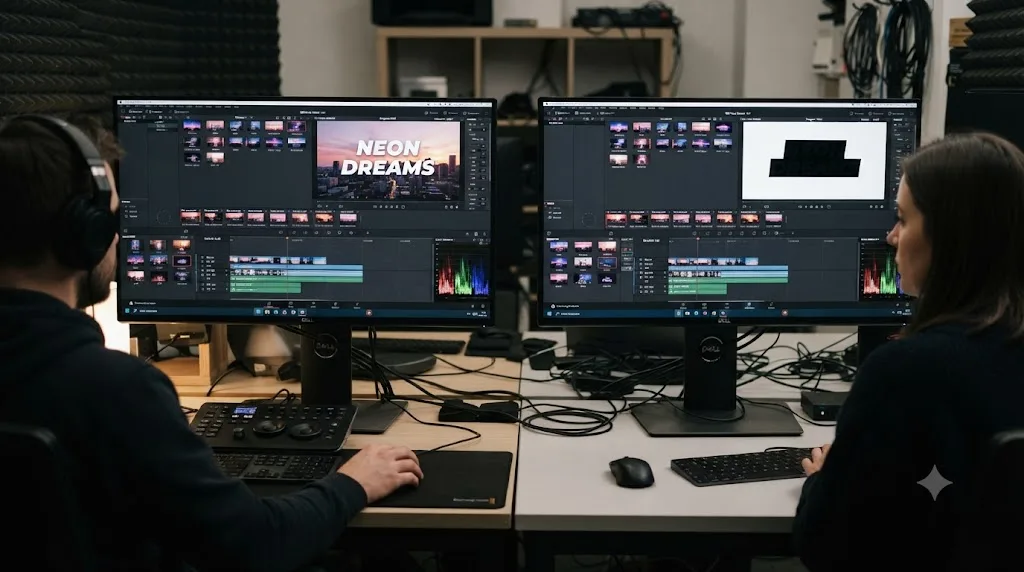
This is one of the single most common real-world triggers for this exact symptom, and it isn't really a Resolve bug at all. Every font reference inside a DaVinci Resolve project, whether it's a Text+ title, a Fusion composition, or a subtitle track, is stored as a font name, not as the font file itself. When you open a project built on a different machine, whether it arrived as a shared project file, an XML or AAF conform from Premiere Pro or Final Cut, or a downloaded template, Resolve checks your local machine's installed fonts against every font name the project references.
If the two machines don't have identical fonts installed, under identical family names, every mismatched reference falls back to the same black-shape or blank-text behavior covered earlier in this post, clip by clip. This is especially common after an XML import from Premiere Pro, since Premiere's own font handling and licensing (particularly Creative Cloud fonts) doesn't carry over into Resolve at all. If you're troubleshooting a project that just arrived via XML and something looks broken beyond just fonts, our guide to Premiere XML imports not working in DaVinci Resolve covers the conform-specific failure modes, offline media and failed links included, that can compound with a font mismatch on the same handoff.
The practical fix when you're the one receiving a project: ask whoever sent it which fonts the project uses, or open every text element and note the font field before assuming anything is corrupted. If you're the one sending a project, list every custom font you used in a readme, or better, zip the actual font files alongside the project so the recipient can install them before they even open Resolve.
What's new in DaVinci Resolve 21 that touches fonts?
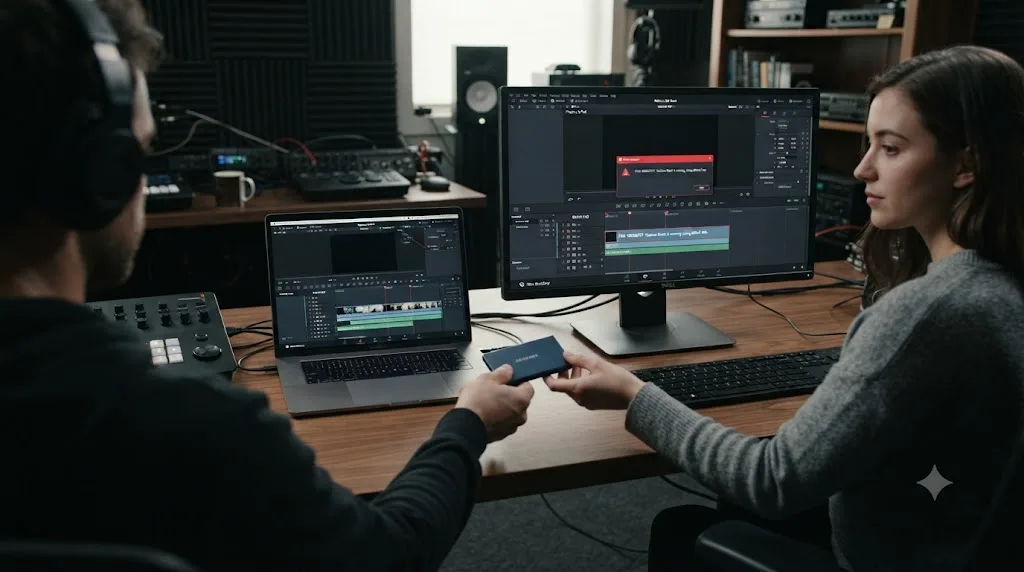
DaVinci Resolve 21 shipped real, meaningful font-related improvements, though none of them add a missing-font warning dialog. Per RedShark News's coverage of the DaVinci Resolve 21 final release and CineD's release coverage, version 21 introduced a dedicated font browser window for text and subtitle elements, an optional font-preview setting so you can see how a font actually renders before committing to it, spell checking across Text+ and MultiText elements, and native emoji and color font support for Text+ and MultiText specifically.
A font browser that lets you preview a font before selecting it is new in DaVinci Resolve 21, but it doesn't tell you whether that font will survive being opened on a different machine. That distinction matters. The new browser makes picking a font on your own system faster and more visual, which is a genuine quality-of-life win, but it has no visibility into what fonts are installed on a collaborator's machine or a render farm somewhere downstream. It solves the "which font should I pick" problem, not the "will this font travel" problem this whole post is about.
If you're still on an early DaVinci Resolve 21.x point release and haven't updated recently, checking Help > Check for Updates before assuming a font problem is unfixable is worth doing, since font-adjacent bugs in the Macro Editor and MultiText systems were among the fixes Blackmagic shipped during the 21 beta cycle.
How do you pick fonts that won't break on someone else's machine?
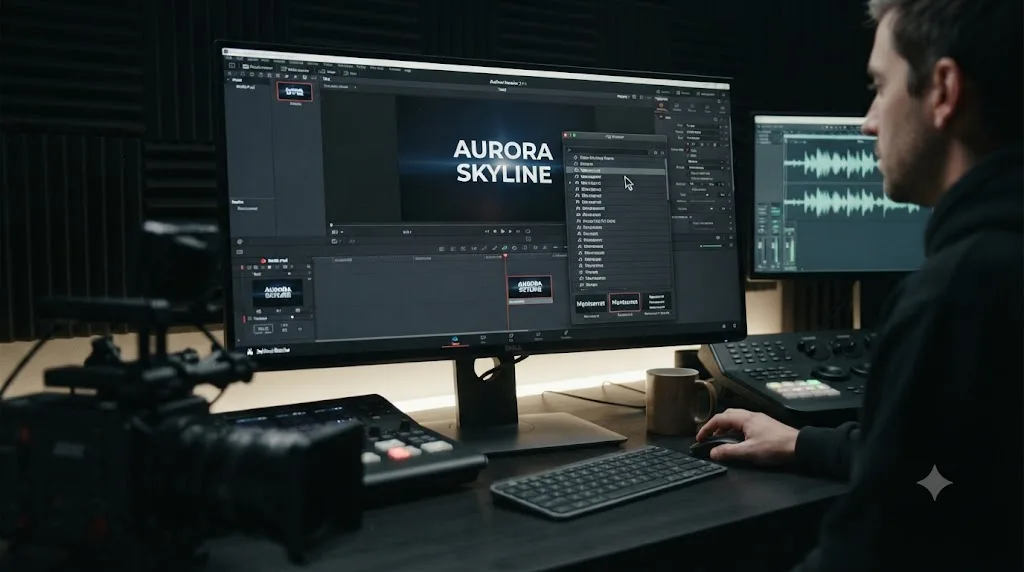
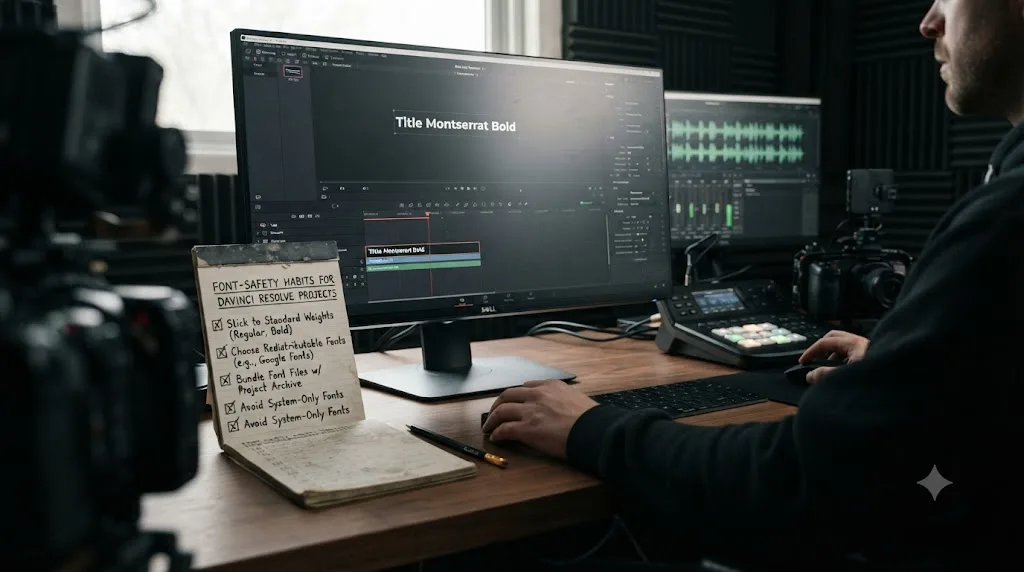
The cheapest fix for this entire category of problem is prevention, and it comes down to a handful of habits worth building before you build a title, not after it breaks.
- Favor fonts you know are widely pre-installed or genuinely free to redistribute. System fonts like Arial, Helvetica, or Open Sans, and open licenses like Google Fonts, travel across machines far more reliably than a paid or bundled font that only exists on your workstation.
- Stick to Regular weight when you're not certain a project will stay on one machine. As Larry Jordan puts it, regular weight "is always the safest choice," since bold, italic, and condensed cuts of a font family are the variants most likely to go missing or get misnamed across different font foundries and installs.
- Zip and send the actual font files with any project you hand off, rather than assuming the recipient has the same fonts. A ten-second step now saves the recipient an entire troubleshooting session later.
- Note every custom font in a project readme or a marker on the timeline, especially on long-running projects handed between multiple editors, so a missing font shows up as a known checklist item instead of a mystery black box discovered mid-session.
- Test a downloaded template pack's fonts immediately after installing it, rather than assuming the pack's installer got every font onto your system correctly. Per Motion Array's troubleshooting guide, checking the pack's own Fonts folder against what's actually installed catches this before it becomes a deadline-day surprise.
- Avoid stacking multiple font managers on the same machine. As covered above, two managers running at once can silently deactivate each other's fonts, which turns "the font is installed" into a moving target instead of a fact you can rely on mid-project.
Does the free version of DaVinci Resolve handle fonts differently than Studio?
No. Font detection, installation, and the black-shape substitution behavior covered throughout this post all read from your operating system's installed fonts, not from anything tied to DaVinci Resolve's license tier. There's no documented free-versus-Studio difference in how a missing font gets handled, how the font browser behaves, or which font formats are supported. If you're troubleshooting a missing-font problem, your Resolve edition isn't a variable worth spending time on. The font itself, and whether it's genuinely installed under the right name, is the entire question.
This is also a good moment to double-check you're not conflating a font problem with an unrelated Fusion title issue. If your title's controls are greyed out, or the whole template crashes Resolve on drop, rather than just showing black text, that's a different failure with a different fix, and our guide to Fusion title templates not working walks through the locked-macro and crash-on-drop scenarios that can look superficially similar to a font problem at a glance but need a completely different repair.
What if the font is installed but the problem still won't go away?
A small number of cases survive every step above. Before assuming you've hit a genuinely unsolvable bug, run the symptom back against this table, since almost every remaining case traces to one specific cause with one specific fix.
| Symptom | Likely cause | Fix |
|---|---|---|
| Text is a solid black shape, no dialog anywhere | Font referenced by the title isn't installed on this machine | Install it at the OS level, fully quit and relaunch Resolve |
| Installed the font, it's still black | Resolve was already open during the install | Fully quit (not just close the project) and relaunch |
| Works in Text+, missing from Basic Title | Basic Title only sees fonts bundled with Resolve | Rebuild the title as a Text+ generator |
| Works in Text, not in Text+ (Linux only) | Text+ only scans /usr/share/fonts | Move the font file into /usr/share/fonts |
| Subtitle track shows the wrong font | Subtitles carry their own font field, separate from Text+ | Set the subtitle track's font directly in the Inspector |
| Font was fine yesterday, black today | A font manager deactivated it, or Adobe Fonts sync dropped | Reactivate it in the manager or Creative Cloud, then relaunch |
| Works on your machine, black for every collaborator | Project stores font names, not files; their OS lacks the font | Share the actual font file with the project, not just the file |
| Installed correctly, still won't render | Family name mismatch (Pro/Display/weight suffix) or a corrupted file | Check the exact name against the Inspector field, or redownload it |
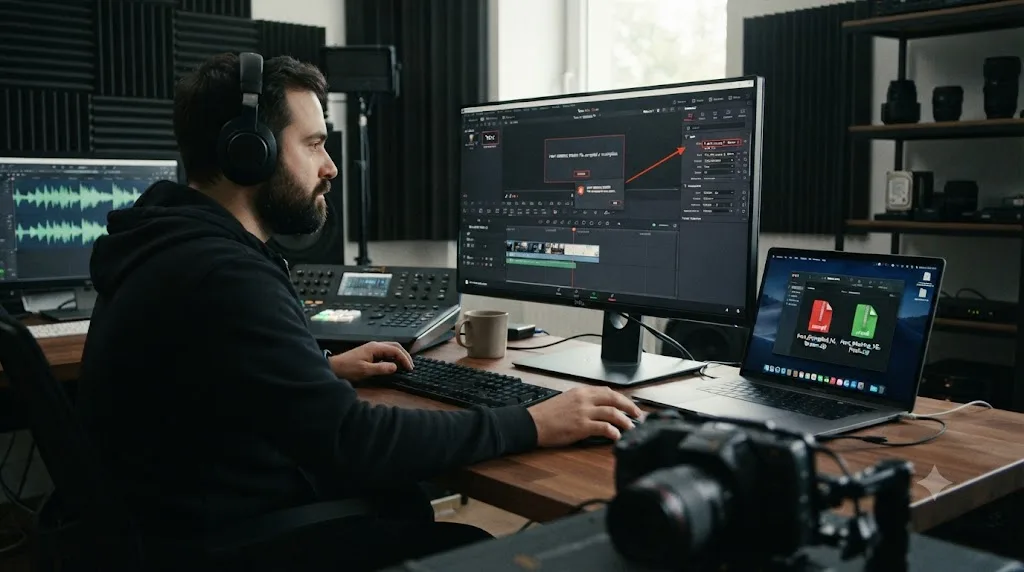
Font name mismatches, not just missing fonts, cause this just as often. A font installed under a slightly different family name, a "Display" or "Pro" suffix the original template author had but you don't, won't satisfy the template's font reference even though a version of the font is technically present on your system. Check the exact family name the Inspector or the template's font documentation expects, character for character, against what Font Book or Windows Fonts actually lists.
Templates unzipped incorrectly compound this problem. Opening a .drfx or .setting file, or a font, directly from inside a ZIP archive, rather than fully extracting it to a local drive folder first, introduces path errors that look identical to a font problem on the surface but have a different fix: extract locally first, don't just reinstall the font again.
A corrupted or partial font file will install without error and still fail inside Resolve. If a font passed its OS-level install with no complaint but still doesn't render inside Text+, try downloading it again from the original source, since a truncated or damaged font file can pass a basic install check while still failing to load correctly in specific applications.
If none of that resolves it, and you're staring at a project with a genuinely mysterious font failure while a deadline closes in, that's exactly the kind of moment where asking, in plain words, what's actually going on with the specific panel in front of you beats another round of forum searching. TryUncle is the on-screen assistant for DaVinci Resolve on macOS, ask in plain words and Uncle points at the exact control on your screen. It's one option among several in this space; tools like Sottocut, PremiereCopilot, heyeddie.ai, and cutagent.ai take a different approach, mostly automating edits or answering chat questions about a project rather than watching your actual screen. Uncle's approach stays narrower and more literal: it watches what's on screen inside Resolve and points rather than automates, which is a decent fit for a "why does my Inspector look like this" moment. TryUncle runs on founder pricing at $29.99 a month for the first 100 seats; check TryUncle for the current rate before committing.
The verdict
There is no "font not found, please install" dialog anywhere in DaVinci Resolve. That phrase belongs to Adobe's unrelated Resolve Fonts feature, and searching for it in the context of Blackmagic's video editor sends you down the wrong path before you've even started troubleshooting. What Resolve actually does when a font is missing is quieter: a solid black shape, a blank gap, or a run of fallback glyphs, with no announcement at all, and that same black shape is exactly what ends up in your finished render if you don't catch it first.
Fix it by identifying the exact font name, installing it at the operating system level rather than inside Resolve, and fully quitting and relaunching the app, since Resolve only reads its font list at launch. Check the Basic Title versus Text+ font-support gap, the separate subtitle font field, any Adobe Fonts or font-manager sync that might have quietly dropped, and, if you're on Linux, the split between where Text and Text+ actually scan for fonts, before assuming a correctly installed font is somehow still broken.
Resolve Fonts in Adobe's apps and a font not found in DaVinci Resolve are two unrelated features that only share a word. Once you know that, and once you know the black shape is the error message, this stops being a mystery and becomes a two-minute fix.
Frequently asked questions
- Does DaVinci Resolve show a 'font not found, please install' dialog?
- No. That exact wording comes from other apps, most often Adobe InDesign, Illustrator, and Premiere Pro's own unrelated 'Resolve Fonts' feature. DaVinci Resolve has no equivalent pop-up. When a font referenced by a title, Text+, or Fusion template isn't installed, Resolve renders the text as a solid black shape, a blank space, or a fallback glyph instead of warning you.
- Why does my Text+ title show a black box instead of letters?
- A missing or misnamed font. DaVinci Resolve doesn't reliably throw an error when the font a Text+ or Fusion title node calls for isn't installed under the exact name the template expects. It falls back to rendering the text layer as black, blank, or boxed instead. Selecting the text and swapping its font in the Inspector confirms the cause immediately.
- Why doesn't a font I just installed show up in DaVinci Resolve?
- Because Resolve reads your system's installed font list once, at application launch, not continuously while it runs. Installing a font while Resolve is still open does nothing until you fully quit the app, not just close the project, and relaunch it.
- Why does a font work in Text+ but not in the Basic Title tool?
- Text+ can use any font installed on your operating system. The Basic Title generator is more limited and only supports the small set of fonts that ship bundled with DaVinci Resolve itself, so a system font that works fine in Text+ can simply not appear as an option in Basic Title at all.
- Why are fonts missing specifically from my subtitles?
- Subtitle tracks in DaVinci Resolve carry their own font setting, separate from any Text+ or title generator font choice elsewhere in the project, and it defaults to Open Sans, Semibold. A font that displays correctly on a Text+ title can still fail to appear on a subtitle track if the subtitle's own font field was never updated to match, or references a font that isn't installed.
- Is 'Resolve Fonts' in Adobe apps the same thing as this DaVinci Resolve error?
- No, and the shared word is the entire source of the confusion. 'Resolve Fonts' is an unrelated feature inside Adobe InDesign, Illustrator, and Premiere Pro that swaps a document's missing fonts for substitutes. DaVinci Resolve, the video editor from Blackmagic Design, has no feature by that name and no comparable dialog.
- Does DaVinci Resolve handle missing fonts differently on Linux?
- Yes, in a way that trips up even experienced editors. On Linux, Resolve's Text object only scans /usr/share/fonts or /usr/local/share/fonts, while the Text+ object, which also drives Fusion title text, only scans /usr/share/fonts. A font sitting only in /usr/local/share/fonts or your user font folder can work in Text and be invisible in Text+ on the same machine.
- Does the free version of DaVinci Resolve handle fonts differently than Studio?
- No. Font handling in DaVinci Resolve reads directly from the operating system's installed fonts, not from anything tied to your license tier. There is no known free-versus-Studio difference in how missing or installed fonts are detected, displayed, or substituted.
Sources
- Blackmagic Forum: Resolve not finding some installed fonts
- Blackmagic Forum: Missing fonts
- Blackmagic Forum: Broken Fusion titles due to not find fonts
- Blackmagic Forum: Missing Font Warning
- Blackmagic Forum: Font missing from subtitles
- Blackmagic Forum: Missing fonts cause mysterious problems
- Motion Array Help Center: DaVinci Resolve Templates: Ultimate Troubleshooting Guide
- Motion Array Help Center: How To Use DaVinci Resolve Templates
- Artlist Help Center: Troubleshooting DaVinci Resolve templates
- ArchWiki: DaVinci Resolve
- MiraCamp: How to Add Fonts in DaVinci Resolve
- DesignBeep: How to Add Fonts to DaVinci Resolve
- exlima: DaVinci Resolve Text+ Deep Dive (What you need to know)
- Larry Jordan: DaVinci Resolve 20 Creates Non-Standard SRT Files and How to Fix Them
- DaVinci Resolve Reference Manual: Title Generator Panels
- RedShark News: DaVinci Resolve 21: record seven-week beta to final release
- CineD: DaVinci Resolve 21 Final Release Now Available
- Adobe Community: Insistent 'Resolve Fonts' error message when starting Premiere Pro 2019
- Adobe Fonts Help: Resolve missing fonts in desktop applications
- Adobe Fonts Help: Troubleshoot font addition problems in Creative Cloud
- FontBase Tutorials: Font Activation
- RightFont: Troubleshooting
Put this guide to work with TryUncle.
Ask about the step you’re on. TryUncle sees your screen and points at the control you need, so you can keep learning in your own project.
Get TryUncle for Mac or WindowsKeep reading
Fixes · Jul 17, 2026 · 22 min
DaVinci Resolve Fusion Title Templates Not Working: The Fix
DaVinci Resolve Fusion title templates fail for five distinct reasons, from missing files to locked macros to bad fonts. Here's the fix for each one.
Fixes · Jul 12, 2026 · 29 min
DaVinci Resolve XML Import from Premiere Pro Not Working
Every reason DaVinci Resolve rejects, empties, or offlines an XML timeline exported from Premiere Pro, and the exact fix for each failure mode.
Fixes · Jul 22, 2026 · 24 min
DaVinci Resolve 'License File Not Found': How to Fix It
DaVinci Resolve says the license file is not found? It's usually a missing or unreadable local file, not a slot conflict. Here's the fix by OS.