Articles / Fixesupdated for DaVinci Resolve 21.0.2 (July 2026)
DaVinci Resolve 'License File Not Found': How to Fix It
Quick answer
"License file not found" means DaVinci Resolve Studio can't read the local activation file it needs at launch, usually because a system restore, permissions issue, or incomplete install left the folder empty. Reactivate your key rather than hunting for a backup copy of the file, since Blackmagic ties it to that specific install, not a file you can restore.
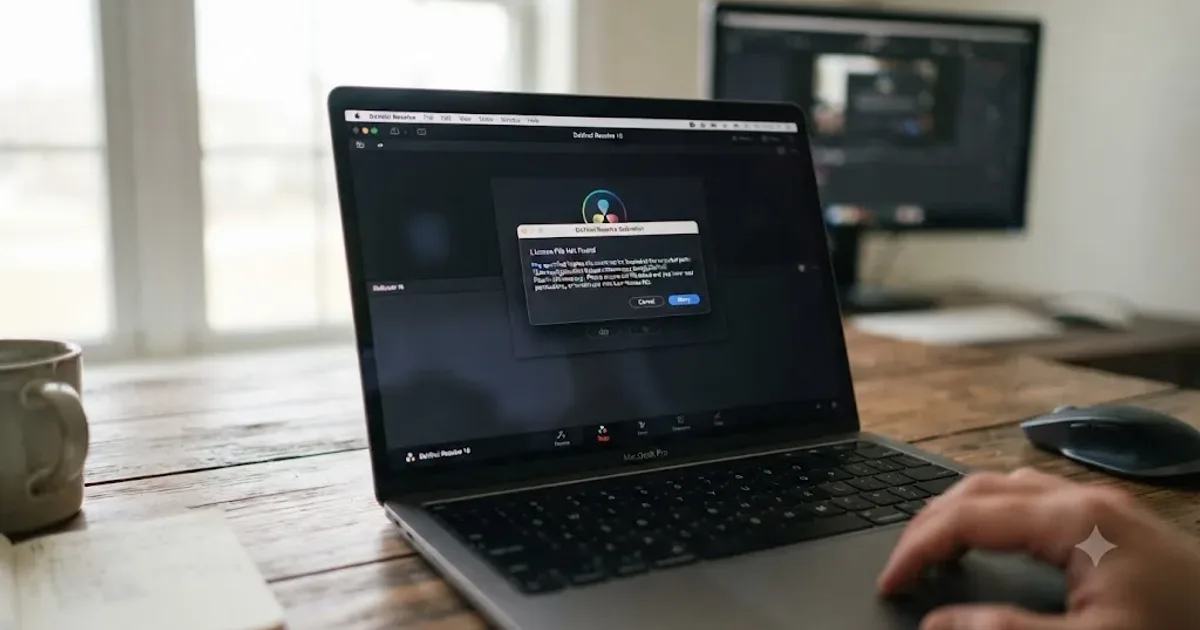
You reinstalled a driver, restored from a backup, or just moved DaVinci Resolve to a new drive, and now it won't even let you in. Not "already in use." Not a dongle it can't see. Just a flat, unhelpful "license file not found." You know you paid for Studio. You know your key is real. Resolve is acting like neither of those things is true.
Here's the good news: this error is almost always simpler than it sounds, and it's a different problem than the "already in use" message you've probably read about elsewhere. This one is about a file that isn't there, not a slot that's full.
What does "license file not found" actually mean?
DaVinci Resolve Studio doesn't just remember it's activated. It writes a small local file to disk, in a folder specific to your operating system, and it checks that file every time it launches. "License file not found" fires when Resolve looks in that folder at startup and finds nothing it can use, either because the folder never got created, because something wiped it, or because Resolve doesn't have permission to read what's sitting there.
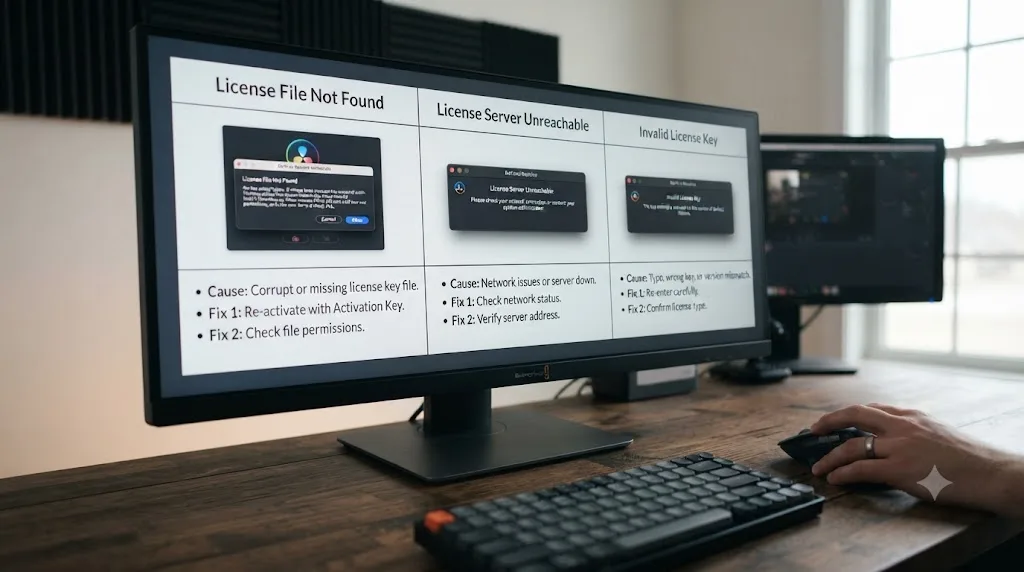
A missing license file is not the same problem as a license already in use, and treating it like one wastes an afternoon. "Already in use" is a server-side conflict: your key already fills both of its allowed activation slots on other machines, and Blackmagic's servers are the ones rejecting you. "License file not found" is local: the file this specific install needs simply isn't sitting where Resolve expects it, and the fix lives on your machine, not on a server somewhere tracking how many computers you've touched.
There's a third, related message worth ruling out early, since it shares two of the same words: "License Not Found," almost always seen with a USB dongle plugged in. That one is a detection problem, not a missing file, and it deserves its own troubleshooting path rather than a few paragraphs here. Our guide to DaVinci Resolve's "license already in use" error covers that dongle-detection scenario in depth, along with the full slot-conflict mechanics this page deliberately doesn't repeat.
| What you're seeing | What it's actually about | Where to go |
|---|---|---|
| "License file not found" at launch, key never prompted or file missing | The local license file or folder is missing, empty, or unreadable | This page |
| "License already in use" during activation | Your Studio key already fills both machine slots elsewhere | See our license already in use guide |
| "License Not Found" with a USB dongle connected | Detection issue, usually a USB hub or port problem | See the dongle section of our license already in use guide |
| Installer never finishes, or app won't launch at all | Install problem, not a licensing problem | See our DaVinci Resolve won't install on Mac guide |
Where does DaVinci Resolve actually store its license file?
Knowing the exact path matters, because half the fix here is just confirming whether the file, or even the folder that should hold it, exists at all.
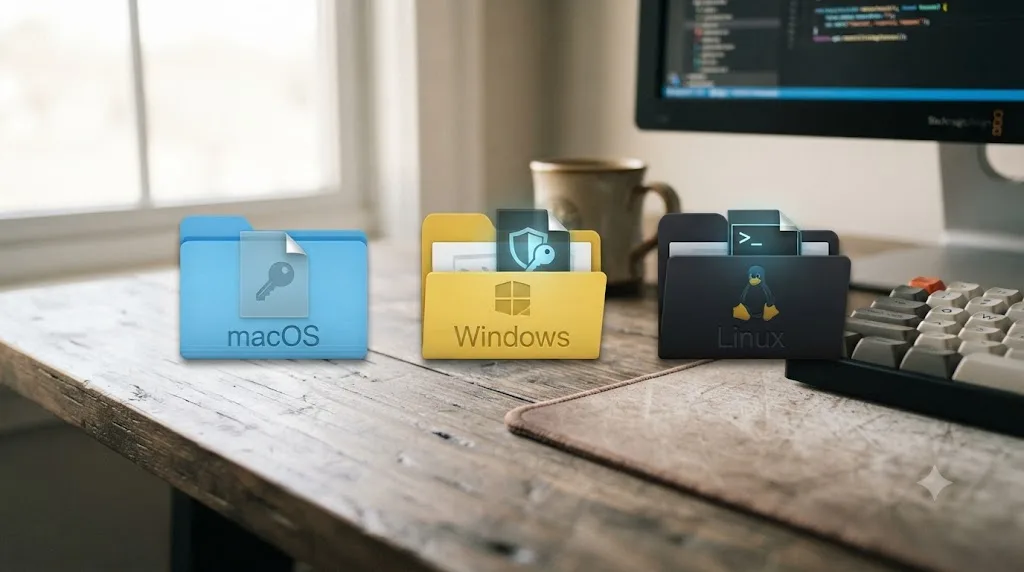
| Operating system | License folder | Notes |
|---|---|---|
| macOS | ~/Library/Application Support/Blackmagic Design/DaVinci Resolve/.license | Hidden by default; press Shift-Command-. in Finder to reveal it |
| Windows | C:\ProgramData\Blackmagic Design\DaVinci Resolve\Support and C:\Users\(you)\AppData\Roaming\Blackmagic Design\DaVinci Resolve\Support | ProgramData needs write access for every user account running Resolve, per a Blackmagic Forum thread on where Resolve files are stored |
| Linux | /opt/resolve/.license | Populated with a .lic file bearing a unique signature the moment you activate from the GUI, according to a Blackmagic Forum discussion on programmatic activation |
That table is also the fastest diagnostic step available to you. If the folder itself doesn't exist, or exists but is empty, you've found your actual problem before you've touched a single setting. If the folder exists and has content, the issue is more likely permissions or a corrupted entry than a missing file outright, and the fixes further down this page branch accordingly.
A separate Blackmagic Forum thread asking exactly where the Resolve Studio license is stored makes an important point worth internalizing before you go looking for a fix: the file that lives in that folder is tied to your specific activation, not a portable document you can zip up and drop onto another machine. Copying it somewhere else doesn't transplant your license. Only reactivating your key does that.
Why does the license file disappear on macOS?
The single most common trigger reported on Blackmagic's own forum is a Time Machine restore, and it's worth understanding exactly why that backup tool doesn't protect you here the way you'd expect.
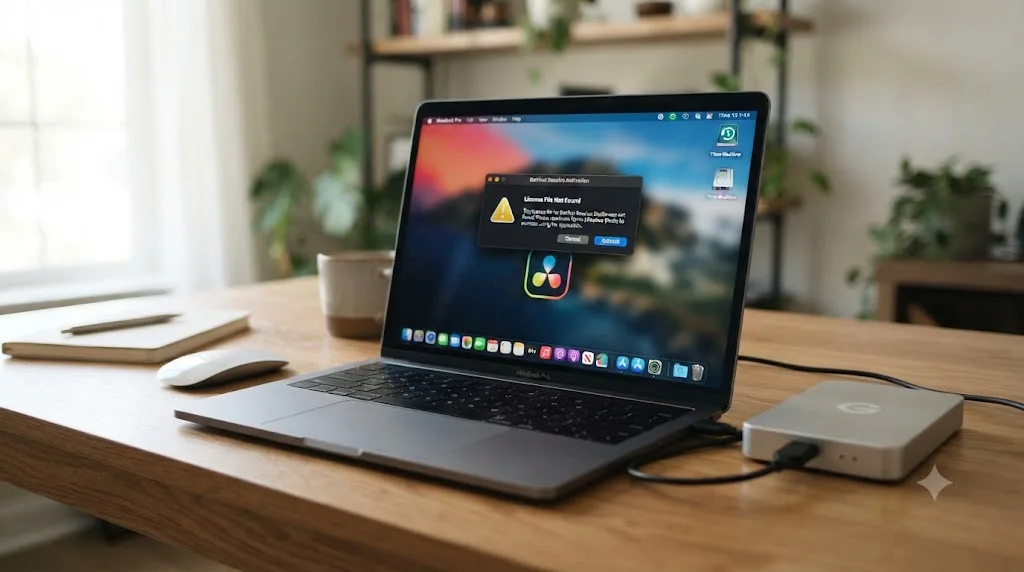
A Blackmagic Forum thread titled "Studio License disappears after Time-Machine Restore" describes a case where a Mac was restored from an image only one day old, one that had fully installed and activated Resolve Studio at the time it was backed up. After the restore, Resolve asked for the activation code again instead of recognizing the machine as already licensed. Worse, reactivating on the restored machine quietly used up the account's second remaining installation slot, since Resolve's server had no way to know the "new" machine asking for activation was really the same one it had already licensed a day earlier.
That's the trap. Time Machine backs up files faithfully, but part of what makes a license "active" lives on Blackmagic's own servers, tracking which machines currently hold your two available slots. A restored Mac can have every file byte-for-byte identical to before, and Resolve will still treat it as an unfamiliar install, because the thing that changed isn't a file on your disk. It's the server's record of which hardware fingerprint is currently attached to which slot.
A related, older thread asks the practical follow-up question directly: a Blackmagic Forum post titled "License lost after time machine restore. Location of old?" has a user on OS X 10.13 asking specifically where the license file lives so they could restore just that piece from an older backup. The answer that comes back across that thread is consistent with what we covered above: there isn't a single portable file you can cherry-pick out of a backup and drop back in to fix this. The file that would need restoring is tied to a server-side activation record, not a standalone document.
DaVinci Resolve's license file is not something you can back up and drop back in like a preference. Treat it the way you'd treat a login session, not a settings file. If the machine's identity changes in any way Blackmagic's activation system tracks, even through a restore that looks perfectly clean on your end, the safest assumption is that you'll need to reactivate rather than recover.
Beyond Time Machine specifically, the same underlying pattern shows up after migrating to a new Mac with Migration Assistant, after a clean macOS reinstall that wipes and rebuilds your user Library, or after manually deleting the .license folder while cleaning up disk space without realizing what it was.
How do you fix it on macOS?
Work through these in order. Most cases clear at step two or three, without ever needing Blackmagic support.
- Confirm the
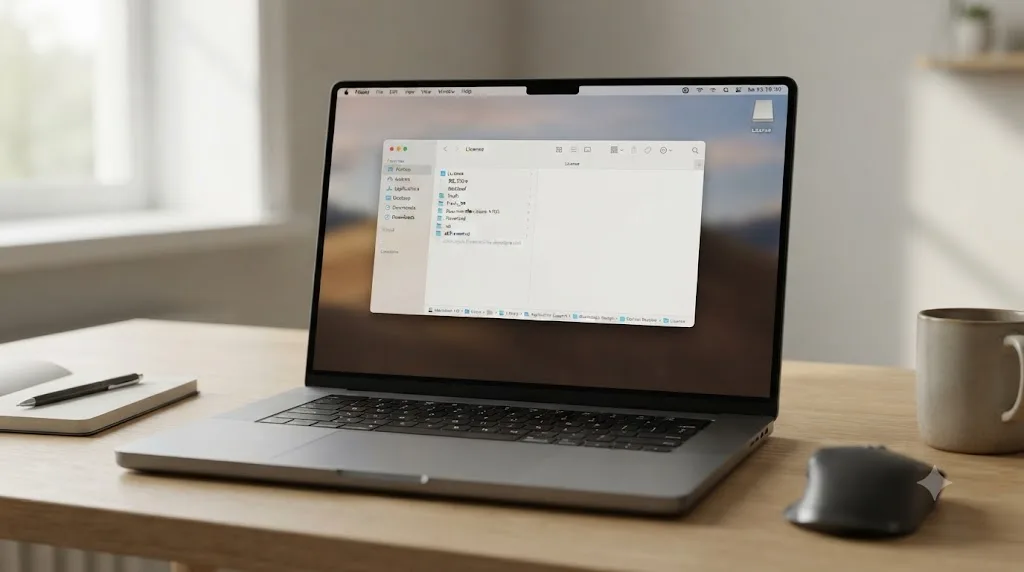
.licensefolder's actual state. Open Finder, press Shift-Command-G, paste~/Library/Application Support/Blackmagic Design/DaVinci Resolve/, and press Enter. Press Shift-Command-. to reveal hidden items and look for a.licensefolder. If it's missing entirely, or present but empty, that confirms this is your problem. - Relaunch and reactivate rather than searching for a backup copy. Open DaVinci Resolve Studio and enter your 25-digit activation key at the prompt. Since the file isn't something you can meaningfully restore from an old Time Machine snapshot, letting Resolve write a fresh one is the actual fix, not a workaround.
- Check that DaVinci Resolve has Full Disk Access. Under System Settings > Privacy & Security > Full Disk Access, confirm DaVinci Resolve is listed and toggled on. If it's missing, add it manually with the plus button rather than assuming macOS granted it automatically.
- Run the official Uninstall Resolve utility and reinstall clean if reactivation itself fails to write the file. It's inside the DaVinci Resolve folder in Applications. This clears out a half-written install state that a simple relaunch sometimes can't repair on its own.
- If you're restoring a Mac after selling or wiping the previous one, remember Help > Deactivate License needed to happen on the old machine first. If it didn't, your new activation attempt may also need to clear the "already in use" wall covered in our dedicated guide to that error, on top of the missing local file.
None of these steps risk your projects. Your project database lives in a completely separate folder from the license file, so reactivating, or even a clean reinstall, doesn't touch your actual edits.
Why does the license file disappear on Windows?
Windows produces the same symptom through a different mechanism, and it comes down almost entirely to where the file lives and who has permission to touch it.
Resolve stores part of its license data in C:\ProgramData, a system-wide folder every Windows user account can theoretically reach, and part of it under your specific user profile's AppData\Roaming folder, per that Blackmagic Forum thread on where Resolve stores its files on Windows. That split matters, because ProgramData needs to stay writable to every account that runs Resolve on a shared machine, and a locked-down or newly re-imaged Windows install doesn't always grant that by default.
Toolfarm's own troubleshooting guide, aimed at exactly this class of activation problem, is direct about the fix: "make sure you have full permissions on the %programdata% and C:\Users\Public\Documents folders, and you may need to run Studio the first time with administrator permissions to grant Studio the necessary permissions to validate the license," per Toolfarm's uninstall and key-registration guide. That single sentence explains most Windows cases of this error: the file isn't missing because Resolve failed to write it, it's missing because Windows never let Resolve write it in the first place.
A related Blackmagic Forum thread on license issues after an OS upgrade confirms the same underlying advice from the opposite direction: deactivate the license through Help > Deactivate License before you upgrade Windows, specifically because a major version upgrade can reset enough of the user profile and permission state that Resolve's activation gets orphaned mid-upgrade, leaving you needing to reactivate from a clean state afterward anyway.
On Windows, a missing license file is usually a permissions problem wearing a licensing error's name. That reframing changes what you check first. Instead of assuming your key itself is somehow broken, check whether the account running Resolve actually has write access to the folders it needs.
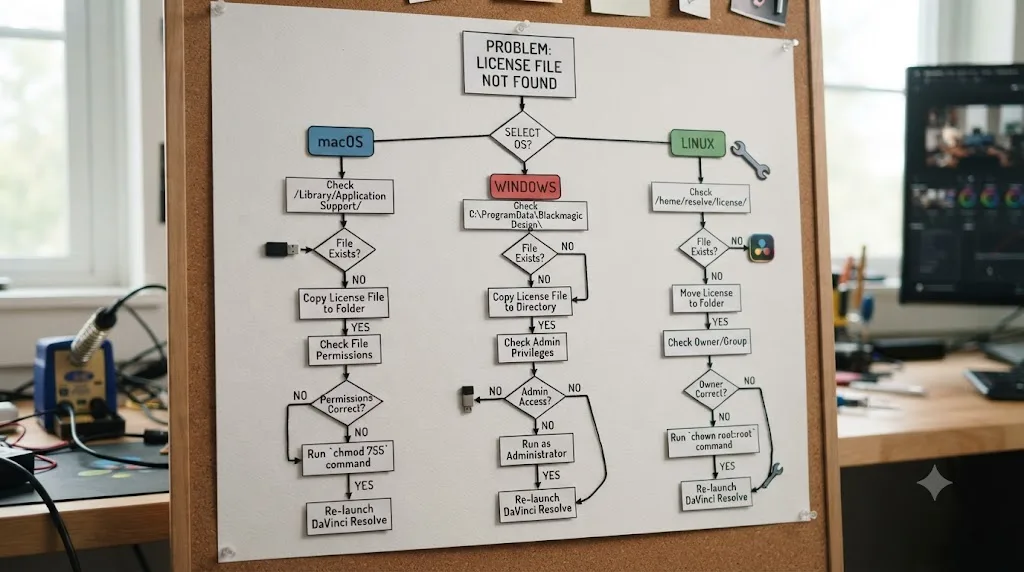
- Right-click the DaVinci Resolve shortcut or executable and choose "Run as administrator" for the first launch after any reinstall, restore, or Windows upgrade.
- Navigate to
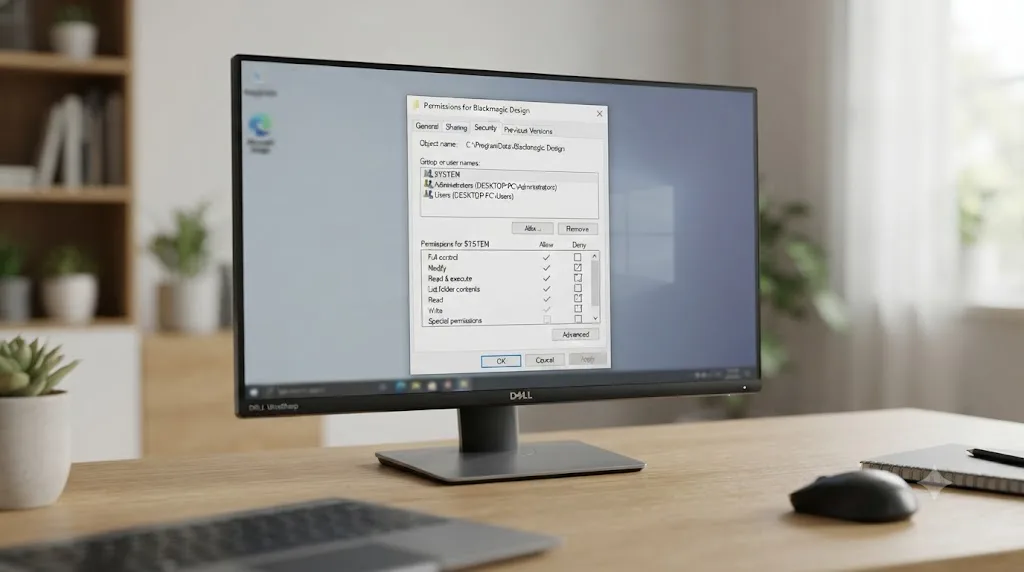
C:\ProgramData\Blackmagic Designin File Explorer (type the path directly into the address bar, since ProgramData is hidden by default) and confirm your Windows user account has at least Modify permissions on that folder through its Properties > Security tab. - Check
C:\Users\Public\Documentsfor the same permission requirement, since Toolfarm's guidance flags it alongside ProgramData specifically. - If a fresh Windows profile or a corporate-managed machine is blocking write access at the policy level, that's a permissions fix your IT administrator needs to make, not something Resolve's own settings can override.
- Once permissions are confirmed, relaunch Resolve Studio and enter your activation key. It should write the license file cleanly on this attempt.
How do you fix it on Windows?
If the permissions check above didn't already solve it, work through this sequence next.
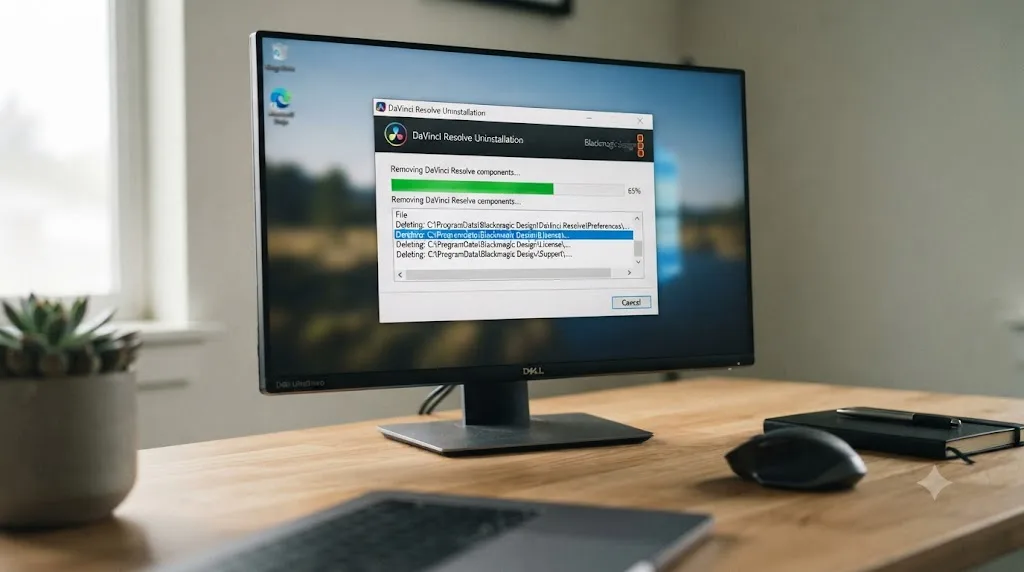
- Uninstall completely using the official utility, not just a drag-to-delete of the application folder. Windows' Add or Remove Programs entry for DaVinci Resolve triggers Blackmagic's own uninstaller, which is built to clean up more than a manual delete would.
- Manually check
C:\ProgramData\Blackmagic Designand your user'sAppData\Roaming\Blackmagic Designfolder for leftover fragments after uninstalling, and remove anything that survived, since a half-written license folder from a previous failed install can block a clean one from forming. - Reboot before reinstalling. A stuck permission handle or a background process still holding a lock on those folders clears on restart far more reliably than trying to fight it while Windows is still running the old session.
- Download a completely fresh installer from Blackmagic's official download page rather than reusing a copy that may itself be incomplete.
- Install and launch as an administrator, and enter your key at the first-run prompt. Let it finish writing before you do anything else in the app.
- If your machine sits behind corporate group policy restricting ProgramData writes, escalate to whoever manages that policy rather than repeating the install. No amount of retrying fixes a permission the operating system itself is blocking at a level above your user account.
Disk space is worth a thirty-second check here too. A ProgramData write failing partway through, because a nearly-full system drive ran out of room mid-write, can produce the exact same missing-file symptom as a true permissions block, and it's easy to rule out before you go further.
Why is this error so common on Linux, especially outside Rocky Linux?
Linux deserves its own section because the failure mode here isn't a corrupted or restored file. It's a folder that never gets created in the first place, and it happens for a genuinely different reason than the Mac and Windows cases above.
Blackmagic officially supports only Rocky Linux 8.6 for DaVinci Resolve, as covered in our guide to whether DaVinci Resolve actually works on Linux. Every other distribution, and especially every package manager or containerized install method that diverges from a standard filesystem layout, runs a real risk of the installer's assumptions about where it can write simply not holding.
The clearest documented case of this comes from NixOS, a Linux distribution whose entire package management philosophy sandboxes applications more aggressively than most distros. A thread on NixOS Discourse covering DaVinci Resolve Studio install issues shows the problem in exact, reproducible terms. User APCodes identified the actual failure: "Can't find source path /home/phil/.local/share/DaVinciResolve/license: No such file or directory." The license directory Resolve expected to already exist simply wasn't there, because NixOS's packaging approach never created it.
APCodes then proposed the fix directly: "Can you try creating a directory in that place? mkdir -p ~/.local/share/DaVinciResolve/license." Another participant, amarshall, confirmed the root cause: "This is the quirk of various things and due to a limitation of the current buildFhsEnv," referring to the compatibility layer NixOS uses to run software built for a standard Linux filesystem layout inside its own sandboxed structure.
The fix worked. User philevans reported back: "I made sure to run... mkdir -p ~/.local/share/DaVinciResolve/license prior to running studio for the first time. I then launched resolve studio from the terminal and the studio activation window appeared." The activation window that had refused to show up before now appeared, purely because the directory it needed to write into finally existed.
On Linux, a license error is as likely to be a permissions or filesystem-layout problem as it is an activation problem. A Blackmagic Forum thread on an activation error documents the same root cause reaching Blackmagic's own official forum: a user who'd reinstalled Linux found the Resolve Studio installer refusing to accept an activation key at all, throwing "there was an error when attempting to perform the activation." The cause traced back to a read-only license directory, the app failing silently to create its own .license folder due to filesystem permissions, with no error message clear enough to say so directly. The user's own suggestion in that thread, that Blackmagic should distinguish a local install failure from an actual server-side licensing problem in its error text, is a fair criticism that still applies: the message you see gives you almost no clue which of these two very different problems you're actually facing.
How do you fix it on Linux?
The fix mirrors the NixOS case above, generalized to any distro or install method that isn't a stock Rocky Linux 8.6 setup.
- Check whether
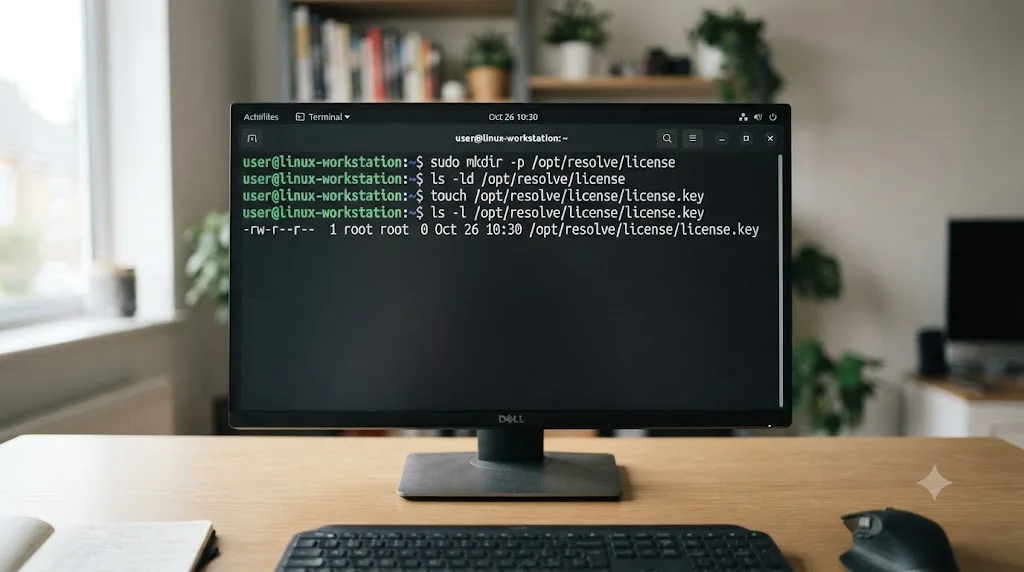
/opt/resolve/.licenseexists at all. Open a terminal and runls -la /opt/resolve/.license. If it returns "No such file or directory," you've found your exact problem, confirmed directly rather than guessed at. - Create the directory manually if it's missing. Run
sudo mkdir -p /opt/resolve/.licenseand confirm the permissions allow Resolve's own user context to write into it, not just root. - On non-standard filesystem layouts, especially Nix-based or heavily containerized distros, check whether
~/.local/share/DaVinciResolve/licensealso needs creating, following the exact fix documented in the NixOS Discourse thread:mkdir -p ~/.local/share/DaVinciResolve/license. - Launch Resolve Studio from a terminal rather than a desktop launcher the first time, since terminal output will actually show you a permission or path error a GUI launcher silently swallows.
- Enter your activation key once the folder exists and the activation window actually appears. The mkdir fix doesn't activate anything by itself. It just clears the obstacle that was stopping the activation prompt from showing up.
- If you're on a community-packaged distro build rather than Rocky Linux, expect this class of problem to recur on the next update. A package manager that doesn't preserve Blackmagic's expected filesystem paths across an upgrade can wipe or relocate the license folder again the next time you update Resolve itself.
If none of that clears it, the honest answer is that you're troubleshooting a combination Blackmagic never officially tested. Rocky Linux 8.6 remains the only distribution where this class of error has a documented, supported fix path rather than a community workaround pieced together from forum threads.
Could reinstalling DaVinci Resolve wipe or restore your license file on its own?
Short answer: reinstalling doesn't delete it, but it also doesn't reliably restore it either, and understanding why clears up a lot of wasted troubleshooting time.
The license file lives outside the application bundle on every platform: in Application Support on macOS, ProgramData and AppData on Windows, /opt/resolve on Linux. A standard reinstall replaces the application binaries, not those support folders, so simply reinstalling Resolve over itself rarely touches the license file either way, for better or worse. If the file was already missing before you reinstalled, it's almost always still missing right after, because reinstalling the app was never going to write it. Only reactivating your key does that.
Reinstalling DaVinci Resolve does not delete your license file, but a full system restore can still leave it stranded. Where reinstalling actually helps is when the install itself was incomplete or corrupted, the scenario covered in our guide to DaVinci Resolve getting stuck or refusing to install on a Mac. A botched install can absolutely fail to create the license folder correctly in the first place, which then produces this exact "file not found" error the very first time you try to activate. In that specific case, an uninstall through the official utility followed by a completely fresh install does fix it, not because reinstalling magically repairs the license, but because it gives the installer a second, cleaner shot at creating the folder structure it needs.
The one case where reinstalling actively hurts is if you run an uninstaller option that explicitly clears application support data, since some uninstall utilities offer a more aggressive "remove all settings and data" choice alongside the standard removal. Read what any uninstaller is about to do before confirming, especially if it's phrased as a "complete" or "full" removal rather than a standard one, per MacPaw's breakdown of what DaVinci Resolve leaves behind on macOS.
What if you never deactivated the old machine, and now nothing works?
This is where "license file not found" and "license already in use" can actually collide, and it's worth walking through because the fix order matters.
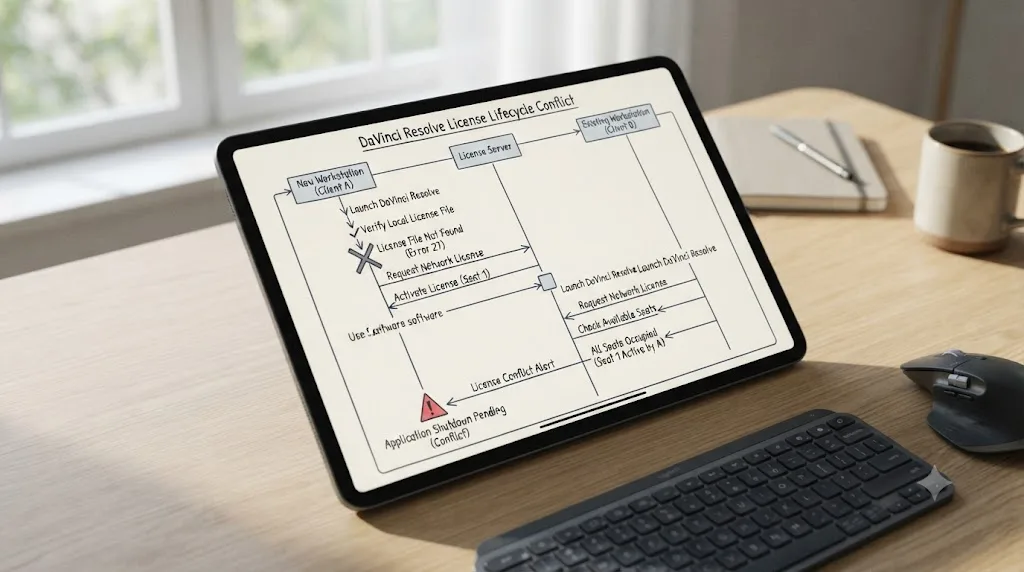
Say your old machine's drive died, or you sold it without running Help > Deactivate License first. You set up Resolve Studio on a new machine, and instead of a clean activation, you get "license file not found" because this is a brand-new install with no local file yet, which is completely expected on a fresh machine. You enter your key, expecting a normal first activation, and instead you get bounced into "already in use," because your key's two slots are still marked active from a machine you no longer control.
That's not a contradiction. It's two separate, sequential problems: no local file yet, because you haven't activated on this machine before, followed by a slot conflict, because your previous machine never released its claim. The first problem resolves the moment you try to activate. The second one needs the recovery path covered in full in our license already in use guide, which walks through Blackmagic's automatic reactivation safety net for exactly this scenario, along with the one-week cooldown that mechanism can trigger if you push it too many times in a short window.
The fastest fix for a missing license file is usually the one that feels like giving up: reactivate from scratch, rather than trying to recover or restore the old one. If that reactivation attempt then throws "already in use" instead of succeeding, you haven't failed at fixing the missing file. You've just uncovered the next problem in line, and it has its own documented fix.
When should you contact Blackmagic support, and what should you send them?
Work through the OS-specific fixes above first. The large majority of "license file not found" cases resolve at the folder-check, permissions, or reactivation step, without needing a support ticket at all.
Contact support when: you've confirmed the license folder exists and has content but activation still fails, you're on a supported OS and confirmed permissions are correct yet the file still won't write, your key itself won't validate on any machine you try, or you suspect your account's activation records are in a state you genuinely can't see or fix from your own side.
File the request through Blackmagic's official DaVinci Resolve support and downloads page, and include everything that shortens the back-and-forth: your full 25-digit activation key, your exact operating system and version, the precise error text rather than a paraphrase, and a plain description of what changed right before the error first appeared, a restore, a reinstall, a new drive, a distro switch. That last detail matters more than people expect, since it's often the single fact that tells Blackmagic's support team whether they're looking at a local file problem or a server-side activation record that needs manual correction.
Blackmagic's support team can see activation records your own machine has no visibility into, which is the one thing no amount of local troubleshooting substitutes for. A ticket with the exact error text, your key, and a clear timeline of what changed gets resolved in one reply far more often than a vague "my license won't work" message that makes support guess at which of several unrelated problems you're actually facing.
Does the free version or Blackmagic Cloud rental ever throw this error?
The free version of DaVinci Resolve never activates anything, so it has no license file to go missing in the first place. If you're seeing "license file not found" at all, you're already confirmed to be running Studio, since the free version simply skips the entire activation step this error is about.
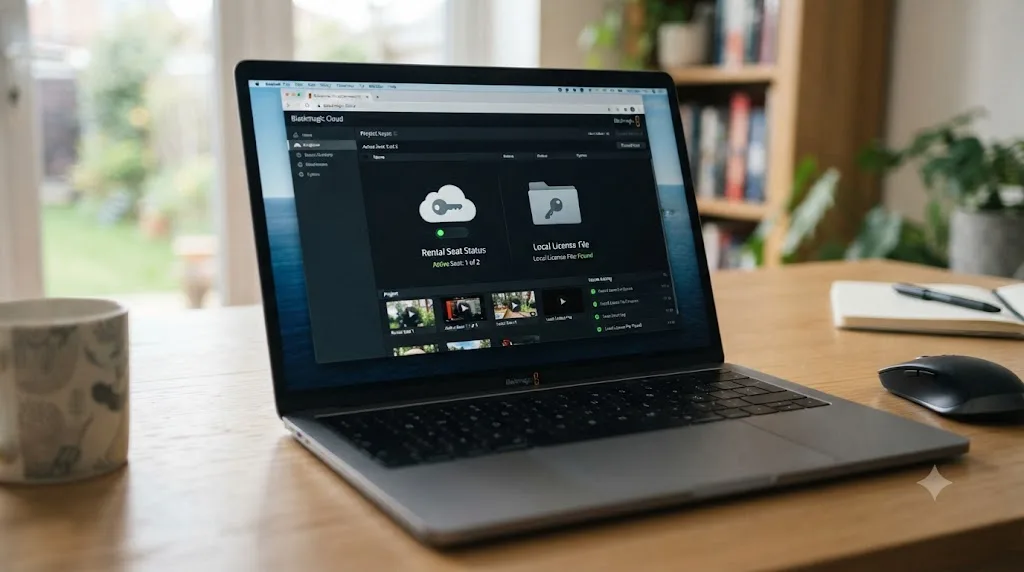
Blackmagic Cloud rental changes the mechanism without removing the underlying dependency on local state. Since September 2025, individuals can rent DaVinci Resolve Studio through Blackmagic Cloud instead of buying a $295 perpetual key, and per Newsshooter's coverage of that launch, a rented license activates through your Blackmagic Cloud ID rather than a 25-digit key, with usage managed inside Blackmagic Cloud directly. That's a genuinely different activation flow, but Resolve still needs to write something locally to confirm the machine is currently authorized, and the same categories of failure, a restore that predates the rental's activation, a permissions block on the folder it needs to write into, apply in principle even though the exact file format and location differ from the key-based system covered throughout this page.
If you're renting specifically and hit a missing-license-style error, check your Blackmagic Cloud account's seat assignment first, since a seat that isn't currently assigned to the machine you're using produces a similar symptom to a missing local file, just managed through a dashboard instead of a Help menu.
Which symptom points to which fix?
Use this table as a shortcut if you already know exactly what you're looking at.
| What you're seeing | Most likely cause | Start here |
|---|---|---|
| Error appears right after a Time Machine restore or Migration Assistant transfer | Server-side activation state didn't survive the restore | Reactivate the key; watch for a follow-on "already in use" |
| Error on Windows after a clean reinstall or Windows upgrade | ProgramData or AppData permissions blocking the write | Run as administrator; check folder permissions |
| Error on Linux, especially non-Rocky distros or Nix-based installs | License directory never created due to sandboxing | Manually create /opt/resolve/.license or the distro's equivalent path |
| Error on a brand-new machine after your old one died or was sold | No local file yet, likely followed by a slot conflict | Reactivate, then see our license already in use guide if it persists |
| "License Not Found" specifically, with a dongle plugged in | Detection issue, not a missing file | See the dongle section of our license already in use guide |
| Error persists after confirming folder exists, permissions are correct, and key is valid | Server-side activation record needs manual correction | Contact Blackmagic support with your key and exact error text |
| Rented Blackmagic Cloud license shows a similar error | Seat not currently assigned to this machine | Check seat assignment inside your Blackmagic Cloud dashboard |
A license file that's missing on a brand-new machine is expected behavior, not a bug, right up until reactivation itself fails to write a new one. That distinction is the fastest way to tell a normal first-activation moment apart from an actual problem worth troubleshooting.
How do you stop this from happening again?
A handful of habits make this error something you read about once instead of something you fight every time your setup changes.
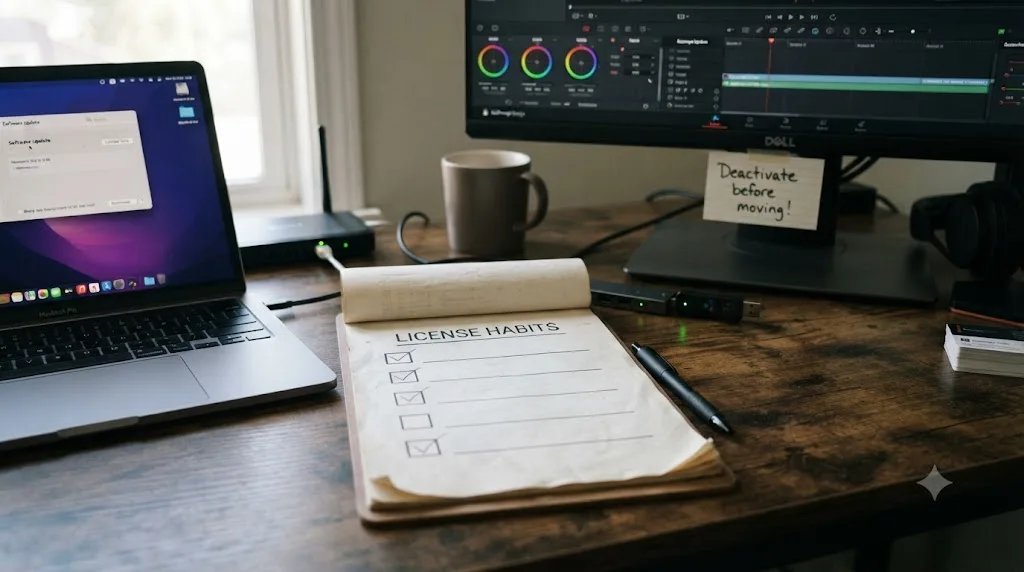
- Deactivate through Help > Deactivate License before any restore, reinstall, or migration you can plan for. A clean deactivation on the old state avoids the entire class of problem where a restored or migrated machine collides with a slot that never got released.
- Don't treat the license file as something you can back up and restore like a document. As the Blackmagic Forum threads on Time Machine restores make clear, the file is tied to a server-side activation record, not a standalone piece of data that travels safely inside a backup image.
- On Windows, confirm ProgramData and AppData permissions right after any OS reinstall or major Windows upgrade, before you even open Resolve for the first time, rather than troubleshooting reactively once the error already appeared.
- On Linux, stick to Rocky Linux 8.6 if activation reliability matters more than distro preference. Every other distro or container-based install method carries a real, documented risk of the license folder never getting created correctly, as covered in our guide to whether DaVinci Resolve works on Linux at all.
- Keep your 25-digit activation key backed up somewhere durable, the original purchase email, a password manager entry, a printed copy, since reactivating is the actual fix for nearly every scenario on this page, and you need the key itself on hand to do it.
- If you're renting through Blackmagic Cloud, release the seat from your dashboard before retiring or wiping a machine, the same discipline as deactivating a traditional key, just through a different interface.
None of this eliminates the possibility of hitting this error once. Restores happen, drives die, distros get reinstalled. What these habits remove is the confusion of not knowing whether you're looking at a five-minute fix or a genuine server-side problem the moment the error shows up.
The verdict
"License file not found" almost always means exactly what it says: a local file DaVinci Resolve Studio needs at launch isn't sitting where it expects, usually because a restore, an incomplete install, or a permissions block got in the way. It is not the same problem as "license already in use," and it's not the same problem as a dongle's detection failure, even though all three share overlapping words. Match the exact wording on your screen to the right section of this page before you start deactivating anything or filing a support ticket.
The fix in nearly every case is the same regardless of platform: confirm the license folder's actual state, clear whatever is blocking it from being written, whether that's macOS Full Disk Access, Windows ProgramData permissions, or a Linux sandbox that never created the path at all, and then reactivate your key rather than searching for a backup copy of a file that was never meant to travel that way.
If the licensing side clears and you're back inside Resolve, the harder problem is usually the next one: a menu you don't recognize, a control you can't find, a tool a tutorial glossed over three versions ago. TryUncle is the on-screen assistant for DaVinci Resolve on macOS - ask in plain words and Uncle points at the exact control on your screen. It's a paid app at founder pricing, worth checking directly at TryUncle for the current rate, and it's built for exactly the moment right after your activation stops being the obstacle and the actual edit becomes the thing you're stuck on again.
Frequently asked questions
- What does 'license file not found' mean in DaVinci Resolve?
- It means Resolve Studio looked in its local license folder at launch and found nothing usable there, either because the folder never got created, got wiped by a system restore, or sits somewhere the app doesn't have permission to read. It's a missing local file, not a server-side conflict.
- Where does DaVinci Resolve store its license file?
- On macOS, inside a hidden .license folder under ~/Library/Application Support/Blackmagic Design/DaVinci Resolve. On Windows, under C:\ProgramData\Blackmagic Design\DaVinci Resolve\Support and your user AppData\Roaming folder. On Linux, in /opt/resolve/.license, created the first time you activate.
- Why did my DaVinci Resolve license disappear after a Time Machine restore?
- Time Machine restores files, not activation state that lives partly on Blackmagic's servers. Multiple Blackmagic Forum users have reported Resolve asking for the activation code again after a restore, and in at least one documented case, that reactivation quietly consumed the user's second machine slot instead of recognizing the restored one.
- Is 'license file not found' the same as 'license already in use'?
- No. 'Already in use' means your key already fills both of its activation slots elsewhere. 'License file not found' means the local file this specific machine needs is missing or unreadable. Different problem, different fix, and confusing the two sends you toward Help > Deactivate License when nothing there is actually broken.
- Why is 'license file not found' so common on Linux installs of DaVinci Resolve Studio?
- Because Blackmagic officially supports only Rocky Linux 8.6, and the license folder gets created by the installer's own permission model. Any distro, container, or package manager that sandboxes the filesystem differently, including Nix-based setups, can leave that folder never created at all, which throws this exact error on first activation.
- Will reinstalling DaVinci Resolve delete my license file?
- No, not on its own. The license lives outside the application bundle, in Application Support, ProgramData, or /opt/resolve depending on OS, and a standard reinstall doesn't touch it. What can wipe it is running an uninstaller with an option that clears application support data, or a full system restore that predates your activation.
- What should I send Blackmagic support if nothing here fixes it?
- Your 25-digit activation key, the exact error text, your operating system and version, and a plain description of what changed right before the error appeared: a restore, a reinstall, a new drive, a distro switch. Support can see server-side activation records that your own machine can't show you.
Sources
- DaVinci Resolve Studio product page (price and features)
- Blackmagic Design: DaVinci Resolve - Tech Specs
- Blackmagic Design: DaVinci Resolve support and downloads
- Blackmagic Forum: Windows - Where are Resolve files stored?
- Blackmagic Forum: where is the Resolve Studio license stored?
- Blackmagic Forum: Activate Resolve Studio License Programmatically?
- Blackmagic Forum: Studio License disappears after Time-Machine Restore
- Blackmagic Forum: License lost after time machine restore. Location of old?
- Blackmagic Forum: Licence issues after OS upgrade
- Blackmagic Forum: Activation Error
- NixOS Discourse: DaVinci Resolve Studio install Issues
- Creative COW forum: License Not Found Error
- Toolfarm: How to Uninstall DaVinci Resolve / Resolve Studio Key Won't Register
- MacPaw: How to uninstall DaVinci Resolve: Mac user guide
- Newsshooter (Matthew Allard ACS): Blackmagic Design introduces a new way for individuals to rent DaVinci Resolve Studio
Put this guide to work with TryUncle.
Ask about the step you’re on. TryUncle sees your screen and points at the control you need, so you can keep learning in your own project.
Get TryUncle for Mac or WindowsKeep reading
Fixes · Jul 17, 2026 · 24 min
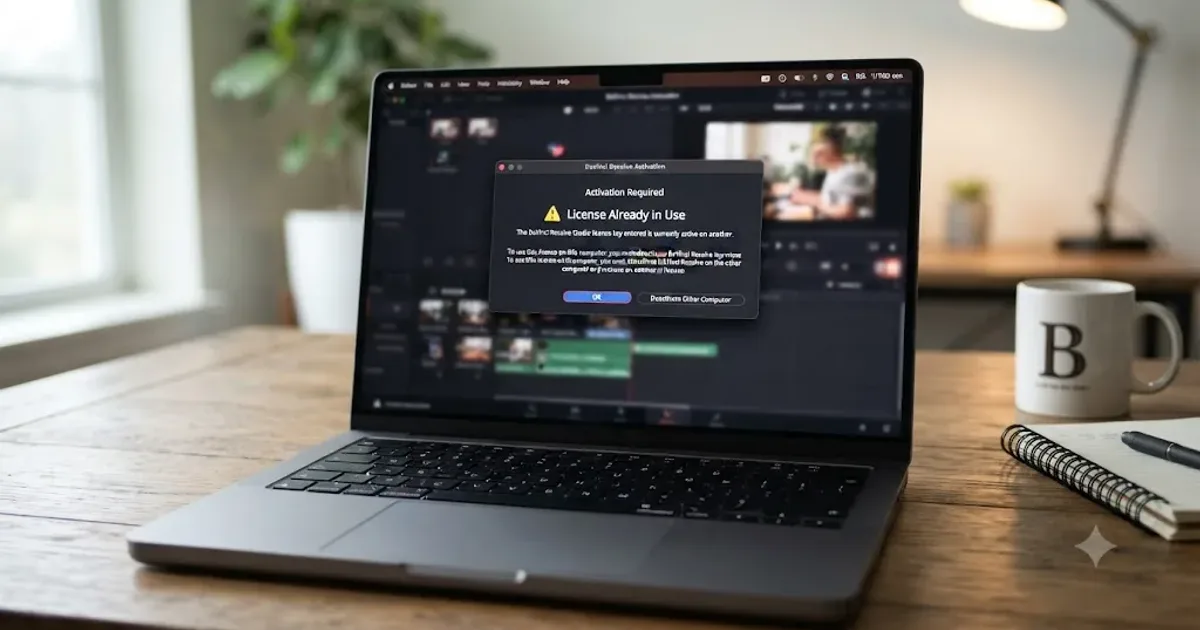
DaVinci Resolve License Already in Use: How to Fix It
DaVinci Resolve says your license is already in use? It means your activation slot or dongle is checked out elsewhere. Here's the exact deactivate and recover path.
Fixes · Jul 13, 2026 · 23 min
DaVinci Resolve Won't Install or Stuck on Mac: Every Fix
DaVinci Resolve installer stuck on Mac? Real causes: corrupted downloads, Gatekeeper, Rosetta prompts, leftover files. Here's the fix for each.
Guides · Jul 12, 2026 · 13 min
Does DaVinci Resolve Work on Linux? The Real Answer
DaVinci Resolve runs natively on Linux, but only Rocky Linux 8.6 is officially supported. Here's the GPU, driver, and codec limits you'll actually hit.