Articles / Fixesupdated for DaVinci Resolve 21.0.2 (July 2026)
DaVinci Resolve Error: Invalid Image Size or Format (Fix)
Quick answer
DaVinci Resolve throws Invalid Image Size or Format when a still image's pixel dimensions or color encoding fall outside what its decoder accepts, not because the file is broken. Usual causes: an image over roughly 16,000 pixels per side (32K needs an Apple M5 Mac), a CMYK or indexed-color file, or a corrupted header. Resize, convert to RGB, and reimport.
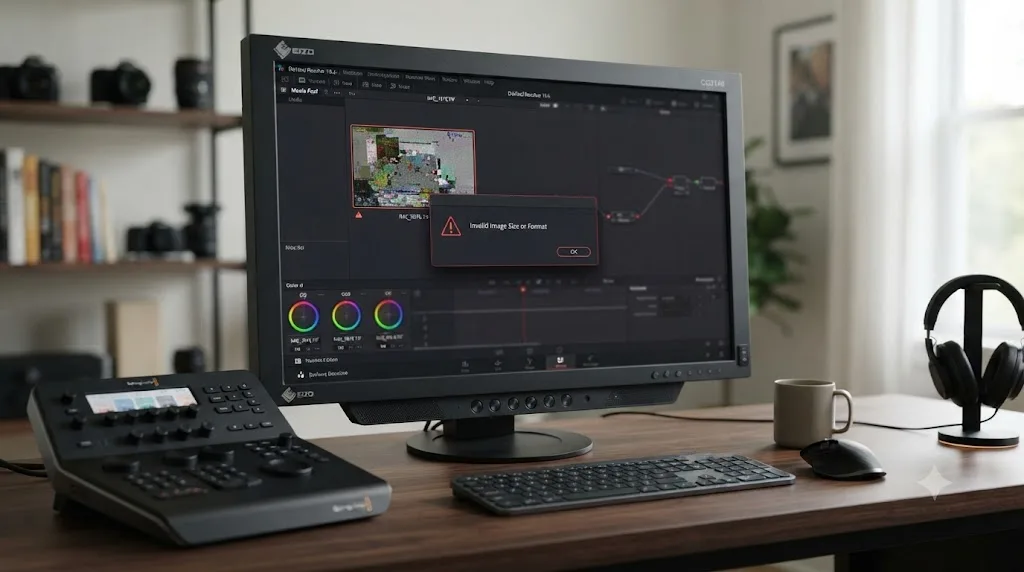
I've watched this one blindside people who've imported a thousand stills into DaVinci Resolve without a hitch, then hit a single file that stops the whole batch cold. No corrupted-file warning, no codec name, just "Invalid Image Size or Format" and a refusal to move forward.
After seven-plus years cutting commercial and client work in Resolve, and running a 100,000+ member video editing community where still image errors like this one come up in the troubleshooting channels every few weeks, I pulled together every verified cause behind this specific message and matched each one to the fix that actually works. As of July 2026, on DaVinci Resolve 21, this error still catches people off guard for the same handful of reasons it always has, plus a couple of new ones the software's new Photo page introduced.
What Does "Invalid Image Size or Format" Mean in DaVinci Resolve?
This message means DaVinci Resolve located the still image file and started reading it, then hit a pixel dimension or color encoding its still image decoder won't accept, so it refused the import rather than guessing at what to do with it. That's a narrower, more specific failure than Unsupported File Format, which is about the container and codec, not the picture's own dimensions or color mode.
DaVinci Resolve's Invalid Image Size or Format error means the still image decoder rejected the file's dimensions or color encoding, not that the file itself is broken. That distinction matters because it points you toward two very different fix paths. A dimension problem means resize. A color encoding problem means convert. Neither one means "start over from a fresh export of the whole project," which is the first thing most people assume when they see any error with the word "invalid" in it.
Resolve doesn't tell you which of the two you're dealing with. It just refuses the file. Everything below exists to help you tell them apart quickly instead of guessing.
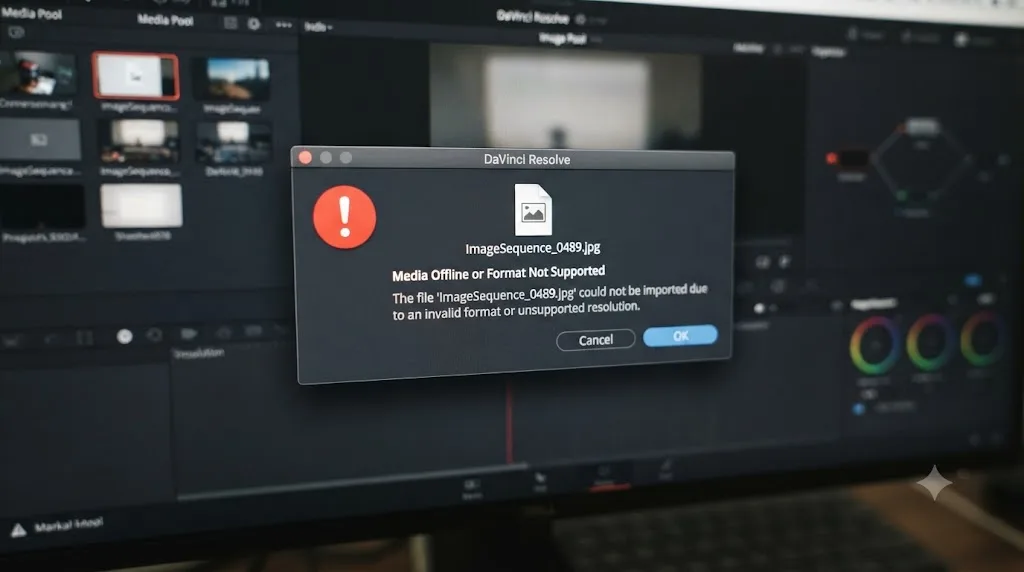
Why Does an Image That Opens Everywhere Else Get Rejected by DaVinci Resolve?
An image can open cleanly in Preview, Windows Photos, Photoshop, or your phone's gallery and still get rejected by DaVinci Resolve because those tools are built to be forgiving, and Resolve's still image decoder is built to be exact. A general-purpose viewer will tolerate an unusual color profile, an indexed palette, a CMYK JPEG, or a slightly malformed header by silently correcting or approximating it. Resolve, working inside a color-managed pipeline where every pixel's exact value matters for grading, does not make that same silent correction. It checks the file against a narrower, stricter set of rules and rejects anything that falls outside them.
This is the single most common source of confusion in every forum thread about this error. Someone reports the exact same file playing fine in three other pieces of software, and treats that as proof Resolve has a bug. It usually isn't a bug. It's Resolve refusing to guess about a color space or pixel layout it can't confirm, in a context where a wrong guess would show up as a visible color shift on a client's screen.
The practical result is that "it opens everywhere else" tells you the file isn't zero bytes and isn't a total write failure. It tells you nothing about whether Resolve's decoder specifically will accept its color mode or its dimensions. Those are the two things to check next, and they have almost nothing to do with each other, which is why the rest of this guide treats them as separate branches.
What Is the Maximum Image Resolution DaVinci Resolve Will Import?
DaVinci Resolve's practical still image ceiling has sat at roughly 16K, about 15,360 by 8,640 pixels, for most systems and most of the software's history, and Resolve 21 carries that same limit forward everywhere except one specific hardware configuration. Users have been asking Blackmagic Design to lift this cap on the company's own forum for years, in a thread literally titled "Remove 16k limit for still images," which tells you it's a known, acknowledged constraint rather than an obscure edge case.
Sixteen thousand pixels on the long edge was DaVinci Resolve's practical still image ceiling for years, and Resolve 20.3 only raised it to 32K on Apple M5 Macs, not everywhere. DaVinci Resolve 20.3, released in November 2025, added support for importing, editing, and exporting at resolutions up to 32K, roughly double the old ceiling in each direction. But that headroom is gated to Macs running Apple's M5 chip specifically. On Windows, on Linux, on Intel Macs, and on M1 through M4 Apple Silicon Macs, 16K remains the real-world limit no matter what edition of Resolve you're running or what your license tier says.
| Resolve version | Practical still/image ceiling | Hardware requirement | What happens past it |
|---|---|---|---|
| Resolve 18 through 20.2 | ~16K (about 15,360 x 8,640 px) | Any supported Windows, Mac, or Linux system with enough GPU memory | Invalid Image Size or Format, or a black/undisplayable thumbnail |
| Resolve 20.3 and Resolve 21, on Apple M5 Macs | Up to 32K | Apple M5 chip specifically (currently shipping in the 14-inch MacBook Pro) | Same 32K ceiling applies; images larger than that still fail |
| Resolve 20.3 and Resolve 21, everywhere else | ~16K | Windows, Linux, Intel Macs, M1 to M4 Apple Silicon Macs | Same rejection as pre-20.3 builds |
A panoramic stitch, a scanned poster, or a VFX plate that comes in wider or taller than that ceiling on the wrong axis is a frequent, specific trigger. One Blackmagic forum thread documents a user hitting exactly this with a 32,000 by 1,080 pixel JPEG, which crashed on import, and a 16,000 by 1,080 pixel PNG from the same batch, which imported but displayed as a solid black thumbnail instead of a usable image. Both symptoms point to the same root cause: one axis of the image exceeded what the decoder was built to handle cleanly, even though the total pixel count wasn't unusually large for either file.
If you're not sure whether your image is actually over the limit, right-click it in Finder or File Explorer and check Get Info or Properties for its exact pixel dimensions before you spend time on anything else. Guessing at "it's probably too big" wastes more time than the thirty seconds it takes to confirm it.
Can a Corrupted Header Make DaVinci Resolve Misread an Image's Size?
Yes, and this is a distinct failure mode from an image that's genuinely too large. Every image file's header carries the width and height Resolve will trust before it even reads the actual picture data, and if that header gets corrupted, truncated, or miswritten, Resolve can act on a completely wrong number instead of the file's real dimensions.
The clearest documented example of this comes from a real user report, not a guess. Tobias Heilmann-schuricht, troubleshooting the same class of problem on the Creative COW forum, tested a 32,000 by 1,080 pixel JPEG that crashed Resolve on import, then dug into why and found something specific: "Resolve reads/interprets the width resolution of the image as a negative value." That's a header misread, not a genuine size violation. The file wasn't simply "too big." Resolve's parser choked on an extreme dimension in a way that flipped a stored value into a negative number internally, which is a classic symptom of an integer overflow bug rather than a clean, intentional resolution cap being enforced.
This matters practically because it means two files can trigger the exact same on-screen error for two completely different reasons. One image might be legitimately over the resolution ceiling covered above. Another might be well within that ceiling but carry a header that got scrambled during an interrupted write, say a cloud sync tool grabbing the file mid-export, an app crashing during a save, or a network transfer that dropped partway through. The second case behaves a lot like the pattern covered in Clip Has Invalid Duration, where a file's metadata lies about the data that actually follows it, except here it's a pixel dimension lying instead of a timecode.
The fix for a corrupted header is almost never inside Resolve. Open the file in any competent image editor, Photoshop, GIMP, Affinity Photo, even macOS Preview's basic export function, and re-save it. That forces a fresh header write with dimensions that match the actual pixel data, which clears the vast majority of these cases without you ever needing to know exactly what was wrong with the original bytes.
Why Do CMYK JPEGs and Indexed PNGs Fail to Import?
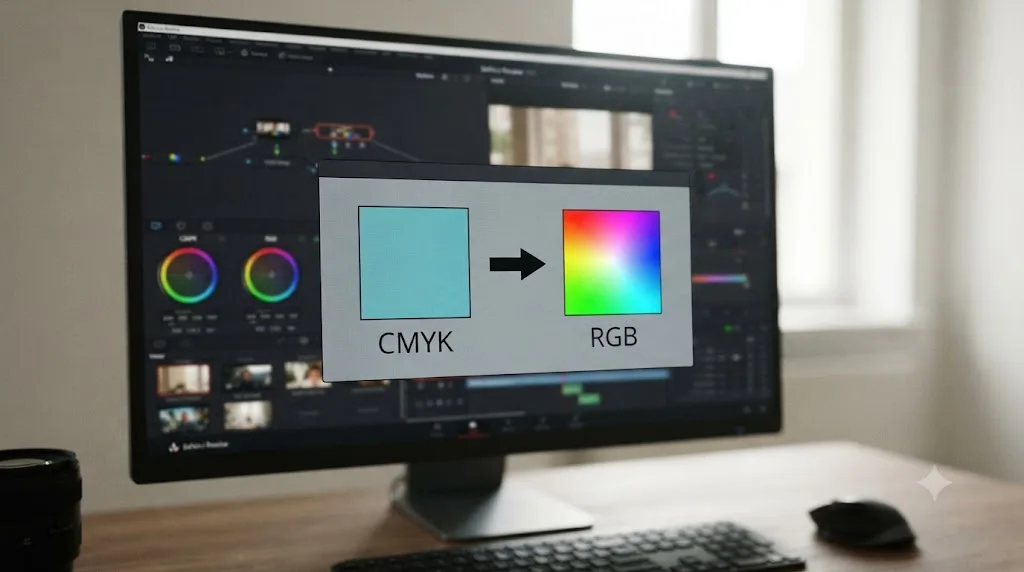
CMYK and indexed-color images fail because DaVinci Resolve's still image decoder is built around RGB, and a file encoded any other way asks Resolve to make a color-space assumption it isn't designed to make silently. This is the single most common real-world cause of this error for anyone working with logos, graphics, or exports handed over from a print or graphic design workflow rather than a photo or video one.
A CMYK JPEG will open in every photo viewer you own and still get rejected by DaVinci Resolve, because Resolve's still image decoder only accepts RGB. CMYK is a print color model built around four ink channels instead of the red, green, and blue light channels a screen actually displays, and it's the default output mode for a lot of design software when you export a logo or a title graphic. A Blackmagic forum thread titled "Importing a JPEG into DaVinci" documents exactly this pattern: JPEGs exported from Photoshop imported without issue, while the same kind of file exported from Affinity Photo caused problems, with other users in the thread pointing at CMYK color profiling as the likely culprit and recommending a switch back to RGB before export.
Indexed-color PNGs cause a related but distinct problem. Instead of storing a full RGB value for every pixel, an indexed PNG stores a small lookup table of colors and assigns each pixel a number pointing into that table, a technique built to shrink file size for simple graphics like icons or flat-color logos. Resolve's still image path expects true-color RGB data, and an indexed palette can trip the same rejection, especially when combined with an unusual bit depth or an alpha channel the palette format handles inconsistently.
The fix for both is the same action: open the file in any image editor and explicitly convert its color mode to standard RGB (8-bit is fine for nearly all delivery graphics) before you re-save and reimport it. In Photoshop, that's Image > Mode > RGB Color. In GIMP, it's Image > Mode > RGB. In Affinity Photo, it's Document > Convert Format/ICC Profile. None of these take more than a few seconds once you know CMYK or indexed color is the actual problem, which is exactly why identifying it correctly matters more than the fix itself.
Why Does This Error Show Up in Fusion but Not on the Edit Page?
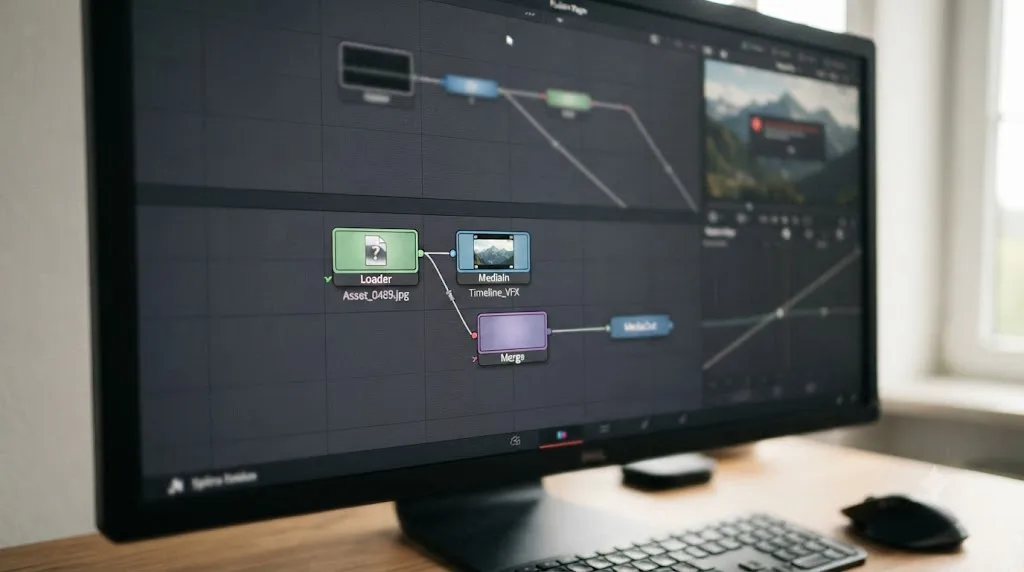
This error, or something that looks and behaves exactly like it, shows up specifically inside Fusion because Fusion's Loader node behaves differently inside DaVinci Resolve than it does in the standalone Fusion Studio application. Per Fusion documentation, the Loader node accepts "any format supported in Fusion Studio," but inside DaVinci Resolve specifically, it's limited to OpenEXR format only.
In Fusion inside DaVinci Resolve, the Loader node only reads EXR, so every other still format has to come in through MediaIn instead. Drop a PNG, JPEG, or TIFF straight onto a Loader node on the Fusion page, and you can trigger a size-or-format style rejection that the identical file never produces if you import it through the Media Pool first and reference it on the Edit page timeline, where Resolve's more general still image importer is doing the work instead of Fusion's stricter, EXR-only Loader path.
This split trips people up because it looks inconsistent from the outside. The same file fails in one part of the application and works fine in another, and without knowing about the Loader-versus-MediaIn distinction, that looks like a bug rather than two different import paths with two different rules. It isn't a bug. It's Fusion's node-based compositing pipeline, inherited from standalone Fusion Studio, applying a narrower format rule than Resolve's general media handling does everywhere else.
The fix is to change how you bring the still into Fusion, not to change the file itself. Import the image into the Media Pool as you normally would, place it on your timeline, then open the Fusion page from that timeline clip and use a MediaIn node to reference it, rather than adding a fresh Loader node and pointing it directly at the file on disk. If your Fusion composition genuinely needs the Loader node specifically, for reasons tied to a template or a shared Fusion macro, convert the still to EXR first using any image editor or a dedicated converter, since EXR is the one format Loader accepts natively inside Resolve.
Why Does One Bad Frame Break an Entire Image Sequence Import?
One bad frame breaks the whole sequence because DaVinci Resolve treats a numbered image sequence, like a DPX or EXR render output, as a single clip with a single resolution and a single color mode, not as a folder of independent, individually validated stills. When Resolve scans a sequence on import, it builds one clip object from the whole numbered run of files, and if even one file in the middle of that run has different pixel dimensions, a different color depth, or a corrupted header compared to its neighbors, Resolve can reject the entire sequence instead of silently skipping the one bad frame and importing the other 3,999 good ones.
One mismatched frame in a four-thousand-image sequence is enough to make DaVinci Resolve reject the entire sequence, not just the odd frame out. This is common on VFX and render-farm output when a single frame gets re-rendered later at a different resolution setting, or when a network hiccup during a batch export leaves one file truncated while the rest complete cleanly. It's also common with screen-recorded or phone-camera-derived sequences where an app briefly changes orientation or zoom mid-capture.
Finding the specific bad frame by opening every file one at a time in a 4,000-frame sequence isn't realistic. A batch image inspector, several are free, lets you scan an entire folder and instantly flag any file whose dimensions or color mode don't match the rest of the set. Once you've identified the outlier, you have two practical options: re-export just that frame from its original source at matching dimensions and color mode, or delete it and duplicate an adjacent frame in its place if a single dropped frame at that point in the sequence won't be visible in the final edit.
After fixing the mismatched file, don't relink the sequence in the Media Pool. Relinking can preserve cached metadata Resolve already associated with the broken import. Delete the old, rejected clip from the Media Pool entirely and reimport the corrected folder as a fresh sequence, the same approach that resolves a comparable metadata mismatch in Clip Has Invalid Duration.
Does the New Resolve 21 Photo Page Change Any of This?
Yes, in one specific way: DaVinci Resolve 21, officially released on June 3, 2026, added a dedicated Photo page for still image work, and that page brought native decoding for a wider range of camera RAW formats alongside the classic JPEG, PNG, TIFF, and HEIF/HEIC files it also accepts. The new page adds native RAW decoding for Canon CR3, Panasonic Lumix RW2, Fujifilm RAF, Apple ProRAW, and compressed Sony ARW files from the Sony a7 V and newer, plus improved Nikon NEF handling, on top of the standard TIFF, JPEG, and HEIF formats it accepts directly.
This expanded format list is good news for anyone bringing photography into a project, but it also widens the surface area where a size-or-format style rejection can happen, since more source formats now flow through Resolve's still image pipeline than did before Resolve 21 shipped. A RAW file from a camera body newer than what Resolve 21's decoder specifically supports, or a HEIC file carrying an HDR gain map your specific OS and Resolve build combination doesn't fully parse yet, can produce the same kind of rejection covered throughout this guide, just from a source format that didn't even exist as an import path in Resolve 20 and earlier.
Oliver Peters, a professional editor and longtime industry reviewer, covered the new Photo page in detail for ProVideo Coalition shortly after release, and didn't pretend it arrived polished. His verdict on the page's rougher edges was blunt: "There are some '1.0' issues that I hope will get sorted out in future updates." That's a fair read of any brand-new feature area inside a mature application, and still image import edge cases, including this exact error, are a reasonable candidate for exactly the kind of "1.0 issue" he's describing.
The Photo page also carries its own version of the free-versus-Studio split covered in the next section: exported photos from the Photo page are capped at 3,840 pixels wide, Ultra HD, on the free edition, while Studio removes that ceiling. That's an export limit specific to finished output, separate from whether a given source image will import in the first place.
How Do I Fix "Invalid Image Size or Format" in DaVinci Resolve?
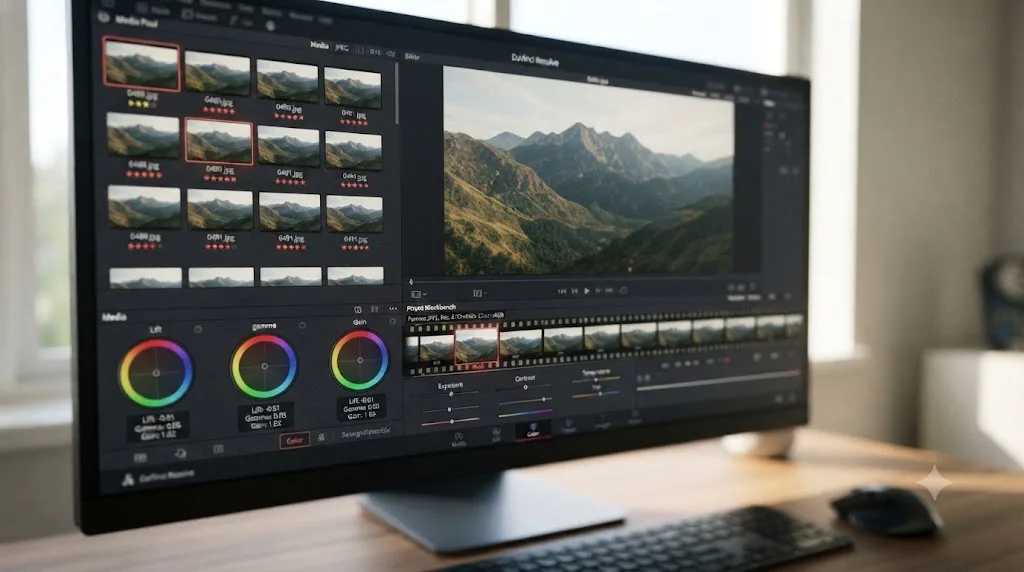
Fixing this error means correctly identifying which of the causes above applies to your specific file, then applying the one targeted fix that matches it, rather than trying every possible fix in sequence and hoping one sticks.
- Confirm which exact file is failing. If you imported a batch or a sequence, isolate the single problem file first by importing in smaller groups until you find it, rather than assuming the entire folder is bad.
- Check its real pixel dimensions and color mode. Open it in Photoshop, GIMP, Affinity Photo, or even macOS Preview's inspector, and read the actual width, height, and color mode. Don't trust a thumbnail or the file extension.
- Convert CMYK, indexed, or unusual color modes to standard RGB. This single step, described in detail above, resolves the majority of real-world cases involving design-software exports.
- Resize anything past your hardware's resolution ceiling. If the file is wider or taller than roughly 15,360 by 8,640 pixels and you're not on an Apple M5 Mac running Resolve 20.3 or newer, downscale it before you try importing again.
- Re-export as a clean, standard file rather than repeatedly resaving the original. A fresh PNG or TIFF export, RGB, 8-bit for most delivery graphics, avoids carrying forward whatever profile or mode quirk caused the original rejection.
- Reimport, and for sequences, isolate any single bad frame with a batch inspector rather than assuming the whole sequence needs to be rebuilt from scratch.
Work through these in order rather than jumping straight to a full resize-and-convert if you're not sure which cause applies. Steps 1 and 2 cost you thirty seconds and tell you exactly which of steps 3 through 6 you actually need, which saves you from, say, downscaling a perfectly reasonably sized image when the real problem was a CMYK color profile the whole time.
If jumping between an image editor, a batch inspector, and Resolve's own import dialog to figure out which specific setting or panel handles a stubborn edge case is the part that eats your afternoon, that's exactly the kind of narrow, specific question TryUncle is built to answer. TryUncle is the on-screen assistant for DaVinci Resolve on macOS, ask in plain words and Uncle points at the exact control on your screen, instead of you scrubbing through a forum thread hoping someone already solved your exact combination of format and dimension.
Does the Free Version of DaVinci Resolve Reject Images That Studio Accepts?
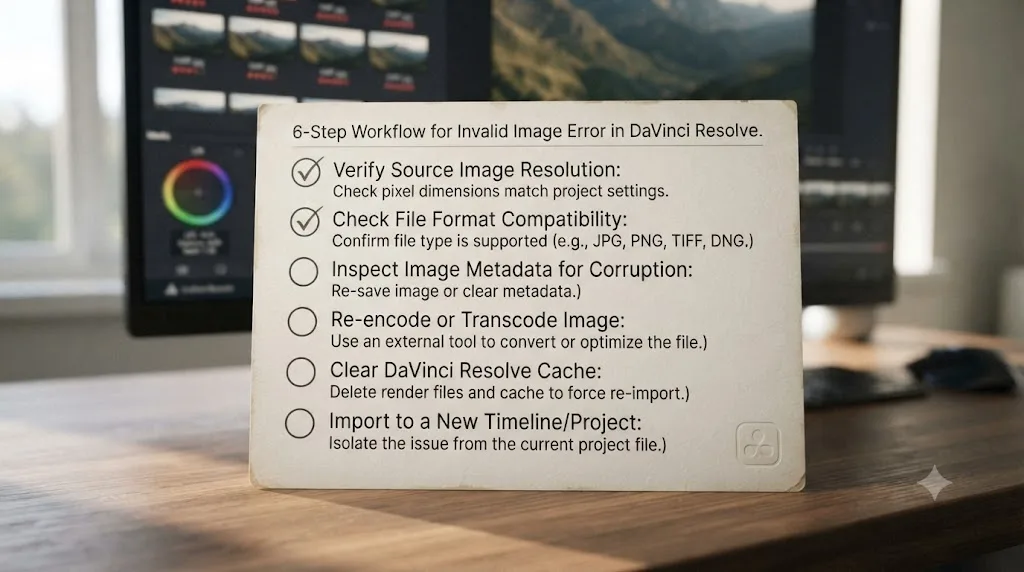
No, not on import. Both the free edition and DaVinci Resolve Studio use the same still image decoder and the same resolution ceiling for bringing a file into your project, so a high-resolution still that imports on Studio will import identically on the free edition. The gap between editions shows up on the way out, not the way in.
The free edition caps rendered output at 3,840 pixels wide, Ultra HD, whether that output is a video render from the Deliver page or an exported photo from Resolve 21's new Photo page. DaVinci Resolve Studio removes that ceiling on both. So if your still imports without any error, grades without any error, and then the finished export comes back downscaled to a resolution smaller than the source, that's the free-version export cap doing exactly what it's built to do, not a variant of the error this guide is about.
| Behavior | Free edition | Studio edition |
|---|---|---|
| Importing a high-resolution still (up to the hardware's resolution ceiling) | Same as Studio | Same as free |
| Grading a high-resolution still on the Color or Photo page | Same as Studio | Same as free |
| Rendering a video export from the Deliver page | Capped at 3,840 px wide (Ultra HD) | No resolution cap |
| Exporting a photo from the Resolve 21 Photo page | Capped at 3,840 px wide (Ultra HD) | No resolution cap |
Confusing these two limits wastes real troubleshooting time. If you're chasing an import rejection, checking your Resolve license tier is a dead end, since the decoder behavior is identical either way. If you're chasing a downscaled export, checking color mode and resolution ceilings covered earlier in this guide is the dead end, since that's a licensing behavior, not a decoder rejection.
How Do I Resize and Convert an Image So DaVinci Resolve Accepts It?
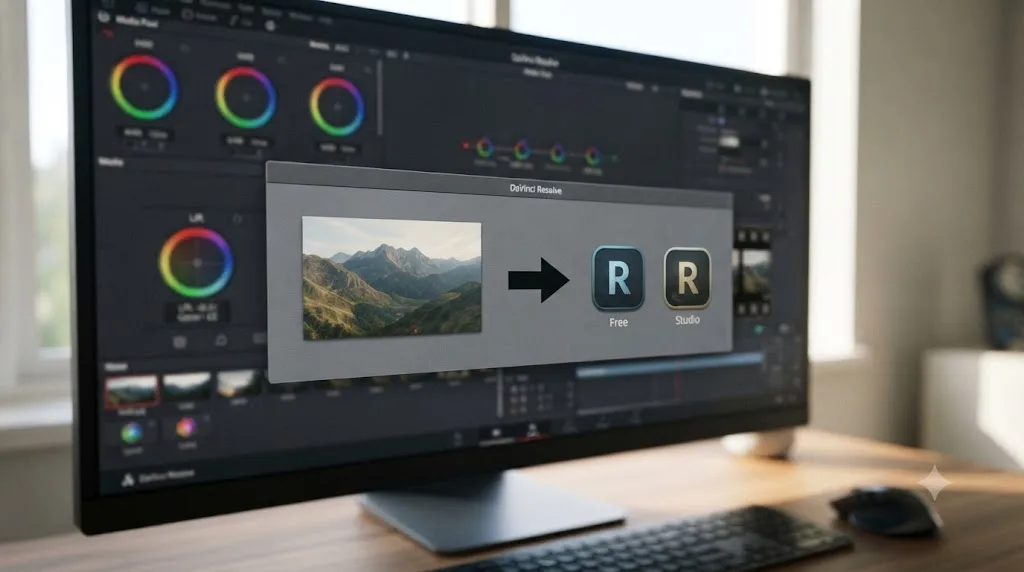
Resizing and converting an image for DaVinci Resolve means opening it in a real image editor, correcting its color mode and dimensions there, and saving a fresh file, rather than looking for a setting inside Resolve itself that fixes the source file, because no such setting exists. Resolve's import dialog doesn't repair or transcode still images. It either accepts what you hand it or it doesn't.
Resizing the image and re-exporting it as a plain RGB PNG fixes this error more often than any setting inside DaVinci Resolve does. Here's the concrete workflow, using tools most editors already have access to:
- Photoshop or Affinity Photo (paid, most common in professional pipelines): Open the file, go to Image > Mode (Photoshop) or Document > Convert Format/ICC Profile (Affinity Photo) and set it to RGB, 8-bit. If the image exceeds the resolution ceiling for your hardware, use Image > Image Size to downscale it, keeping the aspect ratio locked. Export as a new PNG or TIFF rather than overwriting the original.
- GIMP (free, cross-platform): Open the file, go to Image > Mode > RGB, then Image > Scale Image if you need to reduce dimensions. Export as PNG through File > Export As, choosing a new filename.
- macOS Preview (free, built in): Preview can flatten and re-save a file through File > Export, which forces a fresh header and often clears simple corruption issues, though it has no direct CMYK-to-RGB conversion control, so use Photoshop, Affinity, or GIMP if color mode is the confirmed problem.
- IrfanView or XnConvert (free, Windows-focused, good for batches): Both handle batch resizing and format conversion across dozens or hundreds of files at once, which matters if your image sequence problem is a whole folder of stills exported at an inconsistent size rather than one lone file.
Whichever tool you use, the same two checks decide what you actually need to do: confirm the color mode reads as RGB, not CMYK or indexed, and confirm the pixel dimensions sit under your hardware's resolution ceiling. Everything else in the conversion process is mechanical once you know which of those two is the actual cause.
One habit worth building if this keeps recurring on client-delivered graphics: check color mode and dimensions on any logo, title card, or still handed to you by a design team before you ever try to import it, the same way you'd check a video file's codec before assuming it'll drop straight into your timeline.
What If the Image Still Won't Import After Resizing and Converting?
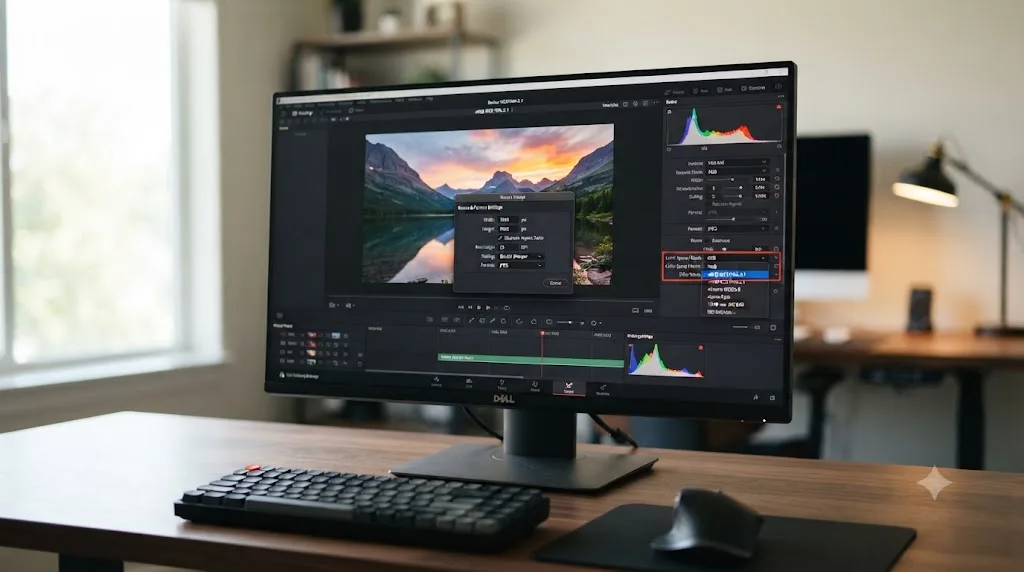
If a properly resized, confirmed-RGB image still won't import, the most likely remaining cause is a corrupted header that a simple resize-and-resave didn't actually fix, because you resized the file in the same editor session without forcing a completely fresh save, or the corruption sits deeper in the file than a basic re-export corrects. Work through these branches in order.
First, try a different image editor entirely for the conversion, not just a second save in the same one. If Photoshop's re-save didn't clear it, try GIMP or Affinity Photo instead, since different applications write image headers slightly differently, and a header quirk one encoder tolerates might trip a decoder in another.
Second, check whether the file has an embedded ICC color profile beyond a simple CMYK-versus-RGB distinction, since some wide-gamut or unusual profiles can still cause a rejection even after a basic mode conversion. Stripping the embedded profile entirely (most editors offer a "convert to sRGB and don't embed" or "discard color profile" option on export) removes this as a variable.
Third, if this is part of an image sequence, confirm you're not looking at a second bad frame you missed the first time through. Sequences with more than one mismatched file are more common than you'd expect on long render-farm outputs, and fixing one bad frame only to hit the error again on a different one isn't a sign your first fix failed, it's a sign there were two problems, not one.
Fourth, and this is the option to reach for once you've ruled out the rest, take a fresh screenshot or a completely new export of the original source material rather than fighting with the existing file at all. A logo re-exported straight from its original vector source, or a photo re-exported straight from a camera's own RAW file, sidesteps whatever corruption or encoding quirk crept into the specific file that's failing, since you're generating a brand-new file instead of repairing a damaged one.
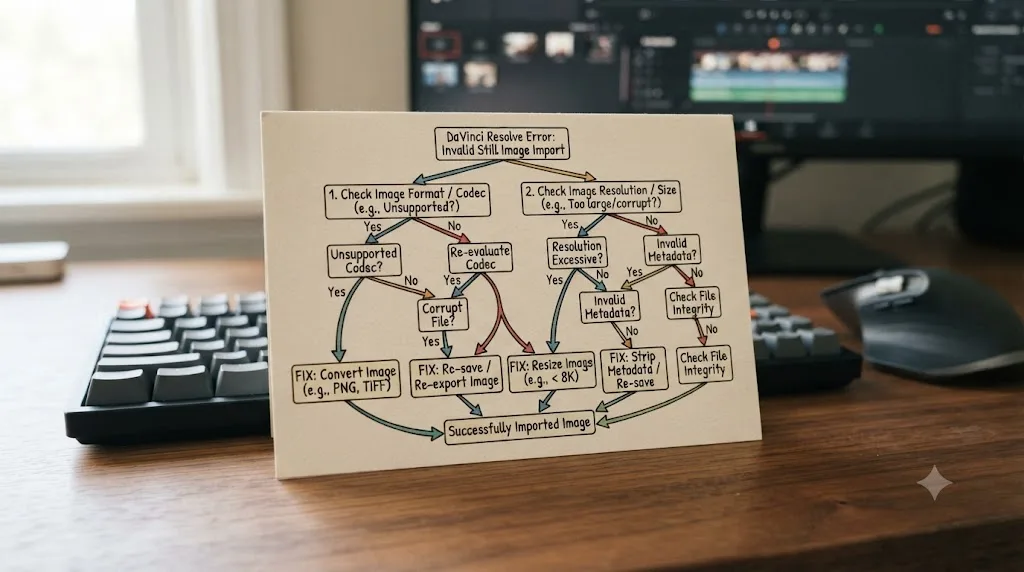
Quick Reference: Match Your Symptom to the Fix
Use this table to jump straight to the relevant section above once you've narrowed down what you're actually seeing.
| Symptom | Likely cause | Fix |
|---|---|---|
| Fails only on one huge panoramic or scanned file | Over the resolution ceiling for your hardware | Downscale in an image editor, or confirm you're on an Apple M5 Mac running Resolve 20.3+ for 32K |
| File opens fine in every other app, fails only in Resolve | CMYK, indexed color, or an unusual color profile | Convert to standard RGB in Photoshop, GIMP, or Affinity Photo |
| Fails only on a Fusion Loader node, works on the Edit page | Loader is EXR-only inside Resolve | Import through MediaIn instead, or convert the still to EXR |
| An entire image sequence rejects on import | One mismatched frame among thousands | Scan with a batch image inspector, fix or replace the outlier, reimport as a fresh clip |
| Displays as a solid black thumbnail rather than erroring outright | Extreme aspect ratio or an axis past the decoder's limit | Split or downscale the oversized axis specifically |
| Fails after an interrupted export, cloud sync, or crash | Corrupted or truncated header | Re-open and re-save in an image editor to force a fresh header |
| Export comes back downscaled, no error shown | Free edition's Ultra HD render/export cap | Confirm this is a delivery limit, not an import rejection, before troubleshooting further |
Is "Invalid Image Size or Format" Ever Truly Unfixable?
Almost never, in the sense of losing the underlying image permanently. In the overwhelming majority of real cases, the picture data is intact and the problem is metadata, color encoding, or a resolution ceiling, all of which are fixable outside Resolve with an image editor most people already own. Genuine, unrecoverable data loss from this specific error is rare, because Resolve is refusing to guess at a mismatch it detected, not reporting that your image is gone.
The one case that comes closest to truly unfixable is a file where the actual pixel data was partially overwritten or genuinely truncated mid-write, and even a fresh re-save in a capable image editor can't reconstruct data that no longer exists on disk. If your image editor of choice also fails to open the file, or opens it showing visible corruption in the picture itself rather than just an error dialog, you're looking at real data loss, and the only path forward is regenerating the image from its original source, a RAW file, a project file, or a fresh export, rather than repairing the copy you have.
For everything short of that edge case, work through identification before you touch a single setting: confirm the exact file, check its dimensions and color mode outside Resolve, then apply the one fix that matches what you found. That's a five-minute process once you know what you're looking for, which is the entire point of matching your specific symptom to its specific cause instead of guessing your way through every fix on this page in order.
Frequently asked questions
- What does 'Invalid Image Size or Format' mean in DaVinci Resolve?
- It means DaVinci Resolve found the still image file and started reading it, then hit a pixel dimension or color encoding its still image decoder won't accept, so it refused the import rather than guessing. It's a decoder rejection, not proof the file is corrupt. The same file can open perfectly in Preview, Photoshop, or your phone's gallery and still fail this specific check inside Resolve, because Resolve's decoder is stricter and narrower than a general-purpose image viewer.
- What is the maximum image resolution DaVinci Resolve will import?
- For most systems, the practical ceiling has long sat around 16K, roughly 15,360 by 8,640 pixels, a limit users have asked Blackmagic Design to raise on the company's own forum for years. DaVinci Resolve 20.3, released in November 2025, doubled that to 32K, but only on Apple Macs with the M5 chip. Everywhere else, including Windows, Linux, and older or non-M5 Macs, 16K stays the real-world limit regardless of what your Resolve edition or license says.
- Why does a JPEG or PNG that opens everywhere else get rejected by DaVinci Resolve?
- Almost always because of color mode, not corruption. Resolve's still image decoder expects RGB. A JPEG or TIFF saved in CMYK, a PNG saved as indexed color instead of true color, or a file carrying an unusual embedded color profile can open fine in a generic viewer that tolerates those modes, then fail specifically inside Resolve, which does not. Re-saving the same file as standard 8-bit RGB from any image editor almost always clears it.
- Does DaVinci Resolve's free version reject images that Studio accepts?
- Not on import, but yes on export and inside the new Photo page. Both editions can import and grade the same high-resolution stills. The gap shows up on delivery: the free edition caps rendered output, including exported photos from Resolve 21's Photo page, at 3840 pixels wide, Ultra HD, while Studio removes that ceiling entirely. If your image imports fine but the finished render or exported photo comes out downscaled, that's the free-version cap, not this error.
- Why does this error only appear in Fusion and not on the Edit page?
- Because Fusion's Loader node, inside DaVinci Resolve specifically, only reads OpenEXR. Drop a PNG, JPEG, or TIFF straight onto a Loader node in the Fusion page and you can trigger a size-or-format style rejection that the same file never produces in the Media Pool or on the Edit page timeline, where Resolve's more general still image importer handles it instead. The fix is to bring the still in through MediaIn or the Media Pool first, then reference it inside Fusion, rather than loading it directly.
- Why does one bad frame break an entire image sequence import?
- Because DaVinci Resolve treats a numbered image sequence as one single clip with one single resolution, not as a folder of independent stills. If frame 0417 in a 4,000-frame sequence was exported at a different pixel size, in a different color mode, or with a corrupted header, Resolve can reject the whole sequence rather than importing 3,999 good frames and skipping one. Find the mismatched frame with a batch image inspector and replace or re-export it before you reimport the folder.
- Can a genuinely corrupted image ever be recovered?
- Sometimes, but the fix lives outside Resolve. If the file was cut off mid-write, say a cloud sync interrupted a still export or a render was killed partway through, its header can claim a pixel size that doesn't match the data actually stored after it. Opening the file in an editor like Photoshop, GIMP, or Affinity Photo and re-saving it forces a fresh, honest header. If the editor itself can't open the file either, the underlying image data is genuinely gone and no Resolve setting will bring it back.
Sources
- Blackmagic Forum: "Remove 16k limit for still images"
- PetaPixel: DaVinci Resolve Now Supports 32K Video Editing on M5 Macs
- Newsshooter: DaVinci Resolve 20.3 Update
- DaVinci Resolve - Studio (Blackmagic Design)
- Blackmagic Forum: "Can't import a 4.7mb png file into media pool"
- Blackmagic Forum: "Problem with large PNG or JPG can't read it in Davinci 16"
- Blackmagic Forum: "High resolution stills not displaying in Resolve"
- Blackmagic Forum: "Importing a JPEG into DaVinci"
- Creative COW Forum: "R14 - Maximum size for still images" (Tobias Heilmann-schuricht)
- JayAreTV: Loader Node (Fusion)
- DaVinci Resolve Reference Manual: Using Stills (Blackmagic Design)
- DaVinci Resolve Reference Manual: Photoshop File Support (Blackmagic Design)
- DaVinci Resolve Supported Codec List, July 2025 (Blackmagic Design)
- Oliver Peters, ProVideo Coalition: The New DaVinci Resolve 21 Photo Page
- PetaPixel: DaVinci Resolve 21 Officially Released With New Photo Editing, AI Tools, and Much More
- CineD: DaVinci Resolve 21 Final Release Now Available
- Wikipedia: 16K resolution
Put this guide to work with TryUncle.
Ask about the step you’re on. TryUncle sees your screen and points at the control you need, so you can keep learning in your own project.
Get TryUncle for Mac or WindowsKeep reading
Fixes · Jul 12, 2026 · 23 min
DaVinci Resolve Says Unsupported File Format: The Real Fix
DaVinci Resolve's Unsupported File Format error almost always means a codec problem, not a broken file. Match your exact symptom to the cause and fix it.
Fixes · Jul 26, 2026 · 27 min
DaVinci Resolve Error: Clip Has Invalid Duration (Fix)
DaVinci Resolve's Clip Has Invalid Duration error means the file's frame count or timecode doesn't add up. Every real cause, matched to the exact fix.
Fixes · Jul 25, 2026 · 28 min
Clip Resolution Doesn't Match Timeline in DaVinci Resolve: Fix
DaVinci Resolve's resolution mismatch warning comes from Image Scaling, not a bug. Fix black bars, blurry upscales, and crops step by step.