Articles / Fixesupdated for DaVinci Resolve 21.0.2 (July 2026)
DaVinci Resolve Error: Clip Has Invalid Duration (Fix)
Quick answer
DaVinci Resolve throws Clip Has Invalid Duration when a clip's frame count, timecode, or in/out points don't add up to a real, playable length, usually from corrupted container metadata, variable frame rate footage, a broken image sequence, or a scripted import with a bad frame range. Check the file in MediaInfo first, then match your case below to fix it.
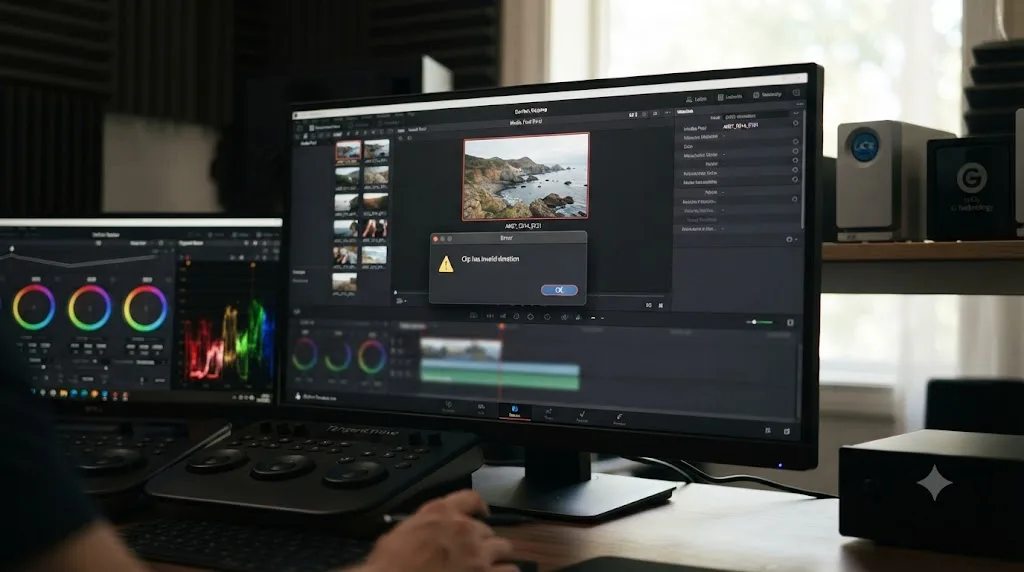
I've had this exact error land in my inbox from readers more than once, always with the same confused first line: "the file plays fine everywhere else." That's the whole story in miniature. Clip Has Invalid Duration isn't DaVinci Resolve being fussy. It's Resolve doing the one thing most players don't bother with: checking whether a file's claimed length actually matches what's inside it.
This is a rare error to search for by exact wording, and that's precisely why nobody has written a clear answer for it yet. After seven-plus years cutting commercial and client work in Resolve, and running a 100,000+ member video editing community where oddball metadata errors like this one show up every few weeks, I pulled together every real, verifiable cause we could confirm and matched each one to its actual fix. No guessing, no invented statistics, just the mechanics of why a video file's duration can lie to Resolve.
What does "Clip Has Invalid Duration" mean in DaVinci Resolve?
It means DaVinci Resolve opened the file and read its container successfully, then found a duration value, frame count, or timecode range that doesn't add up to a real, playable length. That's a different failure mode than Media Offline, which means Resolve can't find the file at all, and different again from Unsupported File Format, which means Resolve found the file but has no decoder for the codec inside it.
A duration error sits in between those two. Resolve can see the file. Resolve can probably even decode it. What Resolve won't do is pretend it knows how long the clip runs when the numbers it's reading don't agree with each other.
A duration error means Resolve read the file successfully and still doesn't trust the number it found for how long the clip runs.
Every video and audio container carries its duration in more than one place: a top-level metadata field that states the total runtime, and a frame or sample count that, multiplied against the frame rate, should produce the same number. When those two numbers disagree by more than a rounding error, or when one of them is missing, zero, or negative, Resolve refuses to build a clip on top of an assumption it can't verify. That refusal is the error you're looking at.
Why does DaVinci Resolve say a clip has invalid duration in the first place?
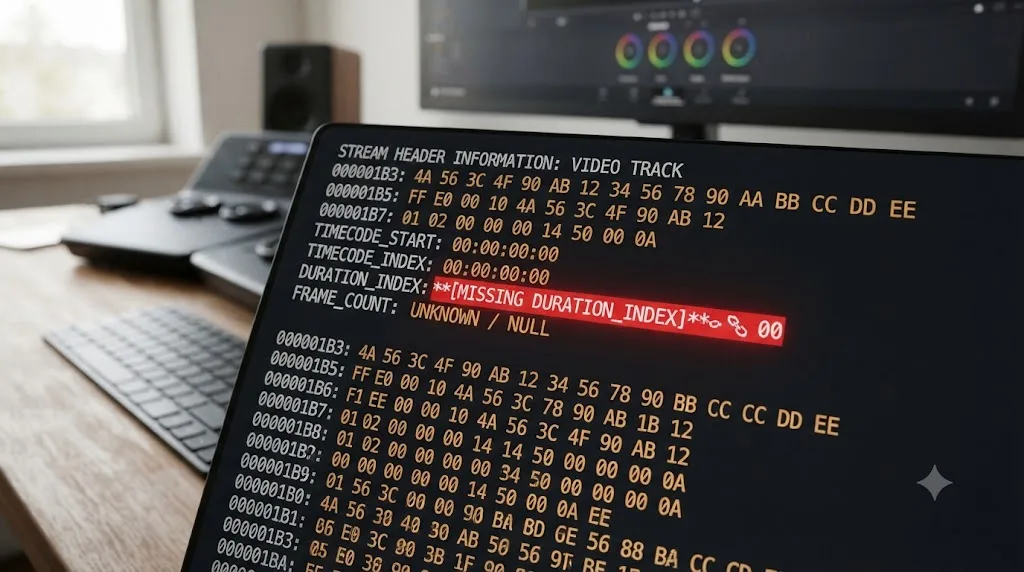
Resolve says this because it calculates a clip's length two separate ways during import and only proceeds when they match. Most editing software takes whatever duration a file reports at face value. Resolve is stricter, and that strictness is what surfaces problems other tools quietly paper over.
For a standard video file, the duration usually lives inside an index structure near the end of the container, sometimes called the moov atom in MP4-family files. That index "contains the metadata and the index of the video," including "information about the timescale, duration, and display characteristics of a video," according to Wondershare's Repairit documentation on file recovery. Because recording software usually "does not know the video's duration while you are recording it," that index gets written last, once recording actually stops.
That single design detail explains most of this error's real-world causes. If the write-out of that final index gets interrupted, cut short, or skipped, the file's duration metadata ends up incomplete, zero, or simply absent, while the actual audio and video data underneath it can remain completely fine.
The fix for an invalid duration error is never inside DaVinci Resolve. It lives in the file's metadata, before Resolve ever opens it.
There's no menu setting, no project preference, and no render option that changes how Resolve validates duration on import. Every real fix in this guide happens to the source file, or to how you bring it in, not to a switch inside Resolve itself.
Is the file actually corrupted, or is this just a metadata problem?
Usually it's just a metadata problem, and that distinction matters because it changes what you should do next. A corrupted file has damaged picture or audio data. A metadata problem has an intact file with a wrong or missing description of that data's length, which is a much easier and safer thing to repair.
Per Repairit's explanation of the moov atom, "when recording suddenly stops, such as through unexpected device shutdown or power loss, the moov atom becomes missing," and this happens because "it does not know the video's duration while you are recording it," so the index can only be finalized once recording ends cleanly. Practical triggers include:
- A phone or camera battery dying mid-recording
- Force-quitting a screen recorder instead of stopping it properly
- A file transfer, upload, or cloud sync getting interrupted partway through
- A crash in the recording or editing app that wrote the file
None of these destroy the actual video frames sitting in the file. They just leave the "table of contents" describing that video incomplete, which is exactly the kind of mismatch that trips Resolve's duration check on import.
Quick diagnostic table
| Symptom | Likely cause | Data actually lost? |
|---|---|---|
| File is 0 KB or a few KB | True corruption, recording never wrote data | Usually yes |
| File is a reasonable size but won't open anywhere | True corruption or truncated container | Sometimes |
| File plays fine in VLC or QuickTime but not Resolve | Metadata mismatch, not corruption | No |
| File plays but the on-screen timer is wrong | Duration metadata error, VFR, or both | No |
| File is a folder of numbered images | Gapped or duplicated sequence numbering | No |
If the file plays cleanly start to finish in VLC, QuickTime, or your phone's own gallery app, treat it as a metadata problem, not data loss. Players like VLC are famously forgiving about broken headers and will often play a file Resolve won't touch, which tells you the video itself is fine and the fix is a remux or a transcode, not a data recovery job.
Does variable frame rate footage cause invalid duration errors?
Yes, and it's one of the most common real triggers behind this error. Variable frame rate, or VFR, footage records an irregular gap between frames instead of a fixed interval, and it's the default output of a lot of everyday recording tools, not an obscure edge case.
Dan Swierenga, writing for the Frame.io blog on mixed frame rates in Resolve, put it plainly: "Frame rates and metadata can be tricky. It isn't always clear from looking at the FPS metadata column what is going on with the files." (source) That ambiguity is exactly the gap VFR footage exploits. A VFR file's container often reports a single average frame rate, but the actual spacing between frames varies shot to shot. Resolve calculates duration by multiplying frame count against a constant rate, and when the real timing doesn't match that assumption closely enough, the reported duration and the decoded frame count disagree.
Variable frame rate turns a video file into a stopwatch that speeds up and slows down while claiming to tick at a constant rate.
Common VFR sources worth checking first:
- Screen recorders (OBS on variable-rate settings, macOS's built-in screen recording, most phone screen capture tools)
- Many Android phone cameras, particularly in low light where the sensor drops frames to expose longer
- Some iPhone modes, especially Live Photos exported as video and certain third-party camera apps
- Older GoPro and action cam firmware in specific recording modes
The fix is to convert the file to constant frame rate, CFR, before it ever reaches Resolve. HandBrake's own documentation describes its Constant Framerate setting as making "your new video exactly one frame rate throughout," which is the exact property Resolve needs to trust a duration calculation. Set HandBrake's Framerate mode to Constant, match the target rate to the source's nominal rate, and re-encode before reimporting. If you already read our guide on why a clip plays too fast because of the wrong frame rate, this is the same root cause showing up as a hard rejection instead of a playback speed problem. Sometimes VFR footage imports fine and just plays wrong; other times, when the mismatch is bad enough, Resolve refuses the import outright with an invalid duration error instead.
Can a broken or gapped image sequence trigger this error?
Yes, and this is one of the least intuitive causes because a still image doesn't obviously have a "duration" the way a video clip does. DaVinci Resolve constructs a sequence clip's length by counting consecutive, correctly numbered image files in a folder, and anything that breaks that numbering breaks the duration math along with it.
Per one image-sequence import guide, "DaVinci Resolve supports several image formats, including JPG, JPEG, TIFF, and EXR" for sequence recognition, and "inaccurate or missing numbers can confuse the software," preventing it from building one clean, continuous clip (source: Filmora's DaVinci Resolve image sequence guide). A single missing frame number, a duplicate number, or inconsistent zero-padding (frame_001.jpg next to frame_2.jpg) is enough to confuse Resolve's sequence detection.
Editors on the Blackmagic forum have separately reported that when a sequence contains missing frames, Resolve doesn't quietly skip the gap. Instead it splits what should be one shot into dozens or hundreds of tiny separate clips, one per unbroken run of consecutive numbers, each with its own tiny and frequently invalid duration (see the Blackmagic Forum thread on missing frames in an imported image sequence).
An image sequence with one missing frame doesn't shrink your shot. It splits it into dozens of unusable pieces, each one reporting its own broken duration.
A related and separately documented version of this problem hits single still images, not sequences. On the Blackmagic forum thread about clip duration stuck at 00:00:00:02 for images, users described images that wouldn't accept the standard still-image duration and instead locked at a two-frame length, flickering back to that value every time they tried typing in a new number. The reported workaround was making sure image filenames were unique with no trailing numbers, since Resolve's sequence detection can mistake a folder of similarly numbered stills for a fragmented sequence and gets confused about what duration each individual frame should carry.
How to fix a gapped or broken image sequence
- Open the folder in a file browser and sort by name to visually confirm the numbering is continuous with no gaps.
- Duplicate the nearest existing frame and rename the copy to fill any missing number, rather than leaving a hole in the sequence.
- Make sure padding is consistent across every file (all four digits, or all five, never mixed).
- Rename any single non-sequence stills so they don't share a numeric pattern with an unrelated sequence in the same folder.
- Reimport the folder as a fresh sequence clip rather than trying to repair the broken one already in your Media Pool.
Why do GIFs and screen recordings throw invalid duration errors?
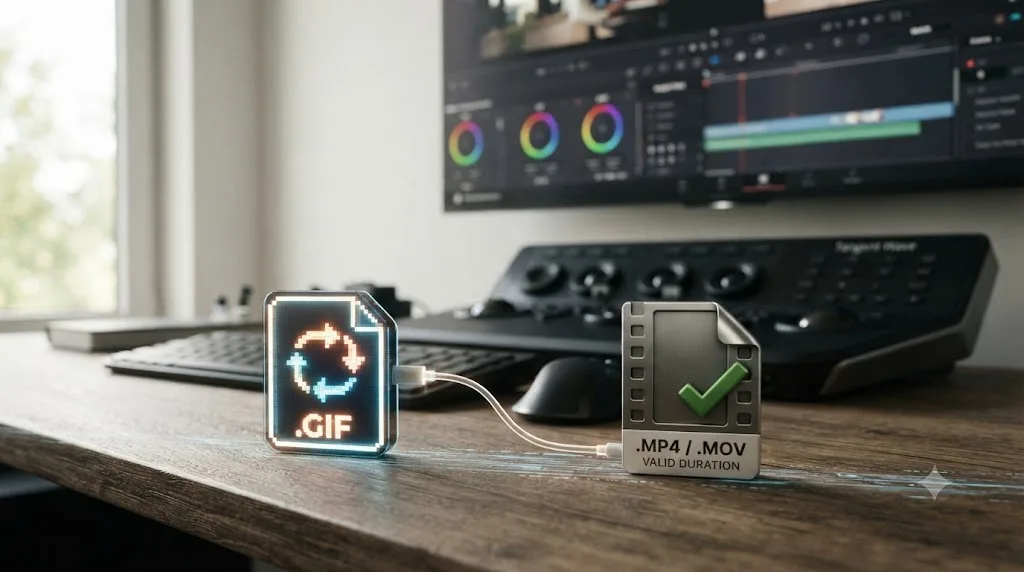
GIFs and many screen recordings share a structural quirk that video files don't have: neither format stores a single, authoritative duration the way an MP4 or MOV does. That absence is exactly the gap where this error tends to appear.
A GIF's timing isn't a duration field at all. It's a series of individual per-frame delay values, one attached to each frame in the file, and the total "length" of a GIF only exists as the sum of those delays. Different conversion tools handle rounding, minimum delay values, and looping metadata inconsistently, and a GIF converted by one tool can produce a total that a strict duration check like Resolve's doesn't reconcile cleanly with the frame count it actually decodes. There's been ongoing discussion on the Blackmagic forum about whether Resolve will natively support GIF import precisely because the format behaves differently from Resolve's native video pipeline.
Screen recordings run into the same problem from a different angle. Most screen capture tools, including OBS in certain encoder configurations and several built-in OS recorders, default to variable frame rate output for the exact reason discussed above: it's more efficient to only write a new frame when the screen actually changes, rather than duplicating identical frames at a fixed rate. That efficiency is great for file size and terrible for a strict duration check, since long stretches of an unchanging screen can compress the reported timing in ways a constant-rate calculation doesn't expect.
The fix for both is the same: convert before you import.
- For GIFs, convert to an MP4 or MOV first using a dedicated converter, or import as a numbered image sequence if you need frame-accurate control, rather than dragging the raw .gif into the Media Pool.
- For screen recordings, run the file through HandBrake or a similar tool set to Constant Framerate before bringing it into Resolve, the same fix as any other VFR source.
Does importing via XML, AAF, or EDL cause invalid duration on conform?
Yes, and this version of the error shows up on people who never touched a raw camera file directly. It happens during conform, the process where Resolve matches an imported timeline's edit decisions back to actual media on disk.
DaVinci Resolve's own reference manual dedicates a full section to conforming clips during XML and AAF import, because that handoff is where duration mismatches between two different applications' understanding of the same file most often surface. An XML, AAF, or EDL doesn't carry the media itself. It carries in and out points, expressed as timecode or frame numbers, that reference source files sitting somewhere on disk. If the exporting application and Resolve disagree about that source file's frame rate, or if the source file was re-encoded or trimmed after the edit was exported, the referenced in and out range can land outside what the actual file on disk supports, which reads to Resolve as an invalid duration rather than a simple offline clip.
This is closely related to Resolve's Mixed Frame Rate Format setting under Conform Options, which the reference manual documents as controlling how Resolve reconciles clips of different native frame rates during import. Get that setting wrong, or leave source media mismatched against the edit's expectations, and duration conflicts on conform are the direct result.
If you round-trip footage between Premiere and Resolve regularly, this pairs with a problem we've covered in more depth in our guide to DaVinci Resolve's XML import from Premiere Pro not working, which walks through the broader family of conform failures beyond just duration.
A timeline import doesn't fail because the edit is wrong. It fails because the file on disk stopped matching what the edit assumed about it.
What to check before you reimport an XML, AAF, or EDL
- Confirm the source media files are the exact same files, not re-encoded copies, that were used when the timeline was originally exported.
- Check that every clip's frame rate in the exporting application matches what Resolve reads for that same file.
- If the export included handles or head/tail room, verify the source files are long enough to actually contain that extra range.
- Re-export the timeline as a fresh XML or AAF rather than reusing an old one if any source media has changed since the original export.
Can scripts or the DaVinci Resolve API cause this error?
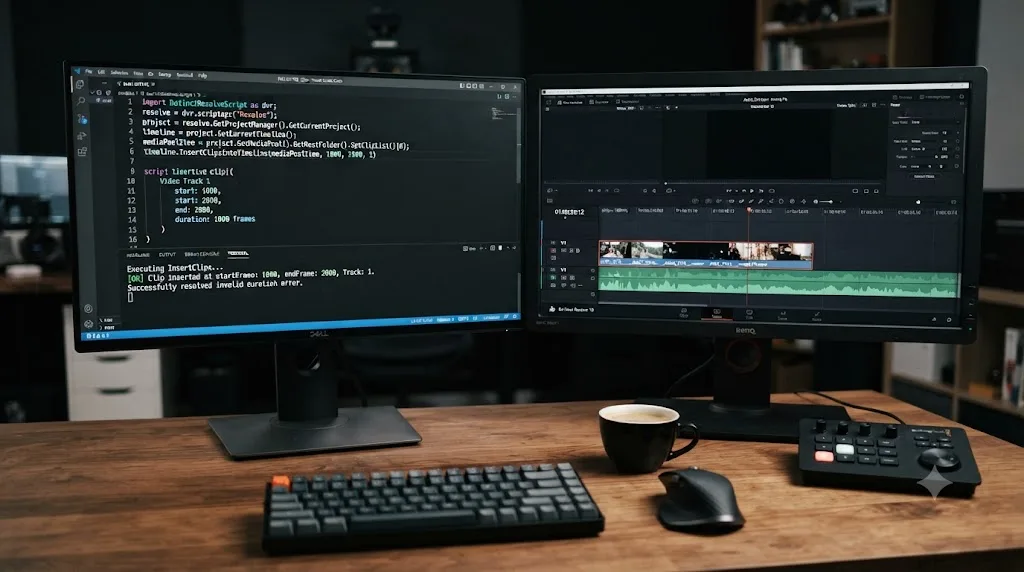
Yes, this is a real cause and one that's easy to overlook if you're not the one who wrote the script. DaVinci Resolve's scripting API lets Python or Lua scripts build timelines automatically, and one of its core functions, AppendToTimeline, places a clip using explicit startFrame and endFrame values pulled from the source clip.
The v20.3 Python scripting API reference documents this pattern directly, using int(video_clip.GetClipProperty("Frames")) - 1 to calculate a safe endFrame value (source: DaVinci Resolve Python Scripting API Reference, v20.3). That minus-one exists because frame indices in the API are zero-based, so the true last frame of a clip is one less than its total frame count. A script that skips that subtraction, hardcodes a frame range, or reads a stale frame count before a proxy or transcode finished can hand Resolve a startFrame and endFrame pair that doesn't correspond to a real, valid range inside the source clip.
If your team uses automation tools for batch imports, auto-editing plugins, or third-party integrations that talk to Resolve through its scripting API, a duration error appearing only on script-generated timeline items, and never on the same clips added manually through the Media Pool, is a strong signal the script's frame range math is the actual cause, not the source media.
The fix here isn't inside Resolve's interface at all. It's in the script: confirm frame counts are read after any transcode or proxy generation completes, and confirm endFrame is always calculated as frames minus one, not the raw frame count.
Can proxy media cause an invalid duration error?
Yes, and this version catches people who never had a problem with the original camera file at all. DaVinci Resolve treats a proxy as a stand-in for the original, but only if the two agree on a strict set of technical details, and a mismatch on any of them can surface as a duration conflict instead of a clear proxy warning.
Per a troubleshooting guide on proxy media in Resolve, the software demands "the exact same file name (excluding extension), the exact same audio channel count, and the exact same timecode" between a proxy and its source (source: Cutsio's guide to fixing proxy media issues in DaVinci Resolve). A proxy with four silent audio channels padded in to match a four-channel original is normal and expected. A proxy generated with a different starting timecode, or trimmed by a third-party transcoder that dropped a few frames off the head or tail, is not, and Resolve reads that overlap failure as an invalid range on the clip rather than a simple "proxy doesn't match" notice.
A proxy file only works if it agrees with the original down to the frame. Anything less and Resolve treats the whole clip as unreliable, not just the proxy.
This is most common when proxies come from outside Resolve entirely, generated by a camera's companion app, a separate transcoding tool, or a batch script that re-encodes footage without preserving the source timecode track. Resolve's own built-in proxy generation, reached by right-clicking a clip and choosing Generate Proxy Media, always preserves timecode and channel count automatically, which is why duration conflicts on proxies are rare when you let Resolve build them itself.
How to fix a proxy-related duration error
- Right-click the affected clip in the Media Pool and unlink the proxy.
- Delete the mismatched proxy file from wherever it's stored, so Resolve can't accidentally relink to it later.
- Regenerate the proxy natively inside Resolve instead of reusing one from an external tool.
- If you must use proxies from a third-party pipeline, confirm the tool preserves source timecode and audio channel count before you trust its output on an active project.
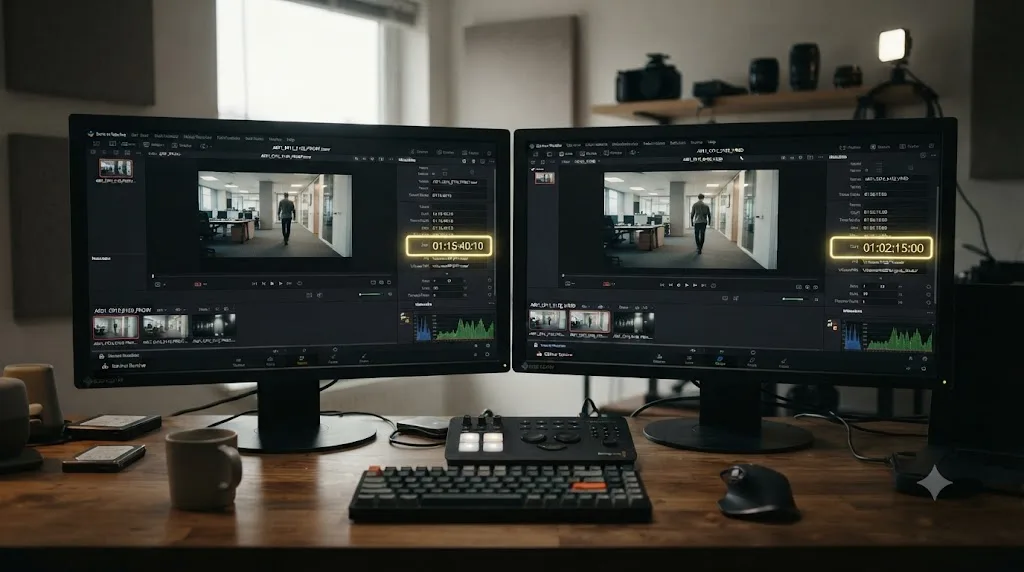
How do you check a clip's real duration before you touch anything in Resolve?
You check it with a dedicated media analysis tool, not by trusting what your operating system's file browser or a general media player tells you, since both can display a duration they've quietly guessed or rounded rather than one they've verified. The free tool MediaInfo is the standard choice among editors for exactly this reason, and it's the same tool we recommend readers reach for in our guide to DaVinci Resolve saying a clip has no video track, since both errors start with the same first move: find out what's actually inside the file before guessing.
Drag the problem file directly onto MediaInfo and read the report in its default view. Here's what to look for and what each result tells you:
| Field to check | What it should show | If it doesn't |
|---|---|---|
| General > Duration | A real, non-zero length matching what you expect | Confirms a genuine duration/metadata problem |
| Video > Duration | Should closely match General > Duration | A mismatch points to a VFR or index problem |
| Video > Frame rate mode | "Constant" | "Variable" confirms VFR as your likely cause |
| Video > Frame count | A real number consistent with duration × frame rate | Missing or zero suggests an incomplete index |
| General > Format | A format Resolve actually supports | Cross-check against Blackmagic's supported codec list |
If General > Duration and Video > Duration disagree by more than a fraction of a second, or if Frame rate mode reads Variable, you've confirmed your cause without opening Resolve at all. That confirmation matters because it tells you whether you're about to fix a source file problem (which you can) or chase a phantom setting inside Resolve (which doesn't exist for this error).
Worked example: diagnosing an OBS screen recording
Say a 12-minute OBS screen recording throws Clip Has Invalid Duration on import, but plays back fine in VLC. Here's how the diagnosis plays out using the table above.
Dragging the file onto MediaInfo shows General > Duration reading 12 minutes, roughly matching what you'd expect. But Video > Duration reads closer to 11 minutes and 40 seconds, a real gap rather than rounding noise. Video > Frame rate mode reads Variable. Frame count is present and non-zero.
That combination points straight at variable frame rate as the cause, not corruption. OBS defaults to VFR output in several encoder presets because it only writes a new frame when the screen content actually changes, which shrinks file size but produces exactly the kind of duration mismatch Resolve won't tolerate on import.
The fix follows the VFR path covered earlier in this guide: run the file through HandBrake with Framerate mode set to Constant, matched to OBS's nominal output rate (commonly 30 or 60 fps, check your OBS output settings to confirm), then reimport the converted file as a fresh Media Pool clip. Don't relink the original OBS recording to the converted file. Delete the broken import and drag the new one in clean, exactly as the general fix sequence below describes.
If General > Duration had instead read 0:00 or blank, with Frame count also missing, that would point to a genuinely incomplete index from an interrupted recording, which calls for a container remux or a dedicated repair tool instead of a frame rate conversion. The MediaInfo report is what tells you which of those two very different fixes actually applies before you spend time on the wrong one.
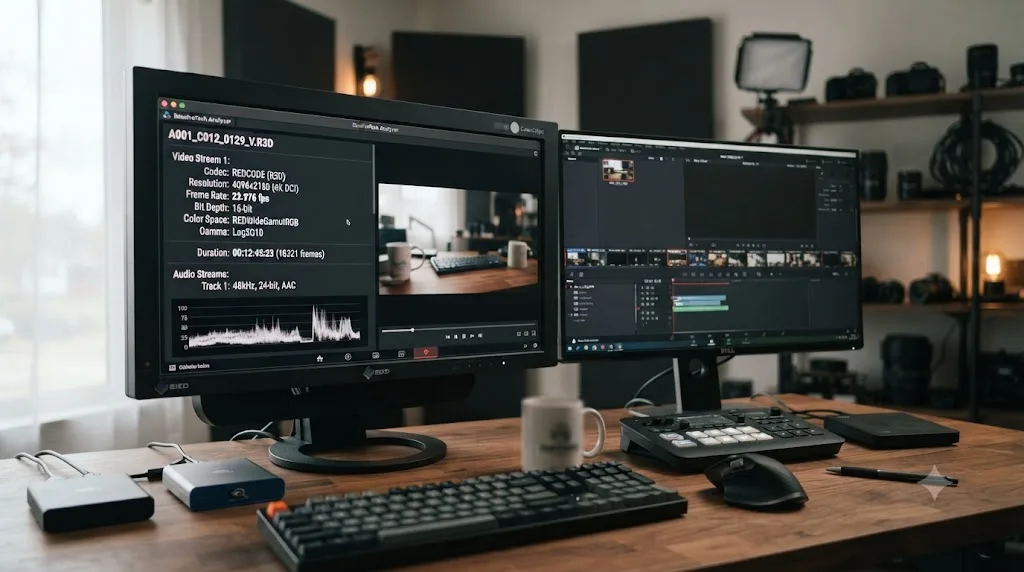
How do you actually fix Clip Has Invalid Duration in DaVinci Resolve?
You fix the source file or the way it was brought in, never a setting inside Resolve, since Resolve has no override for a duration it doesn't trust. Here's the sequence to work through, in order:
- Confirm the file's real duration outside Resolve. Run it through MediaInfo first, as covered above, so you know which branch of this guide applies before you start changing anything.
- Match your symptom to a cause. Use the table below to jump straight to your fix instead of trying every remedy in order.
- Repair or transcode the source, never the Resolve import. Remux a corrupted container, convert VFR footage to constant frame rate, renumber a gapped image sequence, regenerate a mismatched proxy, or fix a script's frame range calculation, depending on which cause applies.
- Reimport as a fresh Media Pool clip. Delete the broken clip from the Media Pool entirely and drag in the repaired file as a new import. Relinking the original broken clip to the fixed file often preserves the same cached duration metadata that caused the problem in the first place.
- Clear the render cache and reconform any timeline that used the old clip. If the broken clip was ever placed on a timeline before you fixed it, go to Playback > Delete Render Cache > All, then place the new, repaired clip in fresh rather than relying on Resolve to automatically reconcile the old reference.
Cause-to-fix decision table
| Your symptom | Likely cause | Fix |
|---|---|---|
| Phone or screen-recorded clip, plays fine elsewhere | Variable frame rate | Convert to CFR in HandBrake before reimporting |
| File was interrupted while recording or transferring | Missing or incomplete duration index | Remux with a tool that rebuilds the index, or re-export the source |
| Folder of numbered stills won't import as one clip | Gapped or inconsistent sequence numbering | Renumber the folder with no gaps and consistent padding |
| Single still image locks at a two-frame duration | Sequence detection confusion from filename numbering | Rename the file to remove any numeric pattern |
| GIF won't import or imports with a broken duration | GIF frame-delay metadata mismatch | Convert to MP4/MOV first, or import as an image sequence |
| Timeline import from Premiere or Pro Tools fails on specific clips | XML/AAF/EDL conform mismatch | Re-export the timeline against unmodified source media |
| Only clips added by a script or plugin fail | Scripting API frame range math | Fix the script's endFrame calculation (frames minus one) |
| Proxy-linked clip fails, original imports fine alone | Proxy/source mismatch on name, channels, or timecode | Unlink, delete, and regenerate the proxy natively in Resolve |
Worked example: remuxing a corrupted file with FFmpeg
If MediaInfo confirmed a genuine metadata problem, a command-line remux is often faster than hunting for repair software, provided you understand what it can and can't fix.
The free tool FFmpeg can repackage a file's existing audio and video streams into a new container without re-encoding them, using a command like:
ffmpeg -i broken.mp4 -c copy fixed.mp4
That -c copy flag tells FFmpeg to copy the streams as-is rather than decode and re-encode them, which is fast and lossless. According to FFmpeg Cookbook's guide to the moov atom error, that command works by rebuilding the index, since the underlying frame data is intact and only the index describing it is broken or misplaced (source: FFmpeg Cookbook: Fixing the moov atom not found Error).
That same guide is explicit about where a remux stops working: "if the file is missing the moov atom because recording crashed, this command cannot repair it," since FFmpeg needs an existing index to read before it can copy anything into a new one. In that harder case, a dedicated recovery tool, or a reference file recorded on the same device with the same settings, becomes necessary to reconstruct a plausible index from scratch.
A remux can only rebuild an index that still exists somewhere in the file. It can't invent one that was never written.
For prevention, if you're re-encoding footage yourself, adding FFmpeg's -movflags +faststart flag writes that index at the front of the file instead of the end, which both speeds up progressive playback elsewhere and removes the specific failure window this whole guide is about, since there's no longer a final index write that a crash or interruption can catch mid-way.
If you'd rather have someone walk the actual dialog with you instead of matching a table to your screen, that's what TryUncle is for. It's an on-screen AI tutor for DaVinci Resolve on macOS: ask in plain words, and its assistant, Uncle, points at the exact control on your screen, whether that's the Relink button in the Media Pool or the render cache setting under Playback. It's a paid app at founder pricing, not a substitute for the fixes above, but it's one way to get an answer without leaving Resolve mid-troubleshoot.
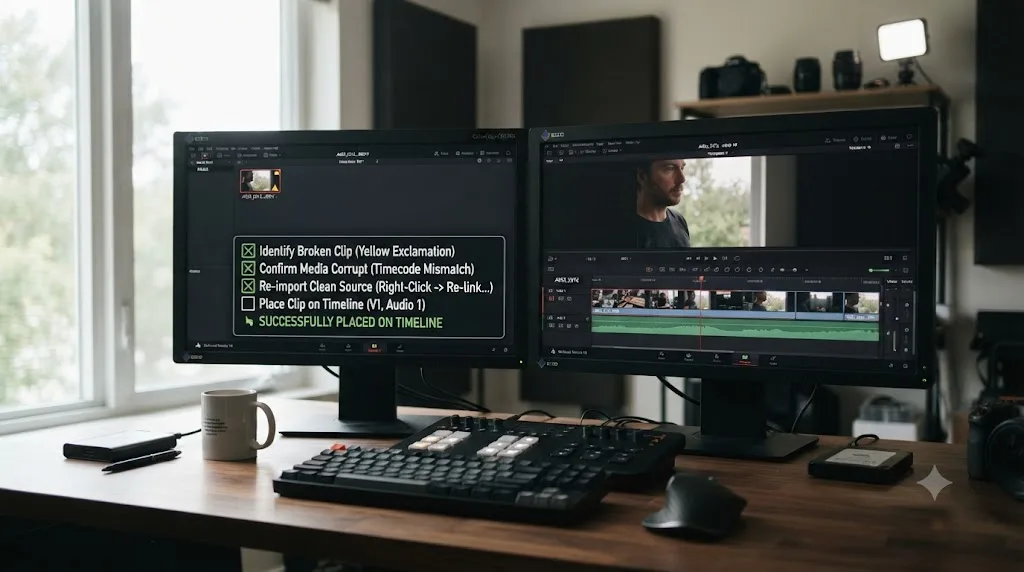
What if the error keeps coming back after you think you've fixed it?
If you've repaired the source file and the error persists, the most likely explanation is that Resolve is still referencing cached information about the old, broken version of that clip rather than actually re-reading the fixed file. Three specific places hold onto stale state long enough to cause this:
Render cache. Resolve caches rendered frames and proxy data keyed partly to a clip's identity, and if that identity was established while the clip was still broken, a straightforward relink doesn't always force a full re-read. Go to Playback > Delete Render Cache > All and try again.
Relinking instead of reimporting. Right-click relinking a Media Pool clip to a fixed file is faster than reimporting, but it can carry forward cached duration metadata from the original broken import rather than reading the new file's metadata fresh. When in doubt, delete the broken clip entirely and drag in the repaired file as a brand-new import.
Timeline conform state. If the broken clip was ever placed on a timeline, the timeline keeps its own separate reference to that clip, called a conform, and that reference doesn't automatically update just because the underlying Media Pool clip got relinked. Right-click the clip on the timeline and choose Force Conform with Media Pool Clip, or remove and reinsert it fresh.
Project database corruption. Rare, but real. If invalid duration errors are appearing on clips that were previously working fine, with no changes to the source files, corruption in the project's own database is worth ruling out. Try creating a new project and importing the same media fresh. If the same clips error out in a brand-new project, the problem is genuinely the source file. If they import cleanly in a new project, something in the old project's saved state, not the media, was the actual cause.
Does this happen differently on Windows, Mac, and Linux?
Not in the core mechanism, since the duration check itself is part of Resolve's cross-platform media engine, but the codec and decoder differences between operating systems change which files are more likely to trigger it.
| Platform | What changes the risk |
|---|---|
| Windows | No built-in HEVC decoder without the Microsoft Store extension, which increases the chance a duration-plus-codec double failure gets misread as "just" a duration error |
| macOS | Broadest native codec support of the three, so files that fail here are more likely to be a genuine metadata problem rather than a missing decoder |
| Linux (free version) | No H.264/H.265 decoding at all in the free build, which means files that would show a clean duration error on Mac or Windows may instead register as unreadable entirely on Linux |
This matters practically because a file that shows "invalid duration" on Windows might show a different, codec-related error on Linux, and play with no complaint at all on macOS. If you're troubleshooting on Windows or Linux specifically, rule out a codec gap before you assume the duration itself is the whole problem. Our guide on DaVinci Resolve saying unsupported file format covers the platform-specific codec differences in more depth, since the two error families share more causes than their names suggest.
Is this different in the free version of DaVinci Resolve than in Studio?
No. Duration validation on import is part of Resolve's core media engine, and that engine is identical between the free version and Studio. Studio's differences are in encoding options, higher resolution and frame rate ceilings, AI-powered Neural Engine tools, and immersive audio, per Blackmagic's own tech specs page, not in how strictly it checks a file's duration metadata on the way in.
If a clip throws an invalid duration error in the free version, upgrading to Studio won't change that outcome, because the underlying file still has the same broken or mismatched metadata either way. The one place license tier does interact with this error indirectly is codec support on Linux, discussed above, where the free build's narrower decoder set can make a marginal file fail earlier and more completely than it would on Windows or Mac.
How do you stop invalid duration errors before they start?
The most reliable fix is never having the problem in the first place, and that comes down to a short ingest habit rather than a Resolve setting.
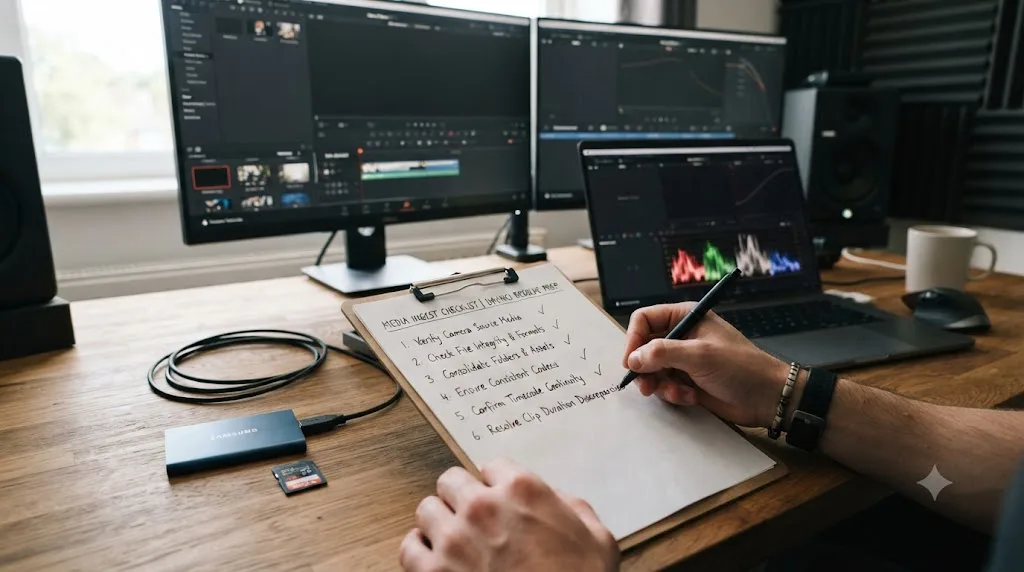
Before you import anything into a real project:
- Let recordings finish and stop cleanly. Avoid force-quitting a screen recorder or yanking a card before a camera has finished writing its final index.
- If footage comes from a phone, screen recorder, or action cam, check Frame rate mode in MediaInfo before you import a whole card's worth of clips. Catching one VFR file in a batch of thirty is far cheaper than troubleshooting it after the fact.
- Number image sequences with consistent, gapless, evenly padded filenames from the moment they're exported, not after the fact.
- Never edit a GIF's filename extension by hand to make it look like a video file. Convert it properly first.
- Generate proxies natively inside Resolve whenever possible, and if a third-party pipeline must produce them, confirm it preserves source timecode and audio channel count before trusting it on an active project.
- If you rely on scripted or automated imports, log frame counts at the point the script reads them, so a mismatch is traceable to a specific automation step instead of looking like a mystery Resolve error.
A duration error is your file's metadata failing a check, not your footage disappearing. Treat it as a five-minute diagnostic with MediaInfo, not a crisis, and in nearly every real case documented above, the actual video and audio you shot are sitting there completely intact, waiting for a container that describes them honestly.
The next time this error shows up, don't start clicking through Resolve's menus looking for a hidden fix. Open MediaInfo, find out which of the causes above actually applies to your file, and fix the file. That's the whole job, every time.
Frequently asked questions
- What does 'clip has invalid duration' mean in DaVinci Resolve?
- It means Resolve opened the file, read its container, and found a duration value, frame count, or timecode range that doesn't hold together as a real length, so it refuses to treat the clip as playable. This is different from Media Offline, where Resolve can't find the file at all, and different from Unsupported File Format, where Resolve can't decode the codec inside it. The file exists and Resolve can see it. It just doesn't trust how long it says it runs.
- Why does DaVinci Resolve say invalid duration on some clips but not others in the same import?
- Because the cause is almost always specific to one file's metadata, not a project-wide setting. A batch of otherwise identical phone clips can include one that was cut off mid-recording, one exported by a different app version, or one that got caught by a background sync tool while it copied. Check the odd one out in MediaInfo before you assume the whole batch is bad.
- Does variable frame rate footage cause invalid duration errors in DaVinci Resolve?
- Yes, it's one of the most common triggers. Variable frame rate, or VFR, files store an irregular gap between frames instead of a fixed one, which is common output from phone cameras, screen recorders, and some action cams. Resolve calculates duration by assuming a constant rate, and when the real timing doesn't match what the container claims, the frame count and the reported length disagree enough that Resolve flags the clip instead of guessing.
- Can a corrupted or interrupted recording cause a clip to show an invalid duration?
- Yes. Most modern video containers write the index that lists a file's real duration only after recording finishes, not while it's happening. If a camera loses power, a phone app crashes, or a screen recording gets force-quit before that index is written, the file can end up with partial or missing duration metadata even though most of the actual video data survived the interruption.
- Why do GIFs and image sequences throw invalid duration errors more than regular video?
- Because neither format carries a native duration the way a video container does. A GIF's timing lives in per-frame delay values that some conversion tools handle inconsistently, and an image sequence's duration is calculated from consecutive numbered files, which breaks the moment a frame number is missing, duplicated, or inconsistently padded. Both formats ask Resolve to construct a duration instead of just reading one, which is exactly where this error tends to show up.
- Can proxy media cause an invalid duration error in DaVinci Resolve?
- Yes, when the proxy and the original source file disagree on file name, audio channel count, or timecode range. Resolve requires strict parity between the two, and a proxy generated outside Resolve by a camera app or a third-party transcoder is the most common source of that mismatch. Unlink the bad proxy, delete it, and regenerate it natively inside Resolve to fix it.
- How do I check a clip's real duration before I try to fix it inside Resolve?
- Download the free tool MediaInfo, drag the file onto it, and read the report before you touch anything in Resolve. If the Duration field is blank, zero, or wildly different between the General and Video sections, you've confirmed a genuine metadata problem outside Resolve, which tells you to repair or transcode the source rather than hunting through Resolve's settings for a fix that isn't there.
- Does this error mean my footage is permanently lost?
- Almost never. In the overwhelming majority of real cases, the actual picture and audio data on disk are intact and only the metadata describing the file's length is wrong or missing. A remux, a transcode, or a frame-gap repair on an image sequence recovers the footage in full. Total data loss from a duration error alone is rare, since the error is Resolve refusing to guess, not Resolve reporting that the video itself is gone.
Sources
- Frame.io: Mixing Frame Rates in DaVinci Resolve, Part 1: Know Thy Frame Rate (Dan Swierenga)
- HandBrake Documentation: Frame Rate
- TimeBolt: Why is my audio out of sync with video? Probably Variable Frame Rate
- Repairit (Wondershare): How to Fix Video 'Moov Atom Not Found' Error
- Blackmagic Forum: Clip Duration won't change from 00:00:00:02 for Images
- Blackmagic Forum: Error with video duration - shows zero
- Blackmagic Forum: Clip duration problem
- Blackmagic Forum: Missing frames in imported image sequence
- Filmora (Wondershare): How To Import JPG Sequence in DaVinci Resolve
- Blackmagic Forum: Does DaVinci Resolve intend to Support .gif in the Future?
- DaVinci Resolve Reference Manual: Conforming Clips During XML and AAF Import (Blackmagic Design)
- DaVinci Resolve Reference Manual: Mixed Frame Rates (Conform Options)
- DaVinci Resolve Python Scripting API Reference v20.3 (mhadifilms)
- MediaArea: MediaInfo
- DaVinci Resolve Supported Codec List (Blackmagic Design)
- DaVinci Resolve - Tech Specs (Blackmagic Design)
- Cutsio: How to Fix Proxy Media Issues in DaVinci Resolve
- FFmpeg Cookbook: Fixing the moov atom not found Error, Repairing Broken MP4 Files
- TryUncle (product site: how Uncle works, pricing, setup)
Put this guide to work with TryUncle.
Ask about the step you’re on. TryUncle sees your screen and points at the control you need, so you can keep learning in your own project.
Get TryUncle for Mac or WindowsKeep reading
Fixes · Jul 18, 2026 · 27 min
DaVinci Resolve Says Clip Has No Video Track: The Real Fix
DaVinci Resolve's Clip Has No Video Track error has five real causes, from audio-only files to failed AAF conforms. Match yours and fix it fast.
Fixes · Jul 12, 2026 · 23 min
DaVinci Resolve Says Unsupported File Format: The Real Fix
DaVinci Resolve's Unsupported File Format error almost always means a codec problem, not a broken file. Match your exact symptom to the cause and fix it.
Fixes · Jul 12, 2026 · 27 min
DaVinci Resolve Clip Plays Too Fast? Fix the Wrong Frame Rate
A DaVinci Resolve clip playing too fast is almost always a wrong frame rate. Fix Clip Attributes, Mixed Frame Rate Format, and Playback Frame Rate step by step.