Articles / Fixesupdated for DaVinci Resolve 21.0.3 (July 2026)
DaVinci Resolve Disk Cache Not Accessible: The Real Fix
Quick answer
"Disk cache not accessible" means Resolve's Project Settings still point at a cache or gallery path that doesn't exist on this machine right now. Open Project Settings, Master Settings, Working Folders, and reset Cache Files Location to a folder you can write to. Changing any setting and restarting fixes it about 9 times out of 10.
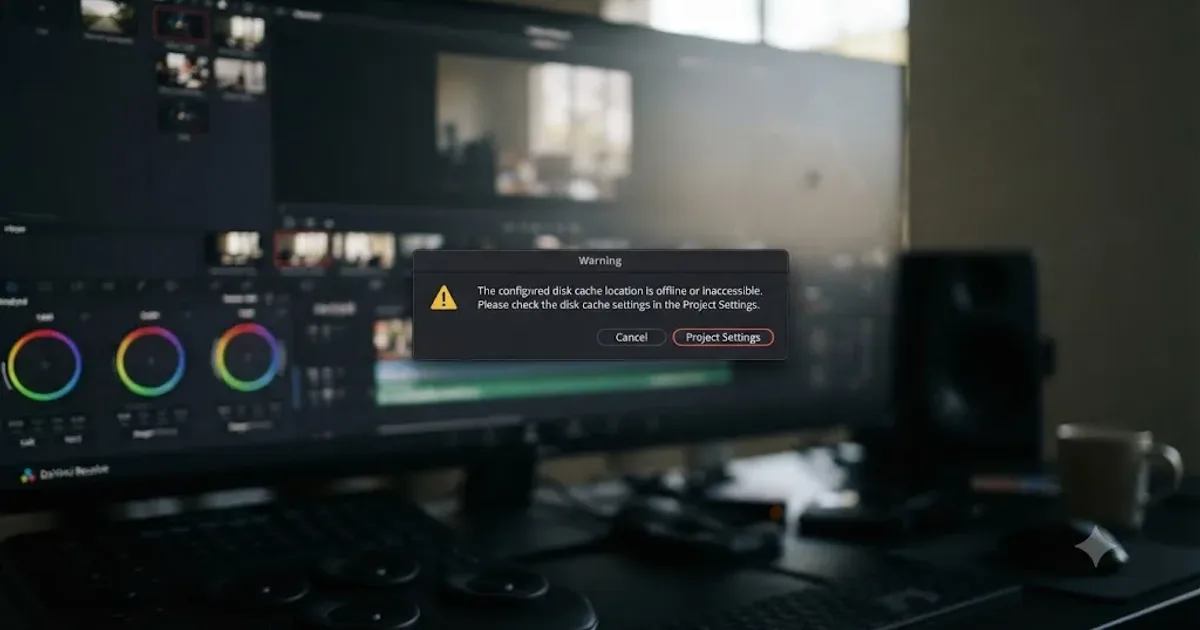
I've spent seven years cutting commercial and broadcast work inside DaVinci Resolve, and this exact dialog box has stopped a session cold more than once, always at the worst possible moment. It looks like data loss. It isn't. Here's what it actually means, why it happens, and the fastest real fix, for Mac and for Windows, as of July 2026 on DaVinci Resolve 21.0.3.
What does "the disk cache is not accessible" mean in DaVinci Resolve?
It means Project Settings still holds a Cache Files Location or Gallery stills path that your current machine can't reach right now. Resolve isn't reporting a corrupted file. It's reporting a folder it expected to find and didn't.
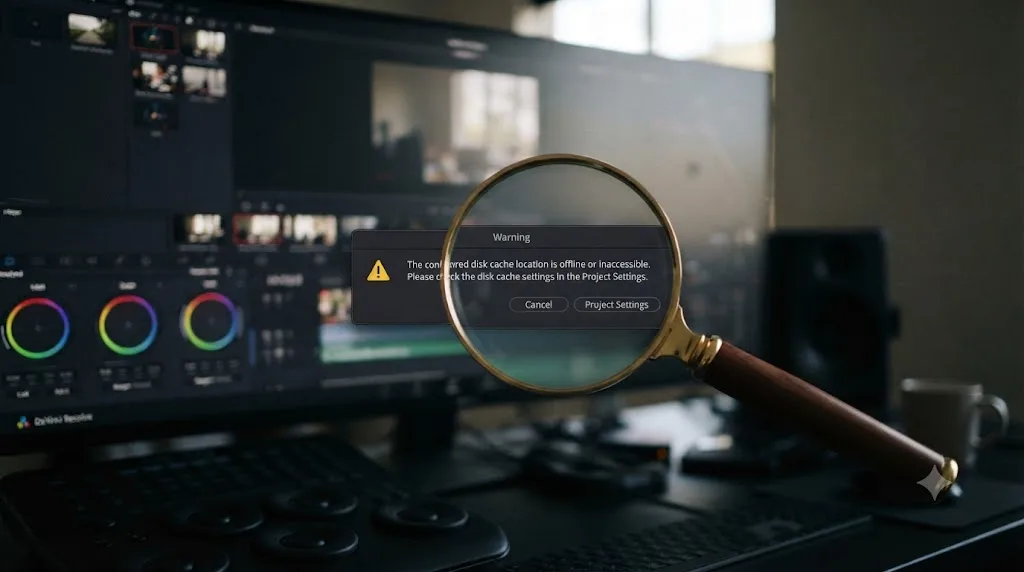
The most common exact wording, confirmed across multiple Blackmagic forum threads, reads: "Cache location update required. Please update the Cache files location in project settings as the current location is offline or inaccessible." You might also see a shorter version that just names the cache or gallery path directly, or a separate dialog complaining about write permission instead of an offline path. All three share the same root cause: a stored path that doesn't currently point anywhere Resolve can write.
"The disk cache is not accessible" is not damage. It's DaVinci Resolve refusing to write to a path that no longer exists on the machine you're using right now. That distinction matters more than anything else in this guide, because the instinct when a scary dialog pops up mid-session is to assume the worst. This dialog has never once meant your footage, your edit, or your grade is gone.
What's the exact error text you might be seeing?
DaVinci Resolve doesn't use one single string for this family of errors. It phrases the warning differently depending on what exactly failed, and matching your wording to the right row below saves you from chasing the wrong fix.
| Dialog wording | What it actually means | Where to start |
|---|---|---|
| "Cache location update required... current location is offline or inaccessible" | The stored Cache Files Location path doesn't exist on this system or drive right now | Project Settings, Working Folders |
| A warning naming the Gallery stills path specifically | Same problem, but for the hidden .gallery folder, not CacheClip | Project Settings, Working Folders, Gallery Stills Location |
| "DaVinci Resolve is unable to render to the selected path... as it does not have write permission" | Resolve can see the folder but the OS won't let it write there | OS-level permissions, not the path itself |
| Three warnings appearing together on project open or first save | Cache, gallery, and capture paths are all stale at once, usually after moving a project between machines | The "shake-up" fix, covered below |
That write-permission variant is a genuinely separate failure mode from an offline path, and it's worth knowing which one you've got before you start troubleshooting. A path Resolve can't find looks identical to a path Resolve can find but can't write to, right up until you check which specific message is on your screen.
Why does DaVinci Resolve say the disk cache is not accessible?
Because the path is baked into the project, and paths don't travel the way you'd expect them to.
As one detailed breakdown of this exact issue explains, DaVinci Resolve "hangs onto the cache & gallery locations (file paths) of the system that the database and projects were created on and those locations are not available on the system that the database or projects are being loaded onto," per Mixing Light's guide to fixing these dialogs, written by colorist and author Robbie Carman. That's the mechanism behind almost every version of this error.
Cache paths travel with a project file, but the drives they point at almost never travel with them. A project built on your desktop, with cache pointed at an internal SSD named "Media," opens fine there and breaks the moment you copy that same project to a laptop that has no drive named "Media" at all. The project remembers the path. It has no way to know the drive is gone.
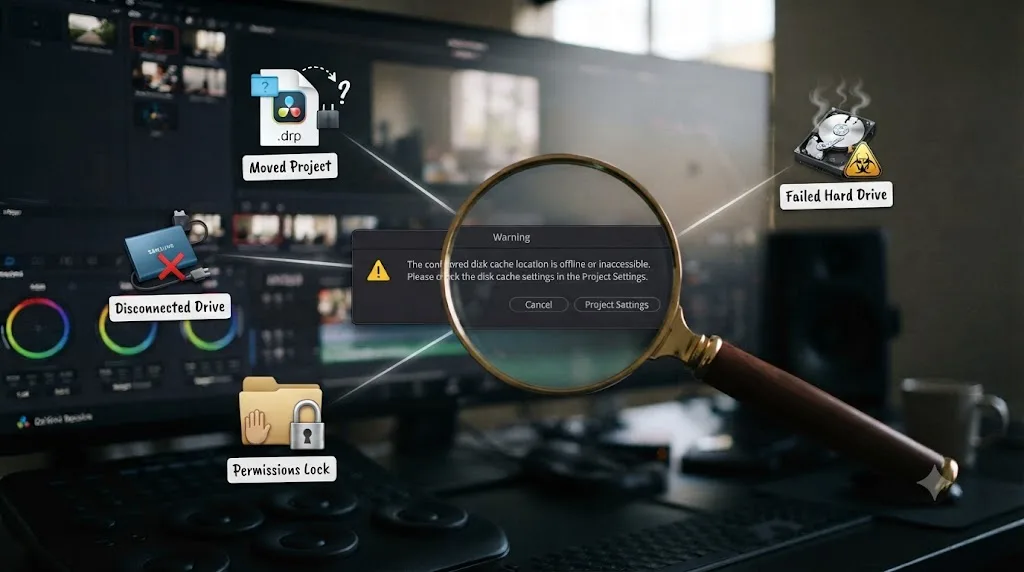
There are four common triggers behind this specific error, and they overlap more than most editors expect:
- A project moved between machines. The classic case: cache and gallery paths reference a drive that exists on the original computer and doesn't exist on the new one.
- A drive was disconnected, renamed, or remounted. External SSDs in particular can mount under a different letter on Windows or a slightly different volume name on Mac after a reboot, which is enough to break the stored path.
- A permissions problem at the OS level. The folder exists and the drive is connected, but the operating system won't let Resolve write there, which produces a related but distinct write-permission message.
- A hard drive failure. Rarer, but real. If the drive holding your cache and gallery stills actually died, Resolve reports exactly the same "inaccessible" language it would use for a simple renamed drive, so this error alone can't tell you which one you're dealing with.
A forum thread on Creative COW captures the fourth case directly. Editor Barry Goch described losing the drive that held his cache files and gallery stills, then being unable to reset the working folder location "as both a regular user and administrator on his MacBook Pro," per the Creative COW discussion on Resolve's working folder problem. Responder Jake Blackstone pointed him toward Config, Settings, Working Folders, and explained that Resolve keeps referencing the previous drive location from older projects until you manually update it and re-capture affected stills.
Is this the same as a write permission error?
Related, but not identical. An offline or inaccessible path means Resolve can't find the folder at all. A write permission error means Resolve found the folder and the operating system is blocking it from writing there anyway, which is a narrower, OS-level problem.
The write-permission variant has its own distinct wording. One documented case shows the message reading: "DaVinci Resolve is unable to render to the selected path 'xx' as it does not have write permission," per a macOS troubleshooting guide covering this exact error. That guide points at a real and specific historical cause worth knowing about.
DaVinci Resolve on macOS shipped, in versions before 19.1.3, with installer file permissions set incorrectly at the operating system level. Poland's national CERT documented the issue formally as CVE-2025-1413, describing it plainly: "DaVinci Resolve application on MacOS was found to be installed with incorrect file permissions (rwxrwxrwx)," per CERT Polska's advisory, instead of the standard, more restrictive drwxr-xr-x macOS applications are supposed to install with. That misconfiguration, credited to researcher Karol Mazurek of AFINE and rated a critical 9.2 on the CVSS scale, opened the door to a Dylib Hijacking vulnerability where other accounts and applications on the same Mac could interfere with Resolve's own files. Blackmagic's fix was version 19.1.3 and later, which corrected the install-time permission bits.
That CVE isn't the direct cause of most "disk cache is not accessible" dialogs you'll see today. Most of those are path problems, not permission bugs. But if you're specifically getting a write-permission-worded message rather than an offline-path message, and you're running anything older than 19.1.3 on Mac, updating Resolve itself belongs on your checklist before you go hunting through folder permissions by hand.
A cache permission error has never once meant your footage or your grade is gone. Whether it's a stale path or a genuine OS-level write block, the failure lives entirely in a temporary working folder Resolve regenerates on its own, not in your project database or your source media.
How do you fix "the disk cache is not accessible" the fast way?
Try the trick nobody expects to work before you touch anything else: change an unrelated setting, save, and restart.
Per Robbie Carman's write-up, the exact steps are: "open up the project (dismissing the dialog boxes) and then open up your Project Settings. In your project settings if you change any setting, it doesn't matter what, press save, and then restart Resolve," and by his account this clears "the dialog boxes for inaccessible cache and gallery locations" about "9 times out of 10," per Mixing Light's guide.
This works because Resolve re-validates its cached path references on that save, and in a lot of cases the underlying drive actually is available, just not correctly re-recognized by whatever session state triggered the original warning. Forcing a settings write and a restart is enough to make Resolve look again.
The fastest fix for this error is often the dumbest one: change a setting, save, restart. It costs you thirty seconds and it works far more often than the length of this guide might suggest. Try it first, every time, before you open Working Folders or touch a single file path by hand.
If that doesn't clear it, or if it comes back the next time you open the project, you're dealing with a genuinely stale or disconnected path, and you need the manual fix below.

How do you reset the Cache Files Location properly?
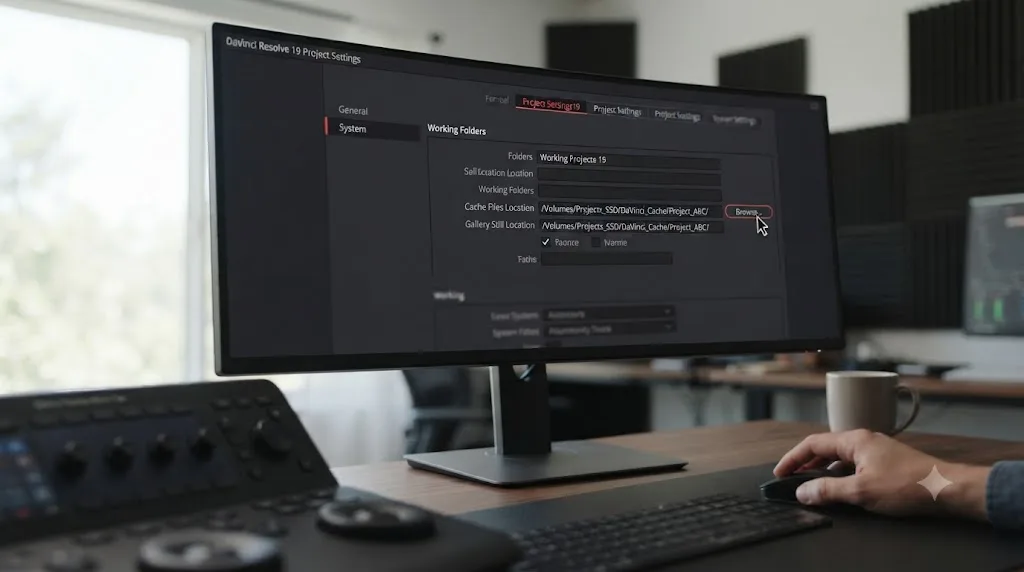
Through the same panel every cache setting in Resolve lives in: Project Settings, Master Settings, Working Folders.
- Open the affected project and dismiss the warning dialog if it's still on screen.
- Go to File, then Project Settings, or click the gear icon in the lower right corner.
- Click Master Settings, then scroll to Working Folders.
- Look at Cache Files Location. If it shows a path on a drive that's disconnected, renamed, or simply doesn't exist on this machine, that's your problem confirmed.
- Click Browse and pick a real, currently connected folder on a drive your machine controls, ideally an internal SSD rather than a network share or a drive you disconnect often.
- Check Gallery Stills Location in the same panel and repeat the process if it's also flagged.
- Save and restart Resolve to confirm the new path holds.
Per the DaVinci Resolve reference manual's section on Working Folders, Cache Files Location defaults to "a hidden 'CacheClip' directory that's created at the location of the first Media Storage Volume you specify" in Preferences, and Gallery stills follow the identical rule into a hidden .gallery folder. That "first volume" detail is worth checking separately in Preferences, Media Storage, since a fresh install or a reordered drive list changes which drive gets that default assignment without you choosing it directly.
This is a per-project setting, not a global one. Fixing it in one project doesn't fix it in every other project on the same drive that shares the same stale path, so if you're seeing this error across several files at once, expect to repeat this process for each.
How do you fix it on macOS specifically?
Start with the version check, then move to Full Disk Access if the path itself looks correct but Resolve still can't write to it.
Check your Resolve version first. If you're running anything before 19.1.3, update. That version, per CERT Polska's advisory, corrected the incorrect install-time file permissions that could compound write-access problems on Mac. DaVinci Resolve 21.0.3, released July 22, 2026 per Newsshooter's release coverage, is well past that fix and carries no known regression tied to this issue.
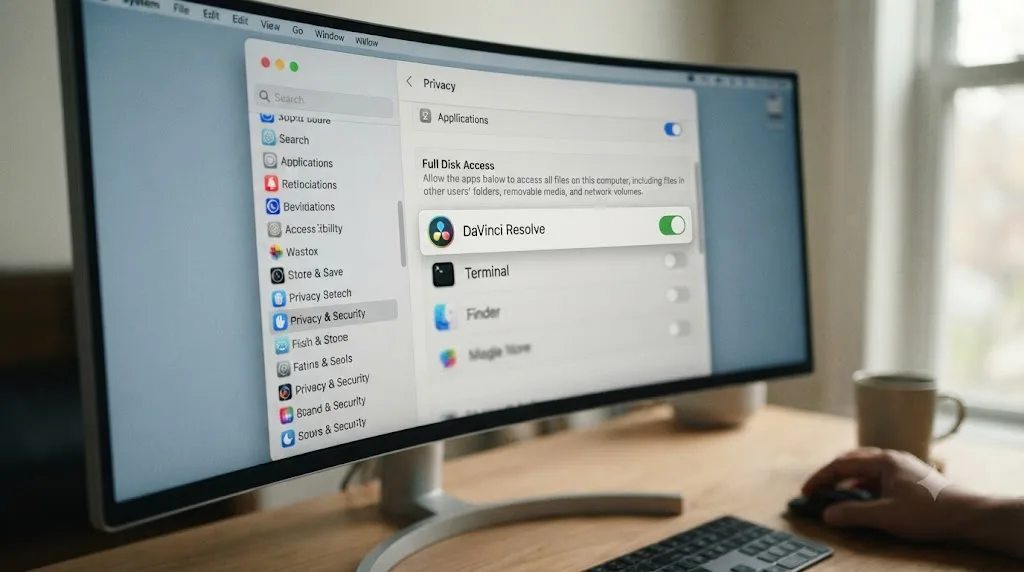
Check Full Disk Access next. Open System Settings, then Privacy & Security, then Full Disk Access, and confirm DaVinci Resolve is toggled on. macOS has tightened application storage permissions release over release since Catalina, and an app that isn't explicitly granted Full Disk Access can silently lose write access to folders it used to reach without issue, including a cache folder on an external drive.
Repair permissions on the actual cache drive. Open Disk Utility, select the drive, and run First Aid. A drive with a corrupted permissions table can report itself as available while still refusing writes from specific applications, which reads to Resolve exactly like an inaccessible path.
Check that the drive isn't full. Marc Wielage, responding to a similar permission alert thread, put this plainly: "I would also make sure you repair permissions on this drive within the OS and make sure it's got sufficient space to do what you need to do," per the Creative COW permission alerts discussion. A cache drive sitting at zero free space produces write failures that look identical, from Resolve's side, to a path it simply can't find.
How do you fix it on Windows?
The same underlying fix, working through a different set of usual suspects: drive letters and OS folder permissions.
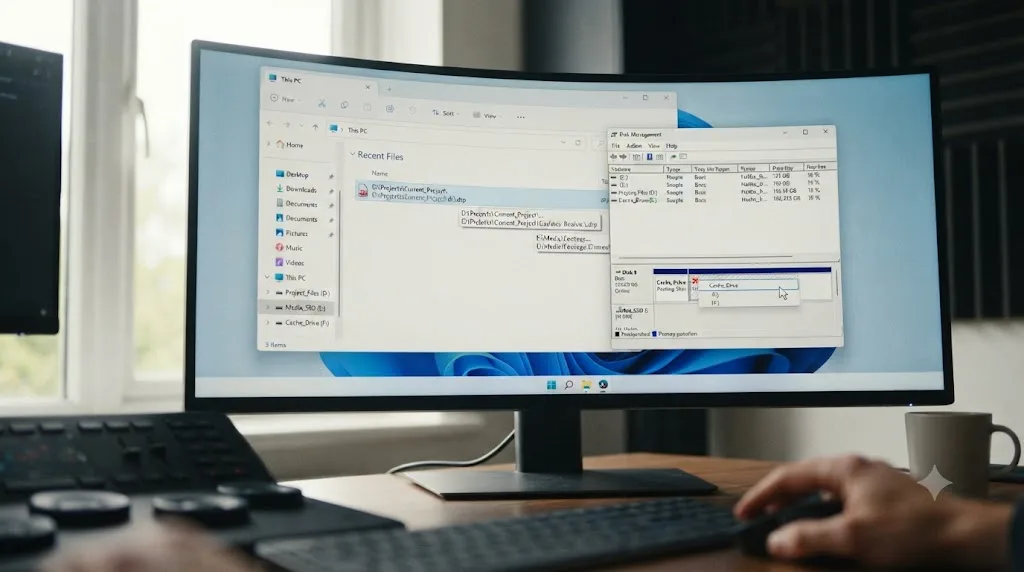
Windows assigns drive letters dynamically in a lot of cases, especially for external and USB drives, and that letter isn't guaranteed to stay the same between reboots or between which USB port you plugged into. A cache path saved as E:\CacheClip last week can silently become F:\CacheClip this week if another drive claimed E: first during boot. Resolve doesn't chase the renamed drive. It looks for E: specifically, finds nothing there, and throws the inaccessible-path warning.
- Open File Explorer and confirm which drive letter your cache drive is currently using.
- Compare that against the path shown in Project Settings, Master Settings, Working Folders, Cache Files Location.
- If the letters don't match, that's your fix: repoint Cache Files Location at the correct current letter.
- If the letters match but you're still blocked, right-click the cache folder, choose Properties, then Security, and confirm your Windows user account has Full Control, not just Read access.
- Check free space on that drive the same way you would on Mac. A full drive produces the identical warning as a missing one.
If drive letters keep shuffling on you, the more durable fix is assigning that drive a fixed letter through Windows Disk Management, so Resolve's stored cache path stops breaking every time you reboot or reconnect a different peripheral.
What if the cache drive is external or was disconnected?
Then the fix depends on whether that drive is coming back or not.
If the drive is just unplugged right now, plug it back in and restart Resolve. If the path and drive name match exactly what the project expects, the warning should clear on its own without any manual repointing.
If the drive is gone for good, sold, dead, reformatted, don't try to make Resolve keep looking for it. Reset Cache Files Location to a drive you actually control right now, following the steps in the section above. Resolve regenerates every cache file, optimized media file, and gallery still fresh at the new location; none of that content is unique or unrecoverable the way source footage or a saved grade would be.
One detail worth knowing before you relocate cache to an external drive again: per the DaVinci Resolve reference manual, "if the volume you've selected to use for the cache becomes unavailable, DaVinci Resolve will warn you with a dialog." That's exactly the mechanism producing this error in the first place, and it's a real safeguard, not a bug, even though it feels like an interruption in the middle of a session. Marc Wielage's own workaround for this, from the same forum thread cited earlier, was keeping the cache drive physically present: "As long as that path is visible, it can work pretty seamlessly," per Creative COW. If you're routinely editing away from your cache drive, an internal SSD that never leaves the machine avoids this entire category of error.
What if you're on a laptop that keeps losing its cache drive?
Then you're looking at the mobile-editing version of this exact bug, and it earns its own section because the trigger isn't a one-time move between machines. It's a routine you repeat every day.
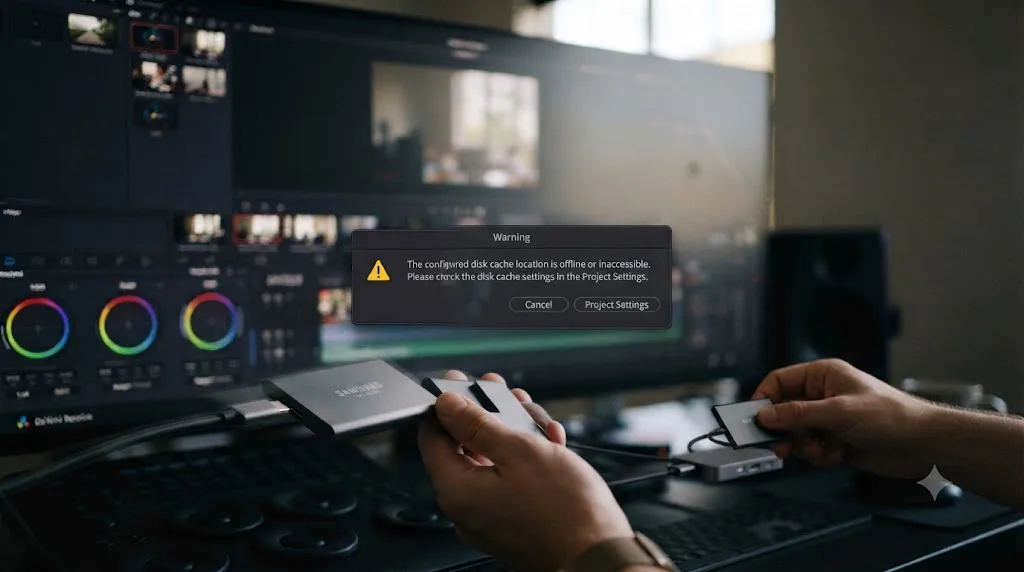
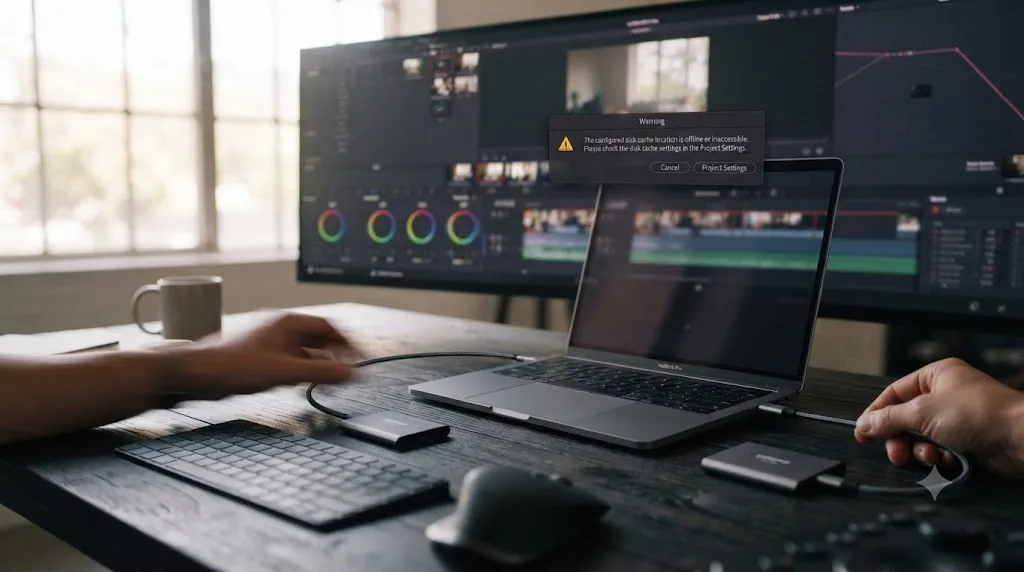
Set Cache Files Location to an external drive, unplug that drive to work on the road, and Resolve doesn't just complain once and move on. It keeps the external path listed in Working Folders even while the drive is gone, and any new caching quietly falls back to a hidden internal folder instead of failing outright. One editor working through exactly this setup on the Blackmagic forum found new cache kept writing to ~/Movies/Resolve Cache/CacheClip on the internal drive, per a Blackmagic Forum thread on cache location disconnecting on a laptop, even though Working Folders still pointed at the disconnected external SSD. Switching Cache Files Location over to that internal fallback folder cleared the warning and let the project cache normally again. It also meant Resolve no longer recognized anything already cached under the old external path, so all of it had to render fresh.
A laptop that alternates between docked and undocked work is one of the most reliable ways to trigger this error, because the cache drive genuinely is there some days and gone on others. Desktop editors hit this once, when a project changes machines. Mobile editors can hit it every single time they unplug.
macOS makes this specific case worse. External drives can eject themselves when a Mac goes to sleep, and Apple's own support community documents the mechanism directly: sleep mode powers down USB ports, and "the ports are powered down, thus resulting in the 'disk not ejected properly' errors" on wake, per an Apple Support Community discussion on external drives ejecting during sleep. Some external drive controllers handle that power cycle cleanly and remount without a fuss. Others don't, and either way Resolve ends up seeing exactly what your Finder does: a drive that was there five minutes ago and isn't there now, mid-session, with no warning of its own.
If you edit on a laptop with an external cache drive, three habits actually help:
- Keep Cache Files Location on the internal drive whenever you're not docked, and only repoint it to the external drive for sessions where you're confident that drive stays connected the whole time.
- Disable automatic sleep while on power, in System Settings, Battery, on Mac, or Power Options on Windows, so the machine never gets the chance to eject a drive out from under Resolve mid-render.
- Expect a fresh cache build after any location change, in either direction. Repointing Cache Files Location doesn't carry old cached renders with it, so budget the render time instead of troubleshooting why "cached" clips suddenly look uncached.
Windows laptops face a milder version of the same problem. USB drives don't eject on sleep the way they can on macOS, but a drive letter can still shuffle after a resume the same way it can after a full reboot. The Windows fix earlier in this guide, checking the current letter against Working Folders, applies here too, and it's worth running that check every time you dock or undock rather than waiting for the warning to reappear.
Should you edit the project's XML files directly?
Only if the panel-based fixes above genuinely don't stick, and only the exact entries you're targeting.
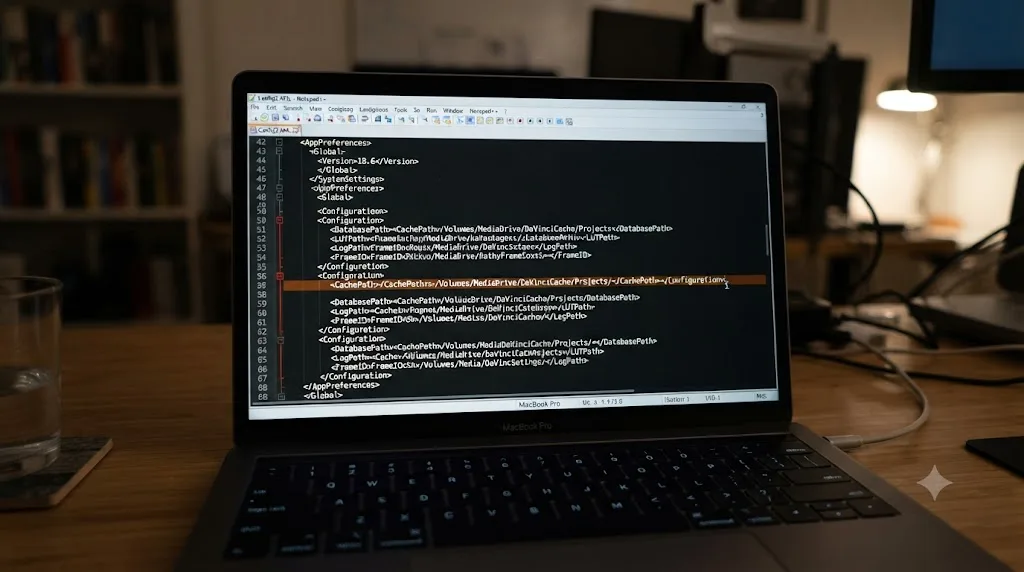
DaVinci Resolve's Disk Database projects store their settings in underlying XML files, specifically Config2.XML and Project.XML, and per Robbie Carman's guide, you can open these directly and manually delete the stale cache and gallery path entries when the normal Working Folders panel refuses to take a new path. This is a real, documented fix. It's also genuinely risky, and the same guide is unusually direct about that risk: "PLEASE, PLEASE, PLEASE don't touch anything else in these XML files other than what I show in the movie below or you run the risk of seriously screwing up your project(s)," per Mixing Light.
Editing a DaVinci Resolve project's XML files by hand can fix one broken path and break twenty working ones in the same edit. These files hold far more than cache and gallery paths, and a stray deleted character or an accidentally removed entry can corrupt settings well outside the two fields you meant to touch.
Treat this as a last resort, not a first move:
- Back up the entire project folder before you open anything, so you have a clean copy to fall back to.
- Quit Resolve completely before editing any file it might otherwise have open or locked.
- Open Config2.XML or Project.XML in a plain text editor, never a word processor that might silently change encoding or line endings.
- Locate only the cache and gallery path entries specifically. Don't touch surrounding settings even if they look unfamiliar or unrelated.
- Delete or correct only those entries, save, and reopen Resolve to confirm the project still loads cleanly.
If you're not confident distinguishing a cache path entry from every other setting in that file, the safer move is repeating the panel-based fix a few more times, or rebuilding cache and gallery references from a fresh project copy, rather than editing raw XML.
What if you just inherited this project from another editor or computer?
Then this error is close to guaranteed, and it's worth understanding why before you assume something's uniquely wrong with the file you were handed.
Any project built and cached on someone else's machine carries that machine's drive names, folder structures, and cache paths baked in, the same way it carries their footage paths if those weren't relinked through Media Pool. When you open it on your system, Resolve checks the stored cache path first, doesn't find it, and throws the warning before you've even gotten to relinking media.
The Blackmagic forum documents this scenario directly under the heading "Cache location update required," where the dialog reads: "Please update the Cache files location in project settings as the current location is offline or inaccessible," per the Blackmagic Forum thread on this exact message. A related thread on the same forum, covering the same fix in more detail, notes this hits particularly hard for editors who stored cache on an external SSD, since that drive frequently isn't the one that travels with the handed-off project file.
Deleting a cache warning dialog is not the same as fixing what caused it. Dismissing the box and continuing to work leaves the stale path in place, and it will resurface the next time you or anyone else opens that project on a machine without the original drive attached. Fix the path once, properly, the first time you receive a project from someone else, rather than dismissing the dialog on every subsequent open.
If you're routinely receiving or sending Resolve projects between machines, from a hired colorist, a remote collaborator, or your own desktop-to-laptop workflow, build resetting Cache Files Location into your normal project handoff checklist, right alongside relinking media.

Does this happen with NAS or shared project storage?
Yes, and studios running DaVinci Resolve's multi-user collaboration tools hit this error more often than solo editors, for a specific reason: the project database is meant to be shared, but the cache isn't.
When a facility sets up shared PostgreSQL-backed project collaboration, the database and the media typically live on a NAS that every workstation connects to over the network. That part works fine shared. Cache Files Location doesn't, because render cache is exactly the kind of high-frequency, high-volume write traffic a shared network drive handles badly, and every editor's machine still needs its own local Working Folders setting, pointed at a drive that specific machine controls.
One guide to setting up Resolve on shared storage puts the core rule bluntly: "Render cache must always live on local NVMe in each workstation. Never on the NAS," because render cache is "high-IOPS and user-specific," and "putting it on the NAS saturates your 10GbE link for every other editor every time one person renders a node," per a guide to DaVinci Resolve NAS setup. That same guide calls the wrong cache location "the most common Resolve NAS mistake after the PostgreSQL placement error."
Get that setup wrong, in either direction, and you land in some version of this error:
| Setup | What tends to happen |
|---|---|
| Cache pointed at the NAS, network drops or slows down | Resolve reports the cache path as offline or inaccessible, same as any other missing drive |
| Cache correctly local, but a new editor opens the shared project without checking their own Working Folders | Resolve inherits whatever path the previous editor saved, which likely doesn't exist on this machine |
| Cache local and correctly set per machine, database and media shared on the NAS | No cache-related warning, since the only thing meant to be shared is the database and media, not the cache |
A shared project database does not share cache locations with it, and treating them as if it does is exactly what breaks a collaborative setup. Every editor who opens a shared Resolve project should check Working Folders on their own machine, on their own first open, the same way they'd check it after inheriting any other handed-off project. It's the same fix as everywhere else in this guide, Project Settings, Master Settings, Working Folders, pointed at a folder this specific machine controls. On a shared setup it just needs repeating once per seat instead of once per project.
Is this the same problem as DaVinci Resolve's cache filling up my drive?
No, and it's worth being precise about the difference, since both problems live in the exact same folders.
Cache filling your drive means Resolve can write to Cache Files Location just fine, and has simply written more there than your drive has room for. Disk cache not accessible means the opposite: Resolve can't write there at all, whether because the path doesn't exist anymore or because permissions are blocking it. One is a capacity problem. The other is a connectivity or permissions problem.
| Disk cache not accessible | Cache filling up your drive | |
|---|---|---|
| What's broken | The path itself, or write permission to it | Nothing broken, just too much written |
| Typical trigger | Moved project, disconnected drive, permission block | Months of uncleared Render Cache and Optimized Media |
| Fix | Repoint Cache Files Location to a valid folder | Delete old cache, relocate to a bigger drive |
| Risk to your project | None, it's a stale pointer | None, cache is always disposable |
Our guide to DaVinci Resolve cache filling up your hard drive covers the capacity side in full, including why Render Cache, Optimized Media, and Proxy Media all accumulate independently with no automatic cleanup. If your actual symptom is a drive reading nearly full rather than a dialog saying the path is inaccessible, that guide is the one you want. If you also want to understand exactly how Render Cache decides what to cache in the first place, our render cache Smart versus User mode guide covers that mechanism directly.
Does clearing render cache fix this error?
Sometimes, but only as a side effect, and it's not the right first move.
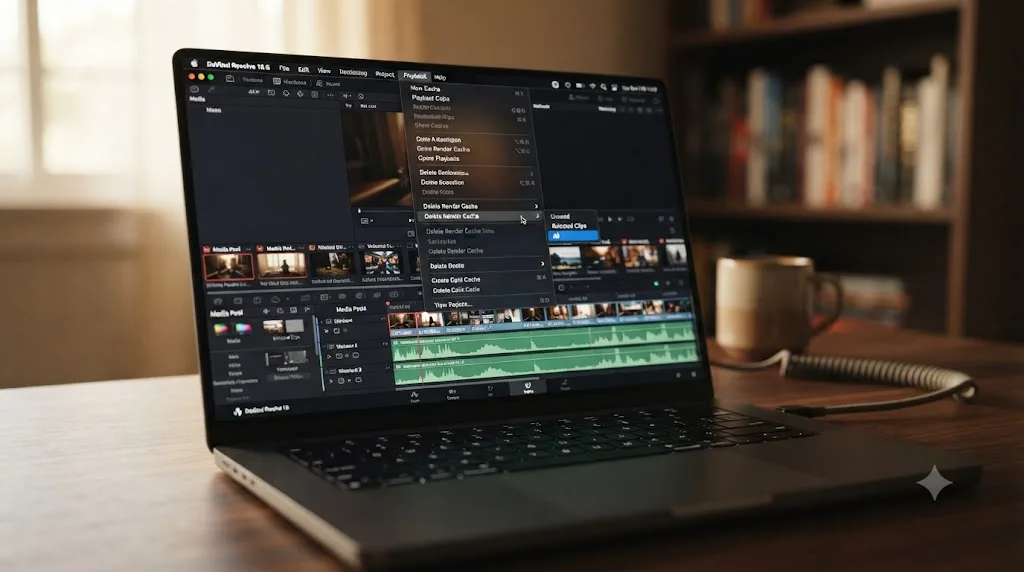
Clearing Render Cache through Playback, Delete Render Cache, All wipes whatever's currently cached and forces Resolve to regenerate it. If your actual problem is a corrupted individual cache file rather than a broken path, that step alone can resolve strange playback artifacts or red-line clips on the timeline. But it does nothing to fix a Cache Files Location pointing at a drive that no longer exists, since Resolve still needs a valid path to write the freshly cleared cache back into.
The right order, if you're troubleshooting from scratch, is: fix the path first, using the shake-up trick or the manual Working Folders reset, then clear Render Cache once you know Resolve has somewhere valid to write. Clearing cache into a broken path just produces the same error again with an extra step in front of it.
If you've fixed the path and you're still seeing corrupted playback or artifacts on specific clips, right-click that clip on the timeline, go to Render Cache Color Output or Render Cache Fusion Output, and choose Clear. That forces a clean rebuild for just that clip rather than your whole project.
What if none of this works? Is my project corrupted?
Almost certainly not, but it's worth ruling a few specific things out before you assume the worst.
If the shake-up trick fails, the manual Working Folders reset fails, and the path is confirmed correct, connected, writable, and has free space, the remaining suspects sit outside the cache system entirely. A genuinely corrupted project database produces different symptoms than a cache path error, usually a hang at launch, a crash on open, or a "failed to load project" message rather than a cache warning specifically. Our guide to DaVinci Resolve projects that won't open walks through matching those separate symptoms to their actual causes, since treating a database problem as a cache problem wastes time chasing the wrong fix.
A less common but real possibility: the project's cache path entries in Config2.XML or Project.XML got partially edited or corrupted by a previous, incomplete manual fix attempt, leaving the path neither correctly set nor cleanly blank. If you or a previous editor already tried XML surgery on this project and the error persists in a slightly different form, that half-finished edit is a likely culprit, and the safest fix at that point is exporting the timeline to a fresh project rather than continuing to patch the same XML file.
A drive filling up, a drive disappearing, and a project's grade or edit surviving either one are three completely separate facts about how Resolve's cache system works. None of the fixes in this guide, including the riskiest one, XML editing, ever touch your actual footage, your node graph, or your saved edit. The worst outcome of getting this wrong is losing time, not losing work.
How do you prevent this from happening again?
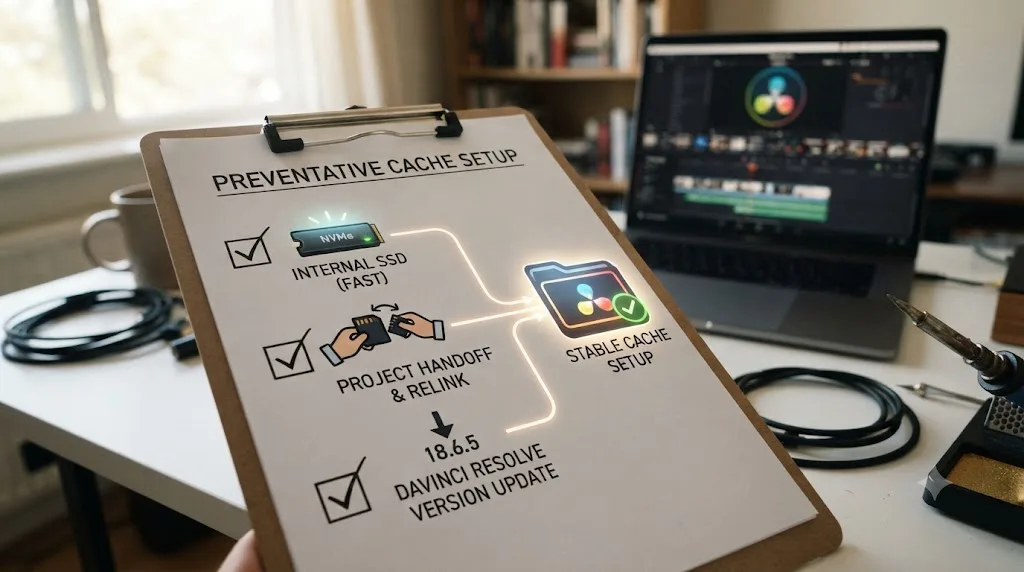
Put your cache somewhere it can't move out from under you, and make relinking it part of every project handoff instead of an emergency reaction.
Use an internal drive for Cache Files Location, not an external or network one, wherever your setup allows it. An internal SSD doesn't get renamed, doesn't get unplugged, and doesn't remount under a new letter after a reboot. If you must use an external drive, dedicate one specifically to cache and never repurpose it for anything else, so its name and letter stay stable.
Fix the path the first time you receive a handed-off project, not the fifth time you dismiss the same dialog. Build a two-minute check into your intake process: open Project Settings, Working Folders, confirm Cache Files Location points somewhere real on your machine, and correct it before you start working, the same way you'd relink offline media.
Keep Resolve current. DaVinci Resolve 21.0.3, shipped July 22, 2026, carries none of the pre-19.1.3 macOS installer permission issues documented in CVE-2025-1413. Running an old installer doesn't cause every version of this error, but it's one more variable removed by staying updated.
Sorting out which panel controls which path, Working Folders versus Media Storage versus Gallery Stills Location, is exactly the kind of moment where hunting through menus mid-crisis costs real time. TryUncle is the on-screen assistant for DaVinci Resolve on macOS, ask in plain words and Uncle points at the exact control on your screen, which beats digging through a reference manual while a client is waiting on you to reopen a project.
A stale cache path is one of the more common stuck points editors run into when moving projects between machines, and it looks far scarier than it is. The dialog is Resolve doing exactly what it's supposed to: refusing to write into a folder it can't verify, rather than failing silently and leaving you to find out later. Fix the path, clear the cache once it's pointed somewhere real, and get back to the timeline. Nothing about this error ever touches the work itself.
Frequently asked questions
- What does 'the disk cache is not accessible' mean in DaVinci Resolve?
- It means Project Settings still lists a Cache Files Location or Gallery stills path that your current machine can't read or write to right now. That happens when a project moves to a new computer, when a drive got renamed or disconnected, or when the cache folder's permissions don't allow Resolve to write there. It is a pointer problem, not file damage.
- Why does DaVinci Resolve say the cache location is offline or inaccessible?
- Because Resolve stores the exact cache and gallery paths inside the project itself, tied to the drive letter, volume name, or folder structure of whatever machine last saved them. Open that project on a different computer, or reconnect a drive under a different name, and Resolve can no longer find the folder it expects, so it throws the warning instead of silently failing.
- How do I fix DaVinci Resolve's disk cache error on a Mac?
- Dismiss the dialog, open Project Settings, Master Settings, Working Folders, and click Browse next to Cache Files Location to point it at a folder on your current Mac. If macOS itself is blocking access, check System Settings, Privacy & Security, Full Disk Access, and confirm DaVinci Resolve is enabled there. If you're running a version older than 21.0.3 or 19.1.3, update Resolve, since older Mac installers shipped with permission flaws that can compound this exact error.
- How do I fix it on Windows?
- Same panel, different failure mode. Open Project Settings, Master Settings, Working Folders, and check whether the drive letter listed for Cache Files Location still exists. A drive that mounted as E: last week can remount as F: today after a reboot, which is enough to make Resolve report the old path as inaccessible. Repoint it to the correct current drive letter.
- Will fixing this delete my project or my footage?
- No. Cache Files Location controls where Resolve writes Render Cache, Optimized Media, and Gallery stills, none of which are your original camera files. Changing the path, clearing render cache, or even deleting the old CacheClip folder by hand never touches your source footage, your edit, or your color grade.
- Should I edit the project's XML files myself to fix this?
- Only as a last resort, and only the specific cache and gallery entries. Colorist and author Robbie Carman, who documents this exact fix, warns directly against touching anything else in those files: "PLEASE, PLEASE, PLEASE don't touch anything else in these XML files other than what I show in the movie below or you run the risk of seriously screwing up your project(s)." Try Project Settings first. XML editing is for cases the normal panel can't reach.
- Is this the same problem as my DaVinci Resolve cache filling up my hard drive?
- No, they're opposite problems with the same folder. Cache filling your drive means Resolve can write to the path fine and has written too much. Disk cache not accessible means Resolve can't write to the path at all. Our guide to cache eating disk space covers the first problem; this one covers the second.
- Does DaVinci Resolve 21.0.3 fix this error automatically?
- No specific fix for this warning has shipped in any 21.x update through 21.0.3, released July 22, 2026. What changed with version 19.1.3 was a related but distinct macOS installer permissions vulnerability, not this dialog. The cache and gallery path warning is a workflow issue tied to how projects reference drives, not a bug patched by version updates.
Sources
- Mixing Light: Fixing Cache & Gallery Warning Dialog Boxes (Robbie Carman)
- Creative COW: Permission alerts (DaVinci Resolve forum)
- Creative COW: Resolve Working Folder Problem, Cache and Gallery
- Blackmagic Forum: Cache location update required
- Blackmagic Forum: Update the cache files location in project settings
- Blackmagic Forum: Cache location "disconnect" on laptop
- CERT Polska: Vulnerability in DaVinci Resolve application (CVE-2025-1413)
- Director of Photography: How to Fix DaVinci Resolve Write Permission Issues on macOS
- Apple Support Community: External drives ejecting during sleep
- Newsshooter: DaVinci Resolve 21.0.3 Update
- Need to Know IT: DaVinci Resolve NAS Setup That Actually Works
- DaVinci Resolve Reference Manual: Working Folders, Cache Files Location (VFXPedia mirror)
- DaVinci Resolve Reference Manual: Media Storage (VFXPedia mirror)
Put this guide to work with TryUncle.
Ask about the step you’re on. TryUncle sees your screen and points at the control you need, so you can keep learning in your own project.
Get TryUncle for Mac or WindowsKeep reading
Fixes · Jul 19, 2026 · 23 min
DaVinci Resolve Cache Files Filling Up Your Hard Drive? Do This
Why DaVinci Resolve's cache fills up your hard drive: which folders are responsible, how to clear each one safely, and how to relocate cache to stop it recurring.
Guides · Jul 13, 2026 · 18 min
DaVinci Resolve Render Cache Explained: Smart vs. User Mode
How DaVinci Resolve's render cache works, and how Smart mode differs from User mode: cache formats, disk space, per-clip flags, and when to use each.

Fixes · Jul 17, 2026 · 24 min
DaVinci Resolve License Already in Use: How to Fix It
DaVinci Resolve says your license is already in use? It means your activation slot or dongle is checked out elsewhere. Here's the exact deactivate and recover path.