Articles / Fixesupdated for DaVinci Resolve 21.0.3 (July 2026)
DaVinci Resolve Unable to Create Optimized Media Error: The Fix
Quick answer
DaVinci Resolve's "unable to create optimized media" error means the cache drive it's writing to is full, misconfigured, or unwritable, not that your footage is damaged. Check Preferences, Media Storage, and Project Settings, Master Settings, Working Folders first. Confirm Cache Files Location has real free space, clear stuck files in CacheClip, then regenerate one clip at a time.

I've spent seven years cutting commercial and broadcast work inside DaVinci Resolve, and "unable to create optimized media" is one of the recurring questions that shows up in our 100,000+ member editing community, right alongside "why is my render stuck." It looks like Resolve just gave up on your footage. It didn't. Here's what actually causes it and the fastest real fix, for Mac and for Windows, as of July 2026 on DaVinci Resolve 21.0.3.
What does "unable to create optimized media" mean in DaVinci Resolve?
It means Resolve tried to transcode one or more clips into its managed cache format and the write failed before it finished. It is not telling you your footage is corrupted, and it is not deleting anything you already had.
"Unable to create optimized media" is a failed write, not a damaged file. Optimized media is a disposable, regenerable copy of your source clip that Resolve keeps for smoother playback. The original camera file sitting in your media pool is completely untouched by a failed generation job, no matter what the error dialog implies.
The Blackmagic forum has multiple threads with exactly this failure mode, going back years and recurring across versions, which tells you two things: it's a known category of problem, not a bug unique to your machine, and it has a small, repeatable set of causes. One user's thread, titled plainly "Cannot Create Optimized Media", sits alongside similarly named threads going back to Resolve 12.5, which means this error has outlived several major versions without a single dedicated patch, because it's almost never a Resolve bug in the first place. It's a storage, path, or codec problem that Resolve is reporting honestly.
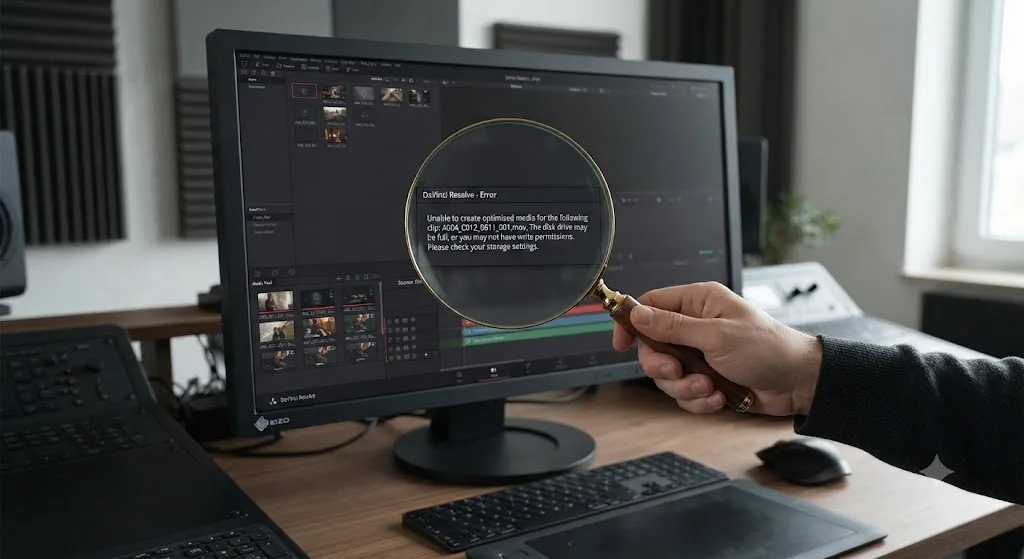
What's the exact error text you might be seeing?
DaVinci Resolve doesn't use one fixed string for this. The wording shifts depending on what specifically failed, and matching your version to the table below saves you from chasing the wrong cause.
| Dialog wording | What it usually means | Where to start |
|---|---|---|
| "Error occured during optimized media generation. Cancelling" | The whole batch job aborted, often mid-way through | Check drive space first, then isolate one bad clip |
| A message naming a specific clip and "unable to create" or "cannot create" | That one file is the problem, not the whole system | Check that clip's codec, resolution, and file path individually |
| A silent failure where the job finishes but nothing plays back optimized | Generation technically succeeded but the switch to use it didn't | Playback menu, Use Optimized Media if Available |
| An error that appears only during large batch selections, not single clips | One clip in the batch is failing and taking the rest down with it | Regenerate clips one at a time to isolate the culprit |
That third row matters more than it looks. One editor on Lowepost, Emil Öberg, generated optimized media successfully in multiple qualities and confirmed the .dvcc cache files existed on disk, but the timeline kept playing original media regardless, a different failure from generation itself. Another forum member, Thomas Singh, pointed out the fix for that specific case is easy to miss: "after you have generated the optimized media you need to hit 'use optimized media' from the playback menu on top," per the Lowepost thread on Resolve not using optimized media. If your generation job appears to finish without an error and playback still looks unoptimized, you're likely dealing with that switch, not a creation failure. This guide focuses on the case where generation itself throws an error and refuses to complete.
Why does DaVinci Resolve fail to create optimized media?
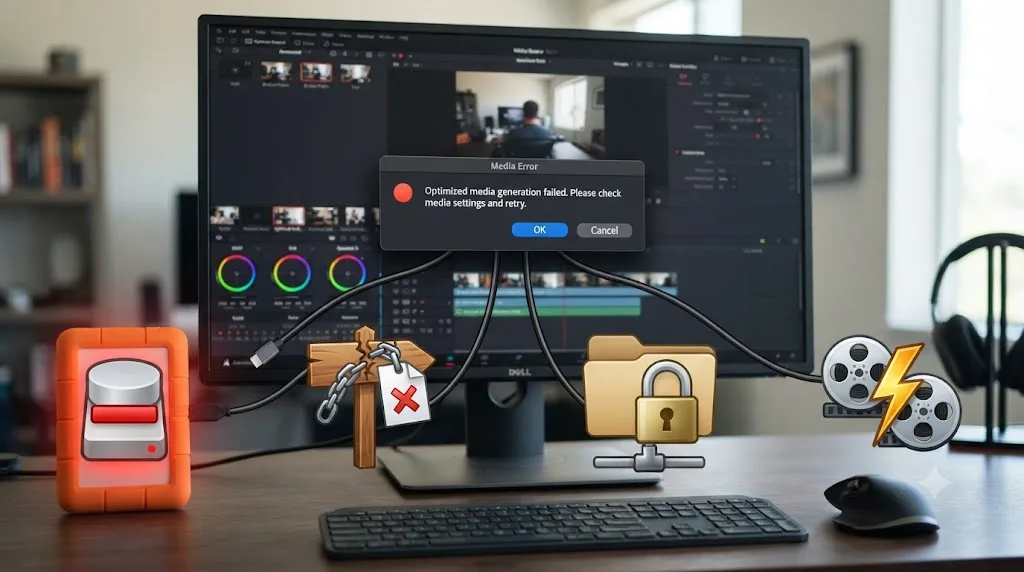
Because it's writing a new, often much larger file to a drive, path, or folder that can't currently accept it. There isn't one root cause. There are four, and they overlap more than you'd expect.
- The cache drive is full, or reporting itself as full when it isn't. Optimized media files are frequently bigger than the original clip, and a drive that's actually near capacity, or misreporting its free space after Resolve deletes old cache, produces the exact same error.
- Cache Files Location or Media Storage points somewhere Resolve can't reach. An unmounted external drive, a network share that dropped, or a path left over from a different machine all fail the same way.
- The CacheClip or OptimizedMedia folder is locked, read-only, or permissions-blocked. Resolve can see the folder and still can't write into it, which produces an error that looks identical to a missing path from inside the app.
- The resolution, format, or codec setting chokes on a specific clip. A sixteenth-resolution target, an unusual source codec, or a hardware decode conflict can fail one clip and cancel an entire batch job with it.
A failed optimized media job is DaVinci Resolve reporting a write problem honestly, not corrupting anything on its way to reporting it. Every fix in this guide works on the cache and the settings around it. None of them touch your original footage, your edit, or your grade.
Is your cache drive actually full, or lying about it?
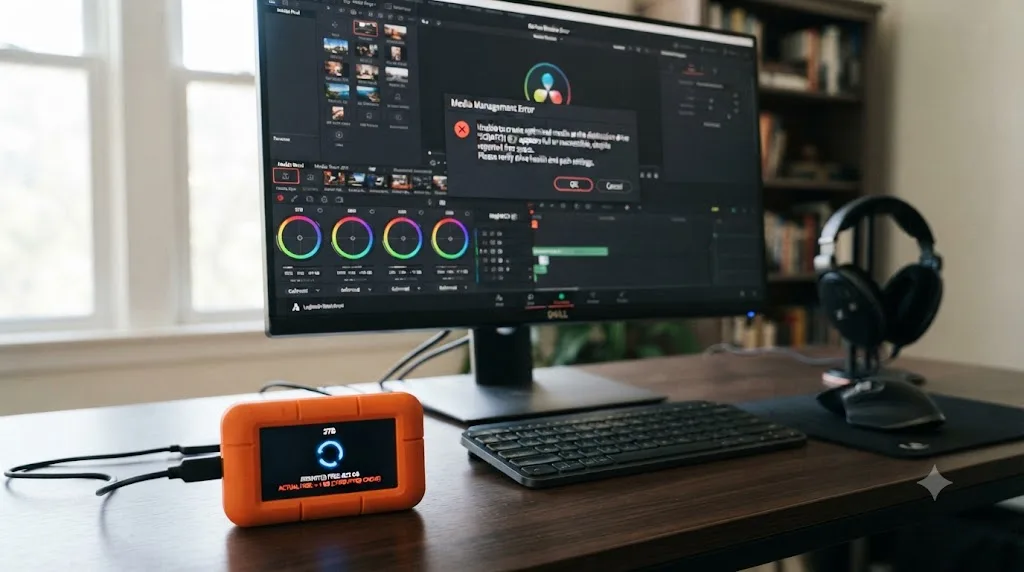
Check actual free space in Finder or File Explorer before you touch a single Resolve setting, because the number Resolve is working from and the number your OS reports can quietly disagree.
Ahsen Jawed, writing Hollyland's guide to generating optimized media, states the mechanism plainly: "The error will arise if the CacheClip folder lacks space or you selected improper storage in the project settings," per Hollyland's guide to generating optimized media in DaVinci Resolve. That's the most common single cause, and it's worth taking seriously before you look anywhere else, since optimized media files run large by design.
Optimized media files are frequently bigger than the clips they replace, which is exactly why they run drives out of space. Lewis McGregor, covering optimized media for PremiumBeat, put it directly: "you're creating media files that are more user-friendly, and if the original media clip is a RAW file, they will still be a substantial size," per PremiumBeat's guide to using optimized media in DaVinci Resolve. A 25MB source clip transcoded into an uncompressed or lightly compressed optimized format can land well over 1GB, and a full bin of them adds up fast on a drive you thought had plenty of room.
There's a second, weirder version of the same problem, and it's worth knowing about specifically because it fools experienced editors. One user on the Blackmagic forum, working through the exact "Error occured during optimized media generation. Cancelling" dialog, discovered that Resolve had deleted old cache files without properly communicating the freed space to the operating system, so the drive reported as full even though it was sitting at roughly 25% actual capacity. Their fix was moving known-good files off the drive to a safe location, reformatting the drive completely, then copying the data back. That's a drastic fix, and it's the right one specifically when Finder or File Explorer shows a drive nearly full that you know, from direct experience, shouldn't be.
Before you consider anything that dramatic, run through the cheap checks first:
- Open Finder or File Explorer directly and check real free space on the drive listed under Cache Files Location, not the number Resolve's own dialog might be citing.
- Clear Render Cache through Playback, Delete Render Cache, All, since Render Cache and Optimized Media default to the same drive and Render Cache tends to accumulate faster.
- Manually delete old Optimized Media folders inside CacheClip if you have projects you know are finished and won't need that cache again.
- If free space looks correct in the OS but Resolve still fails, restart the machine before assuming a deeper corruption problem, since a stale filesystem cache can cause exactly this mismatch.
Our guide to DaVinci Resolve's cache filling up your hard drive goes deeper into exactly which cache types accumulate and how to clear each one safely, if this turns out to be a recurring problem rather than a one-time drive issue.
Is the Cache Files Location or Media Storage path wrong?
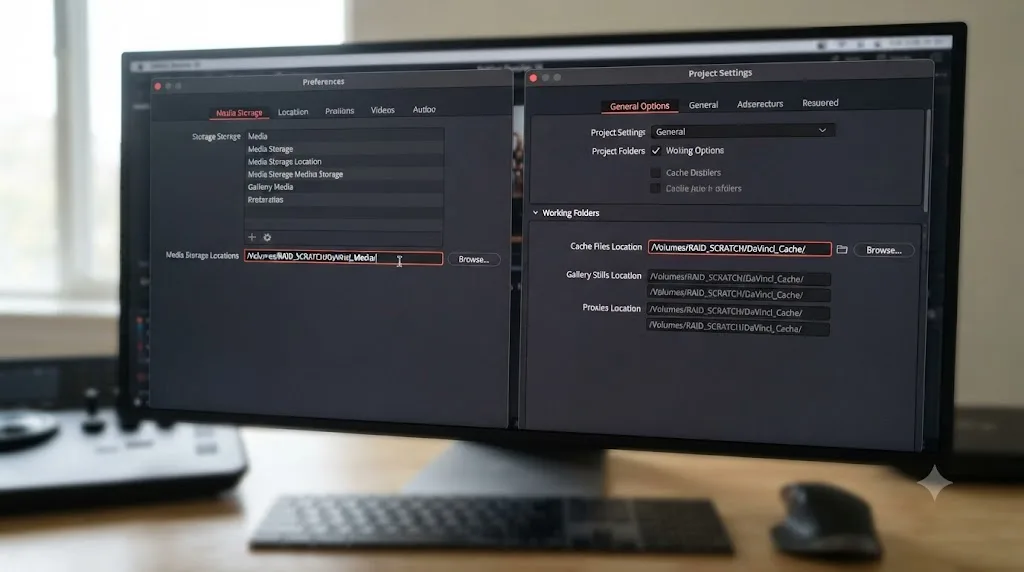
Check two separate panels, because Resolve reads from both and they can disagree with each other and with reality.
Optimized media is written to whatever the Cache Files Location setting points at, and that setting defaults to the first drive listed in Media Storage. Per the DaVinci Resolve reference manual's section on optimized media, "all optimized media is written to the same directory as the Cache files are written, which defaults to the first scratch disk listed in the Preference dialog's Media Storage panel." If that first-listed drive is unmounted, disconnected, or was reordered after a fresh install, generation fails before it starts, and the error you see doesn't always make that obvious.
One Blackmagic forum thread nails the fix directly: a user solved their generation failure by re-mounting the SSD being used as a cache and confirming the path to the media storage location was set correctly under Preferences, Media Storage, per the Blackmagic forum discussion on this exact error. Another user in a related thread found the fix was simpler still: correcting a file path where Resolve was looking for the raw source files in the wrong location entirely, per a separate Blackmagic forum thread on the same error.
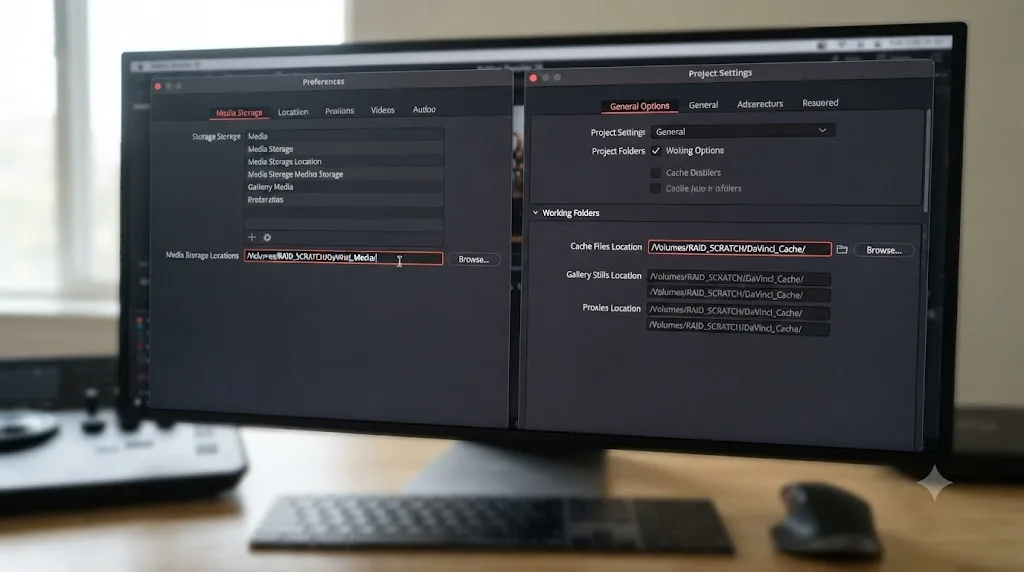
- Open Preferences, then Media Storage. Confirm the drive listed first is currently connected and shows real available space in your operating system, not just in Resolve's own list.
- Open Project Settings, Master Settings, then Working Folders. Check Cache Files Location specifically, since a project can carry a stale path from a different machine or a previous drive configuration.
- If the paths don't match what's actually connected, click Browse next to Cache Files Location and point it at a folder on a drive you can confirm is mounted right now.
- Restart Resolve after any path change, since some path updates don't take effect on already-open projects until the app reloads.
This is a per-project setting for Cache Files Location, but a global one for Media Storage's drive order. Fixing it in one project won't fix every other open project pointing at the same broken default, so if the error follows you across files, check both panels each time.
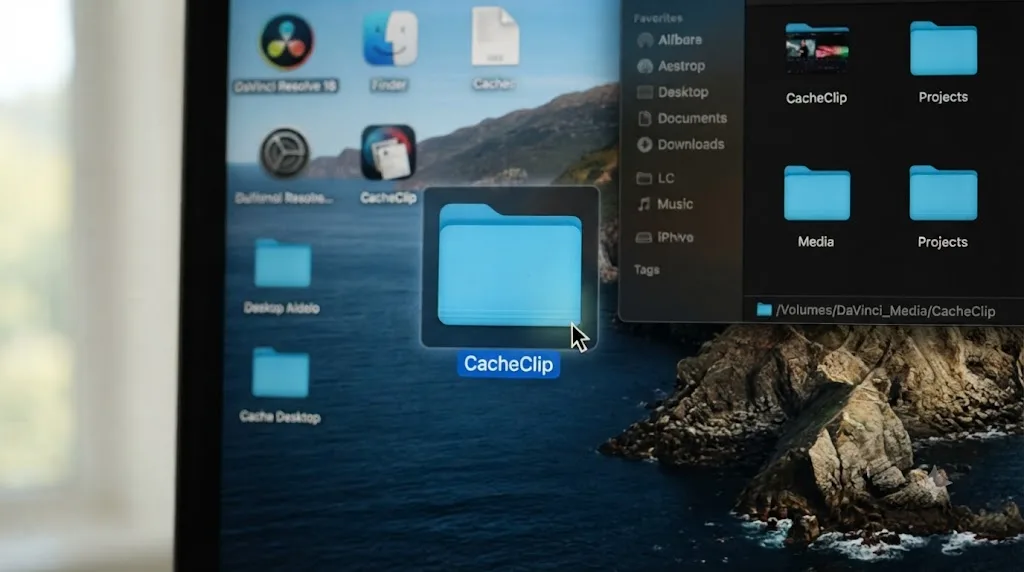
Are your CacheClip or Optimized Media folders read-only?
Check folder permissions specifically, because a folder can exist, show up correctly in every settings panel, and still refuse every write Resolve sends its way.
A recurring fix across multiple Blackmagic forum threads on this exact error involves going directly into the CacheClip folder where optimized media lives, deleting the optimized media subfolders inside it, restarting the computer, and confirming the folder wasn't accidentally set to read-only, a combination that resolved the issue for several separate users reporting "Can't Generate Optimized Media" across different Resolve versions.
A read-only cache folder produces the same error as a missing one, and there is no dialog that tells you which you're dealing with. From inside Resolve, both look like a generic write failure. The only way to tell them apart is checking the folder's actual permissions through your operating system, not through anything inside Resolve itself.
On Mac:
- Locate the CacheClip folder inside your Cache Files Location, then right-click and choose Get Info.
- Check the Sharing & Permissions section at the bottom of that panel and confirm your user account has Read & Write access, not just Read.
- If it shows Read only, click the lock icon, authenticate, select your account, and change the privilege to Read & Write.
- Check System Settings, Privacy & Security, Full Disk Access separately, and confirm DaVinci Resolve is toggled on there too, since macOS can block writes at the app level even when folder permissions look correct.
On Windows:
- Right-click the CacheClip folder and choose Properties, then the Security tab.
- Select your Windows user account in the list and check whether Full Control is allowed or just Read.
- If it's restricted, click Edit, select your account, and check the Full Control box under Allow.
- Confirm the folder isn't also marked Read-only under the General tab, a separate flag from the Security tab's permissions.
Once permissions are corrected, delete the specific OptimizedMedia subfolder inside CacheClip rather than the whole CacheClip directory, restart Resolve, and try generating a single clip again before running a full batch.
Is the Optimized Media resolution or format setting the problem?
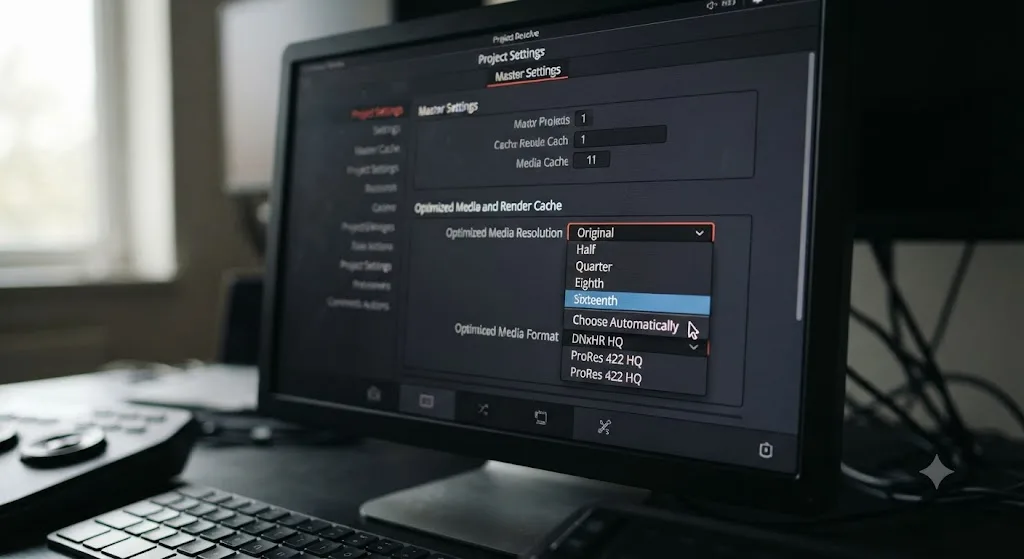
Sometimes the setting itself is what's failing, not the drive or the path underneath it, and Sixteenth resolution is the specific setting that shows up most often in reports of this exact error.
DaVinci Resolve offers a defined set of resolution options for optimized media: Original, Half, Quarter, Eighth, Sixteenth, or Choose Automatically, which intelligently reduces resolution only for media larger than the timeline, per the reference manual's section on customizing optimized media. For an 1080p timeline under that automatic setting, an 8K source generates quarter-resolution optimized media while a 4K source generates half-resolution media, scaled proportionally rather than forced into one fixed ratio.
Multiple forum reports tie generation failures directly to the Sixteenth setting specifically. Changing the optimized media resolution from Sixteenth to something like Eighth or Quarter resolved the error for some users, and switching the format from Sixteenth to Choose Automatically fixed it for others, per a Blackmagic forum thread covering both fixes. One editor working through a similar generation problem also found success reactivating the Direct I/O checkbox for the cache drive inside DaVinci Resolve Preferences, a setting that controls whether Resolve writes straight to the drive's kernel buffers or goes through the normal OS storage cache first, per a related Blackmagic forum thread on cache and Media Storage path fixes.
Format matters too, separately from resolution. Optimized Media supports Uncompressed 10-bit and 16-bit float for maximum quality, ProRes from Proxy through 4444 XQ, and DNxHR from LB through 444, per the same reference manual page. Only the higher-end variants, 10-bit and 16-bit float uncompressed, ProRes 4444 and 4444 XQ, and DNxHR 444, preserve alpha channels and out-of-bounds highlight data, which matters for HDR or VFX-heavy work but adds file size and processing overhead that can be exactly what pushes a marginal generation job into failure.
| Setting | Common failure pattern | What to try |
|---|---|---|
| Resolution set to Sixteenth | Generation fails or cancels on some sources | Switch to Eighth, Quarter, or Choose Automatically |
| Format set to Uncompressed 16-bit float | Very large files, slower writes, more likely to hit a marginal drive limit | Switch to a DNxHR or ProRes variant matched to your delivery needs |
| Direct I/O disabled for the cache drive | Slower or unreliable writes on some external drives | Re-enable Direct I/O in Preferences for that drive |
- Open Project Settings, Master Settings, then Optimized Media and Render Cache.
- Change Optimized Media Resolution away from Sixteenth if that's your current setting, trying Choose Automatically first.
- Check Optimized Media Format and confirm it's not set to a maximum-quality uncompressed option you don't actually need for this project.
- In Preferences, System, Media Storage, confirm Direct I/O is checked for your cache drive if it's external or network-attached.
- Regenerate the clip that originally failed before running a full batch again.
Does batching multiple clips cause this, and does one at a time fix it?
Often, yes, and it's one of the simplest diagnostic steps available before you touch any settings at all.
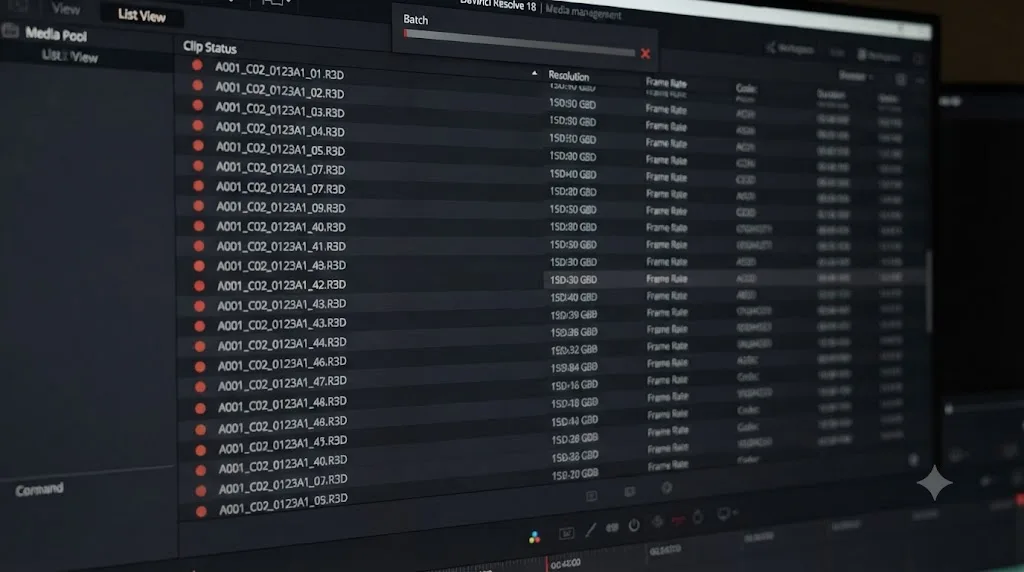
Multiple forum reports describe the same pattern: single clips optimize reliably, while a large batch selection is unreliable and hit-or-miss, per a Blackmagic forum thread on optimizing media not working. One editor in that thread described waiting through a full batch encode only to find nothing had actually happened, clips weren't flagged in metadata, and playback never smoothed out the way generation should have produced.
A failed batch job doesn't tell you which clip actually failed, it just tells you the batch failed. If you select forty clips and get a single generic error, you have no idea whether one bad file killed the whole job or every file failed independently. Selecting clips one at a time turns a mystery into a list.
- Select the smallest reasonable batch, ideally a single clip, and choose Generate Optimized Media from the right-click contextual menu.
- If that single clip succeeds, add a few more and repeat, narrowing in on whichever specific file breaks the batch.
- Once you've isolated the problem clip, check it individually: file path, codec, resolution relative to your timeline, and whether it plays back normally in Resolve at all outside of optimization.
- Generate the rest of the batch excluding that one clip, then troubleshoot the outlier separately using the codec and format checks covered elsewhere in this guide.
This costs you more clicks upfront than trusting one big batch job, but it's dramatically faster than repeating a full-bin optimization pass three or four times hoping a setting change fixes an error you never actually isolated to a specific cause.
Is a codec decode conflict causing generation to fail?
Sometimes the problem isn't the destination file Resolve is trying to write, it's the source file Resolve is trying to read from in the first place.
Optimized media generation has to decode your original clip before it can transcode it into the optimized format, and a decode failure on the source side produces a generation error that looks identical to a storage problem from the dialog box alone. This shows up most often with consumer H.264 and H.265 footage, particularly 4K and 10-bit variants from phones and drones, rather than professional formats like Blackmagic RAW.
One forum report described exactly this split: generating optimized media for H.264 4K drone footage produced errors consistently, while the same operation on BRAW files from a different camera worked without issue. The suggested troubleshooting path was checking that optimized media settings matched between the working and failing projects, and confirming timeline resolution and frame rate were consistent with the source, per the Blackmagic forum thread covering that specific comparison.
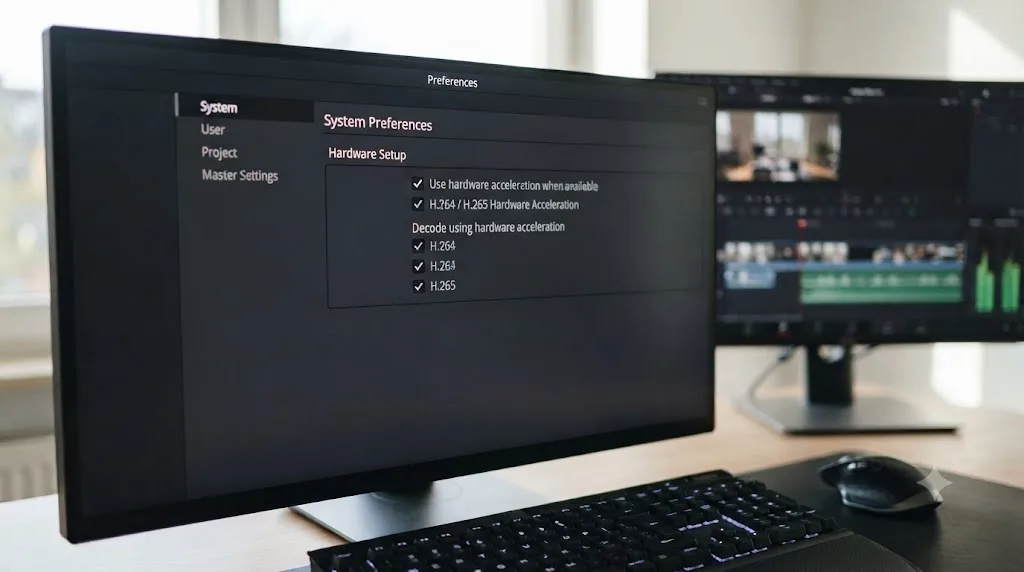
Hardware decode acceleration speeds up playback and can also be exactly what breaks a specific clip's optimization. GPU-accelerated decoding for H.264 and H.265 handles most footage cleanly, but certain camera-specific encoding quirks, particularly in 10-bit HEVC from phones, can trip up hardware decoders in ways that software decoding handles without complaint, a pattern documented across multiple codec troubleshooting guides for exactly this class of problem, per Richard Lackey's breakdown of AVC, H.264, and HEVC transcoding in DaVinci Resolve.
- Open Preferences, then Decode Options (labeled Decode & Performance on some versions).
- Find the setting for hardware decoding on H.264 or H.265, matching whichever codec your failing source clip uses.
- Disable hardware acceleration for that specific codec and try generating optimized media for the same clip again.
- If that fixes it, leave hardware decoding off for that codec rather than for everything, since disabling it globally costs you playback performance you don't need to give up for one problem format.
This matters more on the free version of DaVinci Resolve than on Studio, and more on Windows and Linux than on Mac. Hardware-accelerated H.264 and H.265 decoding is a Studio feature on Windows and Linux, while the free version relies on the system's own software transcoder on those platforms, per Blackmagic Design's own comparison of DaVinci Resolve Studio and the free version. Mac handles H.264/H.265 decode through Apple's own hardware in both editions. If you're seeing this error specifically with H.264 or H.265 sources on free-version Windows or Linux, decode performance, not decode failure, may be the underlying story, and a Direct Proxy Generator or transcode pass outside Resolve first can sidestep the problem entirely.
Should you use Proxy Media instead if Optimized Media keeps failing?
If you've worked through the storage, path, permissions, and codec checks above and generation still won't complete reliably, switching to Proxy Media is a legitimate fallback, not a downgrade.
Optimized Media and Proxy Media solve the same performance problem through genuinely different mechanisms, and a failure in one doesn't predict a failure in the other. Optimized Media transcodes clips into Resolve's own managed cache, shared automatically across every project in the same database. Proxy Media, available since Resolve 17, creates separate, portable files you can see and manage directly in your file system, and it uses a different generation pathway internally.
| Optimized Media | Proxy Media | |
|---|---|---|
| Storage location | Resolve's managed CacheClip cache | A folder you choose and can browse directly |
| Shared across projects | Yes, automatically, within the same database | No, tied to the specific project unless you relink manually |
| Portable to another machine or app | No, proprietary .dvcc format | Yes, standard DNxHR or ProRes files usable elsewhere |
| Can optimize partial timeline segments | Yes | No, generates for the whole clip |
| Available in free version | Yes | Yes |
| Standalone generation without opening a project | No | Yes, via the free Blackmagic Proxy Generator app |
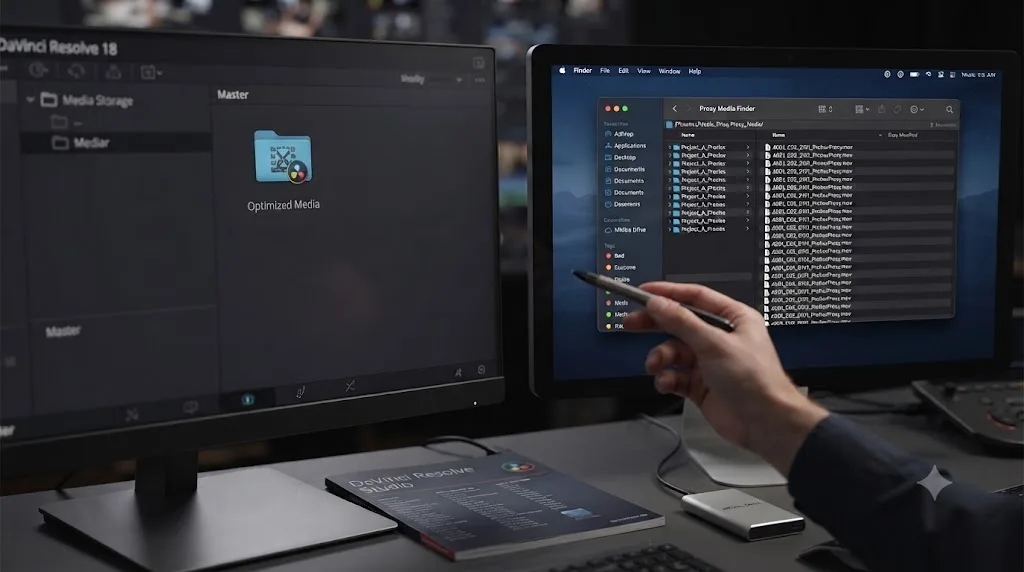
If Optimized Media keeps failing on a specific clip or a whole project, generating Proxy Media instead often just works, since it's writing to a plain folder you specify rather than a hidden, database-managed cache directory with its own internal bookkeeping. Our guide to proxy media setup for a slow laptop covers the exact settings, including the standalone Blackmagic Proxy Generator, which can build proxies in the background without even opening the failing project.
What if optimized media generates but Resolve won't use it?
That's a different problem from the one this guide is mainly about, and it's worth naming clearly so you don't waste time re-running a generation job that already succeeded.
If the progress bar completes without an error, and Media Pool clips show the optimized media flag, but your timeline still plays back the original, heavier files, generation worked and the switch didn't happen. Per the Lowepost thread cited earlier, that fix lives in Playback, Use Optimized Media if Available, a menu toggle entirely separate from the generation process itself, per the Lowepost discussion on Resolve not using optimized media.
A related, rarer case: optimized media that existed and worked, then stopped being recognized after a drive change or a database move. The reference manual documents a specific recovery path for exactly this: select the affected clips in the Media Pool, right-click, and choose Rediscover Optimized Media from the contextual menu, per the reference manual's section on using optimized media. That command re-links Resolve to optimized media that already exists on disk rather than regenerating it from scratch, which saves real time on a large project if the cache files themselves survived a drive swap intact.
One more limitation worth knowing before you assume something is broken: optimized media is deliberately excluded from Media Management and Archive operations in the Project Manager, per the same reference manual section. If you archive a project and reopen it later expecting optimized media to still be there, it won't be, by design, not by failure. Regenerating it after an archive restore is expected, not a sign anything went wrong.
How do you fix this on macOS specifically?
Work through version, permissions, and drive checks in that order, since each rules out a distinct category of failure.
Check your DaVinci Resolve version first. Confirm you're running 21.0.3 or later, released July 21, 2026, per Newsshooter's coverage of the update, which includes improved H.265 playback handling and interlaced media fixes that touch some of the same decode pathways optimized media generation relies on.
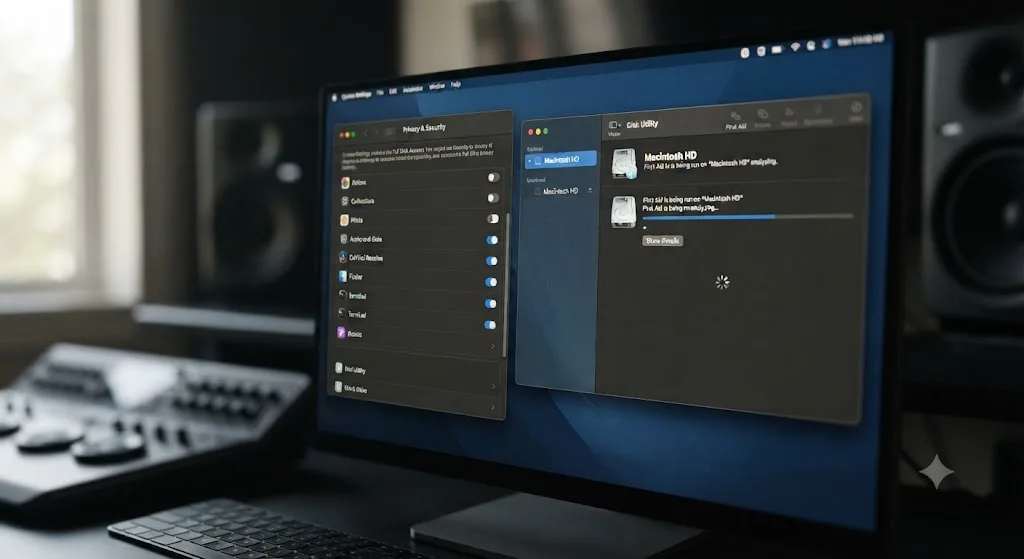
Check Full Disk Access next. Open System Settings, then Privacy & Security, then Full Disk Access, and confirm DaVinci Resolve is toggled on. macOS has tightened application storage permissions release over release, and losing Full Disk Access silently is enough to fail cache writes without a permissions dialog ever appearing.
Repair the cache drive through Disk Utility. Select the drive, run First Aid, and let it complete before trying generation again. A drive with a corrupted permissions table can appear mounted and available while still refusing specific application writes.
Confirm free space with Get Info, not just the Finder sidebar. The sidebar's quick free space indicator can lag behind recent deletions, especially right after clearing a large render cache. Get Info on the drive itself gives you the current number.
How do you fix this on Windows?
Start with drive letters, then move to folder-level permissions if the letters check out.
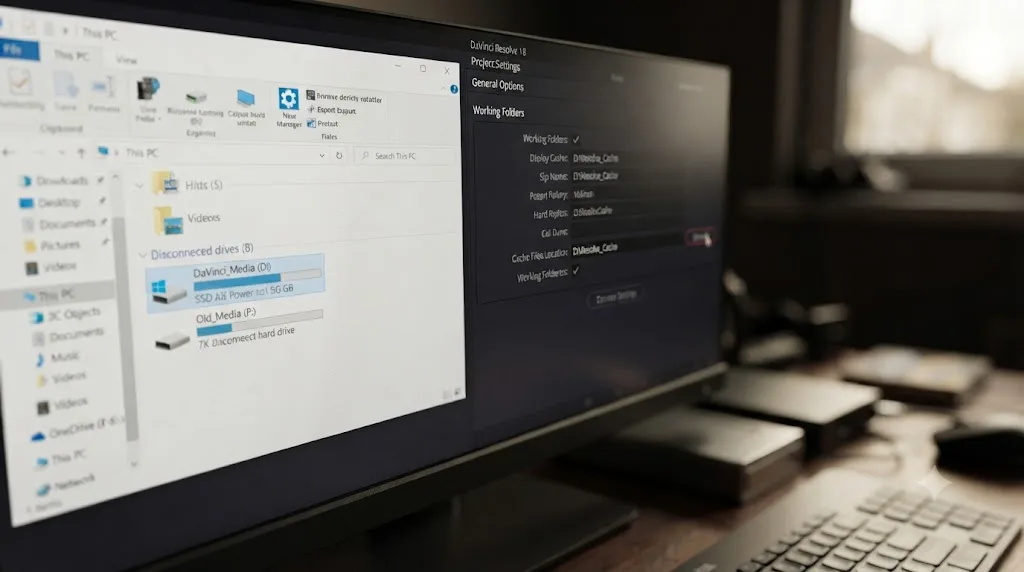
Windows assigns drive letters dynamically for a lot of external and USB drives, and that letter isn't guaranteed to persist across reboots or across which port you plugged into. A Cache Files Location saved as E:\CacheClip can silently become F:\CacheClip after another drive claims E: first during boot, and Resolve looks for E: specifically rather than chasing the renamed drive.
- Open File Explorer and confirm the current letter assigned to your cache drive.
- Compare that against Cache Files Location in Project Settings, Master Settings, Working Folders.
- If the letters don't match, repoint Cache Files Location at the correct current letter.
- If the letters match but generation still fails, right-click the CacheClip folder, choose Properties, then Security, and confirm your account has Full Control.
- Check the drive isn't formatted FAT32 if it's an older or pre-formatted external drive, since FAT32's 4GB per-file limit can silently truncate a large optimized media file in a way that surfaces as a generation error rather than an obvious size warning.
If drive letters keep shuffling, assign that cache drive a fixed letter through Windows Disk Management. It's a five-minute fix that stops this specific failure mode from recurring every time you reboot or swap which USB port a drive is plugged into.
How do you prevent this from happening again?
Put your cache on a drive that stays put, keep an eye on real free space instead of trusting the number Resolve last cached, and build one habit into every new project instead of reacting only when generation fails.
Use a dedicated internal SSD for Cache Files Location wherever your setup allows it. An internal drive doesn't get renamed, doesn't disconnect mid-session, and doesn't remount under a different letter after a reboot, removing an entire category of cause covered in this guide.
Check real free space before starting a large optimized media batch, not after it fails. A quick glance at Finder or File Explorer costs you five seconds and can save an hour of troubleshooting a generic error that turns out to be a drive at 2% free.
Generate in smaller batches on large or mixed-format projects. A batch of ten clips that fails is far easier to diagnose than a batch of two hundred, and the time cost of splitting a job up front is smaller than the time cost of untangling which of two hundred clips actually broke it.
Match your Optimized Media format and resolution to what the project actually needs. Uncompressed 16-bit float and Sixteenth resolution both push harder against drive space and decode reliability than most timelines require. Choose Automatically at a mid-range codec like DNxHR SQ or ProRes 422 covers the vast majority of editing work without inviting the failure modes covered above.
Tracking down which of four unrelated settings panels is causing a generic error is exactly the kind of moment where hunting through menus mid-session costs real time you don't have. TryUncle is the on-screen assistant for DaVinci Resolve on macOS, ask in plain words and Uncle points at the exact control on your screen, which beats digging through Preferences and Project Settings separately while a client is waiting on a cut.
What if none of this fixes it?
Then you're likely dealing with a genuinely corrupted individual source file, or a project database issue that only looks like an optimized media error because that's the operation that happened to expose it.
Try generating render cache instead of optimized media for the same clip, through the Playback menu or by right-clicking the clip on the timeline and choosing Render Cache Color Output. If render cache also fails on that specific clip, the problem sits with the source file's decode integrity, not with anything covered in this guide, and re-transcoding or re-exporting that clip from your camera-native format through a separate tool before bringing it back into Resolve is the more direct fix.
If the error follows you across every clip in a project regardless of format, codec, or storage location, and every path, permission, and drive check comes back clean, that points toward a corrupted or misconfigured project database rather than a media problem specifically. Our guide to DaVinci Resolve projects that won't open covers matching that different symptom set to its actual cause, since treating a database issue as a cache issue wastes time chasing the wrong fix.
None of the fixes in this guide, including a full drive reformat, ever touch your original footage, your edit, or your grade. The worst outcome of an unable to create optimized media error is lost time troubleshooting it, not lost work. Optimized media is disposable by design, which is exactly why Resolve is willing to fail the job outright instead of forcing a write it can't complete safely.
Fix the cache drive, the path, or the permission blocking the write, regenerate the clip that failed, and get back to editing. Nothing about this error was ever about your footage in the first place.
Frequently asked questions
- What does "unable to create optimized media" mean in DaVinci Resolve?
- It means Resolve tried to transcode a clip into its managed cache format and the write failed somewhere along the way. It is almost never damaged footage. The four most common causes are a full or misreported cache drive, a Cache Files Location or Media Storage path Resolve can't reach, a permissions problem on the CacheClip folder, or a resolution or format setting that chokes on a specific clip. Your source media stays untouched no matter which of these it turns out to be.
- Why does DaVinci Resolve fail to generate optimized media?
- Storage is the root cause more often than anything else. Optimized media files are frequently larger than the source clip they replace, since Resolve writes them in a much less compressed format, and a cache drive that looks like it has room can still be misreporting free space after Resolve deletes old cache without properly notifying the OS. Codec conflicts, read-only cache folders, and a batch job choking on one bad clip in a group make up most of the rest.
- How do I fix DaVinci Resolve's optimized media error on Mac?
- Open Preferences, Media Storage, and confirm the scratch disk listed first is actually mounted and has real free space. Then check Project Settings, Master Settings, Working Folders, and make sure Cache Files Location points at that same reachable drive. If the path looks correct but generation still fails, check System Settings, Privacy & Security, Full Disk Access, and confirm Resolve is enabled there.
- How do I fix it on Windows?
- Same two panels, a different usual suspect. Confirm the drive letter under Cache Files Location in Working Folders still matches the drive in File Explorer, since external and USB drives can remount under a new letter after a reboot. Then right-click the CacheClip folder, open Properties, then Security, and confirm your Windows account has Full Control rather than Read-only access.
- Does DaVinci Resolve delete optimized media if the drive is full?
- No. Resolve doesn't proactively delete anything to make room. It just fails the generation job and shows an error, leaving whatever optimized media already exists untouched. If your drive looks fuller than it should be, the more likely explanation is that Resolve deleted old cache files without the operating system updating its free space count correctly, a documented failure mode covered further down in this guide.
- Should I use Proxy Media instead if Optimized Media keeps failing?
- It's a reasonable fallback, especially if the error keeps recurring on the same project. Proxy Media and Optimized Media solve the same performance problem through a different mechanism, and a stuck Optimized Media job doesn't mean Proxy Media will fail the same way. Our guide to proxy media setup on a slow laptop walks through the exact settings if you want to switch workflows entirely.
- Does clearing render cache fix an optimized media error?
- Sometimes, but only indirectly. Render Cache and Optimized Media are separate systems that happen to share a Cache Files Location by default, so a drive genuinely out of space affects both at once. Clearing Render Cache through Playback, Delete Render Cache, All frees up that drive and can unblock a failing Optimized Media job. It does nothing for a bad file path, a permissions lock, or a codec-specific decode failure.
Sources
- Blackmagic Forum: Cannot Create Optimized Media
- Blackmagic Forum: Error occured during optimized media generation. Cancelling
- Blackmagic Forum: Can't Generate Optimized Media
- Blackmagic Forum: Can't generate optimized media. Please Help.
- Blackmagic Forum: Error when creating optimized media
- Blackmagic Forum: Optimizing Media not working
- Lowepost: Resolve not using the optimized media
- DaVinci Resolve Reference Manual: Optimized Media for Raw Source Clips (VFXPedia mirror)
- DaVinci Resolve Reference Manual: Customizing the Type of Optimized Media You Create (VFXPedia mirror)
- DaVinci Resolve Reference Manual: Using and Rediscovering Optimized Media (VFXPedia mirror)
- DaVinci Resolve Reference Manual: Working Folders, Cache Files Location (VFXPedia mirror)
- DaVinci Resolve Reference Manual: Media Storage (VFXPedia mirror)
- Hollyland: Ultimate Guide to Generate Optimized Media in DaVinci Resolve (Ahsen Jawed)
- PremiumBeat: Quick Tip: How To Use Optimized Media In DaVinci Resolve (Lewis McGregor)
- Newsshooter: DaVinci Resolve 21.0.3 Update
- Blackmagic Design: DaVinci Resolve Studio
- Blackmagic Design: DaVinci Resolve Tech Specs
- Richard Lackey: AVC / H.264 / HEVC and DaVinci Resolve, Why You Need to Transcode
Put this guide to work with TryUncle.
Ask about the step you’re on. TryUncle sees your screen and points at the control you need, so you can keep learning in your own project.
Get TryUncle for Mac or WindowsKeep reading
Fixes · Jul 15, 2026 · 25 min
DaVinci Resolve Proxy Media Setup for a Slow Laptop
Set up proxy media in DaVinci Resolve on a slow laptop: resolution, codec, the Blackmagic Proxy Generator, and the exact settings that stop the stutter.
Fixes · Jul 19, 2026 · 23 min
DaVinci Resolve Cache Files Filling Up Your Hard Drive? Do This
Why DaVinci Resolve's cache fills up your hard drive: which folders are responsible, how to clear each one safely, and how to relocate cache to stop it recurring.
Guides · Jul 13, 2026 · 18 min
DaVinci Resolve Render Cache Explained: Smart vs. User Mode
How DaVinci Resolve's render cache works, and how Smart mode differs from User mode: cache formats, disk space, per-clip flags, and when to use each.