Articles / Fixesupdated for DaVinci Resolve 21.0.3 (July 2026)
DaVinci Resolve: Unable to Generate Proxy Media Error Fix
Quick answer
DaVinci Resolve's "unable to generate proxy media" error means the destination drive is full, unreachable, or write-protected, or the source clip's codec, VFR footage, or too-low resolution is choking the transcode. Check Working Folders' Proxy Generation Location for space and permissions first, then lower resolution or switch format before regenerating one clip at a time.
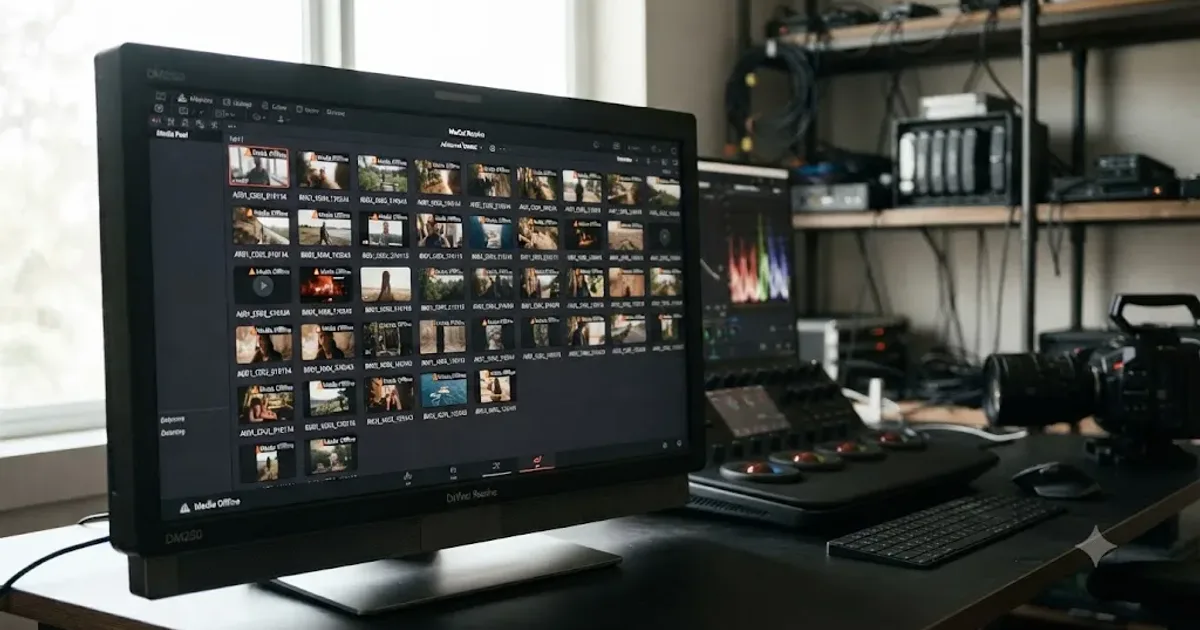
Resolve started transcoding your footage, then stopped and told you it can't. No specific reason, just a dialog that says it's unable to generate proxy media, sitting on top of a media pool full of clips that look perfectly fine. You didn't touch a setting. You didn't move a drive. And now every clip you select throws the same wall.
I've spent seven years cutting commercial and broadcast work inside DaVinci Resolve, and this exact error is one of the recurring questions in our 100,000+ member editing community, right behind "why won't my render finish." As of July 2026, on DaVinci Resolve 21.0.3, it still has no single fix, because it's not one bug. It's four separate failure modes that all produce the same generic dialog box. Here's how to tell them apart and fix the one you actually have.
What does "unable to generate proxy media" mean in DaVinci Resolve?
It means Resolve tried to transcode a clip into a smaller, easier-to-decode proxy file and the write failed before the job completed. It is not telling you your camera footage is corrupted, and your original file sits untouched in the media pool no matter how the dialog is worded.
Proxy media is disposable by design, so a failed generation job costs you time, never your footage. The proxy is a stand-in Resolve builds for smoother scrubbing. If the build fails, the original clip you imported is exactly as intact as it was before you clicked Generate Proxy Media. That's worth holding onto before you start troubleshooting, because the panic response to a generic error dialog is usually "did I just lose my footage," and the honest answer here is no, not from this error, not ever.
Forum reports of this exact failure go back across multiple major versions, from Resolve 17 through the current 21.0.3 release, which tells you two things. First, it's a known category of problem, not something unique to your install. Second, because it's persisted across years of updates without a dedicated patch, it's almost never a bug in Resolve itself. It's Resolve accurately reporting a storage, permissions, resolution, or codec problem it can't work around on its own.
What's the exact error text you might be seeing?
DaVinci Resolve doesn't use one fixed string for a proxy generation failure. The wording changes depending on what specifically broke, and matching what you're seeing to the right cause saves you from guessing.
| Dialog wording or pattern | What it usually means | Where to start |
|---|---|---|
| A generic "Proxy media generation failed" with no clip named | The whole batch aborted, often on a drive or path problem | Check Proxy Generation Location space and permissions first |
| An error naming one specific clip | That file's codec, resolution, or metadata is the issue | Isolate that clip and check its format individually |
| Generation fails only after adding new media to a fresh install | The proxy folder from before the install is stale or misconfigured | Delete the existing Proxy subfolder and regenerate from scratch |
| Generation fails only at very low resolution settings | The target frame dimension likely fell under a usable pixel floor | Raise Proxy Resolution one or two steps and try again |
| Generation fails specifically on Linux after a driver or Resolve update | An outdated NVIDIA driver, not the proxy feature itself | Confirm your driver version against Blackmagic's current minimum |
A DaVinci Resolve proxy error and a corrupted source file produce completely different symptoms, and this table exists because the dialog box doesn't distinguish between them for you. Read your specific error text against this list before you touch a single setting, since the fix for a full drive and the fix for an undersized resolution target have nothing in common.
Why does DaVinci Resolve fail to generate proxy media?
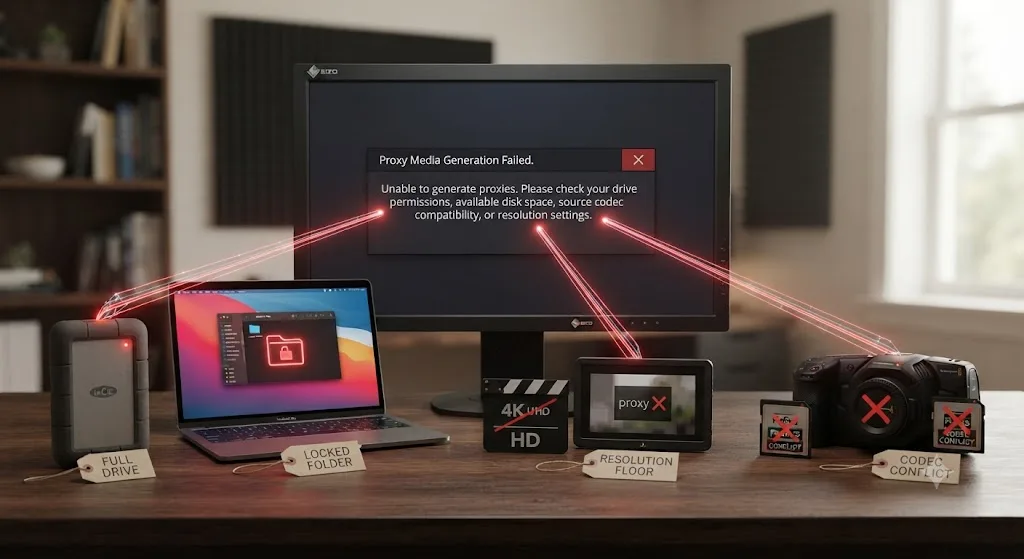
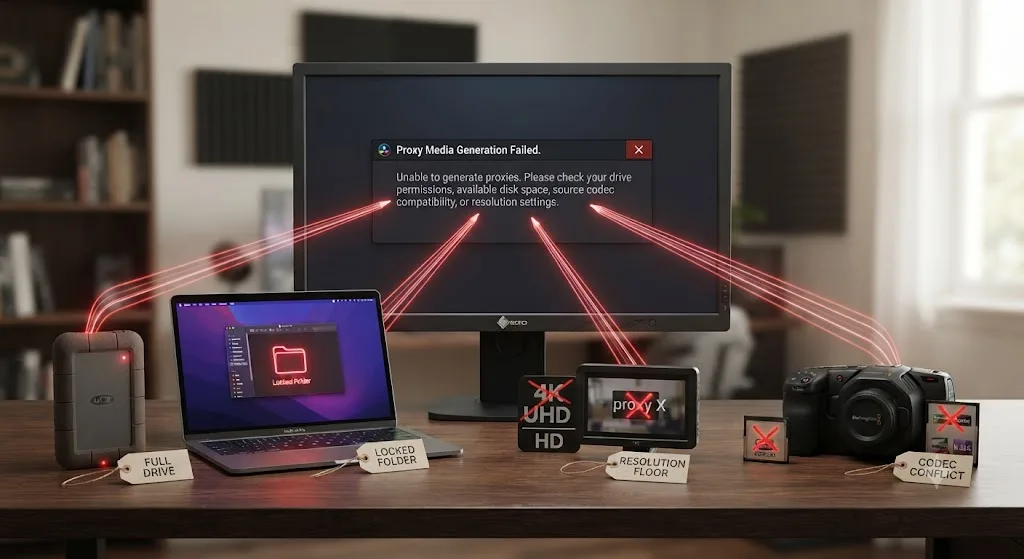
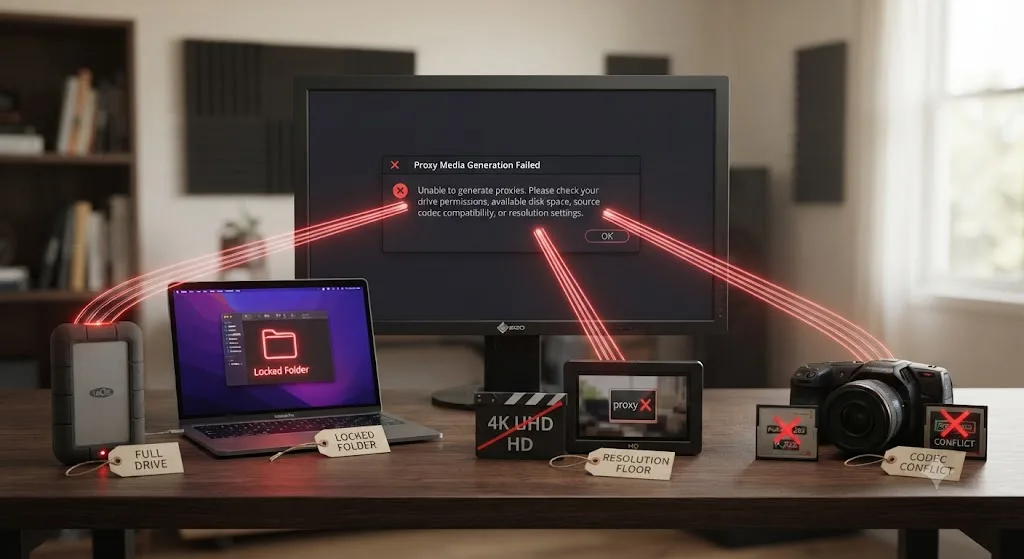
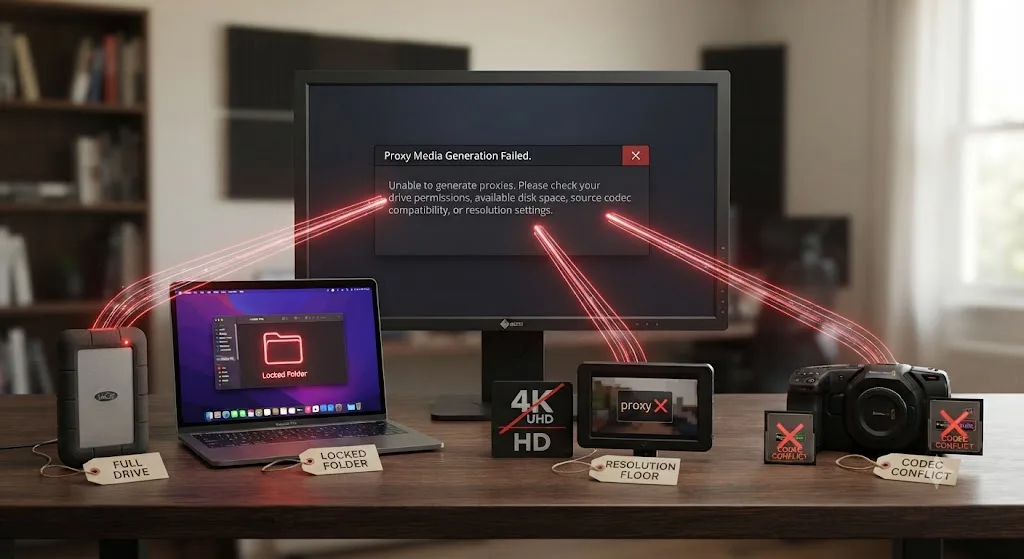
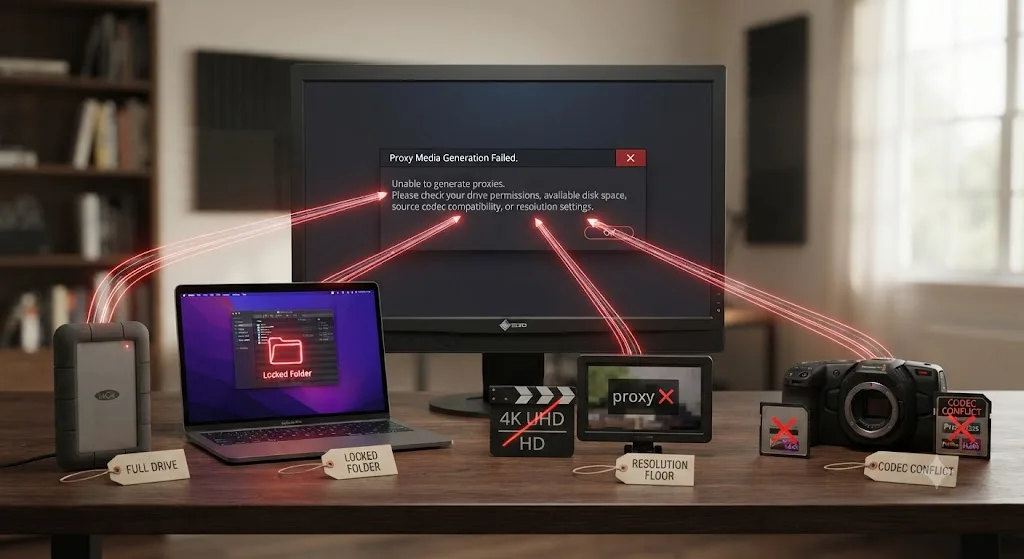
Because it's writing a new file to a drive, folder, or format that can't currently accept it, or because the source clip itself is asking the transcoder to do something it can't handle at the requested settings. There are four recurring causes, and they overlap more than the error dialog suggests.
- The Proxy Generation Location is full, unreachable, or was never actually mounted. An external or network drive that disconnected, or a path left over from a different machine, fails the same way a genuinely full drive does.
- The Proxy folder is locked, read-only, or permissions-blocked. Resolve can see the destination and still can't write into it, producing an error that looks identical to a missing drive from inside the app.
- The proxy resolution or format setting is fighting the source clip. A resolution set so low it produces a frame dimension under roughly 256 pixels on one axis, or a proxy format that mirrors a heavily compressed source codec, can both choke a transcode that would succeed at different settings.
- The source file itself is unusually demanding to decode. Variable frame rate smartphone footage, certain 10-bit HEVC files, and an outdated GPU driver on Linux all interfere with the read side of the job before Resolve ever gets to the write side.
Resolve reporting a failed proxy generation is the software being honest about a write or decode problem, not corrupting anything on its way to reporting it. Every fix in this guide touches settings around the proxy, never your original edit, grade, or camera files.
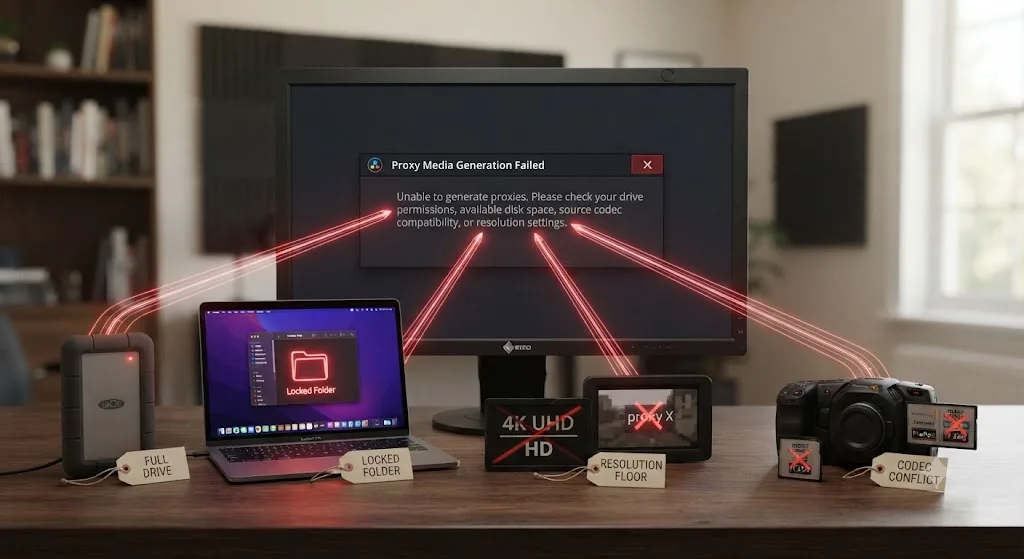
Is your Proxy Generation Location actually full or unreachable?
Check this first, because it's the single most common cause and the cheapest to rule out. Proxy media writes to whatever Working Folders' Proxy Generation Location currently points at, and that setting can silently drift from reality.
Open File, then Project Settings, then Master Settings, then Working Folders, and look at Proxy Generation Location directly. Then open Finder or File Explorer separately and check real, current free space on that exact drive, not a number you remember from earlier in the session. Multiple guides to this error name storage as the leading cause, and one breakdown of proxy media failures puts it plainly: proxy generation can fail or stall at 0 percent because of "storage problems," and the fix is confirming the destination directory "has adequate free space and proper read/write permissions," per Cutsio's guide to fixing proxy media issues in DaVinci Resolve.
An unmounted or disconnected drive fails the exact same way as a full one, and it's easy to miss because Resolve doesn't always distinguish the two in its error dialog. If Proxy Generation Location points at an external SSD you unplugged last week, or a network share that dropped mid-session, generation fails before it ever starts, and the wording you see gives you no hint that the drive itself is the actual problem rather than its capacity.
A proxy generation failure and a genuinely full drive look identical from inside the error dialog, and the only way to tell them apart is checking your operating system's own free space reading, not Resolve's. Confirm the drive is mounted, confirm it has room, and only then move on to permissions or format settings.
Our guide to DaVinci Resolve's cache files filling up a hard drive covers the broader pattern of Resolve's various caches quietly consuming space across months of unrelated projects, if this turns out to be a recurring storage problem rather than a one-time drive issue.
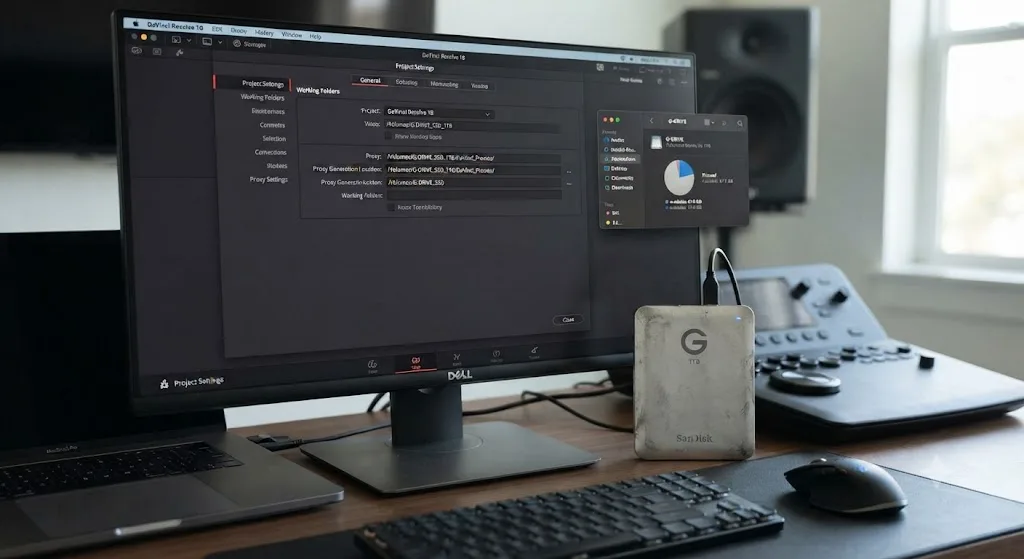
Is a locked or read-only Proxy folder blocking the write?
Check folder permissions specifically once you've confirmed the drive has room, because a folder can exist, show up correctly in every Resolve settings panel, and still refuse every write the app sends its way.
A read-only or permissions-blocked destination produces an error indistinguishable from a missing drive, purely from inside Resolve's dialog box. The only way to tell them apart is checking the folder's actual permissions through your operating system directly, not through anything inside the app.
On Mac:
- Locate the Proxy folder inside your Proxy Generation Location, right-click, and choose Get Info.
- Check Sharing & Permissions at the bottom of that panel and confirm your account shows Read & Write, not just Read.
- If it shows Read only, click the lock icon, authenticate, select your account, and change the privilege to Read & Write.
- Separately check System Settings, Privacy & Security, Full Disk Access, and confirm DaVinci Resolve is toggled on there too. macOS can block an app's writes at the system level even when the folder's own permissions look fine.
On Windows:
- Right-click the Proxy folder, choose Properties, then the Security tab.
- Select your Windows account and check whether Full Control is allowed or just Read.
- If it's restricted, click Edit, select your account, and check Full Control under Allow.
- Check the General tab too, since a folder can be flagged Read-only there independently of the Security tab's permissions.
A locked Proxy folder and a missing drive trigger the same generic dialog box in DaVinci Resolve, so ruling out permissions costs you two minutes and eliminates an entire category of guesswork. Once permissions are corrected, quit and relaunch Resolve before testing generation again, since some permission changes don't take effect on an already-open project.
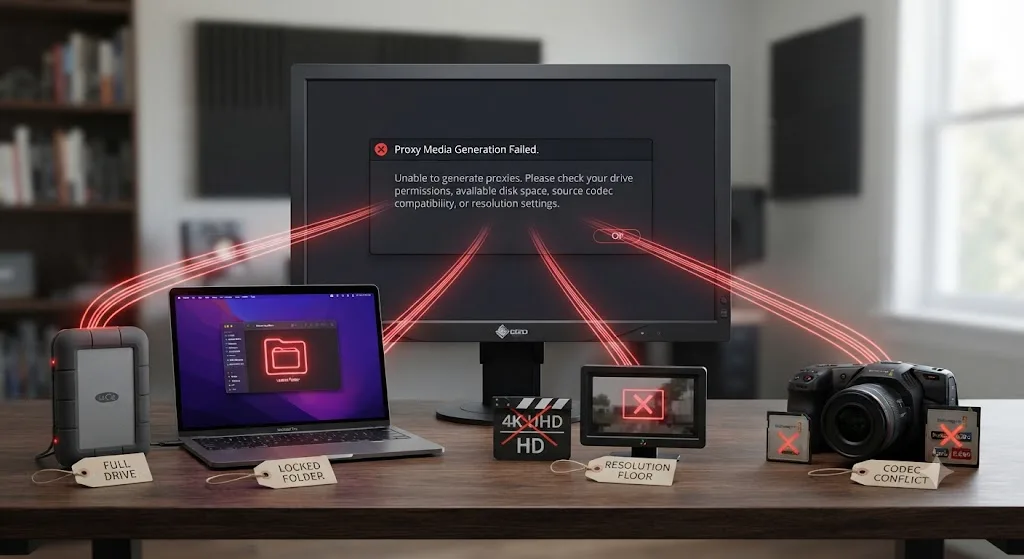
Is your proxy resolution set too low to actually generate?
It can be, and this is the cause most people never suspect, because a lower resolution setting sounds like it should be easier for Resolve to build, not harder.
DaVinci Resolve's Proxy Resolution setting works as a fraction of your source, stepping down through Half, Quarter, Eighth, and Sixteenth. Push that fraction far enough on a source with an unusual aspect ratio or a tall vertical frame, and one dimension of the resulting proxy can fall under roughly 256 pixels. Some encoders refuse to produce a valid file that small, and Resolve reports that refusal as a generic generation failure rather than naming the actual dimension problem. One breakdown of this exact failure states it directly: "generating one-sixteenth or one-eighth of the original resolution, which could result in any one of the dimensions, height or width, being lesser than 256 pixels can throw this error," per Beginners Approach's guide to DaVinci Resolve proxy fixes.
A proxy resolution set too aggressively low doesn't just look worse, it can fail to generate at all, which makes "go lower" the wrong instinct the moment generation itself starts throwing an error. If you've dropped to Sixteenth or Eighth resolution chasing the smallest possible file and hit this wall, the fix is counterintuitive: go back up, not further down.
| Setting | Fraction of source | Risk on unusual aspect ratios |
|---|---|---|
| Half | 1/2 | Minimal, rarely triggers a dimension floor |
| Quarter | 1/4 | Low, safe for nearly all standard footage |
| Eighth | 1/8 | Moderate on tall vertical or unusually cropped sources |
| Sixteenth | 1/16 | Highest, most likely to produce a sub-256px dimension |
Try Quarter resolution first if you've hit this specifically, or switch to Choose Automatically, which scales proportionally to your timeline rather than forcing a fixed fraction regardless of source dimensions. Our guide to proxy media setup for a slow laptop covers the full resolution ladder and when each step actually makes sense for playback performance, separate from this specific failure mode.
Is a codec conflict or heavily compressed source file causing this?
Sometimes, and it shows up most often with consumer smartphone and drone footage rather than professional camera formats, because the source file itself is harder to decode than Resolve's transcoder expects.
Variable frame rate footage is the recurring offender. Some phones record VFR by default to save space, and that variability confuses a transcoder built around a fixed, predictable frame rate. One guide to this error names the pattern directly: "some heavily compressed original files, like certain smartphone VFR files, confuse Resolve's generator," recommending a format change to "a different codec, like ProRes Proxy or DNxHR LB," per Wondershare Repairit's guide to generating proxy media in DaVinci Resolve.
That recommendation matches the same principle covered in our proxy setup guide for slow laptops: DNxHR and ProRes are intraframe formats, meaning every frame is a complete, standalone picture. H.264 and H.265 are interframe formats that reconstruct each frame from a chain of changes, which is expensive to decode and, on certain camera-specific encoding quirks, prone to choking a transcoder outright rather than just running slowly. A separate guide to the same class of proxy workflow confirms the same guidance from a different angle, recommending ProRes over H.264 or H.265 specifically because Long GOP interframe structures are "unsuitable for editing," per ELEMENTS Media Storage's breakdown of the DaVinci Resolve proxy workflow.
Building a proxy in the same compressed, interframe codec family you're trying to escape is exactly backwards, and it's precisely the setting most likely to fail outright on unusual source footage rather than just decode slowly. If your failing clips share a source, a specific phone model, a drone, a particular camera's HEVC mode, that pattern points at the source codec, not your drive or your permissions.
- Open Project Settings, Master Settings, Working Folders, and set Proxy Media Format to DNxHR LB on Windows or Apple ProRes Proxy on Mac.
- If the failure is isolated to one camera or device's footage specifically, try that clip again at the new format before assuming the whole batch needs it.
- If generation still fails on that specific file, check Preferences, Decode Options, and try disabling hardware-accelerated decoding for that clip's codec, since certain 10-bit HEVC encodes trip up hardware decoders in ways software decoding handles without complaint.
Does batching many clips at once cause this, and does one at a time fix it?
Often, yes, and it's one of the fastest diagnostic steps available before you change a single setting. A failed batch job tells you the batch failed. It doesn't tell you which clip actually broke it.
Forum reports of proxy generation trouble describe exactly this pattern: a large batch selection is unreliable and hit-or-miss, while individual clips generate cleanly on their own, a discussion covered in a Blackmagic forum thread on proxy media not generating for some clips. One bad file, whether it's a corrupted source, an unusual codec, or a metadata mismatch, can cancel an entire multi-clip job and leave you with no way to tell which of forty clips was actually responsible.
Selecting one clip at a time turns a mystery into a list, and that trade costs you more clicks upfront but far less time overall than repeating a full-batch failure three or four times hoping a settings change happens to fix it. Select the smallest reasonable batch, ideally a single clip, generate, and if it succeeds, add a few more and repeat, narrowing in on whichever specific file breaks the run.
- Select one clip and choose Generate Proxy Media from the right-click contextual menu.
- If it succeeds, add several more clips and repeat, watching for the point where the job starts failing again.
- Once you've isolated a specific problem clip, check it individually against the resolution and codec causes covered above, and confirm it plays back normally in Resolve outside of proxy generation entirely.
- Generate the rest of the batch excluding that one clip, then troubleshoot the outlier separately rather than blocking the whole project's proxy workflow on one file.
Is this a fresh-install or database issue specific to new media?
It can be, and it's a narrower case worth naming so you don't waste time on drive checks that were never going to help.
A report on Blackmagic's forum describes generation failing specifically for media added to the bin after a fresh DaVinci Resolve installation, with the error dialog offering no further detail beyond the generic failure message, per a Blackmagic forum thread on a Resolve 19 proxy generation error. The workaround in that thread was blunt but effective: delete the existing Proxy folder through the operating system's file manager and regenerate proxies for every clip from scratch, since a stale or partially initialized proxy database left over from the install was the actual culprit, not the new footage itself.
A fresh install can leave behind a half-configured proxy database that fails silently on the very next batch of media you add, and the fix is a clean slate for that folder, not a deeper reinstall. This is inconvenient specifically because regenerating from zero on a full media pool can take hours depending on your footage volume and hardware, but it's a one-time cost, not a recurring one, once the stale folder is cleared.
If you're on a project you've been generating proxies for successfully before, and the failure started right after a fresh install or a major version update, this is the cause to check before anything codec or resolution related.
Why does relinking a proxy timeline back to originals sometimes fail the same way?
This is a related but distinct problem worth naming clearly, since it produces confusion that looks like a generation failure even after proxies built successfully.
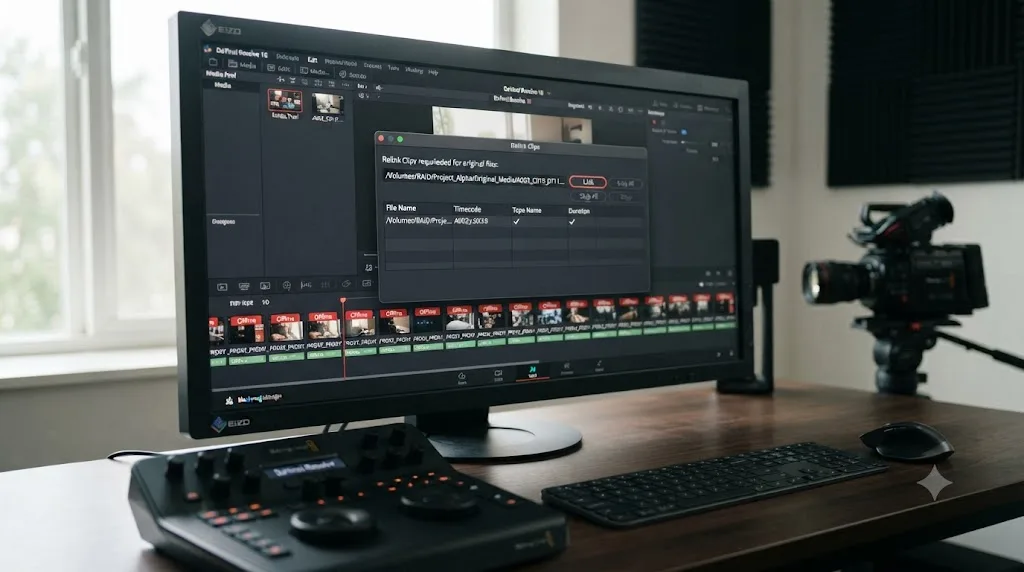
Proxy files created outside DaVinci Resolve, or moved after generation, have to match the original source on specific criteria to link correctly. Per the DaVinci Resolve reference manual's section on generating proxy media in other applications, external proxies "must have identical timecode to the source file," "the same file name as the source file, excluding extensions," "the same frame rate as the source file," and a format and codec Resolve actually supports. Miss any one of those four and Resolve won't link the proxy, regardless of how correctly it was generated.
Mike Most, a longtime contributor on post-production forums, described the underlying mechanism plainly during a discussion of a stuck BRAW relinking case: "Relinking is very simple, it just needs to match reel name and time code," per the Creative COW thread on proxy relinking problems. That thread is worth reading in full precisely because it shows a case where every visible metadata field matched and relinking still failed for BRAW files specifically while working fine on GH5 footage from the same shoot, which tells you the matching Resolve performs goes deeper than what's visible in a file properties panel.
A proxy that generated successfully and a proxy that links back to its original are two different claims, and treating a relink failure as a generation failure sends you troubleshooting the wrong end of the workflow entirely. If your proxies exist on disk, play correctly, and simply won't reconnect to full-resolution originals, check the Media Pool's Proxy column for "Offline" status and use Link Proxy Media from the right-click menu to point Resolve at the correct file manually, per the reference manual's section on managing proxy media.
Does the Blackmagic Proxy Generator fail differently than generating inside Resolve?
Sometimes it succeeds where the in-app option fails, and it's worth knowing about specifically because it runs through a separate code path entirely.
The Blackmagic Proxy Generator is a standalone application that installs alongside DaVinci Resolve, described in the reference manual's section on the standalone tool as "a separate program that can automatically generate proxy media from master video files placed in a watch folder." It runs independently of the main application, monitoring folders you designate and transcoding new footage as it arrives, without loading Resolve's full interface at all. One naming quirk worth knowing before you set it up: watch folder names can't be "proxy," since that word is reserved for the system's own subfolder structure.
Because it's a genuinely separate program rather than a feature inside Resolve's project database, a failure in Resolve's built-in Generate Proxy Media doesn't predict a failure in the standalone Proxy Generator, and the reverse is also true. If your in-app generation keeps failing on a batch of clips and none of the storage, permissions, resolution, or codec fixes above have resolved it, pointing the standalone Proxy Generator at the same source folder is a legitimate next step, not a workaround you should feel bad about reaching for.
The Blackmagic Proxy Generator does the same transcoding job as Resolve's built-in option through an entirely separate application, which makes it a genuine second attempt rather than the same broken path run twice. It also has a practical upside beyond troubleshooting: it can build proxies overnight on a folder full of new footage without you ever having to open the project at all.
Is this a Linux-specific problem tied to your GPU driver?
It can be, and on Linux specifically, the fix usually has nothing to do with proxy settings at all.
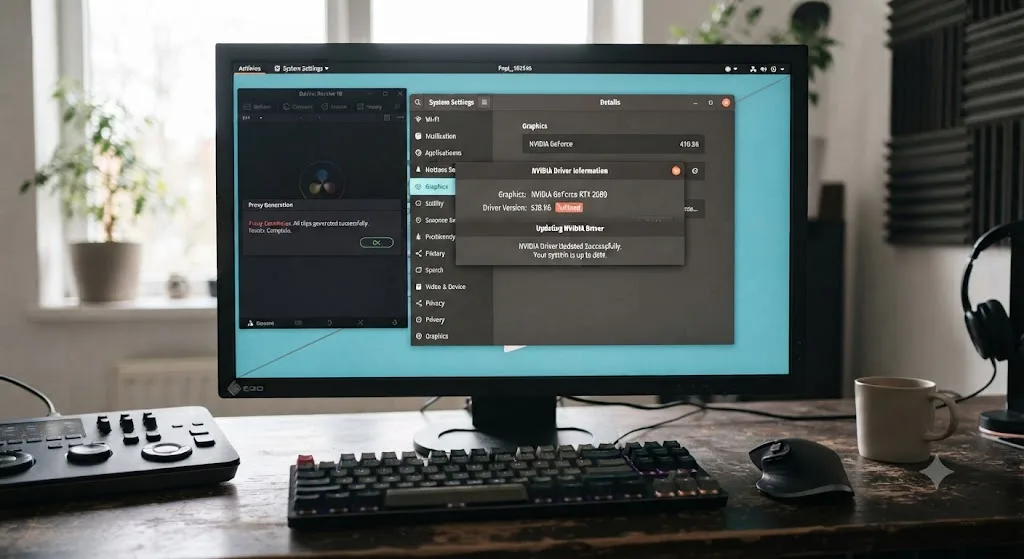
A Blackmagic forum thread covering proxy generation failures that began after updating to DaVinci Resolve 19.4 traced the cause to an outdated NVIDIA driver on Linux, with the resolution requiring an update to Studio driver version 550.40.07 or newer, per the Blackmagic forum thread on that specific update-triggered failure. GPU-accelerated decode and encode underpin proxy transcoding on every platform, and Linux's driver model ties that acceleration to a specific, separately maintained NVIDIA package rather than something Resolve bundles or manages itself.
On Linux, a proxy generation failure that started right after updating DaVinci Resolve is more likely to be a driver compatibility gap than anything in the project or the footage itself. If you're on Linux and this error appeared coinciding with a Resolve update rather than a specific new clip or project, check your installed NVIDIA driver version before touching a single proxy setting.
- Check your currently installed NVIDIA driver version through your distribution's package manager or
nvidia-smi. - Compare it against 550.40.07, the minimum version documented as resolving this specific failure pattern.
- Update to a current Studio branch driver if you're below that version.
- Reboot before testing proxy generation again, since driver updates on Linux typically require a full restart to take effect for GPU-accelerated applications.
How do you fix this on macOS specifically?
Work through version, permissions, and drive checks in that order, since each rules out a distinct category of failure before you move to the next.
Confirm your DaVinci Resolve version first. The 21.0.3 update, released July 21, 2026, shipped interlaced media handling fixes and new retime ease modes touching some of the same decode pathways proxy generation relies on, per Newsshooter's coverage of the 21.0.3 update. Check Full Disk Access next: open System Settings, then Privacy & Security, then Full Disk Access, and confirm DaVinci Resolve is toggled on. macOS has progressively tightened application storage permissions release over release, and losing Full Disk Access silently is enough to fail a proxy write without any permissions dialog ever appearing to explain why.
Repair the destination drive through Disk Utility if the drive checks out as mounted with real free space but generation still fails. Select the drive, run First Aid, and let it complete before trying again, since a drive with a corrupted permissions table can appear mounted and available while still refusing specific application writes. And confirm free space through Get Info directly on the drive rather than trusting the Finder sidebar's quick indicator, which can lag behind a recent large deletion by a noticeable margin.
How do you fix this on Windows?
Start with drive letters, then move to folder-level permissions if the letters check out fine.
Windows assigns drive letters dynamically for a lot of external and USB drives, and that letter isn't guaranteed to persist across reboots or across which port you plugged into. A Proxy Generation Location saved as E:\Proxy can silently point at a drive that's now F: after another device claimed E: first during boot, and Resolve looks for the letter specifically rather than chasing the renamed drive.
- Open File Explorer and confirm the current letter assigned to your intended proxy drive.
- Compare that against Proxy Generation Location in Project Settings, Master Settings, Working Folders.
- If the letters don't match, repoint Proxy Generation Location at the drive's current letter.
- If the letters match but generation still fails, right-click the Proxy folder, choose Properties, then Security, and confirm your account has Full Control.
- Check the destination isn't formatted FAT32 if it's an older or pre-formatted external drive, since FAT32's 4GB per-file limit can silently interfere with a large proxy build in a way that surfaces as a generic generation error.
If drive letters keep shuffling on your system, assign your proxy drive a fixed letter through Windows Disk Management once. It's a five-minute fix that removes this entire failure mode from ever recurring after a reboot or a different USB port.
If working through the AI comparison and troubleshooting landscape of settings panels like this one is the part costing you an evening, that's the exact gap TryUncle exists to close on a Mac. TryUncle is the on-screen assistant for DaVinci Resolve on macOS, ask in plain words and Uncle points at the exact control on your screen, rather than sending you back to a reference manual page to translate which dropdown does what. It's a paid app at founder pricing, macOS only, not a substitute for the fixes in this guide, just a faster way to find the setting once you know which one you need.
Should you switch to Optimized Media if Proxy Media keeps failing?
If you've worked through storage, permissions, resolution, and codec checks and generation still won't stabilize, switching to Optimized Media is a legitimate fallback, not a downgrade.
Proxy Media and Optimized Media solve the same performance problem through genuinely different mechanisms, so a failure in one doesn't predict a failure in the other. Proxy Media writes plain, portable files to a folder you specify. Optimized Media transcodes into Resolve's own managed, database-linked cache, using a separate write path with its own internal bookkeeping.
| Proxy Media | Optimized Media | |
|---|---|---|
| Storage location | A folder you choose and can browse directly | Resolve's managed CacheClip cache |
| Portable to another machine or app | Yes, standard DNxHR or ProRes files | No, proprietary format |
| Standalone generation without opening a project | Yes, via the Blackmagic Proxy Generator | No |
| Shared automatically across projects | No, tied to the specific project | Yes, within the same database |
| Available in free version | Yes | Yes |
If Proxy Media keeps failing on a specific clip or an entire project after you've isolated it isn't a drive or permissions issue, Optimized Media often just works, since it writes through Resolve's own internal cache manager rather than a plain folder path you're maintaining yourself. Our guide to DaVinci Resolve's unable to create optimized media error covers that failure mode's own causes in full, including the read-only CacheClip folder and stale drive letter issues that mirror several of the fixes in this guide.
Do you need DaVinci Resolve Studio to avoid this error?
No. Proxy Media generation, every resolution and format option, and the standalone Blackmagic Proxy Generator app are identical between the free version and Studio. Nothing in this guide requires a $295 purchase to work.
What Studio changes, and it's relevant to how often a specific source clip strains the transcode in the first place, is hardware-accelerated H.264 and H.265 decoding on Windows and Linux. Per Blackmagic's Studio product page, that acceleration is a paid feature on those two platforms, meaning free-version users decode camera H.264 and H.265 footage on the CPU alone regardless of GPU capability. On a Mac, hardware decode for those codecs comes through Apple's own silicon in both editions, so this particular gap doesn't apply there. Blackmagic's own tech specs page lists 16GB of system RAM and a 4GB VRAM GPU as the stated minimums for running Resolve at all, free or Studio, and a machine sitting at or below that floor is more likely to hit resource-related generation failures regardless of which edition it's running.
A free-version Windows or Linux install decoding H.265 footage entirely in software is more likely to strain a proxy transcode than the identical hardware would running Studio, even though the proxy feature itself is unchanged between editions. That's worth knowing before you assume upgrading to Studio would fix a specific generation error outright. It changes decode speed and reliability for camera codecs; it doesn't touch a full drive, a locked folder, or a resolution setting under the pixel floor, which are the causes covered throughout the rest of this guide.
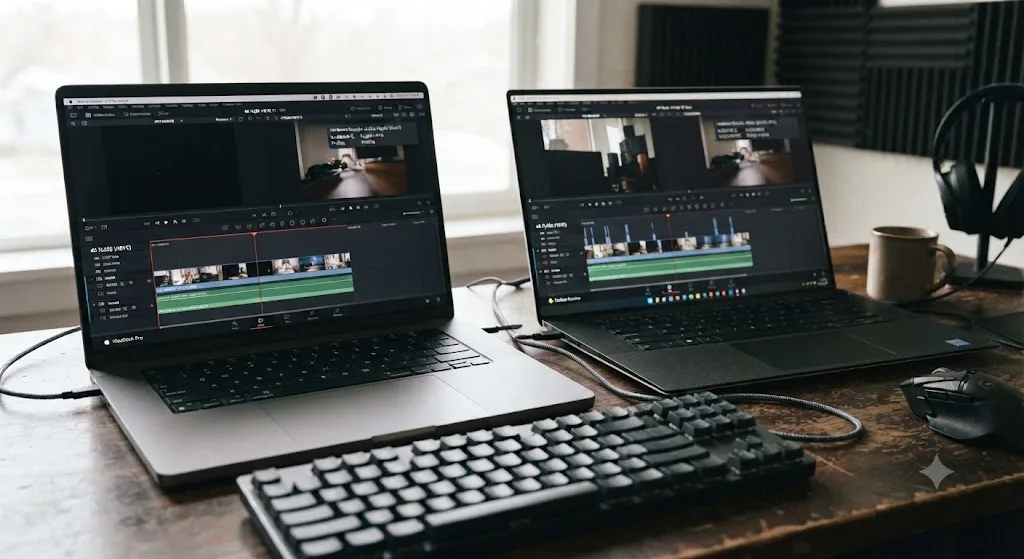
What's the right order to fix this?
Work through this list top to bottom. Each check costs less time than the one after it, and the causes table earlier in this guide should already point you toward one or two of these before you start.
- Read the exact error text and note whether it names a specific clip, cancels a whole batch, or fires with no clip named at all.
- Check Proxy Generation Location in Working Folders and confirm the drive it points at is mounted, reachable, and shows real free space in your operating system directly.
- Check folder permissions on the Proxy folder itself, and on Mac confirm Full Disk Access is enabled for DaVinci Resolve.
- If your Proxy Resolution is set to Sixteenth or Eighth, raise it to Quarter or Choose Automatically and try again.
- Switch Proxy Media Format to DNxHR LB on Windows or Apple ProRes Proxy on Mac if you're currently matching a compressed source codec.
- Regenerate a single clip rather than a full batch to isolate whether one specific file is responsible.
- If the failure started right after a fresh install, delete the existing Proxy folder and regenerate from a clean state.
- On Linux, confirm your NVIDIA driver is version 550.40.07 or newer.
- Try the standalone Blackmagic Proxy Generator as a second attempt through a separate code path if in-app generation still won't stabilize.
- Update to DaVinci Resolve 21.0.3 or later before assuming a persistent issue is unfixable.
Each step here isolates one layer of the problem, and the order matters because the first three checks are nearly free. Confirming drive space, mount status, and permissions costs a couple of minutes combined and resolves the majority of reports matching this error. Resolution, format, and driver checks take a bit longer but remain far cheaper than re-running a full batch blind, hoping a different attempt somehow behaves differently.
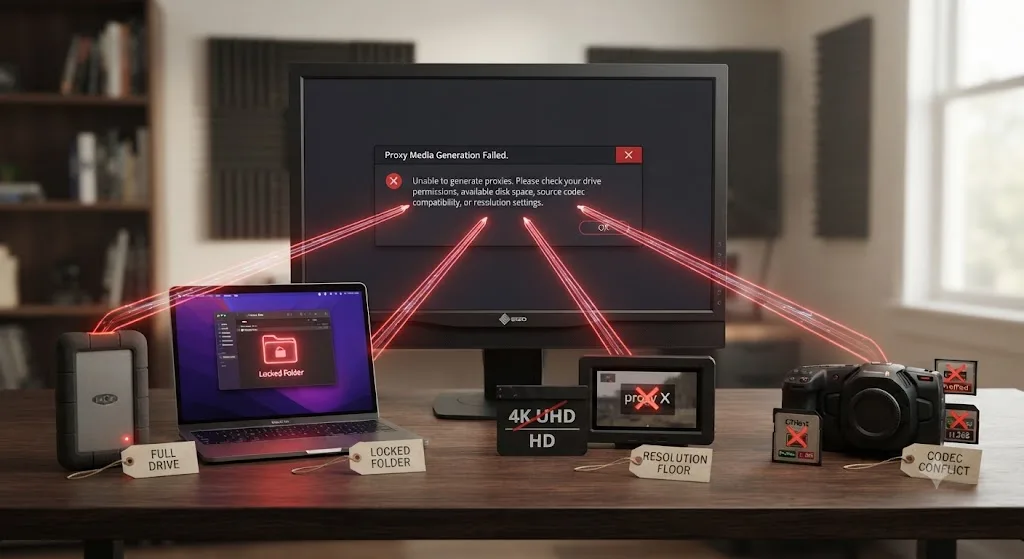
How do you prevent this from happening again?
Every fix above has a cheaper version that happens before you ever click Generate Proxy Media, and it's worth building into your routine once this has cost you an afternoon.
Point Proxy Generation Location at a dedicated internal drive, not a portable external one you regularly disconnect, the first time you set up a new project or a new machine. An internal drive doesn't get renamed, doesn't disconnect mid-session, and doesn't remount under a different letter after a reboot, removing an entire category of cause covered in this guide before it ever has the chance to show up.
Match your proxy format to your source deliberately instead of leaving it on whatever a template defaulted to. DNxHR LB on Windows and Apple ProRes Proxy on Mac handle the overwhelming majority of footage cleanly, and stepping away from those defaults toward something that mirrors a compressed camera codec is asking for the exact codec conflict covered earlier in this guide.
Generate in smaller batches on large or mixed-format projects, especially the first time you're working with an unfamiliar camera or a phone's footage. A batch of ten clips that fails is dramatically easier to diagnose than a batch of two hundred, and the time cost of splitting a job up front is smaller than the time cost of untangling which of two hundred clips actually broke it.
Storage sizing matters here too, even though proxies are individually small. Matt Bach, writing hardware guidance for Puget Systems, notes that cache and working files are "best to have on at least a SATA SSD, but ideally should be located on a faster NVMe drive if possible," per Puget Systems' guide to understanding storage for video editing, and a proxy drive with genuine headroom and real write speed avoids a meaningful share of the failures covered throughout this guide before they start.
And stay current on point releases generally. Blackmagic's 21.0.2 update, released July 1, 2026, focused on decode performance and H.265 playback handling, per Newsshooter's coverage of that release, with the follow-up 21.0.3 release on July 21, 2026 adding further interlaced media and retime fixes. Point releases like these regularly touch decode and cache handling in ways that aren't always headline features, so an update you haven't installed yet might already smooth over a rough edge you're currently working around by hand.
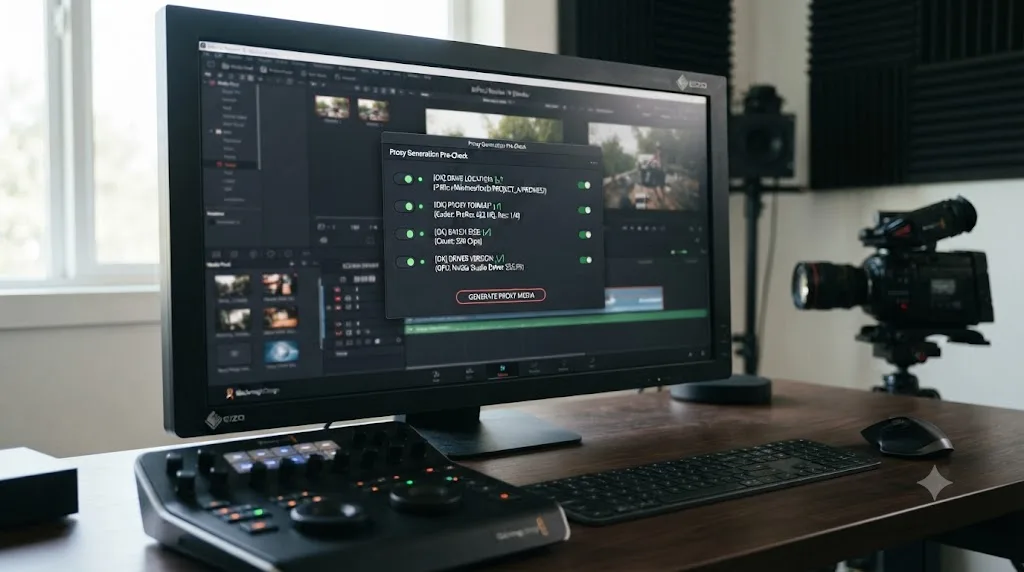
The fastest path to working proxies
Start with the cheapest check: open Working Folders, confirm Proxy Generation Location points at a drive that's actually mounted with real free space, and confirm your account has full write access to that folder. That combination clears a large share of reports matching this exact error, on its own, before you touch resolution or format at all.
If that doesn't fix it, raise your Proxy Resolution off the extreme low end and switch Proxy Media Format to DNxHR LB or Apple ProRes Proxy rather than a codec that mirrors your source. If a specific clip or camera keeps failing while everything else generates cleanly, isolate it by generating one clip at a time rather than troubleshooting a whole batch blind. On Linux, check your NVIDIA driver version before anything else. And if nothing here stabilizes the workflow, Optimized Media is a legitimate fallback through a completely separate write path, not a downgrade from proxies.
None of these fixes, including deleting and rebuilding your entire Proxy folder, ever touch your original footage, your edit, or your grade. The worst outcome of this error is lost troubleshooting time, not lost work. Fix the drive, the permission, the resolution, or the codec setting actually blocking the write, regenerate what failed, and get back to cutting.
Frequently asked questions
- What does "unable to generate proxy media" mean in DaVinci Resolve?
- It means Resolve tried to transcode a clip into a smaller proxy file and the write failed before it finished. It almost never means your source footage is damaged. The usual culprits are a full or unreachable proxy destination drive, a locked or read-only proxy folder, a proxy resolution set so low it falls under a roughly 256 pixel floor, or a heavily compressed source codec, often variable frame rate smartphone footage, that the transcoder chokes on.
- Why does DaVinci Resolve fail to generate proxy media specifically, not just run slowly?
- A slow generation job still finishes. A failed one aborts and shows an error dialog, usually because the write itself couldn't complete, not because the transcode was merely difficult. That distinction points you toward storage, permissions, and format settings first, and toward hardware limits only after those are ruled out.
- How do I fix DaVinci Resolve's proxy generation error on Mac?
- Open Project Settings, Master Settings, Working Folders, and confirm Proxy Generation Location points at a drive that's actually mounted with real free space. Then check System Settings, Privacy & Security, Full Disk Access, and confirm DaVinci Resolve is enabled there, since macOS can silently block a cache write even when the folder itself looks fine.
- How do I fix it on Windows?
- Confirm the drive letter under Proxy Generation Location still matches what File Explorer currently shows, since external and USB drives can remount under a different letter after a reboot. Then right-click the Proxy folder, open Properties, then Security, and confirm your account has Full Control rather than Read-only access.
- Why would lowering the proxy resolution actually cause this error instead of fixing it?
- Because DaVinci Resolve's proxy resolution options work as fractions of your source, and pushing that fraction too far down, typically Sixteenth or Eighth resolution on a source with an unusual aspect ratio, can produce a frame dimension under roughly 256 pixels on one axis. Some encoders refuse to build a valid file that small, and Resolve reports the refusal as a generation failure rather than naming the dimension as the cause.
- Does this error happen more often on Linux?
- It can, and the cause is usually a GPU driver rather than Resolve itself. Blackmagic has documented proxy generation failures on Linux tied to NVIDIA drivers older than version 550.40.07, and updating to a current Studio driver branch resolves them in most reported cases.
- Should I switch to Optimized Media if Proxy Media keeps failing?
- It's a reasonable fallback once you've ruled out drive space and permissions, since the two features write to different locations through different code paths, and a failure in one doesn't predict a failure in the other. Our guide to DaVinci Resolve's unable to create optimized media error covers that path in full if Proxy Media never stabilizes on this project.
- Do I need DaVinci Resolve Studio to avoid this error?
- No. Proxy Media generation, every resolution and format option, and the standalone Blackmagic Proxy Generator app are identical in the free version and Studio. What Studio changes is hardware-accelerated H.264 and H.265 decoding on Windows and Linux, which affects how likely a specific source clip is to strain the transcode, not whether the feature itself works.
Sources
- Blackmagic Forum: DaVinci Resolve 19 proxy generation error
- Blackmagic Forum: Proxy media not generating for some clips
- Blackmagic Forum: SOLVED | Cannot Generate Proxy Media after Updating to 19.4
- Blackmagic Forum: Cannot generate proxies
- Blackmagic Forum: Proxy Generator as Standalone program (for media server)
- Creative COW: Problems re-linking Proxy timeline with original BRaw Files (Mike Most)
- Creative COW: Generate Proxy function not available
- Cutsio: How to Fix Proxy Media Issues in DaVinci Resolve
- Beginners Approach: DaVinci Resolve Proxy (Tips & Fixes)
- Wondershare Repairit: How to Generate Proxy Media in DaVinci Resolve
- ELEMENTS Media Storage: Everything You Need to Know About the Proxy Workflow in DaVinci Resolve
- DaVinci Resolve Reference Manual: Generating Proxy Media in Other Applications (VFXPedia mirror)
- DaVinci Resolve Reference Manual: Managing Proxy Media (VFXPedia mirror)
- DaVinci Resolve Reference Manual: Creating Proxy Files with the Blackmagic Proxy Generator (VFXPedia mirror)
- DaVinci Resolve Reference Manual: Media Storage (VFXPedia mirror)
- DaVinci Resolve Reference Manual: Working Remotely Using Proxy Media (VFXPedia mirror)
- DaVinci Resolve - Tech Specs (Blackmagic Design)
- DaVinci Resolve - Studio (Blackmagic Design)
- Newsshooter: DaVinci Resolve 21.0.3 Update
- Newsshooter: DaVinci Resolve 21.0.2 Update
- Puget Systems: Understanding Storage for Video Editing (Matt Bach)
Keep reading
Fixes · Jul 15, 2026 · 25 min
DaVinci Resolve Proxy Media Setup for a Slow Laptop
Set up proxy media in DaVinci Resolve on a slow laptop: resolution, codec, the Blackmagic Proxy Generator, and the exact settings that stop the stutter.

Fixes · Jul 28, 2026 · 24 min
DaVinci Resolve Unable to Create Optimized Media Error: The Fix
DaVinci Resolve's unable to create optimized media error usually means a full or misconfigured cache drive. Here's the real fix for Mac and Windows.
Fixes · Jul 19, 2026 · 23 min
DaVinci Resolve Cache Files Filling Up Your Hard Drive? Do This
Why DaVinci Resolve's cache fills up your hard drive: which folders are responsible, how to clear each one safely, and how to relocate cache to stop it recurring.