Articles / Fixesupdated for DaVinci Resolve 21.0.2 (July 2026)
DaVinci Resolve Error: Unable to Mount Database Volume (Fix)
Quick answer
"Unable to mount database volume" means DaVinci Resolve can't reach the drive, NAS share, or PostgreSQL server holding your project database, because it's unmounted, renamed, or offline. Remount that exact volume under its original name, reopen Project Manager, and if it still fails, check permissions, path mapping, and a stuck dblist.conf entry.
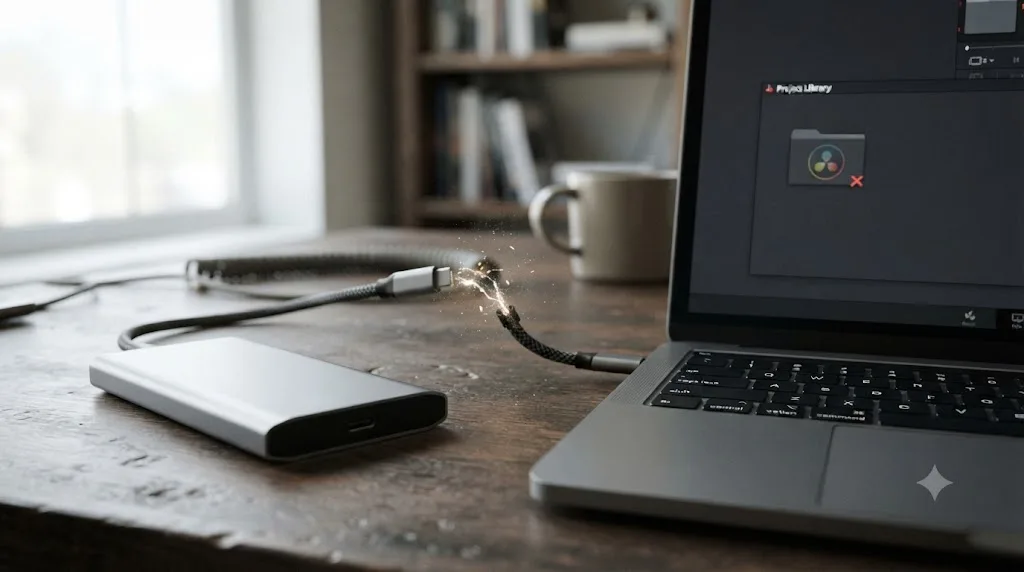
"Unable to mount database volume" doesn't mean your project is gone. It means DaVinci Resolve is looking for a drive, a share, or a server that isn't answering right now, and it's telling you exactly where it stopped looking.
That distinction matters more than anything else on this page. A missing project database and an unmountable one look similar from the outside, panic first, questions later, but they need completely different fixes. This page is about the second one: your database is fine, Resolve just can't reach where it lives.
What does "unable to mount database volume" actually mean?
It means Resolve's Project Manager tried to reach the location where your Resolve Disk Database or project library lives, an external drive, a RAID, or a NAS share, and the operating system couldn't hand it a working connection to that location. A database volume mounting error is a location problem, not a data problem. The database itself is very likely intact. Resolve just can't currently see the path it's stored on.
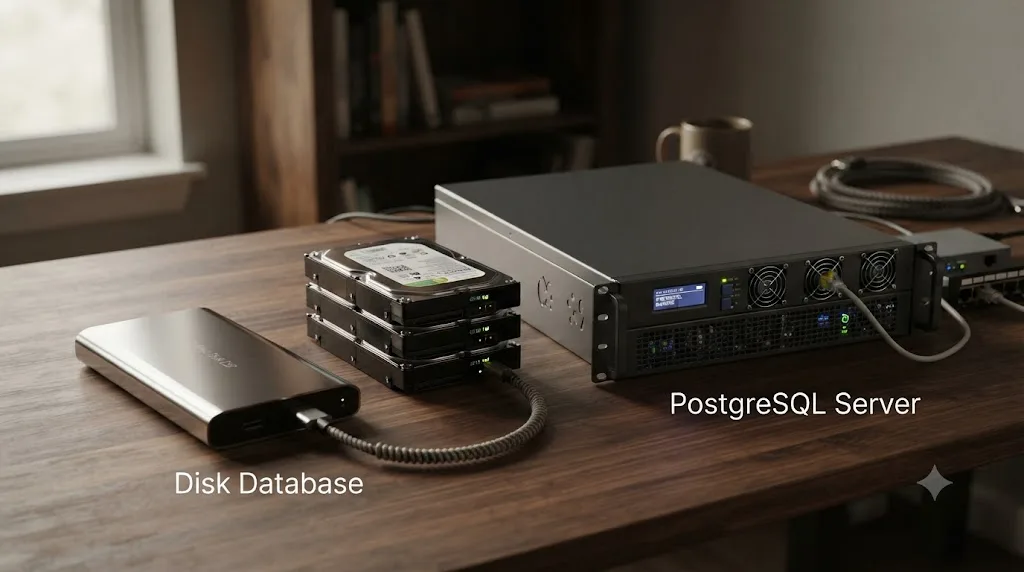
Every DaVinci Resolve project lives inside one of two structures: a Disk Database, which is just a folder of files sitting on a drive, or a PostgreSQL database, which runs as a background server process, either on your own machine or on a shared server like a NAS. Both depend on something outside Resolve itself being available the moment Resolve tries to connect. Disk Databases depend on the drive being mounted. PostgreSQL databases depend on the server process being reachable, whether that server is your laptop or a box in a rack down the hall.
This is a genuinely different failure from a project database that's corrupted or missing entirely, which we cover in full in our guide to DaVinci Resolve projects that won't open. That guide assumes Resolve can see the database and is failing to read it. This one assumes Resolve can't see it at all.
Why does this happen on a Mac specifically?
It happens on macOS because of how macOS names volumes when it thinks a name is already taken, appending a number to the end rather than failing outright. A drive named "Aurora 02" that macOS thinks is already claimed remounts silently as "Aurora 02 1", and Resolve, which saved the original name in its database list, can no longer find a match.
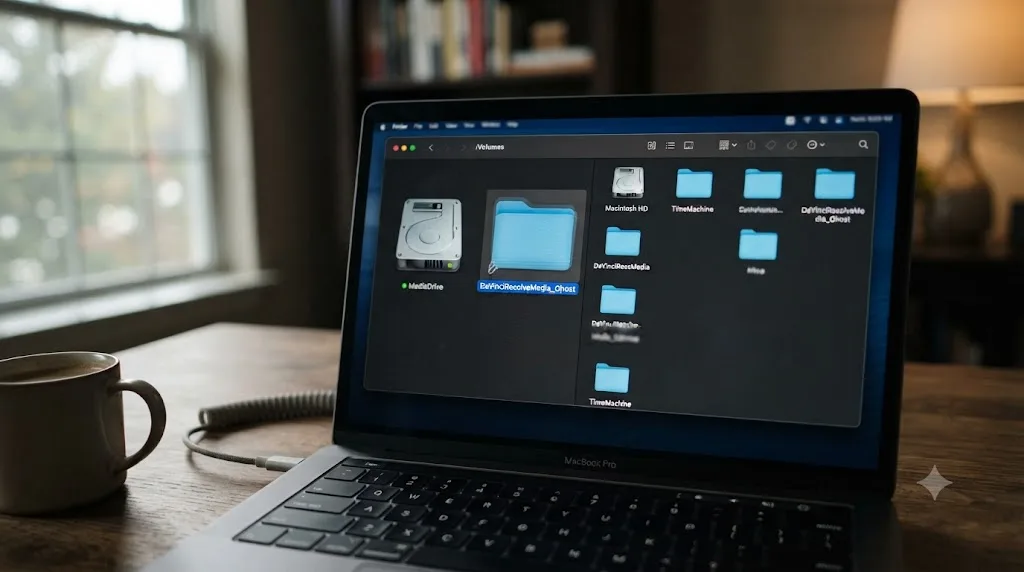
This exact failure has a documented history on Creative COW's forums. Editor Luke Tingle described it plainly after opening Resolve with a read-only RAID connected: "The raid's name is Aurora 02, but in Resolve it lists it as Aurora 02 1," as recorded in that Creative COW thread. Forum member Michael Cinquin diagnosed the root cause in the same thread, explaining that "there is a directory in /Volumes/name_of_your_raid, that is not empty," a leftover folder blocking the real drive from remounting under its proper name.
Tingle found the term for it after searching Apple's own support resources: "The issue is called a 'false mount point'." A crash, an improper eject, or macOS itself can leave a ghost folder sitting exactly where the real volume needs to mount, and the next time you connect that drive, macOS has nowhere to put it except under a renamed duplicate.
A drive that mounts with a number appended to its name is the single clearest sign of a false mount point, not a failing drive. It's cosmetic in Finder and catastrophic in Resolve, because Resolve matches database locations by exact name, not by the drive's underlying serial number or contents.
- Quit DaVinci Resolve completely.
- Eject the affected drive properly through Finder, not by just unplugging it.
- Open Finder, navigate to
/Volumes, and look for a folder matching the drive's name that isn't currently a live, ejectable mount. - Delete that ghost folder.
- Reconnect the drive and confirm it mounts under its original, unnumbered name.
- Relaunch Resolve and open Project Manager.
Forum member Marcus Smith offered the simpler first attempt in the same thread, worth trying before you go digging through /Volumes by hand: "Remove the directory in resolve, restart your machine open resolve and then add the directory again." For a lot of one-off cases, that alone clears the renamed entry without needing to hunt for a ghost folder.
How do you fix "unable to mount database volume" on an external drive?
Start with the cheapest, least invasive fix and only go further if it doesn't hold. Most cases of this error resolve at step one or two below, before you touch permissions or ghost folders at all.
- Confirm the drive is actually connected and powered, especially for a bus-powered RAID that can silently drop from a loose cable.
- Fully quit Resolve first, then eject and reconnect the drive cleanly, giving macOS or Windows a chance to remount it fresh rather than leaving it in whatever half-mounted state triggered the error.
- Check the drive's name in Finder or File Explorer against the name saved in Resolve's Project Manager or database list. A mismatch, even something as small as an appended number or a case difference, is enough to break the match.
- If the name matches but Resolve still can't mount it, quit Resolve, check for a false mount point as described above, then relaunch.
- If none of that works, try connecting the drive to a different port, ideally one wired directly rather than through a hub, since a flaky USB connection can look identical to a mount failure from Resolve's side.
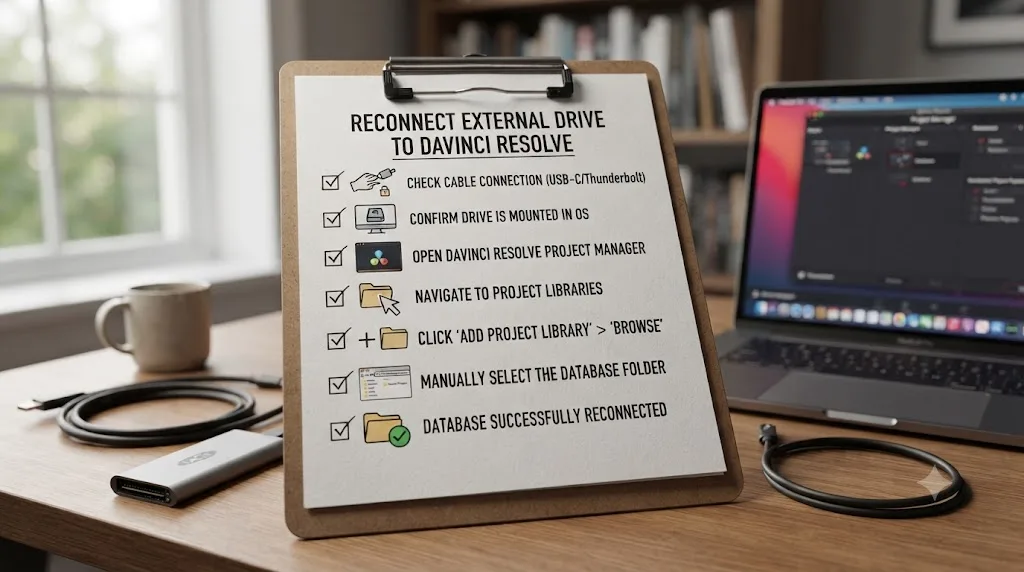
- As a last resort for a drive that mounts fine everywhere else but Resolve still won't see, use Connect to an existing library from Project Manager and manually browse to the database folder rather than waiting for Resolve's saved entry to resolve on its own.
A renamed or improperly remounted drive causes more database volume errors than an actually failing drive does. That's good news, because it means the fix is almost always a clean eject-and-remount cycle, not a data recovery job.
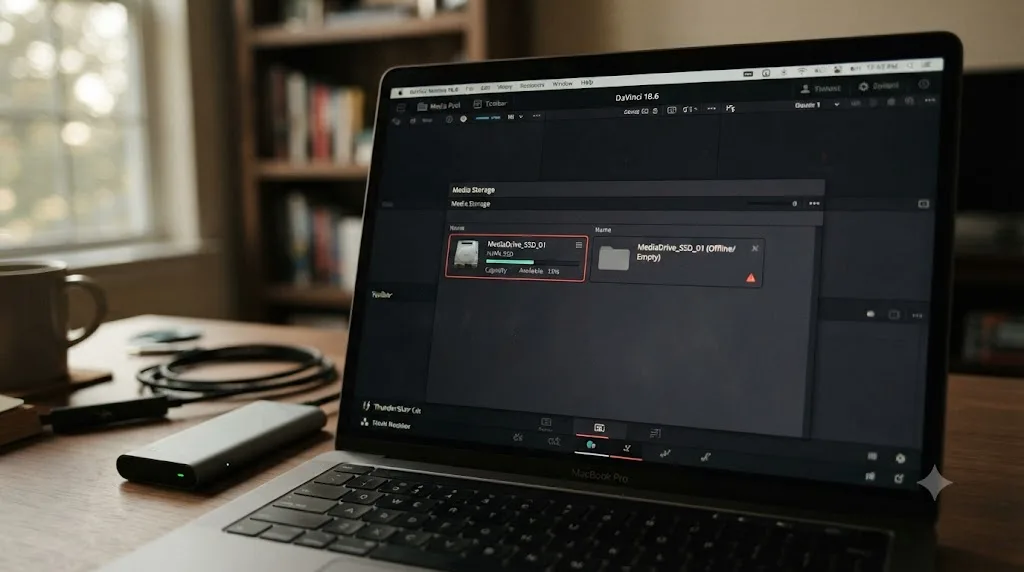
Why did my drive show up twice, like "Media Drive" and "Media Drive1"?
A duplicated drive entry means the operating system mounted a second, empty instance of your volume's name because it believed the original name was still in use, usually from an improper disconnect during a previous session. Resolve then sees two entries, one it recognizes as its saved database location and one that's new and empty, and the mismatch is exactly what triggers the mount error.
Editor Angela Herr documented this precisely on Creative COW, describing the moment she opened DaVinci Resolve to "failed to write to database folder be sure you have correct permissions," alongside her external drive appearing twice, in her original forum post. She wrote that her Media Storage list showed both "Media Drive" and an empty duplicate labeled "Media Drive1," and that after reconnecting the database and rebooting her Mac multiple times, the duplicate persisted.
That case is a useful warning, not just an example. Herr's thread shows the duplicate surviving multiple reboots when the underlying false mount point in /Volumes was never manually cleared, the same root cause covered in the previous section. Rebooting alone fixes the simpler version of this problem, where the volume just needs to remount clean. It does not fix a genuine false mount point sitting in the way, which needs the ghost folder removed by hand before a reboot will help.
- Quit Resolve and fully eject the drive, including the duplicate entry if your OS shows one as ejectable.
- Check
/Volumeson macOS for a leftover folder at that drive's mount path, and delete it if the drive itself isn't currently occupying that slot. - Reconnect the drive and confirm only one entry appears, under its correct, unnumbered name.
- Reopen Resolve and check whether Project Manager can now see the database without a duplicate confusing the match.
- If a duplicate keeps reappearing after this, treat it as a sign the drive itself, its enclosure, or its cable is disconnecting improperly during normal use, not just during Resolve sessions, and troubleshoot the hardware connection directly.
Is "failed to write to database folder" the same error, or something else?
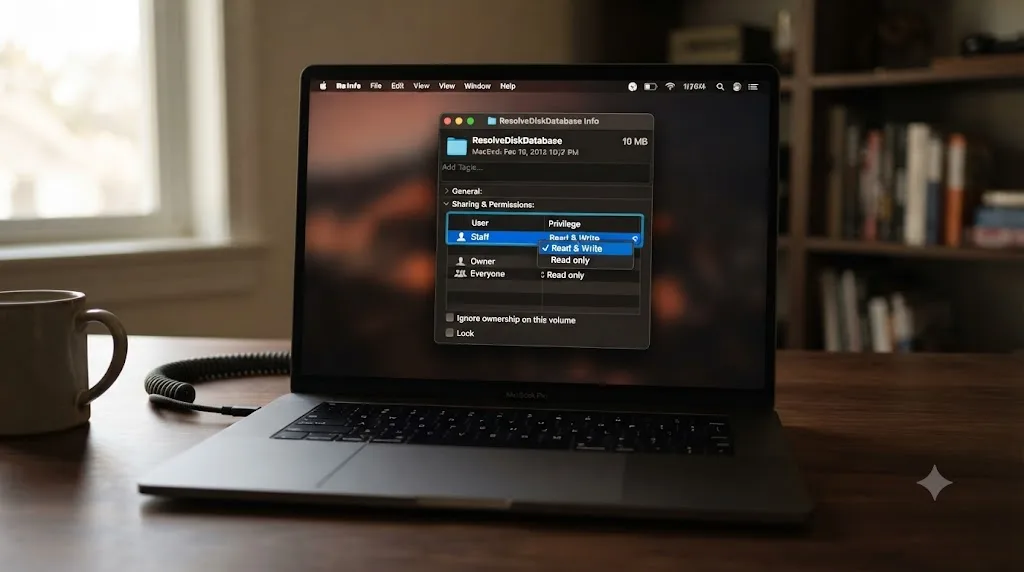
It's a close relative, not the same error, and the distinction changes what you check first. "Unable to mount database volume" means Resolve can't reach the location at all. "Failed to write to database folder, be sure you have correct permissions" means Resolve reached the location but was denied the ability to write to it, which points at file permissions rather than a missing mount.
Both can appear from the exact same underlying event, a drive that remounted incorrectly, since a renamed or duplicated volume often also carries the wrong ownership or permission bits on its folders once it's back online. Work through them as two separate checks rather than assuming one fix covers both.
- Confirm the drive mounts under its correct name first, using the steps in the two sections above. A permissions fix is wasted effort if the real problem is still a mismatched mount.
- Once the volume is mounted correctly, right-click the Resolve Disk Database folder on that drive, open Get Info on Mac or Properties on Windows, and confirm your account has full read and write access.
- On macOS, also check System Settings, Privacy and Security, Full Disk Access, and confirm DaVinci Resolve is listed and enabled. Sequoia and later versions of macOS have tightened this gate compared to older releases.
- If permissions look correct but the write still fails, the drive's filesystem itself may be the issue, particularly if it was formatted or last used on a different operating system with different permission conventions.
Reaching a database location and being allowed to write to it are two separate checks, and DaVinci Resolve's error messages usually tell you which one failed. Read the exact wording of your error before changing anything, since "mount" and "write" point at different halves of the same problem.
Is this the same as "invalid mount point" when adding media storage?
No, and confusing the two wastes real troubleshooting time on the wrong part of Resolve. "Invalid mount point" is a Media Storage configuration conflict that shows up when you try to add a folder that's already covered by an existing entry. The exact wording, documented on Minidea's wiki, is "a higher level directory already exists in the list" (Resolve fills in your own real folder path where the wiki's example uses generic placeholder letters), and it fires specifically "when attempting to add a nested folder path when a parent directory is already configured in the media storage list," according to their walkthrough.
That error is about where Resolve looks for your source footage. The database mount error covered on this page is about where Resolve stores your project itself, timelines, grades, edits, everything but the raw media. They share the word "mount" and nothing else. The fix for one does nothing for the other.
| Error wording | What it's actually about | Where to fix it |
|---|---|---|
| Unable to mount database volume | The drive or server holding your project database | Project Manager, database list, drive remount |
| Failed to write to database folder | Permissions on that same database location | Get Info / Properties, Full Disk Access |
| A higher level directory already exists in the list | Media Storage source folders, not the database | Media Storage tab in Preferences |
| Media offline | Individual clips whose source files moved or disconnected | Reconnect Media, covered in our media offline guide |
Two Resolve errors sharing the word "mount" can point at entirely unrelated parts of the application. Match the exact wording of what you're seeing against the table above before you start changing settings, since the wrong fix here just burns time without touching the actual cause.
What if the database is on a NAS or network share, not a local drive?
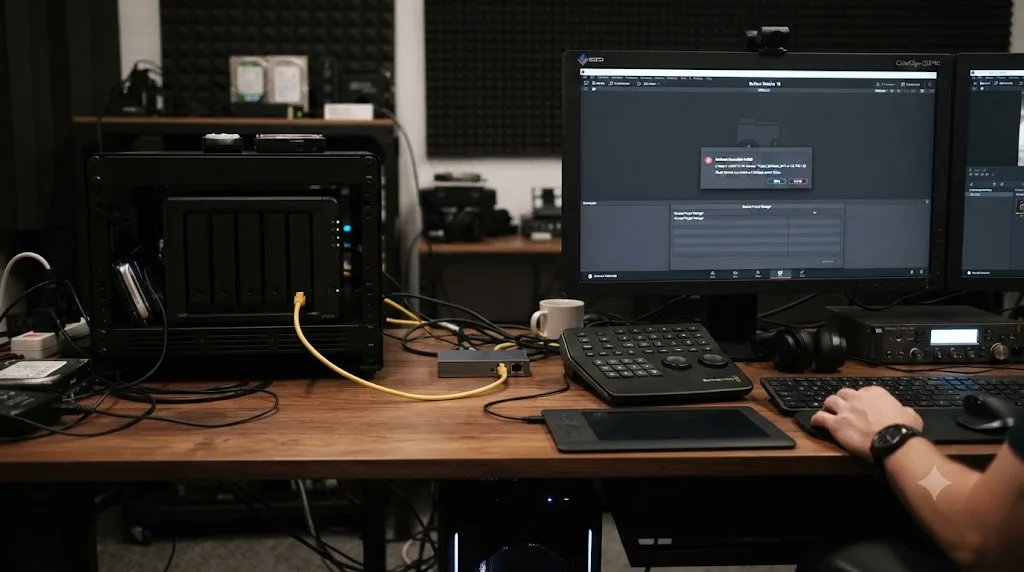
A network-hosted project database fails to mount for reasons a local drive never faces: the NAS itself has to be powered on, reachable on the network, and running its PostgreSQL service at the moment Resolve tries to connect, and any one of those three can fail silently while the others look fine. This is arguably the more common version of this error in any studio or small team running a shared project library, since more links in the chain means more places for a mount to fail.
Blackmagic's own architecture puts real weight on the server side of this connection. As the setup guide from Need to Know IT puts it, "PostgreSQL belongs on the NAS. It is always on, always accessible, and does not depend on any one editor's computer being at their desk," per their 2026 DaVinci Resolve NAS setup guide. That's the design goal. When it fails, it's usually because one of the conditions the design depends on quietly stopped being true.
- Confirm the NAS itself is powered on and responding on the network, with a simple ping from the affected workstation as the fastest first check.
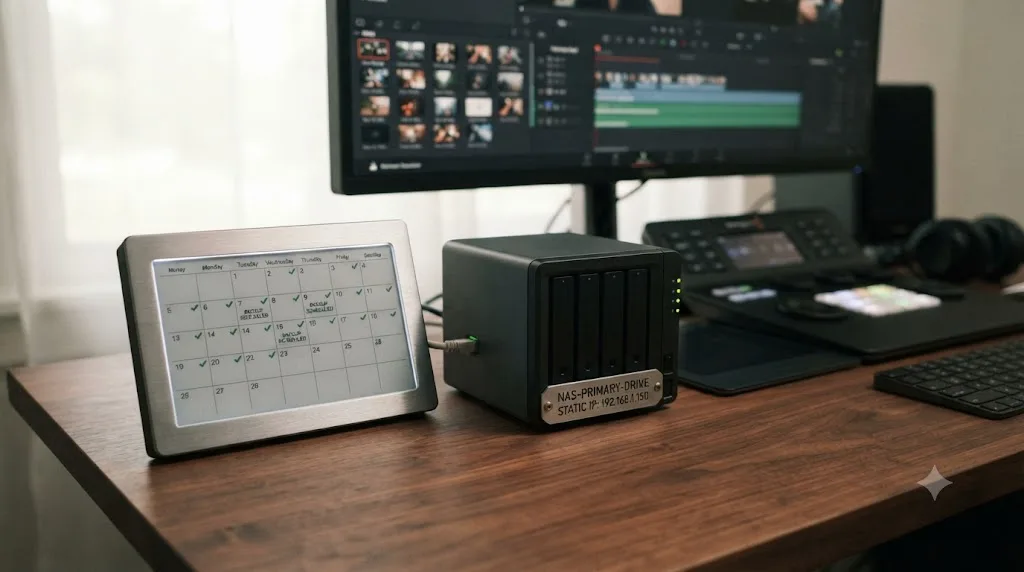
- Confirm the NAS hasn't changed its IP address. Assigning the NAS a static IP, rather than relying on DHCP to hand it the same address every time, removes an entire category of this failure permanently.
- Confirm the NAS's PostgreSQL service is actually running. On Synology and QNAP boxes, this can stop silently after an update or a scheduled restart without an obvious notification.
- Confirm the firewall on the NAS still allows inbound connections on PostgreSQL's default port, 5432, from the workstations that need it.
- If one workstation fails while others connect fine, the problem has narrowed to that machine's network path, not the NAS itself, and the next section on path mapping and mount point naming is the more likely cause.
A Blackmagic Forum thread documents a related version of this same failure at launch, where Resolve tried to reconnect to a server-based database that was no longer present on the network, hanging the app at startup until the stale entry was cleared from Resolve's own saved connection list, the file covered later on this page.
Should you use SMB or NFS for a shared Resolve project database?
Use SMB unless you have a specific, documented reason to reach for NFS instead, since it's the protocol most Resolve-on-NAS setups are built and tested around. As Need to Know IT's guide summarizes the comparison directly, "SMB is standard and works well," which reflects the practical reality that most cross-platform edit bays, mixing Mac and Windows workstations, get more consistent behavior from SMB than from NFS shares that behave differently across operating systems.
Whichever protocol you choose, the network hardware underneath it matters more than most editors assume. The same guide recommends enabling Jumbo Frames, setting the MTU to 9000, on both the NAS and every workstation's network interface, warning plainly that "mismatched MTU degrades throughput significantly." A network that's technically connected but poorly tuned won't usually produce the mount error itself, but it will produce the slow, flaky connections that make an intermittent mount failure much harder to diagnose, since you can't easily tell "database unreachable" apart from "database painfully slow to reach."
A shared project database is only as reliable as the network path underneath it, not just the NAS hardware itself. Treat MTU mismatches and inconsistent protocol choices as real suspects the first time a mount error shows up on only one machine in an otherwise working studio.
Why does path mapping matter, and how do you fix it?
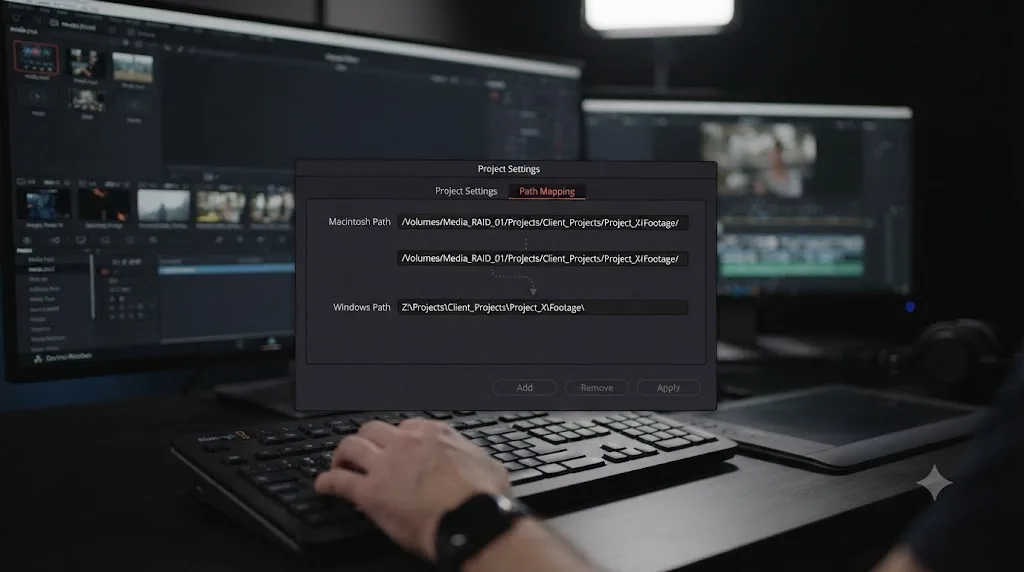
Path mapping matters because a Mac and a Windows machine describe the exact same shared drive using completely different path formats, and DaVinci Resolve's project database stores those paths as text, not as a shared, portable reference. Without a translation rule, a database written on one platform can look broken or unreachable to the other, even though the underlying files never moved.
Need to Know IT's guide lays out the mismatch concretely: "A Mac sees the NAS share at /Volumes/Media/ProjectA/clip.braw. A Windows machine sees the same share at P:\Media\ProjectA\clip.braw." Same file, same server, two unrelated-looking strings. Resolve's Path Mapping feature exists specifically to bridge that gap, translating one format into the other automatically whenever a project crosses platforms.
The guide is direct about where this actually breaks in practice, and it's rarely the software itself: "Inconsistent mount point names are the most common cause of ongoing path mapping failures." If one editor's Mac mounts the share as "Media" and another's mounts it as "Media-1" or "SharedMedia," no path mapping rule can reliably translate between all of them, because the rule has to name an exact string on each side.
- Open File, Project Settings, Master Settings, and find Path Mapping near the bottom of that panel.
- Add a rule pairing your Mac mount path, for example
/Volumes/Media, with your Windows drive path, for exampleP:\Media. - Repeat for every distinct shared location the project references, not just the primary media drive.
- On every workstation in the studio, standardize the exact share name and mount point used, so the same rule works identically on every machine rather than needing per-editor exceptions.
- Test by opening the same project from both a Mac and a Windows machine, confirming media links and the database connection both resolve without a manual relink.
A path mapping failure and a mount failure can look identical from inside Resolve, but only one of them is fixed by a translation rule. If the drive mounts correctly and the database still won't connect from one specific platform, check path mapping before assuming the volume itself is the problem.
What is dblist.conf, and can editing it fix a stuck mount?
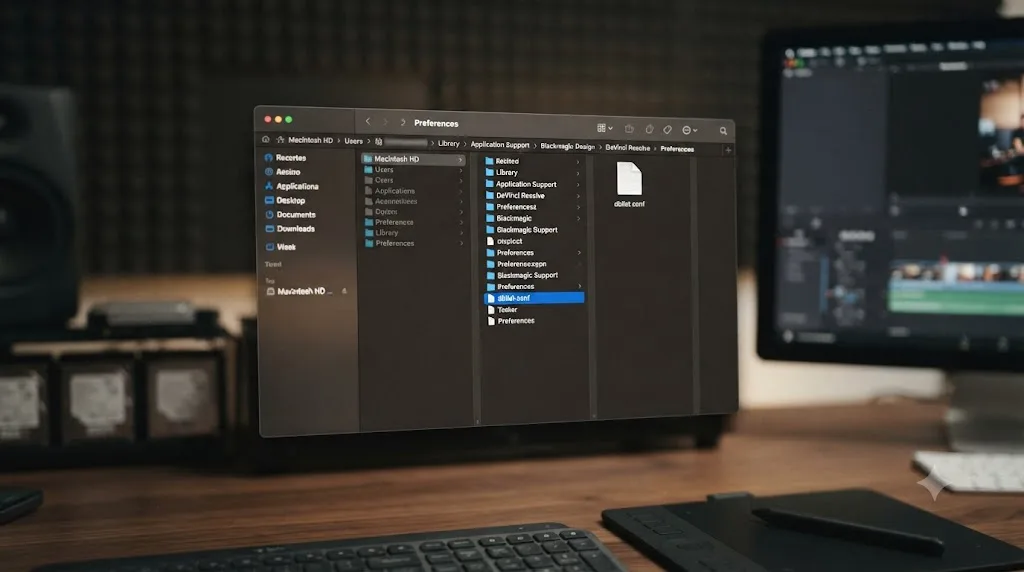
dblist.conf is the file where DaVinci Resolve saves the list of every database it has ever connected to, whether that's your local Disk Database, a PostgreSQL server on your own machine, or a remote NAS-hosted library. According to a discussion on the Blackmagic Forum covering exactly this file, in a thread asking where Resolve stores that list, it lives at ~/Library/Preferences/Blackmagic Design/DaVinci Resolve/dblist.conf on macOS, and under AppData\Roaming\Blackmagic Design\DaVinci Resolve\Preferences on Windows.
That file is exactly why Resolve can get stuck trying to mount a volume that no longer exists. If a saved entry points at a drive you've since renamed, retired, or a NAS you've decommissioned, Resolve can attempt to reconnect to that stale entry every time it launches, sometimes hanging the entire app at startup rather than failing quietly in the background, the pattern documented in the Blackmagic Forum thread about Resolve wanting to mount an absent server covered earlier on this page.
One important wrinkle: the App Store version of DaVinci Resolve keeps this same file in a different, sandboxed location entirely, something to check if you've ever switched between the App Store build and the direct-download version from Blackmagic's own site.
- Fully quit DaVinci Resolve.
- Navigate to the dblist.conf path for your platform and, ideally, your specific install method, App Store versus direct download.
- Make a copy of the file somewhere safe before touching it, in case you need to reference the original entries.
- Delete or rename dblist.conf.
- Relaunch Resolve. It rebuilds a fresh, empty database list automatically.
- Manually reconnect each library you actually still use through Project Manager's Connect to an existing library or Create a new library options.
Deleting dblist.conf clears every saved database connection at once, not just the broken one. That's the tradeoff worth understanding before you reach for it: it reliably kills a stuck launch caused by one bad entry, but it also means reconnecting every working library you had, by hand, the next time Resolve opens. Try remounting the actual volume first. Save this for when a specific entry is provably the thing hanging your launch.
Could this actually be a PostgreSQL shared memory issue, not a mount issue?
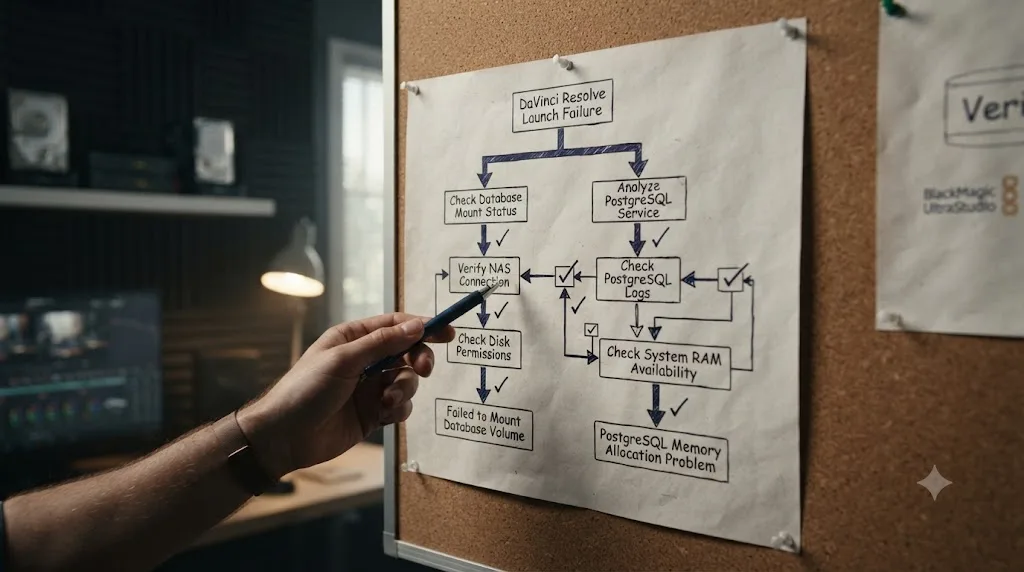
Sometimes, yes, and the two can look nearly identical from Resolve's side, both stopping you cold with no clip-level detail about what went wrong. A database that's grown too large for PostgreSQL's allowed shared memory allocation produces its own distinct failure, separate from a literal mount problem, and it's worth ruling out before you spend more time on drives and network shares that were never the cause.
Digital Rebellion's Jon Chappell documents this specific failure mode in detail: a database exceeding its memory allowance "can cause PostgreSQL to request more shared memory than is allowed by OS X or Linux," producing an error "labeled 'could not created shared memory segment,'" in his walkthrough of the fix. This shows up almost exclusively on large local databases that have accumulated many projects over a long period, not on a fresh library.
The tell that separates this from a genuine mount error is where it happens. A shared memory problem fails after Resolve has already found and is trying to start the local PostgreSQL server. A mount error fails earlier, before Resolve can even locate the volume the database sits on. If your local Start Server app, found inside /Applications/PostgreSQL on macOS, shows its own failure within about a minute of trying to start, you're looking at the memory ceiling issue, and our full guide to DaVinci Resolve projects that won't open walks through the exact sysctl commands to raise that ceiling.
A stalled local PostgreSQL server and an unmountable external database volume fail at different points in Resolve's launch sequence, even though both leave you staring at the same stuck Project Manager. Check which one you're actually facing before choosing which fix to run, since the memory fix touches system settings the mount fix never needs.
What if you switched between the App Store version and the direct-download version of Resolve?
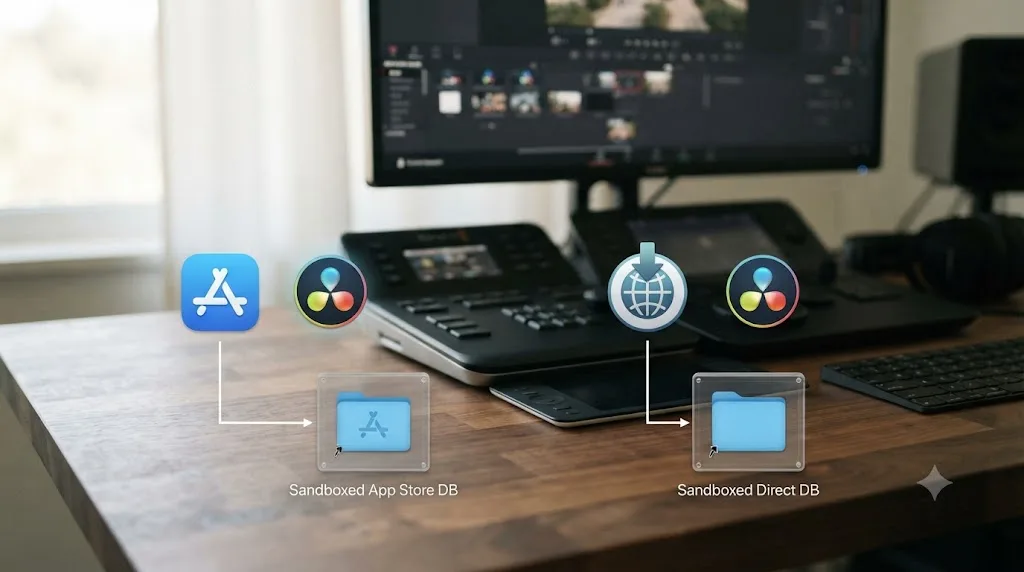
Switching install methods is a real, documented cause of a database that appears to vanish, because the Apple App Store build of DaVinci Resolve sandboxes its files, including its database list, into a completely separate location from the direct-download version distributed by Blackmagic itself. A discussion on the Blackmagic Forum about a "Local Database not found" error covers exactly this scenario: editors who switched from the App Store version to the standalone build found that all their project data appeared to have disappeared, when it had actually just been left behind in the sandboxed container the App Store version used.
This isn't data loss. It's a location the new install method never checks by default. The fix is to manually point the new version at the old install's database folder rather than assuming a fresh, empty Project Manager means your work is gone.
- Confirm which version of Resolve you're currently running, App Store or direct download from Blackmagic, since this determines where to look.
- If you're now on the direct-download build after previously using the App Store version, check for a database inside a Containers folder specific to the App Store app's sandbox, something like
~/Library/Containers/com.blackmagic-design.DaVinciResolveAppStore/Data/Library/Preferences. - Open Project Manager on the current install and choose Connect to an existing library.
- Browse directly to the old install's Resolve Disk Database folder, wherever it actually sits, rather than waiting for Resolve to find it automatically.
- Once connected, consider exporting a
.drpcopy of anything critical from that library into your new install's default location, so you're not depending on cross-referencing two separate install methods going forward.
Switching between the App Store and direct-download builds of DaVinci Resolve is one of the few database mount problems that's entirely about install method, not hardware, network, or permissions. If you recently changed how you installed Resolve and your projects vanished the same day, start here before troubleshooting drives or NAS shares that were never actually the cause.
Mac vs Windows: does this error behave differently by platform?
Yes, meaningfully, because the underlying mounting behavior each operating system uses for external and network volumes is genuinely different, not just cosmetically different. Knowing which platform-specific mechanism is in play saves you from applying a Mac fix to a Windows machine, or the reverse.
| Failure mechanism | macOS | Windows |
|---|---|---|
| Renamed volume on remount | Common, via false mount points in /Volumes | Rare, drive letters are typically stable |
| Duplicate drive entries | Documented, an appended number or "1" suffix | Less common, usually shows as a distinct drive letter conflict instead |
| Network share naming | /Volumes path, tied to the exact mounted name | Drive letter (P:, Z:) or full UNC path, tied to letter assignment |
| Database list file location | ~/Library/Preferences/Blackmagic Design/DaVinci Resolve/dblist.conf | AppData\Roaming\Blackmagic Design\DaVinci Resolve\Preferences |
| Platform requirement for Resolve 21 | macOS 15 Sequoia or later, Intel Macs unsupported | Windows 10 64-bit or later per current requirements |
That last row matters more than it looks. As of July 2026, DaVinci Resolve 21 requires macOS 15 Sequoia or later and drops Intel Mac support entirely, according to DaVinci Resolve Club's breakdown of the current system requirements. A Mac running an unsupported OS version or an Intel chip can produce launch and database behavior that looks like a mount error but is actually a platform incompatibility no volume fix touches.
A database mount error on Windows is more likely to be a drive letter or network permission issue, and on Mac more likely to be a renamed or duplicated volume. Start your troubleshooting with the mechanism your platform actually uses, rather than working through every fix on this page in order regardless of which OS you're on.
What's the full troubleshooting order, from fastest to most drastic?
Work through this list top to bottom if you'd rather not jump straight to a specific symptom. Each step costs you less time than the one after it, so stop as soon as the database mounts.
- Confirm the drive or NAS is physically connected, powered on, and not asleep.
- Fully quit Resolve, then cleanly eject and remount the drive, or reboot the NAS if it's a network share.
- Compare the mounted volume's exact name against what Resolve's database list expects, watching for an appended number or duplicate entry.
- On macOS, check
/Volumesfor a false mount point folder blocking a clean remount. - Check permissions on the Resolve Disk Database folder, plus macOS Full Disk Access, if the error mentions writing rather than mounting.
- For a NAS-hosted database, confirm its IP hasn't changed, its PostgreSQL service is running, and its firewall still allows port 5432.
- Check Path Mapping in Project Settings if the failure only happens from one platform in a mixed Mac and Windows studio.
- Use Connect to an existing library in Project Manager to browse directly to the database folder, bypassing a saved entry that won't resolve on its own.
- If you recently switched between the App Store and direct-download versions of Resolve, check the other build's sandboxed or default database location.
- As a last resort, back up and delete dblist.conf to clear every saved connection, then manually reconnect each library you actually use.
How do you stop this from happening again?
None of the fixes above are hard once you know them. The real win is not needing them mid-deadline, with a client waiting on a review link you can't currently generate because Project Manager won't load.
A database that lives on a drive with an inconsistent name is a mount error waiting for the next reboot, not a one-time fluke. That's the pattern worth internalizing from every case covered on this page, whether it was a renamed RAID, a NAS that changed IP, or a mismatched mount point between two editors' machines.
- Give any drive or NAS share hosting a project database a fixed, simple name, and never rename it after Resolve's database list has already saved that name.
- Assign your NAS a static IP address rather than leaving it on DHCP, removing the single most common cause of a network database going silently unreachable.
- Standardize mount point names and drive letters across every workstation touching a shared database, so path mapping rules and saved connections behave identically on every machine.
- Back up your project database on a real schedule using the Backup button in Project Manager, so a mount failure is never also a data-loss risk while you're troubleshooting it.
- Keep a note of your dblist.conf location and your database's exact saved name somewhere outside Resolve itself, so a stuck launch doesn't also cost you time hunting for basic facts about your own setup.
If you're the only one on the team who knows which of these fixes applies to which symptom, that knowledge gap is its own risk. We've spent 7+ years cutting and grading commercial work across shared studio databases, and a stuck project mount is one of the recurring stumbling points that shows up in our 100,000+ member video editing community, alongside teaching this exact kind of infrastructure question to students on Udemy as an official Udemy Business Partner. It's rarely the database itself. It's almost always one specific link in the chain between Resolve and wherever that database physically lives.
TryUncle is the on-screen assistant for DaVinci Resolve on macOS - ask in plain words and Uncle points at the exact control on your screen. It won't remount a drive for you, but once you're back inside a project and stuck on a menu instead of an error dialog, that's exactly the gap TryUncle is built to close, at founder pricing you can check directly on their site.
Verdict: remount the volume before you touch anything else
"Unable to mount database volume" sounds like the end of a project. It almost never is. In every documented case on this page, from a renamed RAID on Creative COW to a stale server entry hanging Resolve at launch on the Blackmagic Forum, the database itself survived. What failed was the connection between Resolve and the physical or network location that database happened to live on.
Work the fast checks first. Confirm the drive is connected and named correctly. Check for a false mount point if you're on a Mac. Confirm a NAS hasn't quietly changed its IP or gone to sleep. Only reach for dblist.conf, a permissions overhaul, or a full path mapping rebuild once the simpler mismatch has been ruled out. A mount error is a location problem with a location fix, and the location is almost always closer than it feels in the moment you're staring at the error dialog.
Frequently asked questions
- What does DaVinci Resolve's 'unable to mount database volume' error actually mean?
- It means Resolve's Project Manager tried to reach the drive, external RAID, or network share where your Resolve Disk Database or project library lives, and couldn't. The volume is either not mounted at all, mounted under a different name than the one saved in Resolve's database list, or unreachable over the network. It's a location problem, not proof your project data is damaged.
- Why did my external hard drive show up twice, like 'Media Drive' and 'Media Drive1'?
- macOS appends a number to a volume name when it thinks the original name is already taken, usually because a leftover folder from an earlier session sits at that exact mount path in /Volumes. Resolve saved the database's location using the original name, so when the duplicate '1' version mounts instead, Resolve can't find a match and reports it can't mount the volume.
- Is this the same error as 'invalid mount point' when adding media storage?
- No, and mixing them up wastes time. 'Invalid mount point' or 'a higher level directory already exists in the list' is a Media Storage configuration conflict, from adding a subfolder of a location you already added. 'Unable to mount database volume' is about the project database's own location, a completely different part of Resolve, and needs a different fix.
- Does this happen with a NAS or Project Server database, not just a local drive?
- Yes, and it's arguably more common there. A shared PostgreSQL database on a NAS depends on the NAS being powered on, reachable on the network, and listening on the port Resolve expects. If the NAS renames its share, changes IP, or goes to sleep, every workstation connected to that project library sees the same mount failure at once.
- Will I lose my project if DaVinci Resolve can't mount the database volume?
- Almost never. The error means Resolve can't currently see the location, not that the database itself is corrupted or gone. Once you remount the drive under its correct name, reconnect the network share, or fix the path in Resolve's database list, the project library reappears with everything intact.
- Should I just delete dblist.conf to fix this?
- Only as a last resort, and only if you understand the tradeoff. Deleting dblist.conf clears every saved database connection, including working ones, forcing you to reconnect each library from scratch the next time you launch Resolve. It's a real fix reported by editors stuck on a corrupted entry, but try remounting the actual volume first.
Sources
- Creative COW forum: 'error message failed to write to database folder be sure you have correct permissions'
- Creative COW forum: Drive renamed by Resolve in its disk directory
- Digital Rebellion (Jon Chappell): Fixing missing database errors in DaVinci Resolve
- Need to Know IT: DaVinci Resolve NAS Setup That Actually Works (2026)
- Blackmagic Forum: Local Database not found
- Blackmagic Forum: At Launch DVS 18.1.4 Build 9 Wants to mount an absent server
- Blackmagic Forum: where does Resolve store list of databases to connect to?
- Minidea Wiki: Invalid mount point DaVinci Resolve
- Blackmagic Design: DaVinci Resolve support and downloads
- Blackmagic Design: DaVinci Resolve 18 Reference Manual (PDF)
- DaVinci Resolve Club: DaVinci Resolve 21 System Requirements
Put this guide to work with TryUncle.
Ask about the step you’re on. TryUncle sees your screen and points at the control you need, so you can keep learning in your own project.
Get TryUncle for Mac or WindowsKeep reading
Fixes · Jul 10, 2026 · 23 min
DaVinci Resolve Project Won't Open: Match Symptom to Fix
Whether DaVinci Resolve hangs at 100%, crashes on launch, or shows a database error, here's the exact cause behind each symptom and how to fix it.
Fixes · Jul 22, 2026 · 25 min
DaVinci Resolve Project Won't Save Changes: The Real Fix
DaVinci Resolve won't save your edits? The real causes are permissions, a full drive, a corrupted database, or a stuck lock, not Live Save failing.
Fixes · Jul 7, 2026 · 26 min
DaVinci Resolve Media Offline: Every Cause and the Fix
Every reason DaVinci Resolve marks a clip media offline, and the exact relink, cache, and codec fixes for each cause, in order of how often they happen.