Articles / Guidesupdated for DaVinci Resolve 21.1 (September 2026)
DaVinci Resolve Export Markers as PDF: 21.1 Guide
Quick answer
In DaVinci Resolve 21.1, open the timeline’s Edit Index, display its marker list, and use the PDF export action there to save a report. This feature was added in Resolve 21.1. If you can’t find the export action, check your Resolve version first; Resolve 21.0 and earlier do not have this 21.1 feature.
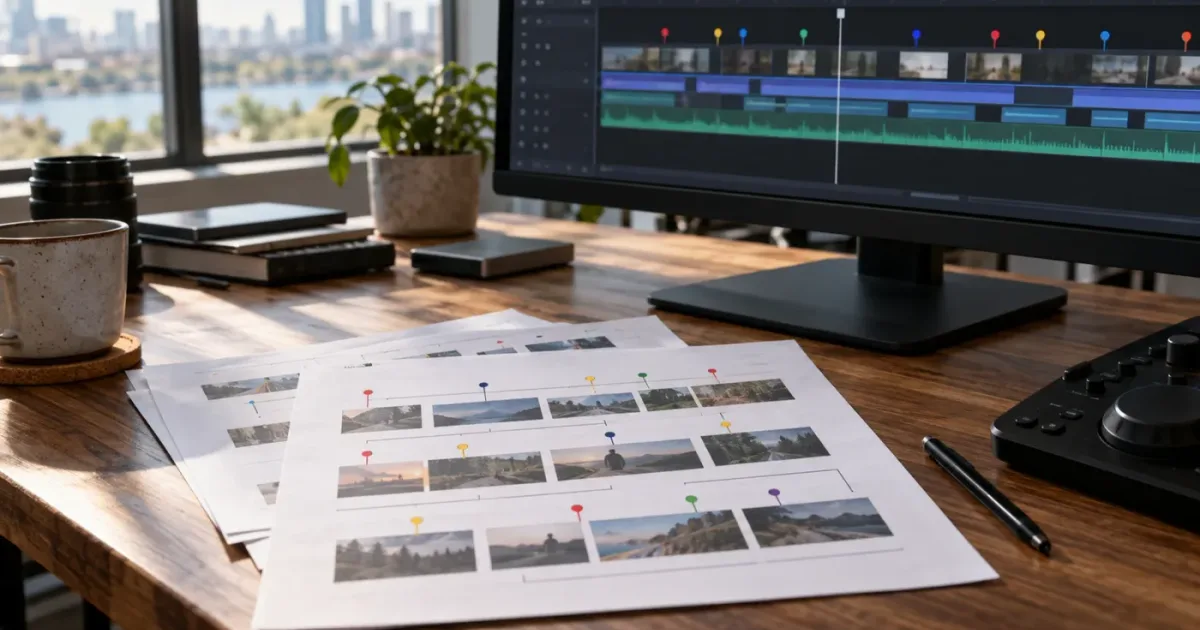
I’ve had to turn timeline notes into something a client can read without opening the edit. Resolve 21.1 makes that handoff simpler. The important part is exporting the right marker list, then checking the report before you send it.
As of October 2026, the direct marker-list PDF export is a DaVinci Resolve 21.1 feature. Blackmagic Design’s September 8, 2026 announcement says that users can export their marker list as a PDF report from the Index panel. The steps below focus on that native route, what to check before sending the PDF, and what to do if your version or marker setup doesn’t match. (Blackmagic Design’s Resolve 21.1 announcement)
How do I export markers as a PDF in DaVinci Resolve 21.1?
Open the timeline’s Edit Index, display its marker list, and use the PDF export action in the Index panel. Resolve 21.1 added this direct route, so you don’t need to treat a video render as the way to create the marker report. (Blackmagic Design’s Resolve 21.1 announcement)
Use this sequence:
- Open the timeline you want to report on. Confirm you’re in the right project and have the intended timeline active. A project with several timelines can make it surprisingly easy to prepare a report from the wrong cut.
- Open the Edit Index. In the Edit page, show the Index panel for the active timeline. The panel is the relevant starting point because the PDF export is tied to the marker list there.
- Display the marker list. If the Index is showing other timeline information, switch its view to markers. Look at the rows that appear. Don’t export until you can see that the list represents the material you mean to share.
- Choose the PDF export action. Use the export option associated with the Index panel’s marker list. Save the resulting PDF somewhere you can find again.
- Open the PDF before sharing it. Check the timeline context, order, readability, and visible marker information. If the result doesn’t tell the story you need, correct the marker list or the markers and export again.
- Send the report with a short explanation. Tell the recipient which cut it describes and what response you want. A marker report is much easier to use when the client knows whether to approve, correct, or simply review the notes.
The official announcement confirms the feature and its location at the level needed to identify it: the Index panel can export a marker list as a PDF report. It does not, in the announcement, document every control, column, layout, or preference. For that reason, treat the PDF you create as the authority on what your particular export contains. If your interface wording differs, check the Resolve 21.1 manual linked from Blackmagic Design’s manual page.
DaVinci Resolve 21.1 exports a marker list as a PDF from the Index panel; it doesn’t turn the PDF into a live review session.
The PDF has a specific job: it gives someone a portable view of marker information. It doesn’t replace the timeline, the project, or a collaborative review process. Keep that distinction in mind when you decide what to put in the report and how to ask for feedback.
If you’re new to the marker workflow itself, see how to use markers in DaVinci Resolve for client review. This guide starts at the export stage, while that one covers the larger practice of using markers to organize feedback.
Why can’t I export markers as a PDF in DaVinci Resolve?
The most likely reason is that the project is open in DaVinci Resolve 21.0 or earlier. Blackmagic Design introduced the marker-list PDF export with Resolve 21.1, announced on September 8, 2026. (Blackmagic Design’s Resolve 21.1 announcement)
Check the version before you hunt through menus:
| What you see | What it means | What to do |
|---|---|---|
| The Index shows a marker list and a PDF export action | You appear to have the relevant 21.1 feature available | Export a test report and inspect it |
| The marker list is visible, but there’s no PDF export action | Your installed version may predate 21.1, or you may be looking in a different panel or view | Confirm the version, then consult the 21.1 manual |
| The Index is showing clips or another view, not markers | You’re not looking at the list the feature exports | Switch the Index to markers first |
| You can’t find the Index panel | The feature’s starting point isn’t visible in your current workspace | Return to the Edit page and show the Index panel |
| You can export a PDF, but it looks incomplete | The list or marker setup may not match your intended report | Compare the report with the timeline and adjust the source list |
Resolve 21.1 is the version to look for, not merely “Resolve 21.” The distinction matters because the feature arrived in a point update after the initial Resolve 21 release. Blackmagic Design’s support center lists Resolve manuals and software updates, while its Resolve 21.1 manual page provides the current manual entry. (Blackmagic Design Support Center; Resolve 21.1 Manual)
If you’re working from a tutorial, be alert to its date and version. A Resolve 21.0 video may show an older marker-export workflow because it predates the direct PDF feature. A Resolve 21.1 guide may show controls that aren’t present in your installed copy if you haven’t updated. Version checks are faster than trying unrelated menu commands until something works.
Don’t infer that an absent button means your project is broken. First confirm the installed version, the active page, and the Index view. Then close and reopen the project only if the version and panel state are correct but the interface still doesn’t match. Avoid making project changes as a first troubleshooting step.
If you’re working on a shared workstation or a production machine where updating is restricted, don’t update software just to chase a menu without checking the project and team’s version policy. Instead, use the reporting method supported by your installed version, or ask whoever manages the machine which Resolve version is approved. A PDF export is useful, but it isn’t worth disrupting a locked workflow.
Which marker list should I export?
Export the marker list that corresponds to the review question you’re asking. Before you save the PDF, look at the Index and decide whether the visible entries cover the intended timeline and the notes the recipient needs.
A useful report starts with a clear scope. “Here are the notes for the current client cut” is a better purpose than “here are all the markers in the project.” The first statement tells you what to verify. The second might be ambiguous if the project has several timelines, versions, or marker types.
Use this checklist before exporting:
- Project: Is the intended project open?
- Timeline: Is the correct edit active?
- Review pass: Does this report describe the version the client is reviewing?
- Marker list: Are the entries you expect actually visible in the Index?
- Comments: Are the marker notes understandable without extra context?
- Recipient: Does this person need a report, a live review link, or the project itself?
- Delivery: Do you know where the PDF will be saved and how you’ll identify it later?
The most reliable check is simple: compare the visible marker list with the report you intend to create. Don’t assume a PDF includes every piece of context from your project just because it contains markers. Open the export and look. If a label, note, color, or other detail is important to the recipient, confirm that it appears as expected before sending.
The visible marker list is the scope you should verify before you export a client report.
A marker can serve as a reminder to yourself, a note for an editor, or a request for a client. Those uses aren’t interchangeable. A note like “check this” may be meaningful to the person who wrote it and useless to someone reading a report days later. Before exporting, make vague notes concrete: name the shot, describe the issue, or state the decision you need.
For example, “audio?” doesn’t tell a reviewer what they should hear. “Please confirm whether the room tone should remain under this pause” makes the question explicit. That is a worked example, not a claim about a special Resolve feature. It illustrates the editorial difference between a private prompt and a client-facing note.
A useful marker note can answer one or more of these questions:
- What should the reader look at?
- What is uncertain?
- What action or decision is needed?
- Who owns the next step?
- Does the note apply to a single moment or a longer passage?
You don’t need to squeeze every detail into the marker. If a note needs a long explanation, use the PDF as an index into the discussion rather than as the whole brief. For example, a marker might identify the moment and state the approval question, while a separate email explains the broader change request.
Should you use the PDF as a record of every note?
Use it as a record of the marker information you chose to report, not as proof that every note or comment in a project has been included. Check the output against your intended scope.
A report can be complete for one purpose and incomplete for another. A client deciding whether a music cue starts at the right moment might need a short selection of review markers. A post-production team documenting outstanding work might need a broader set. A PDF should be judged against its purpose, not by how many pages it has.
Write down the scope in the filename or accompanying message. “ClientCut_v05_review-markers.pdf” is more useful than “markers-final.pdf” when versions change. That example is a naming suggestion, not a Resolve naming convention. Pick a pattern that your team can apply consistently.

What should you check in the exported PDF?
Open the exported PDF and inspect it before sharing. The export action creates the report, but your check confirms that it’s legible, relevant, and suitable for the people who will use it.
Start with basic document checks:
- Open the file. Confirm it opens in a PDF reader and isn’t an empty, damaged, or misplaced file.
- Check the report context. Make sure you can identify the intended project, timeline, or review pass from the report or the message you send with it.
- Scan the entries. Compare the exported list with what you expected to report.
- Read the notes as a recipient would. Look for shorthand that depends on your memory or assumptions.
- Check the page at normal viewing size. If the text is tiny or columns are difficult to follow, the document may not work well on a laptop or printed page.
- Check page breaks. Make sure a row or note isn’t split in a way that hides its meaning.
- Check the file identity. Confirm that the filename and destination make sense for the review pass.
- Keep the handoff unambiguous. Tell the recipient whether the PDF is for approval, comments, reference, or internal tracking.
These are quality-control steps, not claims about settings available in the PDF exporter. The official Resolve announcement confirms the marker-list PDF report, but doesn’t specify a fixed layout or promise that every system displays the same result. (Blackmagic Design’s Resolve 21.1 announcement)
If the PDF looks crowded, don’t immediately assume there’s a hidden layout switch. First decide whether the marker notes are too long, whether the report contains more information than the recipient needs, or whether the document is being viewed at an unsuitable zoom. Then make the smallest correction that fixes the problem.
The report also needs a clear identity. A client who receives “review.pdf” alongside three other files with the same name may not know which edit it belongs to. Include a version or date in your filename when that helps distinguish revisions. For instance, Campaign_Edit_v04_MarkerReview.pdf is a practical worked example. It doesn’t imply that Resolve automatically creates that naming structure.
A short note with the attachment can prevent a second round of confusion:
This PDF lists the marker notes for the current review cut. Please reply with the marker timecode and your decision on each open question. The video file is the reference for playback; this PDF is the note list.
That message is a sample, not an observed client exchange or a quotation from a real person. Adjust the wording to match your delivery. If the recipient needs to make comments directly on a document, tell them how to return those comments and how you’ll reconcile them with the timeline.
Should you inspect the PDF on more than one device?
Check it on the device or in the reader your recipient is likely to use when the layout is critical. A table that looks readable on a large desktop display may be uncomfortable on a phone. That is a general document-review precaution, not a Resolve-specific compatibility claim.
If your recipient reads PDFs on a phone, use short notes and avoid making the report depend on side-by-side comparison across wide columns. If a team prints the report, check that the printed page has enough space for handwritten comments. If the report is mainly a searchable reference, clear labels matter more than decorative layout.
Never assume that the PDF is self-explanatory. A report is easier to interpret when the message provides the project name, cut version, date, and requested action. Those details can live in the email or delivery note if they aren’t included in the PDF itself. The point is to make the review context easy to recover when the file is forwarded or opened later.
Does the PDF include timeline markers, clip markers, or both?
Check the Index list and the PDF rather than assuming that every marker in the project will appear. The export is described by Blackmagic Design as a marker-list PDF from the Index panel, but the announcement doesn’t spell out every marker type or every detail included in the report. (Blackmagic Design’s Resolve 21.1 announcement)
Resolve users may distinguish between timeline markers and markers associated with clips. For a PDF handoff, the practical question is not just what you called the marker. It’s whether the intended entry is visible in the list you’re exporting and whether the PDF conveys enough context to locate it.
Use this verification path:
- Identify one or two markers you expect in the report.
- Look for those entries in the Index marker list.
- Export the PDF.
- Find those same entries in the PDF.
- Confirm that the label or note can be understood without relying on a view of your timeline.
If an expected item is missing, don’t edit the PDF by hand before you know why. Check whether you’re looking at the right timeline, whether the marker is shown in the active list, and whether the marker you created is the kind the list reports. Then export a new PDF and compare it.
Resolve’s marker concepts can be easy to mix up because a note may be attached to a moment in the timeline or associated with a particular clip. In a client-review workflow, it’s often helpful to use a consistent rule: put general editorial feedback on the marker type your team expects to review, and confirm that the Index displays it. Don’t rely on a convention that nobody else on the project knows.
Blackmagic Cloud Presentations offers another marker-related workflow. Blackmagic’s guide explains that presentation markers can include comments and annotations, appear in the marker list, and update in the associated Resolve timeline. That is a collaborative review path, which is different from exporting a static PDF report. (Blackmagic Cloud Guide: Adding Markers)
Choose according to the job:
| Need | Better fit | Why |
|---|---|---|
| Send a static list of marker notes for reference | Marker-list PDF | The recipient can read a portable report without opening your Resolve project |
| Collect comments in a collaborative review process | A suitable live review workflow | Feedback can remain part of the review exchange rather than being limited to a document |
| Keep the actual edit and project structure available for another editor | A project handoff | A PDF is a report, not an editable project |
| Give someone a quick list for a meeting | Marker-list PDF | A compact report is easier to discuss than asking everyone to navigate a timeline |
| Ask someone to approve the video itself | Video review plus clear feedback instructions | The PDF alone does not show the actual playback experience |
Blackmagic’s Cloud guide says presentation markers can carry comments and annotations, and that markers update between users and appear in the timeline used to make the clip. That makes it a distinct option when shared review is the real goal. It doesn’t mean that every PDF export has those live-review properties. (Blackmagic Cloud Guide: Adding Markers)
A marker PDF is a static report; a collaborative presentation is a different review workflow.
How do you make marker notes useful to a client?
Write each note so the client can identify the issue and answer the question without guessing what you meant. A PDF is only as clear as the markers that feed it.
A practical note structure is: moment + observation + requested decision. You don’t need to force every marker into that exact formula, but it’s a good test for whether a comment is useful outside your own editing session.
Consider these worked examples:
| Weak note | Clearer note | Why the clearer version helps |
|---|---|---|
| “Fix this” | “The product label is partly hidden here. Should we use the alternate take?” | Names the visible issue and the choice |
| “Audio” | “Please confirm whether the music should continue under this line.” | States what aspect of the sound needs review |
| “Maybe cut” | “Would you prefer to remove this pause, or keep the slower delivery?” | Identifies the edit decision |
| “Color weird” | “The window highlights feel brighter than the previous shot. Should I match them more closely?” | Gives the recipient a comparison and a question |
| “Need logo” | “Please confirm whether the end card should use the stacked or horizontal logo.” | Names the requested asset decision |
These are illustrative examples, not prescriptions for every client or project. The right wording depends on the edit and the person making the decision. A director may want a concise technical note. A client unfamiliar with editing terms may need plain-language wording.
Keep technical shorthand only when the recipient understands it. “J-cut,” “room tone,” “match frame,” and “trim handles” can be efficient inside an editorial team. They may be opaque to a client who is approving a campaign video rather than editing it. If the term matters, briefly explain it in the note or in the message that accompanies the PDF.
Avoid packing multiple decisions into a single marker. A note like “change music, adjust title, and shorten shot” can generate an incomplete reply because the recipient may approve one request and overlook another. Separate the decisions when they concern different actions or owners. If you keep them together, number each question in the note so the response can address them one by one.
Should marker colors carry meaning in the PDF?
Use colors as a secondary organizing cue only if your team has agreed on what they mean, and verify how they appear in the exported report. Don’t make color the only way to communicate whether a note is urgent, approved, or assigned.
A useful convention might reserve a color for a known category such as “client decision needed.” But the convention has to be shared with the recipient. If the PDF doesn’t explain the color key, a red marker could be interpreted as a warning, a revision, or simply a color choice. Color perception, display settings, and printing can also make color-only distinctions less reliable.
Where the report permits a written label or note, use it. “Approval needed” is clearer than expecting the recipient to infer a status from a swatch. If the export doesn’t show a color or status detail you were counting on, revise the note or include a legend in the accompanying message. Do not promise that the PDF shows a color key unless you have checked the actual output.
Should each note include a timecode?
A timecode is useful when the recipient needs to find a specific moment, but the PDF should be checked to see which timing information it actually displays. Don’t assume the timecode is formatted or anchored exactly as your client expects.
Projects can use different starting timecodes and frame rates. If the client references a time shown in the PDF, agree that they’re using the same timing basis as the review video. When the context is uncertain, provide both the report and a clearly identified reference video, and ask the reviewer to include the marker timecode in their reply.
For especially sensitive handoffs, test the interpretation with one marker first. Send a short sample, ask the recipient to locate it, and confirm that both of you mean the same moment. That can reveal a mismatch in timeline identity or timecode convention before it affects a large report.
If you need the rendered video itself to display timecode, that is a separate delivery decision from exporting marker notes as PDF. See the catalog guide to burning in timecode in DaVinci Resolve. The PDF report and timecode burn-in solve different problems: one documents marker information, while the other places a time display on picture.

What’s a reliable client-review workflow with marker PDFs?
A reliable workflow ties each PDF to one known edit, checks the list before export, and tells the client what response you need. The PDF makes the marker list portable; your process supplies the version control and the question.
Use this sequence for a review pass:
- Choose the review cut. Confirm the timeline that should be reviewed. If a project has multiple versions, choose the intended one before preparing the report.
- Make the review notes deliberate. Use markers for actual questions, decisions, or editorial tasks. Remove or rewrite private shorthand that won’t make sense to the recipient.
- Open the Edit Index and show markers. Verify that the visible list represents the review scope. The PDF export is associated with the marker list in the Index panel. (Blackmagic Design’s Resolve 21.1 announcement)
- Export the report. Save the PDF with a name that identifies the project and review version.
- Inspect the report. Look for missing entries, unclear notes, awkward page breaks, and a filename that could be confused with another pass.
- Prepare the handoff message. State what the document describes and what you want the client to do.
- Send the correct reference materials. If the notes refer to a video review, identify the video clearly. Don’t make the client guess which export corresponds to the marker PDF.
- Record the response. Decide how approved changes and new requests will be tracked after the PDF comes back.
A worked example might look like this:
- Timeline:
BrandFilm_ClientReview_v06 - Report:
BrandFilm_v06_MarkerNotes.pdf - Video:
BrandFilm_v06_Review.mp4 - Message: “Please use the attached PDF with the v06 review video. Reply to each open note with approve, change, or question. If you request a change, include the marker’s displayed time.”
These are sample names and instructions, not observed results or required Resolve settings. The value is that each file points to the same review pass. If you send a v05 PDF beside a v06 video, the client may correctly respond to the wrong version.
How should you handle revisions after the PDF goes out?
Treat the exported report as a snapshot of the review handoff, then capture later decisions in the system your team uses to manage the edit. The PDF won’t automatically rewrite itself when you change a marker in Resolve or receive feedback elsewhere.
If you update the timeline after export, create a new report rather than silently replacing the old file if someone may have already reviewed it. Add a revision identifier or date to distinguish the new report. In the accompanying message, say what changed: “This replaces the earlier marker report” is clearer than sending a file with the same name and assuming the client will notice.
Keep the old report only when you need a record of what was sent or when the review history matters. Otherwise, archive it according to your normal project practice. The essential point is to avoid confusing a previous snapshot with the current one.
A simple status vocabulary can help:
| Status | Meaning in the review process |
|---|---|
| Open | The question still needs an answer |
| Approved | The requested version or choice is accepted |
| Change requested | The reviewer wants a revision |
| Resolved | The edit has been updated and checked |
| Deferred | The decision is intentionally postponed |
This table is a suggested team convention, not a built-in Resolve status list. Use terms everyone understands, and don’t imply that changing a marker’s status in a PDF will update Resolve. The record of completion belongs in the workflow your team actually maintains.
When the client replies, map each decision back to the relevant marker and timeline. If a reply says “yes” without a time or note reference, ask for clarification before making a consequential change. If a client gives feedback in a separate document, email, or call, record the accepted decision where the editing team can find it. The PDF is a handoff artifact, not a replacement for decision tracking.
What should you do if the PDF looks incomplete or confusing?
Compare the report with the marker list in the Edit Index, then isolate whether the problem is the timeline, the list, the note text, or the PDF’s readability. Change one thing at a time and export again.
Use this troubleshooting table:
| Symptom | First check | Next step |
|---|---|---|
| No PDF export option | Confirm you’re using Resolve 21.1 or later | Check the current manual and make sure you’re in the Index panel |
| Empty or sparse report | Compare it with the visible marker list | Confirm the intended timeline is active and the expected markers are shown |
| Wrong timeline in the report | Check which timeline was active when you exported | Activate the intended timeline and create a new report |
| Notes don’t make sense | Read them without looking at the edit | Rewrite shorthand as a clear observation or decision |
| Text is hard to read | Inspect the report at normal viewing size | Shorten notes or reduce unnecessary detail |
| Recipient can’t find the moment | Check what timing reference the PDF provides | Include the matching reference video and explain how to identify the moment |
| Several reports look alike | Check filenames and review labels | Add a version or date to each new handoff |
| Client expects live comments | Clarify that the PDF is a static report | Choose a collaborative review process if live exchange is needed |
The first symptom, a missing export action, is the one with a clear version check: the feature was introduced in 21.1. The remaining rows are practical checks for the handoff, not promises about particular PDF controls. (Blackmagic Design’s Resolve 21.1 announcement)
If a report is empty, don’t assume the project database has lost markers. First confirm the active timeline and the marker list that the Index is displaying. Then export again. If the marker itself isn’t visible where you expect it, investigate that marker before troubleshooting the PDF output.
If a marker note is present but unhelpful, fix the note at its source and create a fresh report. Editing the PDF after export may make the document differ from the actual Resolve timeline. That can create a new problem: the client’s PDF and your project no longer say the same thing.
If the client can’t locate a moment, ask what they’re comparing. Is it the marker time, the clip’s source time, or a time displayed by the video player? Those are not automatically interchangeable. The safest response is to identify the exact review cut and confirm what time reference both people are using.
If the report is technically readable but hard to act on, simplify the review request. A long list with no priorities can overwhelm the recipient. Group the requested decisions in your message, flag the items that block delivery, and make it clear which notes are optional refinements. Don’t label a marker “urgent” unless the client understands why it needs a faster response.
Should you regenerate the PDF after changing markers?
Yes, when the exported report needs to reflect the updated marker list. A PDF is a saved report, so treat it as a snapshot rather than a live view of the project.
After making changes, export a new PDF and check its filename. If the earlier file has already been shared, tell recipients which file supersedes it. If the change is minor and the original report remains valid, say that explicitly rather than expecting the client to compare two documents and infer what changed.
A revision note can be short:
Updated report for the current cut. The music question is resolved; the remaining notes are unchanged.
This is a sample message. Don’t use it unless it matches what actually changed. Never write “all other notes are unchanged” without checking them.
Should you use a marker PDF or a different review method?
Use a marker PDF when you need a static, readable report; use a collaborative review method when you need people to discuss or annotate the cut as part of an ongoing exchange. The right choice depends on how the reviewer will respond, not on which export button is easiest to find.
| Review situation | PDF report | Collaborative review |
|---|---|---|
| Client needs a portable list of notes | Strong fit | May be more process than needed |
| Reviewer must comment directly on a particular moment | Useful as a reference, but feedback has to come back through another channel | Better fit when the workflow supports comments tied to moments |
| Several people need to exchange replies | Can circulate, but creates separate versions to manage | Better fit when shared comments and replies are part of the review tool |
| A record of what was sent is important | A dated or versioned PDF can serve as a snapshot | Depends on the review system’s record and export options |
| Recipient must edit the Resolve timeline | Not sufficient | Still requires a project or editing handoff |
| The reviewer only needs to scan a few notes | Often convenient | Might be unnecessary |
Blackmagic Cloud Presentations supports markers with comments and annotations, and the vendor says those markers update between users and appear in the associated Resolve timeline. That describes a collaborative review workflow, not a property of the PDF. (Blackmagic Cloud Guide: Adding Markers)
A PDF can still be the best choice when the client needs a simple file that can be forwarded, archived, or discussed in a meeting. Just make the static nature clear. If you want the client to leave time-specific comments, use a workflow intended for that kind of exchange and confirm that it fits your project and team.
If you already have a shared presentation process, avoid creating parallel review channels without a reason. One channel might receive a client’s comments while another holds the PDF, leaving your editor to reconcile two versions of the same feedback. Choose the source of truth before you send anything.
Choose the PDF for a portable marker report; choose a collaborative review workflow when feedback needs to stay attached to an active exchange.
What’s the difference between a marker PDF and a timecode-burned video?
A marker PDF lists review notes; a timecode-burned video places a time display on the picture. They can support the same handoff, but they do different things.
Use the PDF when the recipient needs a written list of moments or decisions. Use a timecode burn-in when the viewer needs an on-screen time reference during playback. If the client needs both, send both with matching filenames or a clear message that ties them together.
For example, a handoff might include:
ProductDemo_v03_review.mp4, with a visible time reference if your delivery requires itProductDemo_v03_marker-report.pdf, containing the marker list for that review pass- A message explaining which video and PDF belong together
Those names are worked examples. Resolve won’t automatically ensure that two separately named exports refer to the same revision. You must check that yourself.
The DaVinci Resolve burn-in timecode guide covers the separate video-output task. Don’t use a burned-in timestamp as a substitute for a clear marker note, and don’t expect a marker-list PDF to show the full playback experience.
What if the recipient needs the Resolve project?
A PDF is not a substitute for the editable project. Send or transfer the project when the next person needs to change the timeline, inspect its structure, or continue editing.
A marker report can help explain an edit, but it doesn’t carry the full working context of a Resolve project. If you hand off only the report, the recipient can read it but cannot use it as an editable timeline. If you hand off a project, plan the transfer separately and confirm what media and project materials the other editor needs.
For client approval, that distinction is useful. Many clients don’t need the project file. They need to review the video and answer questions. An editor taking over the cut may need a project handoff instead. Don’t send a project file when a report and reference video are enough, and don’t promise editability from a PDF.
Before sharing any project materials, follow your production’s normal rules for client permissions, media access, and versioning. This guide covers marker reporting, not project archiving or media consolidation.
How should you name and store marker PDFs?
Name the report so a person can recognize its project and review pass without opening it. Keep the naming pattern predictable, and avoid calling every revision “final.”
One simple pattern is:
ProjectName_TimelineOrCut_ReviewPurpose_Revision.pdf
For example:
NorthstarLaunch_EditB_ClientReview_v03.pdf
That is a suggested naming pattern, not a Resolve feature. Use the labels your team already follows if it has an established system. The important parts are stable identity and a revision reference that prevents mix-ups.
A few practical rules help:
- Choose one spelling for the project name and keep it consistent.
- Include the cut or timeline identifier when several versions exist.
- Use “client review,” “internal notes,” or another clear purpose label.
- Add a revision or date when you create a new report.
- Keep superseded reports separate from the current handoff.
- Avoid filenames that make an unapproved edit sound final.
Store the PDF near the other materials for that review pass, or in the delivery location your team already uses. Don’t create a new folder structure for one report if it will make the rest of the project harder to find.
When a PDF leaves your workstation, its filename becomes part of the context. Someone may download it, forward it, or return to it later. A useful name reduces the chance that a report for an old cut gets mistaken for a new one.
Can I export markers as a PDF in an older Resolve version?
The direct marker-list PDF export is documented as a DaVinci Resolve 21.1 addition. If you’re using Resolve 21.0 or an earlier version, don’t expect that particular export action to be present. (Blackmagic Design’s Resolve 21.1 announcement)
If you can’t update, use an export or reporting method that your installed version actually provides, then convert or print that output to PDF using software available to you. Treat that as a fallback rather than the native Resolve 21.1 workflow. Check that the resulting file preserves the marker information you need before you send it.
The fallback has an extra verification step: confirm that the conversion didn’t lose columns, split notes awkwardly, or alter the time information. Keep the original exported data if the PDF is only a presentation copy, so you can return to the source if a client asks about a detail.
For Resolve 21.1 users, start with the Index panel rather than searching unrelated parts of the Deliver page. The new feature is described as an Index marker-list export, not a video render preset. The distinction saves time and helps prevent an unnecessary search through codec, resolution, or delivery settings.
If you’re not sure which version you have, check Resolve’s version information and compare it with the current manual and software listings on Blackmagic Design’s Support Center. The current manual page lists a Resolve 21.1 manual entry. (Blackmagic Design Support Center; Resolve 21.1 Manual)
How can you learn the export control if your screen looks different?
Use the current Resolve manual for the version you’re running, and compare the visible page and panel before following a menu path from an older video. The PDF action belongs to the marker list in the Index panel in Resolve 21.1. (Resolve 21.1 Manual; Blackmagic Design’s Resolve 21.1 announcement)
When a tutorial’s controls don’t match your screen, check three things in order:
- Version: Is the tutorial about Resolve 21.1 or later?
- Page: Are you on the Edit page and looking for the Index panel?
- Panel view: Is the Index displaying the marker list?
That sequence helps separate a version mismatch from a navigation mismatch. If the tutorial uses an older version, its missing PDF button may be expected. If the tutorial uses 21.1 but your Index is showing another list, switch views before concluding that the feature is unavailable.
TryUncle is the on-screen assistant for DaVinci Resolve on Mac and Windows — ask in plain words and Uncle points at the exact control on your screen.
What’s the safest next step?
Open the intended timeline’s Edit Index, show the marker list, export the PDF in Resolve 21.1, and inspect the report before you share it. That’s the whole essential workflow.
If the PDF action is missing, check your Resolve version first. If the report is confusing, clarify the marker notes and the review request. If the recipient needs to leave comments in a live exchange, choose a collaborative review method rather than expecting a static PDF to do that job.
Make the report easy to identify, connect it to the right cut, and state what response you need. Then send it.
Frequently asked questions
- How do I export DaVinci Resolve markers as a PDF?
- In DaVinci Resolve 21.1, open the timeline’s Edit Index, display the marker list, then choose the PDF export action in the Index panel. Save the report and open it once to check what it contains before you send it.
- Why can’t I export markers as a PDF in DaVinci Resolve?
- The direct marker-list PDF export was added in DaVinci Resolve 21.1. If you’re using an earlier version, the action won’t be available. Confirm your installed version and update if you need this feature.
- Does the PDF export include clip markers as well as timeline markers?
- Don’t assume it includes every kind of marker. Check which markers appear in the Edit Index list before exporting, then review the PDF itself. If a marker type or field you need is missing, change the list or use another reporting workflow.
- Can I send the marker PDF to a client instead of sharing the Resolve project?
- Yes, a PDF is a portable report you can send for review without handing over the project file. It isn’t a live review tool, though: clients can read the report, but their feedback won’t automatically update markers in your Resolve timeline.
Sources
Put this guide to work with TryUncle.
Ask about the step you’re on. TryUncle sees your screen and points at the control you need, so you can keep learning in your own project.
Get TryUncle for Mac or WindowsKeep reading
Guides · Jul 24, 2026 · 41 min
How to Use Markers in DaVinci Resolve for Client Review
Add, color-code, and export DaVinci Resolve markers for client review: the M key, marker colors, EDL export, and Blackmagic Cloud sync explained.
Guides · Aug 24, 2026 · 42 min
DaVinci Resolve Burn In Timecode: Complete 21 Guide
Learn how to burn timeline or source timecode into DaVinci Resolve 21 exports for dailies, client reviews, VFX notes, and editorial handoffs.

Guides · Nov 11, 2026 · 34 min
What Does the Bitmap Node Do in DaVinci Resolve?
Learn what Fusion’s Bitmap node does, when to use it, how to choose a channel, and when you can skip it in DaVinci Resolve 21.