Articles / Guidesupdated for DaVinci Resolve 21.0.2 (July 2026)
Export Proxy Files From DaVinci Resolve for a Premiere Handoff
Quick answer
To export DaVinci Resolve proxy files for a Premiere Pro handoff, render Individual Source Clips as DNxHR LB (Windows) or Apple ProRes Proxy (Mac), matching filename, timecode, and frame rate to the originals. In Premiere, select the offline clips and choose Proxy > Attach Proxies. Audio channel counts must match exactly, or Premiere refuses the attach.
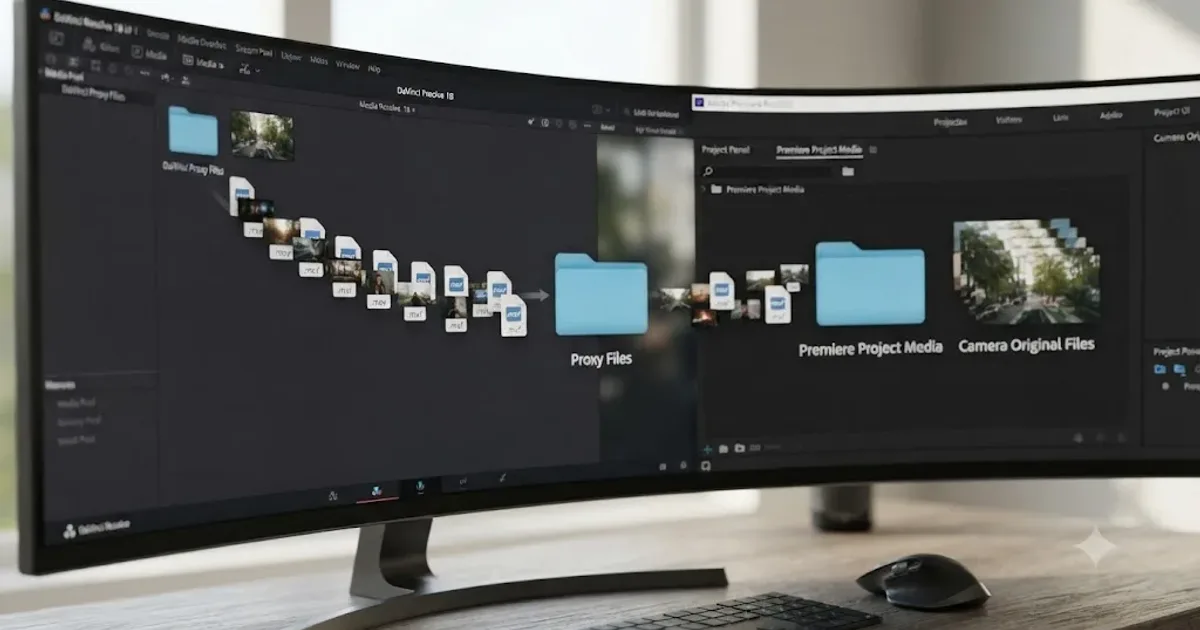
Your colorist finished the grade in DaVinci Resolve. Now the Premiere editor needs to keep cutting, on a laptop that can't touch the camera originals in real time, and the files you render out of Resolve's Deliver page either won't attach in Premiere at all or attach to the wrong clip entirely.
That's not a bug in either application. It's two separate proxy systems, built by two separate companies, each with its own private rulebook for what counts as a valid stand-in file. DaVinci Resolve checks one set of things before it'll link a proxy. Premiere Pro checks a different, partly overlapping set. Get both rulebooks right at once and the handoff takes minutes. Get either one wrong and you're relinking clips by hand at 11pm.
We've spent seven years cutting commercial work that moves between Premiere Pro and DaVinci Resolve depending on which app the client's pipeline favors, and this exact handoff, proxies out of Resolve, into a Premiere cut, is one of the recurring questions we field inside our 100,000+ member video-editing community. This guide covers the whole thing: the codec to pick, the exact settings Resolve requires before a proxy will link, the exact checks Premiere runs before Attach Proxies will succeed, and what to do when the two rulebooks disagree.
What does it actually mean to "export proxy files" from DaVinci Resolve for Premiere?
It means rendering small, easy-to-decode stand-in copies of your camera-original clips out of DaVinci Resolve, in a format and naming pattern Premiere Pro can recognize and link back to the same camera originals on the Premiere side.
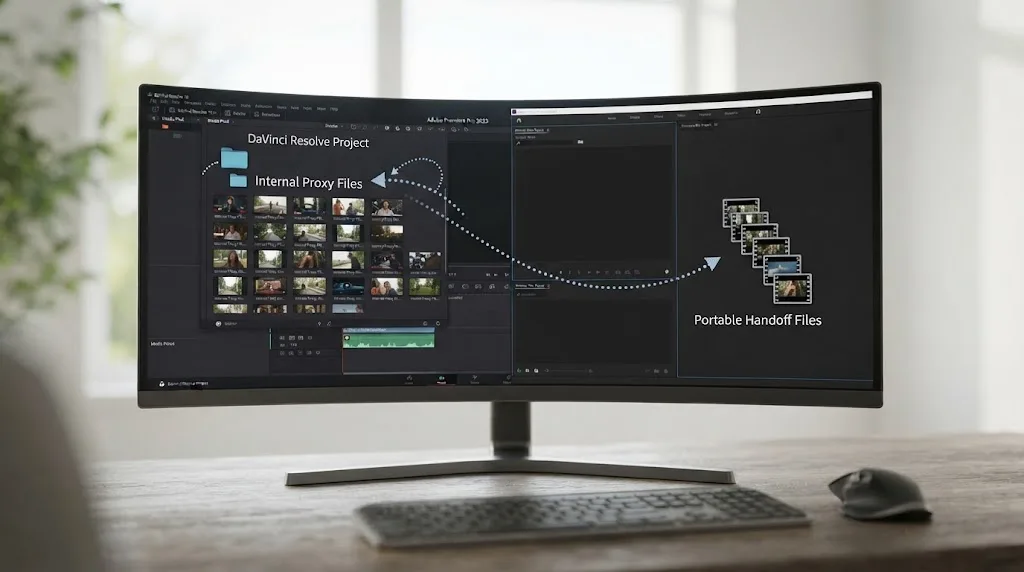
This is not the same thing as Resolve's Proxy Media feature that you'd use to edit smoothly inside Resolve itself. That feature, covered in full in our proxy media setup guide, generates proxies that live inside Resolve's own project and relink automatically when you reopen it. A Premiere handoff needs something more portable: individual proxy files, one per camera clip, sitting in a folder you can hand to someone running an entirely different application that has never heard of your DaVinci Resolve project file.
A proxy meant for a Premiere handoff and a proxy meant for editing inside DaVinci Resolve solve two different problems, even though they can be the exact same codec at the exact same resolution. One lives inside Resolve's project and disappears the moment you export. The other has to survive being copied to a different machine, imported into a different application, and matched back to source media it never touched during rendering. The settings that make the second kind work are the entire subject of this guide.
Why export proxies from DaVinci Resolve instead of just letting Premiere generate its own?
Because in a real cross-app pipeline, the camera originals often aren't sitting on the Premiere editor's machine yet, or the Resolve side has already done color work the Premiere editor needs to see, even in a rough form, while cutting.
Premiere Pro has a mature, automatic proxy system of its own, covered in Adobe's ingest and proxy workflow documentation: check the Ingest box in the Media Browser, pick a preset, and Adobe Media Encoder builds and attaches proxies as you import. That system works well when the Premiere editor has the camera originals in hand and is starting from scratch. It solves a different problem than the one this guide is about.
The DaVinci Resolve side of a handoff usually exists for one of three reasons. First, the colorist or DIT already has the camera originals locally, transcoded, and organized, and it's faster to generate proxies once centrally than to ship terabytes of 4K or 6K originals to every editor on the team. Second, Resolve's proxy render can burn in a LUT or a rough grade, so the Premiere editor is cutting against footage that already looks close to final instead of flat log. Third, and most simply, the workflow itself runs Resolve-first: ingest and organize in Resolve, generate lightweight proxies there, then hand a proxy set to an editor working in Premiere while the full-resolution originals stay on a shared drive or travel separately.
Generating proxies once, centrally, in DaVinci Resolve and handing them to every editor on a project avoids the alternative: everyone independently transcoding the same camera originals on their own machine, on their own schedule, with no guarantee any two of those proxy sets match. That's the practical case for this workflow over just letting Premiere build its own proxies locally, and it's the same logic that makes centralized proxy generation worth doing on any multi-editor project, regardless of which two applications happen to be involved.
What codec should DaVinci Resolve proxies use for a Premiere Pro handoff?
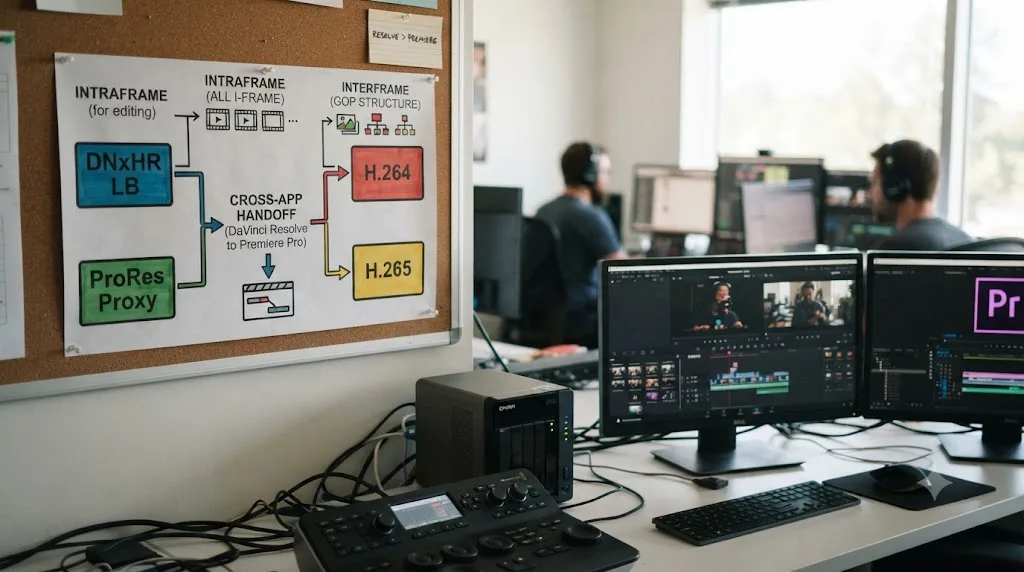
DNxHR LB on Windows, Apple ProRes Proxy on Mac. Both are intraframe formats built specifically for cheap, fast decoding, and both carry multi-channel audio in a way that survives Premiere's stricter attach requirements better than a delivery codec does.
The instinct to reach for H.264 or H.265 because the files are smaller is exactly the wrong move here, for the same reason it's the wrong move for any proxy workflow. Both are interframe formats: they don't store a complete picture for every frame, only a handful of complete frames plus a chain of differences describing everything in between, and reconstructing that chain on every scrub is real, ongoing CPU or GPU work. A proxy exists to remove that cost, not carry it forward into someone else's editing session.
| Codec | Structure | Cross-app reliability | Best for |
|---|---|---|---|
| DNxHR LB | Intraframe | High, no platform-specific licensing gaps in Resolve's own encoder | Windows-based handoffs, mixed-platform teams |
| Apple ProRes Proxy | Intraframe | High on Mac, native ProRes encode in DaVinci Resolve since version 19.1.4 (March 2025) on Windows too | Mac-based handoffs, teams delivering to Final Cut Pro downstream |
| H.264 / H.265 | Interframe | Low, audio channel mapping and decode cost both work against a proxy's purpose | Never for a proxy meant to attach cleanly in another NLE |
DaVinci Resolve added native Apple ProRes encoding on Windows and Linux in version 19.1.4, released March 2025, according to Digital Production's coverage of the update, which means a Windows-based colorist can render ProRes Proxy files directly from Resolve's own Deliver page today, no third-party transcode step required. That's worth knowing because DNxHR still carries one practical edge for a Premiere handoff specifically: Premiere Pro reads it natively on every platform with zero container ambiguity, while ProRes still lives inside a QuickTime MOV wrapper that occasionally trips up older or more rigid ingest tools on the Windows side of a pipeline. Our full ProRes versus DNxHR comparison covers that platform and container tradeoff in far more depth than this guide needs, if you're choosing a mastering codec rather than a proxy one.
Pick DNxHR LB or Apple ProRes Proxy specifically because they're intraframe, not because either brand carries any magic that makes a Premiere attach succeed on its own. The codec is necessary but not sufficient. The next two sections cover the settings that actually determine whether Premiere will take the file at all.
What exact settings does DaVinci Resolve require before a proxy will link at all?
DaVinci Resolve's own reference manual lists four hard requirements for a proxy file generated outside the application, and if you're rendering proxies in Resolve specifically to hand off, matching these same rules is what keeps your workflow consistent on both ends of the pipeline.
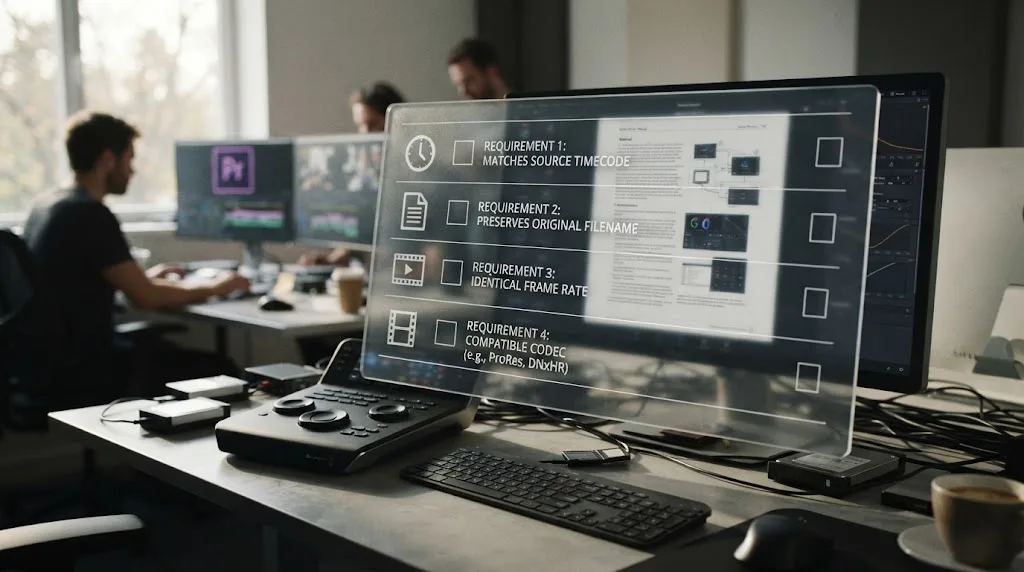
Per the manual's section on generating proxy media in other applications, an external proxy has to satisfy all four of the following before Resolve's Link Proxy Media function will connect it to a source clip:
| Requirement | What DaVinci Resolve's manual says | Why it matters for a Premiere handoff |
|---|---|---|
| Timecode | "Proxy files must have identical timecode to the source file." | Premiere checks timecode too; get this right once and it satisfies both applications |
| Filename | "Proxy files must have the same file name as the source file (excluding extensions)." | This is the single setting most handoff failures trace back to |
| Frame rate | "Proxy files must have the same frame rate as the source file." | A frame rate mismatch breaks scrubbing sync in either application, not just linking |
| Format and codec | "The format and codec used for proxy files must be supported in DaVinci Resolve." | DNxHR and ProRes both qualify; a codec Resolve can't read fails before you even reach Premiere |
These four rules exist independent of Premiere Pro entirely, they're Resolve's own bar for trusting a file it didn't render itself, and getting them right the first time means you're not solving two separate matching problems for two separate applications. That overlap is the most useful fact in this entire guide: build your render settings to satisfy Resolve's own linking rules, and you've already satisfied most of what Premiere checks too, since both companies converged on roughly the same idea of what makes a proxy trustworthy.
How do you export proxy files from DaVinci Resolve step by step?
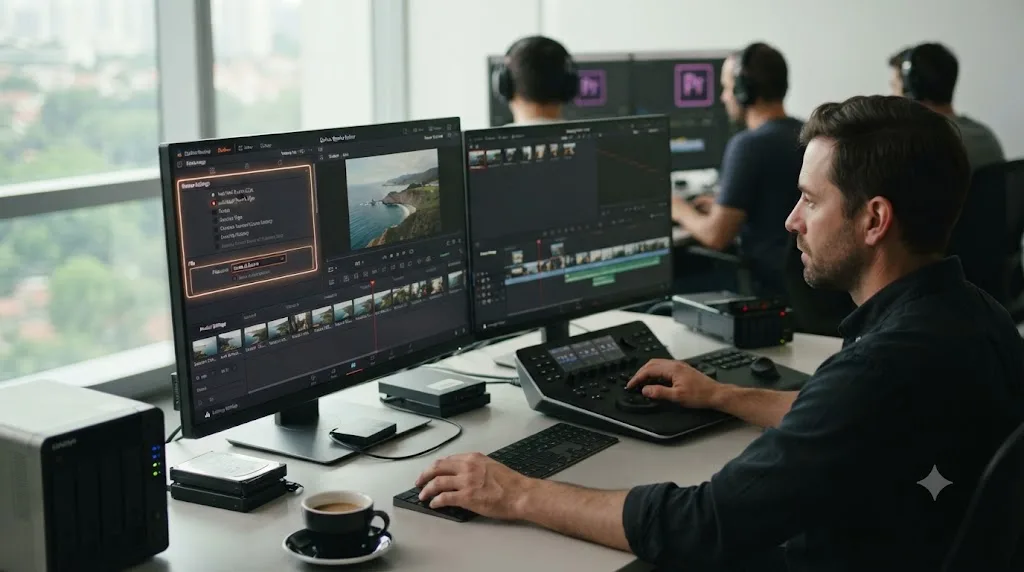
The render lives on the Deliver page, and the setting most guides skip is Individual Source Clips, since a normal timeline export flattens your cut into one file, which is the opposite of what a per-clip Premiere handoff needs.
- Open the Deliver page and select the timeline or bin holding the clips you need proxies for.
- Under Render Settings, set the export mode to Individual Source Clips, not a full timeline render. This produces one output file per source clip rather than one flattened export of your edit.
- Under the Video tab, set Format to QuickTime and Codec to Apple ProRes Proxy on Mac, or MXF and DNxHR LB on Windows.
- Under the File tab, set Filename to Same as Source Clip Name, and check Use Unique Filenames. This is the setting that satisfies both Resolve's own filename rule and Premiere's filename-matching check at once.
- Set the destination to a dedicated Proxies folder, separate from your camera originals and separate from any Resolve-internal proxy cache.
- Add the clips to the render queue, either individually or as a full bin selection, and start the render.
- Once rendering finishes, confirm a spot-check clip's filename matches its source exactly, minus the extension, and that its duration and frame rate line up before you send the folder anywhere.
| Deliver page setting | Value to use | Why |
|---|---|---|
| Render Settings | Individual Source Clips | Produces one proxy file per camera clip, not a flattened timeline |
| Video Format | QuickTime (Mac) / MXF (Windows) | Matches the native container for ProRes and DNxHR respectively |
| Codec | Apple ProRes Proxy / DNxHR LB | Intraframe, cheap to decode, reliable audio channel handling |
| Filename | Same as Source Clip Name | Satisfies both Resolve's and Premiere's filename-matching requirement |
| Unique Filenames | Checked | Prevents Resolve from silently skipping clips with duplicate output names |
| Destination | Dedicated Proxies folder | Keeps proxy files separate from originals and any internal Resolve cache |
Individual Source Clips is the one Deliver page setting this entire workflow depends on, and it's easy to miss because most Resolve tutorials are teaching you to export a finished timeline, not a folder of matched clip proxies. If you render a full timeline export instead, you'll get a single flattened video file that plays back fine but has nothing for Premiere to attach to any individual clip. Every step after this one assumes you got that one setting right.
Can you reuse proxies you already generated for editing inside Resolve?
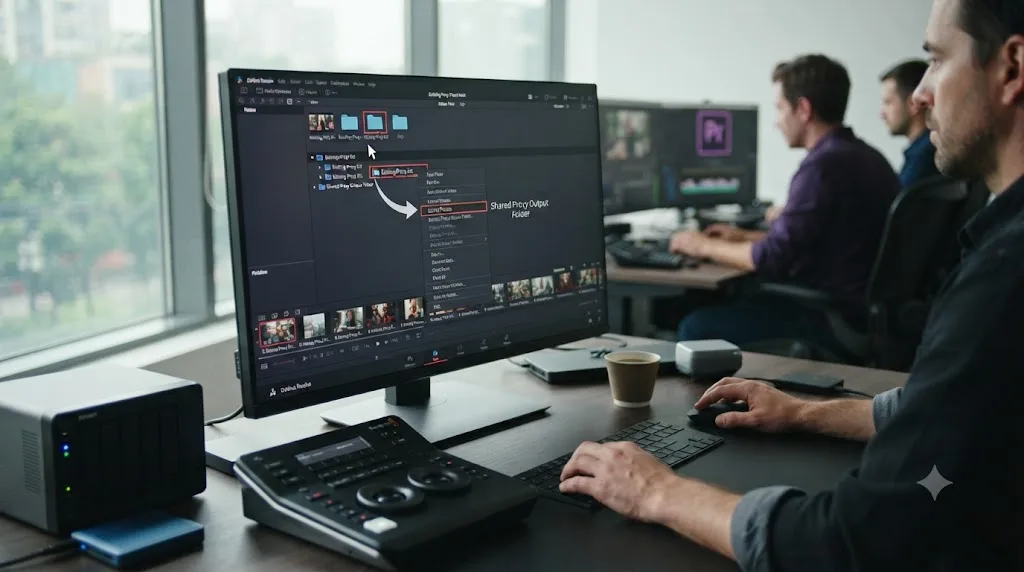
Yes, if you generated them through Resolve's own Proxy Media feature, using the Extract Proxies option in the Media Pool instead of re-rendering everything from the Deliver page.
Per the manual's section on managing proxy media, Extract Proxies "copies all proxy files from the selected watch folders to a new destination in the file system dialog." If you already generated Proxy Media for smoother editing inside Resolve, using DNxHR LB or ProRes Proxy as covered in our proxy media setup guide, those files already exist on disk with matching filenames to their sources. Extract Proxies pulls a clean copy of just that proxy set into a new, shareable folder, without touching your original project's internal proxy cache.
This shortcut has one caveat worth knowing before you rely on it: if a clip's proxy was regenerated more than once during editing, per the same manual page, DaVinci Resolve appends "_s00x" to the filename of later versions to keep them distinct inside its own internal folder. A proxy carrying that suffix will not match a Premiere clip's filename cleanly, since the suffix breaks the exact filename match both applications require. Check for that suffix before you extract and hand off a proxy set that was regenerated partway through a project, and rename or re-render the affected clips if you find one.
Extract Proxies saves you a full re-render when your editing proxies and your handoff proxies can be the exact same files, but it's not a blind shortcut, since a regenerated proxy's filename can quietly drift from the exact match both DaVinci Resolve and Premiere require. Spot-check filenames after extraction, the same way you would after a fresh Deliver page render, before you hand the folder off.
What does Premiere Pro's Attach Proxies command actually check before it links a file?
Premiere Pro compares a longer list of properties than DaVinci Resolve does, and getting even one of them wrong produces a silent failure or an explicit error dialog rather than a partial link.
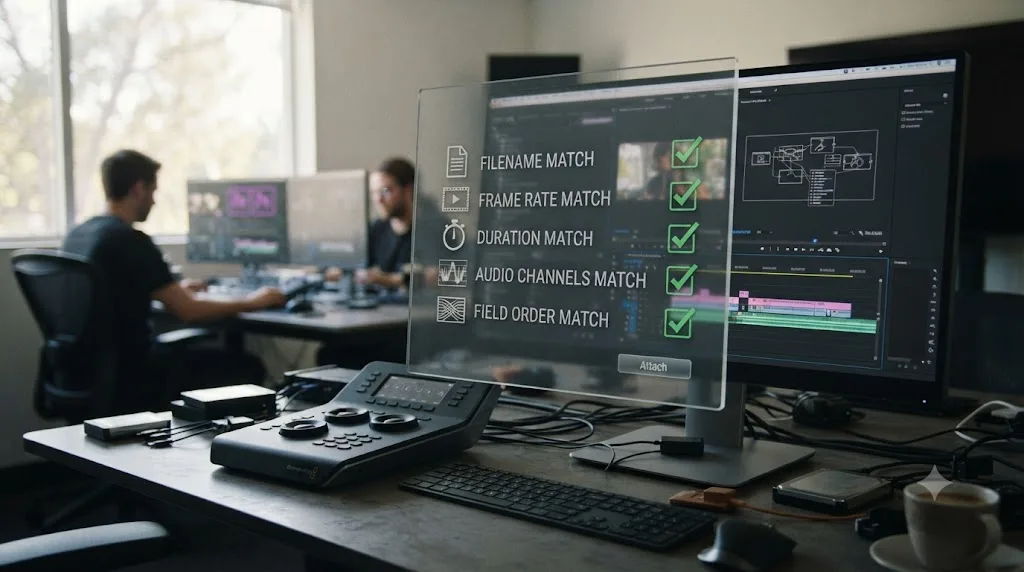
Per detailed breakdowns of the feature, including Frame.io's guide to Premiere Pro proxy workflows, Premiere checks filename, frame rate, duration, fielding, frame size, and audio channel count before it will attach an externally created proxy to a full-resolution clip. Frame size has one useful piece of flexibility: the proxy's dimensions just need to divide evenly into the original's, so a 1920x1080 source can accept a 960x540 proxy without issue. Every other property on the list needs to match exactly, not approximately.
| What Premiere checks | Tolerance | What breaks it |
|---|---|---|
| Filename | Exact match required | A renamed clip, a suffix from a re-render, or a typo in the source name |
| Frame rate | Exact match required | Proxy rendered at 24fps against a 23.976fps source, or vice versa |
| Duration | Exact match required | A trimmed or re-rendered proxy that's even one frame short or long |
| Fielding | Exact match required | Interlaced source paired with a progressive proxy render, or the reverse |
| Frame size | Divisible ratio accepted | 1920x1080 accepts 960x540; a non-evenly-divisible size doesn't |
| Audio channel count | Exact match required | The single most common failure point, covered in the next section |
Author and workflow specialist Jarle Leirpoll, describing the moment editors first switch to a working proxy setup, put the payoff plainly in that same Frame.io guide: "I've seen cynics whose jaws drop when they try using proxies for the first time." That reaction is the whole reason this workflow is worth getting right rather than avoiding. A proxy setup that actually attaches turns a laptop that couldn't touch your camera originals into a machine that scrubs a 6K timeline without a single dropped frame, and the difference between that and a folder of red offline clips comes down entirely to the checklist in the table above.
A DaVinci Resolve proxy that plays perfectly inside Resolve can still fail to attach in Premiere Pro, because the two applications are checking a different, only partly overlapping list of properties before they'll trust the file. Filename and frame rate satisfy both. Duration, fielding, and audio channel count are checks Premiere runs that Resolve's own linking rules don't explicitly name, which is exactly why a proxy that "worked" on the Resolve side can still bounce off Premiere's Attach Proxies dialog.
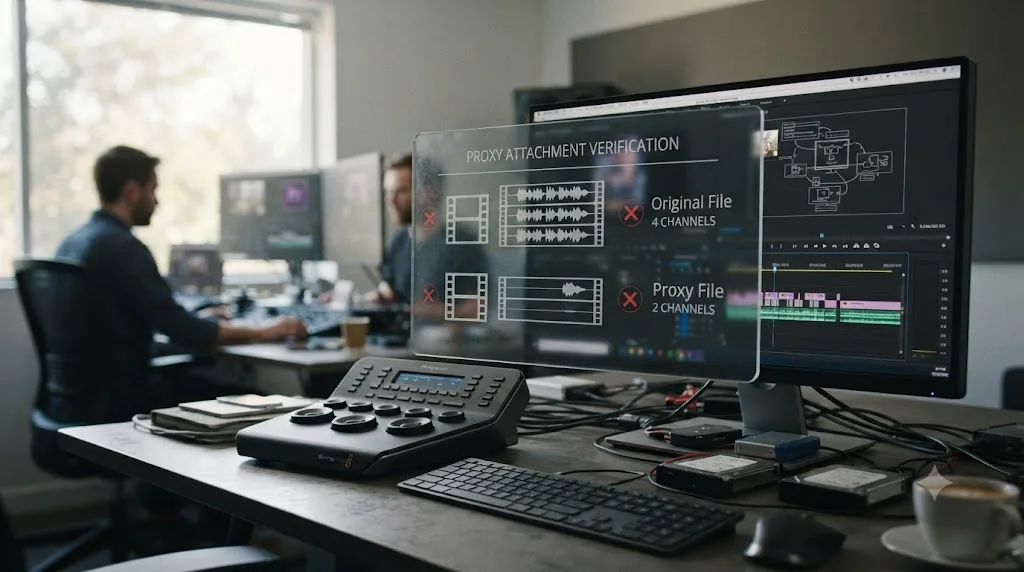
Why does Premiere say "Proxy media and full resolution media must have matching audio channels"?
Because your camera original and your proxy carry a different number of audio tracks, and Premiere refuses to guess how they should line up.
This is the single most common way an otherwise correct proxy handoff fails, and it usually has nothing to do with anything you configured in DaVinci Resolve directly. It's about how the camera recorded sound in the first place. A documented case on Adobe's own community forum describes exactly this: a Panasonic Varicam LT records internal proxies with 2 audio channels while its full-resolution source carries 4, and Premiere Pro won't attach the two because the channel counts don't match. Plenty of professional cameras record more audio channels internally than actually carry usable sound, mono boom on one channel, a wireless lav on another, two more sitting silent as spares, and if your DaVinci Resolve proxy render collapses those down to stereo while the camera original still reports four channels, Premiere sees a mismatch and stops.
The fix happens on the render side, before the mismatch ever reaches Premiere. When you set up your Deliver page export in DaVinci Resolve, check the Audio tab against your actual camera-original channel count, not against what you'd prefer to hear. If the source is 4-channel, render the proxy as 4-channel too, even if two of those channels are silent. Collapsing to stereo for a smaller file size is exactly the kind of "helpful" simplification that breaks the attach on the other end.
| Symptom | Likely cause | Fix |
|---|---|---|
| Premiere shows "must have matching audio channels" on attach | Proxy rendered with fewer or more audio channels than the camera original | Re-render the proxy from DaVinci Resolve matching the source's exact channel count |
| Attach works for some clips, fails for others in the same batch | Different camera models or recording modes in the same shoot, each with a different native channel count | Group clips by source channel count before rendering proxies, rather than one blanket export setting |
| Attach fails even though channel count looks correct in Resolve | Resolve's proxy render collapsed channels during export despite the source setting | Check the actual rendered proxy's channel count in a media inspector, not just Resolve's Deliver page dropdown, before troubleshooting further |
Audio channel count is the single most common reason a technically perfect proxy handoff fails in Premiere Pro, and it's almost never something you'd catch by watching the proxy play back, since a silent extra channel sounds identical to no extra channel at all. Check it explicitly, on the actual rendered file, rather than trusting that matching resolution and codec was enough.
How do you actually attach the DaVinci Resolve proxies inside Premiere Pro?
Once the camera originals are already in Premiere's Project panel, whether the Premiere editor imported them directly or received them alongside your proxy folder, attaching is a manual, per-batch action, not something that happens automatically just because the files exist on disk.
- Import the camera-original clips into Premiere's Project panel, if they aren't already there.
- Select the clips you want to attach proxies to. You can select the entire batch at once if their filenames all match a corresponding proxy.
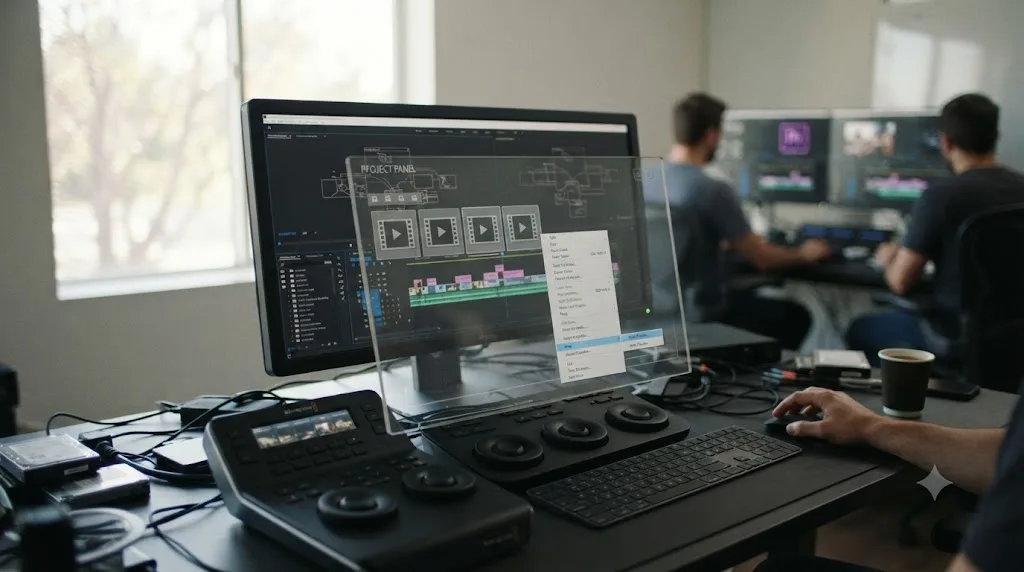
- Right-click the selection and choose Proxy > Attach Proxies.
- In the dialog, browse to the folder holding your DaVinci Resolve proxy exports.
- Select one proxy file to start. Per Adobe's own documentation on ingest and proxy workflows, once Premiere successfully matches one file, it should locate and attach the rest of the batch automatically, provided your folder structure and filenames are consistent across the set.
- Confirm the attach succeeded by checking the toggle button at the bottom of the Program monitor, which switches playback between full-resolution and proxy media. If it's active and your timeline is now scrubbing off the lightweight files, the attach worked.
- For any clips that failed silently or triggered an error, work back through the checklist in the previous two sections: filename, frame rate, duration, fielding, and audio channel count, in that order, since filename mismatches account for the largest share of failures and are the fastest to spot.
One asymmetry worth knowing before you rely on this process for a full project: relinking isn't as forgiving in one direction as the other. Attaching proxies to already-imported full-resolution originals works reliably when the settings match. Going the reverse direction, attaching full-resolution media back onto a project that was built entirely around proxies, is a less reliable operation in Premiere, according to workflow guides covering this exact process, including the ELEMENTS breakdown of Premiere's proxy workflow. Plan your handoff so the camera originals land in Premiere's Project panel first, proxies attach second, rather than building an entire cut on proxies alone and hoping the reverse relink goes smoothly at the end.
Premiere Pro's Attach Proxies command does not care what application rendered your proxy files, it cares whether the numbers on the file match the numbers it's comparing them against. That's good news for a DaVinci Resolve handoff specifically: there's no special Resolve-to-Premiere bridge to configure, no plugin to install. Match the checklist, and Premiere treats a Resolve-rendered proxy exactly the same way it would treat one Adobe Media Encoder built itself.
DNxHR LB vs Apple ProRes Proxy: which is the safer bet for this specific handoff?
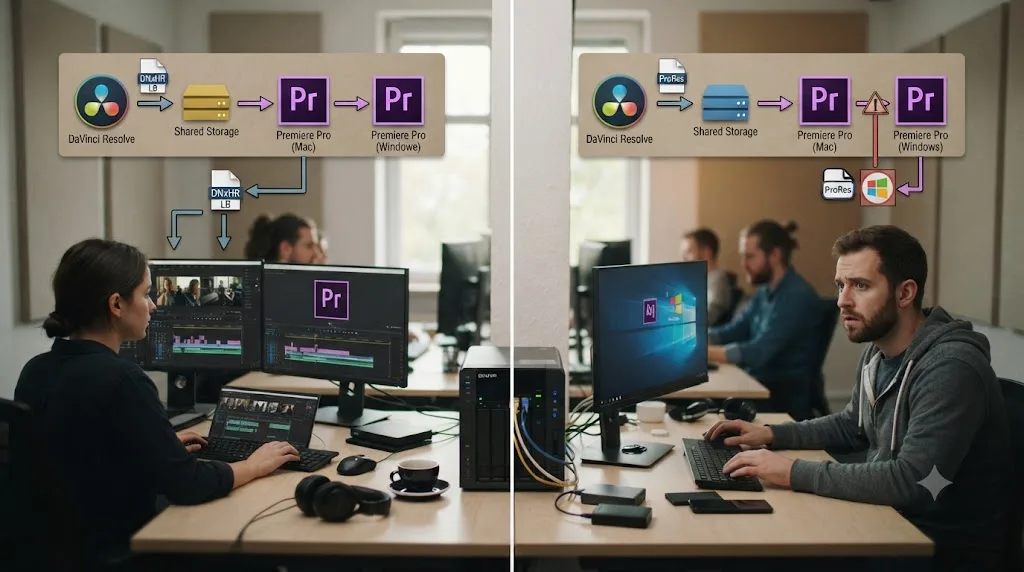
DNxHR LB, if your pipeline touches Windows anywhere outside DaVinci Resolve itself, because it carries fewer platform-specific asterisks once you leave Resolve's own encoder.
Rendering directly from DaVinci Resolve's Deliver page, both codecs are equally reliable today. Resolve's own Supported Formats and Codecs documentation confirms full encode support for both DNxHR and Apple ProRes on macOS, Windows, and Linux alike, with no platform gate on either one, a point covered in more depth in our ProRes versus DNxHR comparison. Where the platform story gets more complicated is if any part of your proxy generation happens outside Resolve's own render engine, specifically through Blackmagic's separate standalone Proxy Generator utility rather than the Deliver page.
Per the Blackmagic Cloud Store user manual's documentation of the Proxy Generator utility, the Lite version of that tool "uses the codecs built into your computer's operating system" on Windows due to licensing limitations, and states plainly that "on Windows, ProRes proxies are disabled" as a result, in that specific bundled configuration. That caveat doesn't touch the recommendation in this guide, since we're pointing you at Resolve's own Deliver page render rather than the standalone Proxy Generator app, but it's exactly the kind of platform gap that quietly resurfaces if your team later automates proxy generation with a different tool in the pipeline. DNxHR simply never has this specific problem to begin with, since it was built by Avid to be platform-agnostic from its first release.
| Consideration | DNxHR LB | Apple ProRes Proxy |
|---|---|---|
| Native encode in DaVinci Resolve's Deliver page | Yes, all platforms | Yes, all platforms, including Windows since version 19.1.4 |
| Container | MXF or MOV, flexible | QuickTime MOV, the standard expectation |
| Cross-platform licensing gaps outside Resolve's own encoder | None known | Windows-specific gaps documented in at least one bundled third-party tool |
| Best fit | Mixed Mac/Windows teams, or any Windows-heavy pipeline | All-Mac pipelines, or teams already standardized on ProRes for mastering |
DNxHR LB survives a cross-platform handoff more reliably than ProRes Proxy does, purely because ProRes still runs into licensing gaps in some Windows-side tools outside DaVinci Resolve's own encoder, even though Resolve itself handles both codecs identically on every platform it ships for. If your entire team is on Mac and stays there through delivery, that gap never surfaces and ProRes Proxy is the simpler, equally reliable choice. The moment Windows enters the picture anywhere in the chain, DNxHR removes one more variable you'd otherwise have to track down later.
Do you need to send an XML or AAF along with the proxy files, or is the media enough?
The proxies alone are enough if the Premiere editor is building a fresh cut from scratch. They're not enough if you need your existing edit structure, transitions, or timing to survive the handoff too, since proxy media carries pixels and audio, not a timeline.
Proxy files are, by design, just media: individual clips sitting in a folder, with no information about how they're supposed to be arranged, trimmed, or sequenced. If the Premiere editor is starting a fresh assembly from your organized camera originals and proxies, that's exactly what proxy media is built for, and you're done once the files attach cleanly.
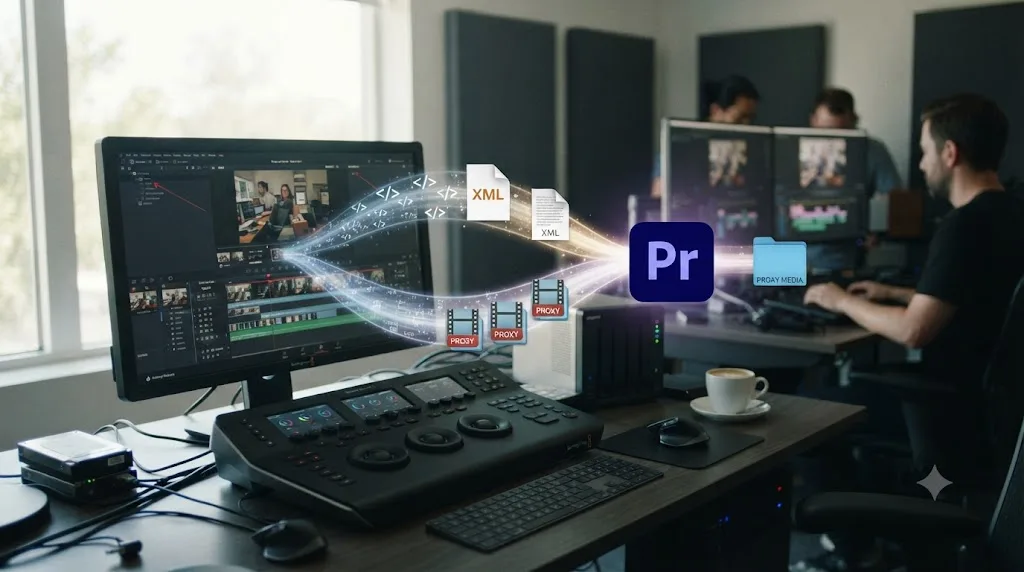
If instead you've already built a rough cut or a locked edit inside DaVinci Resolve and need that structure to survive into Premiere, proxy files need a companion: an XML or AAF export of the timeline itself. That's a genuinely different handoff mechanism, and it comes with its own, separate set of failure modes, covered in full in our XML import from Premiere Pro troubleshooting guide. That guide covers the Premiere-to-Resolve direction specifically, but the same underlying fragility applies going the other way: Resolve's XML and AAF export, like Premiere's, is translating your edit through a third-party format standard neither company fully controls, and elements like nested timelines, transitions, and effect keyframes don't always survive the trip intact.
The practical sequencing that avoids compounding two separate failure modes at once: export and verify your XML or AAF first, confirm it conforms cleanly against the camera originals inside Premiere, and only then attach your proxy files to the clips that timeline references. Troubleshooting a broken proxy attach on top of a broken timeline import at the same time turns a fifteen-minute fix into an afternoon, since you can't always tell which layer actually failed.
Proxy media and a timeline export solve two entirely separate problems in a Resolve-to-Premiere handoff, and sending only one when the Premiere editor genuinely needs both is the single most common way this workflow disappoints someone on the other end. Ask directly, before you render anything: does the Premiere editor need your cut's structure, or just clean, lightweight media to build their own cut against? The answer changes what you're actually supposed to hand off.
What folder structure and naming keeps both DaVinci Resolve and Premiere happy at once?
A flat, predictable structure, with camera originals and proxies in clearly separated folders and no renamed clips anywhere in the chain, since both applications lean on filename matching more heavily than almost anything else in this workflow.
| Folder | Contents | Rule |
|---|---|---|
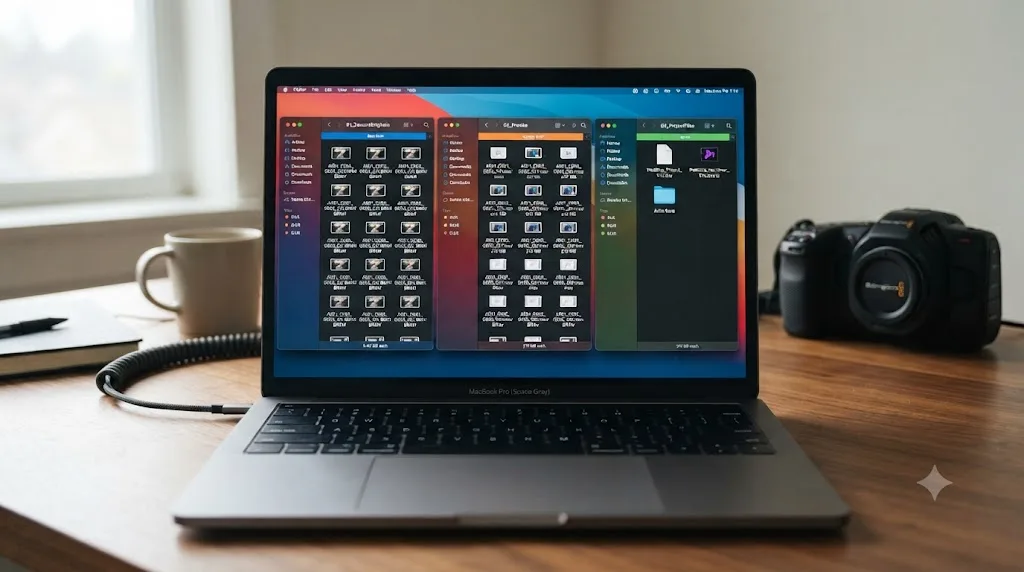
| /CameraOriginals/ | Untouched source footage, organized by card or shoot day | Never rename a file here after cutting has started, in either application |
| /Proxies/ | DNxHR LB or ProRes Proxy renders, one per camera clip | Filenames must match CameraOriginals exactly, minus the extension |
| /ProjectFiles/ | The DaVinci Resolve project and any XML/AAF exports | Keep separate from media folders so a media sync doesn't accidentally touch project files |
Two habits prevent almost every naming-related failure this guide covers. First, never rename a source clip after you've started cutting with it or generated proxies from it, a rule that holds just as true here as it does in the XML handoff guide, since both a timeline conform and a proxy attach lean on the exact same filename match. If a clip genuinely needs a cleaner name for organizing purposes, duplicate the file and rename the copy, or handle it through metadata instead of the filename itself. Second, keep the proxy folder's internal structure flat or shallow rather than deeply nested, since some ingest tools and relink dialogs, Premiere's included, search folders more reliably a level or two deep than they do through a sprawling nested hierarchy.
A folder structure that looks obvious to you on the DaVinci Resolve side means nothing to Premiere unless the filenames inside it match the camera originals exactly, since neither application actually reads folder names as part of its matching logic, only the files within them. Spend the extra two minutes confirming a handful of filenames by hand before a big handoff. It's cheaper than discovering the mismatch after the Premiere editor has already spent an afternoon fighting a batch attach that silently skipped half the clips.
Do you need DaVinci Resolve Studio to export proxy files for a Premiere handoff?
No. Every setting this guide covers, Individual Source Clips rendering, DNxHR and ProRes encoding, and Extract Proxies, is available in the free version of DaVinci Resolve.
Per Blackmagic's own tech specs and Studio product page, the free version's export limitations are about resolution and frame rate, not about proxy features or codec access specifically. If your project and its proxy renders stay at or under Ultra HD 3840x2160, the free version handles this entire handoff workflow with no restriction attached. Studio becomes necessary only if you're working at resolutions above 4K, frame rates above 60fps, or need Studio-gated extras like the AI tools Blackmagic introduced in recent Resolve releases, none of which this specific workflow touches.
| Question | Free version | Studio |
|---|---|---|
| Individual Source Clips render mode | Yes | Yes |
| DNxHR LB / ProRes Proxy encoding | Yes, all platforms | Yes, all platforms |
| Extract Proxies from the Media Pool | Yes | Yes |
| Resolution ceiling for the proxy render itself | Up to 4K | No ceiling |
Nothing about a DaVinci Resolve to Premiere proxy handoff requires the $295 Studio license, and if you've been avoiding this workflow because you assumed it needed a paid tier, that assumption is costing you time for no reason. The one place Studio genuinely matters in this pipeline is a proxy render above 4K, which is a resolution ceiling most editorial proxies, sitting at Quarter or Eighth resolution by design, never come close to touching anyway.
What if you're going the other direction: a Premiere editor sending proxies to a DaVinci Resolve colorist?
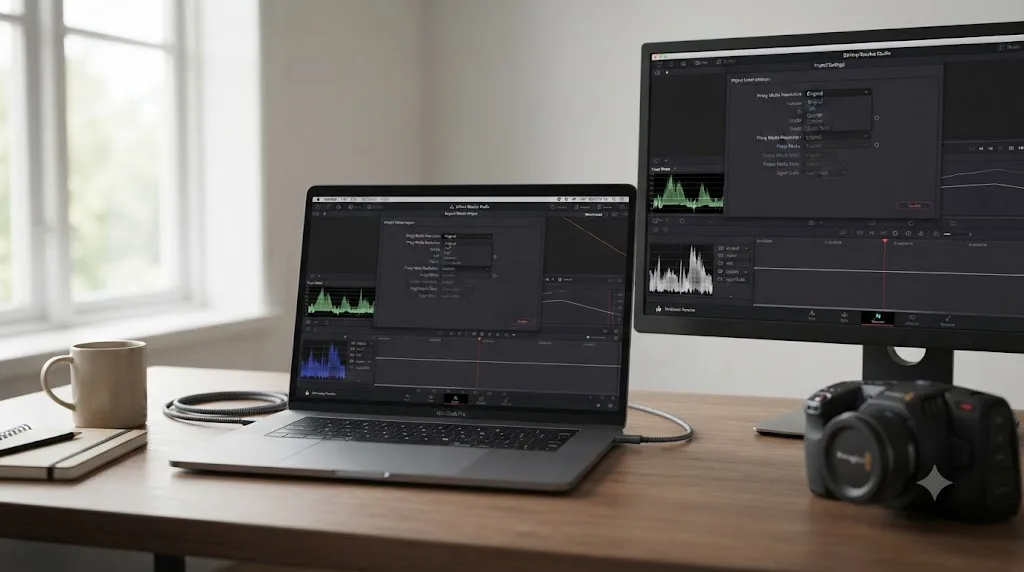
The same rule set applies in reverse, and DaVinci Resolve's own manual is explicit about it: a proxy generated outside Resolve, in Premiere or anywhere else, links successfully using the exact same four checks covered earlier in this guide.
If you're the Premiere editor in this relationship, generating proxies through Premiere's own automatic ingest workflow and sending them to a colorist working in DaVinci Resolve, the codec math shifts slightly, since ProRes and DNxHR both remain your safest picks, but Premiere's Media Encoder defaults sometimes lean toward Cineform or other Premiere-native formats that Resolve doesn't read as reliably. Stick with ProRes Proxy or DNxHR LB from Premiere's own ingest presets specifically, not whatever the default preset happens to suggest, and the Resolve side of the handoff opens the files exactly the way it would open its own renders.
On the linking side, once the proxy files land on the Resolve side, use the Link Proxy Media function in the Media Pool rather than expecting an automatic match the way Premiere's Attach Proxies aims for. Select the source clip, right-click, and point it at the corresponding externally-generated proxy file. As long as the four requirements from earlier in this guide hold (identical timecode, identical filename minus extension, identical frame rate, a Resolve-supported codec), the link succeeds the same way it would for a proxy Resolve rendered itself.
DaVinci Resolve's Link Proxy Media function treats a Premiere-generated proxy exactly the same way it treats one of its own Deliver page renders, provided the file satisfies the same four rules covered earlier, which means this entire guide reads correctly in either direction if you swap which application is sending and which is receiving. That symmetry is worth knowing if your team's pipeline runs Premiere-first on some projects and Resolve-first on others, since you're not learning two unrelated systems, just applying the same checklist from whichever side you're standing on.
What are the most common mistakes in a DaVinci Resolve to Premiere proxy handoff?
A short list of avoidable missteps accounts for most of the frustration editors report with this specific workflow, and nearly all of them trace back to skipping a check this guide already covers.
Rendering a flattened timeline instead of Individual Source Clips. This produces one usable video file and nothing Premiere can attach to individual clips. If your export only produced a single output file instead of one per clip, this is almost certainly the setting you missed.
Letting Resolve's proxy render collapse audio to stereo. Covered in depth above, this is the single most common attach failure, and it's invisible on playback since a silent extra channel sounds identical to no channel at all.
Renaming a source clip after proxies already exist for it. Both DaVinci Resolve's own linking rules and Premiere's Attach Proxies lean on exact filename matches. A rename that felt harmless breaks the connection on both ends at once.
Sending proxies without the edit structure the Premiere editor actually needed. Covered in the XML and AAF section above: proxy media is pixels, not a timeline, and assuming the other one is implied wastes a round trip.
Assuming a codec that plays fine in Resolve will attach fine in Premiere. Frame rate, duration, fielding, and audio channel count are all things Premiere checks that a simple "does it play" test in Resolve won't catch.
Deeply nesting the proxy folder structure. Some relink dialogs search shallow folder trees more reliably than deep, sprawling ones. Keep the proxy folder flat, or close to it, especially on a large multi-day shoot.
Forgetting to uncheck "Use Proxy Media" before the final render, on the DaVinci Resolve side, if the same project later comes back for finishing. Per the manual's page on proxy files for delivery, "the Deliver page always reverts proxies to the original source media for final output" by default, which is the correct behavior, but it's worth confirming explicitly if a project has passed through several hands and several proxy generations by the time it reaches a final render.
What does a full handoff look like from start to finish?
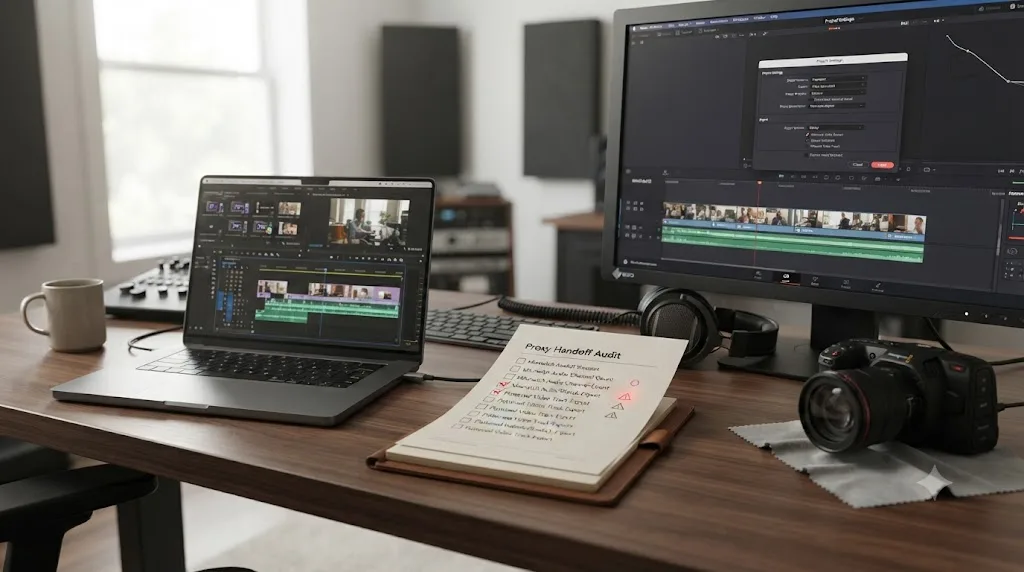
Put the pieces together on a realistic case: a two-camera interview shoot, Sony cameras recording 4-channel audio, organized and color-graded in DaVinci Resolve by a colorist, headed to a freelance editor cutting in Premiere Pro on a mid-range Windows laptop.
The colorist starts in DaVinci Resolve, with camera originals already imported and organized into bins by camera and day. Rather than exporting a flattened cut, they select every clip across both cameras, open the Deliver page, and set Render Settings to Individual Source Clips. Codec goes to DNxHR LB, since the Premiere editor is on Windows and the project may eventually touch a broadcast delivery further down the line. Filename is set to Same as Source Clip Name with Unique Filenames checked, and critically, the Audio tab is confirmed at 4 channels, matching the Sony cameras' native output exactly, not collapsed to stereo for a smaller file.
The render goes to a dedicated /Proxies/ folder, sitting alongside, but never nested inside, the /CameraOriginals/ folder both sides of the handoff already share on a common drive. Because the edit itself is still a rough assembly at this stage, not a locked cut, the colorist skips exporting an XML entirely. The Premiere editor is building their own cut from scratch, so proxy media is genuinely all that's needed here.
On the Premiere side, the editor imports the camera-original clips into a fresh project, selects the full batch, right-clicks, and chooses Proxy, Attach Proxies, pointing at the shared /Proxies/ folder. The first clip attaches cleanly, and per Adobe's own documentation, the rest of the matching batch follows automatically. One clip from the second camera fails, because a card had been re-labeled during offload and its filename no longer matched the original exactly. The editor catches it from the mismatch checklist covered earlier in this guide, renames the proxy to match, reattaches by hand, and moves on. Total time lost to that one straggler: about two minutes, once you know exactly what to check first.
A proxy handoff that fails almost never fails for a mysterious reason, it fails because one specific, checkable property, most often filename or audio channel count, didn't match, and finding that one property is faster than most editors expect once they know the short list to check. That's the entire practical payoff of this guide: not a workaround, just the actual list of things both applications are checking, so you're troubleshooting a known variable instead of guessing.
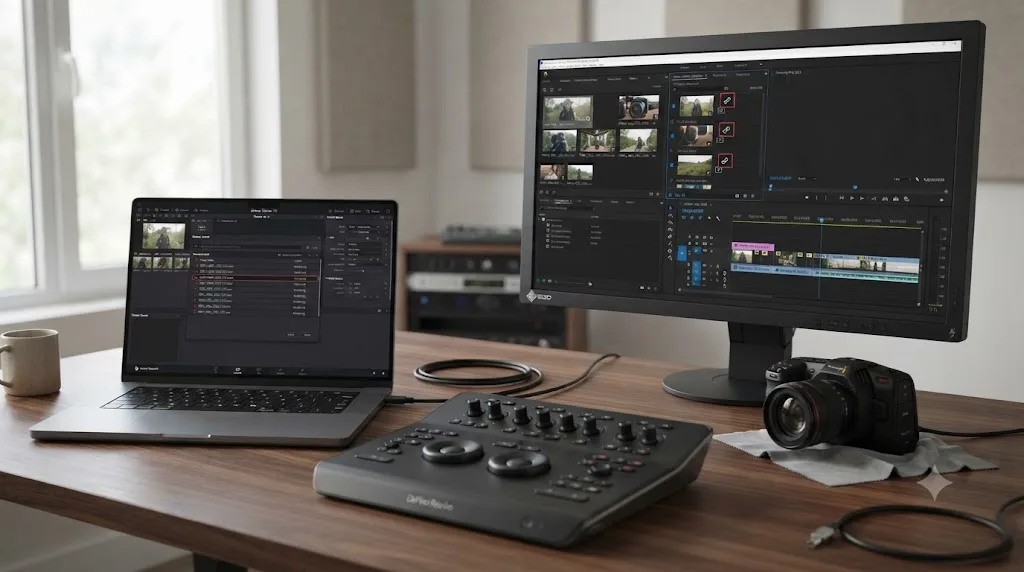
What's the fastest checklist for a clean DaVinci Resolve to Premiere proxy handoff?
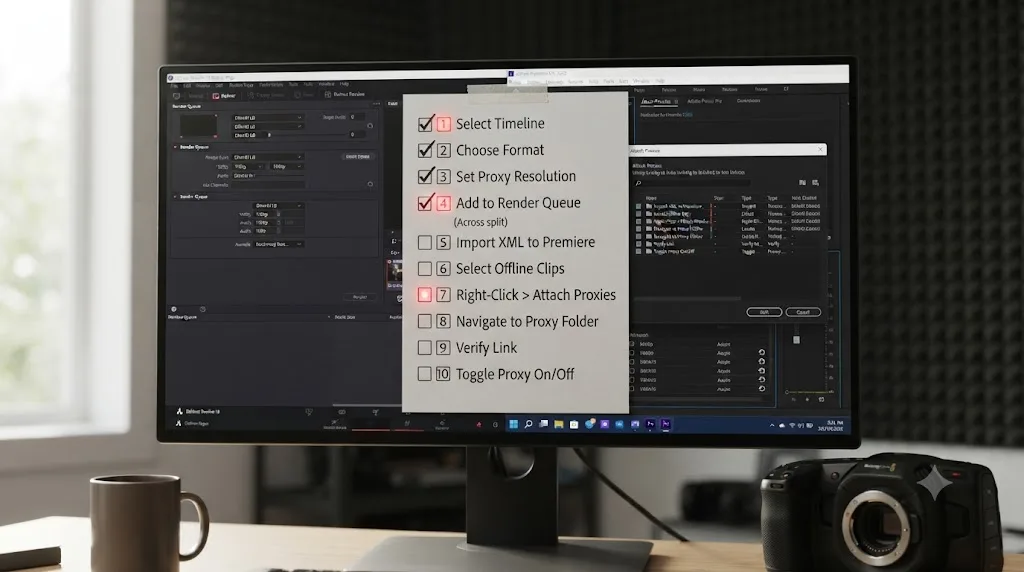
Work through these in order, whether you're setting up the handoff for the first time or troubleshooting one that's already gone sideways:
- On the Deliver page, set Render Settings to Individual Source Clips, never a flattened timeline export.
- Choose DNxHR LB (Windows-safe, mixed teams) or Apple ProRes Proxy (Mac-only pipelines).
- Set Filename to Same as Source Clip Name, with Unique Filenames checked.
- Check the Audio tab against your camera originals' actual channel count, and match it exactly, even if extra channels are silent.
- Render to a dedicated Proxies folder, separate from camera originals and any internal Resolve cache.
- Never rename a source clip after generating proxies from it, on either side of the handoff.
- Confirm whether the Premiere editor needs your edit structure too. If so, export an XML or AAF alongside the proxies, not instead of them.
- In Premiere, select the offline clips, choose Proxy, Attach Proxies, and point to the shared folder.
- For any clip that fails to attach, check filename first, then frame rate and duration, then audio channel count, in that order.
- Confirm Use Proxy Media stays unchecked on the Deliver page for any final render, so the finished deliverable pulls from full-resolution originals regardless of what proxies were used during the cut.
If a Mac-based colorist on your team keeps losing time hunting through Resolve's Deliver page for the exact proxy setting that matters, that's a narrower problem than the workflow itself: TryUncle is the on-screen assistant for DaVinci Resolve on macOS. Ask in plain words and Uncle points at the exact control on your screen, instead of pausing the handoff to hunt through a menu you half-remember.
A proxy handoff between DaVinci Resolve and Premiere Pro isn't fragile because the two companies didn't plan for it. It's fragile because each application independently decided what makes a file trustworthy, and those two lists only mostly overlap. Match Resolve's four rules on the way out, match Premiere's six checks on the way in, and the files that were tripping you up for an entire afternoon start attaching on the first try. Once you've done it correctly one time, on one project, the checklist stops feeling like troubleshooting and starts feeling like a habit, which is exactly what it should be for a workflow you're likely to repeat on every mixed-app project that comes after this one.
Frequently asked questions
- How do I export proxy files from DaVinci Resolve for Premiere Pro?
- On the Deliver page, set Render Settings to Individual Source Clips, pick DNxHR LB (Windows) or Apple ProRes Proxy (Mac), and set Filename to Same as Source Clip Name with Unique Filenames checked. Render every clip into one dedicated Proxies folder, then hand that folder to the Premiere editor alongside the camera originals.
- Why won't Premiere Pro attach the proxies I made in DaVinci Resolve?
- Premiere's Attach Proxies checks filename, timecode, frame rate, duration, fielding, and audio channel count against the full-resolution clip. If any one of those does not match exactly, and audio channel count is the most common failure, Premiere shows an attach failure instead of linking the file.
- What codec should DaVinci Resolve proxies use for a Premiere handoff?
- DNxHR LB on Windows and Apple ProRes Proxy on Mac. Both are intraframe, both decode cheaply, and both carry audio in a way H.264 or H.265 in an MP4 wrapper often can't match cleanly to camera-original channel counts.
- Why does Premiere Pro say "Proxy media and full resolution media must have matching audio channels"?
- Your camera's audio track count does not match the proxy's audio track count. Many professional cameras record more channels internally than actually carry sound, and a proxy rendered with a different channel count than the camera original will not attach, even if every other setting is correct.
- Do I need DaVinci Resolve Studio to export proxy files for a Premiere handoff?
- No. Proxy Media, DNxHR and ProRes encoding, and Individual Source Clips rendering are all available in the free version of DaVinci Resolve. Studio is only required if your export needs to go above 4K resolution or above 60fps, not for this workflow.
- Should I send an XML or AAF along with the proxy files?
- Yes, if the Premiere editor needs your cut's structure, not just the media. The proxy files are the pixels; the XML or AAF is the timeline that arranges them. Sending only proxies without an edit structure only makes sense if the Premiere side is building a fresh cut from scratch.
- Can I go the other direction and attach proxies made in Premiere inside DaVinci Resolve?
- Yes, using the same underlying rule set. DaVinci Resolve's own manual requires a proxy made outside itself to carry the same filename, the same timecode, and the same frame rate as the source clip before its Link Proxy Media function will connect the two.
Sources
- DaVinci Resolve Manual: Generating Proxy Media in Other Applications (VFXPedia mirror)
- DaVinci Resolve Manual: Managing Proxy Media (VFXPedia mirror)
- DaVinci Resolve Manual: Using Proxy Files for Delivery (VFXPedia mirror)
- DaVinci Resolve Manual: Working Remotely Using Proxy Media (VFXPedia mirror)
- DaVinci Resolve - Collaboration (Blackmagic Design)
- DaVinci Resolve - Tech Specs (Blackmagic Design)
- DaVinci Resolve - Studio (Blackmagic Design)
- DaVinci Resolve Supported Formats and Codecs, July 2025 (Blackmagic Design)
- Adobe Help: Ingest and proxy workflows in Premiere
- Adobe Help: Attach proxies to full-resolution media in Premiere
- Frame.io: Updated - The Complete Guide to Premiere Pro Proxies and Proxy Workflows (Jarle Leirpoll)
- ELEMENTS: Everything You Need to Know About the Proxy Workflow in DaVinci Resolve
- ELEMENTS: Everything You Need to Know About the Proxy Workflow in Adobe Premiere Pro
- Adobe Community: 4 channel proxy media won't attach
- Blackmagic Cloud Store User Manual: Proxy Generator
- DaVinci Resolve 19.1.4: ProRes Support Now on Windows and Linux (Digital Production)
Put this guide to work with TryUncle.
Ask about the step you’re on. TryUncle sees your screen and points at the control you need, so you can keep learning in your own project.
Get TryUncle for Mac or WindowsKeep reading
Fixes · Jul 15, 2026 · 25 min
DaVinci Resolve Proxy Media Setup for a Slow Laptop
Set up proxy media in DaVinci Resolve on a slow laptop: resolution, codec, the Blackmagic Proxy Generator, and the exact settings that stop the stutter.
Fixes · Jul 12, 2026 · 29 min
DaVinci Resolve XML Import from Premiere Pro Not Working
Every reason DaVinci Resolve rejects, empties, or offlines an XML timeline exported from Premiere Pro, and the exact fix for each failure mode.
Comparisons · Jul 12, 2026 · 32 min
ProRes vs DNxHR in DaVinci Resolve: Which Should You Use?
ProRes vs DNxHR in DaVinci Resolve: real bitrates, the Windows export fix, HDR and alpha support, and a decisive pick for Mac, Windows, and mixed teams.