Articles / Fixesupdated for DaVinci Resolve 21.0.3 (July 2026)
DaVinci Resolve Export Plays Too Dark on iPhone: The Real Fix
Quick answer
Your export usually plays too dark on iPhone because of a wrong Rec.709 gamma tag, not a broken grade. iOS reads the file's NCLC transfer-function tag to decode brightness, and an untagged or 'Unspecified' Rec.709 file crushes blacks on Apple's decoder. Set your Deliver page's output gamma to Rec.709-A (or Rec.709 Scene) and check Data Levels before re-exporting.
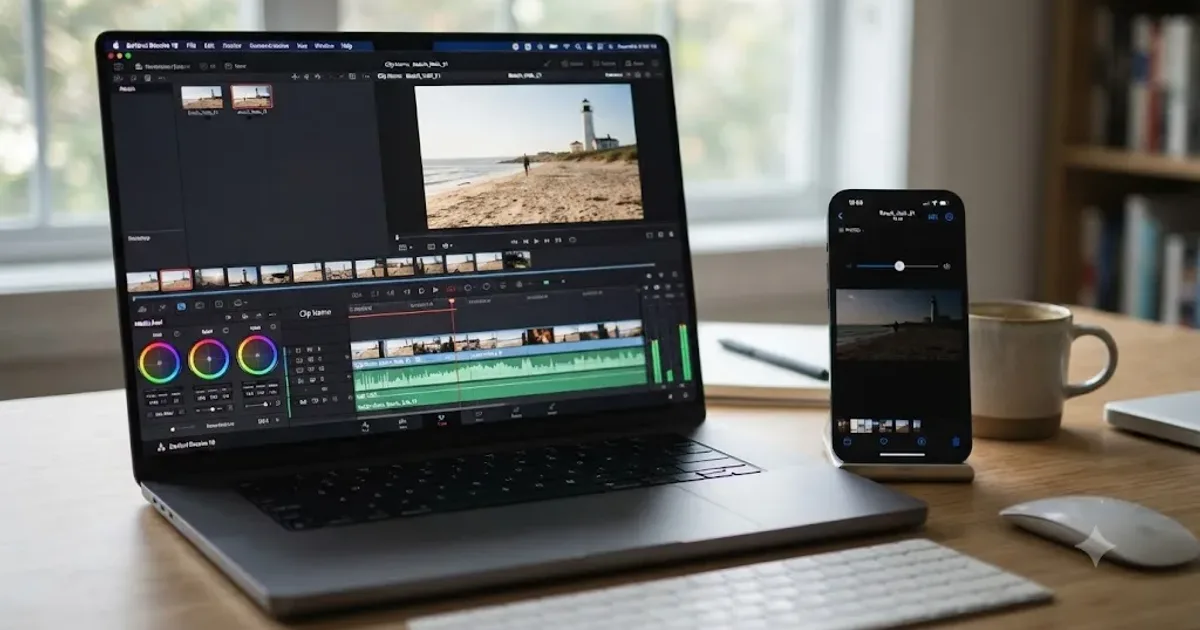
We've spent seven years cutting commercial video in DaVinci Resolve, and this is one of the recurring complaints in our 100,000+ member editing community: a grade that looks perfect on the color-managed Mac you built it on, then plays noticeably darker the second you AirDrop it to your own phone. It's not your imagination and it's not a bad grade. It's almost always a metadata tag your iPhone reads differently than your Mac does.
This guide walks through every real cause, in the order it actually turns out to be the answer, starting with the two-minute test that tells you whether you're chasing a display problem or a genuine pixel problem.
Why does my DaVinci Resolve export look too dark specifically on my iPhone?
Six real causes produce this exact symptom, and only one of them means your grade was actually wrong.
| Cause | What it looks like | Where the fix lives |
|---|---|---|
| Wrong or missing Rec.709 gamma tag | Fine on Mac and in Resolve's viewer, crushed and dark on iPhone, iPad, or Apple TV specifically | Deliver page, Output Color Space set to Rec.709-A |
| Grading against an uncorrected Mac viewer | You darkened the grade to compensate for a Mac-only display bug, so it's now too dark everywhere else | Preferences and Deliver page, matched together |
| HDR iPhone source dropped onto an SDR timeline | Highlights and midtones that looked bright in Dolby Vision compress down dark in SDR | Project Settings, Color Management, and your timeline's HDR handling |
| Data Levels mismatch (Video vs Full) | Blacks sit visibly above true black on the Mac but crush toward zero once decoded elsewhere | Deliver page, Advanced Settings, Data Levels |
| Messages or AirDrop re-encoding the file | Looks right immediately after export, looks different after you text or AirDrop it | iOS Settings, Messages, and how you're transferring the file |
| iPhone display settings, not the file at all | Looks dark in one room, fine in another, or fine on a different iPhone | iPhone Settings, Display & Brightness |
A DaVinci Resolve export that plays dark specifically on an iPhone is almost never a broken grade. It's a file that got tagged for one decoder and handed to a different one. That distinction determines everything else in this guide, so the first thing worth doing is confirming which category you're actually in before you touch a single color wheel.
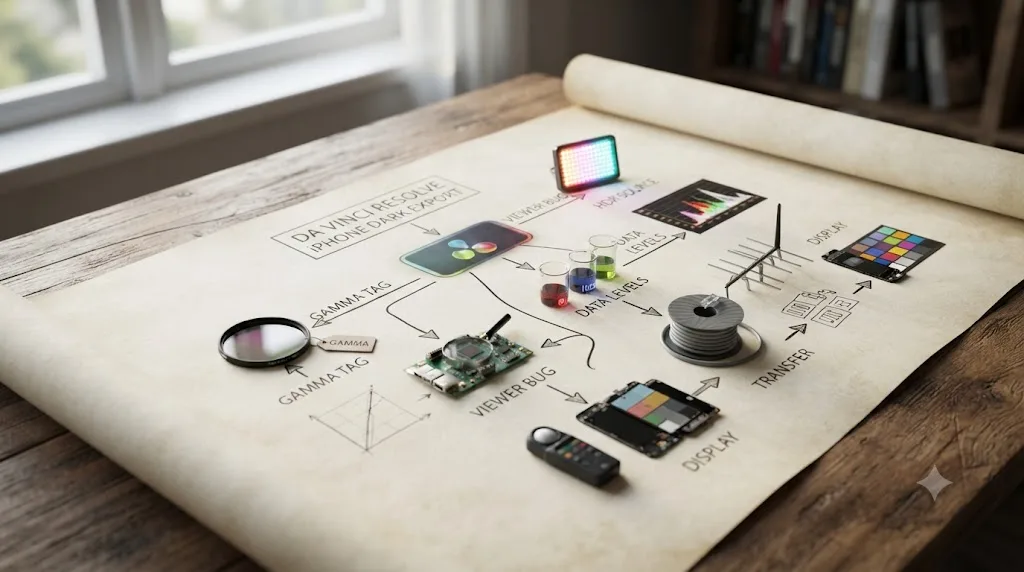
Is DaVinci Resolve actually rendering darker pixels, or is your iPhone just displaying the same file differently?
This is the single question that separates a two-minute fix from an afternoon of second-guessing your grade, and it's worth answering before anything else on this page.
DaVinci Resolve renders your timeline once, at export time, into the file format you chose. There's no separate "phone version" of your grade that Resolve quietly swaps in. Whatever nodes, LUTs, and corrections you built get baked into the same pixel data whether you're scrubbing the timeline in Resolve or watching the finished file anywhere else. If the render itself were producing genuinely different values for iPhone playback, that would be a documented rendering bug, not the scattered, setting-specific reports that actually fill Blackmagic's own forums and Apple's Support Communities.
What changes is how a decoder interprets those pixel values once your file leaves Resolve. Every exported video file carries a small piece of metadata, a color primaries tag, a transfer function tag, and a matrix coefficients tag, collectively called NCLC tags, that tell a video player how to convert the stored numbers back into visible brightness and color. Resolve's own viewer already knows exactly what your timeline is doing internally, so it doesn't need to read that tag to display your grade correctly. QuickTime, Photos, and iOS's video player do need it, and if the tag written into your file doesn't match what your grade actually assumes, the decoded image comes out wrong, usually darker, on exactly the devices that respect the tag.
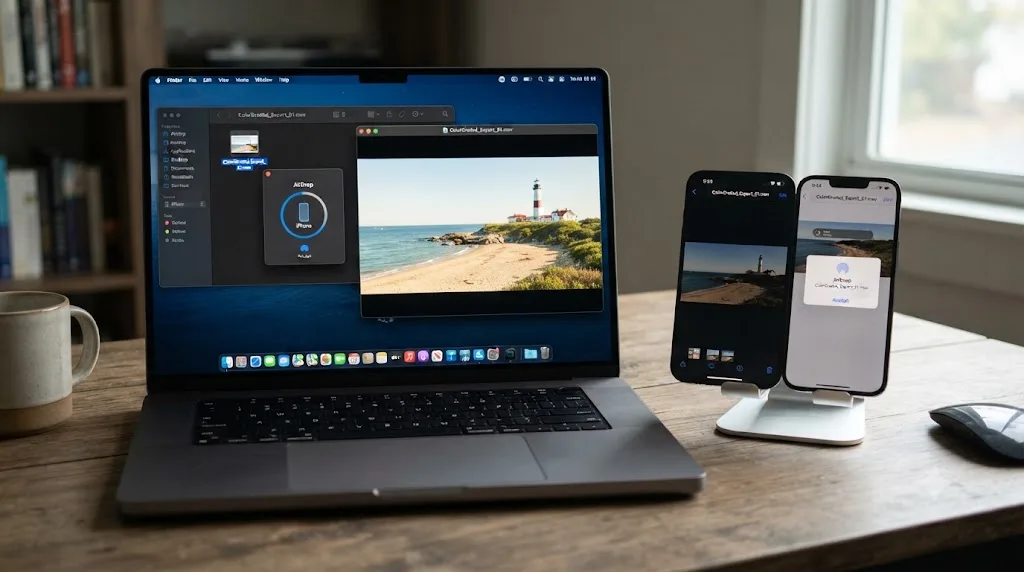
Here's the test, and it takes about three minutes total. AirDrop the exact file you exported, not a re-share through Messages or a social app, straight to your iPhone. Open it in the Photos app or the Files app and compare it side by side against the same file playing in QuickTime Player on your Mac. If both look correct and only Resolve's own viewer looks different, that's a viewer-only quirk covered in the next section. If the AirDropped file looks dark on the iPhone but correct in QuickTime Player on the Mac, you've confirmed a genuine cross-device tagging mismatch, and the Rec.709-A fix a few sections down is very likely your answer.
In the overwhelming majority of reports like this, the exported file contains correct pixel data and the visible darkness comes entirely from how iOS interprets a tag attached to that data. Confirm which situation you're actually in with the AirDrop test before you re-grade anything.
Why does DaVinci Resolve's own viewer sometimes look brighter than what you actually exported?
This is the trap that causes people to make their grade too dark in the first place, and it's specific to editing on a Mac.
macOS routes what you see in many applications, including DaVinci Resolve's viewer under certain settings, through ColorSync, Apple's own display color management system. Kevin Stiller, writing for CineD about exactly this behavior, explains the mechanism directly: "MacOS is the only operating system that removes a built-in feature of Rec709 which includes a contrast enhancement when watching videos in a dim environment," in his breakdown of the QuickTime gamma shift bug. Put simply, macOS treats your viewer differently than the file's actual encoded gamma describes, so a correctly graded Rec.709 image can appear brighter and lower-contrast on your Mac's screen than the numbers in the file actually represent.
One widely read Apple Support Communities thread on this exact bug lays out the practical trap it creates: because of this viewer-side gamma adjustment, "if you think your content is too bright and adjust it accordingly, the exported video will look too dark when viewed on anything other than macOS." That's the whole failure mode in one sentence. You grade against a Mac viewer that's quietly showing you a brighter picture than your file will actually decode to elsewhere, you pull the grade down because it looks too bright, and the resulting file is now genuinely too dark on every device that doesn't apply the same Mac-only compensation, your iPhone included.
This isn't a bug confined to some obscure edge case. Tom Huczek documented a version of it years ago comparing Resolve's preview against the same exported ProRes file played back in VLC, and macOS colorist Matthew Thomas ran into the same pattern recently enough to write up his own fix, noting that grading with the wrong viewer assumption "might match beautifully on Macs, but translates into a flatter, washed-out image on Windows and Android," per his 2026 writeup. Different platforms, same underlying cause: a Mac viewer that doesn't show you what your file actually contains.
A DaVinci Resolve viewer that looks brighter than your file's real gamma teaches you to darken a picture that was never too bright in the first place. If you've been chasing a "too dark on iPhone" problem by grading even darker inside Resolve, stop. That instinct is exactly backward, and it will make the problem worse with every pass.
The fix isn't a single toggle, it's making your viewer and your export agree with each other, which is the whole subject of the next section.
What is Rec.709-A, and does it actually fix video that plays too dark on iPhone?
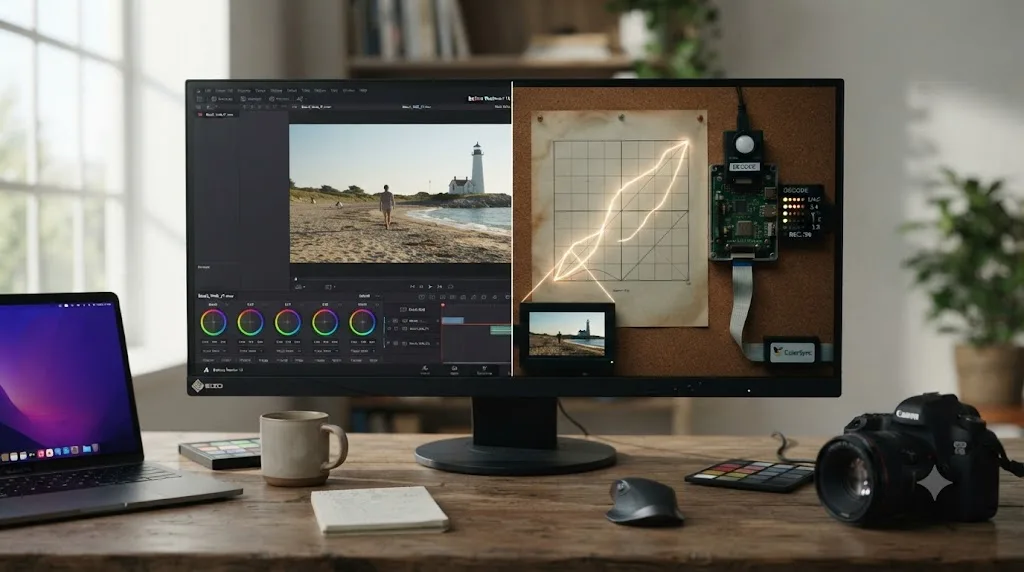
Rec.709-A is a gamma tagging option in DaVinci Resolve's Deliver page, and for a file that plays too dark specifically on Apple devices, it's the single most likely fix on this entire page.
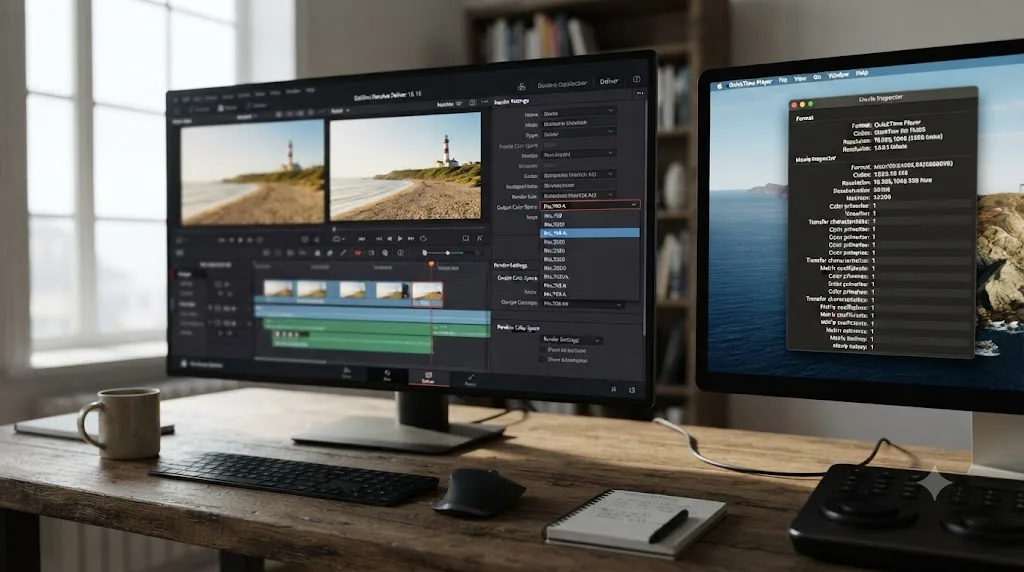
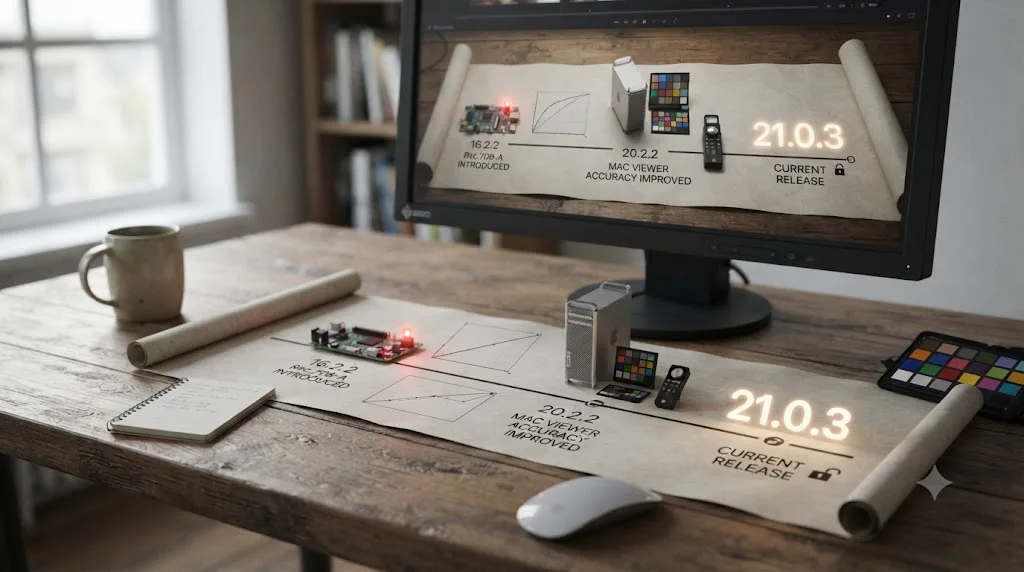
Blackmagic added Rec.709-A in DaVinci Resolve 16.2.2, released May 19, 2020, specifically to solve Apple-ecosystem playback mismatches. The update's release notes describe it plainly: support for "the Rec.709-A gamma option for QuickTime player compatibility" alongside a "preference to automatically tag Rec.709 clips as Rec.709-A," per CineD's coverage of that release. The "A" in the name stands for Apple, and the option exists because plain Rec.709 and Apple's interpretation of Rec.709 don't always agree once a file leaves Resolve.
The mechanism is a set of three numbers hidden in your file's metadata called NCLC code points, and the difference between a correctly and incorrectly tagged export is stark. Knut Erik Evensen documented this directly by inspecting QuickTime's own metadata inspector on two versions of the same footage. The darker, incorrectly tagged version showed "Transfer Function: Unspecified (2.4)" with "Code Points: (1-2-1)", while the correctly tagged original showed "Transfer Function: ITU-R BT.709" with "Code Points: (1-1-1)," per his writeup on avoiding gamma shift in Resolve. When Apple's AVFoundation framework, which handles video decoding across QuickTime, Photos, Messages, and every native video player on iOS, sees a file tagged "Unspecified" instead of the standard 1-1-1 code points, it doesn't guess correctly. It applies a transfer function that doesn't match what your grade assumed, and the result is exactly the crushed, dark image this guide exists to fix.
Evensen's own recommended setup, tested specifically against this failure: "set both the timeline color space and output color space to Rec.709-A. This configuration ensures consistent gamma representation across these platforms, avoiding unintended shifts." That's the fix in one sentence, and it's a setting change, not a re-grade.
| Setting | Where it lives | What it writes into your file |
|---|---|---|
| Rec.709 Gamma 2.4 | Deliver page, Output Color Space | Standard Rec.709 tagging, correct for broadcast and most non-Apple playback |
| Rec.709 (Scene) | Deliver page, Output Color Space | Automatically applies correct 1-1-1 NCLC tagging without a separate Rec.709-A step |
| Rec.709-A | Deliver page, Output Color Space | Apple-specific gamma compensation, purpose-built for consistent playback across Mac, iPhone, iPad, and Apple TV |
| Timeline Color Space matched to Output | Project Settings, Color Management | Keeps the tag you set on Deliver actually consistent with what your timeline produced, rather than fighting it |
One practical trade-off worth knowing before you switch everything to Rec.709-A: it's specifically compensating for Apple's decoder behavior, and that compensation doesn't travel outside Apple's ecosystem cleanly. A file tagged Rec.709-A can look slightly brighter than intended in software that ignores the Apple-specific compensation, including VLC, some browsers, and platforms like Vimeo that don't apply the same correction. If your delivery is going to iPhones and Macs specifically, client review, personal AirDrop, an app you're building, Rec.709-A is the right call. If the same export needs to look correct everywhere, including non-Apple platforms, Rec.709 (Scene) is the safer general default, since it applies the correct 1-1-1 tagging without leaning specifically on Apple's compensation curve.
A file tagged Rec.709-A isn't a different grade, it's the same pixels wearing a label that tells Apple's decoder to read them the way you intended. That's the entire mechanism, and it's why switching this one dropdown fixes a "too dark on iPhone" complaint more often than any regrade does.
Is DaVinci Resolve 21 still affected by this gamma shift bug, or did Blackmagic fix it?
Partially fixed, and it's worth being precise about exactly what changed, because the fix addresses the viewer, not the export tag.
Blackmagic shipped a targeted improvement in DaVinci Resolve 20.2.2, released October 15, 2025: "Improved Mac viewer color management for Rec.709 scene," as covered by AlternativeTo's release tracking. That release also added a "Viewers match QuickTime player when using Rec.709 (Scene)" preference, which closes the specific gap covered in the previous section, where Resolve's own viewer showed you a brighter picture than your file's real gamma. As of DaVinci Resolve 21.0.3, the current build as of July 2026, that fix is part of the standard release, not a beta feature or an opt-in preview.
Here's what that fix does and doesn't change. It makes Resolve's viewer more honest about what your Rec.709 (Scene) export will actually look like, which is genuinely useful and reduces the odds you'll darken a grade that was never too bright in the first place. It does not automatically retag files you export using plain Rec.709 Gamma 2.4 instead of Rec.709 (Scene) or Rec.709-A, and it does not change how AVFoundation on iOS interprets a file's existing NCLC tags. If you export with the wrong Output Color Space setting on the Deliver page, DaVinci Resolve 21 will still produce a file that plays too dark on iPhone, exactly as older versions did, because the improved viewer accuracy and the export tagging are two different parts of the pipeline.
Practically, this means the viewer-matching improvement lowers how often you'll accidentally introduce the problem while grading, but it doesn't remove the need to actively choose Rec.709-A or Rec.709 (Scene) on the Deliver page when your delivery target includes Apple devices. Think of it as Blackmagic fixing the thermometer, not the thermostat. Your viewer now reads more accurately. Your export settings still need to be set correctly.
DaVinci Resolve 21.0.3 makes it harder to accidentally over-darken a grade by trusting a misleading Mac viewer, but it still exports exactly the gamma tag your Deliver page settings tell it to. If you're on Resolve 21 and still seeing this problem, the viewer fix already helped you, and the remaining answer is still in the Deliver page's Output Color Space dropdown.
Does HDR footage from your iPhone make your export look dark once it lands on a phone?
Yes, and this cause has nothing to do with gamma tags at all, because HDR and SDR describe brightness on two fundamentally different scales.
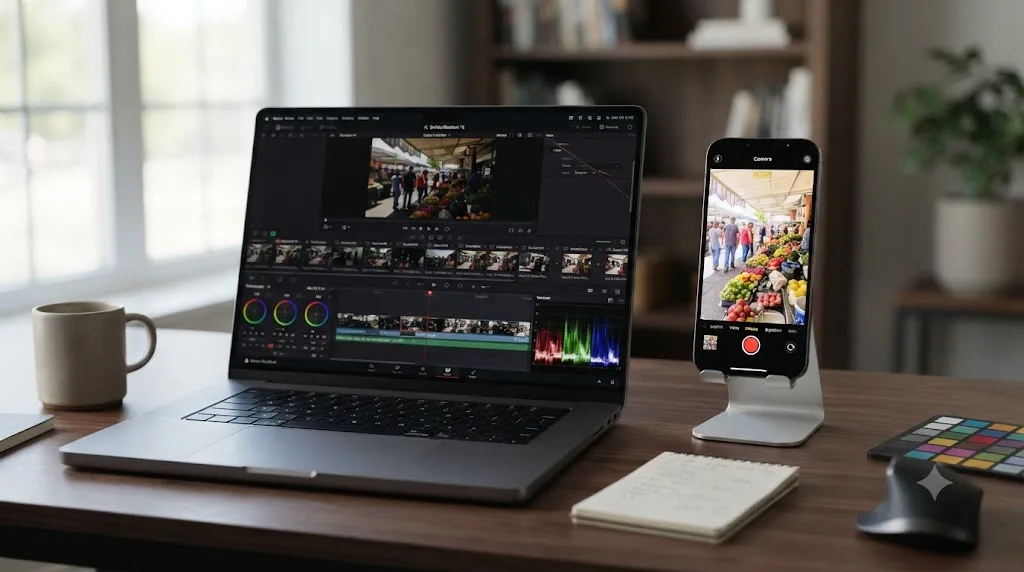
On supported models, an iPhone records Dolby Vision HDR video by default, a setting controlled under Settings, Camera, Record Video, as documented in Apple's own support guide for editing HDR iPhone footage. Dolby Vision and other HDR formats like HLG describe brightness across a much wider range than standard SDR, sometimes referencing highlight values equivalent to 1,000 nits or more, while a typical SDR delivery target assumes a display topping out around 100 nits. When you drop HDR-sourced footage onto a plain SDR timeline in DaVinci Resolve without an explicit tone-mapping step, or export it with output settings that don't correctly account for the source's HDR metadata, the wide dynamic range the footage was shot in doesn't compress down evenly. Highlights and midtones that looked properly bright when decoded as HDR often land dark and flat once forced through an SDR pipeline that was never designed to receive them.
This is a genuinely different failure mode from the gamma tagging issue covered above, and it's worth telling them apart, because the fix is different too. A gamma tag mismatch produces a file that looks correct on your Mac and dark specifically on Apple's mobile decoder. An HDR-to-SDR mismatch produces a file that can look wrong everywhere, including inside Resolve's own viewer if your project's color management isn't set up to handle the source correctly in the first place. If your footage came from an iPhone with HDR Video enabled, and especially if you never explicitly told your project what to do with that HDR source, this is worth ruling out before you assume the problem is purely a Deliver page setting.
The practical check: open your clip's attributes and confirm whether it's tagged as Dolby Vision, HDR, or HLG rather than standard Rec.709. If it is, you have two real paths forward. Either grade it properly as HDR footage and export an HDR-aware SDR trim using Resolve Color Management's output transform, or explicitly convert it to SDR early in your pipeline with a deliberate tone-mapping pass rather than letting Resolve guess. Our guide to grading HDR video in DaVinci Resolve covers exactly this setup, including the PQ and HLG scopes and output color space choices that make an HDR-to-SDR conversion predictable instead of accidental. If your iPhone footage is Log rather than HDR, that's a related but separate color space problem, and our guide to the iPhone Log footage import problem covers the Color Space Transform that flat, grey Apple Log footage needs before it grades correctly at all.
HDR footage dropped onto an SDR timeline doesn't just look slightly off, it can look genuinely dark, because the two formats disagree about what brightness value a given code number represents. This is a source-and-pipeline problem, not a Deliver page dropdown, and no amount of Rec.709-A tagging fixes footage that was never told it needed converting from HDR in the first place.
Is Data Levels crushing your blacks before the file even reaches your iPhone?
This cause predates LUTs and iPhones both, and it's still worth ruling out, because a Data Levels mismatch produces exactly the same symptom as a gamma tag problem: correct on one device, crushed and dark on another.
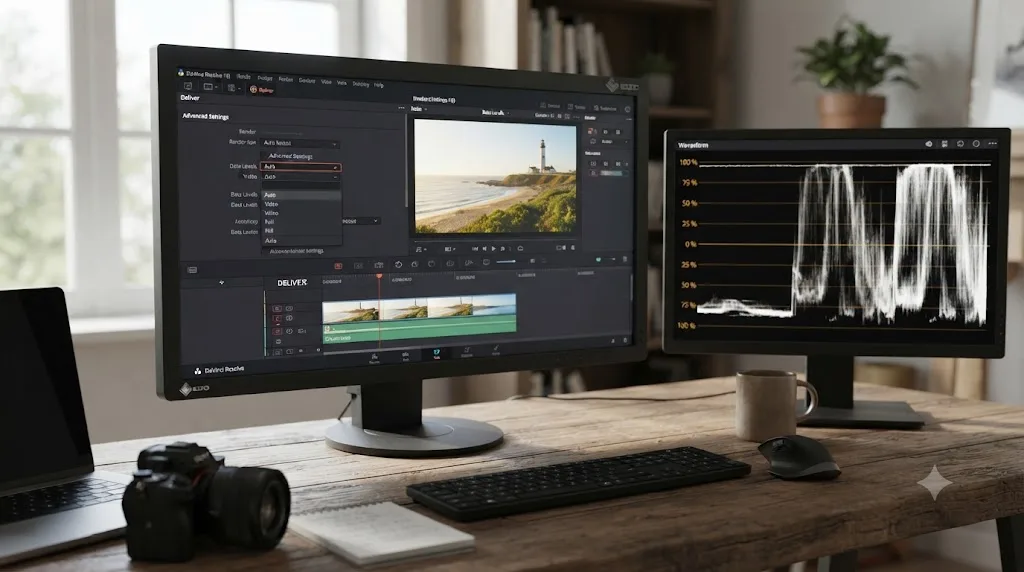
DaVinci Resolve processes your timeline internally at full range regardless of source or delivery format, then converts that data down to whatever levels convention your chosen export codec expects at render time, video range for most broadcast-style codecs, full range for some data-oriented formats. Get that conversion wrong, whether Resolve's Auto setting misjudges an edge case or you've manually forced the wrong option, and the result is blacks sitting visibly above true zero on one device and crushed toward it on another, depending on how each decoder interprets the levels convention it thinks it's receiving.
Marc Wielage, a professional colorist active on Creative COW's forums under his own name, walked a fellow editor through exactly this failure pattern on a different but structurally identical dark-export complaint. His diagnosis was direct: "Typically, that boils down to 'Video vs. Full' Data Levels," and his troubleshooting method is worth keeping regardless of which device is showing you the wrong result: "When you know that black levels have to be at 0, and the peak white pulse has to be at 100, it's pretty easy to troubleshoot this," per that thread on Creative COW. That specific case involved an XML round trip rather than an iPhone, but the underlying mechanism, a levels convention that doesn't match between where a file was rendered and where it's being decoded, applies identically whether the mismatched decoder is another NLE or an iPhone's video player.
The fix lives in the same Deliver page Advanced Settings panel as the Color Space and Gamma tags.
| Data Levels setting | What it does | When to use it |
|---|---|---|
| Auto | Resolve applies the levels convention it believes your codec and container expect | Correct for the overwhelming majority of exports, including anything headed to an iPhone |
| Video | Forces broadcast-safe video range regardless of codec convention | Only after confirming through a reimport test that a specific target genuinely needs it |
| Full | Forces the complete data range | Rare, mostly relevant to data-oriented intermediate workflows, not standard phone delivery |
The same reimport test from earlier in this guide catches a Data Levels problem cleanly. Export a short clip, drag it into a fresh Resolve timeline with no grade applied, and check the waveform. If your black level sits noticeably above zero or your white level sits below full, you've found a genuine levels mismatch independent of anything covered in the gamma sections above.
Auto is correct for nearly every export headed to an iPhone, and reaching for a manual Video or Full override without first proving Auto is wrong is how most self-inflicted Data Levels problems happen. If your Deliver page already shows Auto and your reimport test scopes correctly, this isn't your cause, and it's worth moving on to the transfer-specific causes covered next.
Does AirDropping or texting the video from a Mac to an iPhone change how dark it looks?
Sometimes, and this is worth ruling out separately from the export itself, because the file that lands on your iPhone isn't always the exact file you rendered.
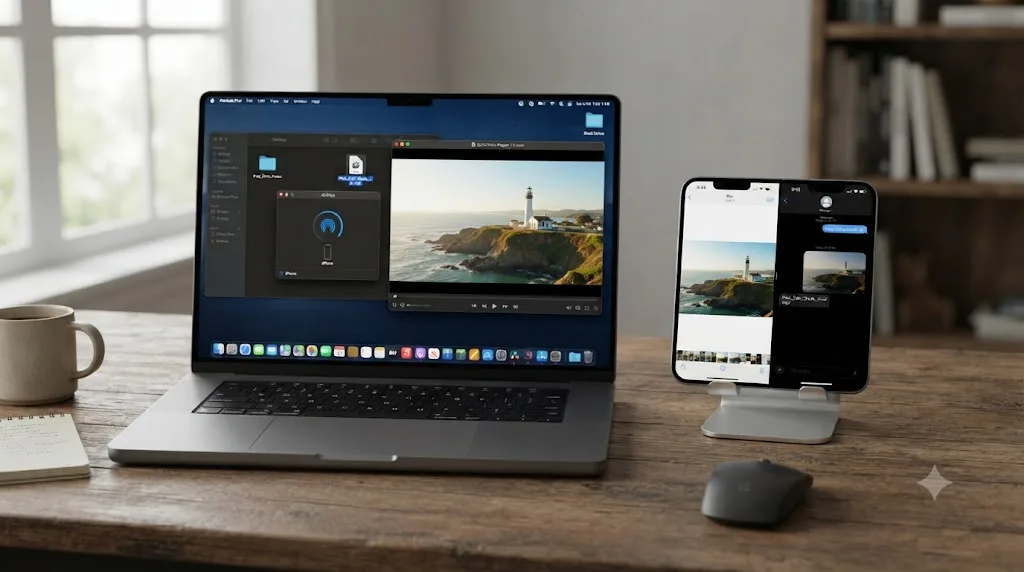
Messages, in particular, can automatically compress or re-encode a video before sending it, especially over a cellular connection or when the file is large. That behavior is controlled partly by Low-Quality Image Mode under Settings, Messages, which applies a mild re-encode to media sent through the app, and partly by automatic transcoding that kicks in when the recipient's device or connection can't handle the original format, converting HEVC to H.264 in the background when needed. AirDrop generally transfers files without re-encoding them, which is exactly why the diagnostic test earlier in this guide specifically calls for AirDrop rather than texting the file to yourself.
Here's the practical distinction that matters. If your file looks correct when AirDropped directly to your iPhone but looks dark specifically after you text it through Messages, share it via WhatsApp, or send it through any app that re-processes media before delivery, the export itself is very likely fine, and the darkness is being introduced during transfer, not during rendering. That's a meaningfully different problem than anything covered so far in this guide, and no amount of Deliver page tweaking in Resolve fixes a re-encode that happens after the file leaves your export folder entirely.
The fix here isn't a Resolve setting at all. Turn off Low-Quality Image Mode under Settings, Messages, if quality matters for a specific send, use AirDrop or a file-transfer method that doesn't re-encode when you need to verify an export is correct, and be aware that any platform with its own compression pipeline, not just Messages, can introduce a visible difference between what you rendered and what someone eventually watches.
A video that looks correct straight off your export drive but dark after you text it to yourself has already told you where the problem lives, and it isn't inside DaVinci Resolve. If this matches your situation, stop troubleshooting Deliver page settings and start troubleshooting how you're getting the file onto the phone in the first place.
Could the problem actually be your iPhone's display, not the export at all?
It's worth checking, and it's the fastest possible test on this entire page, because it takes about ten seconds and rules out an entire category of false alarms.
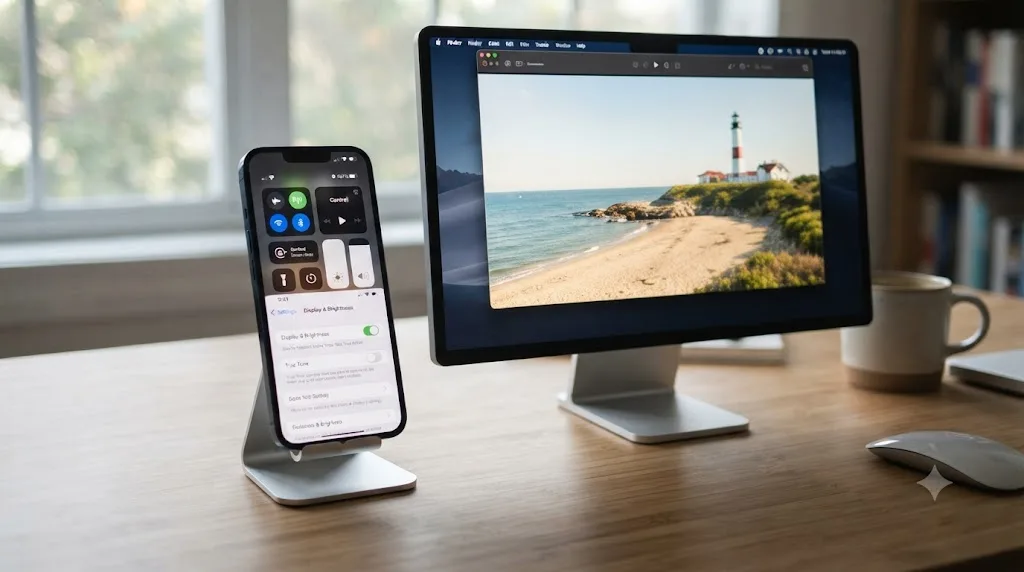
iPhones ship with several display features that adjust perceived brightness dynamically, independent of anything a video file contains. Auto-Brightness, under Settings, Accessibility, Display & Text Size, adjusts screen brightness based on ambient light, which means the exact same file can look noticeably dimmer in a bright room than in a dim one, with nothing about the video changing at all. True Tone and Night Shift both shift the display's color temperature, which can make a correctly exposed video read as slightly darker or warmer than intended, especially on skin tones. Low Power Mode reduces maximum display brightness automatically once your battery drops below a threshold, which is an easy one to miss if you're reviewing an export while your phone happens to be conserving power.
The test costs nothing. Open Control Center, drag brightness to maximum, and toggle True Tone and Night Shift off temporarily under Settings, Display & Brightness. Watch the same clip again. If it suddenly looks correct, you've found your answer, and it has nothing to do with DaVinci Resolve, your export settings, or any gamma tag covered elsewhere in this guide. It's worth doing this test on a second iPhone too, if one's available, since a specific unit's screen calibration, age, or a stuck Auto-Brightness setting can occasionally be the actual culprit rather than anything file-related.
This cause is easy to dismiss as too simple to be the real answer, especially after you've spent twenty minutes reading about gamma tags and NCLC code points. It's worth checking anyway, precisely because it's the fastest thing on this list to rule out, and ruling it out early saves you from re-exporting a file that was never actually broken.
A video that looks dark in a sunlit room and correct in a dim one was never a DaVinci Resolve problem, it was Auto-Brightness doing exactly what it's designed to do. Rule this out before anything else if you haven't already, since it's the one cause on this page that has nothing to do with your export at all.
Does uploading to Instagram, TikTok, or YouTube before viewing on iPhone change the darkness?
Yes, and this matters if the "iPhone" you're comparing against is actually a social app's player rather than the Photos app or Files.
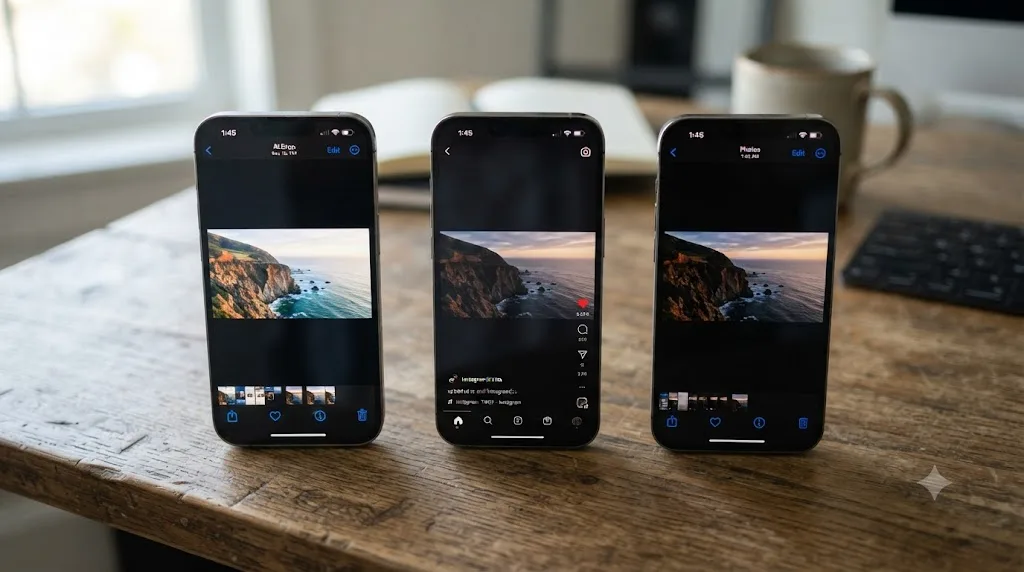
Every major platform re-encodes uploaded video through its own compression pipeline, and that pipeline typically strips the original color metadata and reapplies its own assumptions during the transcode. A file correctly tagged Rec.709-A when it left DaVinci Resolve doesn't necessarily keep that tag intact once Instagram, TikTok, or YouTube has re-encoded it for their own delivery, and each platform's tone-mapping and brightness handling differs slightly from the others and from a straight AirDrop transfer. This is a genuinely separate variable from anything covered earlier in this guide, and it's worth isolating specifically, because troubleshooting a Resolve export by watching it through Instagram's app introduces an entire additional processing step you don't control.
The practical way to isolate this: compare the raw exported file, played through the Photos or Files app after an AirDrop transfer, against the same file after it's been through whichever platform you're actually publishing to. If the raw file looks correct and only the platform-uploaded version looks dark, the fix lives in that platform's recommended export settings, not in anything on DaVinci Resolve's Deliver page. Our export settings for YouTube guide covers the exact bitrate, codec, and color space numbers YouTube's own documentation specifies, and matching a platform's stated requirements as closely as possible generally minimizes how aggressively it reprocesses your file during upload.
Don't skip the raw-file comparison step before assuming your Resolve export is the problem. It's a common enough mistake that it's worth naming directly: judging an export's actual color and brightness by watching it inside a social app, rather than as a native file, means you're evaluating that platform's compression choices as much as your own grade.
A file that looks correct AirDropped but dark on Instagram was processed twice, once by DaVinci Resolve and once by Instagram, and only one of those two passes is something you actually control. If your comparison has been happening inside a social app the whole time, redo it with the raw file first.
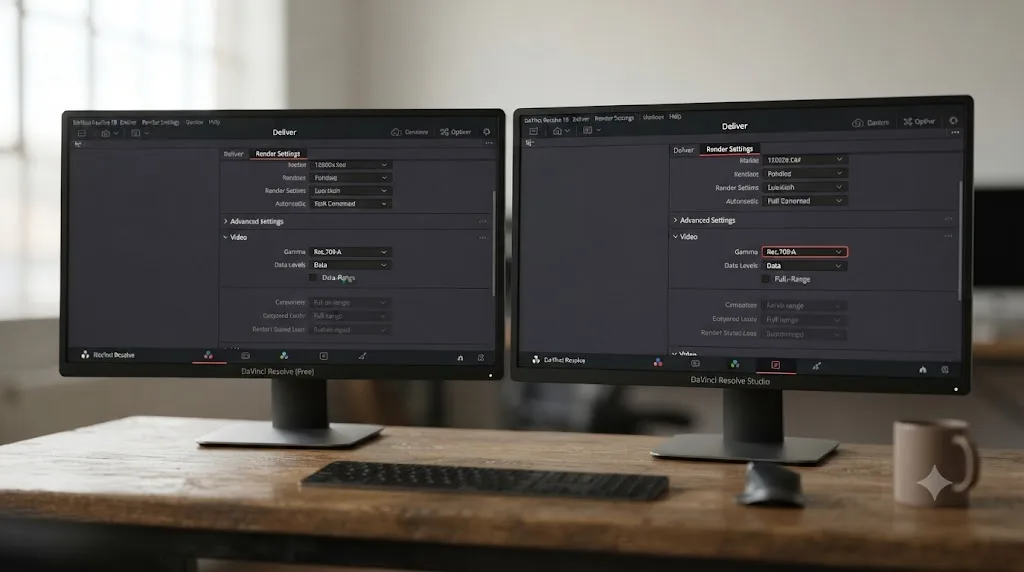
What exact Deliver page settings should you use to avoid a dark iPhone export?
Here's the complete settings combination, gathered from everything above, for a project you know is headed primarily to iPhones, iPads, or Macs.
| Setting | Where it lives | Recommended value for iPhone delivery |
|---|---|---|
| Timeline Color Space | Project Settings, Color Management | Match your source; DaVinci Wide Gamut Intermediate if using Resolve Color Management |
| Output Color Space | Deliver page or Project Settings | Rec.709-A for Apple-only delivery, Rec.709 (Scene) if the same file also needs to look right outside Apple's ecosystem |
| Color Space Tag | Deliver page, Advanced Settings | Same as Project, confirmed against your actual timeline output rather than trusted blindly |
| Gamma Tag | Deliver page, Advanced Settings | Same as Project, same caveat |
| Data Levels | Deliver page, Advanced Settings | Auto, unless a reimport test has proven otherwise |
| "Viewers match QuickTime player when using Rec.709 (Scene)" | Preferences (Resolve 20.2.2 and later) | Enabled, so your viewer stops misleading you before you even export |
Set these once, at the start of a project, rather than discovering them mid-troubleshoot after a client has already flagged a dark-looking file. If you're building a Resolve project template for phone-first delivery, YouTube Shorts, Instagram Reels, or TikTok edits shot and reviewed primarily on iPhone, bake these Deliver page defaults into that template so every export starts from the correct tagging instead of Resolve's generic defaults.
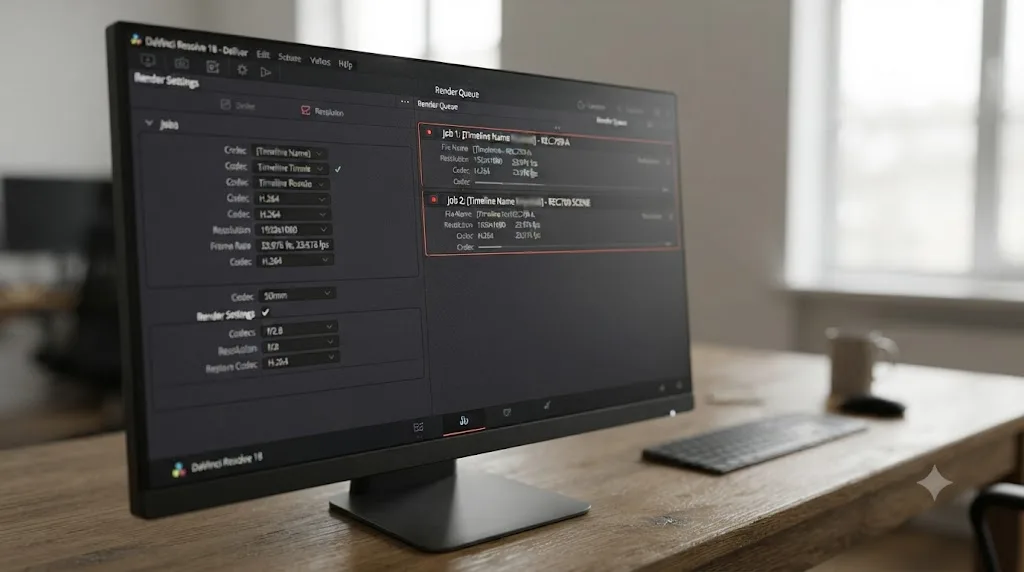
One more detail worth knowing if you're delivering the same master to both Apple devices and non-Apple platforms: you don't have to choose one gamma tag for every export. Set up two separate render jobs in Resolve's Deliver queue, one tagged Rec.709-A for Apple-ecosystem delivery, one tagged Rec.709 (Scene) for everything else, both pointed at the same timeline. That costs you one extra render, not a second grade, and it means you're never compromising one delivery target to protect the other.
There's no single gamma tag that's universally correct for every player, only the tag that's correct for wherever your specific viewer actually is. Rec.709-A wins for Apple devices specifically. Rec.709 (Scene) is the safer general default. Knowing which one your delivery actually needs is worth more than memorizing either setting in isolation.
Does this differ between DaVinci Resolve Free and Studio?
No, and it's worth confirming directly, since it's a natural assumption when something looks like a limitation: that the paid version handles export tagging more carefully than the free one does.
Rec.709-A, Data Levels, Color Space and Gamma tags, and DaVinci Resolve Color Management all work identically in the free version and in Studio. None of them are gated behind a Studio license. Neither Blackmagic's free-version product page nor its Studio product page lists any part of standard SDR export tagging as a paid-only capability, and the settings covered throughout this guide are all standard SDR delivery controls, not HDR mastering tools.
Where Studio does add real value, but for a different problem than the one this guide covers, is HDR-specific delivery: Dolby Vision metadata authoring, the Content Mapping Unit for generating a tone-mapped SDR trim from an HDR master, and HDR10+ dynamic metadata support. If your dark-on-iPhone problem traces back to the HDR source cause covered earlier in this guide, rather than a plain Rec.709 gamma tag, Studio's Dolby Vision and Content Mapping Unit tools genuinely help produce a correctly tone-mapped SDR export instead of hoping Resolve guesses the conversion correctly on its own.
| Component of this problem | Free version | Studio |
|---|---|---|
| Rec.709-A output gamma | Fully available | Fully available |
| Data Levels setting | Fully available | Fully available |
| Color Space / Gamma tags | Fully available | Fully available |
| Resolve Color Management | Fully available | Fully available |
| Dolby Vision metadata authoring | Not available | Available |
| Content Mapping Unit (HDR to SDR tone mapping) | Not available | Available |
If a plain Rec.709 export from your iPhone footage plays dark, upgrading to Studio changes nothing about that specific problem, because every setting involved already exists identically in both versions. Studio earns its price on HDR-specific delivery, dedicated color tools, and the Neural Engine's AI features, not on tagging a standard SDR file correctly for iPhone playback.
What's the right order to check these fixes in?
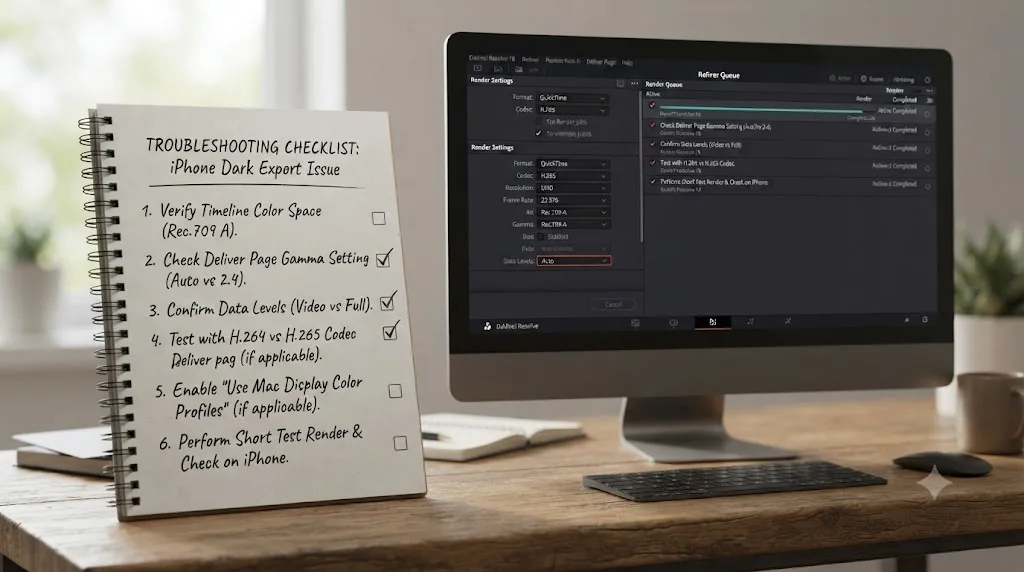
Work through this list top to bottom. Most people find their answer in the first three steps.
- AirDrop the exact exported file to your iPhone and compare it against QuickTime Player on your Mac. If both look correct, the export is fine and the problem is somewhere downstream, transfer method or platform re-encoding.
- Check your Deliver page's Output Color Space. If it's set to plain Rec.709 Gamma 2.4 rather than Rec.709-A or Rec.709 (Scene), change it and re-export before doing anything else.
- Confirm you haven't darkened your grade to compensate for a Mac viewer that was showing you a brighter picture than your file's real gamma. Enable "Viewers match QuickTime player when using Rec.709 (Scene)" in Preferences if you're on DaVinci Resolve 20.2.2 or later.
- Check whether your source footage is HDR, Dolby Vision or HLG specifically, rather than standard Rec.709, and confirm your project's color management is actually set up to convert it deliberately rather than by accident.
- Set Data Levels to Auto on the Deliver page's Advanced Settings, and only override it manually after a reimport test proves Auto is genuinely wrong for your target.
- Rule out your iPhone's own display settings, Auto-Brightness, True Tone, Night Shift, and Low Power Mode, with a ten-second test before assuming the file itself is broken.
- If the darkness only shows up after texting or AirDropping the file, check whether Messages' Low-Quality Image Mode or an automatic transcode is re-encoding it during transfer.
- If the darkness only shows up after uploading to a social platform, compare the raw file against the platform-processed version to confirm the platform's own compression is the actual variable.
Each step isolates a different layer of the problem, in order of how often it turns out to be the real answer. The gamma tag and viewer-compensation causes account for the large majority of reports matching this exact symptom. HDR source mismatches and Data Levels come next. Transfer method, display settings, and platform re-encoding round out the list for cases where the export itself was correct all along.
How do you verify the fix actually worked before you send the file anywhere?
Every fix in this guide has a version you can test directly, rather than applying a setting and hoping it stuck, and building that test into your habit matters more than memorizing any single dropdown's correct value.
Start with the AirDrop test again, this time on the freshly re-exported file. Compare it against QuickTime Player on your Mac and against the same clip on a second iPhone if one's available, since a single device's display settings can occasionally mislead you into thinking a fix didn't work when it actually did. If it looks correct on both, you've confirmed the export itself, independent of any specific device's quirks.
Then test it the way your actual audience will see it. If this file is headed to a client over text, send it that exact way and check it again after transfer, since Messages' re-encoding behavior is real and worth confirming doesn't undo your fix. If it's headed to Instagram or YouTube, upload it and check the platform-processed version separately from the raw file, since platform compression is a variable you can verify but not directly control.
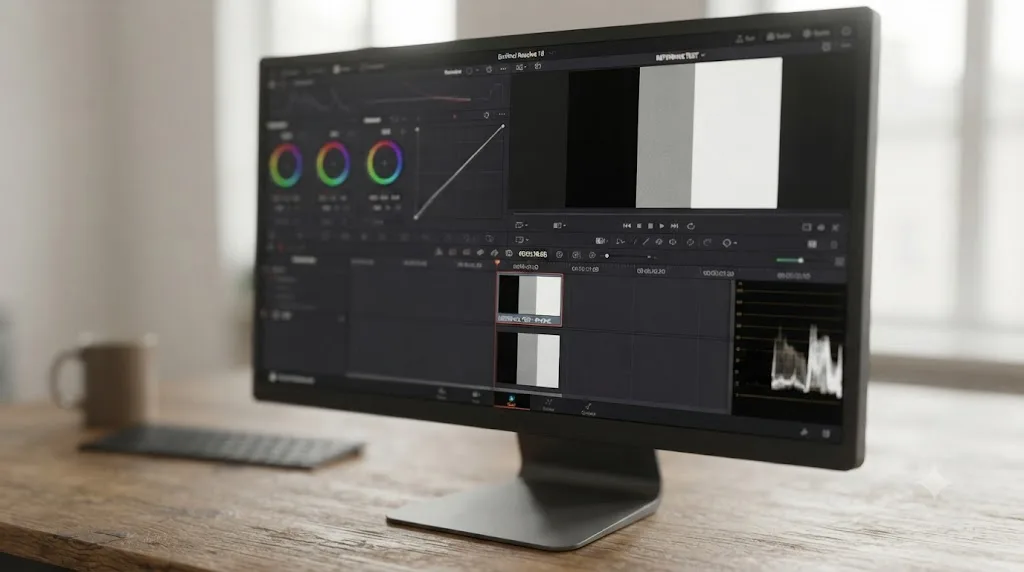
Keep a short reference clip, pure black, pure white, and a mid-gray card, at the head of any project where iPhone playback accuracy genuinely matters. AirDrop that reference clip alongside your real deliverable and compare it against a known-correct reference on your Mac. A reference clip's values are supposed to be exact, which makes it a much clearer test of whether your gamma tagging is correct than judging a normally graded shot, where "does this look right" is partly a creative question and partly a technical one.
A fix that "looks right" on the one iPhone sitting on your desk is a guess until you've confirmed it on a second device and through whatever transfer method your file will actually travel through. Build that habit once, on one project, and a dark-on-iPhone complaint stops being a mystery you re-solve from scratch every time it happens.
The fastest path to a video that plays correctly on iPhone
Start with the AirDrop test, because it answers the one question that matters most: is your export actually correct, or is the problem happening somewhere downstream of it. From there, the Deliver page's Output Color Space, set to Rec.709-A for Apple-only delivery or Rec.709 (Scene) as the safer general default, fixes the largest share of reports matching this exact complaint. Grading against an uncorrected Mac viewer, an HDR source treated as plain Rec.709, and a Data Levels mismatch cover most of what's left. Transfer methods and platform re-encoding explain the remainder, cases where your export was correct the entire time and something downstream changed it.
TryUncle is the on-screen assistant for DaVinci Resolve on macOS. Ask in plain words, and Uncle points at the exact control on your screen, whether that's the Output Color Space dropdown buried on the Deliver page or the Color Management tab in Project Settings. It's a paid app at founder pricing, not a substitute for understanding why your export plays dark, but if you already know the fix lives in a settings menu somewhere and can't remember which one, TryUncle can point at it live while you're working, instead of you hunting through menus with a half-remembered forum thread open in another tab. For everything else, the AirDrop test and the Rec.709-A setting, checked in that order, will find your answer faster than anything else on this page.
Frequently asked questions
- Why does my DaVinci Resolve export look too dark on my iPhone but fine on my computer?
- Almost always because the exported file's Rec.709 gamma tag doesn't match what iOS expects, so Apple's decoder applies a different transfer function than the one your grade was built for, crushing shadows and midtones. It's a metadata mismatch, not a broken export. Set the Deliver page's output gamma to Rec.709-A, or Rec.709 (Scene), and re-export before you touch the grade itself.
- What is Rec.709-A in DaVinci Resolve, and do I need it?
- Rec.709-A is a gamma option Blackmagic added in DaVinci Resolve 16.2.2 specifically so exported files carry the color tag (NCLC code points 1-1-1) that Apple's AVFoundation framework, which powers QuickTime, Photos, and iOS video playback, reads correctly. You need it if your export will be viewed inside Apple's ecosystem, meaning a Mac, iPhone, or iPad, and you're grading on an uncorrected Mac viewer.
- Is DaVinci Resolve 21 still affected by the Mac gamma shift bug?
- Less than earlier versions, but the underlying cause isn't fully gone. Blackmagic shipped 'Improved Mac viewer color management for Rec.709 scene' in DaVinci Resolve 20.2.2, released October 15, 2025, and that fix carries into Resolve 21.0.3, the current build as of July 2026. It makes Resolve's own viewer track QuickTime Player more closely on Mac, but it doesn't change what gamma tag your export actually writes, so a wrongly tagged file can still play dark on iPhone.
- Why does my video look darker after I AirDrop or text it to my iPhone?
- Two separate things can cause this. First, Messages and AirDrop can re-encode a large file for faster transfer, especially over cellular, which sometimes strips or rewrites color metadata during the transcode. Second, if the file's gamma tag was already wrong before you sent it, AirDrop and Messages don't fix it, they just deliver the same mistagged file to a device that decodes it literally.
- Does Data Levels affect how dark my iPhone export looks?
- Yes. If your Deliver page's Data Levels setting doesn't match what your codec and the receiving app expect, a full-range file can get interpreted as video-range, which lifts black point calculations and crushes shadow detail. Set Data Levels to Auto unless you've confirmed through a reimport test that your specific delivery target needs Video or Full forced manually.
- Why does HDR footage from my iPhone look dark after editing in DaVinci Resolve?
- Modern iPhones record Dolby Vision HDR by default on supported models, and HDR values don't map to SDR brightness in a simple linear way. Drop that footage onto an SDR timeline without an explicit tone-mapping step, or export it with mismatched HDR metadata, and the highlights and midtones that looked bright in Dolby Vision compress down into a noticeably darker SDR image.
- Does DaVinci Resolve Studio fix this better than the free version?
- No. Rec.709-A, Data Levels, Color Space and Gamma tags, and Resolve Color Management all work identically in the free version and Studio, because none of them are Studio-gated features. Studio's actual HDR-specific additions, Dolby Vision metadata authoring and the Content Mapping Unit, help with a different problem: generating a proper tone-mapped SDR trim from an HDR master, not fixing a mistagged Rec.709 export.
Sources
- MacOS Gamma Shift and Rec.709 Playback Discussion (Apple Support Communities)
- Quicktime Gamma Shift Bug - What Is It and How to Combat It (CineD, Kevin Stiller)
- Avoiding Gamma Shift When Exporting from Resolve (Knut Erik Evensen)
- Why Do Your Exports Look Different On Your iPhone? (The Post Flow, Alex Bartz)
- Exported Video Way Too Dark, forum thread with reply from colorist Marc Wielage (Creative COW)
- Blackmagic Design Released DaVinci Resolve 16.2.2 Update, introducing Rec.709-A (CineD)
- DaVinci Resolve 20.2.2 improves color management and audio playback (AlternativeTo)
- DaVinci Resolve 21.0.3 Update (Newsshooter)
- Fix macOS Colour and Contrast Shift in DaVinci Resolve (Matthew Thomas Creative)
- Edit HDR video recorded on an iPhone or iPad (Apple Support)
- DaVinci Resolve product page (free version)
- DaVinci Resolve Studio product page
Put this guide to work with TryUncle.
Ask about the step you’re on. TryUncle sees your screen and points at the control you need, so you can keep learning in your own project.
Get TryUncle for Mac or WindowsKeep reading
Fixes · Jul 18, 2026 · 32 min
DaVinci Resolve LUT Preview Not Matching Export: The Real Fix
Why your DaVinci Resolve viewer and your exported file show different colors from the same LUT, and the exact settings to check before you touch the grade.
Fixes · Jul 18, 2026 · 30 min
DaVinci Resolve iPhone Log Footage Import Problem: Every Fix
iPhone Log footage imports into DaVinci Resolve but looks grey, flat, or offline. Match your exact symptom to the real cause, from Apple Log to Apple Log 2.
Guides · Jul 11, 2026 · 36 min
How to Grade HDR Video in DaVinci Resolve (PQ and HLG)
Set up Resolve Color Management for HDR, grade with the HDR palette, and export correct PQ or HLG settings for HDR10, Dolby Vision, and YouTube.