Articles / Guidesupdated for DaVinci Resolve 21.1 (October 2026)
DaVinci Resolve: Find Unused Media in a Project
Quick answer
To find unused media in a DaVinci Resolve 21 project, open the Media Pool options menu and choose Update Usage for Entire Project, then check the Usage column in List View. To remove pool clips not referenced anywhere in the project, choose Remove Unused Clips and load all timelines. This removes clips from the project, not files from disk.

I separate “unused” into two questions: unused where, and removed from what? A clip can be absent from the timeline you’re looking at but still belong to another timeline in the project. And removing a clip from the Media Pool is not the same as deleting its file from a drive.
As of October 2026, DaVinci Resolve 21.1 has both a project-wide usage update and a command for removing unused Media Pool clips. Here’s how to inspect first, clean up second, and avoid treating a tidy project as an archive.
What does “unused media” mean in DaVinci Resolve?
“Unused media” can mean a clip that is absent from the current timeline, a Media Pool clip that has no use anywhere in the project, or unused portions of a source file. Those are different conditions, and Resolve’s cleanup command addresses the second one.
Start by naming the thing you want to find:
| What you mean by “unused” | What to check | What the check tells you |
|---|---|---|
| Not in the timeline that’s open now | The active timeline and the clip’s use in it | Whether that timeline references the clip |
| Not used anywhere in the project | Project-wide usage, then the Media Pool | Whether Resolve finds a use across the project |
| Unused portions of a source file | The timeline’s in/out ranges and a separate Media Management workflow | Whether a referenced file contains source material outside the used ranges |
| Media that is no longer needed on disk | The source files, project dependencies, backups, and archive plan | Whether you can safely delete files from storage |
A Media Pool item is a reference to media in the project. It isn’t the same thing as a timeline clip instance, and neither one is the source file itself. One source clip can appear in multiple timelines, while a source file can remain on disk after its Media Pool entry is removed.
That distinction matters most when a project has alternate edits. A shot might be missing from the main cut but appear in a social version, a review timeline, a stringout, a nested edit, or a composition. “Not in this timeline” does not mean “not used in this project.”
A clip absent from the open timeline can still be used elsewhere in the project.
The commands described here are in DaVinci Resolve 21. In Resolve 21.1, Blackmagic’s new-features guide still lists both Update Usage for Entire Project and Remove Unused Clips in the Media Pool options menu. If your menu differs, check your installed version and the official Resolve support page for the manual associated with it.
How do I find unused media in a DaVinci Resolve project?
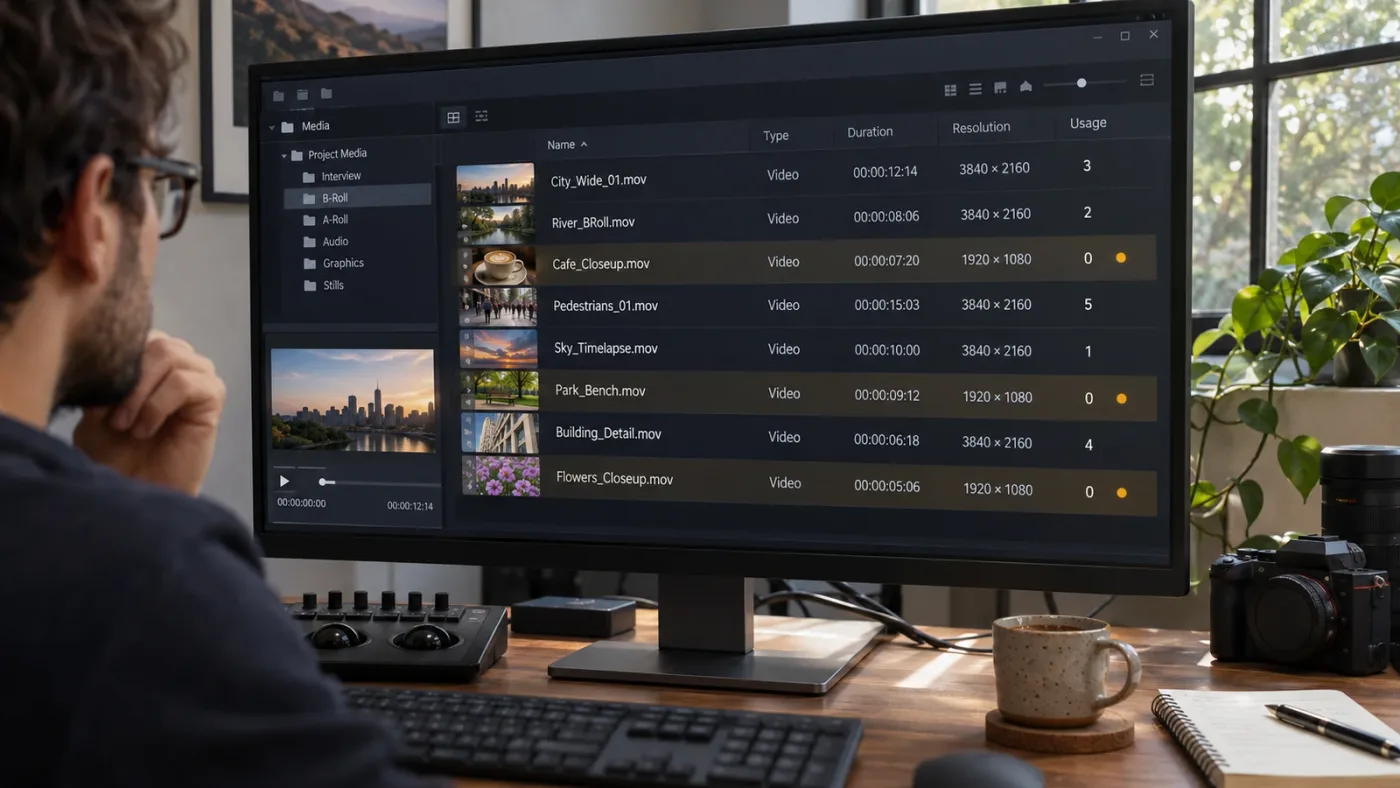
To find clips Resolve considers unused across the whole project, update project-wide usage first, then inspect the Usage column in the Media Pool’s List View. This refresh step matters because an old count may not reflect all timelines in the project.
- Open the project you want to inspect.
- In the Media Pool, open the three-dot options menu.
- Choose Update Usage for Entire Project.
- If Resolve asks to load timelines and update usage, let it complete before drawing conclusions.
- Switch the Media Pool to List View.
- Find the Usage column and review clips with a count of zero.
- Before removing anything, check whether the item is intentionally being kept for a later version, a handoff, or another project workflow.
Blackmagic introduced project-wide usage updating in Resolve 19. Its Resolve 19 New Features Guide says the command can load timelines as needed, update usage counts, and display the resulting counts in the Media Pool’s Usage column in List View. It also notes that the update can take time depending on the project’s complexity and number of timelines.
The practical takeaway is simple: update, wait, then inspect. If you sort or filter using stale usage information, you might mistake an incomplete count for a project-wide answer.
A zero count is useful evidence, not a reason to delete without looking. Resolve can tell you what it found during its project-wide usage analysis; it can’t tell you whether you planned to use a shot tomorrow, whether a producer expects to see the source in the handoff, or whether you’re keeping alternate takes for a later cut.
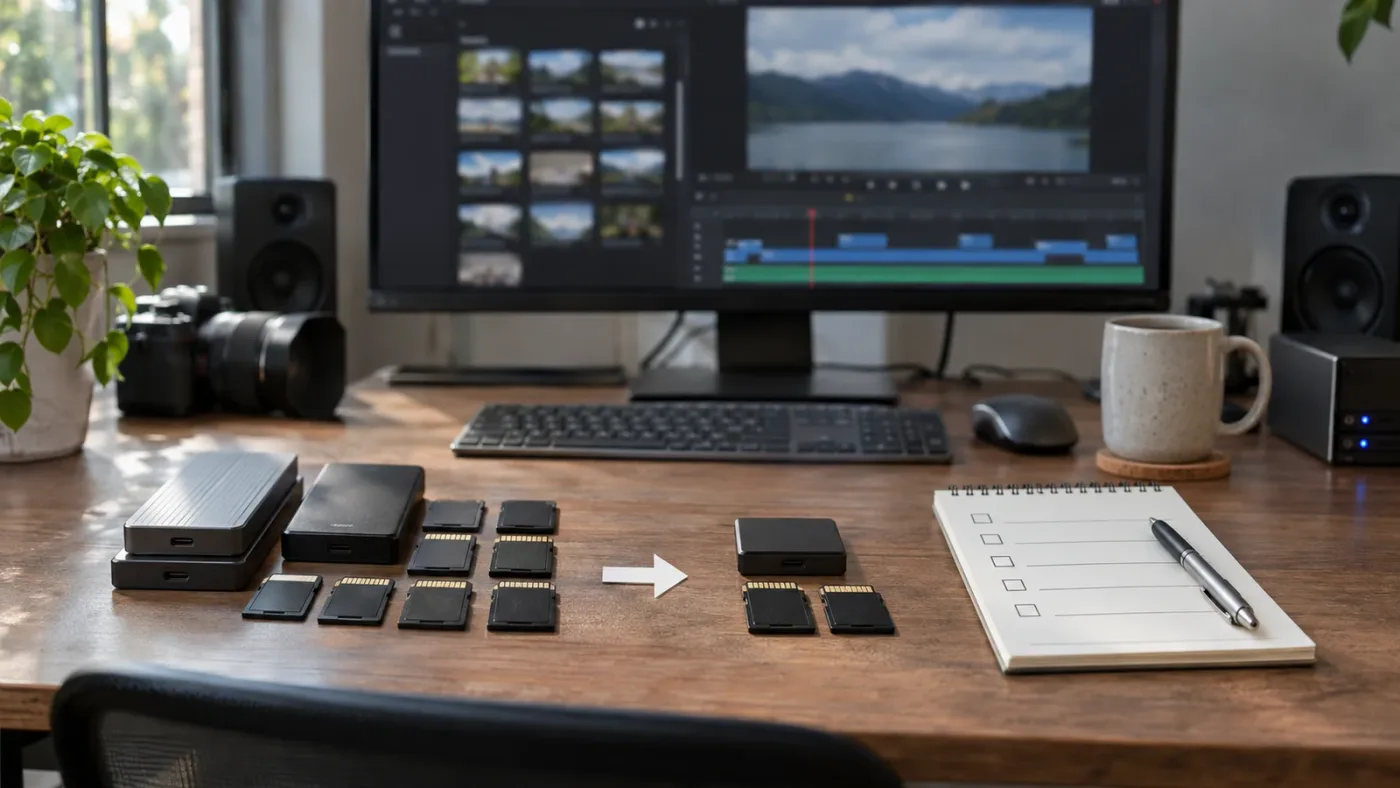
Why is a clip missing from the current timeline but still marked used?
A clip can be unused in the open timeline and still show as used because the project may contain other timelines or compositions that reference it. The open timeline is only one part of a project-wide check.
This is the most common source of confusion when an editor searches for “unused media” while several versions are in the same project. Imagine a project with a main edit, a short social cut, and a clean version without music. A shot that appears only in the social cut is absent from the main edit, but it still has a project use. Removing the source clip from the Media Pool just because the main edit doesn’t contain it would be the wrong cleanup decision.
Compound clips and Fusion compositions deserve the same caution. Blackmagic’s description of Remove Unused Clips says the operation loads all timelines, compound clips, and Fusion compositions before analyzing media usage. The Resolve 18.6 New Features Guide describes that scope and says clips not found during the analysis are removed from the Media Pool and project, not from disk.
That scope is why the procedure asks you to load all timelines. If the project contains versions you don’t usually open, treat the usage update as a project-wide scan, not as a report limited to the timeline in front of you. Don’t substitute a quick look at the open cut for the explicit project-wide command.
There’s another useful distinction: a Media Pool clip can be used even when only a short range of its source is present in a timeline. The usage count answers whether Resolve found a project reference; it doesn’t say that every frame of the source file appears in the edit.
If you’re unsure why a clip has a nonzero count, use the count as a prompt to investigate. Locate the timeline or composition that matters to your deliverable, check the clip’s presence there, and decide whether that use is intentional. Keep review cuts and alternate versions in mind before cleanup.
How can I check the active timeline without cleaning up the whole project?
For an active-timeline check, inspect that timeline directly and compare it with project-wide usage rather than treating the two as interchangeable. A clip can be absent from one timeline while its project-wide usage remains nonzero.
A safe review can be done without removing anything:
- Identify the exact timeline you’re cleaning up, including its version or delivery purpose.
- Look through that timeline’s video and audio tracks, including tracks that are hidden, disabled, or easy to overlook in the current view.
- Check whether the candidate media appears in a nested or compound section of the edit.
- Run Update Usage for Entire Project if you need to distinguish “not in this timeline” from “not used anywhere.”
- Compare the timeline inspection with the Usage column before making a project-level decision.
The reason to do both checks is not that one is inherently better. They answer different questions. The timeline inspection answers whether a clip belongs in the open cut. The project-wide usage update answers whether Resolve finds the clip elsewhere in the project.
Suppose a documentary has a 20-minute broadcast cut and a 90-second trailer. A shot that was rejected from the broadcast cut may be the opening image of the trailer. If you’re removing it from the broadcast version, that’s an editorial decision about one timeline. If you’re removing its Media Pool entry, that’s a broader project decision.
When you’re preparing a handoff, ask the recipient what they need. A colorist may need the media used by the approved timeline, while another editor may expect bins of alternates and selects. “Unused in the final cut” and “not needed for the next person” aren’t automatically the same.
How do I use the Usage column to review clips?
The Usage column gives you a count of project usage after Resolve updates it; it helps sort the Media Pool for review but does not decide which media is safe to discard. Use it as a screening tool, then verify the candidates against the work you’re keeping.
In Resolve 21, the project-wide usage command appears in the Media Pool’s three-dot menu. The Resolve 19 guide specifies that the updated count appears in the Usage column in List View. That gives you a straightforward way to scan many items without relying on thumbnail appearance or remembering which shots you’ve placed.
A useful review process:
- Update before interpreting. If a timeline was created, imported, or changed since the last update, refresh the project-wide count before relying on it.
- Sort or scan the Usage values. Zero-count clips are candidates for review, not an automatic deletion list.
- Check the clip identity. Confirm the filename or other identifying information so you don’t confuse visually similar takes.
- Check the reason for keeping it. An unused clip may still be a chosen alternate, a source for a later version, or part of an agreed handoff.
- Keep a record if another person needs one. A short note about which version you cleaned can prevent confusion when a project contains multiple edits.
Avoid building a cleanup around a number without understanding its scope. A zero usage count after a project-wide update is different from “I don’t see this shot while I’m scrubbing the currently open edit.” The first is Resolve’s project analysis; the second is a viewing impression.
Also, don’t confuse a count of uses with the number of source frames used. One timeline instance can use a short range of a long source clip, and repeated edits can reference the same source clip more than once. The usage column is about clip usage, not a report of how many unused source frames will be removed from a disk.
What does Remove Unused Clips do in Resolve 21?
Remove Unused Clips analyzes the project and removes Media Pool clips that Resolve does not find in use; it does not delete their source files from storage. It’s a project-cleanup command, not a disk-space cleanup command.
In the Media Pool, open the three-dot options menu and choose Remove Unused Clips. Resolve then offers the option to load all timelines before starting the analysis. Choose to load them if you want the project-wide check, or cancel if you’re not ready to proceed.
Blackmagic’s Resolve 18.6 New Features Guide describes the feature as an analysis of timelines, compound clips, and Fusion compositions. Clips not found by that analysis are removed from the Media Pool and project. The guide also warns that project size can affect how long the operation takes and describes the operation as not undoable.
That wording gives you two important boundaries:
- Project boundary: Resolve removes the clips’ project references from the Media Pool and project.
- Storage boundary: Resolve does not delete the corresponding source files from the disk.
So, if your goal is to declutter the project, this command may fit. If your goal is to free disk space, it doesn’t do that by itself. And if your goal is to trim source files to the ranges used in an approved edit, that’s another operation entirely.
The command is useful when you’ve imported a large batch of footage and want to remove clips that aren’t referenced anywhere in the project. It’s less suitable as a substitute for an editorial review. A zero-use clip might be intentionally retained for a planned alternate or a handoff, even though Resolve has no current timeline or composition reference for it.
Remove Unused Clips cleans project references; it doesn’t erase source files from your drive.
Is it safe to remove unused clips from the Media Pool?
It’s safe for the source files in the narrow sense that Blackmagic says Remove Unused Clips does not delete media from disk. It is not risk-free for project organization, because Resolve documents the removal operation as not undoable.
Before you run it, create a project copy or backup you can return to. Then confirm that you’re in the right project and that the project-wide usage information is current. If you’re collaborating, tell the other editor what you plan to remove and when. A clip that appears unused to Resolve may still be part of the team’s intended next step.
Use this pre-cleanup checklist:
- Save a separate project copy. Keep the original intact until the cleaned version has been reviewed.
- Identify every deliverable timeline. A main edit may not be the only version that matters.
- Update project-wide usage. Don’t rely on a count that predates recent timeline changes.
- Review zero-count items. Keep alternates or handoff material if the project still needs them.
- Run the command only when the scope is clear. Choose Remove Unused Clips only if removing project references is the desired result.
- Verify after the operation. Reopen the relevant timelines and check that the Media Pool still contains what the project needs.
A backup matters even though the source files remain on disk. If Resolve removes a Media Pool entry, the fact that the file still exists doesn’t automatically restore the entry’s bin organization, metadata, or association in the project. The source file and the project’s record of that source are separate things.
For a team handoff, consider making a copy of the project and cleaning that copy rather than changing the shared working project. The recipient can then tell which version is the handoff and which one retains the broader editorial pool.
Why are my source files still on disk after I remove unused clips?
The files remain because Remove Unused Clips removes project entries, not the underlying files from your storage device. That is expected behavior, not a failed cleanup.
This distinction is helpful. It gives you a way to slim down a project’s Media Pool without asking Resolve to erase the camera originals. If you later discover that a supposedly unused clip matters, the source file may still be available to import again, assuming it hasn’t been moved or deleted separately.
But don’t treat “still on disk” as a complete recovery plan. Reimporting a file is not guaranteed to restore the exact bin placement or project metadata you had before. Preserve the project version if that organization matters.
If your actual goal is freeing disk space, first identify what takes up space and what depends on it. Camera originals, proxies, optimized media, render cache, stills, audio, and exports are different kinds of files. Removing an unused Media Pool item doesn’t remove all of those associated categories.
For a media archive, the safer question is not “How do I delete every file Resolve says is unused?” It’s “What does the recipient need to reopen and continue this project?” A project may still depend on external assets, graphics, fonts, audio, or media not represented by the specific cleanup operation you’re considering.
A Media Pool cleanup and a disk cleanup are separate jobs.
How do I remove unused parts of source files for an archive?
Removing unused Media Pool clips is not the same as trimming unused sections from source files. If you need a smaller, portable archive, use a separate Media Management workflow and verify the resulting project and copied media before treating it as complete.
A long source clip can be used in a timeline even if the edit includes only a small section of it. The Media Pool item is still in use. The Remove Unused Clips command is therefore not a tool for trimming every source file down to just the ranges used in a timeline.
For archiving, start with a copy of the project and decide which timeline or timelines define the archive. Then use Resolve’s Media Management options to create a copy or consolidate media according to the workflow you need. Blackmagic’s Resolve 21.1 update announcement says the release adds new project archive and media-management options; check the current support page and the matching manual for the exact controls in your installed release.
Before relying on an archive, test the copy rather than assuming the operation captured every dependency. Check that the project opens from the archive location and that the intended timeline plays with media online. If another person will receive it, include clear instructions about which timeline is the approved version.
The site’s separate guide to consolidating media before archiving covers that different task. Keep the distinction clear:
- Remove Unused Clips: removes unused Media Pool entries from the project.
- Media Management or consolidation: creates a managed copy or archive of media associated with chosen project content.
- Deleting source files: removes files from storage and should happen only after confirming the archive and its dependencies.
If you need long-term preservation, keep the project backup and media archive together, label the approved timeline, and document what was intentionally left out. That is safer than assuming a zero usage count is a complete archive manifest.
What should I do if Update Usage for Entire Project is missing?
If Update Usage for Entire Project is missing, first confirm which version of DaVinci Resolve you’re running and whether you’re looking in the Media Pool’s options menu. Resolve 19’s new-features guide documents the project-wide usage command, and Resolve 21’s guide lists it among the Media Pool menu options.
Try these checks:
- Open the Media Pool itself, not a different panel’s menu.
- Click its three-dot options menu and inspect the available commands.
- Confirm the installed version from Resolve’s About screen.
- Check the manual for that release through Blackmagic’s support center.
- If you have a project opened in a workspace layout that hides or changes the panel, open the Media Pool on a page where it is visible and inspect that menu again.
Don’t assume that a missing menu item means the project has no unused clips. It may mean the command is in a different menu than the one you opened, or that you’re using a version with different controls. The feature-specific documentation matters more than a remembered menu path from an older tutorial.
Version changes also affect what surrounds the command. Resolve 21 adds Media Pool controls such as per-bin views and other organization features, but those don’t change the basic distinction between updating usage and removing project entries. The Resolve 21 New Features Guide is the current reference for 21-specific Media Pool changes.
What if Resolve keeps a clip I think is unused?
If Resolve keeps a clip after the project-wide removal command, don’t force-delete it based on the open timeline alone. First verify the usage update and check whether another timeline or composition references it.
A clip can remain in the Media Pool for valid reasons:
- It appears in another version or delivery timeline.
- A compound clip or Fusion composition uses it.
- The cleanup command did not complete its project-wide analysis.
- The clip is not actually the same source item you thought it was.
- You’re inspecting a different project copy from the one you cleaned.
The first two are reasons to keep it. The last three are reasons to re-check your process before changing anything else.
If the item is still there after a complete project-wide analysis, inspect the project structure and verify the right project is open. Don’t try to remove a source file from the operating system as a workaround. That can turn a project-cleanup question into an offline-media problem.
If your goal is simply to make the project easier to browse, you may prefer to retain unused clips but organize them. Bins and descriptive names can make alternates easier to distinguish from selected footage. See the guide to DaVinci Resolve folder and bin naming conventions, or the guide to batch-renaming Media Pool clips.
Should I remove unused clips or keep them in a separate bin?
Remove unused clips when the goal is a cleaner project and you’ve confirmed those references aren’t needed; keep them in a clearly named bin when you still need the alternates, review material, or future options. Neither choice is universally better.
A cleanup command is decisive. A bin is reversible and visible. That difference makes organization a good choice when the editorial decision is still open.
| Situation | Better next step | Why |
|---|---|---|
| You’re preparing a project copy for a defined handoff | Update usage, review zero-count items, then remove only what the handoff doesn’t need | The recipient gets a project shaped for the stated task |
| You’re still choosing between takes | Keep the source clips and place them in a clearly named bin | They remain easy to compare or reuse |
| You have several versions in one project | Update usage across the project before cleanup | A clip absent from one cut may appear in another |
| You only want to free disk space | Do not use Remove Unused Clips as the disk cleanup step | The command removes project references, not source files |
| You need a smaller archive of used media | Use a separate Media Management workflow and verify the archive | Trimming or copying source media is a different operation |
A bin named “Unused” can be misleading if it mixes truly rejected takes with clips that simply aren’t in the current cut. Prefer names that state the decision or context, such as “Alt takes,” “Not in broadcast cut,” or “Hold for review.” The naming system should tell the next editor what the bin means, not just what the clip doesn’t do.
If you retain alternates, keep their source files backed up as well. If you remove them from the project but leave the files on disk, document that choice so another person doesn’t assume the files are part of the approved project.
How do I keep a cleaned project understandable for someone else?
A cleaned project is understandable when the remaining timelines, Media Pool organization, and backup tell the same story. Removing clips is only one part of handoff; clear naming and a verified project copy matter just as much.
Before sharing the cleaned copy, check the following:
- Does the project have an obvious approved timeline name?
- Are alternate versions clearly labeled?
- Do the bins distinguish selected media from hold or reference material?
- Did you save the cleaned project as a new copy rather than overwrite the only working version?
- Can the recipient tell whether the source media is included, linked, or expected separately?
- Have you avoided implying that source files were deleted when only project entries were removed?
Resolve 21 adds more Media Pool organization controls, including tabbed layouts and per-bin view settings, according to Blackmagic’s Resolve 21 New Features Guide. Those features can help keep a larger pool navigable, but they don’t replace a clear handoff note or a saved project copy.
If you’re learning where these controls sit in the interface, TryUncle is an on-screen assistant for DaVinci Resolve on Mac and Windows. Ask in plain words, and Uncle can guide you toward the relevant control while you stay in charge of the project changes.
Which cleanup path should I choose?
Choose based on what you’re actually trying to remove: a clip from one edit, a Media Pool entry from the project, unused ranges from an archive, or files from storage. Resolve’s project-wide usage update and Remove Unused Clips command are for inspecting and removing project references, not deleting source files.
For the safest ordinary project cleanup, save a copy, update usage for the entire project, review zero-count items, and remove them only if you’re sure the project no longer needs them. If the goal is disk space or an archive, use a separate media-management plan and verify the result before you delete anything from storage.
If you’re not certain what the project needs, keep the clips and make the bins clearer. When the editorial decision is uncertain, organize first and remove later.
Frequently asked questions
- How do I find unused media in a DaVinci Resolve 21 project?
- In the Media Pool, choose Update Usage for Entire Project from the three-dot options menu. In List View, check the Usage column. A count of zero means Resolve did not find a use for that Media Pool clip in the project during that update.
- Does Remove Unused Clips delete the video files from my computer?
- No. Remove Unused Clips removes qualifying clips from the Media Pool and project, not from the storage device. It is different from deleting source files in your operating system.
- How do I find clips that are unused only in the current timeline?
- Update usage for the entire project, then check the timeline and clip usage information. A clip may have no use in the open timeline but still be used in another timeline, compound clip, or Fusion composition. Do not remove it from the project based only on the open timeline.
- Can I recover clips after I choose Remove Unused Clips?
- Blackmagic's documentation describes the operation as not undoable. Before running it, save a separate project copy or export a project backup. Source files remain on disk, but that does not restore the removed Media Pool entries and project organization.
- Does DaVinci Resolve find unused parts of a clip that is on the timeline?
- No. Remove Unused Clips is about Media Pool clips that are not referenced by the project. It does not mean the unused portions of a source file will be removed. Trimming source media for an archive is a separate Media Management task.
Sources
- DaVinci Resolve 21 New Features Guide
- DaVinci Resolve 19 New Features Guide
- DaVinci Resolve 18.6 New Features Guide
- DaVinci Resolve Support Center
- How to Consolidate Media in DaVinci Resolve Before Archiving
- Folder and Bin Naming Conventions for DaVinci Resolve Projects
- DaVinci Resolve Batch Rename Clips in the Media Pool
- TryUncle
Put this guide to work with TryUncle.
Ask about the step you’re on. TryUncle sees your screen and points at the control you need, so you can keep learning in your own project.
Get TryUncle for Mac or WindowsKeep reading
Guides · Jul 25, 2026 · 40 min
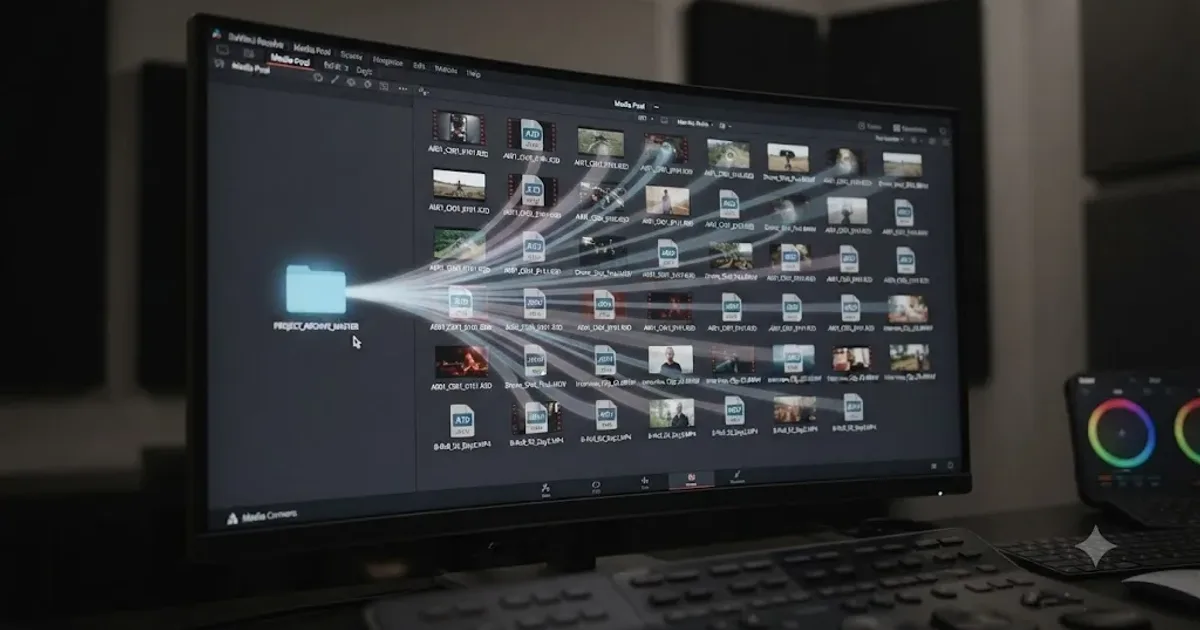
How to Consolidate Media in DaVinci Resolve Before Archiving
How to consolidate media in DaVinci Resolve before archiving: Media Management steps, frame handles, unused clips, and where to store the finished archive.
Guides · Jul 16, 2026 · 36 min
Folder and Bin Naming Conventions for DaVinci Resolve Projects
A practical naming system for DaVinci Resolve folders and bins: project structure, camera bins, Power Bins, Smart Bins, and what breaks relinking.
Guides · Oct 22, 2026 · 30 min
DaVinci Resolve Batch Rename Clips in the Media Pool
Batch rename DaVinci Resolve clips in the Media Pool with Clip Attributes, metadata, and safe naming workflows that preserve camera originals.