Articles / Fixesupdated for DaVinci Resolve 21.0.3 (July 2026)
How to Fix Rolling Shutter Distortion in DaVinci Resolve
Quick answer
DaVinci Resolve has no dedicated rolling shutter fix, but several tools reduce it. Switch the Stabilizer to Similarity or Translation mode, try Camera Lock, or use Camera Gyro mode (Strength at 0) on Blackmagic RAW; GoPro, DJI, and Insta360 clips can use the free Gyroflow plugin instead. Severe whip-pan skew can't be fixed in post.
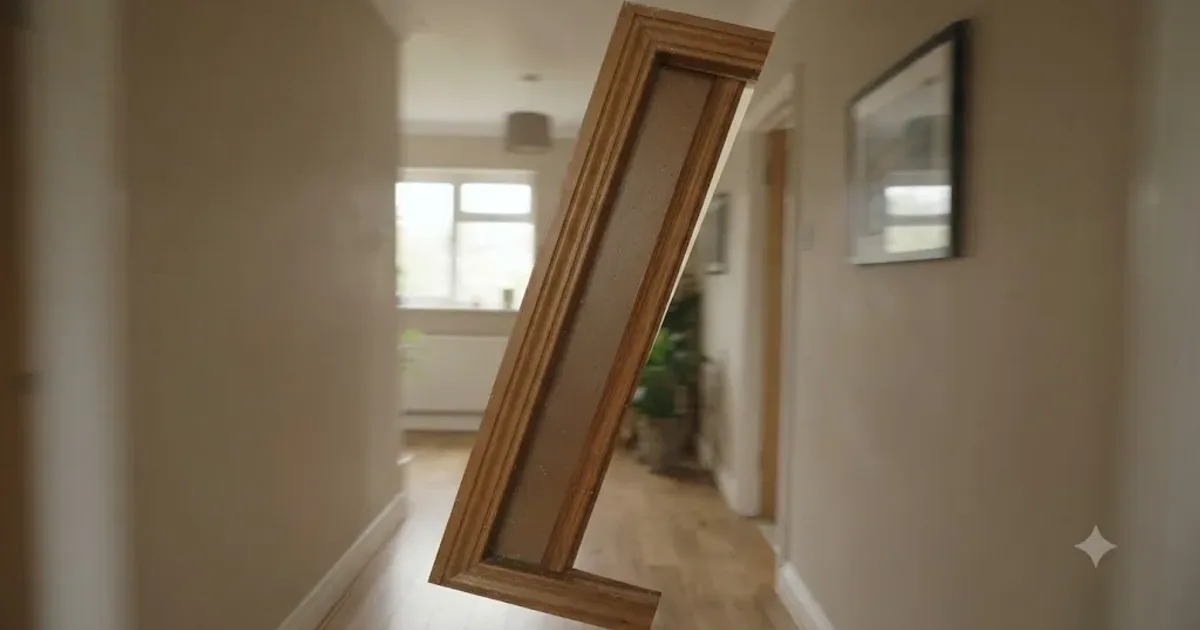
Your shot looks fine until someone pans the camera, and a straight doorframe leans like it's melting. That's rolling shutter, and it's baked into the footage before DaVinci Resolve ever opens the file. In seven-plus years of cutting commercial video, we've fielded this exact question more times than almost any other capture-side artifact, and it's one of the recurring questions in our 100,000+ member editing community too: can Resolve actually fix this, or is the shot dead?
As of August 2026, running DaVinci Resolve 21.0.3, the honest answer is that Resolve has no button labeled "fix rolling shutter." What it has is a handful of tools, some built in, some free third-party plugins, that reduce the skew by different amounts depending on your camera and your footage. This is a decision tree, not a single fix, and it ends with a section most guides skip: when the shot genuinely can't be saved.
What is rolling shutter distortion, and why does it happen in DaVinci Resolve footage?
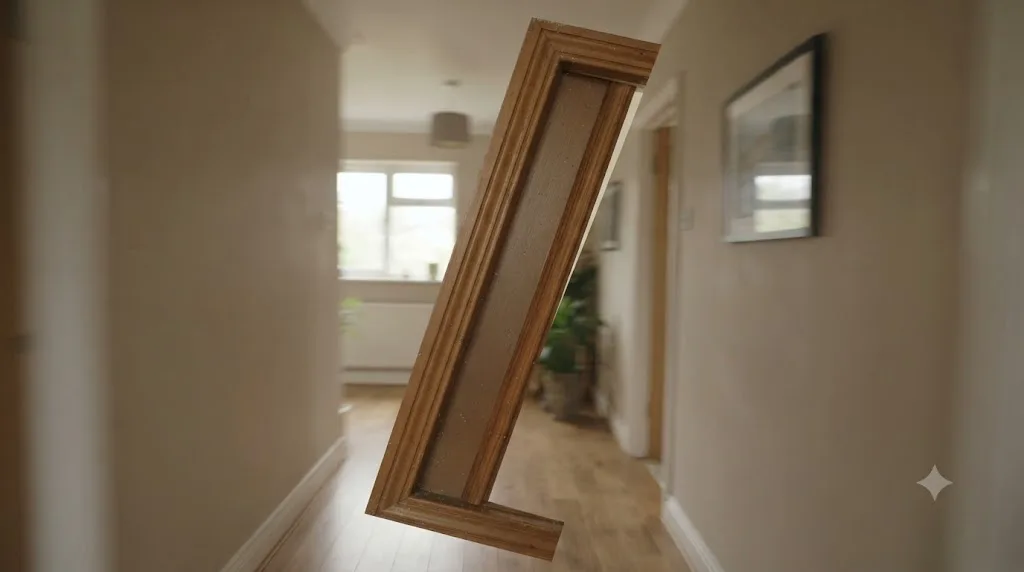
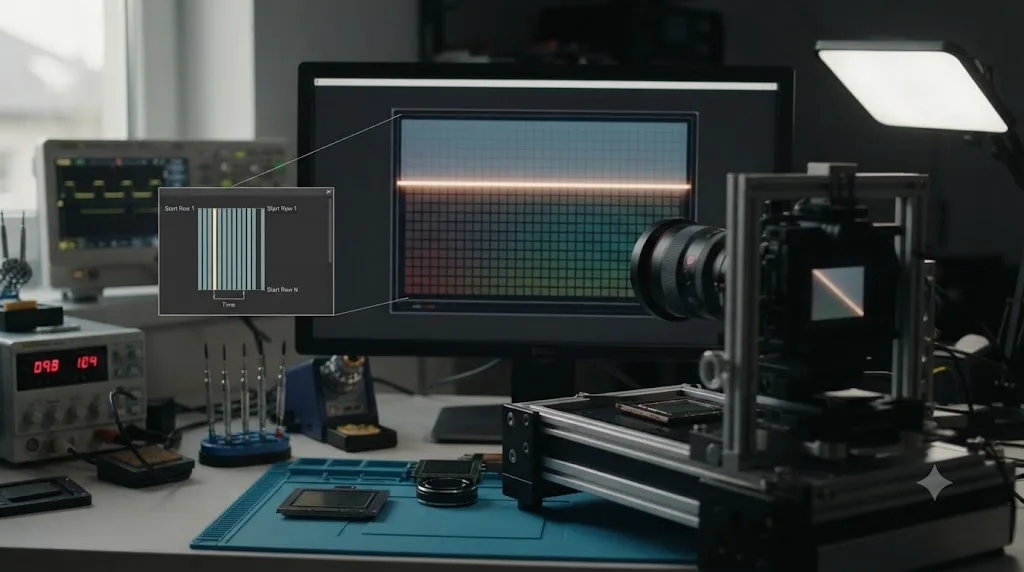
Rolling shutter is a byproduct of how most CMOS sensors capture an image: line by line, top to bottom, instead of all at once. According to Wolfcrow's guide to rolling shutter, that line-by-line scan introduces a real time offset between when the top of a frame is captured and when the bottom is, and if anything moves, the camera, the subject, or both, during that offset, the result is a skewed or wobbling image. This happens at the sensor, during recording, which is why no setting inside DaVinci Resolve prevents it. Resolve only ever sees the footage after the damage is done.
Filmmaker Noam Kroll put it plainly in his piece for PremiumBeat: "Rolling shutter skew is simply a result of the speed at which a frame is scanned and captured on a CMOS sensor." He also notes the mechanism directly: "The top and bottom points of any given frame are not captured at the exact same moment." That's the entire cause, in one sentence, and it explains why the fix has to happen either before you shoot (a faster shutter, a different sensor) or through software that reconstructs what the camera's real motion was during that scan window.
Rolling shutter is a capture-time artifact, not a Resolve bug, and no import setting, codec, or color space transform changes it. That distinction matters because it tells you where to spend your time. You're not hunting for a hidden Resolve preference. You're choosing which correction tool best matches the footage you already have.
How do you tell rolling shutter apart from ordinary camera shake?
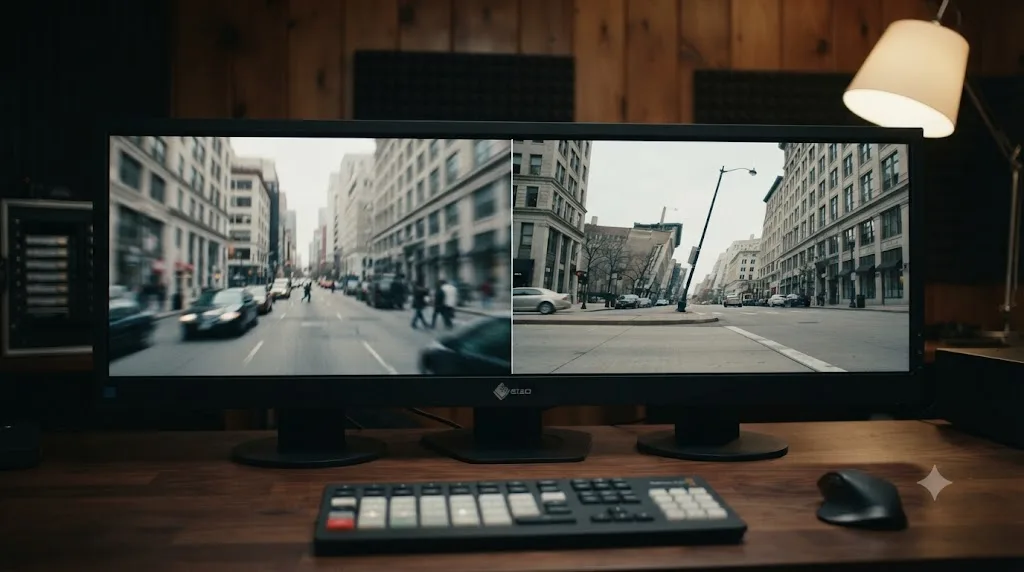
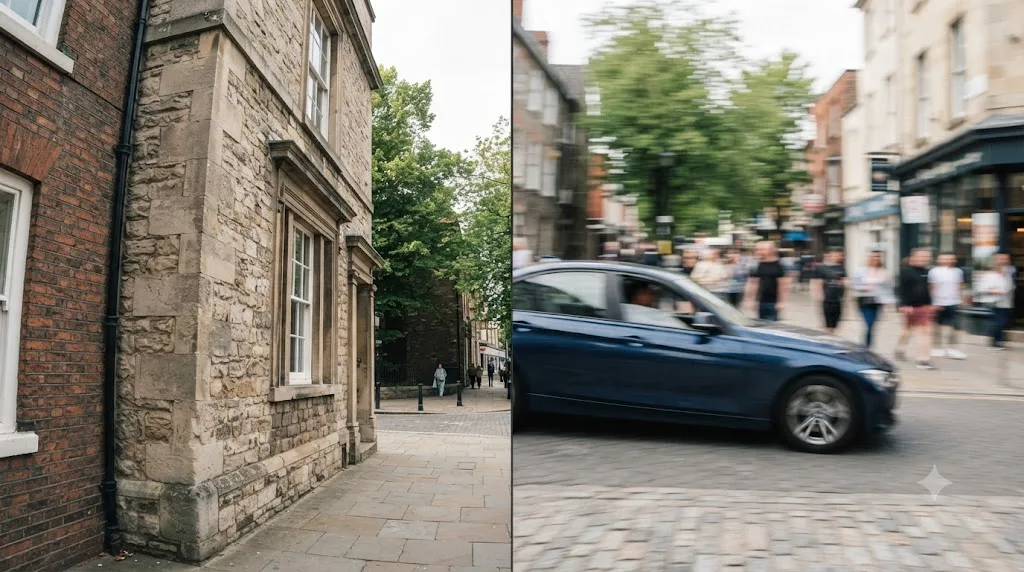
Genuine camera shake moves the whole frame together, panning or bobbing as one unit, the same way it looked when you shot it. Rolling shutter distortion looks different up close: parts of the image skew, bend, or ripple independently while other parts of the same frame stay relatively still, producing the wobbly, gelatin-like look editors call "jello." A vertical pole that leans diagonally mid-pan, a fast-moving car with its wheels rendered as ovals instead of circles, or a whip pan where straight edges bow outward are all rolling shutter, not shake.
The fastest test: scrub to the raw, unstabilized clip before you've touched anything in Resolve. If the skew is already there in the source media, at the moment of capture, it's rolling shutter. If the frame is just moving around as a single rigid unit, that's shake, and you want our stabilization troubleshooting guide instead, which covers the eight most common reasons a stabilization pass looks like it did nothing. The two problems get confused constantly because the built-in Stabilizer's Perspective mode, in trying to correct for the apparent rotation rolling shutter implies, can occasionally make the jello look worse rather than better, since it's solving for a rotation that never actually happened at the camera body.
Does DaVinci Resolve's Stabilizer actually fix rolling shutter?
Not by design, and not completely. Someone asked this exact question on the Creative COW forum, comparing Resolve's Stabilizer to Adobe's Warp Stabilizer, which has built-in rolling shutter removal baked into its own algorithm. Forum member Margus Voll answered directly: "No that i know of." That's the accurate, if blunt, state of things. Resolve's standard Stabilizer has no dedicated rolling shutter filter the way Premiere Pro's Warp Stabilizer does.
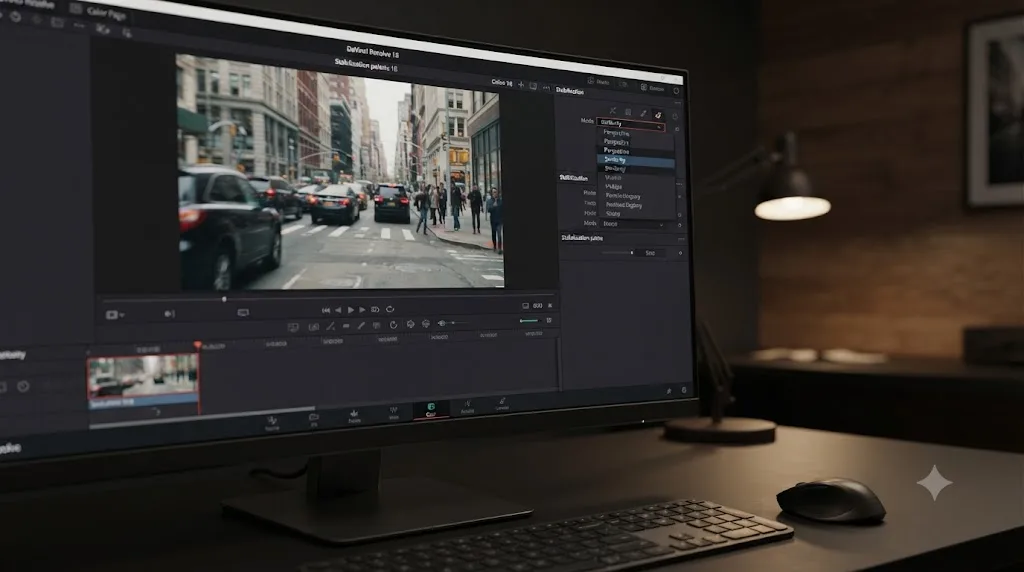
What the Stabilizer does have is mode selection, and that indirectly helps. Per the DaVinci Resolve reference manual, Perspective mode corrects "perspective, pan, tilt, zoom, and rotation," while Similarity mode drops the perspective component and Translation mode corrects "pan and tilt analysis and stabilization only." Because Perspective mode actively tries to reconstruct 3D rotation from a 2D image, it can mistake rolling shutter skew for real camera rotation and chase it, sometimes amplifying the jello rather than fixing it. Dropping to Similarity or Translation mode removes that specific failure path, which is why switching modes is the first, free, built-in move worth trying.
Camera Lock goes a step further. It "disables Cropping Ratio and Smooth," per the manual, and pushes the Stabilizer to eliminate essentially all detected motion, simulating a locked-off tripod shot. Because a fully locked result has no room left for residual rotation, enabling Camera Lock removes the exact category of motion that produces jello, at the cost of a heavier crop than mode selection alone requires.
Switching stabilization mode doesn't fix rolling shutter directly, it removes the specific failure mode where Resolve's own solver makes the skew worse. That's a narrower claim than "the Stabilizer fixes rolling shutter," and it's the honest one. For a genuine, purpose-built correction, you need either gyro data or a dedicated plugin, both covered below.
| Approach | Fixes rolling shutter directly? | Requires |
|---|---|---|
| Similarity or Translation mode | No, reduces amplification only | Nothing extra, built into Resolve |
| Camera Lock | Partially, removes residual rotation entirely | A heavier crop |
| Camera Gyro mode | Yes, using real sensor rotation data | Blackmagic RAW, gyro-equipped camera, current firmware |
| Gyroflow plugin | Yes, using logged gyro telemetry | Free plugin install, matching lens calibration |
| Faster shutter at capture | Prevents it, doesn't fix existing footage | Reshoot |
| Global shutter camera | Eliminates it at the sensor | A different camera body |
How do you use Camera Gyro mode to correct rolling shutter on Blackmagic RAW footage?
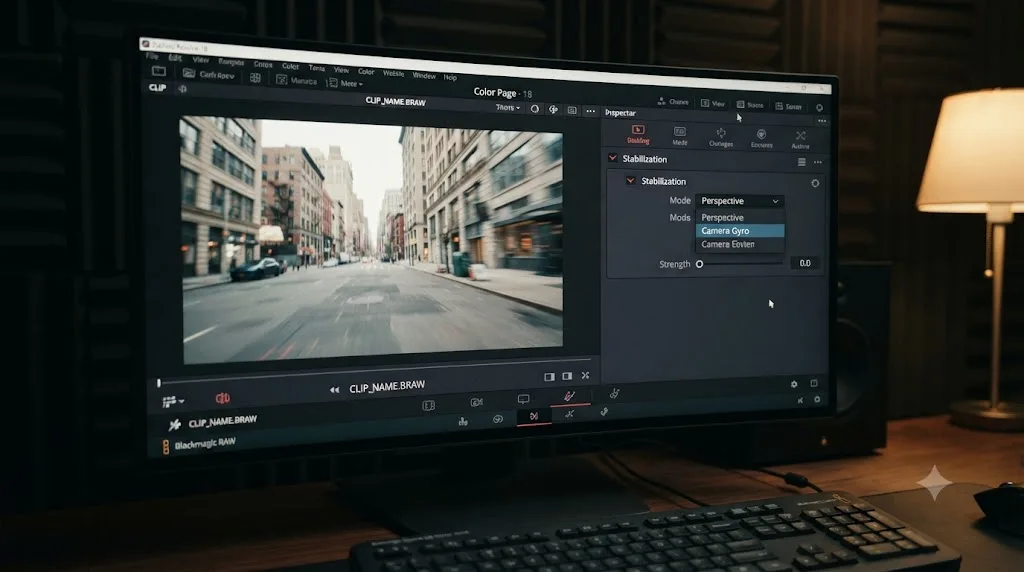
Camera Gyro is a Stabilization mode that only appears in the dropdown when Resolve detects valid gyroscope metadata embedded in the clip itself. According to reporting from 4K Shooters on Resolve's gyro stabilization, this currently means Blackmagic RAW footage from gyro-equipped Pocket Cinema Camera and URSA models, and only clips recorded after the camera's firmware was updated to record that gyro data in the first place. By name, that currently spans the Pocket Cinema Camera 4K, 6K, and 6K Pro, plus the Cinema Camera 6K, according to 4K Shooters' separate report on the Pocket camera gyro rollout, alongside gyro-equipped URSA bodies. Footage shot on older firmware, even on the same camera body, won't show Camera Gyro as an option, because the hardware may have been present without the data ever being written to the file.
This mode works differently from the standard Perspective, Similarity, and Translation modes. Instead of tracking pixels frame by frame and guessing what motion produced them, it reads the camera's actual physical rotation at the moment of capture. That's a meaningful difference for rolling shutter specifically, because the skew is a direct, mathematical consequence of real sensor rotation and readout timing, data the gyroscope already has and pixel tracking can only estimate.
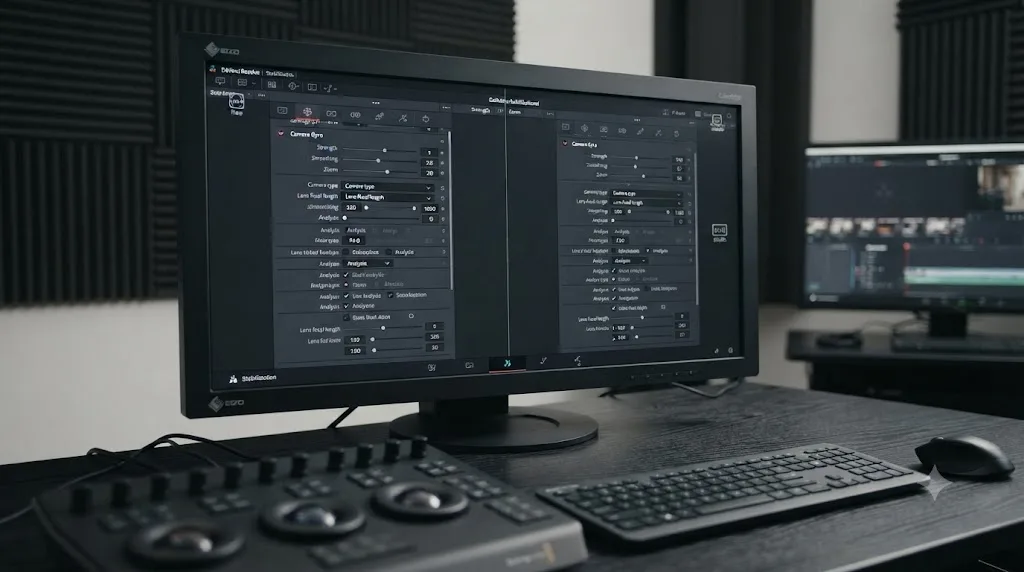
The specific technique, covered by No Film School's Yaroslav Altunin in a workflow popularized by YouTube channel Diode Films, is to select Camera Gyro from the mode dropdown and set Strength to zero before clicking Stabilize. Setting Strength to zero tells Resolve not to apply the smoothing, locked-off stabilization most people want from this panel, while still applying the underlying gyro-based rotational correction. The result, per that guide, can make footage "look like you shot on a camera with a global shutter" when the original rolling shutter effect wasn't severe to begin with. Resolve zooms in slightly to cover the correction's edges, the same tradeoff every stabilization method makes.
Camera Gyro mode with Strength at zero corrects rolling shutter using the camera's own measured rotation instead of a pixel-tracking guess, which is why it can succeed where mode-switching alone can't. It has a real limitation worth knowing before you go looking for it on your footage: it's BRAW-only, and per 4K Shooters' reporting, lens stabilization can't be combined with gyro stabilization, since gyro data describes body rotation and has no way to account for what a stabilized lens is separately doing to compensate.
Can Gyroflow fix rolling shutter on GoPro, DJI, or Insta360 footage?
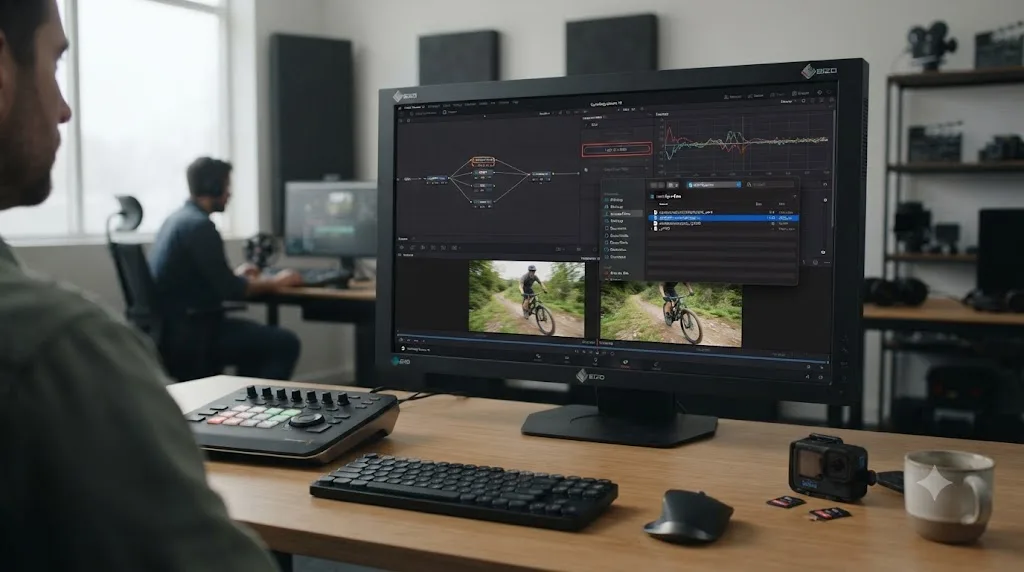
Yes, and this is the option worth knowing about if you don't shoot Blackmagic RAW. Gyroflow is a free, open-source OpenFX plugin, and its own documentation for the DaVinci Resolve integration confirms it installs as a standard OFX plugin that runs inside Resolve on macOS, Windows, and Linux, with GPU acceleration through Metal, OpenCL, or CUDA depending on platform. Rather than reading gyro data embedded by Blackmagic's own firmware, Gyroflow reads the gyroscope and accelerometer telemetry that action cameras and drones already log to their own files, most GoPro HERO models, DJI drones and Osmo cameras, and Insta360 cameras all record this data during capture, whether or not you ever intended to use it.
The correction quality depends heavily on lens calibration. Per Gyroflow's documentation, "lens calibration is a very important piece of the stabilization algorithm," meaning the plugin needs to know your specific lens's optical characteristics to translate raw gyro rotation into an accurate per-pixel correction. Gyroflow ships with a library of community-submitted lens profiles for common action cameras, and running your own calibration is possible but adds a step most editors will want to skip if a matching profile already exists.
Setup has one practical wrinkle worth flagging before you commit to this workflow: a Gyroflow project file has to be generated first, either through Gyroflow's standalone app or through its own analysis of the clip, and then loaded into the OFX plugin inside Resolve. Per the documentation, DaVinci Resolve Free lacks automatic project file detection, so you load it manually, while Studio supports script-based automatic loading. If you're already troubleshooting import problems on action-cam footage before you even get to rolling shutter, our GoPro HERO12 import fix guide covers the codec and card issues that block footage from reaching the timeline in the first place.
Gyroflow corrects rolling shutter using the camera's own logged gyro telemetry, which is a fundamentally more accurate input than anything Resolve's built-in Stabilizer can derive from pixels alone. It's free, it's actively maintained, and it's the closest thing to a purpose-built rolling shutter fix available inside a Resolve timeline today, with the caveat that calibration quality directly determines correction quality.
Does Lens Correction fix rolling shutter in DaVinci Resolve?
No, and this mix-up wastes more time than almost any other rolling shutter dead end. Lens Correction, found in the Inspector, is a tool built to fix optical barrel and pincushion distortion, the physical curving a wide-angle lens bakes into straight lines regardless of whether anything in the frame is moving. Per the DaVinci Resolve reference manual's Lens Correction section, the tool analyzes a clip and applies a correction curve to straighten lens-induced curvature, which is a static, per-lens property, not a motion-dependent one.
Rolling shutter skew, by contrast, only appears when something moves during the sensor's readout window. A locked-off tripod shot with zero camera or subject motion shows lens distortion, if the lens has any, but shows zero rolling shutter skew, because there's no motion for the readout delay to interact with. Run Lens Correction's analysis on a rolling-shutter-affected clip and it does exactly what it's built to do, correct the lens's optical curve, while leaving the jello completely untouched, because that's a different distortion from a different cause entirely.
Lens Correction and rolling shutter correction solve two unrelated problems that happen to both produce "distorted-looking" footage, and confusing them wastes an analysis pass on a tool that was never going to help. If your straight lines look bent everywhere, including in static shots, that's lens distortion, and Lens Correction is the right tool. If the bending only shows up during motion, on pans, handheld shake, or fast subjects, that's rolling shutter, and you need one of the Stabilizer-based approaches or Gyroflow instead.
Which cameras have the worst rolling shutter, and does it matter for Resolve editors?
It matters more than most editors realize, because the severity of rolling shutter in your footage is set entirely by your camera's sensor readout speed, the time it takes to scan from the top row to the bottom row, before Resolve ever sees the file. Per Wolfcrow's guide, readout times under 10 milliseconds are considered excellent, 10 to 15 milliseconds acceptable, 15 to 20 milliseconds noticeable, and anything over 20 milliseconds problematic. Sensors with a fast readout, stacked CMOS designs found in higher-end cinema cameras, produce far less skew at the same pan speed than sensors with a slow readout.
Wolfcrow's own measurements give a sense of the range across current cameras: Sony's FX3 and FX6 read out in roughly 8.7 milliseconds, the FX9 in 22.2 milliseconds, and the Venice 2 in under 3 milliseconds. ARRI's Alexa 35 reads at 5.7 milliseconds in 16:9 and 7.9 milliseconds in open gate. RED's V-Raptor 8K VV comes in around 8 milliseconds full frame and 6 milliseconds in Super 35 crop. Canon's C400, covered in our C400 import settings guide, reads out at roughly 9.5 milliseconds full frame and 6.9 milliseconds in Super 35, comfortably in the "excellent" band. Even an iPhone 15 Pro reads out in around 5 milliseconds.
Blackmagic's own cameras, independently lab-tested by CineD using a consistent methodology, sit further up the scale on some formats. The Blackmagic Pocket Cinema Camera 6K measured 19.8 milliseconds, landing in the "noticeable" range. The Blackmagic Cinema Camera 6K measured 18.7 milliseconds in 6K DCI, 25 milliseconds in its 3:2 open gate mode, and a faster 15 milliseconds when cropped to 4K DCI. The PYXIS 12K measured 24.1 milliseconds in its full 12K 3:2 open gate mode, which that same lab test flagged as "on the high side" for a modern hybrid camera, but a notably faster 13.5 milliseconds in 8K open gate mode. The PYXIS 6K measures around 25 milliseconds at its full 6K 3:2 resolution, according to Blackmagic's own published readout figures reported by YMCinema.
Readout speed, not resolution or price, is what determines how bad rolling shutter looks on a given camera, and it often gets worse rather than better in a sensor's highest-resolution open-gate mode. That last point catches people off guard: on both the Blackmagic Cinema Camera 6K and the PYXIS 12K, cropping down to a smaller sensor mode measurably improved readout speed and reduced rolling shutter, an available in-camera option worth knowing about before you're stuck fixing it in Resolve.
Mirrorless and hybrid cameras that a lot of DaVinci Resolve editors cut day to day show the exact same pattern, and sometimes a wider spread than the dedicated cinema bodies above. Sony's a7S III reads out in 8.7 milliseconds in UHD at 25fps, per CineD's lab test, which the site called "the best full frame rolling shutter readout value ever measured" at the time, and that number holds at 100fps too, dropping slightly to 7.7 milliseconds at 120fps once a small crop kicks in. Fujifilm's X-H2S lands close behind at 9.7 milliseconds in UHD at 25fps using its 14-bit F-Log2 readout, then improves to 5.3 milliseconds at UHD 60fps once the sensor switches to a faster 12-bit readout mode, and to 3.9 milliseconds at 120fps with an added crop.
Panasonic's Lumix S5 II tells a different story. CineD measured 22 milliseconds in full-frame 4K, a millisecond slower than the original S5 it replaced, putting it in "problematic" territory next to the a7S III's 8.7 milliseconds in the same price bracket. Switching the S5 II to its APS-C crop mode brings that down to 14.3 milliseconds, back into "acceptable" range, though CineD noted that's still 1.8 milliseconds worse than the original S5's crop-mode result. Its 5.9K 3:2 open gate mode is the slowest reading in this entire comparison, at 25.4 milliseconds.
The recording mode you pick inside a single camera body can swing rolling shutter severity as much as switching to a different camera entirely. The Fujifilm X-H2S goes from 9.7 milliseconds to 3.9 milliseconds just by changing frame rate and crop, and the Panasonic S5 II goes from 14.3 to 25.4 milliseconds just by changing sensor readout mode. If a fast pan is planned for a shot, checking which recording mode you're set to matters as much as which camera is mounted on the gimbal.
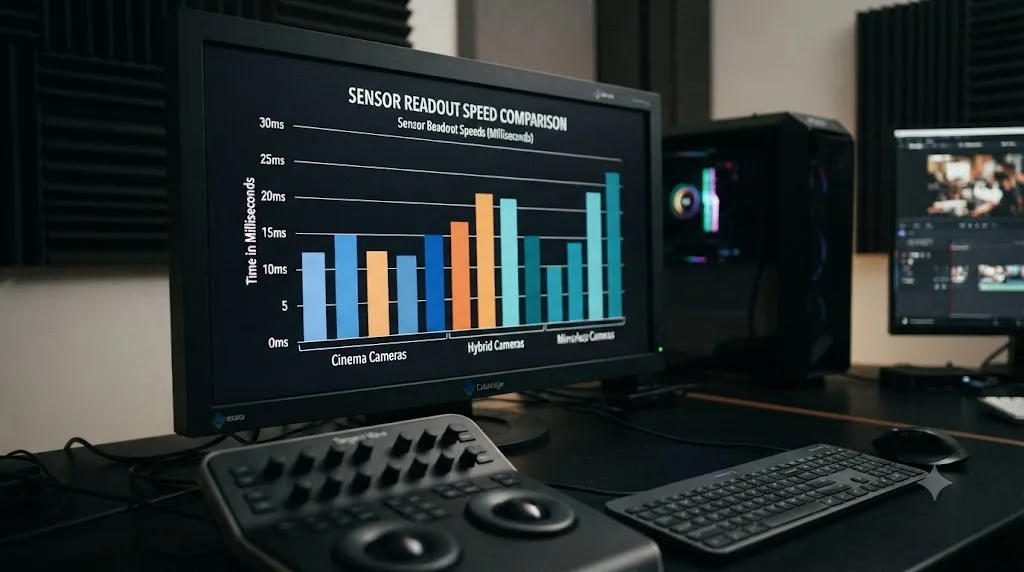
| Camera | Readout speed | Rating |
|---|---|---|
| Sony Venice 2 | Under 3 ms | Excellent |
| iPhone 15 Pro | ~5 ms | Excellent |
| ARRI Alexa 35 (16:9) | 5.7 ms | Excellent |
| RED V-Raptor 8K VV (S35 crop) | ~6 ms | Excellent |
| Canon C400 (S35 crop) | ~6.9 ms | Excellent |
| Sony FX3 / FX6 | ~8.7 ms | Excellent |
| Sony a7S III (UHD 25p) | 8.7 ms | Excellent |
| Canon C400 (full frame) | ~9.5 ms | Excellent |
| Fujifilm X-H2S (UHD 25p) | 9.7 ms | Excellent |
| Fujifilm X-H2S (6.2K open gate) | 11.5 ms | Acceptable |
| Blackmagic PYXIS 12K (8K open gate) | 13.5 ms | Acceptable |
| Panasonic Lumix S5 II (APS-C crop) | 14.3 ms | Acceptable |
| Blackmagic Cinema Camera 6K (4K DCI crop) | ~15 ms | Acceptable |
| Blackmagic Cinema Camera 6K (6K DCI) | 18.7 ms | Noticeable |
| Blackmagic Pocket Cinema Camera 6K | 19.8 ms | Noticeable |
| Panasonic Lumix S5 II (full frame 4K) | 22 ms | Problematic |
| Sony FX9 | 22.2 ms | Problematic |
| Blackmagic PYXIS 12K (12K open gate) | 24.1 ms | Problematic |
| Blackmagic Cinema Camera 6K (3:2 open gate) | 25 ms | Problematic |
| Panasonic Lumix S5 II (5.9K 3:2 open gate) | 25.4 ms | Problematic |
Does shutter angle or shutter speed at capture change how much rolling shutter you get?
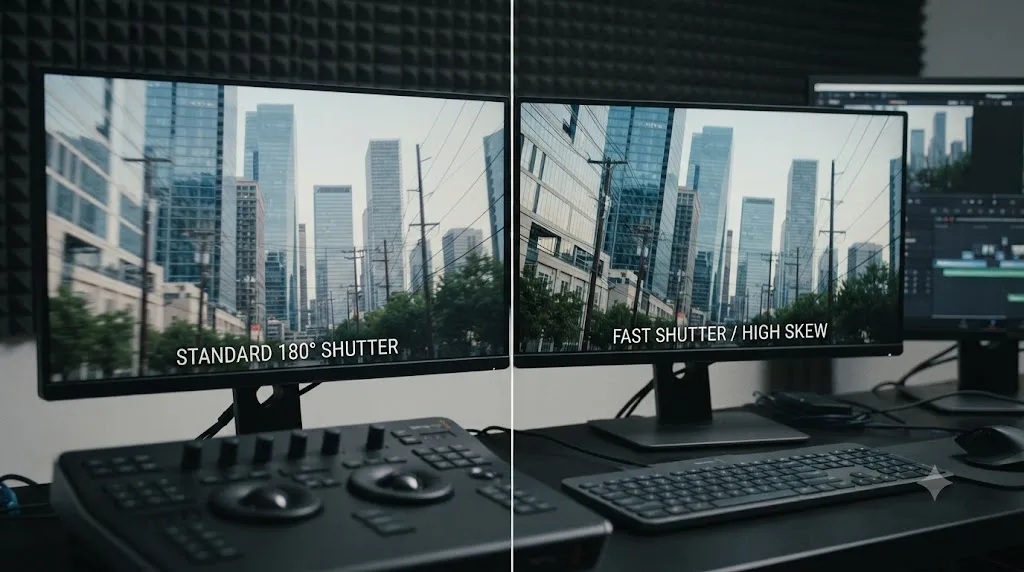
Yes, indirectly, and this is worth knowing before your next shoot even though it doesn't help footage you've already recorded. The 180-degree shutter rule, standard practice since the film era, sets shutter speed to roughly double your frame rate, meaning 1/48 or 1/50 at 24fps, 1/60 at 30fps, or 1/120 at 60fps. Per StudioBinder's explanation of the rule, this shutter speed introduces natural motion blur that masks rolling shutter artifacts, because when each frame already contains blur from real motion, the eye reads that blur as normal cinematic movement rather than as a skew defect.
The tradeoff runs the other way too. A faster shutter speed than the 180-degree rule calls for freezes motion more sharply, which sounds like an improvement but actually makes rolling shutter more visible, since there's no natural blur left to disguise the temporal displacement between the top and bottom of the frame. This is why action-cam and drone footage, often shot at fast shutter speeds specifically to keep individual frames sharp for later slow-motion or stabilization work, tends to show rolling shutter more obviously than a narrative feature shot at a standard 180-degree angle.
Shutter speed doesn't change your sensor's readout time, it changes how much natural motion blur masks the skew that readout time produces. That's a capture-time decision with no equivalent adjustment in Resolve; once a frame is recorded at a given shutter speed, that choice is locked in, which is exactly why the fixes covered above work on the footage's motion data rather than on shutter speed itself.
What is a global shutter camera, and does it eliminate rolling shutter completely?
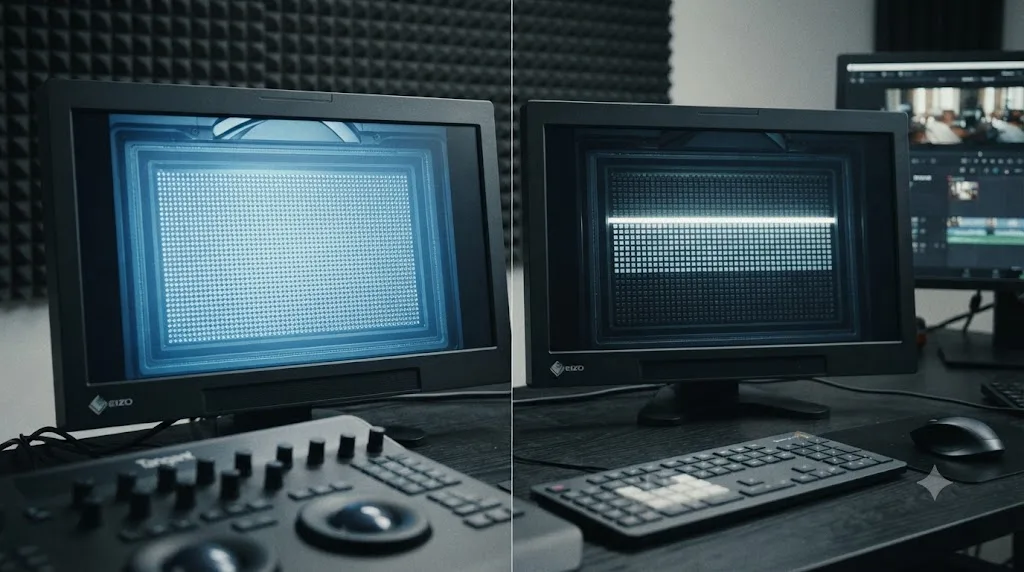
A global shutter sensor exposes every pixel in the frame at exactly the same instant, rather than scanning row by row, which removes the time offset that causes rolling shutter in the first place. Sony's a9 III, announced in late 2023, was marketed, per DPReview's coverage of the announcement, as "the world's first full-frame camera with a global shutter sensor," capable of burst shooting at up to 120fps with "zero rolling shutter distortion or camera blackout" at any shutter speed.
That zero-distortion claim is specific and real: with every pixel captured simultaneously, there's no line-by-line delay for a fast pan or a moving subject to interact with, so the skew, wobble, and jello covered throughout this guide simply can't occur on that sensor design, regardless of pan speed, subject speed, or shutter setting. It's the one true structural fix, solved entirely at the hardware level rather than through any correction applied afterward.
The tradeoff is real too, which is why global shutter hasn't replaced rolling shutter across the board. Global shutter sensors have historically carried a dynamic range and noise penalty compared to an equivalent rolling shutter design, since the additional circuitry needed to hold every pixel's charge simultaneously eats into the sensor real estate that would otherwise go toward light-gathering performance. For most productions, a fast-readout rolling shutter sensor paired with sensible shooting technique, and the correction tools covered in this guide when needed, remains the more practical choice than switching camera systems specifically to chase zero rolling shutter.
When can rolling shutter distortion NOT be fixed?
This is the section most guides skip, and it's the one that saves you the most time. Every correction method covered so far, mode selection, Camera Lock, Camera Gyro, Gyroflow, even Adobe's Warp Stabilizer with its dedicated rolling shutter removal, works the same fundamental way: it estimates or measures how the camera rotated during the exposure window and warps the frame to compensate for that rotation. That warp has a real, physical ceiling.
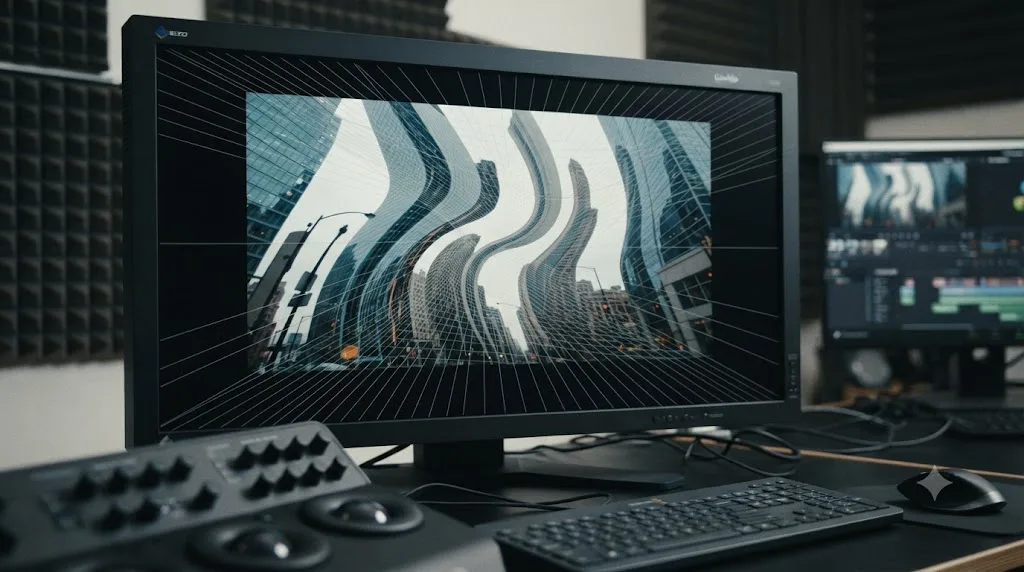
A hard whip pan, the kind where the operator snaps the camera across the frame in a fraction of a second, can produce skew severe enough that correcting it would require stretching parts of the image far beyond what looks natural, and usually beyond what the frame's original resolution can support without visible softness or warping artifacts of its own. A subject moving fast enough to cross the frame during a single exposure, a car at speed shot with a slow pan, or footage from a camera physically vibrating hard enough that consecutive rows capture meaningfully different positions, all fall into the same category: the correction math still runs, but the result often looks worse, not better, because you're asking software to reconstruct information the sensor never fully captured in the first place.
Editor Logan Baker's framing of stabilization in general, from his guide for PremiumBeat, applies here just as directly: post-production correction of any motion-based artifact is "always a gamble." There's no setting on this page, and no third-party plugin, that changes that underlying math.
Rolling shutter correction is a warp applied after the fact, and warps have a limit; past a certain severity, every fix on this page makes a shot look different, not better. When you hit that ceiling, your realistic options are: crop in on a wider version of the same shot if one exists, cut around the worst two or three frames rather than trying to salvage the whole clip, or accept the shot as an intentional, stylized artifact if the footage still serves the edit. None of those are failures of Resolve. They're the honest limit of what post-production correction can do for a problem that started at the sensor.
Two worked examples: fixing jello on real footage
The right fix, and how much correction you need, depends entirely on what you shot it on. Here's how the same jello problem plays out on two different cameras.
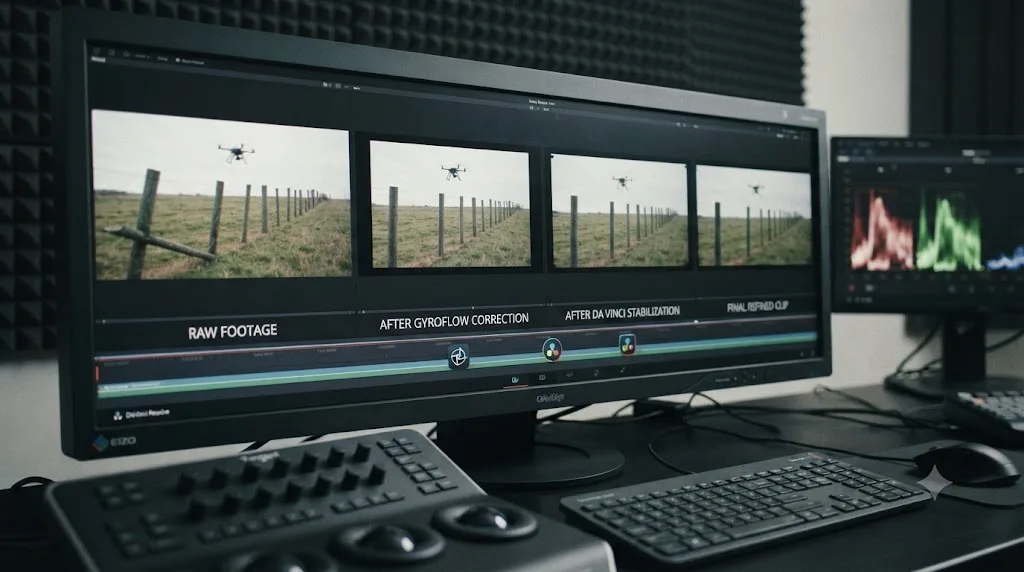
Scenario one: a DJI drone clip. Take a 15-second DJI drone clip, shot in D-Log at 4K60, with a fast lateral pass over a row of vertical fence posts. On playback, the fence posts visibly lean and wave as the drone passes, a textbook jello symptom, and the shot is otherwise usable footage you don't want to cut.
First check: is this rolling shutter or just drone wobble from wind? Scrub to the raw clip before any correction. The posts are already skewed in the source media, confirming this is sensor-level rolling shutter, not a stabilization or gimbal problem you'd fix differently.
Second check: does the clip have gyro telemetry? DJI drones log gyro and accelerometer data to their own flight files, which makes this clip a Gyroflow candidate rather than a Camera Gyro mode candidate, since Camera Gyro mode is Blackmagic RAW-only and this is DJI footage. Generate a Gyroflow project file from the clip and load a matching lens profile for this drone model from Gyroflow's calibration library.
Third check: apply the Gyroflow OFX plugin to the clip on the Resolve timeline and preview the result. The fence posts straighten out significantly, though a small amount of residual wave remains during the fastest section of the lateral pass, the point where the drone's speed relative to the posts was highest and the rolling shutter time offset had the most distance to work with.
Fourth check: is the residual wave acceptable, or does it need more work? For this shot, a light pass of Similarity mode stabilization on top of the Gyroflow correction, at a moderate Cropping Ratio, smooths the last of the wave without adding a heavy crop, since most of the distortion was already handled by the gyro-based correction and only fine cleanup remained.
The end state: Gyroflow handled the bulk of the rolling shutter correction using real telemetry, a light secondary stabilization pass cleaned up the remainder, and the fence posts read as straight for the entire pass. That's the realistic shape of a genuinely fixable rolling shutter shot: one targeted, data-driven correction doing most of the work, with a small amount of conventional stabilization finishing the job, not a single slider or checkbox solving it outright.
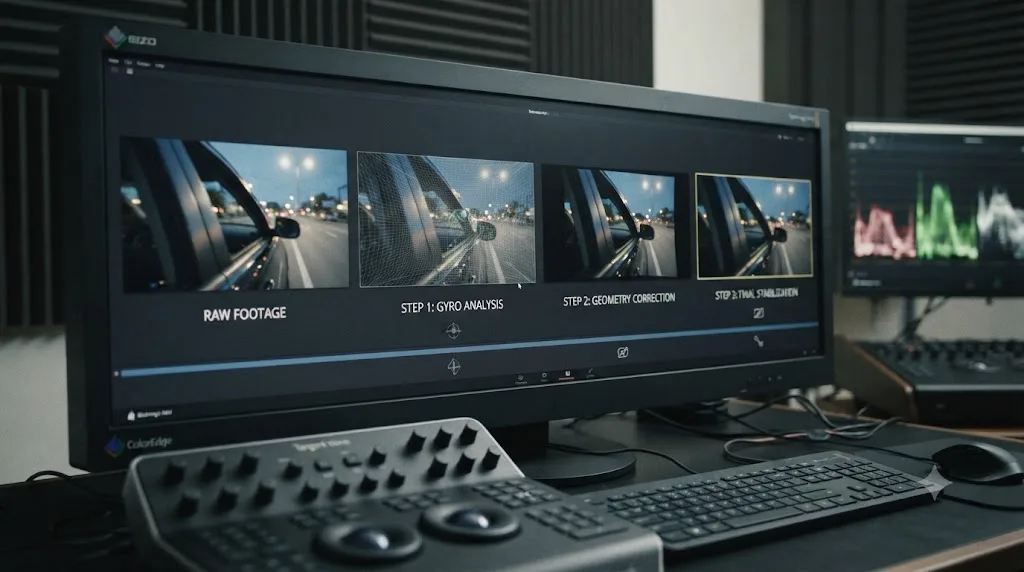
Scenario two: a Blackmagic RAW handheld clip. Take a second scenario: a 12-second handheld clip shot on a Blackmagic Pocket Cinema Camera 6K Pro, walking alongside a subject past a row of parked cars, in Blackmagic RAW at 4K. On playback, the car windows and door panels wobble slightly every time a footstep lands, a smaller, subtler version of the same jello, concentrated on hard vertical edges during the heaviest steps.
First check: is Camera Gyro even available for this clip? Camera Gyro only shows up in the Stabilization mode dropdown when Resolve finds gyro metadata in the BRAW file itself, which means confirming that the Pocket 6K Pro was running firmware that records gyro data at the time this clip was shot, not just current firmware on the camera today. If Camera Gyro isn't listed, older firmware at capture time is almost always why, and no post-production trick recovers gyro data that was never written to the file.
Second check: assuming Camera Gyro is available, select it from the mode dropdown and set Strength to 0, the same workflow No Film School documented. This tells Resolve to use the clip's real measured rotation rather than guessing motion from tracked pixels, and to skip adding the locked-off smoothing most people reach for in this panel.
Third check: preview the result. The car windows and door panels read as straight through most of the walk, with a thin residual wobble only on the two hardest footfalls, where the camera's vertical bounce was sharpest. That residual is smaller than what the DJI example above left behind, because Camera Gyro reads the camera body's own physical rotation directly rather than relying on telemetry logged to a separate file the way action-cam gyro data is.
Fourth check: is a second stabilization pass worth it? For this clip, no. A Similarity-mode pass on top of the Camera Gyro correction would remove that last flicker of wobble, but it would also add a visible crop to a shot that's already tightly framed on the subject, and the residual is subtle enough that most viewers won't clock it at normal playback speed. Leaving it as Camera Gyro alone is the better trade here.
The shape of this example is the opposite of the drone clip: less correction needed overall, because Camera Gyro's direct rotation data does more of the work in a single pass than Gyroflow's telemetry-based correction managed alone, but a harder dependency on firmware history you can't check after the fact.
What's the full troubleshooting order to try?
Work through this in order. Each step either fixes the problem outright or rules out an approach before you move to a more involved one.
- Confirm it's rolling shutter by checking the raw, unstabilized clip for the same skew, not shake or a stale render cache.
- Switch Stabilization mode from Perspective to Similarity, then Translation if Similarity still shows rotation artifacts.
- Try Camera Lock if the shot can tolerate a heavier crop for a fully locked, jello-free result.
- If the clip is Blackmagic RAW from a gyro-equipped camera on current firmware, use Camera Gyro mode with Strength at 0.
- If the clip is GoPro, DJI, or Insta360 footage, install the free Gyroflow OFX plugin with a matching lens profile.
- Don't run Lens Correction expecting it to help; it corrects a different, unrelated kind of distortion.
- If the skew is still visible after the above, layer a light Similarity-mode stabilization pass on top of Gyroflow or Camera Gyro correction.
- If the shot remains unusable, check whether a wider framing or a different take exists that you can crop into instead.
- If nothing recovers it, cut around the worst frames rather than trying to salvage the entire clip.
- For future shoots on the same production, consider a faster shutter, a camera with a faster sensor readout, or a global shutter body if this artifact keeps recurring.
Does DaVinci Resolve Free handle rolling shutter differently than Studio?
Mostly no, with one real exception. The standard Stabilizer, its three analysis modes, Camera Lock, and Camera Gyro mode are all present and functionally identical in Free and Studio, so mode selection and Camera Gyro correction work the same regardless of which edition you're running. Gyroflow, being a third-party plugin rather than a Resolve feature, also runs in both editions, though per its own documentation, Free lacks automatic Gyroflow project file detection and requires manually loading the project file each time, while Studio supports script-based automatic loading, a workflow convenience rather than a quality difference.
Where Studio has a genuine edge is upstream, in raw processing headroom on GPU-intensive formats. Per Blackmagic's tech specs, several GPU acceleration and hardware-decode paths are Studio-exclusive on Windows and Linux, which can matter on long or high-resolution BRAW clips during a gyro-based stabilization analysis pass, affecting how smoothly the analysis runs rather than the accuracy of the resulting correction. A rolling-shutter clip corrected in Free and the same clip corrected in Studio, with identical settings and plugins, should produce the same visual result.
The verdict
Rolling shutter distortion is a sensor problem wearing a software symptom, and that's the whole reason it's confusing to fix. Start by confirming it's actually rolling shutter and not ordinary shake, then work through mode selection and Camera Lock as the free, built-in options. If you shot Blackmagic RAW on a gyro-equipped camera, Camera Gyro mode with Strength at 0 is a genuinely purpose-built correction. If you shot GoPro, DJI, or Insta360 footage, Gyroflow's free plugin does the same job using that camera's own logged telemetry. Skip Lens Correction entirely; it solves a different problem wearing similar-looking symptoms. And when the skew is severe enough that none of it helps, that's not a settings problem, it's the physical limit of reconstructing motion a sensor never fully captured.
If working through camera-specific corrections like this mid-edit sounds like more friction than you want, that's the specific gap TryUncle is built for. TryUncle is an on-screen assistant for DaVinci Resolve on macOS. Ask in plain words, and its tutor, Uncle, points at the exact control on your screen, so you're not digging through a Stabilization mode dropdown wondering whether your clip even qualifies for Camera Gyro. It's a paid macOS app, currently at founder pricing for its first 100 seats; check TryUncle for the current rate.
Most rolling shutter cases have a real fix that matches your camera and codec. Match the tool to the footage, respect the shots that are genuinely past saving, and you'll spend less time fighting a sensor artifact than most editors do.
Frequently asked questions
- Why does my DaVinci Resolve footage look wobbly or warped, like jello?
- That's rolling shutter, a sensor-level artifact from how most CMOS sensors capture a frame line by line instead of all at once. It happens at the moment of recording, before Resolve ever opens the file, so no import setting or codec choice changes it. Fast pans, handheld shake, and vibration (drones, vehicles, telephoto lenses) make it worse because more time passes between the top and bottom of the frame being scanned.
- Does DaVinci Resolve's Stabilizer remove rolling shutter?
- Not on its own, and not by design. A Blackmagic forum member's direct answer to this exact question was 'No that i know of.' What actually happens is that switching from Perspective to Similarity or Translation mode, or enabling Camera Lock, removes the residual rotation the Stabilizer would otherwise try to correct and often fails at, which reduces how visible the jello looks even though it isn't a purpose-built rolling shutter filter.
- How do I fix rolling shutter in DaVinci Resolve for free?
- Three free options, in order of how targeted they are. First, switch the clip's Stabilization mode from Perspective to Similarity or Translation, since Perspective mode's own perspective solve is what usually amplifies the skew. Second, if you shot Blackmagic RAW on a gyro-equipped camera, use Camera Gyro mode with Strength set to 0, which corrects using real rotation data instead of guessing from pixels. Third, if you shot GoPro, DJI, or Insta360 footage, install the free Gyroflow OpenFX plugin and correct using the clip's own logged gyro telemetry.
- What is Camera Gyro mode in DaVinci Resolve, and which cameras support it?
- Camera Gyro is a Stabilization mode that appears in the mode dropdown only when Resolve detects valid gyroscope metadata inside the clip, which currently means Blackmagic RAW footage from Pocket Cinema Camera 4K, 6K, and 6K Pro, the Cinema Camera 6K, and URSA models with a gyroscope and current firmware. Unlike the standard modes, it doesn't guess motion from tracked pixels; it reads the camera's actual physical rotation, which is why it can correct rolling shutter skew that feature-point tracking misreads as camera rotation.
- Can Gyroflow fix rolling shutter on GoPro or DJI footage in DaVinci Resolve?
- Yes, for cameras that log gyro telemetry in the file, including most GoPro HERO models, DJI drones and Osmo cameras, and Insta360 cameras. Gyroflow is a free, open-source OpenFX plugin that reads that telemetry directly, so its correction comes from measured rotation instead of an estimate, which is exactly the kind of data a standard NLE stabilizer never has access to. It needs a matching lens calibration profile to work accurately.
- Does Lens Correction in DaVinci Resolve fix rolling shutter?
- No, and mixing these two up is a common and avoidable dead end. Lens Correction, in the Inspector, corrects optical barrel and pincushion distortion, the physical curving a wide lens bakes into straight lines regardless of motion. Rolling shutter skew only appears when something in the frame moves during exposure. Running Lens Correction on a rolling-shutter clip does nothing to the skew because it's solving an entirely different, unrelated kind of distortion.
- Can rolling shutter distortion always be fixed in post-production?
- No. Every correction method, Resolve's own modes, Camera Gyro, Gyroflow, or Adobe's Warp Stabilizer, works by estimating or measuring camera rotation and warping the frame to compensate, and that warp has a ceiling. A hard whip pan, a subject crossing the frame at high speed, or shake severe enough to blur the image already destroys information no correction can reconstruct. Past that point your only real options are cropping in on a wider version of the shot, cutting around the bad frames, or reshooting.
- Does a global shutter camera eliminate rolling shutter completely?
- Yes, by design. A global shutter sensor exposes every pixel at the same instant instead of scanning line by line, which removes the time offset that causes skew in the first place. Sony's a9 III, announced in 2023, was marketed as the world's first full-frame camera with this sensor design, giving it zero rolling shutter distortion at any shutter speed or pan speed. The tradeoff is usually more noise and less dynamic range than an equivalent rolling shutter sensor, which is why global shutter hasn't replaced rolling shutter across the board.
Sources
- Wolfcrow: The Essential Guide to Rolling Shutter (Sareesh Sudhakaran)
- PremiumBeat: 3 Tips for Dealing With Rolling Shutter (Noam Kroll)
- PremiumBeat: How to Stabilize Footage in Post-Production Using DaVinci Resolve (Logan Baker)
- Creative COW Forum: Does the Resolve stabilizer also remove rolling shutter effects?
- No Film School: Can You Fix the Rolling Shutter on the Blackmagic Pocket? (Yaroslav Altunin)
- Gyroflow Documentation: DaVinci Resolve (OpenFX) plugin
- 4K Shooters: Is Gyro Stabilization in Resolve 18 Good Enough?
- 4K Shooters: Blackmagic Design Pocket 4K/6K Cameras Gyro Stabilization
- CineD: Blackmagic PYXIS 12K Lab Test, Rolling Shutter, Dynamic Range and Exposure Latitude
- CineD: Blackmagic Pocket Cinema Camera 6K Lab Test
- CineD: Blackmagic Cinema Camera 6K Lab Test, Rolling Shutter, Dynamic Range and Latitude
- CineD: Sony a7S III Lab Test - Does it Live Up to the Hype?
- CineD: Panasonic LUMIX S5 II Lab Test, Rolling Shutter, Dynamic Range and Latitude
- CineD: FUJIFILM X-H2S Lab Test, Rolling Shutter, Dynamic Range, and Exposure Latitude
- YMCinema: Blackmagic Publishes Readout Speed of URSA Cine 12K LF and PYXIS 6K Cameras
- DPReview: Sony announces a9 III, world's first full-frame global shutter camera
- StudioBinder: What Is the 180-Degree Shutter Rule
- DaVinci Resolve Reference Manual: Using the Stabilizer (VFXPedia mirror)
- DaVinci Resolve Reference Manual: Lens Correction (VFXPedia mirror)
- DaVinci Resolve - Tech Specs (Blackmagic Design)
Keep reading
Fixes · Jul 13, 2026 · 29 min
DaVinci Resolve Stabilization Still Shaky? Here's the Real Fix
Stabilized footage still shaking in DaVinci Resolve? Here's why the Stabilizer fails and the exact settings, modes, and workarounds that actually fix it.
Fixes · Jul 22, 2026 · 26 min
DaVinci Resolve GoPro Hero 12 Footage Won't Import: The Fix
GoPro HERO12 footage rejected by DaVinci Resolve is usually 10-bit HEVC, a corrupted SOS file, or a bad card reader. Match the cause, then fix it.
Guides · Jul 31, 2026 · 34 min
DaVinci Resolve Fusion Camera Tracker Tutorial (3D Tracking)
Learn DaVinci Resolve's Fusion Camera Tracker: solve a real camera's 3D path, judge the solve error, and lock text, objects, or patches to the shot.