Articles / Fixesupdated for DaVinci Resolve 21.1 (October 2026)
DaVinci Resolve Imported Media Not Showing Picture? Fix It
Quick answer
First identify where the picture is missing: a Media Pool thumbnail, Source Viewer, Timeline Viewer, or Photo page. Preview the selected clip in the Source Viewer and test the original file in another player. “Media Offline” points to a media-access problem; a plain black frame calls for different checks, such as the playhead, proxy, file contents, or decoding.
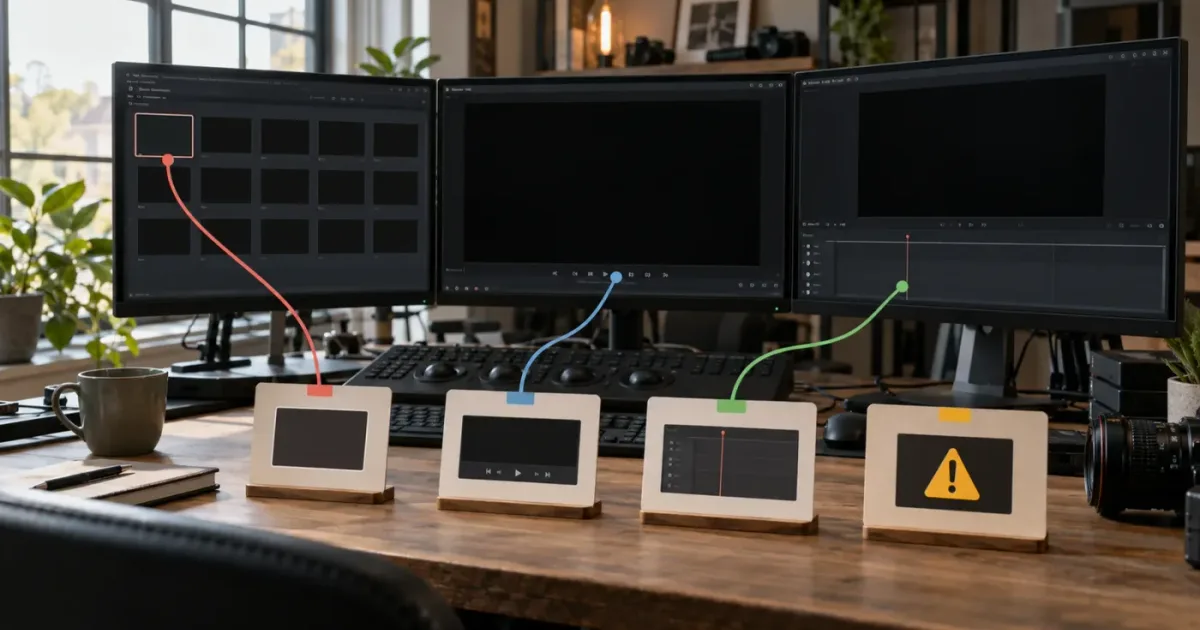
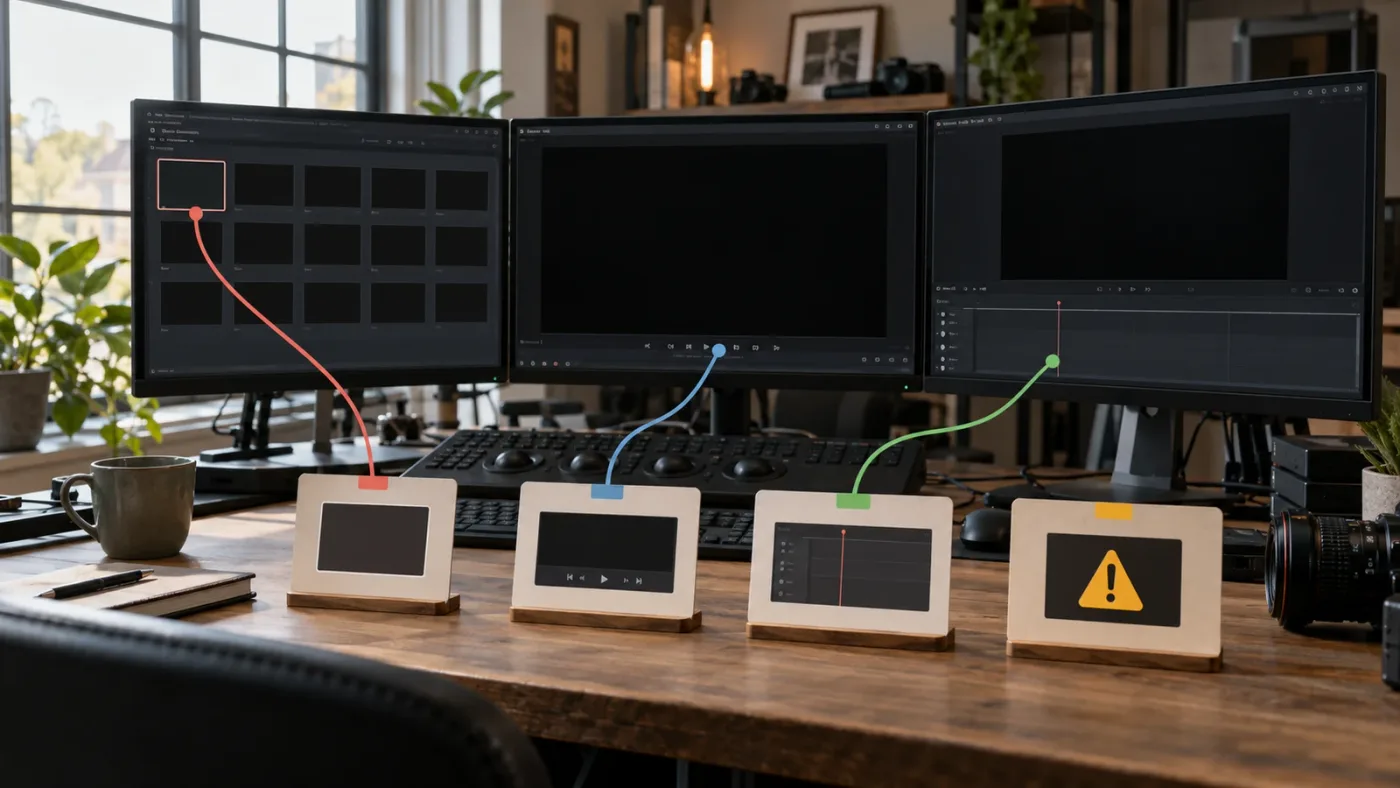
I start by asking one question: where, exactly, is the picture missing? A blank thumbnail, a black Source Viewer, a black Timeline Viewer, and a “Media Offline” message look similar when you’re stuck, but they point to different causes.
As of October 2026, DaVinci Resolve 21.1 is the current version covered here. The 21.1 update changed some media workflows, including how the Source Viewer handles aspect ratio, so version matters when a tutorial or older fix doesn’t match what you see. The checks below separate a viewer problem from a path, file, or decoding problem before you change settings or transcode anything.
A blank Media Pool thumbnail does not prove that the source file is offline.
Why is DaVinci Resolve imported media not showing a picture?
DaVinci Resolve imported media not showing a picture is a symptom, not a diagnosis. First check whether the problem appears in a Media Pool thumbnail, the Source Viewer, the Timeline Viewer, or the Photo page, because each display answers a different question.
A thumbnail is a small preview in the Media Pool. The Source Viewer previews a selected media file before or while you edit it. The Timeline Viewer shows the frame at the timeline playhead. These areas can display different things at the same time.
Use this quick split:
| What you see | What it tells you | First check |
|---|---|---|
| A black or blank thumbnail, but the clip plays in the Source Viewer | The file is readable; the thumbnail may be stale, missing, or showing a dark frame | Scrub the clip and compare a later frame |
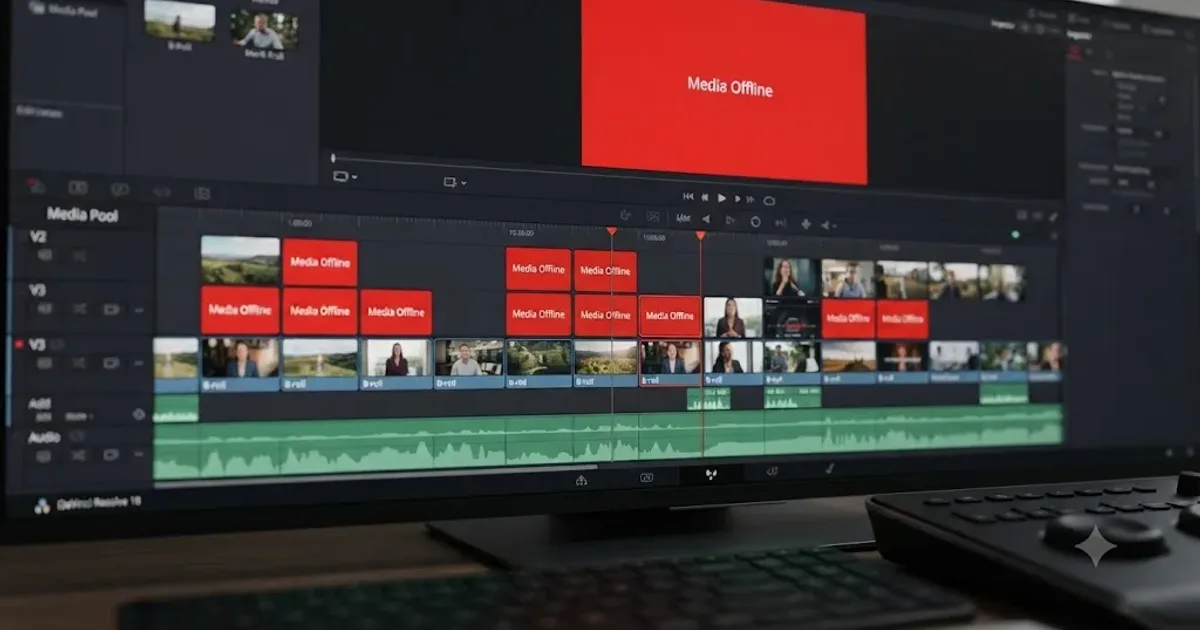
| “Media Offline” in the viewer | Resolve can’t currently use the media at its referenced location, or can’t read it as expected | Check the drive, source path, and relink target |
| Black Source Viewer, but another clip previews normally | The issue may be limited to this file, its frame content, or its video stream | Test the original file outside Resolve |
| Source Viewer works, but Timeline Viewer is black | The source is accessible; inspect the timeline edit, playhead position, and track visibility | Move the playhead onto the clip and check the video track |
| Every imported clip is black, including a known-good file | A single damaged source is less likely | Restart Resolve, then check whether the problem changes |
| Still photos seem missing on the Photo page | The Photo page shows still images, not video, audio, or timeline items | Switch pages or import a still image for that page |
These are diagnostic clues, not guaranteed causes. A black frame may be the actual content of the selected frame. An offline warning is different: the program is indicating a media-access problem, rather than merely showing a dark frame.
Start with a clip you can verify. If possible, choose a short file that plays in another media player. Import that one file into a new test project, then select it and open it in the Source Viewer. Don’t use the problem project as your only test: a project may contain a timeline issue that says nothing about whether Resolve can read the original file.
The Source Viewer is the quickest way to separate a source-media problem from a timeline problem.
If the known-good test clip shows a picture, return to the original project and compare the affected clips. If it does not show a picture either, the problem is broader than one project item. That result is useful, but it still doesn’t identify a single cause. Continue through the checks in order.
How do I tell whether the thumbnail, Source Viewer, or Timeline Viewer is blank?
A blank Media Pool thumbnail is a small preview issue; a black Source Viewer or Timeline Viewer means the large preview area isn’t showing the frame you expect. Identify which display is affected before changing media or cache settings.
In DaVinci Resolve, the Media Pool organizes project media, while the Source Viewer and Timeline Viewer serve different preview tasks. Blackmagic’s Media page overview describes previewing footage before it’s added to a project. The Media Pool holds project media. That distinction matters: a source clip can be previewable even when the timeline is empty or parked on a gap.
What if only the Media Pool thumbnail is blank?
Double-click the clip or select it and load it into the Source Viewer. Scrub to a frame that should contain visible content. If the Source Viewer shows the picture, the original media is accessible; don’t relink or transcode it just because its thumbnail is black.
A thumbnail can also show a genuinely dark first frame. A camera may begin recording before a subject enters the shot, or a clip may start with a fade from black. Check another point in the clip before deciding that the whole file has no image.
When the clip plays but its thumbnail remains empty or stale, test a view change instead of rebuilding the project:
- Switch the Media Pool between thumbnail and list views.
- Select another bin, then return to the original bin.
- Close and reopen the project if the display seems stuck.
- Compare the clip in the Source Viewer.
- If the picture plays correctly, leave the file path and encoding alone.
Resolve 21’s New Features Guide describes Media Pool thumbnail and list views for the Photo page. It also describes exporting a bin’s thumbnails as a PDF contact sheet. Neither feature changes the underlying media file; they’re ways of viewing or organizing items in the pool. The same principle helps here: first establish whether you’re dealing with a display of the item or access to the item itself.
Resolve 21 can also remember a preferred view for an individual bin. If a bin opens in List view while you expect thumbnails, that’s a view choice, not missing media. Switch the current view before treating the empty thumbnail area as a file problem. A bin’s view can differ from another bin’s, so compare the affected bin with one that displays as expected.
What if the Source Viewer is blank?
Select one clip in the Media Pool and preview that clip directly. If it shows black, check whether the playhead is on a black frame, whether the file itself plays elsewhere, and whether the selected media is the original, a proxy, or a still image.
Don’t infer the cause from a black viewer alone. A missing media path, an unsupported or problematic video stream, and actual black picture content can look alike until you test them. If the viewer shows an explicit “Media Offline” warning, follow the path checks below. If it shows a plain black image with no warning, continue to the source-file and decoding checks.
What if only the Timeline Viewer is blank?
Move the timeline playhead onto the middle of a video clip, not onto an empty gap or a point before the edit begins. Confirm the relevant video track is visible and enabled, and check that the clip isn’t covered by another black generator or a higher video track.
Then compare the same source clip in the Source Viewer. If the Source Viewer shows picture and the Timeline Viewer does not, the file itself is probably not the first thing to fix. Inspect the edit and timeline position. If both viewers are blank for that clip, test the source file and the file path.
A useful check is to move the playhead a few seconds in either direction. If the picture appears, the original blank area may be a gap, an intentional black frame, or a section where the clip has ended. If it stays black only in one timeline, inspect what’s stacked above the clip. A title, generator, adjustment clip, or another video layer can change the visible result without changing the source file.
If the timeline has several video tracks, temporarily disable the upper tracks one at a time and check the viewer after each change. Restore them after the test. Don’t delete the clips or tracks to test this; disabling and re-enabling keeps the edit intact and lets you see which layer changes the output.
A black Timeline Viewer can be caused by the playhead or edit, even when the source media is fine.
Why does the Photo page seem to hide video?
Resolve 21 added a Photo page for still images. Blackmagic’s Resolve 21 New Features Guide says the Photo page’s Media Pool contains imported still images and photo albums, while video, audio, timelines, and effects clips are hidden from that page’s pool.
That’s intentional filtering, not evidence that imported video disappeared. Switch to an editing page to browse video and audio. If you’re trying to inspect a still photo, confirm it has been imported into the project and select the relevant album or bin.
The same distinction applies when a photo appears in the project but not in the album you’re viewing. Check the selected bin and album, then select the still in the pool. The Photo page has its own organization and preview controls. A picture missing from one album view may still be present in another bin or in the main pool.
Don’t use the Photo page as a universal test for all imported media. Use a video-oriented page to inspect video, and use the Photo page to inspect stills.
What does “Media Offline” mean, and how do I relink the media?
“Media Offline” means Resolve can’t currently display the referenced media; it does not mean the project has necessarily been lost. Confirm the original file is available, then relink to that original instead of guessing at a similarly named file.
A Resolve project stores references to media. If the source file moves, a drive disconnects, or the path is no longer accessible, the project may retain a media item that can’t currently be read from its expected location. A Blackmagic Design community explanation notes that a Media Pool entry includes a path reference and metadata, and that an entry can be offline when its file reference is invalid. Treat that forum explanation as useful context, not as a substitute for the current Resolve 21.1 manual.
Try this safe sequence:
- Check the original file in the operating system. Open the folder or volume that should contain it. Confirm that the file exists and that it opens in a player that supports its format.
- Check the drive or volume. If the media lives on an external disk or network volume, confirm that it is mounted and accessible. A drive-letter change on Windows or a renamed volume on macOS can affect paths.
- Avoid moving files again while relinking. Keep the original folder structure stable until the project sees the source.
- Relink from the Media Pool. Select the offline clip or affected group, use Resolve’s relink command, and browse to the actual source location. The exact menu wording and dialog can vary by page and version.
- Verify the result in the Source Viewer. A successful path match is not enough if you selected the wrong file. Preview the clip and check its duration and content.
- Save a copy of the project before making a large batch relink. If a folder contains multiple similar filenames, verifying a single clip first can prevent a wide incorrect relink.
When several clips moved together, relink using the folder that contains the actual originals, then check several results. A filename match by itself isn’t proof that the right camera take was selected. Compare duration, image content, and, where available, other identifying metadata.
If the drive is online but the clips remain offline, check whether the files were renamed, moved into a new subfolder, or copied incompletely. A file can exist while still being the wrong file, a zero-byte stub, or an incomplete transfer. Avoid deleting the offline entries from the Media Pool until you know whether the project needs them for an existing edit.
Resolve 21 includes an automatic Smart Bin option for offline clips. The New Features Guide describes enabling it in DaVinci Resolve preferences under User, Editing, and Automatic Smart Bins. This can help locate offline items scattered through a large project. It doesn’t relink them for you. Use the bin as a way to gather the affected clips, then verify each relink target.
If only a subset of the media is offline, don’t relink the entire project to a different folder just to clear the warning. The project may contain sources from multiple drives, folders, or cameras. Start with one clip, confirm it points to the right original, and then use that evidence to repair the remaining group.
For a broader path-recovery workflow, see DaVinci Resolve Media Offline: Every Cause and the Fix. That page covers the distinct case where the viewer explicitly reports offline media. If the viewer is simply black without an offline message, continue with the following checks rather than assuming relinking is the answer.
How do I check whether the original video file actually contains a picture?
Test the exact source file outside Resolve before changing project settings. If another compatible player also shows black, the file itself, its selected frame, or its video stream needs attention; if it plays there, focus next on Resolve’s clip selection and decoding path.
Check the file without altering it:
- Open the file in a player that can handle its container and codec.
- Seek to a point where you know the camera recorded visible action.
- Confirm you opened the original file, not a duplicate, proxy, or an export from another application.
- Compare the picture and duration with what Resolve shows.
- If possible, test another file from the same camera or recording session.
A player test is a useful comparison, not a universal compatibility certificate. One application may support a codec that another does not. The test answers a narrower question: does this file appear to contain visible picture in at least one decoding path?
Is it just the first frame, or is the whole picture black?
Scrub several points in the clip. If later frames show the expected image, the initial black frame may be ordinary source content. If every tested point is black in Resolve and in another player, verify that you selected the intended file and that the recording itself contains video.
A timeline may also begin before the visible part of a source clip. If the viewer is black only at one playhead location, move the playhead into the body of the edit. Don’t judge the entire file from a single frame.
Here’s a worked example, not an observed test result. Imagine a camera clip that starts while the camera is pointed at the ground, then tilts up to a person. The Media Pool thumbnail may show the dark opening frame. The Source Viewer can still play the later picture normally. In that case, the import is fine. The thumbnail simply represents an unhelpful moment from the source.
Does the file have video, or only audio?
Some files contain an audio stream without usable video, or contain separate audio and video items that were imported differently than expected. If sound plays while the picture stays black, check the file’s properties in a media-inspection tool or another player that reports its streams. Don’t assume the file’s extension proves what streams it contains.
When audio and video were recorded separately, the audio may be a companion file rather than part of the video file. In that case, Resolve can play the audio item while the selected video item is absent, offline, or positioned differently on the timeline.
If you’re seeing audio playback with a blank picture, the related guide DaVinci Resolve Plays Audio But No Video: The Full Fix List covers that narrower symptom. The key diagnostic remains the same: test the source clip in the Source Viewer, then compare it with a known-good file.
Did the file finish copying?
If media came from a memory card, phone, camera, shared folder, or transfer drive, confirm that the copy completed before importing. A file with a familiar name can still be truncated or damaged. Compare its file size and duration with the source copy, if you still have it.
Don’t overwrite the original while troubleshooting. Make a separate test copy if you need to transcode or rewrap a file. That preserves the source and lets you compare the original with the test version.
Also check for duplicate filenames. A folder may contain Interview_001.mp4 and another folder may contain a different Interview_001.mp4. Resolve can display the expected name while pointing at a different copy than you intended. Compare the image, duration, and folder location before deciding that an apparently correct filename is the right media.
A removable card can create another trap. If the card is still mounted, a clip may work until the card is removed, then become offline. Copying files to a work drive and importing from that stable location reduces confusion later. If you already imported from the card, reconnect it to confirm the original works before changing the project’s references.
If another player also shows a black frame at the same point, Resolve may not be the source of the problem.
Why is Resolve showing a black picture without “Media Offline”?
A black picture without an offline warning is not the same symptom as “Media Offline.” Resolve may have access to the file but show a black frame, a file whose video stream it can’t decode as expected, or a viewer issue.
Use a small comparison matrix:
| Test | Result | What to check next |
|---|---|---|
| Same clip plays in another player | Resolve-specific path, proxy, or decoding behavior is more likely | Check source versus proxy, then compare another clip |
| Same clip is black in another player | Source content or file integrity is more likely | Check the recording, copy, and frame location |
| Another clip works in Resolve | Issue may be specific to the affected clip | Compare encoding, camera, and file copy |
| No clip works, including a known-good one | Broader Resolve, driver, or system issue is possible | Restart the application and computer; then gather diagnostics |
| Source Viewer works, timeline doesn’t | Timeline edit or playhead issue is more likely | Check track visibility, clip placement, and overlays |
| Timeline Viewer works, thumbnail doesn’t | Thumbnail display is the narrower issue | Refresh the view and avoid replacing the media |
These tests don’t diagnose the exact codec or GPU fault. They keep the investigation proportional. If one phone video is black but other clips work, changing system-wide GPU preferences first is a poor first move. If all clips are black, a single damaged file becomes a weaker explanation.
The Resolve 21.1 announcement describes a specific change in the Media page: the Source Viewer preserves the source media’s original aspect ratio independently of whether the timeline is vertical or horizontal. If you’re on 21.1 and your source looks oddly framed, compare its aspect ratio and the timeline orientation before treating a portrait or landscape mismatch as missing picture. The picture may be displayed differently, not absent.
If the viewer is black only while using a particular proxy, switch to the original media for a controlled comparison. A proxy is a separate media file associated with the source; a bad or missing proxy can create a mismatch even when the original is healthy. Resolve’s current manual is available through the Blackmagic Design Support Center. Consult its media and proxy sections for exact 21.1 controls, since labels can change between releases.
A useful controlled comparison changes one variable at a time. Keep the same clip, same frame, and same viewer. Switch only the selected media representation or setting, then note whether the image changes. If you also change the playhead, project, and decode settings at once, you may fix the display without learning why. That makes it harder to prevent the same problem from returning.
Could an import choice be hiding the expected image?
Resolve’s import dialog and project can retain choices about how media is interpreted, but don’t change clip attributes just because a viewer is black. First establish that the media file itself contains a picture and that you’re looking at the intended frame.
For a still image, distinguish between an imported still and a video clip whose first frame happens to be black. A still photo should preview as one image, while a video source changes as you scrub. If the expected photo is absent only from the Photo page, check the selected bin and album. If it’s missing from the Media Pool entirely, verify that the import completed and that you selected the correct folder.
For a camera card with several folders, use the actual movie file rather than assuming every sidecar, thumbnail, or metadata file is the visible picture. Cameras often store supporting files alongside the video. Importing a supporting file or an audio-only companion won’t create the image you expect. If you’re unsure, compare the file’s name and type with a known playable camera clip from the same recording.
Is the source distorted or cropped rather than missing?
A viewer can show a picture that looks wrong without showing a black frame. In 21.1, source aspect-ratio handling is relevant when the timeline and media orientations differ. A vertical source in a horizontal timeline, or the reverse, may display with bars or a different framing than an older tutorial suggests.
Move the playhead and look for any visible part of the image. If the frame is merely letterboxed, pillarboxed, cropped, or positioned outside the visible area, troubleshoot sizing and framing rather than media access. Don’t scale or crop the clip until you confirm the original picture is present in the Source Viewer. Otherwise, you may alter the edit to compensate for a different problem.
Are proxies or optimized media making the picture disappear?
A proxy or optimized-media problem is possible when Resolve is pointed at an alternate playback file instead of the original. Compare proxy playback with original-media playback before deleting proxy files or regenerating them.
Proxies are lower or otherwise alternate copies used to support editing workflows. They aren’t the original camera file. If the proxy is missing, corrupt, linked to the wrong source, or rendered black, the original may still be fine.
Use this cautious check:
- Select the clip in the Media Pool and note whether it has proxy media attached.
- Use Resolve’s playback setting to compare proxy media with source media, if available in your setup.
- Preview the same clip in the Source Viewer after switching.
- If the original shows picture and the proxy does not, stop using that proxy for the test.
- Rebuild or relink only the affected proxy after confirming the original path and content.
Don’t delete the proxy folder as a first step. It may contain valid proxies for many clips, and deleting files outside the project can affect other work. First establish whether the original behaves differently. If it does, you’ve narrowed the issue to the alternate media or its association.
Resolve 21.1 includes support for relinking proxy clips with different formats, according to Blackmagic Design’s Support Center update notes. That feature concerns proxy relinking; it doesn’t mean every proxy mismatch will self-correct, nor does it guarantee that a proxy has the correct picture. Confirm the result visually.
If you don’t know whether proxies are in use, don’t change multiple playback and cache options at once. Record the original setting, change one relevant option, test the same frame, and restore the setting if there’s no improvement. This keeps the result interpretable.
Optimized media and render cache are also not interchangeable with the original. If the display changes after switching away from proxy or cached playback, note the exact state that changes. The purpose of the test is not to clear all generated files; it’s to find out which representation Resolve is showing.
A worked example can make the distinction clearer. Suppose a clip plays in the Source Viewer while source media is selected, then goes black when you select proxy playback. That points toward the proxy or its link, not the camera original. Conversely, if both representations show black at the same frame, compare the frame outside Resolve and confirm that both files belong to the same shot. This is a diagnostic example, not a claim that every proxy failure behaves identically.
If only one proxy is wrong, leave the others alone. If a whole batch shares the same failure, check the proxy destination, drive availability, and whether the proxies were generated from the intended originals. If the original has been moved or renamed since proxies were made, identify that relationship before creating replacements.
When the original shows picture and its proxy does not, repair the proxy path or proxy file, not the original footage.
Could the file format or codec be the reason the picture is black?
Yes, a file can import into the Media Pool yet fail to display correctly if Resolve can’t decode its video stream as expected. Check the exact file and your Resolve version before assuming that every MP4, MOV, or camera file uses a supported codec.
A filename extension describes a container, not all of the technical details inside it. Two .mp4 files can differ in video codec, profile, bit depth, chroma sampling, frame rate, or encoding settings. A successful import alone doesn’t establish that every stream will decode properly on every operating system and hardware configuration.
Blackmagic’s official Resolve 21.1 manual and supported release notes are the right references for current behavior. Use the Support Center to find the manual for the installed version. Avoid borrowing a codec claim from a Resolve 17, 18, 19, or 20 tutorial without checking whether it still applies to 21.1 and to your platform.
How do I check the exact file?
Write down the source’s filename, container, camera or recording app, and whether the issue affects all files from that source or just one. If you have a media-information utility, inspect the video stream’s codec and other properties. Use that information to compare with Resolve’s current documentation or to describe the problem clearly in a support request.
If a phone or camera produces multiple recording modes, test one file from a different mode. A file from the same device isn’t necessarily an identical codec test if the recording settings differ.
A useful note is more specific than “MP4 doesn’t work.” Record the camera or app, recording mode, file extension, whether the clip contains audio, the Resolve point release, and the operating system. If the clip plays in one player but not another, note which one. That information helps narrow the issue without turning a single file’s behavior into a claim about every file in that format.
When should I make a separate transcode?
If the source plays elsewhere but not in Resolve, create a short test transcode using a broadly supported editing format, then import that test file. Keep the original unchanged. If the transcode displays correctly, that suggests a compatibility or decoding-path issue with the original, but it doesn’t prove which specific setting caused it.
A test transcode is a diagnostic step, not a blanket recommendation to convert all project media. Conversion can take time, use disk space, and create a second copy to manage. First confirm that the original file plays elsewhere and that a different source can display in Resolve.
Blackmagic forum users have discussed cases where some H.264 or H.265 variants behave differently between Resolve editions and systems. In the same thread, a Blackmagic support representative asked the user to provide a diagnostic log, and a forum participant noted that unsupported variants may show an offline graphic rather than simply black. That disagreement is a good reason not to treat “free version limitation” as the universal explanation for a black viewer. See the Blackmagic Design forum discussion.
If the test transcode works, preserve both files temporarily. Compare them at the same point in the Source Viewer and confirm the transcode includes the picture and audio you need. Don’t replace the original in the project just because the test plays. Decide whether you need a new edit copy, a proxy, or a different decoding path only after you understand which representation is working.
Could a camera format or point release matter?
If all media from one camera or phone fails while other media works, compare the recording formats and test a representative clip. If only one file fails, check whether that copy is incomplete or whether its stream differs from other recordings. Avoid conclusions such as “Resolve can’t import this camera” based on a single file.
A vendor update can also add support or improve handling. Resolve 21.0.3, for example, included improved handling of interlaced media, and the 21.0.1 update listed improvements for DNG and Apple ProRAW decoding. Those notes show why the exact version matters; they don’t establish that either update fixes every black-picture symptom. Check the update notes for your media type before updating, and protect the project first.
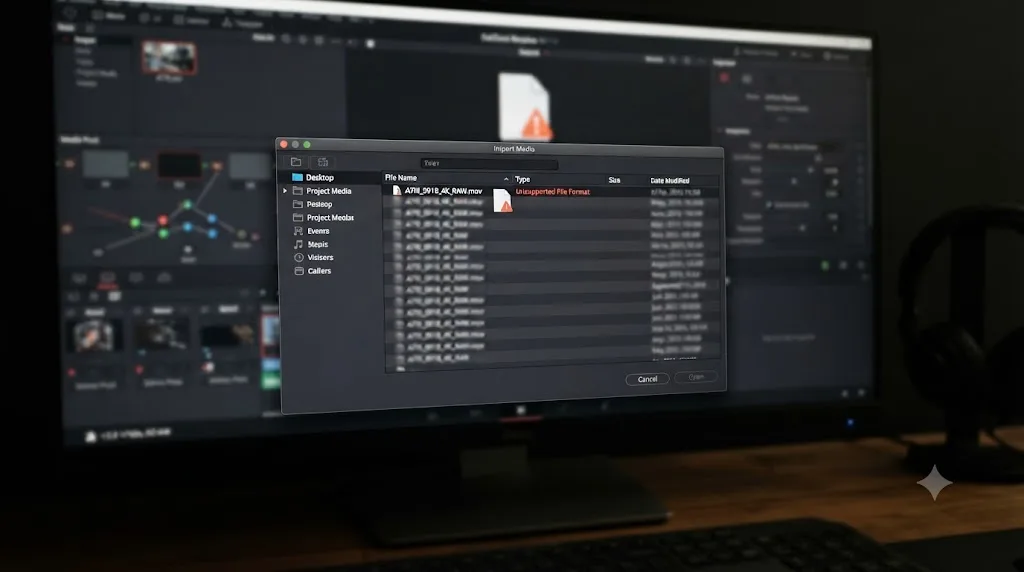
For an explicit “unsupported file format” message, use the narrower guide DaVinci Resolve Says Unsupported File Format: The Real Fix. A black viewer without that message needs the comparison tests above.
What should I check if every imported clip is black?
If every clip is black, including a file you know works elsewhere, test whether the problem follows the project or the whole Resolve installation. Restart Resolve, test one verified file in a new project, and only then investigate system-wide decoding or graphics configuration.
A simple isolation sequence:
- Save the current project.
- Close and reopen Resolve.
- Create a temporary test project.
- Import one small, known-good file.
- Preview it in the Source Viewer.
- If it is still black, restart the computer and repeat the same test.
- If it remains black, gather the Resolve version, operating system, GPU model, driver version, source details, and a diagnostic log.
The purpose of a new project is to test whether the symptom is tied to one project’s timeline or settings. Don’t overwrite your real project with a test. Close the temporary project without deleting or moving any original media.
A restart can clear a temporary application or system state, but it isn’t a diagnosis. One Blackmagic forum report described a black import problem that went away after restarting the computer; it does not establish that restarting is a reliable fix for every user. Treat it as a low-risk test, not as proof of a specific cause.
If the issue began immediately after an operating-system, driver, or Resolve update, note the sequence. Don’t install several different drivers or reset preferences without keeping track of changes. A timeline of recent updates helps support staff distinguish a new compatibility issue from a long-standing media problem.
When should I inspect GPU or decode settings?
Inspect GPU and decode settings after confirming that the same issue affects multiple known-good files, not as the first response to a single problematic clip. A graphics or decoding configuration can affect how media is displayed, but changing it blindly can introduce new behavior.
Resolve’s settings and available decode options vary by operating system, hardware, and version. Use the current manual rather than an old screenshot tutorial. If you change a setting, record its original value, alter one option at a time, restart Resolve if the control requires it, and test the same known-good file.
Don’t disable every hardware acceleration option at once. If the symptom changes, you need to know which change mattered. If it doesn’t, restore the original setting before moving to another test.
A Blackmagic Design support representative has given this concise advice in a forum thread about a black import symptom: “Please provide a Resolve diagnostics log, which you can generate from the Resolve Help menu.” The quote comes from a 2025 Resolve 19 discussion, so use it as a support-escalation step rather than as a claim about the cause in Resolve 21.1.
When should I create a diagnostic log?
Create a diagnostic log when the problem persists across a new test project and a known-good source file, or when Resolve displays an error you can’t explain. Blackmagic support can use the log alongside your system and media details. The Support Center notes that technical support for the free version is available through the Blackmagic Design community forums.
When you ask for help, provide:
- The precise Resolve version, including the point release.
- Your operating system and version.
- Whether you use Resolve Free or Studio.
- Your computer’s GPU model and driver version, where applicable.
- The source file’s container and video codec, if known.
- Whether the file plays in another player.
- Whether the symptom affects one clip, one camera format, one project, or every file.
- Whether the Source Viewer, Timeline Viewer, or only the thumbnail is black.
- The exact visible error, if any.
- A short diagnostic log or the steps to reproduce the issue.
Avoid posting private client footage or confidential project files publicly. A diagnostic log is different from the media itself, but review what you share and follow Blackmagic’s support instructions.
If every known-good file fails in a fresh project, gather evidence before changing several system settings.

Is DaVinci Resolve 21.1 different from older versions?
Yes, Resolve 21.1 includes changes that matter when diagnosing what appears in a viewer, but not every black-picture issue is a new-version bug. Check your exact point release and use the matching manual before applying an older workflow.
The DaVinci Resolve 21.1 announcement says the Source Viewer preserves the source media’s original aspect ratio independently of whether the timeline is vertical or horizontal. That means a viewer can present the source with its own shape rather than forcing it to match a vertical or horizontal timeline. A framing difference may look unexpected without meaning that picture is missing.
The same announcement says Resolve 21.1 added a decode preference for AI tools that can specify whether only full-resolution media should be used, with fallback to available media when preferred media is offline. That preference is specifically described in the context of AI tools; don’t assume it’s a general setting that repairs black playback in every viewer.
The current Blackmagic Design Support Center lists the Resolve 21.1 reference manual and software updates. Point releases can alter controls and fix format-specific behavior. Before applying a fix from an older tutorial, confirm:
- The tutorial’s Resolve version.
- Whether it covers Resolve Free or Studio.
- The operating system.
- Whether the symptom is a black frame, “Media Offline,” or an unsupported-format message.
- Whether the fix applies to the viewer, the timeline, the original media, or a proxy.
If you upgraded a project from an older Resolve version, keep a copy of the project before experimenting. A version change may not be relevant to a particular media symptom, and a project backup gives you a safe route back if you need to compare behavior.
Use the point-release notes as evidence, not as a guarantee that the newest version will fix your exact file. A note about improved DNG decoding, interlaced handling, or proxy relinking is only relevant if your source and symptom match that area.
Resolve 21.1’s Source Viewer behavior is especially useful to remember if you edit both vertical and horizontal deliveries. A source that retains its own aspect ratio can look different from an older tutorial’s viewer, which may have shown the source under different timeline conditions. Check whether any part of the expected image is visible and whether it changes when you view the source directly. Don’t treat a different shape or framing as a black-picture error until you’ve made that comparison.
Why is an imported photo missing from Resolve 21’s Photo page?
The Photo page is for still-image work, and its Media Pool is intentionally filtered to show still images and photo albums. If you imported a video clip and can’t see it in that page’s pool, switch to a page designed for video editing.
Resolve 21’s New Features Guide explains that still photos imported into the project appear in the Photo page’s Media Pool, while video, audio, timelines, and effects clips are hidden there. The page also supports importing selected photos or a folder of photos through its own Media Pool controls. See the official Resolve 21 New Features Guide.
That page distinction creates two common false alarms:
- A video imported elsewhere may not appear in the Photo page’s still-image pool.
- A photo may be in the project but not in the album or bin currently selected.
If you imported a photo and still don’t see it, check the selected bin, the active album, and the Media Pool search or filter state. Then select the item and inspect it in the Photo Viewer. If it shows there, the problem was its location or view, not the file.
The guide also states that Resolve 21’s Photo page imports photos from the operating system’s file picker, can import a folder of photos, and supports importing from Photos on macOS or from Lightroom. Those options concern still-image workflows; they don’t mean that a missing video should be diagnosed as an unsupported photo.
Don’t use the Photo page as a universal test for all imported media. Use a video-oriented page to inspect video, and use the Photo page to inspect stills.
Should I clear cache, reset preferences, or reinstall Resolve?
Not as the first step. These are broader interventions, and they can waste time or change unrelated settings if the symptom is just a black first frame, a missing path, or a broken proxy.
Choose the smallest action that matches the evidence:
| Evidence | Proportionate next step | Avoid at first |
|---|---|---|
| One thumbnail is black, Source Viewer works | Refresh the view; check another frame | Reinstalling Resolve |
| One clip says “Media Offline” | Restore the drive or relink the original | Clearing render cache |
| One file is black in Resolve but plays elsewhere | Compare original and proxy; inspect file format | Resetting all preferences |
| Source works, timeline is black | Check playhead, track visibility, and edit layers | Transcoding the source |
| Every file is black in one project | Test a known-good source in a fresh project | Deleting project media |
| Every known-good file is black in every project | Restart, document changes, inspect system configuration, gather logs | Changing several GPU options at once |
Cache files can influence what Resolve displays in some workflows, but deleting caches doesn’t repair a moved source path or add a video stream to an audio-only file. Before clearing any cache, identify what kind of cache is involved and whether the problem is limited to a cached preview. Resolve 21.1’s manual is the right place to confirm the current cache controls.
Preference resets are also broad. They can remove custom interface or system choices that you rely on. If support recommends a reset, capture your current settings or follow the current manual’s steps so you can restore the configuration if necessary.
Reinstalling is an even later option. It won’t fix a corrupt source file, a disconnected drive, or a black frame in the original recording. Consider it only after isolating the issue to Resolve itself and consulting the current vendor support guidance. Don’t uninstall while a project or database is open, and make a project backup before a major software change.
Here’s a practical order for choosing between these interventions:
- Refresh or change the view if only a thumbnail or panel is affected.
- Relink the original if Resolve explicitly says “Media Offline.”
- Check the edit and playhead if the Source Viewer works but the timeline does not.
- Compare the source and proxy if only proxy playback fails.
- Test a different file and project if the viewer is black without an offline warning.
- Review system settings or escalate if verified media fails across projects.
This order is deliberately conservative. Each step is reversible or limited in scope. A preference reset, cache purge, or reinstall may eventually be justified, but it shouldn’t be the first response to a symptom that could be explained by a dark frame or an empty timeline gap.
What should I do if the picture still does not appear?
Use the shortest confirmed branch: relink an offline source, fix a timeline-only problem in the timeline, compare a failed proxy with the original, or collect diagnostics when every known-good clip fails.
Here’s the compact decision tree:
- Is there a “Media Offline” warning? Restore the original drive or relink to the correct original file.
- Is only the thumbnail blank? Preview the clip in the Source Viewer and scrub beyond its first frame.
- Does the Source Viewer work but the Timeline Viewer not? Check the playhead, video track visibility, and clips above the affected edit.
- Does the original work but the proxy not? Stop using the proxy for the test; repair or regenerate only the affected proxy.
- Does the file play outside Resolve but not in Resolve? Compare another clip, note the format and version, and test a separate transcode without replacing the original.
- Does no known-good media work in a fresh project? Restart, document the system and version, then create a diagnostic log and seek Blackmagic support.
TryUncle is an on-screen assistant for Mac and Windows. You can ask what to do in your current Resolve layout, and Uncle uses what’s on screen to point you toward a relevant control; you remain in charge of the change and checking its result. If you’re stuck locating a media or viewer control, TryUncle can provide that on-screen guidance while you work.
The right next step is the one supported by your test. Don’t relink a file that already plays, and don’t reinstall Resolve to fix a thumbnail. Start with the display that’s blank, verify the source, and change one thing at a time.
Frequently asked questions
- Why is imported media not showing a picture in DaVinci Resolve?
- The cause depends on where the picture is missing. Select the media and open it in the Source Viewer. If it shows “Media Offline,” check the file path and drive connection. If the source file plays outside Resolve but the viewer stays black, check proxy selection, the clip’s frame, Resolve’s decoding, and whether the problem affects one file or every file.
- Why does DaVinci Resolve show a black screen after I import a video?
- A black screen without an offline warning does not prove that the file is missing. Preview the source in another player, test a known-good clip, and compare the Source Viewer with the Timeline Viewer. If one source fails, check its frames and encoding. If all sources fail, restart Resolve and investigate the app or GPU configuration.
- How do I fix Media Offline in DaVinci Resolve?
- Reconnect the drive that holds the original media, then relink the affected clips to the correct source files in Resolve. If files moved, locate the actual originals rather than selecting proxies or similarly named files. Confirm the offline warning disappears and preview the relinked clip before continuing.
- Why does audio play but the video picture is black in DaVinci Resolve?
- Audio playing only confirms that Resolve can read the audio stream. It does not confirm that the video stream is decoding correctly. Test the file outside Resolve, try another clip, and compare proxy with original playback. If one video file is affected, investigate its codec or make a separate test transcode in a format supported by your installed Resolve version.
- Can DaVinci Resolve 21 show imported still photos on the Photo page?
- Yes. Resolve 21 includes a Photo page for still images. Its Media Pool shows imported stills and photo albums, so video, audio, and timelines may not appear there. Switch to a page suited to that media type, or use the Photo page to inspect still photos.
Sources
Put this guide to work with TryUncle.
Ask about the step you’re on. TryUncle sees your screen and points at the control you need, so you can keep learning in your own project.
Get TryUncle for Mac or WindowsKeep reading
Fixes · Jul 7, 2026 · 26 min
DaVinci Resolve Media Offline: Every Cause and the Fix
Every reason DaVinci Resolve marks a clip media offline, and the exact relink, cache, and codec fixes for each cause, in order of how often they happen.
Fixes · Jul 18, 2026 · 26 min
DaVinci Resolve Plays Audio But No Video: The Full Fix List
Timeline plays sound but the viewer is black? Check the video track, GPU decode, codec support, and clip opacity, in that order. Full fix list.
Fixes · Jul 12, 2026 · 23 min
DaVinci Resolve Says Unsupported File Format: The Real Fix
DaVinci Resolve's Unsupported File Format error almost always means a codec problem, not a broken file. Match your exact symptom to the cause and fix it.