Articles / Fixesupdated for DaVinci Resolve 21.0.2 (July 2026)
DaVinci Resolve Plays Audio But No Video: The Full Fix List
Quick answer
DaVinci Resolve usually keeps audio but loses video for one of four reasons: a disabled video track or clip, a failing GPU decode, an unsupported video codec (common with 10-bit H.265 on the free version), or something covering the image, like a stuck opacity keyframe. Check each in that order.
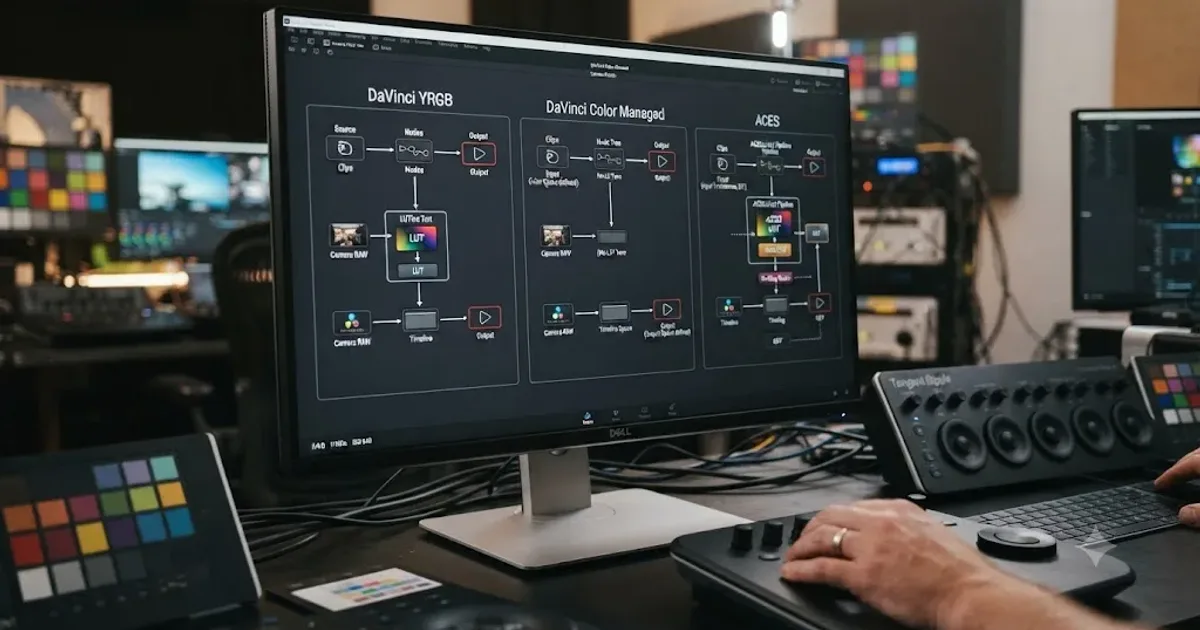
You press play. The waveform moves, the meters bounce, and you can hear every word of your dialogue. The viewer stays black. That split is actually useful information: it tells you the problem isn't your whole project, it's specifically the half of the pipeline that turns compressed data into a picture. It's also the mirror image of a silent timeline with picture still playing, which our no audio guide covers in full if that turns out to be your actual problem instead.
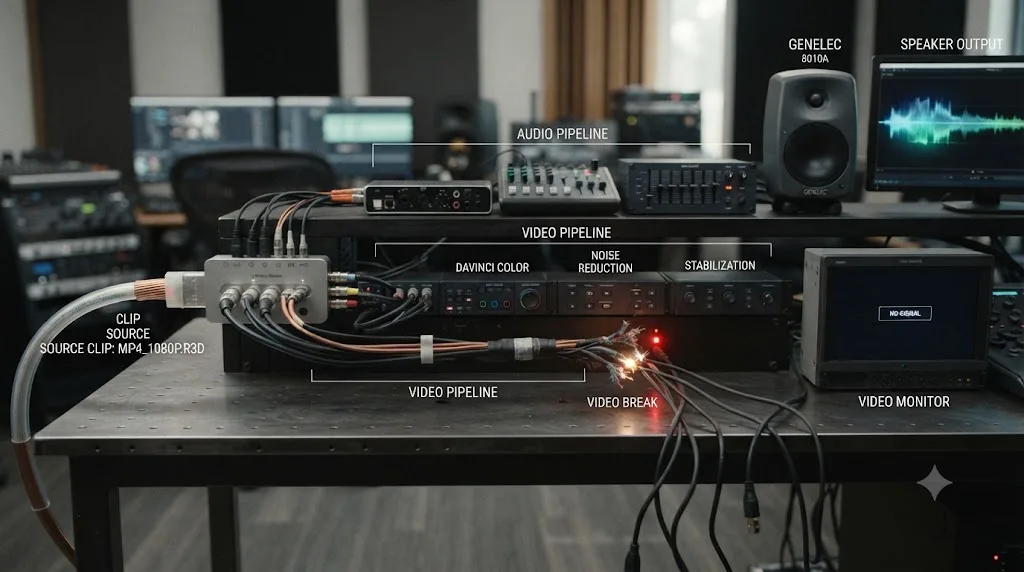
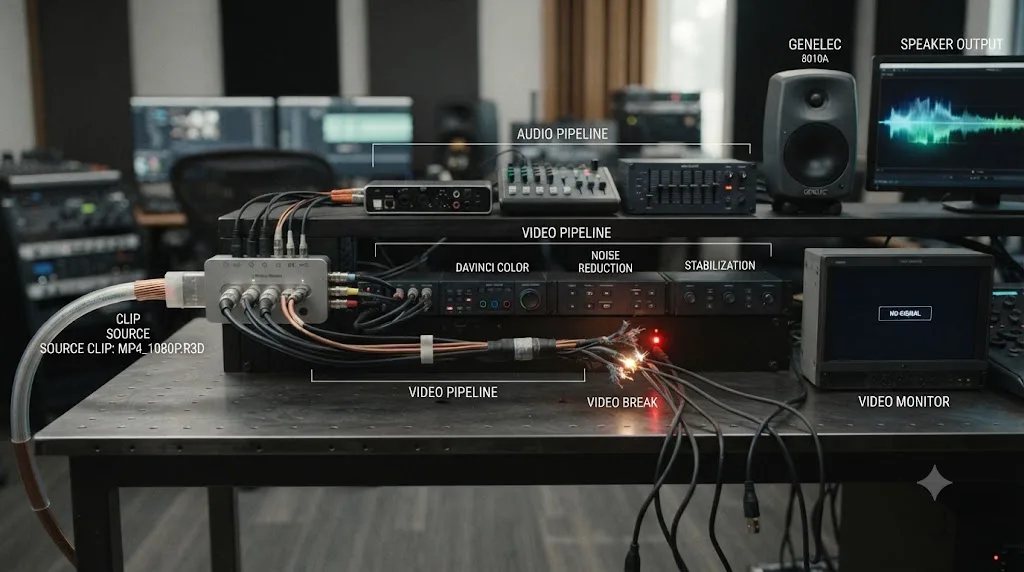
Audio and video in DaVinci Resolve travel through almost entirely separate systems once a clip lands on your timeline. Audio needs a valid codec and a routed track. Video needs all of that, plus a GPU that can decode the frame, a track and clip that are actually visible, and nothing sitting on top of it blocking the image. More steps means more places to fail, and that's exactly why "no video" is so much more common than "no audio" when only one of the two goes missing.
What causes DaVinci Resolve to play audio but show no video?
Four families of causes account for almost every case, and they sit in a rough order of how often each one turns out to be the answer.
| Cause | What it looks like | Where to fix it |
|---|---|---|
| Video track or clip disabled | Whole timeline or one clip black, audio unaffected | Track header eye icon, destination buttons, or Enable Clip |
| GPU decode failing | Black viewer, sometimes only on specific footage or after a driver update | Preferences, System, Decode Options |
| Unsupported or edge-case video codec | Clip Attributes shows a codec Resolve can't decode on your OS or edition | Transcode with HandBrake or Shutter Encoder |
| Something covering the image | Opacity near zero, an odd blend mode, a solid color or title above the clip | Inspector Composite tab; timeline track order |
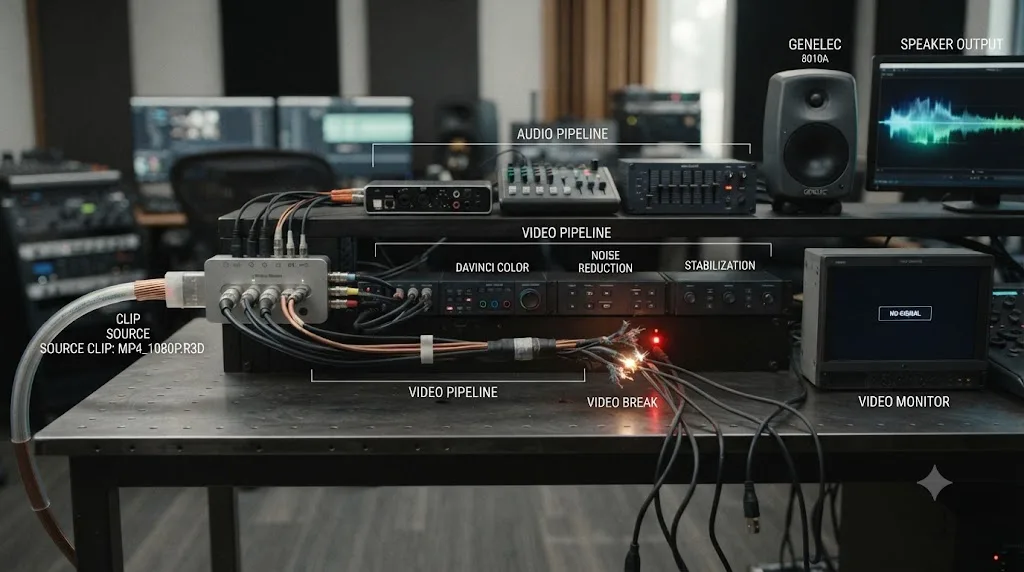
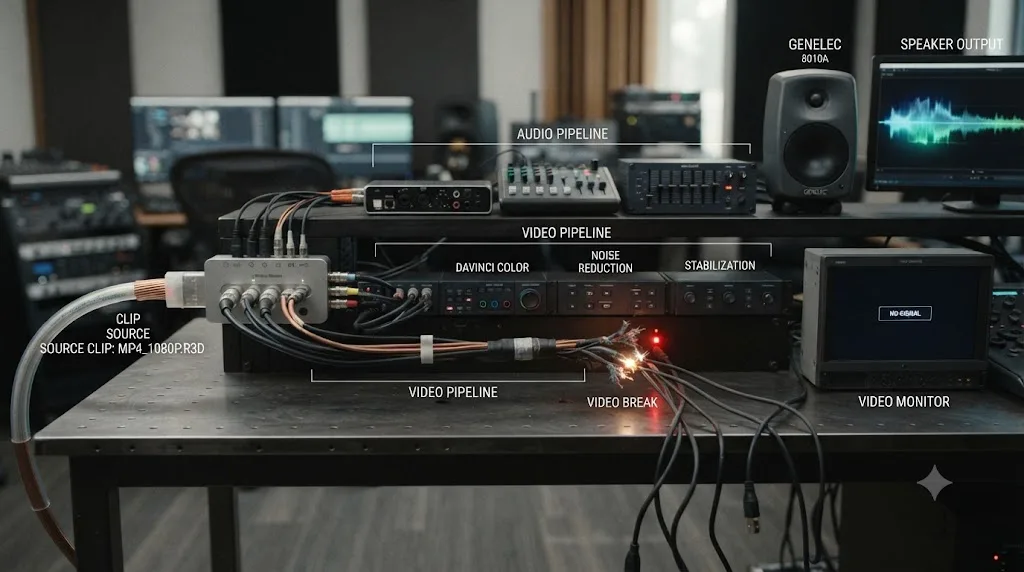
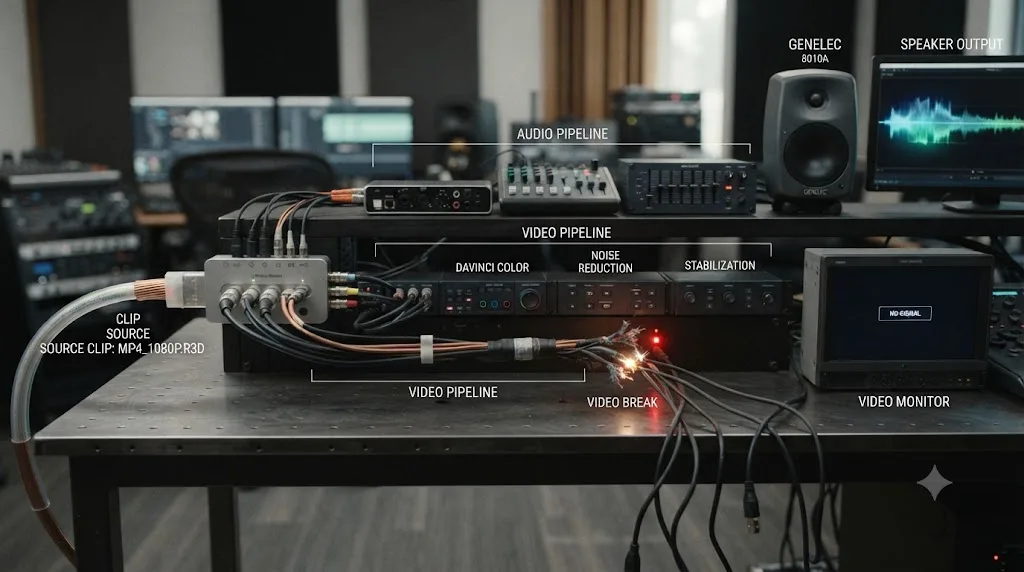
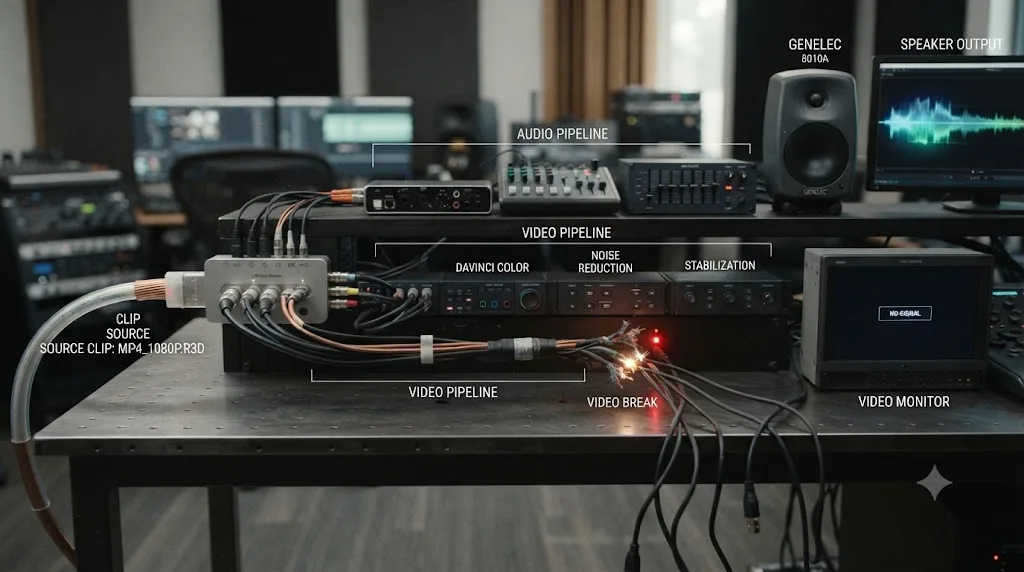
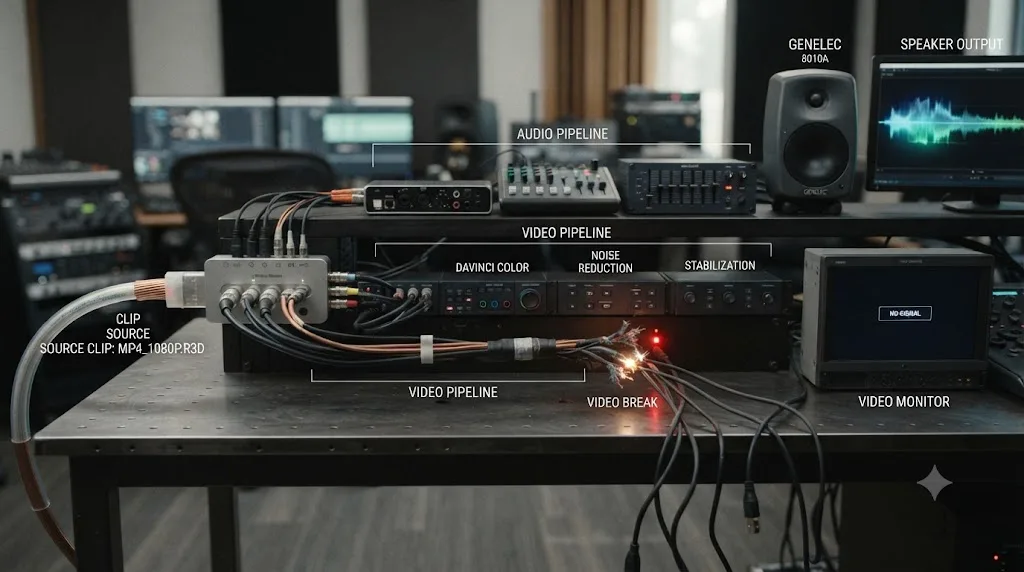
A black viewer with working audio almost never means your project is broken. It means one specific link in the video pipeline snapped while the audio pipeline kept running right next to it. That's the idea this whole guide works from. Find which link snapped, and the fix is usually two or three clicks.
Is the video track or clip just turned off?
Start here, because it's the fastest check and it explains a surprising share of reports on this exact problem.
Look at the video track header on the Edit page, to the left of the timeline itself. Every track carries a small eye icon that toggles the track's visibility. When it's crossed out or dimmed, the track is hidden from both the viewer and your export, while any audio tracks below it keep playing untouched. According to Blackmagic's own manual, hiding a track's visibility "hides a track from the Timeline and Mixer, but does not change the corresponding track's state, output or Track Selection key," per the DaVinci Resolve manual's track selection reference. That last part matters: a hidden track can still export and still shows as "active" everywhere except the one eye icon you need to check.
A different button causes a related but distinct problem. The destination track buttons, labeled V1, V2, and so on above the timeline, decide where a clip lands when you edit it in from the source viewer or Media Pool. On the Blackmagic forum, one editor described exactly this: DaVinci Resolve "stopped importing video of a clip into the timeline and only imported the audio," even when dragging files directly onto the timeline, in a thread reporting the issue. The fix reported in that same thread was simply clicking V1 to re-enable it as an active destination, since the video track had been deselected and Resolve had nowhere to put the picture. A more recent thread from 2026 reports the identical symptom under the same title, "No Video, Audio only," confirming this is a recurring pattern across versions rather than a one-off bug, as documented in that follow-up report.
A crossed-out eye icon on a video track and an unlit V1 destination button look nearly identical to a new editor, but they're different bugs with different fixes, and confusing the two wastes the first five minutes of almost every troubleshooting session. The eye icon hides a track that's already edited in. The destination button controls where new edits land. Check both, since either one alone explains audio-only playback with zero other symptoms.
If it's a single clip rather than a whole track, check Enable Clip instead. Right-click the clip on the timeline and look at whether Enable Clip is checked. A disabled clip usually shows as a hatched or greyed-out block with both picture and sound gone, but on tracks with clips stacked or linked unusually, it can present as video-only silence in ways that are easy to misdiagnose as a codec problem when it's really this one checkbox.
Is your GPU decoding the video at all?
If the track and clip both check out clean, the next suspect is the GPU, and this is where audio-plays-but-video-doesn't stops being a coincidence and starts being structural.
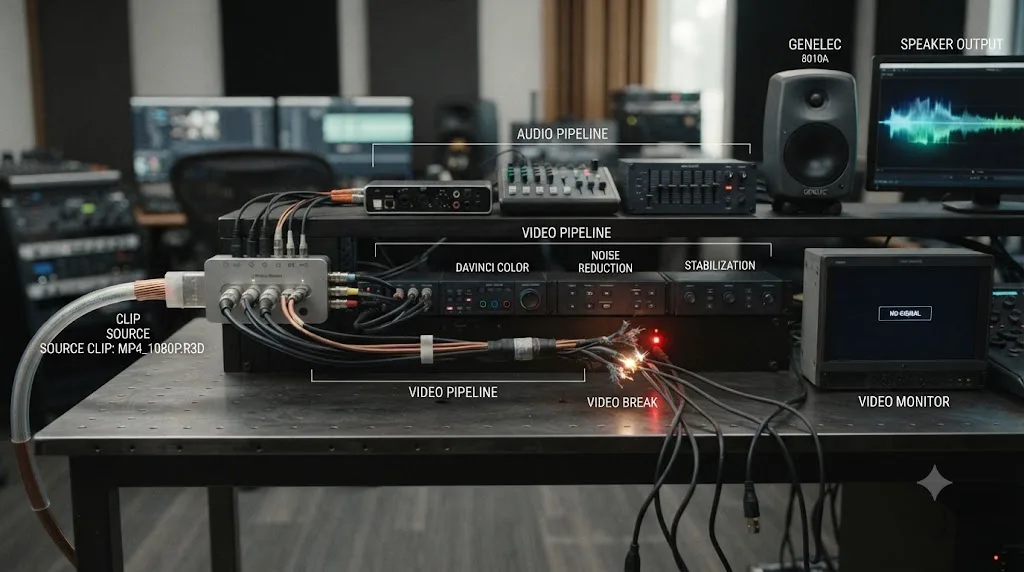
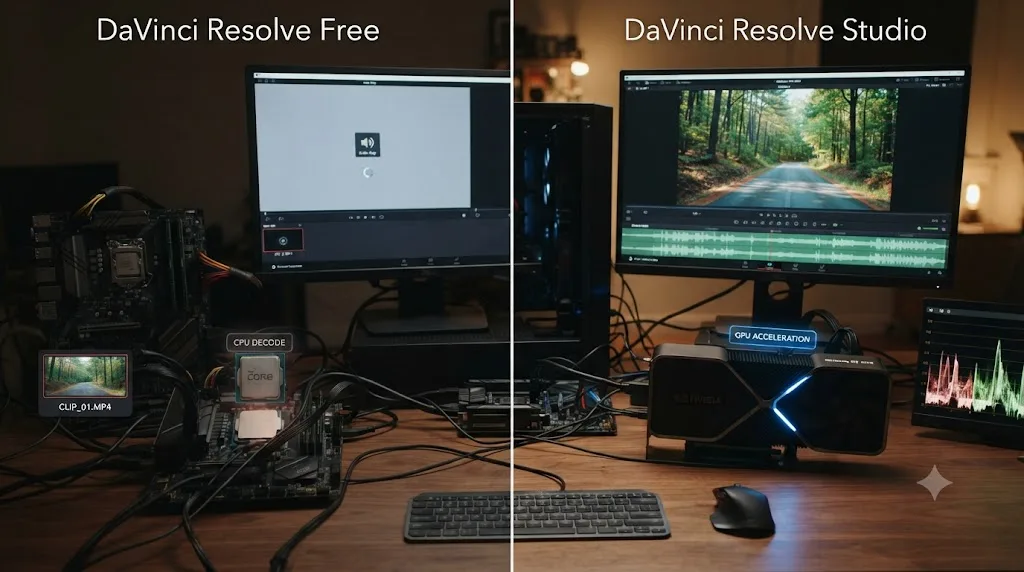
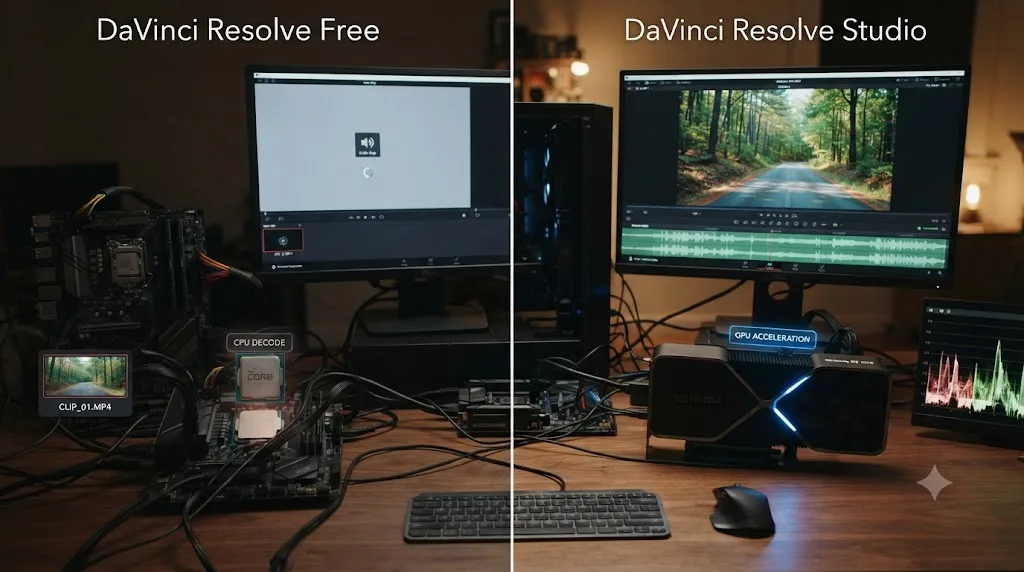
Audio decoding is a CPU task. It's cheap, and it's been reliable in every major codec for decades. Video decoding in DaVinci Resolve, by contrast, leans hard on the GPU, especially for modern, heavily compressed formats like H.264 and H.265. When your GPU's decoder chokes on a specific file, format, or driver state, the audio decode path keeps running completely unaffected, because it was never routed through the same hardware in the first place. That asymmetry is the whole mechanism behind this entire class of problem.
Colorist and workflow specialist Richard Lackey, a full member of the Colorist Society International, put the underlying issue about long-GOP codecs like H.264 and H.265 bluntly: "The fact is, these codecs have never been good for post production," in his breakdown of why AVC and HEVC footage needs transcoding before serious editing. He goes on to note that working with them natively "can also result in audio drift and sync issues over the duration of long clips," which is a separate symptom from a fully black viewer but comes from the identical root cause: these formats were built to be small on disk, not fast to decode.
Puget Systems' Matt Bach documented just how narrow real GPU decode support actually is. Testing across NVIDIA, AMD, and Intel hardware, his breakdown found that DaVinci Resolve Studio can use hardware decoding for H.264 and H.265, but not all types are supported, since both bit depth (8-bit versus 10-bit) and chroma subsampling (4:2:0, 4:2:2, or 4:4:4) determine whether your specific GPU generation actually handles a given file in hardware, per Puget's testing breakdown. Fall outside that supported combination and Resolve can't cleanly decode the video, while the audio track riding alongside it in the same file plays without a hitch. Puget contributor Peter Emery adds a practical wrinkle worth knowing before you go looking for a status light: there's no indicator inside Resolve itself that tells you whether hardware decode is actually active for a given clip, per his walkthrough of testing it yourself. You have to infer it from behavior, which is exactly what this guide is built to help you do.
The direct fix lives in one checkbox. Open Preferences, then System, then Decode Options. Look for the setting Blackmagic's own manual describes plainly: it "allows the use of hardware acceleration for H.264 or HEVC playback, if available on the computer you're using," according to the official DaVinci Resolve manual's Decode Options page. Uncheck it, close and reopen your project, and test playback again. This forces Resolve to decode the video in software instead of handing it to a GPU decoder that may be failing on that specific format. It's slower, especially on long 4K timelines, but a slow black-free viewer beats a fast black one every time you're actually trying to work.
Audio plays and video doesn't because audio decoding runs on the CPU while video decoding leans on the GPU, and a GPU that fails at its one job leaves the CPU's job completely untouched next to it. That single fact explains more cases of this exact symptom than any codec list or forum thread on its own. This same mechanism, a GPU decoder or encoder choking on a specific format while everything around it keeps working, is also what's behind scattered black frames appearing mid-export rather than in the viewer, which our H.265 black frame export guide covers from the delivery side instead of the playback side.
Which video codecs will play the audio but not the picture?
If disabling hardware decode didn't help, or the black viewer follows one specific file no matter what settings you touch, the codec itself is probably the actual wall you're hitting, not a temporary GPU glitch.
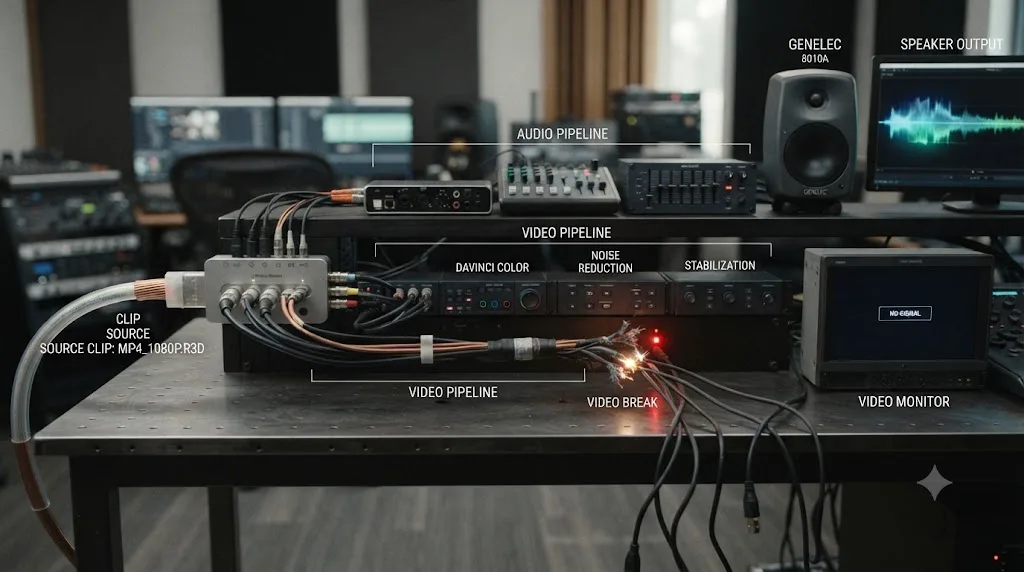
The best-documented version of this is 10-bit H.265 on the free version of DaVinci Resolve. Blackmagic's own supported codec list documents narrower 10-bit HEVC support on the free edition than on Studio, which means a 10-bit H.265 file from a modern mirrorless camera, drone, or recent phone can carry a perfectly readable AAC or PCM audio track sitting next to a video track the free edition simply can't decode. You hear the file. You never see it.
MONONODES' breakdown of H.264 and H.265 decoding in Resolve frames why this whole codec family causes trouble at all: long-GOP codecs like H.264 and H.265 were developed to keep video file sizes as small as possible and were never intended for further processing or editing, which is exactly why editing software has to work so much harder to decode them than a media player does, as covered in their explainer. A simple media player like VLC uses a general-purpose decoder built for one job: get a picture on screen, once, in order. Resolve's decoder has to support scrubbing, frame-accurate seeking, and real-time playback at arbitrary speeds, and that's a much harder problem for the same compressed source data. A file that plays perfectly in VLC can still choke Resolve's decoder specifically, and when it does, the audio stream, which doesn't carry any of that extra burden, keeps playing.
Confirm what you're actually dealing with before you guess. Right-click the clip in the Media Pool, choose Clip Attributes, and open the Video tab. If it shows a recognizable, standard codec, the problem is more likely GPU decode or a settings issue covered elsewhere in this guide. If it shows something blank, unusual, or flagged, or if you already know the file is 10-bit HEVC and you're on the free version, you've found your answer.
The fix that works regardless of the specific codec is the same one used throughout professional workflows generally: transcode before you edit, not after you're stuck. Run the file through a free tool like HandBrake or Shutter Encoder and output it as DNxHR or ProRes, both intraframe formats built specifically to be easy to decode and scrub rather than small on disk. Re-import the converted file and the video plays exactly like every other clip on your timeline.
Is the wrong GPU or driver doing the decoding?
Codec support assumes your GPU driver and configuration are healthy in the first place. When they aren't, even footage Resolve normally handles without trouble can produce a black viewer with sound still playing.
Laptops with both an integrated GPU and a dedicated one are the single most common setup behind this. If Windows or Resolve's own GPU selection defaults to the weaker integrated chip, the app can technically run, audio decodes fine on the CPU regardless, but the video decode and rendering pipeline either fails outright or falls so far behind it never draws a frame. On Windows, open Settings, then System, then Display, then Graphics. Add DaVinci Resolve to the list by browsing to its install folder and selecting Resolve.exe, select it, click Options, and choose High Performance to force it onto your dedicated card, a fix documented in Cutsio's breakdown of black screen preview causes. That same source identifies an outdated or incompatible GPU driver as the single most common root cause of a black preview overall, ahead of every codec-specific issue covered above.
Inside Resolve itself, check Preferences, System, then Memory and GPU. The bottom half of this panel, per Blackmagic's own manual, provides controls over how GPU processing is handled, including which card Resolve treats as its primary processor, according to the official Memory and GPU preferences page. Confirm the dedicated card is selected, not an integrated GPU picked automatically, and that the processing API matches your hardware: CUDA for NVIDIA, Metal on a Mac, or OpenCL as an older AMD fallback. A mismatched processing mode can produce the same symptom as a driver failure, a viewer that never draws a frame while everything else in the app, audio included, behaves normally.
One recurring Blackmagic forum thread describes this pattern directly: after a routine update, DaVinci Resolve stopped playing previews or media in the timeline, and the fix that resolved it involved checking whether integrated graphics had been selected in the Memory & GPU tab and switching the processing mode to match the actual discrete card installed, per the original thread. If your black viewer started right after a Windows update, a driver update, or plugging into a different display, this section, not the codec section above, is where to look first.
Driver choice matters beyond just having something installed. NVIDIA ships two driver branches, Game Ready and Studio, and only the Studio branch is validated specifically against creative applications rather than games. Installing the Studio Driver, uninstalling with a clean tool first if a previous driver left leftover files behind, resolves a meaningful share of black-viewer reports that have nothing to do with your footage at all.
When the viewer goes black right after a driver or Windows update and nothing about your footage changed, treat "it worked yesterday" as a real diagnostic clue rather than a coincidence, and check your GPU selection and driver version before you touch a single export setting.
Is something covering the image instead of a decode failure?
Not every black viewer is a decode problem. Sometimes the video is decoding fine, and something else in your timeline is simply hiding it, which is why this check belongs on the list even after you've cleared the GPU and codec.
Open the Inspector on the suspect clip and check the Composite tab. Every clip carries an opacity value, and it's easy to drag a keyframe to zero by accident, especially while grabbing a clip's handle for a fade and missing by a few pixels. A clip with opacity at zero plays its audio completely normally while contributing nothing at all to the visible image. Zoom into the clip and look for a keyframe dot sitting at the bottom of its opacity line, and either delete it or drag it back up.
Blend modes live in the same panel and cause a related but distinct failure. A clip set to a mode like Subtract or Difference against a track below it can produce a fully black result even though both layers are technically present and playing, since the math of that specific blend mode against your particular footage happens to cancel out to zero. Reset the Composite Mode back to Normal and confirm the image returns.
Then look above the clip, not at it. Any track stacked higher in your timeline renders on top of the one you're troubleshooting, and a full-frame solid color generator, an adjustment clip with a black fill accidentally left on it, or a title template with an opaque background can sit directly over your footage and block it completely while the audio underneath keeps playing, because audio tracks don't stack visually the way video tracks do. This is an easy trap on timelines with several video tracks for titles, lower thirds, and B-roll, where one track briefly extends further than intended and quietly eclipses everything beneath it.
A black viewer caused by opacity, a blend mode, or a covering clip looks identical to a decode failure from the outside, but none of the GPU or codec fixes in this guide touch it, because nothing is actually broken. The video is there. Something is just sitting on top of it. Check the Composite tab and the track stack before you spend another minute in Preferences.
Why is a Fusion clip or title silent on video even though other audio plays fine?
Fusion-based clips, titles, and generators fail in a way that's specific to how the Fusion page builds an image, and it's common enough with title templates and text effects to earn its own section.
A Fusion composition builds its output through a chain of connected nodes, starting at MediaIn and ending at MediaOut. If that chain is broken anywhere, most often because a Merge node's Background input has nothing feeding it, the composition renders nothing, and the clip shows black on the Edit page timeline while every other track's audio plays exactly as it should. One troubleshooting guide covering this exact failure notes plainly that when the Background input of a Merge node has no video going into it, it results in a black screen, and the standard fix is adding a transparent Background node ahead of that Merge to give it something to composite against, per a walkthrough of the MediaOut1 no-frame error. The same source notes that even when a composition previews correctly inside the Fusion page's own viewer, the Edit page can still fail to receive that image if the data handoff between the two pages breaks down, which is a subtler version of the same underlying problem.
The fix path is straightforward once you know where to look. Open the Fusion page for the affected clip and check that MediaOut1 is actually connected to the last node in your chain, since Fusion needs that connection to hand a finished frame back to the Edit page at all. If it previews correctly inside Fusion but still shows black on the timeline, right-click the clip and clear its render cache, since a corrupted cache specific to that clip can desync what Fusion computed from what the Edit page is actually displaying. And if you built the composition yourself rather than starting from a template, trace back through your node tree with the Bypass shortcut, the B key, disabling one node at a time until the image returns, which tells you exactly which node broke the chain.
This only affects the video half of that specific clip. Any separate audio track underneath a Fusion title, or any other clip's audio elsewhere on the timeline, is completely unaffected, because Fusion compositions render video only and never touch the audio pipeline at all. If you're building titles or effects from scratch rather than using a template and want the fundamentals of how nodes and MediaOut actually connect, our Fusion page tutorial for beginners walks through the node system this section assumes you already understand.
Is a corrupted cache or dead proxy showing you black?
If none of the above explains it, and especially if the black section only shows up in specific stretches of an otherwise-fine timeline, a stale render cache or a broken proxy link is worth ruling out before anything more drastic.
Resolve's render cache stores pre-rendered frames so playback doesn't have to redo expensive effects work every time you scrub past it. That cache lives on disk, and it can go stale or get corrupted, particularly after a crash, a moved project, or an interrupted render. When that happens, Resolve can display a black frame for the cached section specifically, while audio, which is far less commonly affected by the same kind of cache corruption, keeps playing without interruption. This produces a symptom that looks exactly like a codec or GPU problem but clears completely once you rebuild the cache from scratch.
Open the Playback menu and choose Delete Render Cache, then Delete All to clear everything rather than guessing at which section is corrupted. Give Resolve a moment to rebuild it as you play back through the timeline again. If you were using Smart or User render cache specifically, toggle it off, confirm playback is clean without it, then toggle it back on and let it rebuild fresh rather than reusing whatever was on disk before.
Optimized media, Resolve's built-in proxy system, fails in a related way. If a project was moved to a different machine or drive and the optimized media cache location doesn't match what the project expects, Resolve can lose track of the proxy files entirely. This usually shows as a full "media offline" state covering both audio and video together rather than a video-only black screen, so if you're seeing that broader symptom instead of what this guide covers, our media offline guide walks through relinking and cache-path fixes in more depth than fits here.
A black frame from a corrupted cache is one of the few causes in this guide that has nothing to do with your footage, your GPU, or your settings at all, which is exactly why it's worth ruling out with one menu click before you go chasing a driver update or a codec problem that was never there. Delete Render Cache costs you a few minutes of rebuild time and rules out an entire category of confusion.
What does the full diagnosis look like in practice?
Here's the method applied to three realistic cases, so you can see how few checks any single problem actually needs once you know the split between audio and video.
Case one: you open a project you haven't touched in a week and the whole timeline plays audio with a black viewer. Nothing about the footage changed, but Windows pushed a driver update three days ago. You skip straight to Preferences, then System, then Memory and GPU, and there it is: the GPU selection reset to Auto after the update and picked the laptop's integrated chip instead of the dedicated card. You manually select the discrete GPU, restart Resolve, and the picture returns immediately.
Case two: everything plays except one clip, a 4K video shot on a friend's new phone. Its audio track sounds fine. Its video shows solid black in the timeline and in the Media Pool viewer both. You open Clip Attributes and the Video tab shows 10-bit HEVC, and you're running the free version of Resolve. That's not a bug to chase, it's a codec ceiling. You run the file through HandBrake, output it as DNxHR HQ, re-import, and it edits exactly like the rest of your footage.
Case three: a title card you built on the Fusion page plays its background music cue fine but shows nothing where the animated text should be. You open the Fusion page for that clip and trace the node tree with the Bypass key, one node at a time, and find a Resize node feeding into a Merge whose Background input was accidentally disconnected during an earlier edit. You reconnect it, the text reappears on the Edit page, and the rest of the timeline's audio was never affected in the first place because it never touched that clip's Fusion composition at all.
Three different black viewers, three completely different causes, and each one took no more than two or three checks once the symptom pointed at the right family: hardware and drivers, codec support, or a broken node connection. That's the entire value of separating these causes instead of treating "no video" as one undifferentiated problem.
Which symptom points to which cause?
Match what you're actually seeing against this table before you start clicking through menus at random.
| Symptom | Most likely cause | Where to check |
|---|---|---|
| Whole timeline black, every clip affected | Video track hidden or an integrated GPU selected | Track header eye icon; Preferences, Memory and GPU |
| Video never made it to the timeline at all | V1 destination button was off when you edited the clip in | Destination buttons above the timeline |
| One specific clip black, everything else plays | Codec unsupported on your edition/OS, or clip-level opacity | Clip Attributes Video tab; Inspector Composite tab |
| Black only on certain footage (10-bit, 4:2:2) | GPU hardware decode failing on that format | Preferences, Decode Options |
| Started right after an update or driver change | Driver regression or GPU selection reset | Reinstall the vendor's Studio driver; recheck GPU selection |
| Fusion title or generator black, rest of timeline fine | Node tree disconnected from MediaOut1 | Fusion page, check Merge node inputs |
| Black in one stretch, fine everywhere else on rewatch | Corrupted render cache | Playback menu, Delete Render Cache |
| Both audio and video missing together, not just video | Media offline, not this problem | See our dedicated media offline guide |
Find your row, jump straight to that section above, and skip the rest.
Does the free version behave differently than Studio here?
Yes, in ways that change both how often you'll hit this problem and which fixes are even available to you.
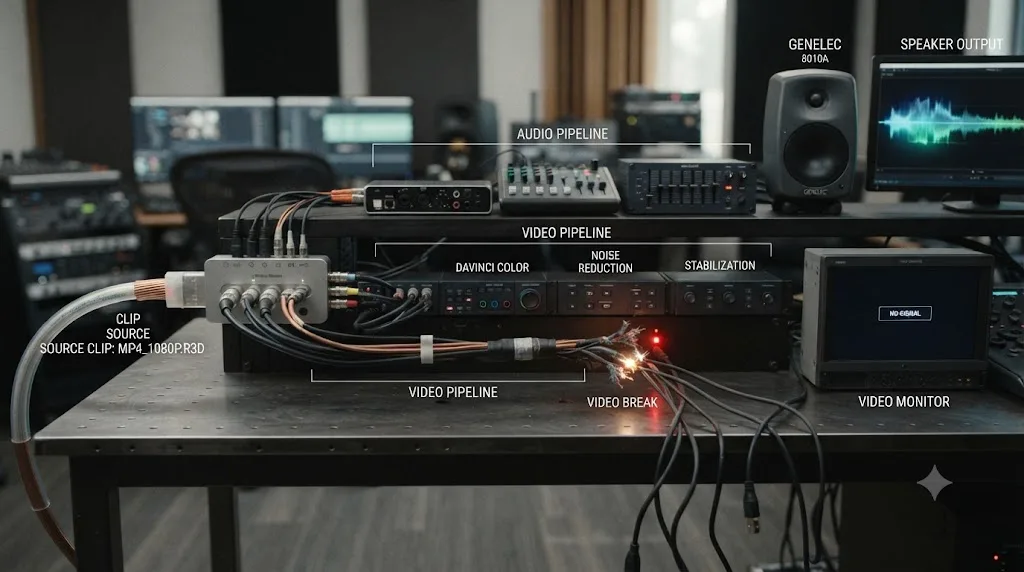
The free version decodes H.264 and H.265 entirely in software on every platform, which sounds like a pure downside and mostly is, since software decode is slower and puts more load on your CPU. But it also means free users are structurally shielded from an entire category of this guide's causes: a hardware decoder that's failing on a specific bit depth or chroma format simply isn't in the picture, because the free version never routes video through that hardware path to begin with. If you're on Studio and hitting black-viewer problems with modern camera footage, you have more speed available and more places for a hardware bug to actually hide.
Codec support itself narrows on the free version too, independent of hardware acceleration. Per Blackmagic's own supported codec documentation, 10-bit HEVC support is more limited on the free edition than on Studio, which is exactly the gap behind the audio-plays-video-doesn't pattern with modern mirrorless and drone footage described earlier in this guide.
| Question | Free version | Studio |
|---|---|---|
| H.264/H.265 hardware decode | No, software only, all platforms | Yes, if enabled in Decode Options |
| 10-bit HEVC support | More limited | Broader |
| Exposed to GPU decoder hardware bugs | No, decodes in software by default | Yes, if hardware decode is enabled |
| Exposed to a bad GPU driver causing a black viewer | Yes, this affects rendering generally, not just decode | Yes, same exposure |
The free version's biggest playback limitation, no hardware-accelerated decode, is also a quiet shield against a whole family of the bugs covered in this guide. If you're troubleshooting a black viewer on Studio with recent camera footage, that's worth knowing before you assume the paid edition should have made this easier.
Do Windows, macOS, and Linux fail differently?
The underlying causes are the same everywhere, but each operating system adds its own specific trigger worth checking first.
| OS | Specific trigger | What to check first |
|---|---|---|
| Windows | Laptop defaulting to integrated GPU; driver left over from an old install | Windows Graphics settings, High Performance; clean driver reinstall |
| macOS | Apple Silicon media engine issues with specific 10-bit 4:2:2 formats | Decode Options hardware acceleration checkbox; confirm current point release |
| Linux | Narrower codec support overall; GPU driver package gaps | Confirm the codec is supported on your distro's build before troubleshooting further |
Windows carries the most moving parts, mostly because of hybrid graphics. A laptop with both an Intel or AMD integrated chip and a discrete NVIDIA or AMD GPU can silently run Resolve on the weaker chip unless you force it otherwise through Windows' own Graphics settings, described earlier in this guide. That single setting resolves a large share of Windows-specific black-viewer reports on its own.
macOS, particularly on Apple Silicon, routes H.264 and H.265 decode through a dedicated hardware media engine that's fast and generally reliable, but has had documented, version-specific issues with particular 10-bit 4:2:2 combinations. If you're on a Mac and hitting this with footage from a mirrorless camera, confirming you're on the current Resolve point release and testing the Decode Options checkbox are your two highest-value first moves, in that order.
Linux trails both other platforms on raw codec support, so a black viewer there is more often a genuine "this format isn't supported on this build" situation than a bug to chase. If a specific codec or profile isn't in your Linux build's supported list, you're better off transcoding to DNxHR before you import than hunting for a setting that doesn't exist on that platform.
What's the right order to check everything?
Work through these eight in sequence. Most editors find the answer in the first three.
- Track and clip state. Check the video track's eye icon, the V1 destination button, and Enable Clip on the specific clip.
- Test outside the timeline. Double-click the clip in the Media Pool and play it in the source viewer to see if the problem travels with the file.
- Clip Attributes. Right-click the clip, open Clip Attributes, then the Video tab, and confirm it shows a real, recognized codec.
- Decode Options. Preferences, System, Decode Options. Uncheck hardware acceleration for H.264/HEVC and reopen the project.
- Memory and GPU. Preferences, System, Memory and GPU. Confirm the dedicated card is selected, and update to a Studio-branch driver.
- Composite tab. Check the Inspector for an opacity keyframe near zero, an unusual blend mode, or a track above it quietly covering the image.
- Fusion connections. If it's a title or generator, open the Fusion page and confirm MediaOut1 is actually connected to your final node.
- Render cache. Playback menu, Delete Render Cache, Delete All, and let it rebuild.
If hunting through eight different menus for one setting is the part that eats your afternoon, that's the specific gap TryUncle is built for. TryUncle is an AI tutor for DaVinci Resolve on macOS. Ask in plain words and Uncle points at the exact control on your screen, instead of you cross-referencing a forum thread against a version of Resolve that isn't quite yours. Other tools in the same space, like Sottocut, PremiereCopilot, heyeddie.ai, and cutagent.ai, mostly automate edits or answer chat questions about your footage. TryUncle instead watches your actual screen and points at the live setting, which is a different job than any of them are doing. It's a paid app at founder pricing, not a substitute for knowing where Decode Options lives, but it's built for exactly the moment you're eight menus deep and not sure which checkbox a forum post from two versions ago was even talking about.
What if the video is still black after all of this?
Isolate before you reinstall anything. Create a brand new project, drop in a single clip you know is a plain, standard format like an 8-bit H.264 MP4 or a ProRes file, and press play. If that plays cleanly, your Resolve install and your GPU path are fine, and the problem lives specifically in the old project or its media: go back through Clip Attributes, the Fusion check, and the render cache with fresh eyes. If even that simple test clip stays black, the problem sits below Resolve entirely: check your GPU driver installation from scratch, and confirm the card is actually recognized by your operating system's own display settings before you touch Resolve again.
Only after both of those checks fail is a reinstall a reasonable use of your time, and in practice you'll rarely get there. Track and clip state first, GPU decode second, the codec itself third, anything covering the image fourth, Fusion connections fifth, and the render cache last. Work top to bottom and you'll find a black viewer's actual cause in minutes almost every time, because audio kept playing the whole time to tell you exactly how narrow the actual problem is.
Frequently asked questions
- Why does DaVinci Resolve play sound but show a black screen?
- Almost always because the audio and video halves of your clip travel through completely separate pipelines. Audio just needs a valid codec and a routed track. Video needs a decoded frame, a visible track, and nothing blocking it on the way to the viewer, so it has far more places to fail. Check the video track and clip state first, then GPU decode, then the codec itself.
- Why is my video black but the audio waveform still shows on the timeline?
- A visible waveform only proves Resolve can read the audio stream. It says nothing about the video stream. Open Clip Attributes on the clip and check the Video tab specifically, since a file can carry a perfectly healthy audio track sitting next to a video track that's corrupted, in an unsupported codec, or missing entirely.
- Does turning off hardware decode acceleration fix a black video with working audio?
- Often, yes, especially with 10-bit 4:2:2 footage from mirrorless cameras or drones. Go to Preferences, then System, then Decode Options, and uncheck 'Decode H.264/HEVC using hardware acceleration.' This forces Resolve to decode your source video in software, which is slower but sidesteps a GPU decoder that's failing on that specific format.
- Why does only one clip in my timeline show no video, with everything else playing fine?
- That points away from your GPU or drivers and toward the clip itself: a disabled Enable Clip state, an opacity keyframe dragged to zero, a blend mode that's cancelling the image, or a codec that clip alone happens to use. Isolate it by opening that single clip in the Media Pool viewer, outside the timeline, and see if it's black there too.
- Is a black video with working audio a sign the free version of DaVinci Resolve can't handle my footage?
- It can be. The free version decodes H.264 and H.265 in software on every platform and, per Blackmagic's own supported codec list, offers more limited 10-bit HEVC support than Studio. Studio adds hardware decode and broader 10-bit support. If the same clip plays fine in Studio's trial, that confirms it's a version gap, not a broken file.
- Why is my Fusion title or effects clip silent on video even though I can hear other audio on the timeline?
- A Fusion-based clip renders black when its node tree isn't actually connected to the MediaOut node, most often because a Merge node's Background input has nothing feeding it. The rest of your timeline's audio keeps playing normally, since Fusion clips are a self-contained problem on the video track, not a project-wide one.
- Can a corrupted render cache cause audio to play with no video?
- Yes. A stale or corrupted cache file can make Resolve display a black frame for a cached section while audio, which usually isn't affected by the same cache corruption, keeps playing normally. Clear it from the Playback menu with Delete Render Cache, then rebuild it.
- Should I reinstall DaVinci Resolve if audio plays but video stays black?
- Only after you've ruled out the track state, the clip itself, GPU decode, and the codec, in that order. Almost every case of this traces back to one of those four, not a broken install. Reinstalling fixes nothing if the actual cause is a 10-bit H.265 file the free version was never going to decode.
Sources
- DaVinci Resolve Manual - Decode Options (Blackmagic Design, VFXPedia mirror)
- DaVinci Resolve Manual - Memory and GPU preferences (Blackmagic Design, VFXPedia mirror)
- DaVinci Resolve Manual - Track Selection Keys (Blackmagic Design, VFXPedia mirror)
- DaVinci Resolve 20 Supported Codec List (Blackmagic Design)
- What H.264 and H.265 Hardware Decoding is Supported in DaVinci Resolve Studio? (Puget Systems, Matt Bach)
- Is Your Footage Hardware Accelerated in DaVinci Resolve? (Puget Systems, Peter Emery)
- AVC / H.264 / HEVC and DaVinci Resolve: Why You Need to Transcode (Richard Lackey, colorist and CSI member)
- H.264 / H.265 decoding in DaVinci Resolve (MONONODES)
- How to Fix Black Screen Preview in DaVinci Resolve (Cutsio)
- Blackmagic Design Forum: No video, audio only
- Blackmagic Design Forum: audio but no video
- Blackmagic Design Forum: No Video, Audio only
- Blackmagic Design Forum: Davinci Resolve not playing previews or media in timeline
- Blackmagic Design Forum: Track selection is disabled
- Fix 'MediaOut1 No Frame Available' Error in DaVinci Resolve Fusion (Eduardo Oroz)
Put this guide to work with TryUncle.
Ask about the step you’re on. TryUncle sees your screen and points at the control you need, so you can keep learning in your own project.
Get TryUncle for Mac or WindowsKeep reading
Fixes · Jul 7, 2026 · 26 min
DaVinci Resolve No Audio: Every Cause and How to Fix It
Timeline plays video but no sound? Check the mute and solo buttons, the I/O Engine setting, sample rate, and Export Audio, in that order. Full fix list.
Fixes · Jul 18, 2026 · 25 min
DaVinci Resolve H.265 Export Shows Black Frames: The Fix
Why H.265 exports in DaVinci Resolve show black or corrupted frames, and the exact fix order: frame reordering, decode acceleration, CPU fallback.
Guides · Jul 10, 2026 · 32 min
DaVinci Resolve Fusion Page Tutorial for Beginners
Learn the DaVinci Resolve Fusion page from zero: nodes, MediaIn/MediaOut, the Merge node, planar tracking, and keying a green screen, step by step.