Articles / Guidesupdated for DaVinci Resolve 21.1 (September 2026)
DaVinci Resolve IntelliScript: Create a Timeline From a Script
Quick answer
In DaVinci Resolve 21 Studio, select the recorded clips in the Media Pool, choose AI Tools > Create New Timeline Using IntelliScript, and load a plain-text script or, in Resolve 21, a Final Draft FDX file. Resolve matches the script to recorded dialogue and builds a rough-cut timeline with alternate takes on additional tracks.
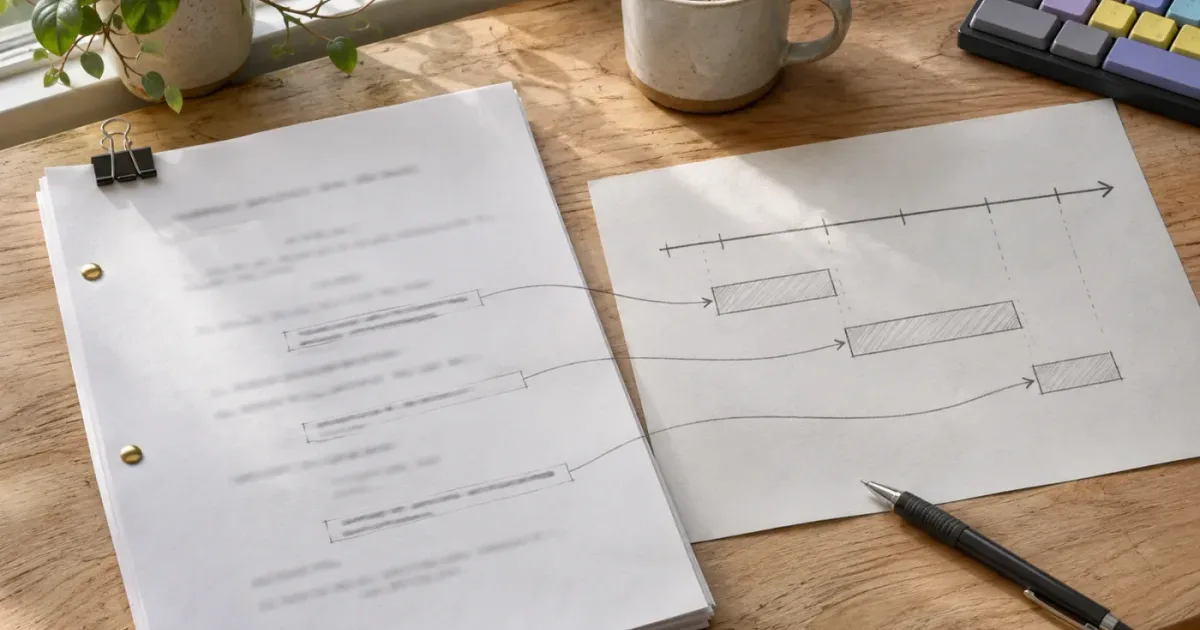
I reach for IntelliScript when recorded dialogue needs to follow a written script, but I don't want to build the first assembly line by line. The useful distinction is simple: it can match spoken words and arrange takes, but it can't decide which performance tells the story best.
As of October 2026, Resolve 21.1 is the current 21.x update covered here. Resolve 21 added Final Draft file support; the core IntelliScript workflow was introduced in Resolve 20. This guide separates the steps from the judgment calls, so you can get a first assembly without mistaking it for a finished edit.
What does IntelliScript do in DaVinci Resolve 21?
DaVinci Resolve IntelliScript matches dialogue in a script with transcribed dialogue in selected Media Pool clips, then creates a new timeline from those matches. It is an assembly tool for script-based footage, not a tool that edits a scene based on its visual meaning or dramatic quality.
Blackmagic introduced IntelliScript in DaVinci Resolve 20 as a Studio feature. Resolve 21 adds support for Final Draft .fdx files alongside plain-text scripts. The Resolve 21 New Features Guide confirms the FDX addition; Blackmagic's Resolve 20 New Features Guide documents the original workflow and labels the feature Studio Version Only.
The job is a match between two text sources:
- The script text you provide.
- The dialogue Resolve transcribes from your selected clips.
Resolve uses those matches to assemble the corresponding recorded material. When it finds alternate takes, it places those takes on additional timeline tracks, disabled by default. You can then compare the primary choice with alternatives and decide what should stay.
IntelliScript builds a dialogue-matched starting point, not a finished scene.
That distinction matters. The tool can help order a scripted scene, pull together takes, and give you a rough assembly to review. It does not replace listening for a clean read, watching for continuity, or judging whether an actor's delivery fits the scene.
The feature also isn't the same as Resolve's IntelliSearch. IntelliSearch is for finding content in the Media Pool using visual analysis, transcripts, and metadata. IntelliScript uses a script to assemble matching dialogue into a timeline. The two names sound alike, but their jobs differ.
If you need to find a particular line across lots of footage, transcript search may be a better first step. If you have a script and footage of people speaking its lines, IntelliScript is the tool to try.
What should I prepare before creating a timeline from a script?
Prepare the clips and script before opening IntelliScript: bring the intended footage into the Media Pool, complete audio transcription, and choose a script file containing the dialogue you want Resolve to match. That preparation reduces the chance of a confusing or incomplete first assembly.
Start with footage that belongs to the scene or sequence you want to build. IntelliScript works from the clips you select. If you select an entire project with unrelated scenes, interviews, scratch audio, and alternate camera coverage, you're giving the matching process a wider pool than the task requires.
Organize the media before selecting it. A bin for one scene or a clearly named group of clips makes it easier to confirm that your selection is deliberate. If you are working with many files, the guide to batch renaming clips in the Media Pool covers one way to make clip names more useful before you begin.
Then transcribe the clips that IntelliScript should search. Blackmagic's Resolve 20 guide instructs users to select clips, right-click, and choose AI Tools > Audio Transcription > Transcribe before running IntelliScript. After transcription completes, select the clips again for the timeline-generation command.
Make sure the script represents the spoken dialogue, not every word on the page. Stage directions, scene headings, camera notes, and character labels aren't dialogue. Resolve's original instructions say the tool makes its decisions based on spoken dialogue and ignores simple formatting such as character names and stage directions. Keeping the file centered on spoken lines makes it easier to compare script text with what was actually recorded.
Resolve 21 supports plain-text .txt scripts and Final Draft .fdx files. Choose the format that fits your current materials. If your script already lives in Final Draft, Resolve 21 can accept its FDX file. If you're working from a transcript or a simplified dialogue document, a plain-text version is suitable.
Before you generate anything, check the following:
| Check | What to confirm | Why it matters |
|---|---|---|
| Resolve edition | You are using DaVinci Resolve Studio | Blackmagic labels IntelliScript as Studio-only |
| Footage selection | Selected clips contain the scene's recorded dialogue | IntelliScript matches only the selected material |
| Transcription | Audio transcription has completed for those clips | Resolve needs dialogue text to compare with the script |
| Script file | The script is .txt, or .fdx in Resolve 21 | These are the documented input formats |
| Dialogue text | The file contains the spoken lines you want to match | Non-spoken notes aren't a substitute for dialogue |
| Scene scope | The selection isn't padded with unrelated footage | A focused selection makes the assembly easier to inspect |
A focused clip selection is part of the edit decision, not clerical cleanup.
This is a practical setup checklist, not a promise that every mismatch can be prevented. A missed line, poor recording, or imperfect transcription can still require manual work after the timeline is generated.

How do I create a timeline from a script with IntelliScript?
To create a DaVinci Resolve timeline from a script, transcribe the selected footage, select the clips in the Media Pool, right-click, choose AI Tools > Create New Timeline Using IntelliScript, and load the script when prompted. Resolve then matches dialogue and creates a new timeline for review.
Use this sequence in DaVinci Resolve Studio:
- Import and organize the footage. Put the source clips for the scene in the Media Pool. If there are several scenes, keep them distinguishable so you can select the right group.
- Select the clips to transcribe. In the Media Pool, select the clips containing the recorded dialogue you expect the script to match.
- Run audio transcription. Right-click the selection and choose AI Tools > Audio Transcription > Transcribe. Wait until the transcription process finishes before continuing.
- Select the clips again. Return to the relevant Media Pool clips and select the footage that IntelliScript should use. The Resolve 20 guide explicitly says to reselect the clips after transcription.
- Open IntelliScript. Right-click the selected clips and choose AI Tools > Create New Timeline Using IntelliScript.
- Load the script file. When Resolve asks for it, open the prepared
.txtscript or, in Resolve 21, the.fdxFinal Draft file. - Wait for the new timeline. Resolve matches the script against the available dialogue and creates a timeline with the best-matched material on the primary track and alternate takes on additional tracks where available.
- Review before editing further. Watch the assembled sequence and compare alternate takes. Adjust the edit manually before moving into polish or delivery.
The exact menu path is worth checking carefully. Create New Timeline Using IntelliScript is a command applied to selected Media Pool clips. It isn't the same as creating a blank timeline first and then importing a document into the timeline.
After loading the script, give Resolve time to process the match. The documentation doesn't provide a fixed processing time, so don't plan around a universal number. The time will depend on the media and system, and this guide makes no measured speed claim.
When the operation finishes, confirm that Resolve has created a new timeline in the project. Open it, play from the beginning, and watch the assembled sections in order. If you expected multiple takes, inspect the additional tracks rather than assuming the first track contains every usable performance.
If you're following instructions written for another Resolve version and a control appears in a different place, the guide to Resolve 21 tutorial controls that don't match can help you check whether the discrepancy is version-related.
How should I format a script for IntelliScript?
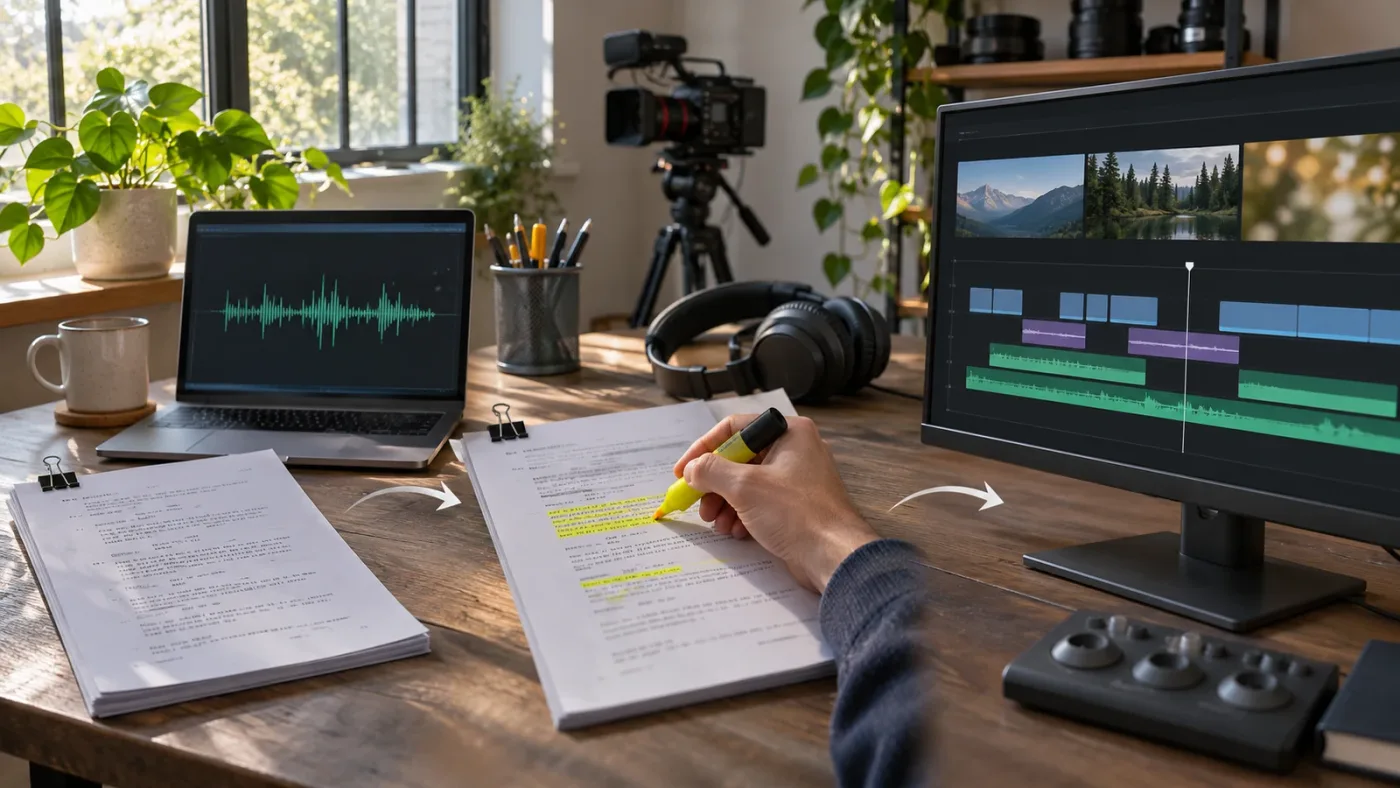
Format the script around the dialogue you want Resolve to find. Use a supported file type and keep written lines close to the words actually spoken; treat scene descriptions, names, and directions as helpful context for you, not as lines the tool can match.
For a simple text file, begin with dialogue in readable paragraphs. A character label can help a human reader keep track of a scene, but the actual spoken sentence is what matters to the match. Avoid turning each line into a dense production note containing lens instructions, blocking, and parentheticals that weren't said aloud.
Here's a worked example of a simplified text script:
MARA
I thought you left before sunrise.

ELI
I came back for the keys.

MARA
You could have called.
This is an illustrative example of script preparation, not a test result. The point is to distinguish dialogue from scene information. A document like this gives you the spoken lines to compare with the transcribed footage. A production script with scene numbers and direction can still be useful to the crew, but don't expect those details to act as matching dialogue.
In Resolve 21, .fdx support gives Final Draft users another option. Blackmagic describes it as a way to import a Final Draft file to match and generate a timeline based on the script using Media Pool clips. The guide doesn't say that every Final Draft element affects matching, so keep expectations limited to the documented purpose: dialogue-to-clip matching.
Should I change the script to match an imperfect performance?
Use the script version that best represents the words you want in the edit, then consider whether spoken variations are intentional. If an actor changes a phrase, IntelliScript may still find a similar line, but don't treat that as guaranteed. Blackmagic's Resolve 20 guide describes contextual matching for similar phrasing, yet a near match isn't a quality judgment or a promise that every ad-lib will be identified correctly.
If the recorded version includes a different sentence that you intend to keep, decide whether the script should reflect the approved edit or the original shooting script. A reviewed transcript can be a better starting point for a client-driven cutdown or a revised line order, provided the footage still contains the words in that text.
Keep the editorial question clear:
- Are you matching recorded takes to the original screenplay?
- Are you rebuilding an approved version that rearranges lines?
- Are you selecting only a portion of a longer interview?
- Are you assembling dialogue from a script that changed during production?
Those are different tasks. IntelliScript can provide a matched assembly, but it cannot resolve version-control questions about which script is authoritative. Label the script clearly before choosing it, especially when several drafts have similar filenames.
Should I remove punctuation or character names?
Don't strip useful structure just because the matching tool focuses on dialogue. Character names and simple formatting can make a script easier to inspect, but stage headings and directions shouldn't be mistaken for spoken lines. Resolve 21's support for FDX does not mean every production element becomes an edit instruction.
Punctuation can help you read sentence boundaries. More important is whether the words reflect what you expect to hear. If a line is broken across the page, repeated under several takes, or copied with notes embedded in it, tidy the file so you can recognize what should match.
Avoid the tempting shortcut of pasting an entire screenplay and assuming the tool will infer scene order, performance intent, and coverage. Start with the script portion that corresponds to the selected footage. That makes the result easier to verify even if you later decide to process another scene separately.
Why is IntelliScript missing from the menu?
The most direct reason IntelliScript may be missing is that the current Resolve installation is not Studio, since Blackmagic labels the feature Studio-only. Also check that you've selected Media Pool clips, not an empty timeline or an unrelated panel, and that you are using the relevant right-click menu.
Work through these checks in order:
- Confirm the edition. IntelliScript is a Studio-only feature in the official Resolve 20 feature guide. If you're using the free edition, the command isn't available as an IntelliScript workflow.
- Confirm the selected items. The documented workflow begins by selecting clips in the Media Pool. Click the intended footage there before opening the context menu.
- Look for the correct command group. The documented path is AI Tools > Create New Timeline Using IntelliScript. Don't confuse it with audio transcription or a different AI feature.
- Check the Resolve version. Resolve 21 supports FDX import. Older versions may not offer that input option, even though the original IntelliScript workflow exists in Resolve 20.
- Complete transcription first. Resolve's documented process transcribes selected clips before you run IntelliScript. If the command appears but results are missing or incomplete, verify this preparation step.
If a menu is still missing after those checks, consult the DaVinci Resolve 21.1 Manual listing from Blackmagic Design and the support resources for your installation. Blackmagic's 21.1 manual is the version-specific reference available as of the date of this guide.
Don't assume that an absent command means your project is damaged. First separate edition limits from selection and workflow issues. A free-versus-Studio distinction is especially easy to miss when following a tutorial that simply says “right-click the clips.”
If the command is missing, verify the edition before rebuilding the project.
Why doesn't IntelliScript match a line or take?
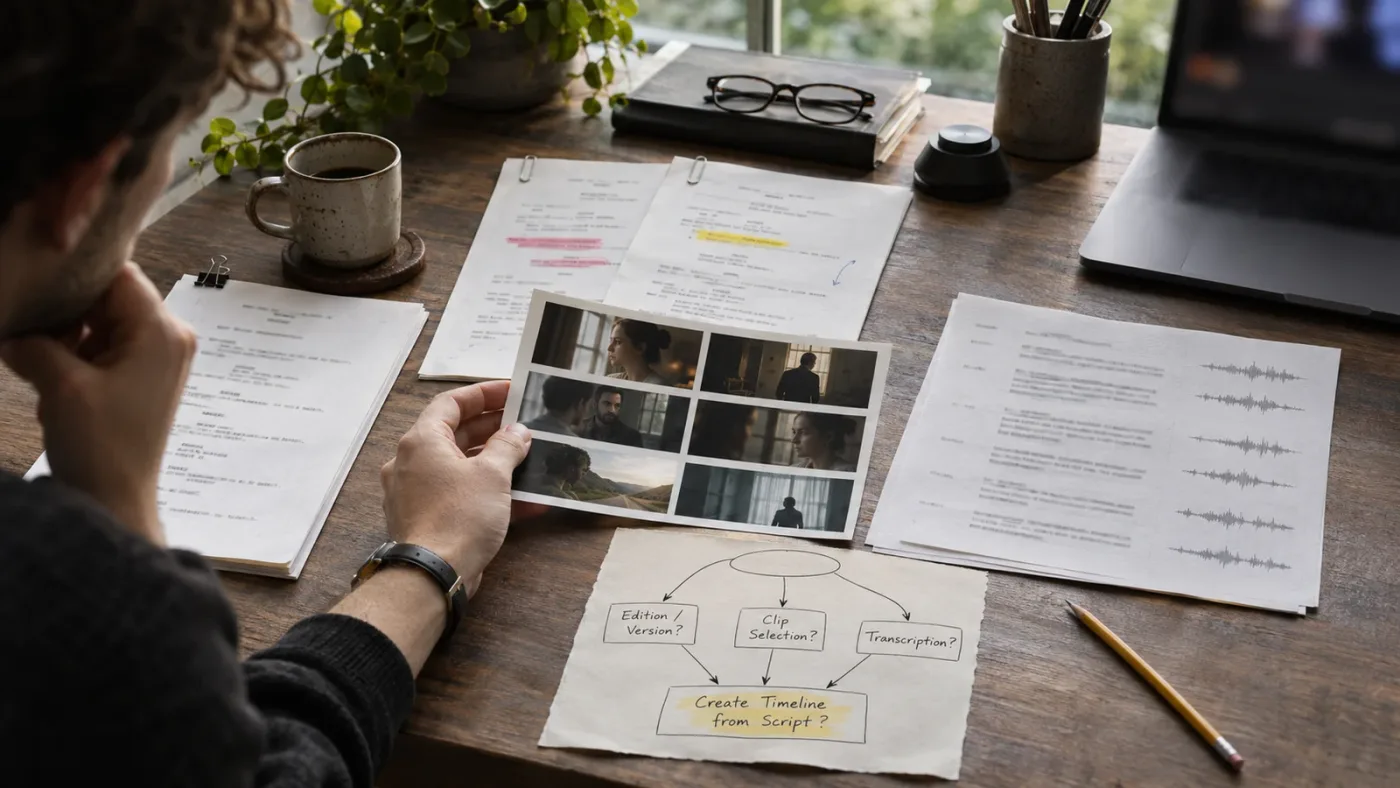
A line may fail to match because the written dialogue differs from the words in the recording, the audio transcription is incomplete or inaccurate, or the relevant clip wasn't included in the selection. IntelliScript compares text; it can't recover a line that isn't present in the selected, transcribed material.
Start with a particular missing line rather than judging the whole timeline at once. Find the sentence in the source script and then locate the relevant spoken section in the footage. Ask whether the words match, whether the selected clip contains them, and whether Resolve has a transcription for that clip.
Use this diagnostic table:
| Symptom | What to inspect first | Next editorial check |
|---|---|---|
| One line is absent | Confirm the clip containing it was selected and transcribed | Compare the spoken wording with the script |
| A similar line is chosen | Check for repeated or rephrased dialogue | Listen to the candidate in context |
| A take is missing | Confirm the take was in the selected clips | Check whether that take has usable recorded dialogue |
| A scene appears in the wrong place | Check script order and whether the selection includes other scenes | Split the work into clearer scene groups |
| The first take is not preferred | Compare alternate takes on additional tracks | Choose based on performance and continuity |
| The timeline is incomplete | Check transcription completion and selected-media scope | Re-run the workflow with verified inputs if needed |
These checks are diagnostic, not a guarantee of a specific fix. The Resolve 20 guide says IntelliScript uses the Transcription Engine and describes its ability to find contextually similar phrases. It doesn't publish a matching threshold, a supported language list for every version, or an accuracy percentage in the instructions cited here. Don't treat a guessed threshold or percentage as a product specification.
What if the actor ad-libbed a line?
Compare the ad-lib with the script and transcription before changing anything. Resolve may recognize similar phrasing, but you need to confirm whether the resulting clip is the line you want and whether its context still works.
For example, a scripted line might be “I left the envelope beside the door,” while the recording says “The envelope is by the door.” Those sentences carry similar information but not identical words. This is a worked example of the kind of mismatch to inspect, not a claim that IntelliScript will always match those particular lines.
When an ad-lib is important, listen to the full exchange and confirm the response still fits. Don't trim away a pause or reaction simply because the text match puts the clips next to each other. The performance may depend on the beat that comes before or after the spoken line.
What if the script has repeated dialogue?
Repeated phrases make a text match ambiguous. A character may say the same short line in several scenes, or multiple takes may contain the same words. Confirm that the relevant scene clips were selected, then review each proposed match in its surrounding footage.
A short line such as “Come in” provides little distinction by itself. In a project containing several rooms or scenes, the right words could belong to more than one clip. Narrowing the selection to the intended sequence can reduce the number of plausible candidates, but the editor still needs to verify the actual scene.
The same caution applies to repeated pickups. If the actor recorded a line again after a pause, Resolve can find dialogue matches without knowing which take has the best eyeline, focus, timing, or emotional intent. Use the generated assembly as a locator and starting point, then make the choice by watching the footage.
How do I review the generated timeline and alternate takes?
Review the timeline by playing the primary assembly, checking every edit in context, and comparing the additional tracks that contain alternate takes. IntelliScript places its best dialogue matches on the main track, but “best” refers to matching the script, not to a human judgment about acting or visual continuity.
Start at the top and watch the whole sequence once without stopping. This reveals broad problems: missing lines, abrupt scene changes, an out-of-order exchange, or a section that doesn't belong. Then go back to individual edit points.
At each point, ask:
- Does the clip contain the intended line?
- Does the start include enough lead-in for the performance?
- Does the next clip begin on a natural response?
- Is the selected take clean and intelligible?
- Does the shot size, screen direction, or eyeline make sense after the cut?
- Does the pace leave room for a reaction or pause?
- Is the alternate take more suitable even if the primary match is textually closer?
Resolve's documented behavior gives you a main track with the best-matched clips and additional tracks for alternate takes, disabled by default. Inspect those extra tracks rather than treating the primary track as a final verdict. Where a preferred alternative exists, compare the full beat, not just the matching phrase.
A useful review method is to make one pass for dialogue coverage and another for editorial quality. During the first pass, check that the intended lines are present and ordered correctly. During the second, watch the performances, reactions, and transitions. Separating the two questions makes it easier to see what IntelliScript solved and what remains your decision.
If the assembly is a client or director review version, mark uncertain lines before polishing. A concise note such as “alternate take has stronger response, check continuity” is more useful than treating the generated selection as approved. For review comments and follow-up notes, the guide to using markers for client review covers a separate workflow for organizing feedback.
The main track is a match result, not an acting award.
What are the limits of IntelliScript?
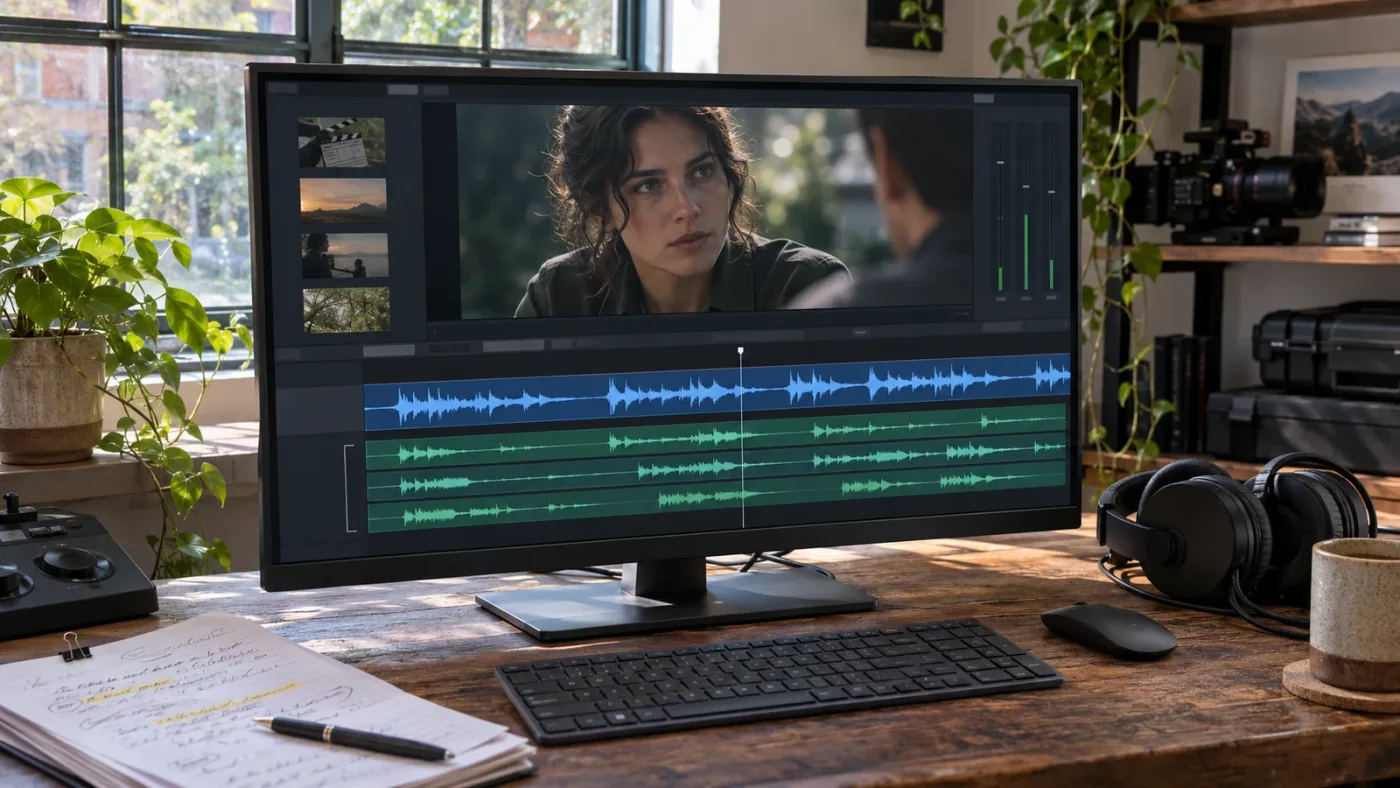
IntelliScript is limited to matching script dialogue with recorded, transcribed dialogue and assembling corresponding footage. It does not make a complete creative edit, rank performances by acting quality, or guarantee that a generated sequence has the right pacing and continuity.
Keep these limits in mind:
- Dialogue is the matching basis. Blackmagic describes the tool as using its Transcription Engine to match an original script with clips. It is not described as a visual storytelling evaluator.
- “Best” does not mean best performance. The Resolve reference material says the tool's preferred take is based on dialogue matching rather than judgments using good-take metadata or other editorial criteria.
- Selection scope matters. The workflow runs on clips you select. Resolve can't match a clip that wasn't included in the selected material.
- Transcription quality affects the text comparison. If the transcript doesn't reflect the spoken line, the match may not behave as you expect. Review the source rather than assuming the timeline is complete.
- Resolve 21 adds a script format, not a new editorial judgment. The New Features Guide identifies Final Draft FDX import as an added format. It doesn't claim that the feature now evaluates performance or scene continuity.
- Studio is required. The Resolve 20 guide labels IntelliScript Studio Version Only. The feature isn't a workflow to promise to users of the free edition.
These limitations don't make the feature useless. They define its proper place in a workflow: use it to get from recorded scripted dialogue to an editable assembly, then bring human editorial judgment back into the process.
Is IntelliScript right for an interview or documentary?
It can be useful when the interview footage contains dialogue that corresponds closely to a prepared script or an edited transcript. It is less direct when the story must be discovered from unscripted material, because there may be no original script to match and the strongest narrative may emerge from unexpected answers.
A transcript-based cutdown is a possible use when you have a reviewed document of the lines you want to retain and the recorded footage contains them. But don't mistake that for automatic story editing. An interview transcript can contain repetitions, false starts, incomplete sentences, and responses that only make sense alongside a question. Resolve's match doesn't establish that a selected fragment is fair, complete, or narratively clear.
For a documentary, the editorial work may include finding a contradiction, choosing a revealing pause, balancing perspectives, or deciding which context a quote needs. Those are decisions about meaning and fairness. IntelliScript's text matching can help locate corresponding material when the document and footage align; it doesn't make those decisions for you.
Is IntelliScript right for multi-camera dialogue?
It may help assemble dialogue from selected footage, but a script match is not the same as choosing the best camera angle or building a finished multicamera edit. Check how your footage is represented in the Media Pool, and review the resulting timeline carefully for camera continuity and coverage.
If you're using multicamera sources, don't assume IntelliScript's dialogue preference also identifies the best visual angle. The documentation describes script matching and alternate takes, not an automatic shot-selection rule based on framing, eye contact, or camera quality. After the dialogue assembly, inspect which source is visible and whether the cut makes sense.
A practical decision is to separate dialogue assembly from camera coverage. Use IntelliScript for the script-to-dialogue task if your selected media and project setup support it. Then perform the multicamera or coverage decisions as a distinct editorial pass.
What changed from Resolve 20 to Resolve 21?
The key IntelliScript change documented for Resolve 21 is support for Final Draft .fdx imports in addition to plain-text scripts. Resolve 20 introduced the Studio-only script-to-timeline workflow, including transcription, clip selection, and the creation of a new timeline.
| Version | IntelliScript detail documented by Blackmagic |
|---|---|
| DaVinci Resolve 20 | Introduced AI IntelliScript for creating timelines from scripts; the feature is marked Studio-only |
| DaVinci Resolve 21 | Adds Final Draft .fdx import alongside plain-text script files |
| DaVinci Resolve 21.1 | Released September 8, 2026; Blackmagic's announcement highlights AI assistant integration and other changes, but does not list a new IntelliScript workflow change |
The 21.1 distinction is useful when you're following a recent tutorial. Blackmagic's Resolve 21.1 announcement says the update adds AI assistant integration and other changes. Its announcement does not describe a new IntelliScript procedure. For the FDX support, rely on the Resolve 21 New Features Guide, not on an assumption that every 21.x point release changes the workflow.
If the screens in a tutorial differ from your Resolve 21.1 installation, first check whether the tutorial shows Resolve 20, an earlier point release, or a different edition. A version difference can explain a changed file-format option without changing the basic idea: select media, transcribe it, choose IntelliScript, load a supported script, and review the result.
What should I do if the first assembly is wrong?
Treat a weak first assembly as a cue to check inputs before repeating the process. Confirm the selected clips, transcription, script text, and scene scope; then decide whether the problem is a missing match or an editorial choice that still needs to be made manually.
Use this order:
- Find one specific bad or missing edit. Note the line and location rather than judging from memory.
- Check the source clip. Confirm the intended performance exists in the selected Media Pool footage.
- Check the transcription. Compare the spoken words with the text Resolve has available for matching.
- Check the script file. Confirm you loaded the intended
.txtor.fdxversion and that it contains the target dialogue. - Check selection scope. Make sure the relevant clip was selected and unrelated scenes aren't obscuring the result.
- Review alternate takes. The primary choice may not be the take you prefer.
- Make the editorial change directly if needed. If the issue is timing, performance, continuity, or story logic, use the normal editing tools to make that decision.
If a line is present in the footage but the match remains unsuitable, don't keep changing the script at random. First identify whether the transcript, selection, or wording explains the result. If none does, use the timeline as an assembly aid and finish the edit manually.
A generated timeline is a new editing starting point. It doesn't validate the source script, certify the transcript, or establish that every cut is suitable for a final delivery. Keep the original footage and project available while you review.
Is IntelliScript the best way to learn script-based editing?
IntelliScript is useful for one narrow task: matching scripted dialogue to recorded clips and creating a reviewable timeline. It won't teach the broader craft of choosing takes, shaping a scene, or managing continuity, so use it alongside ordinary editing practice rather than as a replacement.
The best way to learn DaVinci Resolve depends on the task. Blackmagic's official documentation is the best reference for where commands are and what the software claims to do. A focused tutorial can show a workflow. Practice on your own footage shows where an automated assembly still needs editorial judgment.
If a tutorial leaves you stuck because the menu or control on screen doesn't match your version, on-screen guidance can help you identify the relevant control while you work. TryUncle is an on-screen assistant for DaVinci Resolve on Mac and Windows, and TryUncle can point to a control based on your current screen and question; you remain responsible for each edit.
For IntelliScript specifically, the sensible learning sequence is modest:
- Learn the selected-clip and transcription steps.
- Generate a short assembly from a clearly scoped scene.
- Review primary and alternate takes.
- Make at least one editorial choice manually.
- Repeat with a different scene or script version.
That practice teaches the boundary between dialogue matching and editing judgment. You learn what the tool can assemble, but you also learn when a human choice is still needed.
A generated timeline is useful when you treat it as an editable first pass.
What is the next step after IntelliScript creates a timeline?
Watch the generated sequence from beginning to end, then compare each important primary take with the available alternates. Keep the assembly only after you have checked dialogue coverage, performance, order, and continuity against the actual footage.
If you're new to the feature, start with a scene whose dialogue is clear and whose clips are easy to identify. Prepare the script, transcribe the media, run IntelliScript, and review every decision it made. If the result is useful, continue with the next scene. If it isn't, locate the input mismatch and edit manually rather than treating the first result as authoritative.
The timeline gets you to a review point. Your next cut is still yours.
Frequently asked questions
- Does IntelliScript work in the free version of DaVinci Resolve 21?
- No. Blackmagic labels IntelliScript as Studio-only. The free version can still be used for manual editing, but it does not include this feature.
- Can DaVinci Resolve 21 IntelliScript import Final Draft files?
- Yes. Resolve 21 adds support for Final Draft .fdx files. Plain-text .txt scripts are also supported.
- Do I need to transcribe clips before using IntelliScript?
- Yes. Transcribe the relevant Media Pool clips first, then select those clips and start Create New Timeline Using IntelliScript.
- Does IntelliScript choose the best acting take?
- No. IntelliScript matches spoken dialogue to the script. It does not judge acting, framing, performance quality, or continuity, so review the selected take and the alternate takes yourself.
- Why is Create New Timeline Using IntelliScript missing?
- Check that you have DaVinci Resolve Studio, selected the intended Media Pool clips, and completed audio transcription. IntelliScript is Studio-only.
Sources
Put this guide to work with TryUncle.
Ask about the step you’re on. TryUncle sees your screen and points at the control you need, so you can keep learning in your own project.
Get TryUncle for Mac or WindowsKeep reading

Guides · Oct 9, 2026 · 44 min
DaVinci Resolve 21 AI Assistant: Organize Media Step by Step
Organize media in DaVinci Resolve 21 with IntelliSearch, slate metadata, tags, bins, and Smart Bins. Learn what the AI can do and what to verify.

Fixes · Oct 3, 2026 · 16 min
DaVinci Resolve 21 Tutorial Controls Do Not Match? Fix It
DaVinci Resolve 21 tutorial controls do not match? Identify the version, page, layout, and edition difference, then find the right control.
Guides · Oct 22, 2026 · 30 min
DaVinci Resolve Batch Rename Clips in the Media Pool
Batch rename DaVinci Resolve clips in the Media Pool with Clip Attributes, metadata, and safe naming workflows that preserve camera originals.