Articles / Fixesupdated for DaVinci Resolve 21.0.4 (August 2026)
DaVinci Resolve Recover Deleted Timeline: Every Fix
Quick answer
To recover a deleted timeline in DaVinci Resolve 21, press Command-Z on macOS or Ctrl-Z on Windows and Linux while the project is still open. If you already closed it, right-click the surviving timeline in the Media Pool and choose Restore Timeline Backup, or load a Project Backup or exported DRP from before the deletion.
If you just deleted a timeline, stop clicking around. The next action can decide whether the fastest recovery still works.
We built and run a 100,000+ member professional video-editing community, and we have spent more than seven years cutting commercial work and teaching editors. One of the recurring questions there is how to recover a timeline after an accidental delete. The answer is usually simple, but the safe order matters.
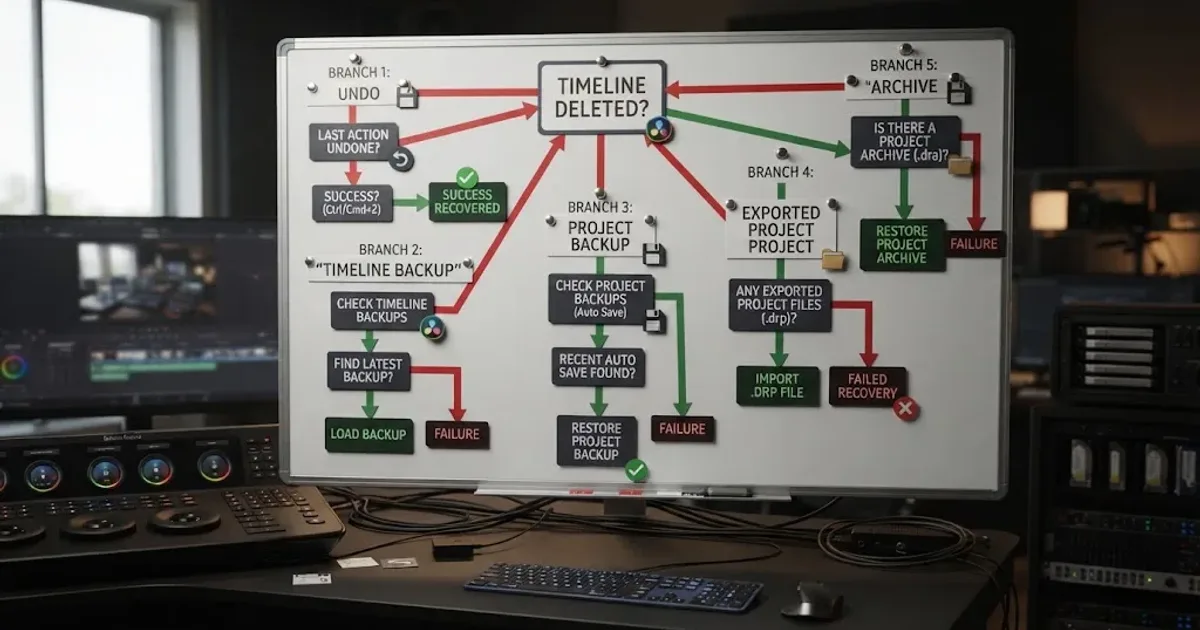
As of August 2026, this guide covers DaVinci Resolve 21.0.4 and the current Resolve 21 recovery tools. Start with Undo. If the project has already been closed, move to Timeline Backups, then Project Backups, then any DRP, DRT, DRA, library, cloud, or operating-system copy you have.
How do I recover a deleted timeline in DaVinci Resolve 21?
Press Command-Z on macOS or Ctrl-Z on Windows and Linux while the project is still open. If Undo no longer reaches the deletion, restore a dated Timeline Backup or load a Project Backup before touching the underlying project files.
The recovery path is:
- Stop editing and do not close the project.
- Check the Edit menu so you know what Resolve will undo.
- Undo once, then check the Media Pool and timeline selector.
- If the timeline returns, immediately duplicate or export the recovered project.
- If the project is already closed, make a safety copy of the current project state before loading anything.
- Try Restore Timeline Backup on a surviving timeline in the same project.
- If that fails, open Project Backups from the Project Manager.
- If no in-app copy exists, import an older DRP, DRT, DRA, copied library, cloud version, or system backup.
This order protects the newest state while giving the least invasive recovery method first. Undo changes the open project history. A Timeline Backup gives you an older edit as a new timeline. A Project Backup can roll back the whole project, so you should load it as a recovery copy and compare before replacing anything.
What should I do in the first 60 seconds?
Make no new edit, do not choose Redo, and do not quit Resolve. If the deletion is visible in the current session, press the platform shortcut once and look at the Media Pool. If you have already made several actions, open Edit > History > Open History Window and identify the deletion before selecting an earlier state.
The official Resolve manuals document Edit > Undo and the platform shortcuts. They also distinguish the Media, Edit, and Fairlight undo stack from the separate Fusion and Color histories. In practical terms, a delete made in the Media Pool or Edit page is not recovered through the Color page's node history. Blackmagic Design's Resolve reference documentation is the version-specific reference for those commands.
If Undo restores the timeline, do not keep editing immediately. First create a duplicate timeline or export the project. Your current session is the only place where the active undo history is available, and a fresh edit after stepping backward can change what Redo can reach.
The safest DaVinci Resolve recovery move is to stop editing and try Undo before closing the project.
What if Undo seems to do nothing?
Use the Edit menu and History window instead of guessing at the keyboard. Resolve's main history is project-based, so the last action recorded in another timeline can be the action that Ctrl-Z or Command-Z removes. A Blackmagic Design support answer describes the Media, Cut, Edit, and Fairlight operations history as shared across the project, with separate behavior for Fusion, Color, and Deliver. Read the support explanation of project-based undo history.
Check these possibilities in order:
- The deletion was not the most recent operation. Undo again only after confirming the History window's next state.
- You are looking at a different timeline. The recovered timeline may return to its original bin or become the active timeline while the current viewer remains unchanged.
- The timeline was disabled rather than deleted. Look for a disabled timeline in the Media Pool before loading a backup.
- You deleted clips from the timeline rather than the timeline object. That is a different recovery problem, and Undo or a timeline snapshot may restore the clips.
- The deletion happened in a different page or project. Switching projects can make the visible history and current timeline misleading.
Do not press Redo as a test. Redo is useful only when you intentionally want to reapply a change that you just undid. It is not a search command for a missing timeline.
Why is my deleted timeline still missing after I reopened DaVinci Resolve?
Reopening Resolve normally starts a new session, so the old active undo history is no longer the recovery path. Look for a Timeline Backup or Project Backup that predates the deletion, then load it into a safe copy.
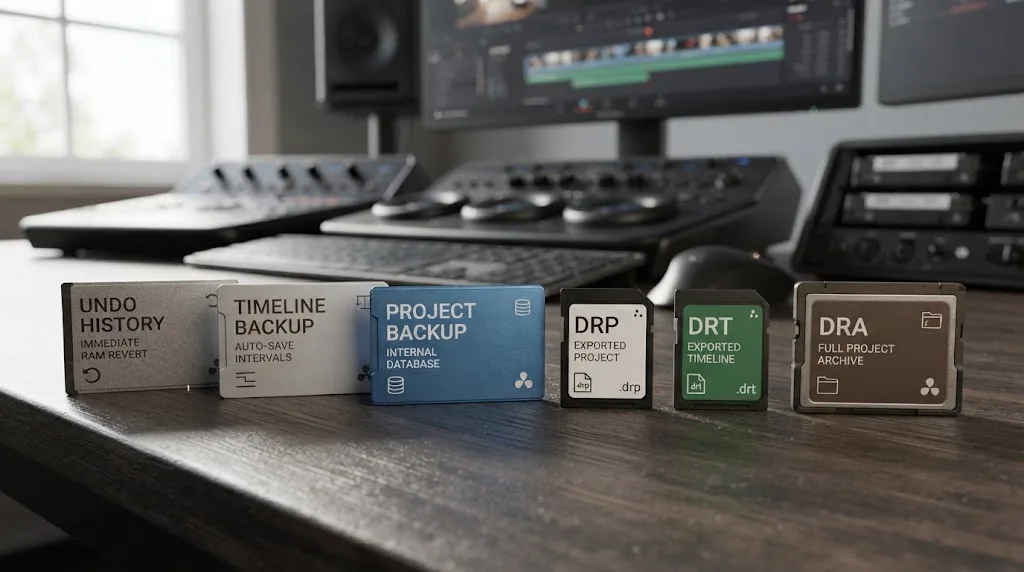
Resolve has several different kinds of saved state. They overlap, but they are not interchangeable.
| Recovery source | What it can restore | Where you use it | Main limitation |
|---|---|---|---|
| Undo history | The open project's recent operations | Edit > Undo or History | It belongs to the current session and can disappear after closing the project |
| Timeline Backup | An older version of one timeline | Media Pool > right-click timeline > Restore Timeline Backup | It needs a usable originating project and an existing backup |
| Project Backup | A dated version of the whole project | Project Manager > right-click project > Project Backups | It may be older than the deletion and can change the complete project state |
| DRP export | The project state saved when you exported it | Project Manager or File > Import Project | It normally does not contain the camera media itself |
| DRT export | One exported timeline | Media Pool or File > Import Timeline | It needs the project media or linked clips to rebuild the edit correctly |
| DRA archive | An archived project and its included media | Project Manager import or restore workflow | It can be large and only contains what the archive included |
| Library, cloud, or OS copy | A project library or file-system version | The relevant backup or versioning tool | It depends on when the copy was made and whether it is readable |
How do I recover a deleted timeline after closing Resolve?
Open the project without making changes, find a surviving timeline in the Media Pool, and try Restore Timeline Backup. If there is no usable timeline or no menu entry, use Project Backups or an exported project instead.
The first thing to check is whether the timeline itself disappeared or whether the project opened with a different timeline selected. In the Media Pool, show the Timelines bin or use the timeline selector in the Edit page. Search by the original name, then look for disabled or duplicate copies. A missing viewer is not proof that the timeline data is gone.
If the project still contains another timeline, right-click that timeline in the Media Pool and look for Restore Timeline Backup. The command is attached to the project and timeline context. It is not a general file browser for every backup on your drive.
Blackmagic Design support engineer Dwaine Maggart gives the key limitation plainly: “The Restore Timeline Backup option only works with the project that created the timeline backup.” The complete support answer is on the Blackmagic Design forum. Keep that sentence in mind when you find a folder full of files named Timeline followed by timestamps. The files do not become universally importable just because they are visible in Finder or File Explorer.
Why is Restore Timeline Backup missing?
The menu is usually missing because Resolve cannot find a usable timeline snapshot for the selected project, the Timeline Backups preference was disabled, the backup path is unavailable, or you are right-clicking the wrong object.
Check the following without deleting or moving backup files:
- Open Preferences and choose User > Project Save and Load.
- Confirm Timeline Backups is enabled.
- Confirm the backup location is mounted and readable.
- Return to the same project that created the backup.
- Find a timeline in the Media Pool, not just a media clip or bin.
- Right-click the timeline and look for Restore Timeline Backup.
The preference affects future backups. Turning it on after a deletion does not manufacture an earlier snapshot. A new backup may also contain the already damaged state, so do not assume that enabling the checkbox repairs the past.
On macOS, check that an external drive or network volume used for backups is mounted before opening the project. On Windows, check that the drive letter has not changed. On Linux, verify that the mount point is available and that Resolve has permission to read the location. These checks explain why a setting can look enabled while the menu still has no dated choices.
Blackmagic's own forum guidance says that no timeline backups means no Restore Timeline Backup menu, and the support team has also documented platform-specific cases where timeline backups were not created. See the Blackmagic Design support discussion about the missing restore command. If the menu exists but shows only one timestamp, that is the complete set Resolve can currently see for that project.
A Timeline Backup is useful only when Resolve can connect it to the project that created it.
Can I recover a deleted timeline without a Project Backup?
Yes, if you still have Undo history, Timeline Backups, an exported DRP or DRT, a DRA archive, a copied project library, cloud version, or operating-system backup. If none of those contains a state from before the deletion, the original edit cannot be reconstructed from camera media alone.
Can Undo recover it?
Yes, but only if the project session still contains the deletion in its undo history. Use Edit > History > Open History Window and inspect the last operations. Choose the state immediately before the timeline removal, then confirm the timeline and its clips, grades, transitions, audio, and metadata are present.
Do not click backward through dozens of states just because the timeline is still absent. You can overshoot the useful state, and a new edit after undoing can discard the forward path. Export the recovered state as soon as you see the correct timeline.
Can a Timeline Backup recover it?
Often, if at least one timeline remains in the same project and Timeline Backups were enabled before the deletion. Right-click the surviving timeline, choose Restore Timeline Backup, and select the latest snapshot that still contains the edit. Resolve brings the restored version into the Media Pool as a separate timeline rather than overwriting the current one. Blackmagic's Resolve 18.5 feature guide documents the restore behavior and timestamped choices.
This is the cleanest post-restart path because it can restore only the edit sequence you need. It does not necessarily bring back unrelated bins, project settings, or changes outside the timeline. If you need the entire project state, use a Project Backup.
Can an exported DRP recover it?
Yes, if you exported the project before deleting the timeline. Import the DRP as a new project or restore it under a distinct name. Then inspect the Media Pool and copy the timeline into your current project if needed.
A DRP is a project export, not a media archive. The clips may appear offline if the source media moved, but the timeline structure can still be present. Relink the original media only after confirming that the recovered project contains the correct timeline.
If the DRP was exported after the deletion, it will preserve the wrong state. Check its date before importing.
Can a DRT recover it?
Yes, if you exported that specific timeline before deleting it. A DRT is narrower than a DRP, so it is valuable when the project itself is intact but one timeline is gone. Import it into the existing project and let Resolve match the timeline's clips to the Media Pool.
Resolve 21 adds link and conform options to DRT import, including an option to automatically link imported timeline references to existing Media Pool clips. Blackmagic documents the Resolve 21 DRT import changes here. Use that option when the project already has the same source clips, then inspect every relinked section before treating the recovery as complete.
Can a DRA or project library copy recover it?
Yes, if the archive or library copy predates the deletion and is readable. A DRA is intended for moving or preserving a project with included media and generated files, while a library copy may contain many projects and the current database state.
Never experiment on the only copy. Duplicate the archive or library first, then import or connect the duplicate. If Resolve asks to upgrade a library or project to a newer version, preserve the original and use a recovery copy. The official Resolve 21 manual and support center are the right references for the exact library restore workflow in your build. Open Blackmagic Design's current support center.
What if I only have the original media?
Original media can help you rebuild a timeline, but it does not recreate the edit decisions, transitions, keyframes, grades, Fusion work, Fairlight automation, markers, or project settings that were stored in the deleted timeline. Search every backup location before starting a manual rebuild.
Check external drives, cloud sync, Time Machine, File History, Windows Backup, snapshots on a NAS, scheduled workstation backups, and any editor handoff folder. Search for DRP, DRT, DRA, and database or library copies, but do not rename random database files and open them in place. If you find a candidate, duplicate it first.
How do I restore a Timeline Backup without overwriting my current project?
Right-click the surviving timeline in the Media Pool, select Restore Timeline Backup, choose a dated snapshot, and let Resolve create the restored version as a separate timeline. Rename both copies clearly before comparing or copying anything between them.
Use a naming pattern such as:
| Copy | Example name | Purpose |
|---|---|---|
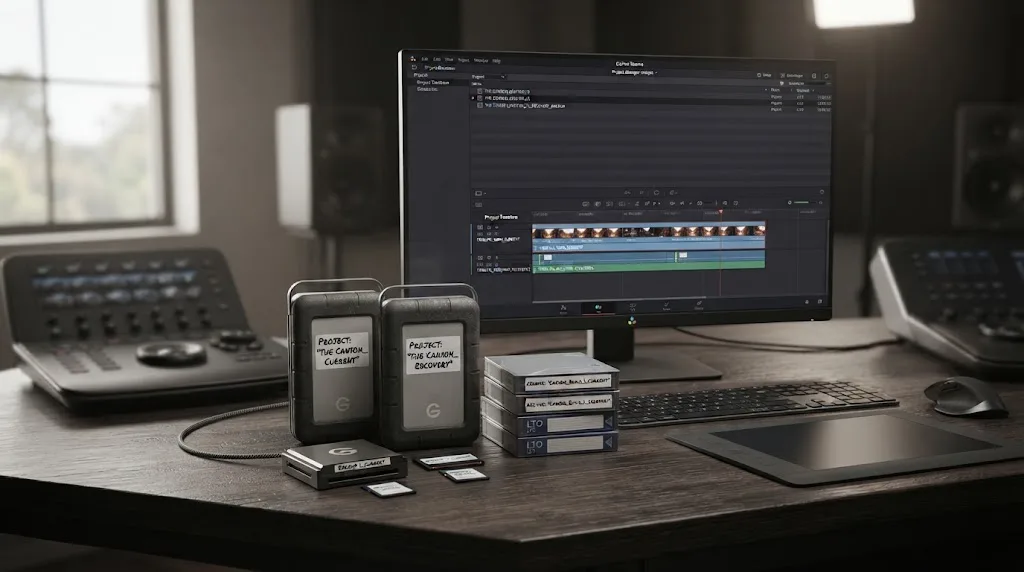
| Current state | Project_Current_2026-08-24 | The project as it opens now |
| Recovery result | Edit_01_RECOVERED_2026-08-24 | The timeline created from a backup |
| Original working edit | Edit_01_ORIGINAL | A copy you do not modify while comparing |
| Pre-deletion export | Project_PREDELETE.drp | A portable project checkpoint |
The exact names are your choice. The important part is that “current,” “recovered,” and “original” do not look interchangeable in a busy Media Pool.
After restoring, verify the timeline in passes:
- Open the recovered timeline and confirm the first and last edit points.
- Scrub through the middle, where a partial deletion or missing section may be harder to notice.
- Check video and audio track counts.
- Check compound clips, multicam clips, nested timelines, subtitles, and adjustment clips.
- Check markers, clip colors, flags, transitions, retimes, keyframes, and speed changes.
- Open a graded section and confirm that the expected clip grades and node graphs are present.
- Open a Fairlight section and confirm track routing, automation, and plug-in state.
- Relink missing media only after confirming the timeline structure.
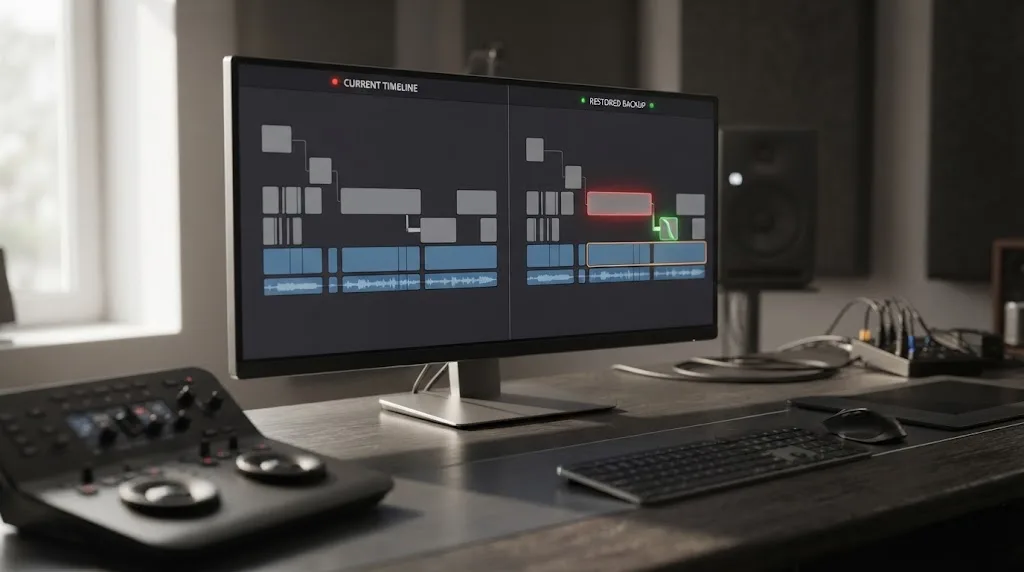
Resolve 21's Compare Timeline window adds a useful inspection step. Right-click the timeline and choose Compare with Timeline Backup, then select a snapshot. Blackmagic says the comparison displays the two timelines together and highlights their differences. The Resolve 21 New Features Guide explains the comparison workflow.
Use comparison to answer one question: did the backup contain the missing sequence? Copy forward only newer changes you can verify.
What if the restored timeline is named with Backup appended?
That is expected. Resolve restores the snapshot as another timeline so the current timeline remains available. Rename the restored copy only after you confirm which version is complete.
Do not delete the current timeline because the recovered one looks correct at first glance. Keep both until you have checked the full edit, exported the project, and confirmed that the media links work on the machine or library where the final edit will continue.
What if the restored timeline has missing media?
Missing media is separate from a missing timeline. The timeline can be recovered while its source clips are offline because the project stores edit references and the media files may live on another volume.
Use the Media Pool's relink workflow and point Resolve to the original media folder. Avoid importing a second copy of every camera card unless you need to. Duplicate source clips can make it harder to tell whether a restored edit is linked to the intended files.
If a DRT import created unlinked references, Resolve 21's automatic link option may help when the original clips already exist in the Media Pool. If filenames, reel names, timecode, or folder structure changed, inspect the result manually. A linked clip is not automatically a correct clip.
How do I load a Project Backup after deleting a timeline?
Open the Project Manager, right-click the project, choose Project Backups, select a snapshot from before the deletion, and load it as a separate recovery version. Export the current project first so you can return to today's state if the older copy is not the one you need.
Project Backups and Timeline Backups solve different problems. A Timeline Backup is selective and usually safer when one sequence is missing. A Project Backup is broader and helps when the timeline, its bin, or several related project objects disappeared together.
The official Resolve documentation describes Project Backups as periodic copies saved to a chosen location. The settings use intervals for recent work plus hourly and daily retention, and the backup location can be changed from Preferences. The Blackmagic Resolve Editors Guide describes the Project Backups workflow. Resolve 21's current manual should take precedence if a label or dialog differs in your build.
Before loading a Project Backup:
- Export the currently open project as
Project_CURRENT_BEFORE_RECOVERY.drp. - If the project is collaborative or shared, tell other editors not to open or save it during the check.
- Note the backup timestamp you want and the deletion time you are trying to avoid.
- Confirm the project backup location is available.
- Load the backup under a new recovery name where Resolve offers that choice.
After loading, look for the original timeline in the Media Pool. If it exists, export that recovered project as a new DRP and copy the timeline into the current project only after checking it. If the backup opens the wrong point in time, close the recovery copy without saving over the current project and try the next dated snapshot.
Which Project Backup date should I choose?
Choose the newest backup that is clearly before the deletion, then compare it with the current project. The newest file is not automatically best because it may already contain the deleted timeline state.
If backups are saved every 10 minutes, a deletion shortly before the next scheduled backup can appear in that next snapshot. A backup interval is not a promise that every keystroke has its own version. The Resolve documentation describes periodic backups and retention, not a complete infinite edit history. Review the documented backup schedule and retention behavior.
Work backward one snapshot at a time. When you find the first backup that contains the timeline, you have identified the recovery boundary. You can then choose between using that older project as the source or manually carrying newer changes into it.
What if Project Backups were disabled?
Project Backups cannot restore a state that was never saved. Check Timeline Backups, DRP and DRT exports, DRA archives, library copies, cloud history, and system backups before concluding that the project is unrecoverable.
Live Save also deserves a precise explanation. Live Save keeps the active project current, which can reduce loss after an unexpected shutdown, but it is not the same as a historical Project Backup. If Live Save wrote the deletion into the active project and no older copy exists, Live Save alone will not provide a time machine.
This is why a practical Resolve workflow uses more than one recovery layer. An active project, a rolling Project Backup, a Timeline Backup, and a manually exported DRP each protect a different failure mode. None of them is a substitute for the others.
Live Save protects the current project; Project Backups preserve earlier project states.
How do I recover a deleted timeline from a DRP, DRT, or DRA?
Import the oldest suitable copy into a separate recovery project, confirm the timeline is present, then move only the verified timeline or project data into your working project. Never overwrite the only current project while testing an export.
Recover from a DRP
A DRP is useful when you exported the whole project before the deletion. Start from the Project Manager and import it as a new project with a recovery name. If the import dialog or project browser offers a choice of destination library, use a library where you can identify the recovery copy easily.
Once open, find the timeline. If it is present, use the recovery project as your source of truth. You can keep editing there, or copy the timeline into the original project after checking version compatibility, media paths, and project settings.
If clips are offline, do not panic. A DRP usually carries project metadata and edit structure, while the camera originals remain in their original storage. Relink the media to the recovered project, then verify that the start timecode, duration, audio channels, and source file versions match the intended edit.
Recover from a DRT
A DRT is the right file when you exported a particular timeline but not the whole project. Import it into the project containing the original clips. Resolve 21 can set project settings from the timeline and automatically link imported references to existing Media Pool clips. See Blackmagic's Resolve 21 DRT documentation. Treat the DRT as an edit sequence export and check grades, compound clips, multicam relationships, Fusion, Fairlight, subtitles, and plug-ins separately.
Recover from a DRA
A DRA can be the strongest portable recovery option when it was created before the deletion and included the required media or generated files. Import the archive into a separate location, wait for the restore to complete, and inspect the project before changing anything.
Archives can be large, and the creator chooses what to include. A DRA made without source media can still depend on external camera files, while one made before a major edit may be complete but old. Date and scope matter more than the extension alone.
Recover from an operating-system or cloud copy
Restore a copy of the project library, project export, or archive rather than replacing the current location. Time Machine, File History, NAS snapshots, cloud version history, and workstation backup tools use different restore dialogs, but the principle is the same: recover to a new location first.
If the copy is a project library, let Resolve connect to the duplicate library rather than opening or editing raw database files. If the copy is a DRP, DRT, or DRA, import it through Resolve. The goal is to keep the current library untouched while you determine whether the older state contains the missing timeline.
Why did my timeline backup not contain the latest edit?
A Timeline Backup is a periodic snapshot, not a frame-by-frame history, so the newest available copy can still predate your last changes or already include the deletion. Use its timestamp as evidence, then compare it with the current timeline.
The backup schedule has two common surprises:
- Backups are generated at intervals, not after every operation.
- Resolve can retain a rotating set of recent, hourly, and daily states rather than every historical state forever.
The official Blackmagic feature guide explains that Timeline Backups use the Project Save and Load settings and are organized by date and time. It also describes the restored timeline as a new Media Pool timeline with Backup appended. Read the documented Timeline Backup behavior.
If the deletion happened between snapshots, you may see one backup with the timeline and a later backup without it. Choose the last snapshot with the correct sequence. If none has the complete edit, check Project Backups and external exports.
Do not assume every timeline in the project receives a fresh backup at the same moment. A backup is tied to activity and the selected settings. A project with many timelines can have different useful dates for different sequences.
Should I restore the newest or oldest timeline backup?
Restore the newest backup that still contains the missing timeline. If unsure, compare two candidates. Keep both until the complete edit is verified.
The newest backup may contain more recent color, audio, or title changes, but it may also contain the deletion. The oldest may prove the timeline existed while missing later work. Choose the best complete edit, not simply the newest timestamp.
What if I can see Timeline files in the backup folder?
Do not double-click, rename, or move the files and expect Resolve to open them as ordinary project files. Use the restore command from the originating project when possible. Blackmagic support explicitly warns that a timeline backup file is only helpful with the project it came from.
If the original project library is damaged but a Timeline file remains, do not improvise on the only copy. Duplicate the folder, note the Resolve version, and ask Blackmagic support or a qualified database recovery specialist before modifying it. A raw file experiment can remove the evidence you still have.
Does DaVinci Resolve 21 change deleted timeline recovery?
DaVinci Resolve 21 does not replace the basic Undo, Timeline Backup, and Project Backup order, but it adds a clearer timeline comparison workflow and more capable DRT import linking. These changes make verification and selective recovery easier after you find a snapshot.
The 21.0 release matters in three practical ways:
- The Resolve 21 New Features Guide documents Compare Timelines with Timeline Backup Snapshots.
- The same guide documents DRT import options for linking to existing Media Pool clips and conforming timeline data.
- Blackmagic's support center lists Resolve 21.0.4 as a current 21-series update in August 2026, so older tutorials may show different labels or menu placement.
Use the exact version when troubleshooting. A menu described for Resolve 18.5 may still identify the feature, but Resolve 21 can present a different dialog. The current Blackmagic support center and the Resolve 21 New Features Guide are better references than an old video that relies on screenshots.
What changed between Resolve 18.5, 20, and 21?
The core recovery concepts stayed stable: Timeline Backups are enabled in Project Save and Load, restored snapshots appear as separate timelines, and Project Backups are accessed from the Project Manager. Resolve 21 adds comparison and improved DRT import behavior around that foundation.
| Version reference | Recovery detail documented by Blackmagic | Practical meaning |
|---|---|---|
| Resolve 18.5 feature guide | Restore Timeline Backup from the Media Pool and create a separate Backup timeline | Use this to understand the original recovery path |
| Resolve 20 Editors Guide | Restore a dated timeline backup without overwriting the current timeline; load Project Backups from Project Manager | Use this for the broader project and timeline workflow |
| Resolve 21 New Features Guide | Compare the current timeline with a Timeline Backup; import DRT files with link and conform options | Use this for verification and cleaner timeline imports in Resolve 21 |
| Resolve 21.0.4 | Current 21-series maintenance update listed by Blackmagic in August 2026 | Confirm menus and behavior in the build you actually run |
The table is a version map, not a promise that every past menu looks identical. If a command is absent, check the current manual and the selected project object before assuming that the backup is gone.
Why is the deleted timeline missing but the media still there?
The Media Pool can still contain every camera clip while the timeline object is missing because media and edit decisions are separate project data. Reimporting the media does not restore the deleted arrangement.
Editors often see their source clips, bins, and thumbnails, then build a new timeline and assume the old sequence has been replaced. It has not. Media is the raw material; the timeline stores the order, trims, tracks, transitions, speed changes, and other edit decisions.
Before rebuilding, search for:
- A second timeline with a similar name.
- A disabled timeline in the Timelines bin.
- A restored copy created by an earlier recovery attempt.
- An autosaved or exported project from before the deletion.
- A Project Backup whose Media Pool still includes the missing sequence.
- A DRT export made for review, handoff, or editorial exchange.
If none exists, begin a new timeline only after documenting the old project name and preserving the current state. Rebuilding can be necessary, but it should be the last branch, not the first click.
What should I do after I recover the deleted timeline?
Immediately create two independent recovery points: a fresh project export and a timeline export or duplicate. Then verify the edit on the storage and Resolve version where the work will continue.
Use this post-recovery checklist:
- Rename the recovered timeline with a date and
RECOVEREDmarker. - Duplicate it before making any repair edits.
- Export the project to a new DRP filename.
- Export the recovered timeline to a DRT if the timeline may need to move separately.
- Create a DRA for a critical project when its archive scope and storage budget make sense.
- Confirm Project Backups and Timeline Backups are enabled in Preferences > User > Project Save and Load.
- Set the backup location to storage that is actually backed up, not only a cache or scratch volume.
- Copy an important export to a second physical or cloud location.
- Open a test copy to confirm that the export is readable.
- Write down the Resolve version used to create the recovery copy.
The DaVinci Resolve save and backup guide covers the prevention side of this workflow. If Resolve is failing to retain new changes, use the project save troubleshooting guide before trusting another recovery attempt.
Make a manual project export before a major version update, handoff, large structural change, or milestone you would hate to rebuild. A DRA is more appropriate when the project must travel with included media or generated files.
There is no universal schedule for every editor. The fixed rule is simpler: export before the risky operation, not after you discover the operation went wrong.
Keep editing in the copy that contains the verified complete timeline and the cleanest media links. For a single missing timeline, copying the recovered sequence into the current project usually preserves newer unrelated work. For project-wide corruption, the older Project Backup may be safer. If Resolve will not open either version, see DaVinci Resolve project won't open and treat that as a separate startup problem.
The best recovery copy is the one you can verify, export, relink, and reopen.
What if every recovery method fails?
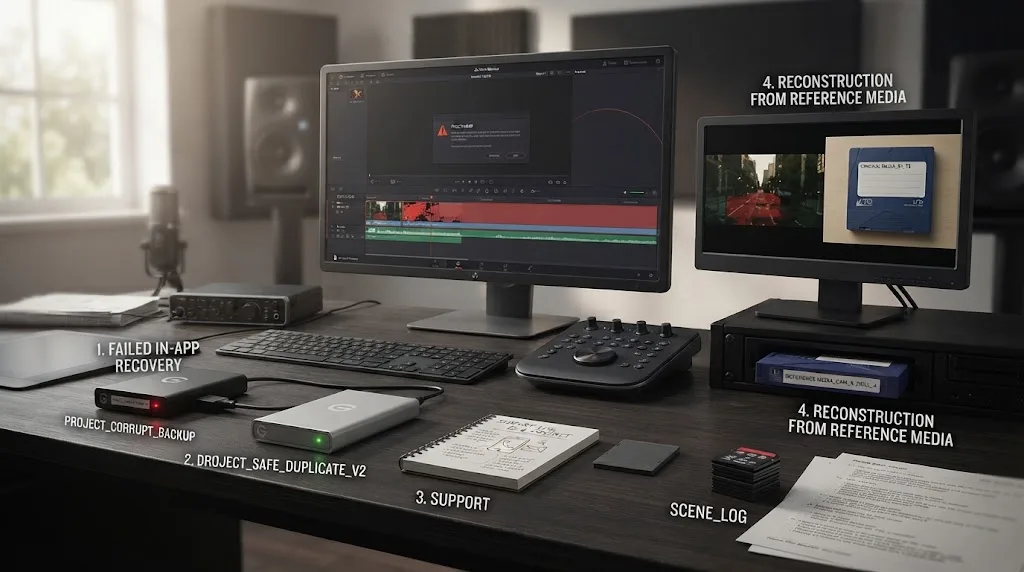
Stop modifying the original project library and preserve every remaining copy. At that point, the problem has moved from an editing mistake to a project-data recovery case.
Work through this final escalation list:
- Close Resolve without saving further changes to the damaged project.
- Duplicate the project library, backup folder, DRP, DRT, DRA, and any cloud or system snapshot.
- Record the operating system, Resolve version, project library type, and approximate deletion time.
- Check other user accounts, mounted drives, NAS snapshots, and cloud version history.
- Search for exports created for client review, handoff, grading, or delivery.
- Contact Blackmagic Design support with copies, not the only originals.
- If the project library is damaged, use a specialist who understands Resolve databases and can work on a duplicate.
Do not download an unverified “timeline recovery” utility and point it at the live database. Do not replace database files based on a forum comment without a copy. Do not assume that a file with a timestamp is a valid restore point. Those actions can turn a difficult recovery into a permanent loss.
If only the camera originals survive, preserve the old project and start a reconstruction project separately. Rebuild the sequence from review exports, edit decision lists, client notes, markers, and any rendered reference video you have. A reference export cannot restore the original edit structure, but it can guide a careful reconstruction.
How do I prevent another deleted timeline in DaVinci Resolve?
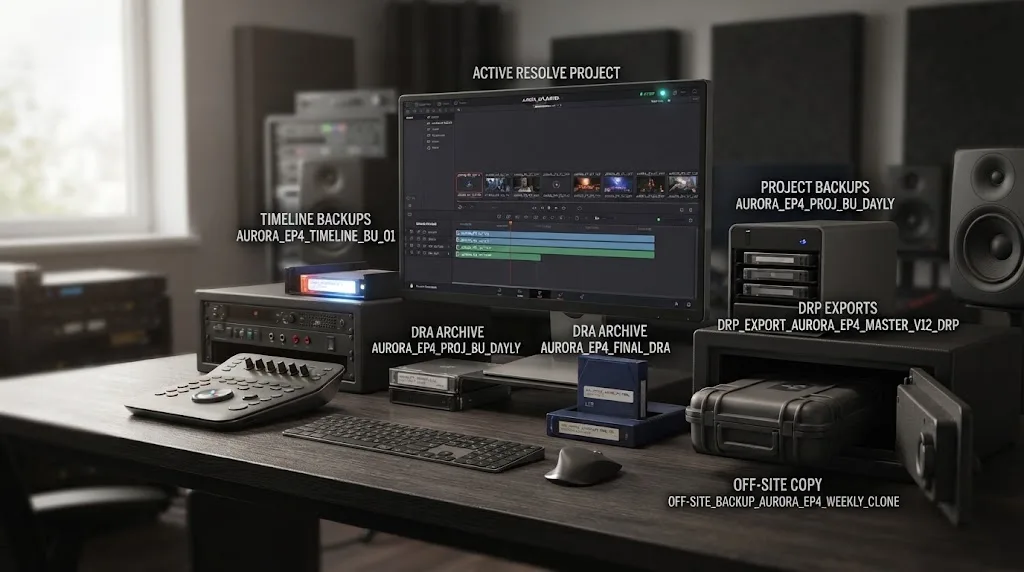
Use a layered save habit: keep Undo available during the session, enable Timeline and Project Backups, export DRPs at milestones, archive critical jobs, and keep at least one copy outside the active project storage.
The prevention plan is small enough to follow:
Before editing
- Confirm the project library opens normally.
- Enable Live Save if it fits your workflow.
- Enable Project Backups and Timeline Backups.
- Choose a backup location on storage that is included in your wider backup plan.
- Export a baseline DRP.
- Use clear project and timeline names.
During editing
- Duplicate a timeline before a risky structural change.
- Export a DRP before an update or handoff.
- Export a DRT when a timeline is a deliverable on its own.
- Keep the current edit and recovery copies visually distinct in the Media Pool.
- Check the backup location occasionally instead of assuming the checkbox guarantees a readable copy.
At a milestone
- Export a dated DRP.
- Create a DRA when the project needs a self-contained archive.
- Copy the export or archive to a second location.
- Open or import a test copy before deleting older evidence.
Blackmagic's current Resolve 21 documentation now gives editors a better reason to keep Timeline Backups: Resolve 21 can compare a current timeline against a backup snapshot. The feature is most useful when backups exist before the mistake and are easy to identify. Read the Resolve 21 comparison documentation.
The simple rule is worth repeating. A backup you have never tried to restore is an assumption. Test a copy, label it, and keep the original untouched.
Which recovery method should I use first?
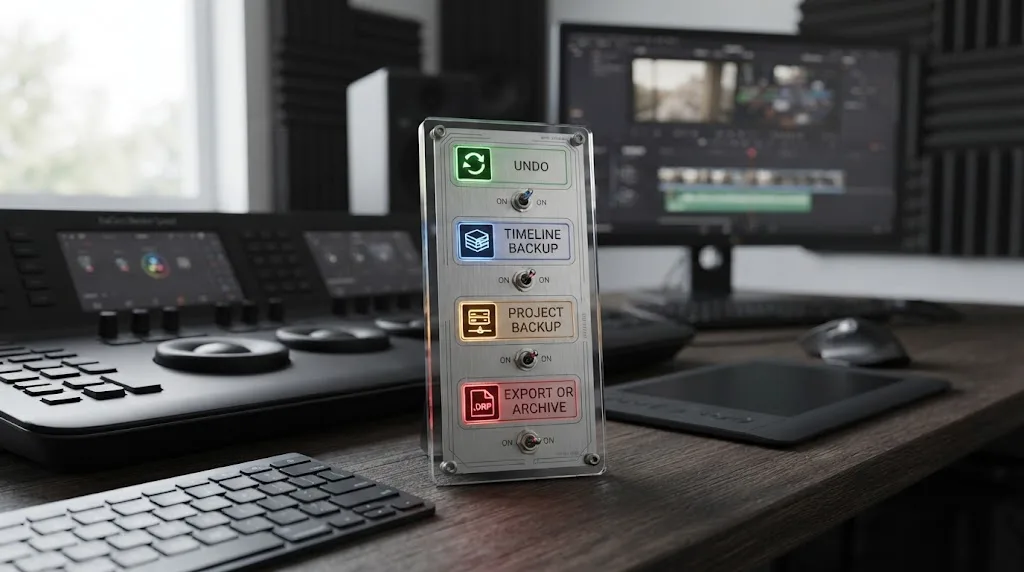
Use Undo for a just-deleted timeline in an open project, Timeline Backup after a restart, Project Backup when the whole project state matters, and DRP, DRT, DRA, library, cloud, or system copies when the in-app backups are unavailable.
Here is the short decision table:
| Your situation | First choice | Second choice | Avoid |
|---|---|---|---|
| You deleted the timeline seconds ago and Resolve is open | Edit > Undo or History | Duplicate or export the recovered state | Closing Resolve to “refresh” it |
| Resolve reopened and another timeline remains | Restore Timeline Backup | Project Backup | Searching raw backup files first |
| The timeline and related bins disappeared | Project Backup | DRP, DRA, or library copy | Saving over the current project |
| You exported a DRP before the deletion | Import the DRP as a new project | Copy the recovered timeline forward | Importing over the only current copy |
| You exported a DRT before the deletion | Import it into the existing project | Relink and conform carefully | Assuming all project settings came with it |
| You have only a backup folder | Reconnect the originating project | Contact support with duplicates | Renaming or moving raw timeline files |
| No in-app backup exists | OS, cloud, NAS, or workstation version | Rebuild from references | Assuming camera media contains edit decisions |
The answer to “davinci resolve recover deleted timeline” is therefore not one magic file path. It is a controlled sequence that preserves your newest state while searching backward for the first complete version.
Start with Undo if the project is open. Start with Restore Timeline Backup if the project is closed but a timeline remains. Start with Project Backups when the project itself changed. Use exports and external copies when Resolve's own history cannot reach the deletion.
And once you have the timeline back, export it before you do anything creative. Recovery is finished only when the recovered edit exists in a named, readable copy that you can reopen tomorrow.
Frequently asked questions
- How do I recover a deleted timeline in DaVinci Resolve 21?
- Press Command-Z on macOS or Ctrl-Z on Windows and Linux before closing the project. If the project was closed, restore a timeline backup from the Media Pool, load a Project Backup, or import an older DRP or DRA copy.
- Why is my deleted timeline still missing after I reopened DaVinci Resolve?
- Closing the project clears the active undo history, so reopening Resolve cannot normally undo the deletion. Use a Timeline Backup, Project Backup, exported DRP, project archive, or a copy of the project library instead.
- Can I recover a deleted timeline without a Project Backup?
- Yes, if Undo, Timeline Backups, an exported DRP or DRA, a copied project library, cloud version, or operating-system backup contains a pre-deletion state. If none exists, Resolve cannot recreate the edit from the camera media alone.
- Why is Restore Timeline Backup missing in DaVinci Resolve?
- The menu appears only when Resolve has a usable backup for the selected project and timeline. Check that Timeline Backups were enabled, the backup location still exists, and you are right-clicking the timeline in the Media Pool rather than an unrelated file.
- Does DaVinci Resolve 21 recover a deleted timeline as the original?
- Timeline Backup restoration creates a separate restored timeline, leaving the current timeline in place. In Resolve 21 you can also compare the current timeline with a backup before deciding what to keep.
Sources
- DaVinci Resolve 21 Reference Manual
- Blackmagic Design Support Center
- DaVinci Resolve 21 New Features Guide
- DaVinci Resolve 18.5 Beta New Features Guide
- DaVinci Resolve 20 Editors Guide
- Blackmagic Design Forum: Recovering Timeline (Blank Project)
- Blackmagic Design Forum: Restore Timeline Backup
- Blackmagic Design Forum: Project-Based Undo History
Put this guide to work with TryUncle.
Ask about the step you’re on. TryUncle sees your screen and points at the control you need, so you can keep learning in your own project.
Get TryUncle for Mac or WindowsKeep reading
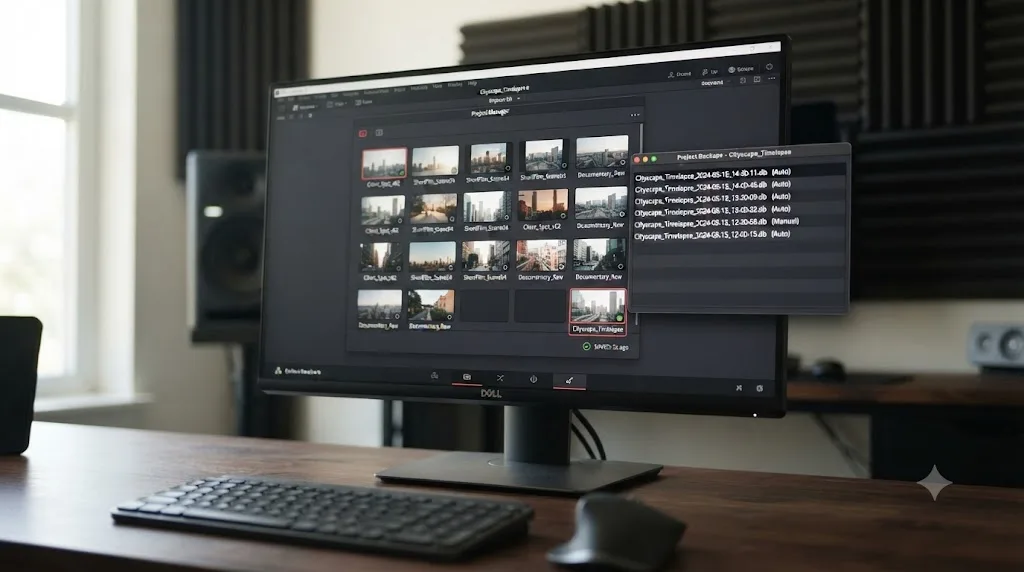
Guides · Jul 24, 2026 · 39 min
How to Save Work in DaVinci Resolve (and Never Lose It)
DaVinci Resolve saves automatically via Live Save, but Ctrl+S, Project Backups, and a .drp export still matter. Here's how each works and when to use it.
Fixes · Jul 22, 2026 · 25 min
DaVinci Resolve Project Won't Save Changes: The Real Fix
DaVinci Resolve won't save your edits? The real causes are permissions, a full drive, a corrupted database, or a stuck lock, not Live Save failing.
Fixes · Jul 10, 2026 · 23 min
DaVinci Resolve Project Won't Open: Match Symptom to Fix
Whether DaVinci Resolve hangs at 100%, crashes on launch, or shows a database error, here's the exact cause behind each symptom and how to fix it.