Articles / Guidesupdated for DaVinci Resolve 21.0.2 (July 2026)
How to Save Work in DaVinci Resolve (and Never Lose It)
Quick answer
DaVinci Resolve saves automatically through Live Save, which is on by default, so there is no project file to remember to save. Press Ctrl+S (Windows) or Cmd+S (Mac) anyway at key moments, turn on Project Backups in Preferences for timestamped versions, and use File > Export Project to save a portable .drp copy outside the database.
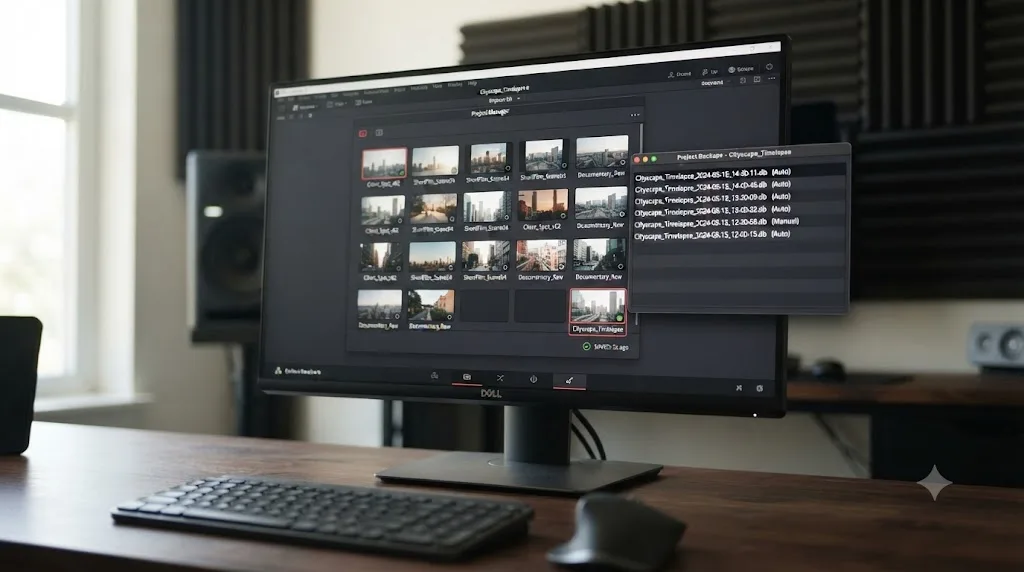
You finish a grade, close the laptop, and there's no "Save" dialog anywhere in that sequence. No asterisk in the title bar. No "unsaved changes" warning when you quit. If you've come from Premiere or Final Cut, that silence is unsettling, not reassuring.
Here's the short version: DaVinci Resolve is already saving your work while you read this sentence, through a feature called Live Save, on by default since the app first opens. But "it's probably fine" isn't the same as understanding what's actually protecting you, and there are three more layers, manual save, Project Backups, and a portable .drp export, that each cover a gap Live Save doesn't. This is one of the recurring questions in our 100,000+ member editing community, right alongside "where did my project go," and it deserves a straight answer instead of a vague "don't worry about it."
How do I save my work in DaVinci Resolve?
DaVinci Resolve saves your project automatically through Live Save, which runs the moment you open the app and needs no action from you. Press Ctrl+S on Windows or Cmd+S on Mac to force a manual save at any moment, turn on Project Backups in Preferences for timestamped rollback versions, and use File > Export Project when you want a portable .drp file you can move, email, or archive outside the project database.
That's the whole answer in one paragraph, but each piece does a genuinely different job, and conflating them is where most of the confusion on this topic comes from:
- Live Save protects you from losing unsaved changes to a crash, a power loss, or an accidental quit. It runs by default and needs nothing from you.
- Manual save (Ctrl+S / Cmd+S) gives you a deliberate checkpoint at a moment you choose, which matters more than it sounds like it should once you're on a shared or collaborative project.
- Project Backups gives you a rolling history of earlier versions you can go back to, something Live Save alone does not provide, since it only ever knows the current state.
- Exporting a .drp file gives you a portable copy that lives outside the database entirely, the only one of these four that survives a corrupted database, a wiped drive, or moving to a different machine.
None of these four things do the same job, and treating any one of them as sufficient on its own is how people lose work they were sure Resolve was protecting. The rest of this guide goes through each layer in the order that matters, starting with the one thing that confuses almost everyone coming from another editor: there's no file to look for in the first place.
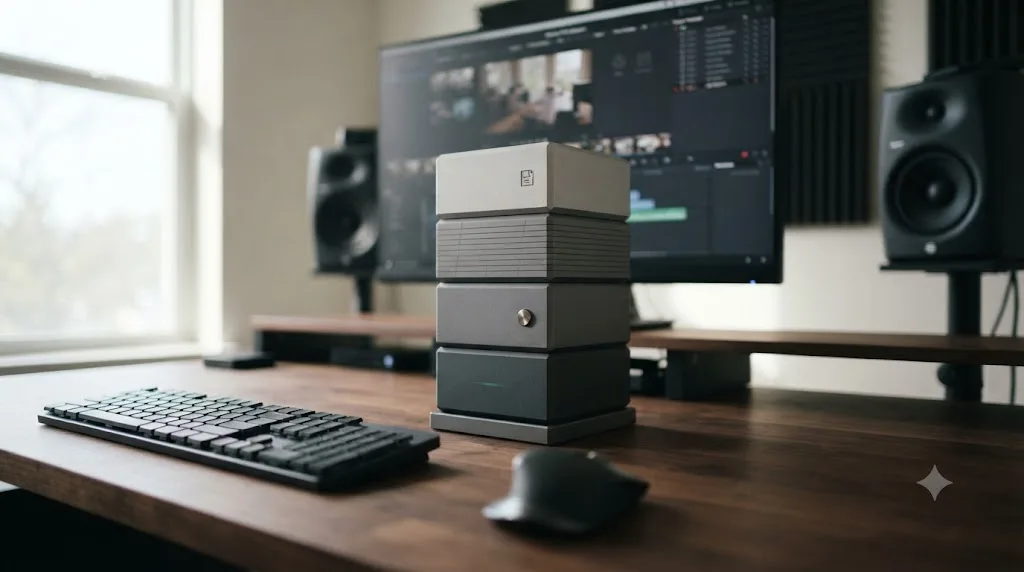
Why doesn't DaVinci Resolve save a project file like other editors?
DaVinci Resolve stores every project inside an internal database rather than as a standalone file you can find, rename, or drag into a folder. That single design choice explains almost every "where did my project go" question beginners ask in their first week.
Premiere Pro, Final Cut Pro, and most other NLEs write a project file, a .prproj or a .fcpxml-backed bundle, sitting somewhere on disk you chose. DaVinci Resolve doesn't work that way. According to a guide covering exactly this distinction, "any item that isn't a media file will be stored in the database," and this unique approach "may be a tad confusing for beginners who are accustomed to other software that saves each project as an individual file," per PremiumBeat's guide to working with DaVinci Resolve project files. The same guide notes that "a quick Google search for 'DaVinci Resolve save location' will bring up hundreds of frantic search queries from worried users," which is a fair description of how this specific confusion plays out at scale.
There is no standalone "Resolve Project" file sitting on your desktop, and looking for one is the wrong search entirely. Your project lives inside a database that Resolve itself manages, opened and closed only through the app's own Project Manager window, never through Finder or File Explorer.
That distinction has a real, practical consequence: you manage projects exclusively from inside DaVinci Resolve. The same guide is direct about the risk of ignoring that boundary, calling it "a big no-no" to rename or move project data outside the app, unlike Premiere Pro, where poking around in Explorer or Finder is standard practice. Do that to a DaVinci Resolve database folder and you risk corrupting the very thing you were trying to back up.
This isn't Blackmagic being difficult for no reason. A single database means every project on a machine lives in one place, gets backed up together, and can be handed off as a unit if you ever need to migrate to a new computer. The tradeoff is that the mental model beginners bring from other editors, "find my file, copy my file, back up my file," simply doesn't map onto how Resolve works, and pretending otherwise is exactly what leads to lost work later in this guide.
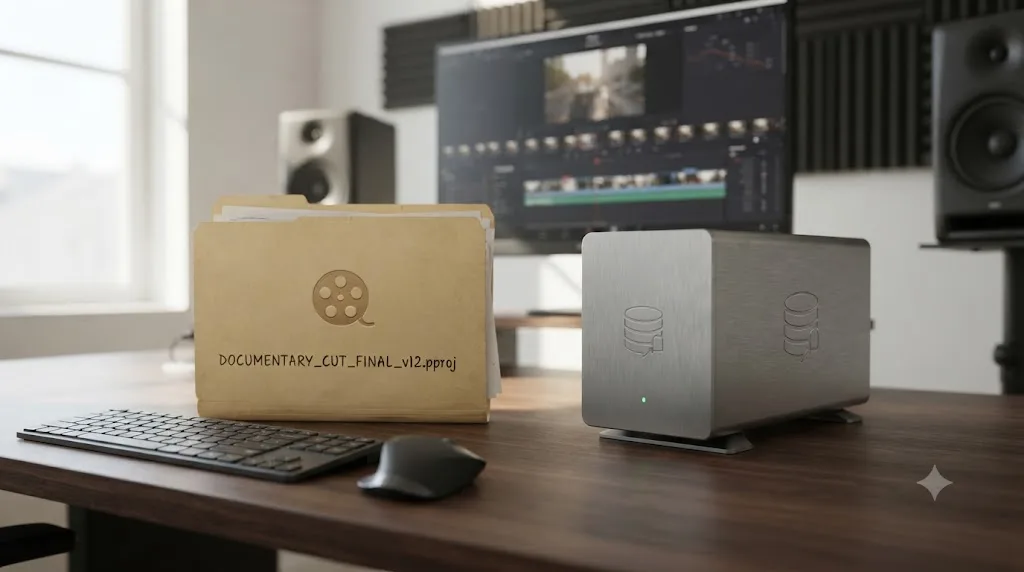
What is Live Save, and is it actually protecting me right now?
Live Save is DaVinci Resolve's default, always-on autosave mechanism, and if you haven't touched this setting, it is running in the background for every project you've ever opened.
DaVinci Resolve's own manual describes Live Save as a "progressive, fast, always-on autosave mechanism that 'saves as you go,'" per the mirrored reference manual. It doesn't treat every page identically, though, and the difference is worth knowing:
| Page | How Live Save behaves |
|---|---|
| Cut, Edit, and Fairlight | Changes save automatically and continuously as you work |
| Fusion and Color | Changes save when you switch clips, or periodically in the background |
That distinction matters more on a heavy Fusion comp or a long multi-node color grade, where "periodically" means Live Save isn't necessarily capturing every single node tweak the instant you make it, the way it does for a cut on the Edit page. It's still protecting you far better than having no autosave at all, just not with the exact same granularity across every page.
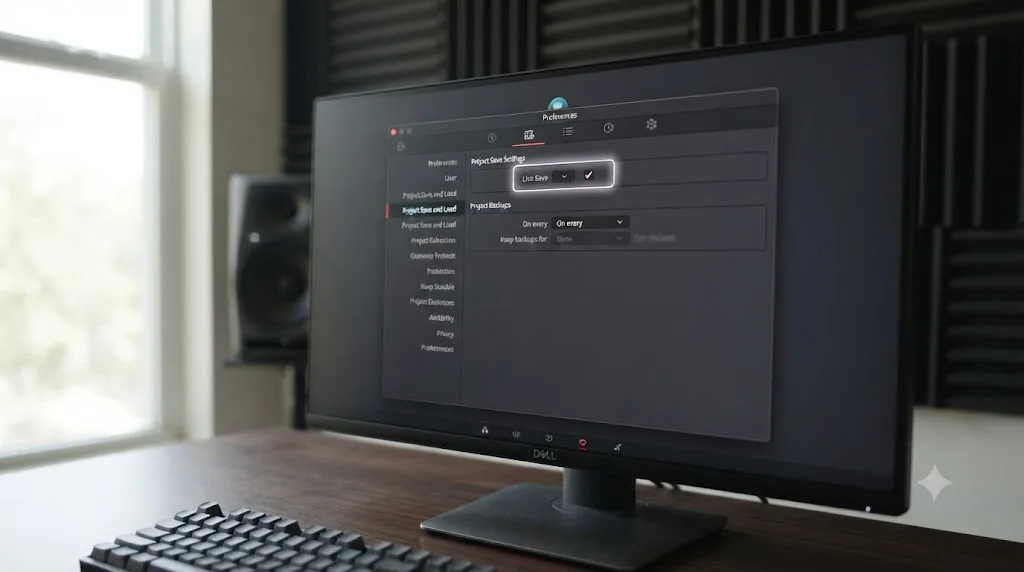
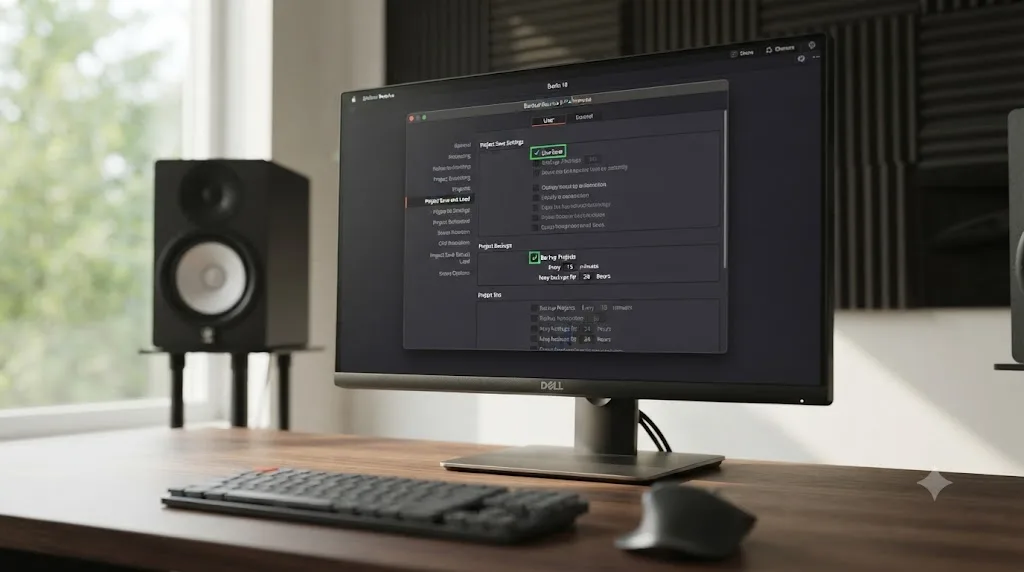
Live Save has been on by default since it was introduced, and Blackmagic's own documentation calls it highly recommended to prevent the loss of work. You can confirm it's active in about ten seconds:
- Open DaVinci Resolve, then go to DaVinci Resolve > Preferences on Mac or File > Preferences on Windows.
- Switch from the System tab to the User tab.
- Open Project Save and Load.
- Confirm the box next to Live Save is checked.
If it's already checked, which it almost certainly is unless someone deliberately turned it off, you're covered against the single most common way people lose work: a crash, a forced shutdown, or accidentally quitting mid-edit. What Live Save cannot do is give you back an earlier version of your grade from an hour ago, warn you before a database gets corrupted, or survive a wiped hard drive. Those gaps are exactly what the rest of this guide covers.
Do I still need to press Ctrl+S or Cmd+S if Live Save is already on?
Yes, and not because Live Save is unreliable. Manual save gives you something Live Save structurally can't: a moment you deliberately chose, right before you're about to do something you might regret.
The keyboard shortcut is the same across every page in DaVinci Resolve: Ctrl+S on Windows and Linux, Cmd+S on Mac, confirmed across current keyboard shortcut references for the app. It forces an immediate, explicit write to the database, the same underlying action Live Save is already doing continuously, just triggered by you instead of by a background timer.
So when does that distinction actually matter?
- Before a destructive edit. Ripple deleting across a locked track, running a batch color match across every clip in a bin, or applying a Fusion effect to a compound clip you can't easily undo cleanly. A manual save right before gives you a known-good point to fall back to if the result is wrong.
- Before closing for the day. Live Save almost certainly already caught your last change, but a deliberate save is the difference between "probably fine" and "confirmed fine" when you're about to walk away from the machine.
- On any Collaborative Workflow project. More on this below, but on a shared database, a manual save is also how your changes actually become visible to the colleague sitting one desk over.
- Right before updating Resolve, your GPU driver, or your OS. None of those should touch your project database, but "should" and "a version upgrade never once touched a database format in a way that mattered" are different claims, and the second one isn't true across every Resolve release, a point the next few sections cover in more detail.
Manual save costs you two keystrokes and gives you a checkpoint at exactly the moment you chose it, which is a genuinely different thing from an autosave that fires on its own schedule. Old habits from Premiere or Final Cut aren't wrong here. They're just no longer the only thing standing between you and lost work, which is a better position to be in, not a worse one.
How do I turn on Project Backups, and why isn't Live Save alone enough?
Live Save only ever knows one thing: the current state of your project. It has no memory of what your timeline looked like an hour ago, which is exactly the gap Project Backups exists to close.
Project Backups is a separate checkbox in the same preferences panel as Live Save, and it works on a completely different principle. Instead of continuously overwriting one live state, it saves complete, timestamped copies of your project at defined intervals, on what the manual describes as "a method that's analogous to a GFS (grandfather father son) backup scheme," per the reference manual's Project Backups page. Here's the actual retention schedule, straight from that manual:
| Backup tier | Interval | How many are kept |
|---|---|---|
| Recent | Every 10 minutes | Roughly six from the last hour |
| Hourly | Once per hour | 8 backups covering the current day |
| Daily | Once per day | 5 days of daily backups in rotation |
That's a genuine version history, not just a single safety net. If you realize forty minutes into a session that a change you made half an hour ago was a mistake, Project Backups is the only one of these four mechanisms that can actually take you back there. Live Save has already overwritten that moment.
Turning it on takes the same handful of clicks as checking Live Save:
- Open Preferences > User > Project Save and Load.
- Check the box next to Project Backups.
- Confirm the backup location, and if you have the option, point it at a fast local drive rather than a network share.
Project Backups and Live Save live in the same preferences panel and get confused for the same feature constantly, but they solve two different problems: one protects your current state, the other gives you a history to go back to. Turn both on. There's essentially no cost to running them together, and the two combined are what actually gets you the "I never lose work in Resolve" reputation the app has among people who've set it up properly.
If you set this checklist up as part of a broader first-project routine rather than mid-crisis, our guide to what to do after installing DaVinci Resolve, before your first project covers Live Save and Project Backups alongside the other settings worth locking in before you ever import a clip.
How do I restore a Project Backup if something goes wrong?
Restoring a backup doesn't touch your current project at all, which is the detail that makes it safe to try even when you're not entirely sure you need it.
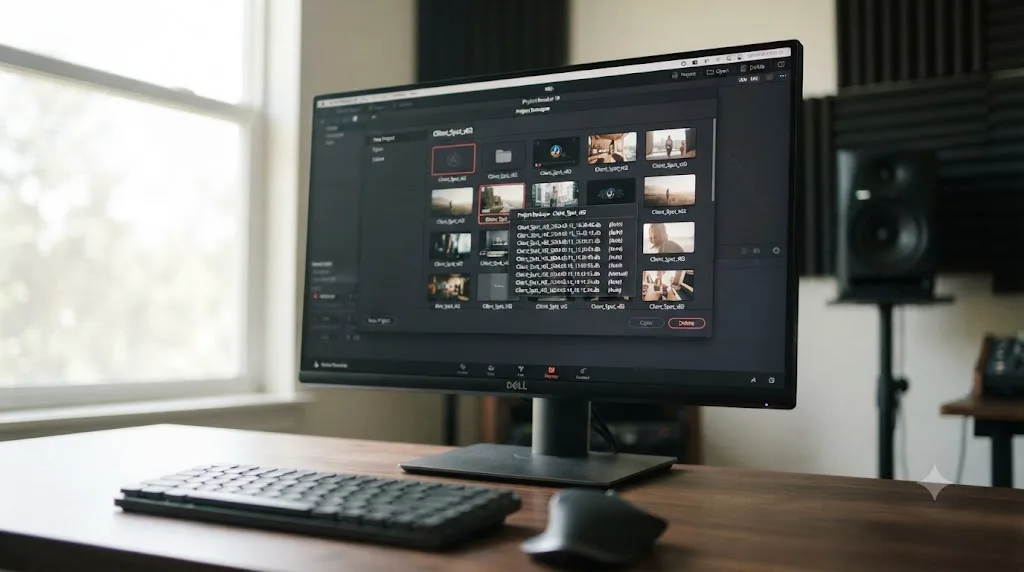
- Open Project Manager from within DaVinci Resolve.
- Right-click the project you want to restore a version of.
- Choose Project Backups from the contextual menu.
- Look through the timestamped list for the version closest to, but before, the point things went wrong.
- Click Load.
Opening a project backup creates it as a separate, independent project in Project Manager. It never overwrites your current one, which means you can open a backup, look around, decide it's not the version you needed, close it, and try a different timestamp with zero risk to the project you started with. The one real limitation worth knowing: you can only restore one backup at a time, so if you need to compare two different timestamped versions side by side, you're opening them as two separate projects rather than toggling between them inside one.
This is also where a genuinely painful real-world story earns its place. Larry Jordan, the longtime editing trainer and consultant, described losing his entire project library after a mistake with a critical folder: "Recently, I made a mistake that destroyed all my existing projects," and warned readers directly about the folder responsible, telling them to "NEVER! delete it, unless, by intent, you want to trash all existing projects and start fresh," in his account of the incident.
A professional editor and trainer lost his entire DaVinci Resolve project library to one wrong move against the database folder, which is exactly the failure Project Backups and a .drp export both exist to make survivable. If Jordan's projects had been individually exported as .drp files sitting on a separate drive, that mistake would have cost him an afternoon of reimporting instead of the projects themselves. That's the exact argument for the next section of this guide.
If you're dealing with a save that's actively failing rather than recovering from a crash you've already moved past, our dedicated guide to DaVinci Resolve projects that won't save changes walks through permissions, disk space, and database corruption as distinct causes, each with its own fix.
How do I export a DaVinci Resolve project as a .drp file?
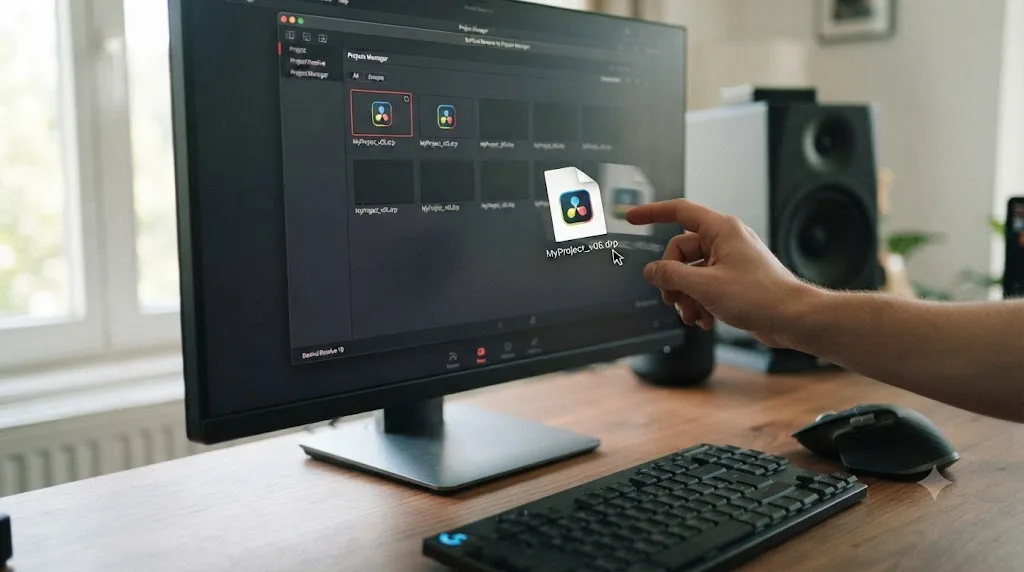
A .drp file is the only piece of this whole system that lives outside Resolve's database entirely, which is exactly what makes it the right tool for moving a project between machines, handing it to a collaborator, or archiving a finished job.
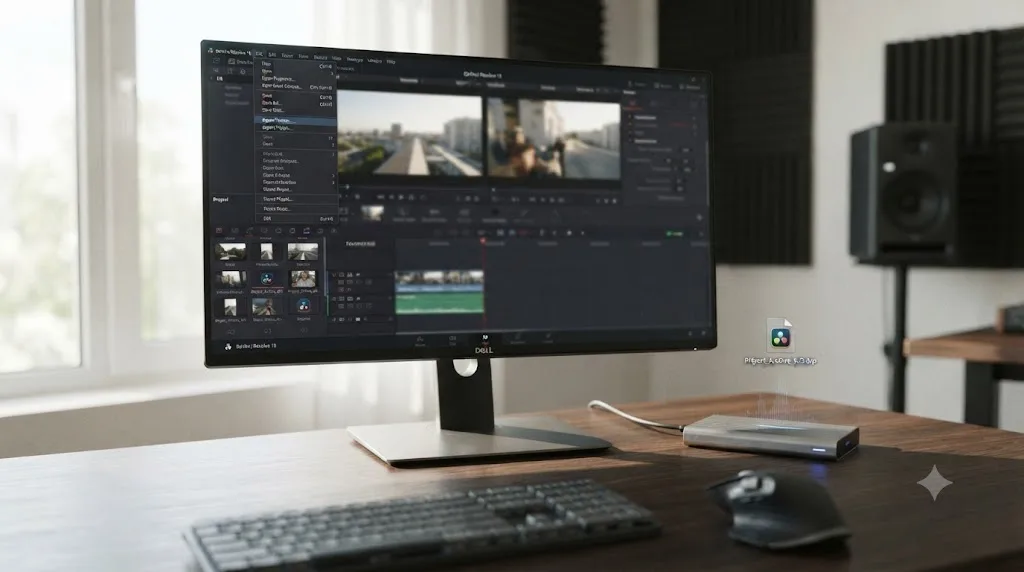
- Open the project you want to export, or select it in Project Manager.
- Go to File > Export Project, or right-click the project in Project Manager and choose Export Project.
- Name the file and choose a location outside your Resolve database, ideally on a separate drive.
- Confirm the export finished. You now have a
.drpfile you can move, email, or store however you like.
According to DaVinci Resolve's own manual, .drp files exist specifically so you can "exchange files with other DaVinci Resolve users," and a .drp file can be double-clicked to automatically launch Resolve and import the project directly, per the reference manual's section on importing and exporting projects.
Here's the part that trips people up: a standard .drp export carries your timeline, your edits, your color grades, and your effects, but it does not carry your media. Open that .drp file on a different machine, or even the same machine after your footage has moved, and you'll get relinking prompts for every clip until the media is back in a location Resolve can find. That's expected behavior, not a bug, and it's exactly why the next section covers the version of export that does bundle media.
A .drp file is the one save mechanism on this entire page that survives a corrupted database, a wiped drive, or a fresh install on a new computer, because it never lived inside the database it came from in the first place. Export one at every real milestone. Larry Jordan's own guidance on the habit is blunt: "Personally, I enable live backups, then archive projects after they've been done and approved," per his article on managing DaVinci Resolve projects, which is the same two-tier approach this guide has been building toward: continuous protection while you work, a deliberate export once the work is actually done.
What's the difference between Export Project and Export Project Archive?
Both create a portable file outside your database. Only one of them brings your footage along, and picking the wrong one for the job is the single most common mistake people make the first time they try to move a project.
| Export Project (.drp) | Export Project Archive (.dra) | |
|---|---|---|
| File extension | .drp | .dra |
| Includes media files | No, unless you separately gather and move it | Yes, if you check the Media Files box during export |
| Typical file size | Small, often a few megabytes | Large, since it includes your actual footage |
| Best for | Sending edits to a collaborator who already has the media, or archiving structure without footage | Moving a project to a new computer, or archiving a finished job completely self-contained |
| How to trigger it | File > Export Project, or right-click in Project Manager | Right-click the project in Project Manager and choose Export Project Archive |
To create a full archive: right-click your project in Project Manager, choose Export Project Archive, name it, and check the Media Files checkbox before confirming. Leave that box unchecked and you get the same lightweight, media-free export as a standard .drp, just under the archive workflow instead.
Export Project gives you a small file that assumes the media is already where it needs to be. Export Project Archive gives you a self-contained package that assumes nothing. If you're sending a project to a collaborator working from the same shared media drive, .drp is faster and smaller. If you're handing a project to someone who's never touched your footage, or archiving a job you might not open again for a year, the archive with media checked is the one that won't leave you relinking two hundred clips later.
How do I import a .drp or .dra file back into DaVinci Resolve?
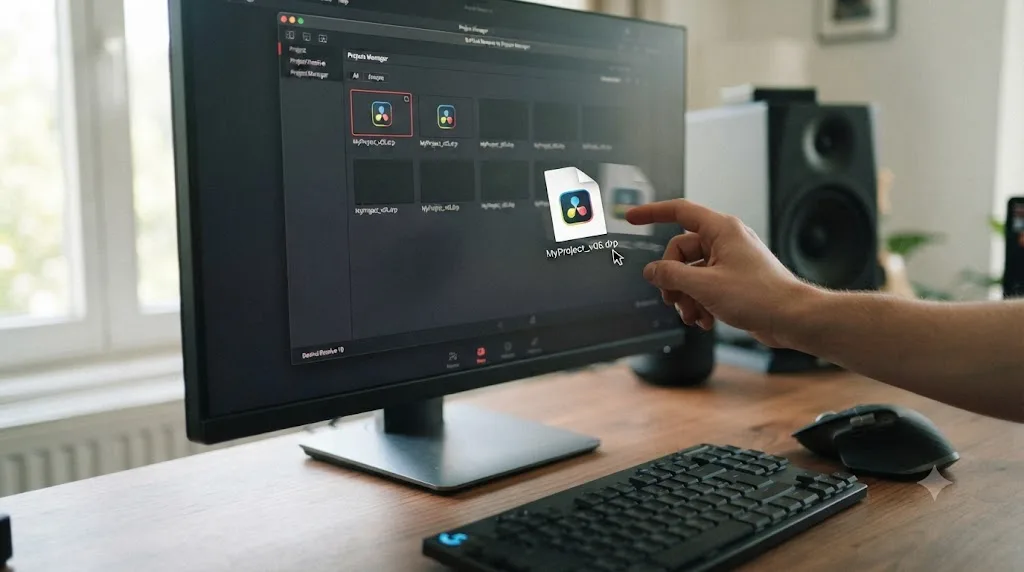
Getting a project back in is faster than exporting it, and DaVinci Resolve gives you three equivalent ways to do it, per its own manual on importing and exporting projects:
- Double-click the file. A .drp file is set up to launch Resolve and import itself directly, the fastest path if Resolve is already installed on the machine.
- Drag and drop it into Project Manager. Open Project Manager, then drag the .drp or .dra file directly into the window.
- Use the Import button or right-click menu. Inside Project Manager, click Import, or right-click any empty area and choose Import, then browse to the file.
There's a fourth option worth knowing if you're bringing a project onto a genuinely different machine, one where your drives are mounted with different letters or paths than the computer that exported it. Hold the Option key while right-clicking an empty area of Project Manager and choose Import+, which lets Resolve reconfigure the gallery and media paths to match the new workstation instead of failing to find files at their old locations, per the same manual reference.
A standard Import works fine when you're reopening a project on the same machine or the same network path it was exported from. Import+ exists specifically for the moment your drive letters or folder structure don't match anymore. That single detail saves you a relinking session that otherwise looks identical to a genuine missing-media problem, and it's easy to miss entirely since it's tucked behind a modifier key most people never try.
If a project imports but then refuses to open, that's a different and more specific failure than anything covered in this section. Our guide to a DaVinci Resolve project that won't open covers database corruption, version mismatches, and the full restore path from a .resolve.backup file if a standard import gets you partway there and then stalls.
Save As vs Save Copy As: what's the actual difference?
Both create a second copy of your project under a new name. The difference is which one you end up actively editing the moment the click finishes, and that distinction matters more than the near-identical names suggest.
| Save As | Save Copy As | |
|---|---|---|
| Creates a new named copy | Yes | Yes |
| Which project you're editing afterward | The new copy, immediately | The original project, unchanged |
| What happens to the version you were just working on | Frozen exactly as it was at the moment you saved | Continues forward, with the new copy as a separate snapshot |
| Best for | Branching a project in a new direction without touching the original | Taking a quick safety snapshot before a risky change, without switching away from your current work |
Use Save As when you genuinely want to fork the project, a client wants a "safe" cut and a "director's" cut as two separate deliverables, for instance, and you're fine continuing your work in the new branch from that point forward. Use Save Copy As when you want the safety net without the context switch, right before a big structural change to your edit, so the pre-change version exists as a snapshot while you keep working in the project you already had open.
Save As switches you into the new copy. Save Copy As leaves you exactly where you were, with the copy sitting untouched as a snapshot behind you. Mixing these two up is a common, low-stakes mistake, since you generally don't lose anything either way, but it can leave you confused about which named project actually has your latest work if you're not sure which one you used.
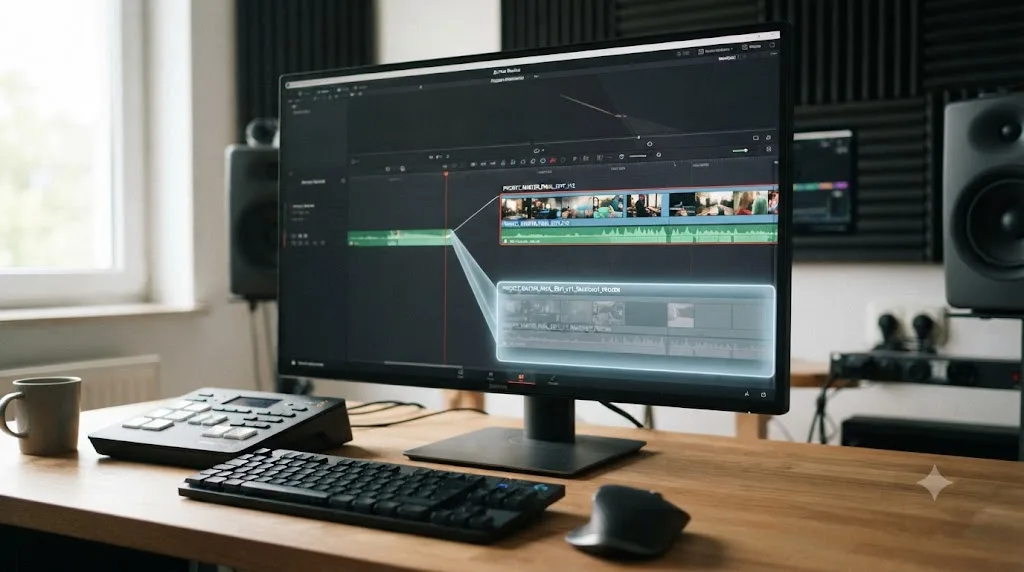
Where does DaVinci Resolve actually store my project database?
Every project lives inside one folder Resolve manages on your system drive, and its exact location differs by platform.
| Platform | Default Resolve Disk Database path |
|---|---|
| macOS | ~/Library/Application Support/Blackmagic Design/DaVinci Resolve/Resolve Disk Database |
| Windows | C:\Users\[YourName]\AppData\Roaming\Blackmagic Design\DaVinci Resolve\Support\Resolve Disk Database |
You will not typically need to open this folder directly, and that's by design. Everything you do with a project, saving, backing up, exporting, importing, happens through Resolve's own interface, specifically so you never have a reason to touch this folder from Finder or File Explorer. Larry Jordan's own advice on this exact folder is as direct as advice gets: never delete it "unless, by intent, you want to trash all existing projects and start fresh," since "this folder will last as long as you use Resolve," per his account of losing his own project library to exactly that mistake.
There is exactly one legitimate reason to know this path: backing up the whole thing before you do something risky to your operating system, reinstalling Resolve, migrating to a new computer without exporting every project individually, or running a disk utility you're not entirely sure won't touch that folder. In those specific cases, copying the entire Resolve Disk Database folder to an external drive first is cheap insurance, and it's the same advice covered in our guide to DaVinci Resolve stuck installing on Mac, which walks through exactly when that copy step matters before you run an uninstaller.
Your entire project library sits inside one folder Resolve controls, and the correct number of times to touch that folder directly from outside the app is zero, except to copy it somewhere safe before doing something risky to the machine it lives on. Manage projects from Project Manager. Back up the folder itself only as a last-resort insurance policy, never as your everyday workflow.
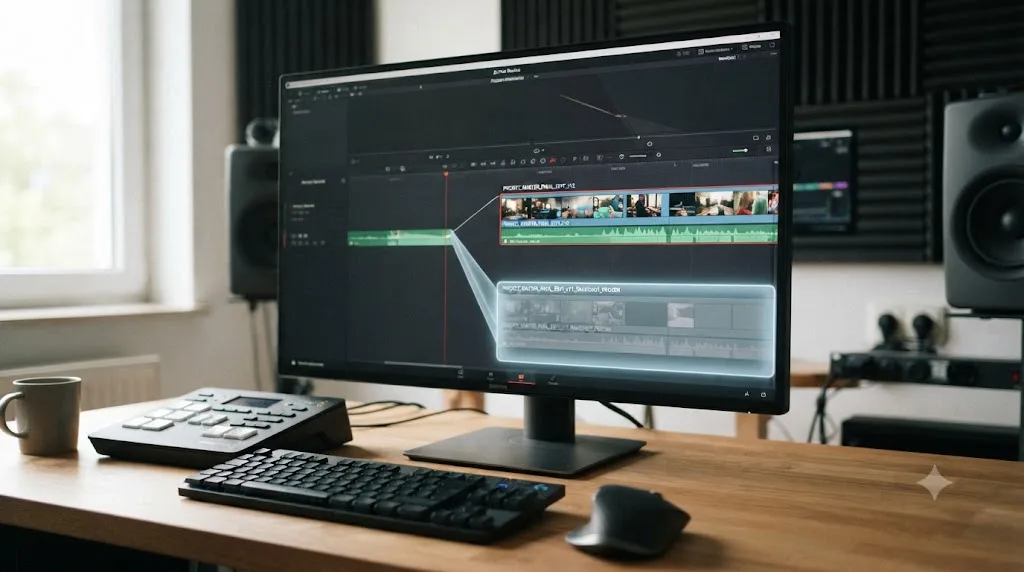
Disk Database vs PostgreSQL: does that change how saving works?
For almost everyone reading this, no, because almost everyone reading this is on the default disk database, and everything above this section describes exactly how it behaves.
DaVinci Resolve actually supports two kinds of project database. The disk database is the default, needs zero setup, and is built for one editor working alone on one machine. PostgreSQL is the alternative, and it exists specifically for a team sharing one live project database across a network, the setup a post house needs so an editor and a colorist on different workstations can open the same project at the same time.
If you're on a shared PostgreSQL database instead of the default, saving still works exactly as described above, Live Save, manual save, Project Backups, and .drp export all still apply, with one addition: bin and timeline locking. Only the person actively working in a specific bin or timeline holds write access to it at that moment. Everyone else sees a read-only copy until the active editor moves away or closes it. That's not a bug or a limitation. It's the mechanism that stops two editors from silently overwriting each other's work on the same shared project, and it means a "can't save" moment on a team project is more often a lock held by a colleague than a genuine save failure.
If you're a solo editor and you've never deliberately set up a PostgreSQL connection, you're on the disk database, and this whole section is background information rather than something you need to act on. If you do eventually join a shared team setup, the full breakdown of save failures on a networked database covers the locking behavior in more depth, including what changes once Blackmagic Cloud's Collaborative Workflow is turned on, or once that PostgreSQL database itself is hosted on a NAS rather than a workstation, which is exactly where the next two sections pick up.
Does Blackmagic Cloud's Collaborative Workflow change how you save?
Yes, in one specific way: turning on Collaborative Workflow removes your ability to disable Live Save entirely, because the feature depends on every collaborator's changes propagating continuously rather than in occasional batches.
According to DaVinci Resolve's own manual, "Live Save is automatically turned on and cannot be disabled" once Collaborative Workflow is enabled for a project, per the mirrored reference manual. If you're on a Blackmagic Cloud or shared collaborative project and the Live Save checkbox appears greyed out, that's expected, not a bug you need to work around.
Everything else you've read in this guide still applies on a collaborative project, and honestly matters more, not less. Project Backups still runs the same 10-minute, hourly, and daily schedule. A manual save with Ctrl+S or Cmd+S still gives your changes a deliberate checkpoint, and on a shared project, it's also part of how your edits actually become visible to a collaborator working elsewhere. Exporting a .drp copy at real milestones is still the only mechanism that survives a database problem entirely, and it's arguably more valuable here, since a shared database being unreachable affects everyone on the team at once rather than just you.
Collaborative Workflow takes away your choice about Live Save specifically, but it adds nothing that replaces manual saves, Project Backups, or a portable .drp export. Treat a shared project with exactly the same four-layer approach as a solo one. The stakes of getting it wrong are just spread across more people.
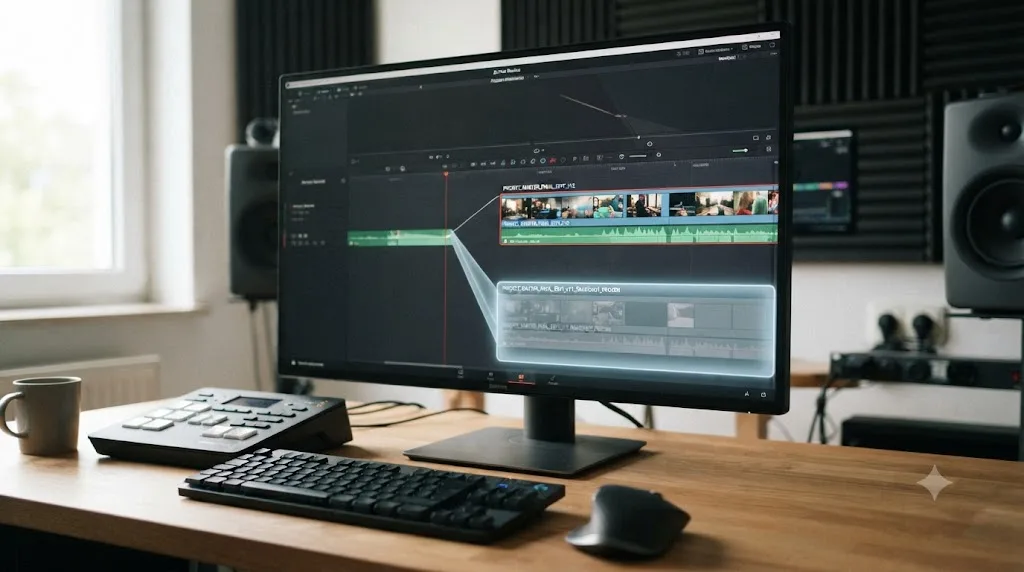
Does saving work differently on a network drive, a NAS, or a shared project server?
It depends entirely on what's actually sitting on the NAS, your media or the database itself, and that distinction is where most of the confusion around network storage comes from.
If you're a solo editor keeping your footage on a NAS for capacity while your project database stays on your own machine's local disk, nothing in this guide changes. Live Save, manual save, Project Backups, and .drp export all behave exactly as described above, because the database, the thing they all actually act on, never left your local drive. The NAS is just a bigger disk for your clips.
The rules genuinely change only when the PostgreSQL database itself is hosted on the NAS so a small team can share one live project. Here, one setup mistake causes more save-related grief than any other: putting the live database on an editor's workstation instead of on the NAS itself. A guide to setting this up correctly calls it "the single most frequent collaborative Resolve failure mode," and explains exactly why it breaks things: "when that workstation sleeps, restarts for an update, or goes home for the night, every other editor loses access to the project database," per Need to Know IT's guide to DaVinci Resolve NAS setups. The database belongs on the NAS, always on, always reachable, never on someone's laptop that closes at 6pm.
The second common mistake is the opposite kind of misplacement: putting render cache on the NAS instead of keeping it local. The same guide is blunt about the cost, noting that render cache "must always live on local NVMe in each workstation, never on the NAS," since doing otherwise "saturates your 10GbE link for every other editor every time one person renders a node." Set your working folders explicitly, in Preferences > System > Working Folders, and point cache locations at a local drive rather than letting them default to wherever the project's media happens to sit.
| Setup | What's on the NAS | Does anything in this guide change? |
|---|---|---|
| Solo editor, footage on NAS, database on local disk | Media only | No, every save mechanism above behaves identically |
| Small team, PostgreSQL database hosted on the NAS | Database plus media | Yes, add bin and timeline locking between collaborators, described above |
| PostgreSQL accidentally run on an editor's workstation | Database | High risk, the whole team loses saving access the moment that machine sleeps or restarts |
A shared Resolve database going offline affects every collaborator connected to it at the same moment, which is exactly why a portable .drp export matters more on a networked setup, not less. If your team's NAS or database server goes down mid-session, Live Save has nowhere to write, and the last .drp export any of you made becomes the actual floor under how much work is at risk. Export one after every milestone on a shared project, the same habit this guide has recommended for a solo one, just with higher stakes if you skip it.
Do I need to worry about saving when I upgrade DaVinci Resolve to a new version?
Yes, and it's worth taking seriously, because a major version upgrade is the one moment where DaVinci Resolve deliberately changes your database in a way you can't casually undo.
When you install a new major version of Resolve and open it for the first time, Project Manager can flag your existing project library as upgradable and offer an Upgrade Project Library button. Click it, and Resolve rewrites your database to the new version's format. That's normal, expected behavior, not an error. What catches people off guard is what happens next: an upgraded database won't open in the older version of Resolve again. It's a one-way door, not a reversible setting.
Alex Hohenthaner, writing for CineD about safely updating Resolve, is direct about why that matters and when to act on it: "You should do this regularly anyway since the database stores everything you are doing in Resolve including all your projects. But it is especially important when switching to a new version," and warns that the risk compounds "even more important when the new version...insists on upgrading your database, which will make it unusable for previous releases of the program," per his article on updating DaVinci Resolve safely. His broader point is one worth sitting with if you've ever been burned by a buggy point release: "While the company tries to react quickly to buggy versions it may take weeks or even months for them to fix all of it with a newer version." If the new release turns out to have a workflow-breaking bug, you want the option to go back to the version that worked, and an already-upgraded database takes that option away from you.
The fix is the same habit this guide has already built toward, just timed to a specific moment instead of a general schedule:
- Before you click Upgrade Project Library, back up your entire Resolve Disk Database folder to a separate drive, or at minimum export every active project as a .drp file.
- Keep the previous version of DaVinci Resolve's installer somewhere you can find it, in case you need to roll back and reopen that pre-upgrade backup.
- Only then click Upgrade, knowing you have a path back if the new version misbehaves on your specific machine or footage.
- If something goes wrong after upgrading, reinstall the older Resolve version and restore the pre-upgrade database backup rather than trying to downgrade an already-upgraded database, which doesn't work.
Upgrading DaVinci Resolve's project database is a one-way door: once you click Upgrade Project Library, that database won't open in the older version again. Backing it up first costs a few minutes and an external drive. Skipping it costs you the ability to undo a bad update, which is a much worse trade than it sounds like in the moment you're clicking through the installer.
What if DaVinci Resolve won't save at all, or my changes vanish on reopen?
That's a different problem from anything covered above, and it deserves its own dedicated troubleshooting path rather than a quick fix buried in a guide about how saving is supposed to work.
If Live Save is confirmed on and you're still seeing a save fail, hang, or silently revert, the cause is almost always one of four things: a folder permissions block, a drive that's fuller than it looks, a stuck read-only lock left by a previous crash, or a corrupted project database record. Each has a distinct, fast fix, and reinstalling Resolve fixes none of them, since your database, preferences, and permissions all live outside the application's own install folder entirely.
| What you're seeing | Likely cause |
|---|---|
| Save appears to work, but changes are gone on reopen | Folder permissions block |
| The project opens read-only | A stuck lock from a crashed session |
| Save hangs, freezes, or fails silently | Drive full, nearly full, or disconnected |
| "Failed to Save Project" error dialog | Corrupted project database |
Our full guide to a DaVinci Resolve project that won't save changes matches each of these symptoms to its exact fix, including the Full Disk Access setting on Mac that trips up more editors than any other permissions check, and the Optimize Database option in Project Manager that's resolved documented cases of a corrupted database directly. If your project won't even open at all, rather than failing specifically to save, that's a related but distinct failure covered start to finish in our guide to a project that won't open.
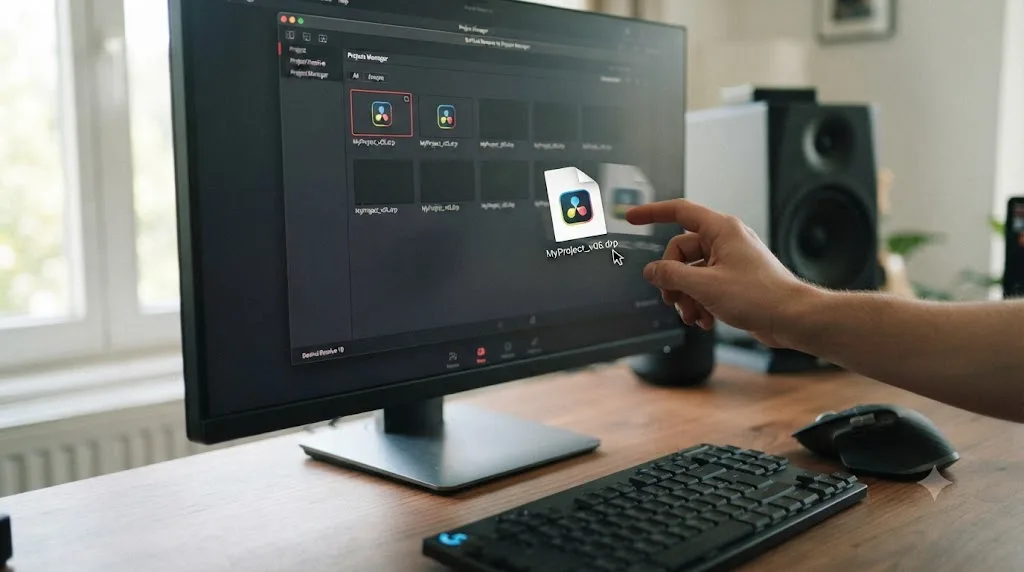
How do I back up my whole DaVinci Resolve project library, not just one project?
Everything above this section protects individual projects. This section is about protecting all of them at once, which matters more the longer you use Resolve and the more finished work accumulates inside that one database folder.
Three approaches, in order of how much effort each one takes:
- Export every project as a .drp or archive, individually, at real milestones. This is the most granular and most reliable option, since each export is a complete, self-contained file with no dependency on the rest of the database. The cost is that it's manual, and it only protects the projects you remember to export.
- Back up the entire Resolve Disk Database folder with a normal file backup tool. Time Machine on Mac, File History or a scheduled copy on Windows, or any cloud backup client that can watch a folder, all work here, since the disk database is, underneath Resolve's interface, an ordinary folder on your system drive. This protects everything at once with no per-project effort, but it's an all-or-nothing restore: you get the whole database back as it existed at that backup point, not one specific project pulled out cleanly.
- Combine both. Let a system-level backup tool catch the whole database automatically, and still export individual .drp files for anything genuinely finished or client-facing. The system backup is your insurance against losing everything; the individual exports are your fast, surgical recovery for one project without restoring the whole database.
A whole-database backup and a per-project .drp export solve different problems, and the strongest setup uses both rather than picking one. A system backup protects you from the kind of mistake Larry Jordan described, losing every project at once to one wrong move against the database folder. A .drp export protects you from a narrower, more common problem: needing one specific finished project back without touching anything else.
If you're setting this up for the first time rather than reacting to a scare, do it now, while it costs fifteen minutes, rather than after the exact story in the previous section happens to you instead of someone else.
Worked example: saving a three-camera interview project from start to finish
Take a concrete case, since the abstract version of this guide is easier to follow with an actual project attached to it: a 40-minute interview shot on three cameras, edited over four sessions across a week, delivered to a client who wants both a full-length cut and a trimmed highlight reel.
Session one, the rough sync. Live Save is already running, so every cut you make as you sync three angles is protected continuously with zero action from you. Before you close for the day, press Cmd+S or Ctrl+S once, as a deliberate final checkpoint, even though Live Save almost certainly already has your latest state.
Session two, building the a-roll cut. Project Backups is quietly generating a version every 10 minutes in the background. Partway through, you decide to try a more aggressive re-cut of the opening two minutes. Before starting, use Save Copy As to snapshot the current version under a name like interview-project-pre-recut, so you keep working in your main project while a fallback exists if the re-cut doesn't work out. It doesn't. You compare the two, decide the original opening was stronger, and simply keep editing in your main project, since Save Copy As never switched you away from it.
Session three, the client wants a separate highlight reel. This is the exact moment for Save As, not Save Copy As, since you genuinely want to fork the project going forward: name the new copy interview-highlight-reel, and from that click forward you're editing the highlight version while the full-length cut sits untouched at whatever state it was in the moment you branched.
Session four, delivery. Both cuts are locked and approved. Export each one as a .drp file to a separate backup drive, following Larry Jordan's own two-tier philosophy of live protection while working and a deliberate archive once a project is actually done. If the client also needs the raw project handed off, export a full Project Archive with the Media Files box checked instead, so they receive something genuinely self-contained rather than a .drp file full of relink prompts for footage they don't have.
None of the four layers in this guide did anything unusual across those four sessions. Live Save ran the whole time without being asked to, Project Backups quietly built a version history, a manual save and Save Copy As gave two deliberate checkpoints, and a final .drp export outlived the project entirely. That's the system working exactly as intended, not a special case.
Worked example: recovering a documentary edit after a corrupted database mid-project
The interview example above is the system working. This one is the system being tested, a slower, messier project where something actually goes wrong partway through, and it's worth walking through precisely because it's the scenario most beginners are actually afraid of.
You're six weeks into cutting a three-hour rough assembly for a documentary, working alone, editing three or four evenings a week, database on your laptop's internal drive. One evening, a power flicker forces a hard shutdown mid-edit. You restart the machine, open Resolve, and instead of your project loading normally, you get a "Failed to Save Project" dialog the moment you try to make a change.
Here's the order that actually gets you back to work fastest, rather than the order that feels most obviously urgent:
- Don't panic and don't delete anything. The database folder is still there. A failed save dialog means Resolve had trouble writing a change just now, not that everything before this moment is gone.
- Close and reopen the project first. Live Save had almost certainly already written most of your last session to disk before the shutdown. A large share of "I lost everything" scares resolve at exactly this step, with most or all of the edit intact.
- If the project opens but looks wrong or incomplete, right-click it in Project Manager, choose Project Backups, and open the timestamped version closest to before the outage. Compare it against what just opened. If the backup has more of your work than the live project does, that's your recovery point, and it opens as a separate project, so you haven't lost your other attempt either.
- If the project won't open cleanly at all, that's the more specific failure our guide to a project that won't open covers, including running Optimize Database from Project Manager, which resolves a meaningful share of corruption cases documented by editors in exactly this situation.
- If none of that recovers a clean project, your actual floor is the last .drp export you made, whatever milestone that was tied to, a locked scene order, an approved rough assembly. You lose the work since that export, not the whole six weeks.
That last step is why this guide keeps repeating the same habit under different scenarios: a documentary rough cut is exactly the kind of long, unglamorous, session-by-session project where nobody remembers to export a .drp file because nothing ever feels like a "real" milestone until delivery. Pick an arbitrary point, a locked act break, the end of a week, and export one anyway. The value of a .drp export isn't that you'll need it on your best day. It's that on your worst day, it's the only thing in this entire guide that doesn't depend on the database that just failed you.
Mac vs Windows vs Linux: does anything about saving actually work differently?
The save mechanisms themselves, Live Save, manual save, Project Backups, and .drp export, behave identically across all three platforms. What differs is where things live on disk, how officially supported each platform is, and a couple of platform-specific traps worth knowing before they cost you time.
| macOS | Windows | Linux | |
|---|---|---|---|
| Resolve Disk Database path | ~/Library/Application Support/Blackmagic Design/DaVinci Resolve/Resolve Disk Database | AppData\Roaming\Blackmagic Design\DaVinci Resolve\Support\Resolve Disk Database | Under the user's home directory, exact path varies by distribution and install method |
| Manual save shortcut | Cmd+S | Ctrl+S | Ctrl+S |
| Platform support | Fully supported | Fully supported | Officially supported on specific distributions such as CentOS/Rocky Linux; other distributions often work with extra setup |
| Platform-specific save risk | macOS sandboxing can silently block writes even when Get Info shows correct folder permissions, fixed by granting Full Disk Access under Privacy & Security | Leftover registry entries or AppData fragments from an incomplete update can occasionally conflict with a fresh install in ways that surface as database errors | Distribution-specific dependency or permissions quirks are more common than on Mac or Windows, since Blackmagic tests against a narrower list of officially supported distributions |
| Current OS requirement (Resolve 21) | macOS 15 Sequoia or later, Apple Silicon only, per current system requirements | No equivalent hard cutoff at this time | Check Blackmagic's own release notes for the currently supported distribution list before installing |
A save that fails silently on Mac is more often a Full Disk Access problem than a permissions problem, and the two settings look redundant in a way that trips up more editors than any other Mac-specific quirk on this list. Folder-level permissions can show correct read and write access in Get Info while Resolve's own sandboxed process is still blocked from writing, because that sandboxing sits on top of standard Unix permissions rather than replacing them. Check System Settings > Privacy & Security > Full Disk Access and confirm Resolve is listed and enabled, separately from the folder permissions themselves.
On Windows, the equivalent trap is less about a single toggle and more about residue from an incomplete update. A save problem that started right after a Resolve update, with no drive change or database restore involved, is worth checking against leftover entries under AppData\Roaming\Blackmagic Design or the Windows registry before assuming it's one of the four causes covered in the troubleshooting section above.
On Linux, the honest answer is that this guide can't hand you one universal file path the way it can for Mac and Windows, because Blackmagic supports a narrower set of distributions and installs vary more from one machine to the next. If you're editing on Linux, the practical advice is the same underlying habits, confirm Live Save and Project Backups are both enabled in Preferences, they live in the identical panel, and lean more heavily on regular .drp exports, since you're more likely to be the first person on your specific distribution to hit an edge case Blackmagic hasn't seen reported yet.
What's the safest saving habit for a beginner starting out in DaVinci Resolve 21?
Five habits, none of which take more than a few minutes to set up, and all of which you only need to do once per project library rather than repeatedly.
- Confirm Live Save is on in every project library you work in, not just the one you happen to be editing today. It's a per-installation setting, not a per-project one, but it's worth a glance the first time you set up a new machine.
- Turn on Project Backups the same day you turn on Live Save. They live in the same panel, and it's an easy mistake to assume checking one implies the other. It doesn't.
- Press Ctrl+S or Cmd+S before anything risky, and again before you close for the day, even though Live Save has almost certainly already caught your last change. It costs two keystrokes and removes any doubt.
- Export a .drp file at real milestones, a locked rough cut, an approved grade, a delivered final. This is the one habit that protects you from something none of the other three can: a corrupted database, a wiped drive, or moving to a new machine entirely.
- Never manage your projects from Finder or File Explorer. Rename, move, duplicate, and delete projects exclusively from inside Project Manager. The moment you touch the database folder directly is the moment you're one mistake away from Larry Jordan's story becoming yours.
Four habits protect a project you're actively working on. One habit protects it after you've stopped thinking about it entirely, and that last one is the .drp export most beginners skip until the day they genuinely need it. Set all five up now, while it costs nothing, rather than after a crash, a corrupted database, or a dead hard drive makes the choice for you.
If you're still working through the rest of your post-install checklist rather than mid-project, our guide to what to do after installing DaVinci Resolve, before your first project covers these same settings alongside frame rate, audio sample rate, and folder structure, in the order to actually set them up. And if you're organizing bins and folders as part of that same setup pass, our guide to folder and bin naming conventions picks up exactly where this one leaves off.
TryUncle is the on-screen assistant for DaVinci Resolve on macOS. Ask in plain words and Uncle points at the exact control on your screen, which is useful the first time you're hunting for Project Backups in a preferences panel full of tabs you haven't learned yet, instead of guessing which one holds the setting you actually need. It's a paid app at founder pricing, worth checking directly at TryUncle for the current rate.
Verdict: you're already being protected, but not by everything at once
DaVinci Resolve isn't hiding a save button from you. It's running one continuously, through Live Save, from the moment you open the app, and that alone puts most beginners in a better position than they realize the first time they notice there's no "unsaved changes" warning anywhere in the interface.
Live Save covers the crash you didn't see coming. Project Backups covers the version of your edit from an hour ago that you wish you still had. A manual save gives you a checkpoint exactly when you want one. A .drp export is the only one of the four that survives losing the database itself. Set all four up, and "how do I save my work in DaVinci Resolve" stops being a question you need to ask again.
Open Preferences right now if you haven't already, confirm Live Save and Project Backups are both checked, and export a .drp copy of whatever you're working on today. That's the whole system, running in the background, exactly the way it's supposed to.
Frequently asked questions
- Do I need to press Ctrl+S to save in DaVinci Resolve?
- Not to avoid losing work, since Live Save is on by default and writes your changes to the project database continuously. Press Ctrl+S (Windows) or Cmd+S (Mac) anyway before a risky edit, before closing at the end of a session, and always in a Collaborative Workflow project, since a manual save still gives you a clean, deliberate checkpoint that a background autosave doesn't.
- Where is my DaVinci Resolve project actually saved?
- Inside a database, not as a loose file you can find in Finder or Explorer. On Mac it lives under ~/Library/Application Support/Blackmagic Design/DaVinci Resolve/Resolve Disk Database, and on Windows under AppData\Roaming\Blackmagic Design\DaVinci Resolve\Support\Resolve Disk Database. Never rename, move, or delete anything inside that folder from outside the app.
- How do I get my project onto another computer or send it to a collaborator?
- Open File > Export Project, or right-click the project in Project Manager and choose Export Project, to save a portable .drp file. That file carries your edit, color grades, and effects, but not your media. If you need the footage bundled too, use Export Project Archive instead, which creates a .dra file with a Media Files checkbox.
- What's the difference between Save As and Save Copy As in DaVinci Resolve?
- Save As creates a new project under a new name and switches you into editing that new copy immediately, leaving the original exactly as it was at that moment. Save Copy As also creates a new named copy, but you keep working in the original project. Use Save As when you want to branch off; use Save Copy As when you just want a safety snapshot.
- How often does DaVinci Resolve back up my project automatically?
- With Project Backups enabled in Preferences, DaVinci Resolve's manual describes a new backup every 10 minutes, keeping roughly six from the last hour, 8 hourly backups for the current day, and 5 days of daily backups in rotation. That is separate from Live Save, which writes continuously but keeps no history of earlier versions.
- How do I recover work if DaVinci Resolve crashes before I manually saved?
- Reopen the project first, since Live Save likely already carried most of your work through the crash. If something is still missing, right-click the project in Project Manager, choose Project Backups, and load the timestamped version closest to before the crash. It opens as a separate project, so your current one is never overwritten.
- Does turning off Live Save mean I have to remember to save manually every time?
- Yes, exactly like older editors you may already know. With Live Save off, DaVinci Resolve stops writing changes in the background, and Cmd+S or Ctrl+S becomes the only thing standing between your edit and a crash. There is little upside to switching it off, and Blackmagic's own manual describes it as highly recommended to leave on.
- Does saving work differently if my media or database lives on a NAS or shared server?
- Only if the project database itself, not just your footage, is hosted on network storage. Media stored on a NAS while the database stays local doesn't change anything in this guide. A shared PostgreSQL database on a NAS adds bin and timeline locking between collaborators, and if that NAS goes offline, nobody connected to it can save until it's back, which is exactly why a portable .drp export matters even more on a networked setup.
Sources
- DaVinci Resolve Reference Manual: Live Save and Project Backups
- DaVinci Resolve Reference Manual: Project Backups (GFS backup scheme, retention)
- DaVinci Resolve Reference Manual: Project Save and Load preferences
- DaVinci Resolve Reference Manual: Importing and Exporting Projects (.drp files)
- Larry Jordan: How I Lost All My DaVinci Resolve Projects, and How You Can Save Yours
- Larry Jordan: Managing Projects in DaVinci Resolve - Backups, Exports and Archives
- PremiumBeat: Your Guide to Working with Project Files in DaVinci Resolve
- Envato Tuts+: The Top DaVinci Resolve Keyboard Shortcuts You Need to Know
- DaVinci Resolve Club: DaVinci Resolve System Requirements
- Blackmagic Design: DaVinci Resolve product page
- CineD: DaVinci Resolve, Thinking of Updating? Here is What to Do (Alex Hohenthaner)
- Need to Know IT: DaVinci Resolve NAS Setup That Actually Works
Put this guide to work with TryUncle.
Ask about the step you’re on. TryUncle sees your screen and points at the control you need, so you can keep learning in your own project.
Get TryUncle for Mac or WindowsKeep reading
Fixes · Jul 22, 2026 · 25 min
DaVinci Resolve Project Won't Save Changes: The Real Fix
DaVinci Resolve won't save your edits? The real causes are permissions, a full drive, a corrupted database, or a stuck lock, not Live Save failing.
Fixes · Jul 10, 2026 · 23 min
DaVinci Resolve Project Won't Open: Match Symptom to Fix
Whether DaVinci Resolve hangs at 100%, crashes on launch, or shows a database error, here's the exact cause behind each symptom and how to fix it.
Guides · Jul 23, 2026 · 38 min
What to Do After Installing DaVinci Resolve, Before Project One
What to do after installing DaVinci Resolve: license, preferences, project settings, folders, and a test render before you start your first project.