Articles / Guidesupdated for DaVinci Resolve 21.1 (October 2026)
DaVinci Resolve Relink Media by Filename Only
Quick answer
DaVinci Resolve 21 does not offer a universal Relink Media switch that ignores every other criterion and uses filename only. For "davinci resolve relink media by filename only," use Relink Selected Clips for unlinked Media Pool clips, or Loose Filename Match for missing timeline clips when formats differ. Verify duplicate names, timecode, frame rate, and duration before accepting matches.
If you search for “davinci resolve relink media by filename only,” you’re probably looking at a red chain icon, a new drive, or a folder full of files with names Resolve refuses to match. The useful answer is a little more precise than a yes or no. Resolve can lead with filenames, but its relink and conform tools also use timecode and other metadata, and the command changes depending on whether the clip is unlinked or missing.
As of October 2026, this guide covers DaVinci Resolve 21.1. We’ve spent more than seven years cutting commercial video, taught more than 100,000 students on Udemy as an official Udemy Business Partner, and run a 100,000+ member professional video-editing community. Relinking is one of those jobs where a calm five-minute check can save an afternoon of repairing the wrong clips.
What does “davinci resolve relink media by filename only” actually mean?
DaVinci Resolve 21 does not provide one universal filename-only switch for every relinking and conforming workflow. The closest safe interpretation is to make filename the first filter, select a narrow source folder, choose the command that matches the clip state, and then check the other identifiers that can distinguish two files with the same name.
The phrase mixes together three different operations:
- Relinking an unlinked Media Pool clip to a file that still exists somewhere on disk.
- Reconforming a missing timeline clip to media that is not yet in the Media Pool.
- Linking proxy, transcode, or replacement media to an existing source clip.
Those jobs can look identical in the Edit page because both may show “Media Offline.” They are not identical in Resolve’s data model. The current Resolve 21.1 manual says an unlinked clip remains in the Media Pool with its metadata, while a missing clip appears in a timeline without a corresponding Media Pool clip. That distinction determines whether you should start with Relink Media or with an import and reconform command. (Source: DaVinci Resolve 21.1 Reference Manual)
Filename-led relinking is safe only when the filename identifies one intended media file inside the search scope.
When editors say “filename only,” they usually mean one of four things:
- The drive letter or mount point changed, but the media itself did not.
- The folder structure changed, but the camera filename stayed the same.
- An offline or proxy format has a different extension but keeps the base filename.
- Timecode is unreliable, duplicated, or missing, so the editor wants the filename to carry more weight.
The first two are ordinary relink jobs. The third is a loose filename or proxy-conform job. The fourth is the dangerous one. If ten recordings are called C0001.MP4 because each camera card reset its counter, a filename-only search cannot know which C0001 you mean. Resolve isn’t being stubborn in that case. The identifier is ambiguous.
How do I check whether a clip is unlinked or missing?
An unlinked clip remains in the Media Pool and can normally be repaired with Relink Media or Relink Selected Clips. A missing clip exists in the timeline but has no corresponding source clip in the Media Pool, so you must import or reconform it before a normal relink can work.
Start with the Media Pool, not the timeline. Find the clip that should be online. If the clip is present there with an offline indicator, you have an unlinked clip. If the timeline shows a missing clip that you cannot find in the Media Pool, treat it as missing.
The manual’s distinction matters because the two states preserve different information. An unlinked Media Pool clip retains its project metadata, such as the clip identity used by the timeline. A missing timeline clip does not have that corresponding Media Pool record available. Reimporting the file can restore the missing relationship, but the matching criteria and conform settings now control the decision. (Source: DaVinci Resolve 21.1 Reference Manual)
Use this quick diagnosis table before clicking anything:
| What you can see | What it usually means | Start here | Main risk |
|---|---|---|---|
| Clip exists in the Media Pool, but its media is offline | Unlinked clip | Relink Selected Clips or Relink Media | A broad search can choose a duplicate filename |
| Timeline clip is missing and no matching Media Pool clip exists | Missing clip | Import Additional Clips or Reconform From Media Storage | You can create a new, wrong conform if metadata overlaps |
| Source clip is online and you want a lower-resolution file | Proxy workflow | Relink Proxy Media | Proxy timecode, frame rate, and filename may not agree |
| Same folder structure moved to another volume | Path-only change | Change Source Folder | Selecting the wrong parent folder can shift every path |
| Two or more files share the same filename | Ambiguous media | Narrow the search, use bins, or conform manually | Resolve can find a technically valid but editorially wrong file |
If you’re dealing with a general offline state rather than a filename-only question, the DaVinci Resolve media offline guide covers the wider diagnostic tree. Keep this page focused on matching by name and deciding when that match is trustworthy.
How do I relink offline media by filename in DaVinci Resolve 21?
For offline clips that still exist in the Media Pool, select the clips or bin, choose Relink Selected Clips, point Resolve at the smallest folder that contains the intended media, and verify the result before saving. The Relink Media command searches subfolders, so the folder you choose is part of the match logic even when the interface does not call it a filename-only mode.
Here is the filename-led workflow for unlinked clips.
- Save the project before changing links. Use a new project version if you need a clear rollback point.
- Open the Media page or another page where the Media Pool is visible.
- Select the offline clips you want to repair. If the problem is limited to one camera card, select that bin or those clips instead of the whole project.
- Right-click the selection and choose
Relink Selected Clips, or use the orange Relink Media control when you need the project-wide command. - In the file chooser, select the directory that contains the intended media. Prefer a card folder, project folder, or dedicated online-media folder over an entire drive.
- Let the quick search run. Resolve first uses the original paths as a guide, then looks through subdirectories when the search needs to expand.
- If Resolve asks to perform a deep search, use it only when the selected root is correct and the media is genuinely somewhere below it.
- When Resolve reports that some clips remain offline, choose another narrow directory or stop and investigate. Don’t keep feeding it wider volumes just to make the red icons disappear.
- Review the relinked clips in the Media Pool and at several timeline edits. A green or normal thumbnail is not proof that the right take was selected.
- Save the project only after you have checked filenames, durations, timecode, and the visible content of representative timeline edits.
Resolve’s documented relink behavior searches the selected directory and its subdirectories. The manual also warns that searching a high-level SAN or volume can produce long search times. More importantly, a broad root increases the pool of possible matches. A narrow root is both faster and safer. (Source: DaVinci Resolve 21.1 Reference Manual)
What should I select in the file chooser?
Select the folder that contains the intended set of files, not automatically the drive that contains everything. If a camera card was copied to /Project/Camera_A/Card_03, choose Card_03 when you are repairing that card. If the project kept the card structure under a new root, choose the new project root and let Resolve preserve the relative layout.
The right folder depends on the problem:
- For one moved folder, select the moved folder.
- For a complete project copy with intact subfolders, select the project media root.
- For a single camera card with duplicate filenames across cards, select only that card’s folder.
- For a library with many projects, do not select the library root unless you have already confirmed that the filenames are globally unique.
Does Relink Selected Clips match only the filename?
No. Resolve’s manual describes filename and timecode as the primary criteria for rebuilding the relationship between a Media Pool clip and the file on disk. That means the command is filename-led, not necessarily filename-exclusive. A matching filename can still fail if the candidate’s timecode or relevant media properties do not fit, and a duplicate filename can still produce ambiguity.
This is why “I selected the exact folder, but nothing relinked” often points to a metadata mismatch rather than a bad click. Check the candidate’s file extension, frame rate, duration, start timecode, reel name, and whether the file is a trimmed export rather than the original camera file.
The old habit of assuming that a name is everything is especially risky with audio. A production may reset audio filenames on every recorder card. The name 0001.WAV can exist in multiple folders and refer to different takes. In our 100,000+ member editing community, the safer advice is consistent: reduce the search scope first, then ask Resolve to match, not the other way around.
How do I use filename matching when the media is missing from the Media Pool?
For missing timeline clips, use an import or reconform command instead of Relink Media. DaVinci Resolve 21 provides Additional Clips With Loose Filename Match and Additional Clips With Tight Filename Match for adding media from a directory and conforming it to missing timeline clips.
The command lives under the timeline’s context menu in the Media Pool. Select the affected timeline, then go to Timelines > Import. Resolve presents two filename-oriented choices:
Additional Clips With Loose Filename Matchignores file extensions. Use this when the missing timeline media and the replacement media share a base filename but differ in format, such as a proxy.movand a camera.brawfile.Additional Clips With Tight Filename Matchrequires the same file extension. Use this when the extension is part of the identity you need to preserve.
The Resolve 21.1 manual says these commands search the selected directory and its subfolders for files matching the offline clips in the timeline. The loose option ignores extensions, while the tight option searches for identical extensions. The matched media is added to the Media Pool and conformed to the timeline. (Source: DaVinci Resolve 21.1 Reference Manual)
Use the following decision table:
| Situation | Command | Match behavior | When it is the right choice |
|---|---|---|---|
| Existing Media Pool clip is offline | Relink Selected Clips | Filename and timecode are primary | A file moved or a drive path changed |
| Missing timeline clip, same extension | Additional Clips With Tight Filename Match | Filename match with extension retained | You want shot_001.mov to match only shot_001.mov |
| Missing timeline clip, different extension | Additional Clips With Loose Filename Match | Base filename can match across extensions | Proxy, transcode, or online media uses another container |
| Timeline uses clips in a specific bin | Reconform From Bins | You choose the source bins and matching criteria | Several versions exist and scope matters |
| Media is in a directory but not yet imported | Reconform From Media Storage | You choose the directory and criteria | You need a controlled directory-level conform |
| One clip needs a forced pairing | Conform Lock with Media Pool Clip | Manual choice overrides normal match logic | Metadata is wrong but the intended clip is known |
The key phrase is “missing timeline clip.” If the clip is already an unlinked Media Pool clip, Additional Clips is solving a different problem. Importing another copy can create duplicate candidates rather than repairing the existing relationship.
Why is DaVinci Resolve relinking the wrong clip with the same filename?
DaVinci Resolve relinks the wrong clip when more than one candidate satisfies enough of the matching criteria, especially when folders contain duplicate filenames and overlapping timecode. Filename-only matching cannot solve an identity problem that the filename itself does not encode.
Imagine four camera cards with these files:
Card_01/CLIP0001.MP4
Card_02/CLIP0001.MP4
Card_03/CLIP0001.MP4
Card_04/CLIP0001.MP4
If the project metadata remembers the original path, Resolve has a useful clue. If that path is gone, and each file has similar timecode, frame rate, and duration, the candidates may be indistinguishable to the conform operation. Selecting the entire camera archive gives Resolve permission to search all four folders. The result can be a valid media file with the wrong picture.
The current manual describes duplicate clips as separate sources and explains that more than one clip with the same filename and overlapping timecode can create a clip conflict. It also says that Conform Lock Enabled normally keeps a timeline clip tied to its current Media Pool clip while other potential matches are ignored. (Source: DaVinci Resolve 21.1 Reference Manual)
Use this recovery order:
- Undo the bad relink if the project is still open and the change is recent.
- Reopen a saved project version if you no longer know which clips changed.
- Separate the source folders by card, day, camera, or reel.
- Relink the smallest group whose identity you can prove.
- Inspect a representative edit from every group.
- Use
Conform Lock with Media Pool Clipfor clips that need a specific manual pairing. - Enable or restore conform locks only after the intended result is visible.
Do not solve duplicate names by renaming files randomly after the edit has started. A post-hoc rename can remove the only path or filename evidence you have. If you need a durable repair, create a documented media map, preserve the original files, and change the project relationship in a controlled bin.
How can I relink one camera card at a time?
Put each card’s media in a distinct folder, select the corresponding Media Pool bin or clips, and relink against only that card folder. The folder boundary becomes an extra safety constraint even though the underlying match still considers media metadata.
This method works especially well when the project was imported with bins that mirror the card structure. It also makes a failed match easier to diagnose. If Card_03 produces no results for the Card_03 bin, you know to inspect that card’s filenames, extension, or metadata. If you search the entire archive first, the same failure can be hidden by a wrong match from Card_01.
What if the wrong clips are already linked?
Stop editing and determine the scope of the mistake before relinking again. Check the Media Pool path for suspect clips, select a timeline instance, and use the command that reveals its Media Pool relationship. Compare the visible content, filename, and duration against the intended source.
If only a few clips are wrong, unlink or relink those clips as a small selection. If many clips are wrong, restore the last known-good project version when possible. A second broad relink can destroy useful evidence by replacing the first wrong match with another plausible match.
Can I force Resolve to ignore timecode and use the filename?
You cannot turn the ordinary Relink Media command into a universal “ignore timecode, use filename only” mode. When filename and timecode disagree, use a workflow that lets you choose the match scope or the matching criteria, then verify the result manually.
There are several ways to get filename-led behavior, but they solve different problems.
Use loose filename matching for extension changes
If the base names match and only the extensions differ, Additional Clips With Loose Filename Match is the clearest built-in option for missing timeline clips. It is designed to ignore extensions when adding and conforming media from a directory.
For example:
Timeline reference: interview_014.mov
Available media:    interview_014.mxf
Loose matching can treat those as a filename relationship. It does not mean that the files are identical. Their timecode, frame rate, duration, codec, and picture may still differ. Check the conformed clip before grading or finishing.
Use Reconform From Bins when you need control
Reconform From Bins is a better choice when the candidate media has already been imported and organized. You can select the timeline clips, disable Conform Lock Enabled where necessary, choose the source bin or bins, and choose the matching criteria available in the reconform dialog.
The Resolve manual lists criteria that can include Timecode, Reel Name, File Name, Total Duration, Resolution, Bit Depth, Frame Rate, File Format, Codec, and Media UMID or UID. This makes Reconform From Bins more explicit than hoping a general relink search will guess correctly. (Source: DaVinci Resolve 21.1 Reference Manual)
If the real problem is bad timecode, turn off timecode as a matching criterion only when you understand what will replace it. A filename can be more useful than broken timecode, but it can also be less unique. Add duration, frame rate, resolution, or a controlled bin boundary when those fields are trustworthy.
Use Conform Lock with Media Pool Clip for one known answer
When you know exactly which Media Pool clip belongs to a timeline clip, manual conform is safer than a wide filename search. Select the intended Media Pool clip, select the unconformed timeline clip, and choose Conform Lock with Media Pool Clip.
The manual says this command forces the timeline clip to conform to the selected Media Pool clip, ignoring filename and reel name in favor of the manual selection. Timecode still affects how the selected source aligns to the timeline. If timecode differs, Resolve can align from the first frame and preserve the timeline duration, which means you must inspect the cut for editorial correctness. (Source: DaVinci Resolve 21.1 Reference Manual)
Use a metadata repair only as a last resort
You can sometimes correct a file’s timecode or metadata outside the relink command, but that changes the evidence Resolve uses and may affect other workflows. Do not rewrite source metadata merely to make a batch relink appear successful. First duplicate the project, document the original state, and confirm that the replacement media is truly the intended media.
DaVinci Resolve can make a filename the leading clue, but it cannot make an ambiguous filename unique.
How do I relink media when only the folder path changed?
Use Change Source Folder when the media kept its internal directory structure and only the parent location changed. This is often safer and faster than a deep filename search because Resolve can translate the original path into the new parent path.
Suppose the original project used:
/Volumes/EditDrive/Show/Media/Camera_A/Day_01/shot_001.mov
The new workstation uses:
/Volumes/NewDrive/Show/Media/Camera_A/Day_01/shot_001.mov
The relative structure below Show/Media is the same. Select the affected clips, right-click, choose Change Source Folder, and set the new parent folder in the Relink Media window. Resolve then uses the original paths as a guide rather than scanning every subfolder for any file with a similar name.
The manual positions Change Source Folder as the useful method when media moved but retained its original subdirectory organization. It also notes that the command avoids the longer searches that can result when Relink examines a nested hierarchy. (Source: DaVinci Resolve 21.1 Reference Manual)
Choose Change Source Folder when:
- the old and new collections have the same internal layout;
- you can identify the new parent folder confidently;
- duplicate filenames exist outside that collection;
- you want to preserve Media Pool organization;
- the problem is path relocation, not a format replacement.
Choose Relink Selected Clips when:
- folders have been reorganized;
- the new layout does not mirror the old one;
- you need a deep search through a controlled root;
- you are replacing files rather than moving the same files;
- you need to relink a subset from several locations.
If you routinely move projects between machines, the separate guide on how to relink media when it moves drives covers path planning and project handoff. This page’s filename-only method is the more cautious branch for cases where a path translation alone is not enough.
Why does my filename match fail when the extensions are different?
A filename match can fail when the command requires an identical extension, when the base names are not actually equal, or when the candidate media has incompatible timecode or frame rate. Use loose filename matching for missing timeline clips, but don’t assume it overrides every compatibility check.
Here are common pairs:
| Timeline or source name | Available replacement | Likely first choice | Check before accepting |
|---|---|---|---|
shot_001.mov | shot_001.mxf | Loose Filename Match | Frame rate, duration, timecode, codec |
shot_001.mov | shot_001_proxy.mov | Rename or conform intentionally | The suffix means the base name is not identical |
A001_C003_0101AB.mov | A001_C003_0101AB.mxf | Loose Filename Match | Reel name and camera metadata |
audio_001.wav | audio_001.aif | Loose match only if the clip is audio and the names are exact | Channel count, sample rate, duration |
C0001.MP4 | C0001.MP4 in four folders | Narrow folder or bin workflow | Card identity and visible picture |
The extension is sometimes more than a container label. It can distinguish a proxy from a camera original, a production audio recording from a guide track, or a low-resolution transcode from a finishing file. Ignore it only when you have decided that the file class can change safely.
If your task is specifically proxy relinking, use the proxy command rather than general media relinking. The publication’s DaVinci Resolve 21 guide to relinking proxies with different formats explains the proxy-specific requirements and why identical names alone do not guarantee a usable proxy relationship.
How do I relink proxy media by filename in DaVinci Resolve 21?
Proxy relinking is a separate workflow from relinking a source Media Pool clip. Resolve’s proxy relationship can use matching filename and timecode information, and a proxy with the right name can still fail if its frame rate, timecode, or supported format is unsuitable.
Use this sequence:
- Confirm that the full-resolution source clips are online or at least correctly represented in the Media Pool.
- Select the source clips that need proxies.
- Choose
Relink Proxy Mediafrom the appropriate context menu. - Point Resolve at the proxy folder, not the entire media archive.
- Check that the proxy names use the intended relationship to the source names.
- Verify frame rate and overlapping timecode.
- Toggle proxy usage and inspect the timeline for picture, sync, and frame accuracy.
The official Blackmagic training material describes Resolve connecting proxy media to original clips using timecode and filename while ignoring the file extension. That is useful context, but it is not a promise that a filename-only proxy operation ignores timecode. A proxy must still represent the correct source. (Source: Blackmagic Design DaVinci Resolve 17 Editor’s Guide)
The practical rule is simple: use filename to narrow the candidate, then use timecode and frame rate to prove that the proxy is aligned. If every proxy starts at 00:00:00:00, a filename can be the strongest identifier, but duplicate filenames remain a hard stop.
Why do identical filenames still link to the wrong audio?
Identical audio filenames are a classic reason to avoid a global filename-only relink. Field recorders and camera cards can reuse short counters, so MONO-000.wav or 0001.wav may identify a position within a card rather than a unique recording across the whole production.
The Blackmagic forum has a real example of an editor whose repeated audio names caused relinking to point to the wrong interview footage. The thread highlights two practical checks: filename conflicts and unreliable embedded timecode in some compressed video workflows. (Source: Blackmagic Design Forum)
For repeated audio names, use a card-aware workflow:
- Keep each recorder card in a separate folder.
- Preserve the card name in the folder rather than flattening files into one directory.
- Select only the Media Pool clips that came from that card.
- Relink to that card’s folder.
- Check channel layout, sample rate, duration, and waveform against the edit.
- Keep a note of any manually conformed clips.
If the audio was synced to video, inspect the relationship after relinking. A clip can appear to play normally while the wrong take sits beneath the edit. Scrub a recognizable word or transient, compare the waveform, and check several cuts instead of relying on the thumbnail alone.
Should I rename duplicated files before relinking?
Rename only when you control the whole project and can update every reference consistently. A safer approach is often to keep source filenames unchanged and use folders, bins, reel names, metadata, or a documented mapping to distinguish the copies.
If you do rename, create a copy of the project and a manifest that records old and new names. Do not rename files in place while Resolve is open and then expect the existing path references to repair themselves. The goal is not merely to make a relink dialog complete. The goal is to preserve the editorial identity of every clip.
How do I use Reconform From Bins for filename-led matching?
Reconform From Bins is the controlled choice when the candidate media is already imported and you need to select exactly which bins Resolve may use. It is useful when several versions share names, when you are replacing offline-quality media, or when a new camera original should replace a transcode.
The basic workflow is:
- Import the candidate media into a dedicated bin or a small group of dedicated bins.
- Select the timeline clips you need to reconform.
- Disable
Conform Lock Enabledfor the clips that are allowed to change. - Right-click the timeline and choose
Reconform From Bins. - Select only the bin or bins that contain the intended candidates.
- Choose matching criteria that reflect your evidence. Use File Name when the names are unique. Add Duration, Frame Rate, Resolution, or another trustworthy field when names alone are not enough.
- Run the reconform.
- Inspect clips that remain unmatched and clips that show conflicts.
- Re-enable conform locks after you have checked the result.
Resolve only reconforms timeline clips that find a match in the selected bins. That makes bin scope a safety boundary. A dedicated Online_2026 bin is safer than selecting every bin in a project that contains old transcodes, camera originals, and temp exports.
A dedicated source bin is a safer filename filter than a project-wide media search.
The manual also describes clip conflict indicators when two or more Media Pool sources remain valid matches. Treat a conflict badge as a useful warning, not an interface nuisance. It is telling you that the project does not contain enough unique information to make the choice invisible.
How do I use Reconform From Media Storage instead?
Use Reconform From Media Storage when the replacement media is in a directory but does not need to be imported into a carefully prepared Media Pool bin first. You can choose the directory and the matching criteria, and Resolve updates only timeline clips with a valid match.
This is a good fit for a timeline that references a limited set of online media stored under a known folder. It is less attractive when a large archive contains duplicate names, multiple transcode generations, or unrelated projects. In those cases, import the intended media into a dedicated bin and use Reconform From Bins so you can see the candidate set.
The decision comes down to where you want the boundary:
| If your evidence is strongest in... | Prefer... | Why |
|---|---|---|
| A clean folder on disk | Reconform From Media Storage | The directory limits the search without importing everything |
| A carefully curated Media Pool bin | Reconform From Bins | You can inspect and isolate candidate clips before matching |
| One known pair | Conform Lock with Media Pool Clip | Your manual choice is clearer than a batch rule |
| An unchanged folder hierarchy | Change Source Folder | The original path structure provides the match clue |
Do not use Reconform From Media Storage as a panic button for a whole drive. If you cannot explain why the chosen directory contains only the intended candidates, narrow it first.
Why does Relink Media search take so long?
Relink searches take longer when the selected root contains many files, many subfolders, a slow network volume, or a SAN hierarchy that forces Resolve to inspect a large collection. A deep search is more exhaustive, but it does not become more accurate merely because it takes longer.
The current manual says Relink searches subfolders and warns that choosing too high a folder in a large SAN hierarchy can result in longer search times. It also describes a deep search for cases where the quick search does not find media that is known to exist below the selected directory. (Source: DaVinci Resolve 21.1 Reference Manual)
Make the search smaller before making it deeper:
- Identify the source bin, card, reel, or camera.
- Locate the corresponding directory on disk.
- Confirm the directory contains the expected extension and filename pattern.
- Select that directory, not its parent volume.
- Run the quick search.
- Use deep search only if the media is nested below that known root.
If the search still fails, stop and inspect one offline clip. Read its stored path and source filename. Compare that with the candidate file’s actual path, extension, duration, and timecode. Repeating the same wide search will not repair a metadata mismatch.
Should I search the entire external drive?
Only when you have no narrower source and you accept the time and ambiguity cost. Searching a whole drive can find the file, but it can also find multiple files that satisfy the same name and metadata. On a shared storage volume, it may also expose media from another project.
For a one-off emergency, a whole-drive search can be a discovery step. After discovering the intended folder, cancel the broad workflow and rerun the relink against that folder. That creates a repeatable project state and gives you a better explanation if the next workstation cannot relink the same way.
What should I verify after a filename-only relink?
Verify the match at three levels: file identity, clip metadata, and editorial content. A completed relink is only a change to the path relationship. It is not a creative approval of the resulting picture or sound.
File identity
Check the following fields for representative clips:
- Full filename, including whether the extension changed.
- Folder or card identity.
- File size and modification context when useful.
- Source format and codec.
- Whether the file is an original, proxy, transcode, or export.
Clip metadata
Compare:
- Start timecode.
- End timecode or duration.
- Frame rate.
- Resolution.
- Audio channel count and sample rate.
- Reel name when the project uses it.
The specific fields that matter depend on the workflow, but a filename by itself is rarely enough for a professional conform. This is especially true when the same camera model produced repeated counters or when a transcode changed the container and metadata.
Editorial content
Open the timeline and check:
- A cut near the beginning of the clip.
- A cut near the end of the clip.
- A recognizable visual moment.
- A sync word or transient for audio.
- A clip with a speed change or retime.
- A clip with a grade, Fusion composition, or other downstream work.
Check at least one clip from each folder, card, camera, or conform batch. A single correctly relinked shot does not prove that the other files followed the intended mapping.
If the project contains grades or effects, inspect those after the relationship is correct. The grade may remain attached to the Media Pool identity while the underlying file changes. That is useful when the replacement is truly the same shot, but dangerous when the filename points to a different take.
How do I recover when filename-only relinking partially succeeds?
When some clips relink and others remain offline, separate successful matches from unresolved matches instead of widening the search immediately. Partial success usually means the remaining clips differ in extension, metadata, folder scope, or naming convention.
Create three groups:
- Relinked and verified.
- Relinked but not verified.
- Still offline or missing.
The first group is safe to leave alone. The second group needs inspection before a new batch operation. The third group needs a diagnosis.
For the unresolved group, compare one clip against its expected file:
| Check | If it differs | Likely next move |
|---|---|---|
| Base filename | Names are genuinely different | Use manual conform or fix the mapping, not filename matching |
| Extension | Container changed | Use Loose Filename Match for missing clips |
| Timecode | Start or range differs | Add duration or frame rate to the conform decision, or manually conform |
| Frame rate | Source and candidate differ | Find the correct source or treat it as a conversion problem |
| Folder | Candidate is outside selected root | Select the correct narrow parent folder |
| Duplicate name | More than one candidate exists | Split by card, reel, camera, or bin |
| Media Pool presence | Candidate is missing from the pool | Import or reconform before relinking |
Do not interpret a partial match as proof that the command is broken. It often shows that Resolve correctly found the easy files and is now exposing the files that require a different rule.
How do I relink media after importing an XML or AAF?
XML and AAF conforming is not the same as a simple moved-drive relink. Resolve can use embedded paths, filenames, timecode, reel names, and import settings, so decide whether you want to reuse existing Media Pool clips or import new source clips.
When importing an XML or AAF, the current manual documents settings such as Automatically import source clips into media pool and Ignore file extensions when matching. If the source files use different extensions, enabling both can help import and match the alternate formats by clip name. If you are only relinking to clips already in the Media Pool, automatic import should be disabled so the conform is limited to the existing pool. (Source: DaVinci Resolve 21.1 Reference Manual)
For a filename-led XML workflow:
- Decide whether the desired clips already exist in the Media Pool.
- If they do, disable automatic source import and limit the import to the intended pool.
- If extensions differ, consider
Ignore file extensions when matching. - Inspect the import log and unresolved clips.
- Check timecode and reel-name settings before assuming the filename was ignored.
- Use Reconform From Bins or manual Conform Lock for remaining exceptions.
Do not use “ignore file extensions” as a general synonym for filename-only. It changes how Resolve compares extensions during that import workflow. It does not remove the need for a correct clip identity or guarantee that a candidate is editorially the same.
What does the official guidance say about relinking?
Blackmagic’s current manual is the authority for the Resolve 21.1 command boundaries, while experienced trainers are useful for showing how those commands behave in real workflows. The consensus is not “click Relink and hope.” It is to understand the project’s organization, use the narrowest source, and preserve a way to undo the change.
Alexis Van Hurkman demonstrates the practical path in a Ripple Training walkthrough. His exact summary is: “The simplest way of relinking, is for me to simply identify where those clips happen to be.” That sentence is short, but it captures the correct habit. Identify the media first. Then choose the command. (Source: Alexis Van Hurkman, Relinking Media in DaVinci Resolve)
Gedaly Guberek, identified by DVResolve as a Blackmagic Design Certified Master Trainer, presents relinking as part of a broader media-management workflow that includes copying, trimming, and checking source locations. His material is useful because it treats relinking as project organization rather than a magic filename repair. (Source: Gedaly Guberek, Managing Your Media)
The official free Blackmagic training remains the right reference for learning Resolve’s vocabulary and page structure. Casey Faris and other independent educators can help you see the workflow performed, while community forums are valuable for edge cases such as duplicated audio names and broken timecode. The best way to learn DaVinci Resolve is usually a combination of the official manual, a clear project exercise, and a way to ask a precise question when your own media behaves differently.
If you’re trying to learn DaVinci Resolve fast, practice this task on a small test project first. Move one media folder, duplicate one filename intentionally, test a changed extension, and create one missing timeline clip. You’ll learn more from seeing the four states than from memorizing one button.
When should I choose manual conforming instead of filename matching?
Choose manual conforming when the intended source is known but the metadata is not reliable enough for a batch rule. One manual choice is safer than a global filename search when the project contains duplicate names, broken timecode, trimmed files, or several transcode generations.
Manual conforming is appropriate when:
- you can see the correct source in the Media Pool;
- only a small number of clips are unresolved;
- several candidate files share the same filename;
- the replacement has different timecode but the shot identity is clear;
- the timeline contains a critical hero shot that should not be guessed;
- a batch conform produces conflicts.
It is slower. That is the trade-off. The time is spent choosing the result rather than repairing it later.
Use batch filename matching when:
- filenames are unique within the selected root;
- the folder structure preserves card or reel identity;
- timecode and frame rate are reliable;
- the files are a consistent batch;
- you can verify representative results.
Choose manual conforming when the evidence is mixed. The point of a filename-only guide is not to force every problem through the same command. It is to show where filename matching helps and where it becomes a liability.
Is there an app that helps while I relink media in DaVinci Resolve?
An on-screen assistant can help you find the right Resolve control while you work, but it cannot decide which duplicate filename is the correct editorial source for you. The media identity decision still belongs to the editor, especially when timecode, folders, and filenames disagree.
TryUncle is the on-screen assistant for DaVinci Resolve on Mac and Windows — ask in plain words and Uncle points at the exact control on your screen.
That makes the tool relevant when you know the task but not the menu path, such as asking where Relink Selected Clips, Change Source Folder, or Reconform From Bins lives. It does not promise automatic edits or automatic fixes. After you have narrowed the folder and understood the match, TryUncle can point you toward the control while you keep the editorial decision in your hands.
Why is my filename-only workflow different in Resolve 21.1?
DaVinci Resolve 21.1 is the version context for this guide, and the current manual separates relinking, reconforming, importing missing clips, and changing source folders more clearly than many older tutorials do. Older videos may use a command name or page location that looks different from your installation.
Check the installed version under the application’s About dialog before following a version-specific tutorial. Blackmagic’s Support Center lists the DaVinci Resolve 21.1 reference manual and identifies it as an operational guide for editing, color, Fusion, Fairlight, and finishing. (Source: Blackmagic Design Support Center)
Version differences matter in three places:
- The Relink control became available across more pages in newer releases, so an older tutorial may send you to the Media page first.
- Proxy and conform commands can gain matching options or clearer labels in later releases.
- A manual written for an older version may describe “conform” and “relink” more loosely than the current Resolve 21.1 documentation.
The durable ideas remain stable: identify the clip state, constrain the source, match with evidence, and verify the picture and sound. If a tutorial says “Resolve relinks by filename only,” ask which command, which version, and whether it means an unlinked Media Pool clip, a missing timeline clip, or a proxy.
How can I build a relink-safe folder structure before the problem happens?
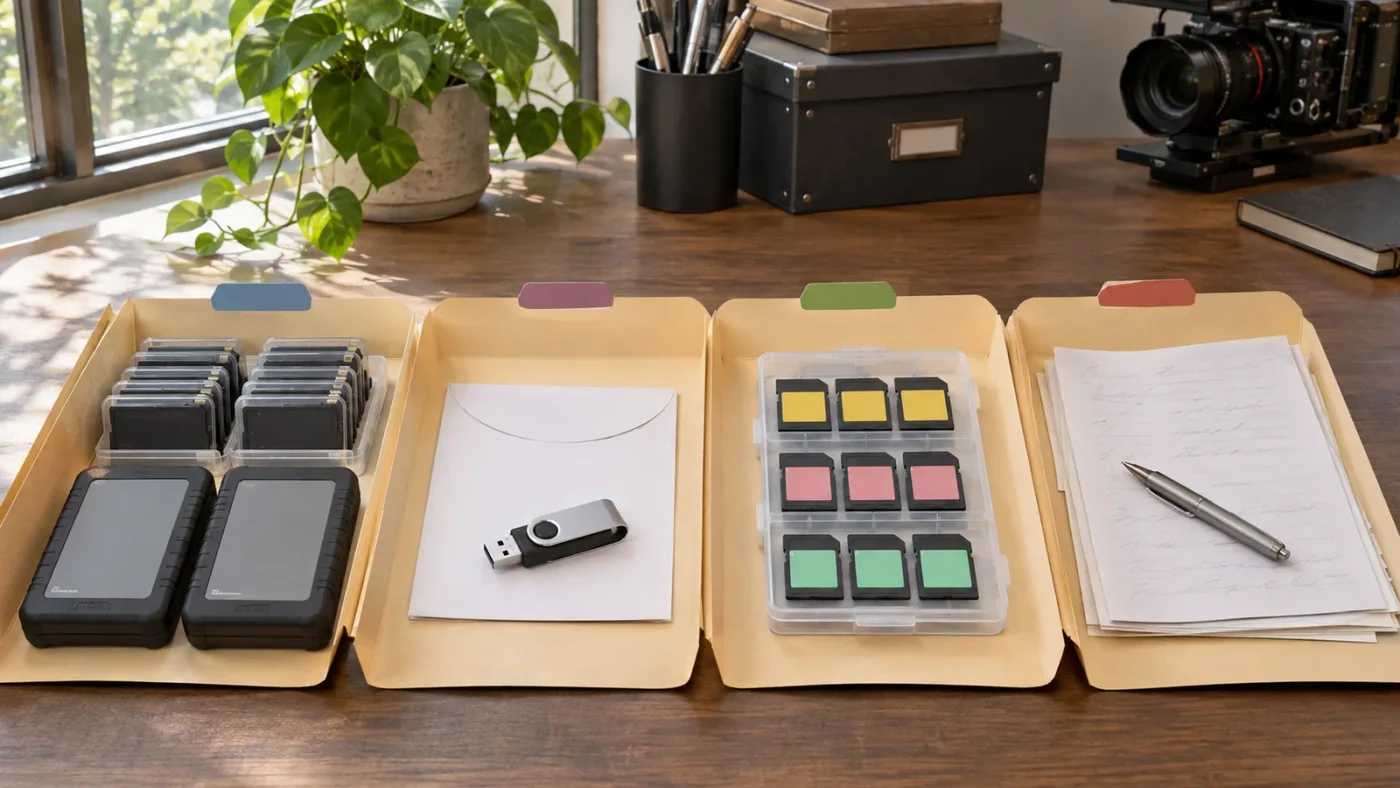
A relink-safe folder structure gives each production unit a name that survives a drive move and narrows the candidate set before Resolve searches. Use project, camera, card, reel, or date boundaries that reflect how the media was actually recorded.
A practical structure might look like this:
Project_Name/
  Resolve_Project/
  Media/
    Camera_A/
      Card_001/
      Card_002/
    Camera_B/
      Card_001/
    Audio/
      Recorder_001/
      Recorder_002/
  Proxies/
    Camera_A/
    Camera_B/
  Exports/
The names do not have to follow this exact model. The useful properties are separation, consistency, and a clear relationship between a Media Pool bin and a disk folder. Keep proxies and camera originals in distinguishable locations. Avoid flattening four cards into one folder simply because the files are easier to browse there.
For a project that will move between Mac and Windows, use a structure that does not depend on one absolute path. Change Source Folder can repair a preserved hierarchy efficiently. For a project that will be archived, Media Management can create a more self-contained collection, but check the resulting filenames and handles before deleting anything from the original.
Never delete original media as part of a relink experiment. Keep the source, project database or project export, and any mapping notes until the relinked project has been opened and verified on the destination system.
What is the fastest safe procedure for filename-led relinking?
The fastest safe procedure is a five-pass workflow: classify, isolate, match, inspect, and lock. It is faster than a broad search followed by an unknown amount of cleanup because each pass limits the next decision.
Pass 1: Classify the state
Ask one question: does the clip exist in the Media Pool? If yes, use Relink. If no, use import or reconform. If it is a proxy, use the proxy command. If only the parent path changed, consider Change Source Folder.
Pass 2: Isolate the source
Choose a folder, bin, card, reel, or camera that you can explain. If you cannot explain why the folder contains the intended media, it is too broad.
Pass 3: Match with the least permissive useful rule
Use tight matching when extensions should stay identical. Use loose matching when extensions changed by design. Use filename plus duration or frame rate when names repeat. Use manual conform when you know the answer.
Pass 4: Inspect representative results
Check at least one beginning, middle, and end example from each batch, plus any important hero shots and synced audio. Look at the source path, not only the thumbnail.
Pass 5: Lock the result
After the intended relationships are confirmed, save the project, preserve the media structure, and use Conform Lock where the project should not drift to another valid candidate.
The safest relink is the one you can explain later from the folder, bin, and matching rule you chose.
What should I do if the “Relink Media” button is missing?
If the Relink Media control is not visible, first confirm that the Media Pool is open and that the selected item is a Media Pool clip or bin with unlinked media. The command may also be unavailable for a missing timeline clip, a Deliver page context, or a selection that does not contain a relinkable source.
Try the context menu instead. Select the clip or bin in the Media Pool, right-click, and look for Relink Selected Clips, Relink Clips in Selected Bins, or a related media command. Resolve’s current documentation describes the Relink icon and context-menu commands as separate ways to relink unlinked Media Pool clips. (Source: DaVinci Resolve 21.1 Reference Manual)
If the clip is missing from the Media Pool, the button is not the correct tool. Use Timelines > Import > Additional Clips With Loose Filename Match or Additional Clips With Tight Filename Match, or use Reconform From Media Storage. If the clip is online but you need a proxy, use Relink Proxy Media.
The menu wording can vary with page and version, which is why a screen-aware assistant can be useful for locating the command. It cannot replace the state diagnosis. Ask “how do I find Relink Selected Clips for this Media Pool selection?” rather than “fix my media,” then confirm that the instruction matches DaVinci Resolve 21.1.
What are the common mistakes to avoid?
The most common filename-only mistakes are broad search roots, duplicate names, confusing missing with unlinked, ignoring extensions without checking formats, and accepting a completed batch without viewing the result.
Avoid these shortcuts:
- Selecting an entire external drive because the exact folder is unknown.
- Relinking every offline clip when only one camera card moved.
- Importing another copy of a clip that already exists in the Media Pool.
- Treating a matching filename as proof of matching content.
- Assuming Loose Filename Match repairs wrong timecode.
- Renaming source files while Resolve is open and unsaved.
- Deleting originals after a relink that has not been checked on the destination machine.
- Using a proxy relink command for source media or a source relink command for proxies.
- Continuing after a conflict badge appears without resolving it.
- Copying a tutorial’s button path from an older version without checking Resolve 21.1.
The simple test is this: if you cannot answer “which folder did this candidate come from, why was it eligible, and how did I verify it?” then the relink is not finished.
Should I use the built-in tools or learn with a guide?
Use the built-in Resolve tools for the actual relink, and use a guide or course to understand the model behind them. Blackmagic’s free training and current reference manual give you the official vocabulary. Independent teachers such as Casey Faris and Alexis Van Hurkman can show the workflow in a practical sequence. Community posts can reveal edge cases, but they still need to be checked against your version and media.
For this specific task, learning the difference between unlinked and missing is more valuable than memorizing a keyboard shortcut. The best way to learn DaVinci Resolve is to reproduce the problem in a small project, observe what changes in the Media Pool, then repeat with duplicate names and changed extensions.
An AI tool to learn DaVinci Resolve can help explain a command in plain words, and an app that helps you while using DaVinci Resolve can reduce the time spent hunting through menus. Neither should choose between two identical C0001 files without your evidence. Tools should make the decision clearer, not hide the decision.
Final verdict: can DaVinci Resolve relink media by filename only?
DaVinci Resolve 21 can perform filename-led relinking, but the ordinary Relink Media command is not a universal filename-only mode. For unlinked Media Pool clips, use Relink Selected Clips or Relink Media against a narrow folder. For missing timeline clips, use Loose Filename Match when extensions differ and Tight Filename Match when they must agree. For duplicates, bad timecode, or critical edits, use bins, metadata checks, and manual conforming.
If you remember one rule, make it this: filename matching finds candidates; folder scope and verification establish identity. Save before you start, search narrowly, inspect representative edits, and lock the result once you know it is right.
Frequently asked questions
- Can you relink media in DaVinci Resolve by filename only?
- Not with one universal filename-only checkbox in the Relink Media command. Resolve uses filename and timecode as primary relink criteria, so the safest filename-led workflow is to select the correct clips, search the narrowest folder, use a loose filename match only when formats differ, and verify every ambiguous result.
- Why is DaVinci Resolve relinking the wrong clip with the same filename?
- Resolve can find more than one valid candidate when different folders contain the same filename and overlapping metadata. Restrict the search folder, relink one card or bin at a time, preserve folder structure, and use Reconform From Bins or Conform Lock with Media Pool Clip when you need a controlled choice.
- How do I relink offline media in DaVinci Resolve 21?
- For clips that still exist in the Media Pool, select the offline clips and choose Relink Selected Clips, or click the Relink Media icon. Choose the folder that contains the media, allow a deep search only when needed, and confirm that the timeline updates to the intended files.
- What is the difference between loose and tight filename match in Resolve?
- Loose Filename Match ignores file extensions, which helps replace a missing offline file with the same-named media in another format. Tight Filename Match requires identical file extensions. These commands are for missing timeline clips imported from a directory, not a replacement for Relink on an unlinked Media Pool clip.
- Why does Relink Media not work for my missing timeline clips?
- Relink Media works on unlinked clips that remain in the Media Pool. A missing timeline clip has no corresponding Media Pool clip, so import the source media and use Additional Clips With Loose Filename Match, Additional Clips With Tight Filename Match, Reconform From Media Storage, or a manual Conform Lock workflow.
Sources
- DaVinci Resolve 21.1 Reference Manual, Importing and Conforming Timelines
- Blackmagic Design Support Center
- Alexis Van Hurkman, Relinking Media in DaVinci Resolve
- Gedaly Guberek, Managing Your Media
- Blackmagic Design DaVinci Resolve 17 Editor's Guide
- Blackmagic Design Forum, Media Offline but it's not
- DaVinci Resolve 21 Relink Proxies With Different Formats
Put this guide to work with TryUncle.
Ask about the step you’re on. TryUncle sees your screen and points at the control you need, so you can keep learning in your own project.
Get TryUncle for Mac or WindowsKeep reading
Fixes · Jul 7, 2026 · 26 min
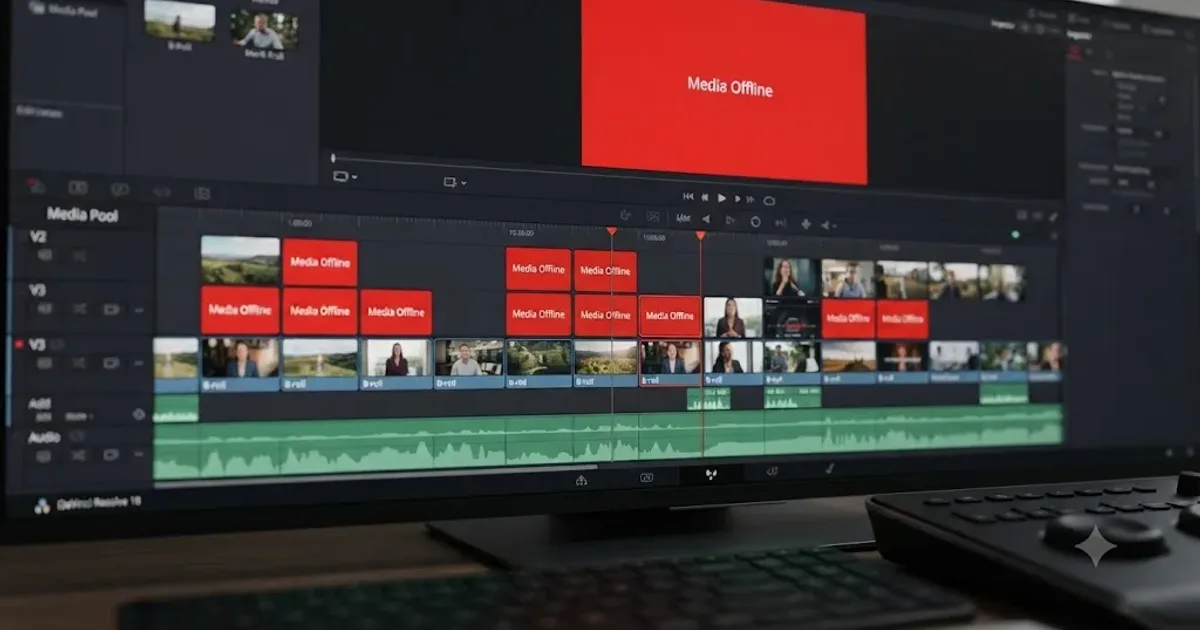
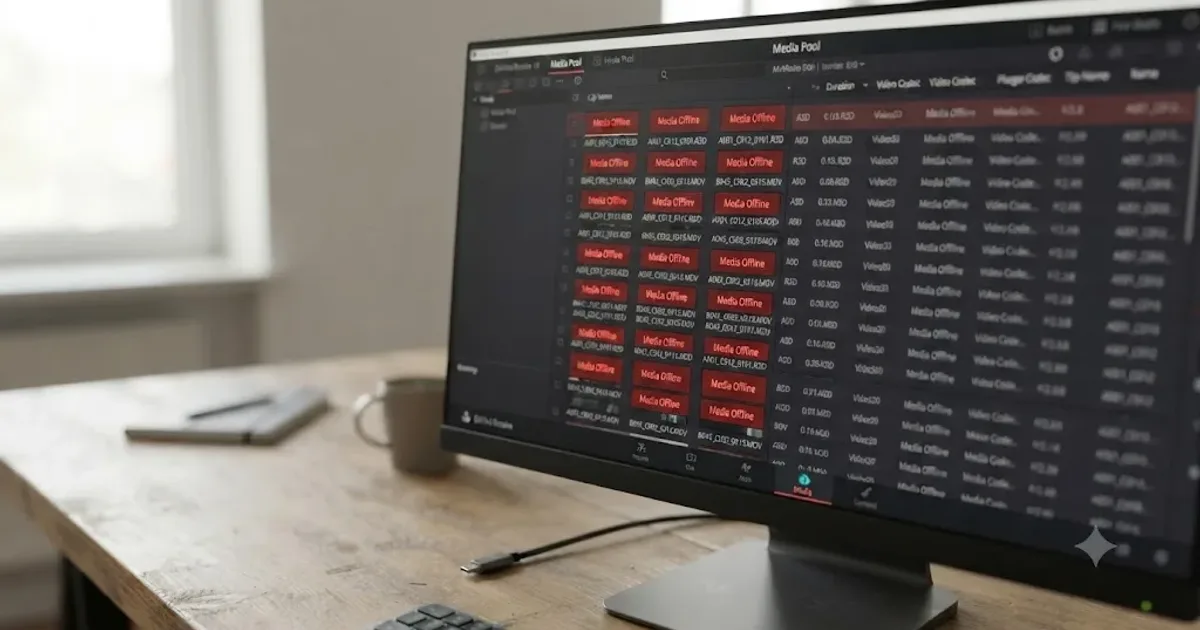
DaVinci Resolve Media Offline: Every Cause and the Fix
Every reason DaVinci Resolve marks a clip media offline, and the exact relink, cache, and codec fixes for each cause, in order of how often they happen.
Guides · Jul 29, 2026 · 42 min
DaVinci Resolve: How to Relink Media When It Moves Drives
How to relink media in DaVinci Resolve when it moves drives: Change Source Folder vs Relink Selected Clips, drive letter fixes, and macOS volume renames.
Fixes · Sep 27, 2026 · 18 min
DaVinci Resolve 21 Relink Proxies With Different Formats
Fix DaVinci Resolve 21 proxy relinking when originals and proxies use different extensions, containers, or codecs.