Articles / Fixesupdated for DaVinci Resolve 21.0.2 (July 2026)
DaVinci Resolve Ripple Delete Not Working? Every Real Cause and Fix
Quick answer
Ripple delete usually fails because of a setting, not a bug. On the Edit page, check Sync Lock (not Auto Track Selector, which changed jobs in Resolve 20.2) on every track. On the Cut page, check the Ripple On toggle, since it only ripples track V1. Also check locked tracks, Linked Selection, and your platform's delete key.
You select a clip. You hit the key that's supposed to ripple delete it. Nothing moves. The clip disappears, sure, but the gap it leaves just sits there, and every clip after it stays exactly where it was, like the timeline didn't get the message.
Or the opposite happens. You delete one clip on one track, and three other tracks jump with it, wrecking a sync you spent an hour building between dialogue, music, and a cutaway.
Neither of those means DaVinci Resolve is broken. Ripple delete touches more settings than almost any other command in the app, and DaVinci Resolve 20.2 quietly rearranged several of those settings without renaming the command itself. That update is the reason a lot of advice you'll find online, including plenty of still-current-looking tutorials, describes behavior that no longer matches what's actually on your screen. Let's go through every real cause, in the order that actually matches how often each one shows up.
What causes DaVinci Resolve's ripple delete to stop working?
Nine separate things can produce a ripple delete that doesn't behave the way you expect, and they split cleanly by which page you're on.
A ripple delete that skips a track is doing exactly what a setting told it to do, not failing on its own. That's the single most useful thing to understand before you touch anything else, because it means you're hunting for a specific control, not debugging a crash.
| Cause | Page it applies to | Fix location |
|---|---|---|
| Sync Lock disabled on a track | Edit page (Resolve 20.2+) | Track header, per-track icon |
| Auto Track Selector confused with Sync Lock | Edit page (Resolve 20.2+) | Track header, per-track icon |
| Ripple On toggle switched off | Cut page | Left of the timeline ruler |
| Ripple delete only affects track V1 | Cut page | By design, not a bug |
| Locked track | Both pages | Padlock icon on track header |
| Linked Selection turned off | Both pages | Chain icon above the timeline |
| Retain sync preference in an unexpected state | Both pages | Preferences, User, Editing |
| Wrong key for your platform or version | Both pages | Keyboard Customization |
| Audio track underneath on the Cut page | Cut page | Mark In and Out first |
Work down this table in order, and check which page you're actually on before you check anything else. That single question, Edit or Cut, eliminates roughly half the causes on this list immediately.
Are you troubleshooting with outdated advice?
This is worth answering before anything else, because it changes what every other section on this page means for you.
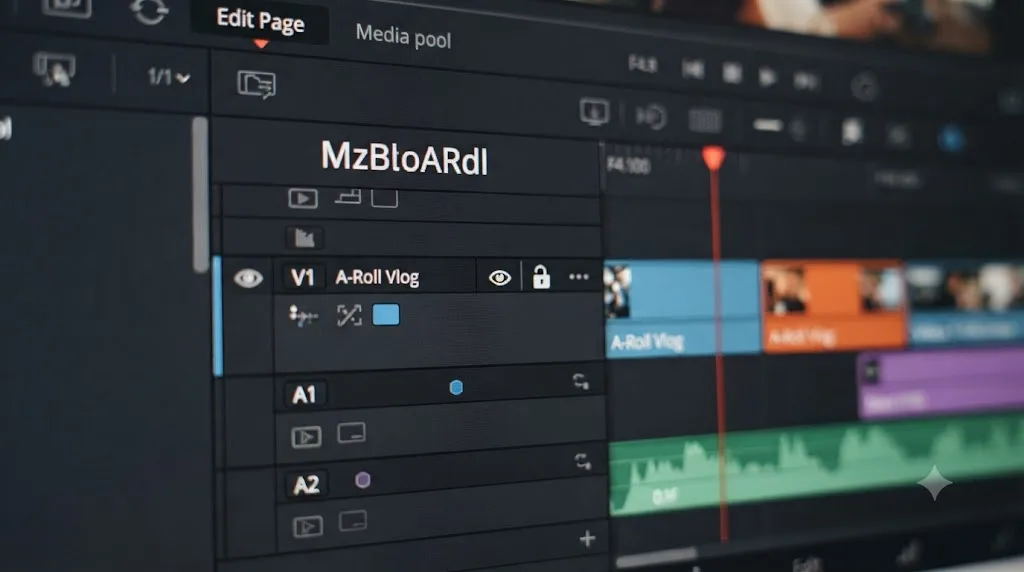
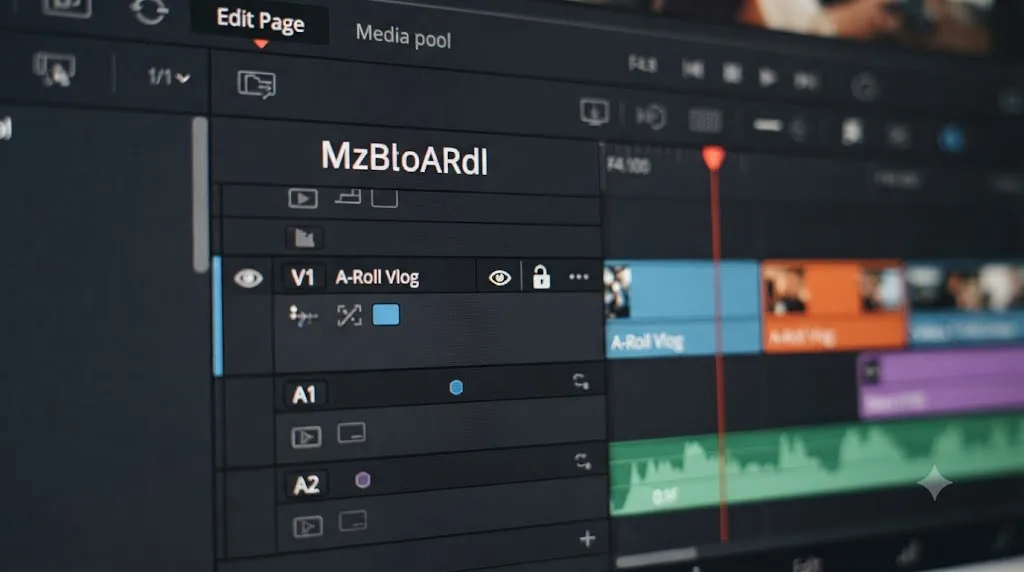
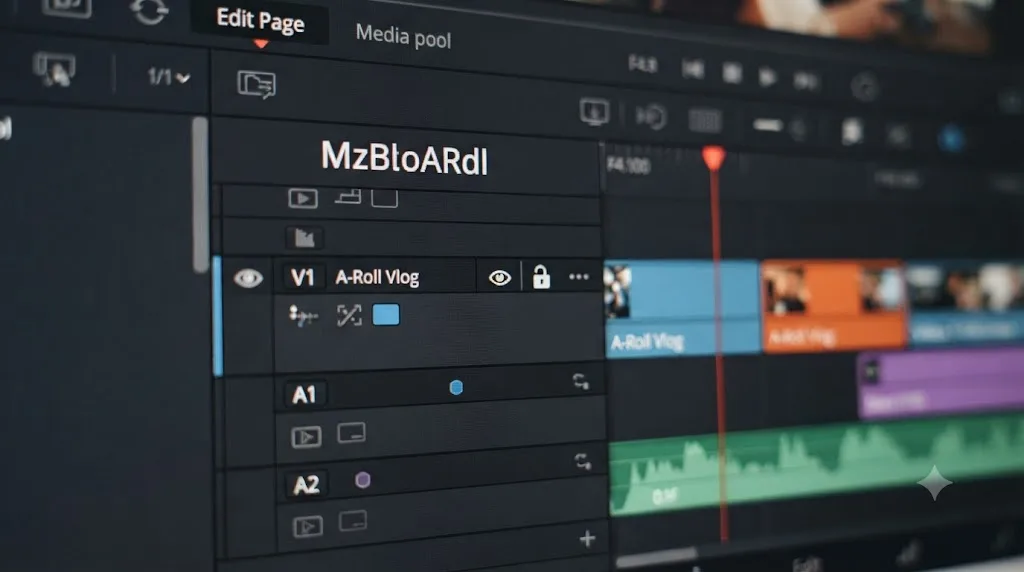
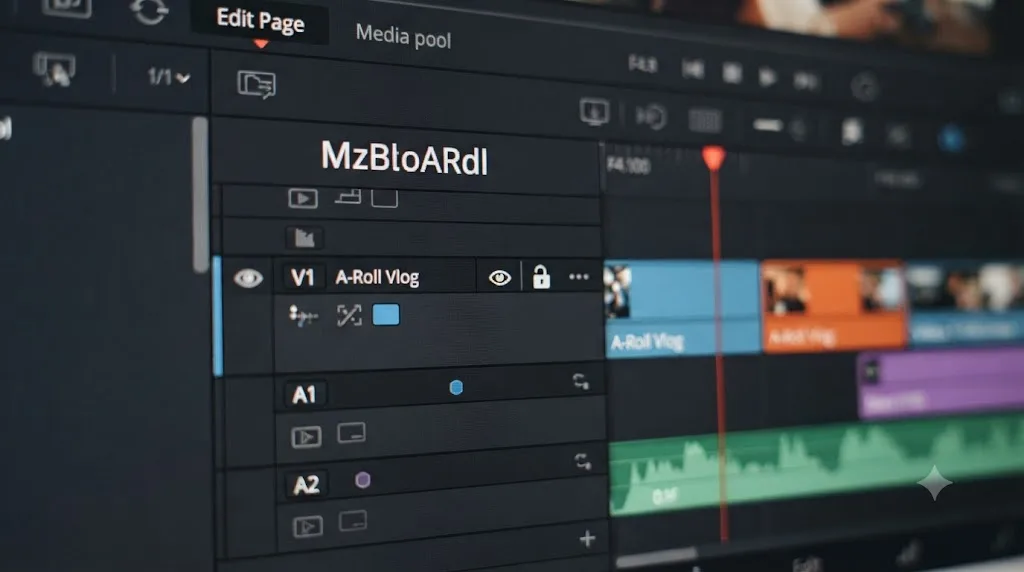
For years, one control in DaVinci Resolve's track header did two jobs at once. Auto Track Selector decided which tracks a targeting operation reached, things like adding an edit point across every track, copying and pasting, or selecting clips with the keyboard, and it also decided which tracks would ripple when you trimmed or deleted something. Turn Auto Track Selector off on a track, and that track sat still no matter what you did elsewhere on the timeline. That's the version of the story you'll find in most tutorials, most forum answers with a few years on them, and the DaVinci Resolve reference manual mirror for version 18.6, which describes Auto Select this way: tracks with it enabled see "ripple editing or ripple deleting affects all clips to the right of the clip or clips on that track being trimmed," per the DaVinci Resolve reference manual's chapter on Auto Select.
DaVinci Resolve 20.2 split that single control into two. Reporting on the update, Digital Production's Bela Beier described the change plainly: "Sync lock controls now ripple edits independently of the auto-select function," in Digital Production's coverage of DaVinci Resolve 20.2. Auto Track Selector, now shown as a distinct red control in the redesigned track header, kept its targeting job and gave up its ripple job entirely. A new, separate icon called Sync Lock took over deciding which tracks move during a ripple trim or ripple delete.
Advice that says "turn off Auto Track Selector to stop a track from rippling" is correct for Resolve versions before 20.2 and wrong for every version since. DaVinci Resolve 21, the version this site covers, inherits the split from 20.2, so it's the Sync Lock icon you want, not Auto Track Selector, if your goal is to control which tracks ripple. If you've been toggling Auto Track Selector and getting confused about why tracks still ripple when you expected them not to, or still don't ripple when you expected them to, this version split is very likely why: you were controlling targeting, not rippling, the entire time.
Is Sync Lock disabled on the track that won't ripple?
If you're on the Edit page and running Resolve 20.2 or later, which includes every DaVinci Resolve 21 release, this is the first place to look.
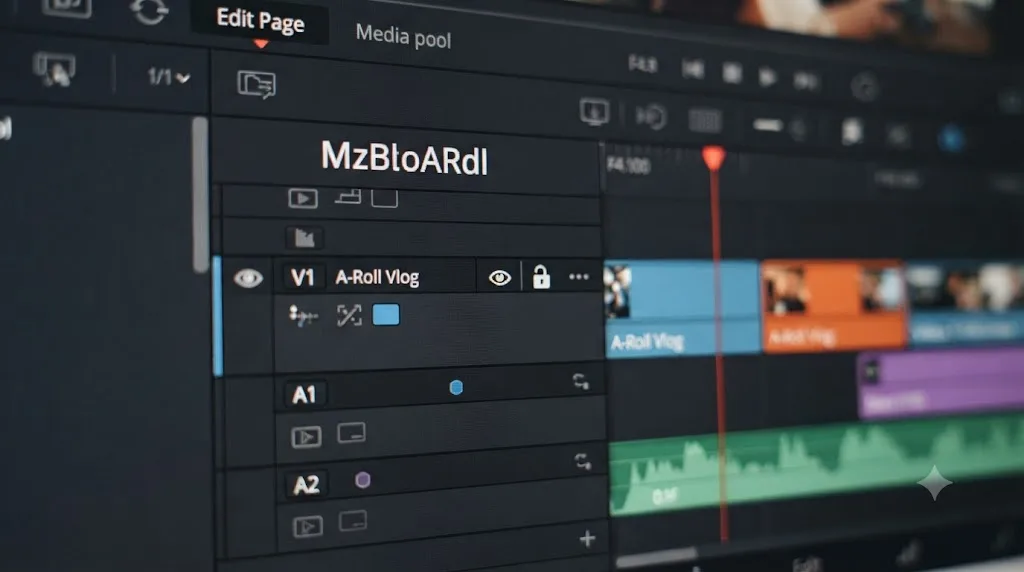
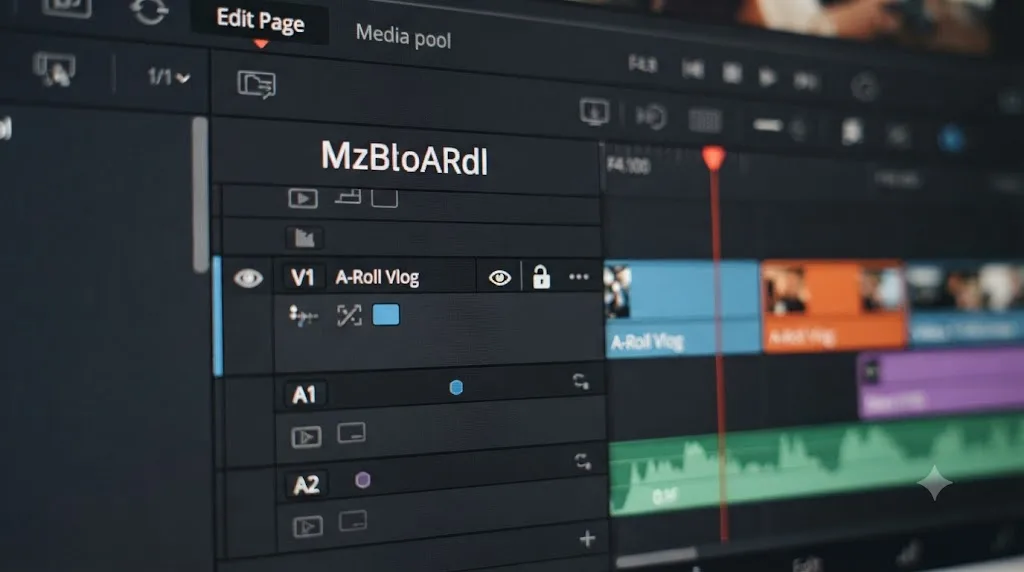
Sync Lock lives in the track header, alongside Auto Track Selector and the newer source patching control, and it works per track, independently on video and audio. When Sync Lock is on for a track, deleting a clip elsewhere on the timeline shifts that track's downstream clips left to stay in sync, exactly the behavior you expect from ripple delete. When Sync Lock is off, that track holds its position no matter what happens around it.
Creative Video Tips, describing the 20.2 update in detail, put it this way: DaVinci Resolve 20.2 "changes the way ripple editing and patching are performed on the edit page for the better with a completely redesigned track header," per Creative Video Tips' breakdown of the 20.2 update. The same coverage notes that the new ripple behavior, when Sync Lock is engaged across tracks, goes further than a simple shift: Resolve can automatically add cut points to longer clips on other tracks, like a music bed or room tone, at the exact moment of your trim, so those clips stay in sync without you manually cutting them yourself. There's a built-in exception too, worth knowing before it surprises you: clips within about one second of the trim point's start or end are left untouched, specifically to avoid creating a pile of tiny unwanted cuts.
Practically, that means a track that "won't ripple" on the Edit page in current Resolve almost always has Sync Lock turned off, not Auto Track Selector. Check every track involved, not just the one you're editing, since a downstream track with Sync Lock off will hold still even while the track you actually cut moves correctly.
Is Auto Track Selector actually your problem, not Sync Lock?
Worth separating out explicitly, because the two controls sit right next to each other in the track header and it's easy to click the wrong one under deadline pressure.
Auto Track Selector, shown as a red icon since the 20.2 redesign, governs which tracks a targeting operation reaches. Chadwick Shoults, writing about the button in detail before the 20.2 split, described its core behavior as telling Resolve to "pay attention to me if it's on and bright OR don't pay attention to me if it's turned off and dimmed out," in Creative Video Tips' piece on the Auto Select button. That targeting job covers a longer list than most editors realize: adding an edit point across multiple tracks at once with Blade All, copying and pasting, selecting clips or edit points with the keyboard, and Match Frame all read Auto Track Selector's state to decide which tracks they touch.
None of that is ripple delete specifically, but it can look like a ripple delete problem from the outside. If Auto Track Selector is off on a track and you try to add a synchronized edit point across every track before deleting a section, that disabled track never gets the edit point in the first place, so nothing on it ripples later, not because rippling failed, but because the setup step that would have created something to ripple never touched that track.
Auto Track Selector decides what an edit reaches. Sync Lock decides what a ripple moves. Confusing the two is the single most common version-delta mistake on this whole topic. If your symptom is specifically "deleting a clip doesn't shift the clips on another track," check Sync Lock first. If your symptom is "an edit point, a paste, or a selection didn't apply to a track I expected it to," that's Auto Track Selector, and it has nothing to do with ripple delete at all.
Is the Cut page's Ripple On toggle switched off?
If you're troubleshooting on the Cut page, ignore everything about Sync Lock. The Cut page never received that per-track redesign, and it doesn't have one.
Instead, the Cut page has a single Ripple On control, positioned to the left of the timeline ruler. According to the DaVinci Resolve reference manual's description of this control on the main track, you can "click on the Timeline Options icon and select Ripple On in the contextual menu, or click directly on the Ripple On icon to the left of the Timeline ruler," and clicking it again toggles rippling on or off, per the reference manual's chapter on the Ripple On option. The same page notes a related trick worth knowing: you can hold the Option key while trimming with the mouse on the main track to temporarily disable rippling for that one trim, without touching the toggle at all.
It's a small icon, it's easy to bump by accident while reaching for something else on a crowded interface, and once it's off, ripple delete on the Cut page stops closing gaps entirely, with no error message and nothing that visually flags what happened. If your Cut page ripple delete used to work and now silently leaves gaps, this toggle is the first thing to check, before you assume anything about tracks, locks, or preferences.
Does ripple delete on the Cut page only work on track V1?
Yes, and this one isn't a bug or a setting you can change. It's a design limit specific to the Cut page.
Multiple Blackmagic forum threads describe the same pattern: ripple delete works reliably on track V1 in the Cut page, but adding a second video track, or working on any track other than V1, breaks the expected ripple behavior, in threads including Ripple Delete in the Cut page not (always?) working, Ripple delete one track only?, and Ripple Delete on Cut Page With Multiple Tracks Not Working. One recurring detail across these reports: ripple delete on track V1 stops working correctly as soon as there's an audio track underneath it, and resumes working normally on tracks above that audio track, which is a strange enough symptom on its own that it sends a lot of editors looking for a bug that isn't there.
The practical takeaway is simple even if the cause is Cut page architecture rather than something you can toggle: if your project has grown past a single video track with one audio track underneath, and you need ripple delete to behave consistently across every track, switch to the Edit page. It has the full per-track Sync Lock system described earlier, and it doesn't share the Cut page's V1-only limitation.
Is a locked track blocking the ripple?
This is the one cause on this page that hasn't changed across any version, before or after 20.2, on either page.
A locked track, marked with the padlock icon on its header, can't be edited at all: no trimming, no dragging, no ripple delete, no ripple trim, regardless of its Sync Lock state, its Auto Track Selector state, or the global preference described in the next section. Locking a track is Resolve's blunt instrument for "don't touch this, period," and ripple operations respect that completely.
A locked track is excluded from every ripple operation, full stop, no matter what any other setting says. That's worth stating this plainly because it's easy to forget you locked a track hours earlier, during a completely unrelated part of the session, and then spend ten minutes suspecting Sync Lock or a preference when the actual answer is one padlock icon you clicked and forgot about.
There's a second, distinct icon worth checking at the same time: track visibility, the eye icon, separate from the lock. A track that's hidden but not locked will still ripple normally; a track that's locked but visible won't ripple even though you can see it moving nowhere. If you've been staring at a track that just won't shift, check both icons before you look anywhere else.
Is Linked Selection off, so linked audio gets left behind?
This one produces a specific, confusing symptom: you delete a video clip and expect its linked audio to disappear and ripple along with it, but the audio stays exactly where it was, creating a sync gap that wasn't there a second ago.
The cause is a mismatch between two things that sound like they should be the same setting but aren't. A link icon showing on a clip means that clip and its audio or video counterpart are linked as a pair, permanently, until you explicitly unlink them. Linked Selection, the chain icon in the toolbar above the timeline, is a separate, session-level toggle that decides whether Resolve respects that link when you select or delete something. A Blackmagic forum thread on exactly this symptom, Ripple delete moves only video even though audio is linked?, describes the trap directly: ripple deleting a gap without Linked Selection enabled will not move the audio, even though no clips were explicitly selected and the clips still show as linked.
The Unofficial DaVinci Resolve Forum's administrator, answering a similar question about clips moving independently when they shouldn't, laid out the same distinction from the other direction, describing "Linked Clips" and "Linked Selection" as two separate mechanisms: unlinking clips entirely through right-click, versus toggling the chain-link icon at the top of the toolbar to control whether linked clips currently behave as one unit, per The Unofficial DaVinci Resolve Forum's thread on stopping ripple movement after delete.
Fix it by clicking the chain icon above the timeline until it shows as active, then retry your ripple delete. If audio and video are linked but you specifically want them to behave independently for one operation, that's what temporarily toggling Linked Selection off is for; just remember to turn it back on afterward; it's easy to leave off and then wonder later why a completely different delete left something behind.
Did the Retain sync preference change your default behavior?
DaVinci Resolve 20.2 didn't just redesign the track header. It also added a global preference that changes what ripple operations do by default, and if you or a collaborator toggled it without realizing what it controlled, your entire project's ripple behavior can shift overnight with no other change made.
The setting is Preferences, User, Editing, "Retain sync and avoid overwrites with ripple edits." A Blackmagic forum thread specifically about this setting, titled "What's the point of Disable Sync Lock", lays out how it interacts with the per-track Sync Lock icon described earlier, since the two work together rather than one simply overriding the other:
| Retain sync preference | Sync Lock on the track | Result |
|---|---|---|
| On | On | Track splits and moves in step with edits on other tracks |
| On | Off | Entire track stays unaffected |
| Off | On | Edited track stays unaffected; other tracks may move or create gaps |
| Off | Off | Entire track stays unaffected |
One frustrated but useful real-world account of finding this setting comes from a video editor posting on X under the handle HiImCC: "figured it out! Uncheck 'retain sync and avoid overwrites with ripple edits' in the preferences panel Genuinely can't figure out why I would ever want that setting on," in HiImCC's post on X about the preference. Whether you want the setting on or off depends entirely on your workflow. If you're cutting dialogue-heavy content with a music bed or ambient track underneath and you want Resolve to automatically keep that layer in sync through every trim, leave it on. If you're doing simpler single-purpose ripple deletes and finding that Resolve keeps adding cuts to tracks you didn't ask it to touch, turning it off restores the older, more predictable, more manual behavior.
Another Blackmagic forum thread, "20.2 screwed up ripple Delete!", captures how disorienting this change felt to editors who updated mid-project without knowing the preference existed: a ripple delete that had worked one way for years suddenly behaved differently, with no crash, no error, and no obvious explanation until someone found this exact checkbox.
Are you pressing the wrong key for your platform?
Keyboard confusion accounts for a real share of "ripple delete is broken" reports, and it's made worse by the fact that sources disagree with each other more on this specific point than on almost anything else in this guide.
The clearest, most internally consistent version of the current default, drawn from a direct comparison of Mac and Windows behavior, runs like this: on Windows, the Delete key performs a ripple delete, closing the gap, while Backspace performs a regular delete that leaves a gap behind. On Mac, it's the reverse key relationship for the same logic: Forward Delete performs the ripple delete, and the primary Delete key, which functions like a backspace on Mac keyboards, leaves a gap. That mapping is described directly by beginnersapproach.com's guide to ripple delete.
Older material tells a different story, and it isn't necessarily wrong, just describing an earlier version or an earlier default. A Blackmagic forum thread from 2017, Ripple delete clip with "shift+delete" in Windows, discusses a period where Shift+Backspace was the expected ripple delete combination on Windows, not a plain Delete key press. A 2018 Creative COW thread shows the same confusion playing out for a real user: Kenneth Maultsby wrote, "My Ripple Delete shortcut is not working. I did a mark in and a mark out on a section in the timeline and attempted to do a Ripple Delete which the command should be Shift + Backspace," in his post on Creative COW about the ripple delete shortcut not working on Windows. A responder on that same thread noted that on their system, the plain Delete key performed the ripple deletion instead, which matches the current default described above rather than Maultsby's Shift+Backspace expectation.
The keyboard key that ripples on one Resolve version can leave a gap on another, and that single inconsistency explains a surprising share of "ripple delete stopped working" reports. Keyboard Customization is also fully remappable, which means a shared project template, a studio-wide preset, or a setting you configured years ago and forgot about can all override whatever this page, or any page, describes as the default. Rather than memorize a combination from any single source, including this one, open Preferences (or the DaVinci Resolve menu on Mac), go to Keyboard Customization, and search "Ripple Delete" directly. It takes fifteen seconds and it's the only version of the answer that's actually correct for your specific install.
Does marking In and Out points fix Cut page ripple delete when there's an audio track underneath?
Often, yes, and it's a workaround worth keeping in your back pocket specifically for the V1-plus-audio-track limitation described earlier.
Multiple accounts of the Cut page's multi-track ripple delete problem describe the same fix: rather than relying on a simple clip selection and the Ripple Delete command, explicitly mark an In point and an Out point on the timeline that fully covers the clip you want to remove, then trigger ripple delete. Several reports on the Blackmagic forum thread covering this exact behavior describe this working even when a direct ripple delete on the same clip, without marked points, does not, specifically in cases where an audio track sits underneath the video track you're trying to ripple.
This isn't a documented, guaranteed feature so much as a consistently reported workaround, and it's specific to the Cut page's particular quirks rather than a general-purpose fix you should reach for everywhere. If you're stuck on the Cut page, working with a locked audio track underneath your video, and a plain ripple delete isn't closing the gap the way you expect, marking In and Out first, then deleting, is worth trying before you give up and move the whole edit to the Edit page.
Are you actually looking for Ripple Delete Silence instead?
Worth ruling out before you keep troubleshooting a command that was never broken, because it wasn't the command you meant to use.
DaVinci Resolve 20.2 introduced a genuinely new feature with a name close enough to cause confusion: Ripple Delete Silence, found under Clip, Audio Operations. Coverage of the update describes it as a tool built for tightening dialogue or narration by automatically detecting and removing silent gaps, a workflow distinct from manually selecting a clip or a gap and pressing the regular ripple delete key, per Digital Production's coverage of the 20.2 release and Creative Video Tips' rundown of the same update.
If you searched for help with "ripple delete" while actually trying to automate silence removal in a podcast or interview edit, that's a different menu path than everything else on this page, and none of the causes above, Sync Lock, Auto Track Selector, the Cut page toggle, locked tracks, or Linked Selection, apply to it in the same way, since it's driven by detected audio content rather than a manual selection. Worth a quick check of Clip, Audio Operations before you spend more time on manual ripple delete settings that were never the actual obstacle.
Does ripple delete behave differently between the Edit and Cut pages?
Fundamentally, yes, and by now the reasons should be clear: these aren't two views of the same ripple system, they're two separate implementations that happen to share a name.
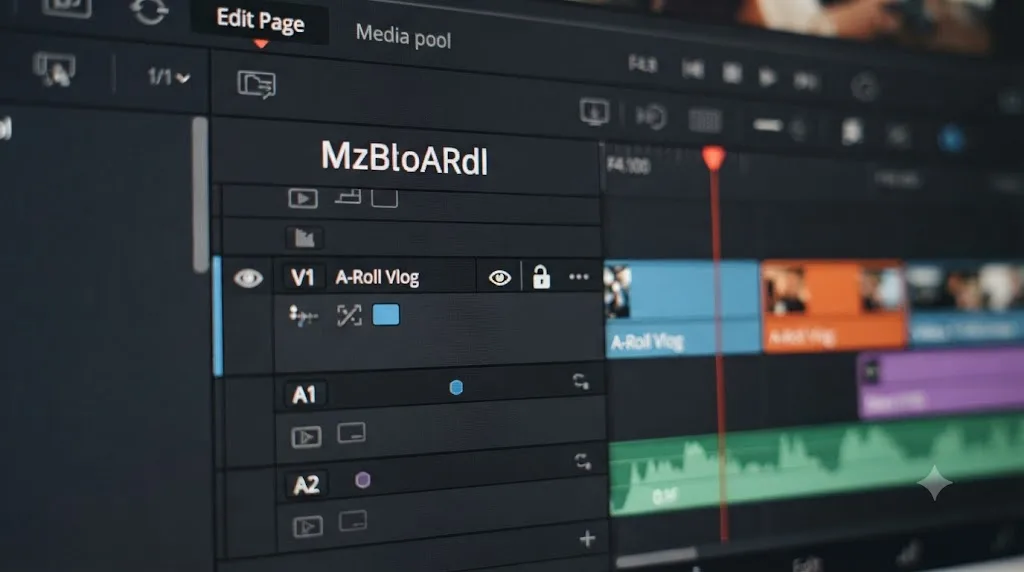
The Edit page, since Resolve 20.2, uses per-track Sync Lock alongside a separately redesigned Auto Track Selector, giving you fine control over exactly which tracks participate in any given ripple, plus the smarter cross-track sync behavior described earlier when the Retain sync preference is on. The Cut page uses a single Ripple On toggle affecting only track V1, a simpler system that predates the 20.2 redesign and never received it. Neither page is more "correct." They're built for different editing speeds: the Cut page trades flexibility for the fast, dual-timeline workflow it's designed around, while the Edit page trades some of that speed for the granular control a complex multi-track timeline actually needs.
Our Cut page vs Edit page comparison covers the rest of the structural differences between these two pages in more depth, and it's worth reading if ripple delete isn't the only place you've noticed the two pages diverging; a lot of the same "why does this work here but not there" confusion around trimming, source tape navigation, and track handling traces back to the same underlying design split.
If you're testing a fix from this page and it seems to work on one page but not the other, that's not a sign the fix is wrong. It's confirmation that you're looking at two different systems, and a setting relevant to one has no equivalent on the other.
Is this a project-specific problem, or does it happen everywhere?
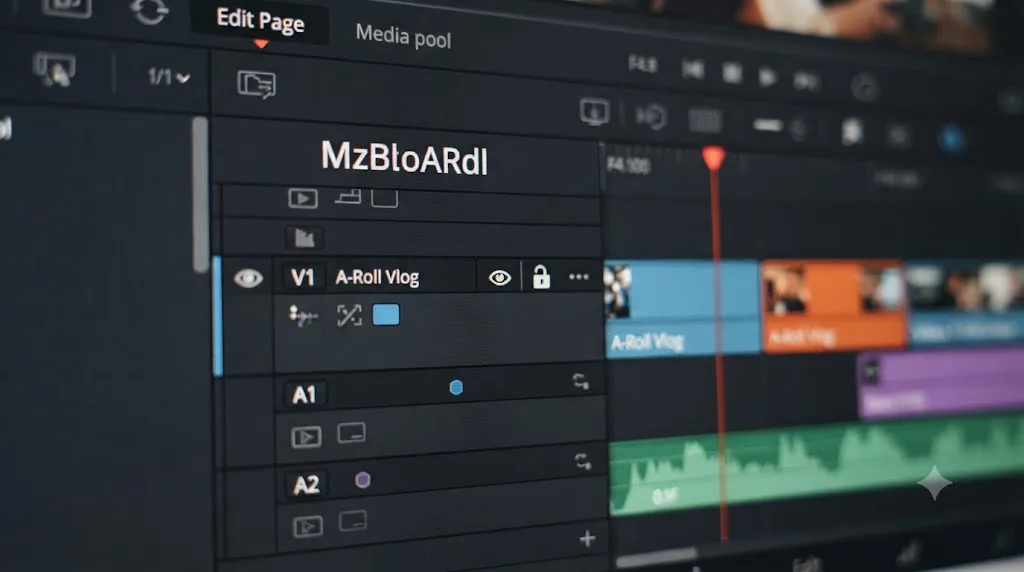
Before you spend more time on individual settings, it's worth spending thirty seconds narrowing the scope. Open a brand-new, empty project and test ripple delete on a couple of test clips across two or three tracks.
If the new project behaves normally and only your original project misbehaves, the cause lives inside that project's specific settings, not your Resolve installation as a whole. The most common project-specific cause, beyond the settings already covered, is simply that a collaborator, a template, or your past self changed the Retain sync preference, a Sync Lock icon, or the Cut page's Ripple On toggle at some earlier point in that project's life and never changed it back. Since these are largely global application preferences rather than per-project settings, though, a genuinely global problem, one that shows up in a brand-new empty project too, points toward the Retain sync preference or a Keyboard Customization change as the more likely culprit, since those apply across every project you open.
This test alone eliminates roughly half the causes on this page and tells you which half of this guide is actually relevant to your specific case.
What does the full diagnosis look like on a real timeline?
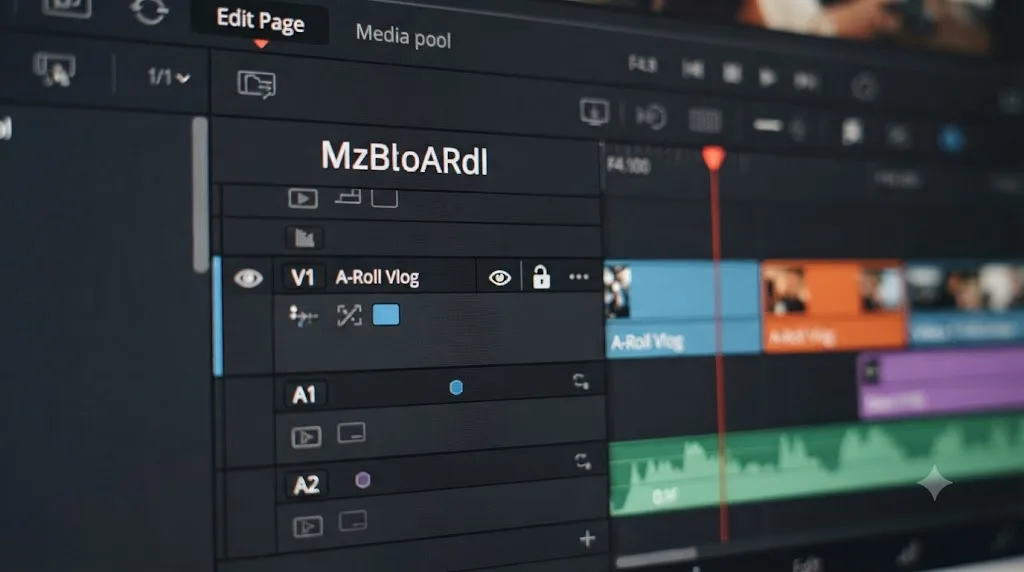
Put the pieces together on a common case: an editor on DaVinci Resolve 21, working a three-track Edit page timeline, video on V1 and V2 plus a dialogue track on A1, who deletes a clip on V1 expecting everything downstream to shift left together.
The symptom: V1 clips ripple correctly, A1's dialogue ripples correctly, but V2, holding a lower-third graphic, doesn't move at all, leaving the graphic misaligned with the footage underneath it.
Working through the causes in the order this guide lays them out: first, confirm the page. This is the Edit page, so Sync Lock, not Auto Track Selector, is the relevant control, and not the Cut page's V1-only toggle. Second, check Sync Lock on V2 specifically, since that's the track that isn't moving. If Sync Lock is off there, that's the entire explanation: someone, possibly the editor from an earlier session, turned it off deliberately to keep that graphic pinned to a specific timecode regardless of trims happening on other tracks, a legitimate and common reason to disable Sync Lock on purpose. Third, rule out a locked track, since a padlock would produce an identical symptom; in this case V2 isn't locked, it's just Sync Lock, off.
The fix, once identified, takes seconds: click the Sync Lock icon on V2 to turn it back on, then redo the ripple delete. The graphic now shifts in step with everything else. Total time from "this looks broken" to "this is exactly one setting behaving exactly as configured": a couple of minutes, and zero changes made to the actual footage or edit points.
That's the pattern behind nearly every version of this complaint. It's rarely the ripple delete command itself. It's almost always one specific control, in one of a small number of places, that got set once, for a real reason, and then forgotten.
What's the fastest thing to try first?
Work through these in order before you assume anything is broken beyond a setting.
- Confirm whether you're on the Edit page or the Cut page. The rest of this checklist depends on the answer.
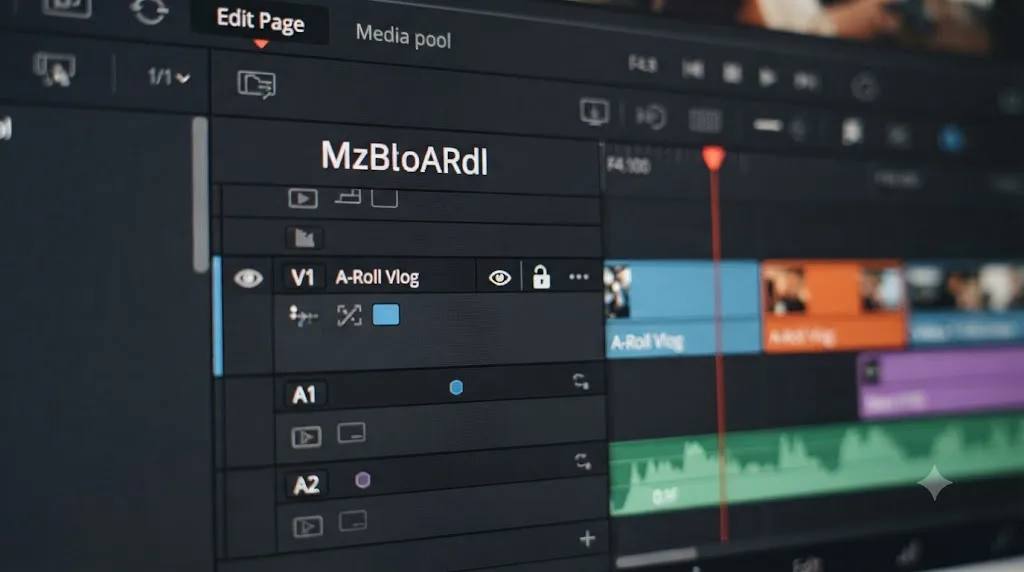
- On the Edit page, check Sync Lock on every track involved, not just the one you're editing. It's the control that governs rippling since DaVinci Resolve 20.2, not Auto Track Selector.
- On the Cut page, check the Ripple On toggle to the left of the timeline ruler, and remember it only affects track V1 by design.
- Check for a locked track. A padlock icon overrides every other setting on this list.
- Turn on Linked Selection, the chain icon above the timeline, if linked audio isn't moving with its video.
- Open Preferences, User, Editing, and check the Retain sync and avoid overwrites with ripple edits setting if the behavior changed after an update.
- Open Keyboard Customization and search "Ripple Delete" directly to confirm which key actually triggers it on your specific install, rather than trusting a memorized shortcut.
- On the Cut page with an audio track underneath, try marking In and Out points around the clip before deleting.
- Test in a brand-new empty project to isolate a project-specific setting from a global one.
Most people land on step two or step three, once they know which page they're actually looking at. The command isn't broken, and your project isn't corrupted. Somewhere in a track header, a toolbar icon, or a Preferences checkbox, a setting introduced by an update you may not have even noticed is doing exactly what it was built to do, just not what you needed today.
If hunting through track headers and a Preferences submenu for a checkbox you've never needed before eats the rest of your session, that's the specific kind of friction TryUncle is built for. TryUncle is an AI tutor for DaVinci Resolve on macOS. Ask in plain words and Uncle points at the exact control on your screen, instead of sending you back to a forum thread to figure out whether you're looking at Sync Lock or Auto Track Selector. Our keyboard shortcuts reference is worth a skim too, since a wrong Ripple Delete key is one of the fastest fixes on this whole page once you know where to look, and if your timeline itself has stopped responding to scroll or zoom on top of a ripple delete problem, our guide to a DaVinci Resolve timeline that won't scroll or zoom covers that separately.
Find the one setting, in the one place, that's actually holding your track still, and the ripple starts again.
Frequently asked questions
- Why does ripple delete skip a track when I delete a clip on the Edit page?
- In DaVinci Resolve 20.2 and later, that's controlled by Sync Lock, a per-track icon in the redesigned track header, not by Auto Track Selector like it was in older versions. If Sync Lock is off on a track, deleting a clip elsewhere on the timeline leaves that track's clips exactly where they were, which looks exactly like a broken ripple delete.
- What's the difference between Auto Track Selector and Sync Lock in DaVinci Resolve 20.2 and later?
- Before 20.2, one control did both jobs. Since 20.2, Auto Track Selector (the red icon) decides which tracks a targeting operation reaches, things like Blade All, copy and paste, and Match Frame, while Sync Lock is the separate control that decides which tracks ripple when you trim or delete. Advice that says 'turn off Auto Track Selector to stop a track from rippling' is accurate for pre-20.2 Resolve and wrong for 20.2 and later.
- Why does ripple delete only affect track V1 on the Cut page?
- By design. The Cut page never received the Edit page's per-track Sync Lock redesign. It kept a single Ripple On toggle, to the left of the timeline ruler, that governs ripple behavior on track V1 only. If you need every track to ripple together, switch to the Edit page.
- Why does ripple delete leave my audio behind when I delete the video clip above it?
- Linked Selection, the chain icon in the toolbar above the timeline, has to be turned on for linked clips to move together during a ripple delete of a gap. A link icon showing on the clips themselves isn't enough on its own if Linked Selection is toggled off; Resolve treats the selection rule and the link relationship as two separate settings.
- Does a locked track stop ripple delete?
- Yes, completely, and this is one of the few parts of this topic that hasn't changed across versions. A locked track can't be edited at all, so it's excluded from every ripple operation regardless of its Sync Lock or Auto Track Selector state. Unlock it first.
- What does the 'Retain sync and avoid overwrites with ripple edits' preference actually do?
- It's the master switch for Resolve 20.2's smarter ripple behavior, found in Preferences, User, Editing. With it on, a ripple trim or delete can automatically add cut points to longer clips on other tracks to keep everything in sync. With it off, Resolve reverts to the older, simpler ripple behavior from before 20.2, where only the edited track and whatever Sync Lock allows actually move.
- Which key ripple deletes a clip, and which one just leaves a gap?
- On Windows, the default is Delete for ripple delete and Backspace for a regular delete that leaves a gap. On Mac, Forward Delete ripple deletes and the primary Delete key leaves a gap. Keyboard Customization is fully remappable and has changed across Resolve versions, so if a key doesn't do what's described here, open Preferences (or the DaVinci Resolve menu on Mac), go to Keyboard Customization, and search 'Ripple Delete' directly.
- Is Ripple Delete Silence the same thing as ripple delete?
- No. Ripple Delete Silence, under Clip, Audio Operations, is a DaVinci Resolve 20.2 addition that automatically tightens gaps in dialogue or narration based on detected silence. Regular ripple delete is a manual command you apply to a clip or gap you've selected yourself. If you went looking for one and landed on information about the other, they solve different problems.
Sources
- Blackmagic Forum: Ripple Delete in the Cut page not (always?) working
- Blackmagic Forum: Ripple delete in Cut Page not working
- Blackmagic Forum: Ripple delete one track only?
- Blackmagic Forum: Ripple Delete on Cut Page With Multiple Tracks Not Working
- Blackmagic Forum: ripple not working in cut mode
- Blackmagic Forum: 20.2 screwed up ripple Delete!
- Blackmagic Forum: What's the point of Disable Sync Lock
- Blackmagic Forum: Ripple delete moves only video even though audio is linked?
- Blackmagic Forum: Ripple delete clip with "shift+delete" in Windows
- Creative COW Forum: Ripple Delete keyboard shortcut not working on Windows machine (Kenneth Maultsby)
- The Unofficial DaVinci Resolve Forum: HELP to Stop Ripple Movement After Delete
- DaVinci Resolve Reference Manual: Using Auto Select to Control Which Tracks Are Rippled
- DaVinci Resolve Reference Manual: Ripple on Main Track Option to Disable Ripple Trims
- Digital Production: DaVinci Resolve 20.2: Ripple Discipline, ProRes RAW, and AI Fog on Demand (Bela Beier)
- Creative Video Tips: DaVinci Resolve 20.2 Update Features (Chadwick Shoults)
- Creative Video Tips: A Deceptively Powerful Button You Must Know, DaVinci Resolve Auto Select (Chadwick Shoults)
- HiImCC (@DrawnbyCC) on X: the Retain sync and avoid overwrites preference
- beginnersapproach.com: How to Ripple Delete in DaVinci Resolve (+ FIXES! 2025)
- Newsshooter: DaVinci Resolve 21.0.2 Update
Put this guide to work with TryUncle.
Ask about the step you’re on. TryUncle sees your screen and points at the control you need, so you can keep learning in your own project.
Get TryUncle for Mac or WindowsKeep reading
Comparisons · Jul 10, 2026 · 28 min
DaVinci Resolve Cut Page vs Edit Page: The Real Differences
A full side-by-side of DaVinci Resolve's Cut and Edit pages: timeline, trimming, multicam, and hardware differences, plus which one to use.
Guides · Jul 8, 2026 · 16 min
DaVinci Resolve Keyboard Shortcuts: The Complete Reference
Every essential DaVinci Resolve keyboard shortcut, organized by page: Edit, Cut, Color, Fairlight, Fusion, and Deliver, plus how to customize and share your own.

Fixes · Jul 17, 2026 · 25 min
DaVinci Resolve Timeline Won't Scroll or Zoom? Here's the Fix
Fix a DaVinci Resolve timeline that won't scroll or zoom: check 2D Timeline Scrolling, your modifier keys, trackpad gestures, and a stuck UI layout.