Articles / Fixesupdated for DaVinci Resolve 21.0.2 (July 2026)
DaVinci Resolve Says Clip Has No Video Track: The Real Fix
Quick answer
DaVinci Resolve throws this error when the source genuinely lacks a decodable video stream, not when the file is broken. The five real causes are an audio-only file, a video stream that failed to decode, a flattened AAF/OMF conform, a multicam angle with no picture, or a Fusion Loader fed a non-EXR file. Check MediaInfo first, then match your context to the cause below.
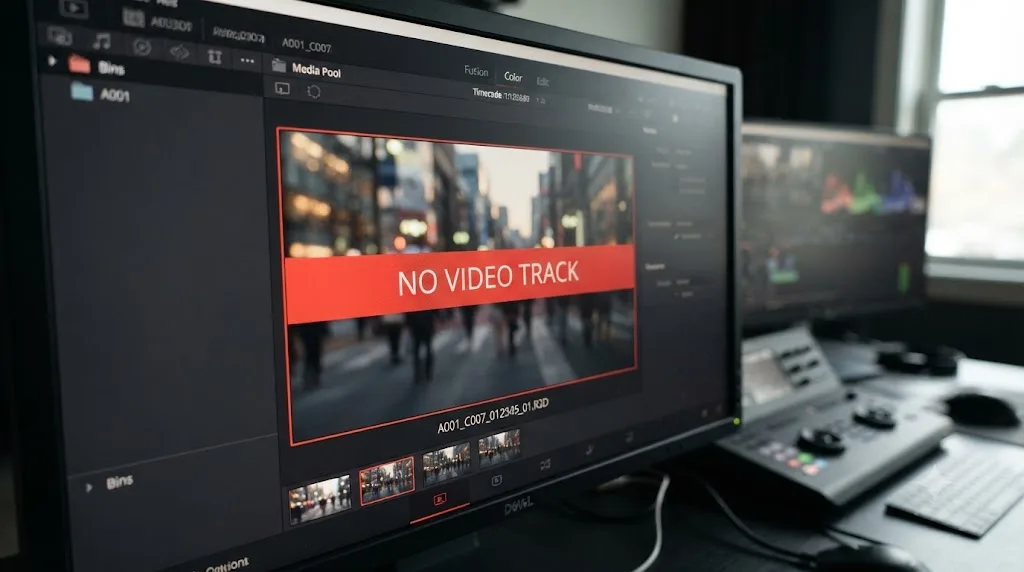
You dragged in a file, or conformed a timeline, or cut to a multicam angle, and Resolve stopped you cold: clip has no video track. No further explanation, no codec name, just a flat statement that the picture you're sure exists isn't there as far as Resolve is concerned.
Here's the part that saves you the most time: "Clip has no video track" is Resolve reporting an absence it actually checked for, not a vague catch-all error. Something specific about that clip, in that specific context, really does lack a video stream Resolve can use. Five separate situations produce this exact message, and they need five different fixes. Get the wrong one and you'll spend an hour transcoding a file that was never broken, or reinstalling a driver that was never the problem.
What does "Clip has no video track" actually mean?
Every clip Resolve manages is really a pointer to one or more streams inside a media file: a video stream, one or more audio streams, sometimes embedded timecode or metadata streams riding alongside them. When you place a clip, cut to it in a multicam group, or feed it into a node in Fusion, Resolve checks which streams that pointer actually resolves to before it lets the operation proceed.
This error fires when that check comes back empty on the video side. Not "we don't recognize this container." Not "we can't find this file." Specifically: whatever this clip points to, right now, in this operation, has no usable video stream attached to it.
That's a meaningfully different problem than Media Offline, which means Resolve can't locate the file at all, or Unsupported File Format, which means Resolve found the file but rejected the whole thing outright. Here, Resolve accepted the clip enough to know what's inside it, and what's inside it, for video purposes, is nothing.
A clip missing its video track is not the same failure as a clip Resolve can't find or a clip Resolve refuses to open entirely. All three produce different downstream behavior, and conflating them sends you down the wrong troubleshooting path from the first click.
Is the file actually audio-only, and you just haven't realized it?
Start here, because it's the single most common cause and the fastest to rule in or out. A surprising number of "no video track" reports trace back to a file that never had picture in the first place.
This happens constantly with production sound. A location sound recordist hands off a folder of WAV files from a Zoom or Sound Devices recorder, and somewhere in the shuffle one of those files gets dragged into the video row of a multicam bin, or dropped onto a video track during a fast assembly edit, or referenced by an EDL that a previous editor built sloppily. The file plays back with sound. It looks, from the filename and the folder it lives in, exactly like something that should have picture. It just doesn't, because it was never anything but a sound recording.
The same thing happens with exported stems. If someone renders "just the dialogue mix" out of a timeline as a .mov to hand to a sound editor, and that .mov comes back into a different project later mislabeled or misfiled, it reads to Resolve exactly the same way: a valid, playable file, with zero frames of picture inside it.
- Right-click the clip in the Media Pool and check its Clip Attributes. If Resolve lists an audio codec and sample rate but no video codec, resolution, or frame rate, the file is audio-only at the container level. There's nothing to recover.
- If you need that content on a video track for organizational reasons (say, laying scratch audio against picture you'll add later), place it on an audio track instead and let picture come from a separate clip. Resolve will not synthesize black or freeze-frame video to satisfy a video track slot.
- If you genuinely expected picture and got audio only, go back to the source. Check whether the original camera or recorder actually captured video for that take, since a lens cap left on, a dead battery mid-record, or a recorder set to audio-only monitoring mode all produce exactly this file.
A file that plays sound perfectly can still have zero frames of video inside it, and no setting inside Resolve will add a picture that was never recorded. That distinction is obvious once you say it out loud, and it's exactly the assumption that trips people up when a mislabeled or misfiled audio stem lands in the wrong bin.
Why does a video file with a visible thumbnail still throw this error?
This is the case that genuinely confuses people, because the evidence in front of you says the opposite of what Resolve is telling you. You can see a frame. There's a picture right there in the Media Pool. And Resolve still insists there's no video track.
The thumbnail you're looking at is very often a single cached frame, grabbed once at import time before Resolve attempted to fully decode the stream for scrubbing, playback, or editing. That one frame extracting successfully proves almost nothing about whether the rest of the stream decodes cleanly. A file can hand over frame one without a fight and then fail completely the moment Resolve tries to build a full decode path for continuous playback.
Three distinct failures produce this pattern:
A corrupted frame index or truncated file. An interrupted camera-to-card write, a card pulled before the file finished flushing, or a partial network transfer can leave a video file with a valid header, a valid first frame, and a broken or missing index for everything after it. The container looks intact enough to hand over a thumbnail. The actual frame data past that point is gone or unreadable.
A color depth or chroma subsampling profile Resolve's decoder rejects. Robin Parmar, who documents Resolve's codec quirks in detail on his technical blog Theatre of Noise, makes a point worth sitting with here: "Some authors claim that either Microsoft Windows or Resolve (free) don't support 10-bit video. But this is false," as he explains in his breakdown of Resolve's codec limitations. The real fault line isn't bit depth alone, it's the specific combination of codec, profile, and chroma subsampling a file was encoded with, and some of those combinations produce a file whose video stream simply won't decode on a given install even though the container and the first frame look completely normal.
A GPU decode failure specific to your hardware and driver. Puget Systems' testing on Resolve Studio's hardware decode paths lays out how narrowly scoped H.264 and H.265 acceleration actually is, in their breakdown of exactly which decode profiles get GPU acceleration and which don't. When a GPU driver can't accelerate the specific profile a file uses and Resolve's fallback path also stumbles, the practical result on your end looks identical to a missing video track: audio plays, and picture doesn't.
| Symptom detail | Likely cause | Where to go next |
|---|---|---|
| Thumbnail shows, first frame scrubs, then playback stops or glitches | Corrupted frame index partway through the file | Re-copy from source or original card if available |
| Thumbnail shows, file won't scrub at all past frame one | Corrupted header past the first frame, or truncated transfer | Check original source; a partial copy can't be repaired by settings |
| File plays audio, video area stays black or grey | GPU decode failure or unsupported color profile | Update GPU driver, or transcode to ProRes/DNxHR |
| File imports fine on another machine, fails here | Driver or hardware-specific decode gap | Compare GPU generations; transcode as a universal fallback |
- Open MediaInfo and check the video stream's exact codec, profile, and chroma subsampling, not just the codec family name.
- Try the file on a different machine or a different GPU if one's available. A file that behaves identically everywhere points to file corruption. A file that only fails on one machine points to a driver or hardware decode gap.
- Update your GPU driver to the current version Blackmagic's tech specs page lists as supported for your Resolve build, per Blackmagic's official tech specs.
- If updating the driver doesn't resolve it, transcode the file to ProRes or DNxHR using HandBrake or Shutter Encoder. This sidesteps the decode problem entirely by handing Resolve a codec its decoder handles natively and consistently across GPU generations.
A visible thumbnail proves Resolve extracted one frame successfully. It proves nothing about whether the rest of the video stream will decode. That gap between "one frame worked" and "the whole stream works" is exactly where this error hides, and it's why the file looking fine in the Media Pool doesn't rule out a real decode failure.
Why does this happen right after importing an AAF or OMF?
If this error showed up the moment you conformed a timeline that came from Pro Tools or Avid Media Composer, you're not looking at a broken file at all. You're looking at how AAF and OMF were designed to work.
Both formats grew up in an audio-first world. Pro Tools and Avid's audio tools care primarily about getting waveforms, edit points, and fades across accurately, and video, when it's included at all, often exists as picture reference rather than something meant to survive the round trip at full fidelity. Mike Thornton, writing for Production Expert about building Pro Tools-friendly AAFs out of Resolve, states the mechanism plainly: "the Pro Tools preset will flatten all the video tracks on the timeline to one single video file," in his detailed walkthrough of the AAF export process. Flattening isn't a bug report, it's the intended behavior of that export path, and it means every individual clip's own video reference gets collapsed into one reference video, or dropped, depending on the exact preset used.
Import that kind of AAF back into a fresh Resolve project expecting your original per-clip video references to still be there, and you'll hit this error on clip after clip. The audio survived the trip in full detail. The individual video links did not, because the format you exported through was never built to carry them that way.
The reverse trip, Avid to Resolve, has its own version of the same problem. A Creative COW forum thread documents an editor, Aaron Wiesen, who imported an AAF from Avid Media Composer and found clips missing on one video track along with a large batch of missing audio clips, in the full thread on this exact scenario. The fix another editor in that thread, Glenn Sakatch, offered cuts straight to the heart of it: "Transcode it, with handles to a clean '1' folder in your Avid MediaFiles structure...export an aaf, but only with the linking options set...no media creation necessary." The actual media needed to exist as real, findable files in a clean folder structure before the AAF's links had anything solid to point at. An AAF is only ever a set of instructions for finding media, and instructions pointing at nothing produce exactly the "no video track" symptom on the Resolve side.
- If you're the one exporting the AAF or OMF from Resolve, check which preset you're using before you send it. A preset built for Pro Tools handoff is optimized for audio fidelity, not preserving individual video links, and that's the correct choice when the destination genuinely only needs audio.
- If you need video to survive an AAF or OMF round trip, export XML or a native project archive alongside it, or explicitly confirm your export preset keeps per-clip video references instead of flattening them.
- If you're importing an AAF and hitting this error, check whether the export "linking options" were used rather than a media-creation option that consolidates or transcodes video separately. Re-export from the source system with linking-only options and a clean, single media folder if you have access to redo the export.
- If you don't have access to redo the export, import the AAF's audio for what it's worth, and rebuild the picture side of the timeline from your original camera files using the AAF's timecode as your reference for matching cuts. Our XML import guide covers the same conform logic from the Premiere Pro side, and much of it, particularly matching by file name instead of timecode when timecode drifts, applies here too.
AAF and OMF were built to move audio reliably between Pro Tools, Avid, and Resolve, and video survives that trip only when the export preset explicitly preserves it. That's not a flaw specific to Resolve's importer. It's the tradeoff those formats have always made, and knowing that changes what you check first the next time a whole AAF conform comes in audio-only.
Why does one angle in my multicam clip throw this error?
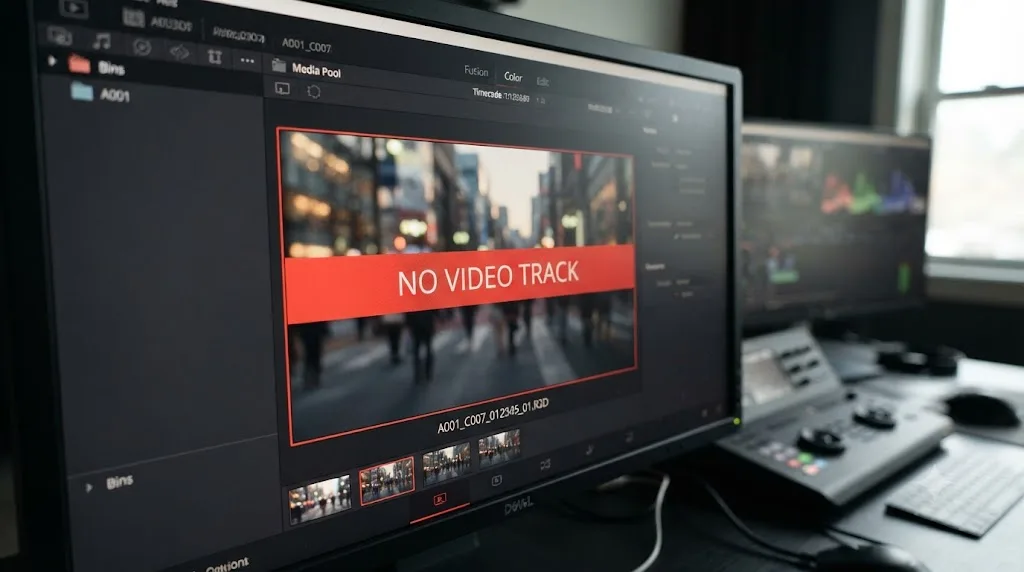
Multicam editing depends on every angle in the group being something you can actually cut to and see. The moment one angle isn't, Resolve doesn't quietly hide that angle. It throws this exact error the instant you try to switch to it.
The most common real-world cause is a mixed bag of sources getting added to the same multicam group without a careful second look. A typical multi-camera shoot has two or three cameras, sure, but it often also has a boom operator running a separate audio recorder, a lav feed recorded to its own device, or a "safety" audio backup running on a phone in someone's pocket for the whole session. If any of those audio-only sources gets swept into the multicam clip's angle selection, either through a batch selection in the bin or an automated sync tool that groups by timecode without checking for picture, Resolve builds a multicam clip with one angle that has sound and nothing else.
Blackmagic's own manual on creating and modifying multicam clips describes angle assignment as something Resolve does automatically based on the clips you select, which is exactly the mechanism that makes this mistake easy to make at scale. Select fifteen files across three cameras and two sound recorders in one go, and Resolve will happily build angles out of every one of them, including the ones that were never meant to be a camera angle in the first place.
A related version of this shows up in cross-application handoffs. A Creative COW thread titled exactly "No Media Pool clip to track" documents editor Michael Sanders hitting a closely related error working with a multicam clip brought in via XML from Final Cut Pro X, in the full thread. Sanders traced it to multicam angles in FCP X that themselves contained more than one clip each, a structure Resolve's XML parser didn't reliably interpret at the time. The specific mechanism differs from an audio-only angle, but the pattern is the same: a multicam group built from a source application's own internal logic, arriving in Resolve with an angle that doesn't resolve to clean, singular video the way Resolve expects.
- Right-click the multicam clip and choose "Open in Timeline" (or double-click it from the Media Pool with the multicam viewer active) to inspect each angle individually rather than trusting the group edit at a glance.
- Go angle by angle in the multicam viewer. The angle throwing the error will show black, or won't populate a thumbnail, while its neighbors show picture normally.
- Once you've identified the offending angle, open the original multicam clip's angle assignments and either remove that source entirely or replace it with the correct camera file that was meant to occupy that slot.
- Rebuild the multicam clip if the angle assignments were built automatically from a bulk selection. Reselect only genuine camera sources this time, and add scratch or backup audio-only recordings separately rather than through the same batch.
A multicam clip is only as reliable as its least reliable angle, and an audio-only file added to that group by mistake will error the instant you cut to it, not before. That delayed failure is exactly why it's easy to build a broken multicam clip and not notice until you're deep into a cut and switch to the wrong angle for the first time.
Why does the Fusion page say this when the Edit page shows the clip fine?
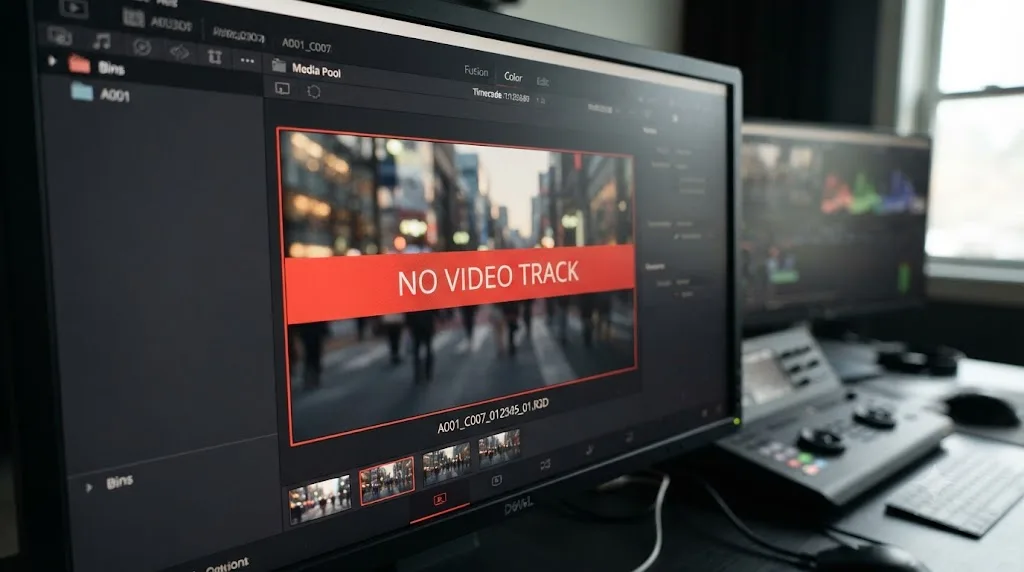
This is a narrower case, but it's a genuinely confusing one, because the same file that cuts and plays perfectly on the Edit page throws this error the moment you try to load it directly through certain nodes on the Fusion page.
The Loader node is the specific trap. Blackmagic's own Fusion manual states this without ambiguity: "The Loader node in DaVinci Resolve is only used for importing EXR files," in the official Loader node documentation. That's a scoped-down version of the Loader node from standalone Fusion Studio, where it handles a much wider range of image sequence formats. Inside Resolve's integrated Fusion page, feeding the Loader node a QuickTime file, an MP4, or any standard video container isn't a decode problem at all. It's a category mismatch. The node was never built to accept that kind of input in the first place, and "no video track" is Resolve's way of describing a file it can't slot into a node scoped that narrowly.
The practical fix is almost always simpler than it looks: you don't need the Loader node for footage that's already living on your timeline. The MediaIn node is what pulls timeline clips, including standard video files, directly into a Fusion composition, and it doesn't share the Loader node's EXR-only restriction. If you're specifically trying to bring in a true image sequence (frame-numbered EXR, DPX, or similar renders from a 3D application), the Loader node is the right tool, and the fix there is making sure your sequence is genuinely one of the supported still-image formats rather than a video container with a misleading name.
- If the error appears on a node you dragged in expecting to load video, check whether it's a Loader node. If it is, delete it and add a MediaIn node instead, which pulls directly from your timeline clip.
- If you're intentionally loading an image sequence through a Loader node and still hitting this error, confirm in your file browser that the sequence is genuinely frame-numbered stills (EXR, DPX, TIFF) and not a video file renamed to look like part of a sequence.
- For compositing work that genuinely needs the full range of formats Fusion Studio supports, use Resolve's VFX Connect feature to send the shot to standalone Fusion Studio rather than fighting the Resolve page's narrower Loader scope.
Inside DaVinci Resolve's Fusion page specifically, the Loader node only accepts EXR image sequences, not general video files, and that's a deliberate scope limit, not a bug. Once you know that one fact, this entire category of "but it plays fine everywhere else" confusion stops being confusing.
Why does this happen after generating Optimized Media or Proxy files?
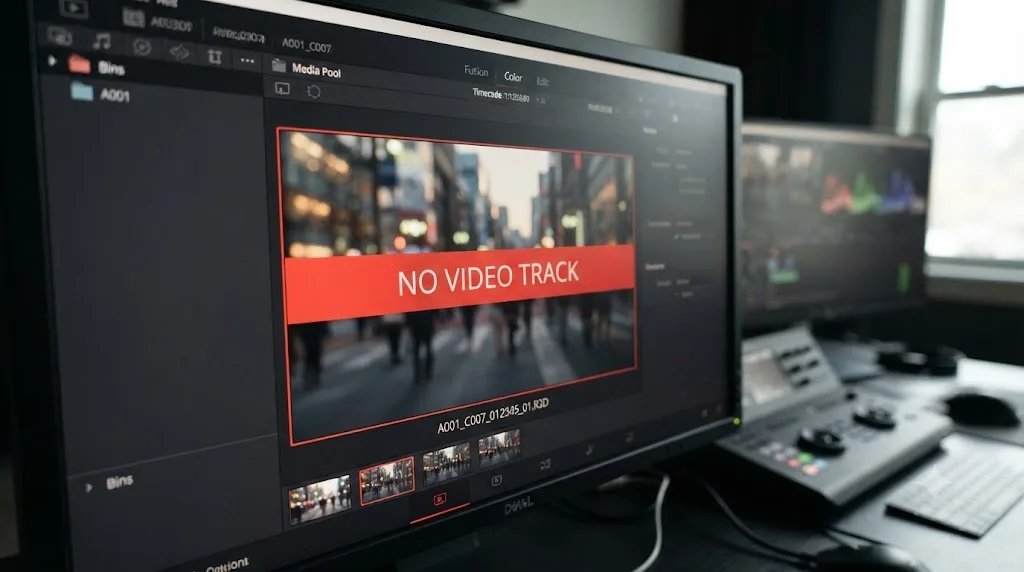
Optimized Media and Proxy generation both work the same basic way: Resolve reads your original file and writes a new, more editing-friendly copy alongside it, then points your project at that new copy for smoother playback. When that render process itself fails partway through, silently or otherwise, you can end up with a proxy or optimized file on disk that's incomplete, and an incomplete render can easily be an audio-only stub with no usable video frames written to it at all.
This shows up most often on projects with an unstable drive, a background task competing hard for disk I/O during the render, or a power interruption on a laptop mid-generation. The original camera file is completely fine. The generated proxy or optimized copy Resolve is now trying to play instead of the original is the broken one.
- Switch your playback setting from Optimized/Proxy back to the original camera format temporarily (Playback menu, or the proxy resolution dropdown at the bottom right of the interface) and confirm the clip plays with full video on the original media. If it does, the original is fine and the generated copy is the problem.
- Delete the specific broken optimized or proxy file for that clip from your cache location (check Project Settings > Master Settings for your configured cache path), then regenerate it for that clip only rather than the whole project.
- If proxies or optimized media keep generating incomplete on a specific drive, check that drive's health and available free space before you re-render. A drive filling up mid-render is one of the more common causes of a truncated proxy file.
A broken proxy or optimized media file produces the exact same "no video track" symptom as a broken original, because Resolve is now playing back the broken copy, not your untouched camera file. Checking the original before you troubleshoot the proxy saves you from chasing a problem that only exists in a cache file you can safely delete and rebuild.
Can a renamed or mislabeled file cause this?
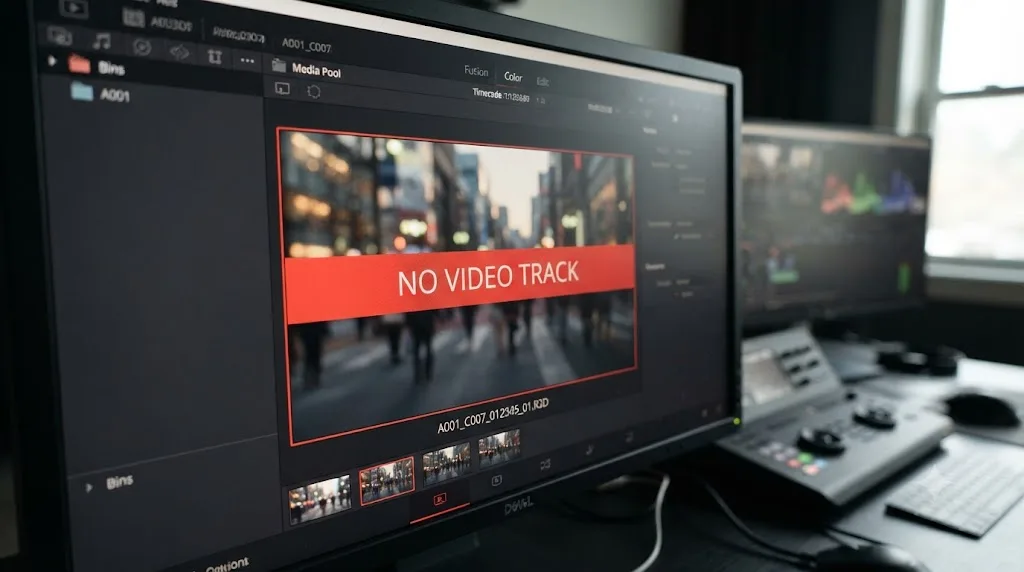
Yes, and like the unsupported format version of this problem, it's a sneakier variant because the obvious fix, checking the file extension, tells you nothing useful.
Renaming a file by hand from one extension to another doesn't touch a single byte of what's actually inside it. If someone renamed an extracted audio stem to look like a video file, or a messaging app or cloud service re-wrapped a file and quietly stripped its video stream to save bandwidth (a genuinely common behavior for files shared through chat apps optimizing for smaller transfers), the file that lands in your Media Pool can have a completely normal-looking video file extension and still contain no video stream whatsoever.
The tell here is a specific mismatch: the filename and folder context say "this should be video," and MediaInfo says otherwise. That contradiction is the whole diagnosis. Trust the tool reading the actual bytes, not the name on the file.
- Open the file in MediaInfo regardless of what its extension claims. Check specifically for a Video section with a listed codec, resolution, and frame rate.
- If MediaInfo shows no Video section at all, the file is audio-only regardless of its extension, and the fix is going back to whoever sent it, or wherever it was downloaded from, for a copy that actually contains the picture you need.
- If you received the file through a messaging app or a cloud sharing link, ask for the original, unshared file directly rather than the link's compressed or re-wrapped version, since many of those platforms compress and sometimes strip content specifically for smaller file sizes over their own transfer pipeline.
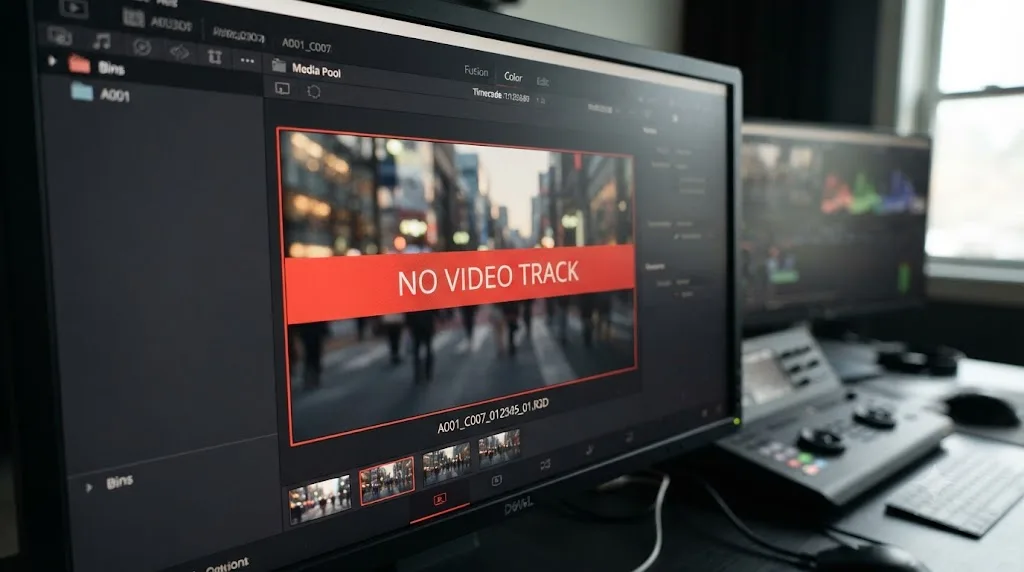
How do you diagnose which cause applies to your clip?
Work through this in order. Each step rules an entire category in or out, and skipping ahead is how people end up transcoding a file that was never broken or reinstalling a driver that was never the problem.
- Open the file in MediaInfo first, before touching anything inside Resolve. Look specifically for a Video section listing a codec, resolution, and frame rate. SyncSketch's support documentation describes exactly this triage step: MediaInfo "reads the file's metadata and gives you the full rundown: container format, video and audio codecs, frame rate," in their guide to troubleshooting video files. If there's no Video section at all, you're dealing with a genuinely audio-only file, and every fix below the "audio-only" section above applies. Stop there.
- If a Video section exists, try the file in VLC. VLC bundles an enormous library of decoders and doesn't care about hardware acceleration or license tiers. If VLC plays the video cleanly from start to finish, the file itself has a genuine, intact video stream, and your problem is specific to what Resolve, on your specific hardware and driver combination, can decode.
- If VLC also fails to show picture, or stutters badly, or won't open the file at all, you're looking at real corruption, not a Resolve-specific decode gap. No transcode or driver update fixes data that's actually missing from the file. Go back to the original source or camera card if one still exists.
- Identify the context you were in when the error appeared. A direct Media Pool import points toward the audio-only or decode-failure sections above. Right after an AAF/OMF conform points toward the AAF section. Inside a multicam clip points toward the multicam section. On the Fusion page specifically points toward the Loader node section.
- Match that context to its dedicated section above and apply the fix listed there, rather than working through every possible cause on this page from the top.
MediaInfo and VLC together answer two completely separate questions: whether a video stream exists at all, and whether it's genuinely intact. Answering both before you touch a single setting inside Resolve is what turns a guessing exercise into a five-minute diagnosis.
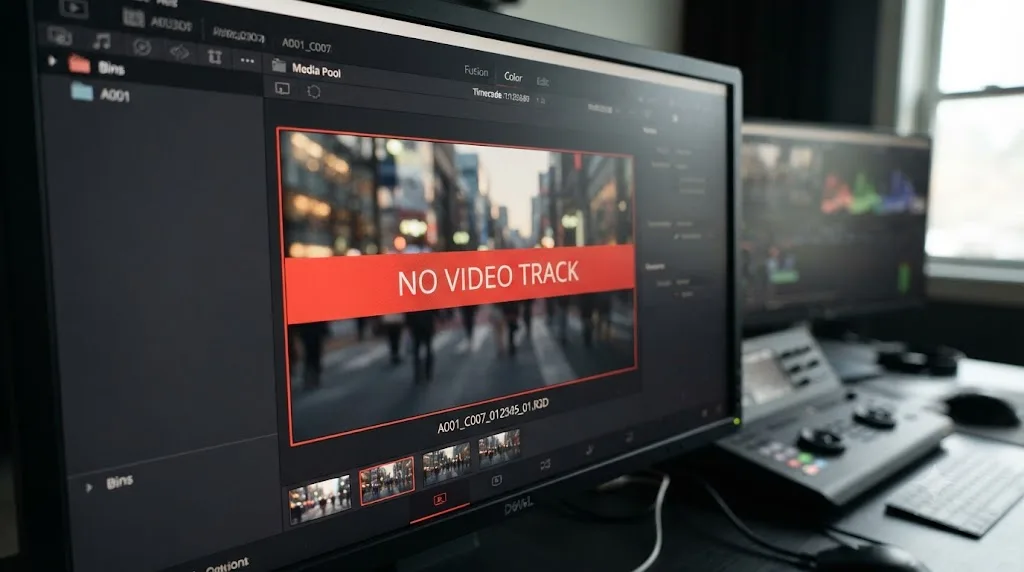
The full decision table
Match your exact situation to the row below, then jump to that section for the complete fix.
| Your exact situation | Root cause | Fix |
|---|---|---|
| MediaInfo shows no Video section at all | Genuinely audio-only file | Place on an audio track; get real picture from the original source |
| MediaInfo shows a Video section, file plays fine in VLC | Resolve-specific decode failure (GPU, driver, color profile) | Update GPU driver, or transcode to ProRes/DNxHR |
| MediaInfo shows a Video section, file also fails in VLC | Genuine file corruption or truncation | Re-copy from original source; no software fix repairs missing data |
| Error appears right after an AAF or OMF import | Video tracks flattened or dropped during export | Re-export with linking options and video preserved, or rebuild picture from originals |
| Error appears only on one multicam angle | An audio-only or mismatched source was added as an angle | Open the multicam clip, identify the bad angle, swap or remove it |
| Error appears only on the Fusion page, Loader node | Loader node in Resolve is EXR-only by design | Use a MediaIn node for video, or confirm your sequence is genuinely EXR/DPX/TIFF |
| Error appears after generating Optimized Media or Proxy | The generated cache file itself is incomplete | Switch back to original media, delete and regenerate the specific cache file |
| File plays elsewhere but extension looks mismatched to content | Renamed or re-wrapped file with stripped video | Get the original, unshared file; verify with MediaInfo regardless of extension |
Do Mac, Windows, and Linux behave differently here?
Mostly not, with one real exception. The audio-only file cause, the AAF/OMF conform cause, the multicam angle cause, and the Fusion Loader cause are all platform-independent. They're about what's structurally inside the file or how a conform process built the clip, not about which operating system is decoding it.
The GPU decode failure branch is where platform genuinely matters. Windows machines see the widest spread of GPU vendors and driver versions in the field, which means the specific codec-profile-and-driver combinations that fail to decode vary more from machine to machine. Mac systems on Apple Silicon have a narrower, more consistent decode path since Blackmagic and Apple both control that hardware and software stack closely, which is part of why the same footage that struggles on an aging Windows GPU driver often decodes cleanly on a current Mac without any transcode at all. Linux, per Blackmagic's supported codec documentation, carries its own separate licensing restrictions around certain codecs on the free edition specifically, which can produce a decode-shaped failure that's actually a licensing gap rather than a hardware one, the same distinction our Unsupported File Format guide covers in full for that adjacent error.
Genuine decode failures track your GPU driver and codec profile far more than your operating system, while every other cause on this page has nothing to do with platform at all. If you're chasing this error across multiple machines and it only fails on one, look at that machine's GPU driver version before you look anywhere else.
Three worked examples
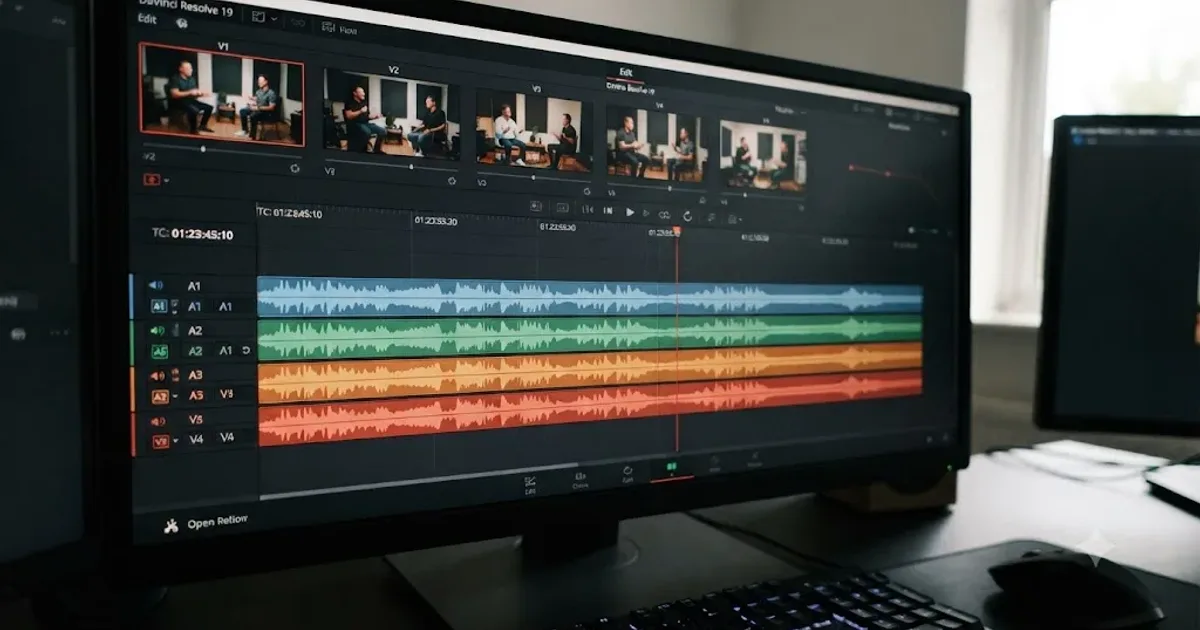
A wedding videographer's multicam angle. Three cameras rolling, plus a lapel mic feeding a separate Zoom recorder as a safety backup for the vows. The editor selects all four files at once to build the multicam clip, and Resolve happily assigns the Zoom recording its own angle, angle four. Everything cuts fine until the editor tries to punch to angle four for a reaction shot and gets the error immediately. The fix: open the multicam clip, remove the Zoom recorder from the angle list entirely, and instead sync it in as a standalone audio clip on its own track for redundancy, not as a camera angle.
A podcast editor's AAF handoff. A sound editor mixes the episode in Pro Tools and sends back an AAF for the video editor to conform picture against the final mix. The video editor imports it and every single clip on the timeline reads as having no video track. Nothing is actually wrong: the AAF was exported specifically for the audio handoff and was never meant to carry picture, exactly the flattening behavior Mike Thornton's AAF walkthrough describes. The fix: the video editor conforms picture from the original camera files using the AAF's timecode purely as a reference for matching cuts, rather than expecting the AAF itself to supply video.
A documentary editor's decade-old archival footage. A digitized VHS transfer, done years ago on since-retired hardware, imports with a valid thumbnail but throws this error the moment playback starts. MediaInfo shows a Video section, but VLC also stutters badly on the same file. That rules out a Resolve-specific decode gap, since a genuinely intact stream would play cleanly in VLC's broad decoder library. The transfer itself has degraded or was written with genuine errors, and the fix is tracking down whether the archival house kept a second, uncompressed master rather than trying to repair the delivered copy.
How do you stop this from happening on your next project?
A handful of habits catch nearly every cause on this page before it costs you time mid-edit.
- Check MediaInfo on unfamiliar files the moment they arrive, especially anything handed off from a sound recordist, a different editing platform, or a client's own footage folder. Thirty seconds of checking beats an hour of guessing once you're deep in a cut.
- Build multicam clips from a deliberate camera-only selection, not a bulk "select everything in this folder" pass. Add scratch and backup audio separately, on its own track, rather than folding it into the angle selection.
- Confirm your AAF or OMF export preset before sending a timeline anywhere, and be explicit with collaborators about whether video needs to survive the round trip. If it does, say so before the export, not after you get a picture-less AAF back.
- Keep your GPU driver current, particularly after a Resolve point release, since decode paths for specific codec profiles do change between driver versions, as Blackmagic's own tech specs page recommends checking.
- Trust MediaInfo over a filename or a thumbnail every time these disagree. A visible thumbnail and a plausible-looking extension both prove far less than they feel like they prove in the moment.
What if you're new to Resolve and this is your first time hitting this error?
If this is happening on an early project, the confusion is completely normal. This error sits at the intersection of file structure, conform logic, and decode behavior, three things nobody explains clearly before you actually need to know them, and even experienced editors moving between Pro Tools, Avid, and Resolve for the first time run into the AAF version of this constantly.
TryUncle is an AI tutor for DaVinci Resolve on macOS — ask in plain words and Uncle points at the exact control on your screen. If you're staring at this error mid-project and aren't sure whether you're looking at a Media Pool problem, a multicam problem, or a conform problem, that's exactly the kind of "which menu do I even check" moment TryUncle was built for, watching your actual screen instead of making you guess from a forum thread that may not match your exact situation.
What's the fastest path to a fix?
Open the file in MediaInfo before anything else. No Video section means the file is genuinely audio-only, full stop, and no Resolve setting changes that. A Video section that also fails in VLC means real corruption, not a Resolve-specific gap. A Video section that plays fine in VLC but fails in Resolve means a decode problem specific to your GPU, driver, or that file's color profile, and a transcode to ProRes or DNxHR is your most reliable universal fix.
If the error showed up right after an AAF or OMF conform, stop looking at individual files entirely. The export preset flattened or dropped video by design, and the fix is either a re-export with video preserved or rebuilding picture from your original camera files using the AAF's timecode as a reference.
If it's isolated to one multicam angle or one node on the Fusion page, the fix is narrower still: swap the bad angle, or replace a Loader node with a MediaIn node.
Five distinct situations produce this exact error, and every one of them has a specific, findable cause rather than a mysterious one. Match your situation to the right section above, and this stops being an afternoon-long mystery and starts being a fix that takes minutes.
Frequently asked questions
- What does 'Clip has no video track' mean in DaVinci Resolve?
- It means Resolve looked for a video stream on that specific clip and found none it can use, either because the source truly is audio-only, because the video stream inside it failed to decode, or because a conform process (AAF, OMF, multicam) stripped the picture and left only audio behind. It is not the same error as Media Offline, which means Resolve can't find the file at all.
- Why does a file that clearly has video still throw this error?
- The thumbnail you see in the Media Pool is often a cached still frame generated at import time, before Resolve tried to decode the rest of the stream for playback or editing. A corrupted frame table, an unsupported color depth, or a GPU driver that can't decode that specific codec profile can all leave the video stream unreadable while the cached thumbnail still displays fine.
- Why does this happen right after an AAF import from Pro Tools or Avid?
- AAF and OMF were built audio-first for the Pro Tools and Avid handoff, and both formats can flatten every video track on a timeline into a single reference file, or drop video references entirely depending on the export options used. If Resolve conforms an AAF whose author only linked audio, every clip on that timeline will read as having no video track, because from the AAF's perspective, there wasn't one to bring along.
- Why does one angle in my multicam clip throw this error?
- Multicam clips need every angle to carry actual picture. If a boom operator's WAV file, a scratch audio recorder, or a camera that only captured sound because its lens cap stayed on gets added as an angle, Resolve builds the multicam clip anyway and then throws this error the moment you try to cut to that angle. Open the multicam clip and check every angle's source individually rather than assuming the group edit is the problem.
- Why does the Fusion page say a clip has no video track when Fusion Studio or the Edit page shows it fine?
- The Loader node inside DaVinci Resolve's Fusion page is scoped down from the full Fusion Studio version. Blackmagic's own Fusion manual states plainly that the Loader node in DaVinci Resolve is only used for importing EXR files, not general video. If you're feeding it a QuickTime file or an MP4 directly, that's the mismatch, and a MediaIn node is what you want instead.
- Can a renamed or mislabeled file cause 'clip has no video track'?
- Yes. Changing a file's extension by hand, or receiving a file a web tool or messaging app quietly re-wrapped, doesn't touch the actual bytes inside it. If the real container holds audio only, or the video stream inside got stripped during that re-wrap, Resolve reports exactly what it finds: a container it can open, with no usable video in it, regardless of what the filename claims.
- How do I check whether a file actually has a video stream before I do anything else?
- Download the free tool MediaInfo, drag your problem file onto it, and read the report. If there's a Video section listing a codec, resolution, and frame rate, the stream exists at the container level and you're dealing with a decode failure. If there's only an Audio section and no Video section at all, the file is genuinely audio-only, and no setting inside Resolve will conjure a picture that was never recorded.
Sources
- DaVinci Resolve Supported Codec List, July 2025 (Blackmagic Design)
- DaVinci Resolve - Tech Specs (Blackmagic Design)
- Robin Parmar, Theatre of Noise: Codec limitations of DaVinci Resolve: HEVC, 10-bit, and RAW
- Mike Thornton, Production Expert: How To Create A Pro Tools Friendly AAF From DaVinci Resolve
- Creative COW forum: Media Composer to Resolve via AAF, Clips 'missing' and/or jumbled
- Creative COW forum: No Media Pool Clip to Track
- DaVinci Resolve Fusion 18 Manual: Loader Node [Ld] (Blackmagic Design)
- DaVinci Resolve Manual: Conforming Clips During XML and AAF Import (Blackmagic Design)
- DaVinci Resolve Manual: Creating and Modifying Multicam Clips (Blackmagic Design)
- MediaArea: MediaInfo
- SyncSketch: How to use MediaInfo to Troubleshoot Videos
- Puget Systems: What H.264 and H.265 Hardware Decoding is Supported in DaVinci Resolve Studio?
Put this guide to work with TryUncle.
Ask about the step you’re on. TryUncle sees your screen and points at the control you need, so you can keep learning in your own project.
Get TryUncle for Mac or WindowsKeep reading
Fixes · Jul 12, 2026 · 23 min
DaVinci Resolve Says Unsupported File Format: The Real Fix
DaVinci Resolve's Unsupported File Format error almost always means a codec problem, not a broken file. Match your exact symptom to the cause and fix it.
Fixes · Jul 7, 2026 · 26 min
DaVinci Resolve Media Offline: Every Cause and the Fix
Every reason DaVinci Resolve marks a clip media offline, and the exact relink, cache, and codec fixes for each cause, in order of how often they happen.
Fixes · Jul 8, 2026 · 26 min
DaVinci Resolve Multicam Sync Off by Frames: Every Fix
Multicam clip off by frames or drifting worse over time? Fix DaVinci Resolve's waveform mis-sync, frame rate drift, and timecode gaps, angle by angle.