Articles / Fixesupdated for DaVinci Resolve 21.0.3 (July 2026)
DaVinci Resolve Slow to Open Large Projects? The Real Fixes
Quick answer
DaVinci Resolve is slow to open large projects because bigger Media Pools, bloated PostgreSQL databases, and dense Fusion node trees all take longer to reconstruct at launch. Clear corrupted render cache, reset preferences to defaults, optimize (vacuum and reindex) a bloated project database, and split oversized projects into reels before assuming your machine is too slow.

Your project used to open before you'd finished reaching for your coffee. Now it's got a few thousand more clips, a dozen more timelines, and a launch that takes long enough to check your phone twice. That's not your imagination, and it's not automatically your machine's fault either.
In our 100,000+ member video-editing community, "why does my biggest project take forever to open" is one of the recurring questions from editors who've been cutting the same feature or series for months. After seven-plus years of cutting commercial work in Resolve, including projects handed off between editors on shared databases, the pattern holds every time: a project that opens slowly because it's large is a different problem than a project that opens slowly because something's broken, and the two get treated as the same issue far too often. This guide is specifically about the first kind, the one where size itself is the bottleneck, not a missing drive or a dead network share. As of July 2026, running DaVinci Resolve 21.0.3, here's every real cause and the specific fix for each.
Why is DaVinci Resolve slow to open large projects?
Because opening a project means fully reconstructing it, and a large project simply has more to reconstruct than a small one, proportionally, every single time you open it.
When Resolve opens a project, it isn't just reading a file the way a word processor opens a document. It walks the entire Media Pool, checking every clip reference. It reads every timeline and every compound clip and every Fusion composition inside them, rebuilding the node graphs and effects stacks each one carries. It queries the project database, whether that's a local Disk Database or a shared PostgreSQL server, for every piece of metadata tied to all of that. None of this is optional work Resolve can skip. It's the minimum required before the interface can show you anything trustworthy.
A project with 40 clips and three timelines finishes that whole process in a couple of seconds, fast enough that you'd never notice it happening at all. A project with 4,000 clips, 40 timelines, and a dozen dense Fusion compositions is doing the same categories of work, just at a scale that takes real, measurable time. A large DaVinci Resolve project isn't slow to open because Resolve is inefficient, it's slow because there's genuinely more project to load. That distinction matters, because it changes what you're actually troubleshooting: not a bug to squash, but a scaling problem with specific, addressable levers.
Is it really the project's size, or is something else going on?
Test this before anything else, because the fix is completely different depending on the answer, and guessing wrong wastes the most time.
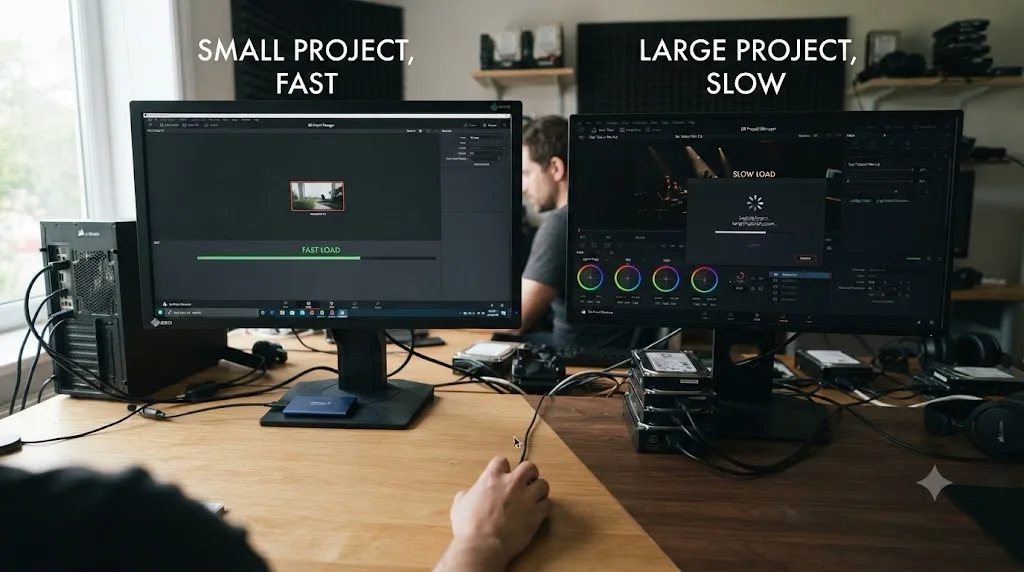
Open a small, unrelated project on the same machine, ideally one with a handful of clips and a single timeline. If that project opens in a few seconds, the delay on your large project scales with its own size and complexity, and everything in this guide applies directly. If even a tiny, near-empty project is also slow to open, the cause isn't size at all. That points somewhere else entirely: unmounted drives, a slow network share, or a corrupted cache unrelated to how big any specific project is, which our project takes long to load media guide covers in full. And if Resolve hangs, crashes, or throws a database error rather than just loading slowly, that's a different failure mode again, covered start to finish in our project won't open guide.
| What you're seeing | What it tells you | Where to look |
|---|---|---|
| Small test project opens fast, big project doesn't | Genuinely a size problem | This guide |
| Every project, even a tiny one, opens slowly | Not a size problem, likely drives, network, or cache | Our media loading guide |
| The project hangs, crashes, or shows an error instead of just loading slowly | A failure, not a slowdown | Our project won't open guide |
| Load time has grown steadily as the project got bigger over weeks or months | Classic scaling problem | This guide, especially the database and Media Pool sections below |
A project that's slow because it's genuinely large and a project that's slow because something's broken look identical from the outside, and they need completely different fixes. Run the small-project test first. Everything else in this guide assumes you've confirmed size is the actual variable.
Does clip count in the Media Pool actually slow down project load?
Yes, directly and measurably, and editors working on genuinely large productions have documented exactly how far this scales in practice.
Every clip in the Media Pool is a reference Resolve has to check when a project opens, confirming what the clip is, where its media lives, and what metadata is attached to it. More clips means more of that checking, and the relationship is close to linear: double the clips, and you're roughly doubling this specific part of the load time. On a project with dozens or a few hundred clips, that scaling is invisible. On a genuinely large one, it isn't.
A Creative COW forum thread on managing oversized projects captures what this looks like at the far end of the scale. Editor Nick Anderson described a project carrying "more than 3000 red shots and more than 1000 VFX DPX shots totally imported into media pool," spread across "10 reels of editing," per the thread. He noted that system crashes, while infrequent, cost him roughly 15 minutes to reload the project each time, a genuinely painful cost when stakeholders were in the room waiting.
Editor Timo Teravainen, responding in the same thread, described hitting a similar wall from a different angle: he "had to divide a 1,5h film into 5 reels before could render it without errors, RED and DPX FX shots etc." Splitting wasn't a preference in that case. It was what made the project usable at all.
Media Pool size isn't a vague contributor to slow project loading, it's one of the most directly measurable ones, since every additional clip adds its own small, repeatable cost to every single open. That's exactly why the fix, covered further down, is equally direct: reduce what the Media Pool actually has to check.

Do more timelines and Fusion compositions make a project slower to open?
Yes, and each one adds a different kind of weight than raw clip count does, because timelines and Fusion comps carry structure, not just references.
A timeline isn't a flat list. It's edits, transitions, effects, color nodes per clip, and often nested compound clips or Fusion compositions layered inside it. Every one of those has to be reconstructed on open, not just listed. A project with 40 timelines carries 40 times that reconstruction cost compared to one with a single timeline, even if the total clip count were identical between them, because Resolve has to rebuild each timeline's full internal structure separately.
Fusion compositions add their own specific cost on top of that. A node tree with dozens of nodes, each with its own parameters, keyframes, and connections, has to be rebuilt node by node when the project that contains it opens, which is a heavier job than reconstructing a flat color grade. DaVinci Resolve Club's own testing found that a single 41-clip 4K timeline with secondary corrections, qualifiers, and 11 power windows per clip ran a 32 GB Windows machine at 87 percent RAM usage during playback alone, per their breakdown of Resolve 21's real-world RAM demands. That's one timeline's runtime cost. A project holding dozens of timelines built to a similar density is asking Resolve to account for that same complexity, multiplied, the moment it opens.
| Structural element | What grows with it | Where the cost shows up |
|---|---|---|
| Clip count in the Media Pool | Reference checks per open | Roughly linear, scales with clip count |
| Number of timelines | Structure reconstruction per timeline | Each timeline adds its own full rebuild cost |
| Fusion compositions and node count | Node graph reconstruction | Heavier per-node than a flat color grade |
| Power windows, qualifiers, secondary nodes | RAM and processing load once open | Documented at 87% RAM usage on a 32 GB machine, single timeline |
A project's load time doesn't scale with clip count alone, it scales with everything Resolve has to structurally rebuild, and Fusion compositions and timeline count both add their own separate weight on top of raw media. If your large project is also grading-heavy or Fusion-heavy, expect the slowdown to be worse than clip count by itself would predict.

Is a corrupted cache making your large project slow, not just heavy?
Sometimes, and this is worth ruling out before you assume the slowness is purely a function of size, because a corrupted cache can make even a project that should open fine feel far heavier than it actually is.
A large project generates a large amount of render cache, optimized media references, and thumbnail data over its lifetime. If any of that gets damaged, whether from a crash mid-write, a forced quit, or a drive that dropped mid-session, Resolve doesn't fail cleanly when it hits the damaged piece on the next open. It works harder trying to reconcile what it expects to find against what's actually there, and that reconciliation work reads exactly like ordinary large-project slowness from the outside, just worse than the project's real size would explain on its own.
The fix is the same one that works for a single stuck project, just worth checking specifically on large ones since they accumulate more cache to potentially corrupt:
- Fully quit DaVinci Resolve, confirming no background process is still running.
- Navigate to your Resolve Disk Database folder. On Windows, that's
C:\Users\[Name]\AppData\Roaming\Blackmagic Design\DaVinci Resolve\Support\Resolve Disk Database. On macOS, it's insideLibrary/Application Support/Blackmagic Design/DaVinci Resolve/Resolve Disk Database. - Open the
CacheClipfolder and clear its contents, either for the project's own subfolder if you can identify it, or entirely if you can't isolate it. - Relaunch Resolve and reopen the project. Cache rebuilds automatically, so nothing here touches your edit, your grade, or your original footage.
Our cache files guide covers what actually accumulates in that folder in more depth if disk space, not load time, is your bigger concern on a long-running large project. A corrupted cache adds a real, separate delay on top of whatever your project's genuine size already costs you, and it's a five-minute check with zero downside before you write the whole slowdown off as unavoidable.
Does resetting preferences fix a slow-opening large project?
It can, particularly when the slowness started suddenly rather than growing gradually alongside the project's own size, since a corrupted preferences file forces Resolve to do extra work sorting out its own internal state before it can even start on the project.
Resolve's preferences file holds far more than your UI layout. It tracks Media Storage paths, working folder locations, playback settings, and a long list of per-user defaults that get read on every single launch. If that file becomes internally inconsistent, whether from a crash, an interrupted update, or a setting that got corrupted while being written, Resolve doesn't always fail outright. Sometimes it just gets slower, retrying or falling back on defaults for pieces it can't cleanly read, and that overhead stacks on top of whatever your project's real size already costs.
Resetting preferences doesn't touch your project, your media, or your database. It only rebuilds Resolve's own settings from scratch:
- Fully quit DaVinci Resolve.
- On Windows, navigate to
%AppData%\Roaming\Blackmagic Design\DaVinci Resolve\Supportand find the Preferences folder. On macOS, it's under~/Library/Application Support/Blackmagic Design/DaVinci Resolve. - Rename that Preferences folder rather than deleting it outright, something like
Preferences.bak, so you can recover custom settings later if needed. - Relaunch Resolve. It builds a fresh preferences folder automatically with default settings.
- Reopen your large project and compare the load time against before the reset.
If this fixes it, you'll likely need to redo any custom UI layouts, keyboard shortcut changes, or non-default preferences you'd set previously, since those live in the file you just replaced. A slow-loading project and a corrupted preferences file produce symptoms that overlap almost completely, and testing which one you actually have costs a few minutes against the alternative of chasing a database or hardware fix that was never going to help.
Is your project database the real bottleneck on a large project?
Often, yes, and this is the cause that's easiest to miss entirely, because a database problem produces symptoms that feel identical to "my project is just big," right up until you check the database directly and find it's carrying far more than it needs to.
Every DaVinci Resolve project lives inside a database: either a local Disk Database, which is really just a structured folder on disk, or a PostgreSQL database, which can run locally or be shared across a network for team collaboration. Collaboration through PostgreSQL has been available on both the free version and Studio since Resolve 17, per Blackmagic's own forum discussion of the feature, so this isn't a Studio-exclusive concern. What matters for load time is that a PostgreSQL database, like any database, accumulates cruft over time: deleted records that haven't been fully cleared, indices that have grown fragmented, and general bloat from months or years of active use.
A Blackmagic forum thread documents exactly how far this can go. One editor described a PostgreSQL database holding around 20 projects, some carrying up to 200 timelines each, running on DaVinci Resolve 15.1.2.003, that began freezing within seconds of opening any project inside it, on multiple machines across both Windows 10 and macOS Sierra, per the thread. Backing up and optimizing the database first restored usable performance. Ultimately, though, the fix that actually held was structural: creating a separate database per project instead of stacking dozens of projects into one shared database, after which performance stayed fine.
A bloated project database can make every single project inside it slower to open, even ones that individually aren't large at all, which is the opposite of how most people assume database problems work. If your large project shares a database with a dozen other projects, some of which you rarely open anymore, the database itself, not any one project, may be what you're actually troubleshooting.

How do you optimize a DaVinci Resolve PostgreSQL database?
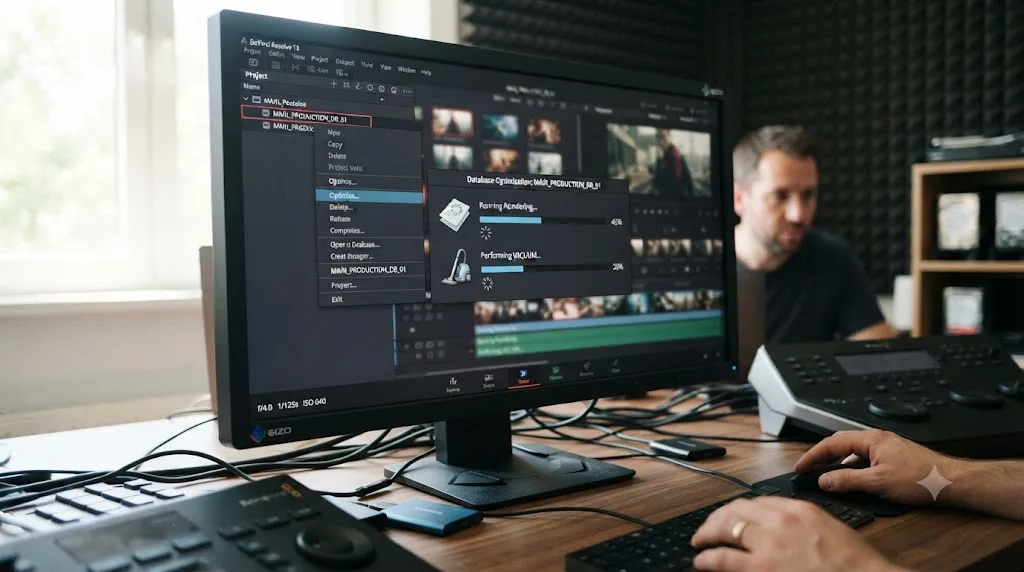
Through the built-in Optimize function in Project Manager, which runs two standard PostgreSQL maintenance tools against your database without requiring you to touch a command line.
A Blackmagic forum thread asking exactly what the Optimize button does confirms its mechanics directly: when you press it, the dialogue window itself reports both "reindexing" and "vacuuming" taking place, per the thread. Those correspond to PostgreSQL's own reindexdb and vacuumdb utilities. Adam Wilt, writing for ProVideo Coalition about a maintenance tool built around these same utilities, describes precisely what they accomplish: the tools "clear out deleted data, analyze current data, and rebuild indices that keep the database, which contains all the information about your files, projects, and grades, as fast and uncrufty as possible," per Wilt's writeup.
To run it yourself:
- Open Project Manager and locate your database in the library list.
- Click Backup first, saving a
.resolve.backupfile somewhere outside the database itself. Optimizing modifies the live database, so a backup is your rollback if anything goes wrong. - Look for the Optimize option in the same area as Backup and Restore, and run it.
- Wait for the process to complete. On a large, long-neglected database, this can take several minutes, proportional to how much accumulated cruft it's clearing.
- Reopen your large project and compare load time against before optimizing.
If you manage a database that gets this large routinely, whether across an active production or a personal archive of many years of projects, running this maintenance on a regular schedule prevents the bloat from ever reaching the freezing point documented above, rather than fixing it only after the fact. Optimizing a database is the single fix in this whole guide most likely to help every project inside that database at once, not just the one you happened to open when you noticed the slowdown.
Should you split a large project into smaller ones?
Yes, once a project regularly carries a Media Pool and timeline count large enough that load time and stability both start suffering, which editors working at that scale put at roughly 3,000 to 4,000 clips or six-plus reels of a feature-length edit.
The Creative COW thread referenced earlier documents exactly how this plays out and what actually fixes it. Editor Chris Kenny laid out a concrete process for trimming a project before splitting it: back up the project, duplicate it, and use Resolve's own Usage tracking to identify what each half-project actually still needs. "Select all the clips and choose 'Update Usage Data'. Resolve will update the 'Usage' column for each clip with a number showing how many time it's used," as he described it in the thread. Clips showing zero usage in a given reel's timelines can be safely removed from that copy of the project without touching anything you're actually cutting.
Resolve's own built-in Remove Unused Clips function automates the simpler version of this same idea, stripping Media Pool entries that no timeline in the project references at all, without deleting anything from your actual drive, per the DaVinci Resolve Reference Manual's coverage of the feature. Running it before you split a project, or even just periodically on a project you're actively cutting, trims dead weight the same way a corrupted cache purge does, cheaply and with no risk to your edit.
- Right-click in the Media Pool and choose Remove Unused Clips first, before deciding whether a full split is necessary.
- If the project is still too large after that, back it up, then create two or more duplicates.
- In each duplicate, use Update Usage Data, then remove clips and timelines the reel or act you're keeping that copy for doesn't actually reference.
- Keep the original, untrimmed backup somewhere safe in case you need to pull something back in later.
- If multiple editors need to work across the split reels simultaneously, move to a shared PostgreSQL database with one project per reel rather than juggling files, which is the same structural fix the database thread above landed on independently.
Splitting a large project isn't giving up on keeping the whole edit in one place, it's converting one slow-loading giant into several fast-loading pieces that only cost you load time when you actually need that specific reel. Chris Kenny's own experience backs this up further in the same thread: later versions of Resolve, he noted, handled "4-6 reel features fine in a single project" in ways earlier versions couldn't, which tracks with the general trend of point releases making large-project handling steadily more forgiving without erasing the underlying scaling cost entirely.
Does DaVinci Resolve Studio open large projects faster than the free version?
No, not directly, and it's worth being clear about that before a $295 upgrade looks like the obvious fix for a slow-loading project.
Both editions read the same Media Pool structure, the same timeline data, and the same project database in exactly the same way. A 4,000-clip Media Pool takes the same amount of time to reconstruct on open in the free version as it does in Studio, because nothing in the paid tier changes how Resolve walks that data on launch. Every cause covered in this guide, from clip count to Fusion node complexity to a bloated PostgreSQL database, behaves identically across both editions.
What Studio actually changes is hardware-accelerated H.264 and H.265 decoding on Windows and Linux, per Blackmagic's own tech specs for the product. That's a real, meaningful difference, just not the one that speeds up opening a large project. It affects how smoothly footage plays back and scrubs once the project is already open, particularly on long-form H.264 or H.265 material where decode is the bottleneck.
Buying Studio specifically to fix a slow-opening large project is solving a problem it wasn't built to solve, since Media Pool size, database bloat, and cache corruption all sit upstream of anything the license difference touches. If playback also feels sluggish once the project is open, not just slow to get there, that's the scenario where Studio's decode advantage genuinely helps, and our render cache guide covers the playback side of that separately.

How much RAM does a large project actually need?
More than Blackmagic's stated minimum in almost every real case, and the gap between the official floor and what a genuinely large, complex project demands is bigger than most editors expect going in.
Blackmagic's official minimum for DaVinci Resolve 21 is 16 GB of system RAM on Windows, rising to 32 GB if you're using Fusion, and 8 GB of unified memory on Apple Silicon Macs, rising to 16 GB for Fusion work, per DaVinci Resolve Club's breakdown of the current requirements. Those numbers describe what's needed to run the application at all, not what a large, grading-heavy project with dozens of timelines and dense Fusion compositions actually consumes while you work in it.
The same source documents a concrete example of that gap: a single 41-clip 4K timeline, with secondary corrections, qualifiers, and 11 power windows applied per clip, ran a 32 GB Windows machine at 87 percent RAM usage during playback alone, according to their testing. That's one timeline out of a project that might hold forty. RAM pressure doesn't just slow playback once you're already inside a project either. A machine that's already tight on memory has less headroom to reconstruct a large Media Pool and multiple dense timelines quickly on open, which compounds the size-driven slowdown covered throughout this guide rather than sitting separate from it.
| Workflow scale | Windows RAM | macOS (Apple Silicon) RAM |
|---|---|---|
| 1080p basic editing | 16 GB minimum | 8 GB unified minimum |
| 4K with moderate effects | 32 GB recommended | 16 GB unified recommended |
| 4K RAW or 6K with color grading and Fusion | 64 GB | 32 GB unified |
| 8K timelines or complex 3D Fusion work | 128 GB | 64 GB+ unified |
Apple Silicon's unified memory architecture does close some of this gap for Mac editors specifically, since 16 GB of unified memory on Apple Silicon behaves closer to dedicated VRAM than equivalent system RAM does on a comparable Windows machine, per the same DaVinci Resolve Club breakdown. That's a real architectural advantage, not marketing language, though it doesn't erase the underlying scaling cost a genuinely huge project imposes on either platform.
The official minimum RAM figure for DaVinci Resolve tells you what boots the application, not what a large project needs to open and run without a fight. If you're routinely working on projects with dozens of timelines and heavy grading, budget hardware around the recommended tiers for your actual footage resolution, not the bare minimum on the box.
Is Fusion specifically slower to load on large projects than the Edit or Color pages?
Yes, disproportionately so, because a Fusion composition carries far more internal structure per element than a color grade or a simple cut does, and a large project with many Fusion-heavy clips concentrates that cost in one specific place.
Where a color grade attaches a relatively compact set of node parameters to a clip, a Fusion composition is a full node graph: potentially dozens of individual nodes, each with its own settings, keyframes, masks, and connections to other nodes. Reconstructing that graph on project open is a heavier, more granular job than reading a flat set of grading values, and a large project that leans on Fusion across many clips multiplies that cost across every one of them.
Guidance for speeding up Fusion generally applies just as directly to load time on a large project carrying many compositions. Caching the most complex node in a tree to disk with pre-render enabled offloads that specific calculation so Resolve isn't repeating it from scratch every time, per a walkthrough of common Fusion performance fixes. Enabling Down Scale to Timeline Resolution for Timeline Clip Compositions, found under Project Settings' Fusion tab, keeps Fusion from processing media at a resolution higher than your timeline actually needs, which reduces the working weight of every composition in the project, not just the one you're actively viewing.
A project that feels dramatically slower to open than its clip count alone would suggest is worth checking for Fusion density specifically, since node-heavy compositions add a cost that clip count and timeline count don't fully capture on their own. If you're building complex Fusion work across a large project, budgeting Fusion RAM at the higher end of Blackmagic's stated minimum, 32 GB on Windows or 16 GB unified on Apple Silicon at minimum, is worth doing before you assume the slowdown is unexplainable.
What's different about large-project slowness on Mac versus Windows?
The underlying causes overlap almost entirely, but each platform handles the database, cache, and memory pressure that come with a large project slightly differently, and knowing which wrinkle applies to you saves time.
On Windows, database maintenance is more likely to be something you have to think about actively, since a locally hosted PostgreSQL server on a Windows machine competes for the same system RAM and disk I/O that Resolve itself needs during a large project's load. A database that's grown large enough to slow down, as documented in the freezing case covered earlier in this guide, can hit that limit particularly hard on a machine that's also trying to hold a huge Media Pool in memory at the same time.
On macOS, PostgreSQL databases that grow too large can hit a different, OS-level ceiling. Digital Rebellion's Jon Chappell documents this directly: a database that's grown too large "can cause PostgreSQL to request more shared memory than is allowed by OS X or Linux," producing an error "labeled 'could not created shared memory segment,'" per his walkthrough of the fix. That's a memory ceiling issue distinct from ordinary large-project slowness, but it's worth ruling out on Mac specifically if optimizing the database alone doesn't fully resolve a shared-database slowdown. Apple Silicon's unified memory advantage, covered in the RAM section above, does meaningfully soften the pure hardware side of large-project pressure on newer Macs, even where the database-side ceiling remains the same across platforms.
| Platform | Specific wrinkle on large projects | Where to check |
|---|---|---|
| Windows | Local PostgreSQL server competing for RAM and disk I/O with a large Media Pool | Task Manager, disk activity during project open |
| Mac | PostgreSQL shared memory ceiling on badly bloated databases | kern.sysv.shmmax via Terminal, as covered in Digital Rebellion's guide |
| Mac | Apple Silicon unified memory softens hardware pressure but not database bloat | RAM section above |
| Both | A database shared across many projects slows every project inside it, not just the biggest | Optimize function in Project Manager |
The specific trap that's actually catching your large project is usually platform-specific, even though the underlying causes, database bloat, Media Pool size, and cache corruption, are shared across both operating systems equally. Check your own platform's wrinkle before assuming a fix documented for the other one applies to you unchanged.
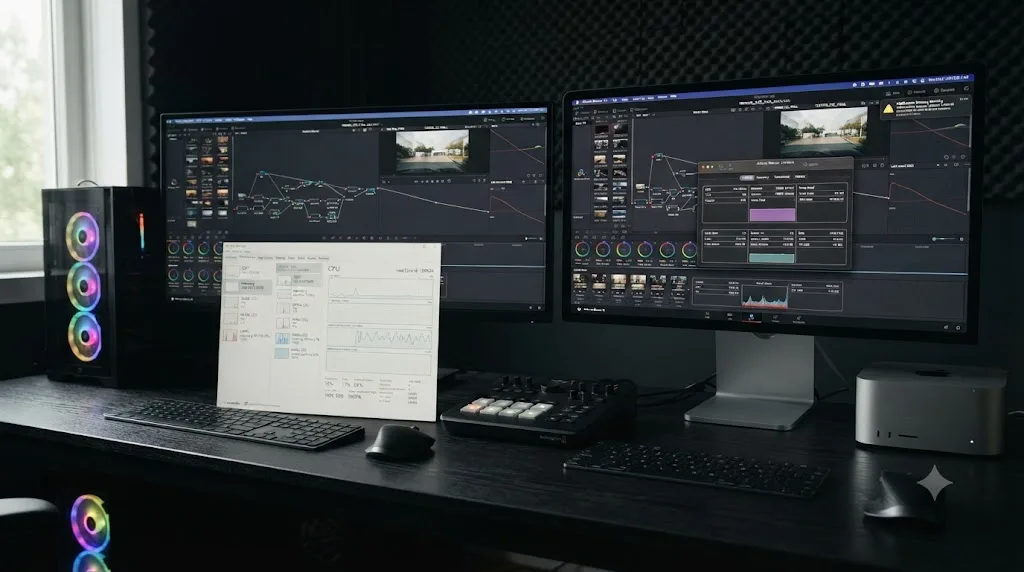
What does a real large-project slowdown look like, start to finish?
Put the pieces together on a documentary feature: a 90-minute cut with 3,200 source clips across 8 reels, built up over five months of shooting and editing on a shared PostgreSQL database that also holds two other active productions from the same small studio.
For the first two months, project load is a non-issue, a few seconds either way. By month three, opening the feature's project starts taking close to a minute, and by month five it's stretched past four minutes, with occasional freezes on the Deliver page that force a restart. The editor's first instinct is to blame the machine, a 32 GB Windows workstation that was more than adequate at the project's start.
Working through the causes in order: first, the small-project test confirms this is genuinely a size problem, since a near-empty test project still opens in under two seconds on the same machine. Second, checking the shared database finds it holding all three productions together, roughly 60 projects total across the studio's history, none of which had ever been optimized or split apart, closely mirroring the 20-project, 200-timeline-per-project case documented on Blackmagic's forum earlier in this guide. Running Optimize on the database, after backing it up first, cuts the feature's load time by more than half on its own. Third, Remove Unused Clips trims roughly 400 dead Media Pool entries left over from footage that got cut from the edit months ago but was never removed from the project, shaving further seconds off every open. Finally, with the database optimized and the Media Pool trimmed, the remaining load time settles at around 40 seconds, still longer than a small project, but proportional now to the feature's genuine size rather than inflated by bloat and dead weight on top of it.
The studio's longer-term fix, once the deadline pressure eased, was structural: splitting the shared database so each production got its own, following the same lesson the Blackmagic forum thread on database freezing landed on independently. None of this required new hardware, a Studio upgrade, or a reinstall. A slow-loading large project is rarely one single cause, it's usually database bloat, dead Media Pool weight, and the project's genuine size all stacked on top of each other, and clearing the biggest one first is what makes the smaller ones visible enough to bother fixing.
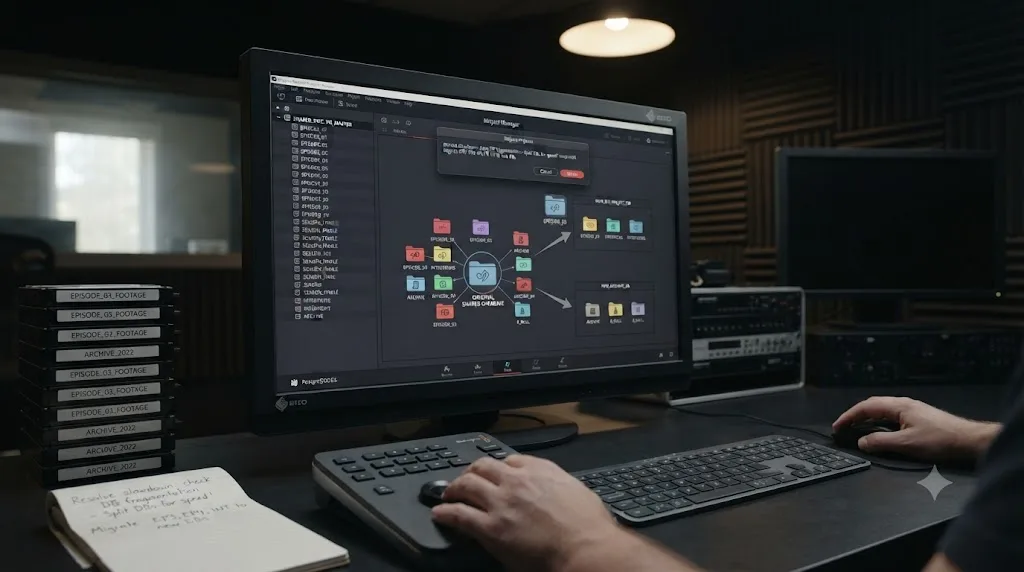
What's the fastest checklist to speed up a large project's load time right now?
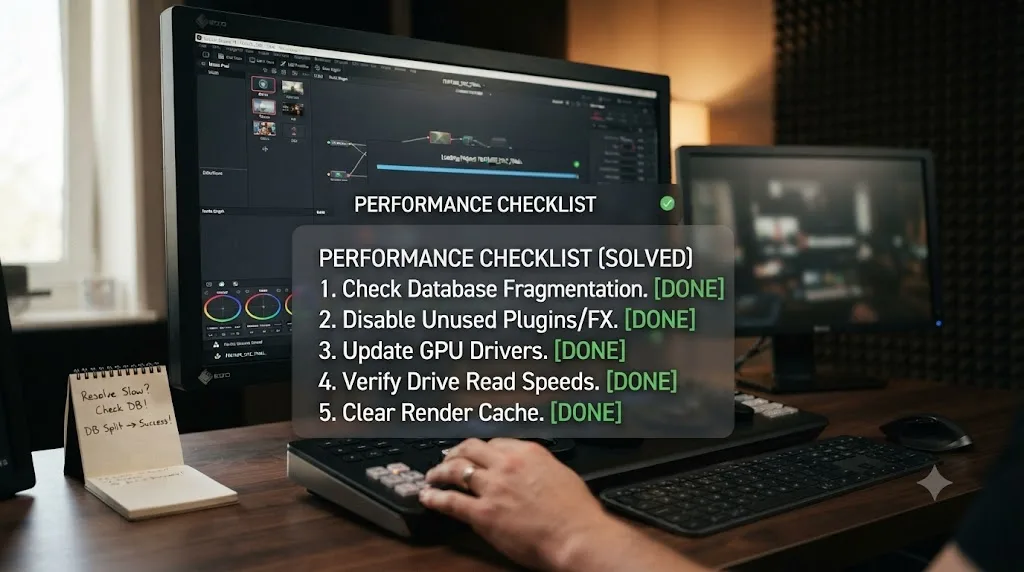
Work through these in order if a large project is loading slowly today and you need it faster before you can keep editing:
- Open a small, unrelated test project first, confirming the slowdown genuinely scales with this project's size rather than pointing to a system-wide cause like unmounted drives or a slow network share.
- Quit Resolve and clear the CacheClip folder inside your Resolve Disk Database path, since corrupted cache adds a real delay on top of whatever your project's real size costs.
- Reset preferences by renaming the Preferences folder inside Resolve's Support directory, especially if the slowdown started suddenly rather than growing gradually with project size.
- If you're on a shared PostgreSQL database, back it up, then run Optimize from Project Manager, which reindexes and vacuums the database to clear accumulated bloat.
- Run Remove Unused Clips on the Media Pool to strip dead references no timeline in the project actually uses.
- If the project regularly carries thousands of clips or six-plus reels, use Update Usage Data to identify what each reel actually needs, then split into smaller projects.
- Check RAM usage during playback, not just at idle, since a project running close to its RAM ceiling has less headroom for the reconstruction work a fast open requires.
- If Fusion compositions are a big part of the project, cache the most complex nodes to disk and enable Down Scale to Timeline Resolution to lighten what has to rebuild on every open.
- Update to the current DaVinci Resolve 21 point release, since Blackmagic ships real performance work point release to point release, including faster IntelliSearch for editors working with large media libraries in 21.0.2, per 4K Shooters' coverage of that update, and further general performance and stability work in 21.0.3, per Newsshooter's coverage of the later release.
The verdict
A DaVinci Resolve project that's slow to open because it's genuinely large isn't a sign that something's wrong with your machine or your installation. The delay comes from real, addressable weight: a Media Pool carrying thousands of clip references, a database that's never been optimized, timelines and Fusion compositions with real structure to rebuild, or cache and preferences that got corrupted somewhere along the way. Rule out whether it's actually a size problem first, then work down through cache, preferences, database optimization, and Media Pool trimming before you assume a new machine or a Studio upgrade is the only path forward.
None of the fixes here are destructive, and most of them cost minutes, not hours. Optimizing a bloated database alone, as the forum case earlier in this guide shows, can cut a stuck project's load time by more than half on its own, with no risk to a single frame of your edit.
Once a large project actually opens fast and stays that way, the next friction point tends to be a different one: remembering exactly where Blackmagic buried the setting you need mid-session. TryUncle is the on-screen assistant for DaVinci Resolve on macOS — ask in plain words and Uncle points at the exact control on your screen, instead of you digging back through Preferences or Project Manager to find Optimize or Remove Unused Clips again next time a project starts crawling. It won't optimize a database or split a project for you, but the next time menu-hunting mid-deadline is the real bottleneck, that's worth knowing about, and TryUncle's site has the current founder-pricing rate if you want to see whether it fits your workflow.
Frequently asked questions
- Why is DaVinci Resolve slow to open large projects?
- Because opening a project means reconstructing everything in it: every Media Pool clip reference, every timeline, every Fusion node tree, and every entry in the project database. A project with a few dozen clips reconstructs almost instantly. A project with thousands of clips, hundreds of timelines, or a bloated PostgreSQL database has proportionally more to rebuild, and that work happens before you can touch anything.
- How do I make DaVinci Resolve open large projects faster?
- Work through causes in order: clear corrupted render cache from the CacheClip folder, reset preferences to rule out a corrupted settings file, optimize your project database if you're on PostgreSQL, remove unused clips from the Media Pool, and split any project carrying more than about six reels' worth of footage into separate projects or a shared database.
- Does clearing cache fix a slow-opening DaVinci Resolve project?
- Sometimes, specifically when the slowness comes with a stall or a freeze rather than a steady, proportional delay. Corrupted or incomplete render cache and optimized media can make Resolve work harder reconciling what it expects against what's actually on disk. Quit Resolve, delete the CacheClip folder inside your Resolve Disk Database path, and relaunch. Resolve rebuilds it automatically.
- Will resetting preferences fix a slow-opening large project?
- It can, particularly if the slowness started suddenly rather than growing gradually as the project got bigger. A corrupted preferences file can force Resolve to rebuild internal state on every launch. Rename the Preferences folder inside Resolve's Support directory so Resolve creates a fresh one, then relaunch and reopen the project.
- How do I optimize a DaVinci Resolve PostgreSQL database?
- In Project Manager, back up your database first using the Backup button, then use the Optimize function, which runs PostgreSQL's own reindexdb and vacuumdb tools against it. That clears deleted data, rebuilds indices, and removes the accumulated clutter that makes a shared database slower to query with every month of use.
- Should I split a large DaVinci Resolve project into smaller ones?
- Yes, once a single project regularly carries more than about 3,000 to 4,000 clips or six-plus reels of a feature-length edit, based on cases documented by editors working at that scale. Use Remove Unused Clips to trim the Media Pool first, then split by reel or act, keeping each project's own load time proportional to what you're actually cutting that day.
- Does DaVinci Resolve Studio open large projects faster than the free version?
- Not directly. Both editions read the same project database and the same Media Pool the same way, so a huge Media Pool or a bloated database is exactly as slow to open in Studio as in the free version. Studio's real advantage is hardware-accelerated H.264 and H.265 decode on Windows and Linux, which helps playback after the project opens, not the opening itself.
- How much RAM does DaVinci Resolve need for large projects?
- Blackmagic's official minimum is 16 GB on Windows (32 GB if you use Fusion) and 8 GB of unified memory on Apple Silicon Macs (16 GB for Fusion), but those are floors, not targets. A single documented 41-clip 4K timeline with heavy secondary grading ran a 32 GB Windows machine at 87 percent RAM usage during playback alone, so a genuinely large project benefits from 64 GB or more.
Sources
- Blackmagic Forum: Projects in Postgre SQL database slowing down and freezing
- Blackmagic Forum: Postgresql, what does "Optimize" do? vaccumdb? reindexdb?
- ProVideo Coalition (Adam Wilt): Useful geekery, a database maintenance tool for Resolve
- Creative COW forum: How to divide a big project into two parts?
- DaVinci Resolve Reference Manual: Removing Unused Media from a Project (VFXPedia mirror)
- MotionVFX Help Center: DaVinci Resolve slow performance problems
- XDA Developers: 12 DaVinci Resolve settings to change for faster editing
- Digital Rebellion (Jon Chappell): Fixing missing database errors in DaVinci Resolve
- Blackmagic Forum: Is there a fix to the slow project loading times?
- DaVinci Resolve Club: DaVinci Resolve 21 System Requirements
- DaVinci Resolve - Tech Specs (Blackmagic Design)
- 4K Shooters: DaVinci Resolve 21.0.2 Brings Faster Searches and More Reliable Editing Tools
- Newsshooter: DaVinci Resolve 21.0.3 Update
- No Film School: DaVinci Resolve Update 21.0.2 Adds Faster Image Bypass Switching, Improved H.265 Playback, and More
- Frame.io: A collaborative editing workflow in Resolve
- Blackmagic Forum: Resolve 17 PostgreSQL
- cutsio: Best Way to Fix Fusion Rendering Issues in DaVinci Resolve
Put this guide to work with TryUncle.
Ask about the step you’re on. TryUncle sees your screen and points at the control you need, so you can keep learning in your own project.
Get TryUncle for Mac or WindowsKeep reading
Fixes · Jul 10, 2026 · 23 min
DaVinci Resolve Project Won't Open: Match Symptom to Fix
Whether DaVinci Resolve hangs at 100%, crashes on launch, or shows a database error, here's the exact cause behind each symptom and how to fix it.
Fixes · Jul 24, 2026 · 31 min
DaVinci Resolve Project Takes Long to Load Media? Every Real Fix
Why a DaVinci Resolve project takes a long time to load media: unmounted drives, network shares, stalled cache, and the exact settings that fix each cause.

Fixes · Jul 19, 2026 · 23 min
DaVinci Resolve Cache Files Filling Up Your Hard Drive? Do This
Why DaVinci Resolve's cache fills up your hard drive: which folders are responsible, how to clear each one safely, and how to relocate cache to stop it recurring.