Articles / Fixesupdated for DaVinci Resolve 21.1 (September 2026)
DaVinci Resolve Smooth Cut Crashes With Many Clips
Quick answer
If DaVinci Resolve Smooth Cut crashes with many clips, save a copy, test one transition, and remove or disable Smooth Cut on the last edit added. In Resolve Studio 20 and later, test with AI Speed Warp unchecked in the Inspector. If one transition still crashes, isolate its source media, clear that clip's cache, then collect diagnostics.
I’d treat a Smooth Cut crash as a fault to isolate, not proof that your whole timeline is broken. The important first move is to protect the project, then find out whether one transition, one source clip, or the overall workload triggers the failure.
As of October 2026, DaVinci Resolve 21.1 is the current version context for this guide. Blackmagic’s support center lists Resolve 21.1, released in September 2026, as a point release; check that center before updating because later releases may appear. This guide doesn’t claim to reproduce a crash on a specific machine. It lays out a controlled diagnostic path and separates documented product behavior from things you still need to test in your project.
What should you do first when DaVinci Resolve Smooth Cut crashes with many clips?
Save a separate project copy, then reproduce the crash with one Smooth Cut transition before changing drivers, deleting cache, or rebuilding the timeline. That first controlled test tells you whether the failure follows a particular edit or appears only under the larger workload.
Follow this sequence:
- Use File > Save Project As and give the copy a name that clearly marks it as a diagnostic version. If your project uses a shared or managed project library, make sure you know which project you are editing before saving.
- Confirm the copied project opens. Don’t start the diagnosis by changing the only working version.
- Note your exact Resolve version and whether it is the free version or Studio. Find the version in the application’s About window, and record the operating system and GPU model as well.
- In the copy, go to the last edit where Smooth Cut caused a crash. Remove or undo that transition if Resolve lets you.
- Save, close, reopen, and apply Smooth Cut to that one edit. Wait for the timeline to respond before continuing.
- Record whether Resolve exits, becomes unresponsive, shows a specific error, or only displays a bad-looking transition.
Those outcomes are different. A sudden application exit is not the same symptom as a long pause while an effect processes, a red “Media Offline” frame, a blank viewer, or choppy playback. Don’t call a transition “crash-prone” just because it takes time to render. First note exactly what happened and when.
If the crash doesn’t reproduce on one transition, test small groups rather than restoring every Smooth Cut at once. If one edit crashes the copied project on its own, focus on that edit’s source media, transition settings, and cache. If only a larger group triggers the failure, investigate cumulative workload, GPU or memory pressure, and whether the number of transitions correlates with the crash.
A repeatable one-transition test is more useful than changing five settings at once.
Blackmagic describes Smooth Cut as a transition that uses optical-flow image analysis to remove a jump cut so the edit can appear like one continuous take. That explains why testing just the edit point matters: Smooth Cut analyzes image content across the cut, so the relevant diagnostic unit is the transition plus the media on either side, not simply the timeline’s total clip count. See Blackmagic’s Edit page description.
Why does DaVinci Resolve crash when Smooth Cut is added to many clips?
Resolve can crash during repeated Smooth Cut application for several different reasons, and the phrase “many clips” alone doesn’t identify which one. A specific transition may be the trigger, the Studio Speed Warp mode may change the processing load, or a project-wide resource or compatibility problem may only become visible after several effects are present.
Start with a distinction that prevents wasted effort:
- One repeatable edit crashes: suspect that transition, its source media, its handles, its settings, or cached render data.
- The first few edits work but a larger group crashes: suspect a cumulative workload or a failure that needs multiple effects to surface. It still doesn’t prove that clip count is the cause.
- Other projects also crash during unrelated operations: investigate the Resolve installation, system environment, GPU, drivers, plugins, or preferences as well as this timeline.
- Resolve stays open but the viewer freezes or renders slowly: investigate processing and playback before calling it an application crash.
- A single frame says “Media Offline”: diagnose that display symptom separately. It can be related to a particular transition or render path without indicating the same failure as a full application exit.
A count is useful as a clue only if you make the test repeatable. Record how many Smooth Cuts were present immediately before the failure, whether the same timeline section was active, whether the transitions used AI Speed Warp, and whether the crash happened during application, playback, cache generation, or export. Don’t infer a universal limit from one project. The source material, project settings, processing mode, hardware, and Resolve version differ between users.
Smooth Cut also isn’t a general-purpose dissolve. Blackmagic’s Resolve 15 guide describes it as a way to remove “certain kinds of small jump cuts in interview clips,” and its Resolve 17 guide describes processing that matches features across the cut. The purpose is specialized. Repeated use on edits that don’t suit the effect can produce poor results even if it doesn’t crash. Sources: Resolve 15 New Features Guide and Resolve 17 New Features Guide.
Use the same short, representative edit when comparing settings. If you change the timeline, source media, Speed Warp option, transition duration, and cache state all together, you won’t know what made the crash stop or return. One variable per test is slower for the first few minutes, but it gives you evidence you can act on.
Does AI Speed Warp make Smooth Cut crash in DaVinci Resolve 21?
AI Speed Warp is a relevant test if you use DaVinci Resolve Studio, but the available documentation does not establish that it causes every crash. Blackmagic’s Resolve 20 New Features Guide says Smooth Cut automatically uses AI-powered Speed Warp in Studio and that the prior behavior can be restored by unchecking the AI SpeedWarp option in the transition’s Inspector.
That version distinction matters. Blackmagic labels the Resolve 20 feature “Studio Version Only.” The company’s guide also says Speed Warp is enabled automatically when Smooth Cut is applied in that version. Therefore, a Studio user who applies Smooth Cut repeatedly may be adding a processing mode that isn’t present in the same way for every Resolve edition or version. That is a reason to run a comparison, not a diagnosis by itself. See the Resolve 20 New Features Guide.
Try the comparison in the saved diagnostic copy:
- Select one Smooth Cut transition that you can reproduce reliably.
- Open the Inspector and select the transition controls.
- If the AI SpeedWarp checkbox appears, note its current state.
- Disable it for that one transition and test again.
- Re-enable it only after you have recorded the result.
- Repeat on another representative edit if the first one behaves differently from the others.
The visible result you need is simple: Resolve remains open and you can play, scrub, or render the test section without repeating the crash. A smoother-looking transition isn’t proof of stability, and a single successful playback isn’t proof that every transition in the project is safe. Test the same operation that previously triggered the crash.
If the checkbox isn’t present, don’t search random menus or assume your installation is broken. The mode can depend on the Resolve version, edition, selected item, and which transition controls are open. Check the exact application version and selected transition first. Compare the current version’s documentation and Inspector rather than relying on a tutorial made for Resolve 20 or earlier.
If disabling Speed Warp avoids the crash in a repeatable A/B test, use the prior mode as a temporary workaround for that edit and keep the result documented. It does not establish whether the cause is a bug, GPU capability, memory pressure, or a particular media combination. Share the minimal project and diagnostics with Blackmagic support if you need the AI mode and the failure repeats.
A setting that changes the outcome is a lead, not a confirmed root cause.
Don’t force the AI mode back on across the whole timeline to “see if it’s fixed.” Preserve the working copy. First repeat the same single-edit test after a restart, then test a second edit. If the crash returns, keep the comparison details and use the stable mode while you investigate.

How do I find the one Smooth Cut transition that crashes Resolve?
Use a controlled split-and-test process: remove half of the suspect transitions, reopen the project, and see whether the crash still occurs. Keep dividing the failing group until you can identify an individual transition or a small set that reliably reproduces the problem.
This is a diagnostic method, not a claim that Resolve has a built-in Smooth Cut crash detector. Work only on the saved copy:
- Write down which transitions were applied before the crash.
- If Resolve opens, remove about half of the Smooth Cuts in the test region. Don’t alter their source cuts.
- Save the diagnostic copy and run the same action that caused the crash.
- If it still fails, the trigger is likely in the remaining set or a project-wide condition. If it stops failing, restore half of the removed transitions and test again.
- Continue narrowing the group. When one transition is implicated, test it alone and compare its settings and source clips with a nearby transition that works.
If you can’t remove transitions without provoking the crash, open a fresh copy from before the operation or use Undo only if the current session remains responsive. Don’t repeatedly force-quit and reopen the one copy without verifying your saved state. A recovery prompt may offer a project state that differs from the last intentional save. Check the timeline before proceeding.
A useful log is more specific than “crashes when there are lots of clips.” For each test, note:
| What to record | Example of useful detail |
|---|---|
| Resolve build | Exact version and build shown by About |
| Edition | Free or Studio |
| Operating system | Version and update level |
| Timeline location | Timeline name and approximate timecode |
| Transition | Smooth Cut duration and Speed Warp state, if shown |
| Source media | File name, codec if known, frame size, and frame rate |
| Trigger action | Applying, opening Inspector, playback, cache generation, or export |
| Outcome | Exit, freeze, error dialog, offline frame, or slow response |
| Repeatability | Whether the same steps reproduce the issue after reopening |
The example entries in that table are prompts for your own notes, not observed results. Don’t include private client footage in a public forum. If you need to provide a project, make a minimal copy and remove or replace media where possible while preserving the failure. A project without its source media may not reproduce a media-specific crash, so state exactly what is and isn’t included.
This method also helps distinguish “one bad edit” from “too many effects at once.” If a group of transitions causes the problem but each one works independently, restore the group gradually. If the failure returns only after several transitions are present, record that threshold and share the reduced project. Don’t turn the number into a universal maximum. It describes one test on one setup.
Could the source media or cut handles trigger the crash?
A source clip or edit point may be involved if one Smooth Cut fails repeatedly while nearby transitions work. Test that edit with the original media unchanged first, then compare a duplicate timeline or a safe alternate source; changing media before reproducing the issue can hide the clue.
A Smooth Cut spans the outgoing and incoming pictures around an edit. If the shot changes dramatically, the subject moves far, the camera reframes, or image detail differs sharply, the effect may have trouble making the transition look natural. That usually explains a visual defect, not necessarily an application crash. Keep those questions separate: “Does the transition look wrong?” and “Does Resolve close or stop responding?”
Check the edit itself:
- Is the source a continuous recording with a small removed pause, or are the clips from different angles?
- Does the cut include a large movement, a change in camera position, a focus shift, or an object crossing the frame?
- Does the source clip play normally on either side of the cut without Smooth Cut?
- Does the failure follow a source file when you test another edit from the same file?
- Does a different edit point within the same clip work?
- Does the transition fail on the same edit after you reopen the project?
These are investigative questions, not a list of confirmed crash causes. If the clip is damaged or hard to decode, a demanding transition may reveal a problem that ordinary playback didn’t expose. But if the same source clip is fine elsewhere, that doesn’t prove that the transition is at fault. Compare evidence before drawing that conclusion.
If the issue is actually a bad-looking result, try a shorter Smooth Cut and review the edit at normal playback speed. Blackmagic’s Resolve 15 guide says Smooth Cut works best at a short duration of “around three or four frames.” That recommendation comes from a Resolve 15 guide, not a guaranteed setting for every shot or every current version. It’s a sensible starting comparison, not a universal prescription. The official guide also explains that the newer Better mode preserves subject motion more effectively than the earlier Faster approach. Use the controls available in your version and compare the output on your footage.
For an edit that doesn’t benefit from image morphing, remove Smooth Cut instead of asking the transition to hide a mismatch it can’t plausibly bridge. A clean cut, a short dissolve, a punch-in, or a cutaway may fit better. Resolve 21’s official feature guide describes the current release’s updates, but doesn’t publish a universal number of Smooth Cuts a project can handle. That’s why a repeatable project test is more reliable than guessing at a clip-count threshold.
If you suspect a source file, test a copy. Don’t rename, overwrite, transcode, or move original footage as a first response. If you make a transcode for diagnosis, leave the original linked and record what changed, including frame rate, resolution, codec, and audio. A comparison is useful only when you can say which source file was used for each result.
How should you test transition duration and settings?
Change one Smooth Cut setting at a time, starting with duration and then any mode controls that appear in the Inspector. A shorter duration can be a useful comparison for a visually poor transition, but it isn’t a guaranteed crash fix.
First make a record of the existing settings. Then test one edit:
- Note the current transition duration in frames or time, as shown by your version.
- Shorten it for the diagnostic test, without changing the edit point or source file.
- Play the same section, then perform the exact action that used to precede the crash.
- Restore the original duration if the test makes no difference.
- If the mode controls are available, test one alternative mode separately.
- Record whether the transition looks different, the crash behavior changes, or both.
Keep the two outcomes separate. A short duration might make the image look less distorted yet have no effect on a crash. Or a mode change might alter responsiveness while the final image remains poor. Don’t interpret visual quality as a health check for the application.
The Resolve 15 guide’s three-to-four-frame suggestion is specific to Smooth Cut’s intended short-jump-cut use. It isn’t a benchmark, a maximum, or a promise that every interview edit should use that exact length. A transition that needs a longer duration to hide a large change may not be the right tool for that edit. In that case, consider a clean cut or cover the edit with relevant footage. Blackmagic’s Resolve 15 guide explains the intended task and the earlier Faster and Better modes.
If a test duration is measured in frames, pay attention to the timeline frame rate and the Inspector’s displayed units. A number of frames is not a fixed amount of time at every frame rate. Don’t confuse transition length with source clip duration or assume the Inspector’s values are expressed the same way in every version.
When a transition is applied to many edits, don’t change all durations globally until you have a working baseline and a copy. Batch changes make it hard to identify a failing edit and can make the whole timeline look different. If you need a consistent duration for many interviews, first test it on representative cuts with different kinds of motion. A duration that looks clean on a speaker who barely moves may distort a cut where the person leans, turns, or raises a hand.
Should you clear the render cache after a Smooth Cut crash?
Clearing a cache can be a controlled troubleshooting test if you save first, but it is not a universal fix for Smooth Cut crashes. Start with the smallest relevant cache operation available for the affected clip or timeline, and compare the result before clearing everything.
Cache-related symptoms can look confusing. A stale or damaged cached render might make a particular effect display incorrectly; removing that cache forces Resolve to build it again. But a cache rebuild can also take time and temporarily increase processing activity. If Resolve crashes during the rebuild, that result does not prove that cache data was the original cause.
Use this cautious sequence:
- Save the diagnostic copy and confirm the project reopens.
- Identify whether the clip or timeline has cached data.
- Clear only the affected cache if Resolve offers a targeted option.
- Reopen or revisit the test section and let Resolve rebuild the affected frames.
- Repeat the same playback or render action that previously failed.
- Record whether the crash changes, rather than assuming any change proves a fix.
Avoid deleting folders from disk by guessing their purpose. The cache location can be configured, and files in the same storage area may belong to other projects. Don’t remove database contents, project files, source footage, or media-management folders as a “cache reset.” If you aren’t sure what a folder contains, stop and confirm it before deleting anything.
A useful distinction is whether clearing a single clip’s cache changes the behavior, whether rebuilding it causes the failure, and whether the same transition fails after a restart. If the issue repeats after a cache rebuild, test another suspect cause. If the issue disappears, keep the result provisional until you reopen the project and repeat the test. Do not claim certainty based on one pass.
For a deeper explanation of cache modes and their role in playback, see the related guide to DaVinci Resolve render cache, Smart vs. User mode. The purpose of that guide is to explain cache behavior generally; it does not establish that the cache causes your particular Smooth Cut crash.
If you are short on disk space, check the cache volume and available storage before asking Resolve to regenerate many effects. Do not invent a free-space threshold or assume that a nearly full disk is the cause. Note the available space, the cache location, and whether the project becomes stable after the targeted test. Those details can help support staff assess whether storage is relevant.
Cache deletion is a test you can reverse, not a diagnosis you can assume.
What if Resolve freezes instead of closing?
A long pause during Smooth Cut processing is not automatically a crash. Give the operation time to respond, observe whether the playhead, viewer, or progress indicator changes, and distinguish a slow render from an application that has stopped responding.
During the pause, avoid clicking repeatedly, applying more transitions, or force-quitting immediately. Each extra action can queue work or make the state harder to interpret. Note what Resolve was doing: applying the effect, building cache, playing through it, or rendering an export. Then wait long enough to see whether there is progress, without treating any arbitrary wait time as a universal rule.
Look for the actual state:
- Resolve returns to normal: record how long the operation took and whether the transition completed.
- Resolve is still processing: leave it alone long enough to see whether a progress indicator advances or the viewer updates.
- The operating system labels the app unresponsive: record the system message and the exact operation. Avoid repeating the same force-quit loop without saving or changing the test.
- Resolve exits unexpectedly: treat it as a crash, preserve the project state, and collect diagnostics.
- Playback is choppy, but editing works: investigate playback performance separately from stability.
If your main problem is choppy playback rather than the application closing, the site’s guide to DaVinci Resolve playback choppy or stuttering covers a different symptom family. If Resolve crashes in multiple projects and during unrelated operations, see why DaVinci Resolve keeps crashing. Those pages can help you decide whether the fault is specific to Smooth Cut or part of a broader stability problem.
A practical comparison is to test the timeline with the same source media but without the Smooth Cut transition. If playback still stutters, Smooth Cut may not be the only processing load. If only the transition section stutters, you have narrowed the area but not the cause. A heavy source codec, other effects, cached renders, and background work may affect performance, so note what else is active rather than making assumptions.
Don’t use a viewer that is merely slow to update as evidence that the project is corrupted. Equally, don’t wait indefinitely if Resolve has actually exited or the operating system reports that it has stopped responding. Record the symptom, save when possible, and move to the isolation steps.
Could GPU or memory pressure be the reason?
GPU or memory pressure is one possible explanation when a crash appears only after many transitions, but clip count by itself doesn’t prove it. Compare Resolve’s behavior with Smooth Cut disabled, note any GPU-memory warning or system alert, and test one transition before changing hardware settings.
Smooth Cut analyzes image content, and the Resolve 20 Studio version can use AI Speed Warp. It is reasonable to check whether a GPU or memory constraint coincides with the failure, especially if the timeline also contains other effects. That remains a hypothesis until the test shows a repeatable change.
Check these items before adjusting system configuration:
- Is Resolve reporting an explicit GPU memory warning?
- Does the crash occur on a short test timeline with one transition?
- Does the same edit behave differently with AI Speed Warp unchecked?
- Does Resolve crash in other projects or only in this one?
- Are other GPU-heavy applications running at the same time?
- Does the operating system show a memory-pressure or GPU-reset event near the crash?
- Does the same project behave differently after a normal restart, with no other settings changed?
Write down exact warnings instead of paraphrasing them. A GPU memory warning is different from a sudden exit with no message. Don’t equate high GPU utilization with a fault, and don’t infer the available memory from the computer’s system RAM figure. They are different resources.
Avoid changing the GPU processing mode, disabling devices, editing system configuration, or installing an unofficial driver as a first diagnostic step. Such changes can create new problems and make your original reproduction test useless. If you need to update a graphics driver, use the operating system or GPU vendor’s supported method and keep a record of the version before and after. If Resolve is already crashing across projects, the broader GPU memory is full troubleshooting guide may be relevant to that specific warning.
System requirements change between versions and operating systems. Use the version-specific information from Blackmagic Design Support rather than copying an old forum post’s requirements into a Resolve 21.1 diagnosis. Blackmagic’s support center also lists updates for different operating systems and Resolve editions. Don’t infer that an older post’s listed minimums guarantee stability with a newer release or a particular AI effect.
If the crash is repeatable only when the workload grows, reduce the test to a small section and record the result. If one transition crashes on an otherwise simple timeline, broad hardware upgrades are unlikely to be the first useful move. The smallest reliable reproduction is what tells you whether a system-wide resource issue deserves priority.
Could a Resolve update fix the Smooth Cut crash?
An update may help if the installed build has a relevant bug fix, but an update is not a guaranteed remedy for an individual Smooth Cut crash. Check Blackmagic’s release notes, back up the project, and test the same reproduction steps after updating rather than assuming the version number alone explains the problem.
As of October 2026, Blackmagic’s support center lists DaVinci Resolve 21.1, released September 8, 2026, and the center is the place to check for newer releases. The listed 21.1 update describes changes including expanded still-image support, multicamera controls, an updated trimming editor, and new tools and options. It does not say that 21.1 specifically fixes Smooth Cut crashes. Don’t tell readers that it does.
Before changing versions:
- Record your installed Resolve version and edition.
- Save a copy of the project and confirm it opens.
- Read the release notes for the version you plan to install.
- Check operating-system and hardware compatibility.
- Make sure you have a way back to the prior working environment if the update creates a new problem.
- After updating, reproduce the same one-transition test in the project copy.
DaVinci Resolve 21.1 and 21.0.4 are not interchangeable labels. Blackmagic’s support center lists 21.0.4 as a prior point update and describes its improvements, including improved real-time playback on timelines with a large cache. That is not the same as a stated Smooth Cut crash fix. When citing a point-release benefit, use the release note’s exact wording and avoid stretching a general playback improvement into a promise about effect stability.
If you are on Resolve 20, the official Resolve 20 guide documents Studio AI Speed Warp for Smooth Cut. That makes a comparison of the Inspector mode relevant even if you don’t update immediately. If you are on Resolve 21, inspect the mode available in your installed build and use the current support documentation. Don’t assume a tutorial made for Resolve 20 matches every Resolve 21 control.
If the only reason to update is a crash that happens on one specific edit, reproduce it in the diagnostic copy first. A change of version can make the symptom disappear, but that does not tell you whether the underlying cause was a fixed software defect, a changed processing path, or a difference in cache behavior. Preserve the information you collected so you can report a useful before-and-after result.

What should you do if only one project crashes?
If other projects remain stable and only one project crashes around Smooth Cut, focus on that project’s timeline, media, cache, and project state before reinstalling Resolve. Test a copied project and a minimal timeline to see whether the failure follows the edit or the entire project.
A project-specific failure can come from many interacting details. The diagnostic goal is to reduce the project without destroying the only copy or stripping away the part that triggers the failure.
Try this order:
- Duplicate the project and confirm the copy opens.
- Create a new timeline in the copy, if that is practical, and reproduce one failing edit there.
- If the new timeline works, compare it with the original timeline’s effects, tracks, settings, and transition placement.
- If the new timeline still fails at the same edit, investigate that source media and transition.
- If a fresh project with the same source clip also fails, note that the behavior follows the media or operation outside the original project.
- If a fresh project works but the original project doesn’t, keep the original safe and provide a reduced project to Blackmagic support.
Don’t assume “copy the timeline into a new project” is a clean test in every setup. The copied timeline may carry the same transition, cached data, clip references, or project settings. A useful comparison changes one factor you can name. If you copy media into a test project, preserve the original file and avoid relinking the production project by accident.
If you can use the Media Management tools or a project archive, inspect what will be included before creating or sending it. A minimal project is often easier for support to evaluate, but a project without its media may not reproduce a decoding or source-file issue. Describe the project’s limitations honestly.
If the project is part of collaboration or uses a shared database, don’t create competing copies that other editors may mistake for the live project. Name the diagnostic version clearly, tell collaborators not to edit it, and verify which project is open before testing. Don’t delete or overwrite the production database as a troubleshooting shortcut.
The threshold for reinstalling should be higher than “one timeline has a bad Smooth Cut.” If other projects and operations work, a reinstall may waste time and won’t necessarily change a media-specific or project-specific failure. Preserve the focused reproduction and escalate it with a project copy instead.
What should you do if every project crashes during Smooth Cut?
If Smooth Cut crashes in multiple projects with different source footage, treat the issue as broader than one edit and gather version, system, plugin, and diagnostic information. A repeatable cross-project failure raises the priority of compatibility and installation checks, but it still doesn’t identify the cause on its own.
Start with a clean comparison, not a destructive reset:
- Create a blank test project and import a short, non-sensitive sample clip.
- Make a single edit and apply one Smooth Cut.
- Record whether the same failure occurs with AI Speed Warp enabled and disabled if that option is available.
- Close Resolve and restart the computer normally.
- Test the same short sample again before changing drivers, plugins, or preferences.
- If third-party effects or plugins are installed, record their names and versions. Don’t delete plugin folders without knowing how to restore them.
- Check the Blackmagic support center for a relevant update and read the release notes before installing.
Blackmagic Design support forum staff have recommended collecting a diagnostics log when asking for help with a crash. In one forum response, Blackmagic support specialist Dwaine Maggart directs users to select “Create Diagnostics Log on Desktop.” The instruction appears in a Resolve 19.1.3 support thread, so check the Help menu in your installed version for the equivalent option. Source: Blackmagic Design support forum.
A log is more useful when paired with a precise reproduction. Note the actions immediately before the crash, whether you can reproduce it in a new project, the exact Resolve build, your operating system, your GPU, and whether the failure occurs with one transition. If the log is large, use Blackmagic’s forum or support channel rather than posting private material somewhere public without checking its contents.
If Resolve crashes before you can reach the Help menu, Blackmagic support forum discussions describe the separate CaptureLogs utility for some installations. Because the location and method can depend on how Resolve was installed and on the operating system, follow current official support guidance for your setup rather than copying a path from an old forum post. The Blackmagic Design support center links current downloads and support information.
If a third-party plugin is implicated by a log or by a clean test with plugins disabled, isolate it using the plugin vendor’s supported steps. Don’t remove all plugins permanently as a guess. Resolve may rely on plugins for a project, and removing them can change the project’s appearance. Record the before-and-after test, then restore anything that wasn’t responsible.
When should you stop testing and contact Blackmagic support?
Contact Blackmagic support or post in the official community forum when you can reproduce a crash in a small project, the crash affects work you can’t safely alter, or the same failure persists after a careful one-variable test. A concise reproduction, diagnostics log, and project copy are more helpful than a long list of unrelated changes.
Before contacting support, assemble:
- Resolve version and build, plus Free or Studio.
- Operating-system version.
- GPU model and driver version, if applicable.
- Whether the project crashes on one edit, one timeline, one project, or multiple projects.
- Whether the transition uses AI Speed Warp.
- Source media details and whether those files are available to support.
- A short list of actions that reliably triggers the crash.
- A Resolve diagnostics log, if you can generate one.
- A copy of the project or a smaller project that still reproduces the issue.
Name each attachment clearly and check that it contains no private footage or client information you do not have permission to share. If the file requires a login to access, support staff may not be able to download it. Use the sharing method requested by Blackmagic’s current support workflow.
Be precise with the symptom. “Resolve crashes after I add several Smooth Cuts on this timeline” is useful only if you can say whether the crash happens on the tenth transition, during playback, or while opening the Inspector. “Resolve crashes every time I apply Smooth Cut to this one edit in a new project” is more reproducible. Don’t add a causal explanation unless your tests support it.
Avoid sending a crash report that contains only hardware specifications. The details of the failure matter. Include the reproduction steps and the last setting you changed, and state what you already tested. If a specific setting change avoids the crash, say so without claiming that it proves the setting caused the problem.
Free-version users should note that Blackmagic’s support center directs technical support for the free DaVinci Resolve 21 version to the Blackmagic Design community forums. Studio users can use the applicable support channels listed by Blackmagic. The support route can change, so check the current support center.
How do you prevent another Smooth Cut crash while finishing the edit?
Reduce risk by keeping a known-good project copy, applying Smooth Cut selectively, and testing the exact mode and source media before restoring the transition across the timeline. Don’t treat a successful test on one cut as proof that every cut or export will behave the same way.
For a dialogue sequence, make a practical pass:
- Review the edits and mark only the small jump cuts that Smooth Cut might plausibly hide.
- Leave ordinary cuts alone. Smooth Cut is specialized, not a default transition for every edit.
- Test one representative cut with the media and mode you plan to use.
- Confirm the timeline stays responsive during the action that previously caused the crash.
- Apply the effect to another representative edit with different motion or framing.
- Save a new version before expanding the treatment to the rest of the sequence.
- Check the full sequence in playback and render a short section before committing to a longer export.
These are cautious workflow steps, not an official Blackmagic guarantee. A short rendered section can reveal a problem that timeline playback didn’t show, but it doesn’t certify the entire project. Keep the original project version and note which edits were changed.
Use an alternative when it solves the edit more cleanly. A cutaway can cover a jump in the interview; a punch-in can make an intentional visual change; a dissolve can communicate a passage of time. For relevant options, see how to use cutaway footage to hide jump cuts. These alternatives don’t replace a diagnosis if Resolve itself is crashing, but they can help you finish a sequence without forcing Smooth Cut onto every edit.
If the transitions are stable with AI Speed Warp disabled and the visual quality is acceptable, that may be a practical temporary choice. If the transition looks bad in either mode, remove it rather than leaving a distracting effect in the final cut. If the crash persists in a minimal test, stop adding transitions and preserve the project for support.
If the tutorial’s controls don’t match your Resolve 21 screen, TryUncle offers on-screen guidance for DaVinci Resolve on Mac and Windows while you stay in control of the steps.
Which fix should you try first for each Smooth Cut symptom?
Choose the smallest test that matches the symptom rather than applying every possible fix. A crash on one edit, a crash after repeated additions, a long freeze, and a bad-looking transition point to different next steps.
| Symptom | First test | What the result tells you |
|---|---|---|
| One transition repeatedly closes Resolve | Test that edit alone in a saved project copy | Whether the failure follows a single edit or appears only in the larger timeline |
| Crash begins after adding several transitions | Remove half the suspect transitions and retest | Whether the failure follows a smaller group or needs the full workload |
| Studio Smooth Cut crashes with Speed Warp available | Compare one transition with AI SpeedWarp unchecked | Whether the processing-mode change affects this reproduction |
| Viewer shows a bad-looking morph but Resolve stays open | Shorten the duration and review the same edit | Whether the visual result improves; this does not prove crash stability |
| A frame says “Media Offline” during a transition | Test that edit and source clip separately, then clear targeted cache if appropriate | Whether the display symptom follows that transition or changes after a cache rebuild |
| Resolve pauses but later responds | Observe the operation and note progress before force-quitting | Whether the event is slow processing rather than a confirmed crash |
| Multiple projects crash during unrelated actions | Test a blank project and collect diagnostics | Whether the problem extends beyond one timeline or media combination |
| Only the original project crashes | Test a duplicate and a minimal timeline | Whether the failure follows the original project structure |
The table is a decision aid, not a verified diagnosis for your project. The only result you can trust is the one you reproduce on your own installation. Keep a note of each test and undo changes that didn’t affect the outcome.
The best first fix is the one that preserves your project and narrows the cause.

What should you do next?
Make a diagnostic copy now, then test the most recent Smooth Cut edit by itself. If it fails, compare its Speed Warp state, duration, source clip, and cache one at a time; if it doesn’t, add transitions back in small groups until the failure returns.
If a single edit still crashes Resolve in a minimal project, stop experimenting on the production timeline. Preserve the copy, generate diagnostics, and send Blackmagic a short reproduction with your exact version and system details. If the crash occurs only in the large timeline, keep the working mode and apply Smooth Cut selectively while you investigate the cumulative failure.
That is the useful verdict: don’t guess that “many clips” is the cause. Narrow the failure until you can show what Resolve was doing when it stopped.

Frequently asked questions
- Why does DaVinci Resolve crash when I add Smooth Cut to many clips?
- There is no single confirmed cause for every Smooth Cut crash. Test one transition at a time, and check whether the failing edit uses Studio's AI Speed Warp, a particular source clip, an existing cache, or a project-wide GPU or memory problem.
- Does Smooth Cut use Speed Warp in DaVinci Resolve 21?
- Blackmagic's Resolve 20 guide documents AI Speed Warp as an optional Studio-only Smooth Cut mode that is enabled automatically when Smooth Cut is applied. In Resolve 21, inspect the selected transition in the Inspector and test with AI Speed Warp unchecked if the control is available.
- How do I stop DaVinci Resolve from crashing when I apply Smooth Cut repeatedly?
- Save a project copy, apply Smooth Cut to one edit, confirm Resolve stays stable, and proceed in small groups only if the test passes. If a crash returns, undo the latest group and isolate its transitions one by one.
- Should I delete the render cache to fix a Smooth Cut crash?
- Only use cache deletion as a controlled test after saving a project copy. Clear the cache for the affected clip or timeline first, then test again. A cache problem is one possibility, not a proven cause of every crash.
Sources
- Blackmagic Design Support Center
- DaVinci Resolve 20 New Features Guide
- DaVinci Resolve 15 New Features Guide
- DaVinci Resolve 21 New Features Guide
- DaVinci Resolve Edit page overview
- Blackmagic Design support forum: Resolve 19.1.3 diagnostics guidance from Dwaine Maggart
- Blackmagic Design support forum: Smooth Cut Speed Warp media-offline report
Put this guide to work with TryUncle.
Ask about the step you’re on. TryUncle sees your screen and points at the control you need, so you can keep learning in your own project.
Get TryUncle for Mac or WindowsKeep reading
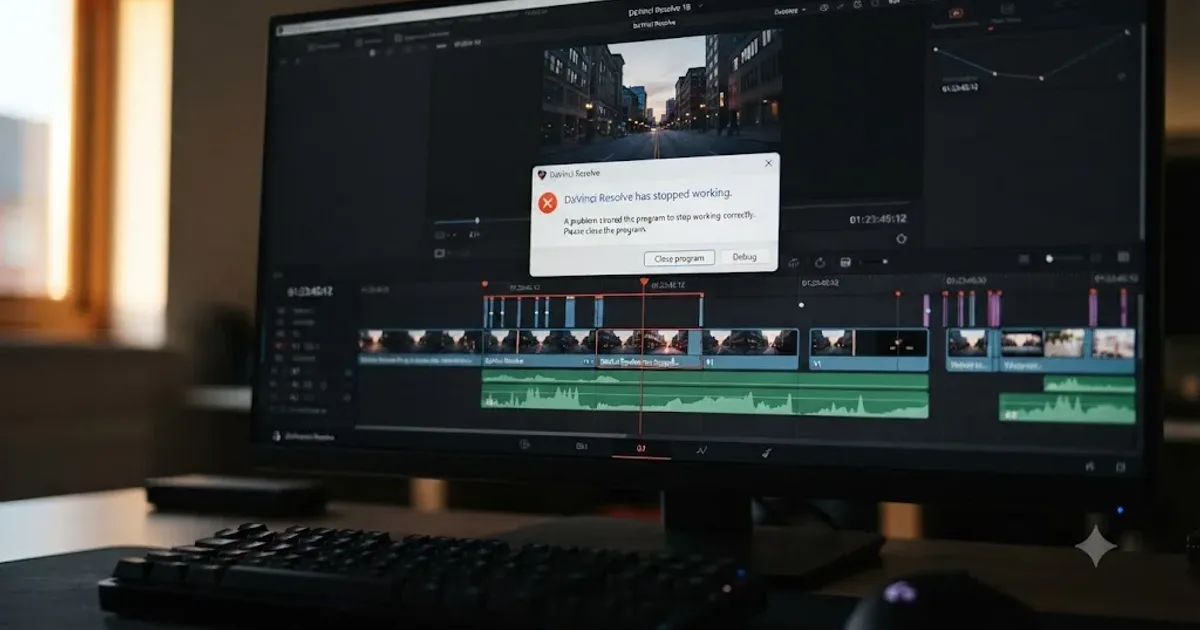
Fixes · Jul 7, 2026 · 24 min
Why Does DaVinci Resolve Keep Crashing? The Real Fixes
DaVinci Resolve keeps crashing for a few real reasons: GPU drivers, VRAM limits, a corrupted cache, or a damaged project. Here's the fix, in order.
Guides · Jul 13, 2026 · 18 min
DaVinci Resolve Render Cache Explained: Smart vs. User Mode
How DaVinci Resolve's render cache works, and how Smart mode differs from User mode: cache formats, disk space, per-clip flags, and when to use each.
Fixes · Jul 7, 2026 · 25 min
DaVinci Resolve GPU Memory Is Full: Every Real Fix
Why DaVinci Resolve throws 'GPU memory is full,' and which fixes actually work: timeline resolution, drivers, effects, and how much VRAM you need.